Recently, I was asked to cut down the cost of hosting an ASP .NET Core website on Azure. The website is originally hosted on Azure Web App so there is a fixed cost to it that we need to pay per month. Hence, the first solution that comes to my mind is to move it from Web App to Function because the website is a static website and it is not expecting large group of visitors in any given point of time.
So why do I choose to use Azure Function? Unlike the Web Apps, Functions provide the Consumption Plan where instances of the Functions host are dynamically added and removed based on the number of incoming events. This serverless plan scales automatically, and we are billed only when the Functions are running. Hence, when we switch to use Azure Function to serve the static website with the Consumption Plan, we will be able to save significantly.
Serve Static Content with Azure Function
How do we serve static website with Azure Functions?
There are many online tutorials about this but none of them that I found are based on the latest Azure Portal GUI in 2020. So hopefully my article here will help people out there who are using the latest Azure Portal.
The following screenshot shows the setup of my Azure Function.
[Image Caption: Azure Function with .NET Core 3.1.]
After that, we will create a HTTP triggered function in the Azure Function.
Then for the Function itself, we can add the following code in run.csx.
using Microsoft.AspNetCore.Mvc;

public static async Task<IActionResult> Run(HttpRequest req, ILogger log){

    string pathValue = req.Path.Value;

    ...

    return new FileStreamResult(
        File.OpenRead(
            @"d:\home\site\wwwroot\web-itself\website\index.html"),
            "text/html; charset=UTF-8");
}
The pathValue helps the Function to be able to serve different web pages based on different value in the URL path. For example, /page1 will load page1.html and /page2 will load page2.html.
If the Function you build is only to serve a single HTML file, then you can just directly return the FileStreamResult without relying on the pathValue.
Configure the Route Template
To have the pathValue working as expected, we first need to configure the route template of the Function. To do so, we can head to the Integration tab of the Function, as shown in the screenshot below.
[Image Caption: Editing the Route Template.]
For the Route Template, we set it to be “web-itself/{page?}” because web-itself is the name of our Function in this case. The question mark in the “{page?}” means that the page is an optional argument in the URL.
So why do we have to include the Function name “web-itself” in the Route Template? The values, according to the documentation, should be a relative path. Since, by default, the Function URL is “xxx.azurewebsites.net/api/web-itself”, so the relative path needs to start from “web-itself”.
Also, since this is going to be an URL of our website, we can change the authorisation level to be “Anonymous” and set GET as the only accepted HTTP method.
Upload the Static Files
So where do we upload the static files to? As the code above shows, the file actually sit in the d:\home\site\wwwroot. How do we upload the static files to this directory?
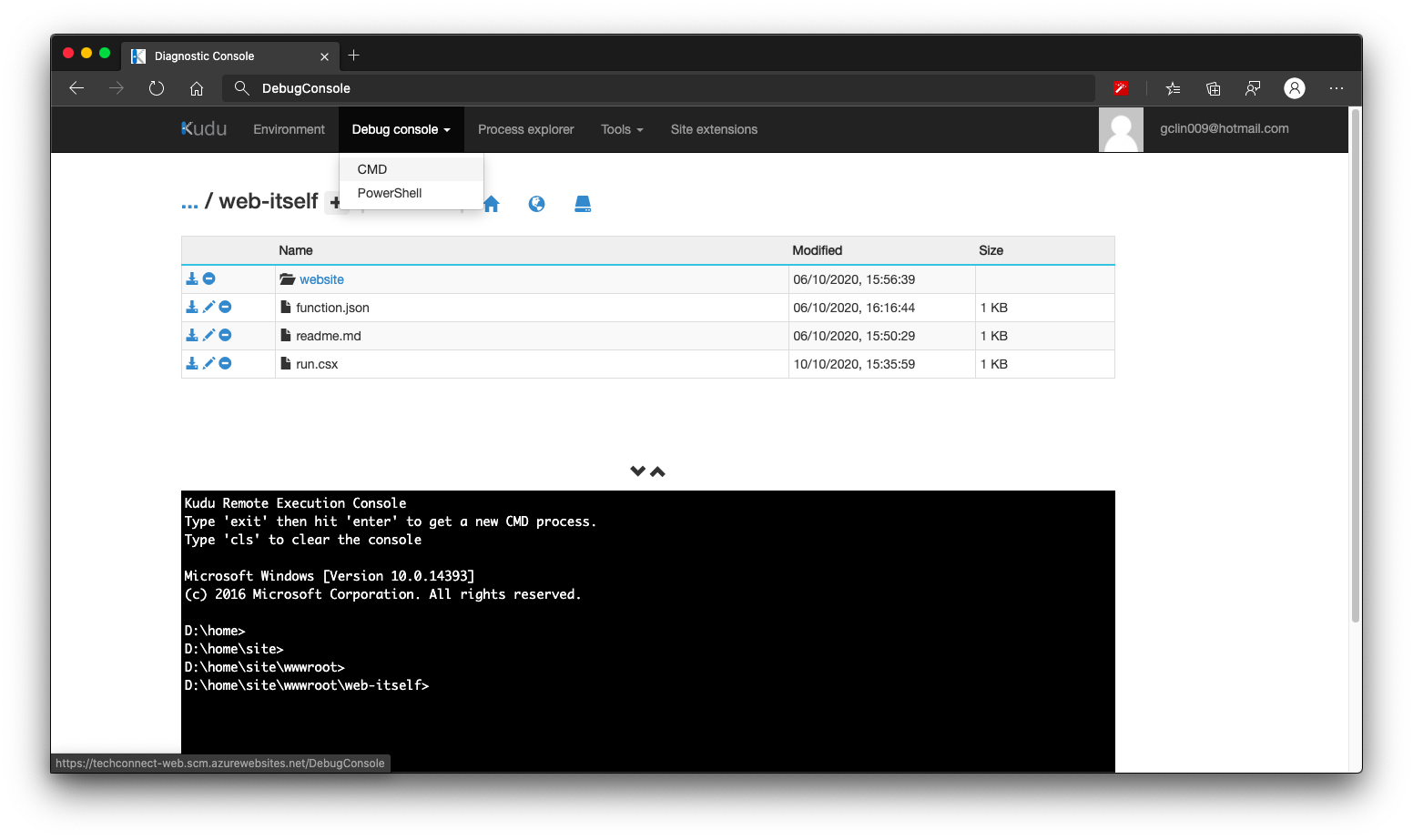
We need to head to the Kudu console of the Azure Function, and click on the CMD menu item, as shown below. By the way, Kudu console can be found under Development Tools > Advanced Tools > Go of the Azure Function on the Portal.
[Image Caption: Kudu console of the Azure Function.]
We then navigate to the folder which keeps the run.csx of the Function (which is web-itself in my case here). Then we can create a folder called website, for example, to host our static content. What we need to do after this is just uploading the HTML files to this website folder.
Handle JavaScript, CSS, and Other Static Files
How about other static files such as JavaScript, CSS, and images?
Yes, we can use the same way above to serve these files. However, that might be too troublesome because each of them has different MIME Type we need to specify.
So another way of doing that is to store all these files on Azure Storage. So the links in the HTML will be absolute URLs to the files on the Azure Storage.
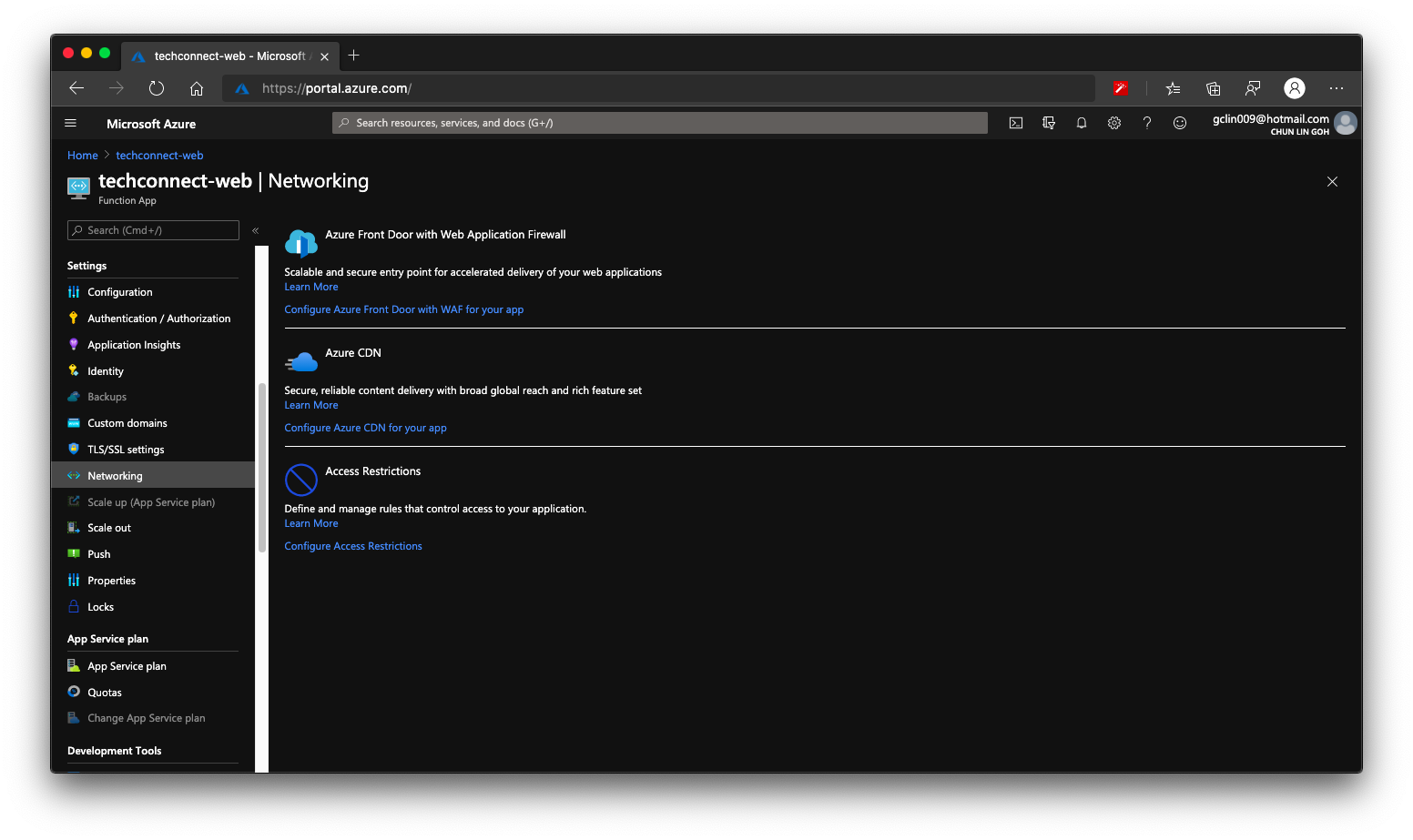
Finally we can enable Azure CDN for our Azure Function. So that if next time we need to move back to host our web pages on Azure Web App or even Azure Storage, we don’t have to change our CNAME again.
[Image Caption: Both Azure CDN and Azure Front Door is available in Azure Functions.]
In the August meetup of Azure Community Singapore (ACS), Dileepa Rajapaksa shared with us approaches that we could take to modernise our apps with FaaS (Function as a Service) in Azure where he talked about Azure Functions. After his talk, I decided to share how we could use the knowledge of serverless as well as CDN to help improving our website performance.
The website that we are going to work on today is called TechConnect. It’s a website showing the work done by four of my friends and myself, including our blog posts and YouTube videos. It currently consists of three pages:
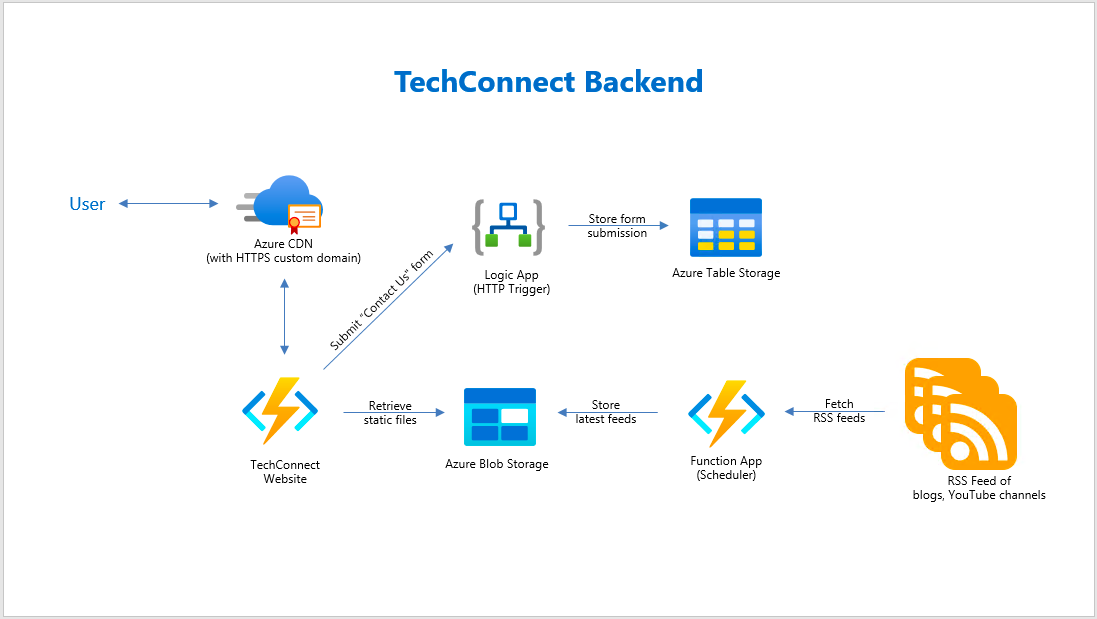
In the Articles page, we will list down the most recent blog posts written by all of us. WordPress, Dev.to, and Medium are the three main blog platforms that five of us use. Hence, in order to retrieve the blog posts from these different platforms, we choose to rely on their RSS feed which is available in all the platforms we use.
However, the RSS feed schema varies across different blog platforms. Hence, we have a simple C# program to process the RSS feed and store them as JSON array into a JSON file on Azure Storage. For example, when we are reading the RSS feed from a WordPress blog, we will have the following code to handle its blog post entries.
XNamespace media = "http://search.yahoo.com/mrss/";

var items = xDoc.Descendants("item")
            .Select(i => new BlogFeed {
                Id = i.Element("link").Value,
                Author = blogAuthor,
                Title = i.Element("title").Value,
                ThumbnailUrl = i.Descendants(media + "content").Where(img => !img.Attribute("url").Value.Contains("gravatar.com")).FirstOrDefault()?.Attribute("url").Value,
                Description = i.Element("description").Value,
                PublishedAt = DateTimeOffset.ParseExact(i.Element("pubDate").Value.Replace("GMT", "+00:00"), "ddd, dd MMM yyyy HH:mm:ss zzz", CultureInfo.InvariantCulture)
            })
            .ToList();
Now, where should we put this code at? We can put it in the website project so that every visit to the Articles page will read the feeds from different blogs and do the aggregation. This works fine but it’s going to take a long time to load the web page. For every visit, the web server needs to make several calls over the network to different blog posts to retrieve the RSS feed and then process it before displaying the blog posts on the Articles page.
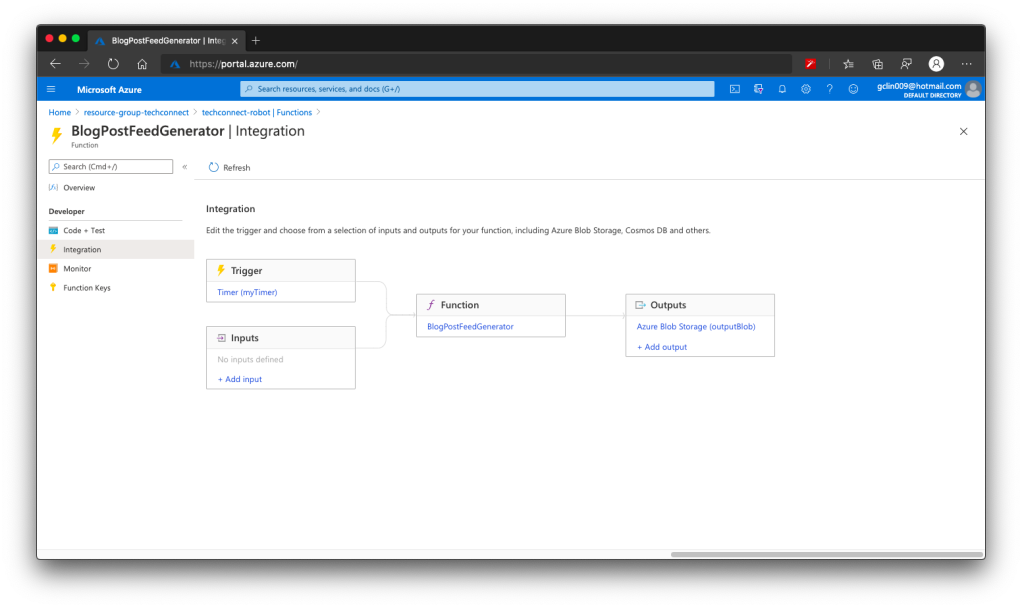
The way we choose is to use Azure Function to retrieve the RSS feed from all the blogs we have in a scheduled manner. We don’t update our blogs frequently, the blogs are at most updated two to three times per day. Hence, we use the time-triggered Azure Function with a call frequency of 6 hours to run the codes above. After each call, the Azure Function will store the info of the latest blog posts into a JSON file and upload it to Azure Storage.
🎨 The workflow of the Azure Function to generate feeds of latest blog posts. 🎨
It’s the same for YouTube videos feed in the Videos page. We can also process the RSS feed from our YouTube channels to retrieve the latest videos information using the codes below.
Since we also don’t publish new videos frequently in a day, we have Azure Function to process the YouTube RSS feeds with the codes above and store the information of our latest videos into a JSON file on Azure Storage.
Azure CDN
There is an advantage of storing the latest blog posts and videos information on Azure Storage, i.e. introducing the Azure CDN (Content Delivery Network). Azure CDN is a global CDN solution for delivering content from the closest POP server and thus accelerate the content delivery of a website.
With Azure CDN, we can cache static objects loaded from the Azure Storage as well.
🎨 PageSpeed Insights for the homepage of TechConnect. 🎨
Azure CDN Standard from Microsoft and Akamai
There are three companies offering CDN service in Azure, i.e. Microsoft, Akamai, and Verizon. So far I have only tried out the Azure CDN Standard from Microsoft and Akamai. Eventually the product that I use for TechConnect is Azure CDN Standard from Microsoft.
Why? This is because out of the three companies, Microsoft is the only one providing features that allow me to easily perform the following operations.
Performing URL Rewrite/Redirect;
Updating Cache Header/Settings;
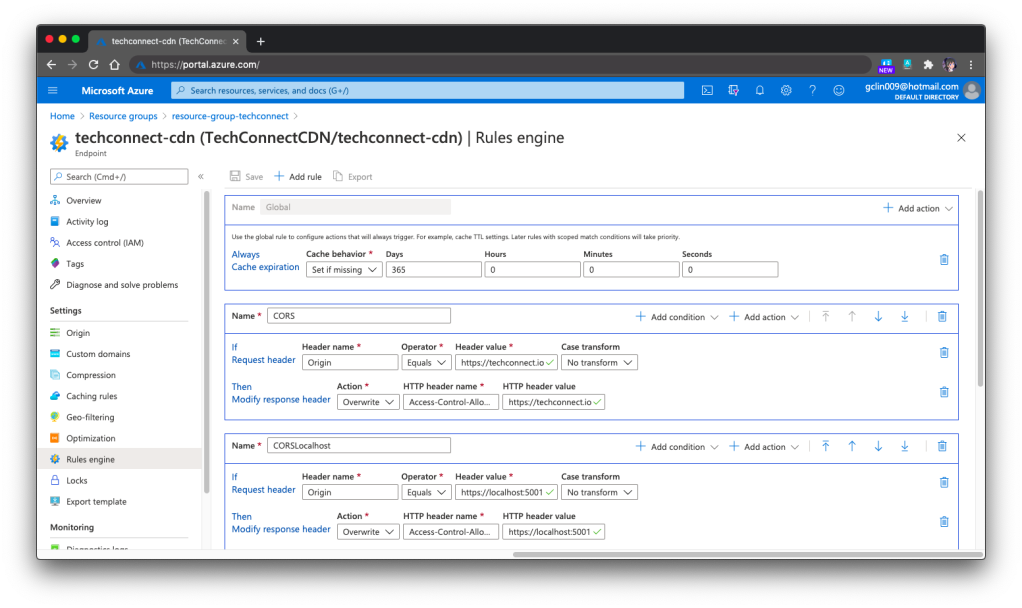
Customising rule-based content delivery.
🎨 Configuring cache expiration and CORS (for production and localhost) in Rules Engine of the Azure CDN Standard from Microsoft. 🎨
These features are currently only available in Azure CDN Standard from Microsoft, but not from Akamai and Verizon. However, if you are willing to pay more to upgrade Azure CDN Standard from Verizon to its Premium edition, then you still can enjoy the features above.
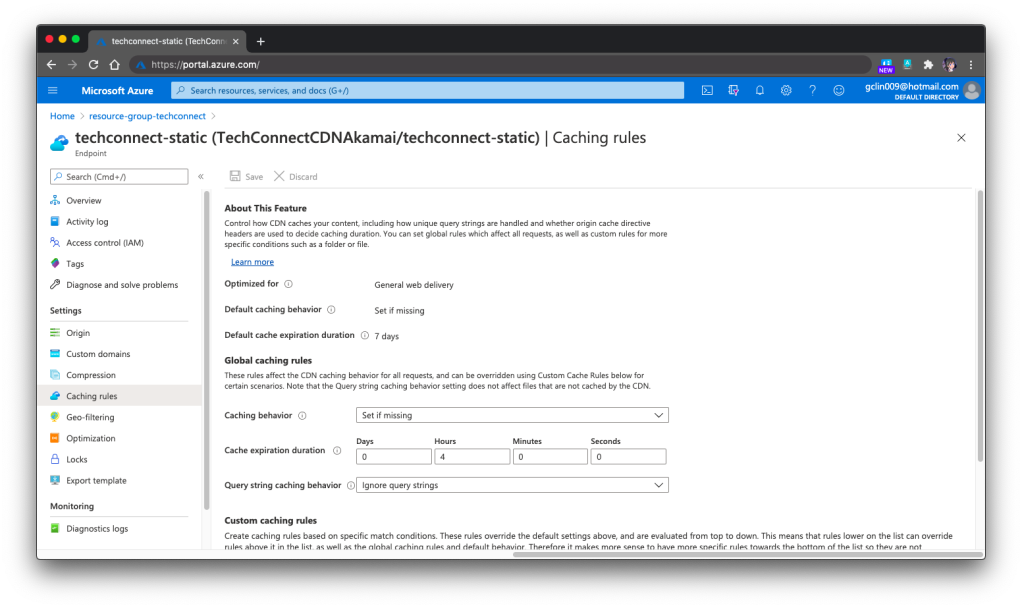
In the previous screenshot, you will notice that there is this Global Rule on top of other rules. The cache expiration is being set there. However, for the Akamai version, we need to set the cache expiration differently under Caching Rules, as shown in the following screenshot.
🎨 Global caching rules settings in Azure CDN Standard from Akamai. 🎨
In the Akamai version, we can set the Custom Caching Rules as well, as shown above. For the Microsoft version, we can do that as well under its rule-based engine.
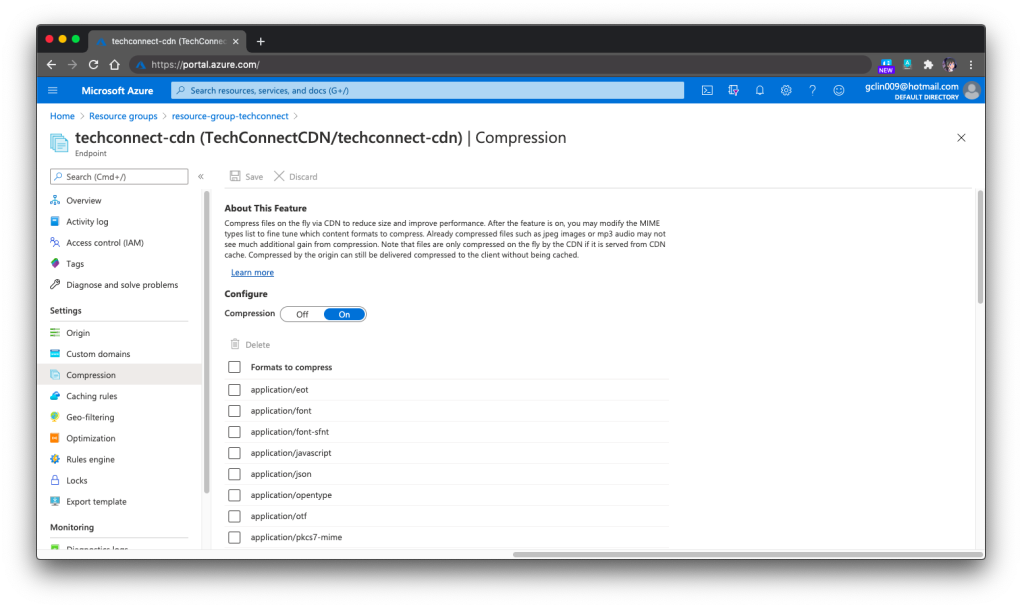
One last important feature that I would like to share is specifying the files that need to be compressed on the fly via Azure CDN so that the performance can be improved. This compression feature is the same in both Microsoft and Akamai versions.
🎨 Compression of files via Azure CDN. 🎨
Azure CDN with Custom Domain and HTTPS
Besides static content, we can also integrate our Azure Web App with Azure CDN. Under the Networking section of a web app, we are able to configure Azure CDN for our web app directly.
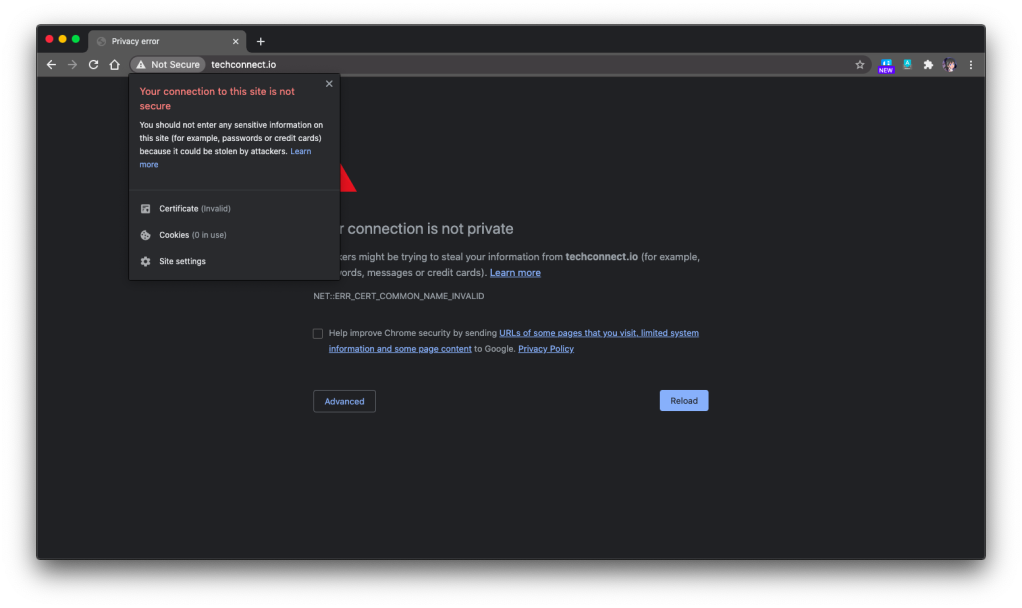
However, there is one important thing to take note if you have a custom domain for the web app and it needs to be HTTPS. Marvin, Eng Teong, and I were trying to set it up with the free SSL cert from SSL For Free, the free cert just did not work with the Azure CDN, as shown in the following screenshot. So far we still have no idea why. If you happen to know the reason, please let me know. Thank you!
🎨 Insecured connection to the website via Azure CDN. 🎨
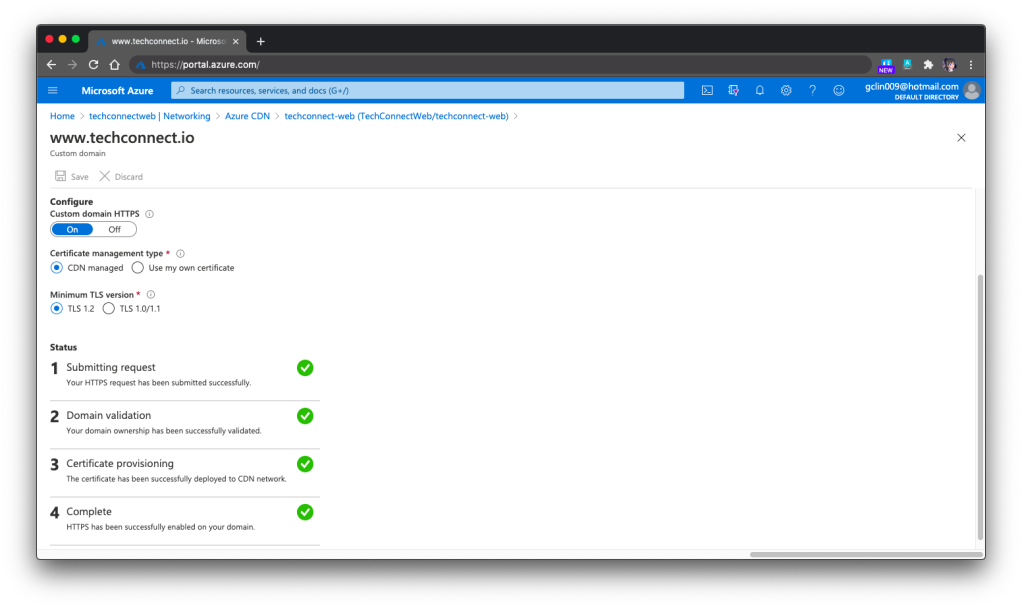
For https://www.techconnect.io, we successfully setup the HTTPS for Azure CDN of TechConnect using the CDN-managed certificates. Hence, currently visitors have to visit the website through https://www.techconnect.io.
🎨 Successfully setup HTTPS for our custom domain with www. 🎨
One more thing that we need to take note of is that if we choose to bring our own certificates for Azure CDN, that those certificates must be stored in Azure Key Vault first.
However, after storing the certificates in the Key Vault, we also need to remember to setup the right permissions for the Azure CDN to access those certificates in the Key Vault. To do so, we need to run the following command in Azure CLI or Azure Cloud Shell to create a new Azure Service Principal for that purpose.
This command is normally available in the HTTPS setup page of the Azure CLI. So simply have your administrator of the directory to run the command above will be fine.
Here, I’d also like to thank Eng Teong for helping me in this step.
Simple Contact Us Form with Logic App
For the Contact Us form on the TechConnect homepage, it’s a perfect example of small little things that is crucial in a system but can be solved with easy solution. Of course, we can use some ready-made solutions available in the market to help us manage the Contact Us form. However, that means we rely on 3rd party services and our data most likely will not be with us.
So, if you are looking for a simpler solution, I’d like to recommend you to give Azure Logic Apps a try.
Here, I will not go through the details about Logic App and steps on how to set it up. There are plenty of tutorials about this online. Instead, I will share with you our design of Logic App for the Contact Us form on TechConnect.
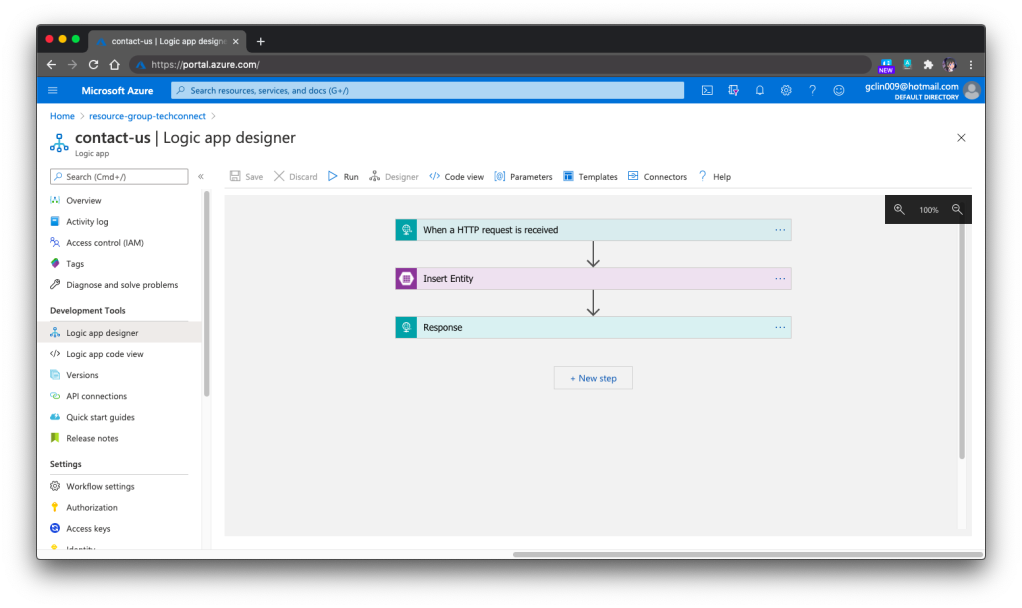
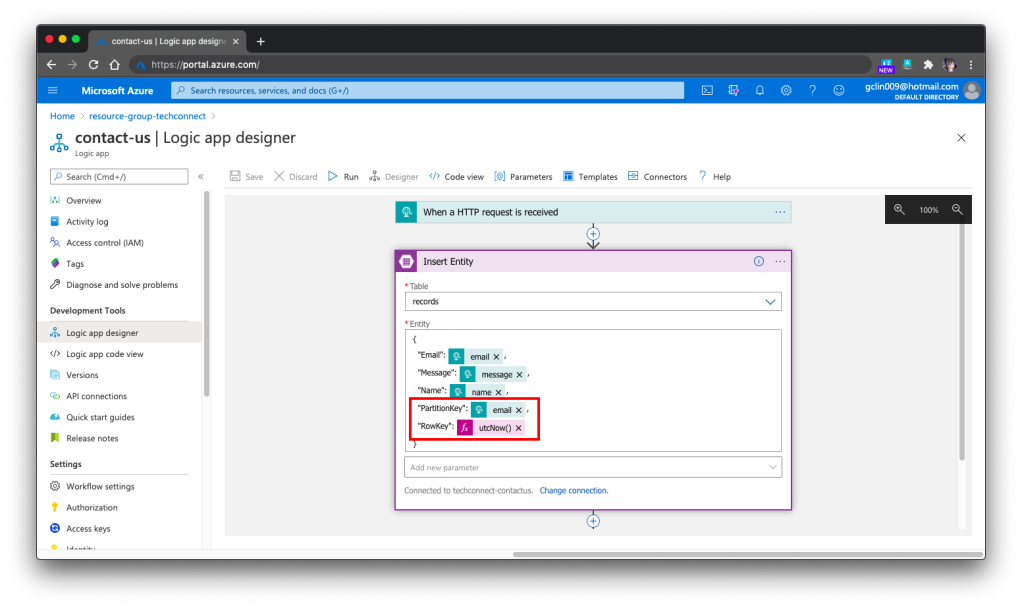
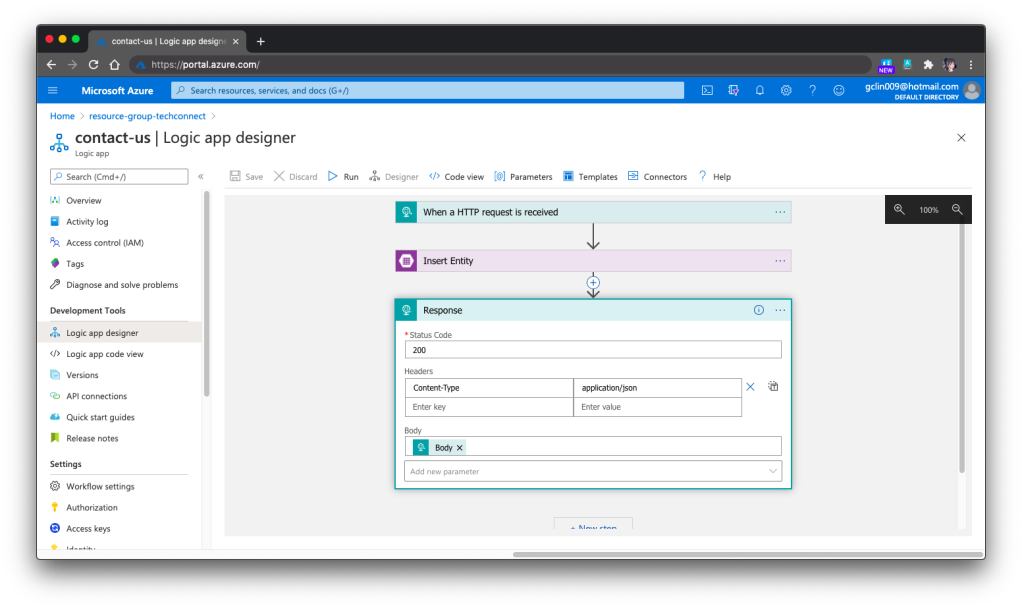
Our Logic App is HTTP triggered. Once it receives a POST request, it will validate the request body against the schema provided. If the request is valid, it will proceed to insert the form submission to the Azure Table Storage, a NoSQL key-value store. Finally, it will return a HTTP 200 back.
🎨 The overall design of our Logic App for TechConnect Contact Us form. 🎨
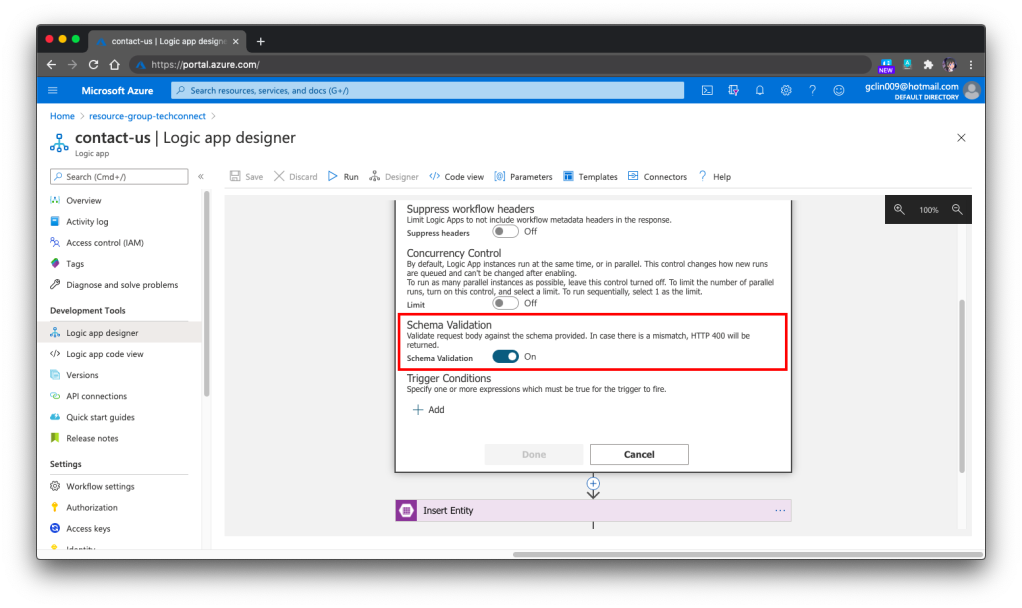
Just now we mention about schema validation for the HTTP request body but how to do so? It turns out that it’s pretty straightforward, just need to turn on the feature in the Settings of the 1st Step, as shown in the following screenshot.
🎨 Turned on the Schema Validation for HTTP requests. 🎨
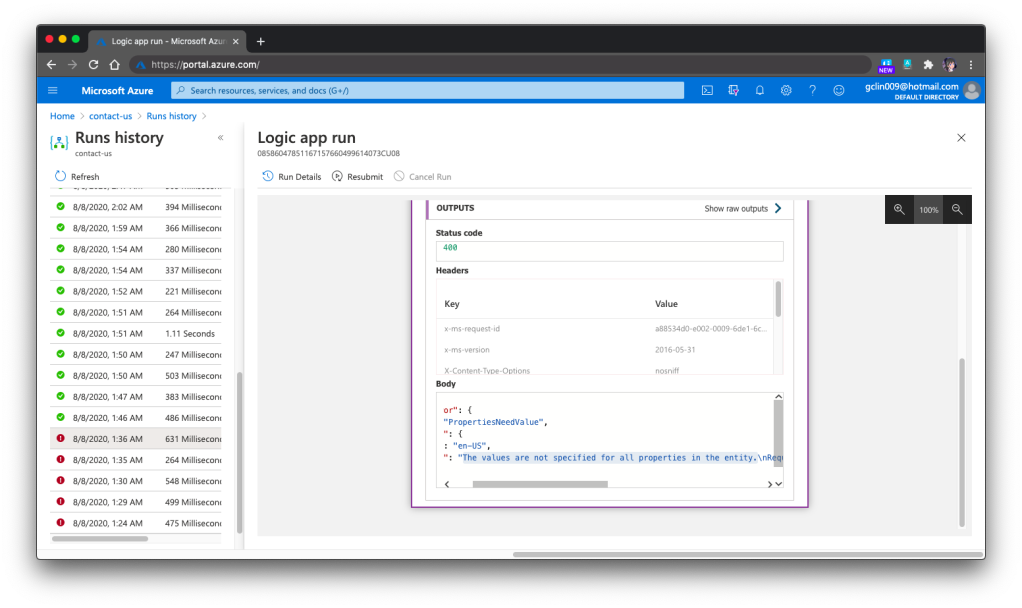
Finally, we need to talk a bit about how to debug the Logic Apps. One the Azure Portal, there is a very helpful tool for debugging and tracing purposes. The tool is called the Runs History which is available right in the Logic App Overview page. You can refer to the official Microsoft Docs for more details about it.
🎨 Run History and the message on why the selected Run failed. 🎨
For example, when we omitted the PartitionKey and RowKey in the Step 2, we would see Step 3 is not executed in the Run History and it stopped at the Step 2. Then the detail error message will be available there to give us more info, as shown in the screenshot above.
Conclusion
That’s all for the weekend project that I did with the help from my friends, Marvin and Eng Teong.
Lastly, please visit our TechConnect website and say hi to us! =D
In the previous article, we talked about how to generate realistic but not real patient data using Synthea(TM) and then also how to store them securely in Azure Storage.
Setup Azure API for FHIR®
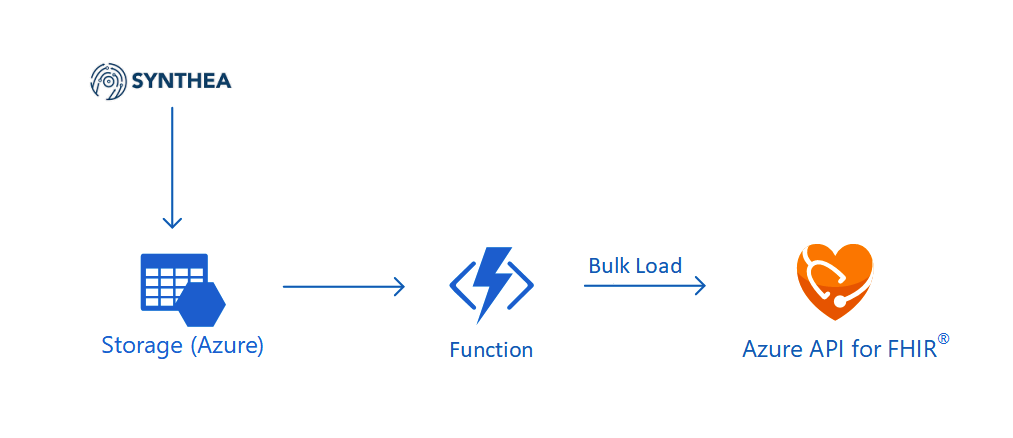
Today, we will continue the journey. The first step we need to do is to setup the Azure API for FHIR®.
🎨 The architecture of the system we are going to setup in this article. 🎨
The Azure API for FHIR® is a managed, standards-based, and healthcare data platform available on Azure. It enables organisations to bring their clinical health data into the cloud based on the interoperable data standard FHIR®. The reason why we choose to use it is because security and privacy features are embedded into the service. As customers, we own and control the patient data, knowing how it is stored and accessed. Hence, it’s a PaaS that enables us build healthcare data solution easily.
When we are setting up the Azure API for FHIR®, we need to specify the version of FHIR® we are going to use. Currently there are only four milestone releases of FHIR®. The latest version, R4, was released in December 2018. On Azure, we can only choose either R4 or STU3 (which is the third release). We will go for R4.
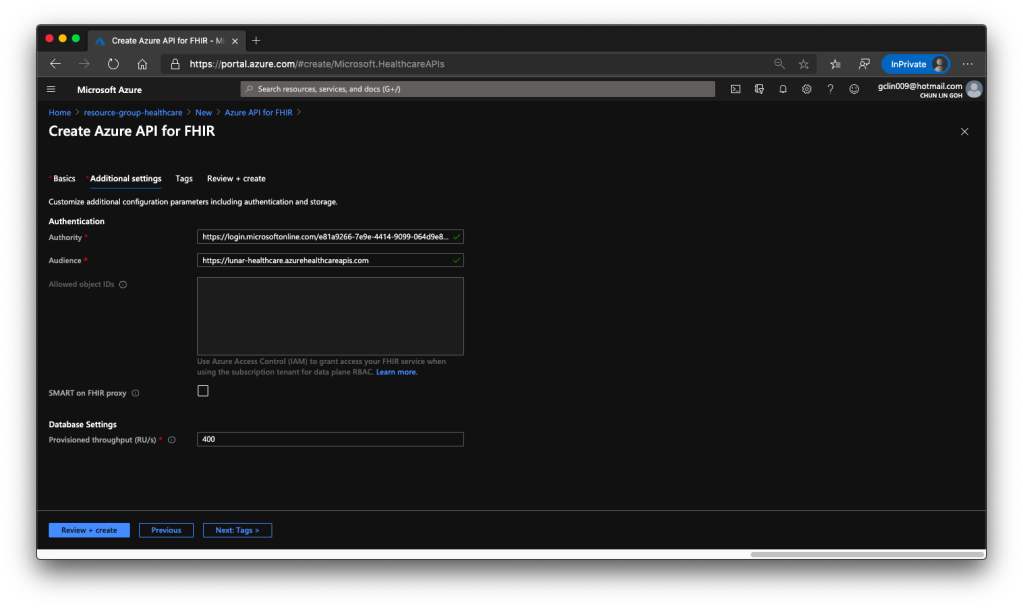
🎨 Default values of authentication and database settings when we’re creating the API. 🎨
For the Authentication of the API service, we will be using Azure Access Control (IAM) which is the default option. Hence, we will use the Authority and Audience default values.
When we are setting up this API service, we also need to specify the throughput of the database which will be used to store the imported patient data later.
After we click on the button to create the API service, it will take about 5 minutes to successfully deploy it on Azure.
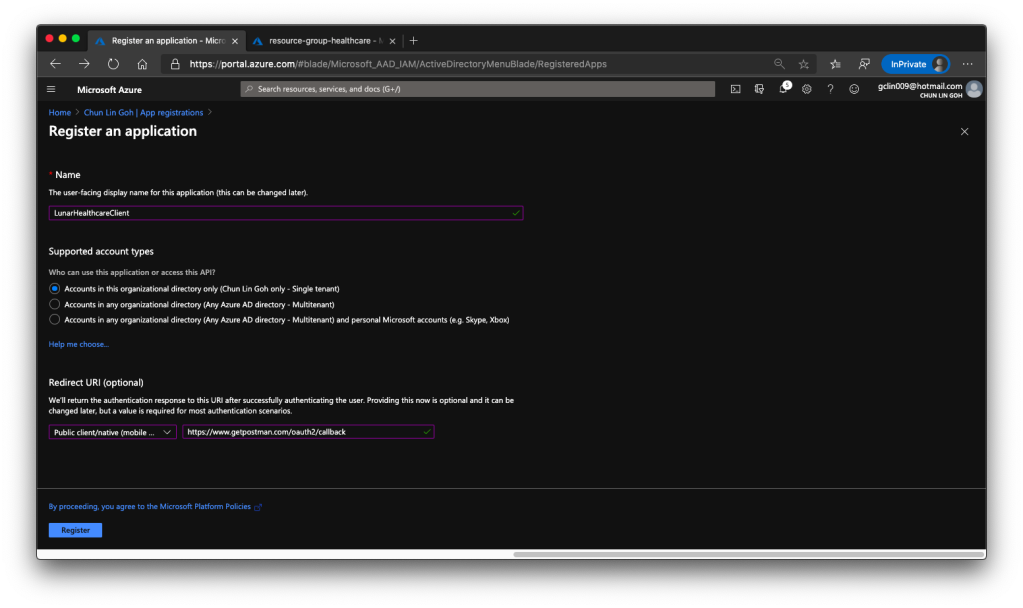
The following screenshot shows how we register the client application with a redirect URI pointing to https://www.getpostman.com/oauth2/callback which will help us to test the connectivity via Postman later.
🎨 Registering a client application. 🎨
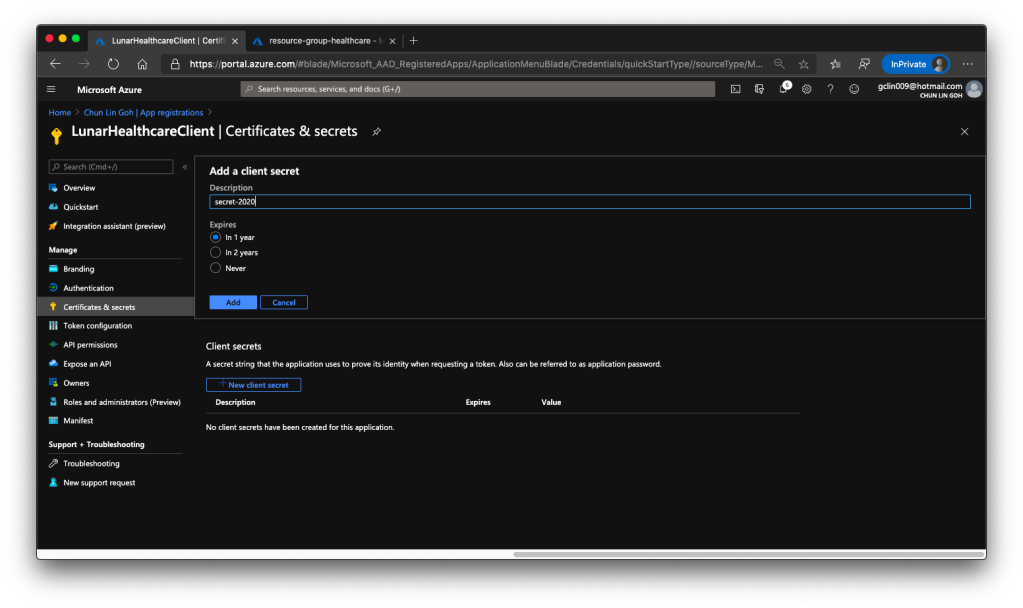
Once the client application is created we need to proceed to create a client secret, as shown in the following screenshot, so that later we can use it to request a token.
🎨 Creating a client secret which will expire one year later. 🎨
Then we have to allow this client application to access our Azure API for FHIR®. There are two things we need to do.
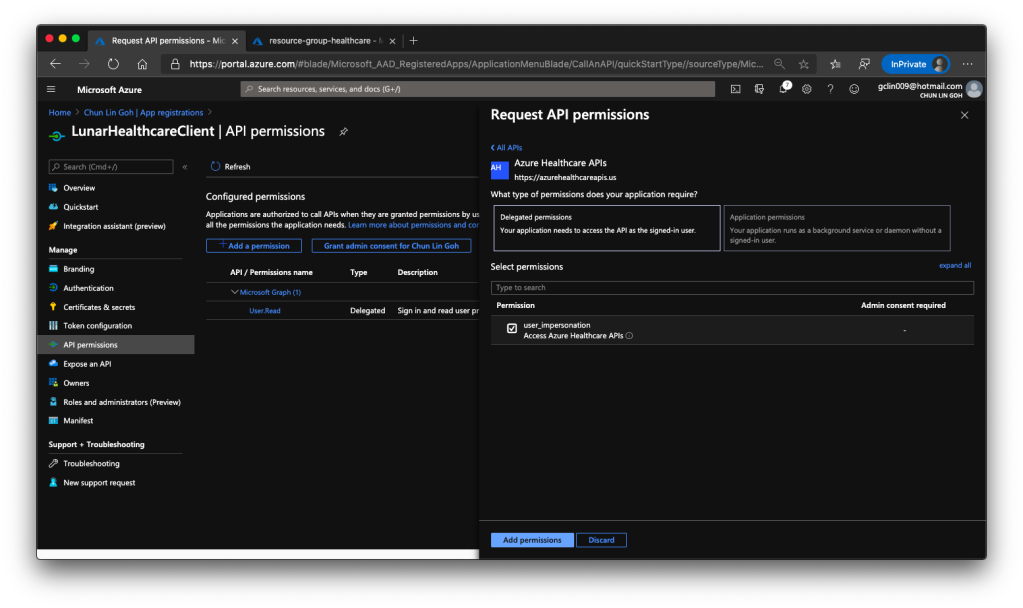
Firstly, we need to grant the client application a permission called user_impersonation from the Azure Healthcare APIs, as shown in the screenshot below.
🎨 Granting API permissions. 🎨
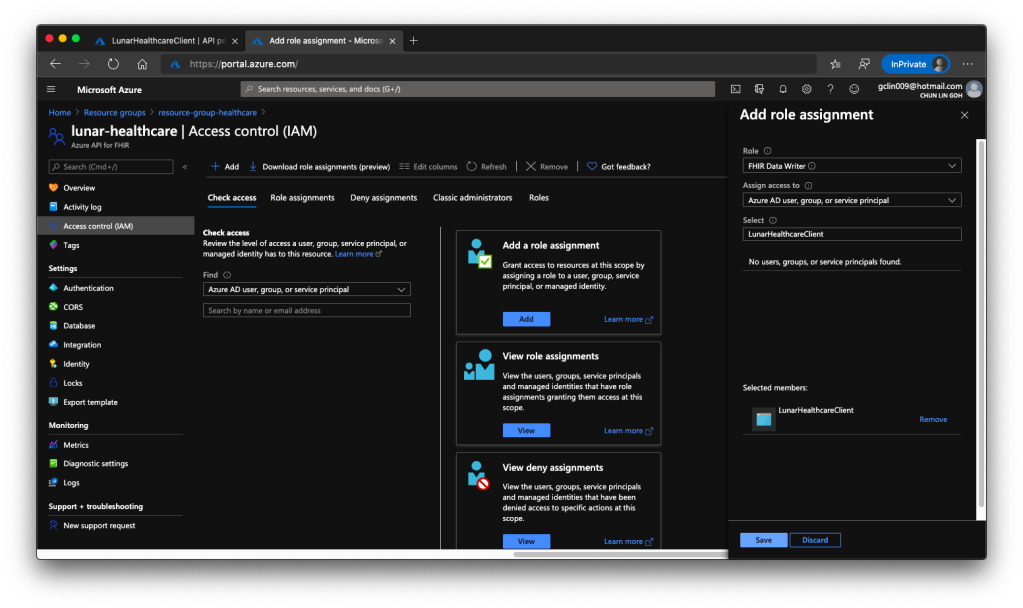
Secondly, we need to head back to our Azure API for FHIR® to enable this client application to access it, as shown in the following screenshot.
🎨 Adding the client application to have the role FHIR® Data Writer. 🎨
The reason we choose only “FHIR Data Writer” role is because this roles enable both read and write access to the API. Once the role is successfully added, we shall see something similar as shown in the screenshot below.
🎨 The client application can now read and write FHIR® data. 🎨
Test the API with Postman
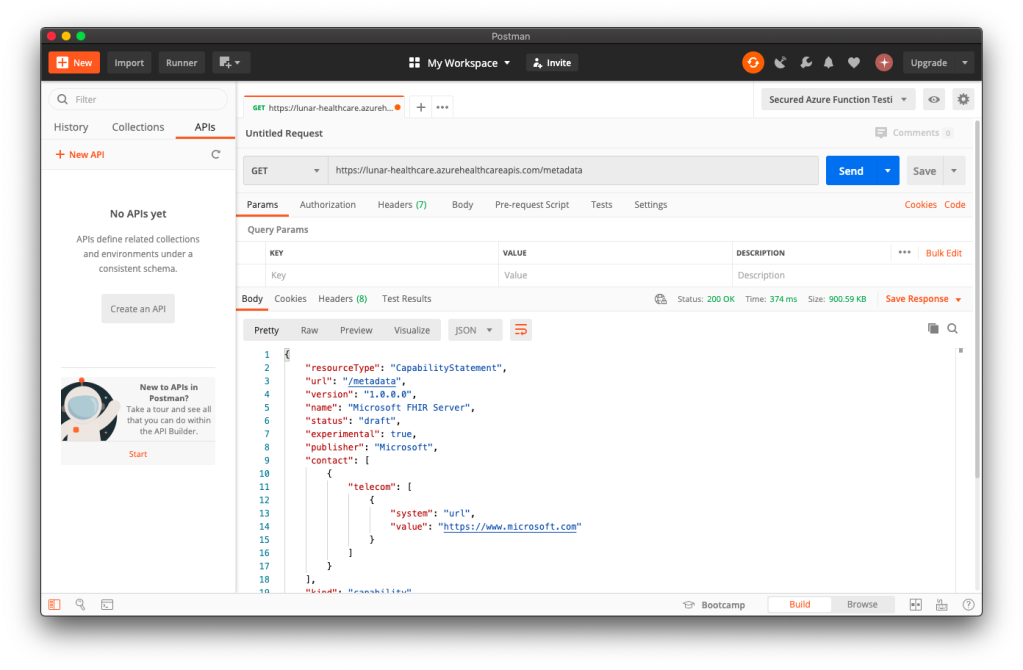
To make sure our Azure API for FHIR® is running well, we can visit its metadata link without any authentication. If it is running smoothly, we shall see something as shown in the following screenshot.
🎨 Yay, our Azure API for FHIR® is running! 🎨
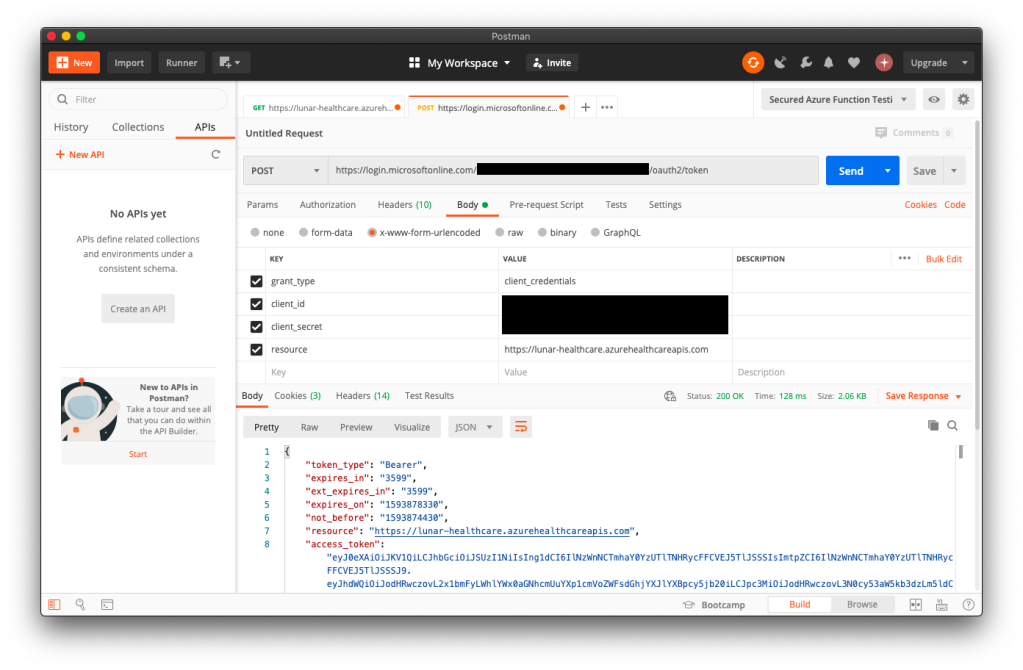
To access the patient data, we need to authenticate ourselves. In order to do so, we first need to get an access token from the client application in Azure Active Directory. We do so by making a POST request to the following URL https://login.microsoftonline.com/<tenant-id>/oauth2/token.
As shown in the following screenshot, the Tenant ID (and also Client ID) can be found at the Overview page of the client application. The resource is basically the URL of the Azure API for FHIR®.
🎨 Successfully retrieved the access_token! 🎨
Once we have the access token, we then can access the Patient endpoint, as shown in the following screenshot.
🎨 Michael Hansen on Azure Friday with Scott Hanselman to talk about Azure API for FHIR®. (Source: YouTube) 🎨
Import Data from Azure Storage
Now that we have the realistic but real patient data in the Azure Storage and we have the Azure API for FHIR® with a SQL database. So the next step that we need to do is pump the data into the SQL database so that other clients can consume the data through the Azure API for FHIR®. In order to do so, we will need a data importer.
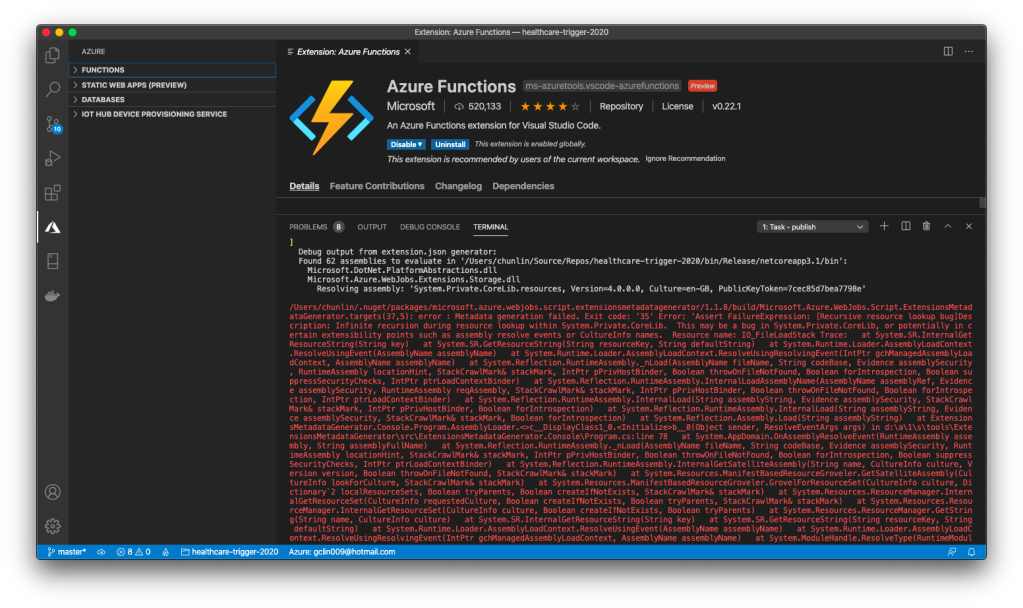
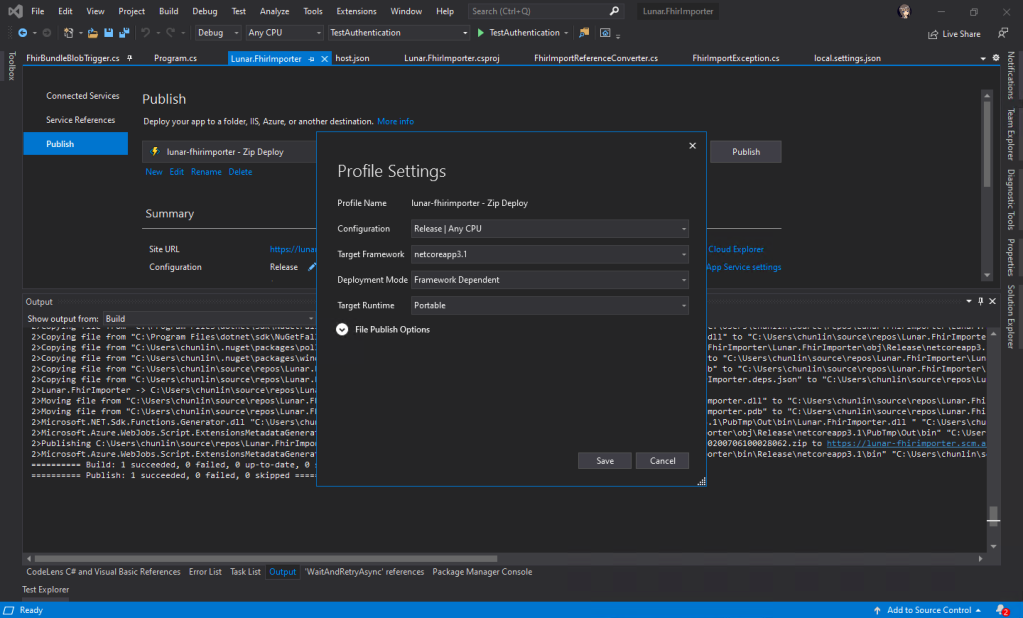
Firstly, we will create an Azure Function which will do the data import. There is an official sample on how to write this Function. I didn’t really follow the deployment steps given in the README of the project. Instead, I created a new Azure Function project in the Visual Studio and published it to the Azure. Interestingly, if I use VS Code, the deployment will fail.
🎨 I could not publish Azure Function from local to the cloud via VS Code. 🎨
In Visual Studio, we will be creating a C# function which will run whenever a new patient data is uploaded to the container. Then the same function will remove the patient data from the Azure Storage once the data is fully updated.
🎨 Publish successful on Visual Studio 2019. 🎨
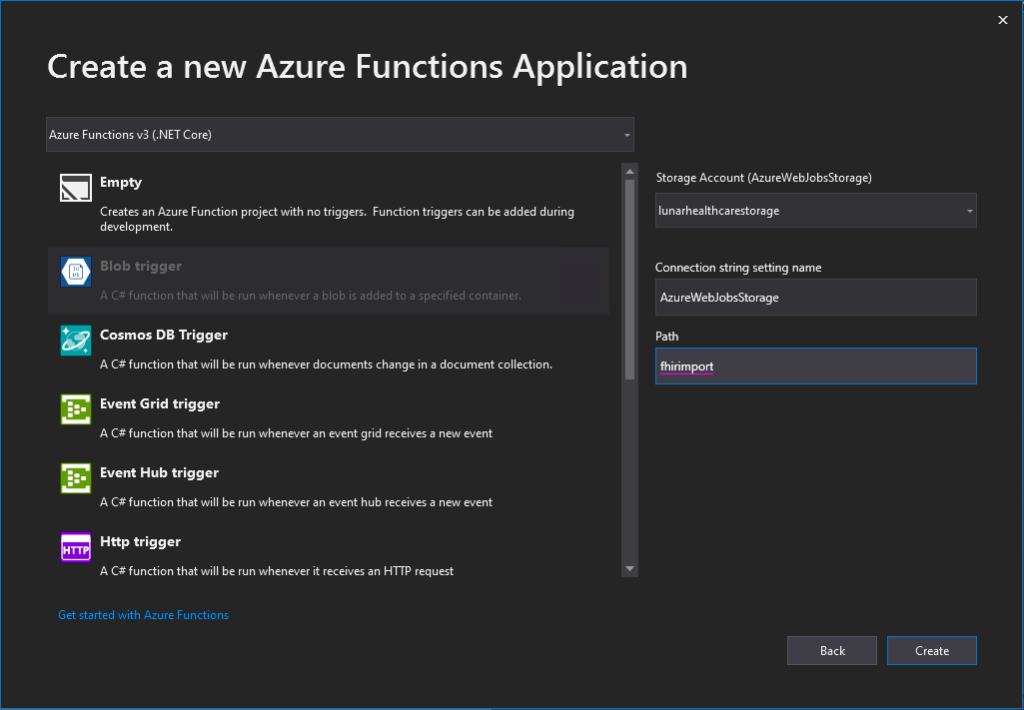
When we are creating a new Azure Function project on Visual Studio, for the convenience later, it’s better we use back the Azure Storage that we use for storing the realistic but not real patient data for our Azure Function app storage as well, as shown in the following screenshot. Thus, the Connection Setting Name will be AzureWebJobsStorage and the Path will point to the container storing our patient data (I recreated the container from syntheadata used in previous article to fhirimport in this article).
🎨 Creating new Azure Functions application. 🎨
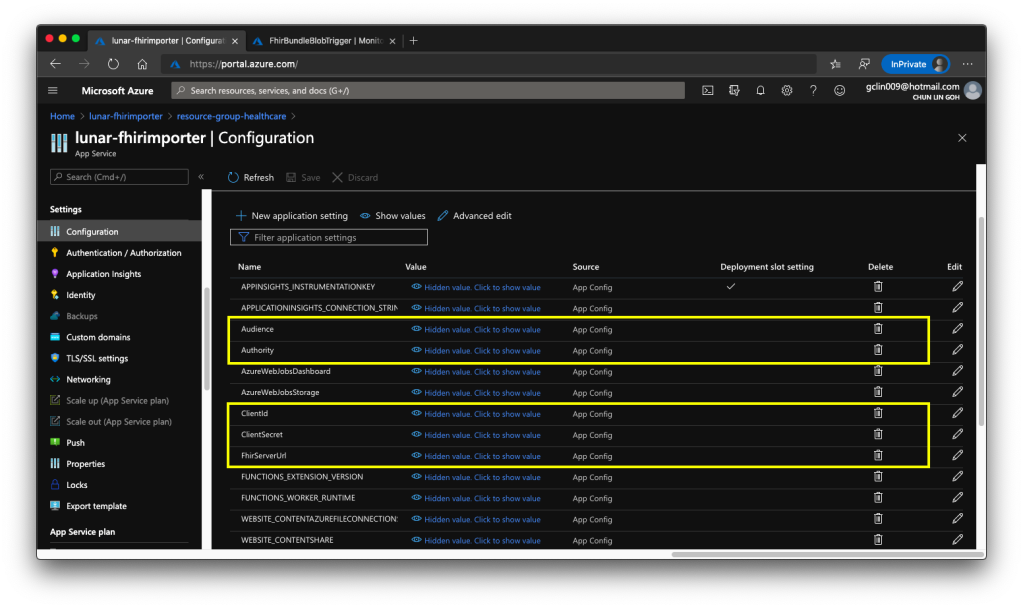
After the deployment is successful, we need to add the following application settings to the Azure Function.
Audience: <found in Authentication of Azure API for FHIR®>
Authority: <found in Authentication of Azure API for FHIR®>
ClientId: <found in the Overview of the Client App registered>
ClientSecret: <found in the Certificates & secrets of the Client App>
FhirServerUrl: <found in the Overview of Azure API for FHIR®>
🎨 We need to add these five application settings correctly. 🎨
After that, in order to help us diagnose problems happening in each data import, it’s recommended to integrate Application Insights to our Azure Function. After that, we can use ILogger to log information, warnings, or errors in our Azure Function, for example
log.LogWarning($"Request failed for {resource_type} (id: {id}) with {result.Result.StatusCode}.");
Then with Application Insights, we can easily get the log information from the Azure Function in its Monitor section.
🎨 Invocation details of the Azure Function. 🎨
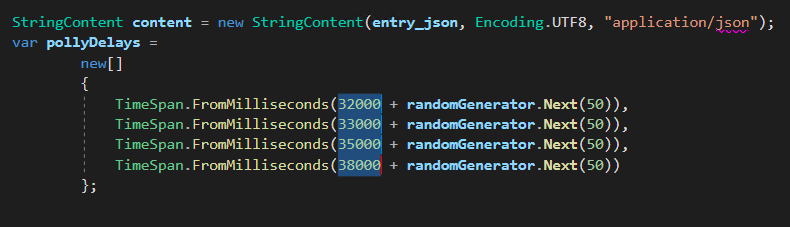
From the official sample code, I made a small change to the waiting time between each try of the request to the Azure API for FHIR®, as shown in the following screenshot.
In the FhirBundleBlobTrigger.cs, I increased the waiting time to have extra 30 seconds because the original waiting time is short that sometimes the data import will fail.
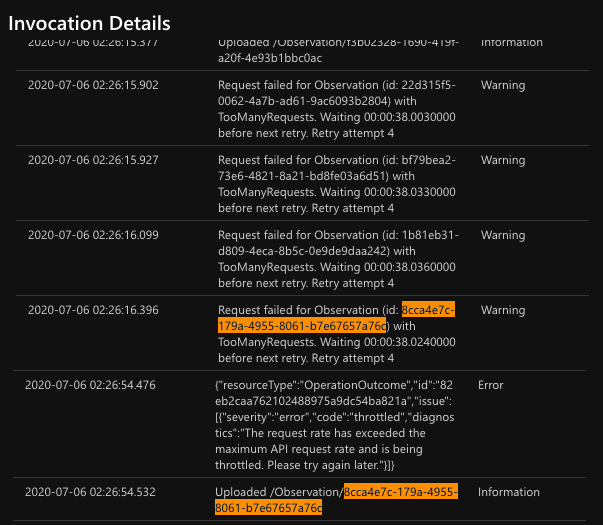
In the following screenshot, the Observation data can only be uploaded after 5 attempts. In the mean time, our request rate has exceeded the maximum API request rate and thus has been throttled too. So we cannot make calls to Azure API for FHIR® too frequent.
🎨 Five attempts with the same request with throttling happens. 🎨
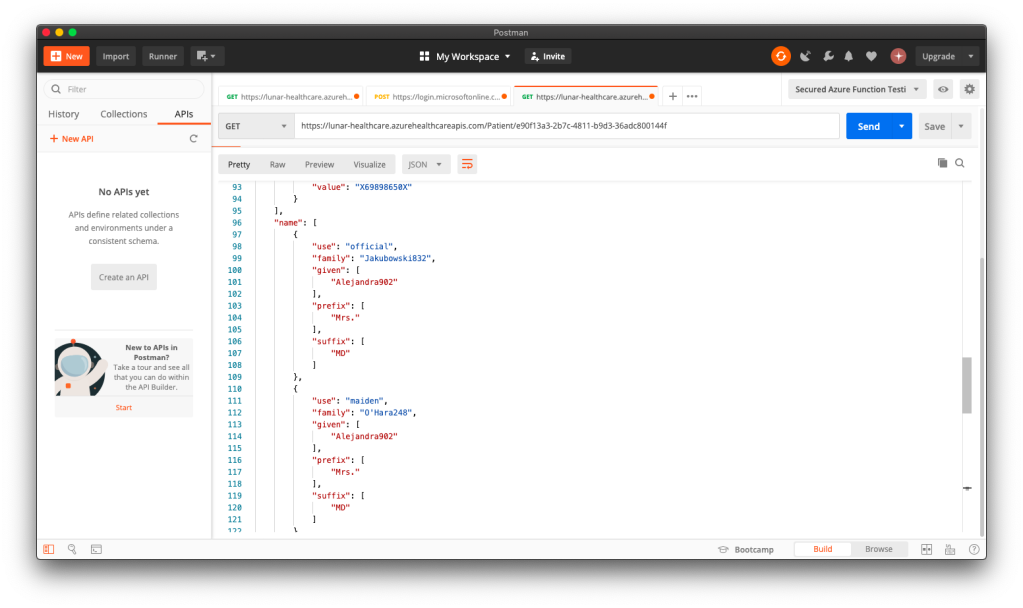
Now, when we make a GET request to the Patient endpoint of Azure API for FHIR® with a certain ID, we will be able to get the corresponding patient data back on Postman.
🎨 Successfully retrieved the patient data from the API service. 🎨
Yup, so at this stage, we have successfully imported data generated by Synthea(TM) to the Azure API for FHIR® database.
Almost two years ago, I was hospitalised in Malaysia for nearly two weeks. After I returned to Singapore, I was then sent to another hospital for medical checkup which took about two months. So I got to experience the hospital operations in two different countries. Since then I always wondered how patient data was exchanged within the healthcare ecosystem.
One of the HL7 standards that we will be discussing in this article is called the FHIR® (Fast Health Interop Resources), an interoperability standard intended to facilitate the exchange of healthcare information between organisations.
🎨 Michael Hansen, Principal Program Manager in Microsoft Healthcare NExT, introduced Synthea on Azure Friday. (Source: YouTube) 🎨
Synthea(TM): A Patient Simulator
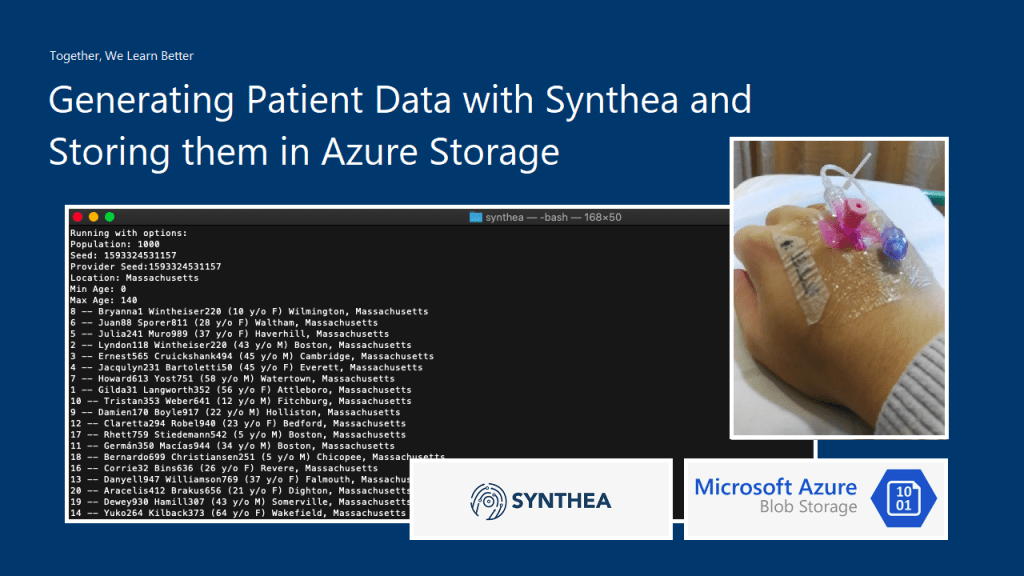
Before we deploy the Azure API for FHIR, we need to take care of an important part of the system, i.e. the data source. Of course, we must not use real patient data in our system to demo. Fortunately, with a mock patient data generator, called Synthea(TM), we are able to generate synthetic, realistic patient data.
🎨 Examples of generating patient data using Synthea(TM). 🎨
The following is part of the results when I executed the command with parameter -p 1000.
🎨 Realistic but not real patient data from Synthea(TM). 🎨
Azure Storage Setup
With the patient data generated locally, we now can proceed to upload it to the Azure Storage so that the data can later be input to the Azure API for FHIR.
Here, we will be using the Blob Storage where Blob stands for Binary Large Object. A blob can be any type of file, even virtual machine disks. The blob storage is optimised for storing massive amount of data. Hence, it is suitable to store the JSON files that Synthea(TM) generates.
There are two main default access tiers for StorageV2 Azure Storage, i.e. Hot and Cold. Hot Tier is for storage accounts expected to have frequent data access, while Cold Tier is the opposite of it. Hence, Hot Tier will have lower data access cost as compared to the Cold Tier while Hot Tier will have the highest storage cost.
Since the data stored in our Storage account here is mainly to input into the Azure API for FHIR eventually and we will not keep the data long in the Storage account, we will choose the Hot Tier here.
🎨 Creating new storage account with the Hot Tier. 🎨
For the Replication, it’s important to take note that the data in our Storage account is always replicated in the primary data centre to ensure durability and high availability. We will go with the LRS option, which is the Locally Redundant Storage.
With the LRS option, our data is replicated within a collection of racks of storage nodes within a single data center in the region. This will save our data when the failure only happens on a single rack. We choose this option not only because it is the cheapest Replication but also the lifespan of our data is very short in the Storage account.
Azure Storage – Security and Access Rights
Let’s imagine we need people from different clinics and hospitals, for example, to upload their patient data to our Azure Storage account. Without building them any custom client, would we able to do the job by just setting the correct access rights?
Permissions for a container in Storage account (Source: Microsoft Docs)
Yes, we can. We can further control the access to our blob container in the Storage account. For example, in the container importdata where all the JSON files generated by Synthea(TM) will be uploaded to, we can create a Stored Access Policy for that container which allows only Create and List, as shown in the screenshot below.
🎨 Adding a new Stored Access Policy for the container. 🎨
With this Stored Access Policy, we then can create a Shared Access Signature (SAS). A SAS is a string that contains a security token, and it can be attached to an URL to an Azure resource. Even though here we will use it for our Storage account, but in fact, SAS is available to other Azure services as well. If you remember my previous article about Azure Event Hub, we’re using SAS token too in our mobile app.
I will demo with Microsoft Azure Storage Explorer instead because I can’t do the similar thing on the Azure Portal.
🎨 Creating a Shared Access Signature (SAS) for the container. 🎨
There will be a URI generated after the SAS is created. This is the URI that we will share with those who have the patient data to upload.
With the SAS URI, they can choose to connect to Azure Storage with that URI, as shown in the screenshot below.
🎨 Connecting to Azure Storage with SAS URI. 🎨
Once the SAS URI is correctly provided, they can then connect to the Azure Storage.
🎨 There is a need to make sure we are only connecting to resources we trust. 🎨
Now the other parties can continue to upload the patient data to the Azure Storage. Since we already make sure the actions that they can do are only Create and List, they cannot delete files or overwrite the existing file, as shown in the following screenshot.
🎨 Deletion of file is prohibited according to the Shared Access Policy. 🎨
At this point of time, I suddenly realised that, I could not upload new file too. Why is it so? Isn’t Create access right has been already given?
It turns out that, we need to also allow Read access right to allow the uploading of file. This is because during the upload process, Azure Storage will need to check the existence of the file. Without Read access right, it can’t do so, according to the log file downloaded from the Azure Storage Explorer. This actually surprised me because I thought List should do the job, not Read.
🎨 The container importdata has RCL as its access policy. 🎨
Azure Storage: Monitoring and Alerting
In Azure Storage, some of the collected metrics are the amount of capacity used as well as transaction metrics about the number of transactions and the amount of time taken for those transactions. In order to proactively monitor our Storage account and investigate problems, we can also set alerts on those metrics.
Metrics are enabled by default and sent to the Azure Monitor where the data will be kept for 3 months (93 days).
In Azure Monitor, the Insights section provides an overview of the health of our Storage accounts, as shown below.
🎨 General view of the health of the Storage account. 🎨
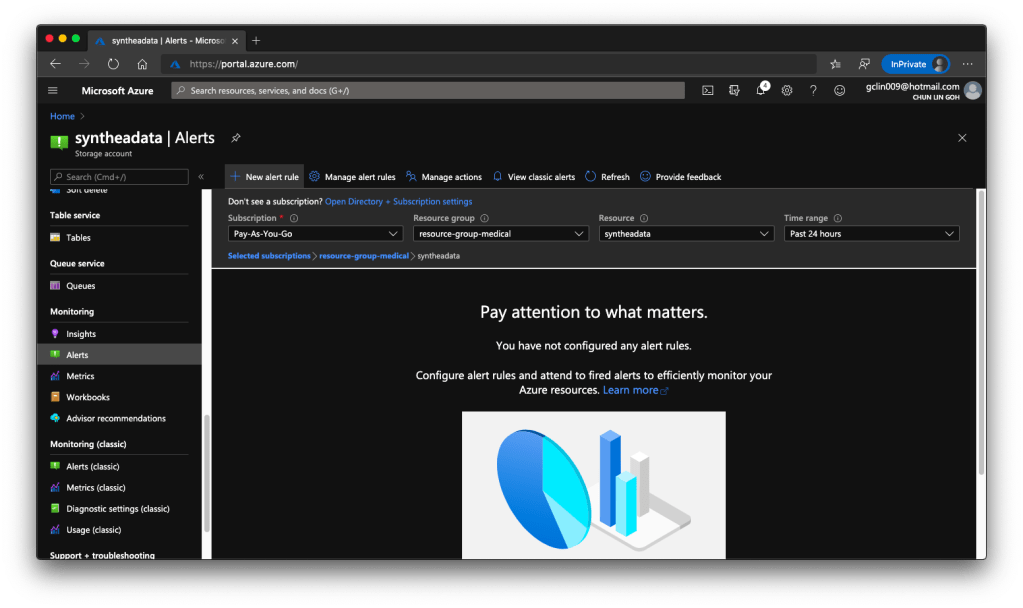
Finally, to create Alerts, we just need to head back to the Monitoring section of the corresponding Storage account. Currently, besides the classic version of the Monitoring, there is a new one, as shown in the following screenshot.
🎨 New Alerts page. 🎨
With this, we can setup alerts such as informing us whenever the used capacity is over a certain threshold over a certain period of time. However, how would we receive the Alerts? Well, there are quite a few ways that we can choose under the Action Group.
🎨 Setting up email and SMS as alert channels in the Action Group. 🎨
Next Step
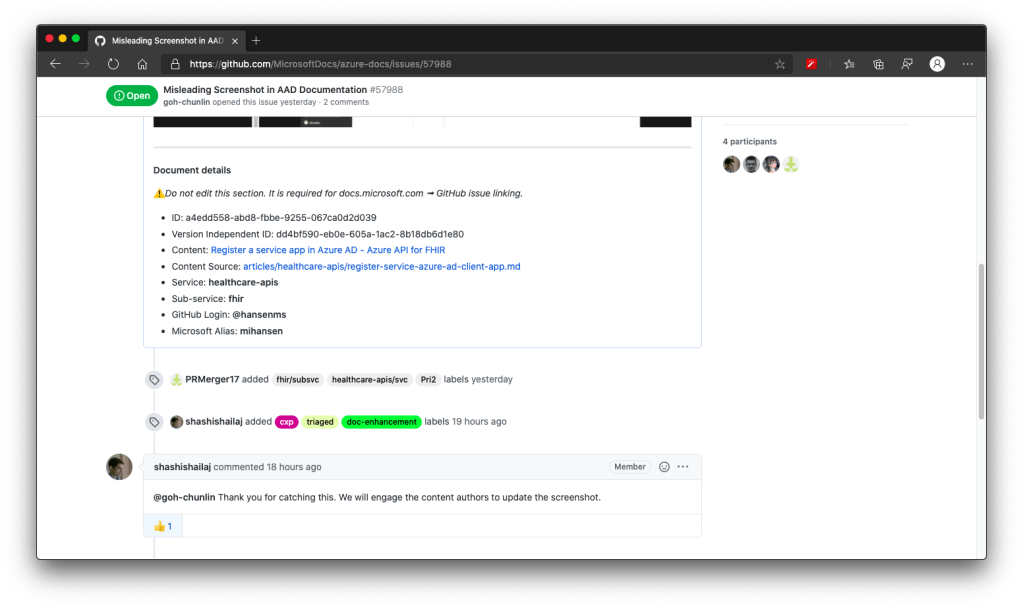
That’s all for the setup of input storage for our Azure API for FHIR. Currently, the official documentation of Azure API for FHIR has certain issues. I have reported to Microsoft on GitHub. Once the issues are fixed, we will proceed to see how we can import the data into the Azure API for FHIR.
🎨 Discussing the documentation issues with Shashi Shailaj on GitHub. 🎨













 cuteprogramming