
While waiting for lunch, it’s nice to do some warmups. Setting a server overseas seems a pretty cool warmup to do for developers, right? Recently, my friend recommended me to try out Vultr which provide cloud servers. So today, I’m going to share how I deploy a Ubuntu server which is located in Tokyo, a city far away from where I am now.
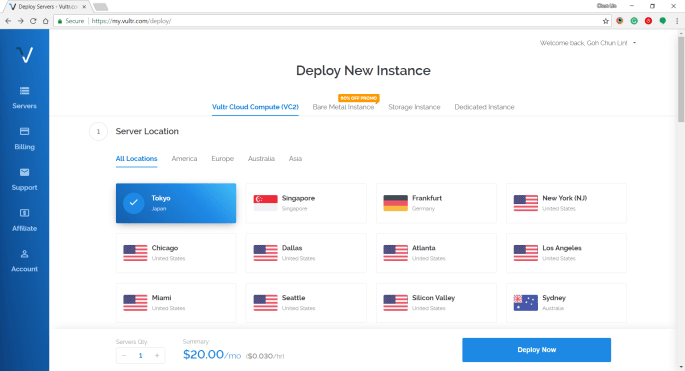
Step 1: Choosing Server Location
Vultr is currently available in many cities in popular countries such as Japan, Singapore, Germany, United States, Australia, etc.
Step 2: Choosing Server Type and Size
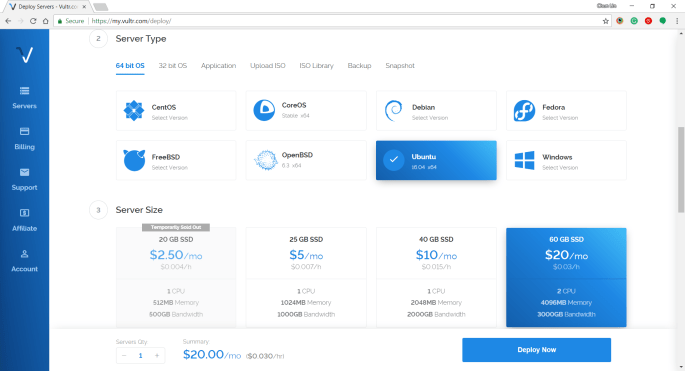
Subsequently, we will be asked to select the type and size for the server. Here, I choose 60 GB SSD server with Ubuntu 16.04 x64 installed. I tried with Ubuntu 17.10 x64 before but I couldn’t successfully RDP into it. Then the latest Ubuntu 18.04 x64 is not yet tried by me. So ya, we will stick to using Ubuntu 16.04 x64 in this article.
Step 3: Uploading SSH Key
Vultr is friendly to provide us a tutorial about generating SSH Keys on Windows and Linux.
The steps for creating SSH key on Windows with PuTTYgen is as follows.
Firstly, we need to click on the “Generate” button on PuTTYgen.
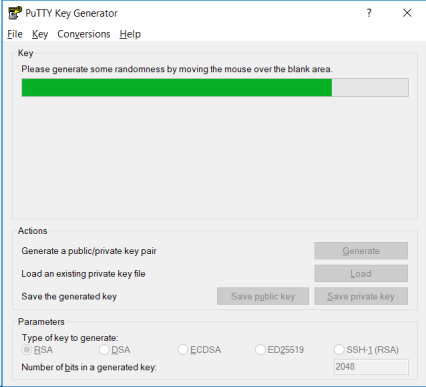
Secondly, once the Public Key is generated, we need to enter a key passphrase for additional security.
Thirdly, we click on the “Save Private Key” button to save the private key on somewhere safe.
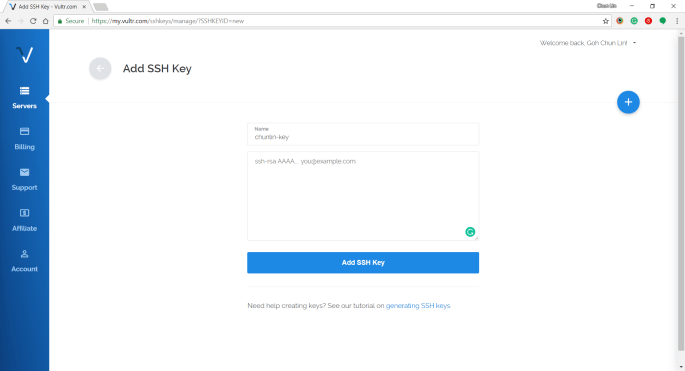
Fourthly, we copy all of the text in the Public Key field and paste it to the textbox in Vultr under the “Add SSH Key” section.
Step 4: Naming and Deployment
Before we can deploy the server, we need to key in the hostname for the new server.
After we have done that, then we can instruct Vultr to deploy the server by clicking on the “Deploy Now” button at the bottom of the page.
Within 5 minutes, the server should finish installing and booting up.
Step 5: Getting IP Address, Username, and Password
In order to get the user credential to access the server, we need to click on the “Server Details” to view the IP address, username, and password.
Step 6: Updating Root Password
The default password is not user-friendly. Hence, once we login to the server via PuTTY, we need to immediately update the root password using the command below for our own good.
# passwd
Step 7: Installing Ubuntu Desktop
Firstly, let’s do some updating for the packages via the following commands.
# sudo apt-get update
# sudo apt-get upgrade
This will take about 2 minutes to finish.
Then we can proceed to install the default desktop using the following command.
# sudo apt-get install ubuntu-desktop
This will take about 4 minutes to finish. Take note that at this point of time Unity will be the desktop environment.
After that, we update the packages again.
# sudo apt-get update
Step 8: Installing Text Editor
We are going to change some configurations later, so we will need to use a text editor. Here, I’ll use the Nano Text Editor by installing it first.
# sudo apt-get install nano
Step 9: Installing xrdp
xrdp is an open source Remote Desktop Protocol (RDP) server which provides a graphical login to remote machines. This helps us to connect to the server using Microsoft Remote Desktop Client.
sudo apt-get install xrdp
Step 10: Changing to Use Xfce Desktop Environment
We will then proceed to install Xfce which is a lightweight desktop environment for UNIX-like operating systems.
sudo apt-get install xfce4
After it is installed successfully, please run the following command. This is to tell the Ubuntu server to know that Xfce has been chosen to replace Unity as desktop environment.
echo xfce4-session >~/.xsession
Step 11: Inspect xrdp Settings
We need to configure the xrdp settings by editing the startwm.sh in Nano Text Editor.
nano /etc/xrdp/startwm.sh
We need to edit the file by changing entire of the file content to be as follows.
if [ -r /etc/default/locale ]; then
 . /etc/default.locale
 export LANG LANGUAGE
fi

startxfce4
Then we need to restart xrdp.
# sudo service xrdp restart
After that, we restart the server.
# reboot now
Step 12: Connecting with Remote Desktop Client
After the server has been restarted, we can access the server with Windows Remote Desktop Client.
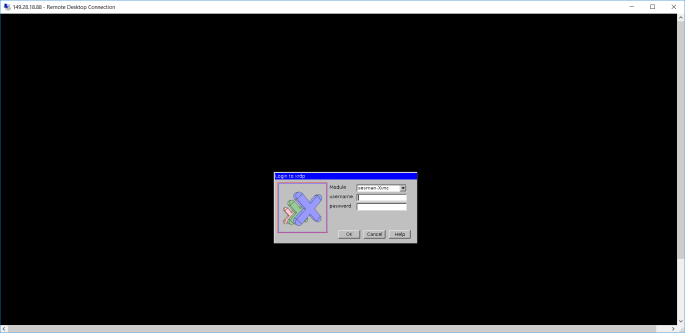
At this point of time, some of you may encounter error when logging in via RDP. The error will be saying things as follows.
Connecting to sesman IP 127.0.0.1 port 3350
sesman connect ok
sending login info to session manager, please wait...
xrdp_mm_process_login_response:login successful for display
started connecting
connecting to 127.0.0.1 5910
error-problem connecting
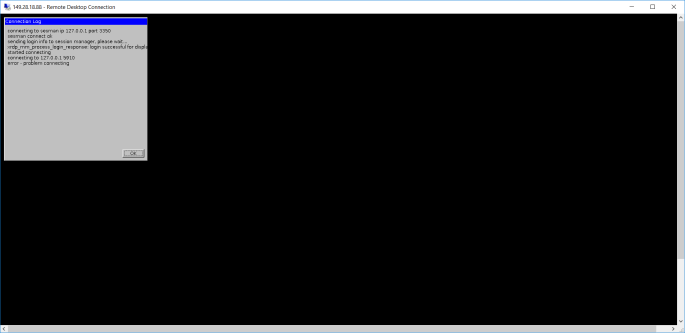
As pointed out in one of the discussion threads on Ask Ubuntu, the problem seems to be xrdp, vnc4server, and tightvncserver are installed in the wrong order. So in order to fix that, we just need to remove them and re-install them in a correct order with the following set of commands.
# sudo apt-get remove xrdp vnc4server tightvncserver
# sudo apt-get install tightvncserver
# sudo apt-get install xrdp
# sudo service xrdp restart
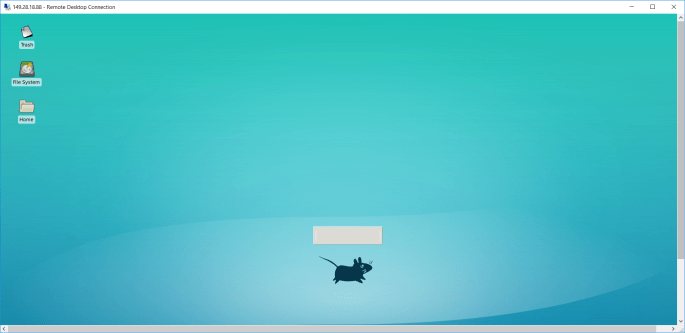
After the server is restarted, we should have no problem accessing our server via RDP client on Windows.
References
- How to Install the Desktop Components (GUI) on an Ubuntu Server
- [YouTube] Ubuntu Server To Desktop With RDP Installation
- Install XRDP on Ubuntu Server with XFCE Template
- Error/problem connecting (Windows 10 RDP into XRDP)
 cuteprogramming
Can i have a question. If a VM instance need Desktop enviorment. and some time this vm need doing a host to some project. Why developer don’t want install lightest desktopenvirment like LXDE or openbox.
Just a suggetsion to Minimal install LXDE and LXQT
LXDE: aptitude install –without-recommends lxde 😁
For Desktop enviorment. LxQt have more good perfomance and more beautiful.
Sorry. I cannot find minimal install for LxQt.
XFCE more GUIs while LXDE requires you to modify configuration files in your own in some cases. If you need to squeeze as much performance out of your system as you can, LXDE is the way to go while still having a very functional and intuitive desktop interface.