Due to the fact that the number of emails that can be sent per day via the Amazon SES SMTP is limited, I decided to run my own email server on a desktop. However, it’s unfortunate that the IIS 7.0 in Windows 7 does not have SMTP server installed by default. After doing some google searches, I came to an online forum about SMTP service in Windows 7. There is where I got to know more about hMailServer, a free email server for Windows.
The good thing about hMailServer is that it is very easy to install and configure.
Installation
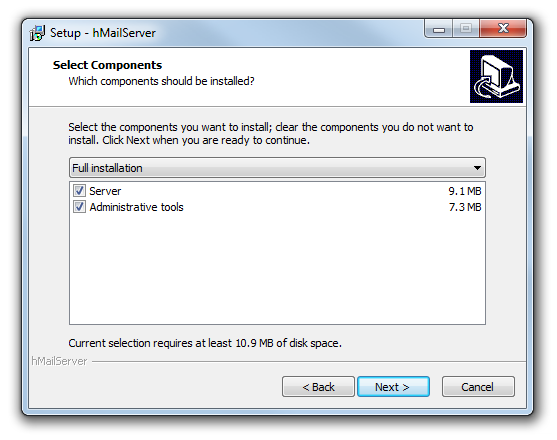
During the installation, we will be asked to select the components that we would like to install. Here, we will proceed with the default option, the Full Installation, which contains both server and administrative tools.
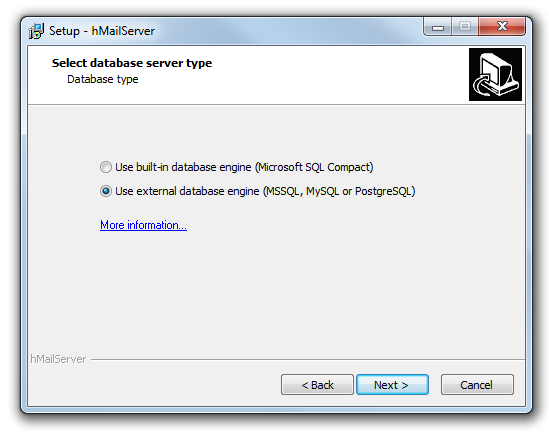
After that, we will have to choose a database server type. We can chose either built-in database engine (MS SQL Compact) or external database engine (MS SQL, MySQL or PostgreSQL). According to the hMailServer documentation, built-in database engine option is only suitable for personal use, instead of commercial use because the Microsoft SQL Server Compact Edition comes with hMailServer is limited to only 4GB.
During the installation, an admin account will be created. The admin will be in charge of managing hMailServer configuration later. Thus, we will need to enter a password for the admin account.
Before the installation process is completed, we will need to enter the password that we assigned to the admin account earlier before we can proceed.

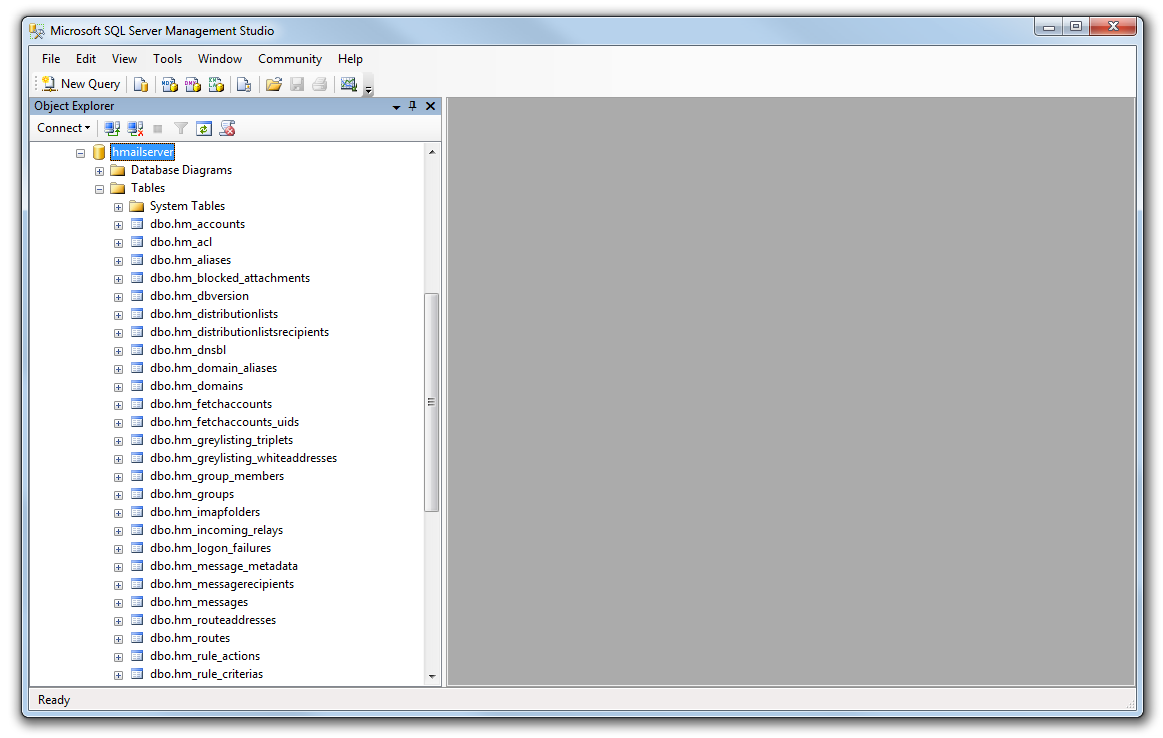
If the option of using external database engine was chosen earlier during the installation, we will need to go through another step of seting up the hMailServer database. We are basically given three options to choose: MS SQL Server, MySQL, and PostgreSQL. The following screenshot shows the database created in MS SQL Server after finishing the database setup.
Configuration
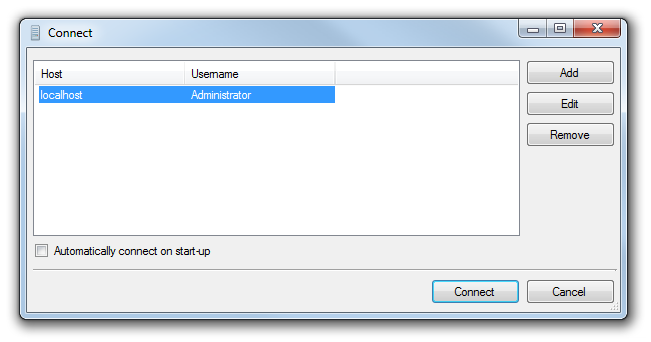
After the database is created, we would be able to connect to the hMailServer by choosing the correct host and user. Here, we need to again key in the password that we used earlier.
We will then be brought to the hMailServer Administrator window where we can continue to configure the settings in hMailServer.
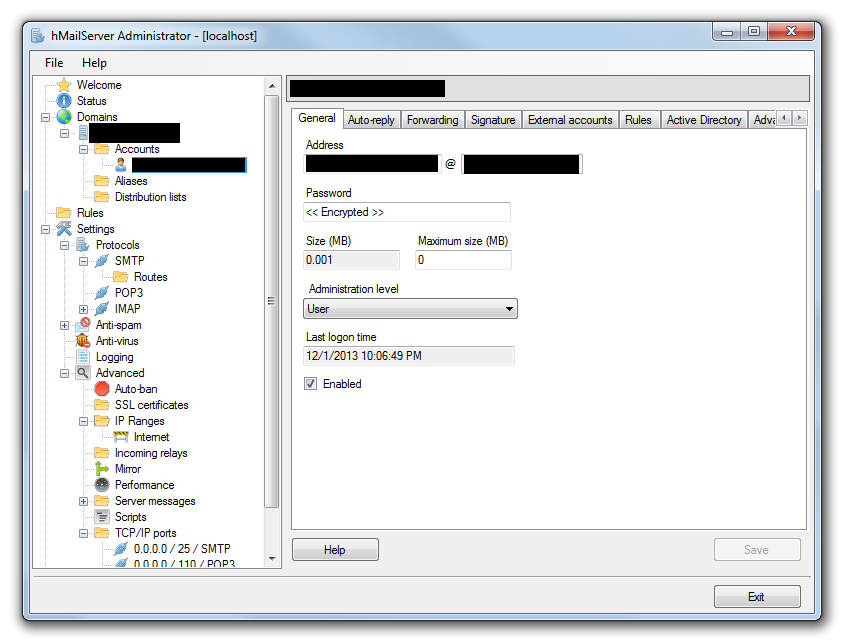
Firstly, we will create a domain and then add user accounts to the domain.
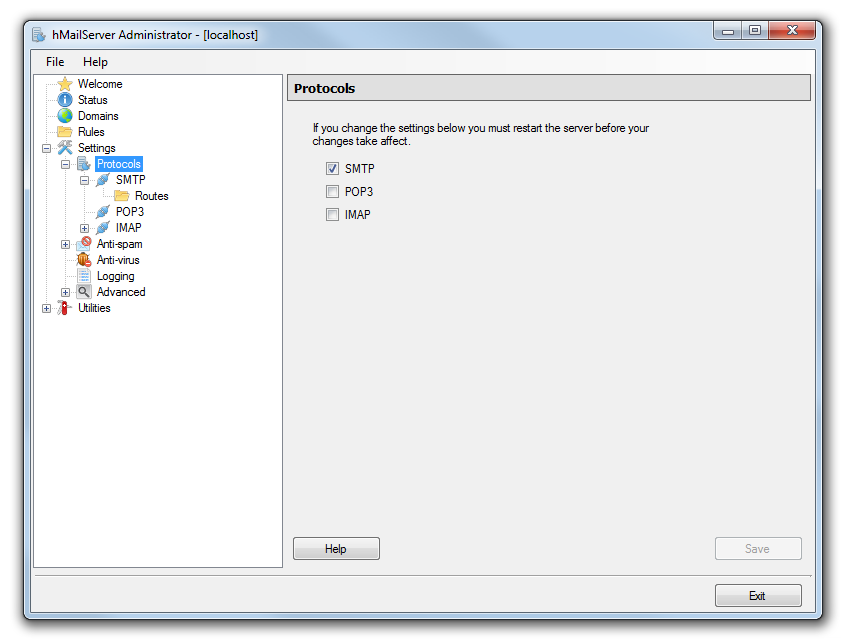
Secondly, we will choose SMTP as the only protocol that we want to use in hMailServer.
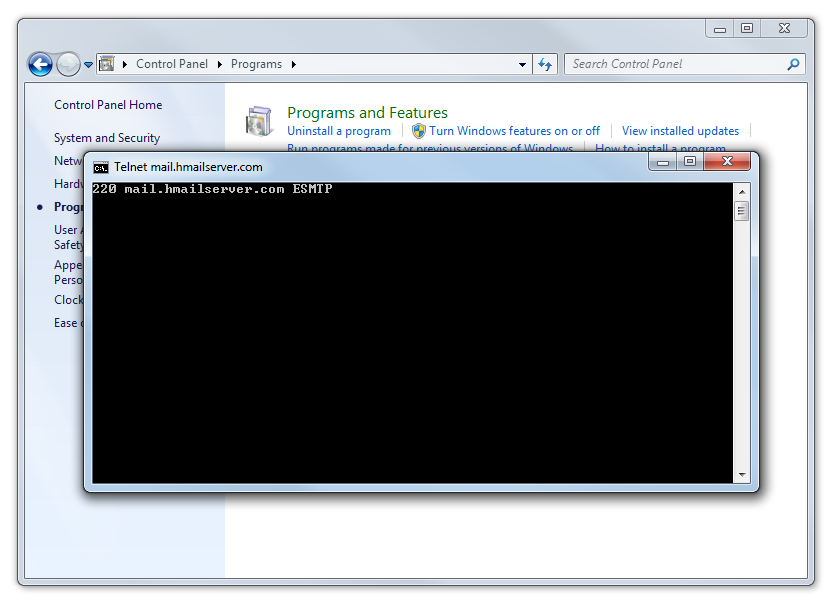
Some Internet Service Providers (ISPs) block outgoing traffic on port 25, which will be used for email. Thus, to test if the port 25 is blocked or not, we just need to telnet mail.hmailserver.com 25 on command line. If it is not blocked, a message “220 mail.hmailserver.com ESMTP” will be shown.
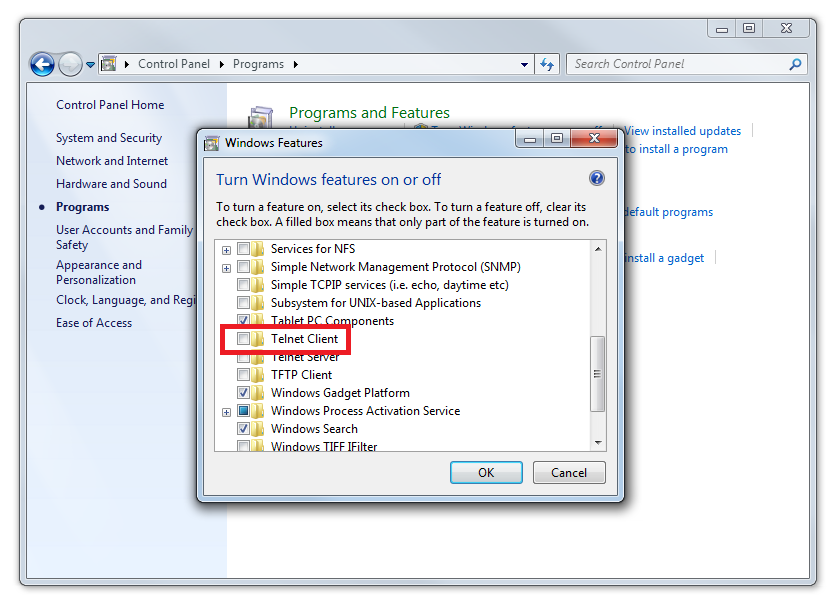
However, since the Telnet client has been removed in recent versions of Windows, we will need to add it back in Windows Features before we can try out the command above. Otherwise we will get an error message saying telnet is not recognized as an internal or external command.
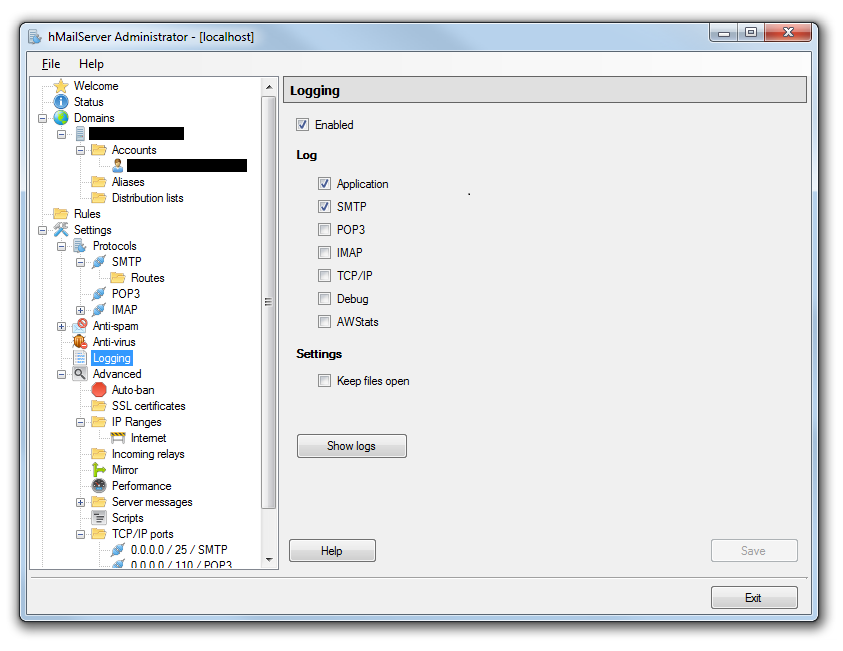
Thirdly, the logging feature, which is by default disabled, needs to be switched on. The log gives very useful information to check if the emails are sent successfully.
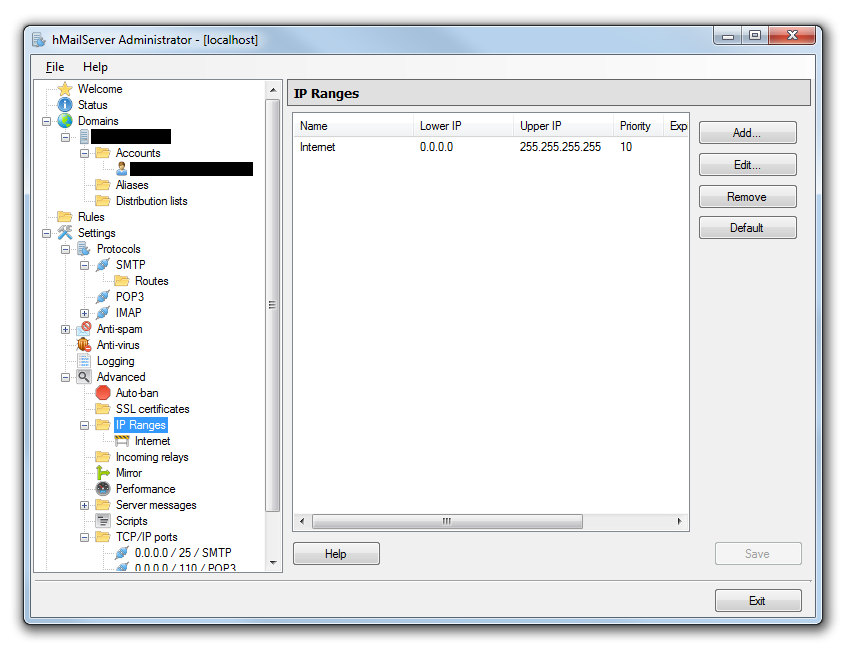
Finally, to prevent this personal email server vulnerable to spam, we should configure the hMailServer IP range. By default, the option Internet has a IP range from 0.0.0.0 to 255.255.255.255. This has to be disabled otherwise hMailServer will promt a critical configuration warning at the Status page.
Experiment
After doing all these, the email server should be ready to go. However, when I check the log, there are messages as follows.
“Our system has detected an unusual rate of unsolicited mail originating from your IP address. To protect our users from spam, mail sent from your IP address has been blocked. Please visit http://www.google.com/mail/help/bulk_mail.html to review our Bulk Email Senders Guidelines.” (for gmail.com email)
“Sending unsolicited commercial or bulk e-mail to Microsoft’s computer network is prohibited. Other restrictions are found at http://privacy.microsoft.com/en-us/anti-spam.mspx.” (for hotmail.com email)
“Connections not accepted from IP addresses on Spamhaus XBL; see http://postmaster.yahoo.com/errors/550-bl23.html” (for yahoo.com email)
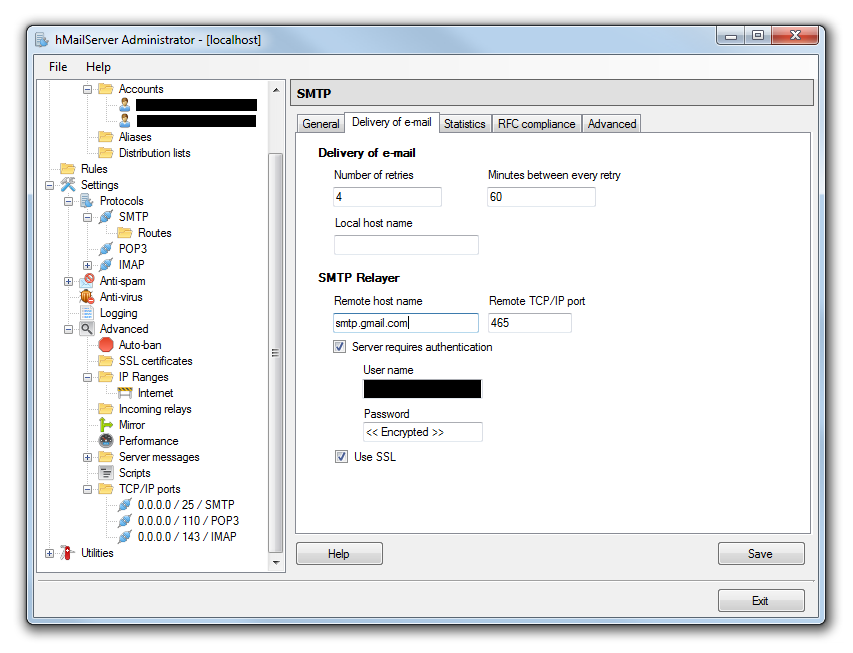
Hence, now I have no choice but to use the SMTP Relayer on hMailServer to help sending the email successfully.
Edit
After reading Aaron’s comment, I looked into the SMTP authentication portion and realized a new way to solve the problem above. Please click here to read more.
 cuteprogramming
The reason you needed to set up a relay is likely that you didn’t set up SMTP authentication under protocols. Without authentication, your server becomes an open relay meaning it can be used by anybody to send email without needing a user account on your mail server.
By setting up authentication, you force users to supply a username/password to use your SMTP (Eg. when you enter user settings for your mail client).
When you use Google as an SMTP relay, they may be filtering the spam for you, but your server may still be an open relay transmitting through them. Eg, no user authentication is required for your server and you give credentials to send through Google. Since Google becomes the point of origin, any spam gets traced back to them first and they’re probably filtering it on their network.
Hi Aaron,
Thank you for the guide. I will try to setup authentication for SMTP first. =D
Regards,
Chun Lin
Dear Aaron,
It turns out that if I uncheck the SMTP Authentication for “External to external e-mail addresses”, then the email will be sent successfully! Of course, I have to first restrict the IP range to my private IP only.
More about this approach: https://cuteprogramming.wordpress.com/2014/07/19/successfully-sent-an-email-via-hmailserver/
I’m not entirely sure if this is a recommended solution though.
Please advise.
Regards,
Chun Lin