Getting Certified as Kubernetes App Developer: My Kaizen Journey

The high concentration of talented individuals in Samsung SDS is remarkable. I have worked alongside amazing colleagues who are not only friendly but also intelligent and dedicated to their work.

In July 2022, I had numerous discussions with my visionary and supportive seniors about the future of cloud computing. They eventually encouraged me to continue my cloud certification journey by taking the Certified Kubernetes Application Developer (CKAD) certification exam.

Before attempting the CKAD exam, I received advice on how demanding and challenging the assessment could be. Self-learning can also be daunting, particularly in a stressful work environment. However, I seized the opportunity to embark on my journey towards getting certified and committed myself to the process of kaizen, continuous improvement. It was a journey that required a lot of effort and dedication, but it was worth it.

I took the CKAD certification exam while I was working in Seoul in March 2023. The lovely weather has a soothing impact on my stress levels.

August 2022: Learning Docker Fundamentals

To embark on a successful Kubernetes learning journey, I acknowledge the significance of first mastering the fundamentals of Docker.

Docker is a tool that helps developers build, package, and run applications in a consistent way across different environments. Docker allows us to package our app and its dependencies into a Docker container, and then run it on any computer that has Docker installed.

Docker serves as the foundation for many container-based technologies, including Kubernetes. Hence, understanding Docker fundamentals provides a solid groundwork for comprehending Kubernetes.

There is a learning path on Pluralsight specially designed for app developers who are new to Docker so that they can learn more about developing apps with Docker.

I borrowed the free Pluralsight account from my friend, Marvin Heng.

The learning path helps me gain essential knowledge and skills that are directly applicable to Kubernetes. For example, it shows me how the best practices of optimising Docker images by carefully placing the Docker instructions and making use of its caching mechanism.

In the learning path, we learnt about Docker Swarm. Docker Swarm is a tool that helps us manage and orchestrate multiple Docker containers across multiple machines or servers, making it easier to deploy and scale our apps.

A simple architecture diagram of a system using Kubernetes. (Source: Pluralsight)

After getting the basic understanding of Docker Swarm, we move on to learning Kubernetes. Kubernetes is similar to Docker Swarm because they are both tools for managing and orchestrating containerised apps. However, Kubernetes has a larger and more mature ecosystem, with more third-party tools and plugins available for tasks like monitoring, logging, and service discovery.

December 2022: Attending LXF Kubernetes Course

Kubernetes is a project that was originally developed by Google, but it is now maintained by the Cloud Native Computing Foundation (CNCF), which is a sub-foundation of the Linux Foundation.

The Linux Foundation provides a neutral and collaborative environment for open-source projects like Kubernetes to thrive, and the CNCF is able to leverage this environment to build a strong community of contributors and users around Kubernetes.

In addition, the Linux Foundation offers a variety of certification exams that allow individuals to demonstrate their knowledge and skills in various areas of open-source technology. CKAD is one of them.

The CKAD exam costs USD 395.00.

The Linux Foundation also offers Kubernetes-related training courses.

The CKAD course is self-paced and can be completed online, making it accessible to learners around the world. It is designed for developers who have some experience with Kubernetes and want to deepen their knowledge and skills in preparation for the CKAD certification exam.

The CKAD course includes a combination of lectures, hands-on exercises, and quizzes to reinforce the concepts covered. It covers a wide range of topics related to Kubernetes, including:

  • Kubernetes architecture;
  • Build and design;
  • Deployment configuration;
  • App exposing;
  • App troubleshooting;
  • Security in Kubernetes;
  • Helm.
Kubectl, the command-line client used to interact with Kubernetes clusters. (Image Credit: The Linux Foundation Training)

January 2023: Going through CKAD Exercises and Killer Shell

Following approximately one month of dedicated effort, I successfully completed the online course and proudly received my course completion certificate on 7th of January 2023. So, throughout the remainder of January, I directed my attention towards exam preparation by diligently working through the various online exercises.

The initial series of exercises that I went through is the CKAD exercise thoughtfully curated by a skilled software developer, dgkanatsios, and made available on GitHub. The exercise covers the following areas:

  • Core concepts;
  • Multi-container pods;
  • Pod design;
  • Configuration;
  • Observability;
  • Services and networking;
  • State persistence;
  • Helm;
  • Custom Resource Definitions.

The exercise comprises numerous questions, therefore, my suggestion would be to devote one week to thoroughly delve into them, by allocating an hour each day to tackle a subset of the questions.

During my 10-day Chinese New Year holiday, I dedicated my time towards preparing for the exam. (Image Credit: Global Times)

Furthermore, upon purchasing the CKAD exam, we are entitled to receive two complementary simulator sessions for the exam on Killer Shell (killer.sh), both containing the same set of questions. Therefore, it is advisable to strategise and plan our approach towards making optimal utilisation of them.

After going through all the questions in the CKAD exercise mentioned above, I proceeded to undertake the initial killer.sh exam. The simulator features an interface that closely resembles the new remote desktop Exam UI, thereby providing me with invaluable insights on how the actual exam will be conducted.

The killer.sh session is allocated a total of 2 hours for the exam, encompassing a set of 22 questions. Similar to the actual exam, the session is to test our hands-on experience and practical knowledge of Kubernetes. Thus, we are expected to demonstrate our proficiency by completing a series of tasks in a given Kubernetes environment.

The simulator questions are comparatively more challenging than the actual exam. In my initial session, I was able to score only 50% out of 100%. Upon analysing and rectifying my errors, I resolved to invest an additional month’s time to study and prepare more comprehensively.

Scenario-based questions like this are expected in the CKAD exam.

February 2023: Working on Cloud Migration Project

Upon my return from the Chinese New Year holiday, to my dismay, I discovered that I had been assigned to a cloud migration project at work.

The project presented me with an exceptional chance to deploy an ASP .NET solution on Kubernetes on Google Cloud Platform, allowing me to put into practice what I have learned and thereby fortify my knowledge of Kubernetes-related topics.

Furthermore, I am lucky to have had the opportunity to engage in a fruitful discussion with my fellow colleagues, through which I was able to learn more from them about Kubernetes by presenting my work.

March 2023: The Exam

In the early of March, I was assigned to visit Samsung SDS in Seoul until the end of the month. Therefore, I decided to seize the opportunity to complete my second kill.sh simulation session. This time, I managed to score more than the passing score, which is 66%.

After that, I dedicated an extra week to reviewing the questions in the CKAD exercises on GitHub before proceeding to take the actual CKAD exam.

The actual CKAD exam consists of 16 questions that need to be completed within 2 hours. Even though the exam is online and open book, we are not allowed to refer any resources other than the Kubernetes documentation and the Helm documentaion during the exam.

In addition, the exam has been updated to use the PSI Bridge where we get access to a remote desktop instead of just a remote terminal. There is an an article about it. This should not be unfamiliar to you if you have gone through the killer.sh exams.

The new exam UI now provides us access to a full remote XFCE desktop, enabling us to run the terminal application and Firefox to open the approved online documentations, unlike the previous exam UI. Thus, having multiple monitors and bookmarking the documentation pages on our personal Internet browser before the exam are no longer helpful.

The PSI Bridgeâ„¢ (Image Credit: YouTube)

Before taking the exam, there are a lot more key points mentioned in the Candidate Handbook, the Important Instructions, and the PSI Bridge System Requirements that can help ensure success. Please make sure you have gone through them and get your machine and environment ready for the exam.

Even though I am 30-minute early to the exam, I faced a technical issue with Chrome on my laptop that caused me to be 5 minutes late for the online exam. Fortunately, my exam time was not reduced due to the delay.

The issue was related to the need to end the “remoting_host.exe” application used by Chrome Remote Desktop in order to use a specific browser for the exam. Despite trying to locate it in task manager, I was unable to do so. After searching on Google, I found a solution for Windows users. We need to execute the command “net stop chromoting” to the “remoting_host.exe”.

During my stay in Seoul, my room at Shilla Stay Seocho served as my exam location.

CKAD certification exam is an online proctored exam. This means that it can be taken remotely but monitored by a proctor via webcam and microphone to ensure the integrity of the exam. Hence, to ensure a smooth online proctored exam experience, it is crucial to verify that our webcam is capable of capturing the text on our ID, such as our passport, and that we are using a stable, high-speed Internet connection.

During the exam, the first thing I did is to create a few aliases as listed below.

alias k="kubectl "
alias kn="kubectl config set-context --current --namespace"
export dry="--dry-run=client -o yaml"
export now="--force --grace-period 0"

These aliases helped me to complete the commands quickier. In addition, if it’s possible, I also always use an imperative command to create a YAML file using kubectl.

By working on the solution based on the generated YAML file, I am able to save a significant amount of time as opposed to writing the entire YAML file from scratch.

I completed only 15 questions with 1 not answered. I chose to forgo a 9-mark question that I was not confident in answering correctly, in order to have more time to focus on other questions. In the end, I still managed to score 78% out of 100%.

The passing score for CKAD is 66% out of 100%.

Moving Forward: Beyond the Certification

In conclusion, obtaining certification in one’s chosen field can be a valuable asset for personal and professional development. In my experience, it has helped me feel more confident in my abilities and given me a sense of purpose in my career.

However, it is essential to remember that it is crucial to continue learning and growing, both through practical experience and ongoing education, in order to stay up-to-date with the latest developments in the field. The combination of certification, practical experience, and ongoing learning can help us to achieve our career goals and excel in our role as a software engineer.

Together, we learn better.

Kubernetes CronJob to Send Email via Azure Communication Services

In March 2021, Azure Communication Services was made generally available after being showcased in Microsoft Ignite. In the beginning, it only provides services such as SMS as well as voice and video calling. One year after that, in May 2022, it also offers a way to facilitate high volume transactional emails. However, currently this email function is still in public preview. Hence, the email relevant APIs and SDKs are provided without a SLA, which is thus not recommended for production workloads.

Currently, our Azure account has a set of limitation on the number of email messages that we can send. For all the developers, email sending is limited to 10 emails per minute, 25 emails in an hour, and 100 emails in day.

Setup Azure Communication Services

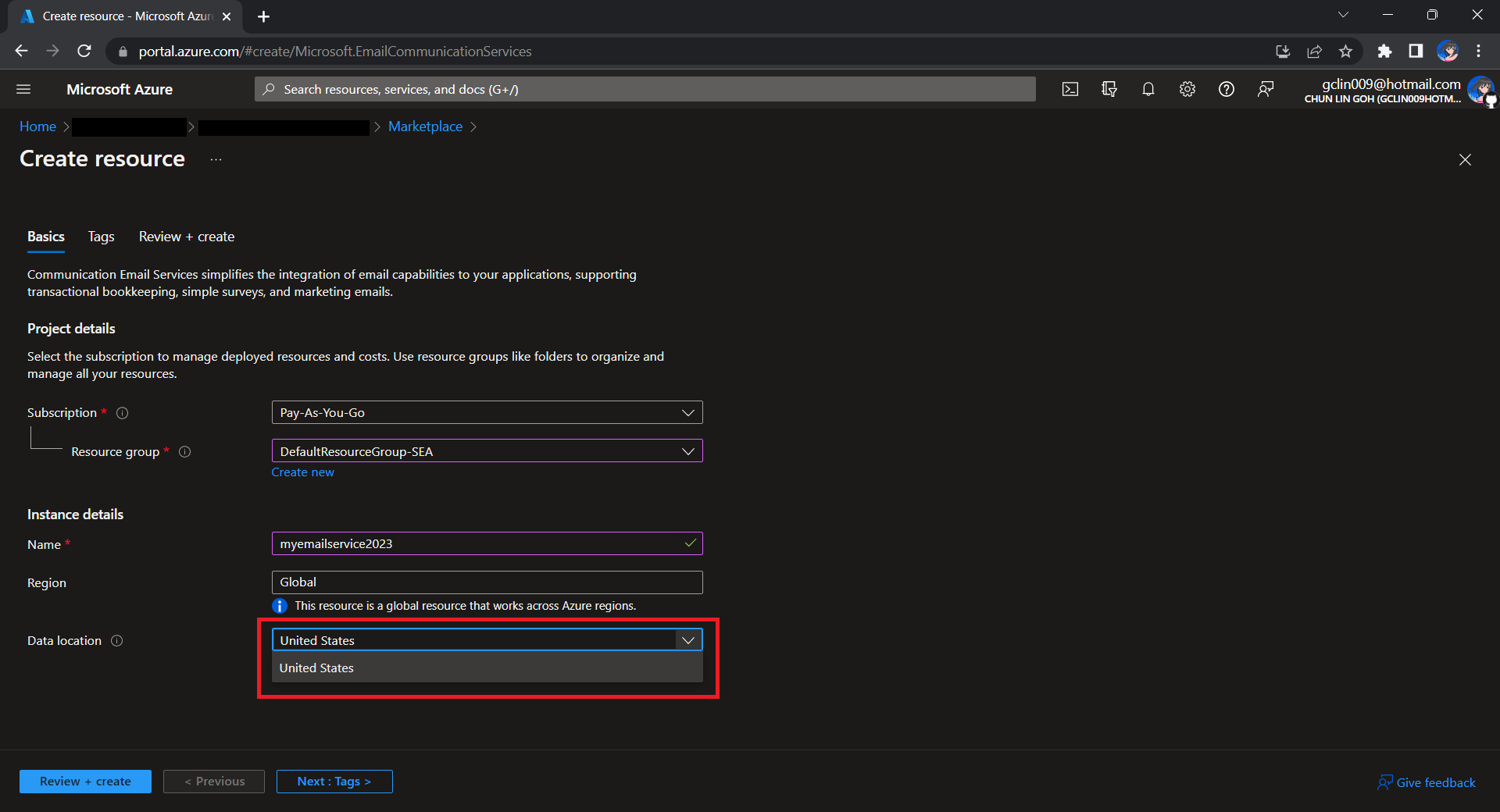
To begin, we need to createa a new Email Communication Services resource from the marketplace, as shown in the screenshot below.

US is the only option for the Data Location now in Email Communication Services.

Take note that currently we can only choose United States as the Data Location, which determines where the data will be stored at rest. This cannot be changed after the resource has been created. This thus make our Azure Communication Services which we need to configure next to store the data in United States as well. We will talk about this later.

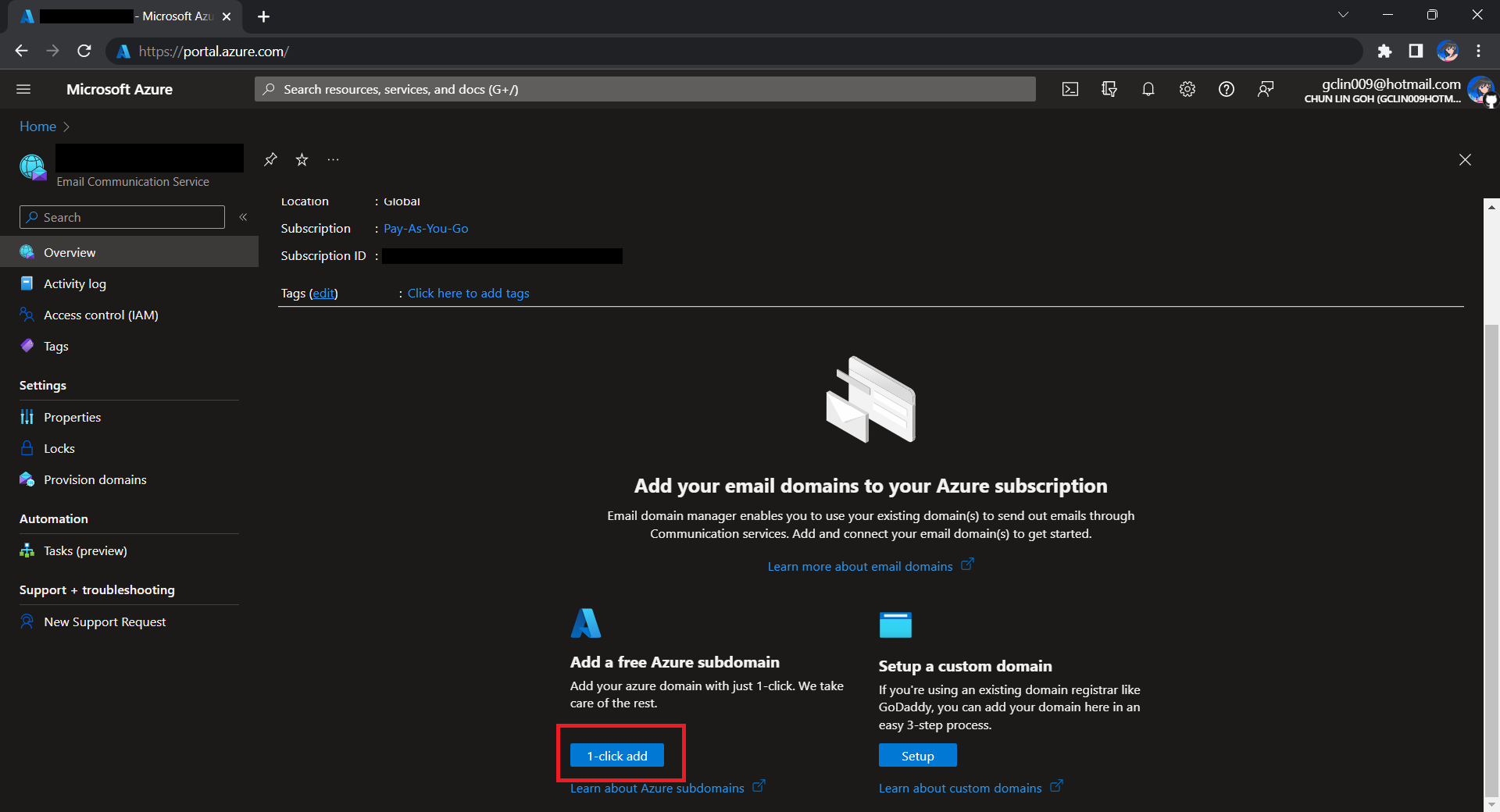
Once the Email Communication Service is created, we can begin by adding a free Azure subdomain. With the “1-click add” function, as shown in the following screenshot, Azure will automatically configures the required email authentication protocols based on the email authentication best practices.

Click “1-click add” to provision a free Azure managed domain for sending emails.

We will then have a MailFrom address in the format of donotreply@xxxx.azurecomm.net which we can use to send email. We are allowed to modify the MailFrom address and From display name to more user-friendly values.

After getting the domain, we need to connect Azure Communication Services to it to send emails.

As we talked earlier, we need to make sure that the Azure Communication Services to have United States as its Data Location as well. Otherwise, we will not be able to link the email domain for email sending.

Successfully connected our email domain. =)

A Simple Console App for Sending Email

Now, we need to create the console app which we will be used in our Kubernetes CronJob later to send the emails with the Azure Communication Services Email client library.

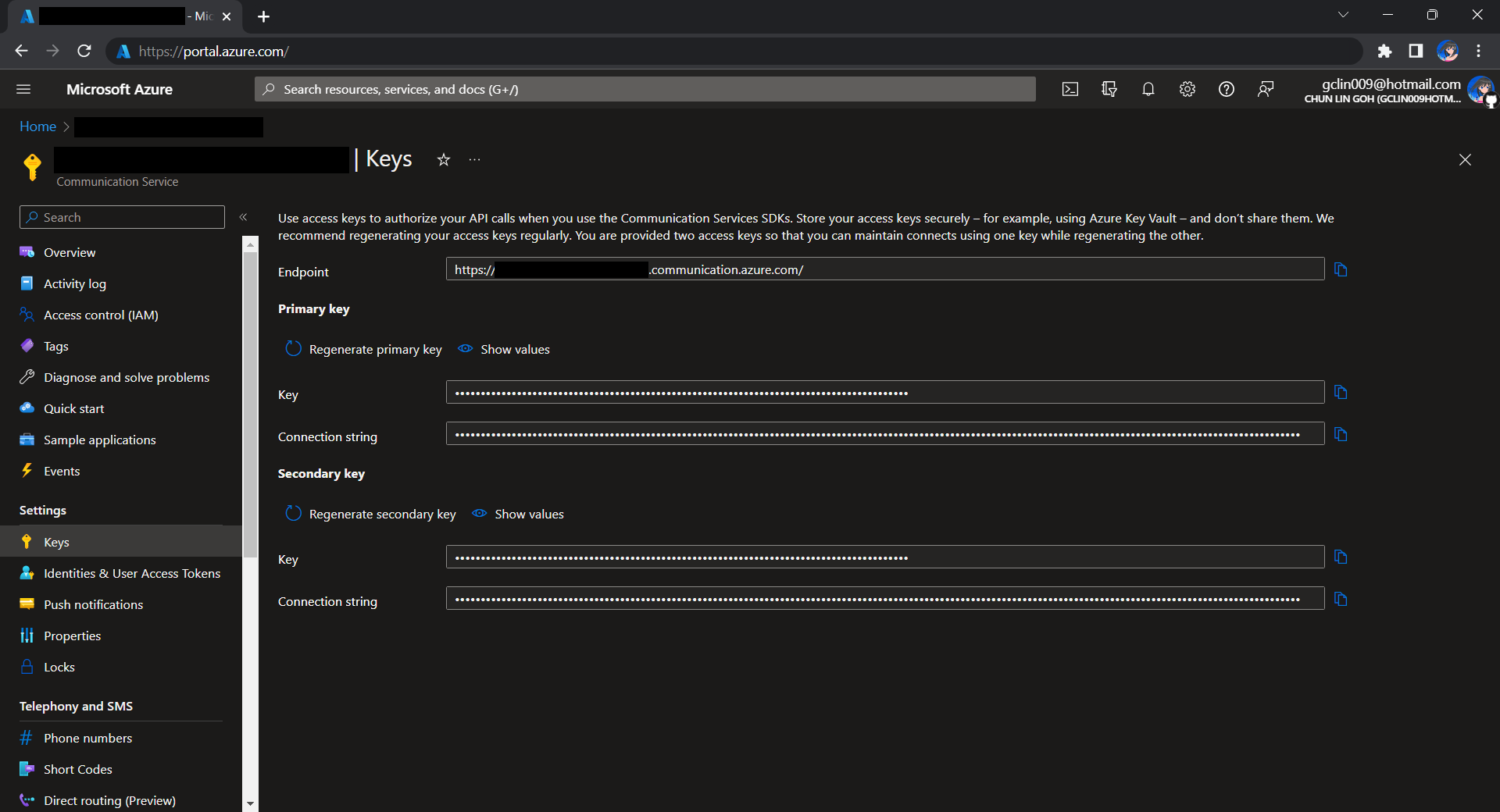
Before we begin, we have to get the connection string for the Azure Communication Service resource.

Getting connection string of the Azure Communication Service.

Here I have the following code to send a sample email to myself.

using Azure.Communication.Email.Models;
using Azure.Communication.Email;

string connectionString = Environment.GetEnvironmentVariable("COMMUNICATION_SERVICES_CONNECTION_STRING") ?? string.Empty;
string emailFrom = Environment.GetEnvironmentVariable("EMAIL_FROM") ?? string.Empty;

if (connectionString != string.Empty)
{
    EmailClient emailClient = new EmailClient(connectionString);

    EmailContent emailContent = new EmailContent("Welcome to Azure Communication Service Email APIs.");
    emailContent.PlainText = "This email message is sent from Azure Communication Service Email using .NET SDK.";
    List<EmailAddress> emailAddresses = new List<EmailAddress> {
            new EmailAddress("gclin009@hotmail.com") { DisplayName = "Goh Chun Lin" }
        };
    EmailRecipients emailRecipients = new EmailRecipients(emailAddresses);
    EmailMessage emailMessage = new EmailMessage(emailFrom, emailContent, emailRecipients);
    SendEmailResult emailResult = emailClient.Send(emailMessage, CancellationToken.None);
}
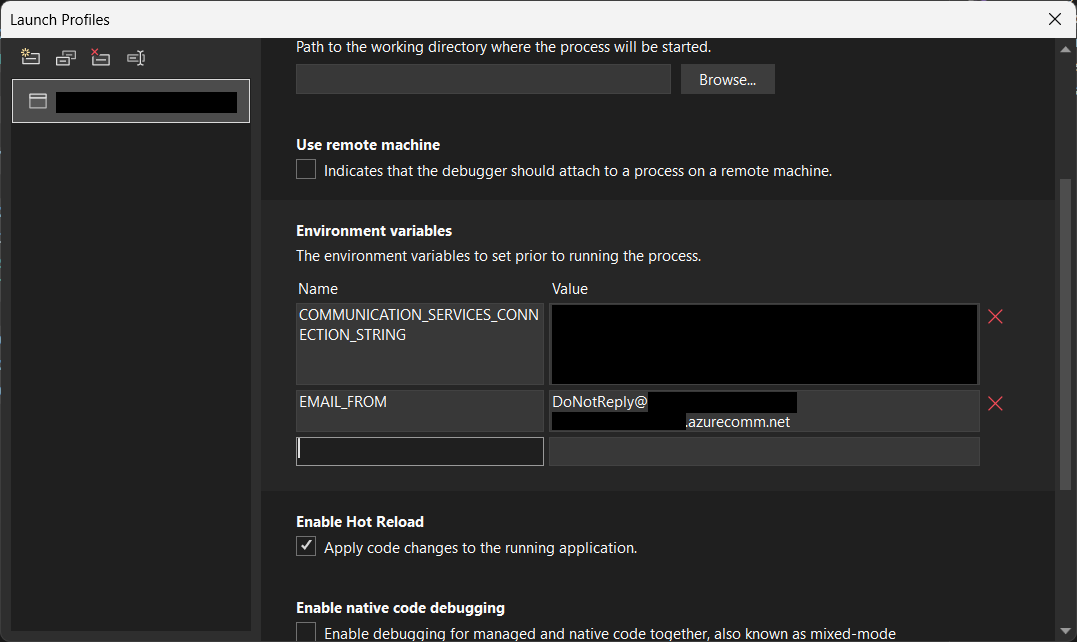
Setting environment variables for local debugging purpose.

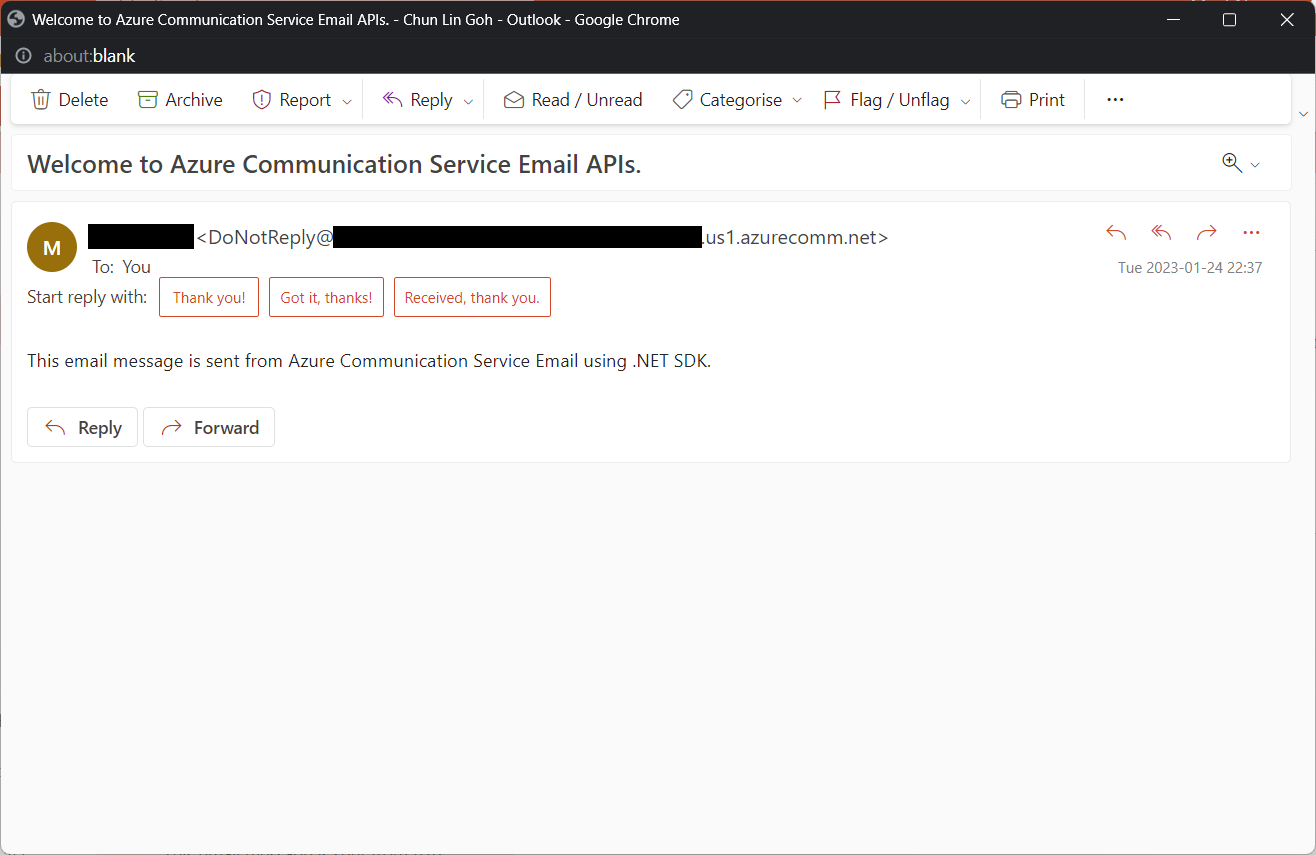
Tada, there should be an email successfully sent out as instructed.

Email is successfully sent and received. =)

Containerise the Console App

Next what we need to do is containerising our console app above.

Assume that our console app is called MyConsoleApp, then we will prepare a Dockerfile as follows.

FROM mcr.microsoft.com/dotnet/runtime:6.0 AS base
WORKDIR /app

FROM mcr.microsoft.com/dotnet/sdk:6.0 AS build
WORKDIR /src
COPY ["MyMedicalEmailSending.csproj", "."]
RUN dotnet restore "./MyConsoleApp.csproj"
COPY . .
WORKDIR "/src/."
RUN dotnet build "MyConsoleApp.csproj" -c Release -o /app/build

FROM build AS publish
RUN dotnet publish "MyConsoleApp.csproj" -c Release -o /app/publish /p:UseAppHost=false

FROM base AS final
WORKDIR /app
COPY --from=publish /app/publish .
ENTRYPOINT ["dotnet", "MyConsoleApp.dll"]

We then can publish it to Docker Hub for consumption later.

If you prefer to use Azure Container Registry, you can refer to the documentation on how to do it on Microsoft Learn.

Create the CronJob

In Kubernetes, pods are the smallest deployable units of computing we can create and manage. A pod can have one or more relevant containers, with shared storage and network resources. Here, we will be scheduling a job so that it creates pods containing our container with the image we created above to operate the execution of the pods, which is in our case, to send emails.

The schedule of the cronjob is defined as follows, according to the Kubernetes documentation on the schedule syntax.

# ┌───────────── minute (0 - 59)
# │ ┌───────────── hour (0 - 23)
# │ │ ┌───────────── day of the month (1 - 31)
# │ │ │ ┌───────────── month (1 - 12)
# │ │ │ │ ┌───────────── day of the week (sun, mon, tue, wed, thu, fri, sat)
# │ │ │ │ │
# * * * * *

Hence, if we would like to have the email scheduler to be triggered at 8am of every Friday, we can create a CronJob in the namespace my-namespace with the following YAML file.

apiVersion: batch/v1
kind: CronJob
metadata:
  name: email-scheduler
  namespace: ns-mymedical
spec:
  jobTemplate:
    metadata:
      name: email-scheduler
    spec:
      template:
        spec:
          containers:
          - image: chunlindocker/emailsender:v2023-01-25-1600
            name: email-scheduler
          restartPolicy: OnFailure
  schedule: 0 8 * * fri

After the CronJob is created, we can proceed to annotate it with the command below.

kubectl annotate cj email-scheduler jobtype=scheduler frequency=weekly

This helps us to query the cron jobs with jsonpath easily in the future. For example, we can list all cronjobs which are scheduled weekly, we can do it with the following command.

kubectl get cj -A -o=jsonpath="{range .items[?(@.metadata.annotations.jobtype)]}{.metadata.namespace},{.metadata.name},{.metadata.annotations.jobtype},{.metadata.annotations.frequency}{'\n'}{end}"

Create ConfigMap

In our email sending programme, we have two environment variables. Hence, we can create ConfigMap to store the data as key-value pair.

apiVersion: v1
kind: ConfigMap
metadata:
  name: email-sending
  namespace: my-namespace
data:
  EMAIL_FROM: DoNotReply@xxxxxx.azurecomm.net

For connection string of Azure Communication Service, since it is a sensitive data, we will store it in Secret. Secrets are similar to ConfigMaps but are specifically intended to hold confidential data. We will create a Secret with the command below.

kubectl create secret generic azure-communication-service --from-literal=CONNECTION_STRING=xxxxxx --dry-run=client --namespace=my-namespace -o yaml

It should generate a YAML which is similar to the following.

apiVersion: v1
kind: Secret
metadata:
  name: azure-communication-service
  namespace: my-namespace
data:
  CONNECTION_STRING: yyyyyyyyyy

Then, the Pods created by the CronJob can thus consume the ConfigMap and Secret above as environment variables. So, we need to update the CronJob YAML file to be as follows.

apiVersion: batch/v1
kind: CronJob
metadata:
  name: email-scheduler
  namespace: my-namespace
spec:
  jobTemplate:
    metadata:
      name: email-scheduler
    spec:
      template:
        spec:
          containers:
          - image: chunlindocker/emailsender:v2023-01-25-1600
            name: email-scheduler
            env:
              - name: EMAIL_FROM
                valueFrom:
                  configMapKeyRef:
                    name: email-sending
                    key: EMAIL_FROM
              - name: COMMUNICATION_SERVICES_CONNECTION_STRING
                valueFrom:
                  secretKeyRef:
                    name: azure-communication-service
                    key: CONNECTION_STRING
          restartPolicy: OnFailure
  schedule: 0 8 * * fri

Using SealedSecret

Problem with using Secrets is that we can’t really commit them to our code repository because the data are only encoded but not encrypted. Hence, in order to store our Secrets safely, we need to use SealedSecret which helps us to encrypt our Secret. The SealedSecret can only be decrypted by the controller running in the targer cluster.

Currently, the SealedSecret Helm Chart is officially supported and hosted on GitHub.

Helm is the package manager for Kubernetes. Helm uses a packaging format called Chart, a collection of files describing a related set of Kubernetes resource. Each Chart comprises one or more Kubernetes manifests. With Chart, developers are able to configure, package, version, and share the apps with their dependencies and sensible defaults.

To install Helm on Windows 11 machine, we can execute the following commands in Ubuntu on Windows console.

  1. Download desired version of Helm release, for example, to download version 3.11.0:
    wget https://get.helm.sh/helm-v3.11.0-linux-amd64.tar.gz
  2. Unpack it:
    tar -zxvf helm-v3.2.0-linux-amd64.tar.gz
  3. Move the Helm binary to desired location:
    sudo mv linux-amd64/helm /usr/local/bin/helm

Once we have successfully downloaded Helm and have it ready, we can add a Chart repository. In our case, we need to add the repo of SealedSecret Helm Chart.

helm repo add sealed-secrets https://bitnami-labs.github.io/sealed-secrets

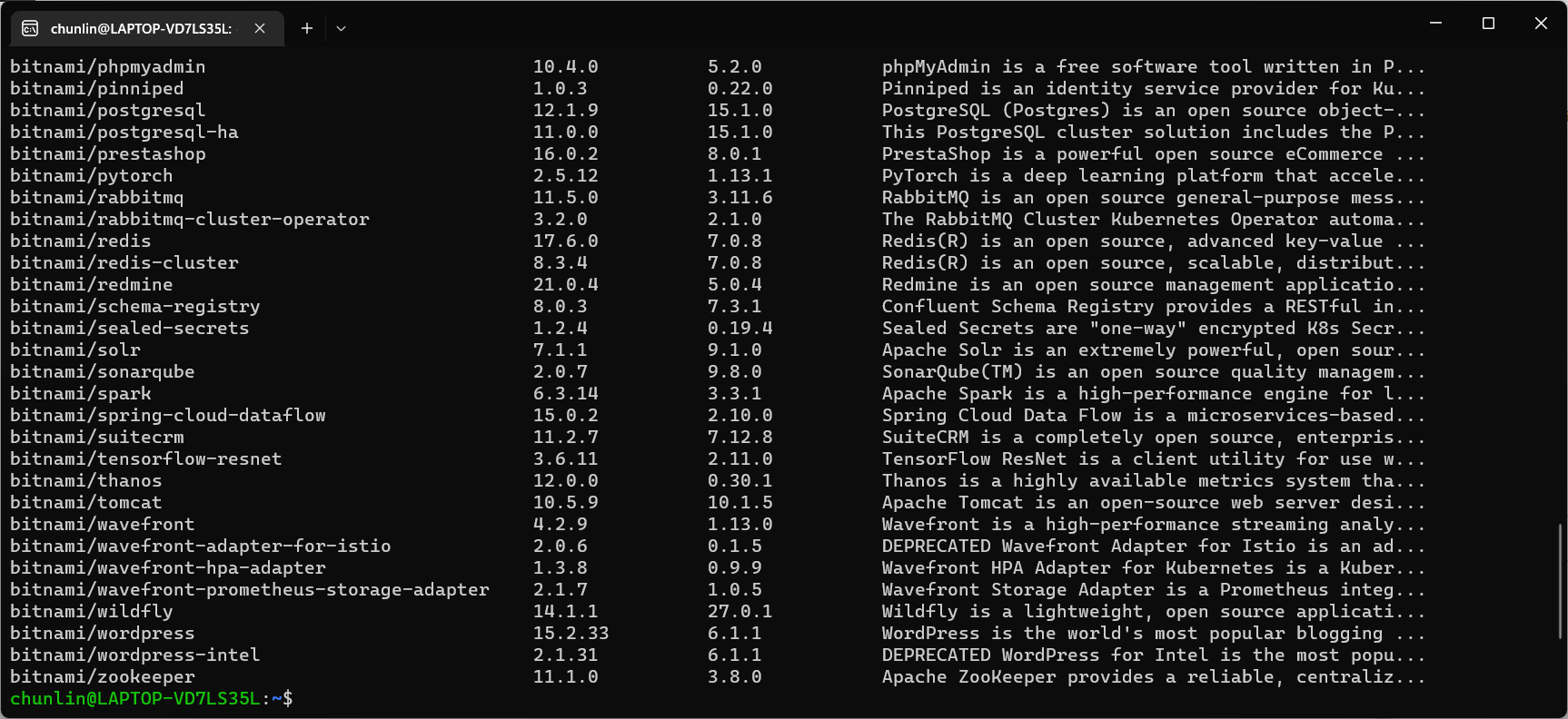
We should be able to locate the SealedSecret chart that we can install with the following command.

helm search repo bitnami
The Chart bitnami/sealed-secret is one of the Charts we can install.

To installed SealedSecret Helm Chart, we will use the following command.

helm install sealed-secrets -n kube-system --set-string fullnameOverride=sealed-secrets-controller sealed-secrets/sealed-secrets

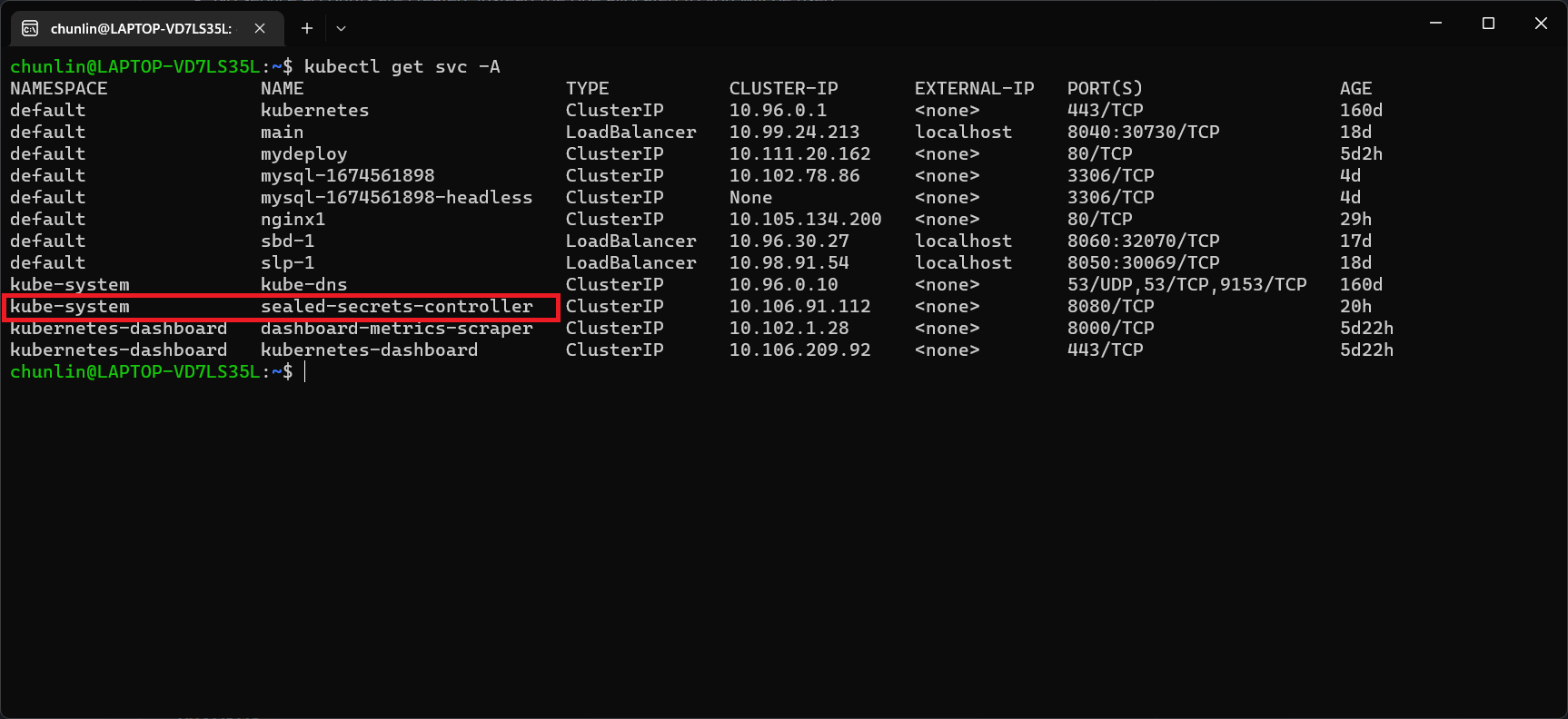
Once we have done this, we should be able to locate a new service called sealed-secret-controller under Kubernetes services.

The sealed-secret-controller service is under kube-system namespace.

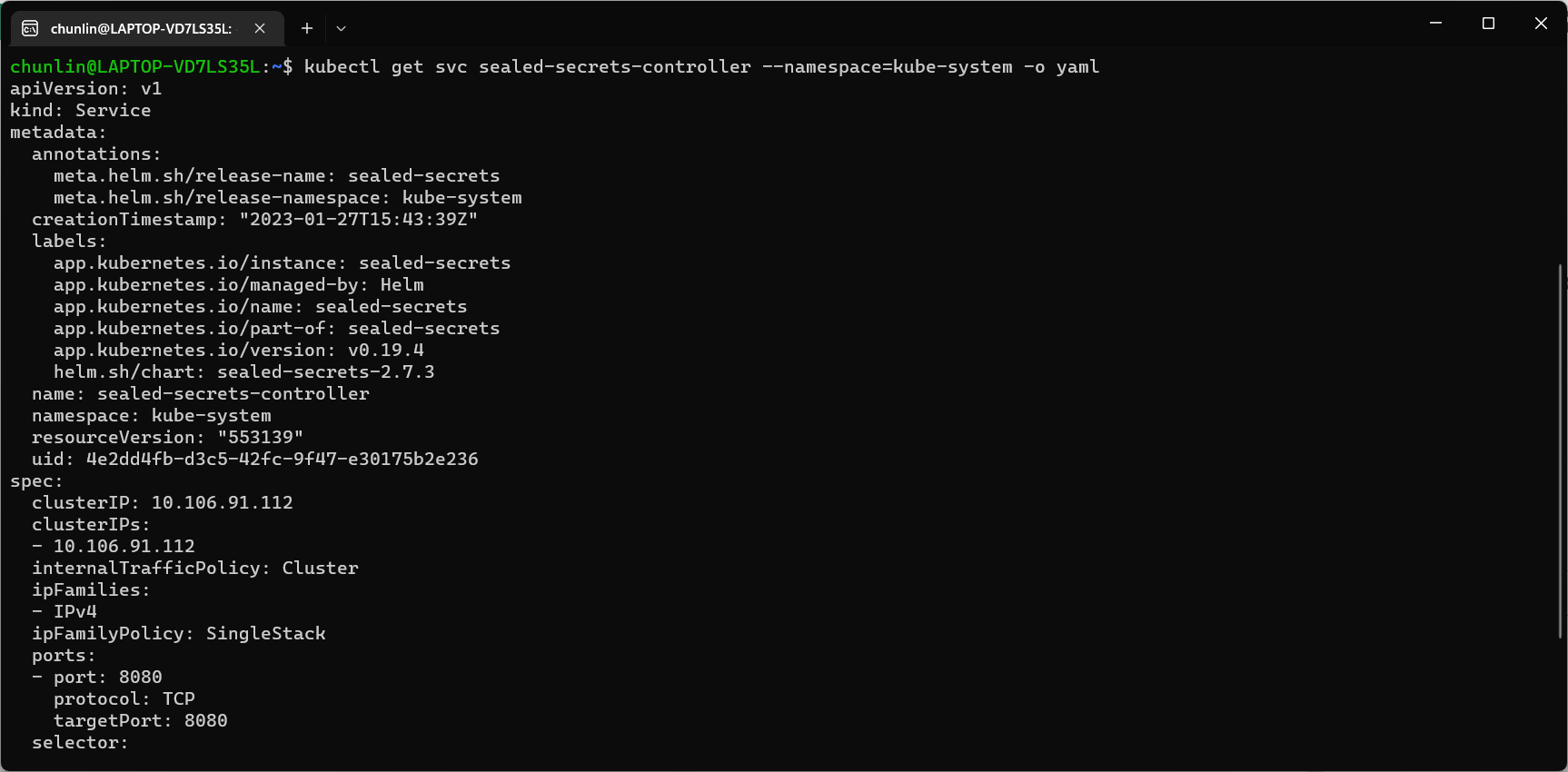
Before we can proceed to use kubeseal to create an encrypted secret, for me at least, there is a need to edit the sealed-secret-controller service. Otherwise, there will be an error message saying “cannot fetch certificate: no endpoints available for service”. If you also encounter the same issue, simply follow the steps mentioned by ghostsquad to edit the service YAML accordingly.

My final edit of the sealed-secret-controller service YAML.

Next, we then can proceed to encrypt our secret, as instructed on the SealedSecret GitHub readme.

kubectl create secret generic azure-communication-service --from-literal=CONNECTION_STRING=xxxxxx --dry-run=client --namespace=my-namespace -o json > mysecret-acs.json

kubeseal < mysecret-acs.json > mysealedsecret-acs.json

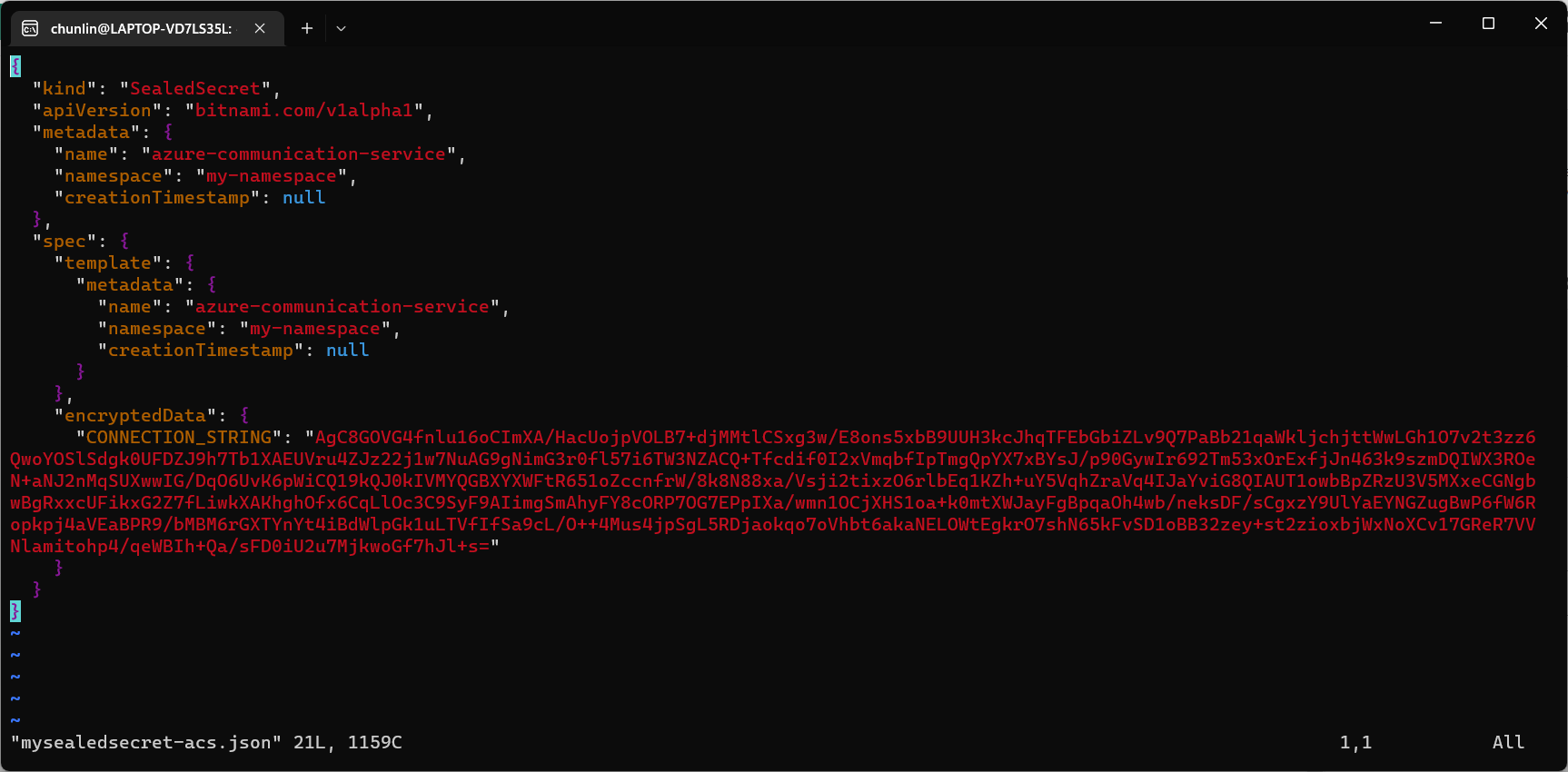
The generated file mysealedsecret-acs.json should look something as shown below.

The connection string is now encrypted.

To create the Secret resource, we will simply create it based on the file mysealedsecret-acs.json.

This generated file mysealedsecret-acs.json is thus safe to be committed to our code repository.

Going Zero-Trust: Using Kamus and InitContainer

Besides SealedSecret, there is also another open-source solution known as Kamus, a zero-trust secrets encryption and decryption solution for Kubernetes apps. We can also use Kamus to encrypt our secrets and make sure that the secrets can only be decrypted by the desired Kubernetes apps.

Similarly, we can also install Kamus using Helm Chart with the commands below.

helm repo add soluto https://charts.soluto.io
helm upgrade --install kamus soluto/kamus

Kamus will encrypt secrets for only a specific application represented by a ServiceAccount. A service account provides an identity for processes that run in a Pod, and maps to a ServiceAccount object. Hence, we need to create a Service Account with the YAML below.

apiVersion: v1
kind: ServiceAccount
metadata:
  name: my-kamus-sa

After creating the ServiceAccount, we can update our CronJob YAML to mount it on the pods.

Next, we can proceed to download and install Kamus CLI which we can use to encrypt our secret with the following command.

kamus-cli encrypt \
  --secret xxxxxxxx \
  --service-account my-kamus-sa \
  --namespace my-namespace \
  --kamus-url <Kamus URL>

The Kamus URL could be found after we installed Kamus as shown in the screenshot below.

Kamus URL in localhost

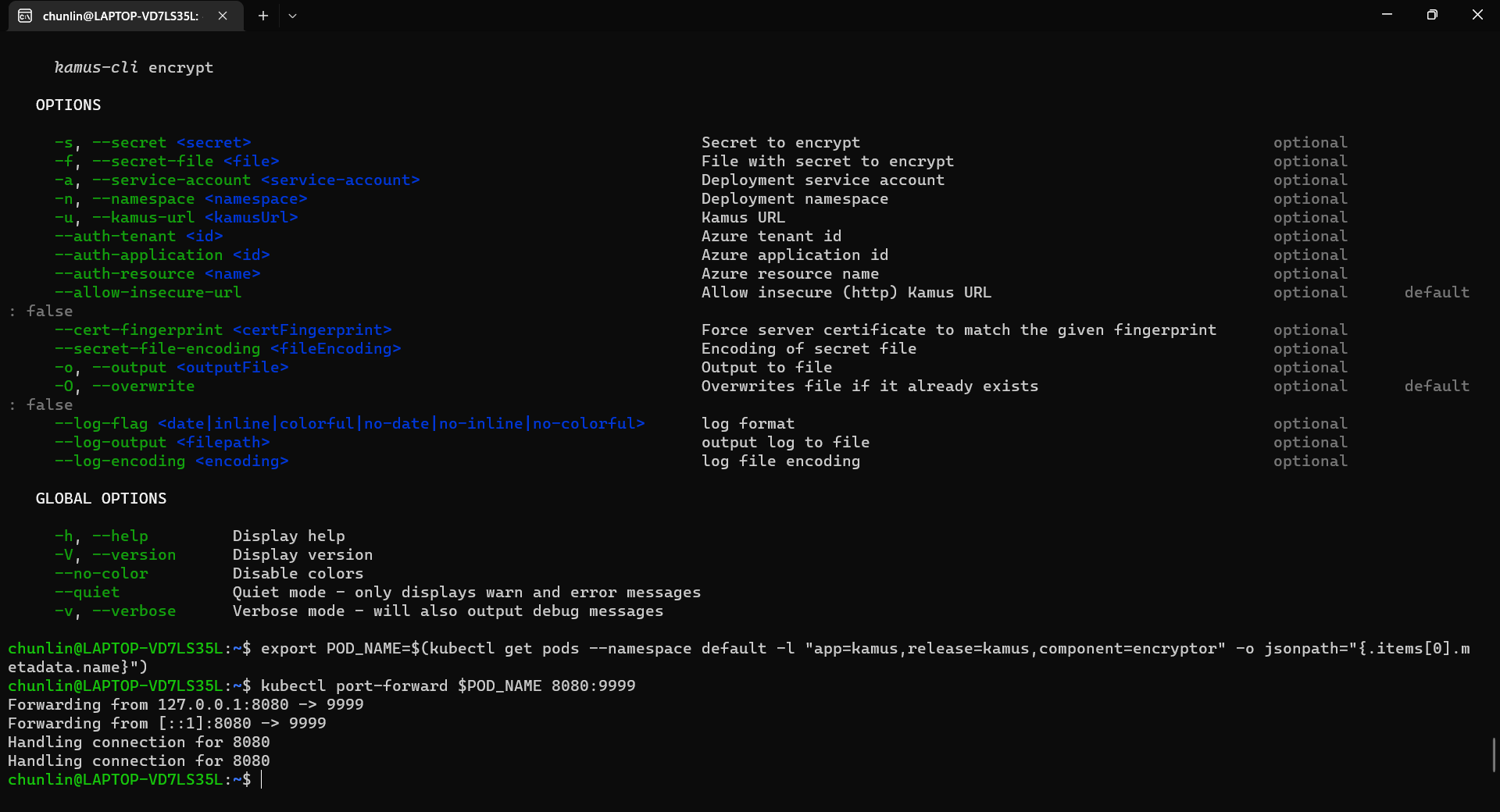
We need to follow the instruction printed on the screen to get the Kamus URL. To do so, we need to forward local port to the pod, as shown in the following screenshot.

Successfully forward the port and thus can use the URL as the Kamus URL.

Hence, let’s say we want to encrypt a secret “alamak”, we can do so as follows.

Since our localhost Kamus URL is using HTTP, so we have to specify “–allow-insecure-url”.

After we have encrypted our secret successfully, we need to configure our pod accordingly so that it can decrypt the value with Kamus Decrypt API. The simplest way will be storing our secret in a ConfigMap because it is already encrypted, so it’s safe to store it in ConfigMap.

apiVersion: v1
kind: ConfigMap
metadata:
  name: my-encrypted-secret
  namespace: my-namespace
data:
  data: rADEn4o8pdN8Zcw40vFS/g==:zCPnDs8AzcTwqkvuu+k8iQ==

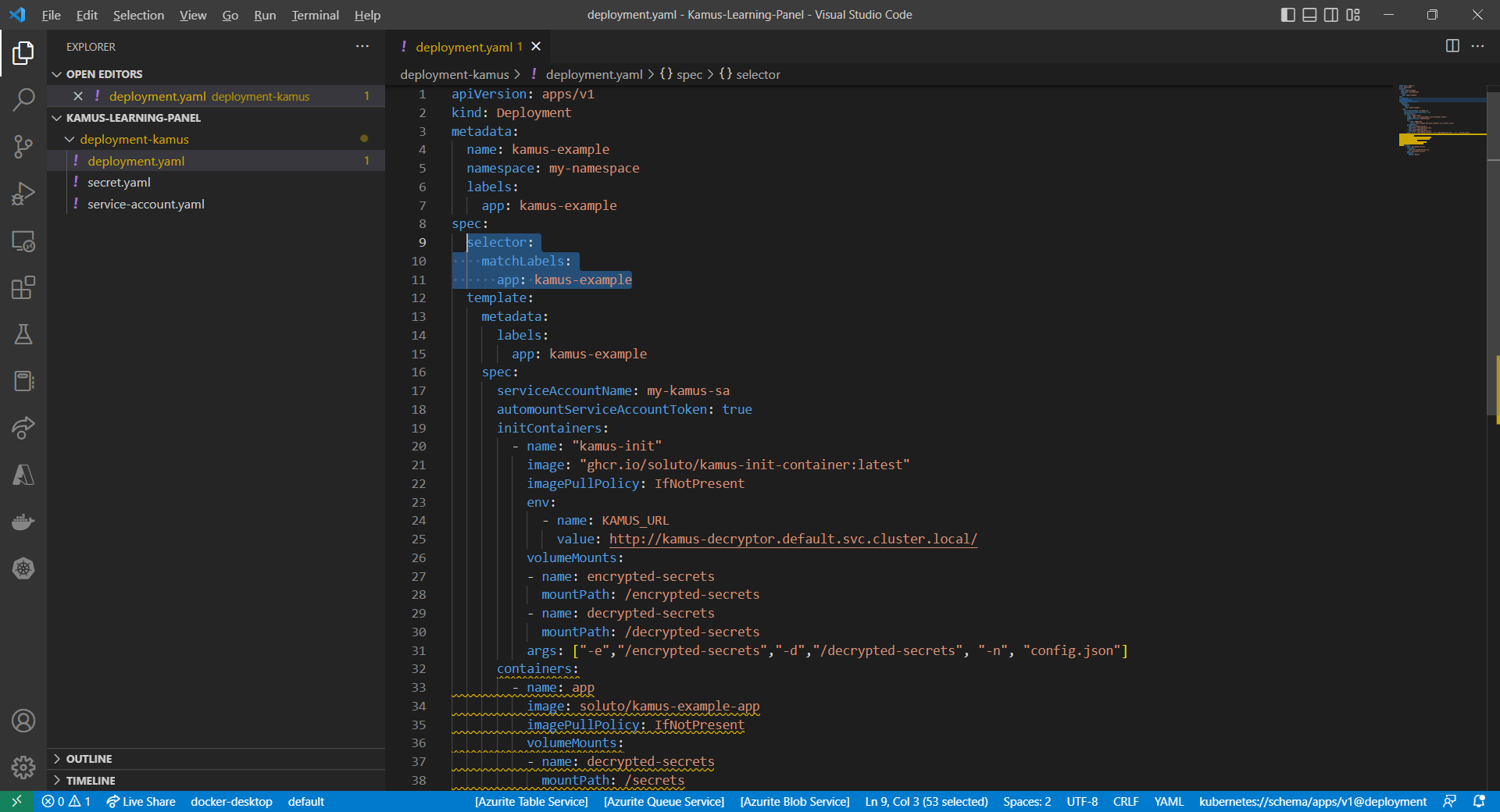
Then we can include an InitContainer in our pod. This is because the use of an initContainer allows one or more containers to run only if one or more previous containers run and exit successfully. So we can make use of Kamus Init Container to decrypt the secret using Kamus Decryptor API and output it to a file to be consumed by our app. There is an official demo from the Kamus Team on how to do that on the GitHub. Please take note that one of their YAML files is outdated and thus there is a need to update their deployment.yaml to use “apiVersion: apps/v1” with a proper selector.

Updated deployment.yaml.

After the deployment is successful, we can forward the port 8081 to the pod in the deployment as shown below.

kubectl port-forward deployment/kamus-example 8081:80

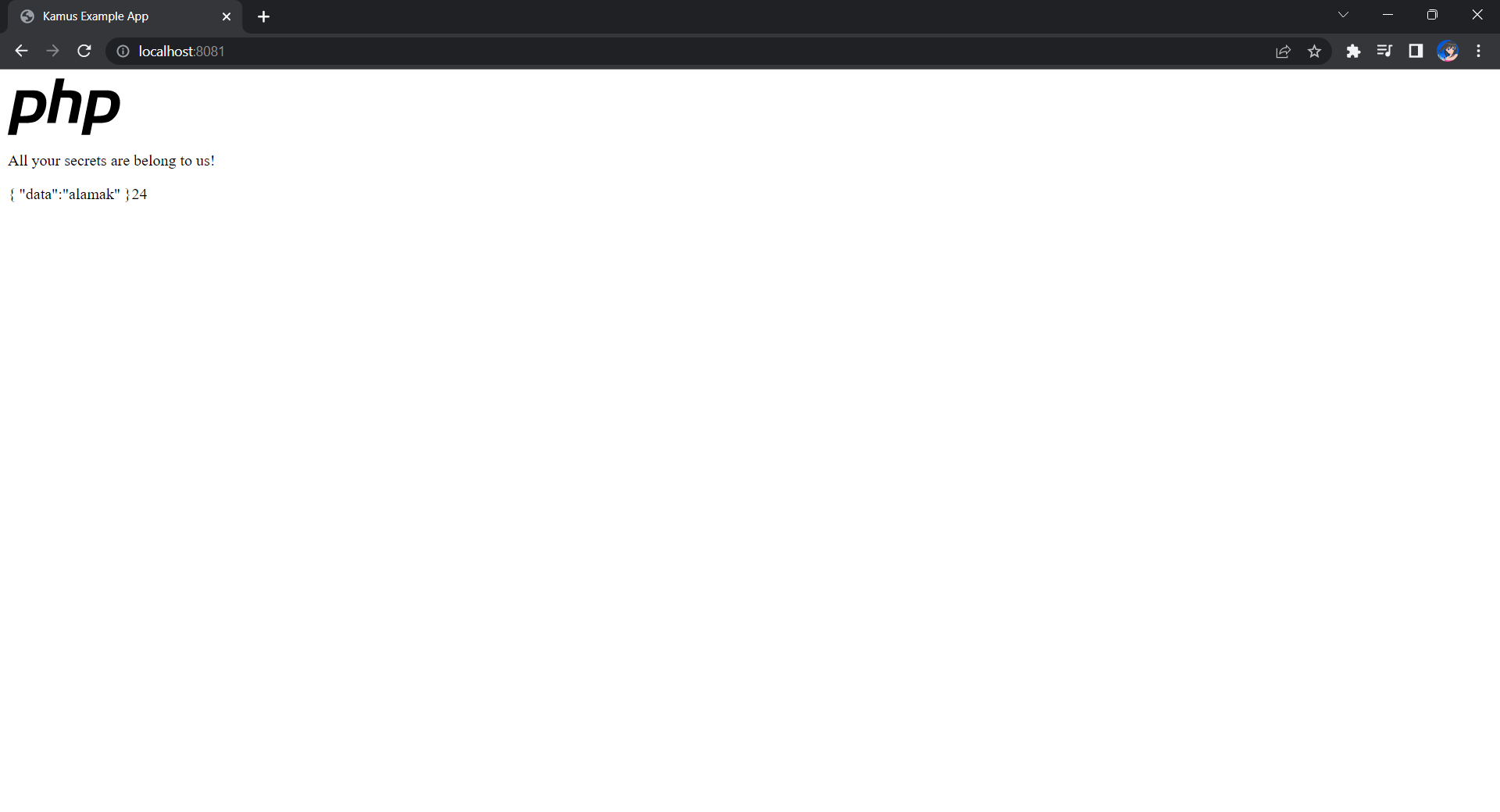
If the deployment is successful, we should be able to see the following when we visit localhost:8081 on our Internet browser, as shown in the following screenshot.

Yay, the original text “alamak” is successfully decrypted and displayed.

Deploy Our CronJob

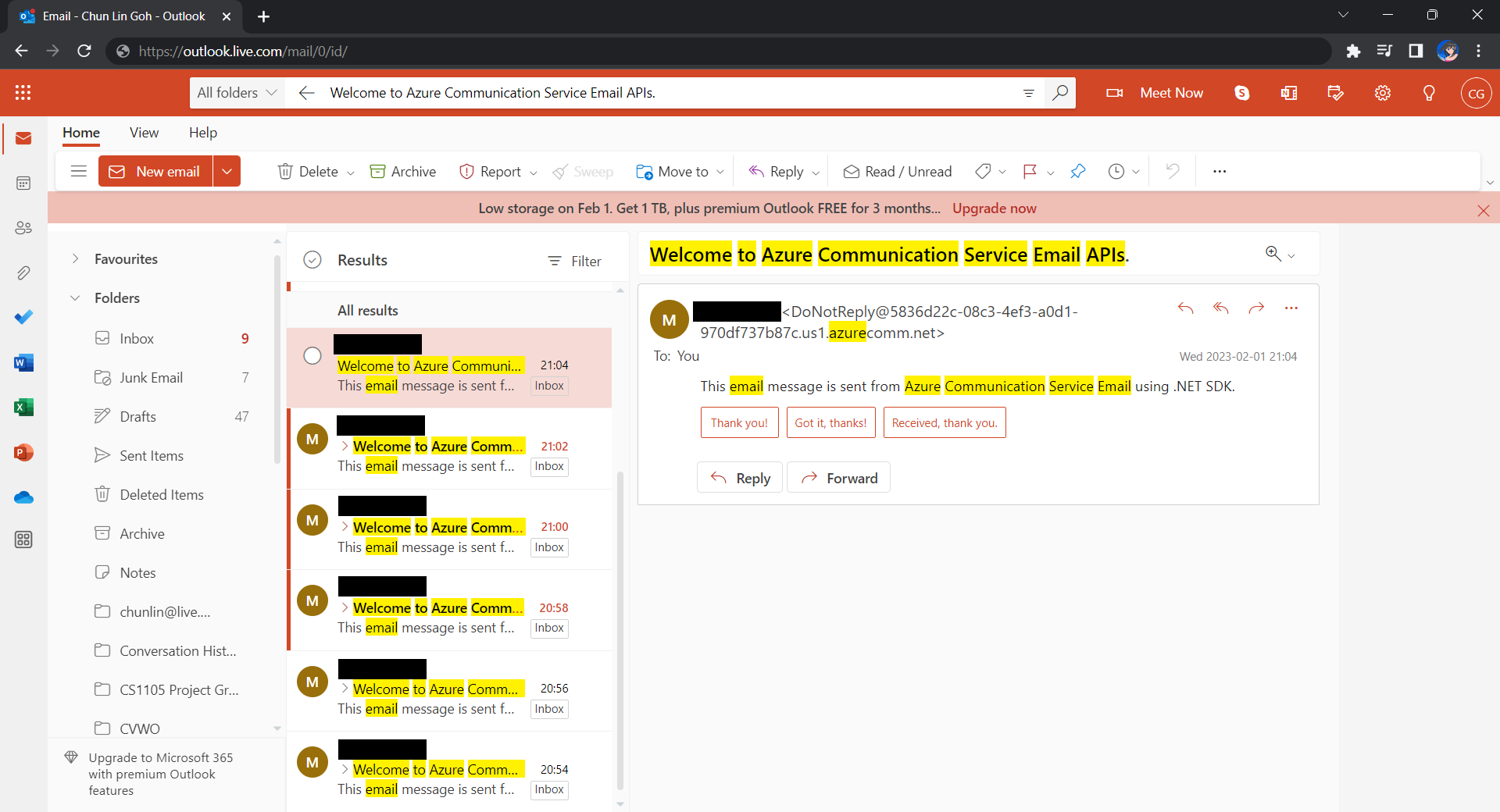
Now, since we have everything setup, we can create our Kubernetes CronJob with the YAML file we have earlier. For local testing, I have edited the schedule to be “*/2 * * * *”. This means that an email will be sent to me every 2 minutes.

After waiting for a couple of minutes, I have received a few emails sent via the Azure Communication Services, as shown below.

Now the emails are received every 2 minutes. =)

Hoorey, this is how we build a simple Kubernetes CronJob and how we can send emails with the Azure Email Communication Services.