Revisit Avalonia UI App Development

Back in April 2018, I had the priviledge of sharing about Avalonia UI app development with the Singapore .NET Developers Community. At the time, Avalonia was still in its early stages, exclusively tailored for the creation of cross-platform desktop applications. Fast forward to the present, five years since my initial adventure to Avalonia, there is a remarkable transformation in this technology landscape.

In July 2023, Avalonia v11 was announced. It is a big release with mobile development support for iOS and Android, and WebAssembly support to allow running directly in the browser.

In this artlcle, I will share about my new development experience with Avalonia UI.

About Avalonia UI

Avalonia UI, one of the .NET Foundations projects, is an open-source, cross-platform UI framework designed for building native desktop apps. It has been described as the spiritual successor to WPF (Windows Presentation Foundation), enabling our existing WPF apps to run on macOS and Linux without expensive and risky rewrites.
Platforms supported by Avalonia. (Reference)

Like WPF and Xamarin.Forms, Avalonia UI also uses XAML for the UI. XAML is a declarative markup language that simplifies UI design and separates the UI layout from the application’s logic. Same as WPF, Avalonia also encourages the Model-View-ViewModel (MVVM) design pattern for building apps.

Hence, for WPF developers, they will find the transition to Avalonia relatively smooth because they can apply their knowledge of XAML and WPF design patterns to create UI layouts in Avalonia easily. With Avalonia, they can reuse a significant portion of their existing WPF code when developing cross-platform apps. This reusability can save time and effort in the development process.

Semi.Avalonia Theme

Theming is still a challenge especially when it comes to develop line-of-business apps with Avalonia UI. According to the community, there are a few professional themes available, such as

Currently, I have only tried out Semi.Avalonia.

Semi.Avalonia is a theme inspired by Semi Design, a design system designed and currently maintained by Douyin. The reason why I chose Semi.Avalonia is because there is a demo app which demonstrating all of the general controls and styles available to develop Avalonia apps.
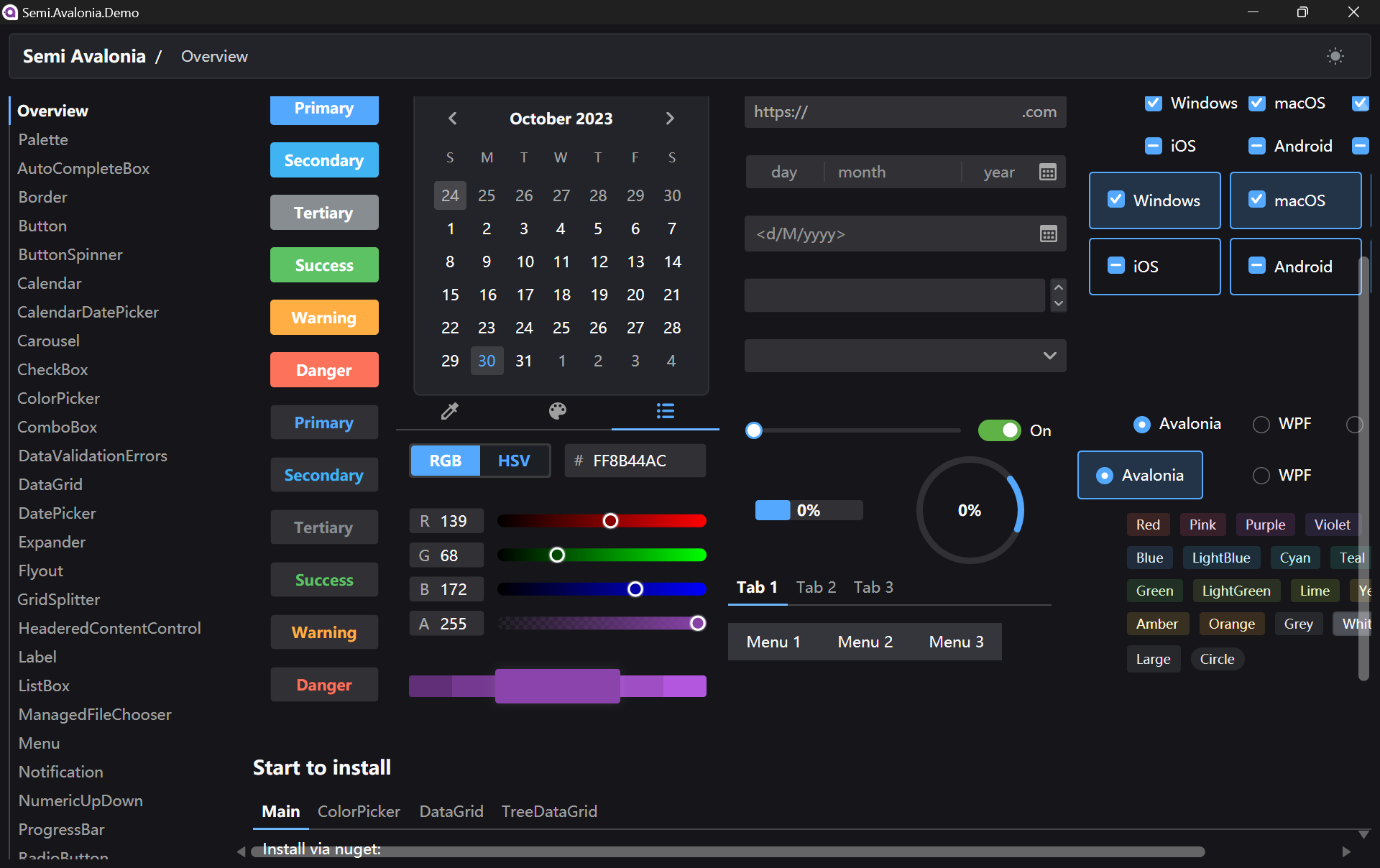
There is a demo executable available for us to play around with Semi Avalonia Themes.

XAML Previewer for Avalonia

In September 2023, .NET Foundation announced on the social network, X, that Avalonia UI offered a live XAML previewer for Avalonia in Visual Studio Code through an extension as well.

The Avalonia XAML Previewer offers real-time visualisation of XAML code. With this capability, developers can deftly craft and refine user interfaces, swiftly pinpoint potential issues, and witness the immediate effects of their alterations.

Unlike Visual Studio, VS Code will reuse the single preview window. Hence, the previewer will refresh everytime when we switch between multiple XAML files.

Besides, the Avalonia for Visual Studio Code Extension also contains support for Avalonia XAML autocomplete.
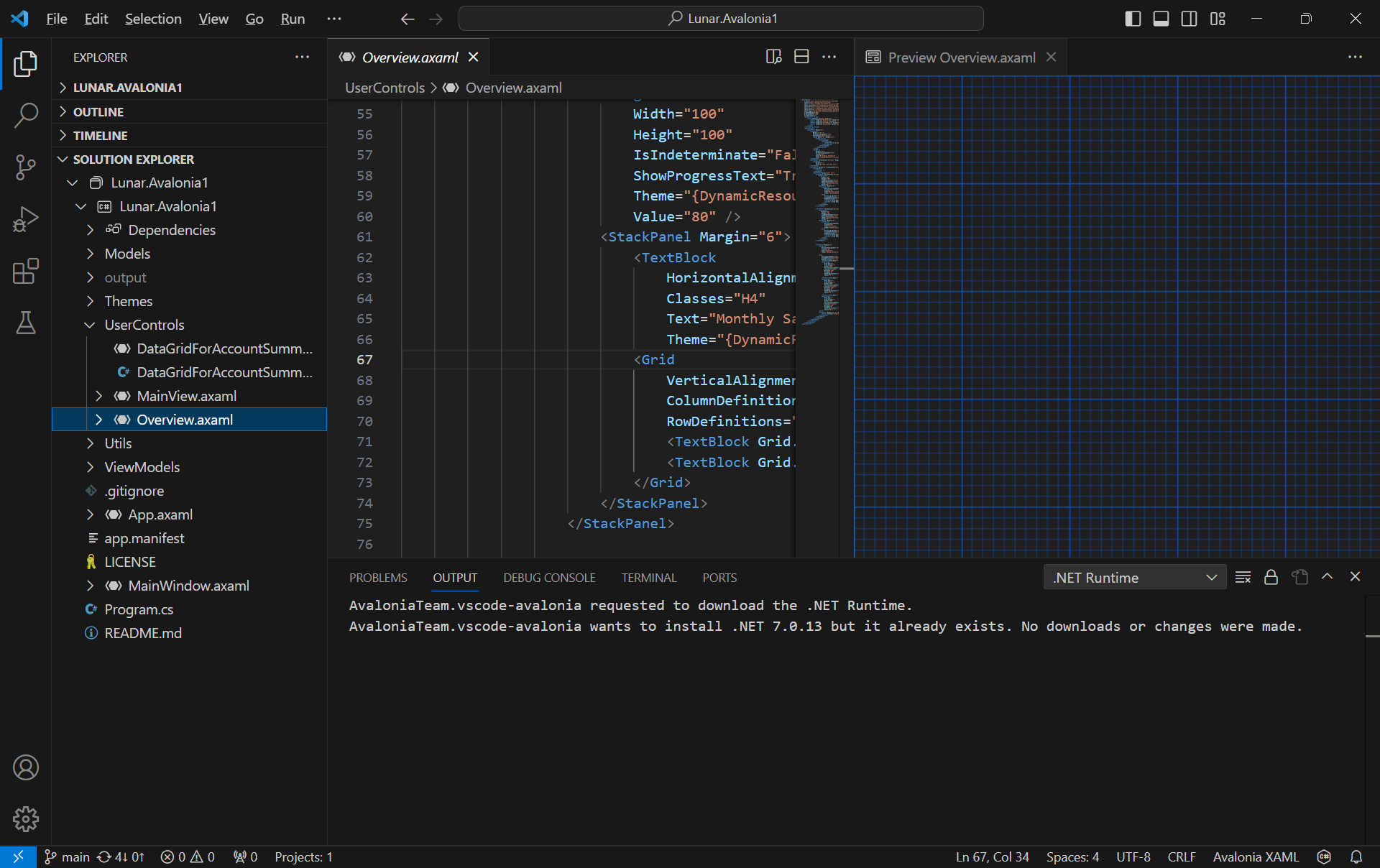
The Avalonia XAML Previewer somehow is not working perfectly on my Surface Go.

C# DevKit

In addition, there is also a new VS Code extension that needs our attention.

In October 2023, Microsoft announced the general availability of C# Dev Kit, a VS Code extension that brings an improved editor-first C# development experience to Linux, macOS, and Windows.

When we install this extension, three other extensions, i.e. the C# extension, the IntelliCode for C# Dev Kit, and the .NET Runtime Install Tool will automatically be installed together.

With C# Dev Kit, we can now manage our projects with the Solution Explorer that we have been very familiar with on the Visual Studio.
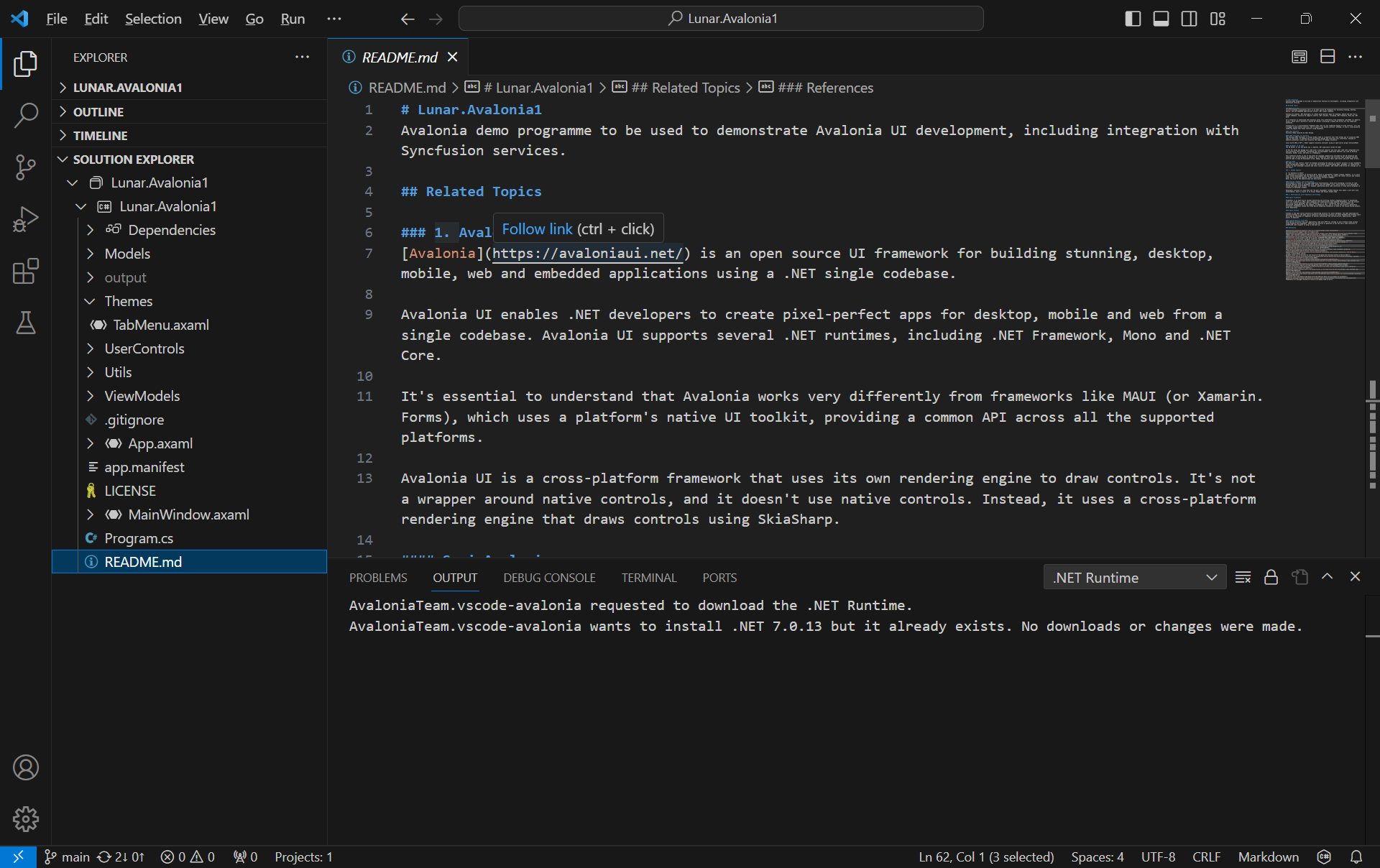
Besides the normal file explorer, we now can have the Solution Explorer in VS Code too.

Since the IntelliCode for C# Dev Kit extension is installed together, on top of the basic IntelliSense code-completion found in the existing C# extension, we can also get powerful IntelliCode features such as whole-line completions and starred suggestions based on our personal codebase.
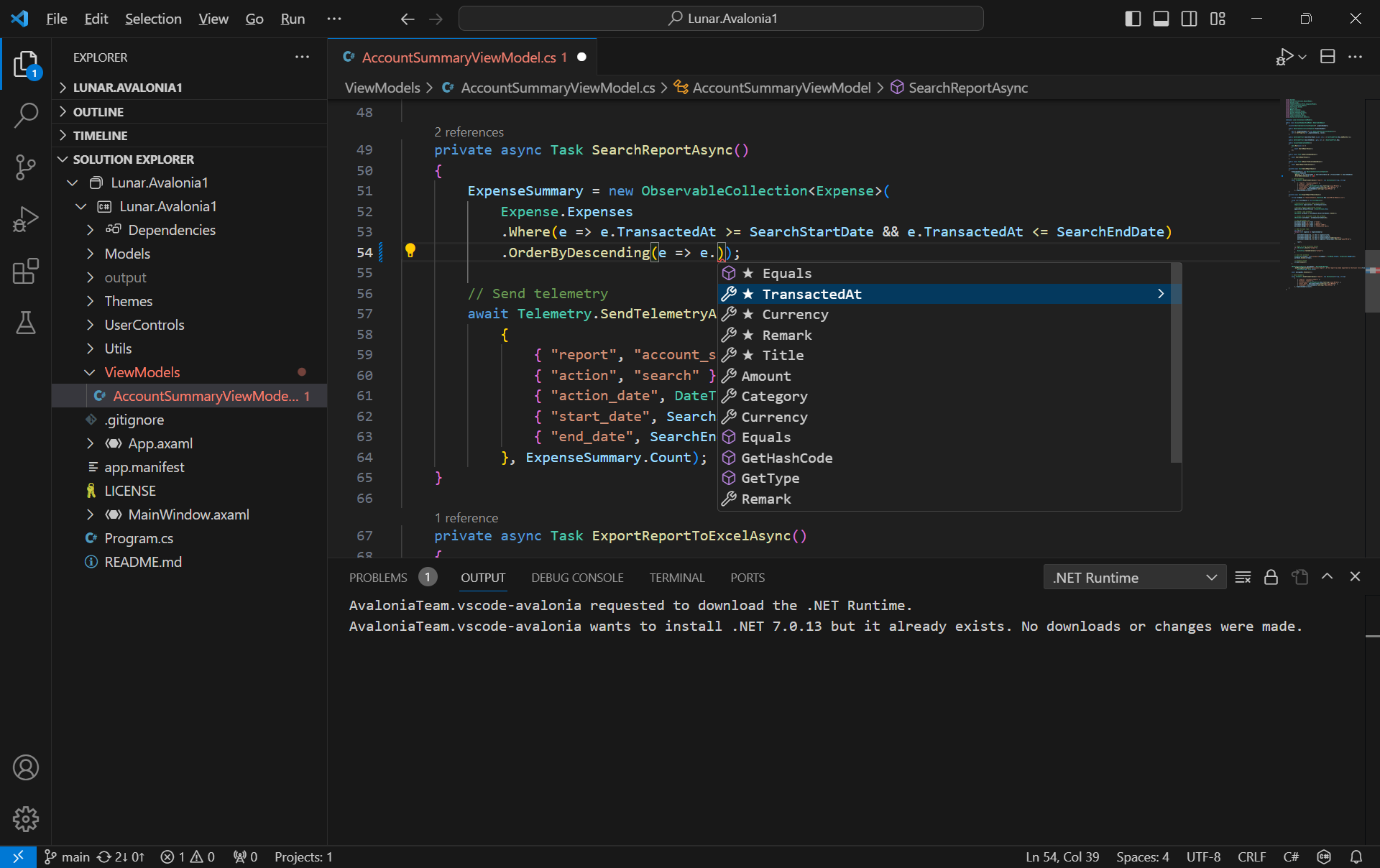
AI-assisted IntelliCode predicts the most likely correct method to use in VSCode.

Grafana Dashboard

Next, I would like to talk about the observability of an app.
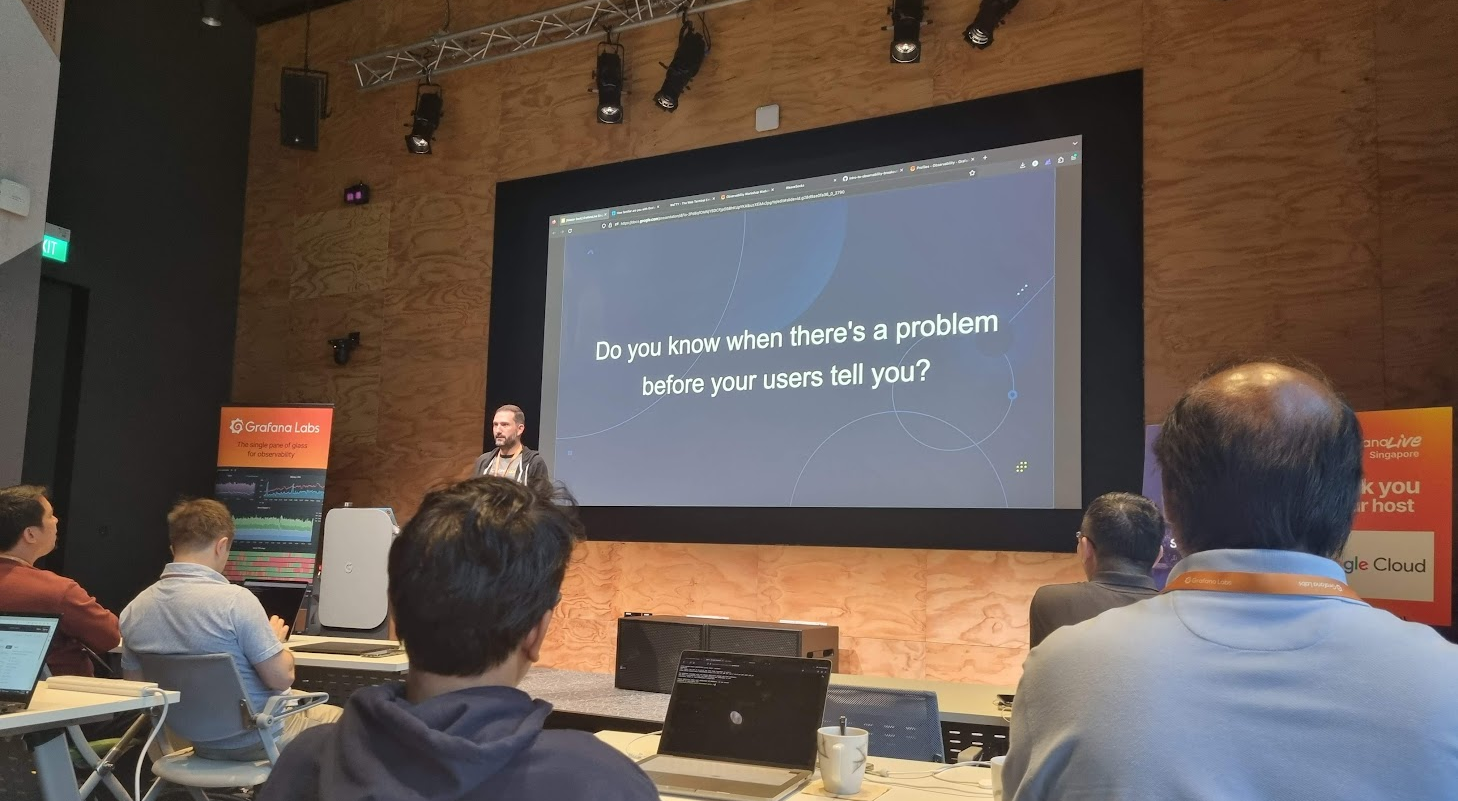
I attended Grafana workshop during the GrafanaLive event in Singapore in September 2023.

Observability plays a crucial role in system and app management, allowing us to gain insights into the inner workings of the system, understand its functions, and leverage the data it produces effectively.

In the realm of observability, our first concern is to assess how well the system can gauge its internal status merely by examining its external output. This aspect of observability is crucial for proactive issue detection and troubleshooting, as it allows us to gain a deeper insight into performance and potential problems of the system without relying on manual methods.

Effective observability not only aids in diagnosing problems but also in understanding the system behavior in various scenarios, contributing to better decision-making and system optimisation.
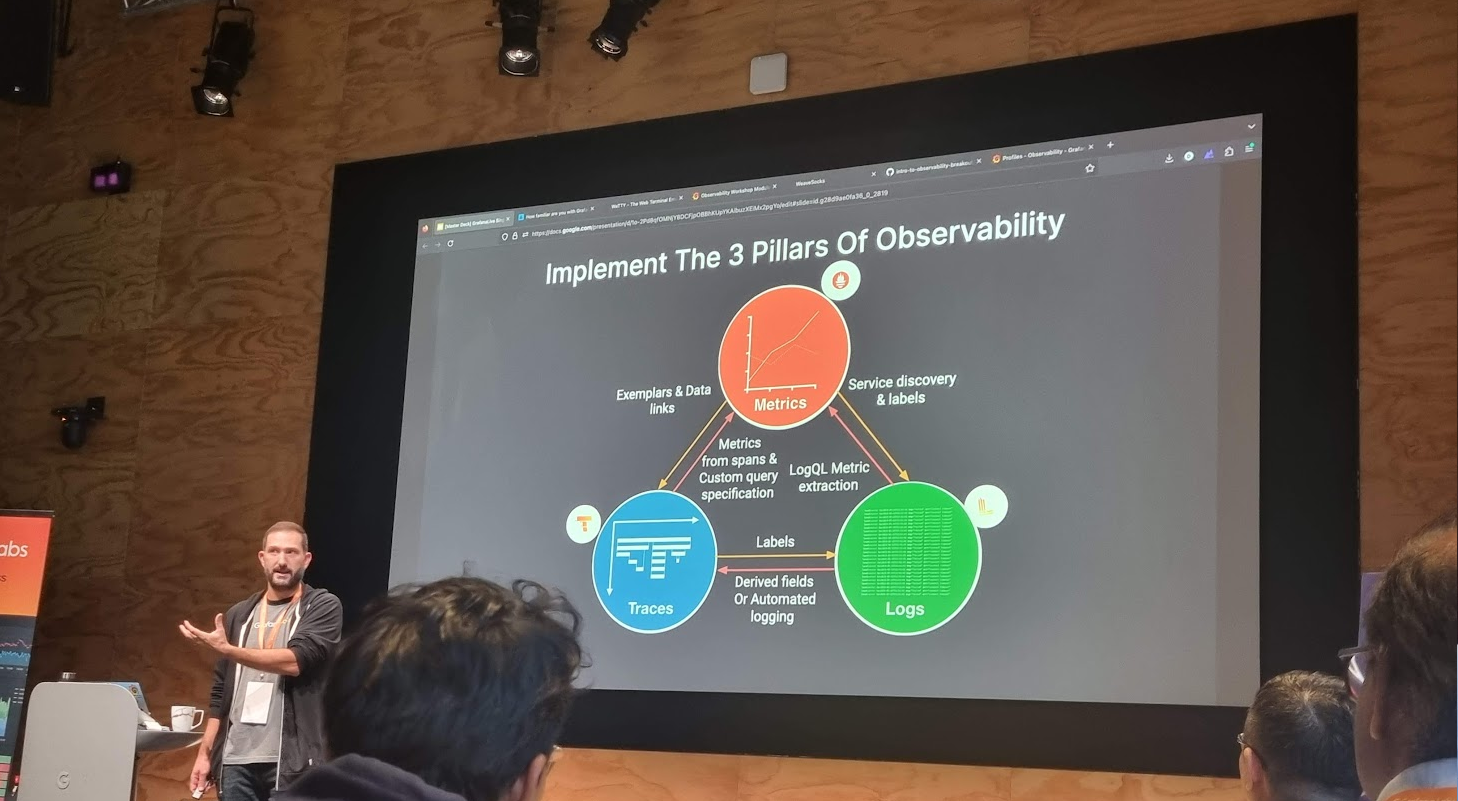
Grafana engineer shared about the 3 pillars of observability.

There are three fundamental components of observability, i.e. monitoring, logging, and tracing. Monitoring enhances the understanding of system actions by collecting, storing, searching, and analysing monitoring metrics from the system.

Prometheus and Grafana are two widely used open-source monitoring tools that, when used together, provide a powerful solution for monitoring and observability. Often, Prometheus collects metrics from various systems and services. Grafana then connects to Prometheus as a data source to fetch these metrics. Finally, we design customised dashboards in Grafana, incorporating the collected metrics.

A simple dashboard collecting metrics from the Avalonia app though HTTP metrics.

We can get started quickly with Grafana Cloud, a hosted version of Grafana, without the need to set up and manage infrastructure components.

On Grafana Cloud, using the “HTTP Metrics”, we are able to easily send metrics directly from our app over HTTP for storage in the Grafana Cloud using Prometheus. Prometheus uses a specific data model for organising and querying metrics, which includes the components as highlighted in the following image.
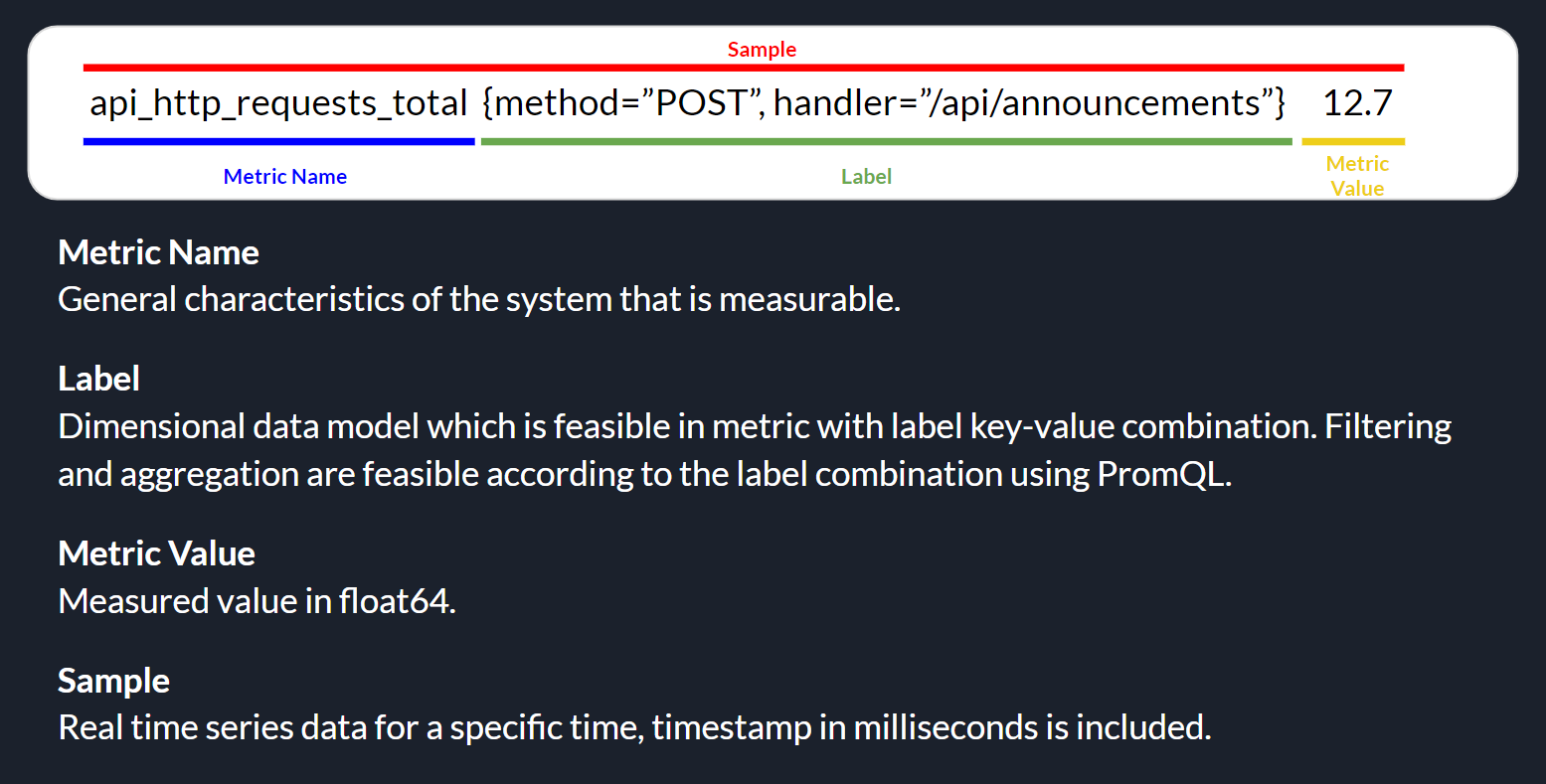
Prometheus metrics basic structure.

Thus, in our Avalonia project, we can easily send metrics to Grafana Cloud with the codes below, where apiUrl, userId, and apiKey are given by the Grafana Cloud.

HttpClient httpClient = new();
httpClient.DefaultRequestHeaders.Add("Authorization", "Bearer " + userId + ":" + apiKey);

string metricLabelsText = metricLabels.Select(kv => $"{kv.Key}={kv.Value}").Aggregate((a, b) => $"{a},{b}");

string metricText = $"{metricName},{metricLabelsText} metric={metricValue}";

HttpContent content = new StringContent(metricText, Encoding.UTF8, "text/plain");

await httpClient.PostAsync(apiUrl, content);

Wrap-Up

The complete source code of this project can be found at https://github.com/goh-chunlin/Lunar.Avalonia1. In the Readme file, I have also included both the presentation slide and recording for my presentation in the Singapore .NET Developers Community meetup in October 2023.
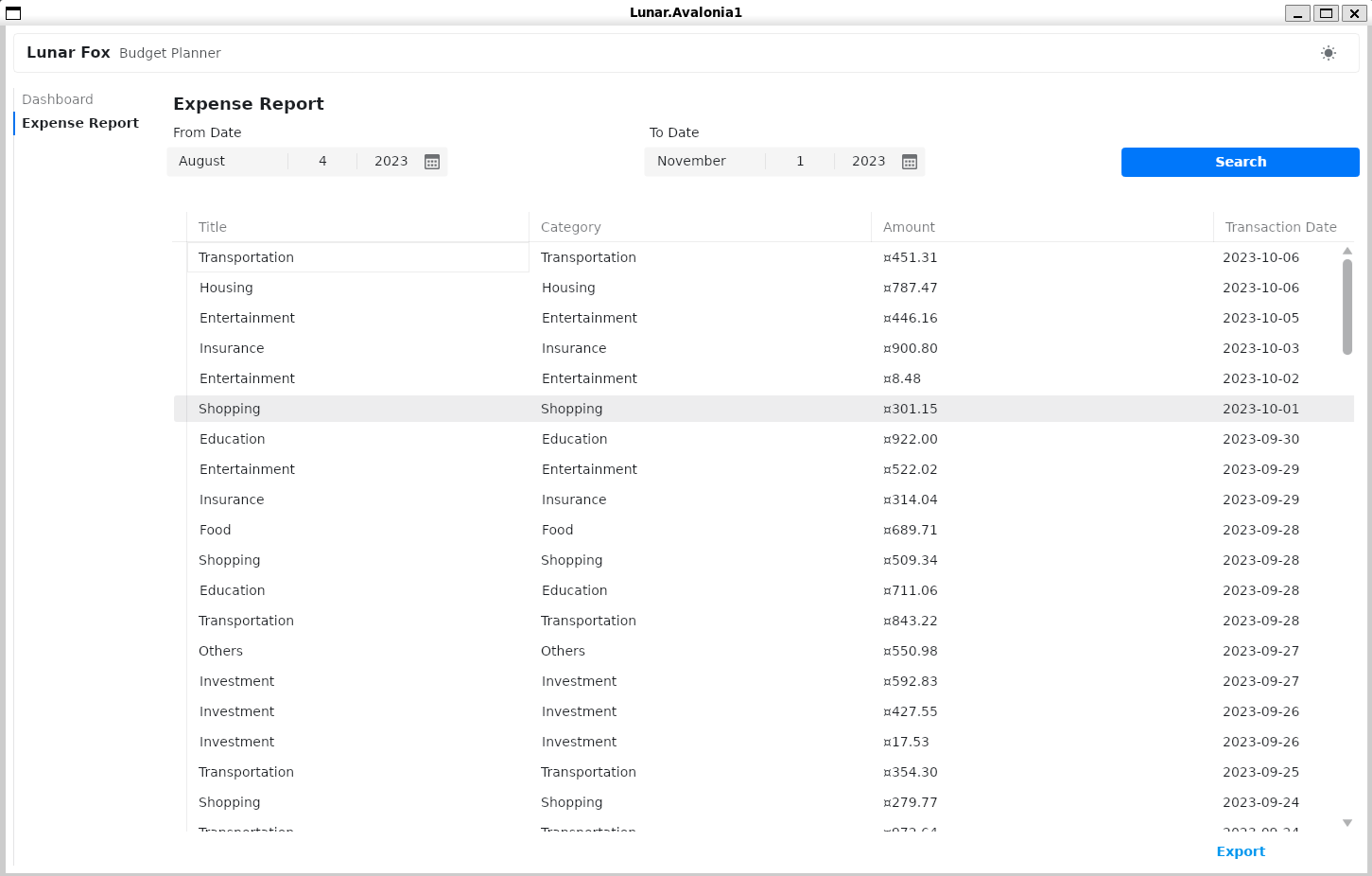
My Avalonia app can run on WSLg without any major issues.

Bring New Life to Old Laptop with Linux – Zorin OS Lite

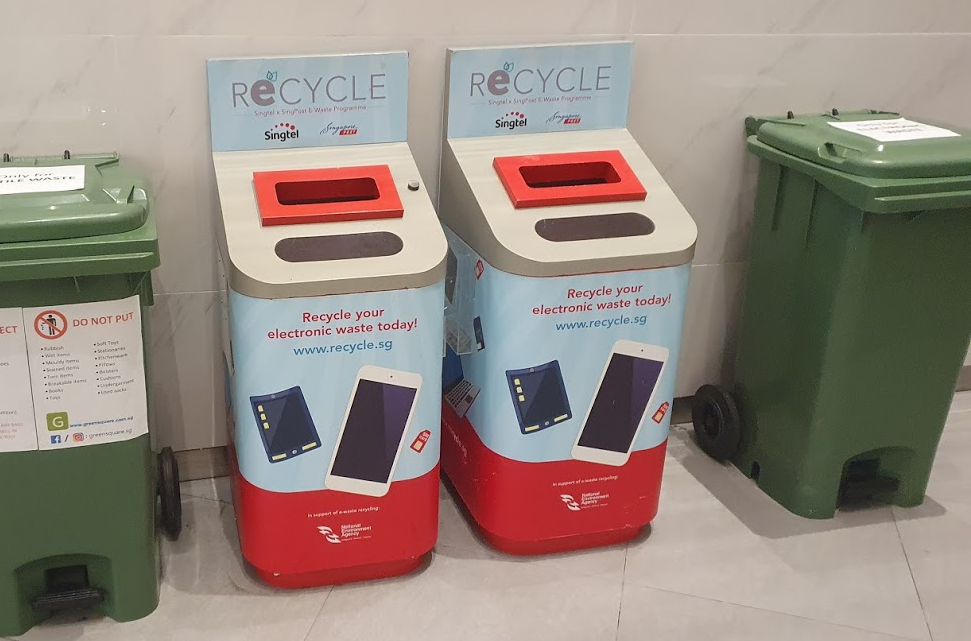
According to a study conducted by the National Environment Agency (NEA) of Singapore, there are more than 60,000 tonnes of electronic waste generated in the city state a year. So, do you have an old but functioning computer and not sure what to do with it? Well, instead of throwing it away or sending it for recycling, why not re-purpose it and make it great again with lightweight OS?

Personally, for devices such as computer, even though it might not work anymore for a specific purpose, but as long as it can still function, I try to find a use for it.

NEA encourages residents to recycle the electronic waste.

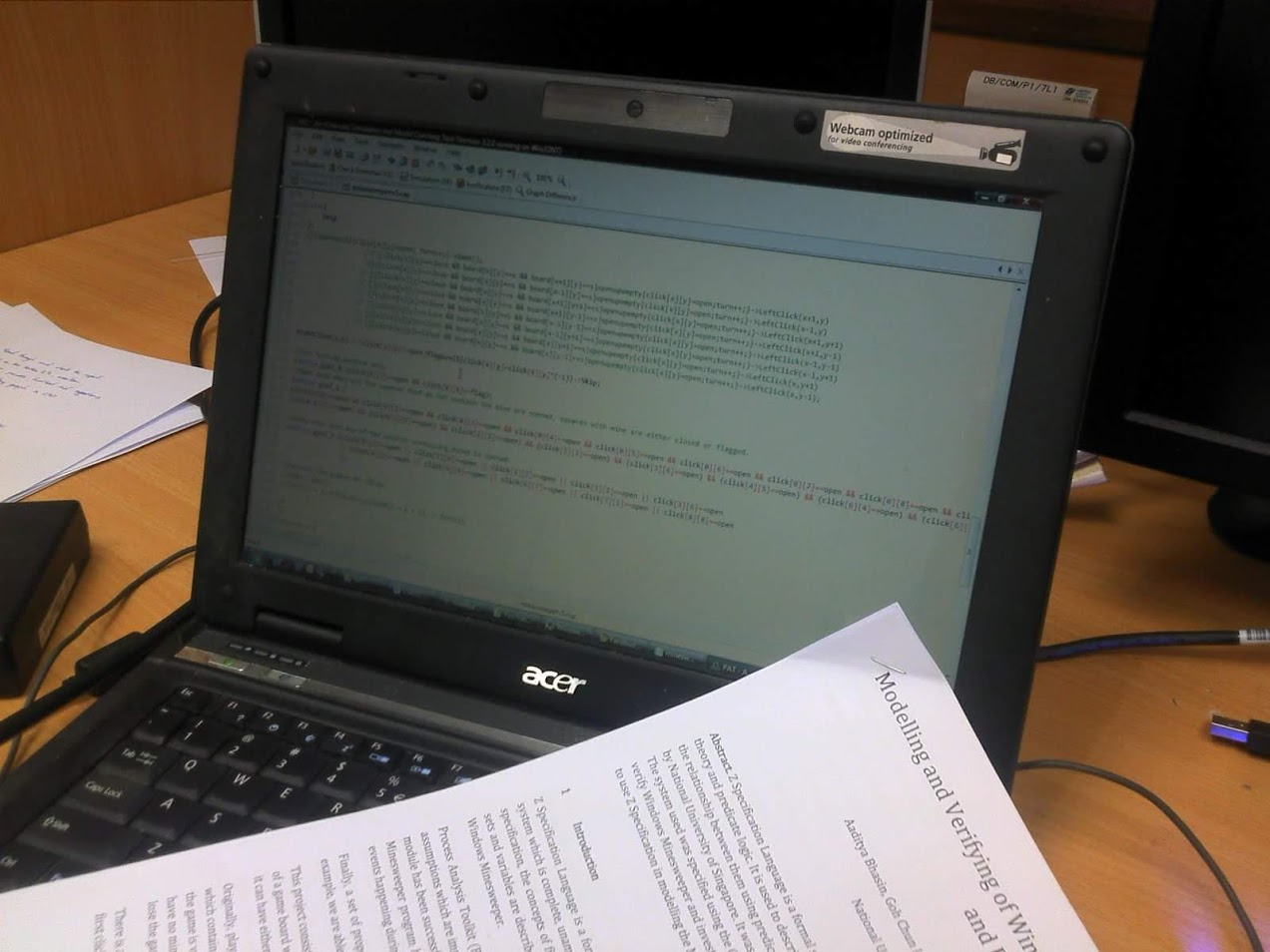
I bought my first laptop in 2007 when I enrolled in the National University of Singapore. It is an Acer TravelMate 6292 with Intel Core 2 Duo T7300 CPU and 2GB RAM. The operating system installed in the machine was Windows Vista and it ran very slow. Nevertheless, I still managed to live with it and successfully completed all the assignments and projects using the slow computer.

Acer TravelMate 6292 with Windows Vista installed is the only machine I had in my 4-year campus life.

Hence, it’s now not a good idea to install Windows 10 on this 14-year-old laptop. Instead, I simply remove Windows and install a lightweight version of Linux, Zorin OS.

Why Zorin OS?

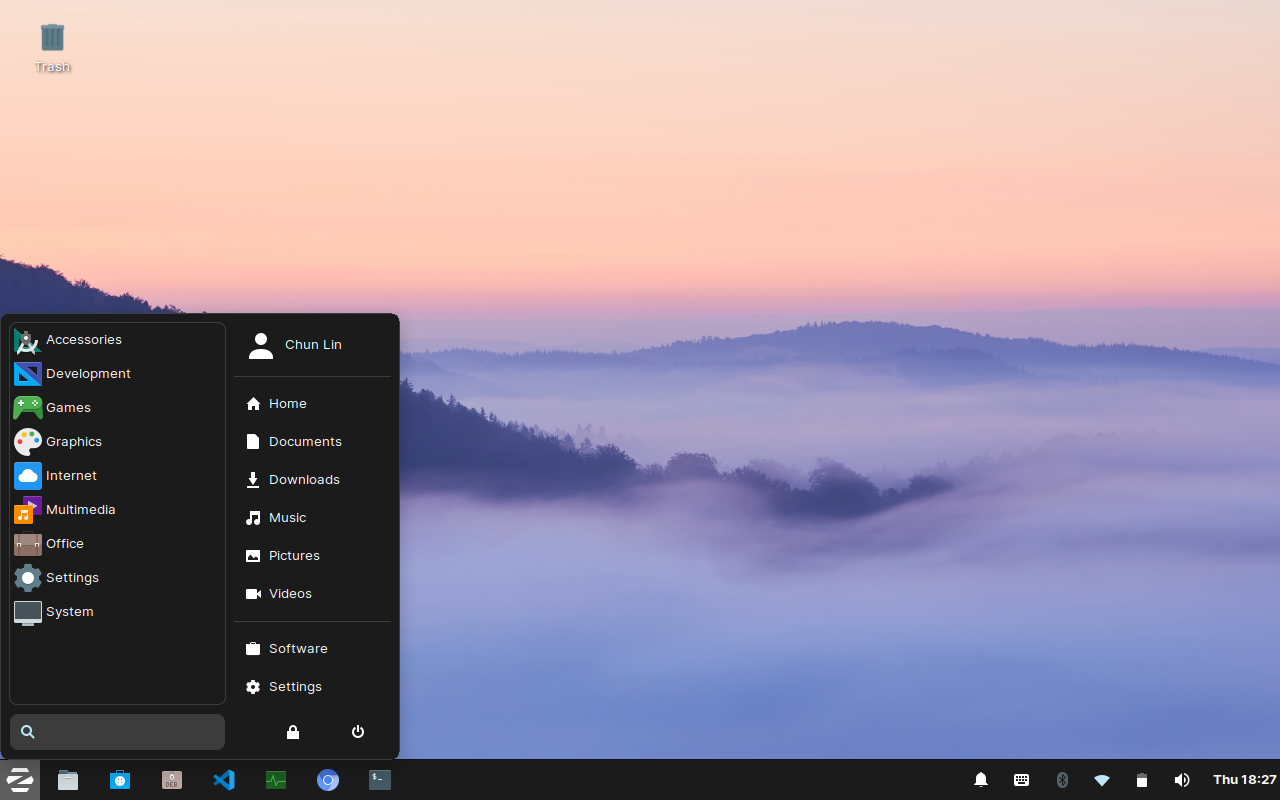
Zorin OS is fully graphical. It is a sexy looking Linux distro that manages to provide a good user experience – even with its lite edition. Speaking of user experience, although Zorin OS is an Ubuntu-based Linux distribution, it has a Windows-like graphical user interface. Hence, it is suitable to Windows users who are very accustomed to the way Windows works and are not interested in learning a new OS.

Zorin OS user interface looks just like Windows.

Zorin OS comes in two variants, i.e. Core and Lite. Here we will focus on Lite edition because it uses lightweight Xfce desktop and is intended to be the Linux for low-spec laptops and computers.

Zorin OS Lite system requirement. (Image Source: zorinos.com)

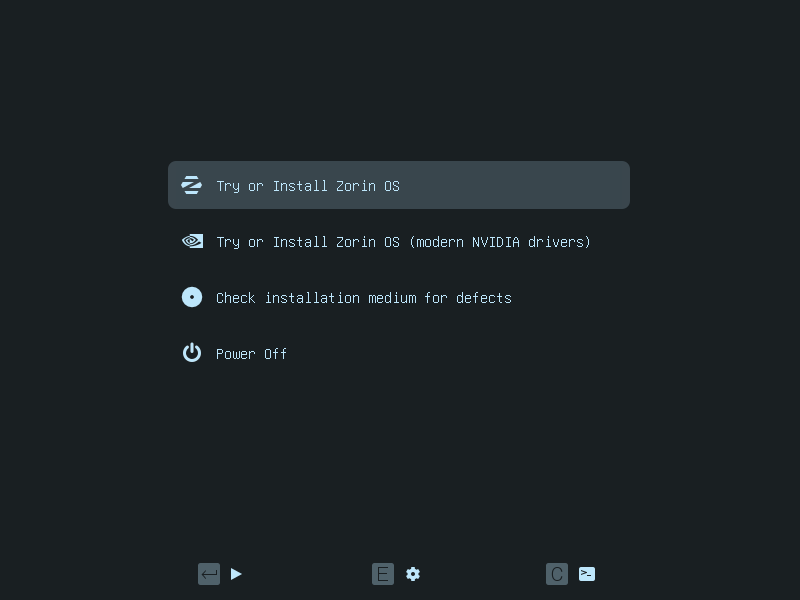
Once we are sure that our low-spec computers are capable of running Zorin OS Lite, we simply need to prepare a USB drive with at least 4GB of capacity for our Zorin OS Lite copy. Then we can start to download Zorin OS and then create an USB installation drive.

We can try Zorin OS before install it when we boot from the USB installation drive. (Image Source: zorinos.com)

Battery Replacement

The last time I changed the battery of my laptop is 10 years ago. In addition, recently the battery would become extremely hot until I couldn’t even grab my laptop when it was charging. Hence, it’s now time to replace the battery with a new one.

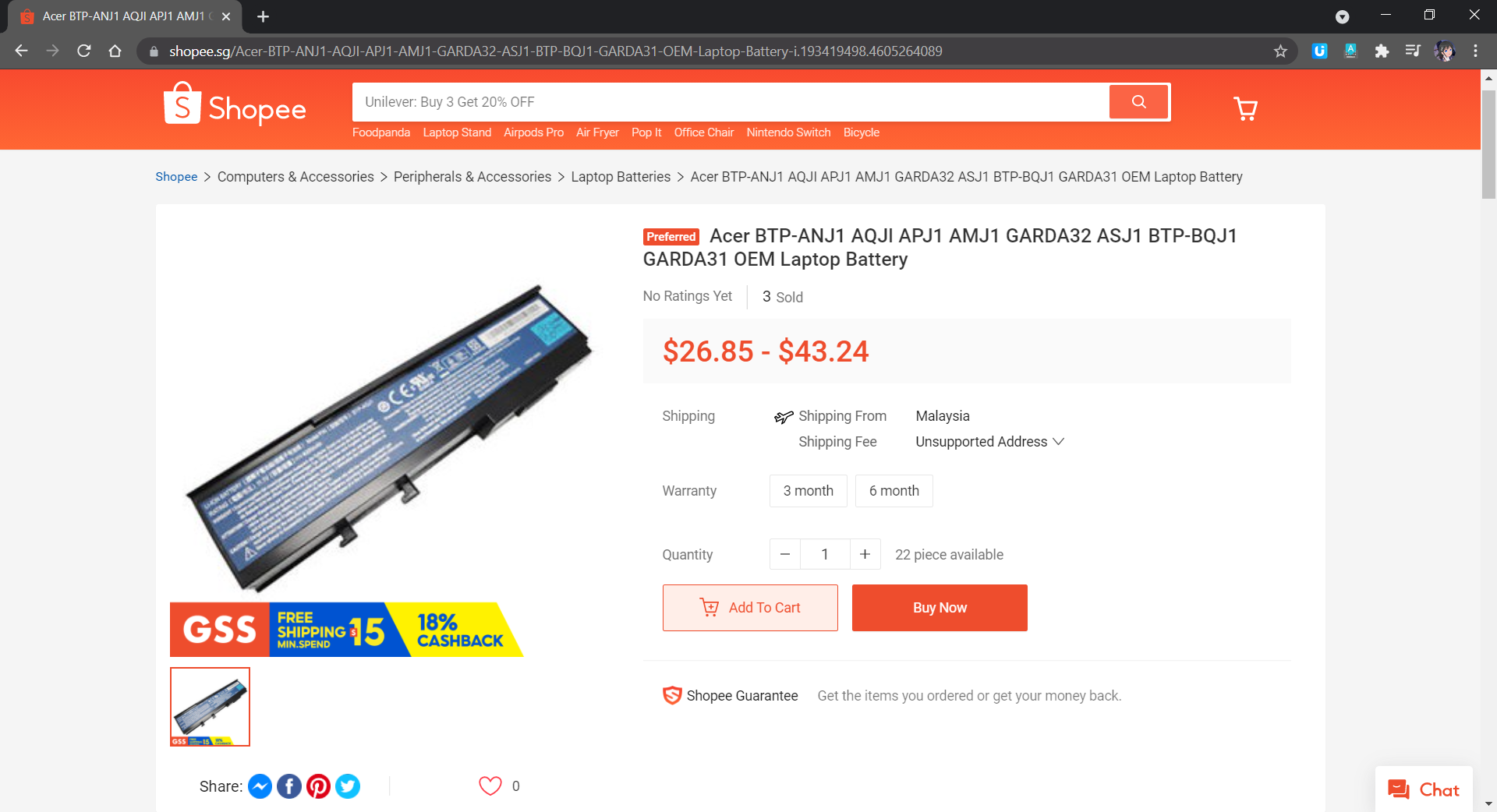
The battery is still available on Shopee!

The battery of the laptop is a GARDA31 6-Cell battery. I ordered one from Shopee with SGD 43.24. I received the battery one week later.

According to the spec of the battery, it has a battery life of 4 hours maximum and it would take 3 hours and 30 minutes to charge. In my case, I can only use the laptop to listen to an online radio on Chromium for at most 2 hours and 15 minutes after I have fully charged it. In addition, the CPU usage was only around 20% and RAM usage was around 1GB when the online radio is playing. However, for charging, currently it takes only around 2 hours to fully charge the battery.

System Booting Time

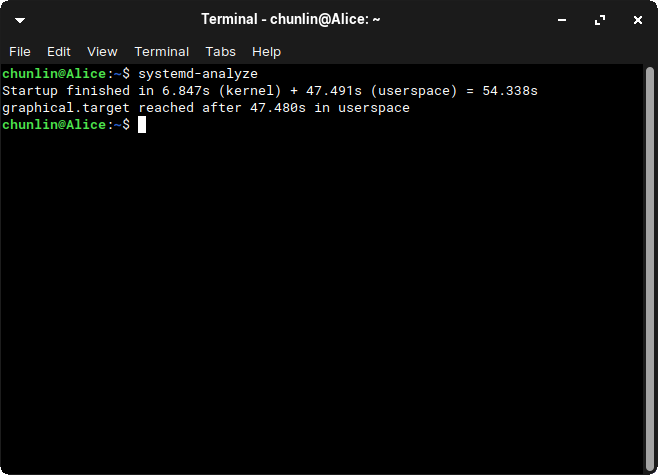
Currently, Zorin OS Lite took about 1 minute to boot. To find the exact time it takes to boot, we can use a tool known as systemd-analyze.

The systemd-analyze is a tool that we can use to find out the system last boot up statistics. With the systemd-analyze tool, we can find the information about how much time the system took to boot and also how much time each unit took to start, as shown in the following screenshot.

Startup finished within a minute.

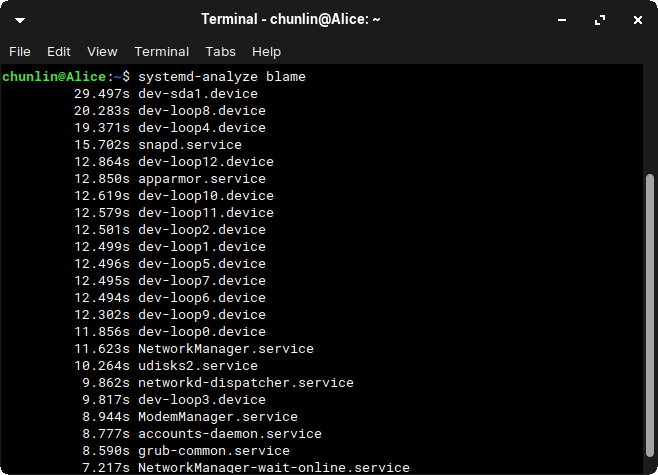
We can further list all the running services that started at the boot time along with the time they took with the systemd-analyze blame command, as shown below.

Each loop device is a snap install.

Web Browsers

One of the major uses of this laptop is surfing the Internet.

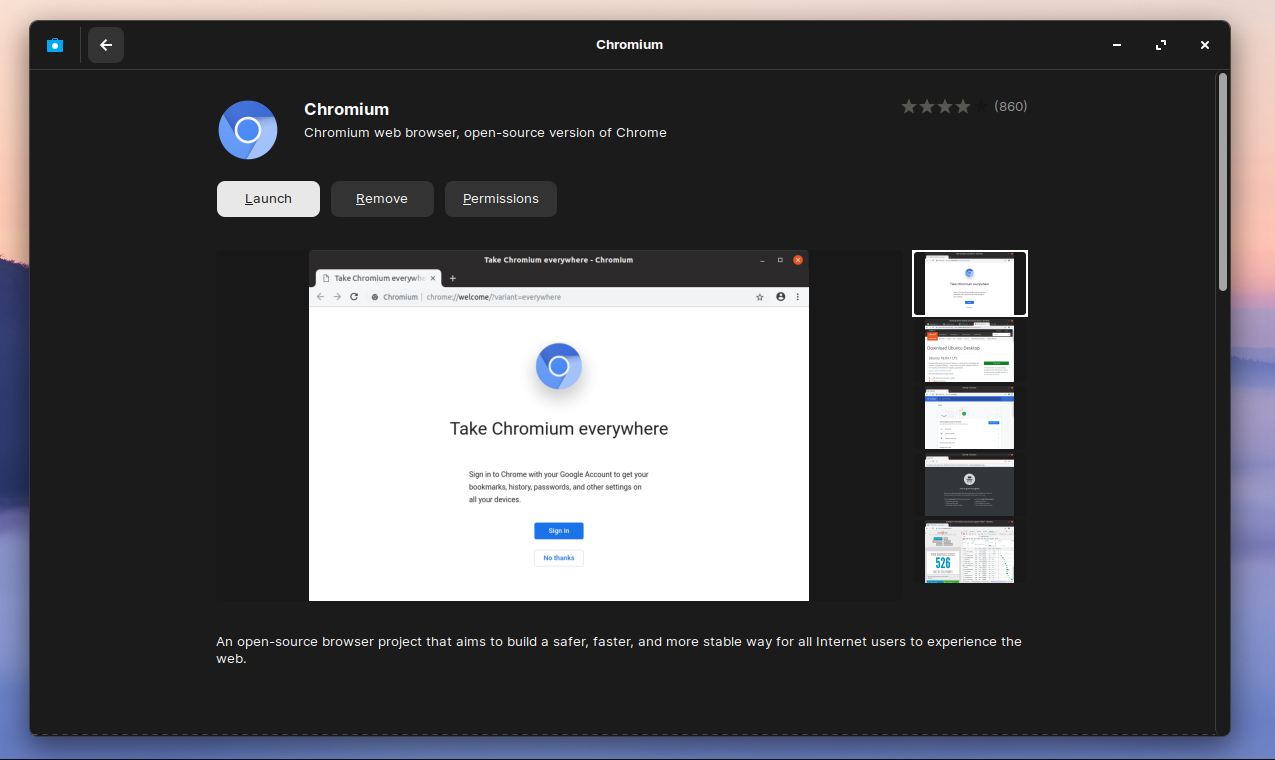
By default, Firefox is pre-installed in Zorin OS. We can also install Chromium, an open-source web browser maintained by Google, from its Software store, as shown in the screenshot below.

Chromium web browser can be found in the Zorin OS Software store.

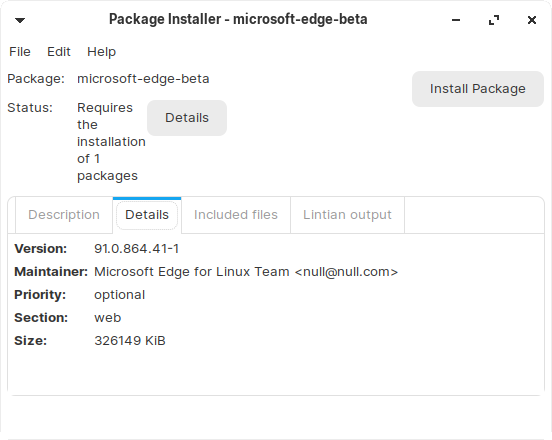
In October 2020, Microsoft announced the Edge preview builds for Linux. The release supports Ubuntu, Debian, Fedora, and openSUSE distributions. Hence, we simply need to download and install the .deb package directly from the Microsoft Edge Insider site.

Using Gdebi Package Manager to install the downloaded .deb package of Microsoft Edge. (Guide on using gdebi)

Besides listening to online radio, I also like to watch videos on Bilibili and YouTube. Unlike YouTube, Bilibili is more engaging because it has a real-time captioning system known as Danmu (弹幕) that displays user comments as streams of scrolling subtitles overlaid on the video playback screen. Due to the Danmu system, Bilibili videos don’t play well on Firefox but performs better on Chromium and Edge.

Bilibili video performance on Firefox vs Chromium on Zorin OS Lite.

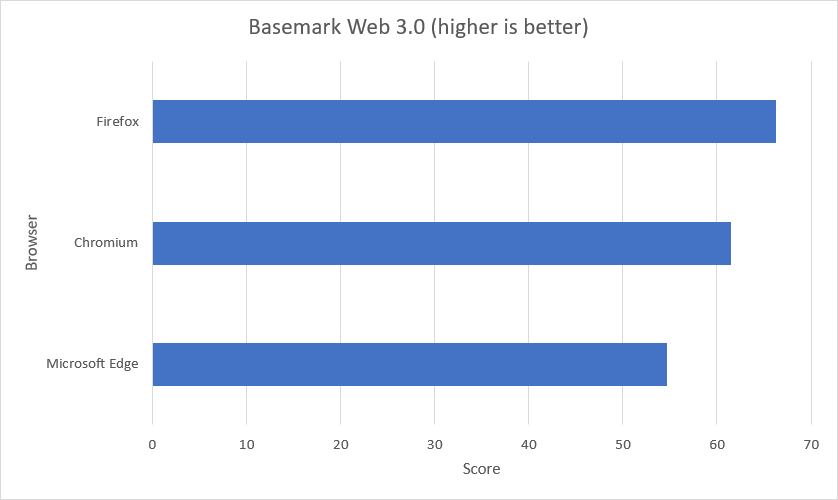
Out of curiosity, I run the Basemark benchmark on Chromium, Firefox, and Edge. Here, Basemark Web 3.0 is used because it tests how well our system can use web apps. The benchmark includes various system and graphic tests that use the web recommendations and features. Firefox is a clear winner in this benchmark, with Edge and Chromium had problems on running some of the tests and Firefox couldn’t run the WebGL 2.0 Test.

Score of three web browsers on Zorin OS Lite.

Screen Recording

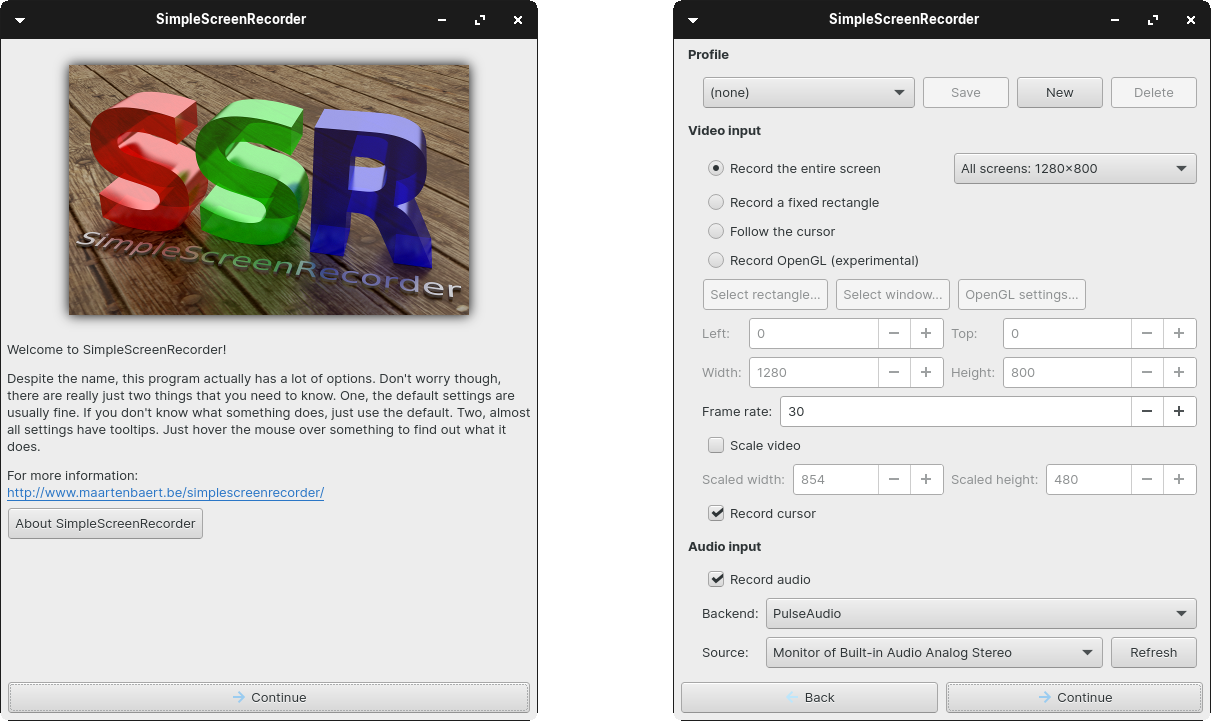
The video shown above is recorded using a Linux program known as SimpleScreenRecorder, which is user-friendly with a straightforward GUI.

SimpleScreenRecorder gives user a simple way to do a screen record on Linux.

To install the application, we simply need to execute the following commands.

sudo apt-get update 
sudo apt-get install simplescreenrecorder

After the videos were recorded, I edited them on my Windows machine which has a video editing software installed.

File Upload

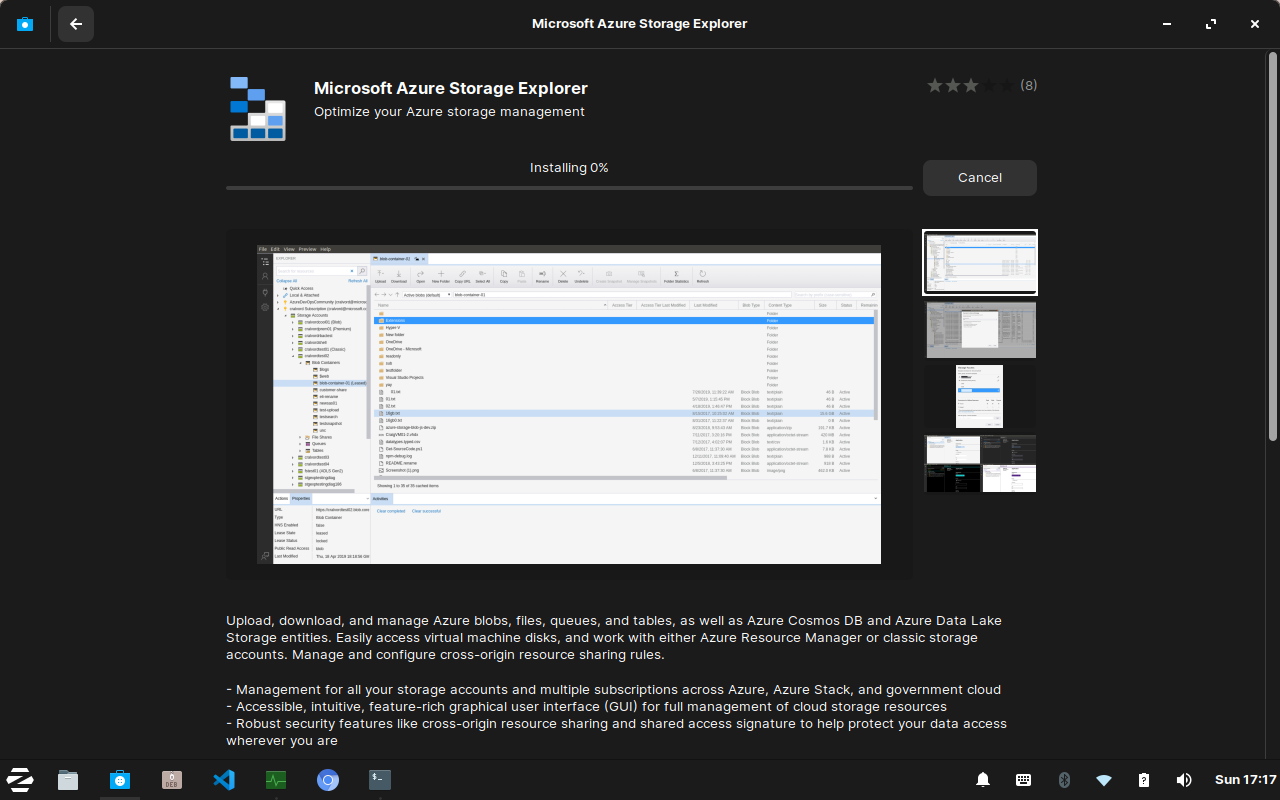
To share the files from Zorin OS to my Windows machine, I decided to use Microsoft Azure Storage as a medium. On Zorin OS Software Store, we can easily find the Azure Storage Explorer and download it. After the Azure Storage Explorer is successfully installed, we can simply drag-and-drop files to Azure Storage and download them from other machines.

Downloading and installing Microsoft Azure Storage Explorer from Zorin OS Software store.

Chinese Input

Sometimes, I need to use Chinese in websites such as Bilibili. To add Chinese input method on Zorin OS, we will first need to install fcitx with the following command.

sudo apt install -y fcitx

Fcitx itself comes with many IMEs (Input Method Editors). Personally, I prefer fcitx-googlepinyin which is a Chinese IME using Google Pinyin. It can be installed with the following command.

sudo apt-get install fcitx-googlepinyin

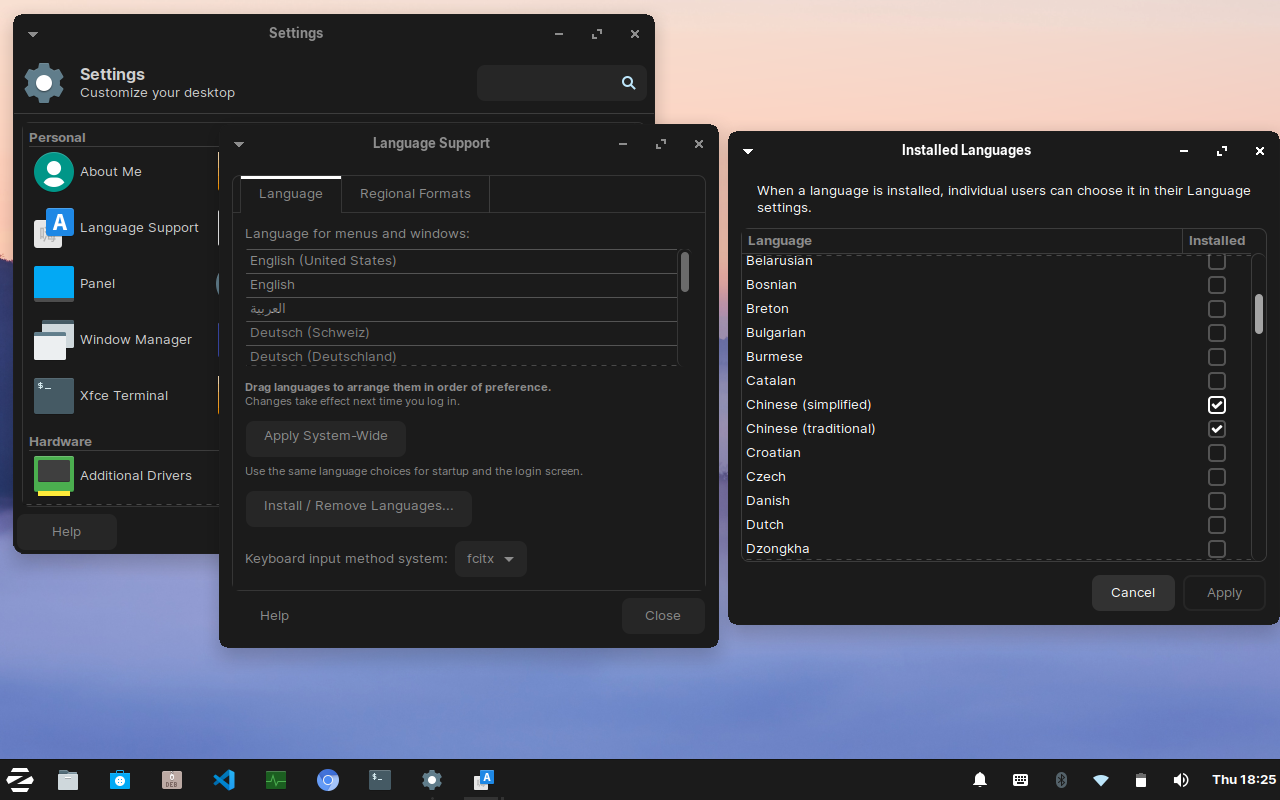
After we have both of them installed, we then can proceed to follow the steps below to setup the Chinese input method.

  1. Settings > Language Support > Install / Remove Languages;
  2. Check “Chinese (simplified)”;
  3. Set “fcitx” as the Keyboard Input Method System in the Language Support window;
  4. Apply system-wide;
  5. Restart the machine;
  6. Choose “Fctix Configuration” from the “Zorin Start Menu”;
  7. Click the + button and uncheck “Only show current language”;
  8. Search “google pinyin” and add it;
  9. Done, now we can type Chinese in Zorin OS.
Setting languages and keyboard input method system in Zorin OS.

Drawing

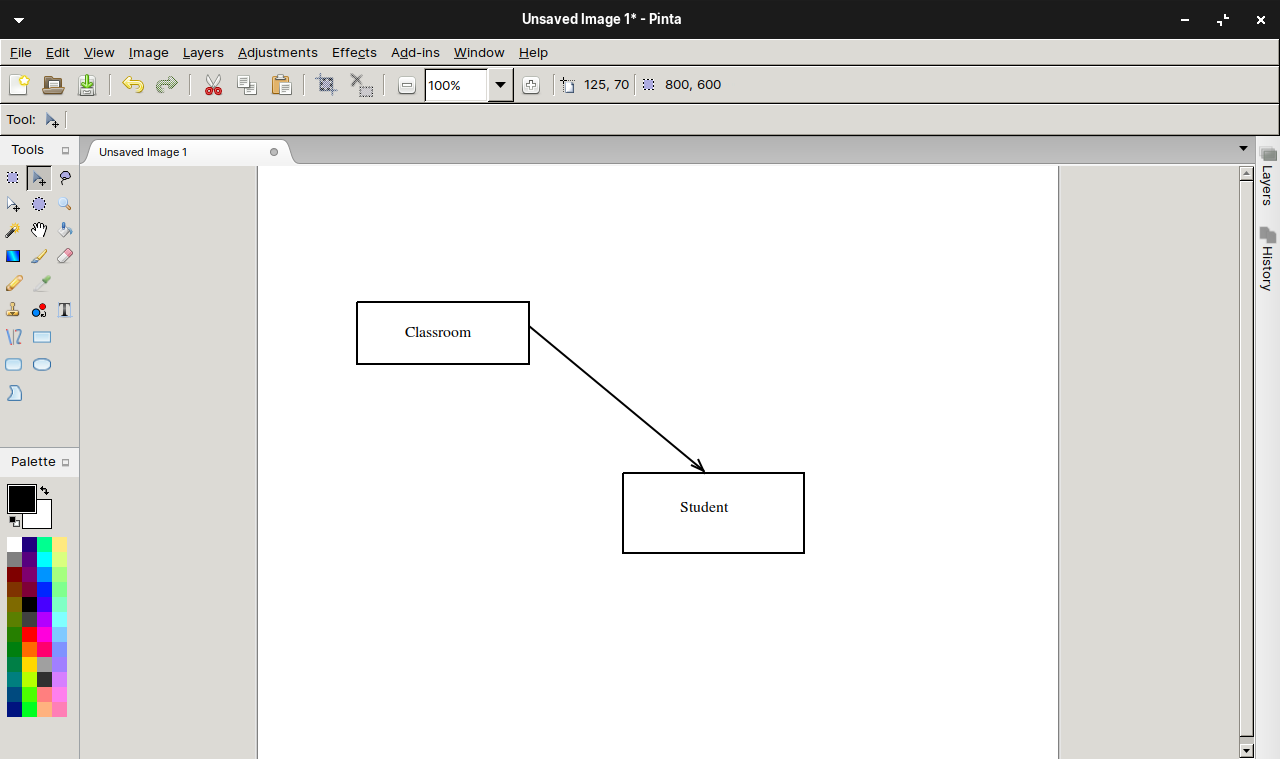
I’ve also installed Pinta, a free and open-source program for drawing and image editing. The reason I choose to use Pinta is because it is designed in lieu of the Paint.NET on Windows.

Drawing diagram using Pinta.

Programming

I also use the laptop to learn programming at my own time. Hence, I choose to install one of my user-friendly IDEs, i.e. Visual Studio Code.

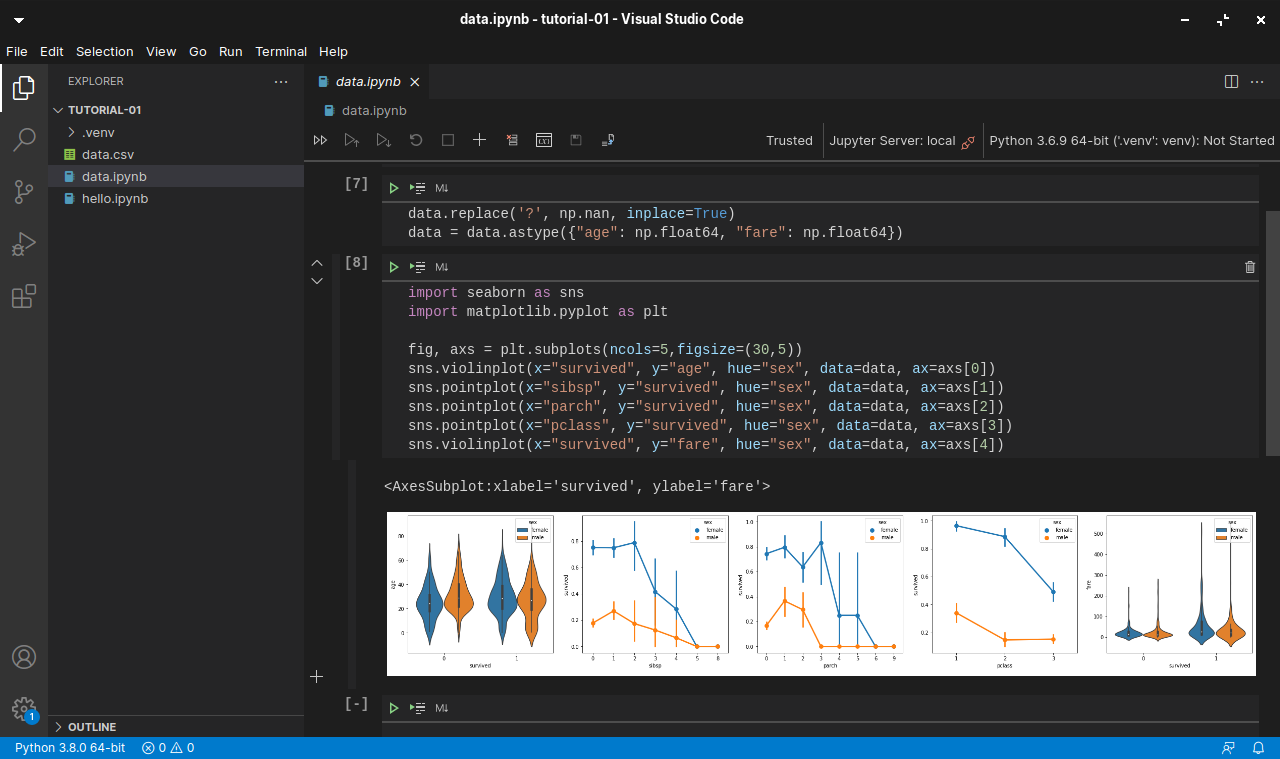
Currently, I have installed Jupyter Notebooks extension on the VS Code. The first project that I am working on now is to learn how to install and use packages, such as pandas, numpy, seaborn, and matplotlib to do statistical data visualisation, as shown below.

Working with Jupyter notebook in VS Code.

References