From Legacy to .NET 8: Migrating with NDepend

Quick note: I received a free license for NDepend to try it out and share my experience. All opinions in this blog post are on my own.

From O2DES.Net to Ea

In 2019, I had the honour of working closely with the team behind the O2DES.NET during my time working at the C4NGP research center in NUS, where I spent around two and a half years. After I left the team in 2022, O2DES.NET has not been actively updated on their GitHub public repository and it is still targeting at .NET Standard 2.1.

While .NET Standard 2.1 is not as old as the .NET Framework, it is considered somewhat outdated compared to the latest .NET versions. In the article “The Future of .NET Standard” written by Immo Landwerth, .NET Standard has been largely superseded by .NET 5 (and later versions), which unify these platforms into a single runtime. Hence, moving to .NET 8 is a forward-looking decision that aligns with current and future software development trends.

Immo Landwerth, program manager on the .NET Framework team at Microsoft, talked about .NET Standard 2.0 back in 2016. (Image Credit: dotnet – YouTube Channel)

Hence, in this article, I will walk you through the process of migrating O2DES.NET from targeting .NET Standard 2.1 to supporting .NET 8. To prevent any confusion, I’ve renamed the project to ‘Ea’ because I am no longer the active developer of O2DES.NET. Throughout this article, ‘Ea’ will refer to the version of the project updated to .NET 8.

In this migration journey, I will be relying on NDepend, a static code analysis tool for .NET developers.

Show Me the Code!

The complete source code of my project after migrating O2DES.NET to target at .NET 8 can be found on GitHub at https://github.com/gcl-team/Ea.

About NDepend: Why Do We Need a Static Code Analysis?

Why do we need NDepend, a static code analysis tool?

Static code analysis is a way of automatically checking our code for potential issues without actually running our apps. Think of it like a spell-checker, but for programming, scanning our codebase to find bugs, performance issues, and security vulnerabilities early in the development process.

During the migration of an older library, such as moving O2DES.NET from .NET Standard 2.1 to .NET 8, the challenges can add up. We are expected to run into outdated code patterns, performance bottlenecks, or even compatibility issues.

The O2DES.NET on GitHub has some of its NuGet references outdated too.

NDepend is designed to help with this by performing a deep static analysis of the entire codebase. It gives us detailed reports on code quality, shows where our dependencies are, and highlights areas that need attention. We can then focus on modernising the code with confidence, knowing that we are not likely introducing new bugs or performance issues as we are updating the codebase.

NDepend also helps enforce good coding practices by pointing out issues like overly complex methods, dead code, or potential security vulnerabilities. With features like code metrics, dependency maps, and rule enforcement, it acts as a guide to help us write better, more maintainable code.

Bringing Down Debt from 6.22% to 0.35%

One of the standout features of NDepend is its comprehensive dashboard, which I heavily rely on to get an overview of the entire O2DES.NET codebase.

Right after targeting the O2DES.NET library to .NET 8, a lot of issues surfaced.

From code quality metrics to technical debt, the dashboard presents critical insights in a visual and easy-to-understand format. Having all this information in one place is indeed invaluable to us during the migration project.

To help us better understand how much effort is needed to fix or improve the codebase, NDepend uses the Debt Ratio and Debt Rating, both of which are part of the SQALE method.

We can configure the SQALE Debt Ratio and Debt Rating.

In the book, the SQALE method for Managing Technical Debt written by Jean-Louis Letouzey, SQALE stands for Software Quality Assessment based on Life Expectations. SQALE is a method used to assess and manage technical debt in software projects. In the context of NDepend, the SQALE method is used to calculate the Debt Ratio and Debt Rating:

Debt Ratio: The percentage of effort needed to fix the technical debt compared to rewriting the code from scratch.

Debt Rating: A letter-based rating (A to E) derived from the Debt Ratio to give a quick overview of the severity of technical debt.

As shown in one of the earlier screenshots, Ea has a Debt Ratio of 6.22% and a B rating. This means that its technical debt is considered moderate and manageable. Nevertheless, it is a signal that it is now time we should start addressing the identified issues before they accumulate.

After just two weeks of code cleanup, we successfully reduced Ea’s Debt Ratio from 6.22% to an impressive 0.35%, elevating its rating to an A. This significant improvement not only enhances the overall quality of the codebase but also positions Ea for better maintainability.

The most recent analysis shows that the Debt Ratio of Ea is down to just 0.35%.

Issues and Trends

In Visual Studio, NDepend also provides interactive UI which indicates the number of critical rules violated and critical issues to solve. Unlike most of the static code analysis tools that show overwhelming number of issues, NDepend has this concept of baseline.

When we first set up an NDepend project, the very first analysis of our code becomes the “baseline.” This baseline serves as a starting point, capturing the current state of our code. As we continue to work on the project, future analyses will be compared against this baseline. The idea is to track how our code changes over time so that we can focus on knowing whether we are improving or introducing more issues to the codebase while we are changing it.

At some point during the code change, we fixed 31 “High” issues (shown in green) while introducing 42 new “High” issues (shown in red).

As shown in the screenshot above, those new issues added since the baseline need to be our priority to fix. This is to make sure the newly written code and refactored code will remain clean.

In fact, when fixing the issues, I get to learn from the NDepend rules. When we click on the numbers, we will be shown the corresponding issues. Then clicking on each of the issue will show us the detailed information about it. For example, as shown in the screenshot below, when we click on one of the green numbers, it shows us a list of issues that have been fixed by us.

As indicated, the issue is one which has been fixed since the baseline.

When we click on the red numbers, as shown in the following screenshot, we will get to see the new issues that we need to fix. The following example shows how the original O2DES.NET has some methods declared with high visibility unnecessarily.

This is an issue that has been newly added since the baseline.

By default, the dashboard also comes with some helpful trend charts. These charts give us a visual overview of how our codebase is evolving over time.

We have made significant progress in Ea library development over the past half month.

These charts give us a visual overview of how our codebase is evolving over time. For those new to static code analysis, think of these charts as the “health check” of the project. During the migration, they help us to track important metrics, like code coverage, issues, or technical debt, and show how they change with each analysis.

Code Dependency Graphs

NDepend offers a Dependency Graph. It is used to visually represent the relationships between different components such as namespaces and classes within our codebase. The graph helps us understand how tightly coupled our code is and how different parts of our codebase depend on each other.

When we are refactoring Ea during the migration, we depend on the Dependency Graph to visually shows us how the different parts of the codebase are connected. We use the insight provided by Dependency Graph to plan how to split components, which will then make the code easier to manage.

A dependency diagram made of all classes in the Ea project.

As shown in the diagram above, we can see a graph made of some entangled classes which are connected with a red bi-directional arrow. This is because in the original O2DES.NET library, there are some classes having circular dependency. This thus makes parts of the code heavily reliant on each other, reducing modularity and making it harder to unit test the code independently.

To further investigate the classes, we can double click the edge between those two classes. Doing so will generate a graph made of methods and fields involved in the dependency between the two classes, as shown in the screenshot below.

The coupling graph between two classes.

This coupling graph is a powerful tool for us as it offers detailed insights into how the two classes interact. This level of detail allows us to focus on the exact code causing the coupling, making it easier to assess whether the dependency is necessary or can be refactored. For instance, if multiple methods are too intertwined, it might be time to extract common logic into a new class or interface.

In addition, the Dependency Matrix is another way to visualise the dependencies between namespaces, classes, or methods. A number in a cell at the intersection of two elements indicates how many times the element in the row depends on the element in the column. This gives us an overview of the dependencies within our codebase.

The Dependency Matrix.

From the Dependency Matrix above, we first should look for cells with large numbers. This is because having large numbers indicating the two methods are highly dependent on each other. We should review those methods to understand why there is so much interaction and to make sure they are not tightly coupled.

If there is a cycle in the codebase, there will be a red square shown on the Dependency Matrix. We then can refactor by breaking the cycle, possibly by introducing new interfaces or decoupling responsibilities between the methods.

Code Metrics View

In the Code Metric View, each rectangle represents a method. The area of a rectangle is proportional to metrics such as the # lines of codes (LOC), cyclomatic complexity (CC), of the corresponding method, field, type, namespace, or assembly.

This treemap shows the # lines of code (LOC) of the methods in our project.

During the migration, the tree view format enables us to navigate our codebase and prioritise areas that require refactoring by spotting those methods that are too big and too complex. In addition, to help quickly identify problem areas, NDepend uses colour coding in the tree view. For example, red may indicate high complexity or large size, while green might indicate simpler, more maintainable code.

The tree view is interactive. Right-clicking on the rectangles provides options such as opening the source code declaration for the selected element, allowing us to navigate directly to the method.

Right-clicking on the rectangles will show the available actions to perform.

Integrating with GitHub Actions

NDepend integrate well with several CI/CD pipelines, making it a valuable tool for maintaining code quality throughout the development lifecycle. It can automatically analyse our code after each build. This ensures that every change in our codebase adheres to defined quality standards before the merge to main branch.

NDepend comes with Quality Gates that enforce standards such as unfixed critical issues. If the code fails to meet the required thresholds, the build can fail in the pipelines.

In NDepend, Quality Gates are predefined sets of code quality criteria that our project must meet before it is considered acceptable for deployment. They serve as automated checkpoints to help ensure that our code maintains a certain standard of quality, reducing technical debt and promoting maintainability.

One of our build failed because there was code violating a critical rule in our codebase.

As shown in the screenshot above, NDepend provides detailed reports on issues and violations after each build. We can also download the detailed report from the CI servers, such as GitHub Actions. These reports help us quickly identify where issues exist in our code.

NDepend report of the build can be found in the Artifacts of the pipeline.

The NDepend report is divided into seven sections, each providing detailed insights into various aspects of your codebase:

  • Overview: It gives a high-level view of the overall code quality and metrics, similar to what is displayed in the NDepend Dashboard within Visual Studio.
  • Issues: A list of source files with unresolved issues. Along with the number of issues, it also shows the “Debt” for each file, which represents the estimated man-time required to resolve the issues.
  • Projects: Similar to the Issues section but focuses on projects instead of individual files. It displays the total issues and associated debt at the project level.
  • Rules: This section highlights the violated rules, showing the issues and debt in terms of the rules that have been broken. It’s another way to assess code quality by focusing on adherence to coding standards.
  • Quality Gates: This section mirrors the Quality Gates you might have seen earlier in the CI/CD pipelines, such as in GitHub Actions.
  • Trend: The Trend section provides a visualisation of trends over time, similar to the trend charts found in the NDepend Dashboard in Visual Studio.
  • Logs: This section contains the logs generated during NDepend analysis.
Number of un-resolved issues and debt of the files in our project.

As described in the NDpend documentation, it has complete support for Azure DevOps, meaning it can be seamlessly integrated into the CI/CD pipelines without a lot of manual setup. We thus can easily configure NDepend to run as part of our Azure Pipelines, generating code quality reports after each build.

For our Ea project, since it is an open-source project hosted on GitHub, we can also integrate NDepend with our GitHub Actions instead.

To integrate with GitHub Actions, firstly, we need to get associate our NDepend license with our GitHub account (or a copy of 28-day trial activation data). To link the NDepend license (eg. ABC012345) with our GitHub account, we will need to visit the link: “https://www.ndepend.com/activation_githubaction?license=ABC012345”, as demonstrated in the screenshot below.

Linking our NDepend license with our GitHub account.

To introduce NDepend to our GitHub Actions workflow, the very least configuration that we need to add is as follows.

- name: NDepend
uses: ndepend/ndepend-action@ndependv1.0
with:
license: ${{ secrets.NDependLicense }}
GITHUB_TOKEN: ${{ secrets.GITHUB_TOKEN }}

Read More: Complete Build YAML of Ea

Wrap-Up

In conclusion, NDepend has proven to be an invaluable tool in our journey to modernise and maintain the Ea library.

By offering comprehensive static code analysis, insightful metrics, and seamless integration with CI/CD pipelines like GitHub Actions, it empowers us to catch issues early, reduce technical debt, and ensure a high standard of code quality.

NDepend provides the guidance and clarity needed to ensure our code remains clean, efficient, and maintainable. For any .NET individual or development team serious about improving code quality, NDepend is definitely a must-have in the toolkit.

Serverless Web App on AWS Lambda with .NET 6

We have a static website for marketing purpose hosting on Amazon S3 buckets. S3 offers a pay-as-you-go model, which means we only pay for the storage and bandwidth used. This can be significantly cheaper than traditional web hosting providers, especially for websites with low traffic.

However, S3 is designed as a storage service, not a web server. Hence, it lacks many features found in common web hosting providers. We thus decide to use AWS Lambda to power our website.

AWS Lambda and .NET 6

AWS Lambda is a serverless service that runs code for backend service without the need to provision or manage servers. Building serverless apps means that we can focus on our web app business logic instead of worrying about managing and operating servers. Similar to S3, Lambda helps to reduce overhead and lets us reclaim time and energy that we can spent on developing our products and services.

Lambda natively supports several programming languages such as Node.js, Go, and Python. In February 2022, the AWS team announced that .NET 6 runtime can be officially used to build Lambda functions. That means now Lambda also supports C#10 natively.

So as the beginning, we will setup the following simple architecture to retrieve website content from S3 via Lambda.

Simple architecture to host our website using Lambda and S3.

API Gateway

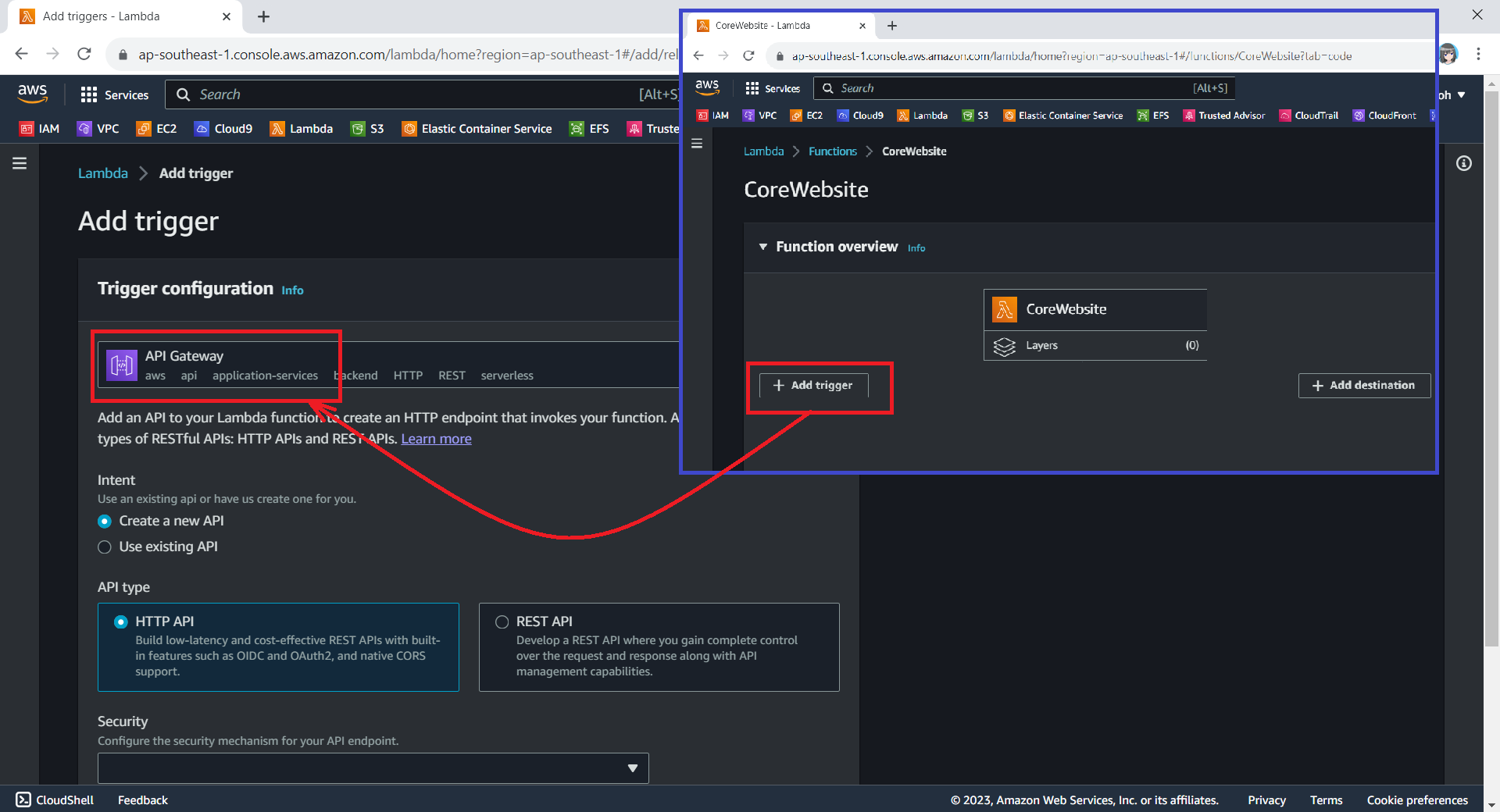
When we are creating a new Lambda service, we have the option to enable the function URL so that a HTTP(S) endpoint will be assigned to our Lambda function. With the URL, we can then use it to invoke our function through, for example, an Internet browser directly.

The Function URL feature is an excellent choice when we seek rapid exposure of our Lambda function to the wider public on the Internet. However, if we are in search of a more comprehensive solution, then opting for API Gateway in conjunction with Lambda may prove to be the better choice.

We can configure API Gateway as a trigger for our Lambda function.

Using API Gateway also enables us to invoke our Lambda function with a secure HTTP endpoint. In addition, it can do a bit more, such as managing large volumes of calls to our function by throttling traffic and automatically validating and authorising API calls.

Keeping Web Content in S3

Now, we will create a new S3 bucket called “corewebsitehtml” to store our web content files.

We then can upload our HTML file for our website homepage to the S3 bucket.

We will store our homepage HTML in the S3 for Lambda function to retrieve it later.

Retrieving Web Content from S3 with C# in Lambda

With our web content in S3, the next issue will be retrieving the content from S3 and returning it as response via the API Gateway.

According to performance evaluation, even though C# is the slowest on a cold start, it is one of the fastest languages if few invocations go one by one.

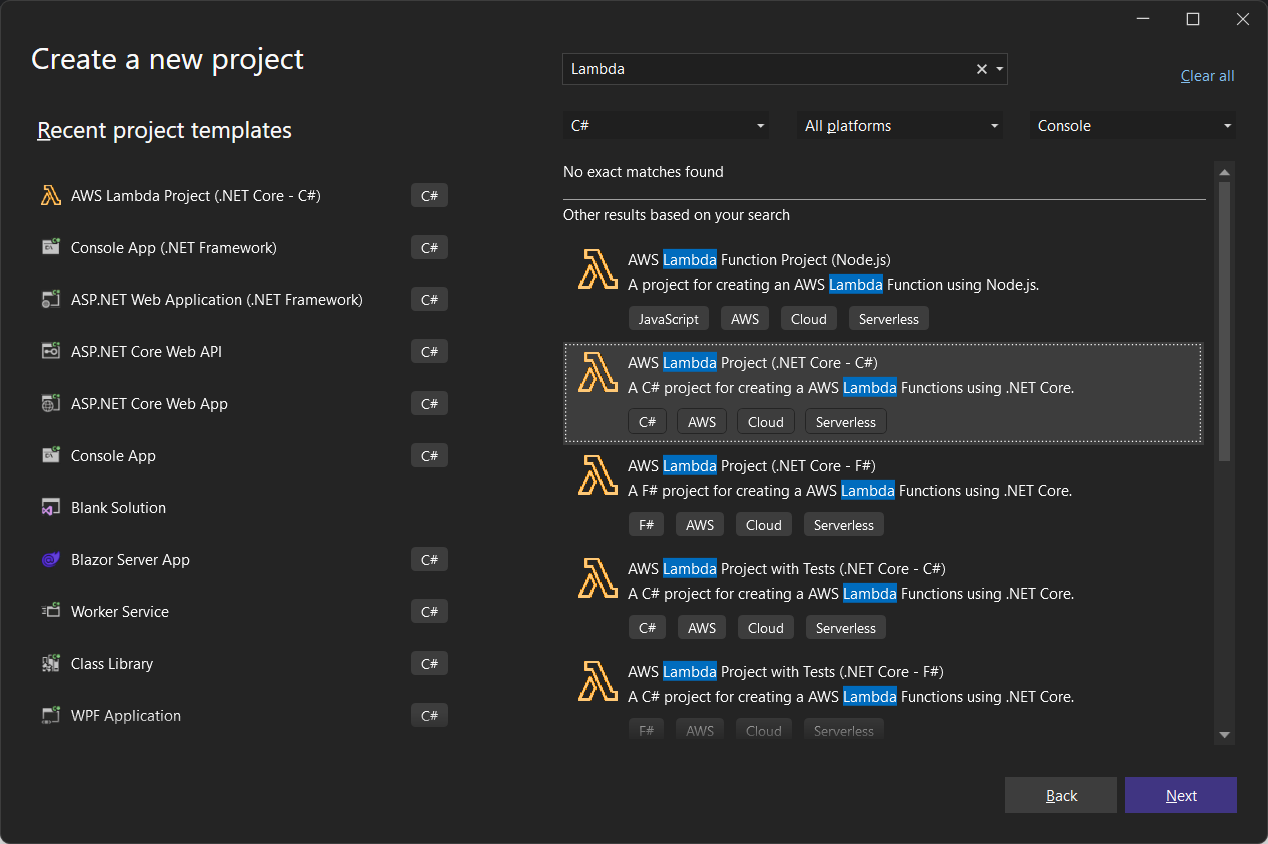
The code editor on AWS console does not support the .NET 6 runtime. Thus, we have to install the AWS Toolkit for Visual Studio, so that we can easily develop, debug, and deploy .NET applications using AWS, including the AWS Lambda.

Here, we will use the AWS SDK for reading the file from S3 as shown below.

public async Task<APIGatewayProxyResponse> FunctionHandler(APIGatewayProxyRequest request, ILambdaContext context)
{
    try 
    {
        RegionEndpoint bucketRegion = RegionEndpoint.APSoutheast1;

        AmazonS3Client client = new(bucketRegion);

        GetObjectRequest s3Request = new()
        {
            BucketName = "corewebsitehtml",
            Key = "index.html"
        };

        GetObjectResponse s3Response = await client.GetObjectAsync(s3Request);

        StreamReader reader = new(s3Response.ResponseStream);

        string content = reader.ReadToEnd();

        APIGatewayProxyResponse response = new()
        {
            StatusCode = (int)HttpStatusCode.OK,
            Body = content,
            Headers = new Dictionary<string, string> { { "Content-Type", "text/html" } }
        };

        return response;
    } 
    catch (Exception ex) 
    {
        context.Logger.LogWarning($"{ex.Message} - {ex.InnerException?.Message} - {ex.StackTrace}");

        throw;
    }
}

As shown in the code above, we first need to specify the region of our S3 Bucket, which is Asia Pacific (Singapore). After that, we also need to specify our bucket name “corewebsitehtml” and the key of the file which we are going to retrieve the web content from, i.e. “index.html”, as shown in the screenshot below.

Getting file key in S3 bucket.

Deploy from Visual Studio

After ew have done the coding of the function, we can right click on our project in the Visual Studio and then choose “Publish to AWS Lambda…” to deploy our C# code to Lambda function, as shown in the screenshot below.

Publishing our function code to AWS Lambda from Visual Studio.

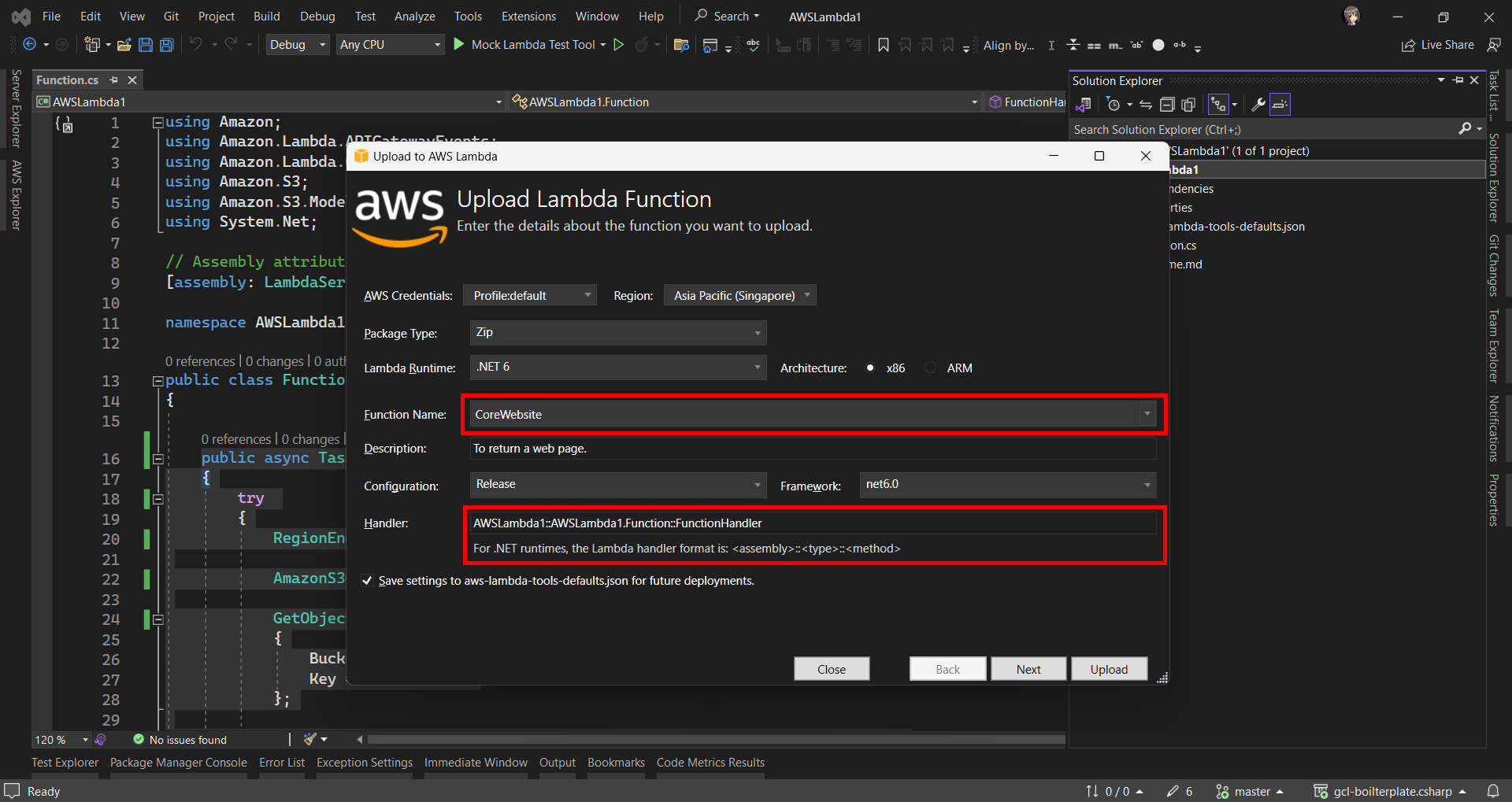
After that, we will be prompted to key in the name of the Lambda function as well as the handler in the format of <assembly>::<type>::<method>.

Then we are good to proceed to deploy our Lambda function.

Logging with .NET in Lambda Function

Now when we hit the URL of the API Gateway, we will receive a HTTP 500 internal server error. To investigate, we need to check the error logs.

Lambda logs all requests handled by our function and automatically stores logs generated by our code through CloudWatch Logs. By default, info level messages or higher are written to CloudWatch Logs.

Thus, in our code above, we can use the Logger to write a warning message if the file is not found or there is an error retrieving the file.

context.Logger.LogWarning($"{ex.Message} - {ex.InnerException?.Message} - {ex.StackTrace}");

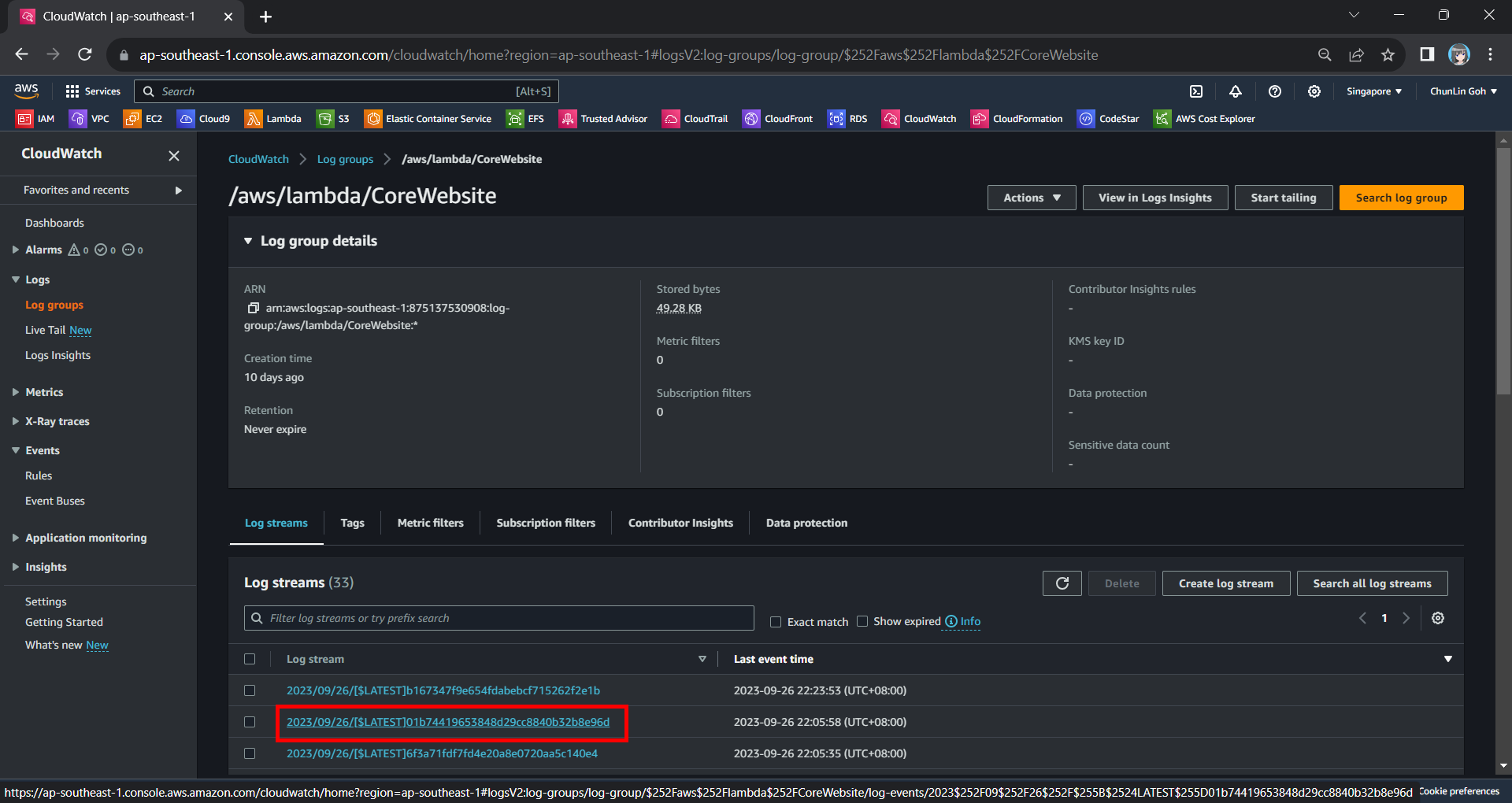
Hence, now if we access our API Gateway URL now, we should find a warning log message in our CloudWatch, as shown in the screenshot below. The page can be accessed from the “View CloudWatch logs” button under the “Monitor” tab of the Lambda function.

Viewing the log streams of our Lambda function on CloudWatch.

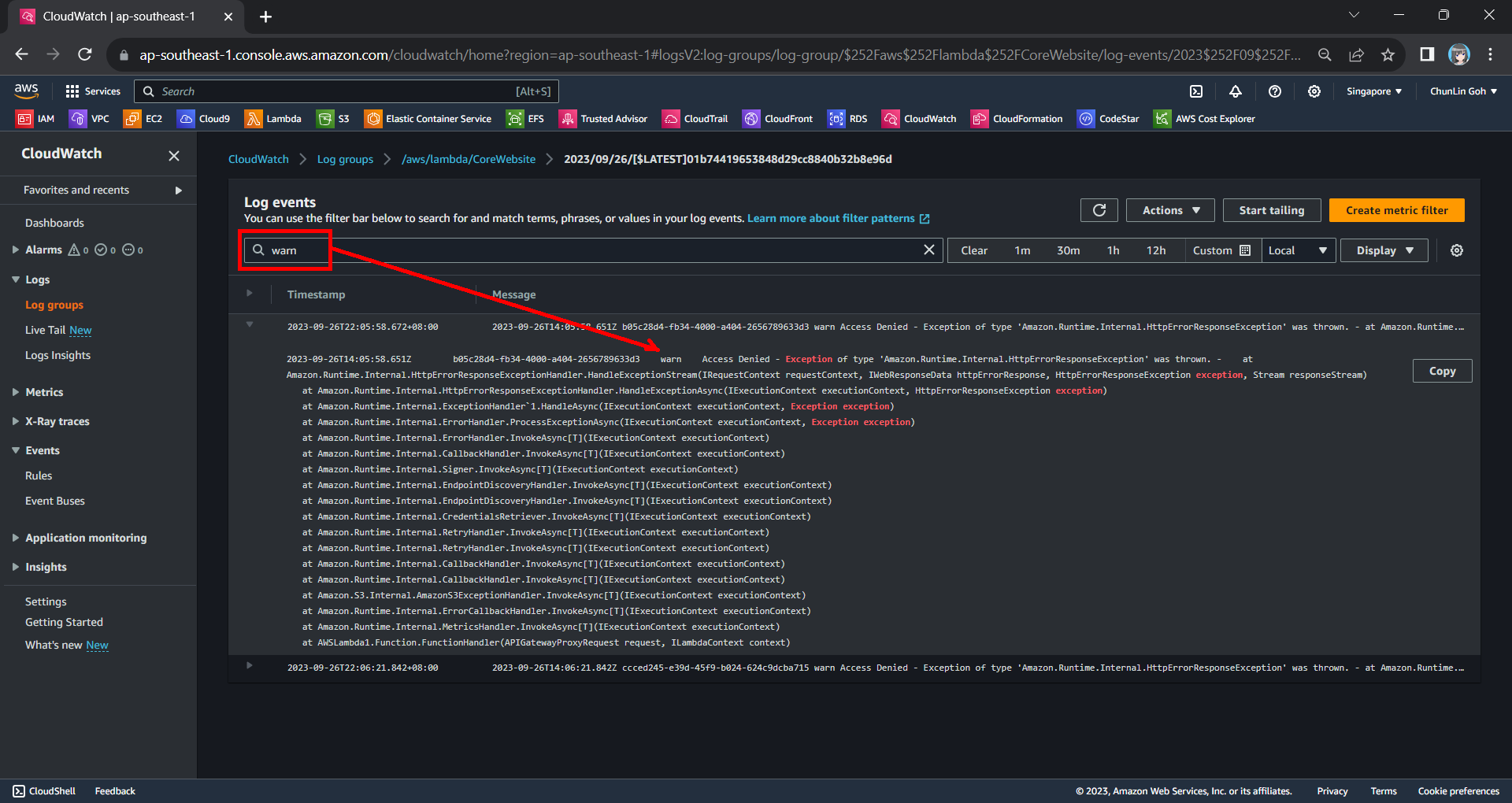
From one of the log streams, we can filter the results to list only those with the keyword “warn”. From the log message, we then know that our Lambda function has access denied from accessing our S3 bucket. So, next we will setup the access accordingly.

Connecting Lambda and S3

Since both our Lambda function and S3 bucket are in the same AWS account, we can easily grant the access from the function to the bucket.

Step 1: Create IAM Role

By default, Lambda creates an execution role with minimal permissions when we create a function in the Lambda console. So, now we first need to create an AWS Identity and Access Management (IAM) role for the Lambda function that also grants access to the S3 bucket.

In the IAM homepage, we head to the Access Management > Roles section to create a new role, as shown in the screenshot below.

Click on the “Create role” button to create a new role.

In the next screen, we will choose “AWS service” as the Trusted Entity Type and “Lambda” as the Use Case so that Lambda function can call AWS services like S3 on our behalf.

Select Lambda as our Use Case.

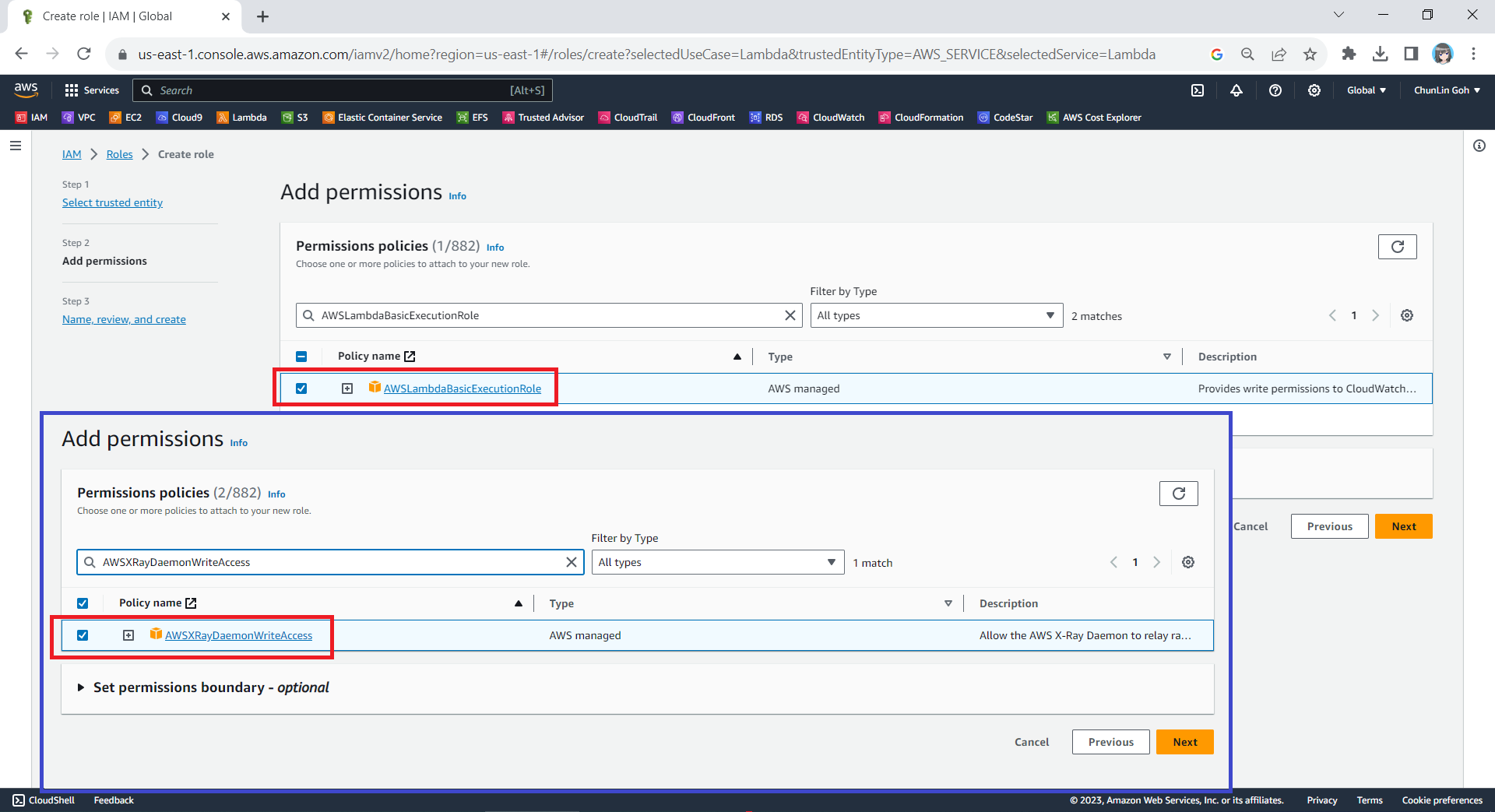
Next, we need to select the AWS managed policies AWSLambdaBasicExecutionRole and AWSXRayDaemonWriteAccess.

Attaching two policies to our new role.

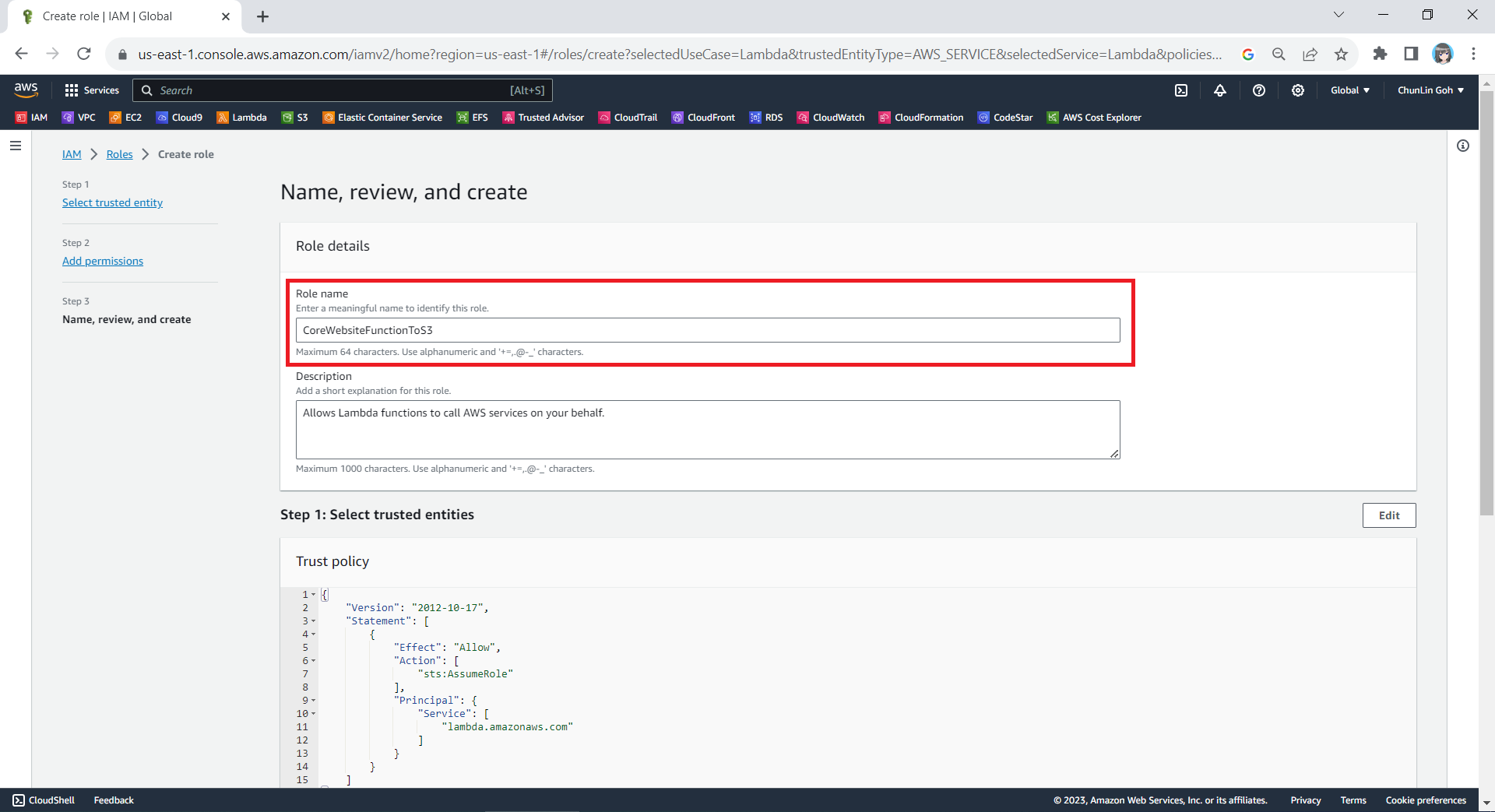
Finally, in the Step 3, we simply need to key in a name for our new role and proceed, as shown in the screenshot below.

We will call our new role “CoreWebsiteFunctionToS3”.

Step 2: Configure the New IAM Role

After we have created this new role, we can head back to the IAM homepage. From the list of IAM roles, we should be able to see the role we have just created, as shown in the screenshot below.

Search for the new role that we have just created.

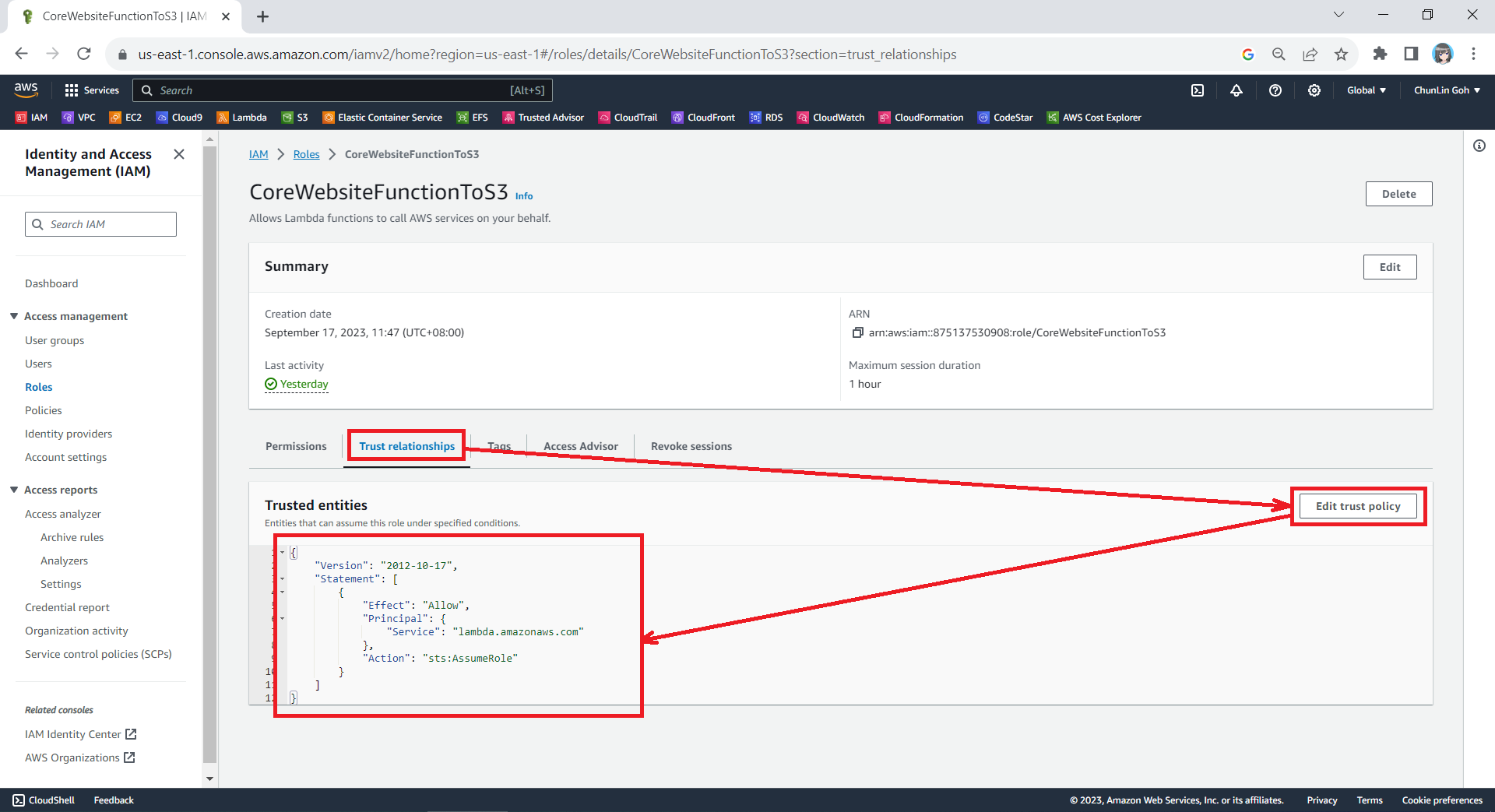
Since the Lambda needs to assume the execution role, we need to add lambda.amazonaws.com as a trusted service. To do so, we simply edit the trust policy under the Trust Relationships tab.

Updating the Trust Policy of the new role.

The trust policy should be updated to be as follows.

{
    "Version": "2012-10-17",
    "Statement": [
        {
            "Effect": "Allow",
            "Principal": {
                "Service": "lambda.amazonaws.com"
            },
            "Action": "sts:AssumeRole"
        }
    ]
}

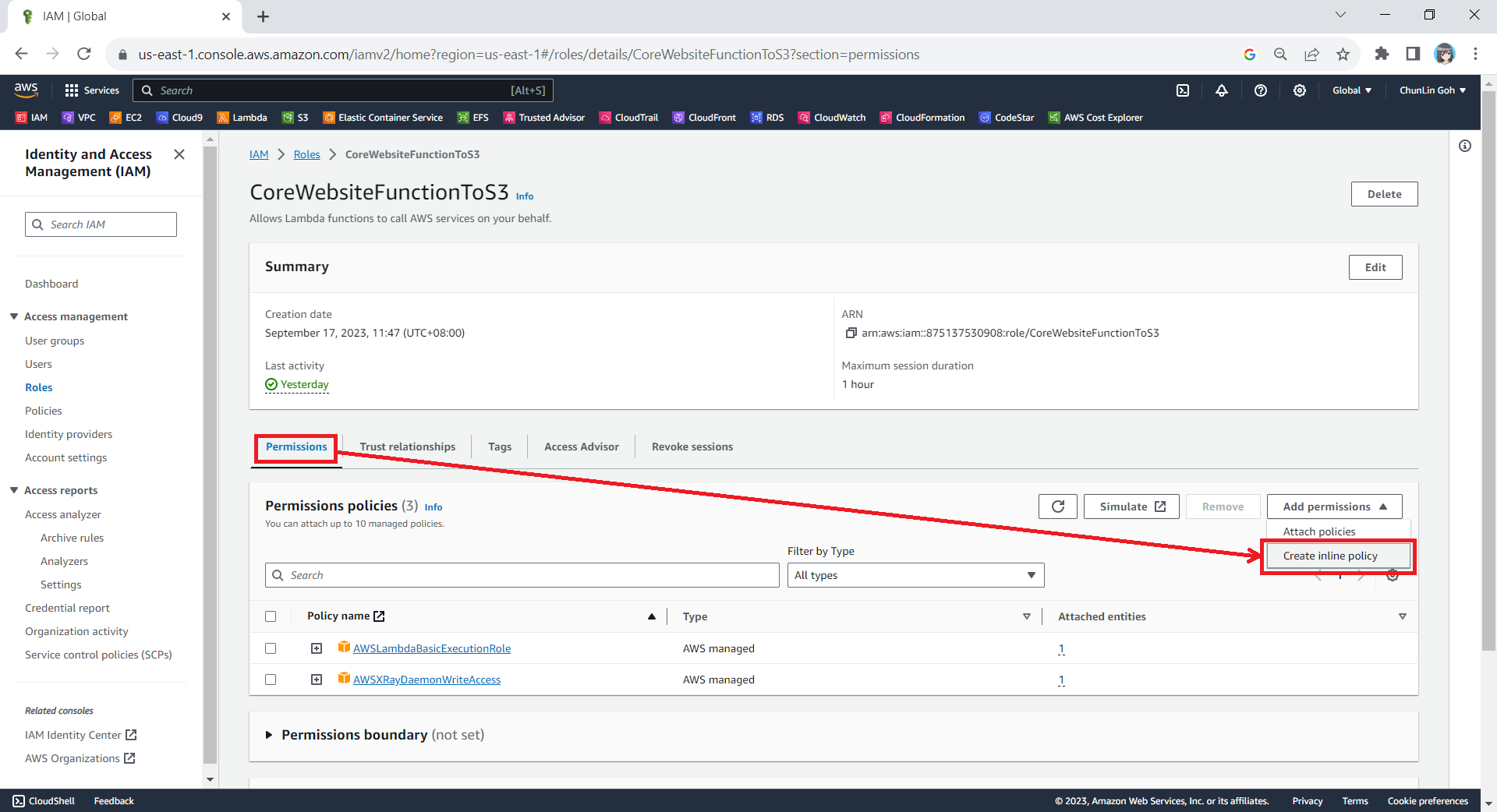
After that, we also need to add one new inline policy under the Permissions tab.

Creating new inline policy.

We need to grant this new role to the list and read access (s3:ListBucket and s3:GetObject) access our S3 bucket (arn:aws:s3:::corewebsitehtml) and its content (arn:aws:s3:::corewebsitehtml/*) with the following policy in JSON. The reason why we grant the list access is so that our .NET code later can tell whether the list is empty or not. If we only grant this new role the read access, the AWS S3 SDK will always return 404.

{
    "Version": "2012-10-17",
    "Statement": [
        {
            "Sid": "VisualEditor0",
	    "Effect": "Allow",
	    "Action": [
                "s3:GetObject",
	        "s3:ListBucket"
	    ],
	    "Resource": [
	        "arn:aws:s3:::corewebsitehtml/*",
	        "arn:aws:s3:::corewebsitehtml"
	    ]
        }
    ]
}

You can switch to the JSON editor, as shown in the following screenshot, to easily paste the JSON above into the AWS console.

Creating inline policy for our new role to access our S3 bucket.

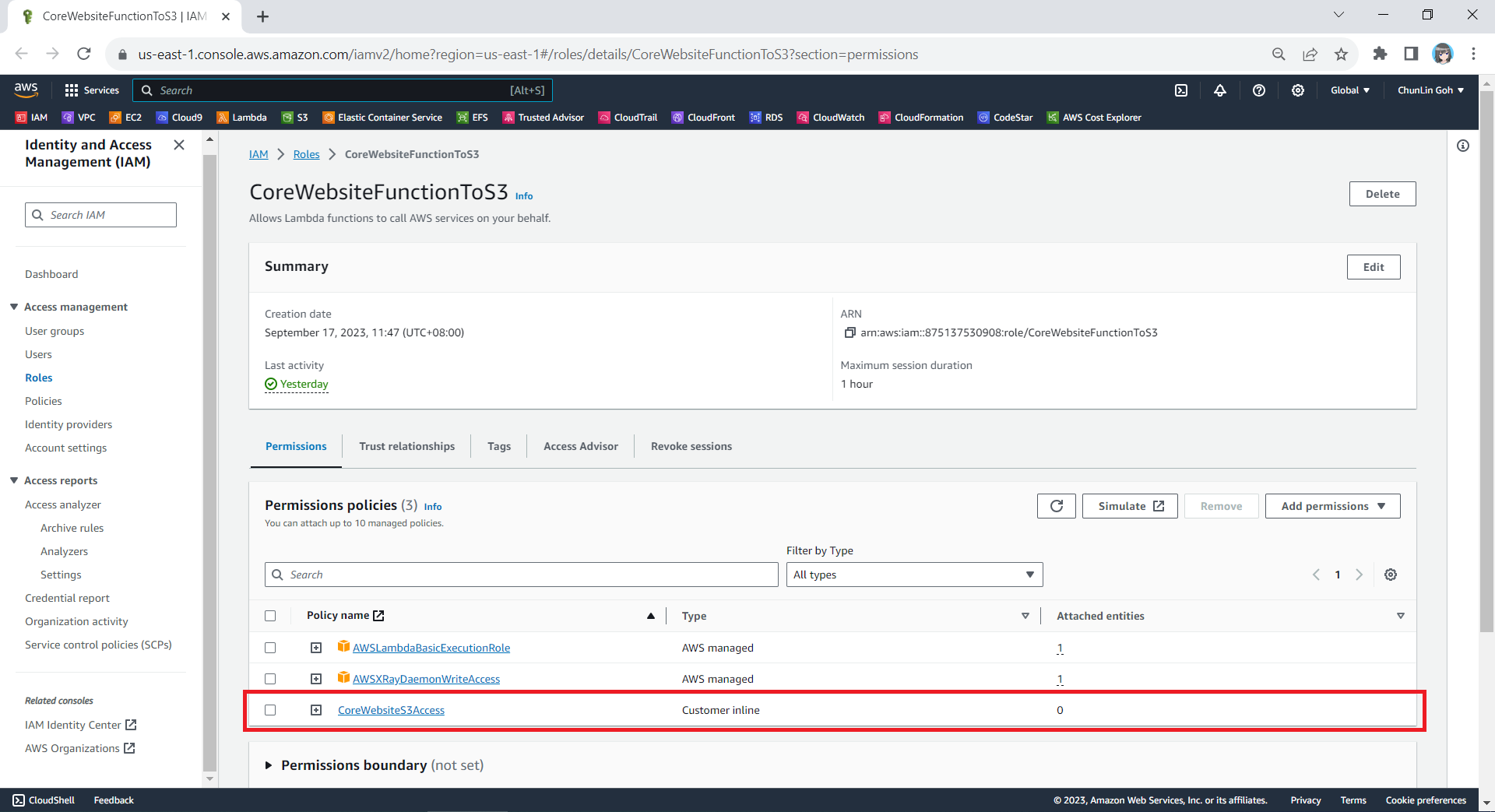
After giving this inline policy a name, for example “CoreWebsiteS3Access”, we can then proceed to create it in the next step. We should now be able to see the policy being created under the Permission Policies section.

We will now have three permission policies for our new role.

Step 3: Set New Role as Lambda Execution Role

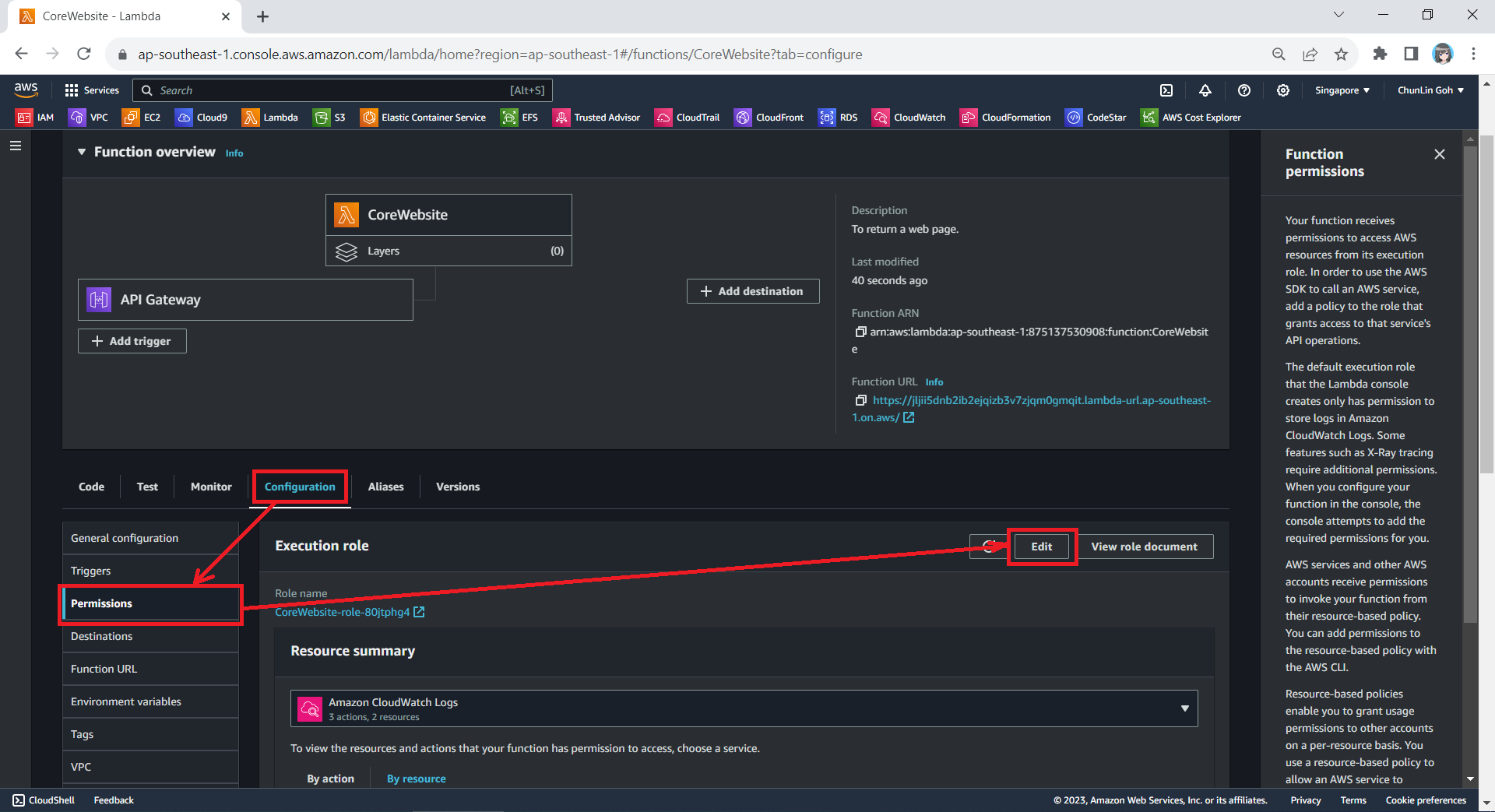
So far we have only setup the new IAM role. Now, we need to configure this new role as the Lambda functions execution role. To do so, we have to edit the current Execution Role of the function, as shown in the screenshot below.

Edit the current execution role of a Lambda function.

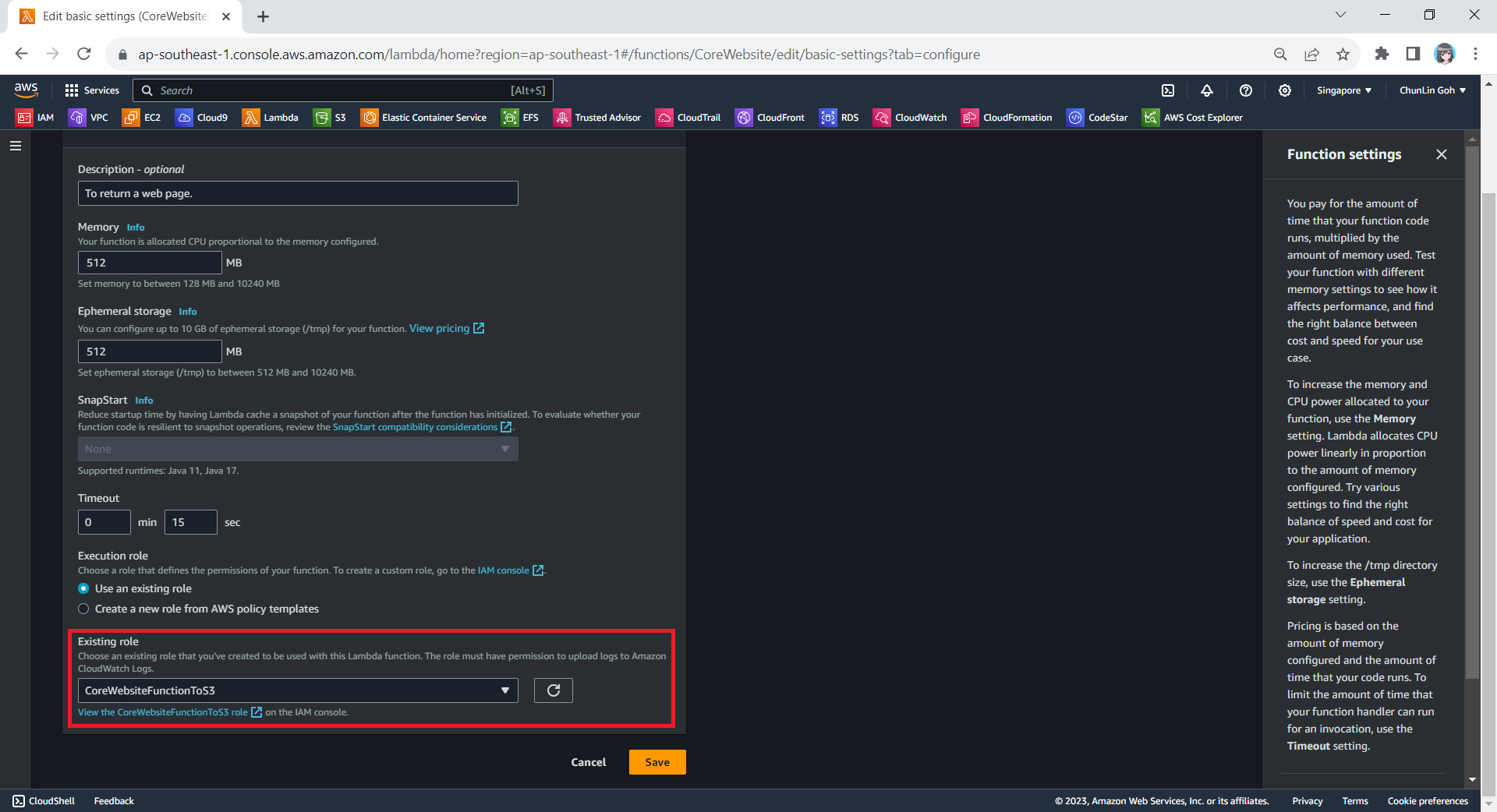
Next, we need to change the execution role to the new IAM role that we have just created, i.e. CoreWebsiteFunctionToS3.

After save the change above, when we visit the Execution Role section of this function again, we should see that it can already access Amazon S3, as shown in the following screenshot.

Yay, our Lambda function can access S3 bucket now.

Step 4: Allow Lambda Access in S3 Bucket

Finally, we also need to make sure that the S3 bucket policy doesn’t explicitly deny access to our Lambda function or its execution role with the following policy.

{
    "Version": "2012-10-17",
    "Id": "CoreWebsitePolicy",
    "Statement": [
        {
            "Sid": "CoreWebsite",
            "Effect": "Allow",
            "Principal": {
                "AWS": "arn:aws:iam::875137530908:role/CoreWebsiteFunctionToS3"
            },
            "Action": "s3:GetObject",
            "Resource": [
                "arn:aws:s3:::corewebsitehtml/*",
                "arn:aws:s3:::corewebsitehtml"
            ]
        }
    ]
}

The JSON policy above can be entered in the Bucket Policy section, as demonstrated in the screenshot below.

Simply click on the Edit button to input our new bucket policy.

Setup Execution Role During Deployment

Since we have updated to use the new execution role for our Lambda function, in our subsequent deployment of the function, we should remember to set the role to be the correct role, i.e. CoreWebsiteFunctionToS3, as highlighted in the screenshot below.

Please remember to use the correct execution role during the deployment.

After we have done all these, we shall be able to see our web content which is stored in S3 bucket to be displayed when we visit the API Gateway URL on our browser.

References

[KOSD] Fixed 0x800B0100 WACK Issue in VS2019 16.10.2 Onwards

I have been using Visual Studio 2019 to develop desktop and mobile applications using Xamarin. I could successfully deploy my Xamarin UWP app to Microsoft Store until I upgraded my Visual Studio 2019 to 16.10.2.

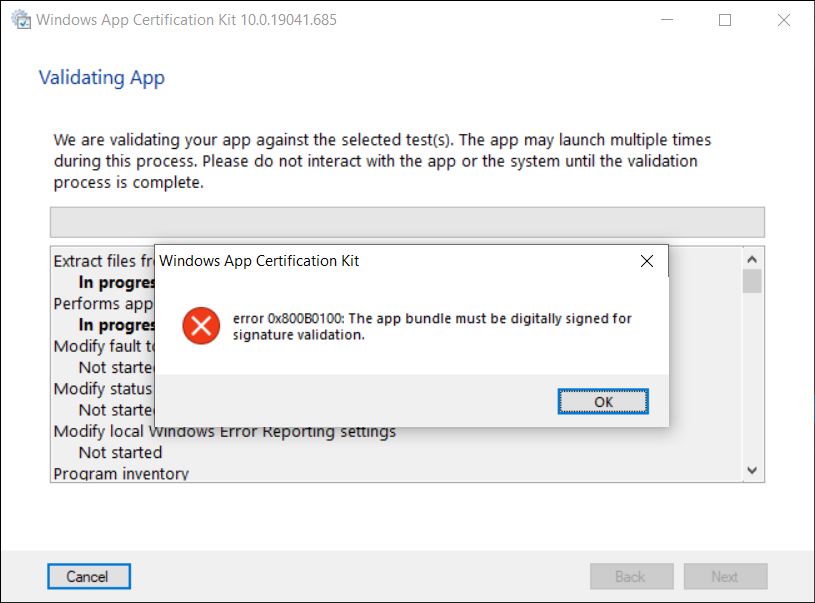
Normally, before we can publish our UWP app to Microsoft Store, we need to launch WACK (Windows App Certification Kit) to validate our app package. However, in VS2019 16.10.2 (and onwards), there will be an error occurs, as shown in the screenshot below, and the validation cannot be completed.

Error 0x800B0100 in Windows App Certification Kit (WACK).

MSBuild Project Build Output

Since my code is the same, so the first thing that I suspect is that the new updates in Visual Studio 2019 are causing this issue. Hence, I changed the verbosity of the project build output to Diagnostic, as shown below. This will help us understand better about what’s happening during the build.

Setting MSBuild project build output verbosity.

By comparing the current build output with the one using the previous version of Visual Studio 2019, I realised that there is something new in the current build ouput. The parameter GenerateTemporaryStoreCertificate is set to false while BuildAppxUploadPackageForUap is true, as shown below.

1>Target "_RemoveDisposableSigningCertificate: (TargetId:293)" in file "C:\Program Files (x86)\Microsoft Visual Studio\2019\Preview\MSBuild\Microsoft\VisualStudio\v16.0\AppxPackage\Microsoft.AppXPackage.Targets" from project "...UWP.csproj" (target "_GenerateAppxPackage" depends on it):
1>Task "RemoveDisposableSigningCertificate" skipped, due to false condition; ('$(GenerateTemporaryStoreCertificate)' == 'true' and '$(BuildAppxUploadPackageForUap)' == 'true') was evaluated as ('false' == 'true' and 'true' == 'true').
1>Done building target "_RemoveDisposableSigningCertificate" in project "...UWP.csproj".: (TargetId:293)

Online Discussions

Meanwhile, there are only two discussion threads online about this issue.

On 22nd of June 2021, Nick Stevens first reported a problem that he encountered in publishing app to Microsoft Store after upgrading his Visual Studio 2019 to 16.10.2. However, his problem is about package family name and publisher name being marked as invalid.

Few days later, on 1st of July 2021, another developer Tautvydas Zilys also reported a similar issue as Nick Stevens’. Interestingly, the same Microsoft engineer, James Parsons, replied to them with the similar answer, i.e. adding the following property in their project file to set GenerateTemporaryStoreCertificate to true.

<GenerateTemporaryStoreCertificate>true</GenerateTemporaryStoreCertificate>

As explained by James, the GenerateTemporaryStoreCertificate will mimic the old behavior of Visual Studio where it will generate a certificate for us that has the publisher name that Microsoft Partner Center expects.

Fixed

Thankfully, after adding this line in the UWP csproject of my Xamarin project as shown below, the WACK works again without the error showing.

<?xml version="1.0" encoding="utf-8"?>
<Project ToolsVersion="14.0" ...>
    ...
    <PropertyGroup>
        ...
        <GenerateTemporaryStoreCertificate>True</GenerateTemporaryStoreCertificate>
        ...
    </PropertyGroup>
</Project>

That’s all to fix the issue. I hope this article, which is also the 3rd in the world discussing about this Visual Studio 2019 problem, is helpful to other Xamarin UWP developers who are running into the same problem.

References

KOSD, or Kopi-O Siew Dai, is a type of Singapore coffee that I enjoy. It is basically a cup of coffee with a little bit of sugar. This series is meant to blog about technical knowledge that I gained while having a small cup of Kopi-O Siew Dai.

Build Cross-Platform App with Embedded Images on Xamarin.Forms

As we all know, a picture is worth 1,000 words. More and more, we see developers utilising images as the core of their app. Images play an important role in application navigation, usability, and branding. Hence, sharing images across all platforms, i.e. iOS, Android, and Windows 10, is often a task we need to work on. Today, I will share about how we do just that with Embedded Images.

Distributing images across different platforms with Embedded Images is recommended when identical images are used on each platform, and is particularly suited to creating components, as the image is bundled with the code. In this post, I will demo how we can do that in a new Xamarin.Forms blank project.

PROJECT GITHUB REPOSITORY

The complete source code of this project can be found at https://github.com/goh-chunlin/gcl-boilterplate.csharp/tree/master/xamarin-forms/CPEI.

Setup Images Folder

Let’s say we would like to show some images in the first screen of our app for each of the platforms. We will first have a folder called Images to store all those images. Then, we need to proceed to set the Build Action of the images to be “Embedded resource”.

Right-click the selected images and then select “Properties” to modify their Build Action.

The project name is called CPEI which stands for Cross-Platform Embedded Images. I use shortform here so that the Android project will not complain about our path to the files being too long.

ACCESS Embedded ImageS on XAML

Now, let’s say if we can to show only one of the images in the first screen of our app, we can do so by editing the XAML code of MainPage.xaml. However, we need to have the following extension first to convert the image file name which is in string to ResourceImageSource, then only the image can be natively loaded by XAML.

[ContentProperty(nameof(Source))]
public class ImageResourceExtension : IMarkupExtension
{
    public string Source { get; set; }

    public object ProvideValue(IServiceProvider serviceProvider)
    {
        if (Source == null) return null;

        Assembly assembly = typeof(ImageResourceExtension).Assembly;
        var imageSource = ImageSource.FromResource(Source, assembly);

        return imageSource;
    }
}

Here we use the overload of ImageSource.FromResource that specifies the source assembly in which to search for the image so that it can work on the Release mode of UWP on Windows 10.

Now we can use this extension in the XAML, as shown below, in MainPage.xaml.

<?xml version="1.0" encoding="utf-8" ?>
<ContentPage xmlns="http://xamarin.com/schemas/2014/forms"
             xmlns:x="http://schemas.microsoft.com/winfx/2009/xaml"
             xmlns:embeddedImage="clr-namespace:CPEI.Extensions;assembly=CPEI"
             x:Class="CPEI.MainPage">

    <ScrollView>
        ...

        <Image x:Name="MainImage" Source="{embeddedImage:ImageResource CPEI}" 
            WidthRequest="600" HeightRequest="400" HorizontalOptions="CenterAndExpand" />

        ...
    </ScrollView>

</ContentPage>

The highlighted sections are the parts newly added. At this point of time, we’re still not sure the name of the image. So our app now should not show any image at that part. To find out the actual image names, we can add a debugging code (which we should remove in production) in the ImageResourceExtension class as follows.

[ContentProperty(nameof(Source))]
public class ImageResourceExtension : IMarkupExtension
{
    ...

    public object ProvideValue(IServiceProvider serviceProvider)
    {
        ...

        foreach (var res in assembly.GetManifestResourceNames())
        {
            System.Diagnostics.Debug.WriteLine("found resource: " + res);
        }

        ...
    }
}

When we debug our app, the following should be shown in the Output window.

found resource: CPEI.Images.Genshin-Impact-Pic01.png
found resource: CPEI.Images.Genshin-Impact-Pic02.png
found resource: CPEI.Images.Genshin-Impact-Pic03.png
found resource: CPEI.Images.Genshin-Impact-Pic04.png
found resource: CPEI.Images.Genshin-Impact-Pic05.png
found resource: CPEI.Images.Genshin-Impact-Pic06.png

So now we know the name for each of the images. We simply update the Source in the XAML code above to correctly show the image, for example

<Image x:Name="MainImage" Source="{embeddedImage:ImageResource CPEI.Images.Genshin-Impact-Pic02.png}" WidthRequest="600" HeightRequest="400" HorizontalOptions="CenterAndExpand" /> 
Yay, the selected image is now displayed on our UWP app.

Access Embedded Images from Code Behind

Instead of XAML, we can access the embedded images from code behind too. For example, if we want to change the image above randomly through a click of button, we can have the following code in the click event of the button.

private void Button_Clicked(object sender, EventArgs e)
{
    Random rnd = new Random();
    int imageIndex = rnd.Next(1, 7);

    MainImage.Source = ImageSource.FromResource(
        $"CPEI.Images.Genshin-Impact-Pic{imageIndex:00}.png", 
        typeof(MainPage).Assembly);
}
Yay, we now can choose embedded images to be displayed in frontend from code behind.

Android and iOS

Since embedded images are shipped with those images embedded in the assembly as a resource, the images can be also displayed on Android, as demonstrated below.

Debugging our Xamarin.Forms app on Android emulator.

In order to test our app on the iOS platform, it’s easier if we choose to build our iOS app project on a Mac machine directly. Visual Studio for Mac offers the support for debugging Xamarin.iOS applications both in the iOS simulator and on iOS devices.

This is my first time building Xamarin.iOS app on my MacBook Air, so I need to download Xcode 12.5 from the Apple Developer Downloads page first. I don’t download it from the App Store because that will take a longer time and the installation may fail. Interestingly, there is a tip on how to install Xcode with xip in a faster manner but I’d still waited for like one hour to have it installed on my machine.

After getting both XCode 12.5 and VS 2019 for Mac installed, I proceed to checkout the Xamarin.iOS app from the source control and update the Deployment Target accordingly in order to have our app running on the simulators, as shown in the following screenshot.

Running our Xamarin.iOS app on iPhone 12 simulator.

As demonstrated below, our app can be run on iPad as well with all the embedded images loaded successfully.

This shows our Xamarin.iOS app running on iPad Air (4th Generation) simulator.

References

The code of this project described in this article can be found in my GitHub repository: https://github.com/goh-chunlin/gcl-boilterplate.csharp/tree/master/xamarin-forms/CPEI.