Run an Audio Server on Azure

Recently with music-streaming services like Spotify and YouTube Music getting popular, one may ask whether it’s possible to setup personal music-streaming service. The answer is yes.

There is a solution called Subsonic, which is developed by Sindre Mehus. However, Subsonic is no longer open source after 2016. Hence, we would talk about another open-source project inspired by Subsonic, i.e. Airsonic. According the the official website, the goal of Airsonic is to provide a full-featured, stable, self-hosted media server based on the Subsonic codebase that is free, open source, and community driven. So, let’s see how we can get Airsonic up and running on Azure.

Ubuntu on Microsoft Azure

Azure Virtual Machines supports running Linux and Windows. Airsonic can be installed on both Linux and Windows too. Since Linux is an open-source software server, it will be cheaper to run it on Azure than a Windows server.

Currently, Azure supports common Linux distributions including Ubuntu, CentOS, Debian, Red Hat, SUSE. Here, we would choose to use Ubuntu because it certainly has the upper hand when it comes to documentation and online help which makes finding OS-related solutions to easy. In addition, Ubuntu is updated frequently with LTS (Long Term Support) version released once every two years. Finally, if you are users of Debian-style distributions, Ubuntu will be a comfortable pick.

Ubuntu LTS and interim releases timeline. (Source: ubuntu.com)

Azure VM Size, Disk Size, and Cost

We should deploy a VM that provides the necessary performance for the workload at hand.

The B-series VMs are ideal for workloads that do not need the full performance of the CPU continuously. Hence, things like web servers, small databases, and our current project Airsonic is a suitable use case for B-series VMs. Hence, we will go for B1s which has only 1 virtual CPU and 1GiB of RAM. We don’t choose B1ls which has the smallest memory and lowest cost among Azure VM instances is because the installation of Airsonic on B1ls is found to be not successful. The lowest we can go is only B1s.

Choosing B1s as the VM size to host Airsonic.

For the OS disk type, instead of the default Premium SSD option, we will go for Standard SSD because it is not only a lower-cost SSD offering, but also more suitable for our audio application which is lightly used.

Remove Public Inbound Ports and Public IP Address

It’s not alright to have SSH port exposed to the Internet because there will be SSH attacks. Hence, we will remove the default public inbound ports. This will make all traffic from the Internet will be blocked. Later we will need to use a VPN connection instead to connect to the VM.

Remove all public inbound ports.

By default, when we create a VM on Azure Portal, there will be a public IP address given. It’s always recommended to not have public IP bound to the VM directly even there is only a single VM. Instead, we should deploy a load balancer in front of the VM and then have the VM bound to the load balancer. This will eventually make our life easier when we want to scale out our VM.

To not have any public IP address assigned to the VM, as shown in the screenshot below, we need to change the value of Public IP to “None”.

Setting Public IP to “None”.

Setup Virtual Network and VPN Gateway

When we create an Azure VM, we must create a Virtual Network (VNet) or use an existing VNet. A VNet is a virtual, isolated portion of the Azure public network. A VNet can then be further segmented into one or more subnets.

It is important to plan how our VM is intended to be accessed on the VNet before creating the actual VM.

The VNet configuration that we will be setting up for this project.

Since we have removed all the inbound public ports for the VM, we need to communicate with the VM through VPN. Hence, we currently need to have at least two subnets where one is for the VM and another one is for the VPN Gateway. We will add the subnet for VPN Gateway later. Now, we just do as follows.

Configuring VNet for our new VM.

Setup Point-to-Site (P2S) VPN Connection

There are already many tutorials available online about how to setup P2S VPN on Azure, for example the one written by Dishan Francis in Microsoft Tech Community, so I will not talk about how to setup the VPN Gateway on Azure. Instead, I’d like to highlight that P2S Connection is not configurable on Azure Portal if you are choosing the Basic type of the Azure VPN Gateway.

Once the VM deployment is successful, we can head to where the VNet it is located at. Then, we add the VPN Gateway subnet as shown in the screenshot below. As you can see, unlike the other subnets, the Gateway Subnet entry always has its name fixed to “GatewaySubnet” which we cannot modify.

Specifying the subnet address range for the VPN Gateway.

Next, we create a VPN Gateway. Since we are using the gateway for P2S, the type of VPN needs to be route-based. The gateway SKU that we chose here is the lowest cost, which is VpnGw1. Meanwhile, the Subnet field will be automatically chosen once we specify our VNet.

Creating a route-based VPN gateway.

The VPN gateway deployment process takes about 25 minutes. So while waiting for it to complete, we can proceed to create self-sign root and client certificates. Only root cert will be used in setting up the VPN Gateway here. The client certificate is used for installation on other computers which need P2S connections.

Once the VPN gateway is successfully deployed, we will then submit the root cert data to configure P2S, as shown below. In the Address pool field, I simply use 10.4.0.0/24 as the private IP address range that I want to use. VPN clients will dynamically receive an IP address from the range that we specify here.

Configuring Point-to-site. Saving of this will take about 5 minutes.

Now, we can download the corresponding VPN client to our local machine and install it. With this, we will get to see a new connection having our resource group name as its name available as one of the VPN connections on our machine.

A new VPN connection available to connect to our VM.

We can then connect to our VM using its private IP address, as shown in the screenshot below. Now, at least our VM is secured in the sense that its SSH port is not exposed to the public Internet.

We will not be connected with our VM through PuTTY SSH client if the corresponding VPN is disconnected.

Upgrade Ubuntu to 20.04 LTS

Once we have successfully connected to our VM, if we are using the Ubuntu 18.04 provided on Azure, then we will notice a message reminding us that there is a newer LTS version of Ubuntu available, which is Ubuntu 20.04, as shown in the screenshot below. Simply proceed to upgrade it.

New release of Ubuntu 20.04.2 LTS is available now.

Set VM Operating Hours

Since in cloud computing, we pay for what we use. Hence, it’s important that our VMs are only running when it’s necessary. If the VM doesn’t need to run 24-hour everyday, then we can configure its auto start and stop timings. For my case, I don’t listen to music when I am sleeping, so I will turn off the audio server between 12am to 6am.

To start and stop our VM at a scheduled time of the day, we can use the Tasks function, which is still in preview and available under Automation section of the VM. It will create two Logic Apps which will not automatically start or stop the VM.

Instead, I have to change the Logic Apps to send HTTP POST requests to start and powerOff endpoints of Azure directly, as suggested by R:\ob.ert in his post “Start/Stop Azure VMs during off-hours — The Logic App Solution”.

Changed the Logic Apps generated by the auto-power-off-VM template to send POST request to the powerOff endpoint directly.

Install Airsonic and Run as Standalone Programme

Since our VM will be automatically stopped and started everyday, it’s better to integrate Airsonic programme with Systemd so that Airsonic will be automatically run on each boot. There is a tutorial on how to set this up in the Airsonic documentation, so I will not describe the steps here. However, please remember to install Open JDK 8 too because Airsonic is based on Java to run.

Checking the airsonic.service status.

By default, Airsonic will be available at the port 8080 and it is listening on the path /airsonic. If the installation is successful, with our VPN connection connected, then we shall be able to see the following login screen in our first visit. Please immediately change the password as instructed for security purpose.

Welcome to Airsonic!

Public IP on VM Only via Load Balancer

We need to allow Airsonic music streaming over the public Internet and thus the VM needs to be accessible via public IP. However, since we have already earlier configured our VM to not have any public IP address, there needs to be a public load balancer bound to the VM. This setup gives us the flexibility to change the VM in the backend on the fly and secure the VM from Internet traffic.

Now, we can create a public load balancer, as shown in the screenshot below. The reason why Basic SKU which has no SLA is used here is because it’s free. SLA is optional to me here because this VM will be just a personal audio server.

Creating a new load balancer.

Basic SKU public IP address supports a dynamic as the default IP address assignment method. This means that a public IP address will be released from a resource when the resource is stopped (or deleted). The same resource will receive a different public IP address on start-up next time. If this is not what you expect, you can choose to use a static IP address to ensure it remains the same.

We now need to attach our VM to the backend pool of the load balancer, as shown in the following screenshot.

Attaching VM to the backend pool of the Azure Load Balancer.

After that, in order to allow Airsonic to be accessible from the public Internet, we shall set an inbound NAT (Network Address Translation) rule on the Azure Load Balancer. Here since I have only one VM, I directly set the VM as the target and setup a custom port mapping from port 80 to port 8080 (8080 is the default port used by Airsonic), as shown below.

A new inbound NAT rule has been set for the Airsonic VM.

Also, at the same time, we need to allow port 8080 in the Network Interface of the VM, as highlighted in the screenshot below.

Note: The VM airsonic-main-02 shown in the screenshot is the 2nd VM that I have for the same project. It is same as airsonic-main VM.

Allow inbound port 8080 on the Airsonic VM.

Once we have done all these, we can finally access Airsonic through the public IP address of the load balancer.

Enjoy the Music

By default, the media folder that will be used by Airsonic is at /var/music, as shown below. If this music folder does not exist yet, simply proceed to create one.

Airsonic will scan the media folder every day at 3am by default.

By default, the media folder is not accessible by any of the users. We need to explicitly give users the access to the media folders, as shown in the screenshot below.

Giving user access to the media folders.

As recommended by Airsonic, the music folders we add to /var/music and other media folders are better organized in an “artist/album/song” manner. This will help Airsonic to automatically build the albums. In addition, since I have already entered the relevant properties such as title and artist name to the music files, so Airsonic can read them and display on the web app, as shown in the screenshot below.

The cover image is automatically picked up from an image file named cover.png in the corresponding album folder.

In addition, both Airsonic and Subsonic provide the same API. Hence, we can access our music on Airsonic through Subsonic mobile apps as well. Currently I am using the free app Subsonic Music Streamer on my Android phone and it works pretty well.

The music on our Airsonic server can be accessed through Subsonic mobile app too!

References

Load Balancing Azure Web Apps with Nginx

nginx-ubuntu-azurevm.png

This morning, my friend messaged me a Chinese article about how to do clustering with Linux + .NET Core + Nginx. As we are geek first, we are going to try it out with different approaches. While my friend was going to set up on RaspberryPi, as a developer who loves playing with Microsoft Azure, I proceed to do load balancing of Azure Web Apps in different regions with Nginx.

Setup Two Azure Web Apps

Firstly, I deployed the same ASP .NET Core 2 web app to two different Azure App Services. One of them is deployed at Australia East; another one is deployed at South India (Huuray, Microsoft opens Azure India to the world in April 2017!).

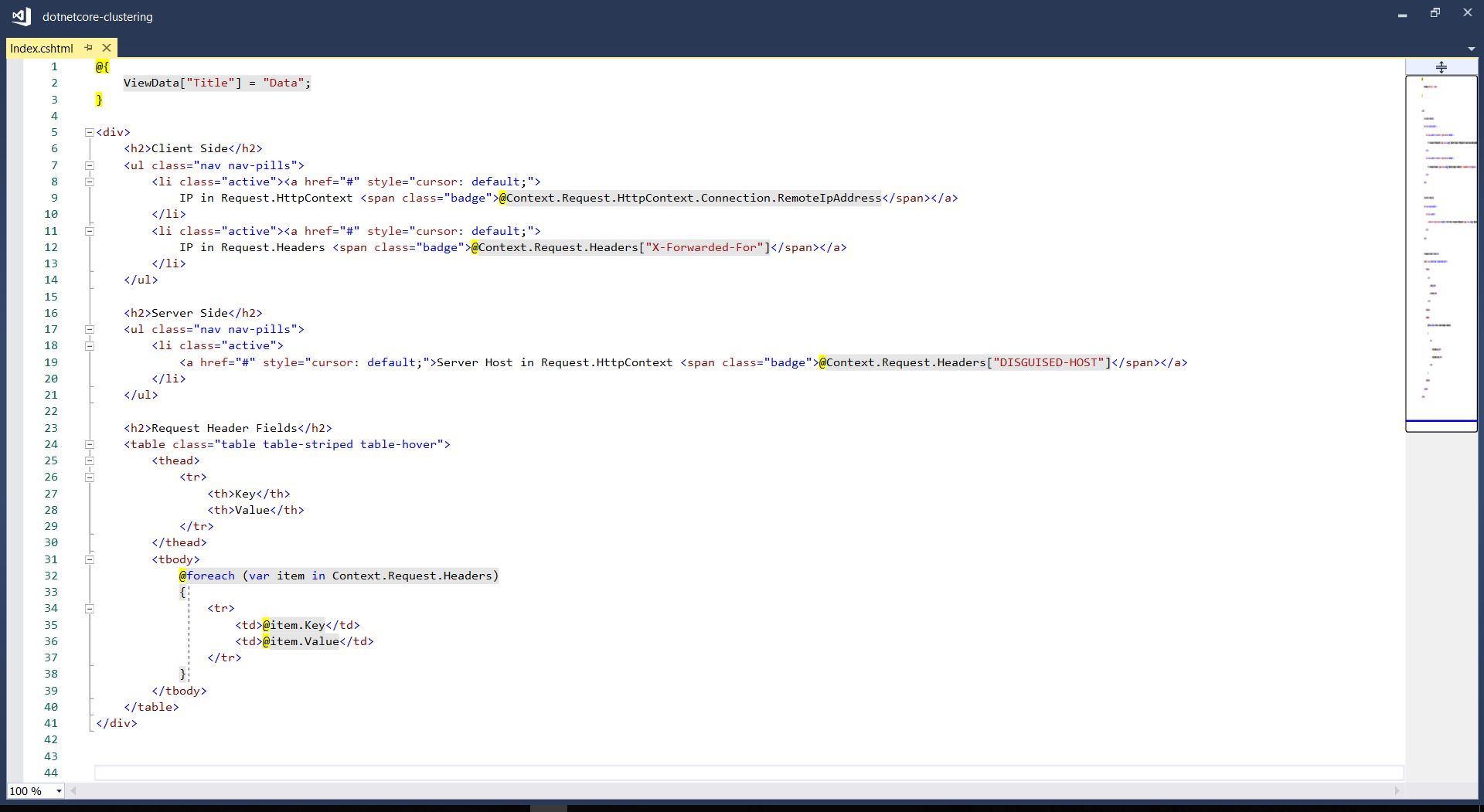
The homepage of my web app, Index.cshtml, is as follows to display the information in Request.Headers.


Index.png
Since WordPress cannot show the HTML code properly, I show the code as an image here.


In the code above, Request.Headers[“X-Forwarded-For”] is used to get the actual visitor’s IP address instead of the IP address of the Nginx load balancer. To allow this to work, we need to have the following codes added in Startup.cs.

app.UseForwardedHeaders(new ForwardedHeadersOptions
{
    ForwardedHeaders = 
        ForwardedHeaders.XForwardedFor | ForwardedHeaders.XForwardedProto
});

azure-regions.png
In this article, we will set up load balancer in Singapore for websites hosting in India and Australia.

Configure Linux Virtual Machine on Azure

Secondly, as described in the Chinese article mentioned above, the Nginx needs to be set up on a Linux server. The OS used in my case is Ubuntu 17.04.

installing-ubuntu-server-17-on-azure.png
Creating a new Ubuntu server running on Microsoft Azure virtual machine.

The Authentication Type that was chosen is the SSH Public Key option. Hence, we need to create public and private keys using OpenSSL tool. There is a tutorial from Microsoft showing steps on how to generate the keys using Git Bash and Putty.

Installing Nginx

After that, I installed Nginx by using the following command.

sudo apt-get install nginx

After installing it, in order to test whether Nginx is installed properly, I visited the public IP address of the virtual machine. However, it turns out that I couldn’t visit the server because the port 80 by default is not opened on the virtual machine.

Hence, the next step I need to do is opening port using Azure Portal by adding a new inbound security rule for the port 80 and then associate it to the subnet of the virtual network of the virtual machine.

Then when I revisited the public IP of the server, I could finally see the “Welcome to Nginx” success page.

successfully-opened-port-and-installed-nginx.png
Nginx is now successfully running on our Ubuntu server!

Mission: Load Balancing Azure Web Apps with Nginx

As the success page mentioned, further configuration is required. So, we need to edit the configuration file by first opening it up with the following command.

sudo nano /etc/nginx/sites-available/default

The first section that I added is the Cache Configuration.

# Cache configuration
proxy_temp_path /var/www/proxy_tmp;
proxy_cache_path /var/www/proxy_cache levels=1:2 keys_zone=my_cache:20m inactive=60m max_size=500m;

The proxy_temp_path is the path to the directory where the temporary files should be stored at when the response from the upstream server cannot fit into the configured buffers.

The proxy_cache_path is about in which directory the cache should be stored at. The levels=1:2 means that the cache will be stored in a single-character directory with a two-character subdirectory. The keys_zone parameter defines a my_cache cache zone which can store 20MB of keys at most but with the maximum size of the actual data to be 500MB. The inactive=60m means the maximum inactive time cache can be stored, which is 60 minutes in this case.

Next, upstream needs to be defined as follows.

# Cluster sites configuration
upstream backend {
    server dotnetcore-clustering-web01.azurewebsites.net fail_timeout=30s;
    server dotnetcore-clustering-web02.azurewebsites.net fail_timeout=30s;
}

For the default server configuration, we need to make a few modifications to it.

# Default server configuration
# 
server {
    listen 80 default_server;
    listen [::]:80 default_server;
    server_name localhost;
    
    ...
    
    location / {
        proxy_pass http://backend;
        proxy_set_header X-Forwarded-For $proxy_add_x_forwarded_for;
        try_files $uri $uri/ =404;
    }
}

Now, we just need to restart the Nginx with the following command.

sudo service nginx restart

Then when we visit the Ubuntu server again, we will realize that we sort of able to reach Azure Web Apps but not really so because it says 404!

404-on-azure.png
Oops, the Nginx routes the visitor to 404 land.

Troubleshooting 404 Error

According to another article which is written by Issac Lázaro, he said this was due to the fact that Azure App Service uses cookies to do ARR (Application Request Routing), hence we need to have the Ubuntu server to pass the header to the web apps by modifying our Nginx configuration to the following.

# Cluster sites configuration
upstream backend {
    server localhost:8001 fail_timeout=30s;
    server localhost:8002 fail_timeout=30s;
}
...

server {
    listen 8001;
    server_name web01;

    location / {
        proxy_set_header Host dotnetcore-clustering-web01.azurewebsites.net;
        proxy_pass http://dotnetcore-clustering-web01.azurewebsites.net;
    }
}

server {
    listen 8002;
    server_name web02;
    
    location / {
        proxy_set_header Host dotnetcore-clustering-web02.azurewebsites.net;
        proxy_pass http://dotnetcore-clustering-web02.azurewebsites.net;
    }
}

Then when we refresh the page, we shall see the website is loaded correctly with the content will be delivered from either web01 or web02.

success.png
Yay, we make it!

Yup, that’s all about setting up a simple Nginx to load balance multiple Azure Web Apps. You can refer to the following articles for more information about Nginx and load balancing.

References

  1. How to open ports to a virtual machine with the Azure portal
  2. Can’t start Nginx – Job for nginx.service failed
  3. Linux+.NetCore+Nginx搭建集群
  4. Understanding Nginx HTTP Proxying, Load Balancing, Buffering, and Caching
  5. Module ngx_http_upstream_module
  6. How To Set Up Nginx Load Balancing with SSL Termination


Having Fun with Microsoft Azure Virtual Machine

Azure VM + Windows Server 2012 R2 + IIS 8 + Filezilla

Last year April, I received a newsletter from Windows Azure Team saying that Windows Azure Virtual Machines were generally available. Finally, full control and management of virtual machines on Azure is now possible! The release undoubtedly successfully brought Microsoft Azure closer to Amazon who is also focusing on IaaS.

The reason that I’m so happy with the announcement is because I have already an ASP .NET Web Application running on my server running on Windows Server 2008 in a data centre. I would like to find out how to host it on cloud. Since I have already tried out Amazon last time with friends, so now I am interested to see how fun it will be to host my application on Azure and what benefits it will provide.

Beginning of Journey: When Affinity Group Brings Your Services Together

Before creating a new virtual machine in Azure, I create a new Affinity Group. Affinity Groups will be able to group Microsoft Azure services by locating them in the same data centre to optimize performance.

Create a new affinity group.

Create Virtual Machine

Same as Amazon, I am allowed to create my virtual machine in Microsoft Azure with an image that is already offered in the Microsoft Azure Management Portal. So, there is no need for me to upload any Windows Server image created on-premise. Thus, the first step is to choose an image. Surprisingly, they provide also things like Ubuntu Servers, Oracle servers, openSUSE, and so on.

I need to choose operating system running on the vm from the Gallery.
I need to choose operating system running on the VM from the Gallery.

There are sometimes multiple versions available for one image. So after choosing an image, for example the Windows Server 2012 R2 Datacenter, I get to choose the version of the OS that I want. As a best practice, it’s recommended to always choose the one with latest release date.

Size of the new virtual machine is the next thing that I can configure. Virtual machines on Azure are categorized into two tiers, i.e. Basic and Standard. What are the differences between the two tiers? Standard Tier is what we have been using before. Basic Compute Tier is just recently announced. It is having similar spec as the Standard tier but with lower price. In additional, Basic Compute Tier doesn’t come with load balancer and auto-scailing.

After choosing the tier, I will be able to pick one of the available sizes for the virtual machine from the Size dropdown list. There are many size codes, from A0 to A7. As David Aiken, Azure Group Technical Manager, said in Windows Azure for IT Pros Jump Start, the letter “A” and the number behind the “A” don’t mean anything. Seriously, it’s just a code. Also, the code has nothing to do with the paper size that we are familiar with. By the way, I think David did predict it correctly. There is really a A5 size introduced recently. Wow.

David Aiken explaining the naming of sizes for virtual machine.
“It was fun naming them”. David Aiken explaining the naming of sizes for virtual machine.

Of course, the smaller the instance, the lower the price we need to pay. The following is a screenshot of the virtual machine pricing details for Asia Pacific Southeast (i.e. Singapore) which I am interested at. You can read more about the details on pricing and available VM disk sizes on Microsoft websites as well.

Asia Pacific Southeast (Singapore) VM Pricing (screenshot taken on 18 April 2014)

After the size for the new virtual machine is decided, the next thing that I need to do is create a user account to access the VM later. There is a nice feature in the management console is that it does not allow us to use “admin” or “administrator” as the user name for security purpose.

Configure Virtual Machine: Cloud Service, Affinity Group, and Availability Set

Up to this point, the virtual machine earlier is not yet created. There is other configuration needed. First of all, we need to decide which Cloud Service to use. Cloud Service is basically a boundary of management, configuration, networking, security, etc that hosts the virtual machines in it. So, virtual machine must be stored in a cloud service. By doing so, we do not need to worry about hardware failure and network issues because Cloud Service will be there to help making our applications on the virtual machines are continuously available when those issues happen. Thus. it’s a way to make your application highly-available.

In addition, all virtual machines created in Azure can automatically communicate with other virtual machines in the same Cloud Service. So, we can then easily configure Azure Load Balancer to distribute traffic among multiple virtual machines in the same Cloud Service.

Secondly, in the “Region/Affinity Group/Virtual Network” dropdown, since I have created an Affinity Group in advance, so I get to choose not just the usual region but also Affinity Groups that I have created.

Thirdly, since I don’t have a Storage Account yet, so by default, it will choose the only option “Use an automatically generated storage account”.

Finally, I will create an Availability Set for this virtual machine. Availability Set tells the Fabric Controller (which functions as the kernel of Azure OS) to place virtual machines across fault domains (groups of resources anticipated to fail together, i.e. same rack / same server) and update domains (groups of resources that will be updated together). An availability set makes sure that your application is not affected by single points of failure, like the network switch or the power unit of a rack of servers. It is okay not to create Availability Set before the virtual machine is created but specifying Availability Set after the virtual machine has been provisioned will cause reboot.

Virtual Machine Configuration Page

The Endpoints

To allow communication with the virtual machine from external resources, endpoints need to be added in order to have them to handle the inbound network traffic to the virtual machine. In addition, when an endpoint is created, there is a need to create an inbound rule in the Windows Firewall with Advanced Security in the virtual machine to allow the traffic route through the endpoint.

So, in order to enable public to view the ASP .NET web applications that I host on the virtual machine, I will first need to create an endpoint for HTTP on the Azure management portal for the virtual machine. After that, I just need to install the IIS windows feature on the virtual machine together with Application Development feature added to allow HTTP traffic.

Finally, I also add endpoints for the FTP (such as port 21) because I need FTP access to this server. There was an interesting error when I try to upload file to the FTP Server using Filezilla. The error said, “The supplied message is incomplete. The signature was not verified.” Luckily, there are already people discussing online going on with some solutions to the problem. One of them is applying a hotfix from Microsoft which I have the link to it in the list below. It turns out that this error will only occur on Windows Server 2012 (R2) and Windows 8(.1).

There are some online articles which help me to better configure the endpoints and have both the web server and FTP setup on the virtual machine.

Conclusion

Basically, this covers the basic stuff of setting up Azure virtual machine as both a web server and FTP server. It is quite straightforward and about the same as what I did on Amazon EC2. If you would like to learn more, I’d suggest you to attend the online courses about Microsoft Azure on Microsoft Virtual Academy.