
This post is to continue the story of my MongoDB self-learning back in January. Also, the theme for March self-learning is about Windows Azure, thus I guess it’s a good opportunity to combine these two knowledge together. So, let’s continue the story now.
Basically, after the one-month MongoDB learning in January, I have successfully built a simple web application allowing users to add pinpoints on Google Map and store those info on MongoDB. However, all those are happening in local machine. So, how to do that if we would like to deploy it on, for example, Azure for the public to access?
Fortunately, with the help of Microsoft WebMatrix, the whole process is rather simple and straight-forward.
Deploy The Website in 3 Simple Steps
Firstly, there is a Publish feature available on WebMatrix. After adding your Windows account on WebMatrix, there is a simple Publish interface which allows you to publish our current website to either a new site or existing site on Azure.

Secondly, we need to create new MongoDB database on cloud. Windows Azure Store offers a web-based cloud MongoDB management tool, called MongoLab. Currently, MongoLab provides a free sandbox plan for the developers to try out MongoDB on Windows Azure. It also provides some other plans with Replica Set cluster on shared or dedicated Azure VMs. Normally those are for large and heavy traffic sites. For learning purpose, a free plan with 0.5 GB of storage is enough.

Thirdly, once the MongoLab service is added, we can now happily get the Connection Info of the database and then paste it to our code in WebMatrix.
var dbc = monk('mongodb://GCLMongoDB:.../GCLMongoDB');

Finally, we can just hit the Publish button on WebMatrix to launch the website on Windows Azure with MongoDB. Ta-da!
MongoLab Helpful Features
In MongoLab, we get to see the documents either in list view or even the table view. List view allows us to read all the documents stored in the collection in JSON format. We can scroll through a consecutive set of documents each in its entirely. By clicking on a document, we then can edit and delete the selected document.

In table view, we get to choose the format of the displayed table by defining how to translate JSON documents in the collection into a 2D table. This is especially useful for those who are familiar with relational database but are still new to document database.

In addition, there is an editor provided to do query. A friendly quick reference of query displayed at the side of the page to guide new developers along on how to do query also.

For the database backup, there is a charge of $0.50 per run + $0.02 per run per GB if we store our backups in MongoLab-owned cloud container. Hence, even for a small-sized database that I have above (2.49 KB), I will already be charged for around $15 monthly for 30 backups.
Conclusion
My friend once said that I used too much Microsoft developer tools and products without knowing what have really been handled by them in the background secretly. I think it’s kind of true. As we can see, to deploy both the website and MongoDB on Windows Azure, it took only a few simple steps as shown above. Thus, I’d encourage to learn in this way only if you are totally new to MongoDB and you would just like to have an overview of how a Node.JS website can work together with MongoDB on the cloud.
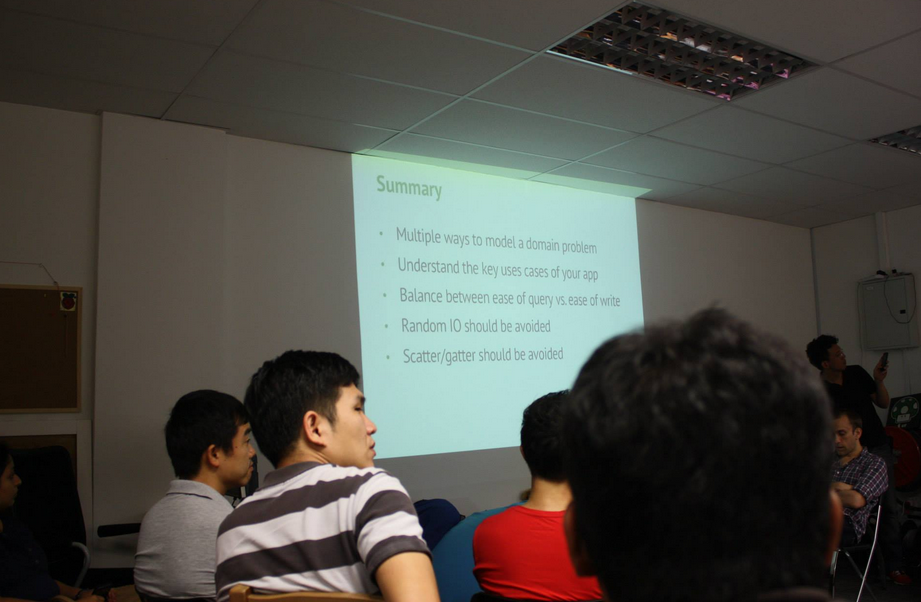
If you want to learn more about MongoDB, you can also checkout the following slides from the presentation in Singapore MongoDB User Group Meetup #2. The first half of the slides basically cover some fundamental knowledge about MongoDB which is quite useful for those who are new to this document database.


 cuteprogramming