I have been using Visual Studio 2019 to develop desktop and mobile applications using Xamarin. I could successfully deploy my Xamarin UWP app to Microsoft Store until I upgraded my Visual Studio 2019 to 16.10.2.
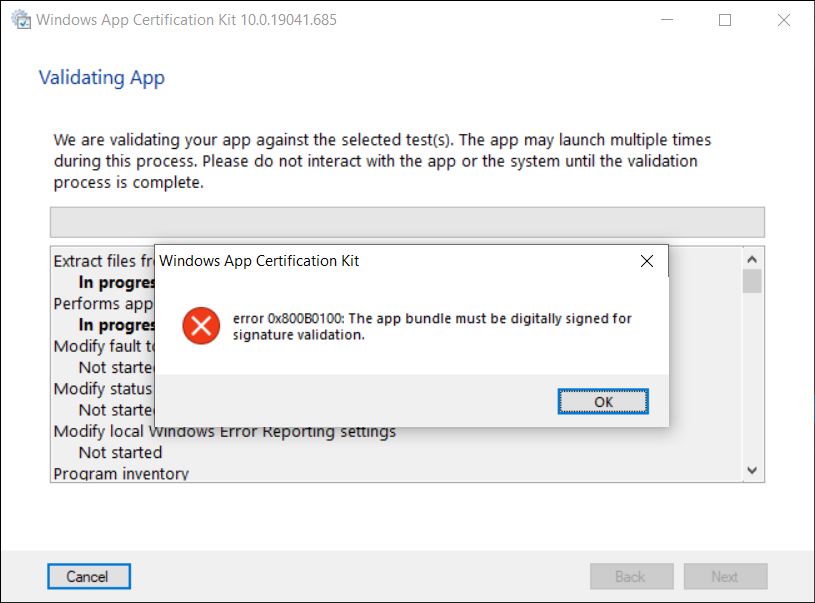
Normally, before we can publish our UWP app to Microsoft Store, we need to launch WACK (Windows App Certification Kit) to validate our app package. However, in VS2019 16.10.2 (and onwards), there will be an error occurs, as shown in the screenshot below, and the validation cannot be completed.
Error 0x800B0100 in Windows App Certification Kit (WACK).
MSBuild Project Build Output
Since my code is the same, so the first thing that I suspect is that the new updates in Visual Studio 2019 are causing this issue. Hence, I changed the verbosity of the project build output to Diagnostic, as shown below. This will help us understand better about what’s happening during the build.
Setting MSBuild project build output verbosity.
By comparing the current build output with the one using the previous version of Visual Studio 2019, I realised that there is something new in the current build ouput. The parameter GenerateTemporaryStoreCertificate is set to false while BuildAppxUploadPackageForUap is true, as shown below.
1>Target "_RemoveDisposableSigningCertificate: (TargetId:293)" in file "C:\Program Files (x86)\Microsoft Visual Studio\2019\Preview\MSBuild\Microsoft\VisualStudio\v16.0\AppxPackage\Microsoft.AppXPackage.Targets" from project "...UWP.csproj" (target "_GenerateAppxPackage" depends on it):
1>Task "RemoveDisposableSigningCertificate" skipped, due to false condition; ('$(GenerateTemporaryStoreCertificate)' == 'true' and '$(BuildAppxUploadPackageForUap)' == 'true') was evaluated as ('false' == 'true' and 'true' == 'true').
1>Done building target "_RemoveDisposableSigningCertificate" in project "...UWP.csproj".: (TargetId:293)
Online Discussions
Meanwhile, there are only two discussion threads online about this issue.
Few days later, on 1st of July 2021, another developer Tautvydas Zilys also reported a similar issue as Nick Stevens’. Interestingly, the same Microsoft engineer, James Parsons, replied to them with the similar answer, i.e. adding the following property in their project file to set GenerateTemporaryStoreCertificate to true.
That’s all to fix the issue. I hope this article, which is also the 3rd in the world discussing about this Visual Studio 2019 problem, is helpful to other Xamarin UWP developers who are running into the same problem.
KOSD, or Kopi-O Siew Dai, is a type of Singapore coffee that I enjoy. It is basically a cup of coffee with a little bit of sugar. This series is meant to blog about technical knowledge that I gained while having a small cup of Kopi-O Siew Dai.
Getting our apps to the market is always an exciting moment. I once remembered I worked with the business co-founders until mid-night when we launched our first version of the app. There was also a time when minister and other government officers visited the launch event of our UWP app. So, yup, publishing and releasing the apps to market is a crucial knowledge to learn for developers. Today, this post will share my journey of submitting my first UWP app to the Microsoft Store.
As a staff in an education institute, I can access Microsoft Store for Education too.
When we package our apps using Visual Studio and then release it to the Microsoft Store, a special capability will be added automatically. It’s called runFullTrust, a restricted capability. It allows our apps to run at the full trust permission level and to have full access to resources on the users’ machine. Hence, we need to submit our apps to the Microsoft Store and then wait for approval from Microsoft before our apps can be released on the Microsoft Store.
So, let’s start the app publish journey with me now.
After that, we will proceed to configure our app manifest file Package.appxmanifest. It’s an XML file that contains the properties and settings required to create our app package.
The Display Name and Description are controlled in the resource file Resources.resw. I also set my app to support the Landscape views only.
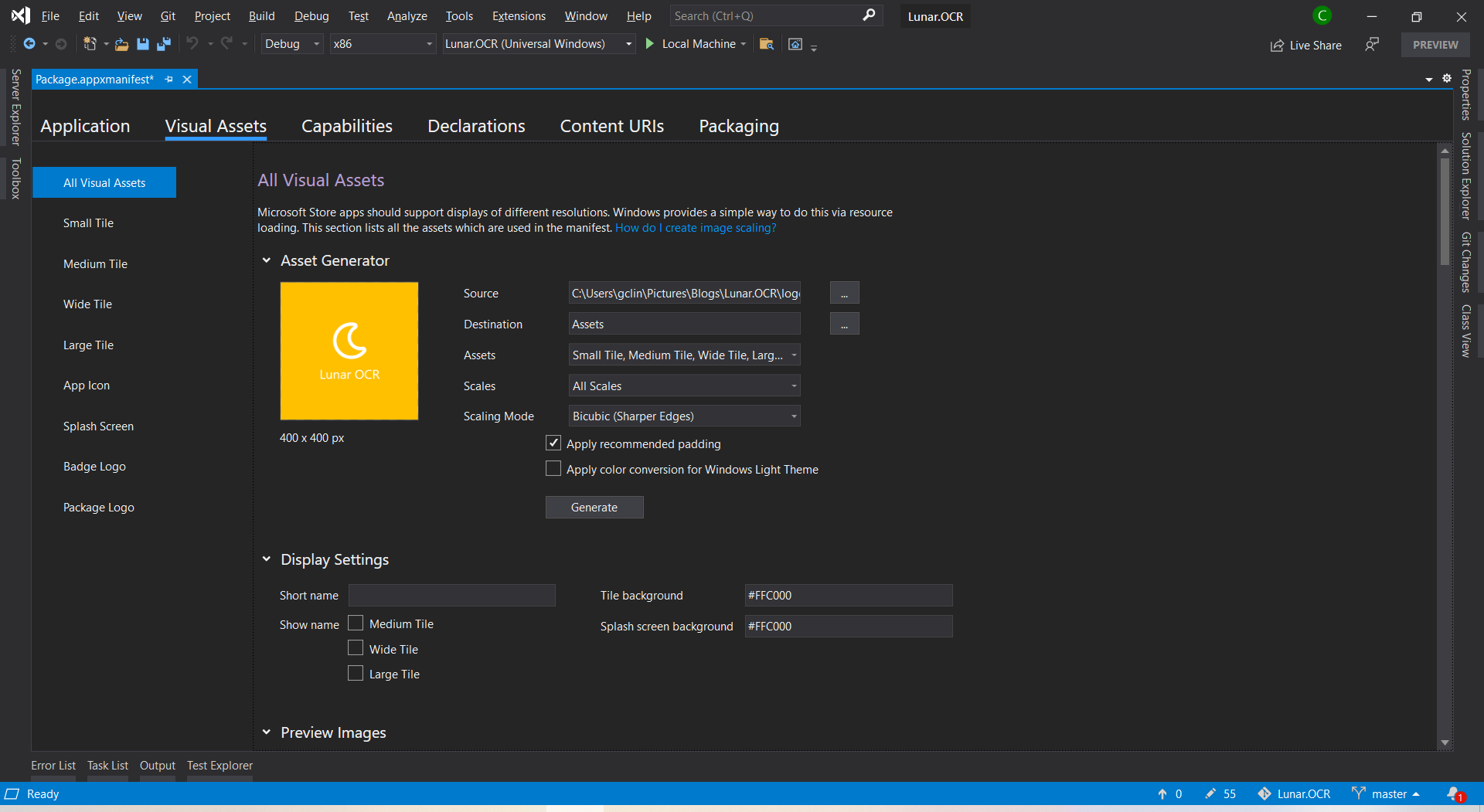
After that, we will need to upload the product logo. Even though there are many visual assets for different sizes of tiles, icons, package logo, and splash screen, what we need to do is simply just upload one logo image which is at least 400×400 pixels. Then Visual Studio will be able to help us to generate the necessary assets.
I set the background of tile and splash screen to be the same colour as the uploaded logo because the logo file comes with a background colour.
I will skip the Capabilities, Declarations, and Content URIs tabs here because they are not relevant to our app for now.
We need to pay a one-time registration fee with no renewal is required. In Singapore, individual account costs SGD 24 and company account is SGD 120.
After we have logged in to the Microsoft Partner Center, we can first reserve our product name first. So we can take our time developing and publishing our apps without worrying the name will be used by other developer or company within the next three months.
Reserving a name for our app before submitting it is similar to the act of placing packets of tissue on empty tables to reserve seats while we go grab our food. (Photo Credit: The Straits Times)
Mission 3: Associate App with the Microsoft Store
After we have successfully created a developer account, we can then associate our app with the Microsoft Store in Visual Studio.
Right click our solution and we can associate our app with the Microsoft Store.
After the association is done, we will see that, in the Packaging tab of our app manifest, the app has already been signed with a trusted certificate. This allows the users to install and run our app without installing the associated app signing certificate.
Mission 4: Create the App Package
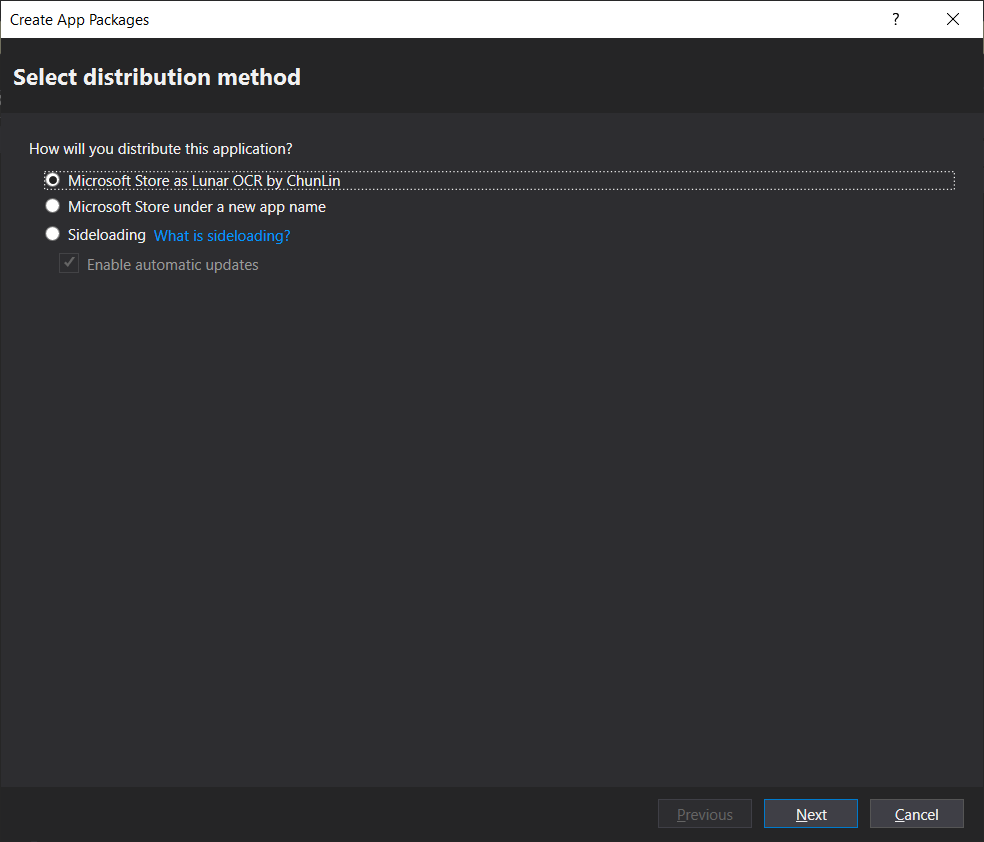
Since we have already associated the app, now when we proceed to create the app package, we will have an option to distribute to the Microsoft Store for the app directly.
Choosing the distribution method.
After that, we will need to select the architectures for our app. In order to make it runnable on most of the platforms, we should choose relevant ones.
Windows 10 devices and architectures. (Image Source: MSIX Docs)
Certification tests for our app on Windows App Certification Kit.
This mission is successfully completed as long as the Overall Result shows “PASSED”.
Mission 5: Publish to Microsoft Store!
Before we can submit our package on the Microsoft Partner Center, there are a few information we need to prepare.
Markets: There are in total 241 markets available. We need to choose to list our app in which markets. Currently, if the app is made available in Singapore, then the app can also be found on the Microsoft Store on Xbox One for Singapore market;
Privacy Policy: We need to provide a privacy policy URL to our app.
Website: A web page showing what our app is about.
Both privacy policy and website of my app are hosted as GitHub Pages.
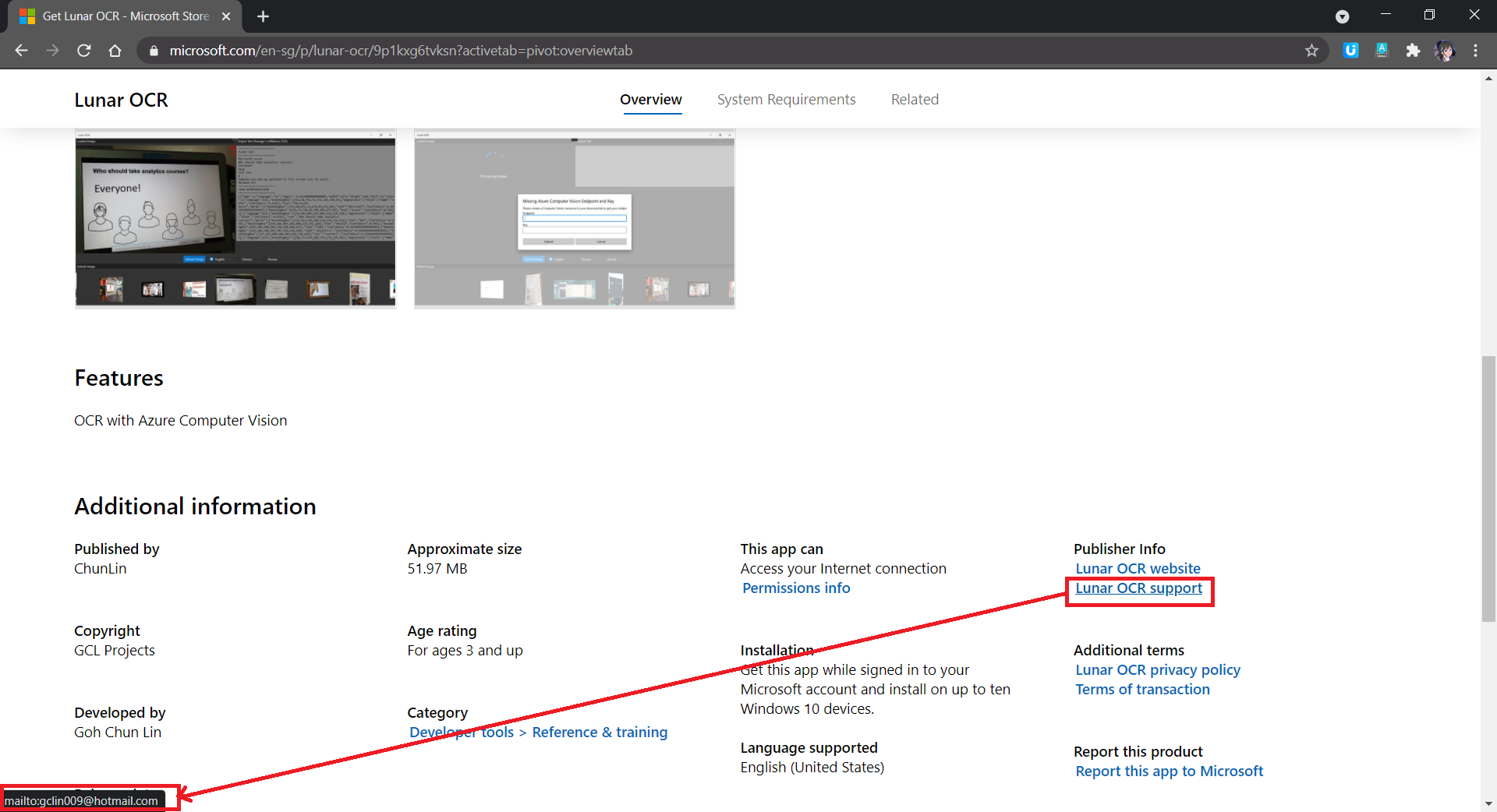
Support Contact Info: Please do not enter email as Support Contact Info, provide URL of a support page of the app instead. I received many spam mails after using my email for this field. Haha.
If email is used as Support Contact Info, web crawlers can easily retrieve our email address and spam us.
System Requirements: If customers are using hardware that doesn’t meet the minimum requirements, they may see a warning before they download our app.
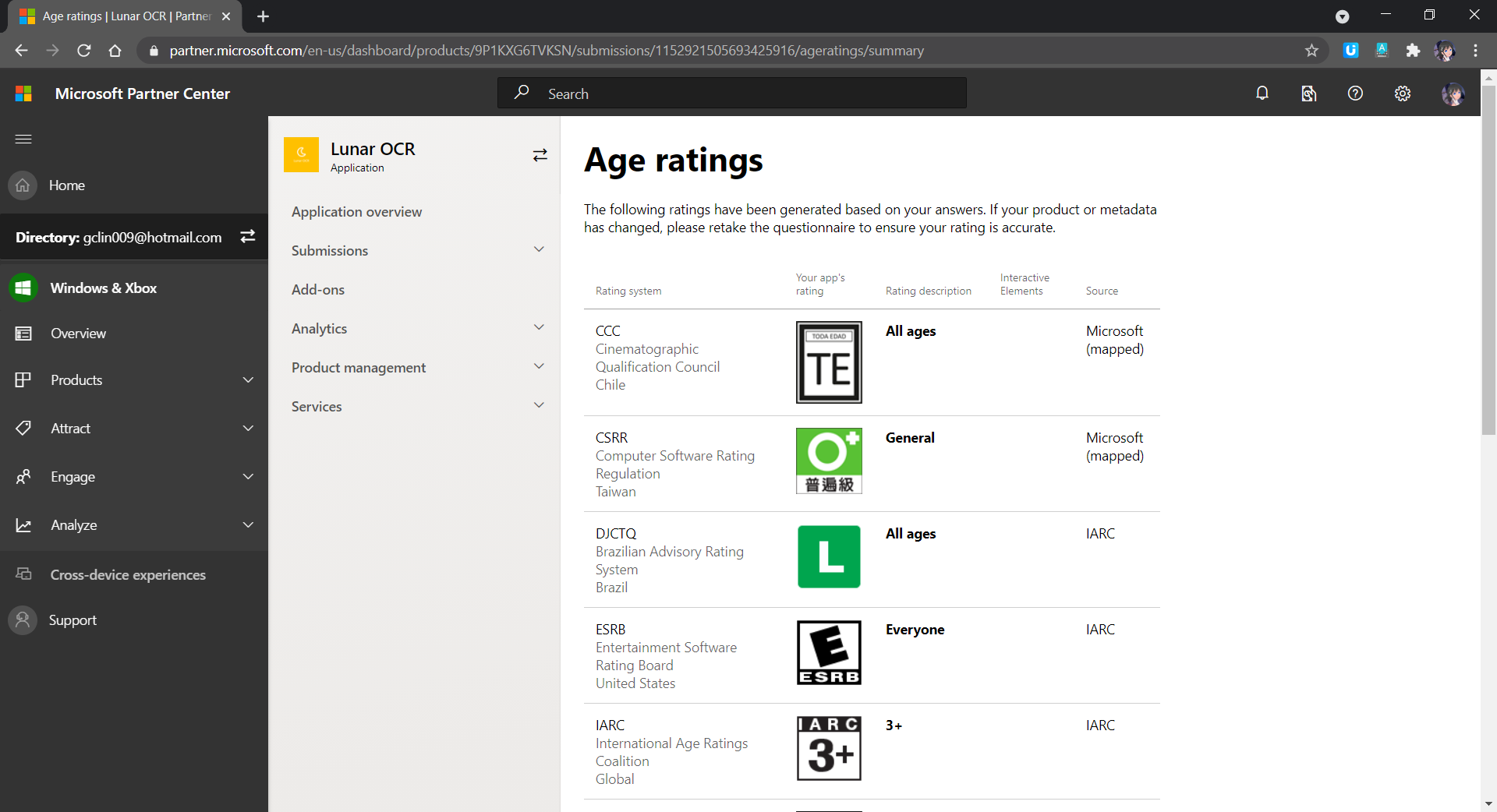
Age Rating: There will be a tool to help us determine the rating of our app in each of the markets.
Age rating of our app.
Publish Date: By default, our app will be published to the Microsoft Store as soon as the submission passes certification. However, we can also manually publish it later or schedule the publish to a later date and time.
Once we have provided all the information above, we can proceed to upload our app package to the Packages section, as shown in the screenshot below.
If the submission is rejected, we simply replace the app package here with a new one and then resubmit the same submission.
After our submission is done, we just need to wait for the Microsoft staff to certify our app.
If our submission is rejected, we will see a report as follows under the Submission where there will be details on action to take.
Oh no, there is an uncaught exception in our app. We gonna fix it fast.
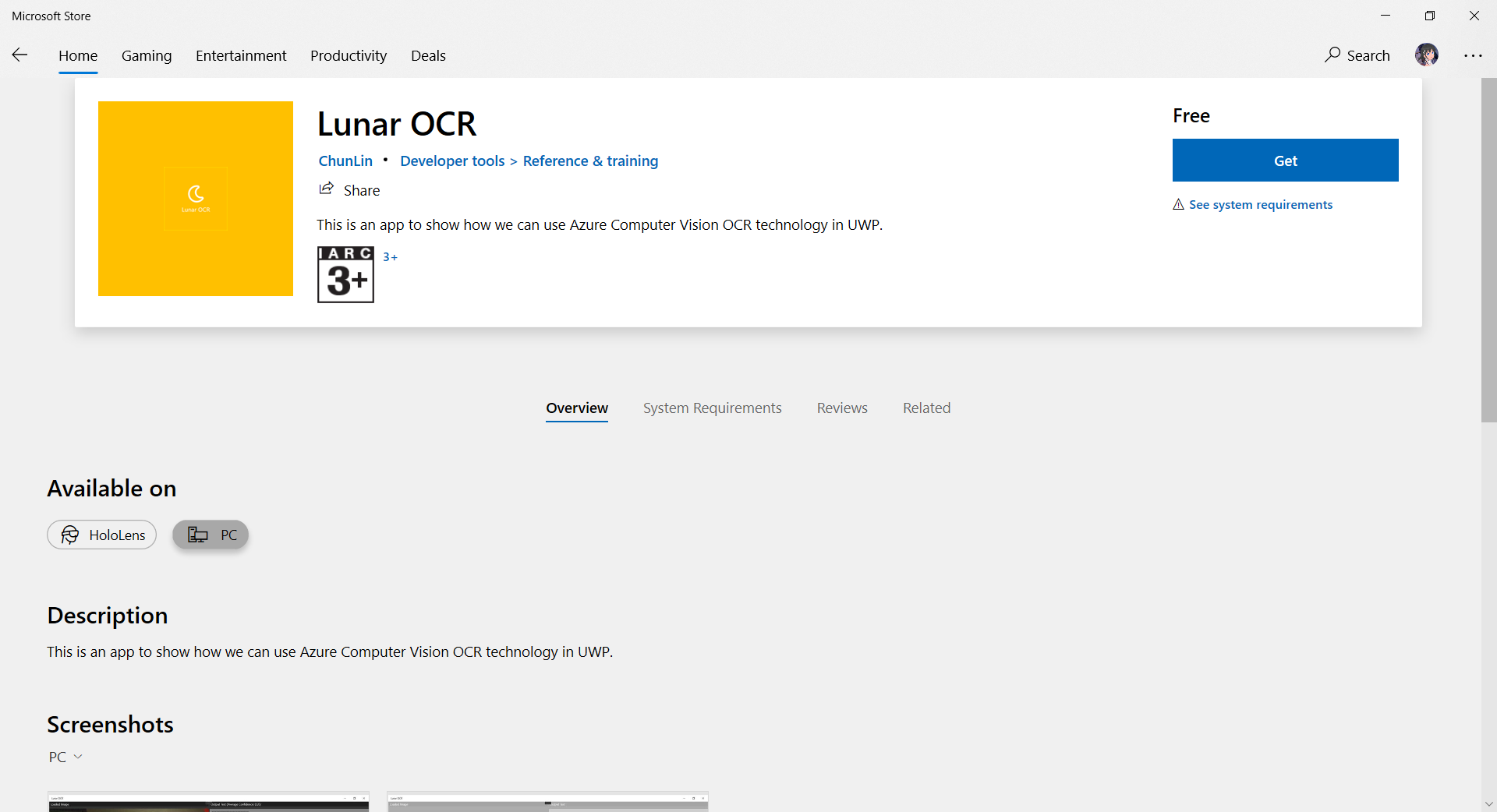
If there is no problem, we will be able to see our app on the Microsoft Store, as demonstrated in the following screenshot. The whole certification and release process is very fast to me.
I submitted the app on Sunday night (SGT) and my app was approved on Monday night (SGT) after fixing the problems reported by Microsoft and re-submitting again for one time on Monday evening (SGT).
Mission 6: Monetise App with In-app Ads
Since I am supporting open-source software, so the apps I publish are all free to the public to download. However, it would still be great if I can get financial supports from users who love my work. Hence, monetisation our app with in-app ads is one of the options.
It is better to get our app approved on Ads Jumbo before uploading our app with in-app ads to the Microsoft Store.
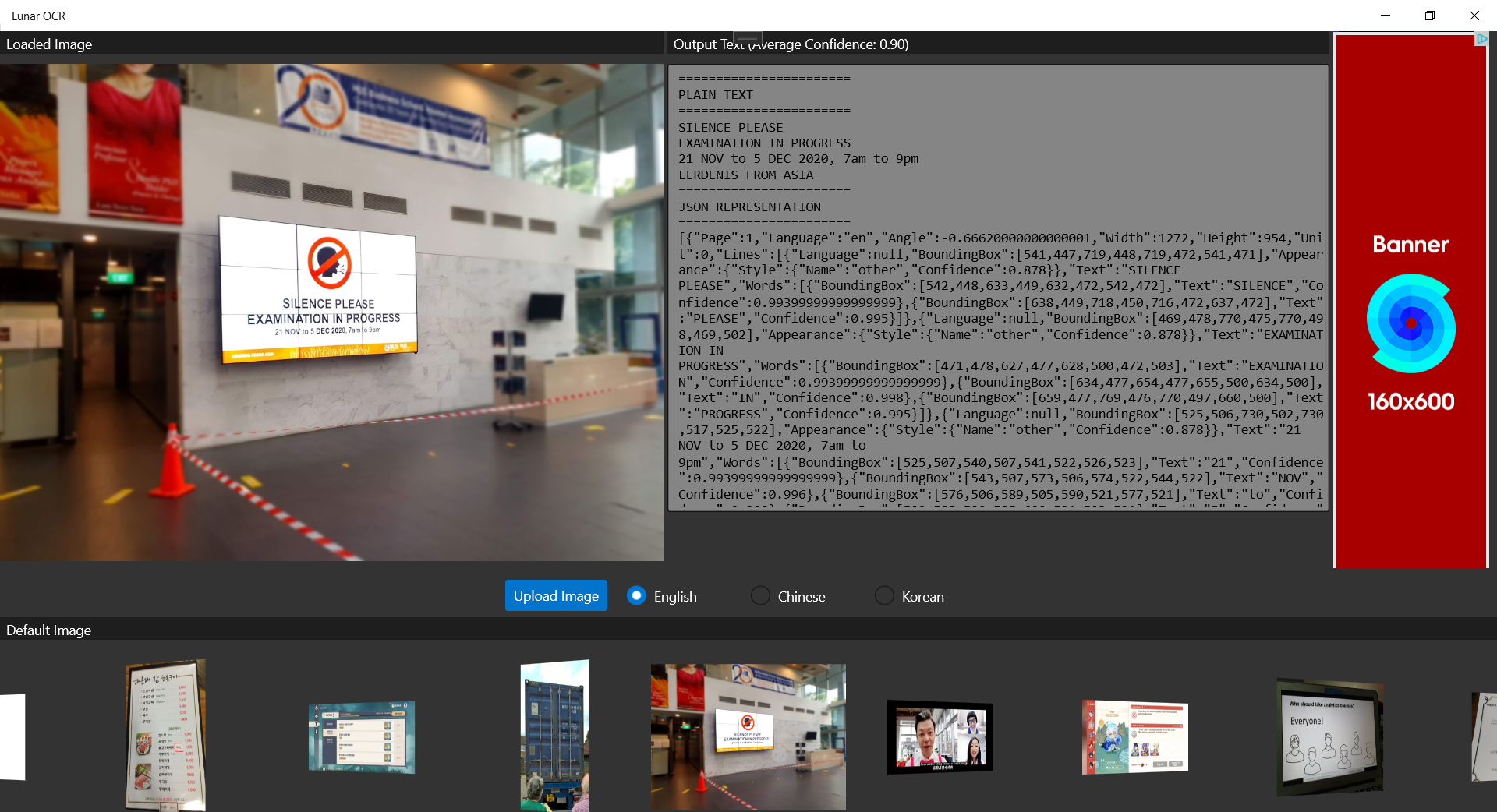
The approval process on Ads Jumbo is fast to me. My app was approved on the day I submitted it on Ads Jumbo. While waiting for approval, we can also first do a test so that we can visualise the ads positioning in our app, as shown below.
We should test to see how the ads would be positioned before publishing it.
Yup, that’s all about my journey of getting my first Windows 10 UWP app on the Microsoft Store. Please download it now and let me know what you think. Thank you!









 cuteprogramming