It’s important to keep app secrets out of our codes. Most of the app secrets are however still found in .config files. This way of handling app secrets becomes very risky when the codes are on public repository.
Thus, they are people put some dummy text in the .config files and inform the teammates to enter their respective app secrets. Things go ugly when this kind of “common understanding” among the teammates is messed up.
The moment when your app secrets are published on Github public repo. (Image from “Kono Aozora ni Yakusoku o”)
Secret Manager Tool
So when I am working on the dotnet.sg website, which is an ASP .NET Core project, I use the Secret Manager tool.It offers a way to store sensitive data such as app secrets in our local development machine.
To use the tool, firstly, I need to add it in project.json as follows.
Due to the fact that the Secret Manager tool makes use of project specific configuration settings kept in user profile, we need to specify a userSecretsId value in the project.json as well.
After that, I can start storing the app secrets in the Secret Manager tool by entering the following command in the project directory.
$ dotnet user-secrets set AppSettings:MeetupWebApiKey ""
As shown in the example above, the name of the secret is “AppSettings:MeetupWebApiKey”. This is because in the appsettings.json, I have the following.
{
    "AppSettings": {
        "MeetupWebApiKey": ""
    },
    ...
}
Alright, now the API key is stored in the Secret Manager tool, how is it accessed from the code?
By default, appsettings.json is already loaded in startup.cs. However, we still need to add the following bolded lines in startup.js to enable User Secrets as part of our configuration in the Startup constructor.
public class Startup
{
    public Startup(IHostingEnvironment env)
    {
        var builder = new ConfigurationBuilder()
            .SetBasePath(env.ContentRootPath)
            .AddJsonFile("appsettings.json", optional: true, reloadOnChange: true)
            .AddJsonFile($"appsettings.{env.EnvironmentName}.json", optional: true);

        if (env.IsDevelopment())
        {
            builder.AddUserSecrets();
        }

        builder.AddEnvironmentVariables();

        Configuration = builder.Build();
    }
    ...
}
Then in the Models folder, I create a new class called AppSettings which will be used later when we load the app secrets:
public class AppSettings
{
    public string MeetupWebApiKey { get; set; }

    ...
}
So, let’s say I want to use the key in the HomeController, I just need to do the following.
public class HomeController : Controller
{
    private readonly AppSettings _appSettings;

    public HomeController(IOptions appSettings appSettings)
    {
        _appSettings = appSettings.Value;
    }

    public async Task Index()
    {
        string meetupWebApiKey = _appSettings.MeetupWebApiKey;
        ...
    }

    ...
}
Azure Application Settings
Just now Secret Manager tool has helped us on managing the app secrets in local development environment. How about when we deploy our web app to Microsoft Azure?
For dotnet.sg, I am hosting the website with Azure App Service. What so great about Azure App Service is that there is one thing called Application Settings.
Application Settings option is available in Azure App Service.
Available deployment source options in Azure App Service.
Although dotnet.sg source code is on Github, choosing the “GitHub” option cannot detect its repository. This is because the Github option only lists the repositories on my personal Github account. The dotnet.sg repo whereas is under the sg-dotnet Github Organization account. Hence, I have to choose “External Repository” as the deployment source instead.
Setting up External Repository (Git) as deployment source in Azure App Service.
After that, whenever there is a new commit, if we do “Sync”, it will create a new deployment record, as shown in the screenshot below. We can anytime revert back to the previous deployment by right-clicking on the desired deployment record and select “Redeploy”.
Deployment history in Azure App Service.
Kudu
So what if we want to customize the deployment process?
I first learnt about the term “Machine Learning” when I was taking the online Stanford AI course in 2011. The course basically taught us about the basics of Artificial Intelligence. So, I got the opportunity to learn about Game Theory, object recognition, robotic car, path planning, machine learning, etc.
We learnt stuff like Machine Leaning, Path Planning, AI in the online Stanford AI course.
Meetup in Microsoft
I was very excited to see the announcement from Azure Community Singapore saying that there would be a Big Data expert to talk about Azure Machine Learning in the community monthly meetup.
Doli was telling us story about Azure Machine Learning. (Photo Credit: Azure Community Singapore)
The speaker is Doli, Big Data engineer working in Malaysia iProperty Group. He gave us a good introduction to Azure Machine Learning, and then followed by Market Basket Analysis, Regression, and a recommendation system works on Azure Machine Learning.
I found the talk to be interesting, especially for those who want to know more about Big Data and Machine Learning but still new to them. I will try my best to share with you here what I have learned from Doli’s 2-hour presentation.
Ano… What is Machine Learning?
Could we make the computer to learn and behave more intelligently based on the data? For example, is it possible that from both the flight and weather data, we can know which scheduled flights are going to be delayed? Machine Learning makes it possible. Machine Learning takes historical data and make prediction about future trend.
This Sounds Similar to Data Mining
During the meetup, there was a question raised. What is the difference between Data Mining and Machine Learning?
Data Mining is normally carried out by a person to discover the pattern from a massive, complicated dataset. However, Machine Learning can be done without human guidance to predict based on previous patterns and data.
Gmail is also using supervised learning to find out which emails are spam or need to be prioritized. In the slides of Introduction to Apache Mahout, it uses YouTube Recommendation an example of supervised learning. This is because the recommendation given by YouTube has taken videos explicitly liked, added to favourites, rated by the user.
I love watching anime so YouTube recommended me some great anime videos. =P
Unlike supervised learning, unsupervised learning is trying to find structure in unlabeled data. Clustering, as one of the unsupervised learning techniques, is grouping data into small groups based on similarity such that data in the same group are as similar as possible and data in different groups are as different as possible. An example for unsupervised learning is called the k-means Clustering.
Clearly, the prediction of Machine Learning is not about perfect accuracy.
Azure Machine Learning: Experiment!
With Azure Machine Learning, we are now able to perform cloud-based predictive analysis.
Azure Machine Learning is a service that developer can use to build predictive analytic models with training datasets. Those models then can be deployed for consumption as web service in C#, Python, and R. Hence, the process can be summarized as follows.
Data Collection: Understanding the problem and collecting data
In fact, there are quite a number of sample datasets available in Azure Machine Learning Studio too. During the presentation, Doli also showed us how to use Reader to connect to a MS SQL server to get data.
Get data either from sample dataset or from reader (database, Azure Blob Storage, data feed reader, etc.).
To see the data of the dataset, we can click on the output port at the bottom of the box and then select “Visualize”.
Visualize the dataset.
After getting the data, we need to do pre-processing, i.e. cleaning up the data. For example, we need to remove rows which have missing data.
In addition, we will choose relevant columns from the dataset (aka features in machine learning) which will help in the prediction. Choosing columns requires a few rounds of experiments before finding a good set of features to use for a predictive model.
Let’s clean up the data and select only what we need.
Train and Analyze
As mentioned earlier, Machine Learning learns from a dataset and apply it to new data. Hence, in order to evaluate an algorithm in Machine Learning, the data collected will be split into two sets, the Training Set for Machine Learning to train the algorithm and Testing Set for prediction.
Doli said that the more data we use to train the model the better. However, they are many people having different opinions. For example, there is one online discussion about the optimal ratio between the Training Set and Testing Set. Some said 3:2, some said 1:1, and some said 3:1. I don’t know much about Statistical Analysis, so I will just make it 1:1, as shown in the tutorial in Machine Learning Studio.
Randomly split the dataset into two halves: a training set and a testing set.
So, what “algorithm” are we talking about here? In Machine Learning Studio, there are many learning algorithms to choose from. I won’t go into details about which algo to choose here. =)
Choose learning algorithm and specify the prediction target.
Finally, we just hit the “Run” button located at the command bar to train the model and make a prediction on the test dataset.
After the run is successfully completed, we can view the prediction results.
Visualize results.
Deploy
From here, we can improve the model by changing the features, properties of algorithm, or even algorithm itself.
When we are satisfied with the model, we can publish it as a web service so that we can directly use it for new data in the future. Alternatively, you can also download an Excel workbook from the Machine Learning Studio which has macro added to compute the predicted values.
Oh ya, in case you would like to know more about how-old.net which is using Machine Learning, please visit the homepage of Microsoft Project Oxford to find out more about the Face APIs, Speech APIs, Computer Vision APIs, and other cools APIs that you can use.
Please correct me if you spot any mistake in my post because I am still very, very new to Machine Learning. Please join our meetup too, if you would like to know more about Azure.
I told my friends about problems I encountered on Microsoft Azure. One of my friends, Riza, then asked me to share my experience of hosting web applications on Azure during the Singapore Azure Community meetup two weeks ago.
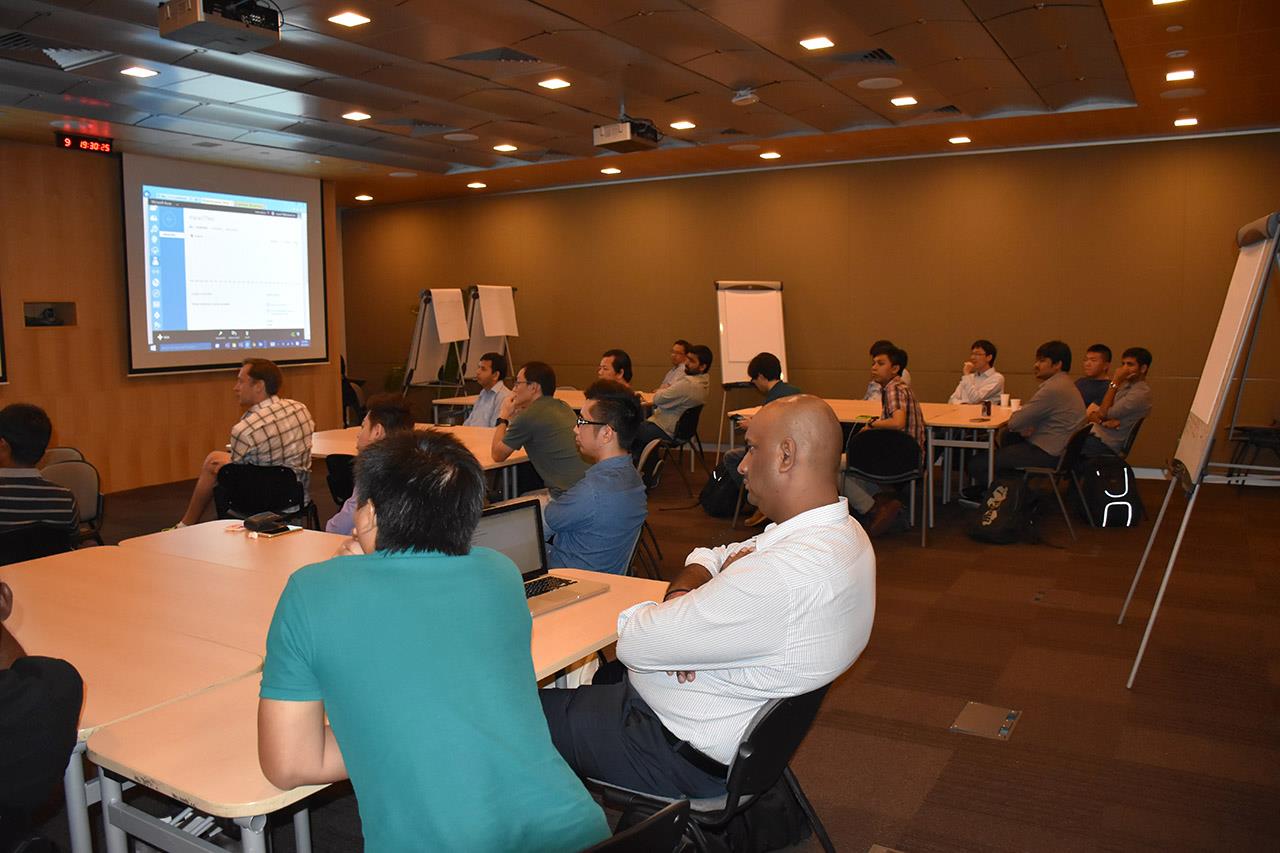
Azure Community March Meetup in Microsoft Singapore office. (Photo credit: Riza)
Problems with On-Premise Servers
Our web applications were hosted on-premise for about 9 years. Recently, we realized that our systems were running slower and slower. The clients kept receiving timeout exception. At the same time, we also ran out of storage space. We had to drive all the way to data centre which is about 15km away from our office just to connect one 1TB external hard disk to our server.
Hence, in one of our company meetings in June, we finally decided to migrate our web applications and databases to the cloud. None of the developers, besides me, knew about cloud hosting. Hence, we all agreed to use Microsoft Azure, the only cloud computing platform that I was familiar with.
Self Learning Microsoft Azure on MVA
When I first heard that the top management of our company had the intentions to migrate web applications to cloud last year, I already started to learn Azure on Microsoft Virtual Academy (MVA) at my own time and pace.
MVA is an online learning platform for public to get free IT training, including some useful introductory courses to Microsoft Azure, as listed below.
If you have noticed, the courses above are actually mostly related to IaaS. This is because IaaS was the most straightforward way for us who were going to migrate systems and databases from on-premise to the cloud. If we had chosen PaaS, we would need to redo our entire code base.
You can enjoy the fun shows presented by David and David on MVA
If you are more into reading books, you can also checkout some free eBooks about Microsoft Azure available on MVA. Personally, I didn’t read any of the book because I found watching MVA training videos was far more interesting.
I learnt after work and during weekends. I started learning Azure around March and the day we did the migration from on-premise to Azure was July. So I basically had a crash course of Azure in just four months.
Now I will say that the learning approach is not recommended. If you are going to learn Azure, it’s important to understand key concepts by reading books and talking to people who are more experience with Microsoft Azure and networking. Otherwise, you might encounter some problems that were hard to be fixed in later stage.
Migration at Midnight
Before doing a migration, we had to do some preparation work.
Firstly, we called our clients one by one. This is because we also hosted clients’ websites on our server. So, we need to inform them to update A record in their DNS. Later, we found out that, in fact, they should be using CNAME so that change of IP address on our side shouldn’t affect them.
Secondly, we prepared a file called app_offline.htm. This is a file to put in the root folder of our web applications hosted on our on-premise server. It would show a page telling our online users that our application was under maintenance no matter the user visited which web page.
Website is under maintenance. Sorry about that!
Finally, we did backup for all our databases which were running on our on-premise servers. Due to the fact that our databases were big, it took about 20-30 minutes for us to just do a backup of one database. Of course, this could only be done right before we migrated to the cloud.
We chose to do the migration at midnight because we had many online transactions going on at daytime. In our company, only my senior and I were in charge of doing the migration. The following schedule listed the main activities during our midnight migration.
2am – 3am: Uploading app_offline.htm and backing up databases
3am – 4am: Restoring databases on Azure
4am – 5am: Uploading web applications to Azure and updating DNS in Route 53
Complaints Received on First Day after Migration
We need to finish the migration by 5am because that is when our clients start logging in to our web applications. So, everything was done in a rush and thus we received a number of calls from our clients after 6am on the day.
Some clients complaining that our system became very slow. It turns out that this has to do with us not putting our web application and databases in the same virtual network (v-net). Without putting them in the same v-net, every time our web application called the databases, they had to go through the Internet, instead of the internal connection. Thus the connection was slow and expensive (Azure charged us for outbound data transfer).
We also received calls complaining their websites were gone. That was actually caused by them not updating their DNS records fast enough.
Another interesting problem is part of our system was rejected by our client’s network because they only allowed traffics from certain IP address to access. So, we had to give them the new IP address of our Azure server before everything can work at their side again.
Downtime: The Impact and Microsoft Responses
The web applications have been running for about 8 months on Azure environment since July 2014. We encountered roughly 10 downtimes. Some are because we setup wrongly. Some are due to the Azure platform errors, as reported by Microsoft Azure team.
Our first downtime happened on 4 August 2014, from 12pm to 1:30pm. It’s expected to have high volume to our websites at noon. So, the downtime caused us to loss a huge amount of online sales. The cause of the downtime was later reported by Microsoft Azure team as all our deployments were in the affected cluster in Southeast Asia data centre.
Traffic Manager Came to Rescue
That was when we started to plan to host the backup of all our web applications in another Azure data centre. We then use traffic manager to do a failover load balancing. We planned to carry that out so that when our primary server went down, the backup server was still be there running fine.
Azure Traffic Manager helps to redirect traffic to deployments in another DC when current DC fails to work.
In the reply Microsoft Azure team sent us, they also mentioned that uptime SLA of virtual machine requires 2 or more instances. Hence, they highly recommended to implement the Availability set configuration for our deployment. Before that, we always thought that it’s sufficient to have one instance running. However, the planned maintenance in Azure was, in fact, quite frequent and sometimes the maintenance took a long time to complete.
With all these setup, we thought the downtime would not happen again. However, soon we realized that the database mirroring was not working.
When the principal was down, there was auto failover. However, none of our web application could connect to the mirror. Also, when the original principal was back online, it would still be a mirror until I did a manual failover. After a few experiments with Microsoft engineers, we concluded that it could be due to the fact that our web applications were not in the same virtual network as the database instances.
Availability Set: At Least One VM is Running
Up to this point, I haven’t talked about configuring two virtual machines in an availability set. That is to make sure that in the same data centre, when one of the virtual machines goes down, another will still be up and running. However, for our web applications, due to the fact that they were all using old version of .NET framework, Azure Redis Cache Service couldn’t even help.
Our web applications use session state a lot. Hence, without Redis, an external session state provider, we had no choice but to use SQL Server as the external session state provider. Otherwise, we would be limited to run web applications on only one instance.
Soon, we found out that we couldn’t even use SQL Server mode for session state because some of the values stored in our session are not serialisable. We had no other option but to rely on Traffic Manager at that moment.
After all these have been done, there were still downtime or restarts for one of the virtual machine. However, thanks to load balancer and traffic manager, our websites were still up and running. Regarding the random restarts of virtual machines, Microsoft Azure team had investigated the issue and identified that some of them were due to platform bugs.
There are still more work needs to be done to achieve high availability for our web applications on Azure. If you are interested to find out more about high availability and disaster recovery on Azure, please read this article from Microsoft Azure.
Migrating Back to On-Premise?
When we were still using on-premise, we had only one web server and one database server. However, when we moved to Azure, we had to setup seven servers. So, it’s a challenge to explain to managers on the increase of the cost.
Sometimes, our developers would be also asked by manager if moving back to on-premise was a better option. I have no answer for that. However, if we migrated back to on-premise and there was a downtime happening, who would be in charge of fixing the problems rapidly?
Hence, what we can do now as developers, is to learn as much as we can on how to improve the performance as well as the stability of our web application on Azure. In addition, we will also need to seek help from Microsoft Azure team, if necessary, to introduce new cloud solution to our web applications.
Claudia Madobe, the heroine of Microsoft Azure, is cute but how much do we really know about her? (Image Credit: Microsoft)








 cuteprogramming