Pushing Pkl Content from GitHub to AWS S3

In the previous article, we talked about using the S3 Object Lambda to transform the medical records, which are stored in a JSON file, into a presentable web page. However, maintaining medical records in JSON files could be challenging. In this article, we will further investigate how we can generate those JSON files.

We’re going to explore Pkl—pronounced “Pickle”—a configuration-as-code language renowned for its robust validation features and tooling. It was first introduced by Apple as an open-source project in February 2024. Pkl allows us to write configurations as code, validate them, and convert them to existing static formats.

The part highlighted in red will be the focus of this article.

About Pkl

Pkl streamlines the creation of JSON scripts, enhancing maintainability and reducing verbosity through reuse, templating, and abstraction, all supported seamlessly right out of the box.

As we can expect from our medical records in JSON, the JSON files will grow larger over time. Hence it will be increasingly difficult to maintain. Pkl can help reduce the size and complexity of our JSON files by introducing abstractions for common elements and describing similar elements in terms of their differences.

A .pkl file describes a module. Modules are objects that can be referred to from other modules.

Pkl comes with basic types, such as Numbers, Strings, Durations, etc. Having a notation for basic types, we can thus write typed objects. For example, the following module shows how we will define our medical records structure in Pkl.

module medicalVisitTemplate

class MedicalVisit {

medicalCentreName: String

centreType: "clinic"|"specialist"|"hospital"

visitStartDate: Date

visitEndDate: Date

remark: String

treatments: Listing<Treatment>

}

class Treatment {

name: String

type: "medicine"|"operation"|"scanning"

amount: String

startDate: Date

endDate: Date

}

class Date {

year: Int(isBetween(2000, 2100))

month: Int(isBetween(1, 12))

day: Int(isBetween(1, 31))
}

visits: Listing<MedicalVisit>

Listing is a collection in Pkl. It contains exclusively Elements, i.e., object members. In the code above, we define visits to be a collection of MedicalVisits. The MedicalVisit class contains information about the visit, for example type and name of the medical centres the patient visited, visiting period, remark, etc. The visiting period is then defined by Date class which stores year, month, and day.

In the Date class, since the month can only be an integer from 1 to 12, so we can restrict it to an integer range by using Int and isBetween constraint. Later, as Pkl evaluates our configuration, if there is an invalid value, for example 13, provided to the month, there will be an error shown to us, as demonstrated below.
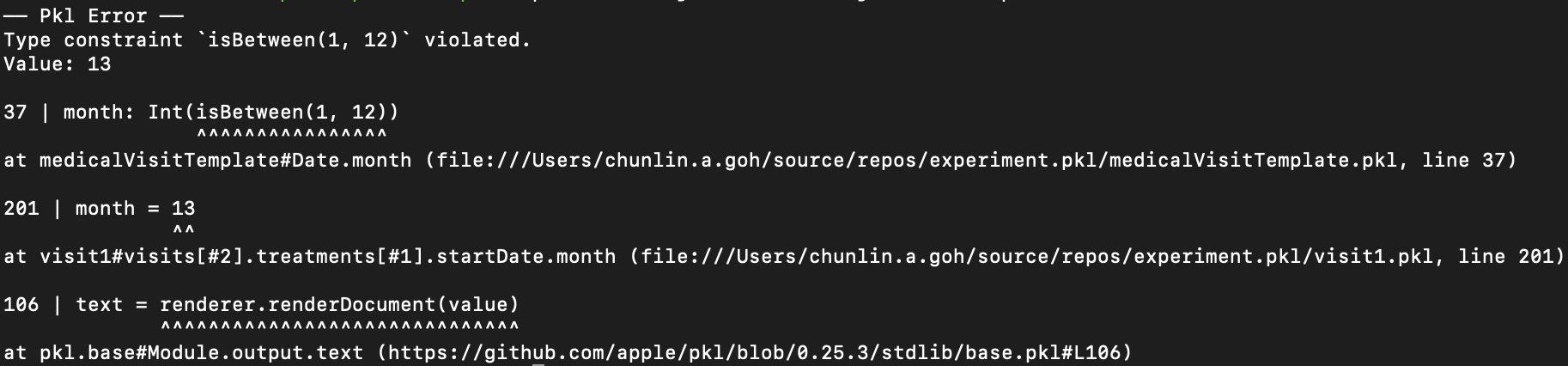
Pkl CLI will evaluate our configuration and show detected invalid values.

Generate JSON with Pkl

So now how do we generate JSON with the module above?

Before we can generate a JSON file, we need to understand the Amending concept in Pkl. As a first intuition, think of “amending a module” as “filling out a form.”

So, to generate the chunlin.json file that was shown in the previous blog post, we can amend the medicalVisitTemplate module above with another Pkl file called chunlin.pkl as shown below.

amends "medicalVisitTemplate.pkl"

visits = new Listing<MedicalVisit> {

...
// Omitted for brevity

new {

medicalCentreName = "Tan Tock Seng Hospital"

centreType = "hospital"

visitStartDate {

year = 2024

month = 3

day = 24

}

visitEndDate {

year = 2024

month = 4

day = 19

}

remark = ""

treatments = new Listing<Treatment> {

...
// Omitted for brevity

new {

name = "Betamethasone (Valerate) 0.025% Cream 15g - Dermasone"

type = "medicine"

amount = "Applied after shower"

startDate {

year = 2024

month = 3

day = 26

}

endDate {

year = 2024

month = 4

day = 19

}

}

new {

name = "Betamethasone (Valerate) 0.1% Cream 15g - Uniflex(TM)"

type = "medicine"

amount = "Applied after shower"

startDate {

year = 2024

month = 3

day = 26

}

endDate {

year = 2024

month = 4

day = 19

}

}

}

}

}

Now if we execute the command below on Pkl CLI to evaluate the given modules and render the

$ ./pkl eval -f json -o ./output/chunlin.json ./input/chunlin.pkl

With the command above, we can get the same output as we see in chunlin.json.

Maintain Pkl in GitHub

Static files like Pkl or JSON can be easily maintained in code repositories such as GitHub. Using GitHub for version control allows us to track changes to our PKL files over time. This makes it easy to revert to previous versions if something goes wrong, compare changes, and understand the evolution of our configuration files. Additionally, we can use GitHub Actions to automate various tasks related to our PKL files, enhancing efficiency and reliability in our workflow.

GitHub Actions is an automation tool that allows us to create workflows triggered by events within our repository. These workflows can automate tasks like testing, building, and deploying code, or even running scripts. By using GitHub Actions, we can streamline the development and transformation process of our Pkl files, ensure consistency, and improve efficiency.

Thus, our mission is now to configure GitHub Actions so that a JSON file can be produced from the Pkl file and sent to the Amazon S3 bucket that we setup in another article earlier.

Configure GitHub Actions Workflow

Firstly, we need to give permission to GitHub Actions to access our S3 bucket. To do so, we will create a new user in AWS Console with appropriate rights.
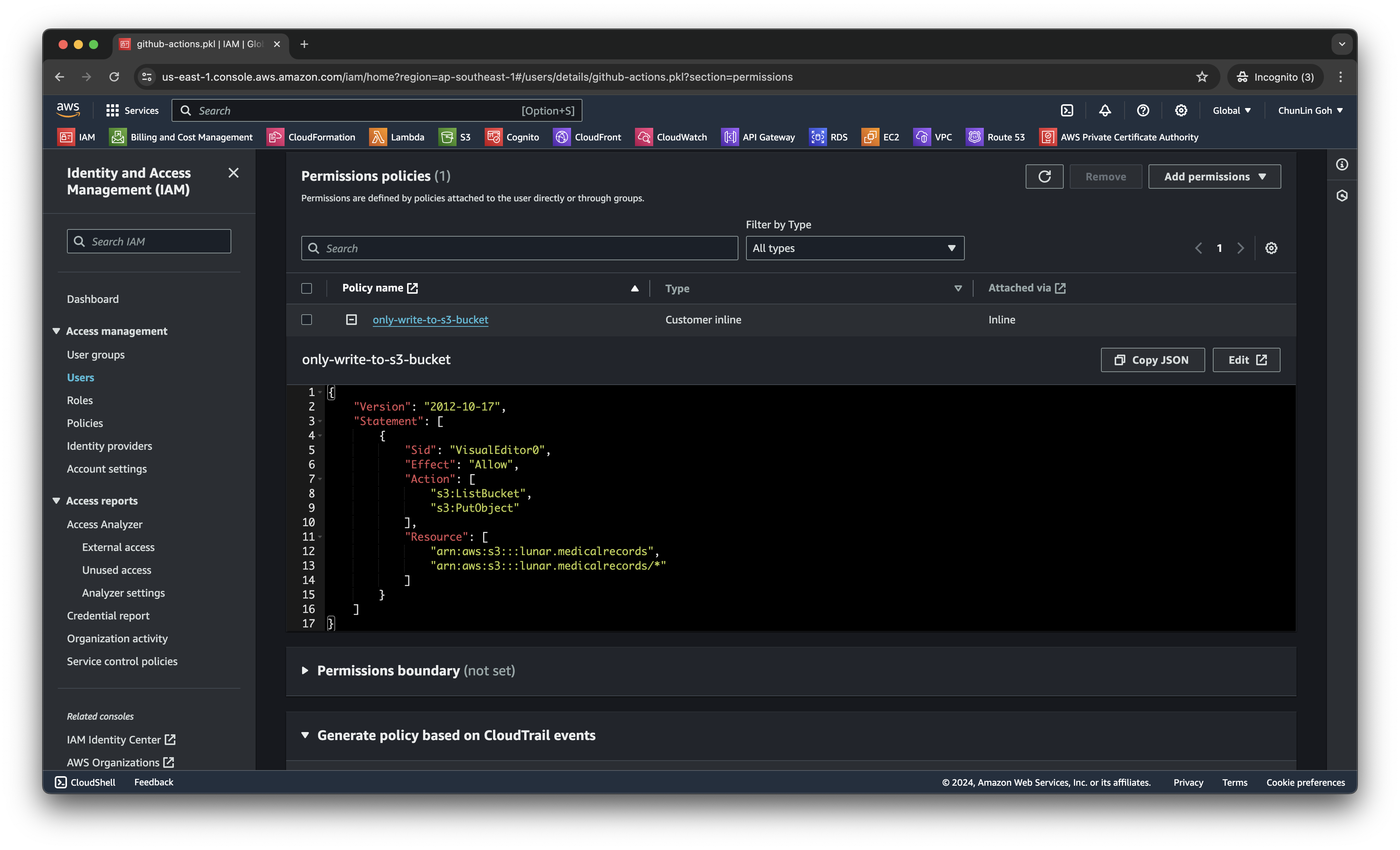
We only need two permissions, s3:ListBucket and s3:PutObject, to copy files from local to the S3 bucket.

After attaching the policy, we proceed to generate an access key for this newly created user.

Secondly, we need to navigate to our repository and then click on the Actions tab to create a new simple workflow, as shown below.
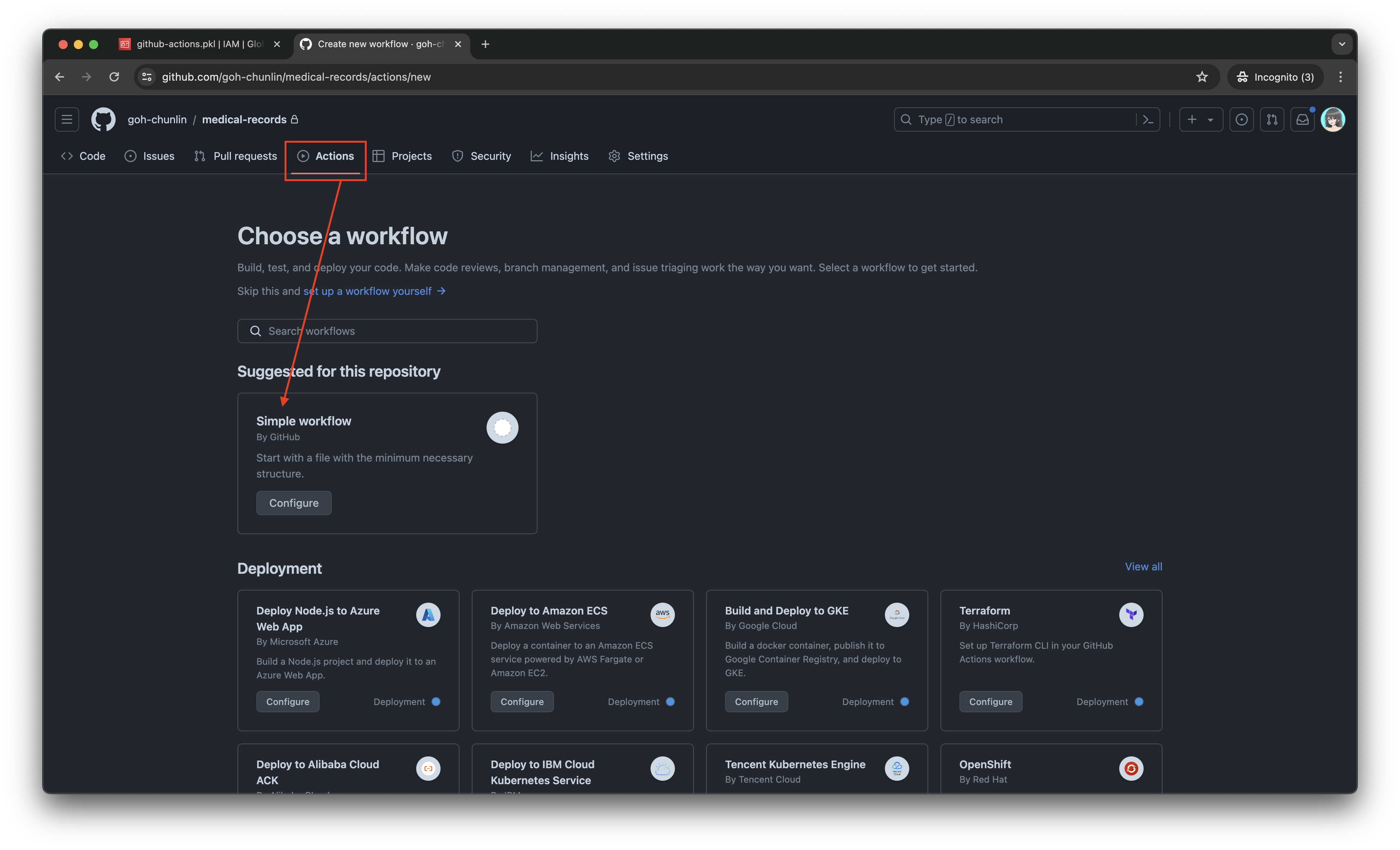
Let’s start with the simple workflow.

To begin, let’s download a new Linter available for Pkl files in the workflow. The linter is known as pkl-linter done by Eduardo Aguilar Yépez, a senior software engineer at Draftea.

name: Evaluate Pkl and store it in S3 as JSON

on:
push:
branches: [ "main" ]

# Allows us to run this workflow manually from the Actions tab
workflow_dispatch:

jobs:
build:
runs-on: ubuntu-latest

steps:
- uses: actions/checkout@v4

- uses: actions/setup-go@v5
with:
go-version: '>=1.17.0'

- name: Get Go Version
run: go version

- name: Install Linter
run: go install github.com/Drafteame/pkl-linter@latest

- name: Run pkl-linter
run: pkl-linter medical-records
The linter analyses our code and shows detected stylistic errors.

Next, we need to install the Pkl CLI to evaluate Pkl modules and write their output to a file. There are native executables available for us to use. As shown in the workflow above, the GitHub Actions runner is ubuntu-latest, which uses the Ubuntu 22.04 LTS image as of Jun 2024. It uses the amd64 architecture. Hence, we can download the Pkl Linux executable for amd64 architecture.

name: Evaluate Pkl and store it in S3 as JSON

...
# Omitted for brevity

jobs:
build:
runs-on: ubuntu-latest

steps:
...
# Omitted for brevity

- name: Install Pkl CLI
run: curl -L -o pkl https://github.com/apple/pkl/releases/download/0.25.3/pkl-linux-amd64

- name: Grant execute permission to Pkl CLI
run: chmod +x pkl

- name: Get Pkl CLI version
run: ./pkl --version

- name: Eval the Pkl files
run: |
cd medical-records
files=$(find . -name "*.pkl")
count=0
for file in $files; do
output_filename="${file%.pkl}.json"
../pkl eval -f json -o ../output/$output_filename $file
done
cd ..

When my workflow is executed in June 2024, the version of the Pkl CLI is “Pkl 0.25.3 (Linux 5.15.0-1053-aws, native)”.

As shown in the last step above, it will loop through the JSON file in the medical-records folder and evaluate them one-by-one using the Pkl CLI. The JSON files generated will be stored in the output folder.

Eventually, what we need to do is to upload the file over to our AWS S3 bucket. However, before that, let’s make sure the AWS access key and secret access key we generated earlier are stored securely on GitHub Actions, a shown in the screenshot below.
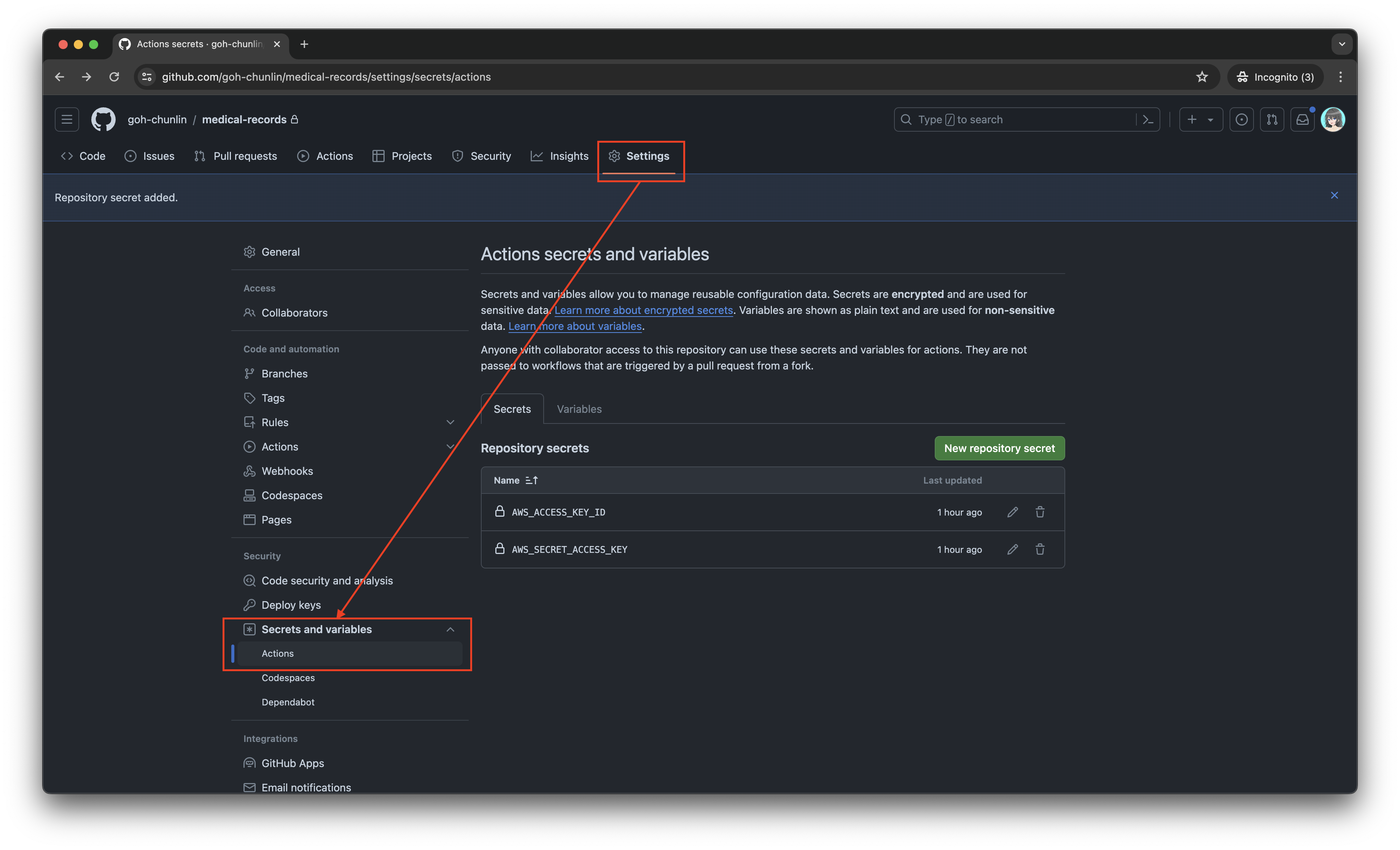
The AWS access key and secret access key should be stored as GitHub Actions secrets.

Now, we can easily setup AWS CLI with the secrets above and use the s3 cp command to move the generated JSON files over to our S3 bucket. To do so, we only need to complete our workflow with the following.

name: Evaluate Pkl and store it in S3 as JSON

...
# Omitted for brevity

jobs:
build:
runs-on: ubuntu-latest

steps:
...
# Omitted for brevity

- name: Setup AWS CLI
uses: aws-actions/configure-aws-credentials@v1
with:
aws-access-key-id: ${{ secrets.AWS_ACCESS_KEY_ID }}
aws-secret-access-key: ${{ secrets.AWS_SECRET_ACCESS_KEY }}
aws-region: ap-southeast-1

- name: Copy files to S3 bucket
run: |
aws s3 cp output s3://lunar.medicalrecords --exclude "*" --include "*.json" --recursive

Please take note that the s3 cp command performs operation only on single file, hence we need to apply the --recursive flag to indicate that the command should run on all files under the specified directory, i.e. output.

Wrap-Up

In conclusion, utilising Pkl for generating and maintaining JSON files offers significant advantages in terms of reducing complexity and enhancing maintainability. By abstracting common elements and leveraging typed objects, Pkl simplifies the management of large and evolving datasets. The structured approach provided by Pkl not only minimises redundancy but also ensures that configurations remain consistent and error-free through its robust validation features.

Additionally, by using GitHub Actions, we can automate the process of evaluating Pkl files, generating the corresponding JSON files as output, and uploading these JSON files to our S3 bucket. This automation not only enhances efficiency but also ensures that changes are tracked and managed effectively.

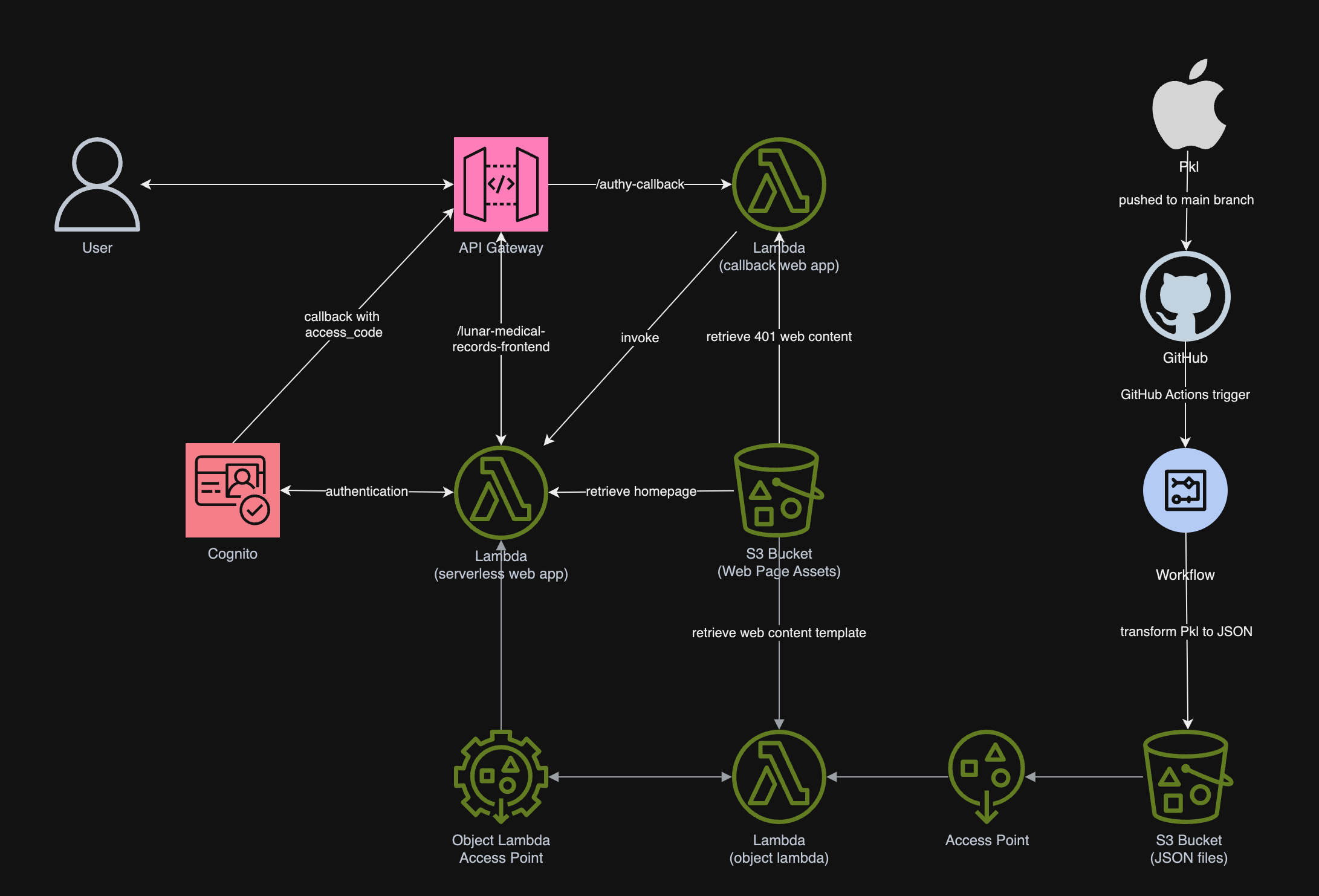
In summary, we can conclude the infrastructure that we have gone through above and our previous article in the following diagram.
References

Publish a Blazor Web App as Azure Static Web App

In 2018, the web framework, Blazor, was introduced. With Blazor, we can work on web UI with C# instead of JavaScript. Blazor can run the client-side C# code directly in the browser, using WebAssembly.

When server-side rendering is not required, we can then deploy our web app on platforms such as Azure Static Web App, a service that automatically builds and deploys full stack web apps to Azure from a code repository, such as GitHub.

In this article, I will share how the website for Singapore .NET Developers Community and Azure Community is re-built as a Blazor web app and deployed to Azure.

PROJECT GITHUB REPOSITORY

The complete source code of this project can be found at https://github.com/sg-dotnet/website.

Blazor Web UI

The community website is very simple. It is merely a single-page website with some descriptions and photos about the community. Then it also has a section showing list of meetup videos from the community YouTube channels.

We will build the website as Blazor WebAssembly App.

Firstly, we will have the index.html defined as follows. Please take note that the code snippet below uses CSS file which is not shown in this post. The complete and updated project can be viewed on the GitHub repo.

<!DOCTYPE html>
<html>

<head>
    <title>Singapore .NET Developers Community + Azure Community</title>
    <meta charset="utf-8" />
    <meta name="viewport" content="width=device-width, initial-scale=1.0, maximum-scale=1.0, user-scalable=no" />

    ...

    <link rel="icon" href="images/favicon.png" type="image/png">
    <link rel="stylesheet" href="css/main.css" />

    <base href="/" />
    http://_framework/blazor.webassembly.js
</head>

<body>
    <div id="app">
        <div style="position:absolute; top:30vh; width:100%; text-align:center">
            <h2>Welcome to dotnet.sg</h2>
            <div style="width: 50%; display: inline-block; height: 20px;">
                <div class="progress-line"></div>
            </div>
            
            <p>
                The website is loading...
            </p>
        </div>
    </div>

    <div id="blazor-error-ui">
        An unhandled error has occurred.
        <a href="" class="reload">Reload</a>
        <a class="dismiss">🗙</a>
    </div>

    <!-- Scripts -->
    http://javascript/jquery.min.js
</body>

</html>

Secondly, if we hope to have a similar UI template across all the web pages in the website, then we can define the HTML template under, for example, MainLayout.razor, as shown below. This template means that the header and footer sections can be shared across different web pages.

@inherits LayoutComponentBase

<!-- Header -->
<header id="header" class="alt">
    <div class="logo"><a href="/">SG <span>.NET + Azure Dev</span></a></div>
</header>

@Body

<!-- Footer -->
<footer id="footer">
    <div class="container">
        <ul class="icons">
           ...
        </ul>
    </div>
    <div class="copyright">
        &copy; ...
    </div>
</footer>

Finally, we simply need to define the @Body of each web page in their own Razor file, for example the Index.razor for the homepage.

In the Index.razor, we will fetch the data from a JSON file hosted on Azure Storage. The JSON file is periodically updated by Azure Function to fetch the latest video list from the YouTube channel of the community. Instead of using JavaScript, here we can simply write a C# code to do that directly on the Razor file of the homepage.

@code {
    private List<VideoFeed> videoFeeds = new List<VideoFeed>();

    protected override async Task OnInitializedAsync()
    {
        var allVideoFeeds = await Http.GetFromJsonAsync<VideoFeed[]>("...");

        videoFeeds = allVideoFeeds.ToList();
    }

    public class VideoFeed
    {
        public string VideoId { get; set; }

        public Channel Channel { get; set; }

        public string Title { get; set; }

        public string Description { get; set; }

        public DateTimeOffset PublishedAt { get; set; }
    }

    public class Channel
    {
        public string Name { get; set; }        
    }
}

Publish to Azure Static Web App from GitHub

We will have our codes ready in a GitHub repo with the following structure.

  • .github/workflows
  • DotNetCommunity.Singapore
    • Client
      • (Blazor client project here)

Next, we can proceed to create a new Azure Static Web App where we will host our website at. In the first step, we can easily link it up with our GitHub account.

We need to specify the deployment details for the Azure Static Web App.

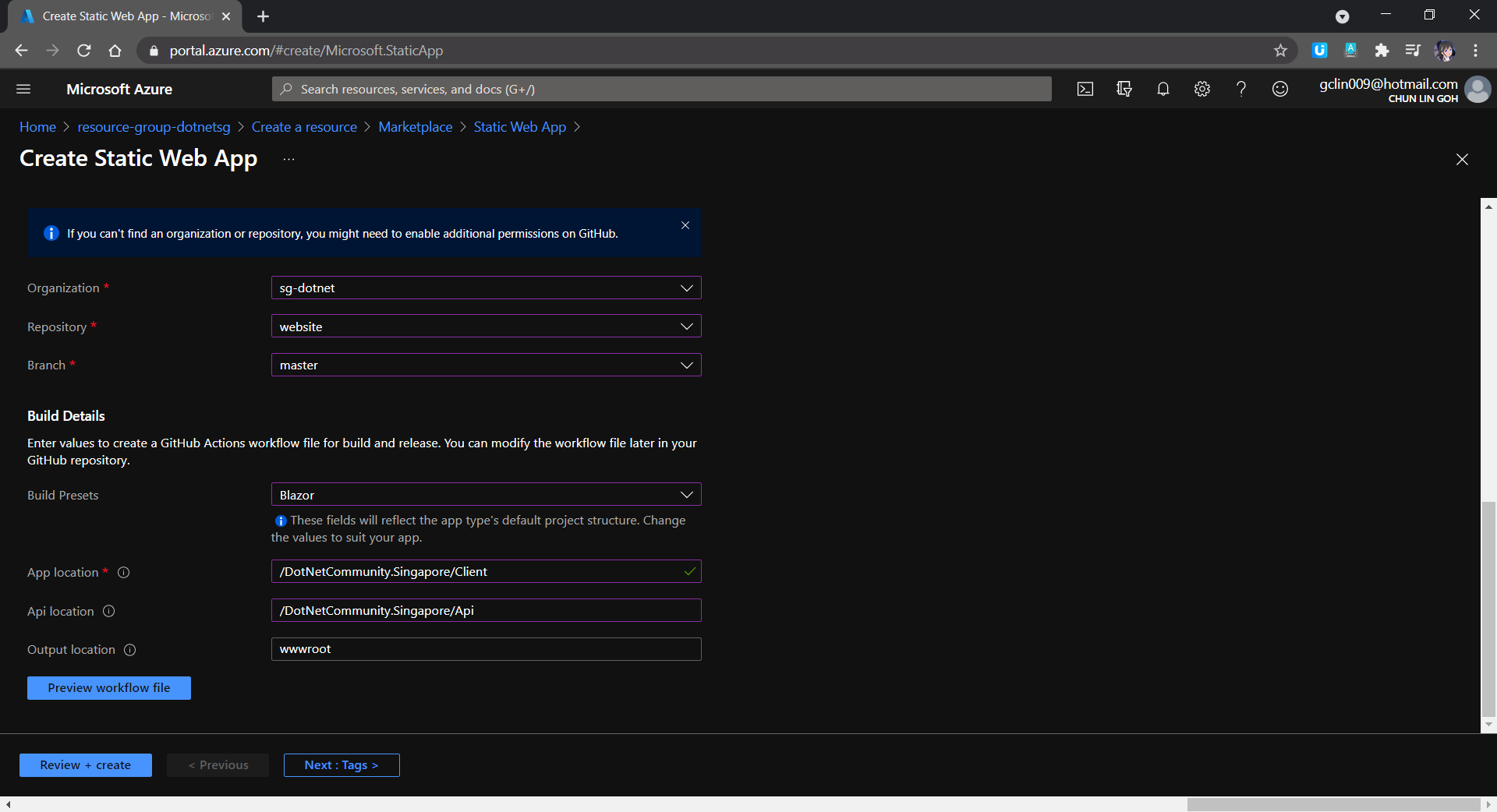
After that, we will need to provide the Build details so that a GitHub workflow will be automatically generated. That is a GitHub Actions workflow that builds and publishes our Blazor web app. Hence, we must specify the corresponding folder paths within our GitHub repo, as shown in the screenshot below.

In the Build Details, we must setup the folder path correctly.

The “App location” is to point to the location of the source code for our Blazor web app. For the “Api location”, although we are not using it in our Blazor project now, we can still set it as follows so that in the future when we can easily setup the Api folder.

With this setup ready, whenever we update the codes in our GitHub repo via commits or pull requests, our Blazor web app will be built and deployed.

Our Blazor web app is being built in GitHub Actions.

Custom Domains

For the free version of the Azure Static web app, we are only allowed to have 2 custom domains per app. Another good news is that Azure Static Web Apps automatically provides a free SSL/TLS certificate for the auto-generated domain name and any custom domains we add.

CNAME record validation is the recommended way to add a custom domain, however, it only works for subdomains, such as “www.dotnet.sg” in our case.

For root domain, which is “dotnet.sg” in our case, by right we can do it in Azure Static Web App by using TXT record validation and an ALIAS record.

Take note that we can only create an ALIAS record if our domain provider supports it.

However, since there is currently no support of ALIAS or ANAME records in the domain provider that I am using, I have no choice but to have another Azure Function for binding “dotnet.sg”. This is because currently there is no IP address given in Azure Static Web App but there are IP address and Custom Domain Verification ID available in Azure Function. With these two information, we can easily map an A Record to our root domain, i.e. “dotnet.sg”.

Please take note that A Records are not supported for Consumption-based Function Apps. We must pay for the “App Service Plan” instead.

IP address and Custom Domain Verification ID on Azure Function. The root domain here is also SSL enabled.

After having the Azure Function ready, we need to perform URL redirect from “dotnet.sg” to “www.dotnet.sg”. With just a Proxy, we can create a Response Override with Status Code=302 and add a Header of Location=https://www.dotnet.sg, as shown in the following screenshot.

HTTP 302 on Azure Function Proxy.

With all these ready, we can finally get our community website up and running at dotnet.sg.

Welcome to the Singapore .NET/Azure Developer Community at dotnet.sg.

Export SSL Certificate For Azure Function

This step is optional. I need to go through this step because I have a Azure App Service managed certificate in one subscription but Azure Function in another subscription. Hence, I need to export the SSL certificate out and then import it back to another subscription.

We can export certificate from the Key Vault Secret.

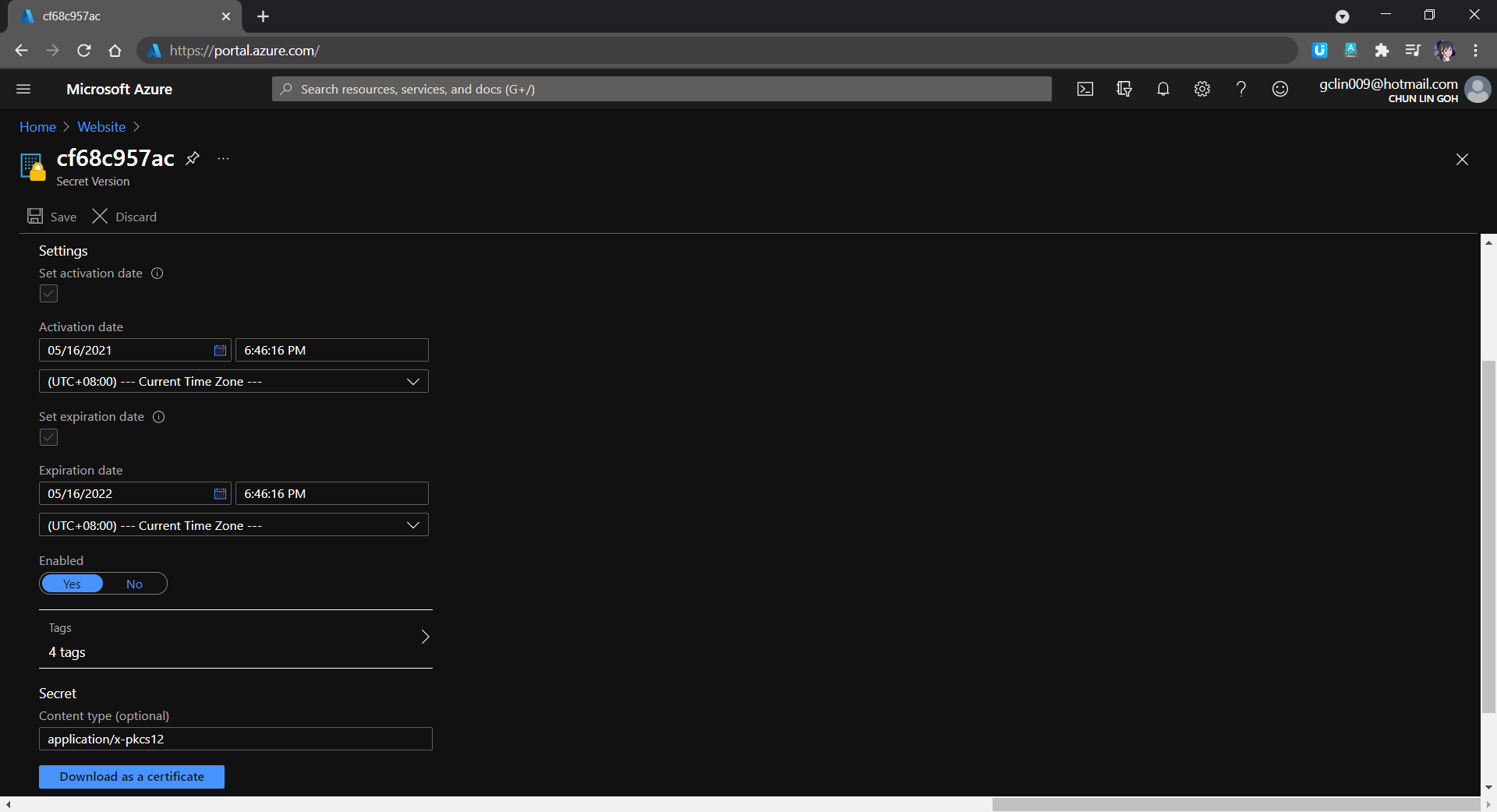
In the Key Vault Secret screen, we then need to choose the correct secret version and download the certificate, as shown in the following screenshot.

Downloading the certificate as pfx.

After that, as mentioned in an online discussion about exporting and importing Azure App Service Certificate which has no password, we shall use tool such as OpenSSL to regenerate a pfx certificate with password that Azure Function can accept with the following commands.

> openssl pkcs12 -in .\old.pfx -out old.pem -nodes

> openssl pkcs12 -export -out .\new.pfx -in old.pem

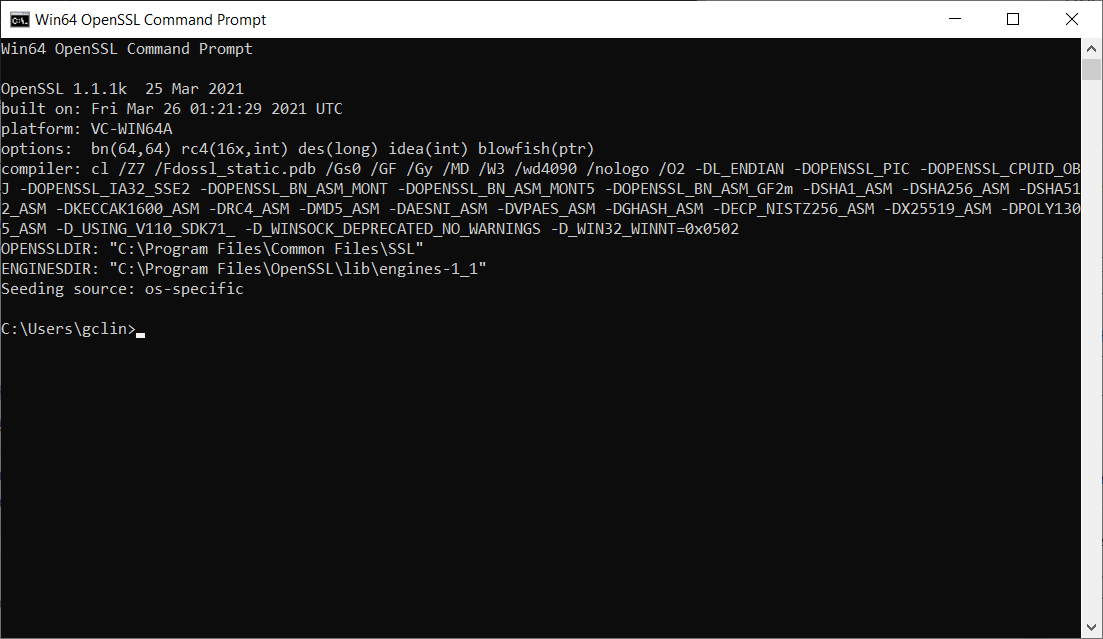
We will be prompted for a password after executing the first command. We simply press enter to proceed because the certificate, as mentioned above, has no password.

OpenSSL command prompt.

With this step done, I finally can import the cert to the Azure Function in another subscription.

Yup, that’s all for hosting our community website as a Blazor web app on Azure Static Web App!

References

The code of this Blazor project described in this article can be found in our community GitHub repository: https://github.com/sg-dotnet/website.

Golang Client Library for OneDrive

As I shared in my talk in Boston Golang Community early this month, I had been using OneDrive since its early days when it was still known as SkyDrive. At that time, there was no official API for accessing SkyDrive. After that, Microsoft rebranded the product to be part of Microsoft Live family and OneDrive finally could be accessible through the Live SDK.

PROJECT GITHUB REPOSITORY

The complete source code of this project can be found at https://github.com/goh-chunlin/go-onedrive.

Motivation

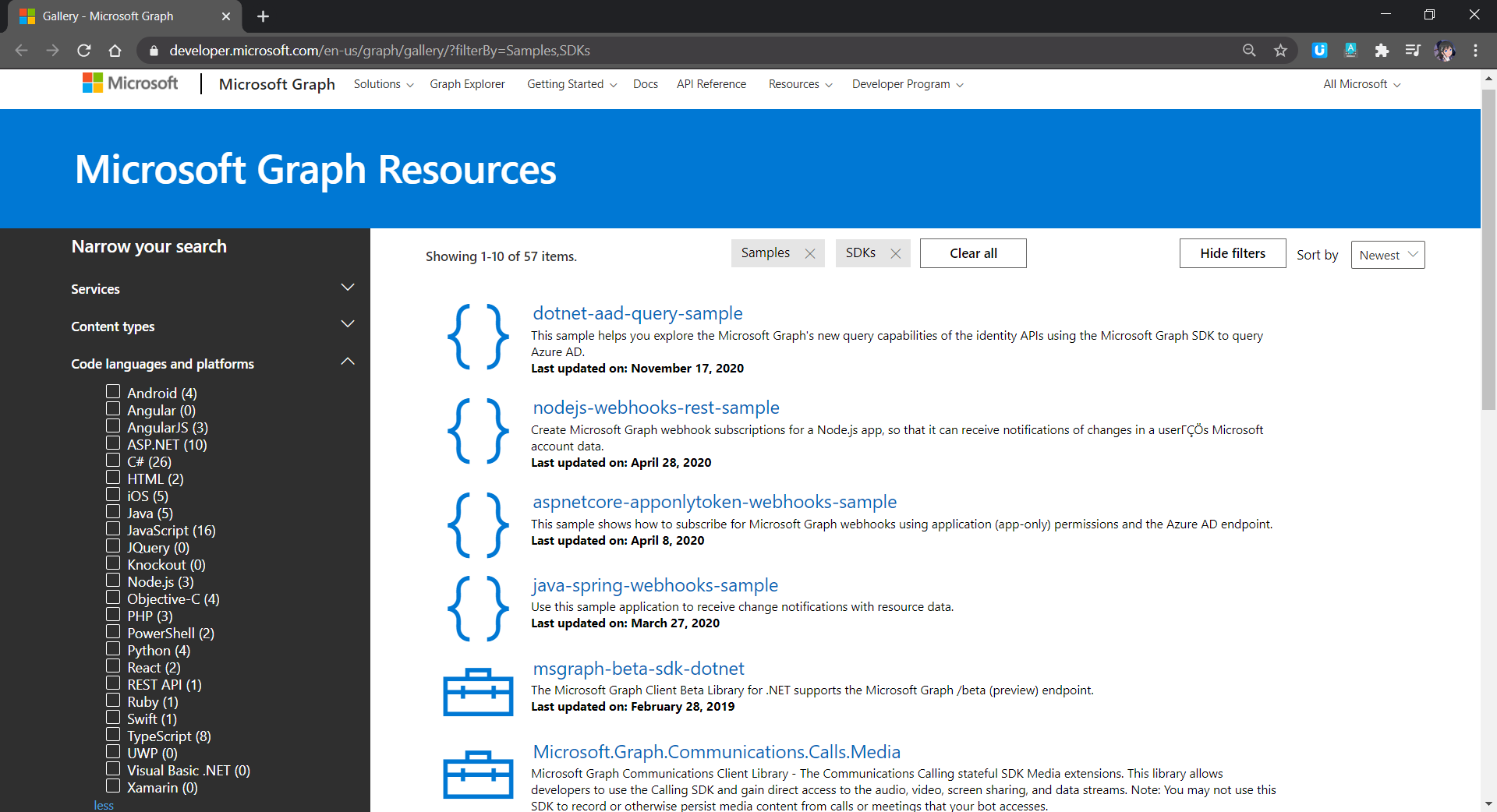
In November 2018, Live SDK officially went offline and gave way to the new standard, the Microsoft Graph. Similar to the capabilities of Live SDK, Microsoft Graph allows us to access multiple Microsoft services such as People, Outlook, OneDrive, Calendar, Teams, etc. Microsoft Graph also offers client libraries for many platforms that can integrate with our application similar to Live SDK, as shown in the screenshot below.

Code languages and platforms officially mentioned for Microsoft Graph.

Golang is not in the list. Since I need to access OneDrive in my other Golang applications, I decided to build a OneDrive Golang client library myself.

Project Structure

There is one project go-github from Google about building a Golang client library for accessing the GitHub API. It is similar to what I’d like to achieve so I use the project as a reference.

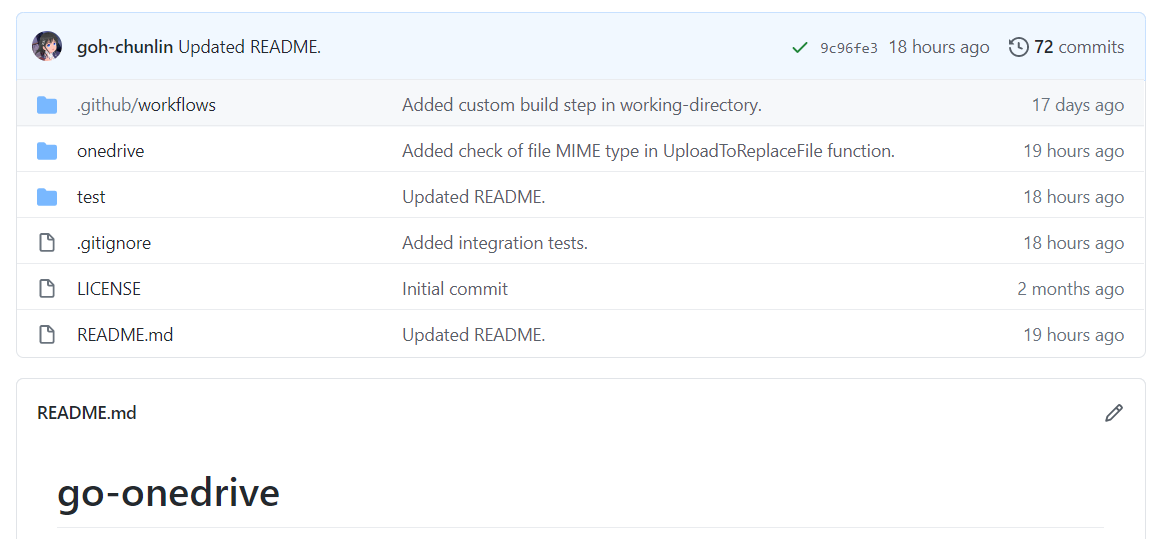
In the early stage of the project, the project structure is exactly the same as go-github, as shown in the screenshot below.

Project structure of the go-onedrive initially.

The onedrive folder consists of the main codes and unit tests for the library and test folder contains additional test suite which will talk to the actual OneDrive account over network and is beyond the unit tests.

Communication with Microsoft Graph

All the communication in the library is done via a client with Base URL pointing to graph.microsoft.com. I like how go-github designs its client so that while it has many services, it still can reuse one single struct for each service on the heap.

onedrive.Client manages communication with the Microsoft Graph.

The go-onedrive library does not directly handle authentication. Instead, when creating a new onedrive.Client, we need to pass an http.Client that can handle authentication. The easiest and recommended way to do so is using the oauth2 library.

For every request to the Microsoft Graph, we need to have a relative URL in which case it is resolved relative to the Base URL of the onedrive.Client.

This works for most of the cases in the OneDrive scenario. However, there is a moment when the client should not be reused, for example, monitoring the asynchronous job status on OneDrive. This is because of the following two reasons

  • Base URL for job monitoring API needs to use api.onedrive.com as domain instead of pointing to Microsoft Graph;
  • We should not pass the user authentication information to the job monitoring API because the request will be rejected.

To solve this problem, I introduce a flag, isUsingPlainHttpClient, to specify whether the is a need to use another new http.Client to send the API request, as shown in the screenshot below.

Checking whether to use the http.Client with authentication.

HTTP 202 and HTTP 204

There are some operations on OneDrive, such as copying drive items, will take a while to complete. That’s where the asynchronous job, as discussed above, comes into picture. So, when we send an API request to copy-and-paste the drive items, the Microsoft Graph will return us HTTP 202 Accepted instead of HTTP 200 OK. The HTTP 202 status code means that our request has been accepted for processing, but the processing has not been completed.

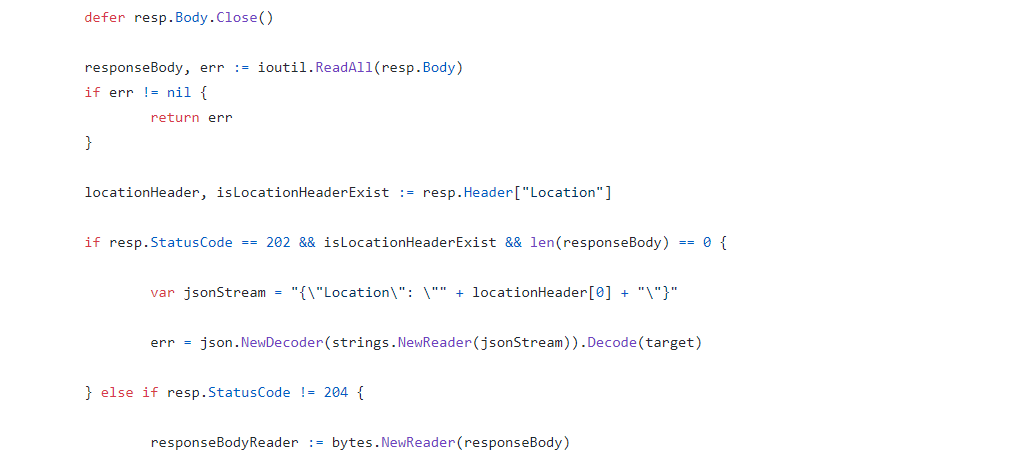
In the example of copy-and-pasting drive items, the response body is empty. It only provides a job monitoring URL (which is pointing to the OneDrive endpoint instead of Microsoft Graph) in the Location response header. Hence, to get this information, I have added in the following piece of codes.

Return the Location header in JSON format.

By doing so, now I can easily retrieve the job monitoring URL from the JSON and pass it to the OneDrive API.

In the codes above, I also check for HTTP 204 No Content because this status code is intended to describe a response with no body. Hence, the onedrive.Client only needs to read the body content if the response code is not 204.

Error Handling

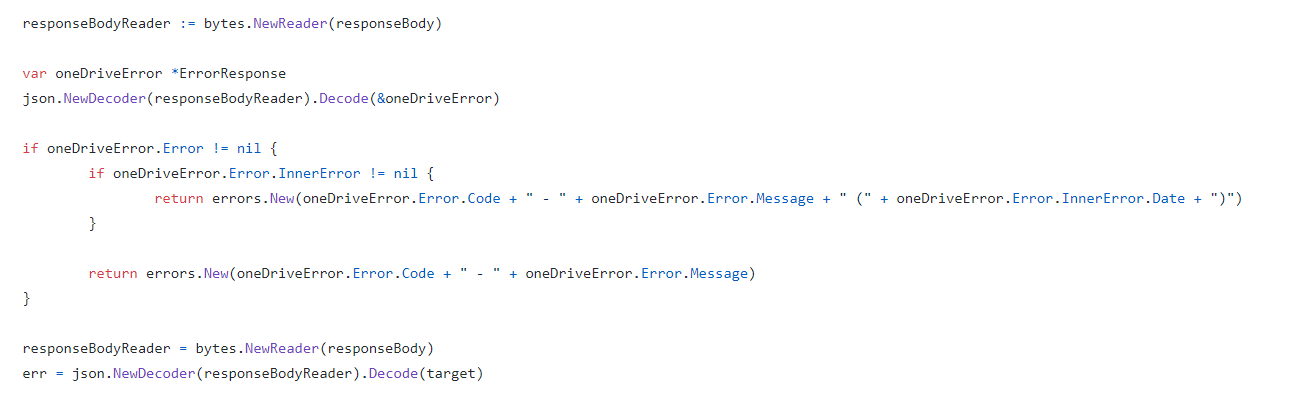
When there is an error, Microsoft Graph will return error information in JSON format. Hence, the onedrive.Client will first check whether the returned JSON object is an error. If yes, it will return the error accordingly. Otherwise, it will continue to decode the response body to a struct, as shown in the following screenshot.

Reading error and response body.

Unit Testing and Integration Testing

I also learned from go-github on how the unit test cases are written.

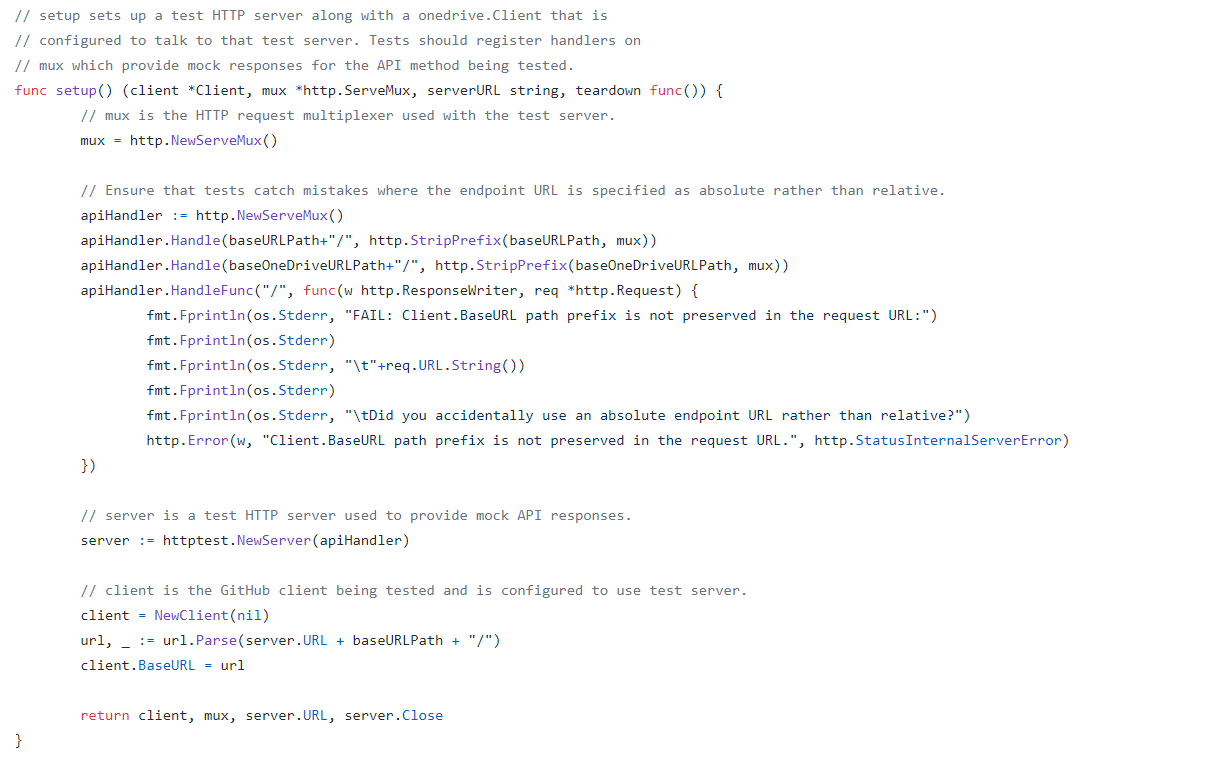
Firstly, we have a test HTTP server setup along with a onedrive.Client that is configured to talk to that test server.

Secondly, in the HTTP request multiplexer used in the test server, since we are providing relative URL for every request, we will also need to ensure tests catch mistakes where the endpoint URL is specified as absolute rather than relative.

Thirdly, we also need to have a HTTP handler in the test server to take care of OneDrive API test which is not based on the Microsoft Graph endpoint.

With all these requirement, we will have the following setup.

Setting up a test HTTP server.

Same as the go-github project, I have also prepared a set of integration tests.

The integration tests will exercise the entire go-onedrive library against the live Microsoft Graph and OneDrive API. These tests will verify that the library is properly coded against the actual behavior of the API, and will fail upon any incompatible change in the API.

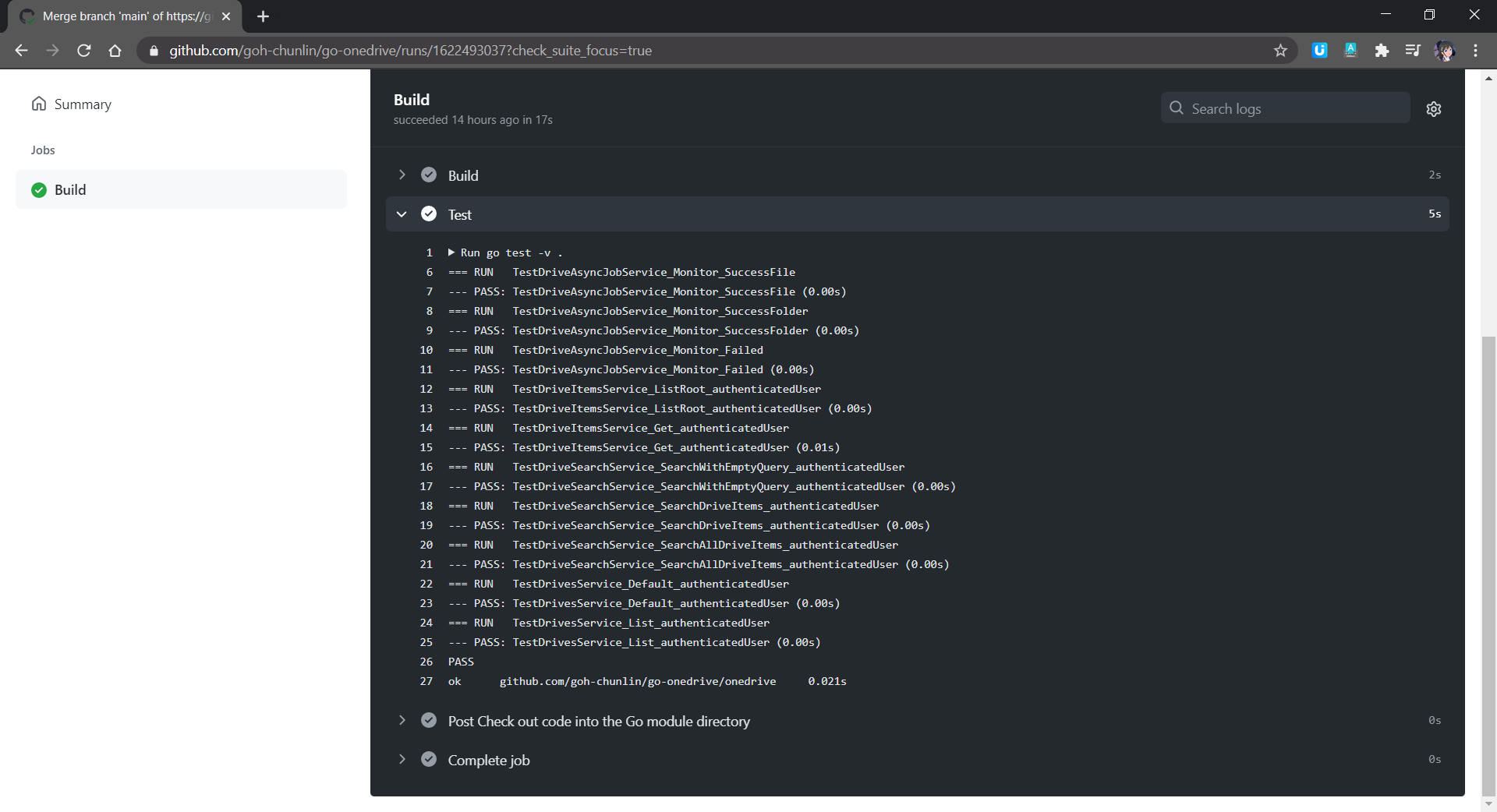
Unlike unit tests which will be run automatically on GitHub Actions, the integration tests are meant to be run manually because it will interact and change the actual OneDrive account.

Unit tests are run in GitHub Actions for every push or PR to the main branch.

Module AND Publishing

Starting from Go 1.11, a new concept called modules is introduced. Using modules, developers are not only no longer confined to working inside GOPATH, but also get to experience the new Go dependency management system that makes dependency version information explicit and easier to manage.

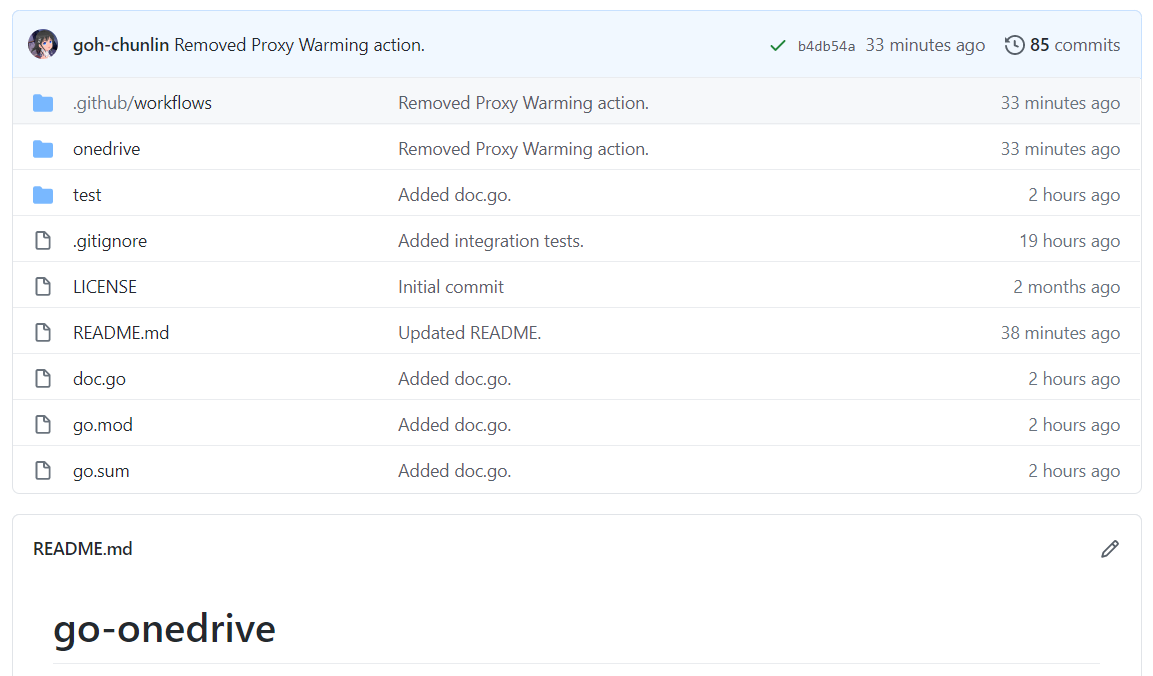
A module is basically a collection of Go packages stored in a file tree with a go.mod file at its root. Hence, if we want to transform our project to a module, we will need to make a small change to our project structure, as shown in the following screenshot.

Introducing go.mod, go.sum, and doc.go.

The approach I took is similar to how Google does for their Google API Go Client project. We need to have a new file called doc.go. This file contains only introductory documentation as comments and a package clause.

After that we make the root of project as the root of the new module with the following command.

go mod init github.com/goh-chunlin/go-onedrive

A go.mod file will be generated with the following content.

A new go.mod file being generated.

Next, we use the following command to tidy up the dependencies. A go.sum file will be also generated at the same time.

go mod tidy

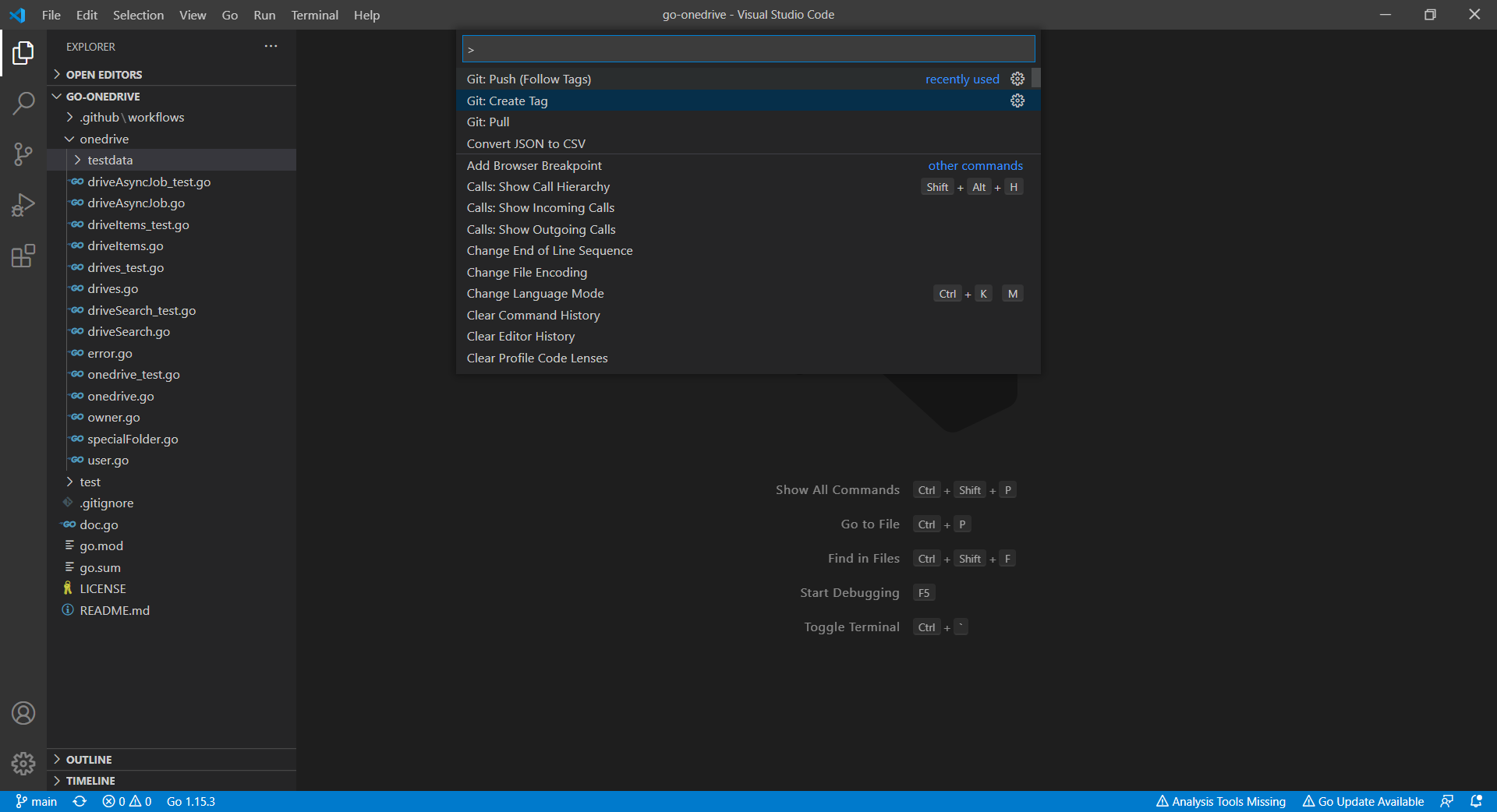
Now we can proceed to publish our module by first creating a Release of it on the GitHub.

Create a release with tag in Visual Studio Code (Read more on Stack Overflow discussion).

However, there is an important question that must be addressed first: subsequently after we upgrade our go-onedrive module, how do our users upgrade dependency of the go-onedrive module to the latest version?

Dependency UPGrade

Before we upgrade the dependencies, we first need to check available dependency upgrades using the following command.

go list -u -m all

The -u flag adds information about available upgrades. The -m flag is to list modules instead of packages. Hence, with the command above, if there is a new version for go-onedrive available, it will show as follows.

github.com/goh-chunlin/go-onedrive v1.0.8 [v1.0.9]

The line above means that the v1.0.8 is being used in the application but there is now a v1.0.9 available. Now we can proceed to download the latest version of dependencies with the following command.

go get -u github.com/goh-chunlin/go-onedrive

Then it will show that the latest version is downloaded.

go: github.com/goh-chunlin/go-onedrive upgrade => v1.0.9
go: downloading github.com/goh-chunlin/go-onedrive v1.0.9

Interestingly, I also found out that the pkg.go.dev website doesn’t reflect the availability of new package immediately after the release of the new version. I waited for the v1.0.9 to be available on the pkg.go.dev website for around 15 minutes.

Another interesting finding is that the “go list” command above actually reflects the latest version about 5-minute faster than the pkg.go.dev website.

About doc.go

The way we structure our project also forces us to have a Go file like doc.go. This is because without doc.go, the only two places we have our codes are onedrive and test folders. Both of them are subdirectories. This will give us two troubles.

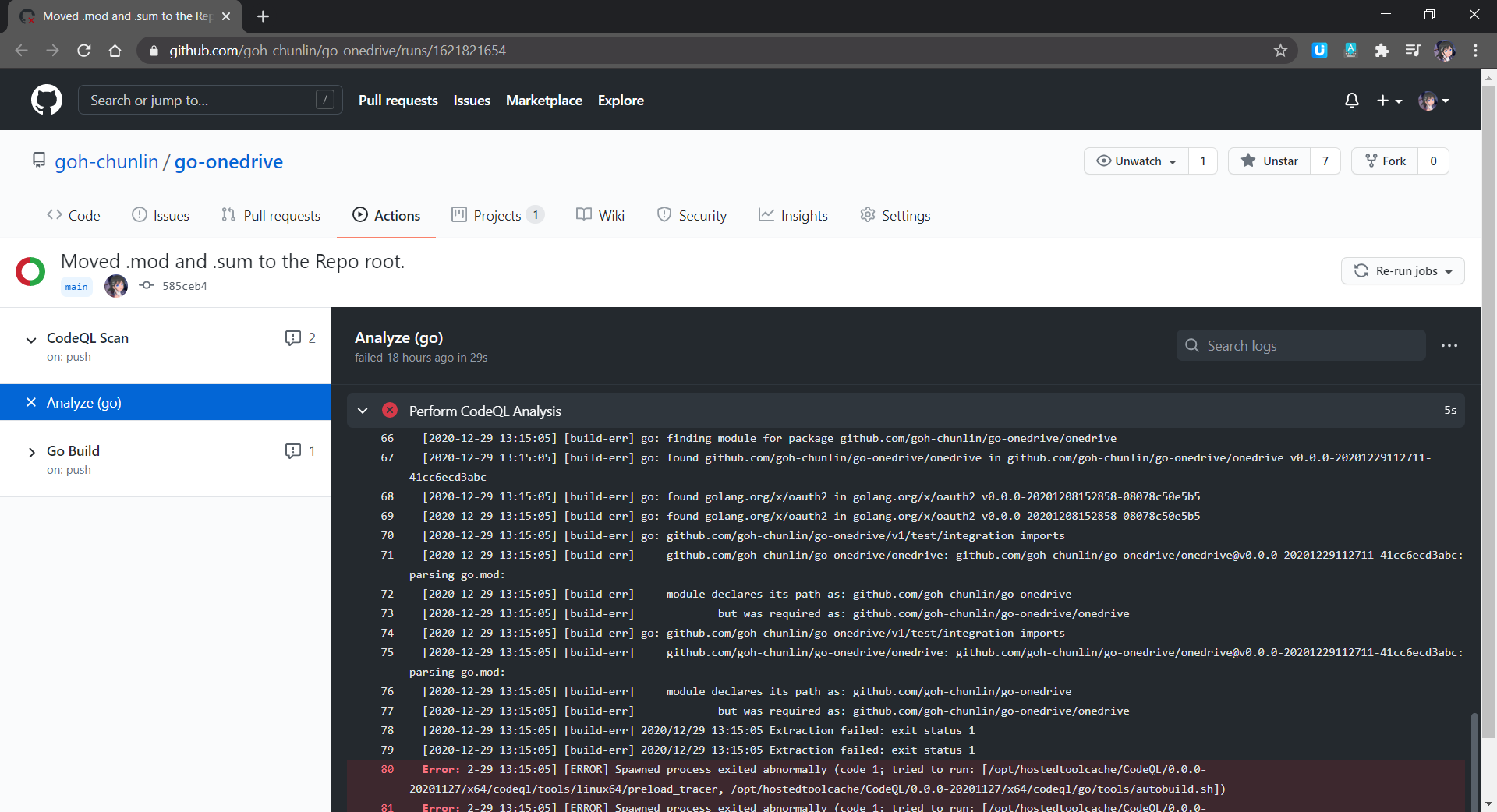
Firstly, somehow it could not work. The package onedrive which is in the subdirectory cannot be located, as shown in the screenshot below.

Error in CodeQL scan on GitHub.

Secondly, when we tag the release with version number, only the version of go-onedrive as a module and test/integration as package is updated, but not the version of onedrive.

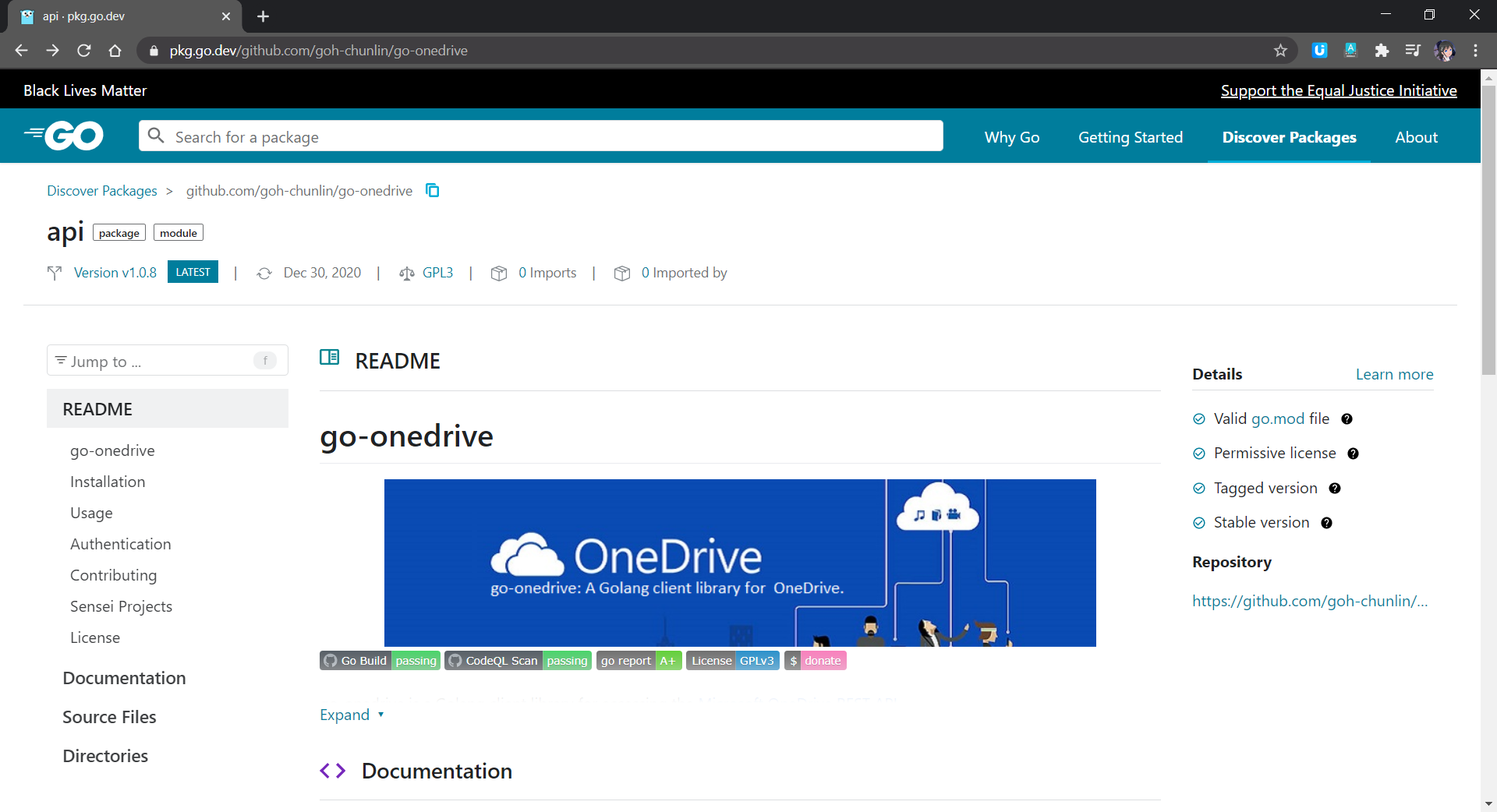
These two troubles went away only after I added in the doc.go in the root. The module of go-onedrive is now also nicely shown on the pkg.go.dev website with 4 checks, as shown in the screenshot below.

go-onedrive module page.

Conclusion

This is just the very first step of me writing a library in Golang and publish it as a module on the pkg.go.dev website. I started this project as one of my after-work projects in October 2020. I only successfully publish its first release in December 2020. This project has been a great learning journey for me. So, I hope my sharing in this article can be somewhat useful to you as well.

The learning is tough but fun at the same time! (Image Credit: Bilibili)

Feel free to let me know if there is a better alternative or improvement needed. I’m always happy to hear from you all.

References

The code of the OneDrive client library described in this article can be found in my GitHub repository: https://github.com/goh-chunlin/go-onedrive.