Multipart Form Upload using WebClient in .NET Framework 3.5

Prior to my team lead’s resignation, he assigned me a task of updating a legacy codebase written in .NET Framework 3.5. The task itself involved submitting a multipart form request to a Web API, which made it relatively straightforward.

However, despite potential alternatives, my team lead insisted that I continue using .NET Framework 3.5. Furthermore, I was not allowed to incorporate any third-party JSON library into the changes I made.

SHOW ME THE CODE!

The complete source code of this project can be found at https://github.com/goh-chunlin/gcl-boilerplate.csharp/tree/master/console-application/HelloWorld.MultipartForm.
Multipart Form

A multipart form request is a type of form submission used to send data that includes binary or non-textual files, such as images, videos, or documents, along with other form field values. In a multipart form, the data is divided into multiple parts or sections, each representing a different form field or file.

The multipart form data format allows the data to be encoded and organized in a way that can be transmitted over HTTP and processed by web servers. For the challenge given by my team lead, the data consists of two sections, i.e. main_message, a field containing a JSON object, and a list of files.

The JSON object is very simple, which has only two fields called message and documentType, which can only be the value “PERSONAL”, for now.

{
    "message": "...",
    "documentType": "PERSONAL"
}

When the API server handles a multipart form request, it will parse the data by separating the different parts based on the specified boundaries and retrieves the values of each field or file for further processing or storage.

About the Boundaries

In a multipart form, the boundary is a unique string that serves as a delimiter between different parts of the form data. It helps in distinguishing one part from another. The following is an example of what a multipart form data request might look like with the boundary specified.

POST /submit-form HTTP/1.1
Host: example.com
Content-Type: multipart/form-data; boundary=--------------------------8db792beb8632a9

----------------------------8db792beb8632a9
Content-Disposition: form-data; name="main_message"

{
    "message": "...",
    "documentType": "PERSONAL"
}
----------------------------8db792beb8632a9
Content-Disposition: form-data; name="attachments"; filename="picture.jpg"
Content-Type: application/octet-stream

In the example above, the boundary is set to ----------------------------8db792beb8632a9. Each part of the form data is separated by this boundary, as indicated by the dashed lines. When processing the multipart form data on the server, the server uses the boundary to identify the different parts and extract the values of each form field or file.

The format of the boundary string used in a multipart form data request is specified in the HTTP/1.1 specification. The boundary string must meet the following requirements:

  1. It must start with two leading dashes “–“.
  2. It may be followed by any combination of characters, excluding ASCII control characters and the characters used to specify the end boundary (typically dashes).
  3. It should be unique and not appear in the actual data being transmitted.
  4. It should not exceed a length of 70 characters (including the leading dashes).

Besides the leading dashes, the number of dashes depends on how many we want there. It also can be zero, if you like, it is just that more dashes makes the boundary more obvious. Also to make it unique, we use timestamp converted into hexadecimal.

Boundary = "----------------------------" + DateTime.Now.Ticks.ToString("x");

Non-Binary Fields

In the example above, besides sending the files to the server, we also have to send the data in JSON. Hece, we will be having a code to generate the section in following format.

----------------------------8db792beb8632a9
Content-Disposition: form-data; name="main_message"

{
    "message": "...",
    "documentType": "PERSONAL"
}

To do so, we have a form data template variable defined as follows.

static readonly string FormDataTemplate = "\r\n--{0}\r\nContent-Disposition: form-data; name=\"{1}\";\r\n\r\n{2}";

Binary Fields

For the section containing binary file, we will need a code to generate something as follows.

----------------------------8db792beb8632a9
Content-Disposition: form-data; name="attachments"; filename="picture.jpg"
Content-Type: application/octet-stream

Thus, we have the following variable defined.

static readonly string FileHeaderTemplate = "Content-Disposition: form-data; name=\"{0}\"; filename=\"{1}\"\r\nContent-Type: application/octet-stream\r\n\r\n";

Ending BOUNDARY

The ending boundary is required in a multipart form data request to indicate the completion of the form data transmission. It serves as a signal to the server that there are no more parts to process and that the entire form data has been successfully transmitted.

The ending boundary is constructed in a similar way to the regular boundary but with an additional two trailing dashes “–” at the end to indicate its termination. Hence, we have the following codes.

void WriteTrailer(Stream stream)
{
    byte[] trailer = Encoding.UTF8.GetBytes("\r\n--" + Boundary + "--\r\n");
    stream.Write(trailer, 0, trailer.Length);
}

Stream.CopyTo Method

As you may have noticed in our code, we have a method called CopyTo as shown below.

void CopyTo(Stream source, Stream destination, int bufferSize)
{
    byte[] array = new byte[bufferSize];
    int count;
    while ((count = source.Read(array, 0, array.Length)) != 0)
    {
        destination.Write(array, 0, count);
    }
}

The reason we have this code is because the Stream.CopyTo method, that reads the bytes from the current stream and writes them to another stream, is only introduced in .NET Framework 4.0. Hence, we have to write our own CopyTo method.

JSON Handling

To handle the JSON object, the following items are all not available in a .NET Framework 3.5 project.

Hence, if we are not allowed to use any third-party JSON library such as Json.NET from Newtonsoft, then we can only write our own in C#.

string mainMessage =
    "{ " +
        "\"message\": \"" + ConvertToUnicodeString(message) + "\",  " +
        "\"documentType\": \"PERSONAL\" " +
    "}";

The method ConvertToUnicodeString is to support unicode characters in our JSON.

private static string ConvertToUnicodeString(string text)
{
    StringBuilder sb = new StringBuilder();

    foreach (var c in text)
    {
        sb.Append("\\u" + ((int)c).ToString("X4"));
    }

    return sb.ToString();
}

Wrap-Up

This concludes the challenge my team lead presented to me before his resignation.

He did tell me that migrating the project to the modern .NET framework requires significant resources, including development time, training, and potential infrastructure changes. Hence, he foresaw that with limited budgets, the team could only prioritise other business needs over framework upgrades.

After completing the challenge, my team lead has resigned for quite some time. With his departure in mind, I have written this blog post in the hopes that it may offer assistance to other developers facing similar difficulties in their career.

The complete source code of this sample can be found on my GitHub project: https://github.com/goh-chunlin/gcl-boilerplate.csharp/tree/master/console-application/HelloWorld.MultipartForm.
References

Kubernetes CronJob to Send Email via Azure Communication Services

In March 2021, Azure Communication Services was made generally available after being showcased in Microsoft Ignite. In the beginning, it only provides services such as SMS as well as voice and video calling. One year after that, in May 2022, it also offers a way to facilitate high volume transactional emails. However, currently this email function is still in public preview. Hence, the email relevant APIs and SDKs are provided without a SLA, which is thus not recommended for production workloads.

Currently, our Azure account has a set of limitation on the number of email messages that we can send. For all the developers, email sending is limited to 10 emails per minute, 25 emails in an hour, and 100 emails in day.

Setup Azure Communication Services

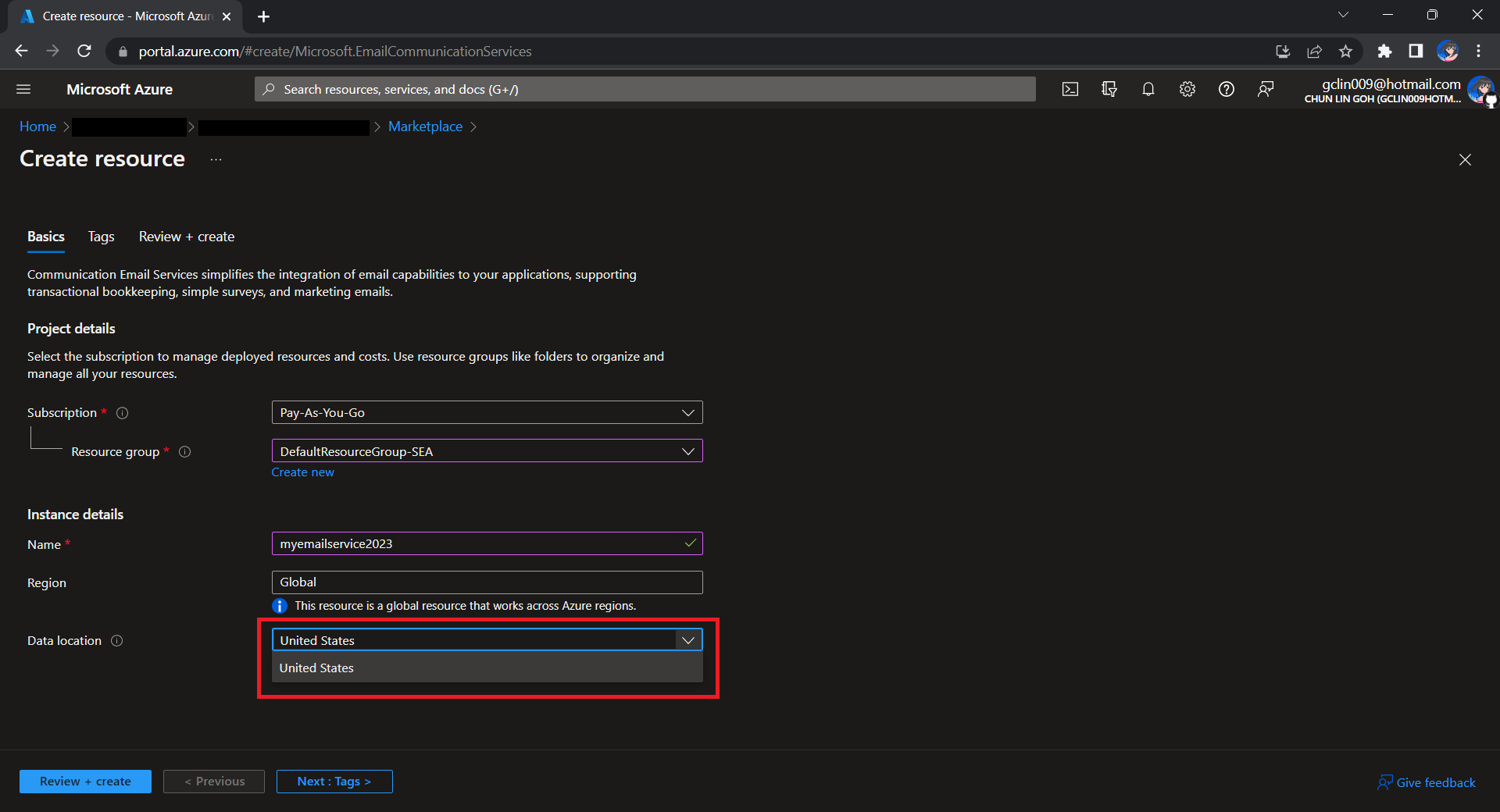
To begin, we need to createa a new Email Communication Services resource from the marketplace, as shown in the screenshot below.

US is the only option for the Data Location now in Email Communication Services.

Take note that currently we can only choose United States as the Data Location, which determines where the data will be stored at rest. This cannot be changed after the resource has been created. This thus make our Azure Communication Services which we need to configure next to store the data in United States as well. We will talk about this later.

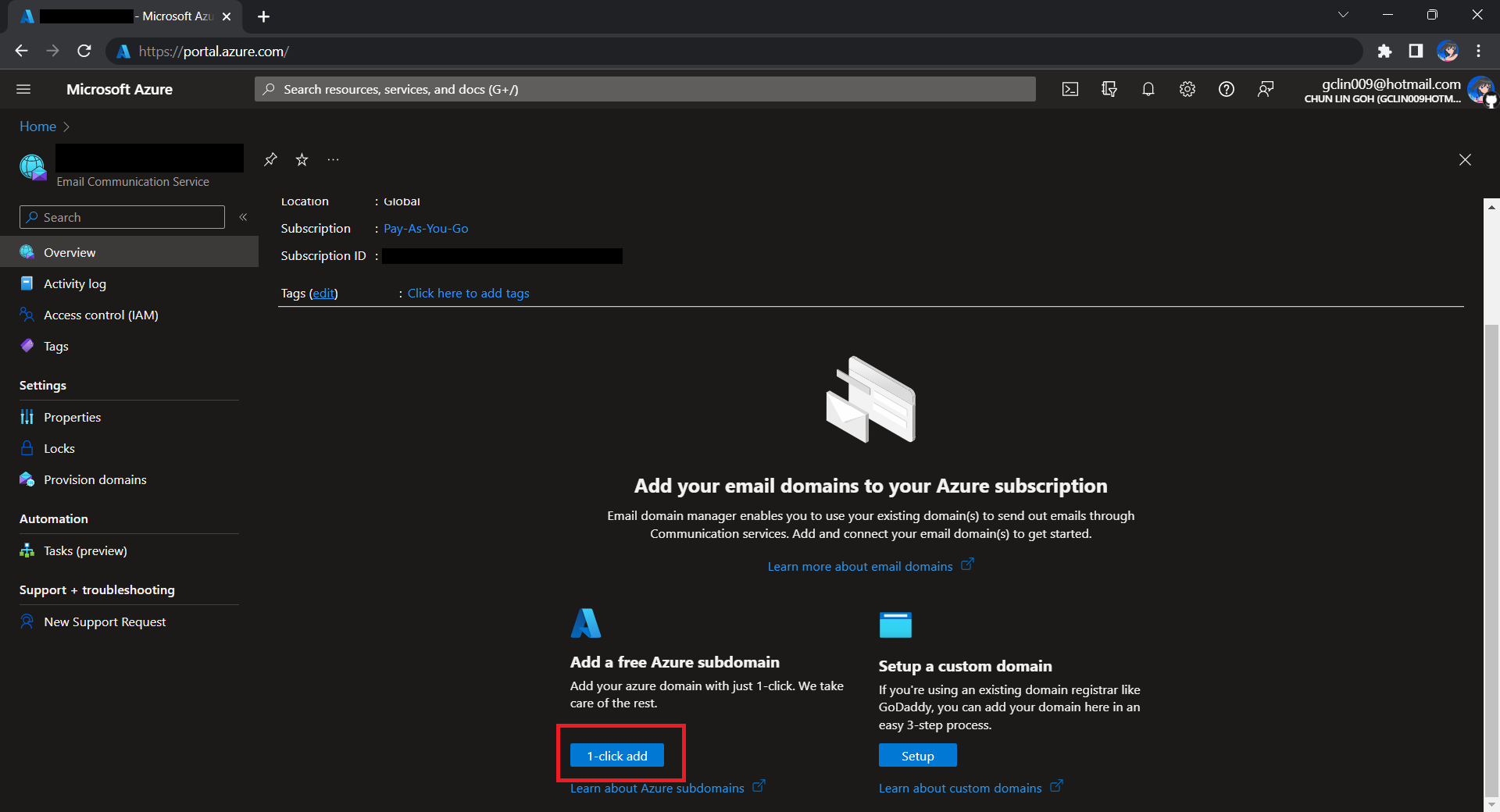
Once the Email Communication Service is created, we can begin by adding a free Azure subdomain. With the “1-click add” function, as shown in the following screenshot, Azure will automatically configures the required email authentication protocols based on the email authentication best practices.

Click “1-click add” to provision a free Azure managed domain for sending emails.

We will then have a MailFrom address in the format of donotreply@xxxx.azurecomm.net which we can use to send email. We are allowed to modify the MailFrom address and From display name to more user-friendly values.

After getting the domain, we need to connect Azure Communication Services to it to send emails.

As we talked earlier, we need to make sure that the Azure Communication Services to have United States as its Data Location as well. Otherwise, we will not be able to link the email domain for email sending.

Successfully connected our email domain. =)

A Simple Console App for Sending Email

Now, we need to create the console app which we will be used in our Kubernetes CronJob later to send the emails with the Azure Communication Services Email client library.

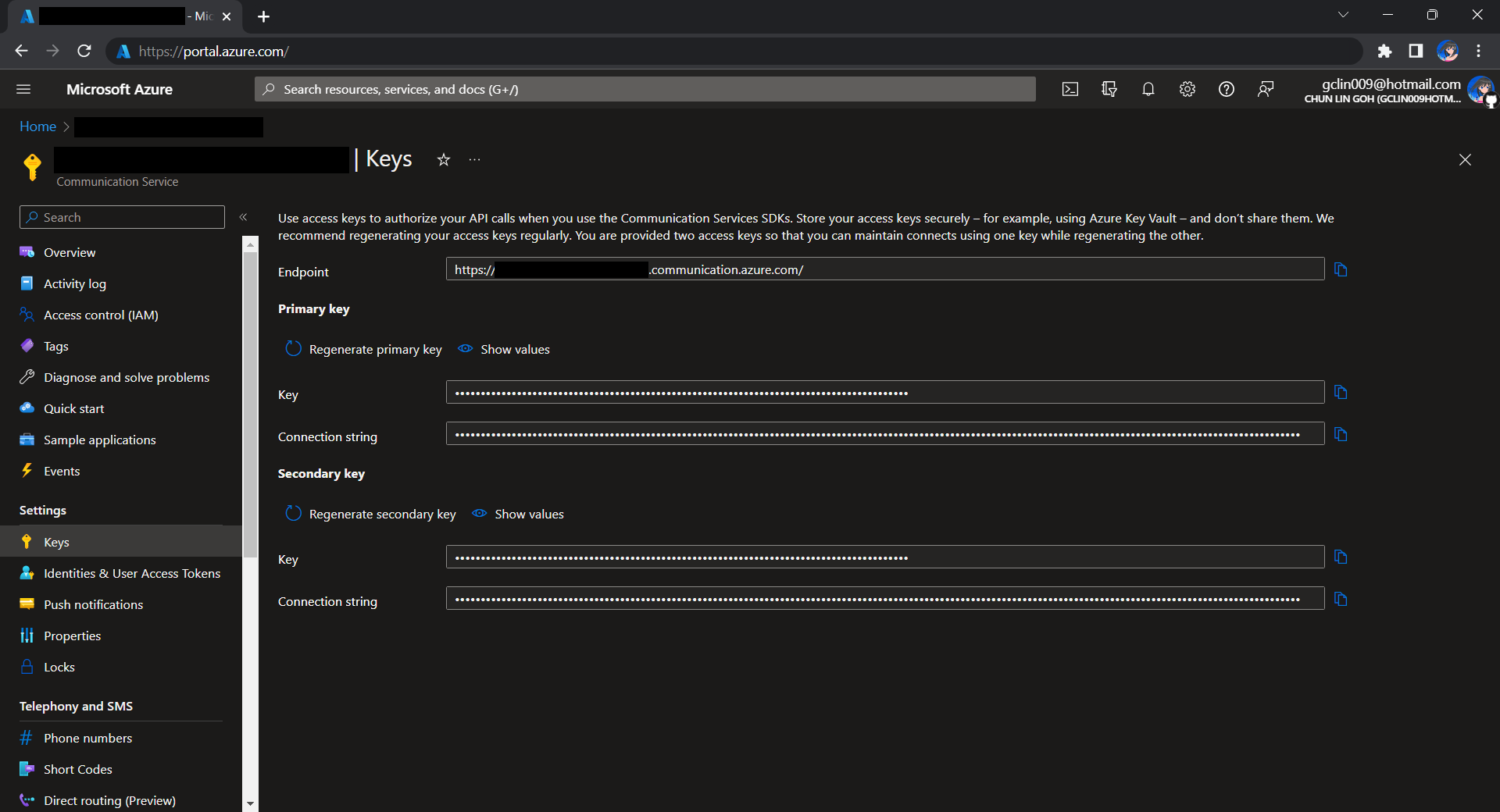
Before we begin, we have to get the connection string for the Azure Communication Service resource.

Getting connection string of the Azure Communication Service.

Here I have the following code to send a sample email to myself.

using Azure.Communication.Email.Models;
using Azure.Communication.Email;

string connectionString = Environment.GetEnvironmentVariable("COMMUNICATION_SERVICES_CONNECTION_STRING") ?? string.Empty;
string emailFrom = Environment.GetEnvironmentVariable("EMAIL_FROM") ?? string.Empty;

if (connectionString != string.Empty)
{
    EmailClient emailClient = new EmailClient(connectionString);

    EmailContent emailContent = new EmailContent("Welcome to Azure Communication Service Email APIs.");
    emailContent.PlainText = "This email message is sent from Azure Communication Service Email using .NET SDK.";
    List<EmailAddress> emailAddresses = new List<EmailAddress> {
            new EmailAddress("gclin009@hotmail.com") { DisplayName = "Goh Chun Lin" }
        };
    EmailRecipients emailRecipients = new EmailRecipients(emailAddresses);
    EmailMessage emailMessage = new EmailMessage(emailFrom, emailContent, emailRecipients);
    SendEmailResult emailResult = emailClient.Send(emailMessage, CancellationToken.None);
}
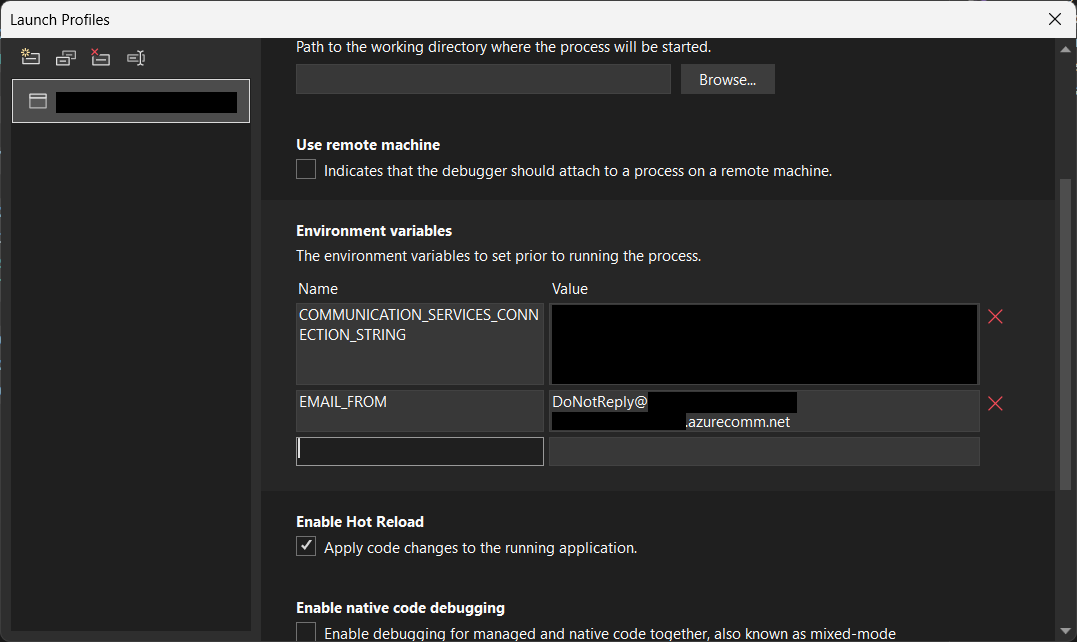
Setting environment variables for local debugging purpose.

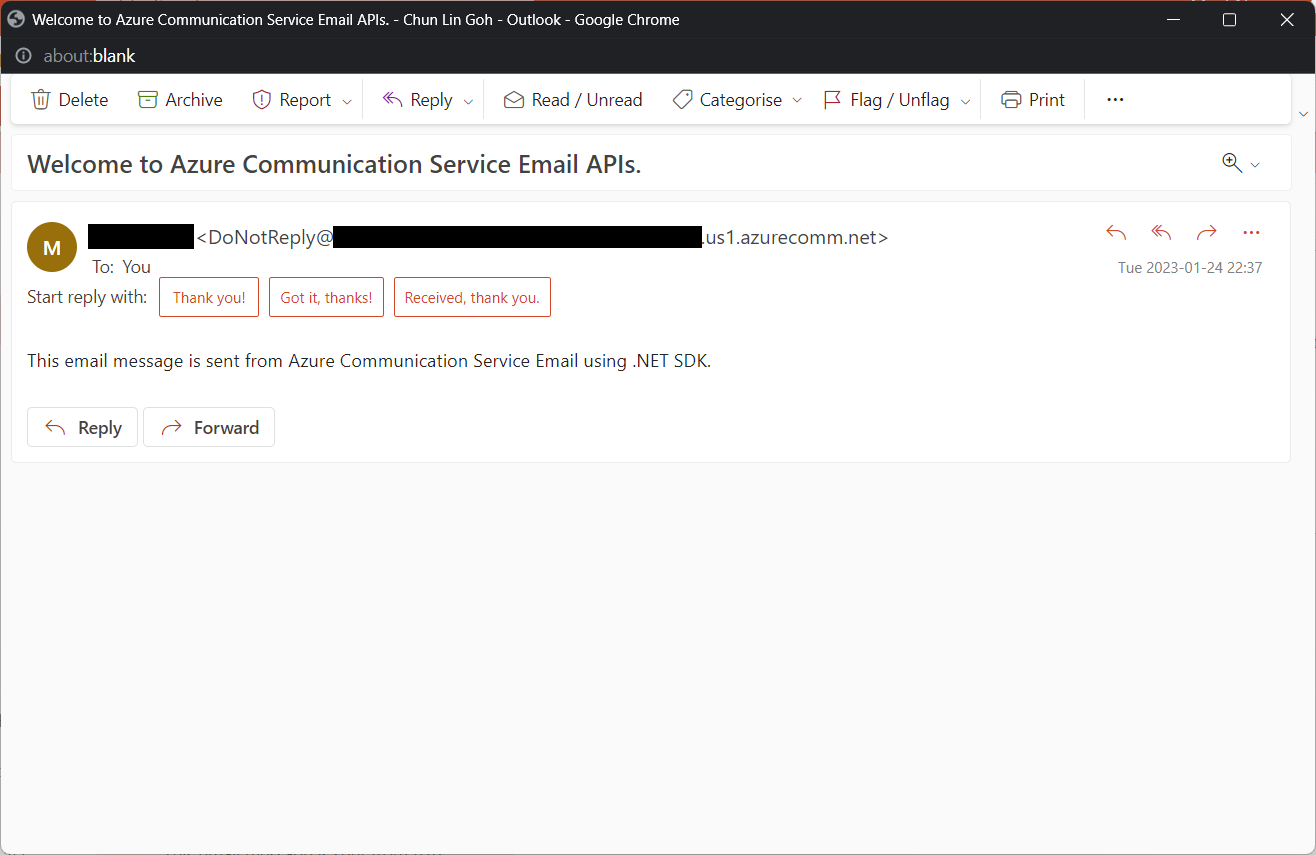
Tada, there should be an email successfully sent out as instructed.

Email is successfully sent and received. =)

Containerise the Console App

Next what we need to do is containerising our console app above.

Assume that our console app is called MyConsoleApp, then we will prepare a Dockerfile as follows.

FROM mcr.microsoft.com/dotnet/runtime:6.0 AS base
WORKDIR /app

FROM mcr.microsoft.com/dotnet/sdk:6.0 AS build
WORKDIR /src
COPY ["MyMedicalEmailSending.csproj", "."]
RUN dotnet restore "./MyConsoleApp.csproj"
COPY . .
WORKDIR "/src/."
RUN dotnet build "MyConsoleApp.csproj" -c Release -o /app/build

FROM build AS publish
RUN dotnet publish "MyConsoleApp.csproj" -c Release -o /app/publish /p:UseAppHost=false

FROM base AS final
WORKDIR /app
COPY --from=publish /app/publish .
ENTRYPOINT ["dotnet", "MyConsoleApp.dll"]

We then can publish it to Docker Hub for consumption later.

If you prefer to use Azure Container Registry, you can refer to the documentation on how to do it on Microsoft Learn.

Create the CronJob

In Kubernetes, pods are the smallest deployable units of computing we can create and manage. A pod can have one or more relevant containers, with shared storage and network resources. Here, we will be scheduling a job so that it creates pods containing our container with the image we created above to operate the execution of the pods, which is in our case, to send emails.

The schedule of the cronjob is defined as follows, according to the Kubernetes documentation on the schedule syntax.

# ┌───────────── minute (0 - 59)
# │ ┌───────────── hour (0 - 23)
# │ │ ┌───────────── day of the month (1 - 31)
# │ │ │ ┌───────────── month (1 - 12)
# │ │ │ │ ┌───────────── day of the week (sun, mon, tue, wed, thu, fri, sat)
# │ │ │ │ │
# * * * * *

Hence, if we would like to have the email scheduler to be triggered at 8am of every Friday, we can create a CronJob in the namespace my-namespace with the following YAML file.

apiVersion: batch/v1
kind: CronJob
metadata:
  name: email-scheduler
  namespace: ns-mymedical
spec:
  jobTemplate:
    metadata:
      name: email-scheduler
    spec:
      template:
        spec:
          containers:
          - image: chunlindocker/emailsender:v2023-01-25-1600
            name: email-scheduler
          restartPolicy: OnFailure
  schedule: 0 8 * * fri

After the CronJob is created, we can proceed to annotate it with the command below.

kubectl annotate cj email-scheduler jobtype=scheduler frequency=weekly

This helps us to query the cron jobs with jsonpath easily in the future. For example, we can list all cronjobs which are scheduled weekly, we can do it with the following command.

kubectl get cj -A -o=jsonpath="{range .items[?(@.metadata.annotations.jobtype)]}{.metadata.namespace},{.metadata.name},{.metadata.annotations.jobtype},{.metadata.annotations.frequency}{'\n'}{end}"

Create ConfigMap

In our email sending programme, we have two environment variables. Hence, we can create ConfigMap to store the data as key-value pair.

apiVersion: v1
kind: ConfigMap
metadata:
  name: email-sending
  namespace: my-namespace
data:
  EMAIL_FROM: DoNotReply@xxxxxx.azurecomm.net

For connection string of Azure Communication Service, since it is a sensitive data, we will store it in Secret. Secrets are similar to ConfigMaps but are specifically intended to hold confidential data. We will create a Secret with the command below.

kubectl create secret generic azure-communication-service --from-literal=CONNECTION_STRING=xxxxxx --dry-run=client --namespace=my-namespace -o yaml

It should generate a YAML which is similar to the following.

apiVersion: v1
kind: Secret
metadata:
  name: azure-communication-service
  namespace: my-namespace
data:
  CONNECTION_STRING: yyyyyyyyyy

Then, the Pods created by the CronJob can thus consume the ConfigMap and Secret above as environment variables. So, we need to update the CronJob YAML file to be as follows.

apiVersion: batch/v1
kind: CronJob
metadata:
  name: email-scheduler
  namespace: my-namespace
spec:
  jobTemplate:
    metadata:
      name: email-scheduler
    spec:
      template:
        spec:
          containers:
          - image: chunlindocker/emailsender:v2023-01-25-1600
            name: email-scheduler
            env:
              - name: EMAIL_FROM
                valueFrom:
                  configMapKeyRef:
                    name: email-sending
                    key: EMAIL_FROM
              - name: COMMUNICATION_SERVICES_CONNECTION_STRING
                valueFrom:
                  secretKeyRef:
                    name: azure-communication-service
                    key: CONNECTION_STRING
          restartPolicy: OnFailure
  schedule: 0 8 * * fri

Using SealedSecret

Problem with using Secrets is that we can’t really commit them to our code repository because the data are only encoded but not encrypted. Hence, in order to store our Secrets safely, we need to use SealedSecret which helps us to encrypt our Secret. The SealedSecret can only be decrypted by the controller running in the targer cluster.

Currently, the SealedSecret Helm Chart is officially supported and hosted on GitHub.

Helm is the package manager for Kubernetes. Helm uses a packaging format called Chart, a collection of files describing a related set of Kubernetes resource. Each Chart comprises one or more Kubernetes manifests. With Chart, developers are able to configure, package, version, and share the apps with their dependencies and sensible defaults.

To install Helm on Windows 11 machine, we can execute the following commands in Ubuntu on Windows console.

  1. Download desired version of Helm release, for example, to download version 3.11.0:
    wget https://get.helm.sh/helm-v3.11.0-linux-amd64.tar.gz
  2. Unpack it:
    tar -zxvf helm-v3.2.0-linux-amd64.tar.gz
  3. Move the Helm binary to desired location:
    sudo mv linux-amd64/helm /usr/local/bin/helm

Once we have successfully downloaded Helm and have it ready, we can add a Chart repository. In our case, we need to add the repo of SealedSecret Helm Chart.

helm repo add sealed-secrets https://bitnami-labs.github.io/sealed-secrets

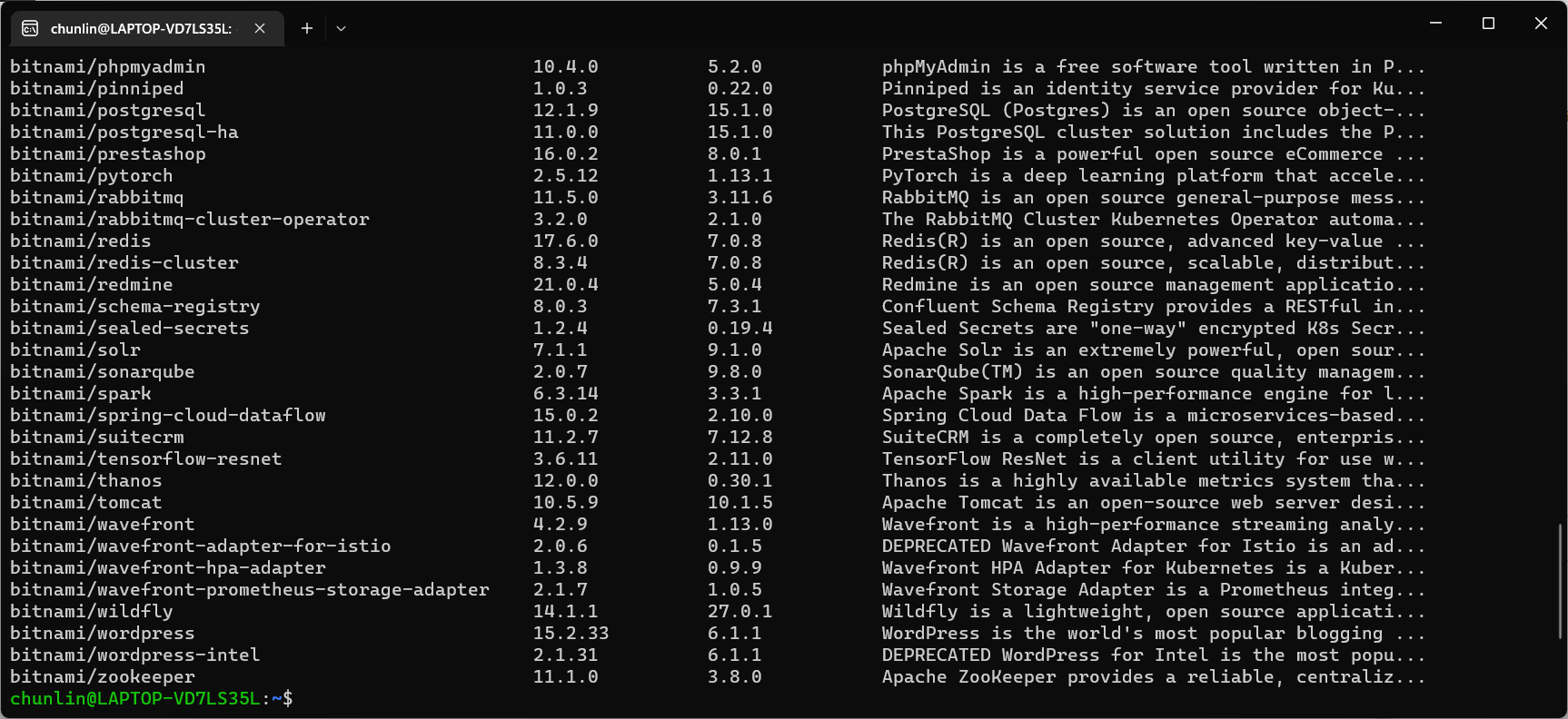
We should be able to locate the SealedSecret chart that we can install with the following command.

helm search repo bitnami
The Chart bitnami/sealed-secret is one of the Charts we can install.

To installed SealedSecret Helm Chart, we will use the following command.

helm install sealed-secrets -n kube-system --set-string fullnameOverride=sealed-secrets-controller sealed-secrets/sealed-secrets

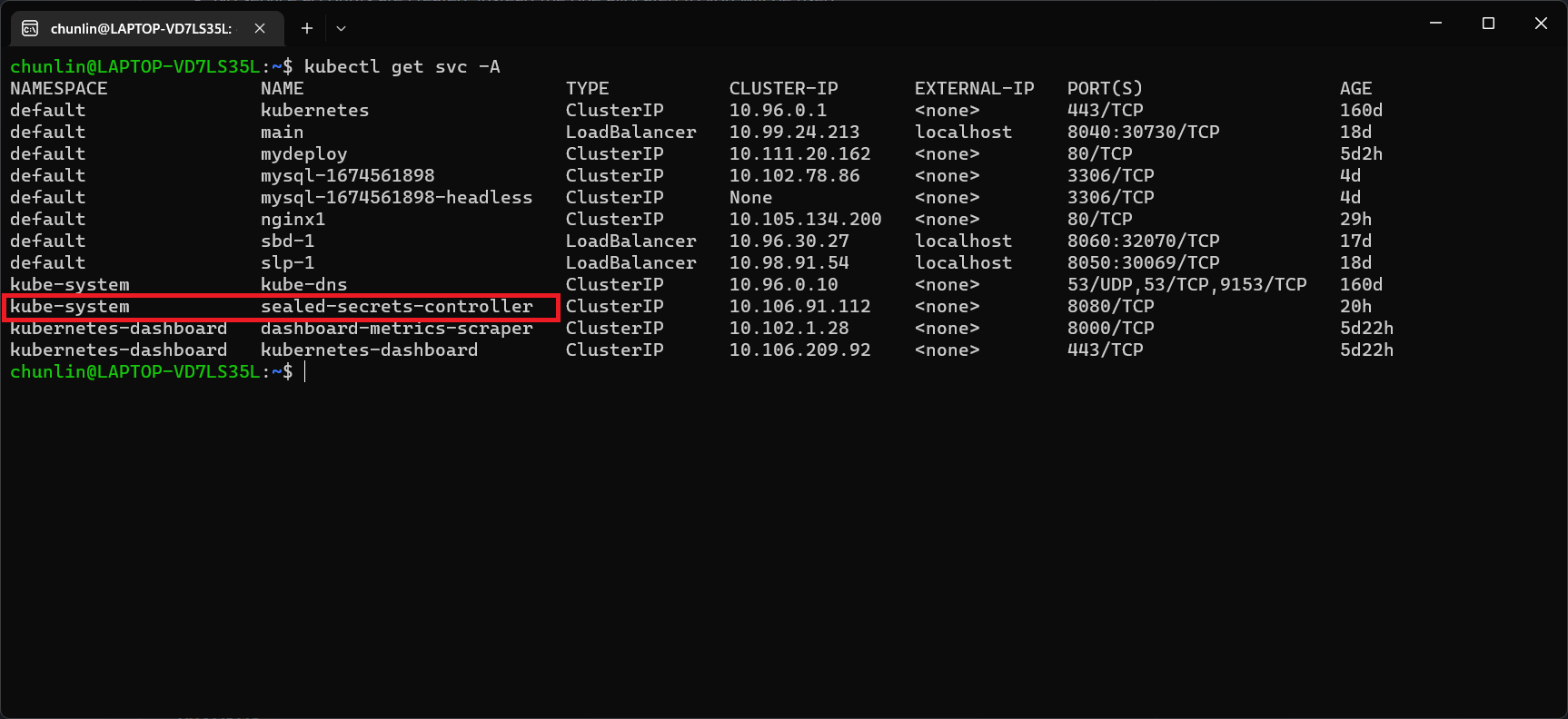
Once we have done this, we should be able to locate a new service called sealed-secret-controller under Kubernetes services.

The sealed-secret-controller service is under kube-system namespace.

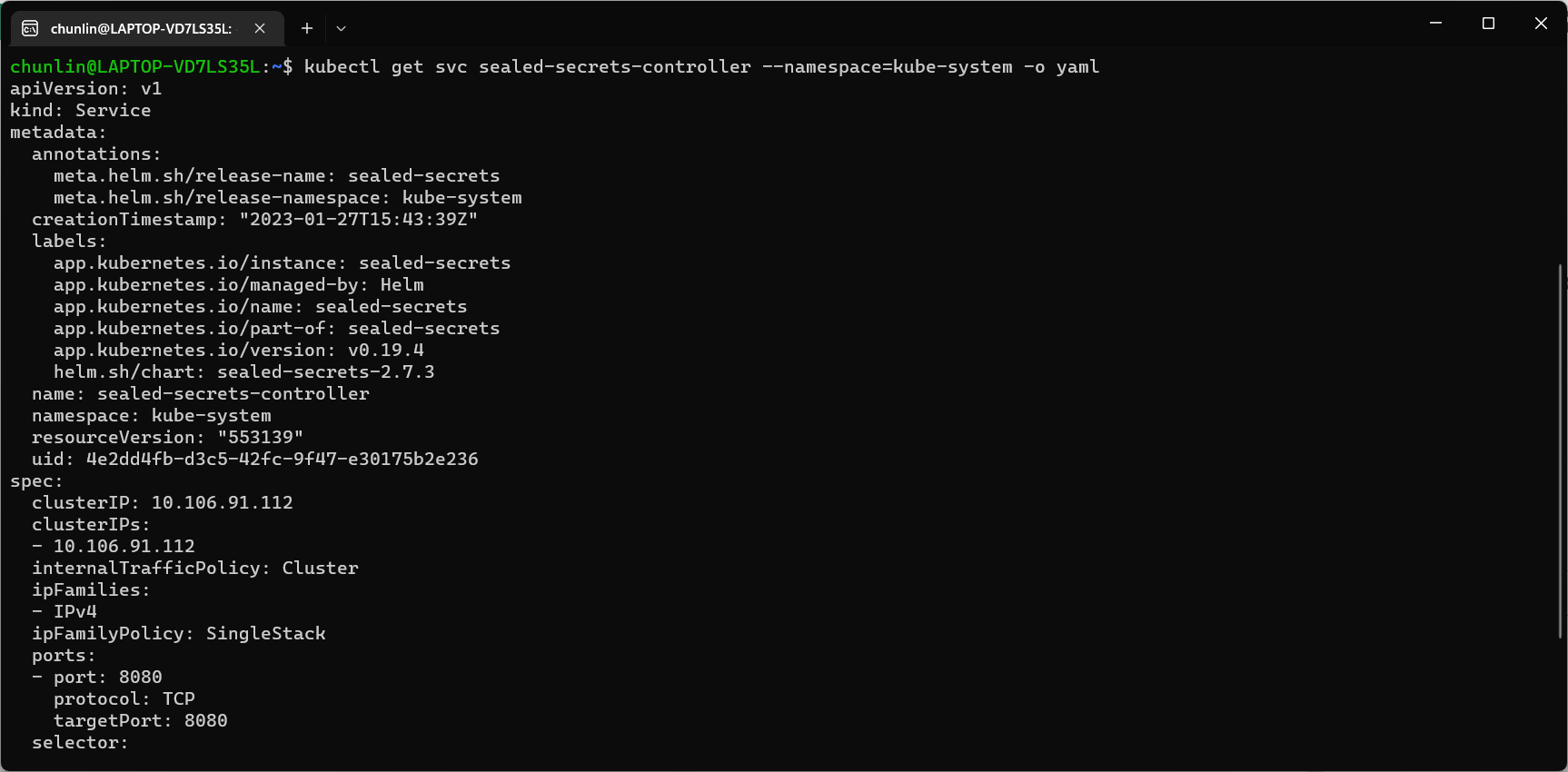
Before we can proceed to use kubeseal to create an encrypted secret, for me at least, there is a need to edit the sealed-secret-controller service. Otherwise, there will be an error message saying “cannot fetch certificate: no endpoints available for service”. If you also encounter the same issue, simply follow the steps mentioned by ghostsquad to edit the service YAML accordingly.

My final edit of the sealed-secret-controller service YAML.

Next, we then can proceed to encrypt our secret, as instructed on the SealedSecret GitHub readme.

kubectl create secret generic azure-communication-service --from-literal=CONNECTION_STRING=xxxxxx --dry-run=client --namespace=my-namespace -o json > mysecret-acs.json

kubeseal < mysecret-acs.json > mysealedsecret-acs.json

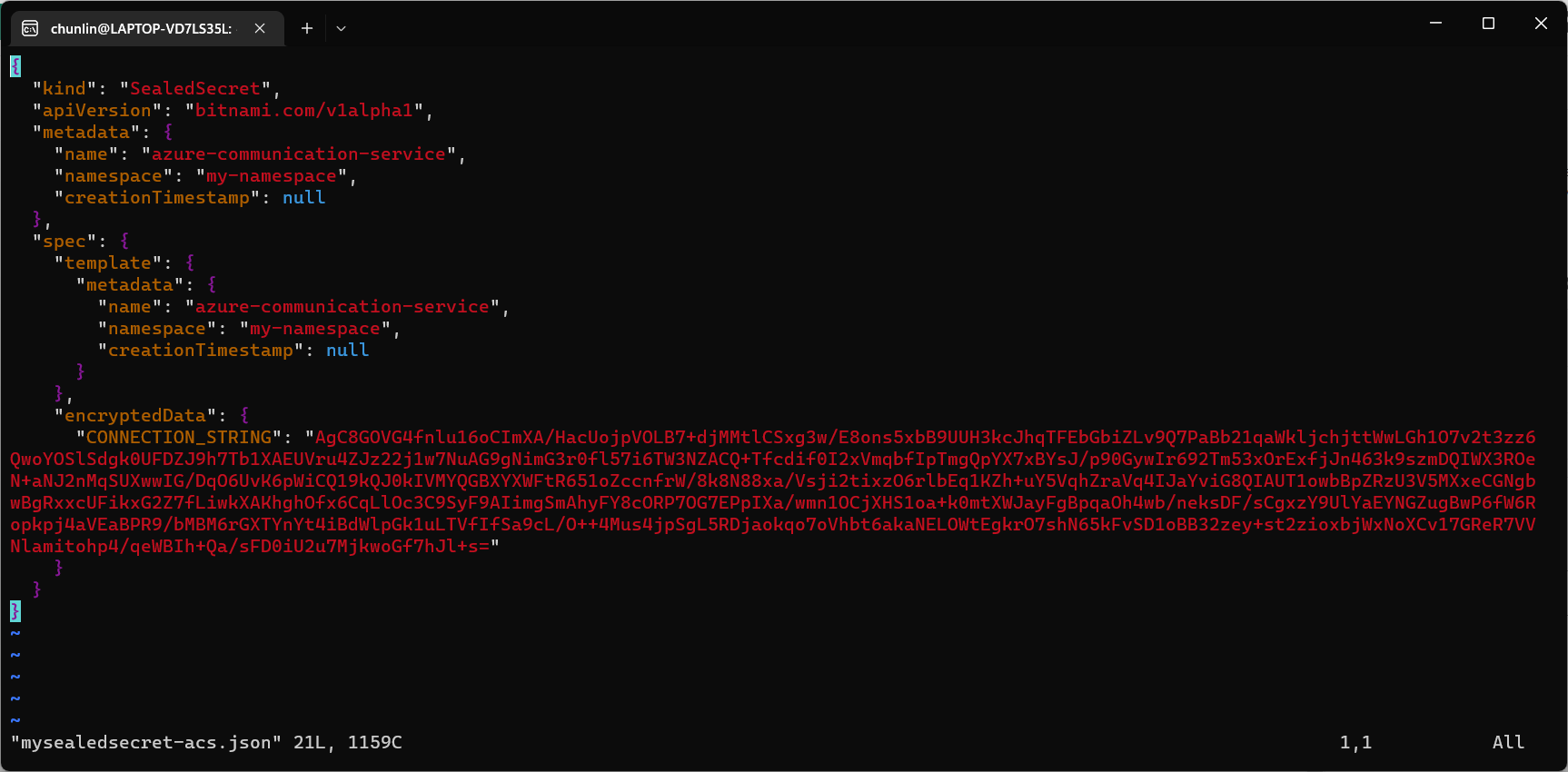
The generated file mysealedsecret-acs.json should look something as shown below.

The connection string is now encrypted.

To create the Secret resource, we will simply create it based on the file mysealedsecret-acs.json.

This generated file mysealedsecret-acs.json is thus safe to be committed to our code repository.

Going Zero-Trust: Using Kamus and InitContainer

Besides SealedSecret, there is also another open-source solution known as Kamus, a zero-trust secrets encryption and decryption solution for Kubernetes apps. We can also use Kamus to encrypt our secrets and make sure that the secrets can only be decrypted by the desired Kubernetes apps.

Similarly, we can also install Kamus using Helm Chart with the commands below.

helm repo add soluto https://charts.soluto.io
helm upgrade --install kamus soluto/kamus

Kamus will encrypt secrets for only a specific application represented by a ServiceAccount. A service account provides an identity for processes that run in a Pod, and maps to a ServiceAccount object. Hence, we need to create a Service Account with the YAML below.

apiVersion: v1
kind: ServiceAccount
metadata:
  name: my-kamus-sa

After creating the ServiceAccount, we can update our CronJob YAML to mount it on the pods.

Next, we can proceed to download and install Kamus CLI which we can use to encrypt our secret with the following command.

kamus-cli encrypt \
  --secret xxxxxxxx \
  --service-account my-kamus-sa \
  --namespace my-namespace \
  --kamus-url <Kamus URL>

The Kamus URL could be found after we installed Kamus as shown in the screenshot below.

Kamus URL in localhost

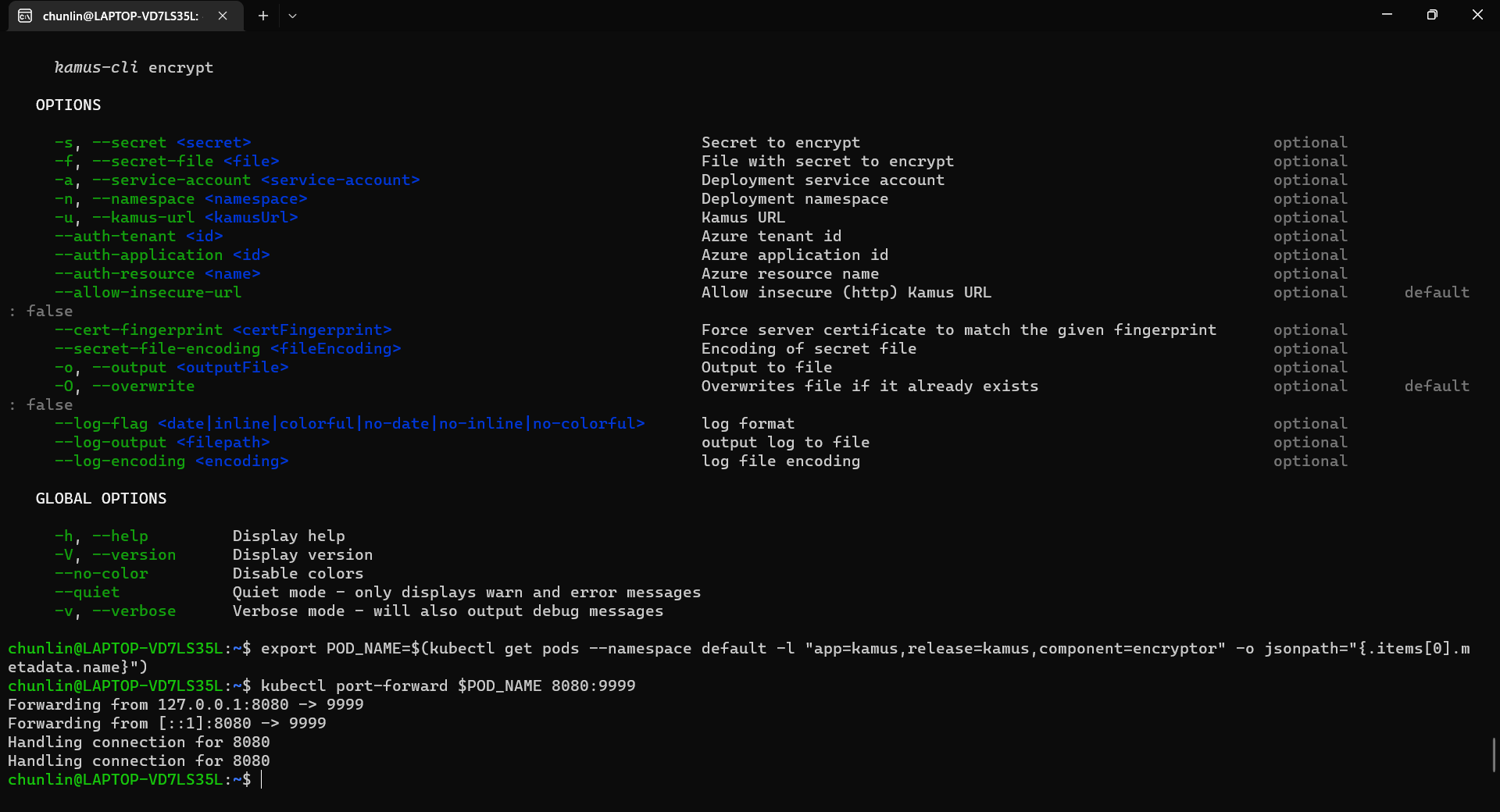
We need to follow the instruction printed on the screen to get the Kamus URL. To do so, we need to forward local port to the pod, as shown in the following screenshot.

Successfully forward the port and thus can use the URL as the Kamus URL.

Hence, let’s say we want to encrypt a secret “alamak”, we can do so as follows.

Since our localhost Kamus URL is using HTTP, so we have to specify “–allow-insecure-url”.

After we have encrypted our secret successfully, we need to configure our pod accordingly so that it can decrypt the value with Kamus Decrypt API. The simplest way will be storing our secret in a ConfigMap because it is already encrypted, so it’s safe to store it in ConfigMap.

apiVersion: v1
kind: ConfigMap
metadata:
  name: my-encrypted-secret
  namespace: my-namespace
data:
  data: rADEn4o8pdN8Zcw40vFS/g==:zCPnDs8AzcTwqkvuu+k8iQ==

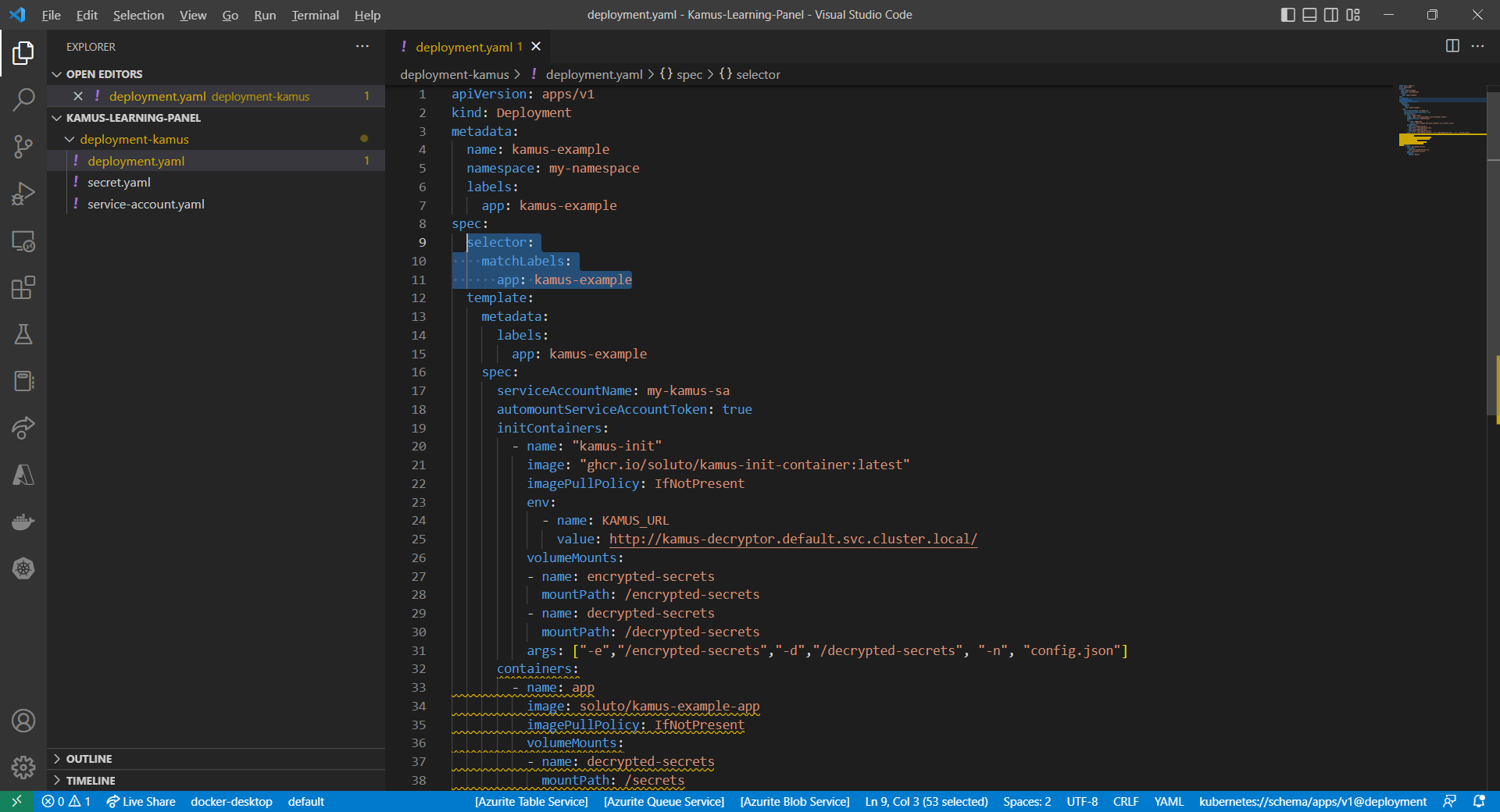
Then we can include an InitContainer in our pod. This is because the use of an initContainer allows one or more containers to run only if one or more previous containers run and exit successfully. So we can make use of Kamus Init Container to decrypt the secret using Kamus Decryptor API and output it to a file to be consumed by our app. There is an official demo from the Kamus Team on how to do that on the GitHub. Please take note that one of their YAML files is outdated and thus there is a need to update their deployment.yaml to use “apiVersion: apps/v1” with a proper selector.

Updated deployment.yaml.

After the deployment is successful, we can forward the port 8081 to the pod in the deployment as shown below.

kubectl port-forward deployment/kamus-example 8081:80

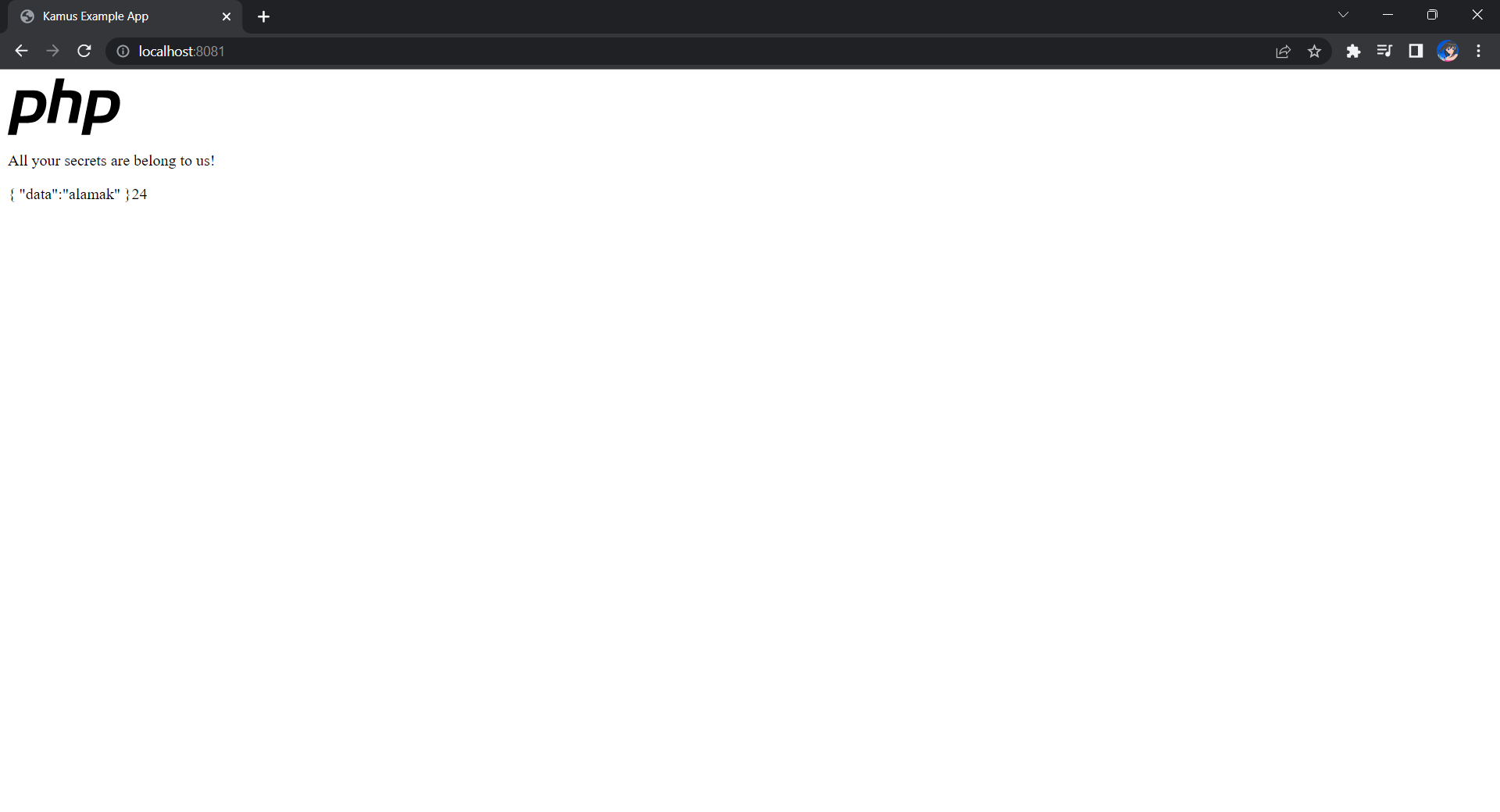
If the deployment is successful, we should be able to see the following when we visit localhost:8081 on our Internet browser, as shown in the following screenshot.

Yay, the original text “alamak” is successfully decrypted and displayed.

Deploy Our CronJob

Now, since we have everything setup, we can create our Kubernetes CronJob with the YAML file we have earlier. For local testing, I have edited the schedule to be “*/2 * * * *”. This means that an email will be sent to me every 2 minutes.

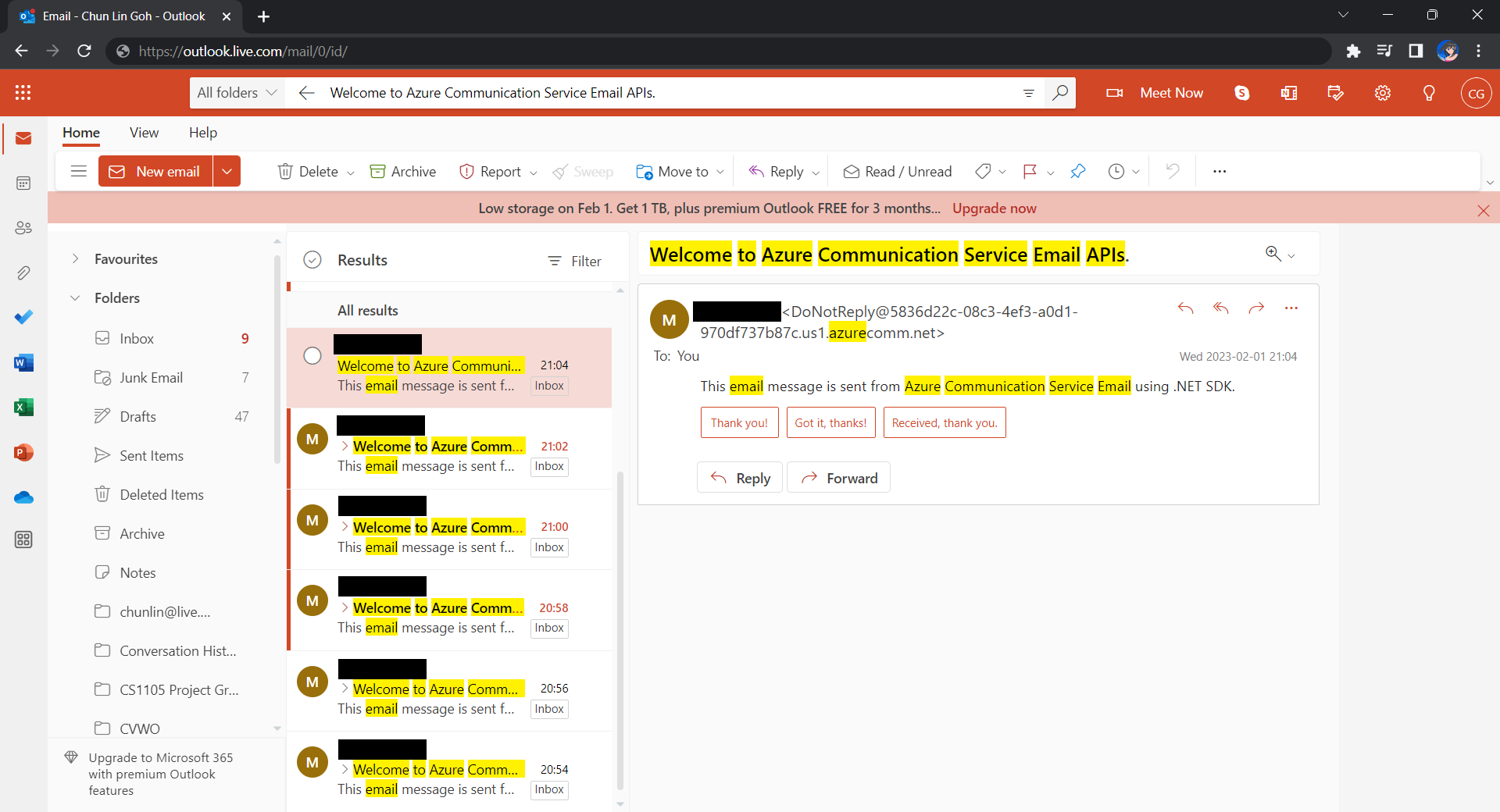
After waiting for a couple of minutes, I have received a few emails sent via the Azure Communication Services, as shown below.

Now the emails are received every 2 minutes. =)

Hoorey, this is how we build a simple Kubernetes CronJob and how we can send emails with the Azure Email Communication Services.

Data Protection APIs in ASP.NET Core

Beginning with Windows 2000, Microsoft Windows operating systems have been shipped with a data protection interface known as DPAPI (Data Protection Application Programming Interface). DPAPI is a simple cryptographic API. It doesn’t store any persistent data for itself; instead, it simply receives plaintext and returns cyphertext.

Windows DPAPI isn’t intended for use in web applications. Fortunately, ASP.NET Core offers data protection APIs which include also key management and rotation. With the APIs, we are able to store security-sensitive data for our ASP .NET Web apps.

Configure Service Container and Register Data Protection Stack

In ASP.NET Core project, we have to first configure a data protection system and then add it to the service container for dependency injection.

public void ConfigureServices(IServiceCollection services)
{
    // …
    
    services.AddDataProtection()
            .PersistKeysToFileSystem(new DirectoryInfo(@"\server\shared\directory\"))
            .SetApplicationName("<sharedApplicationName>");
}

In the code above, instead of storing key at the default location, which is %LOCALAPPDATA%, we store it on a network drive by specifying the path to the UNC Share.

By default, the Data Protection system isolates apps from one another based on their content root paths, even if they share the same physical key repository. This isolation prevents the apps from understanding each other’s protected payloads. Just in case we may need to share protected payloads among apps, we can configure SetApplicationName first so that other apps with the same value later can share the protected payloads.

Key Protection with Azure Key Vault

The code above shows how we can store keys on a UNC share. If we head to the directory \server\shared\directory\, we will be seeing an XML file with content similar as what is shown below.

<?xml version="1.0" encoding="utf-8"?>
<key id="..." version="1">
  <creationDate>2022-08-31T02:50:40.14912Z</creationDate>
  <activationDate>2022-08-31T02:50:40.0801042Z</activationDate>
  <expirationDate>2022-11-29T02:50:40.0801042Z</expirationDate>
  <descriptor deserializerType="Microsoft.AspNetCore.DataProtection.AuthenticatedEncryption.ConfigurationModel.AuthenticatedEncryptorDescriptorDeserializer, Microsoft.AspNetCore.DataProtection, Version=7.0.0.0, Culture=neutral, PublicKeyToken=adb9793829ddae60">
    <descriptor>
      <encryption algorithm="AES_256_CBC" />
      <validation algorithm="HMACSHA256" />
      <masterKey p4:requiresEncryption="true" xmlns:p4="http://schemas.asp.net/2015/03/dataProtection">
        <!-- Warning: the key below is in an unencrypted form. -->
        <value>au962I...kpMYA==</value>
      </masterKey>
    </descriptor>
  </descriptor>
</key>

As we can see, the key <masterKey> itself is in an unencrypted form.

Hence, in order to protect the data protection key ring, we need to make sure that the storage location should be protected as well. Normally, we can use file system permissions to ensure only the identity under which our web app runs has access to the storage directory. Now with Azure, we can also protect our keys using Azure Key Vault, a cloud service for securely storing and accessing secrets.

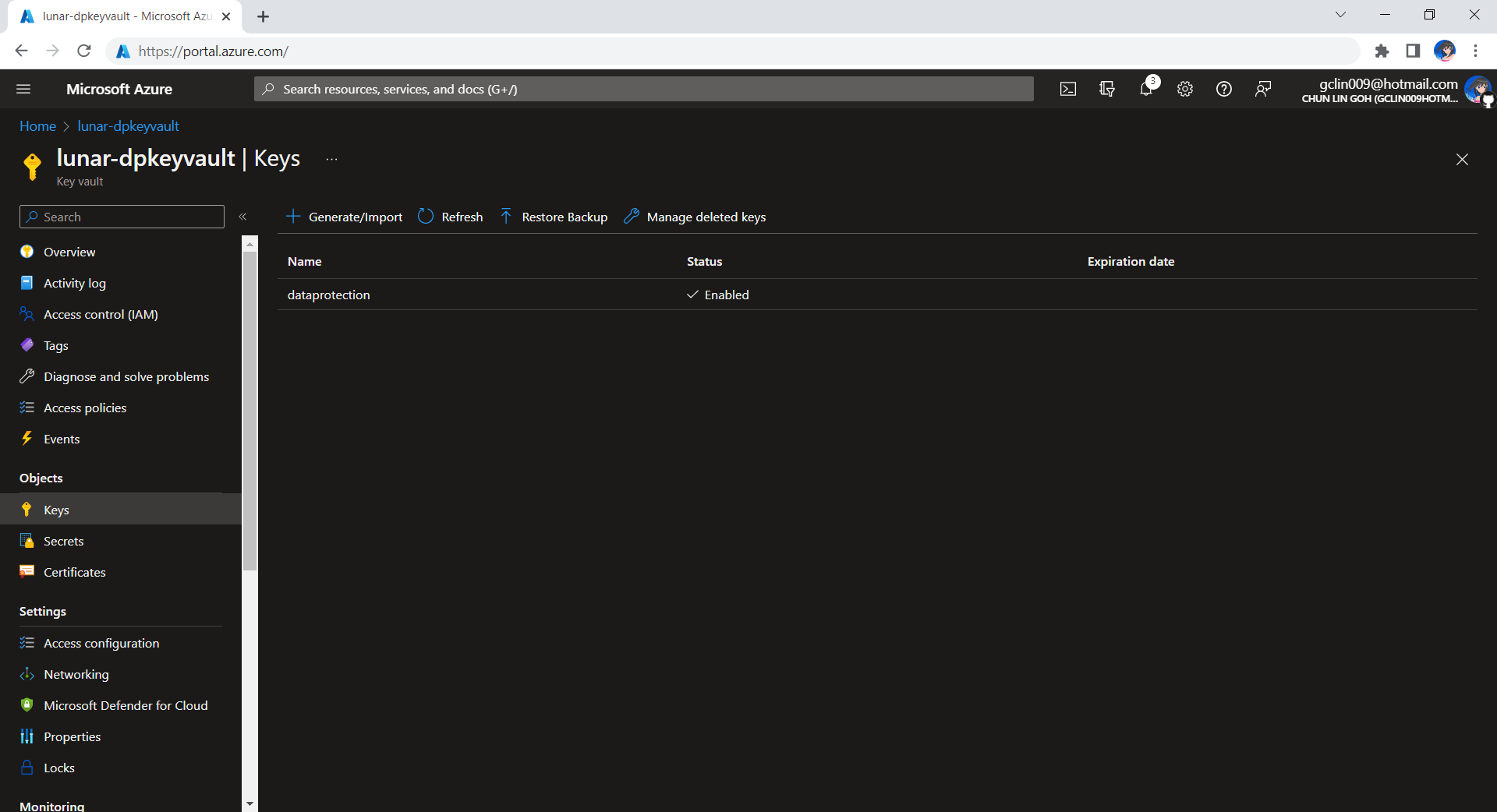
The approach we will take is to first create an Azure Key Vault called lunar-dpkeyvault with a key named dataprotection, as shown in the screenshot below.

Created a key called dataprotection on Azure Key Vault.

Hence, the key identifier that we will be using to connect to the Azure Key Vault from our application will be new Uri(“https://lunar-dpkeyvault.vault.azure.net/keys/dataprotection/&#8221;).

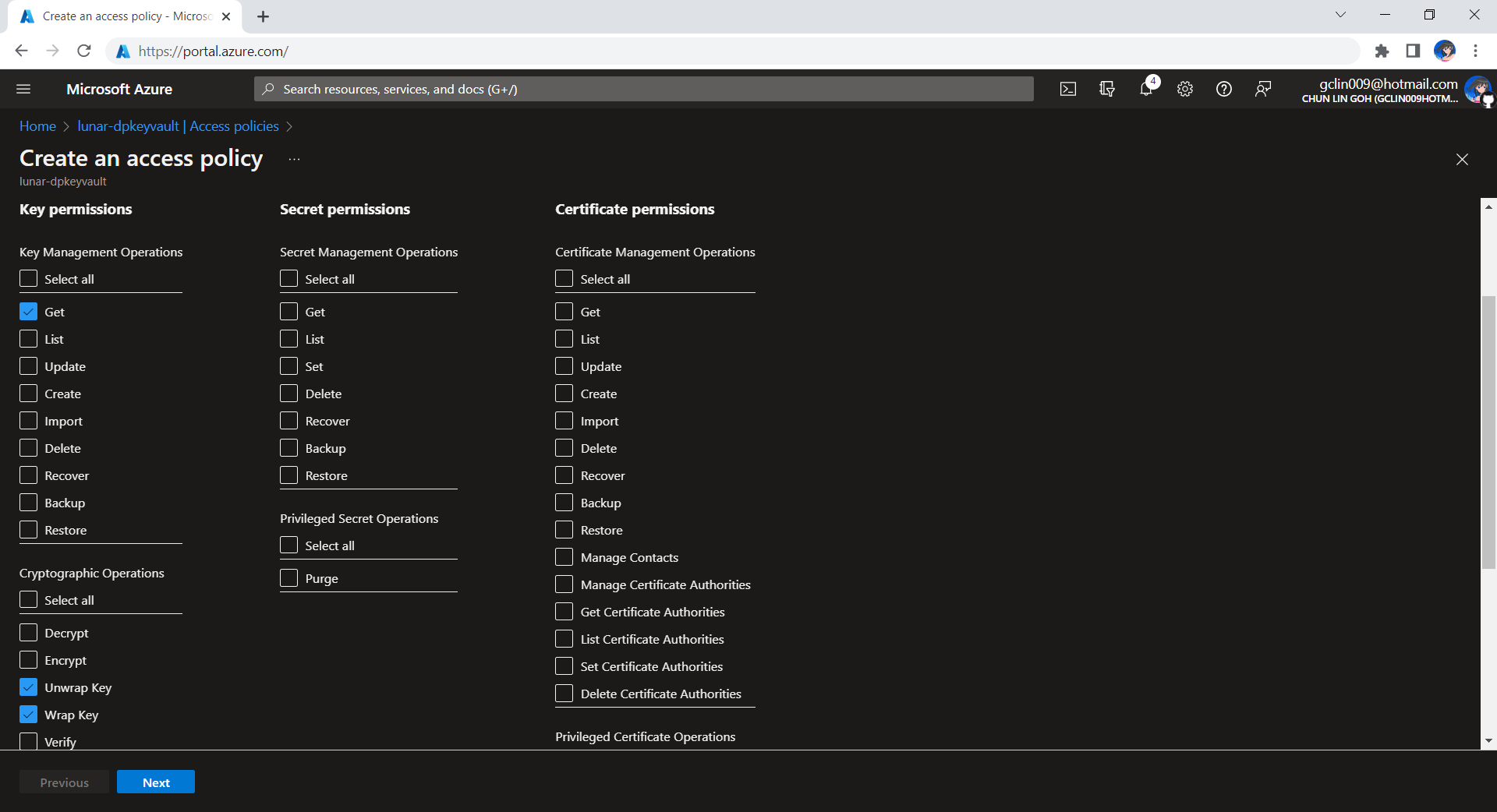
We need to give our app the Get, Unwrap Key, and Wrap Key permissions to the Azure Key Vault in its Access Policies section.

Now, we can use Azure Key Vault to protect our key by updating our codes earlier to be as follows.

services.AddDataProtection()
        .PersistKeysToFileSystem(new DirectoryInfo(@"\server\shared\directory\"))            
        .SetApplicationName("<sharedApplicationName>");
        .ProtectKeysWithAzureKeyVault(new Uri("https://lunar-dpkeyvault.vault.azure.net/keys/dataprotection/"), credential);

The credential can be a ClientSecretCredential object or DefaultAzureCredential object.

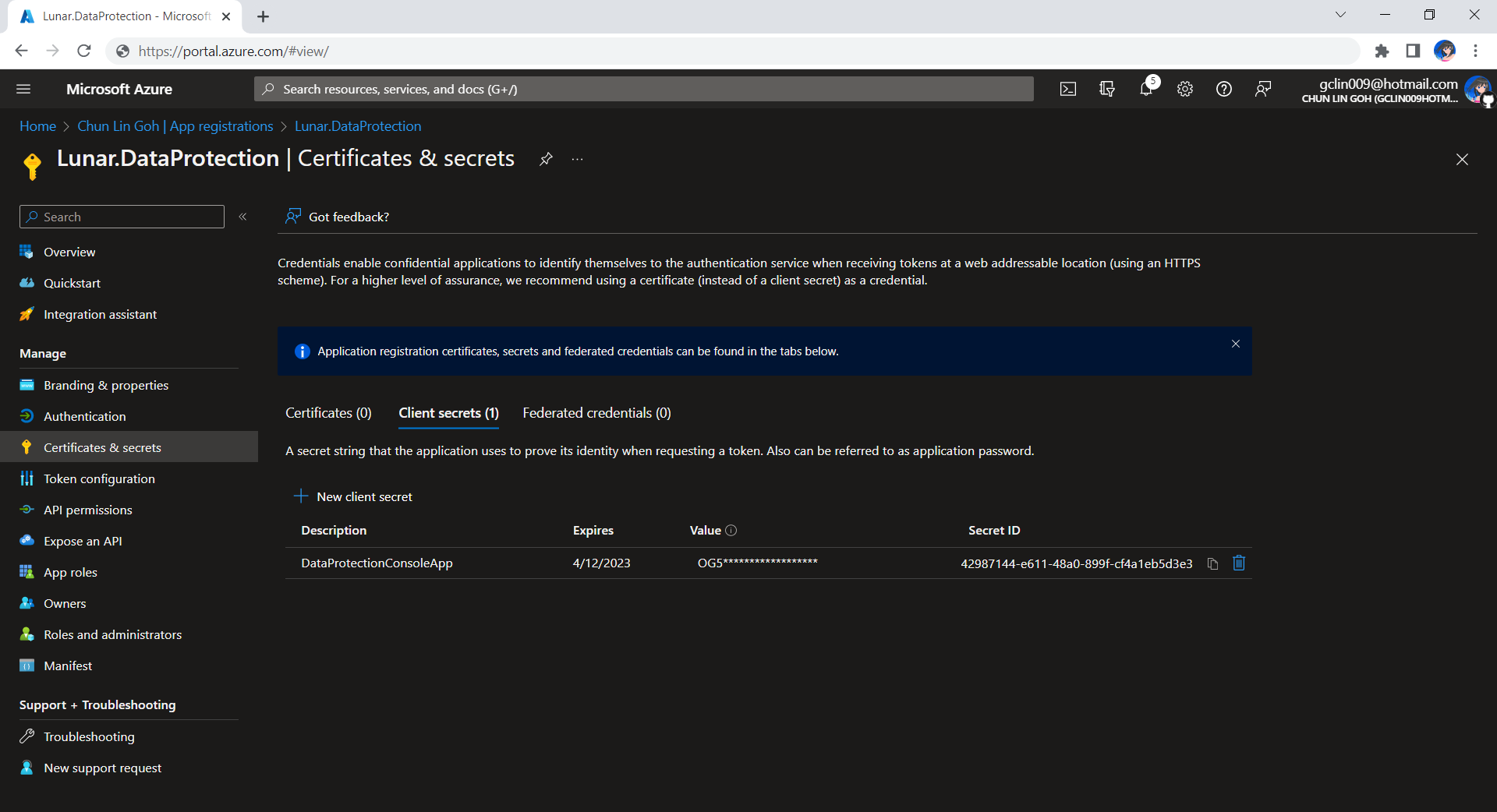
Tenant Id, Client Id, and Client Secret can be retrieved from the App Registrations page of the app having the access to the Azure Key Vault above. We can use these three values to create a ClientSecretCredential object.

Now, if we check again the newly generated XML file, we shall see there won’t be <masterKey> element anymore. Instead, it is replaced with the content shown below.

<encryptedKey xmlns="">
    <!-- This key is encrypted with Azure Key Vault. -->
    <kid>https://lunar-dpkeyvault.vault.azure.net/keys/dataprotection/...</kid>
    <key>HSCJsnAtAmf...RHXeeA==</key>
    <iv>...</iv>
    <value>...</value>
</encryptedKey>

Key Lifetime

We shall remember that, by default, the generated key will have a 90-day lifetime. This means that the app will automatically generate a new active key when the current active key expires. However, the retired keys can still be used to decrypt any data protected with them.

Hence, we know that the data protection APIs above are not primarily designed for indefinite persistence of confidential payload.

Create a Protector

To create a protector, we need to specify Purpose Strings. A Purpose String provides isolation between consumers so that a protector cannot decrypt cyphertext encrypted by another protector with different purpose.

_protector = provider.CreateProtector("Lunar.DataProtection.v1");

Encrypt Text AND THEN DECRYPT IT

Once we have the data protector, we can encrypt the text with the Protect method as shown below.

string protectedPayload = _protector.Protect("<text to be encrypted>");

If we would like to turn the protectedPayload back to the original plain text, we can use the Unprotect method.

try 
{
    string originalText = _protector.Unprotect(protectedPayload);
    ...
} 
catch (CryptographicException ex) 
{
    ...
}

Yup, that’s all for quick starting of encrypting and decrypting texts in ASP .NET Core.

Multi-Container ASP .NET Core Web App with Docker Compose

Previously, we have seen how we could containerise our ASP .NET Core 6.0 web app and manage it with docker commands. However, docker commands are mainly for only one image/container. If our solution has multiple containers, we need to use docker-compose to manage them instead.

docker-compose makes things easier because it encompasses all our parameters and workflow into a configuration file in YAML. In this article, I will share my first experience with docker-compose to build mutli-container environments as well as to manage them with simple docker-compose commands.

To help my learning, I will create a simple online message board where people can login with their GitHub account and post a message on the app.

PROJECT GITHUB REPOSITORY

The complete source code of this project can be found at https://github.com/goh-chunlin/Lunar.MessageWall.

Create Multi-container App

We will start with a solution in Visual Studio with two projects:

  • WebFrontEnd: A public-facing web application with Razor pages;
  • MessageWebAPI: A web API project.

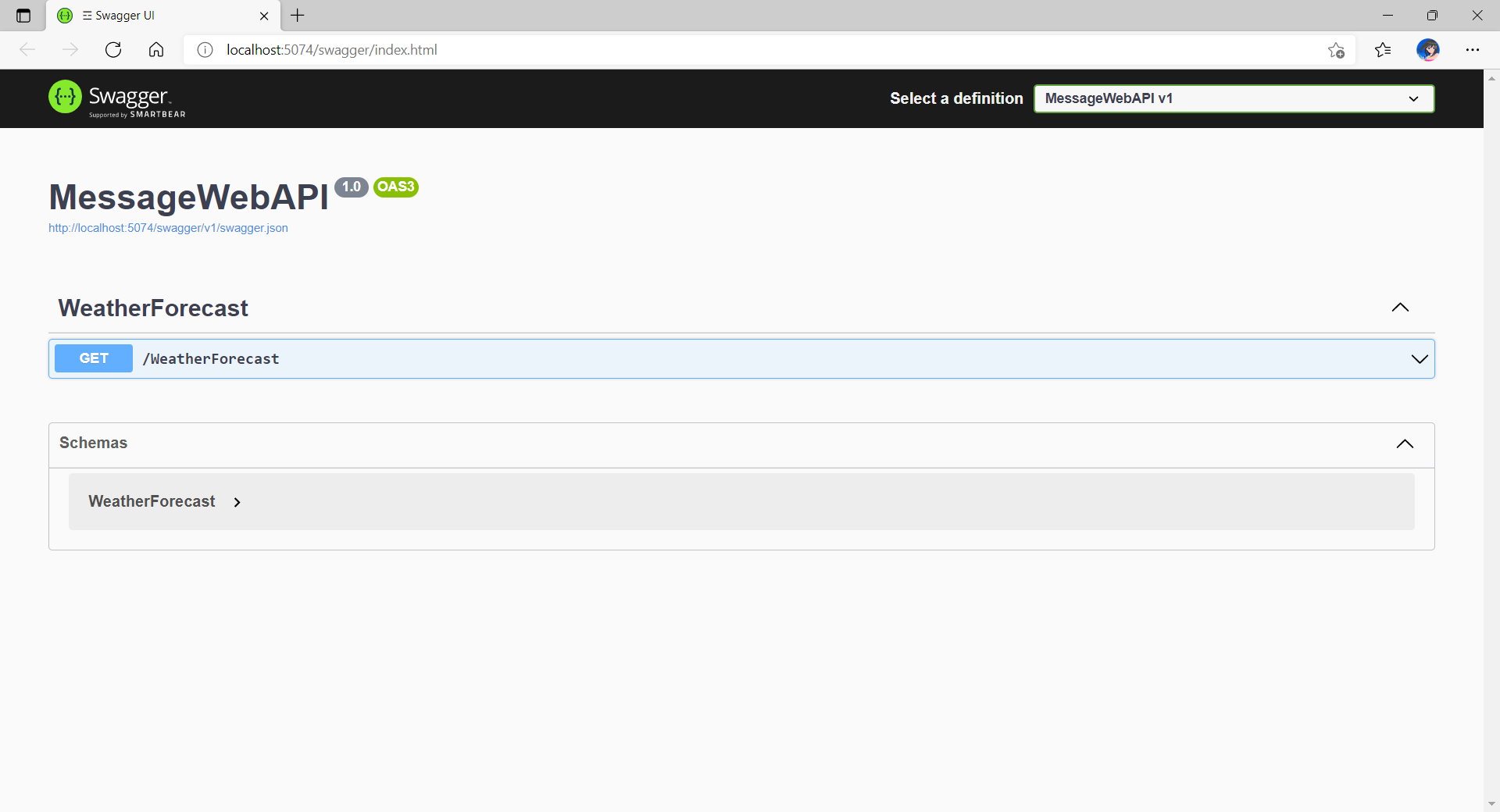
By default, the web API project will have a simple GET method available, as shown in the Swagger UI below.

Default web API project created in Visual Studio will have this WeatherForecast API method available by default.

Now, we can make use of this method as a starting point. Let’s have the our client, WebFrontEnd, to call the API and output the result returned by the API to the web page.

var request = new System.Net.Http.HttpRequestMessage();
request.RequestUri = new Uri("http://messagewebapi/WeatherForecast");

var response = await client.SendAsync(request);

string output = await response.Content.ReadAsStringAsync();

In both projects, we will add Container Orchestrator Support with Linux as the target OS. Once we have the docker-compose YAML file ready, we can directly run our docker compose application by simply pressing F5 in Visual Studio.

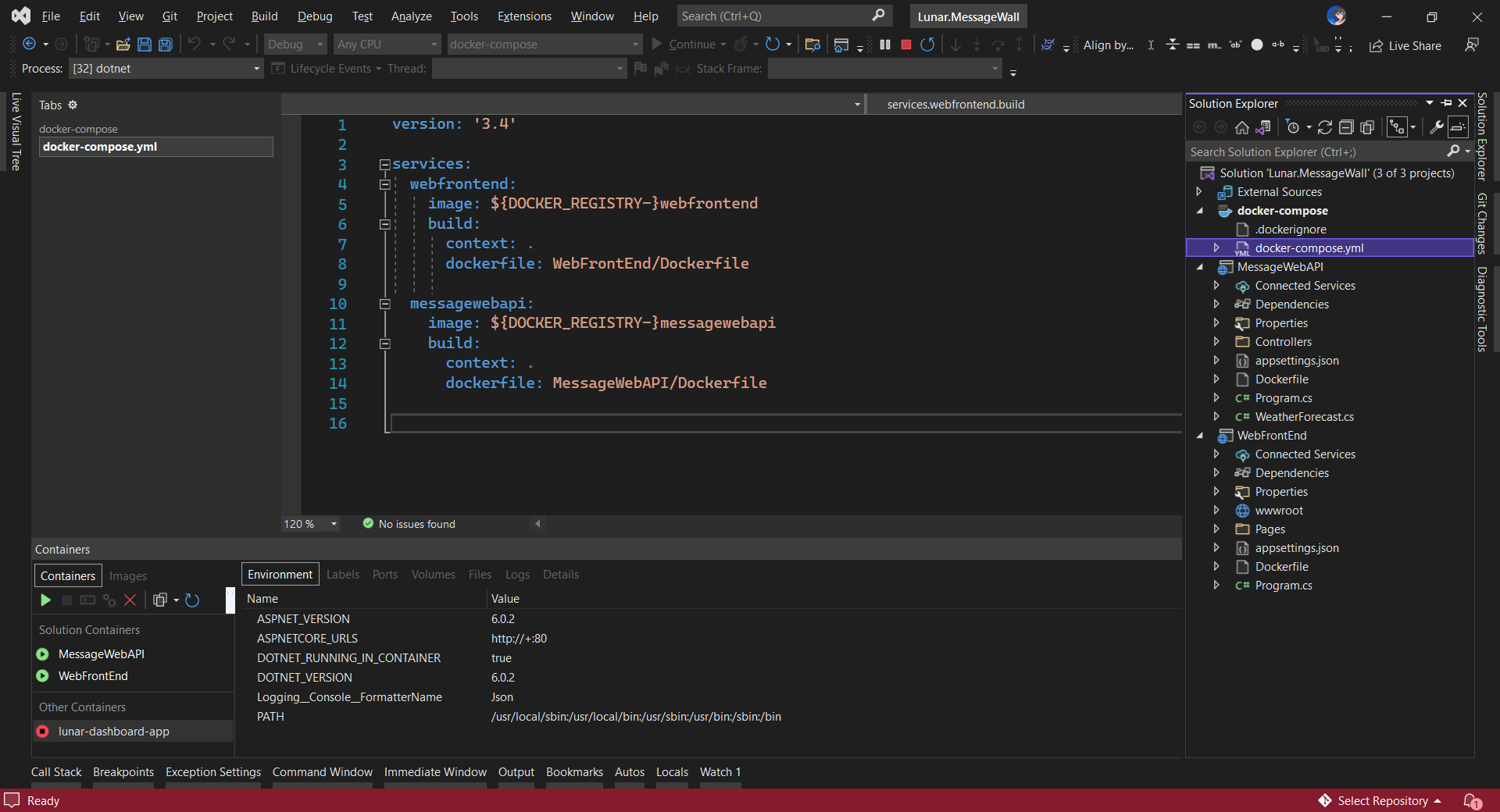
The docker-compose YAML file for our solution.

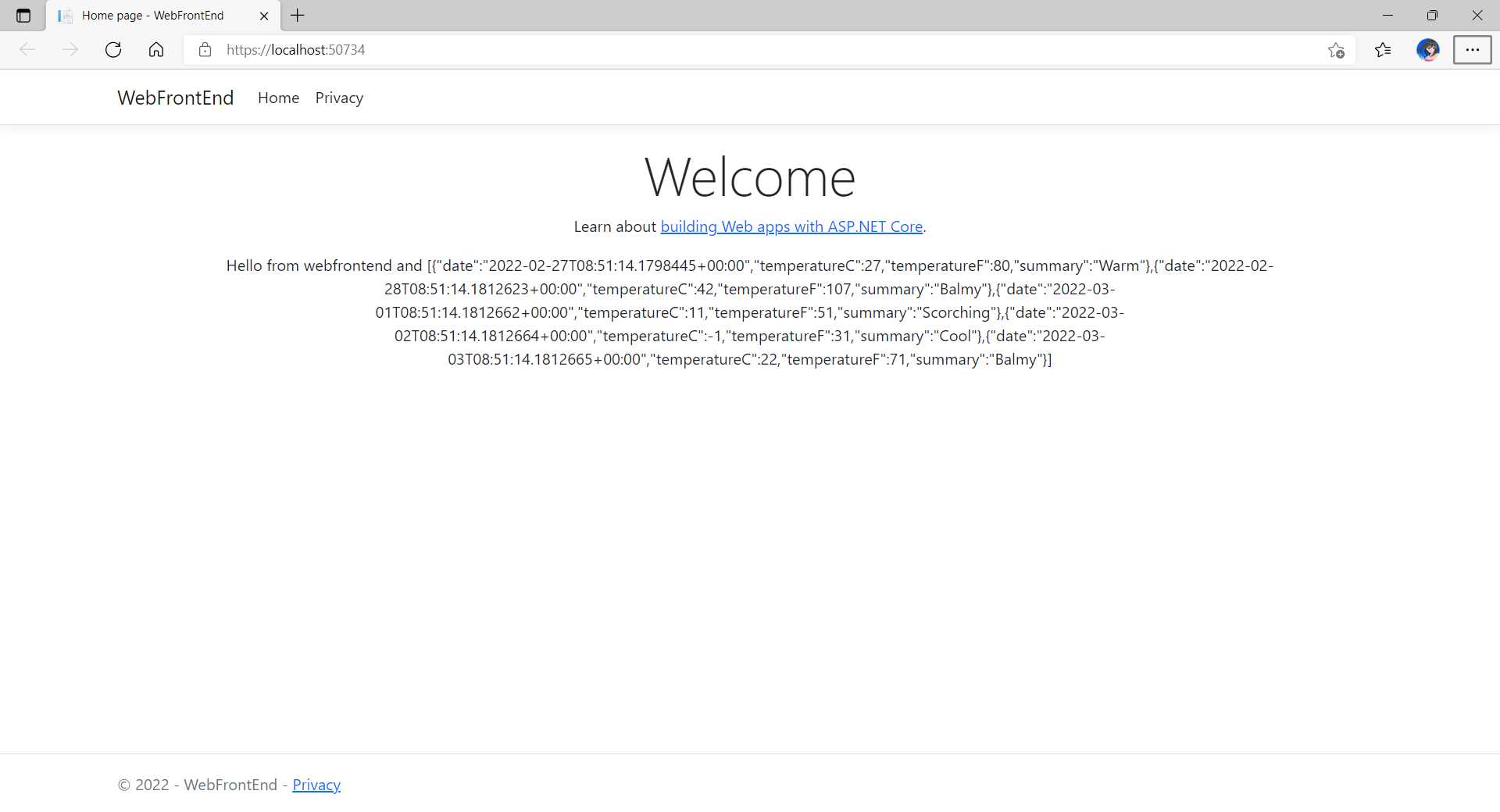
Now, we shall be able to see the website output some random weather data returned by the web API.

Congratulations, we’re running a docker compose application.

Configure Authentication in Web App

Our next step is to allow users to login to our web app first before they can post a message on the app.

It’s usually a good idea not to build our own identity management module because we need to deal with a lot more than just building a form to allow users to create an account and type their credentials. One example will be managing and protecting our user’s personal data and passwords. Instead, we should rely on Identity-as-a-Service solutions such as Azure Active Directory B2C.

Firstly, we will register our web app in our Azure AD B2C tenant.

Normally for first-timers, we will need to create a Azure AD B2C tenant first. However, there may be an error message saying that our subscription is not registered to use namespace ‘Microsoft.AzureActiveDirectory’. If you encounter this issue, you can refer to Adam Storr’s article on how to solve this with Azure CLI.

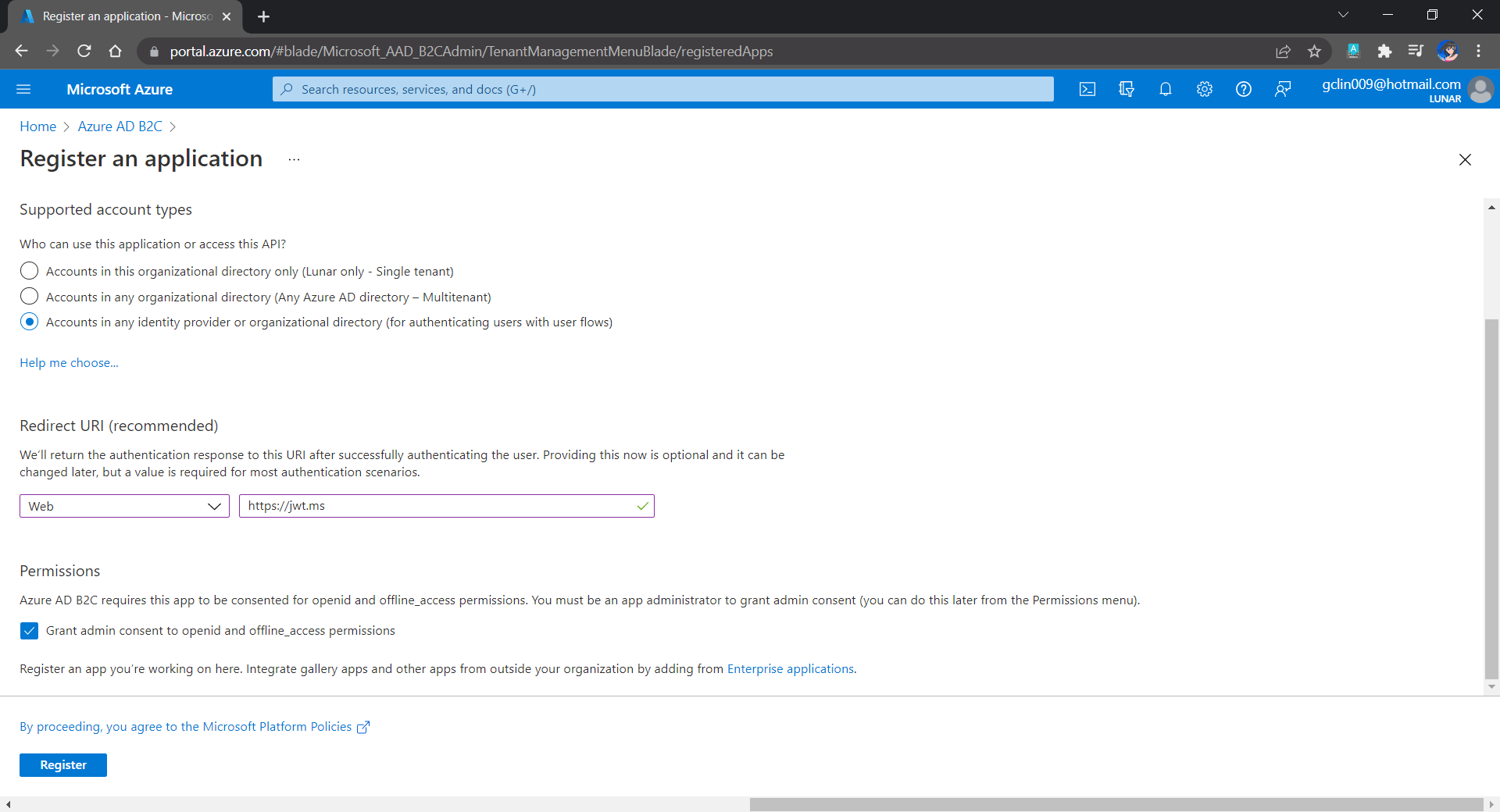
Once we have our Azure AD B2C tenant ready (which is Lunar in my example here), we can proceed to register our web app, as shown below. For testing purposes, we set the Redirect URI to https://jwt.ms, a Microsoft-owned web application that displays the decoded contents of a token. We will update this Redirect URL in the next section below when we link our web app with Azure AD B2C.

Registering a new app “Lunar Message Wall” under the Lunar Tenant.

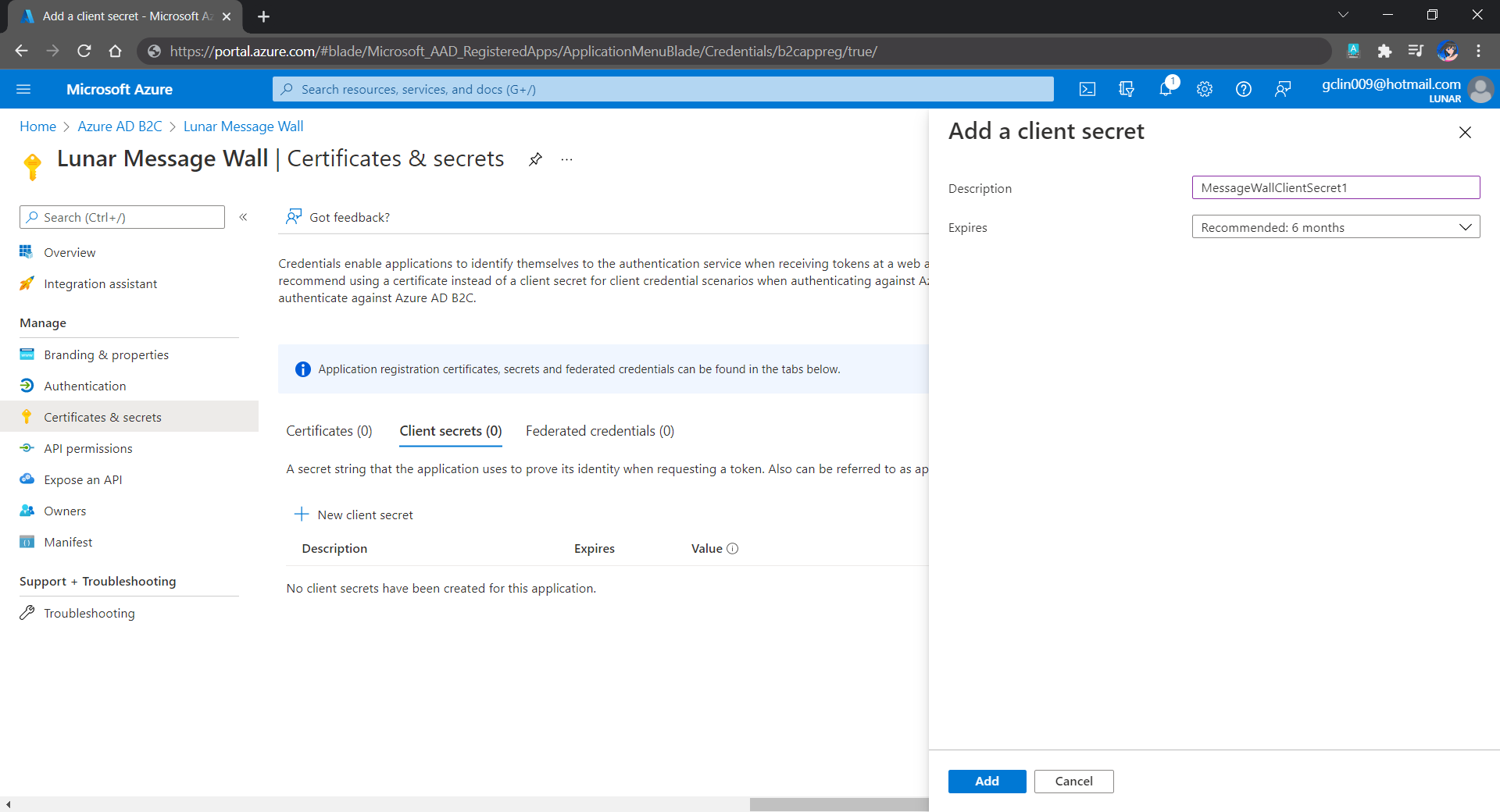
Secondly, once our web app is registered, we need to create a client secret, as shown below, for later use.

Secrets enable our web app to identify itself to the authentication service when receiving tokens. In addition, please take note that although certificate is recommended over client secret, currently certificates cannot be used to authenticate against Azure AD B2C.

Adding a new client secret which will expire after 6 months.

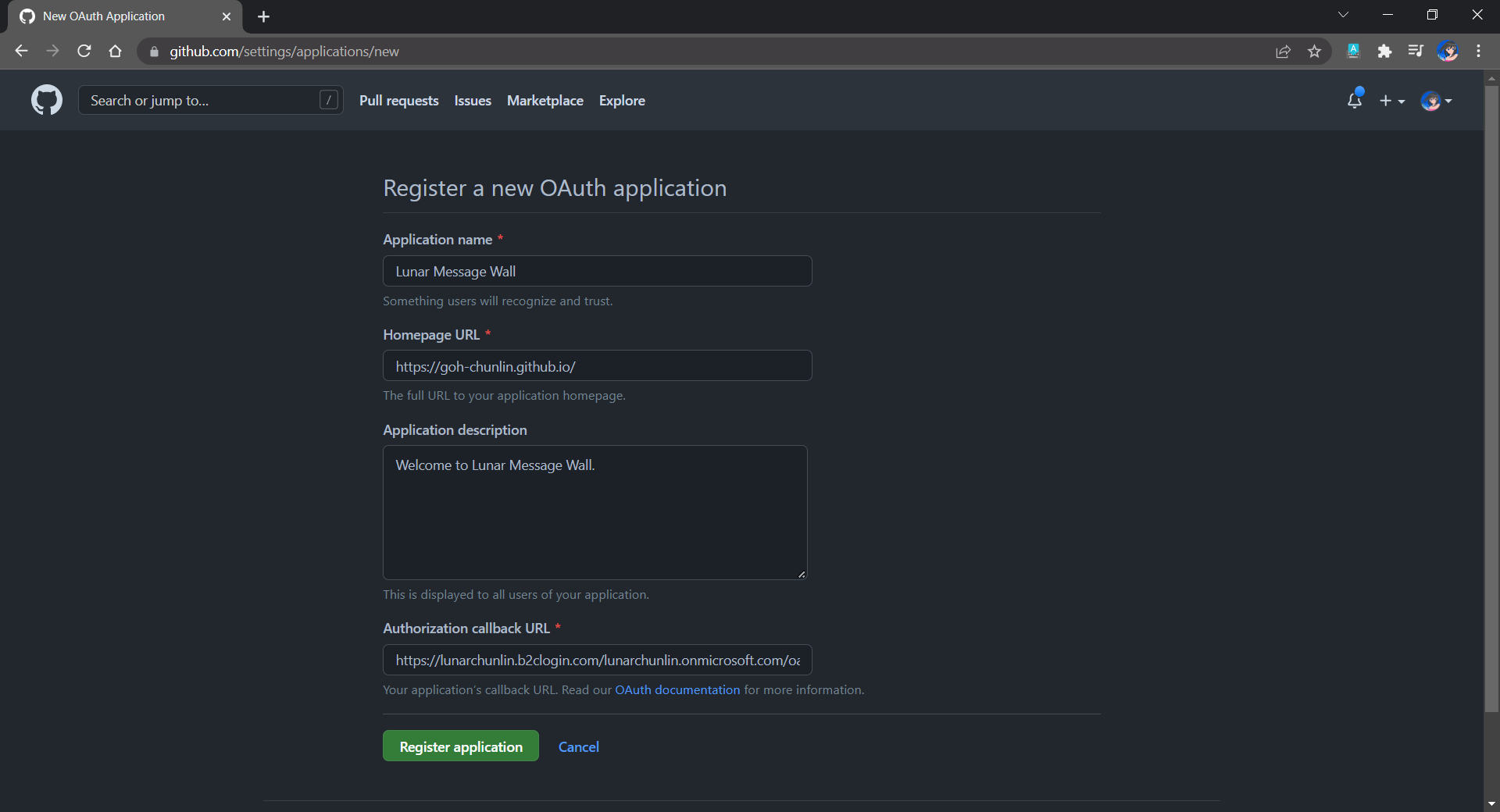
Thirdly, since we want to allow user authentication with GitHub, we need to create a GitHub OAuth app first.

The Homepage URL here is a temporary dummy data.

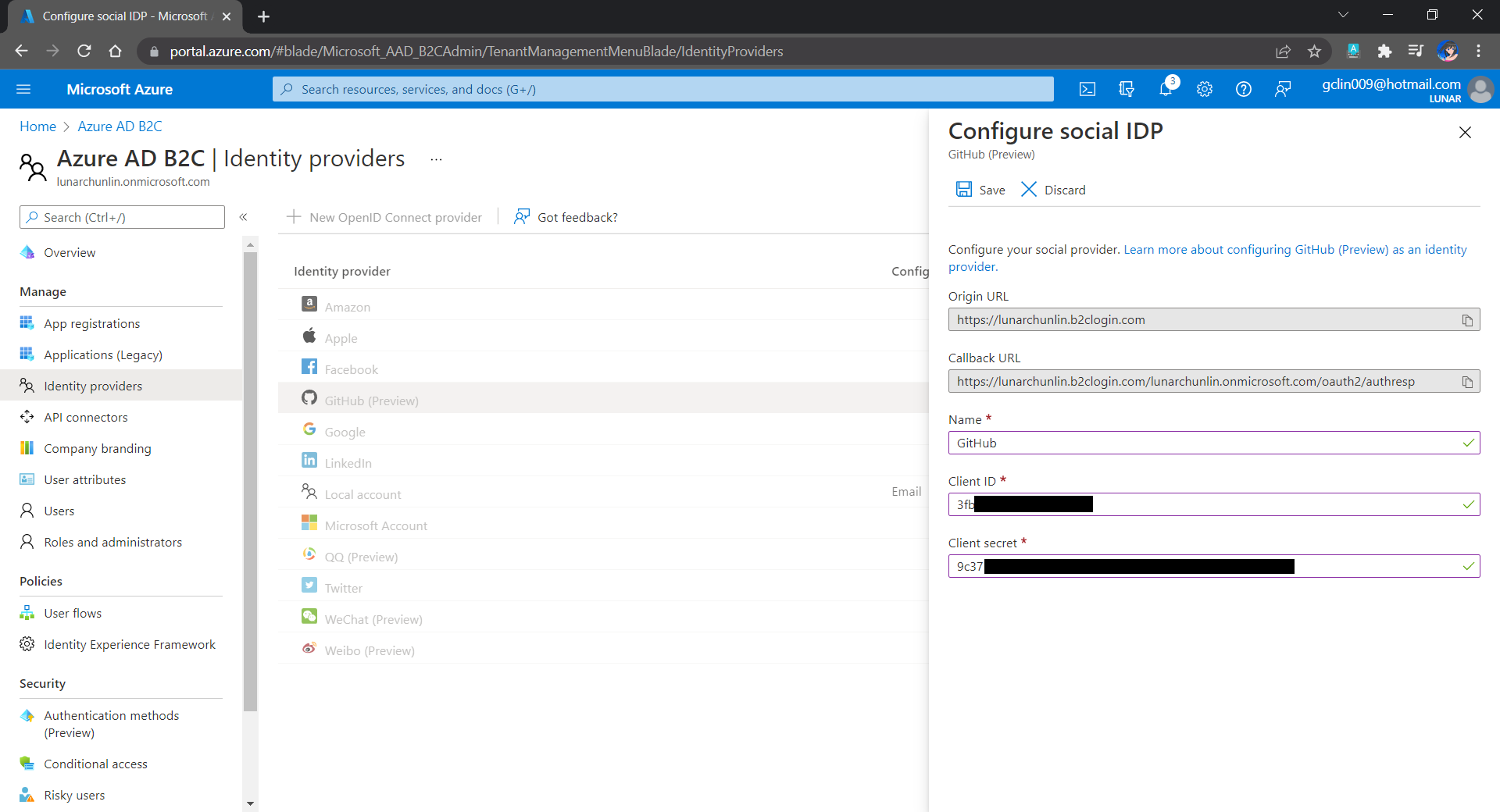
After we have registered the OAuth app on GitHub, we will be provided a client ID and client secret. These two information are needed when we configure GitHub as the social identity provider (IDP) on our Azure AD B2C, as shown below.

Configuring GitHub as an identity provider on Azure AD B2C.

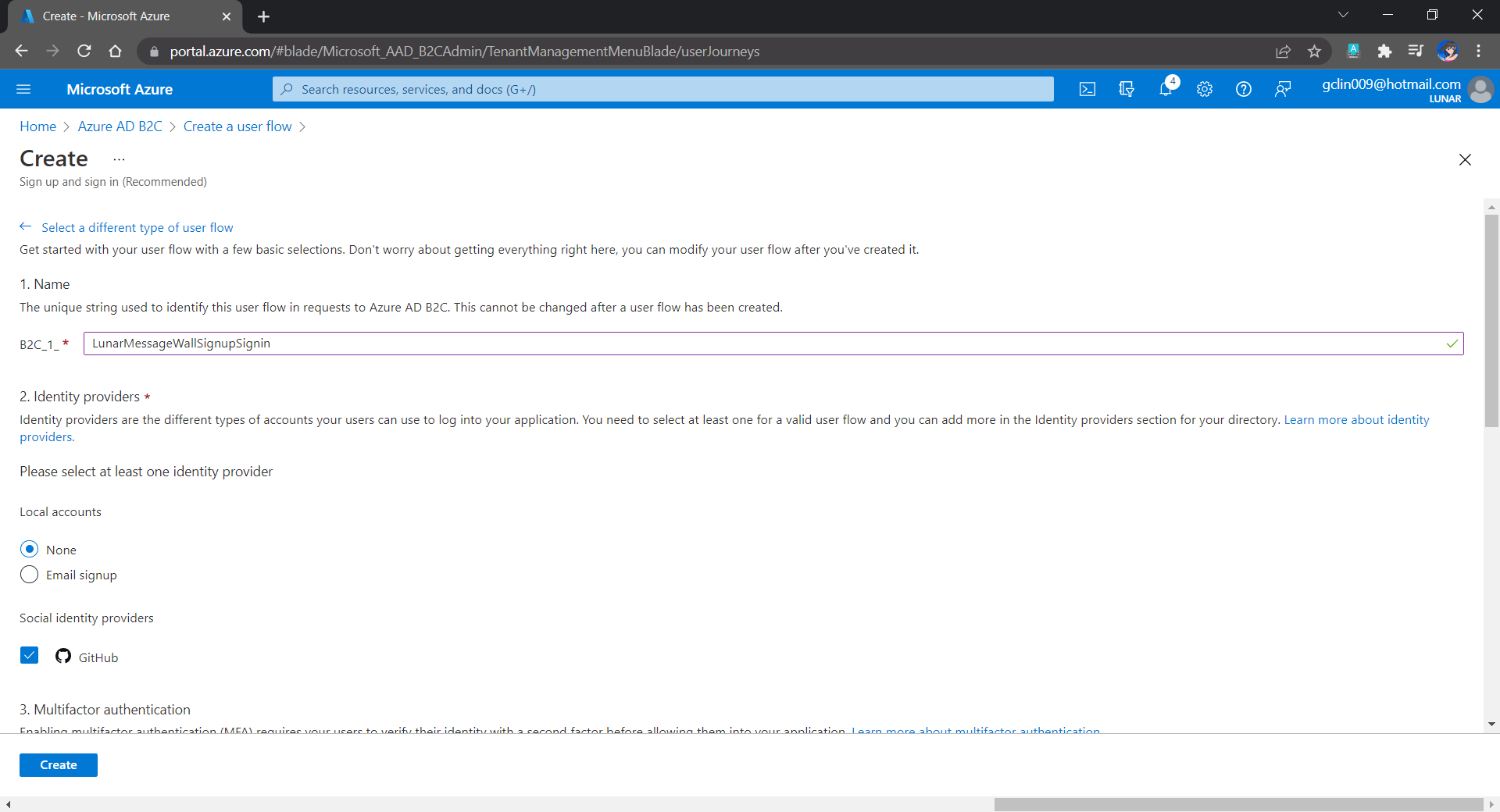
Fourthly, we need to define how users interact with our web app for processes such as sign-up, sign-in, password reset, profile editing, etc. To keep thing simple, here we will be using the predefined user flows.

For simplicity, we allow only GitHub sign-in in our user flow.

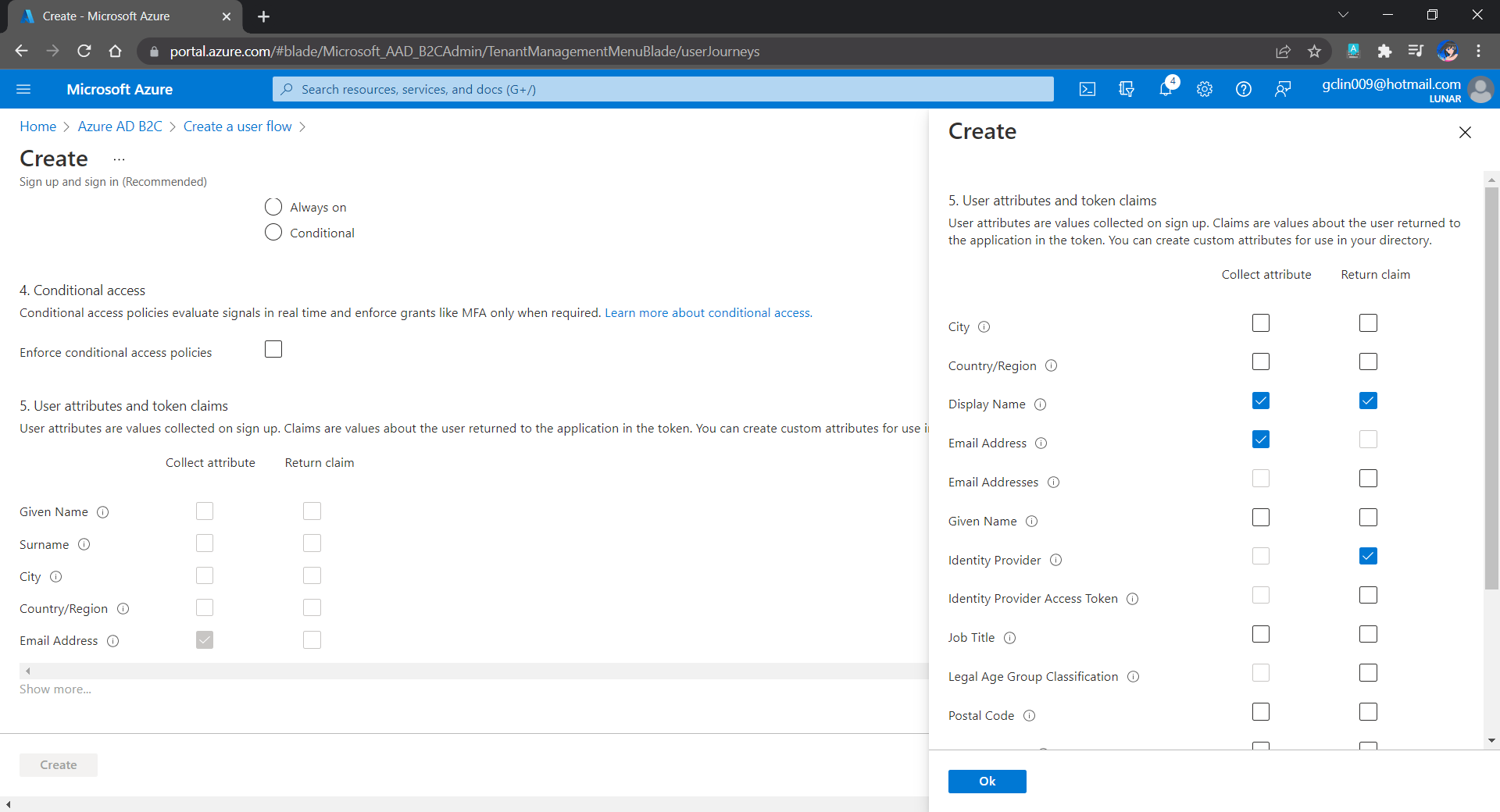
We can also choose the attributes we want to collect from the user during sign-up and the claims we want returned in the token.

User attributes and token claims.

After we have created the user flow, we can proceed to test it.

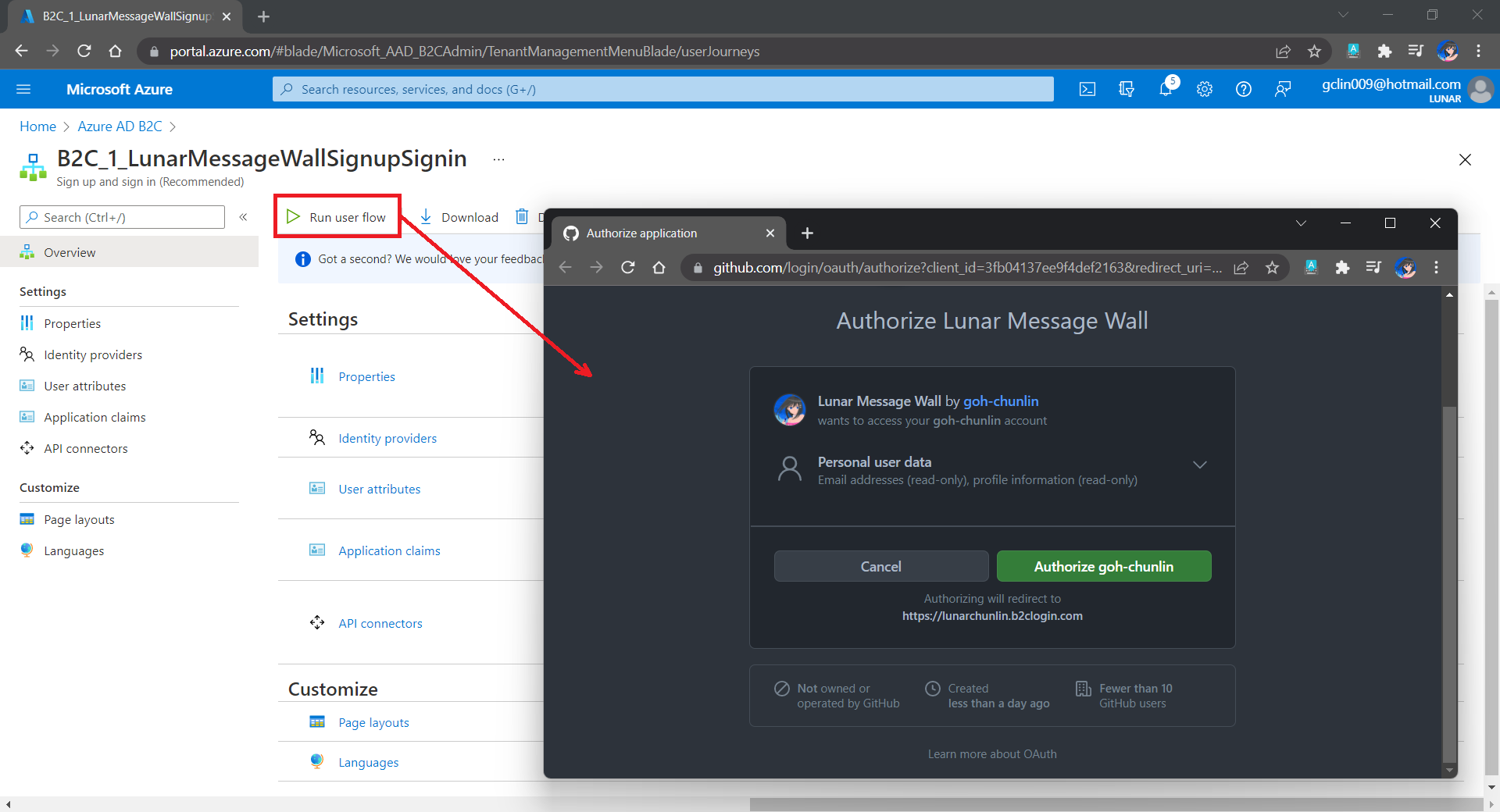
In our example here, GitHub OAuth app will be displayed.

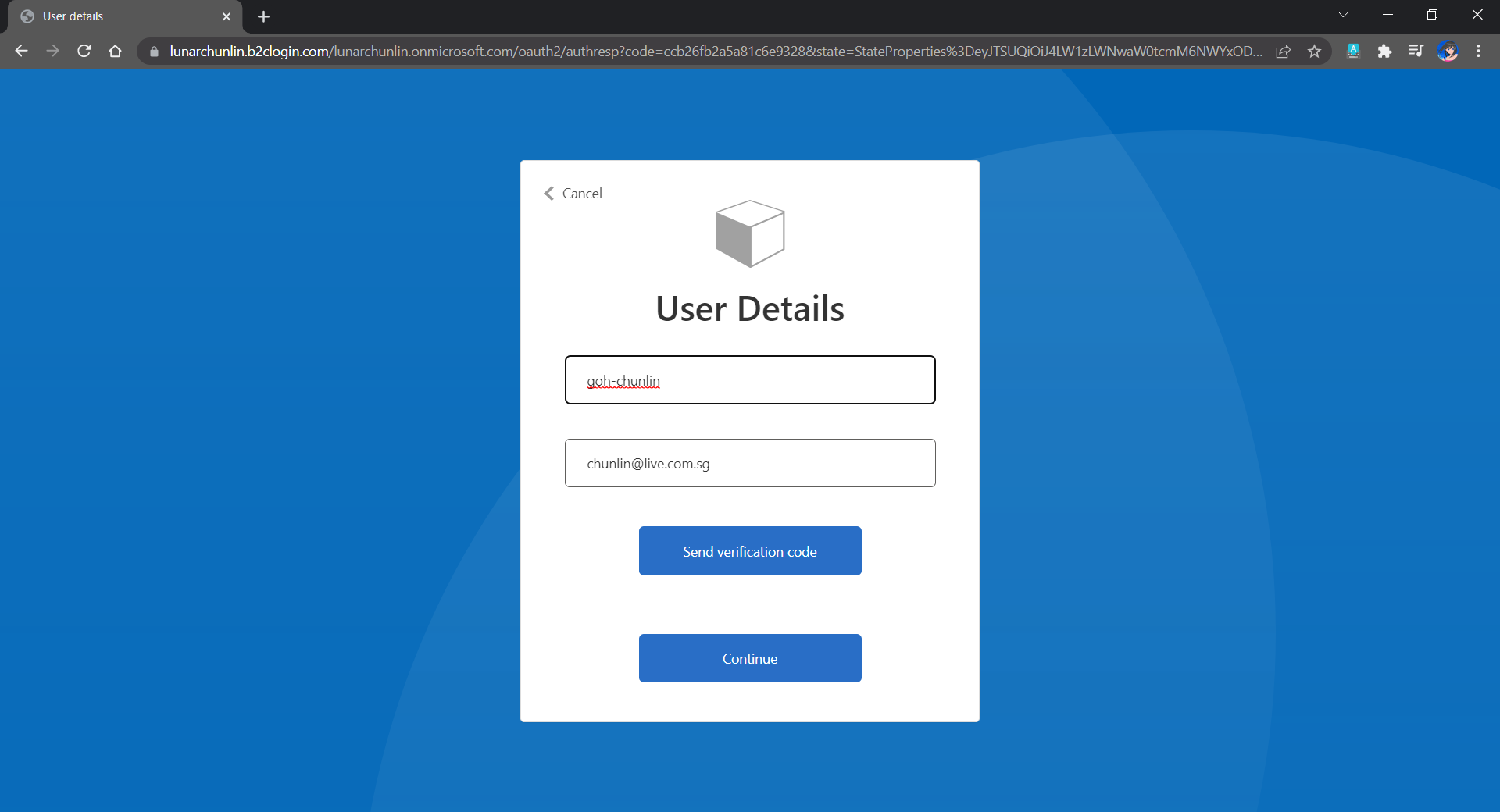
Since we specify in our user flow that we need to collect the user’s GitHub display name, there is a field here for the user to enter the display name.

The testing login page from running the user flow.

Setup the Authentication in Frontend and Web API Projects

Now, we can proceed to add Azure AD B2C authentication to our two ASP.NET Core projects.

We will be using the Microsoft Identity Web library, a set of ASP.NET Core libraries that simplify adding Azure AD B2C authentication and authorization support to our web apps.

dotnet add package Microsoft.Identity.Web

The library configures the authentication pipeline with cookie-based authentication. It takes care of sending and receiving HTTP authentication messages, token validation, claims extraction, etc.

For the frontend project, we will be using the following package to add GUI for the sign-in and an associated controller for web app.

dotnet add package Microsoft.Identity.Web.UI

After this, we need to add the configuration to sign in user with Azure AD B2C in our appsettings.json in both projects (The ClientSecret is not needed for the Web API project).

"AzureAdB2C": {
    "Instance": "https://lunarchunlin.b2clogin.com",
    "ClientId": "...",
    "ClientSecret": "...",
    "Domain": "lunarchunlin.onmicrosoft.com",
    "SignedOutCallbackPath": "/signout/B2C_1_LunarMessageWallSignupSignin",
    "SignUpSignInPolicyId": "B2C_1_LunarMessageWallSignupSignin"
}

We will use the configuration above to add the authentication service in Program.cs of both projects.

With the help of the Microsoft.Identity.Web.UI library, we can also easily build a sign-in button with the following code. Full code of it can be seen at _LoginPartial.cshtml.

<a class="nav-link text-dark" asp-area="MicrosoftIdentity" asp-controller="Account" asp-action="SignIn">Sign in</a>

Now, it is time to update the Redirect URI to the localhost. Thus, we need to make sure our WebFrontEnd container has a permanent host port. To do so, we first specify the ports we want to use in the launchsettings.json of the WebFrontEnd project.

"Docker": {
    ...
    "environmentVariables": {
      "ASPNETCORE_URLS": "https://+:443;http://+:80",
      "ASPNETCORE_HTTPS_PORT": "44360"
    },
    "httpPort": 51803,
    "sslPort": 44360
}

Then in the docker-compose, we will specify the same ports too.

services:
  webfrontend:
    image: ${DOCKER_REGISTRY-}webfrontend
    build:
      context: .
      dockerfile: WebFrontEnd/Dockerfile
    ports:
      - "51803:80"
      - "44360:443"

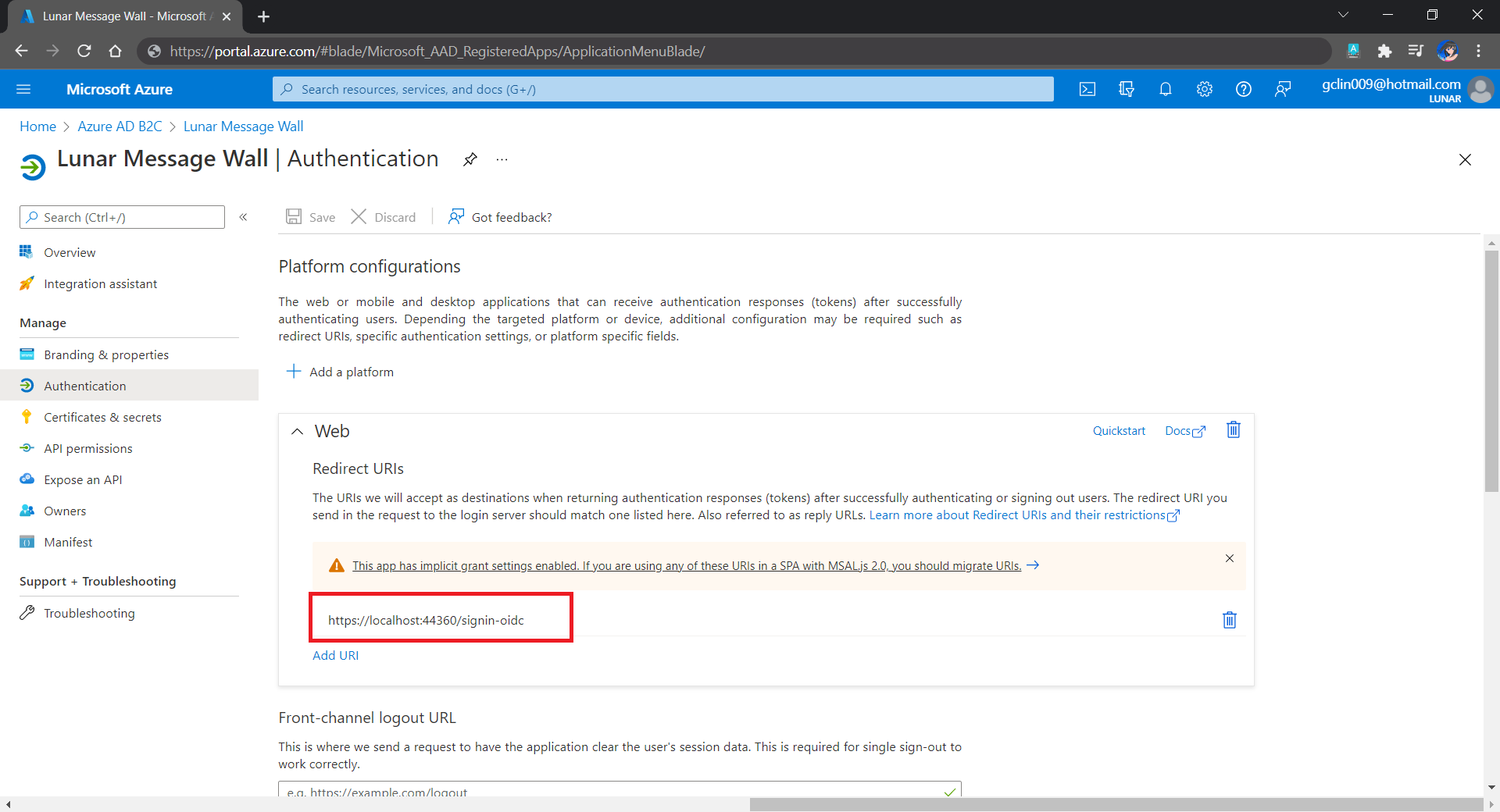
Finally, we will update the Redirect URI in Azure AD B2C according, as shown below.

Updated the Redirect URI to point to our WebFrontEnd container.

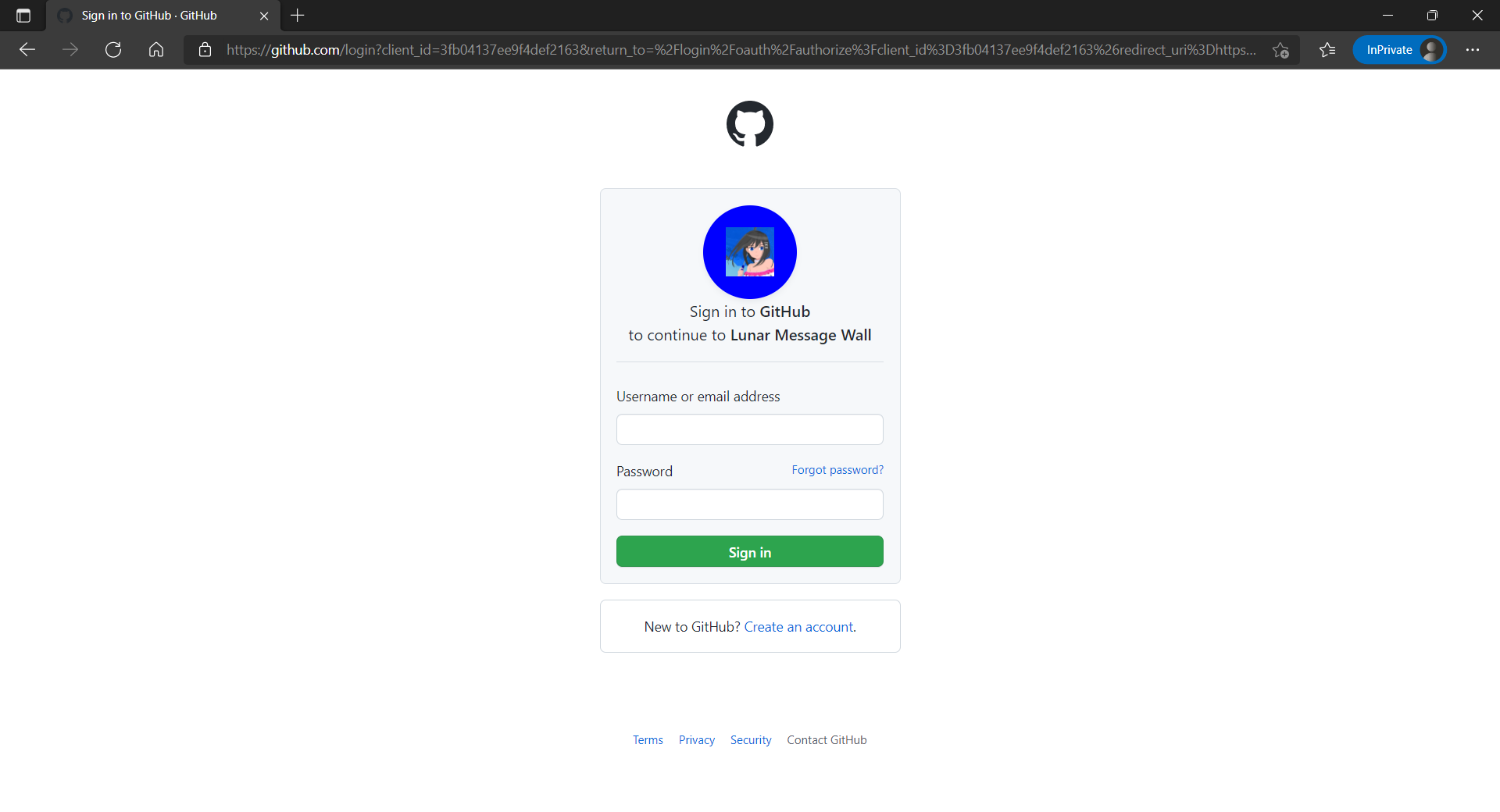
Now, right after we click on the Sign In button on our web app, we will be brought to a GitHub sign-in page, as shown below.

The GitHub sign-in page.

Currently, our Web API has only two methods which have different required scopes declared, as shown below.

[Authorize]
public class UserMessageController : ControllerBase
{
    ...
    [HttpGet]
    [RequiredScope("messages.read")]
    public async Task<IEnumerable<UserMessage>> GetAsync()
    {
        ...
    }

    [HttpPost]
    [RequiredScope("messages.write")]
    public async Task<IEnumerable<UserMessage>> PostAsync(...)
    {
        ...
    }
}

Hence, when the frontend needs to send the GET request to retrieve messages, we will first need to get a valid access token with the correct scope.

string accessToken = await _tokenAcquisition.GetAccessTokenForUserAsync(new[] { "https://lunarchunlin.onmicrosoft.com/message-api/messages.read" });

client.DefaultRequestHeaders.Authorization = new AuthenticationHeaderValue("Bearer", accessToken);

client.DefaultRequestHeaders.Accept.Add(new MediaTypeWithQualityHeaderValue("application/json"));

Database

Since we need to store the messages submitted by the users, we will need a database. Here, we use PostgresSQL, an open-source, standards-compliant, and object-relational database.

To run the PostgresSQL with docker-compose we will update our docker-compose.yml file with the following contents.

services:
  ...
  messagewebapi:
    ...
    depends_on:
     - db

  db:
    container_name: 'postgres'
    image: postgres
    environment:
      POSTGRES_PASSWORD: ...

In our case, only the Web API will interact with the database. Hence, we need to make sure that the db service is started before the messagewebapi. In order to specify this relationship, we will use the depends_on option.

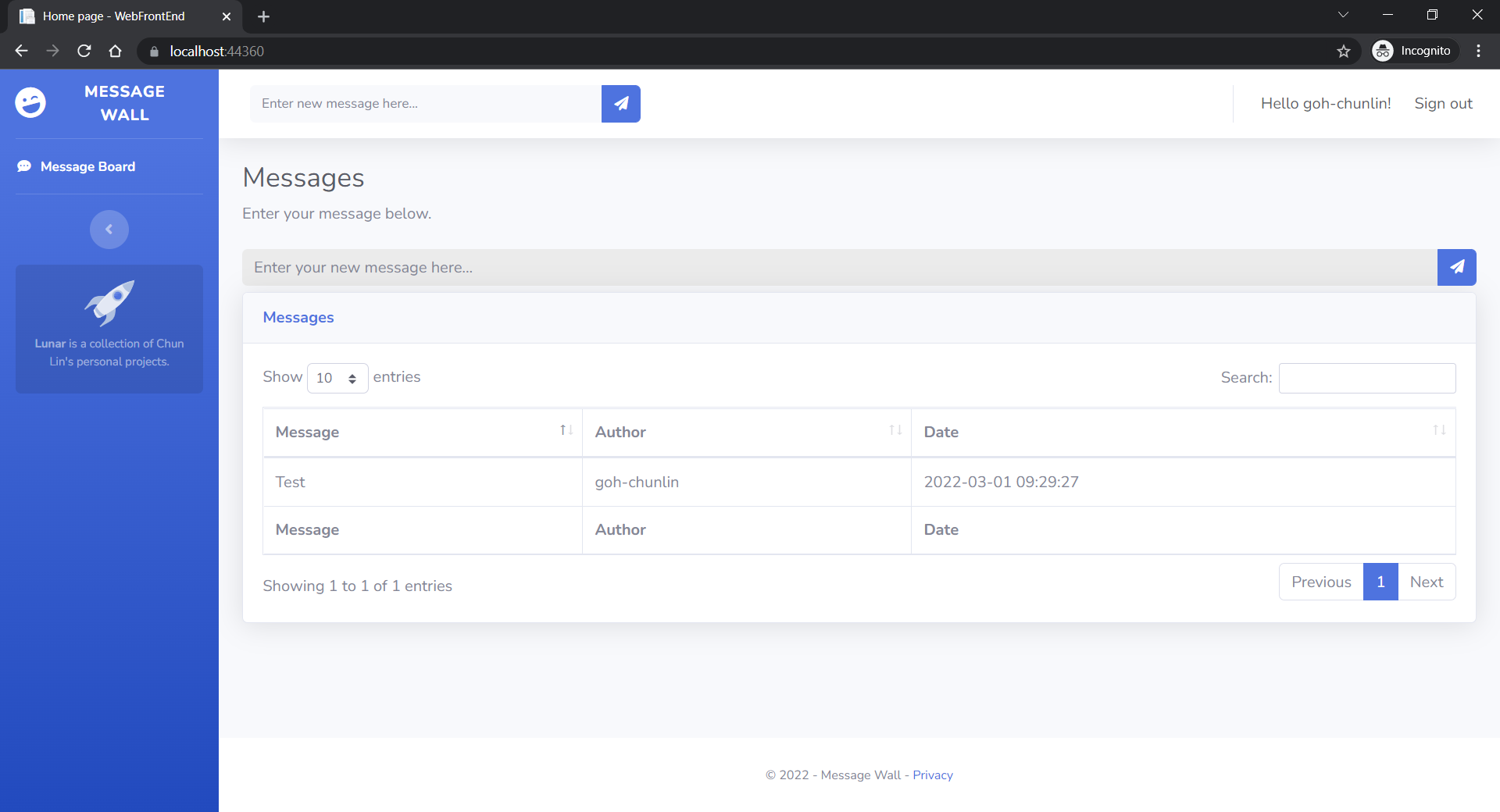
User’s messages can now be stored and listed on the web page.

Next Step

This is just the very beginning of my learning journey of dockerising ASP .NET Core solution. In the future, I shall learn more in this area.

References