[KOSD Series] Ready ML Tutorial One

kosd-azure-machine-learning.png

During the Labour Day holiday, I had a great evening chat with Marvin, my friend who had researched a lot about Artificial Intelligence and Machine Learning (ML). He guided me through steps setting up a simple ML experiment. Hence, I decided to note down what I had learned on that day.

The tool that we’re using is Azure Machine Learning Studio. What I had learned from Marvin is basically creating a ML experiment through drag-and-dropping modules and connecting them together. It may sound simple but for a beginner like me, it is still important to understand some key concepts and steps before continuing further in the ML field.

Azure ML Studio

Azure ML Studio is a tool for us to build, test, and deploy predictive analytics on our data. There is a detailed diagram about the capability of the tool, which can be downloaded here.

ml_studio_overview_v1.1.png
Capability of Azure ML Studio (Credits: Microsoft Azure Docs)

Step 0: Defining Problem

Before we began, we need to understand why we are using ML for?

Here, I’m helping a watermelon stall to predict how many watermelon they can sell this year based on last year sales data.

Step 1: Preparing Data

As shown in the diagram above, the first step is to import the data into the experiment. So, before we can even start, we need to make sure that we have at least a handful of data points.

data.png
Daily sales of the watermelon stall and the weather of the day.

Step 2: Importing Data to ML Studio

With the data points we now have, we then can import them to ML Studio as a Dataset.

datasets.png
Datasets available in Azure ML Studio.

Step 3: Preprocessing Data

Firstly, we need to perform a cleaning operation so that missing data can be handled properly without affecting our results later.

Secondly, we need to “Select Columns in Dataset” so that only selected columns will be used in the subsequent operations.

Step 4: Splitting Data

This step is to help us to separate data into training and testing sets.

Step 5: Choosing Learning Algorithm

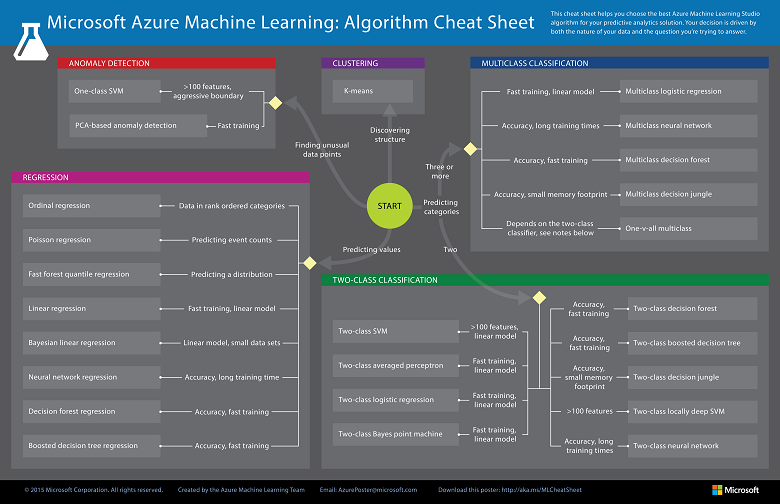
Since we are now using the model to predict number of watermelons the stall can sell, which is a number, we’ll use Linear Regression algorithm, as recommended. There is a cheat sheet from Microsoft telling us which algorithm we need to choose based on different scenarios. You can also download it here.
machine-learning-algorithm-cheat-sheet-small_v_0_6-01.png
Learning algorithm cheat sheet. (Image Credits: Microsoft Docs)

Step 6: Partitioning and Sampling

Sampling is an important tool in machine learning because it reduces the size of a dataset while maintaining the same ratio of values. If we have a lot of data, we might want to use only the first n rows while setting up the experiment, and then switch to using the full dataset when you build our model.

Step 7: Training

After choosing the learning algorithm, it’s time for us to train the data.

Since we are going to predict the number of watermelons sold, we will select the column, as shown in the following screenshot.

train.png
Select the one column that we need to predict in Train Model module.

Step 8: Scoring

Do you still remember that we split our data into two sets in Step 4 above? Now, we need to connect output from Split Data module and output from Train Data module to the Score module as inputs. Doing this step is to score prediction for our regression model.

Step 9: Evaluating

We finally have to generate scores over our training data, and evaluate the model based on the scores.

Step 10: Deploying

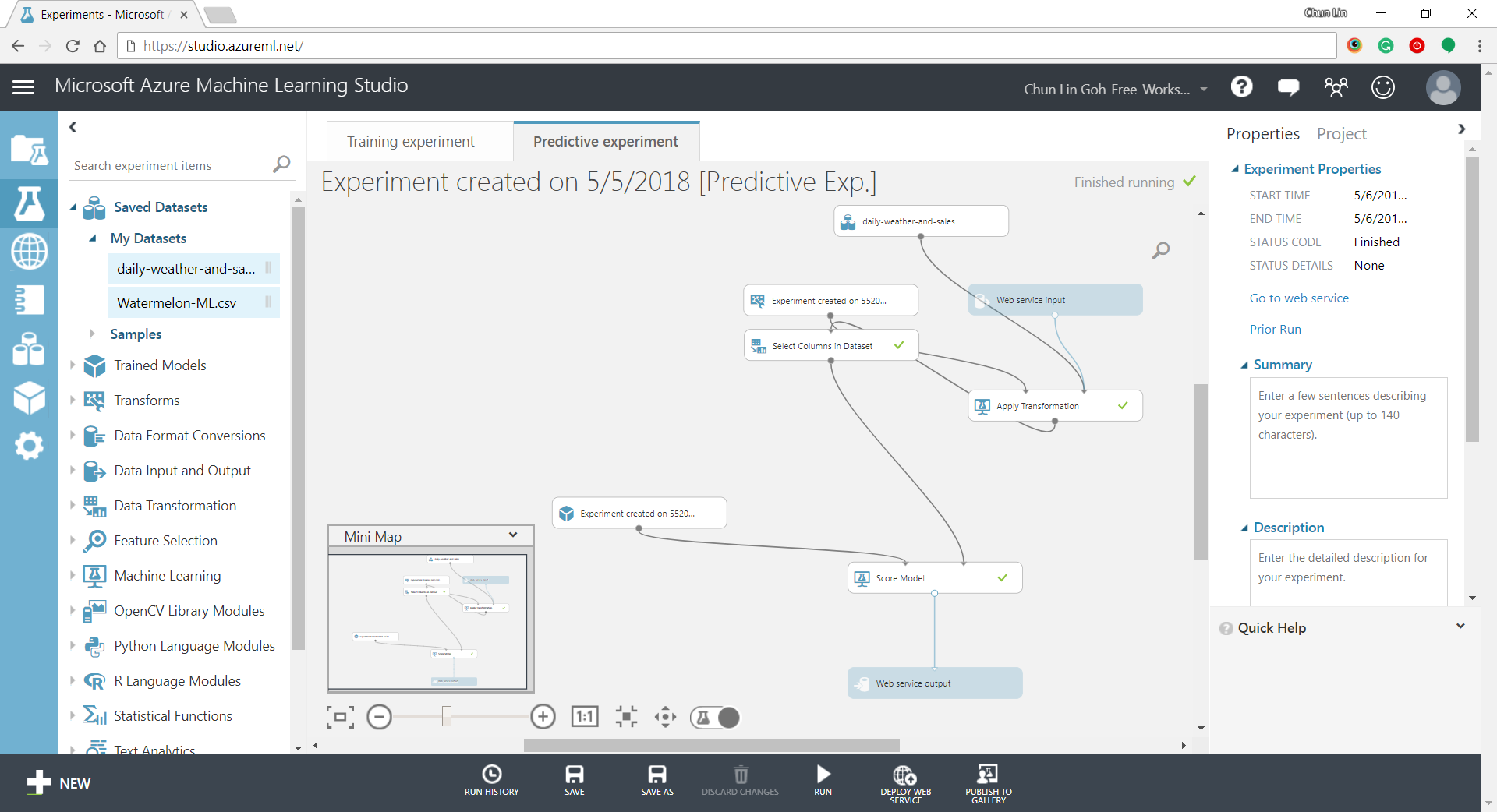
Now that we’ve completed the experiment set up, we can deploy it as a predictive web service.
predictive-experiment.png
Generated predictive experiment.

With that deployed, we then can easily predict how many watermelons can be sold on a future date, as shown in the screenshot below.

testing.png
Yes, we can sell 25 watermelons on 7th May if the temperature is 32 degrees!

Conclusion


This is just the very beginning of setting up a ML experiment on Azure ML Studio. I am still very new to this AI and ML stuff. If you spot any problem in my notes above, please let me know. Thanks in advance!

References:


KOSD, or Kopi-O Siew Dai, is a type of Singapore coffee that I enjoy. It is basically a cup of coffee with a little bit of sugar. This series is meant to blog about technical knowledge that I gained while having a small cup of Kopi-O Siew Dai.

[KOSD Series] Read-only Users for Azure SQL Databases

kosd-azure-sql-ms-sql-server-management-studio.png

It’s quite common that Business Analyst will always ask for the permission to access the databases of our systems to do data analysis. However, most of the time we will only give them read-only access. With on-premise MS SQL Server and SQL Management Studio, it is quite easily done. However, how about for those databases hosted on Azure SQL?

Login as Server Admin

To make things simple, we will first login to the Azure SQL Server as Server admin on SQL Management Studio. The Server Admin name can be found easily on Azure Portal, as shown in the screenshot below. Its password will be the password we use when we create the SQL Server.

sql-server-admin.png
Identifying the Server Admin of an Azure SQL Server. (Source: Microsoft Azure Docs)

Create New Login

By default, the master database will be the default database in Azure SQL Server. So, once we have logged in, we simply create the read-only login using the following command.

CREATE LOGIN <new-login-id-here>
    WITH PASSWORD = '<password-for-the-new-login>' 
GO

Alternatively, we can also right-click on the “Logins” folder under “Security” then choose “New Login…”, as shown in the screenshot below. The same CREATE LOGIN command will be displayed.

new-login.png
Adding new login to the Azure SQL Server.

Create User

After the new login is created, we need to create a new user which is associated with it. The user needs to be created and granted read-only permission in each of the databases that the new login is allowed to access.

Firstly, we need to expand the “Databases” in the Object Explorer and then look for the databases that we would like to grant the new login the access to. After that, we right-click on the database and then choose “New Query”. This shall open up a new blank query window, as shown in the screenshot below.

new-query-to-create-user.png
Opening new query window for one of our databases.

Then we simply need to run the following query for the selected database in the query window.

CREATE USER <new-user-name-here> FROM LOGIN <new-login-id-here>;

Please remember to run this for the master database too. Otherwise we will not be able to login via SQL Management Studio at all with the new login because the master database is the default database.

Grant Read-only Permission

Now for this new user in the database, we need to give it a read-only permission. This can be done with the following command.

EXEC sp_addrolemember 'db_datareader', '<new-user-name-here>';

Conclusion

Repeat the two steps above for the remaining databases that we want the new login to have access to. Finally we will have a new login that can read from only selective databases on Azure SQL Server.

References


KOSD, or Kopi-O Siew Dai, is a type of Singapore coffee that I enjoy. It is basically a cup of coffee with a little bit of sugar. This series is meant to blog about technical knowledge that I gained while having a small cup of Kopi-O Siew Dai.

[KOSD Series] IP Addresses of Our Azure App Services that need to be Whitelisted by Our API Providers

KOSD, or Kopi-O Siew Dai, is a type of Singapore coffee that I enjoy. It is basically a cup of coffee with a little bit of sugar. This series is meant to blog about technical knowledge that I gained while having a small cup of Kopi-O Siew Dai.

kosd-azure_web_app-powershell

It is a common scenario for developers to integrate with different parties by using their APIs. Most of the time, the APIs are located in a locked-down network environment where only whitelisted IP addresses are allowed to access their APIs. We will then be asked to give the API providers the IP addresses of our servers.

If it’s our web back-end calling the APIs and we host our web applications on Microsoft Azure App Services, then how could we get the IP addresses?

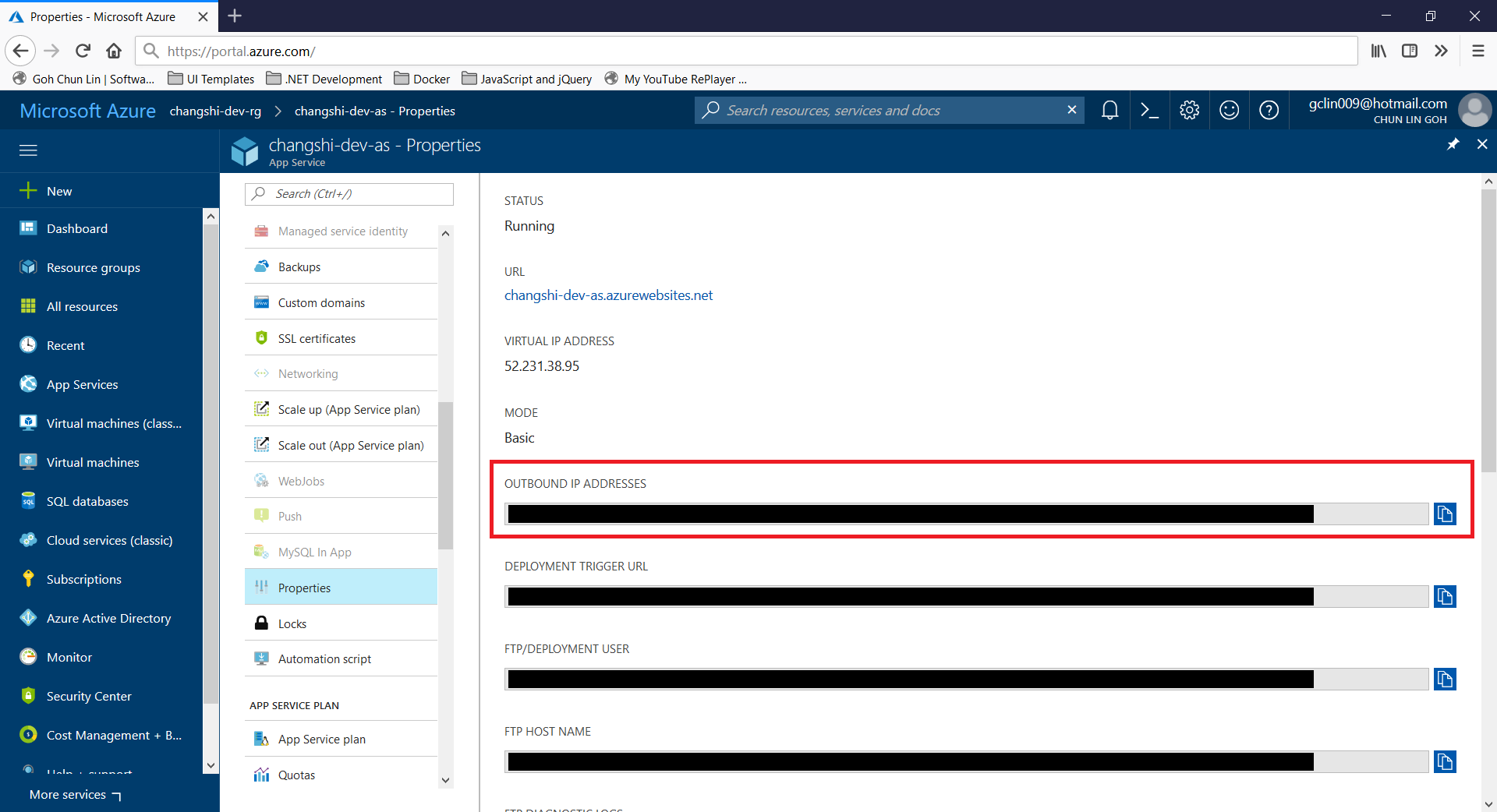
As mentioned in a discussion about inbound IP address by Benjamin Perkins, the Escalation Engineer on the Azure team, there are about 4 outgoing IP addresses for an Azure Web Apps normally. To retrieve the outbound IP addresses of an Azure web app, we simply need to get it from the Properties of the web app on Azure Portal.

outbound-ip-addresses-in-azure-app-service.png
Locate the outbound IP addresses here.

We can also get the same result if we use the Azure Resource Explorer which is still in preview now.  Benjamin covered this in a video clip on his article too.

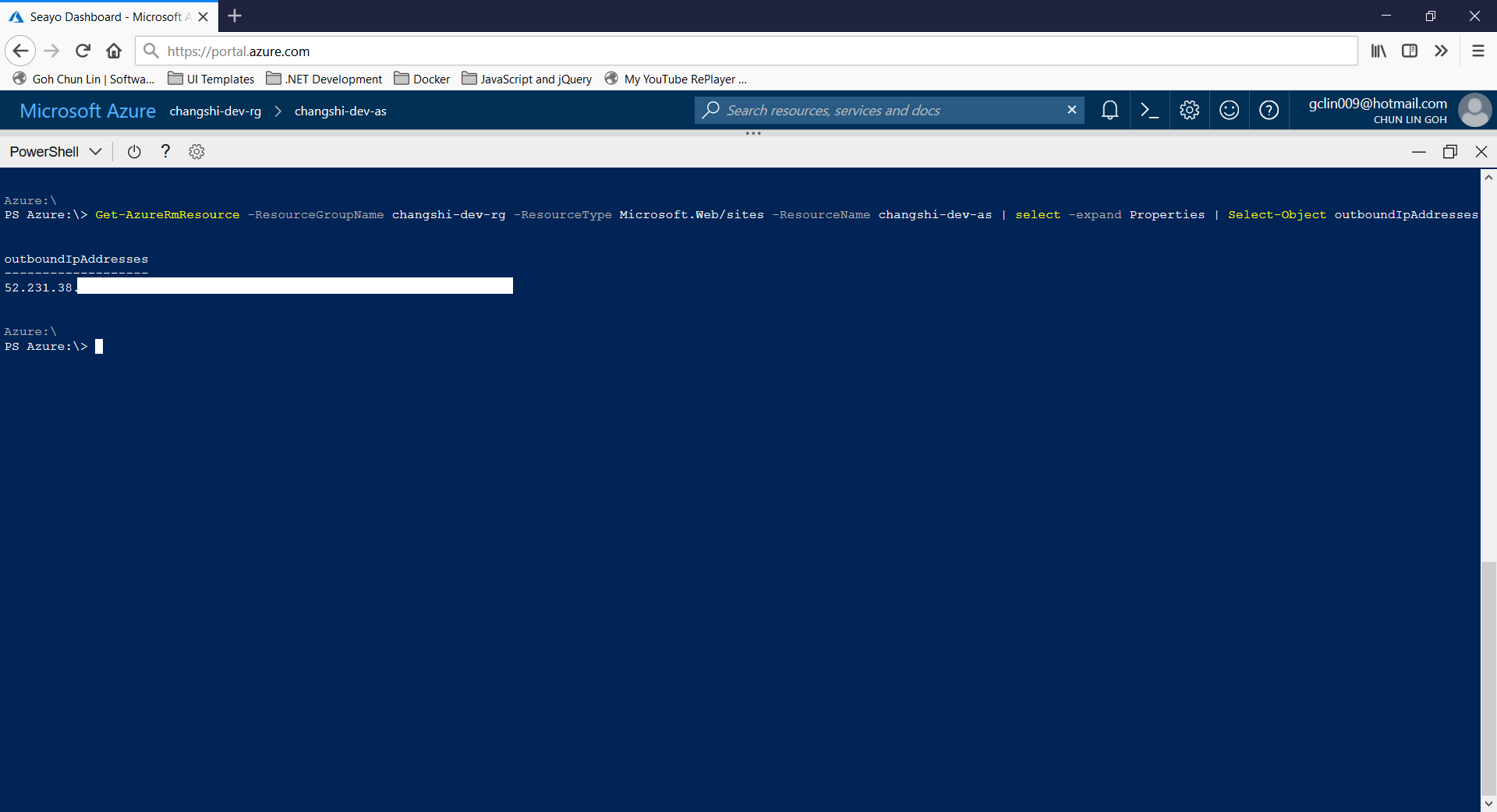
For PowerShell lovers, as pointed out by Adrian Calinescu, one of the commenters on Benjamin’s article, we can use PowerShell to find out the outbound IP addresses too. With the new Azure Cloud Shell, we can simply use the following command to retrieve directly the outbound IP addresses of an Azure web app on Azure Portal directly.

Get-AzureRmResource -ResourceGroupName  -ResourceType Microsoft.Web/sites -ResourceName  | select -expand Properties | Select-Object outboundIpAddresses
outbound-ip-addresses-in-azure-app-service-using-powershell.png
Managing Azure resources using shell directly on a browser.

For those who would like to have your own set of outbound IP addresses, please check out ASE (App Service Environment) which grants users control over inbound and outbound application network traffic.

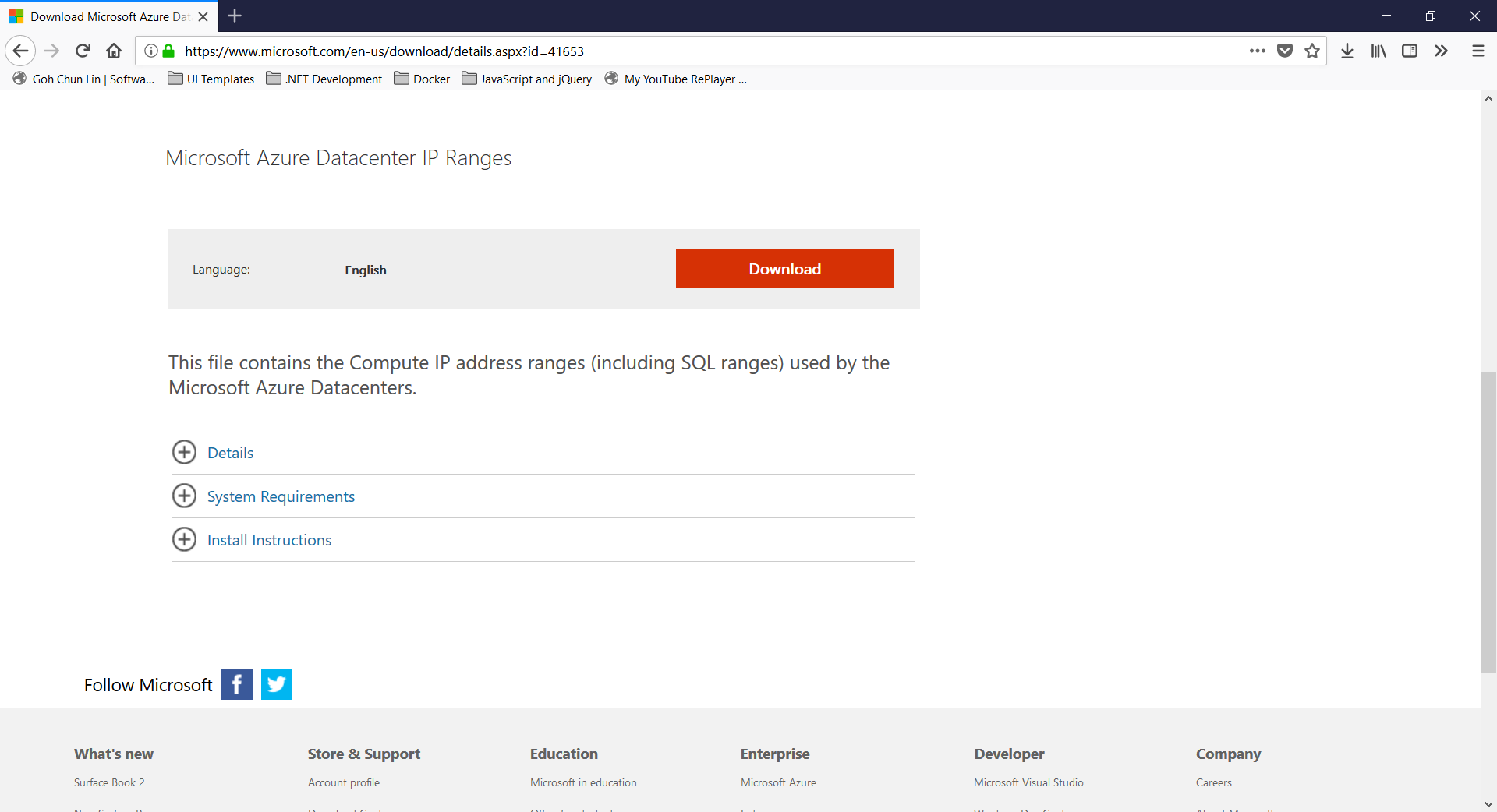
Finally, we can also whitelist all the IP addresses of the Azure datacentres, which can be downloaded here.

azure-datacenter-ip-range-download.png
List of Microsoft Azure Datacentre IP addresses are available on Microsoft website.

References

[KOSD Series] First Attempt of Deploying ASP .NET Core to Azure Container Service

KOSD, or Kopi-O Siew Dai, is a type of Singapore coffee that I enjoy. It is basically a cup of coffee with a little bit of sugar. This series is meant to blog about technical knowledge that I gained while having a small cup of Kopi-O Siew Dai.

kosd-docker-azure_container_registry-vsts

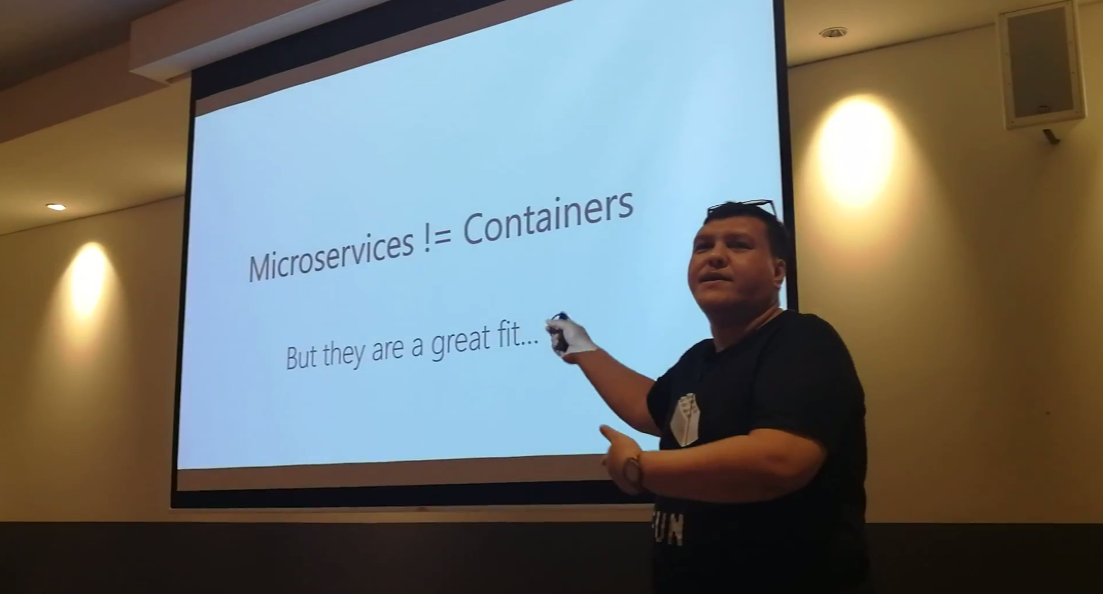
Last month, after sharing the concepts and use cases of Domain Driven Development, Riza moved on to talk about Containers in the sharing session of Singapore .NET Developers Community.

microservices-not-equal-to-containers.png
Riza’s talking about Containers. Yes, microservices are not containers!

Learning Motivation

In the beginning of Riza’s talk, he mentioned GO-JEK, an Indonesia ride-hailing phone service. Due to their rapid growth, the traditional monolithic architecture can no longer support their business. Hence, they switched to use a modern approach which includes moving apps to containers.

go-jek-containers.png
Go-Jek team is working on moving apps to container.

Hence, after the meetup, I was very excited to find out more about micro-services and Docker containers. With the ability of .NET Core to be cross-platform, as a Azure lover, I am interested to find out more how I can deploy ASP .NET Core web app to a container in Azure. So, I decided to write this short article to share with my teammates about this that they can learn while drinking a cup of coffee.

Creating New Project with Docker Support

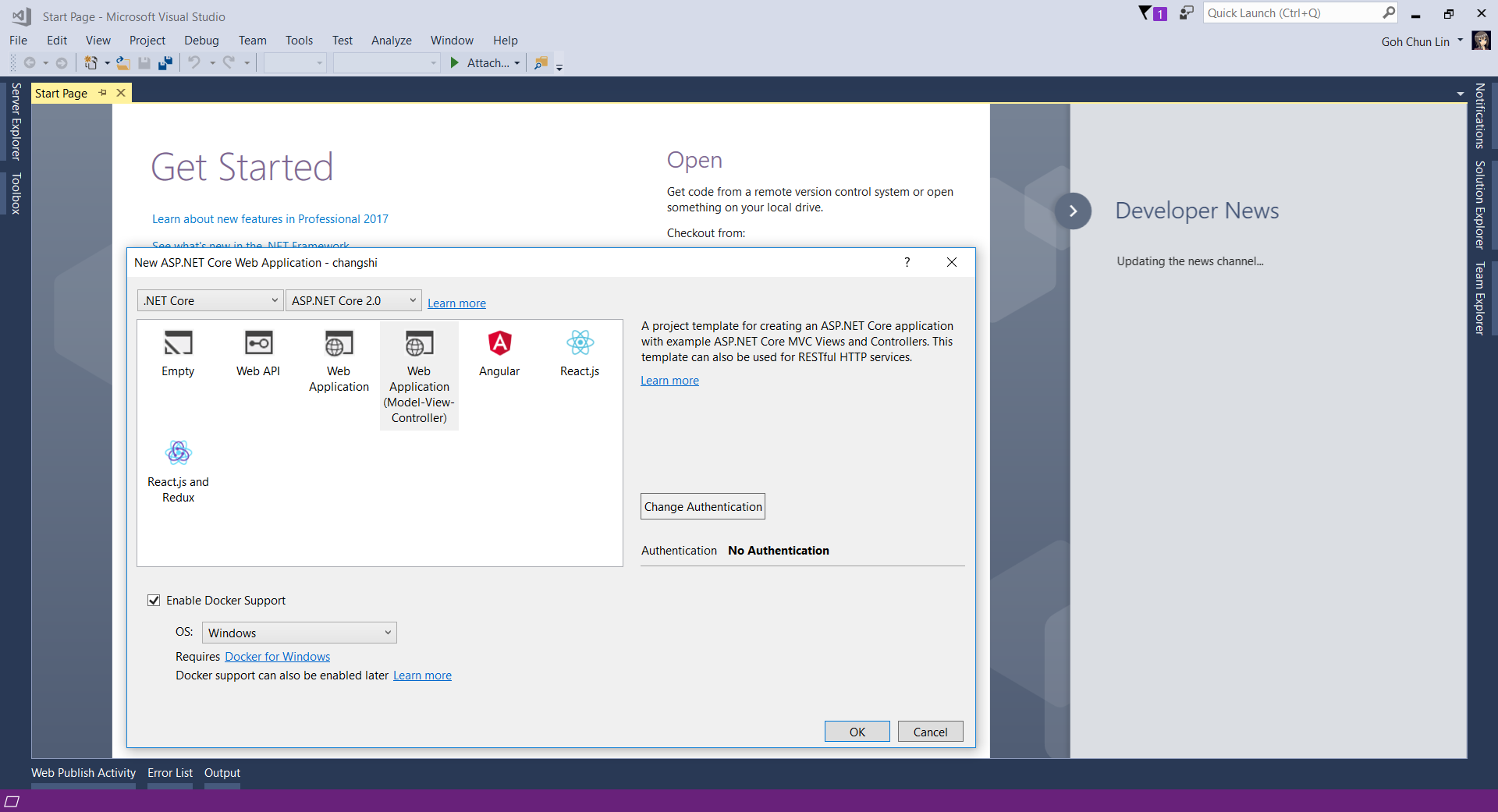
Since I am trying it out as personal project, I choose to start it with a new ASP .NET Core project. Then in the Visual Studio, I can easily turn it to be a Docker supporting app easily by checking the “Enable Docker Support” option.

enable-docker-support.png
Enable Docker Support

For existing web application projects, we will not have the screen above. Luckily, it is still easy to add Docker Support to an existing ASP .NET Core project on Visual Studio.

add-docker-support-to-existing-project
Enabling Docker Support in existing projects.

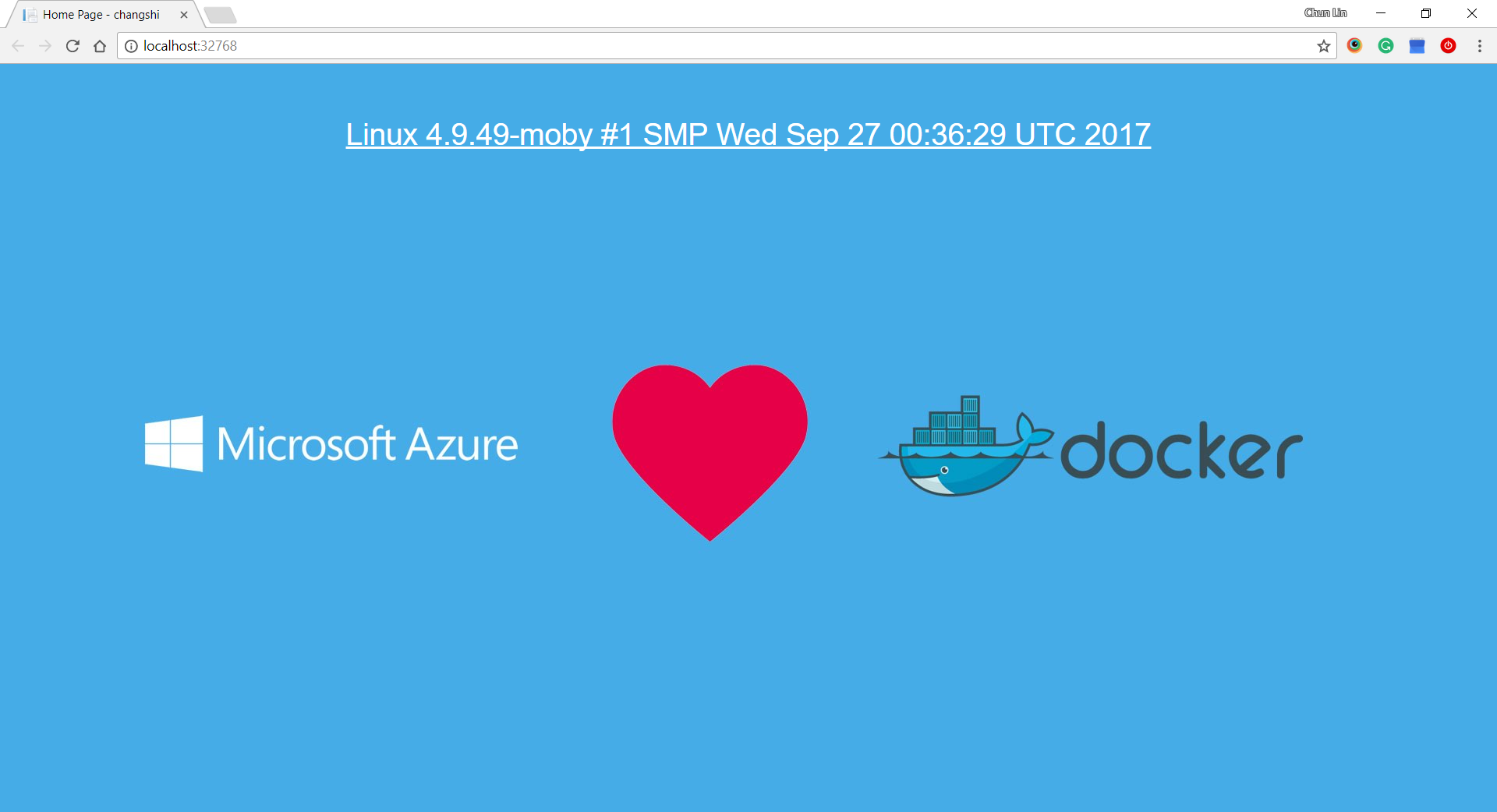
Then by clicking on the “F5” button to run the project, I manage to get the following screen (The background is customized by me). The message is displayed using the following line.

System.Runtime.InteropServices.RuntimeInformation.OSDescription;
launched-at-localhost.png
Yay, we managed to run the web app inside a Linux container locally.

Publishing to Microsoft Azure with Continuous Delivery

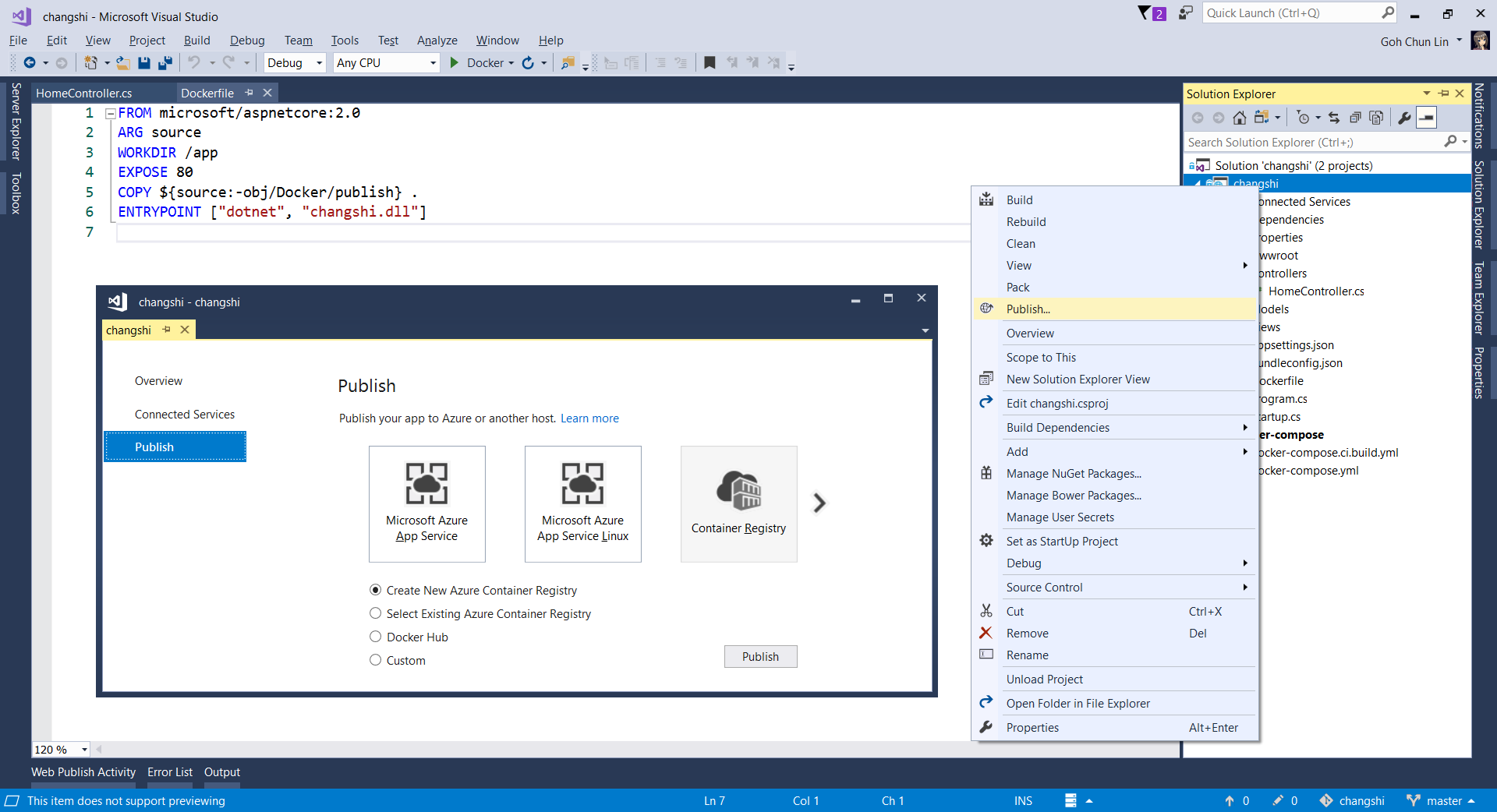
Without Continuous Delivery, we also can easily right-click the web application to publish it to the Container Registry on Azure.

publishing-to-container-registry
Creating a new Azure Container Registry which will have the Docker image published to.

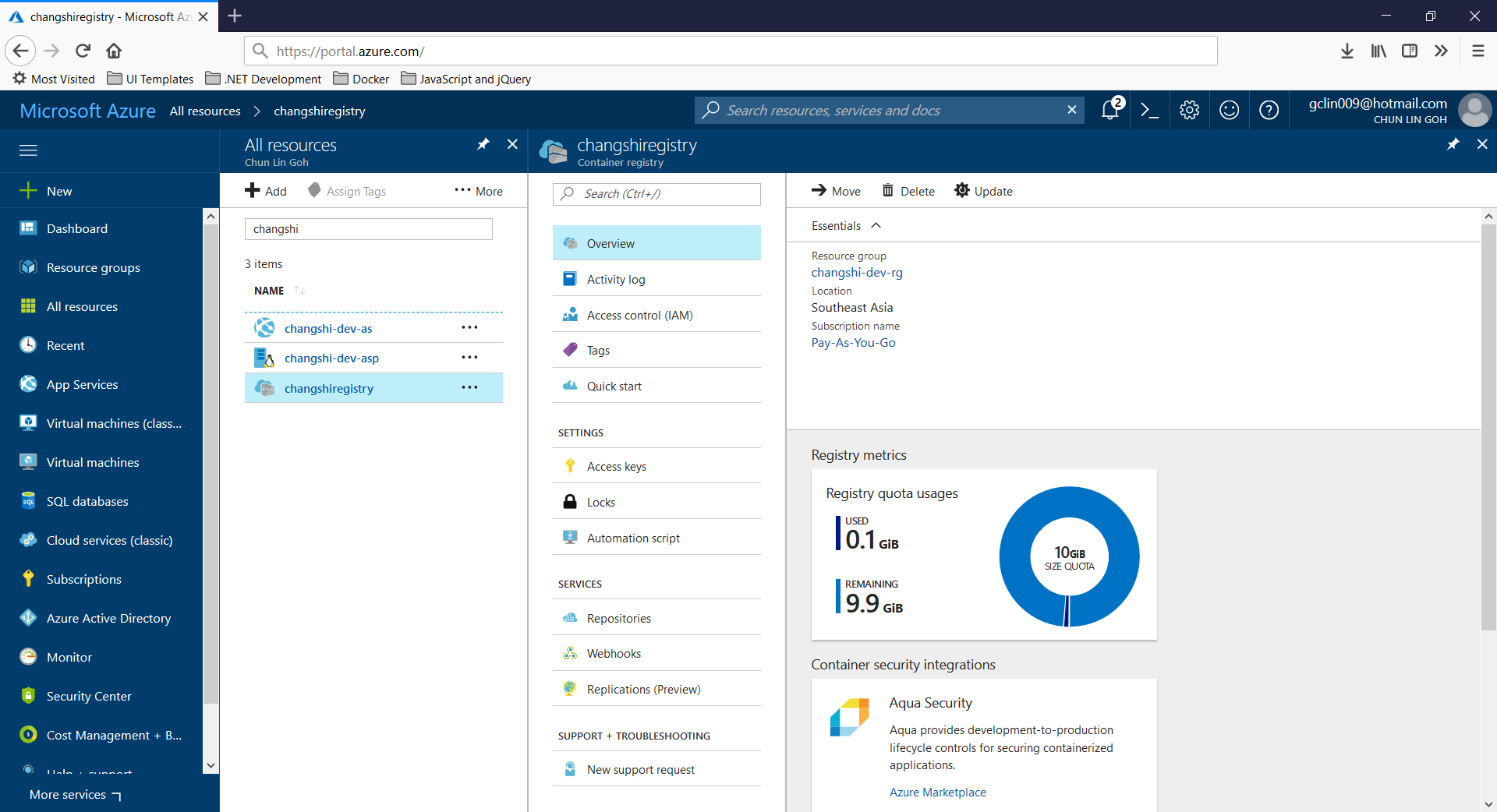
Then, on Azure Portal, we will see three new resources added. Firstly, we will have the Container Registry.

Then, we will also have an app service site which is running the image downloaded from the Container Registry. Finally, we have an App Service Plan which needs to be at least B1 because free and shared SKUs are not available for apps running on Linux (The official Microsoft documentation says we should have the VM size of the App Service Plan to be S1 or larger though).

container-registry-on-azure.png
Container Registry for my new web app, Changshi.

To enable Continuous Delivery, I choose to use Github + Visual Studio Team Services (VSTS). By doing so, build and release will be automatically started whenever I check in code to Github.

build-on-vsts
Build history and details on VSTS.

Yup, this is so far what I have tried out in my first step of playing with containers. If you are interested, please check out the references listed below.

References