Pack UWP Class Library with NuGet

Recently, my team is working on packing our UWP class library as a NuGet package. It turns out that it’s not that straight-forward, because even though there is a documentation from Microsoft, it is for Windows Runtime Component. So, the question on StackOverflow remains unsolved.

I thus decided to document down the steps on how I approach this problem to help the developers out there who are facing the same issue.

Step 1: Setup the UWP Class Library Project
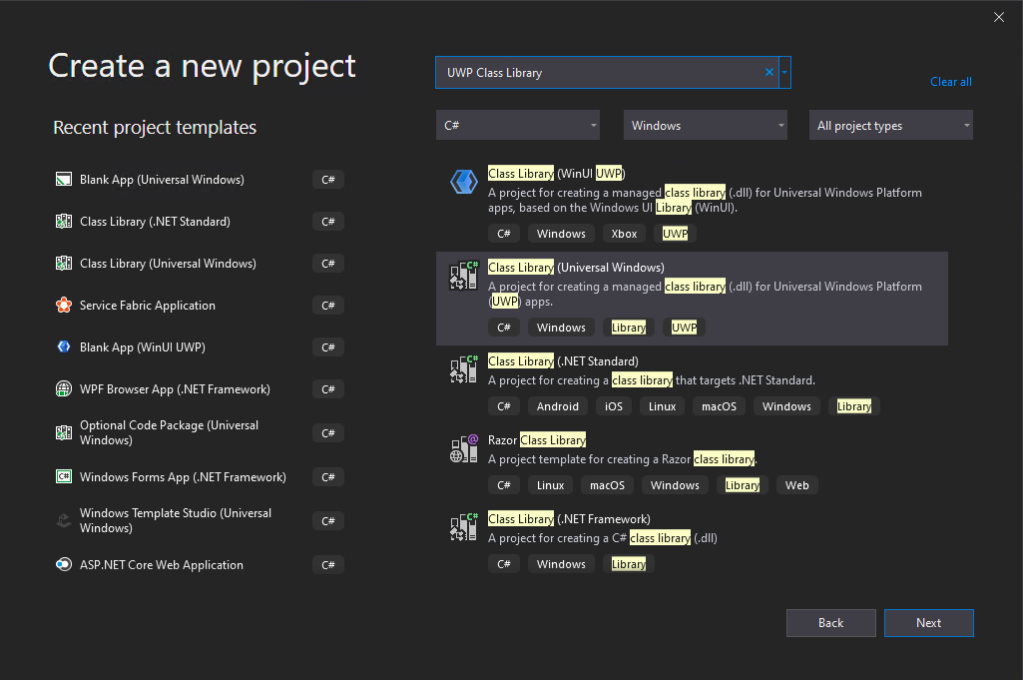
🎨 We will be using “Class Library (Universal Windows) in this post. 🎨

In this post, the new project we create is called “RedButton” which is meant to provide red button in different style. Yup, it’s important to make our demo as simple as possible so that we can focus on the key thing, i.e. generating the NuGet package.

Before we proceed with the new project, we need to configure the project Build properties, as shown in the following screenshot, to enable the XML Documentation file. This will make a XML file generated in the output folder which we need to use later.
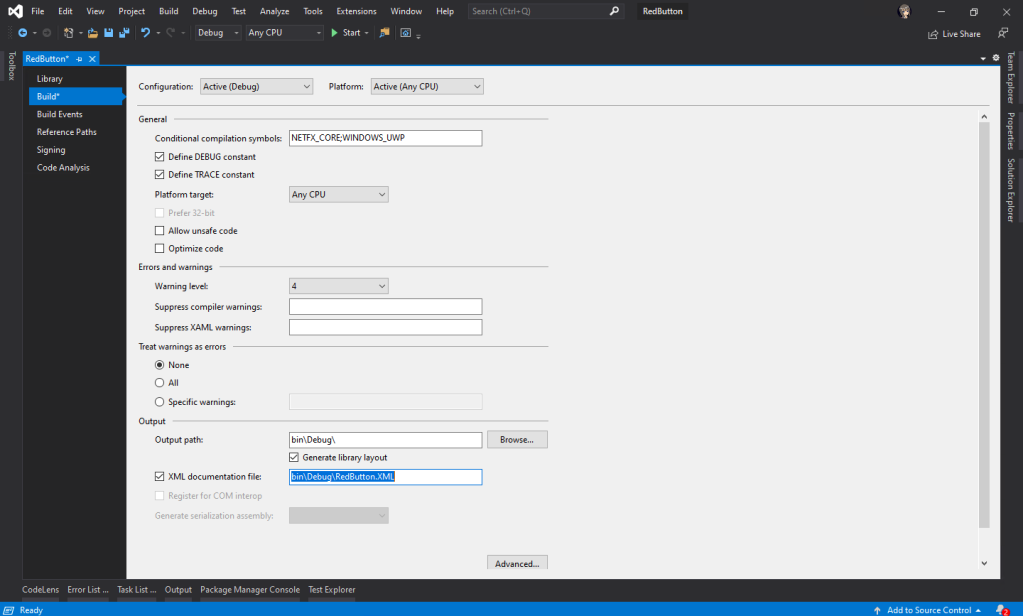
🎨 Enable the XML documentation file by checking the checkbox. 🎨

Now, we can proceed to add a new user control, called SimpleButton.xaml.
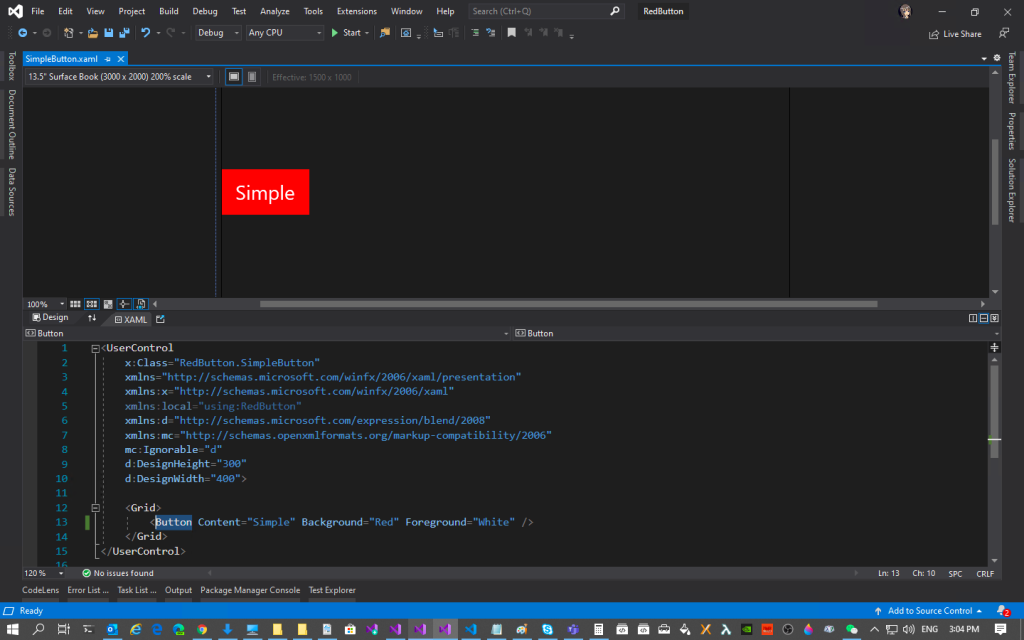
🎨 Yay, we have simple red button here. 🎨

So this marks the end of the steps where we create an UWP user control where we need to package it with NuGet.

Step 2: Install NuGet.exe

Before we proceed, please make sure we have nuget installed. To verify that, just run the following command in the PowerShell.

> nuget

If it is installed, it will show something as follows.
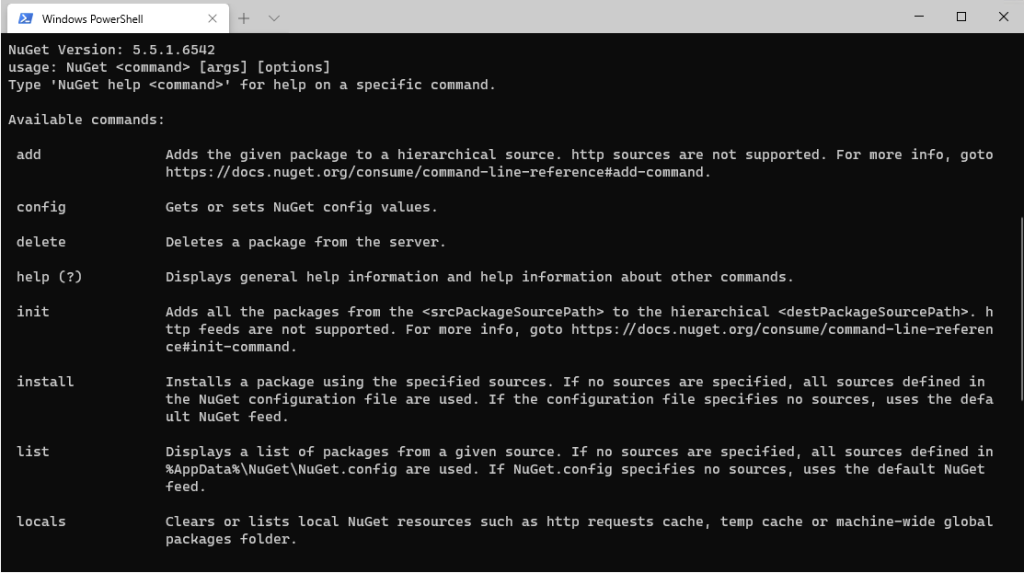
🎨 Yay, nuget is installed. 🎨

If it is not installed, please download the latest recommended nuget.exe from the NuGet website. After that, add the path the the folder containing the nuget.exe file in the PATH environment variable.

Step 3: Setup NuSpec

In order to package our class library with NuGet, we need a manifest file called NuSpec. It is a manifest containing the package metadata which provides information to be shown on NuGet and helps in package building.

Now we need to navigate in PowerShell to the project root folder, i.e. the folder containing RedButton.csproj. Then, we need to key in the following command to run it.

nuget spec

If the command is successfully executed, there will be a message saying “Created ‘RedButton.nuspec’ successfully.”

Now, we can open the RedButton.nuspec in Visual Studio. Take note that the file itself is not yet included in the solution. So we need to make sure we have enabled the “Show All Files” in the Solution Explorer to see the NuSpec file.

After that, we need to update the NuSpec file so that all of the $propertyName$ values are replaced properly. One of the values, id, must be unique across nuget.org and following the naming conventions here. Microsoft provides a very detailed explanation on each of the element in the NuSpec file. Please refer to it and follow its guidelines when you are updating the file.
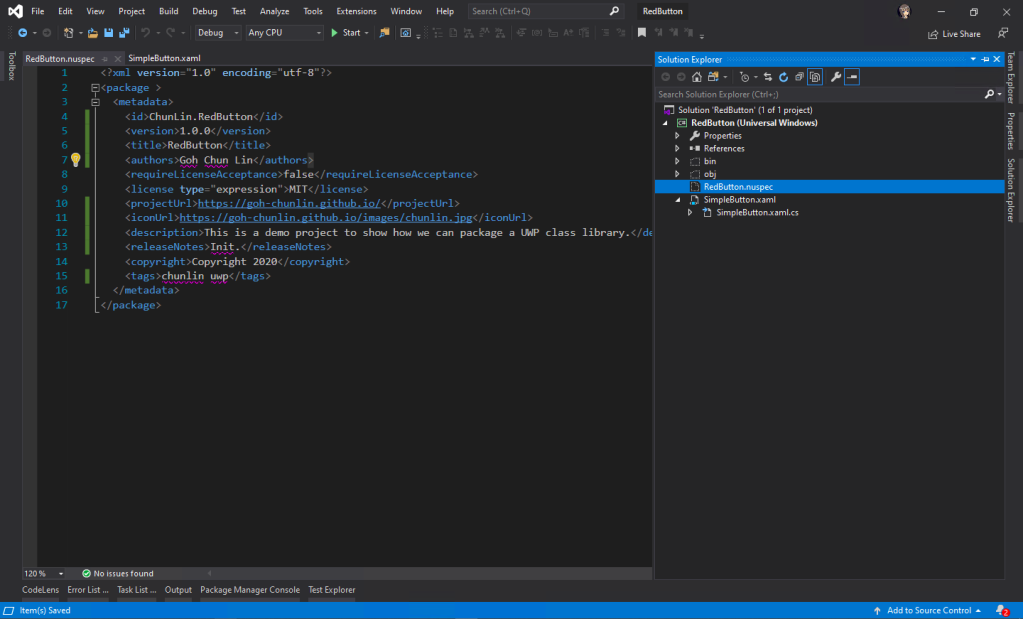
🎨 Finished updating the NuSpec. 🎨

Step 4: Connect with GitHub and Azure DevOps

In order to automate the publish of our package to the NuGet, we will need to implement Continuous Integration. Here, the tools that we will be using are GitHub and Azure DevOps.

After committing our codes to GitHub, we will proceed to setup the Azure DevOps pipeline.

Firstly, we can make use of the UWP build template available on the Azure DevOps.
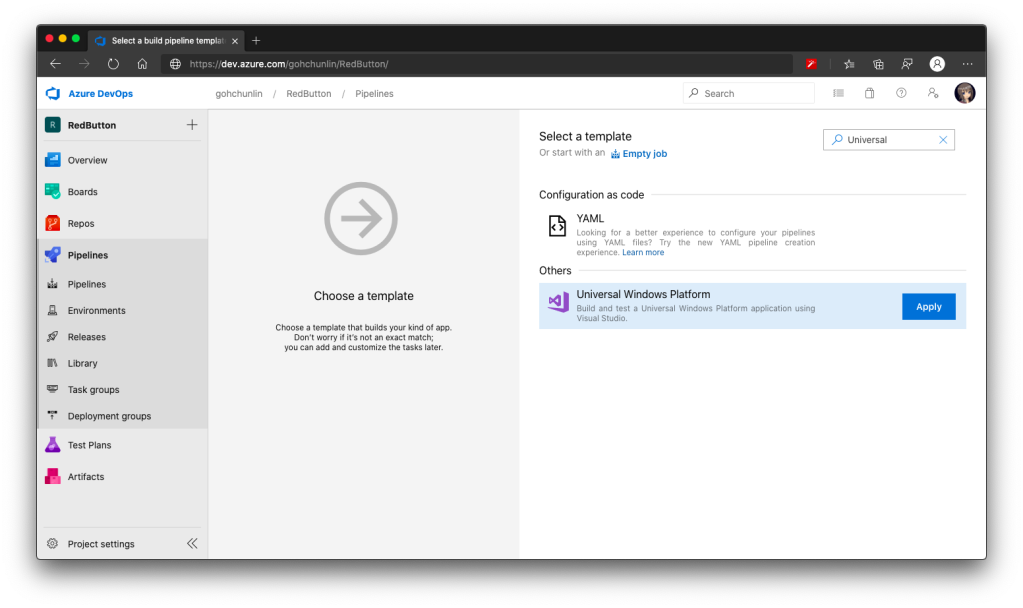
🎨 Yes, we can build UWP app on Azure DevOps. 🎨

At the time I am writing this port, there are 5 tasks in the agent job:

  1. Use NuGet 4.4.1;
  2. NuGet restore **\*.sln;
  3. Build solution **\*.sln;
  4. Publish artifact: drop;
  5. Deploy to Visual Studio App Center.

Take note that the NuGet version by default is 4.4.1, which is rather old and new things like <license> element in our NuSpec file will not be accepted. Hence, to solve this problem, we can refer to the list of available NuGet version at https://dist.nuget.org/tools.json.

At the time this post is written in April 2020, the latest released and blessed NuGet version is 5.5.1. So we will change it to 5.5.1. Please update it to any other latest number according to your needs and the time you read this post.

After that, for the second task, we need to update its “Path to solution, packages.config, or project.json” to be pointing at “RedButton\RedButton.csproj”.

Similarly, for the “Solution” field in the third task, we also need to point it to the “RedButton\RedButton.csproj”. Previously I pointed it to the RedButton folder which contains the .sln file, it will not work even though it is asking for “Solution”.

On the third task, we also need to update the “Visual Studio Version” to be “Visual Studio 2019” (or any other suitable VS for our UWP app). It seems to be not working when I was using VS2017. After that, I also updated the field “Configuration” to Release because by default it’s set to Debug and publishing Debug mode to public is not a good idea. I have also enabled “Clean” build to avoid incremental build which is not useful in my case. Finally, I changed the MSBuild Architecture to use MSBuild x64. The update of the third task is reflected on the screenshot below.
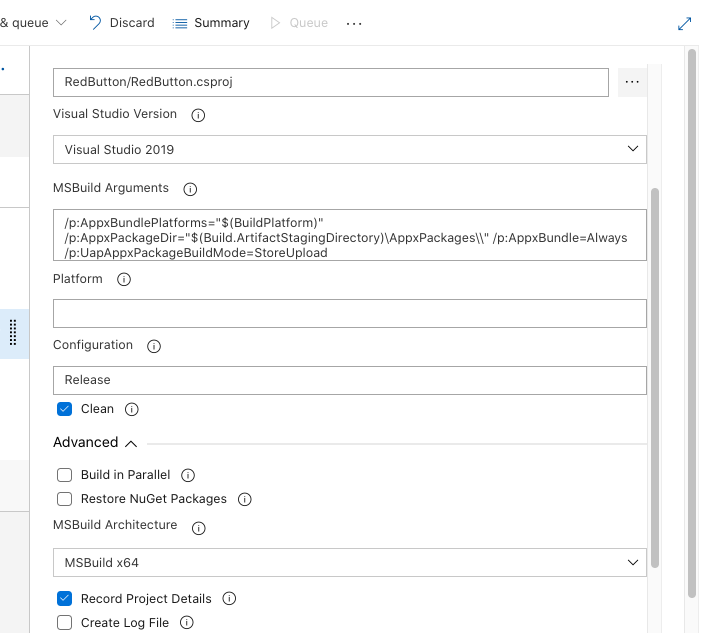
🎨 Third task configuration. 🎨

For the forth task, similarly, we also set its “Path to publish” to “RedButton”. Ah-ha, this time we are using the solution folder itself. By right, this fourth task is not relevant if we just publish our UWP class library to a NuGet server. I still keep it and set its path to publish to be the solution so that later I can view the build results of previous tasks by downloading it from the Artifact of the build.

I’d recommend to have this step because sometimes your built output folder structure may not be the same as what I have here depends on how you structure your project. Hence, based on the output folder, you many need to make some adjustments to the paths used in the Azure DevOps.
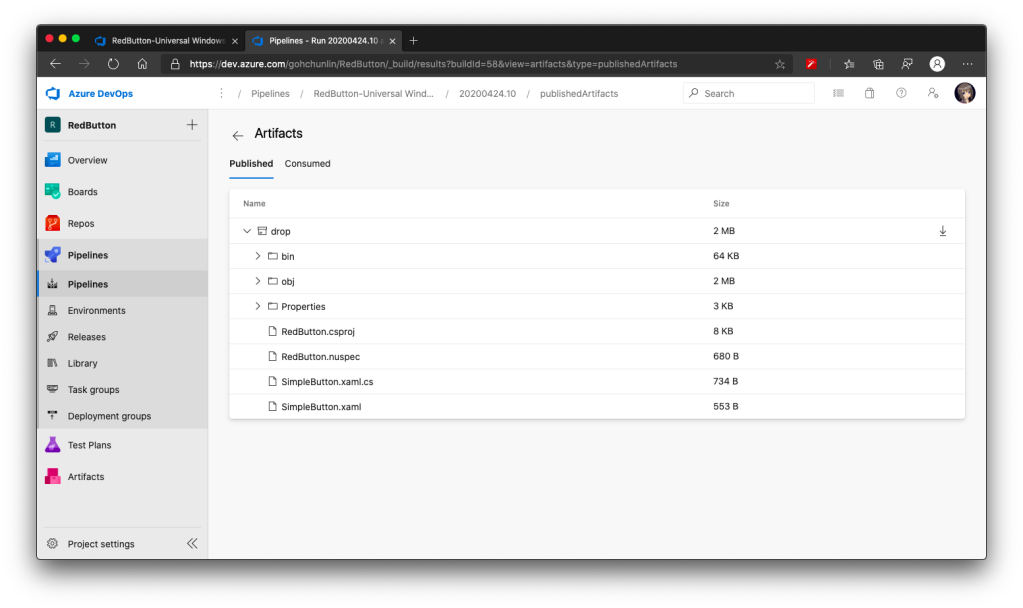
🎨 The fourth task helps to show build results from previous tasks. 🎨

By default, the fifth task is disabled. Since we are also not going to upload our UWP app to VS App Center, so we will not work on that fifth task. Instead, we are going to add three new tasks.

Firstly, we will introduce the NuGet pack task as the sixth task. The task in the template is by default called “NuGet restore” but we can change the command from “restore” to “pack” after adding the task, as shown in the following screenshot.
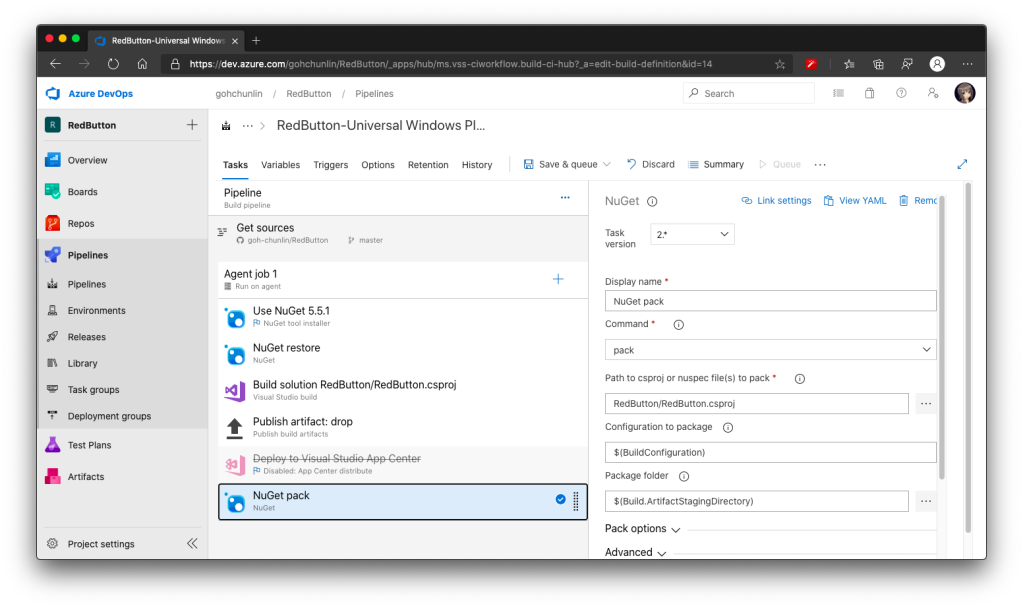
🎨 Remember to point the “Path to csproj” to the directory having the RedButton.csproj. 🎨

There is one more important information that we need to provide for NuGet packaging. It’s the version of our package. We can either do it manually or automatically. It’s better to automate the versioning else we may screw it up anytime down the road.

There are several ways to do auto versioning. Here, we will go with the “Date and Time” method, as shown in the screenshot below.
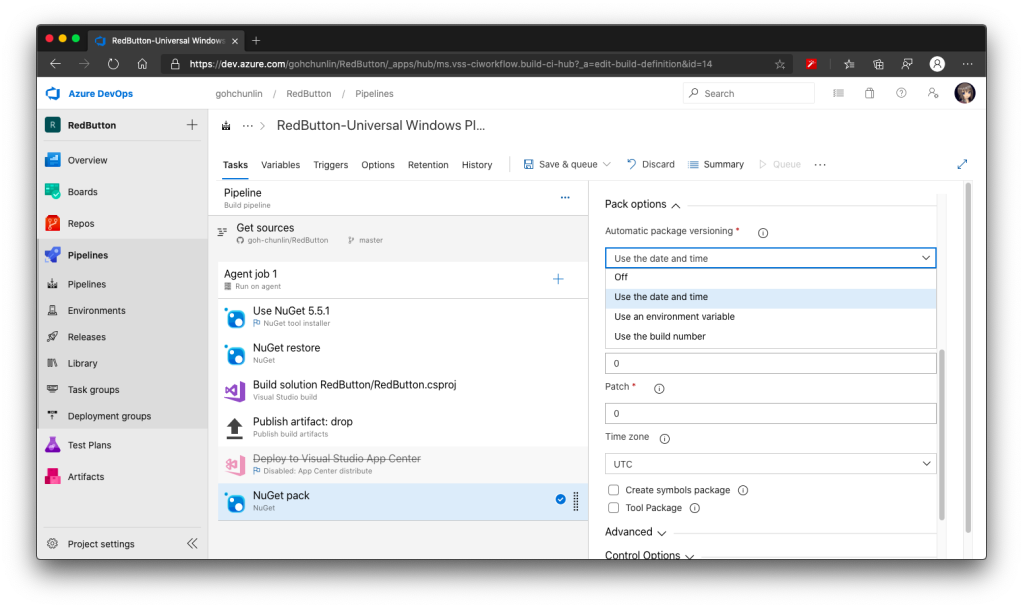
🎨 Choose “Use the date and time”. 🎨

This way of versioning will append datetime at the end of our version automatically. Doing so allows us to quickly test the release on the NuGet server instead of spending additional time on updating the version number. Of course, doing so means that the releases will be categorized as pre-released which users cannot see on Visual Studio unless they check the “Include prerelease” checkbox.
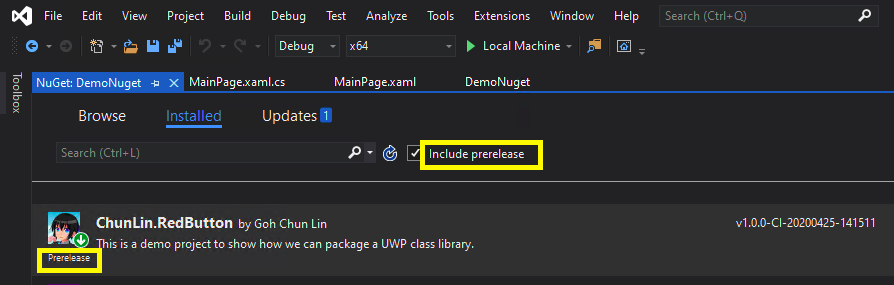
🎨 The prerelease checkbox on Visual Studio 2019. 🎨

Secondly, if you are also curious about the package generated by the sixth task above, you can add a task similar to the fourth task, i.e. publish the package as artifact for download later. Here, the “Path to publish” will be “$(Build.ArtifactStagingDirectory)”.

🎨 Publishing NuGet package for verifying manually later. 🎨

Since a NuGet package is just a zipped file, we can change its extension from .nupkg to .zip to view its content on Windows. I did the similar on MacOS but it didn’t work, so I guess it is possible on Windows only.

Thirdly, we need to introduce the NuGet push task after the task above to be the eighth task. Here, we need to set its “Path to NuGet package(s) to publish” to “$(Build.ArtifactStagingDirectory)/*.nupkg”.

Then, we need to specify that we will publish our package to the nuget.org server which is an external NuGet server. By clicking on the “+ New” button, we can then see the following popup.
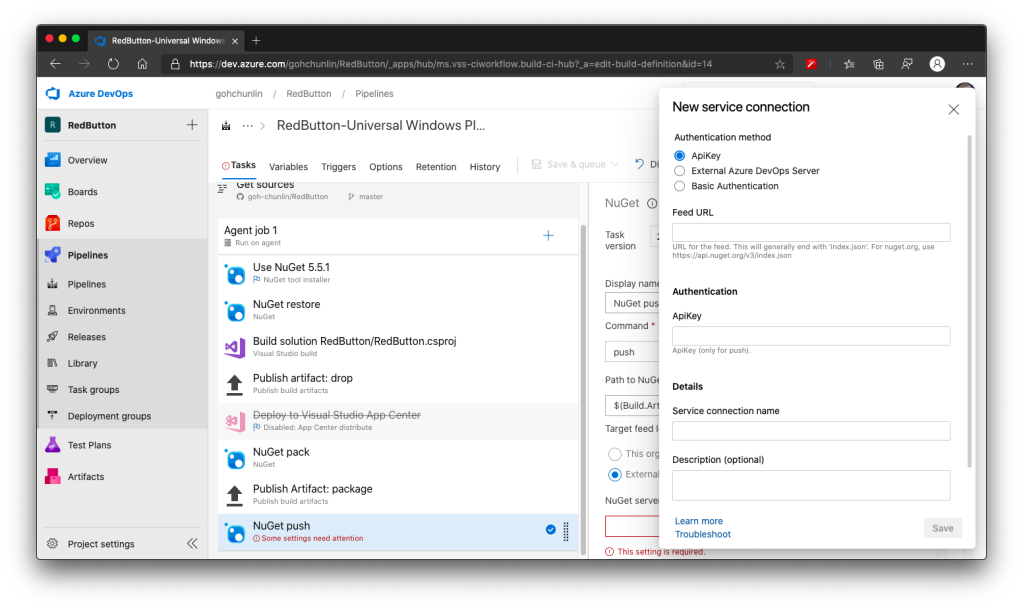
🎨 Adding a new connection to nuget.org. 🎨

Azure DevOps is so friendly that it tells us that “For nuget.org, use https://api.nuget.org/v3/index.json&#8221;, we will thus enter that URL as the Feed URL.
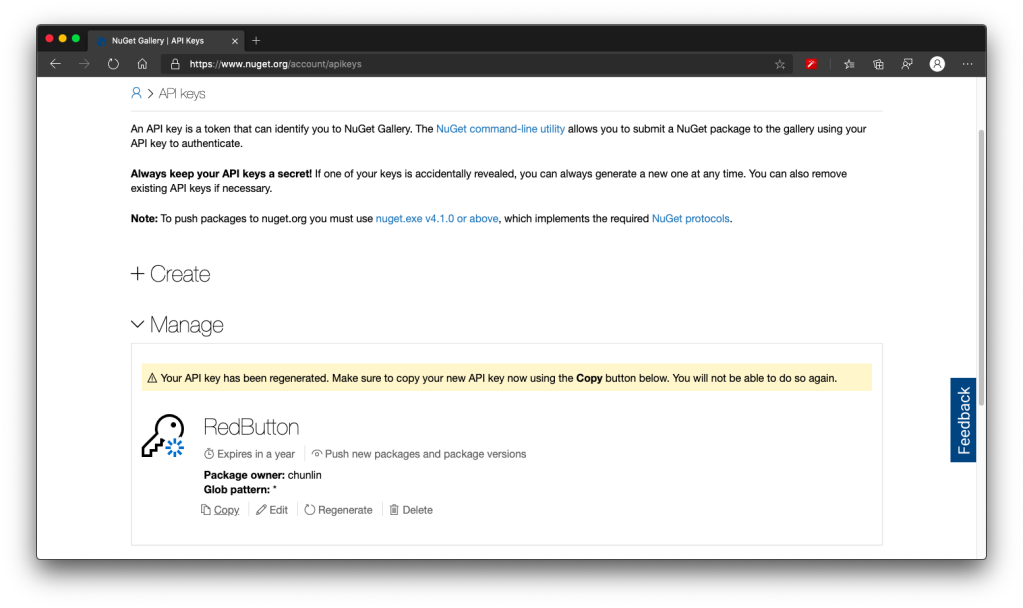
🎨 We will be using the API key that we generate in nuget.org for the NuGet push task. 🎨

With this NuGet push task setup successfully, we can proceed to save and run this pipeline.

After the tasks are all executed smoothly and successfully, we shall see our pre-released NuGet package available on the nuget.org website. Note that it requires an amount of time to do package validating before public can use the new package.
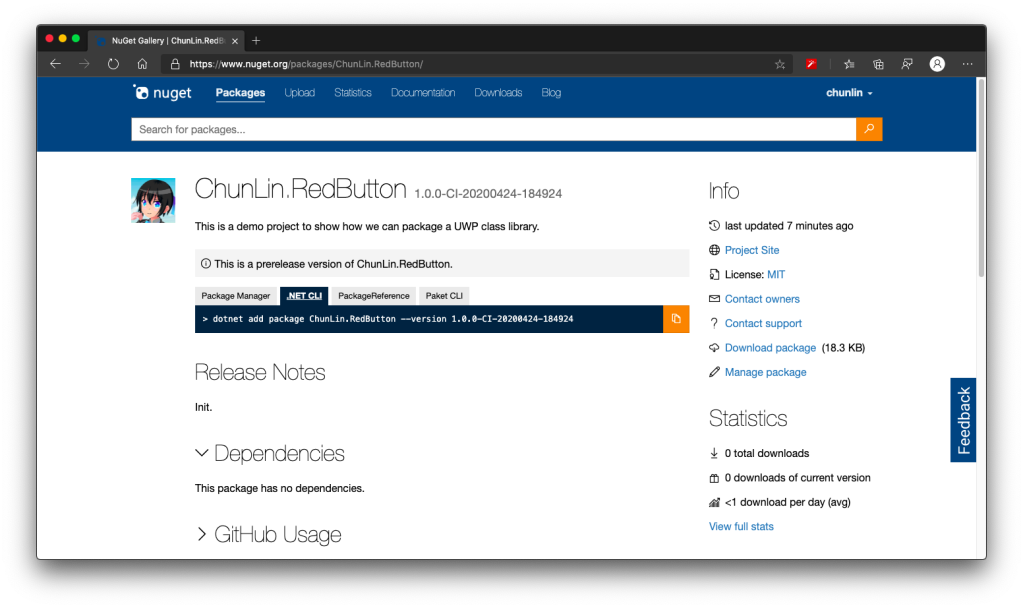
🎨 Yay, this is our first NuGet package. 🎨

This is not a happy ending yet. In fact, if we try this NuGet package, we will see the following error which states that it “cannot locate resource from ‘ms-appx:///RedButton/SimpleButton.xaml’.”
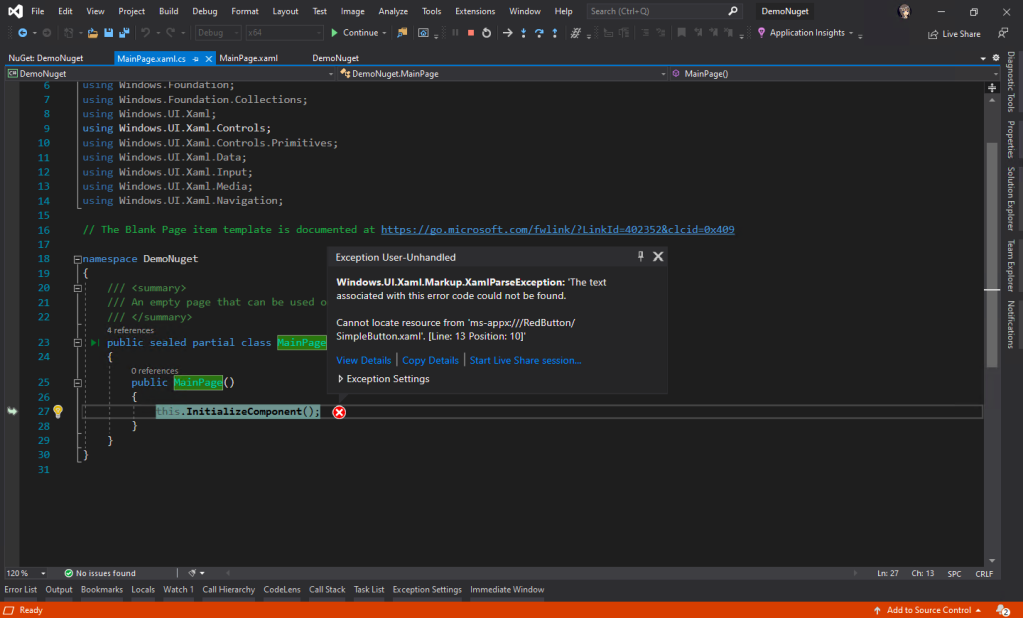
🎨 Windows.UI.Xaml.Markup.XamlParseException: ‘The text associated with this error code could not be found. 🎨

So what is happening here?

In fact, according to an answer on StackOverflow which later leads me to another post about Windows Phone 8.1, we need to make sure the file XAML Binary File (XBF) of our XAML component is put in the NuGet package as well.

To do so, we have to introduce a new task right after the third task, which is to copy the XBF file from obj folder to the Release folder in the bin folder, as shown in the following screenshot.
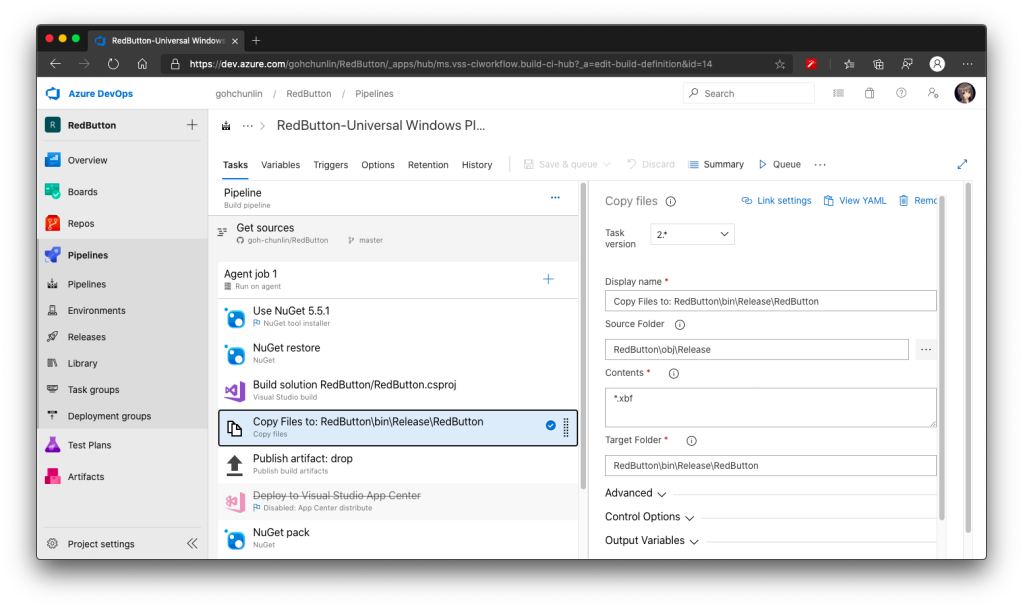
🎨 We need to add “Copy Files” task here. 🎨

Step 5: Targeting Framework

Before we make our NuGet package to work, we need to specify the framework it is targeting at. To do so, we need to introduce the <files> to our NuSpec.

So, the NuSpec should look something as follows now.
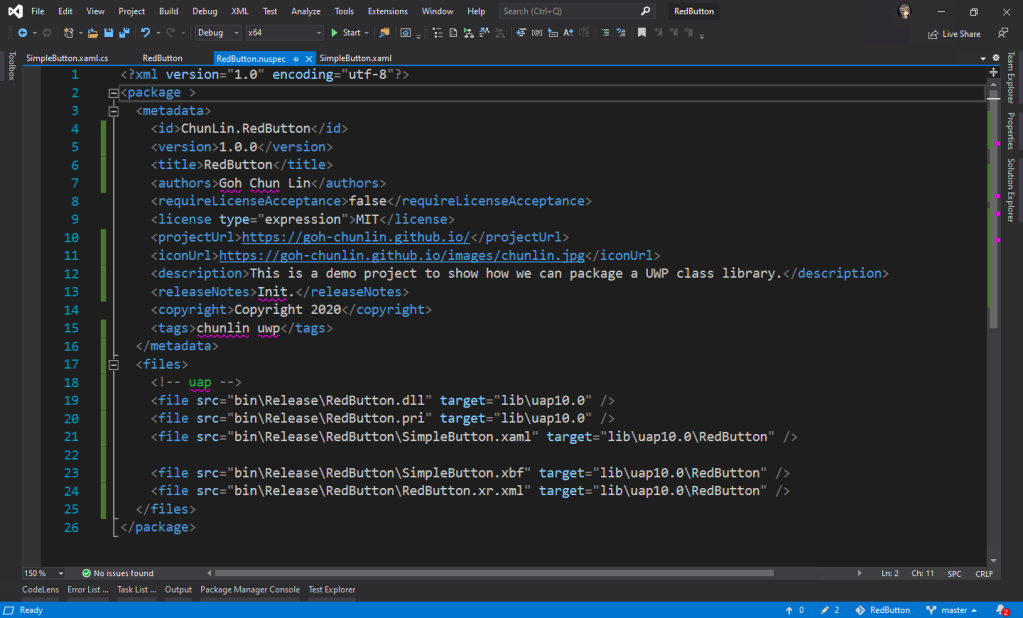
🎨 Finalised NuSpec. 🎨

Now with this, we can use our prerelease version of our UWP control in another UWP project through NuGet.
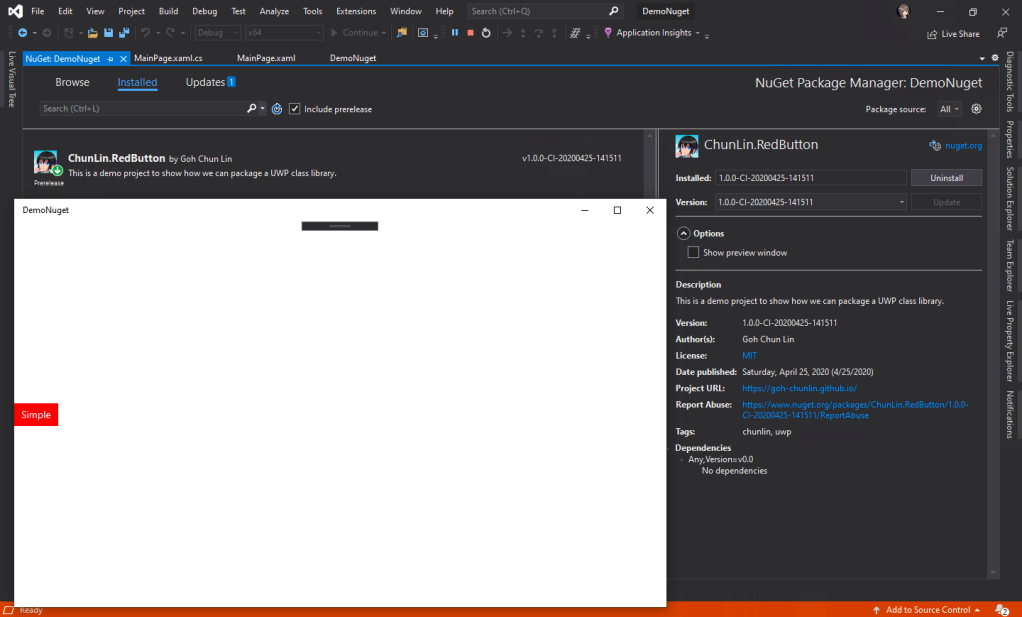
🎨 Yay, it works finally! 🎨

Step 6: Platform Release Issues

There will be time which requires us to specify the Platform to be, for example, x64 in the third task of the Azure DevOps pipeline above. That will result in putting the Release folder in both obj and bin to be moved to obj\x64 and bin\x64, respectively. This will undoubtedly make the entire build pipeline fails.

Hence we need to update the paths in the Copy File task (the fourth task) and add another Copy File task to move the Release folder back to be directly under the bin directory. Without doing this, the nuget pack task will fail as well.
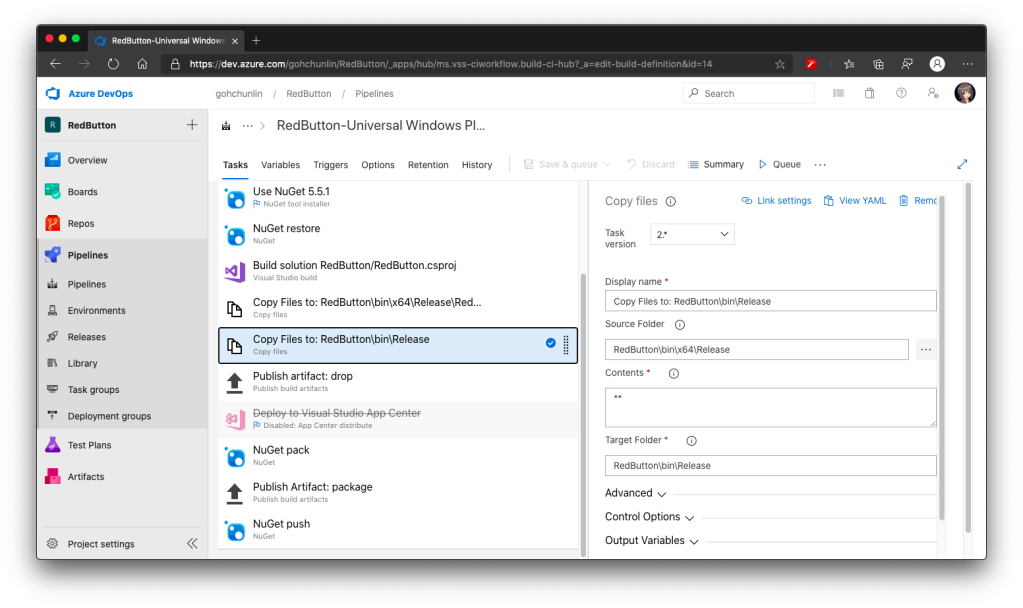
🎨 The new task to correct the position of the Release folder in bin. 🎨

Step 7: Dependencies

If our control relies on the other NuGet packages, for example Telerik.UI.for.UniversalWindowsPlatform, then we have to include them too inside the <metadata> in the NuSpec, as shown below.

<dependencies>
    <dependency id="Telerik.UI.for.UniversalWindowsPlatform" version="1.0.1.8" />
<dependencies>

Step 8: True Release

Okay, after we are happy with the prerelease of our NuGet package, we can officially release our package on the NuGet server. To do so, simply turn off the automatic package versioning on Azure DevOps, as shown in the screenshot below.
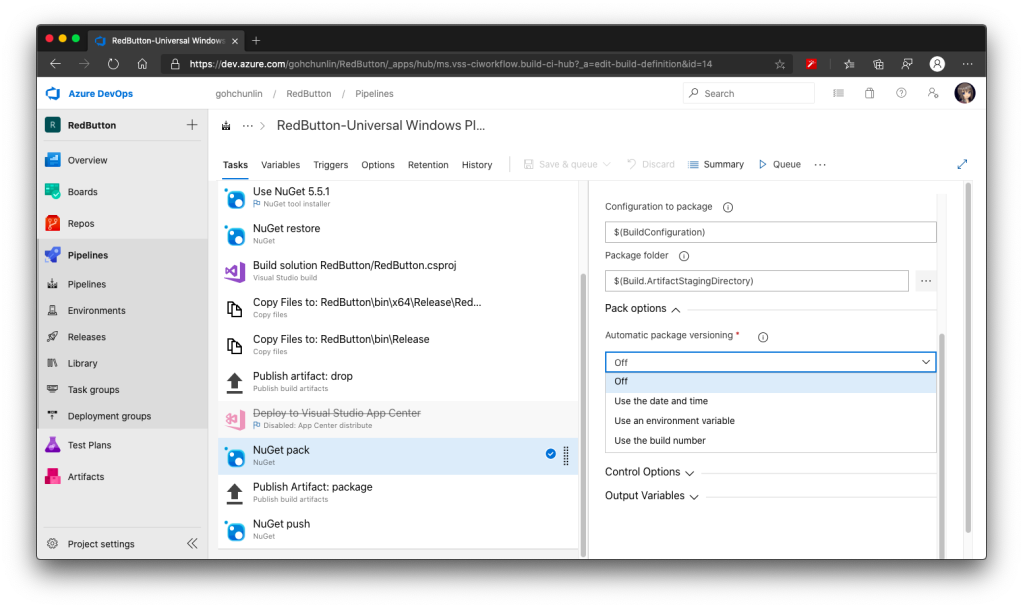
🎨 Turning off the automatic package versioning. 🎨

With this step, now when we run the pipeline again, it will generate a new release of the package without the prerelease label. The version number will follow the version we provide in the NuSpec file.
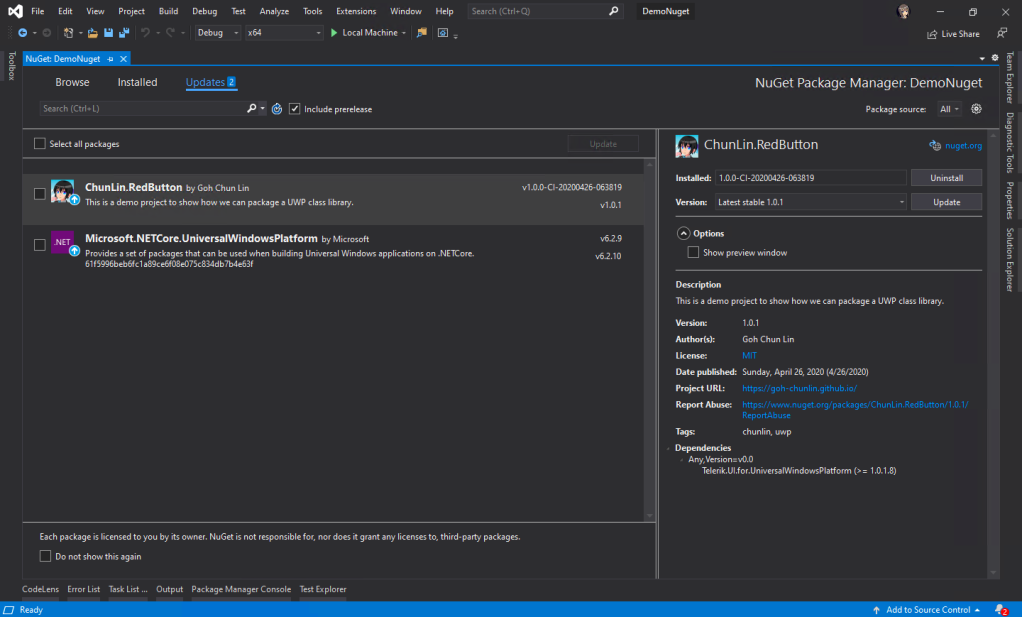
🎨 Now Visual Studio will say our package is “Latest stable” instead of prerelease. 🎨

Journey: 3 Days 3 Nights

The motivation of this project comes from a problem I encounter at workplace because our UWP class library could not be used whenever we consumed it as a NuGet package. This was also the time when Google and StackOverflow didn’t have proper answers on this.

Hence, it took me 1 working day and 2 days during weekend to research and come up with the steps above. Hopefully with my post, people around the world can easily pickup this skill without wasting too much effort and time.

Finally, I’d like to thank my senior Riza Marhaban for encouraging me in this tough period. Step 7 above is actually his idea as well. In addition, I have friend encouraging me online too in this tough Covid-19 lockdown. Thanks to all of them, I manage to learn something new in this weekend.

🎨 Yay. (Image Source: ARTE, Muse Asia) 🎨

References

Unit Testing with Golang

Continue from the previous topic

Unit Testing is a level of automated software testing that units which can be modular parts of the program are tested. Normally, the “unit” refers to a function, but it doesn’t necessary always be so. A unit typically takes in data and returns an output. Correspondingly, a unit test case passes data into the unit and check the resultant output to see if they meet the expectations.

Unit Testing Files

In Golang, unit test cases are written in <module>_test.go files, grouped according to their functionality. In our case, when we do unit testing for the videos web services, we will have the unit test cases written in video_test.go. Also, the test files need to be in the same package as tested functions.

Necessary Packages

In the beginning, we need to import the “testing” package. In each of our unit test function, we will take in a parameter t which is a pointer to testing.T struct. It is the main struct that we will be using to call out any failure or error.

In our code video_test.go, we use only the function Error in testing.T to log the errors and to mark the test function fails. In fact, Error function is a convenient function in the package that combines calling of Log function and then the Fail function. The Fail function marks the test case has failed but it still allows the execution of the rest of the test case. There is another similar function called FailNow. The FailNow function is stricter and exits the test case once it’s encountered. So, if FailNow function is what you need, you have to call the Fatal function which is another convenient function that combines Log and FailNow instead of the Error function.

Besides the “testing” package, there is another package that we need in order to do unit testing for Golang web applications. It is the “net/http/httptest” package. It allows us to use the client functions of the “net/http” package to send an HTTP request and capturing the HTTP response.

Test Doubles, Mock, and Dependency Injection

Before proceeding to writing unit test functions, we need to get ready with Test Doubles. Test Double is a generic term for any case where we replace a production object for testing purposes. There are several different types of Test Double, of which a Mock is one. Using Test Doubles helps making the unit test cases more independent.

In video_test.go, we apply the Dependency Injection in the design of Test Doubles. Dependency Injection is a design pattern that decouples the layer dependencies in our program. This is done through passing a dependency to the called object, structure, or function. This dependency is used to perform the action instead of the object, structure, or function.

Currently, the handleVideoRequests handler function uses a global sql.DB struct to open a database connection to our PostgreSQL database to perform the CRUD. For unit testing, we should not depend on database connection so much and thus the dependency on sql.DB should be removed. The dependency on sql.DB then should be injected into the process flow from the main program.

To do so, firstly, we need to introduce a new interface called IVideo.

type IVideo interface {

GetVideo(userID string, id int) (err error)
GetAllVideos(userID string) (videos []Video, err error)
CreateVideo(userID string) (err error)
UpdateVideo(userID string) (err error)
DeleteVideo() (err error)

}

Secondly, we make our Video struct to implement the new interface and let one of the fields in the Video struct a pointer to sql.DB. Unlike in C#, we have to specify which interface the class is implementing, in Golang, as long as the Video struct implements all the methods that IVideo has (which is already does), then Video struct is implementing the IVideo interface. So now our Video struct looks as following.

type Video struct {
Db *sql.DB
ID int `json:"id"`
Name string `json:"videoTitle"`
URL string `json:"url"`
YoutubeVideoID string `json:"youtubeVideoId"`
}

As you can see, we added a new field called Db which is a pointer to sql.DB.

Now, we can create a Test Double called FakeVideo which implements IVideo interface to be used in unit testing.

// FakeVideo is a record of favourite video for unit test
type FakeVideo struct {
ID int `json:"id"`
Name string `json:"videoTitle"`
URL string `json:"url"`
YoutubeVideoID string `json:"youtubeVideoId"`
CreatedBy string `json:"createdBy"`
}


// GetVideo returns one single video record based on id
func (video *FakeVideo) GetVideo(userID string, id int) (err error) {
jsonFile, err := os.Open("testdata/fake_videos.json")
if err != nil {
return
}

defer jsonFile.Close()

jsonData, err := ioutil.ReadAll(jsonFile)
if err != nil {
return
}

var fakeVideos []FakeVideo
json.Unmarshal(jsonData, &fakeVideos)

for _, fakeVideo := range fakeVideos {
if fakeVideo.ID == id && fakeVideo.CreatedBy == userID {
video.ID = fakeVideo.ID
video.Name = fakeVideo.Name
video.URL = fakeVideo.URL
video.YoutubeVideoID = fakeVideo.YoutubeVideoID

return
}
}

err = errors.New("no corresponding video found")

return
}
...

So instead of reading the info from the PostgreSQL database, we read mock data from a JSON file which is stored in testdata folder. The testdata folder is a special folder where Golang will ignores when it builds the project. Hence, with this folder, we can easily read our test data from JSON file fake_videos.json through relative path from video_test.go.

Since now the Video struct is updated, we need to update our handleVideoAPIRequests method to be as follows.

func handleVideoAPIRequests(video models.IVideo) http.HandlerFunc {
    return func(writer http.ResponseWriter, request *http.Request) {
        var err error

       ...

        switch request.Method {
        case "GET":
            err = handleVideoAPIGet(writer, request, video, user)
        case "POST":
            err = handleVideoAPIPost(writer, request, video, user)
        case "PUT":
            err = handleVideoAPIPut(writer, request, video, user)
        case "DELETE":
            err = handleVideoAPIDelete(writer, request, video, user)
        }

        if err != nil {
            util.CheckError(err)
            return
        }
    }
}

So now we pass an instance of the Video struct directly into the handleVideoAPIRequests. The various Video methods will use the sql.DB that is a field in the struct instead. At this point of time, handleVideoAPIRequests no longer follows the ServeHTTP method signature and is no longer a handler function.

Thus, in the main function, instead of attaching a handler function to the URL, we call the handleVideoAPIRequests function as follows.

func main() {
...

mux.HandleFunc("/api/video/",
handleRequestWithLog(handleVideoAPIRequests(&models.Video{Db: db})))

...
}

Writing Unit Test Cases for Web Services

Now we are good to write unit test cases in video_test.go. Instead of passing a Video struct like in server.go, this time we pass in the FakeVideo struct, as highlighted in one of the test cases below.

func TestHandleGetAllVideos(t *testing.T) {
    mux = http.NewServeMux()
    mux.HandleFunc("/api/video/", handleVideoAPIRequests(&models.FakeVideo{}))
    writer = httptest.NewRecorder()

    request, _ := http.NewRequest("GET", "/api/video/", nil)
    mux.ServeHTTP(writer, request)

   if writer.Code != 200 {
        t.Errorf("Response code is %v", writer.Code)
    }

    var videos []models.Video
    json.Unmarshal(writer.Body.Bytes(), &videos)

    if len(videos) != 2 {
        t.Errorf("The list of videos is retrieved wrongly")
    }
}

By doing this, instead of fetching videos from the PostgreSQL database, now it will get from the fake_videos.json in testdata.

Testing with Mock User Info

Now, since we have implemented user authentication, how do we make it works in unit testing also. To do so, in auth.go, we introduce a flag called isTesting which is false as follows.

// This flag is for the use of unit testing to do fake login
var isTesting bool

Then in the TestMain function, which is provided in testing package to do setup or teardown, we will set this to be true.

So how do we use this information? In auth.go, there is this function profileFromSession which retrieves the Google user information stored in the session. For unit testing, we won’t have this kind of user information. Hence, we need to mock this data too as shown below.

if isTesting {
        return &Profile{
            ID: "154226945598527500122",
            DisplayName: "Chun Lin",
            ImageURL: "https://avatars1.githubusercontent.com/u/8535306?s=460&v=4",
        }
    }

With this, then we can test whether the functions, for example, are retrieving correct videos of the specified user.

Running Unit Test Locally and on Azure DevOps

Finally, to run the test cases, we simply use the command below.

go test -v

Alternatively, Visual Studio Code allows us to run specified test case by clicking on the “Run Test” link above the test case.

Running test on VS Code.

We can then continue to add the testing as one of the steps in Azure DevOps Build pipeline, as shown below.

Added the go test task in Azure DevOps Build pipeline.

By doing this, if any of the test cases fails, there won’t be a build made and thus our system becomes more stable now.

Monitoring Golang Web App with Application Insights

Continue from the previous topic

Application Insights is available on Azure Portal as a way for developers to monitor their live web applications and to detect performance anomalies. It has a dashboard with charts to help developers diagnose issues and understand user behaviors on the applications. It works for apps written on multiple programming languages other than .NET too.

Setup of Application Insights on Azure

It is straightforward to setup Application Insights on Azure Portal. If we have already setup a default CI/CD for simple Golang web app, an Application Insights account will be created automatically.

Creating new Application Insights account. The golab002 is automatically created when we setup a new Golang DevOps project on Azure Portal.

Once the Application Insights account is created, we need to get its Instrument Key which is required before any telemetry can be sent via the SDK.

Simplicity in ASP .NET Core

In ASP .NET Core projects, we can easily include Application Insights by including the Nuget package Microsoft.ApplicationInsights.AspNetCore and adding the following highlighted code in Program.cs.

public static IWebHostBuilder CreateWebHostBuilder(string[] args) =>
WebHost.CreateDefaultBuilder(args)
.UseStartup()
.UseApplicationInsights();

Setup of Application Insights Telemetry in Golang

So, what if we want to monitor our Golang applications which are hosted on Azure App Service? Luckily, Microsoft officially published an Application Insights SDK for Golang which is also open sourced on GitHub.

Since June 2015, Luke Kim, the Principal Group Software Engineering Manger at Microsoft, and other Microsoft engineers have been working on this open source project.

Introducing Application Insights to Golang application is not as straightforward as doing the same in ASP .NET Core project described above. Here, I will cover only how to use Telemetry.

First of all, we need to download and install the relevant package with the following go get command.

go get github.com/Microsoft/ApplicationInsights-Go/appinsights

Tracing Errors

Previously, we already have a centralized checkError function to handle errors returned from different sources in our code. So, we will have the following code added in the function to send traces back to Application Insights when an error occurs.

func checkError(err error) {
    if err != nil {
        client := appinsights.NewTelemetryClient(os.Getenv("APPINSIGHTS_INSTRUMENTATIONKEY"))

        trace := appinsights.NewTraceTelemetry(err.Error(), appinsights.Error)
        trace.Timestamp = time.Now()

        client.Track(trace)

        panic(err)    
}
}

So, when there is an error on our application, we will receive a trace record as such on the Metrics of Application Insights as shown below.

An error is captured. In this case, it’s because wrong DB host is stated.

However, doing this way doesn’t give us details such as call stack. Hence, if we want to log an exception in our application, we need to use TrackPanic in the SDK as follows.

func checkError(err error) {
    if err != nil {
        client := appinsights.NewTelemetryClient(os.Getenv("APPINSIGHTS_INSTRUMENTATIONKEY"))

        trace := appinsights.NewTraceTelemetry(err.Error(), appinsights.Error)
        trace.Timestamp = time.Now()

        client.Track(trace)

        // false indicates that we should have this handle the panic, and
        // not re-throw it.
        defer appinsights.TrackPanic(client, false)

        panic(err)    
}
}

This will capture and report call stack of the panic and display it on Azure Portal. With this, we can easily see which exceptions are occurring and how often.

Traces and exceptions. The details of exception includes call stack.

Tracing Page Views

Besides errors, let’s capture the page views as well so that we can easily tell which handler function is called and how much time is spent in it. To do so, we introduce a new function called handleRequestWithLog.

func handleRequestWithLog(h func(http.ResponseWriter, *http.Request)) http.HandlerFunc {

    return http.HandlerFunc(func(writer http.ResponseWriter, request *http.Request) {

        startTime := time.Now()
        h(writer, request)
        duration := time.Now().Sub(startTime)

        client := appinsights.NewTelemetryClient(
os.Getenv("APPINSIGHTS_INSTRUMENTATIONKEY"))

        trace := appinsights.NewRequestTelemetry(
request.Method, request.URL.Path, duration, "200")
        trace.Timestamp = time.Now()

        client.Track(trace)
    })
}

Then we can modify our server.go to be as follows.

mux.HandleFunc("/", handleRequestWithLog(index))
mux.HandleFunc("/addVideo", handleRequestWithLog(addVideo))
mux.HandleFunc("/updateVideo", handleRequestWithLog(updateVideo))
mux.HandleFunc("/deleteVideo", handleRequestWithLog(deleteVideo))

Now whenever we visit a page or perform an action, the behaviour will be logged on Application Insights, as shown in the following screenshot. As you can see, the server response time is logged too.

Adding new video, deleting video, and viewing homepage actions.

With these records, the Performance chart in Application Insights will be plotted too.

Monitoring the performance of our Golang web application.

Tracing Static File Downloads

Besides the web pages, we are also interested at static files, such as understanding how fast the server responses when the static file is retrieved.

To do so, we first need to introduce a new handler function called staticFile.go.

package main

import (
    "mime"
    "net/http"
    "strings"
)

func staticFile(writer http.ResponseWriter, request *http.Request) {
    urlComponents := strings.Split(request.URL.Path, "/")

    http.ServeFile(
writer, request, "public/"+urlComponents[len(urlComponents)-1])

    fileComponents := strings.Split(
urlComponents[len(urlComponents)-1], ".")
    fileExtension := fileComponents[len(fileComponents)-1]

    writer.Header().Set(
"Content-Type", mime.TypeByExtension(fileExtension))
}

The reason why we need do as such is because we want to apply the handleRequestWithLog function for static files in server.go too.

mux.HandleFunc("/static/", handleRequestWithLog(staticFile))

By doing so, we will start to see the following on Search of Application Insights.

A list of downloaded CSS and JS static files and their corresponding server response time.

Conclusion

In ASP .NET Core applications, we normally need add the UseApplicationInsights as shown below in Program.cs then all the server actions will be automatically traced. However, this is not the case for Golang applications where there is no such convenience.

References

  1. What is Application Insights;
  2. Exploring Metrics in Application Insights;
  3. In Golang, how to convert an error to a string?
  4. [Stack Overflow] How to get URL in http.Request?
  5. [Stack Overflow] How to get request string and method?
  6. [Stack Overflow] Golang http handler – time taken for request;
  7. [golang.org] func Split;
  8. Find the Length of an Array/Slice;
  9. [GitHub] Microsoft Application Insights SDK for Go;
  10. Golang 1.6: 使用mime.TypeByExtension来设置Content-Type;
  11. [Stack Overflow] What to use? http.ServeFile(..) or http.FileServer(..)?
  12. [Stack Overflow] How do you serve a static html file using a go web server?

Authenticate an Azure Function with Azure Active Directory

[This post is updated on 19th July 2020 to reflect the latest UI of both Azure Portal and Postman. I’d like to take this chance to correct some of my mistakes made in earlier post, as friendly pointed out by readers in the comment section.]

Today is the first working day of a new year. Today is the second half of year 2020 where I have been instructed to work from home for months. I thus decided to work on a question raised previously by the senior developer in my previous job back in 2018: How do we authenticate an Azure Function?

The authentication tool that I am using is the Azure Active Directory (Azure AD). Azure AD provides an identity platform with enhanced security, access management, scalability, and reliability for connecting users with all our apps.

Setting up Azure Function

The Azure Function that I’m discussing here is the Azure Function app with .NET Core 3.1 runtime stack and published as Code instead as Docker Container.

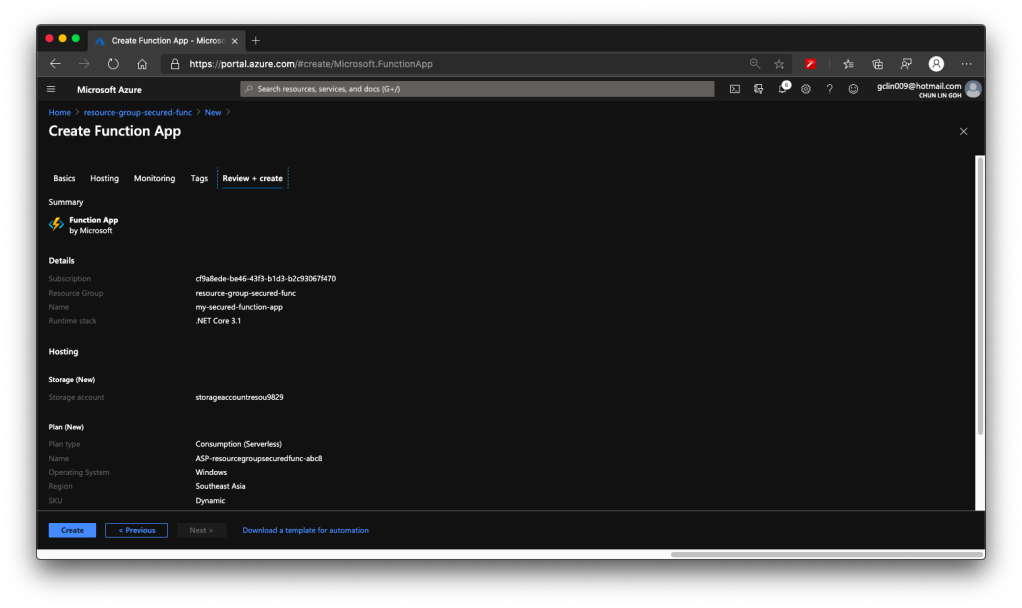
🎨 Creating a new Function that will be deployed on Windows. 🎨

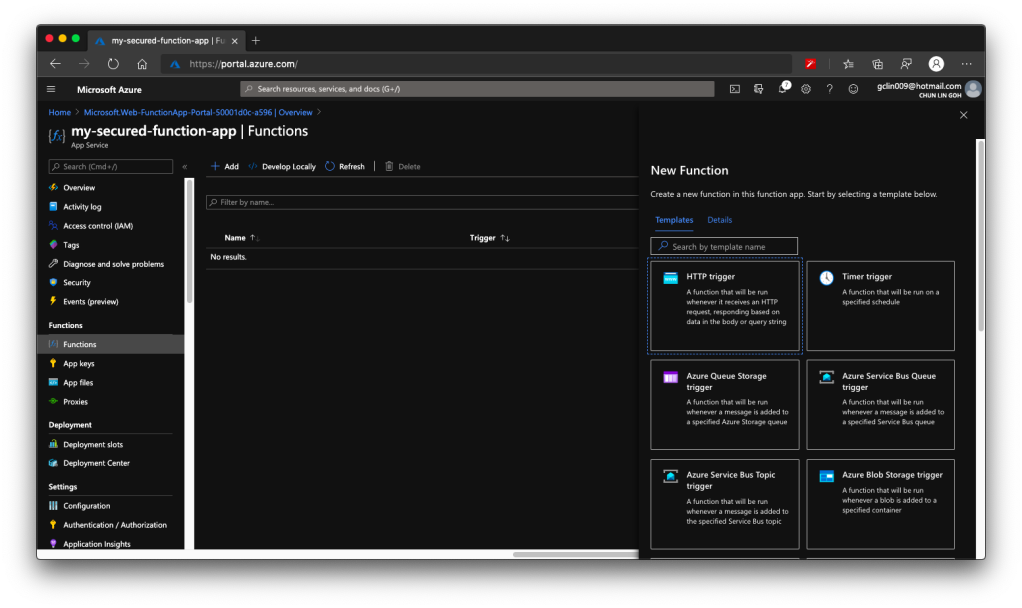
The whole Function creation process takes about 2 minutes. Once it is successfully created, we can proceed to add a new function to it. In this case, we are going to choose a HTTP trigger, as shown in the screenshot below. We choose to use a HTTP trigger function because later we will show only authenticated users can get the results when sending a POST request to this function.

🎨 Creating a function which runs when it received an HTTP request. 🎨

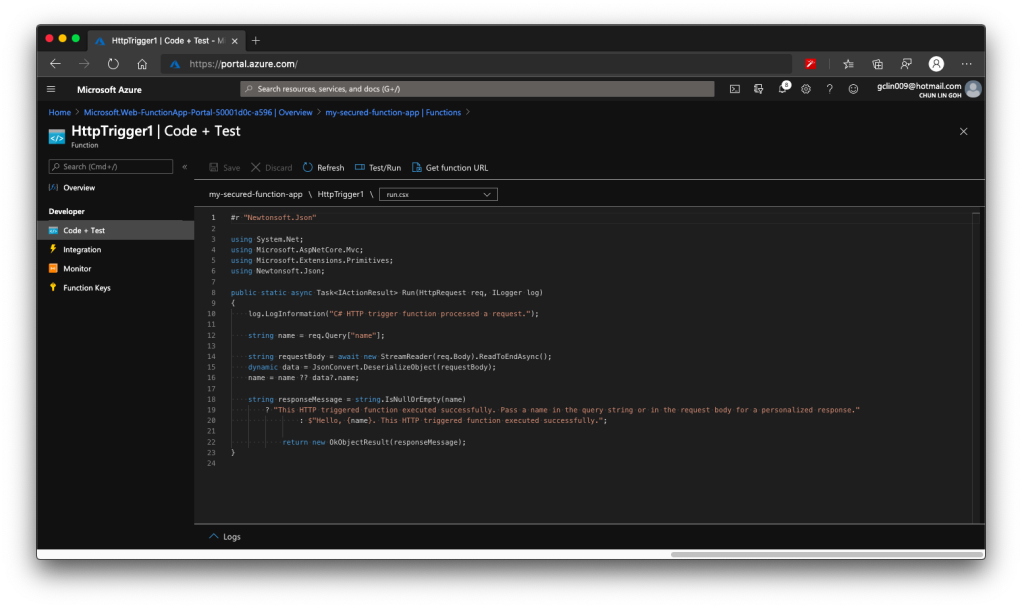
Once the trigger is created, we will see that there is a default C# code template given which will return the caller a greeting message if a name is provided in the body of HTTP request (or through query string).

🎨 Default template code for HTTP Trigger. 🎨

HTTP Methods and Function Keys

Before we continue, there are a few things we need to handle. The steps below are optional but I think they are useful for the readers.

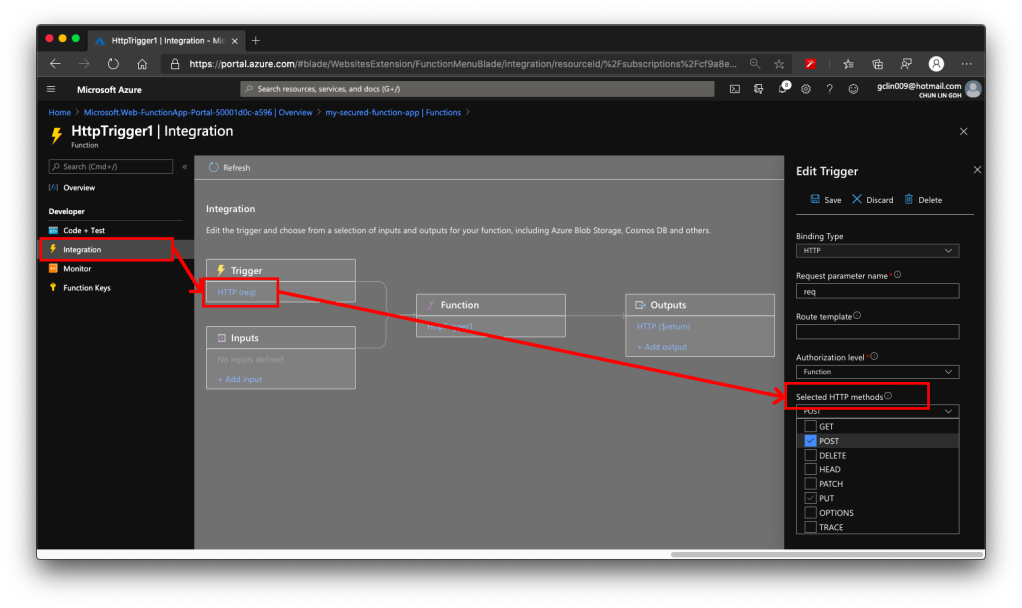
Firstly, by default, the Function accepts both GET and POST requests. If you would like to only allow POST request, changing only the C# codes above is not going to help much. The correct way is to choose the accepted HTTP methods for this Function under its “Integration” section, as shown in the screenshot below.

🎨 This shows where to locate the “Selected HTTP methods”. 🎨

In our case, since we will only accept POST request, we will tick only the POST option.

As you notice in the “Authorization level” dropdown which is right above the “Selected HTTP methods”, it currently says “Function”. Later we must change this but for now we keep it as it is. If you would like to manage the Function Key, or checkout the default one, you can find the keys in the “Function Keys” section of the Function.

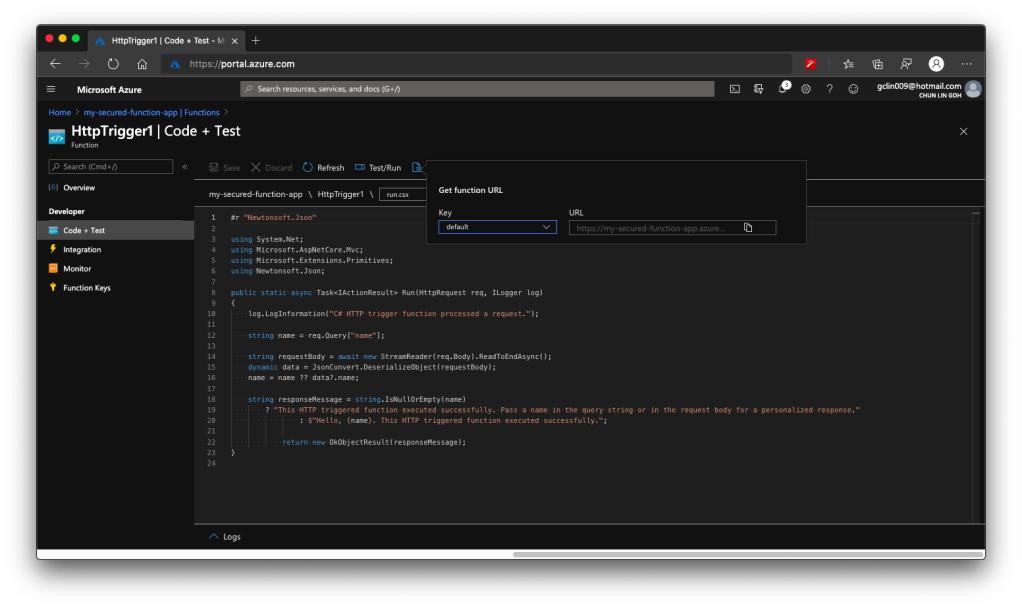
Secondly, what is the URL of this Function? Unlike the previous version of Azure Function, the URL of the Function can be retrieved at both the Overview section and the Code + Test section of the Function. However, the URL in the Overview section has no HTTPS, so we will be using the HTTPS URL found in Code + Test, as shown in the screenshot below.

🎨 Getting the function URL (in HTTPS). 🎨

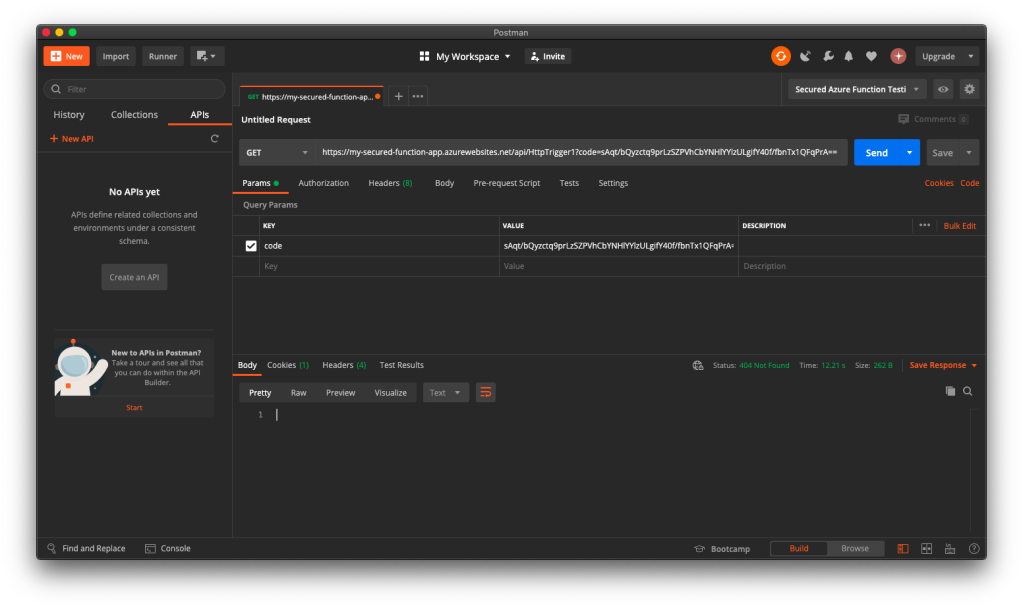
Now if we send a GET request to the Function, we shall receive 404 Not Found, as shown in the following screenshot, because we only open for POST requests.

🎨 GET request sent to our Function will now be rejected. 🎨

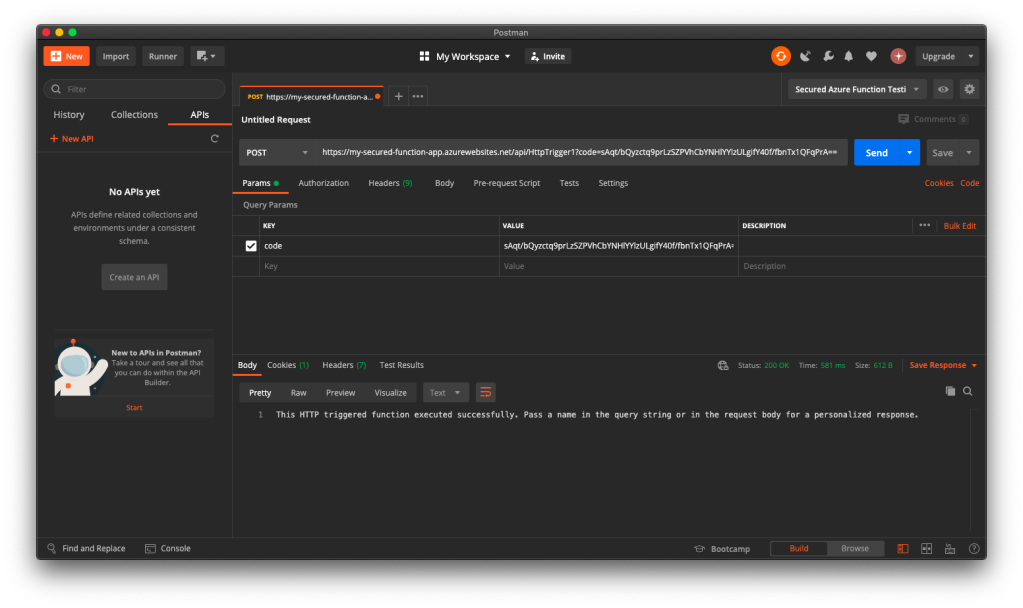
Thus, when we send another HTTP request but make it to be a POST request, we will receive the message that is found in the C# codes in the Function, as shown in the following screenshot.

🎨 Yay, the POST requests are allowed. 🎨

Now, everyone can send a POST request and get the message as long as they know the Function Key. So how do we add Authentication to this Function?

Authorization Level for the Function

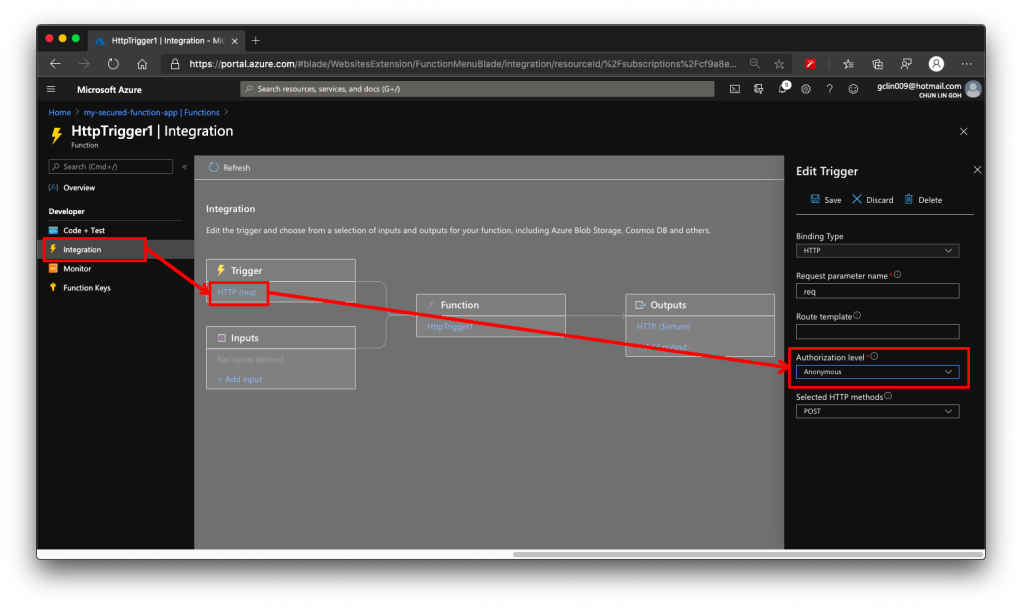
Remember in the earlier section above, we talked about the Authorization Level of the Function? It has three options: Function, Admin, and Anonymous.

We must change the Authorization Level of the Function to be “Anonymous”, as shown in the screenshot below. This is because for both “Function” and “Admin” levels, they are using keys. What we need here is user-based authentication, hence we must choose “Anonymous” instead.

🎨 Without setting the Authorization Level to be Anonymous, the Azure AD authorisation will not work as expected. 🎨

This step is very important because if we forgot to change the Authorization Level to “Anonymous”, the Function will still need the Function Key as the query string even though the request comes in with a valid access token.

Enable App Service Authorization

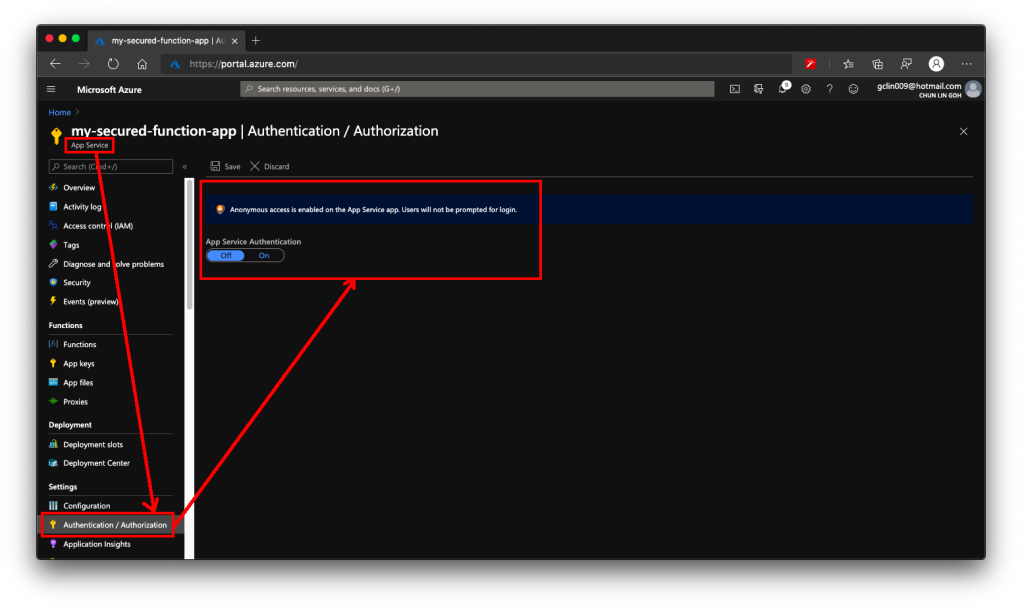
After that, we need to visit the App Service of the Function App to turn on App Service Authentication. This feature is at App Service level instead of the Function itself. So please pay attention to where to look for the feature.

🎨 This is the place to turn on the “App Service Authentication” for the Function app. 🎨

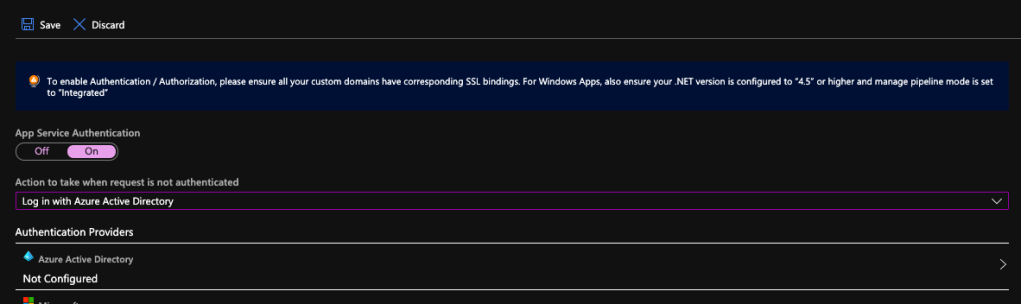
After the Authentication is turned on, we need to specify “log in with Azure Active Directory” as the action to be taken when the request is not authenticate, as illustrated below. This step is also very important because if we forgot to change it and “Allow Anonymous requests (no action)”, then no matter whether we set the Authentication Providers or not, people can still access the Function. Hence, please remember to change this setting accordingly.

🎨 Turning on App Service Authentication. 🎨

Next, please click on the Azure Active Directory which is listed as one of the Authentication Providers. It is currently labelled as “Not Configured”. Don’t worry, we will now proceed to configure it.

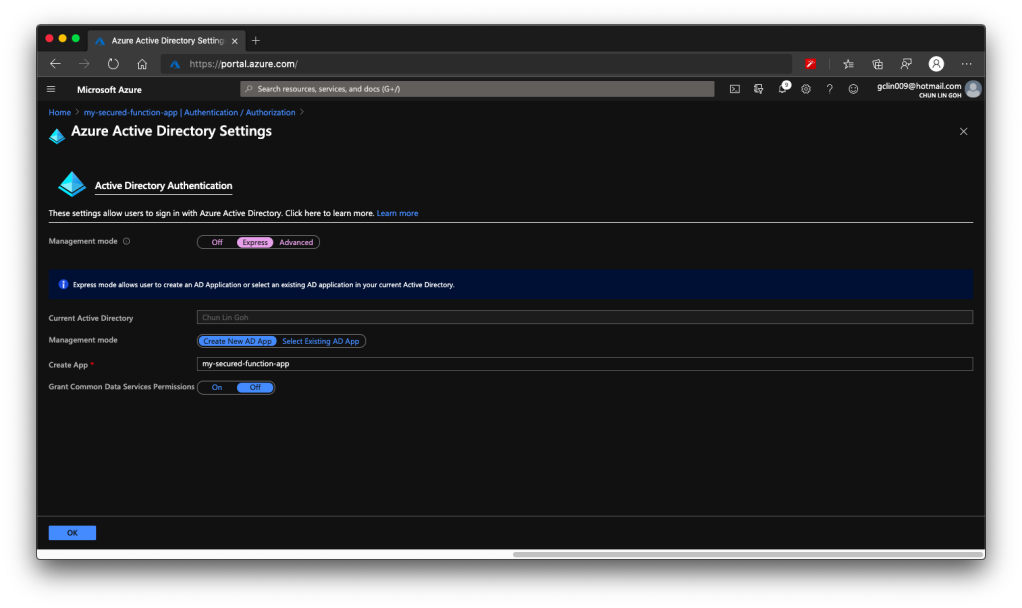
Firstly, we choose the Express mode as management mode. Then we can proceed to create a new Azure AD. The Portal then will help us to setup a new AD Application (or choose from existing AD Application). You can go to Advanced directly if you are experienced with Azure AD.

You should now see the page which looks like what is shown in the following screenshot.

🎨 Creating a new Azure AD Application for the Function in an easy way. (Waypoint 1) 🎨

There is one thing that may catch your attention. It is the last item in the page called “Grant Common Data Service Permissions”. Common Data Service, or CDS, is Microsoft way of providing a secure and cloud-based storage option for our data. There is a one-hour Microsoft online course about CDS, you can take the course to understand more. Grace MacJones, Microsoft Azure Customer Engineer, also gave us a short-and-sweet explanation about this setting on GitHub.

We basically can leave everything as default in the page and proceed to click the “OK” button at the bottom of the page.

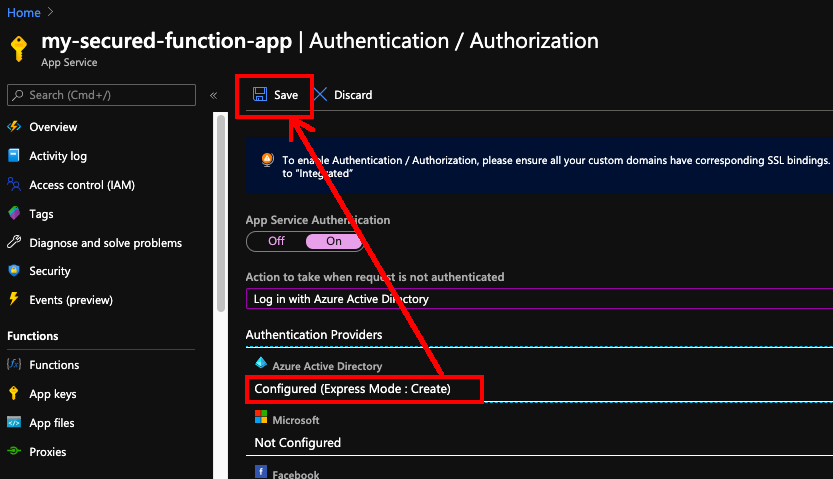
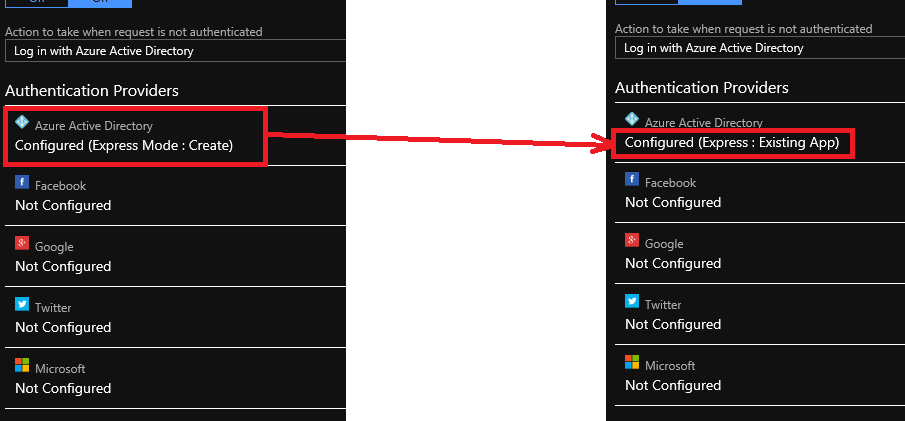
After this, the Azure AD will be labelled as “Configure (Express Mode: Create)”. We can then proceed to save the changes.

🎨 Do not forget to save the settings! 🎨

After the settings are saved, we can refresh the page and realising the Azure AD is now labelled as “Configure (Express: Existing App)”. That means the Azure AD app has been created successfully.

🎨 The status of Azure AD for the Function is updated. 🎨

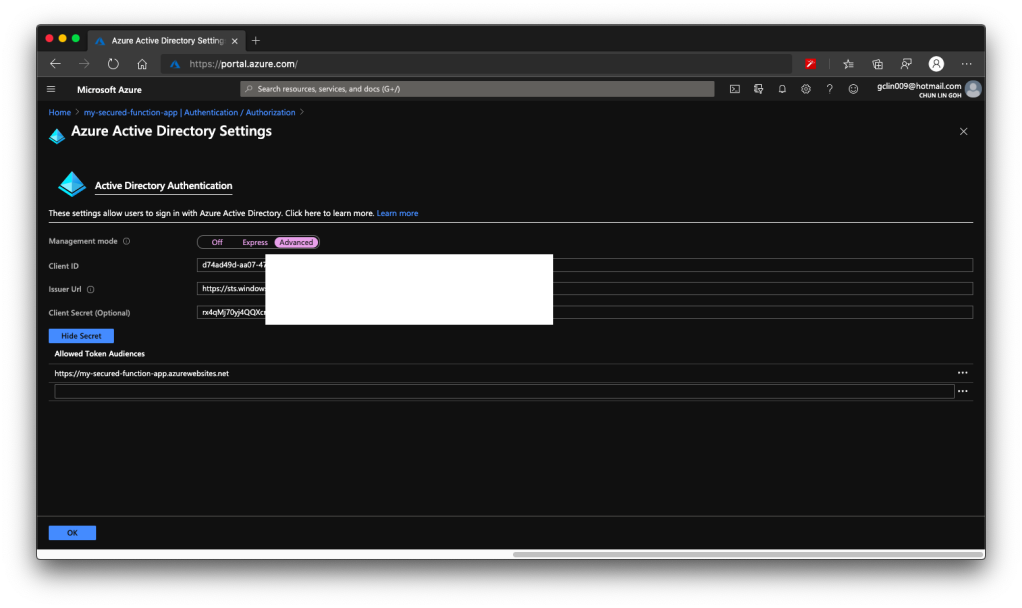
Now, click in to the Azure AD under the Authentication Providers list again. We will be brought to the section where we specified the management node earlier. Instead of choosing Express mode, now we can proceed to choose the Advanced mode.

We will then be shown with Client ID, Issuer Url, and Client Secret, as shown in the following screenshot. According to Ben Martens’ advise, we have to add one more record, which is the domain URL of the Function, to the “Allowed Token Audiences” list to make Azure AD work with this Function, as shown in the following screenshot. (This step is no longer needed with the new interface since October 2019 so I strikethrough it)

🎨 Getting the Azure AD important parameters. 🎨

When you leave this page, the Azure Portal may prompt you to save it. You can choose not to save it. It is optional. If you save it, the Azure AD mode will be changed from Express to Advanced and this will not affect our setup.

Testing on Postman

Now, let’s test our setup above.

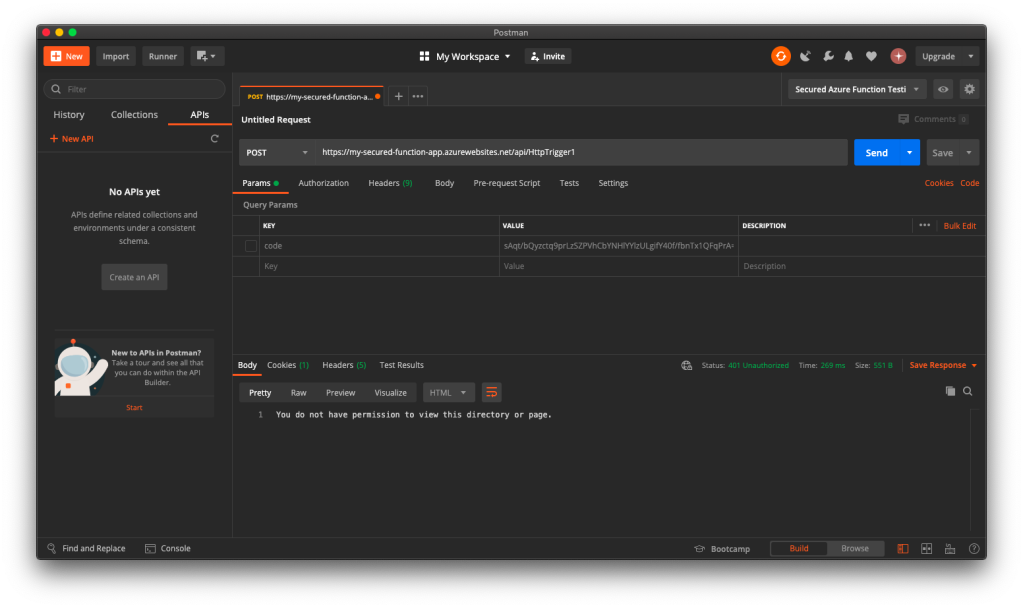
When we send the same POST request to the Function again (with the code query string removed since it’s no longer necessary), this time with the App Service Authorization enabled for the Function App, we will no longer be able to get the same message back. Instead, we are told to be 401 Unauthorised and “You do not have permission to view this directory or page”, as shown in the screenshot below.

🎨 Yup, we are unauthorised now. 🎨

Now, let’s try to authenticate ourselves.

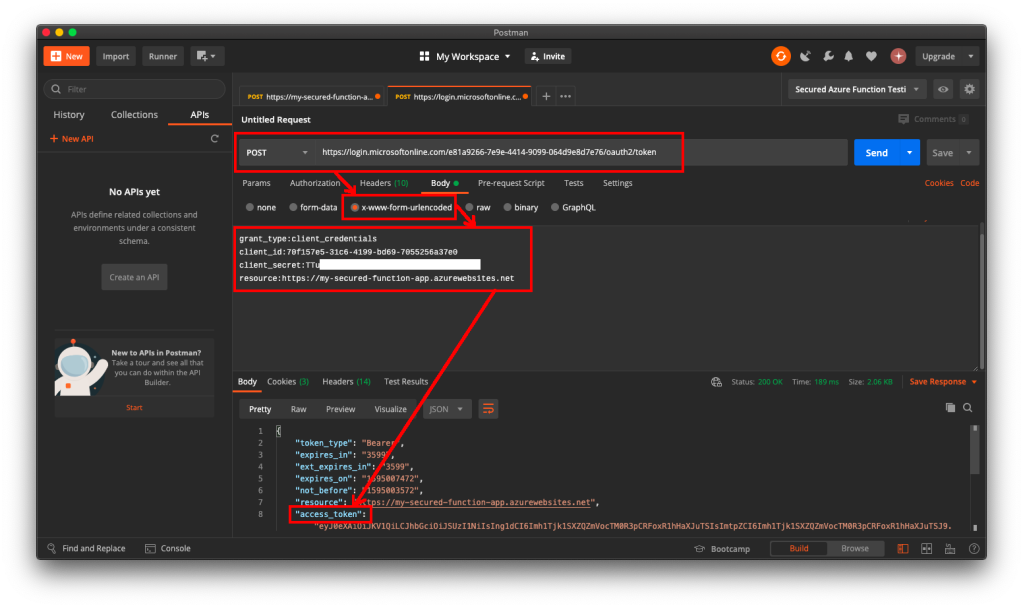
To do so, we will make a POST request with the body containing Grant Type, Client ID, Client Secret, and Resource to the following URL:
https://login.microsoftonline.com/<Tenant ID>/oauth2/token to retrieve the access token, as shown in the following screenshot.

🎨 Yesh, we got the access token. 🎨

If we use the access token to send POST request to our Function, we will be told that we are now authorised and the message found in C# code is presented to us, as shown in the following screenshot.

🎨 Yay, we can access our Function again! 🎨

Conclusion

If you would like to get the claims in the Azure Function, you can refer to the following code which loops through all the claims. If you would like to allow a certain client app to call the Azure Function, you can check for the value of the claim having “appid” as its type.

foreach(var claim in principal.Claims)
{
    log.LogInformation($"CLAIM TYPE: {claim.Type}; CLAIM VALUE: {claim.Value}");
}

That’s all it takes to setup a simple authentication for Azure Function with Azure AD. If you find anything wrong above, feel free to correct me by leaving a message in the comment section. Thanks!

References