
After working on the beacon projects back half a year ago, I was given a new task which is building a dashboard for displaying data collected from IoT devices. The IoT devices basically are GPS tracker with a few other additional sensors such as temperature and shaking detection.
I’m new to IoT field, so I’m going to share in this article what I had learnt and challenges I faced in this project so that it would benefit to juniors who are going to do similar things.
Project Requirements
We plan to have the service to receive data from the IoT devices to be on Microsoft Azure. There will be thousands or even millions of the same devices deployed eventually, so choosing cloud platform to help us scaling up easily.
We also need to store the data in order to display it on dashboard and reports for business use cases.
Challenge 1: Azure IoT Hub and The Restriction of Device Firmware
In the documentation of the device protocol, there is a set of instructions as follows.
First when device connects to server, module sends its IMEI as login request. IMEI is sent the same way as encoding barcode. First comes short identifying number of bytes written and then goes IMEI as text (bytes).
After receiving IMEI, server should determine if it would accept data from this module. If yes server will reply to module 01 if not 00.
I am not sure who wrote the documentation but I am certain that his English is not that easy to comprehend in the first read.
Anyway, this is a good indication that Azure IoT Hub will be helpful because it provides secure and reliable C2D (Cloud-to-Device) and D2C communication with HTTP, AMQP, and MQTT support.
However, when I further read the device documentation, I realized that the device could only send TCP packets over in a protocol the device manufacturer defined. In addition, the device doesn’t allow us to update its firmware at this moment, making it to send data using protocols accepted by Azure IoT Hub is impossible.
There is a fierce discussion about this on Stack Overflow. Unfortunately, none of the respondents understood what the OP was trying to say.
So, I have to say bye-bye to Azure IoT Hub and move on to build TCP Listener myself on Azure.
Challenge 2: Hosting TCP Listener on Azure
There is a great code sample on how to build a TCP listener in C# to listen for connections from TCP network clients.
So, where could we put this code at?
Could we use Azure App Service, such as Functions or Web Apps? Unfortunately, no. This is because only 80/TCP and 443/TCP are exposed publicly and the only protocol that works is HTTP. In addition, App Service is all IIS, the web server provides the entire platform, there is no room for long running processes or threads that can sit and wait for communication on another port outside of IIS.
The only easy option we have now is to use Azure Cloud Service with Worker Role. Worker Role does not use IIS and it can run our app standalone.
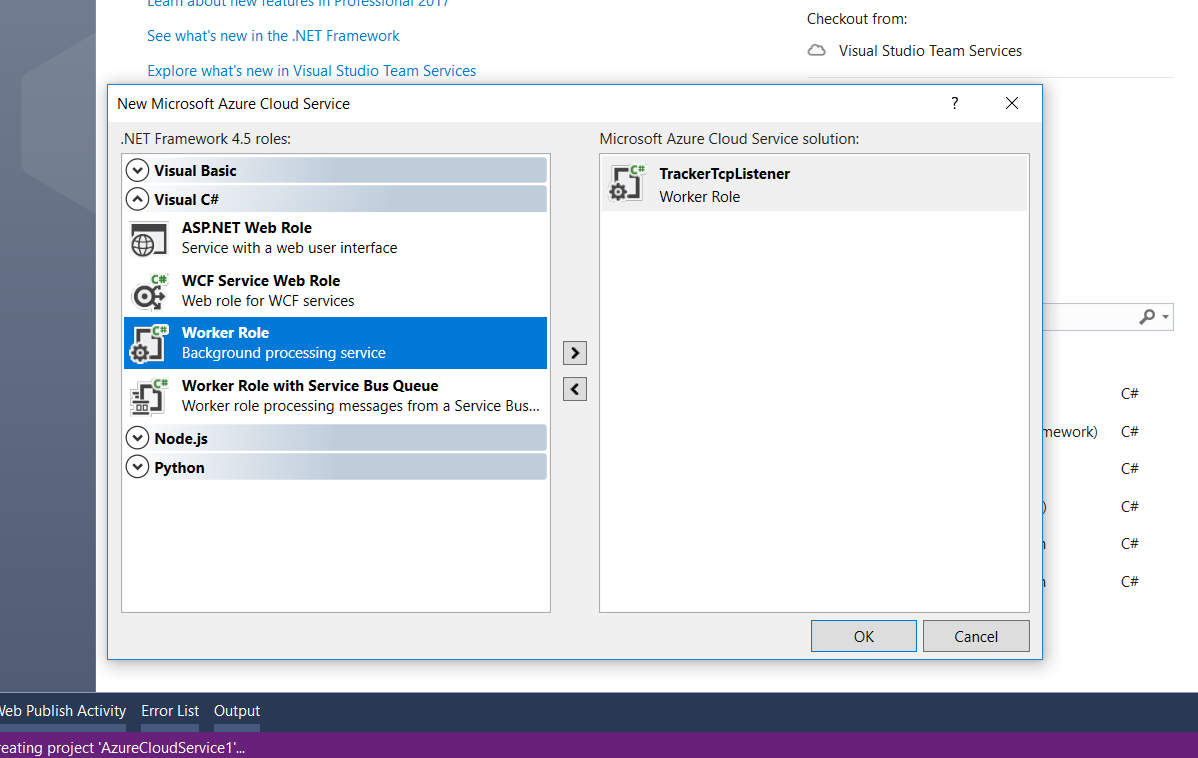
A default template of WorkerRole class will be provided.
public class WorkerRole : RoleEntryPoint
{
    private readonly CancellationTokenSource cancellationTokenSource = new CancellationTokenSource();
    private readonly ManualResetEvent runCompleteEvent = new ManualResetEvent(false);

    public override void Run()
    {
        Trace.TraceInformation("TrackerTcpListener is running");

        try
        {
            this.RunAsync(this.cancellationTokenSource.Token).Wait();
        }
        finally
        {
            this.runCompleteEvent.Set();
        }
    }

    public override bool OnStart()
    {
        // Set the maximum number of concurrent connections
        ServicePointManager.DefaultConnectionLimit = 12;

        // For information on handling configuration changes
        // see the MSDN topic at https://go.microsoft.com/fwlink/?LinkId=166357.

        bool result = base.OnStart();

        Trace.TraceInformation("TrackerTcpListener has been started");

        return result;
    }

    public override void OnStop()
    {
        Trace.TraceInformation("TrackerTcpListener is stopping");

        this.cancellationTokenSource.Cancel();
        this.runCompleteEvent.WaitOne();

        base.OnStop();

        Trace.TraceInformation("TrackerTcpListener has stopped");
    }

    private async Task RunAsync(CancellationToken cancellationToken)
    {
        // TODO: Replace the following with your own logic.
        while (!cancellationToken.IsCancellationRequested)
        {
            Trace.TraceInformation("Working");
            await Task.Delay(1000);
        }
    }
}
It’s obvious that the first method we are going to work on is the RunAsync method with a “TODO” comment.
However, before that, we need to define an IP Endpoint for this TCP listener so that we can tell the IoT device to send the packets to the specified port on the IP address.
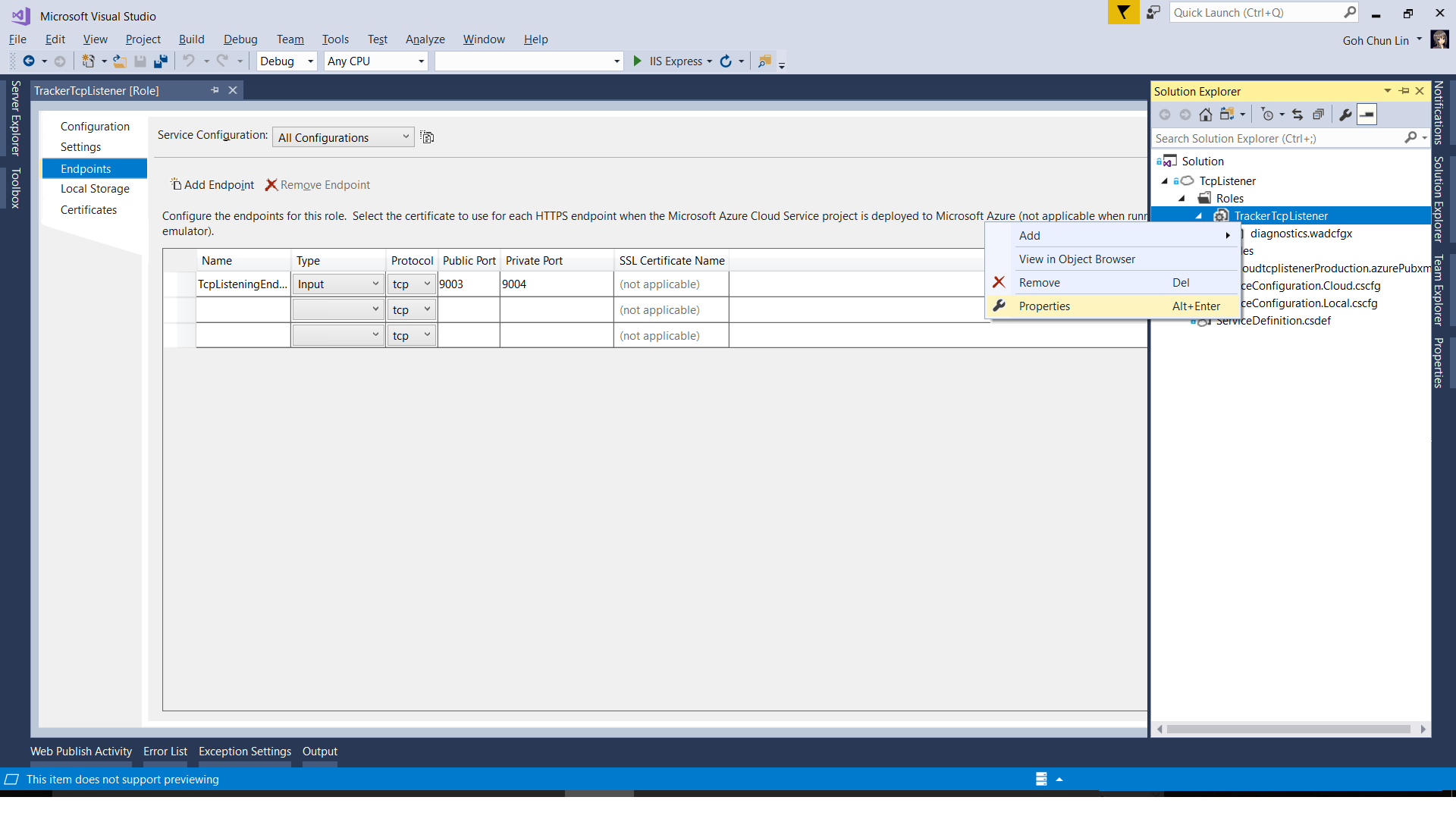
With endpoints defined, we can then proceed to modify the code.
private async Task RunAsync(CancellationToken cancellationToken)
{
    try
    {
        TcpClient client;

        while (!cancellationToken.IsCancellationRequested)
        {
            var ipEndPoint = RoleEnvironment.CurrentRoleInstance.InstanceEndpoints["TcpListeningEndpoint1"].IPEndpoint;

            var listener = new System.Net.Sockets.TcpListener(ipEndPoint) { ExclusiveAddressUse = false };
            listener.Start();

            // Perform a blocking call to accept requests.
            client = listener.AcceptTcpClient();

            // Get a stream object for reading and writing
            NetworkStream stream = null;

            try
            {
                stream = client.GetStream();

                await ProcessInputNetworkStreamAsync(stream);
            }
            catch (Exception ex)
            {
                // Log the exception
            }
            finally
            {
                // Shutdown and end connection
                if (stream != null)
                {
                    stream.Close();
                }

                client.Close();

                listener.Stop();
            }
        }
    }
    catch (Exception ex)
    {
        // Log the exception
    }
}
The code for the method ProcessInputNetworkStreamAsync above is as follows.
private async Task ProcessInputNetworkStreamAsync(string imei, NetworkStream stream)
{
    Byte[] bytes = new Byte[5120];
    int i = 0;
    byte[] b = null;
    var receivedData = new List<string>();

    while ((i = stream.Read(bytes, 0, bytes.Length)) != 0)
    {
        receivedData = new List<string>();

        for (int reading = 0; reading < i; reading++)
        {
            using (MemoryStream ms = new MemoryStream())
            {
                ms.Write(bytes, reading, 1);
                b = ms.ToArray();
            }

            receivedData.Add(ConvertHexadecimalByteArrayToString(b));
        }

        Trace.TraceInformation("Received Data: " + string.Join(",", receivedData.ToArray()));

        // Respond from the server to device
        byte[] serverResponse = ConvertStringToHexadecimalByteArray("<some text to send back to the device>");
        stream.Write(serverResponse, 0, serverResponse.Length);
    }
}
You may wonder what I am doing above with ConvertHexadecimalByteArrayToString and ConvertStringToHexadecimalByteArray methods. They are needed because the packets used in the TCP protocol of the device is in hexadecimal. There is a very interesting discussion about how to do the conversion on Stack Overflow, so I won’t repeat it here.
Challenge 3: Multiple Devices
The code above is only handling one port. Unfortunately, the IoT device doesn’t send over the IMEI number or any other identification number of the device when the actual data pack is sent to the server. Hence, that means if there is more than one IoT device sending data to the same port, we will have no way to identify who is sending the data at the server side.
Hence, we need to make our TCP Listener to listen on multiple ports. The way I chose is to use List<Task> in the Run method as shown in the code below.
public override void Run()
{
    try
    {
        // Reading a list of ports assigned for trackers use
        ...

        var tasks = new List<Task>();

        foreach (var port in trackerPorts)
        {
            tasks.Add(this.RunAsync(this.cancellationTokenSource.Token, port));
        }

        Task.WaitAll(tasks.ToArray());
    }
    finally
    {
       this.runCompleteEvent.Set();
    }
}
Challenge 4: Worker Role Not Responding Irregularly
This turns out to be the biggest challenge in using Worker Role. After receiving data from the IoT devices for one or two days, the server was not recording any further new data even though the devices are working fine. So far, I’m still not sure about the cause even though there are people encountering similar issues as well.
Hence, I have to find a way to automatically restart the Worker Role for me. Thus, I decided to use PowerShell script to reboot the instance. There is a sample code on Microsoft Technet Gallery – Script Center which does similar thing.
I proceed to use Azure Automation which provides Runbooks to help handling the creation, deployment, monitoring, and maintenance of Azure resources. The Powershell Workflow Runbook that I use for rebooting the worker role daily is as follows.
workflow Reboot-CloudService
{
    Write-Output "Started!"

    $azureSubscriptionId = Get-AutomationVariable -Name "AzureSubscriptionId"
    $cloudServiceName = Get-AutomationVariable -Name "CloudServiceName"
    $workerRoleInstanceName = Get-AutomationVariable -Name "WorkerRoleInstanceName"

    $myCredential = Get-AutomationPSCredential -Name "Chun Lin"
    Add-AzureAccount -Credential $myCredential

    Select-AzureSubscription -SubscriptionId $AzureSubscriptionId

    Write-Output "Restarting for cloud service: $cloudServiceName."

    ReSet-AzureRoleInstance -ServiceName $cloudServiceName -Slot "Production" -InstanceName $workerRoleInstanceName -Reboot

    Write-Output "Restarted successfully!"
}
In case you wonder where I defined the values for variables such as AzureSubscriptionId, CloudServiceName, and WorkerRoleInstanceName, as well as automation PowerShell credential, there are all easily found in the Azure Portal under “Share Resources” section of Azure Automation Account.
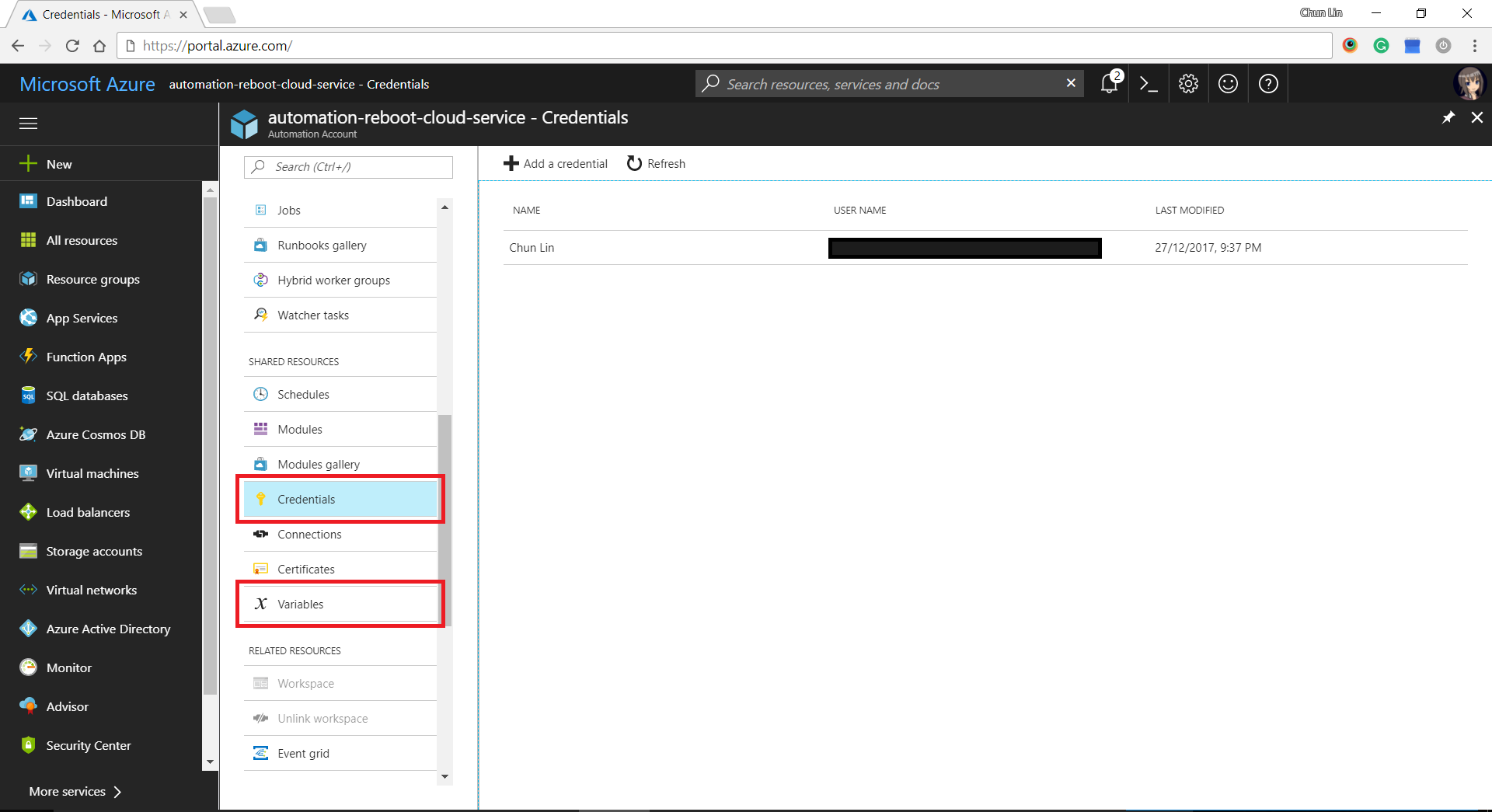
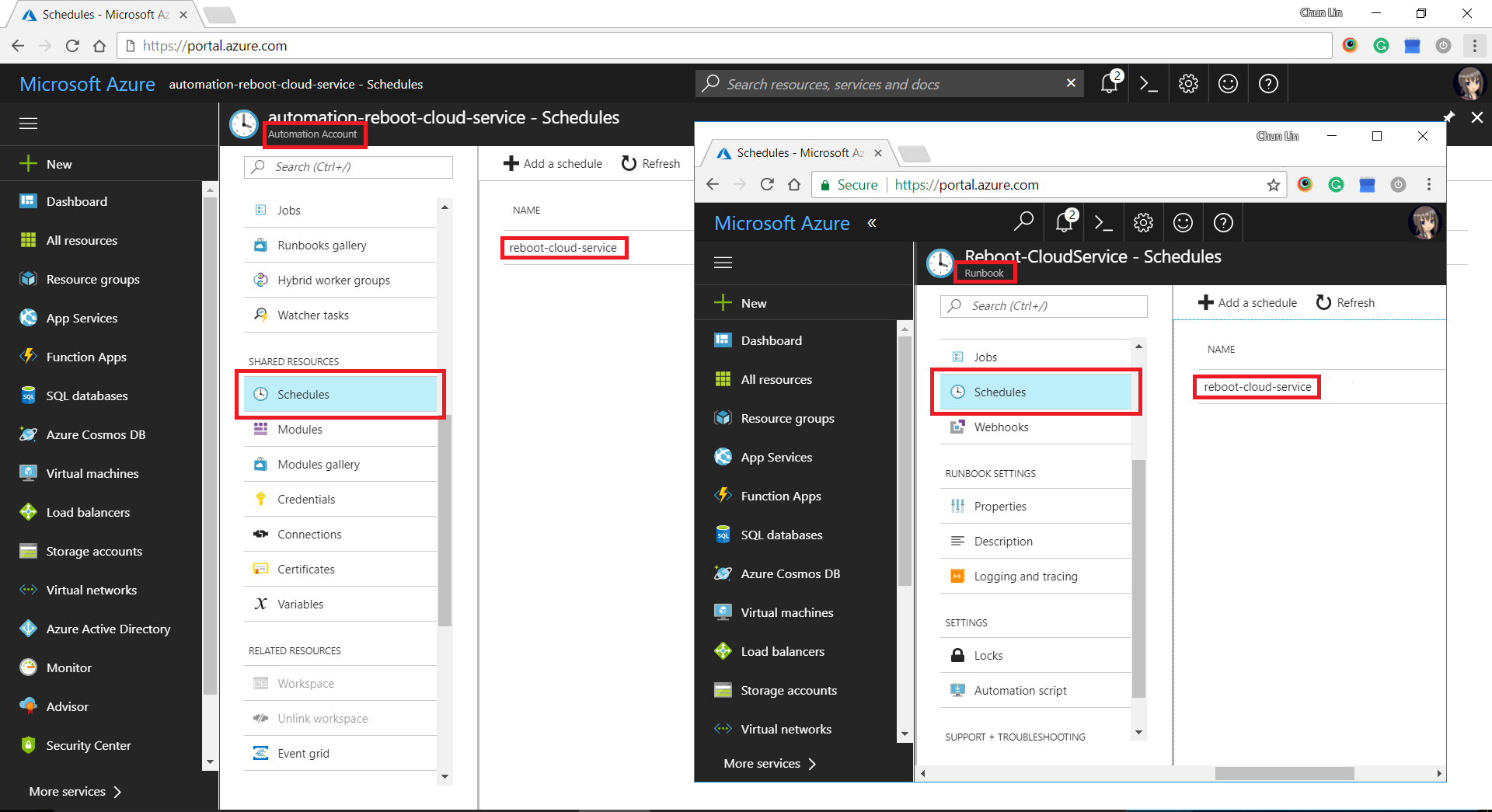
After setting up the Runbook, we need to define schedules in Automation Account and then link it to the Runbook.
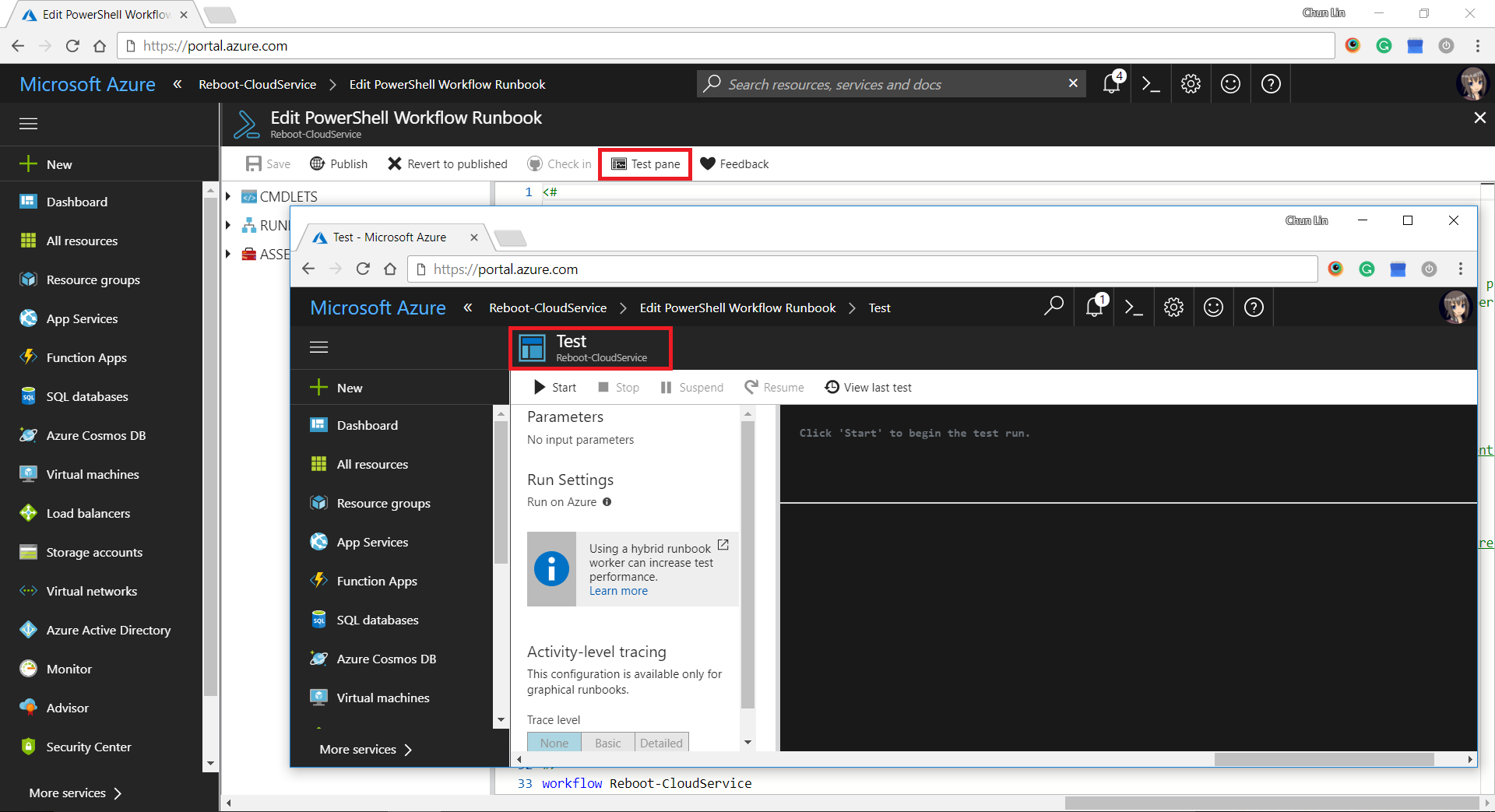
There is another tool in the Azure Portal that I find it to be very useful to debug my PowerShell script in the Runbook. It is called the “Test Pane”. By using it, we can easily find out if the PowerShell script is correctly written to generate desired outcome.
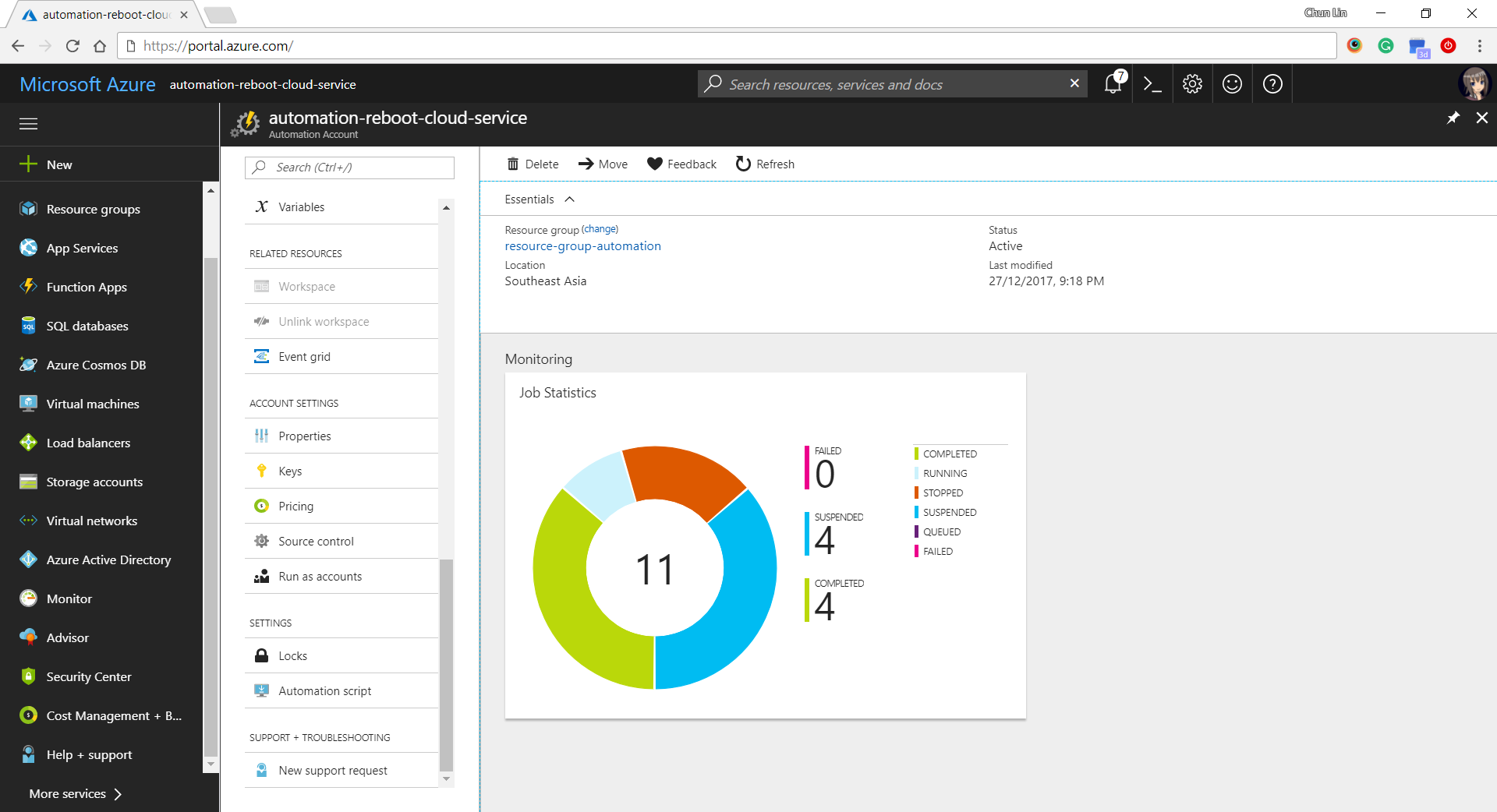
After that, we can easily get a summary of how the job runs on Azure Portal, as shown in the following screenshot.
Yup, that’s all what I had learnt in the December while everyone was enjoying the winter festivals. Please comment if you find a better alternative to handle the challenges above. Thanks in advance and happy new year to you!
References
- [Stack Overflow] How can I host a TCP Listener in Azure?
- Server Socket (TCP) With Microsoft Azure
- [Stack Overflow] Azure Worker Role multithread queue processing
- My first PowerShell Workflow runbook
- Azure vs AzureRM – Powershell cmdlets
- Reboot Cloud Service (PaaS) VM Instances Per Update Domain
- Reset-AzureRoleInstance
- Cant set default subscription – throws error?
- Add-AzureAccount
- Azure Automation の RunBook で Add-AzureAccount を使用する場合の注意


 cuteprogramming