Publishing New Xamarin.Forms App with AAB to Play Store

In the past, we published our Android app with APK, or Android Package file format, to the Google Play Store. However, starting from August 2021, if we have new apps to be published to the Google Play Store, we must use the AAB format, or Android App Bundle, instead.

AAB was first introduced in May 2018. AAB is a publishing format that includes all the compiled code and resources of our app, and defers APK generation and signing to Google Play. AAB also makes our app smaller (on average, 15% smaller than a universal APK) and faster to download.

Hence, today in this article, we will see how we can publish our Android app which is newly built using Xamarin.Forms in AAB format to the Google Play Store.

Step 0: Configure MainActivity And Android Manifest

In the Android project, we will see a class called MainActivity which is used to powered our Android app. It has an attribute called Activity which lets Android know that the class is part of the app managed by the Android Manifest.

There are many properties in the Activity attribute. One of them is called MainLauncher. By default, MainLauncher will be set to true for MainActivity class to state that the MainActivity is where our app starts up.

Step 0.1: App Name, Icon, and MainActivity

We also can customise our app name by updating the Label property in MainActivity Activity attribute. However, please take note that the value of Label here will override the app name value in the Android Manifest. Hence, it is preferable to delete the Label property here and set the name in the Android Manifest instead with strings.xml.
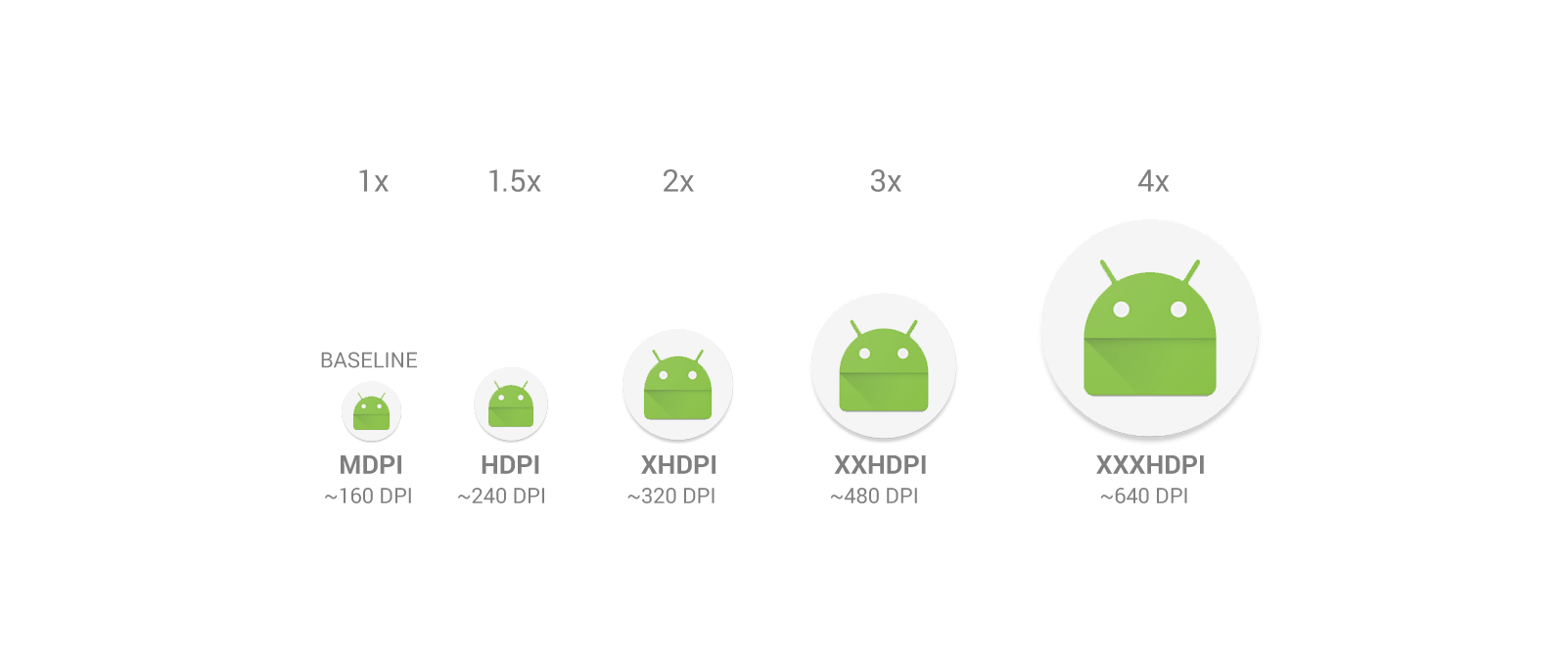
Relative sizes for bitmaps at different density sizes. (Image Source: Android Developers)

The Icon property here specifies the application icon. By default, it is set to be “@mipmap/icon”. Hence, we simply need to update the icon.png files in all the mipmap folders. We don’t use drawable folder because our app icon may need to be scaled differently on different UIs. The launcher app will then pick the best resolution icon to display on the screen. An alternative to creating multiple density-specific versions of an image is to create just one vector graphic.

Finally, if you are using Xamarin plugins, such as Rg.Plugins.Popup, you will be asked to configure the ConfigurationChanges property. This is to declare that our app handles the configuration change itself which prevents the system from restarting our activity.

Step 0.2: App Manifest
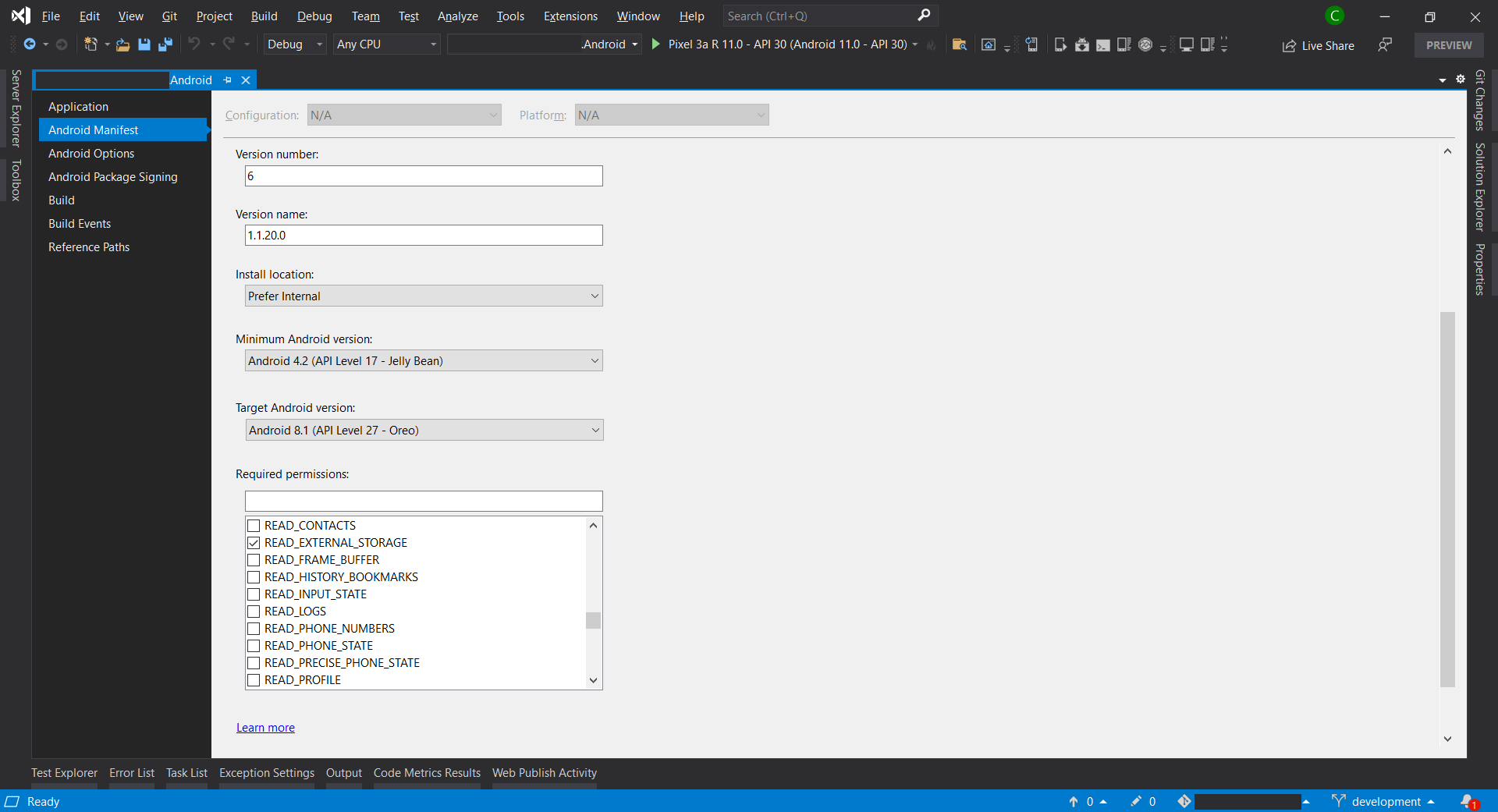
Updating Android Manifest of the Android project in Visual Studio. (Screenshot A)

Android Manifest allows us to describe the functionality and requirements of our Android app. We can either directly edit the AndroidManifest.xml file or edit it through the Properties window of the Android project.

Step 0.2.1: Android API Level

In the manifest, we can specify the minimum and target Android versions.

By November 2021, all apps that are being updated must target at least API Level 30, as shown in the announcement in Google Play Policies screenshot below.
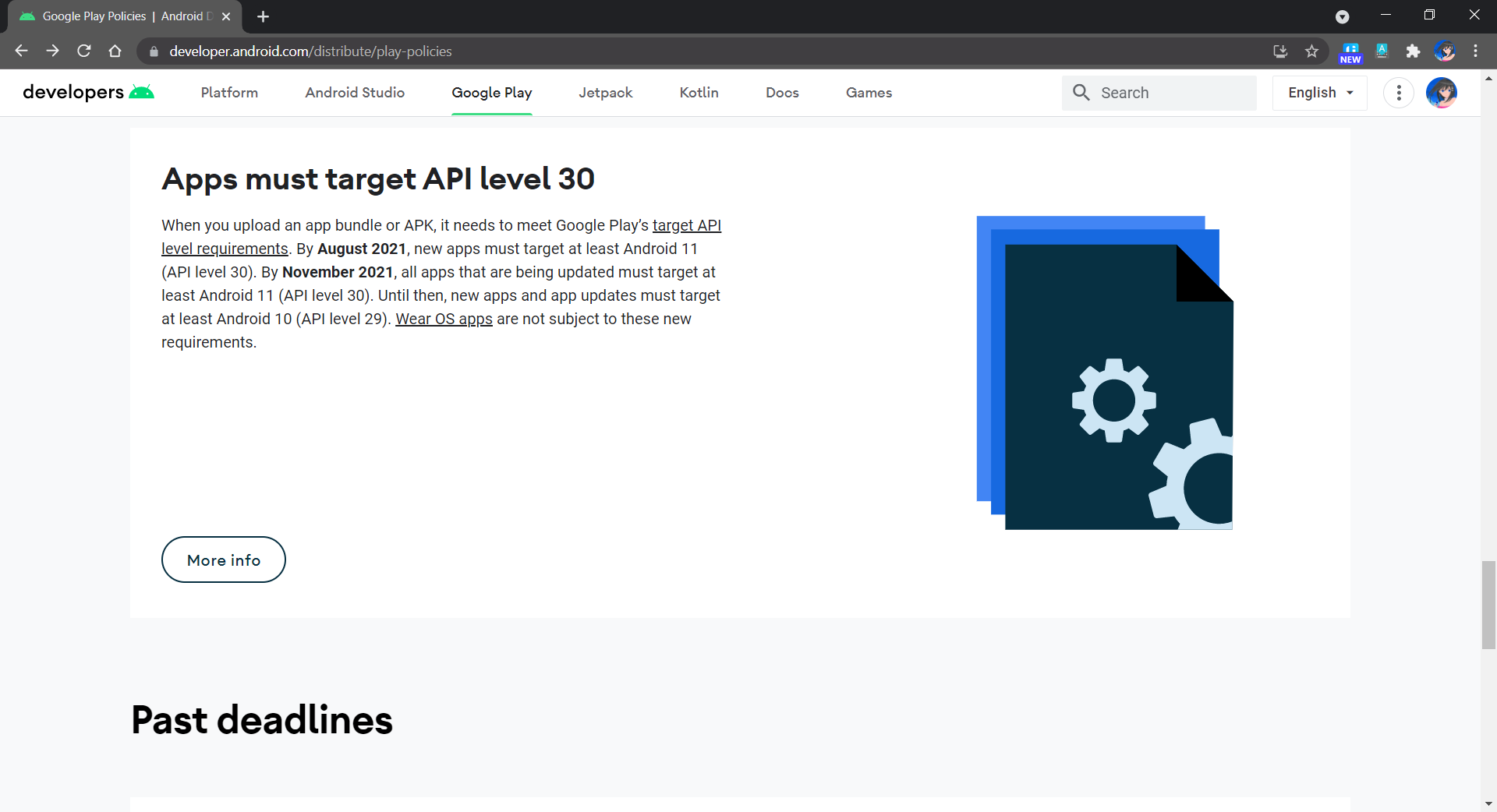
Apps now must target API Level 30.

In addition, in order to not make our app to run on Android devices which are still using the discontinued Dalvik VM, we shall set minimum Android API Level to be 21 at least. According to the chart provided in Android Studio, we can see that 94.1% of the Android devices are already using API Level 21 and above as of October 2021. So it is safe to set the minimum Android API Level to be 21.
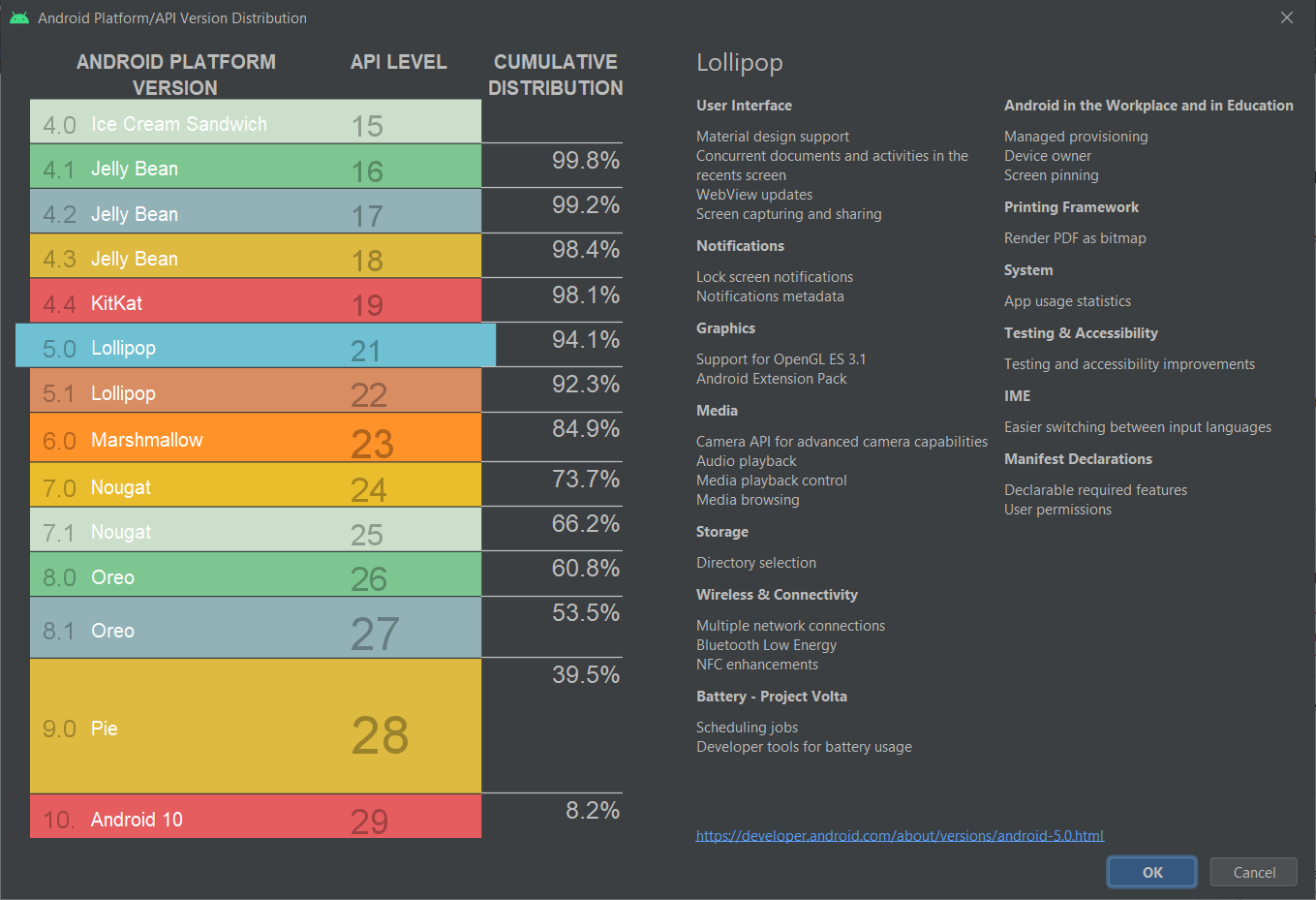
API Version distribution chart in Android Studio (as of October 2021).
Step 0.2.2: Permissions

In the manifest, we also need to specify the permissions our app requires to run. We should only request necessary permissions because users will be prompted to allow these permissions when they download our app from the Google Play Store.

By the way, if we find that switching to a Release build causes our app to lose a permission that was available in the Debug build, verify that the permission is explicitly set in the Android Manifest in Properties window, as shown in the Screenshot A above.

Step 0.2.3: App Version

Finally, in the manifest, we need to version our app release. Android recognises two different types of version information:

  • Version Number: A positive integer value (used internally by Android and the application, and thus not displayed to users) that represents the version of the application. Normally it starts with 1;
  • Version Name: A string about the app version and it’s displayed to users in Google Play Store.

Step 1: Change To AAB

As mentioned earlier, Google requires us to publish our apps with the Android App Bundle (AAB). Hence, we need to first update the Android Package Format for our app in Android Options to use bundle instead of apk, as shown in the following screenshot.

Change to use Android App Bundle.

Step 2: Configure Linker

In order to have an efficient app deployment, we need to build and release small app packages. To do so, we execute a process, known as Linking, that examines the application and removes any code that is not directly used.

The Linker in Xamarin.Android uses static analysis to determine which assemblies, types, and type members are used or referenced by a Xamarin.Android application. The linker will then discard all the unused assemblies, types, and members that are not used or referenced.

There are three linking options available:

  • None: No linking will be executed;
  • SDK Assembly Only: Linking will be performed on the assemblies required by Xamarin.Android only, NOT user’s assemblies;
  • SDK and User Assemblies: Linking will be performed on ALL assemblies, including user’s assemblies.

Normally, we will pick “SDK Assembly Only”. If we choose the “SDK and User Assemblies” option, the Linker may sometimes remove classes that are not seemed to be used by our code, especially if they are in the Xamarin shared project (or PCL library project).

Please take note that linking can produce some unintended side effects, so it is important that an application be re-tested in Release mode on a physical device.

Step 3: Dex Compilation

In order to have our app run on Android Runtime (ART), which is the successor of Dalvik VM, there is a process known as Dex (Dalvik Executable) Compilation which will transform .class bytecode into .dex bytecode. Inevitably, Xamarin.Android also has to compile Java source code into Dex format as part of the build.

In 2017, Google introduced a new Dex compiler know as D8 and one year later Google made it as the default Dex compiler in Android Studio. Soon, in Visual Studio 2019 Preview 2, D8 was allowed to be set in csproj.
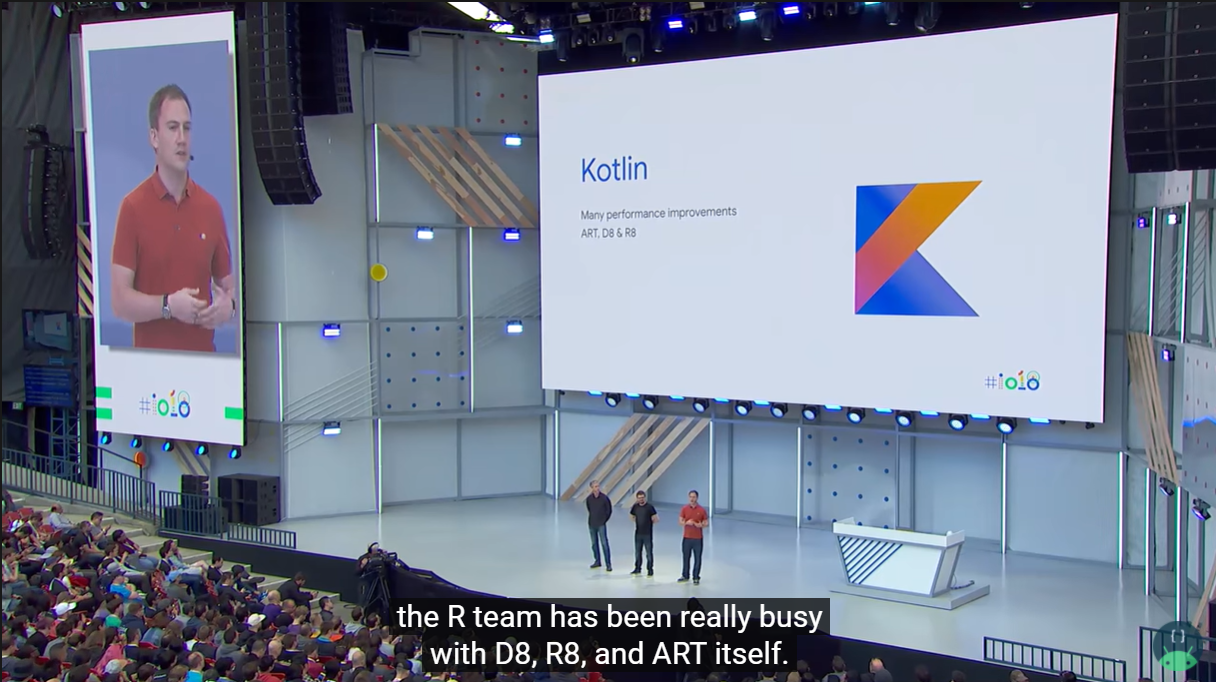
ART, D8, and R8 in Google I/O 2018. (Image Source: Android Developers YouTube)

As an extension to D8, R8 is a Java code shrinker. R8 will remove unused code and resources from our app release so that the released is shrank. According to Google, in R8, we can also benefit from obfuscation, which shortens the names of classes and members in our app, and optimization, which applies more aggressive strategies to further reduce the size of our app. However, R8 doesn’t obfuscate when used with Xamarin.
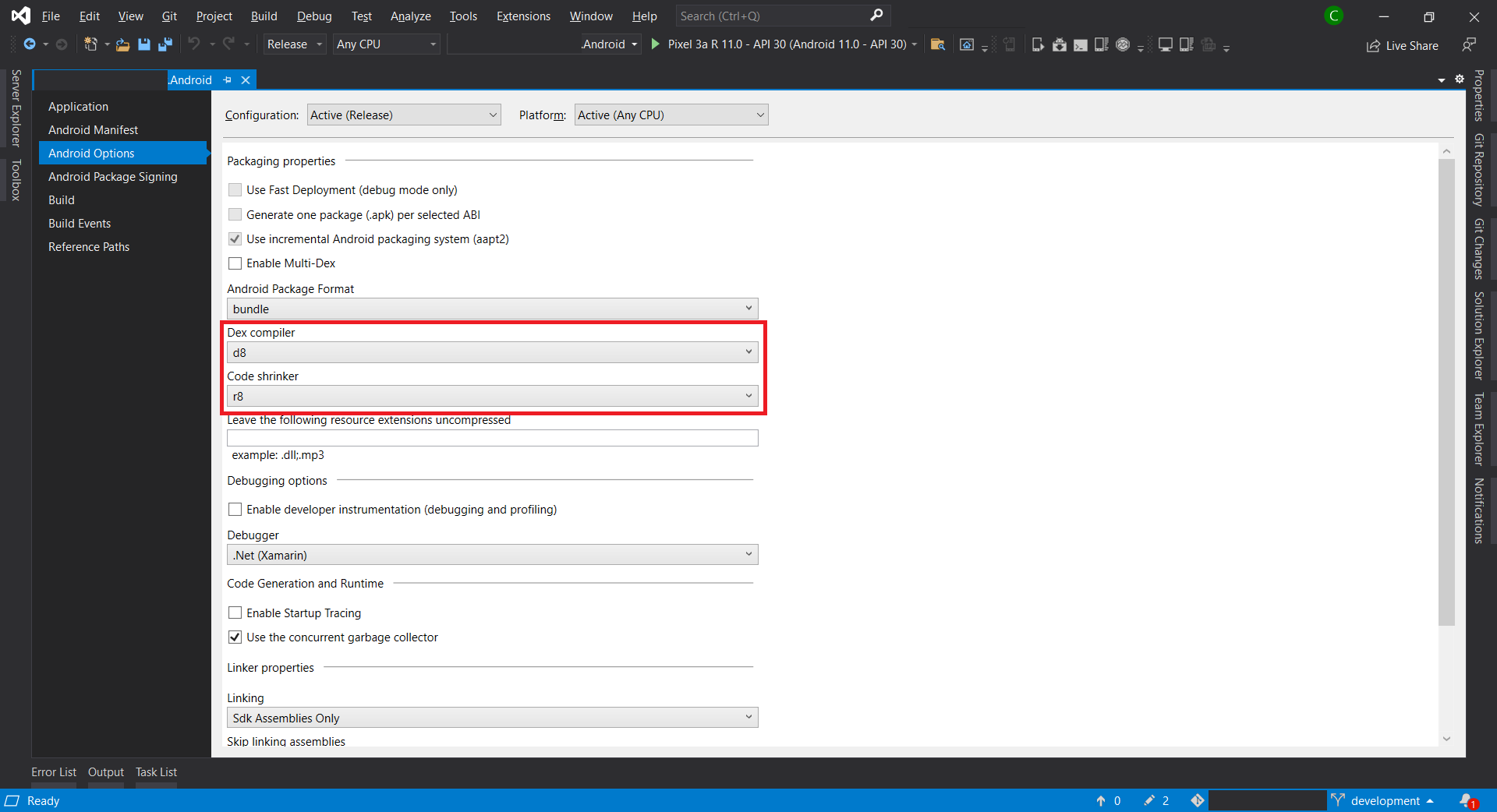
Setting D8 and R8 as the Dex Compiler and Code Shrinker, respectively.

Step 4: Disable Debugging

In the Android Options shown above, we need to make sure we have disabled the “Enable developer instrumentation (debugging and profiling)” option for Release mode.

In addition, we should disable the debug state in a released application as it is possible to gain full access to the Java process and execute arbitrary code in the context of the app via JDWP (Java Debug Wire Protocol, which is turned on by default) if this debug state is not disabled. To disable it, we need to add the following lines into AssemblyInfo.cs file.

#if DEBUG
[assembly: Application(Debuggable=true)]
#else
[assembly: Application(Debuggable=false)]
#endif

Step 5: Set Supported Architecture

Currently, all our apps published on Google Play must support 64-bit architectures because starting from August 2021, Google Play stops serving non-64-bit capable devices. This means that apps with 32-bit native code will need to have an additional 64-bit version as well.

Fortunately, Xamarin.Android having supported 64-bit CPU architectures for some time and is the default in Visual Studio 2019.
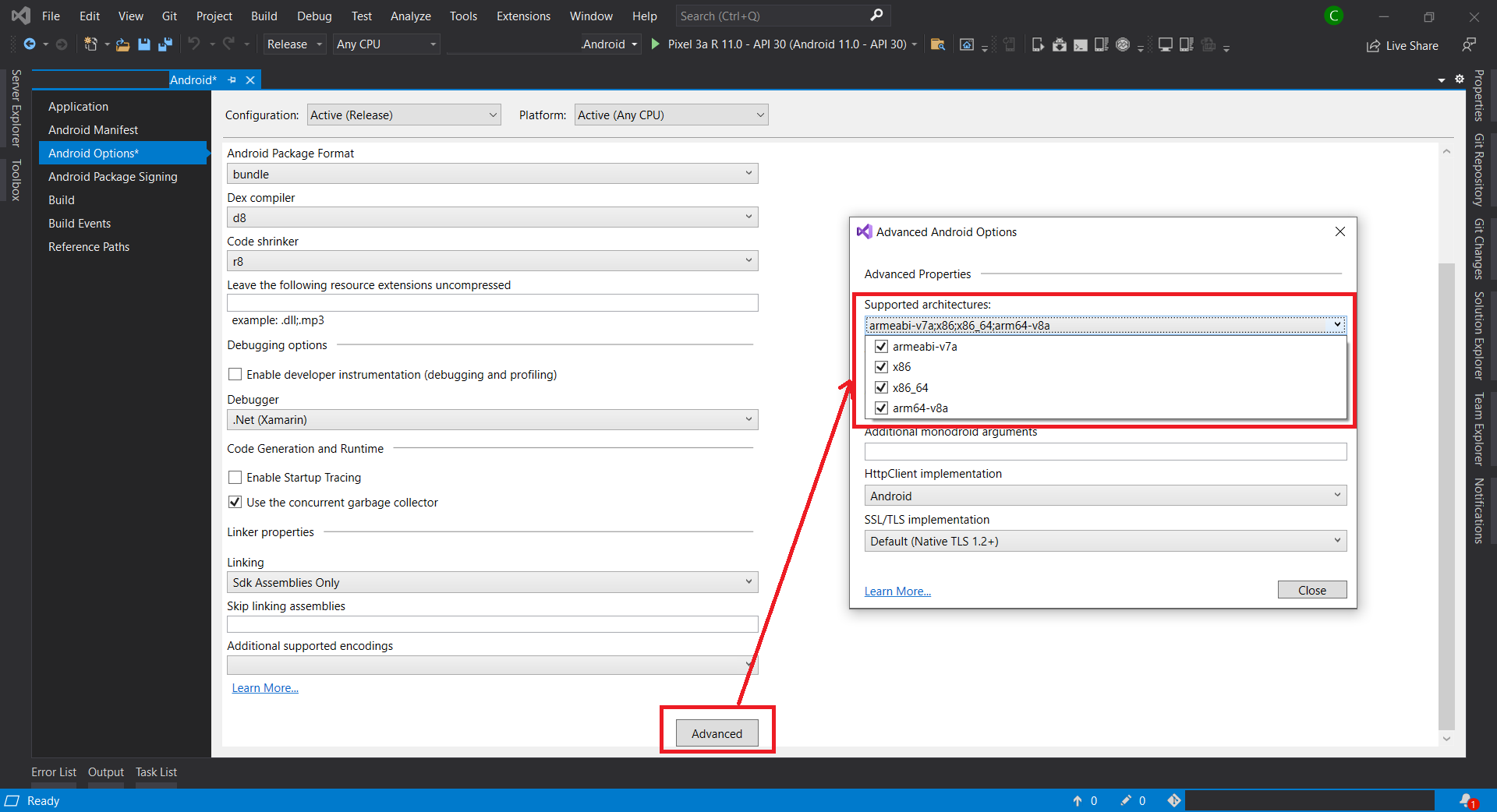
We can pick the supported architectures for our app in Android Options.

Take note that with AAB, Google Play now can use our app bundle to generate and serve optimized APKs for each device configuration. Hence, only the code and resources that are needed for a specific device are downloaded to run our app. This means that including additional architectures will no longer have any impact on the binary size when using AAB.

Step 6: Compile and Archive

After all of the above steps are completed, we can now proceed to compile our app in Release mode. We need to make sure that our app can be built successfully in Release mode.

Next, we will right-click on the Android project and choose the “Archive…” option. Then the Archive Manager will be displayed, as shown below. We just need wait for the packaging process to finish.
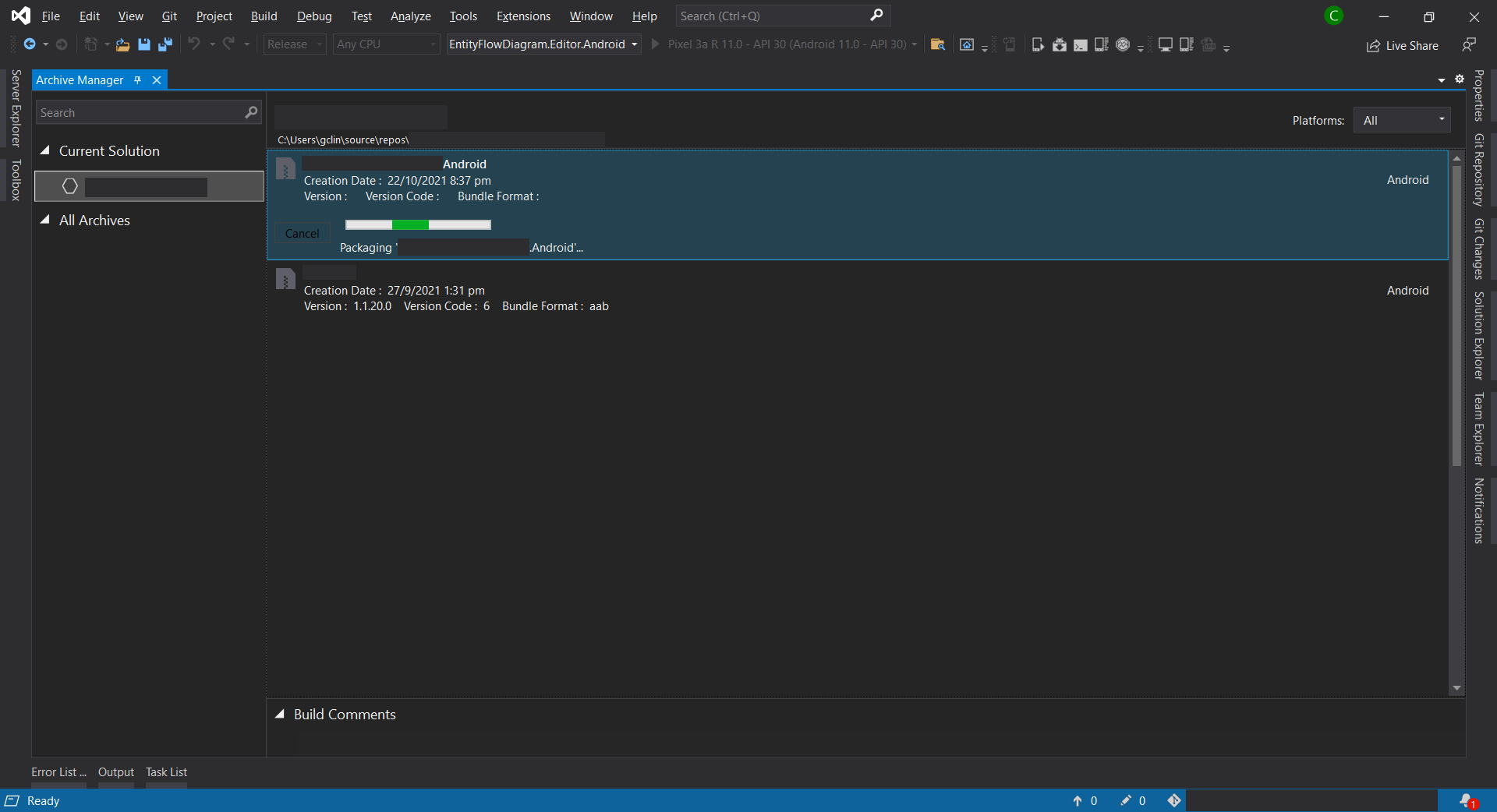
The Archive Manager.

Sometimes, the archive process will fail with an error message saying “Cannot create the archive file because the copy of mdbs files failed.” or “Could not find part of the path”. According to the discussion on MSDN, this is because the Xamarin Android Archive Location path is too long. Hence, the solution is to update it to a shorter path under Tools -> Options in Visual Studio, as shown below.
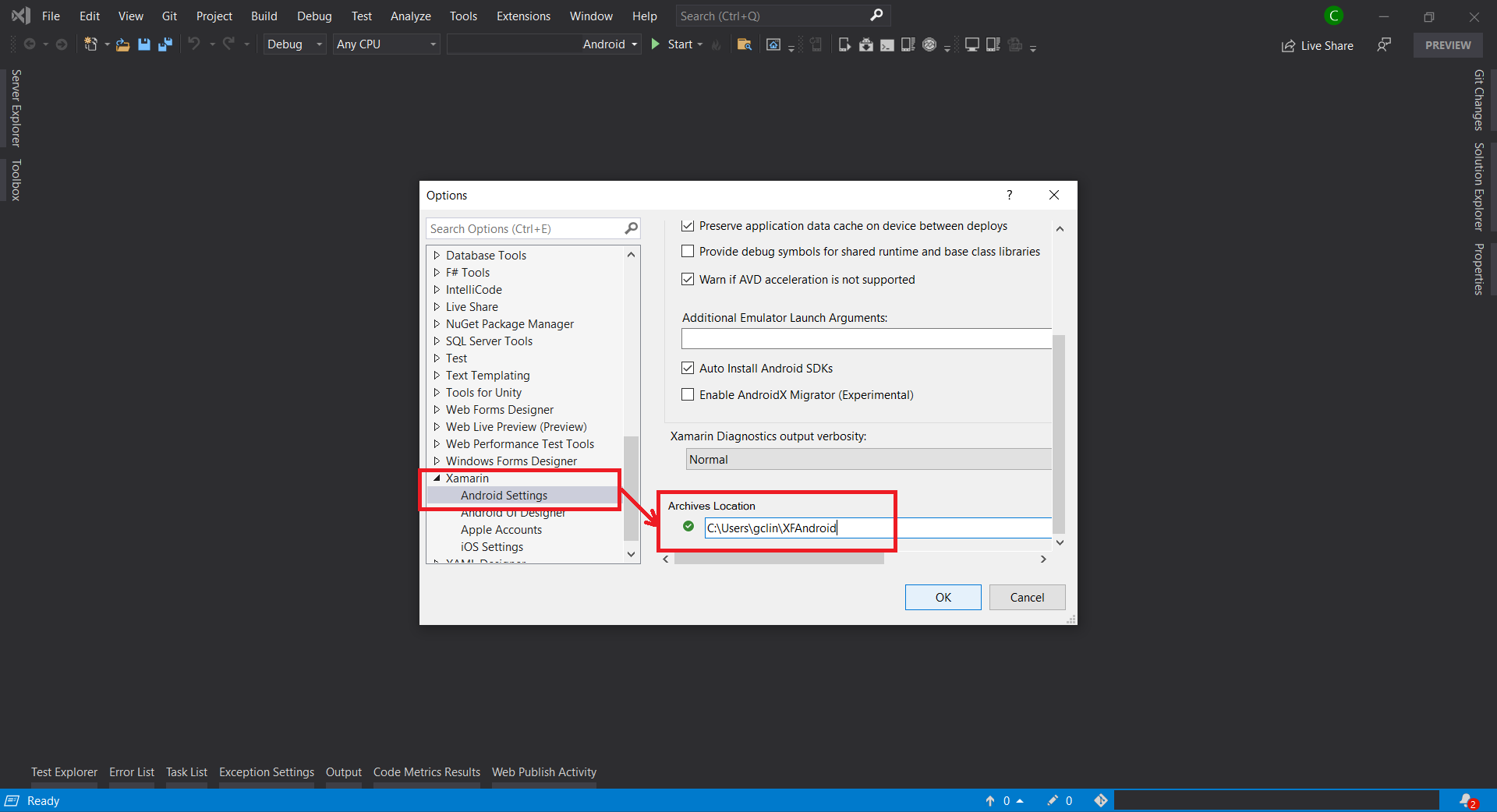
Update Xamarin Android Archive Location in Visual Studio.

Step 7: Configure Distribution Channel

After the archive has been successfully built, we can proceed to choose the distribution channel. Here, we will choose Ad Hoc instead of Google Play as our distribution channel. This is because to Ad Hoc approach does not restrict our app to be published to Google Play only and thus gives us more freedom. In addition, to use Google Play as the channel, we will need to obtain OAuth 2.0 client credentials from the Google Cloud Console. So, to keep thing simple, we will use the Ad Hoc approach here.
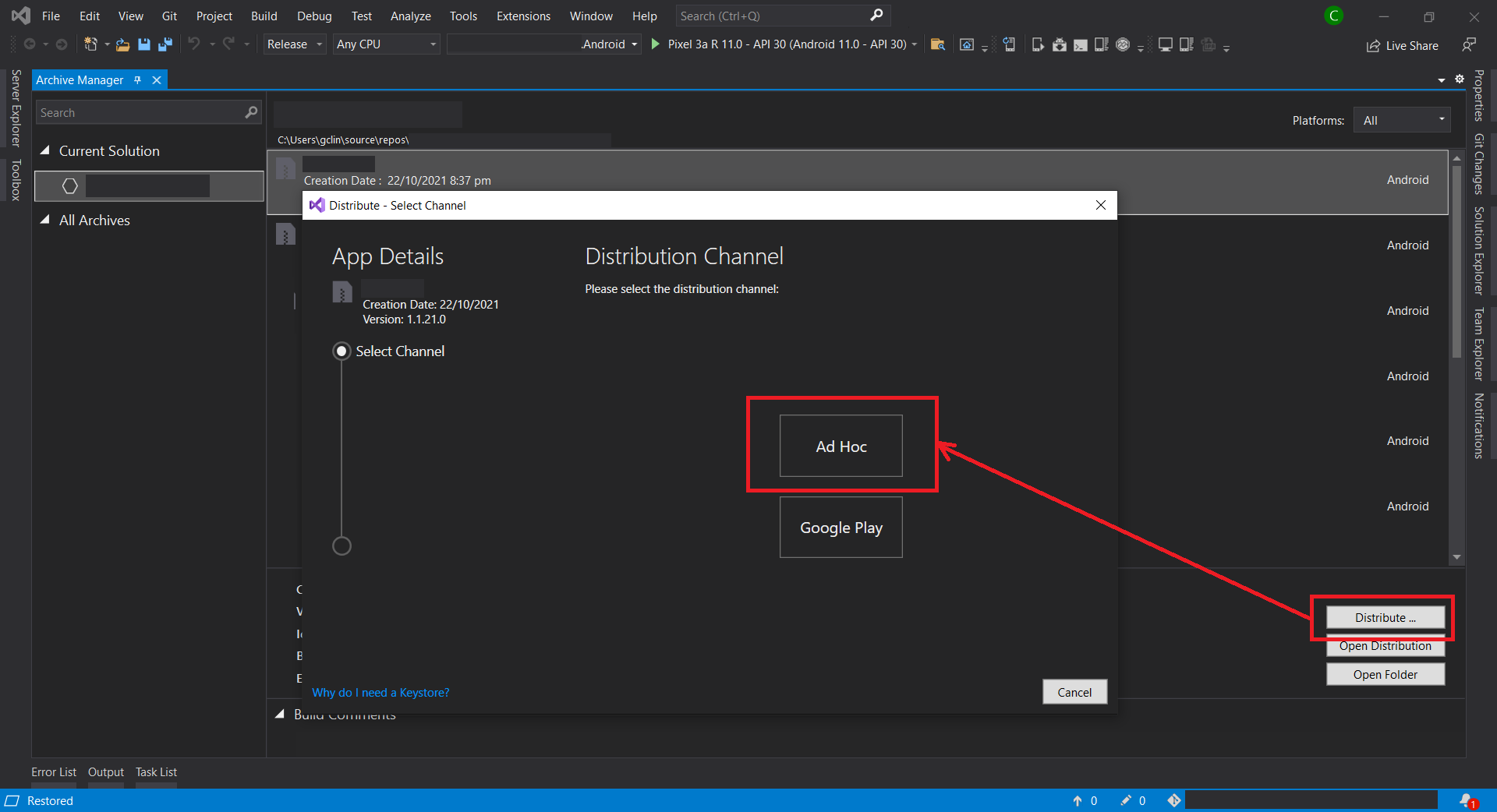
Choosing Ad Hoc as the distribution channel of our aab.

Step 8: Generate Signed Bundle

Before we can publish our app on the Google Play, we need to sign our aab with a certificate (aka upload key). We sign our aab so users know the app is really from us. Hence, after Ad Hoc is selected, Visual Studio will display the Signing Identity page.

If we already have an existing certificate, we can simply import it (password is needed). Otherwise, we can choose to create a new signing certificate.

Created certificated will be saved and listed under Signing Identity.

When we upload our signed package to Google Play, it remembers the key that was used to upload the initial package and makes sure subsequent packages are signed with the same key.

We must back up the resulting keystore file and password in a safe place. To retrieve the keystore, we can simply double click on the certificate in the list shown in the screenshot above. From there we can choose to view the keystore file in the Windows Explorer.
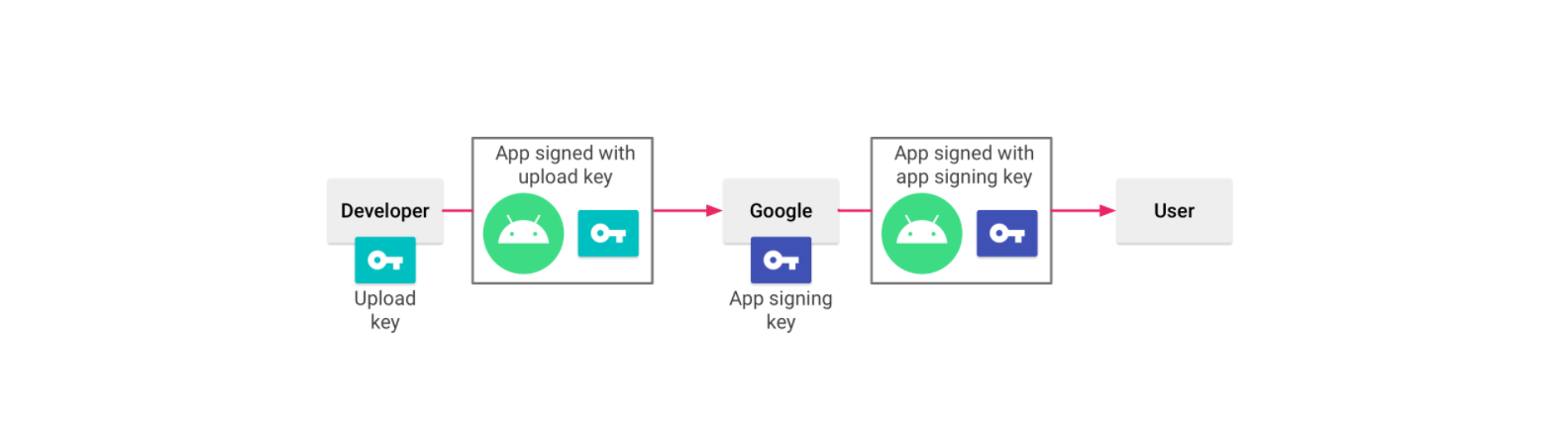
Signing an app with Play App Signing. (Image Source: Android Developers)

Once we have signed our aab, Play App Signing will take care of the rest. With Play App Signing, Google manages and protects our app signing key for us and uses it to sign optimized, distribution APKs that are generated from our aab, as illustrated in the chart above.

Currently, when our app is updated to a new version, Android will first makes sure the certificate of new version is same as the one in the previous version. Hence, when the app signing key expires, users will no longer be able to seamlessly upgrade to new versions of our app. Now, with Play App Signing, Google helps to keep our app signing key safe, and ensures our apps are correctly signed and able to receive updates throughout their lifespans.

In addition, when we use Play App Signing, if we lose our upload key, we can request for Upload Key Rest by contacting Play Store support. Since our app signing key is secured by Google, we can then continue to upload new versions of our app as updates to the original app, even if the upload keys have been changed.

For more information about Play App Signing, please watch the video below.

Wojtek Kaliciński talks about Play App Signing.

After we have signed and save our app bundle as aab file locally, we can move on to create and setup our new app on Google Play Store.

Step 9: Setup App on Google Play Console

In June 2020, new Google Play Console was introduced.

There are many steps involved to setup our app on Google Play Console. Fortunately, there is a very good YouTube tutorial from MJSD Coding about how to create and setup a new app on the new Google Play Console. You can simply refer to the video below.

How to Publish an Android App to Google Play in 2021.

Step 10: Release our App

In the video above, we learnt about the step to create production release. After we have confirmed to use the Play App Signing, we can proceed to upload our aab file generated in Step 8, as shown in the screenshot below. Once it is successfully uploaded to the Google Play Console, we can proceed to rollout our app release.
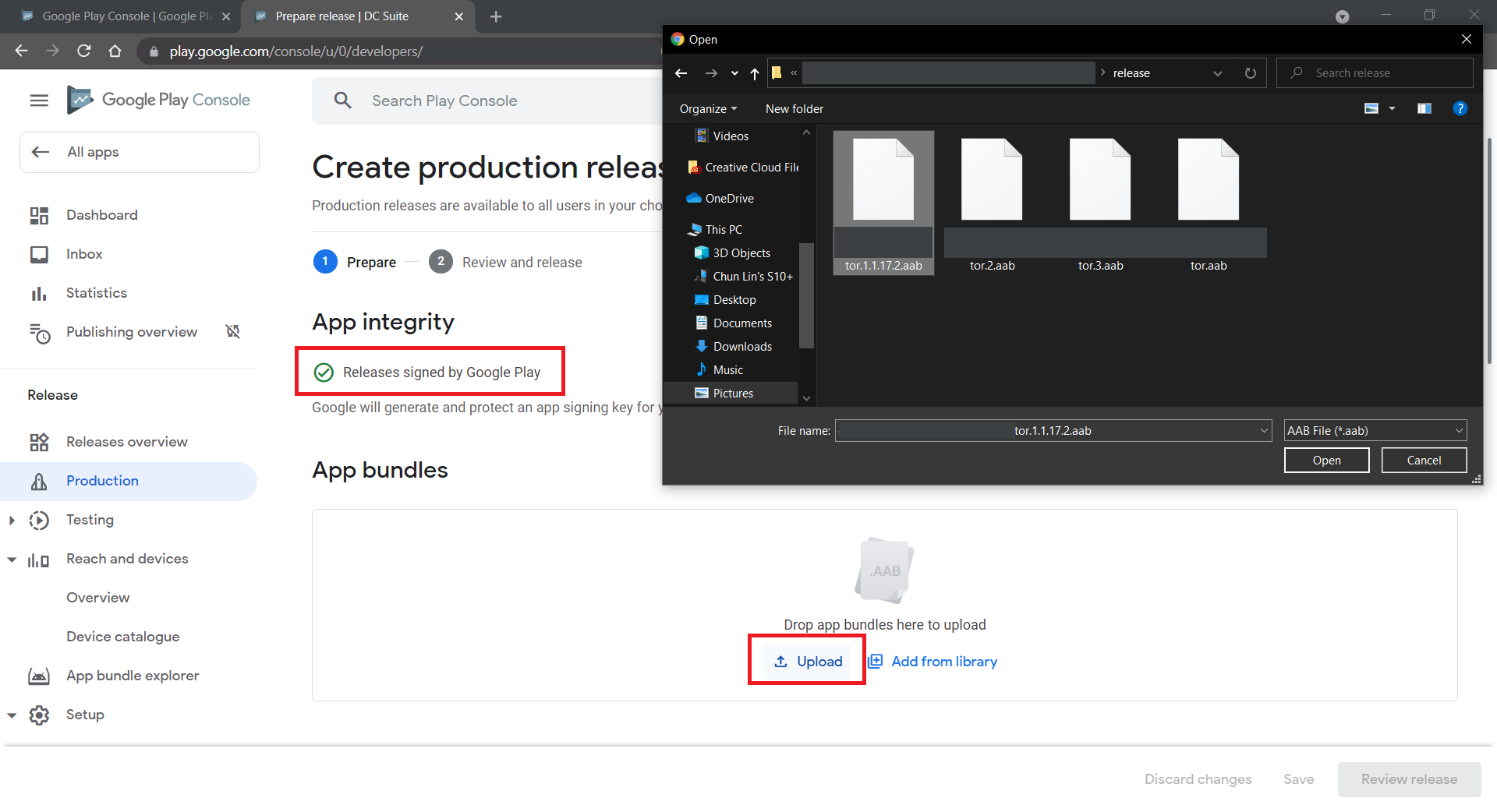
Uploading our signed app bundle to Google Play Console.

References

Build Cross-Platform App with Embedded Images on Xamarin.Forms

As we all know, a picture is worth 1,000 words. More and more, we see developers utilising images as the core of their app. Images play an important role in application navigation, usability, and branding. Hence, sharing images across all platforms, i.e. iOS, Android, and Windows 10, is often a task we need to work on. Today, I will share about how we do just that with Embedded Images.

Distributing images across different platforms with Embedded Images is recommended when identical images are used on each platform, and is particularly suited to creating components, as the image is bundled with the code. In this post, I will demo how we can do that in a new Xamarin.Forms blank project.

PROJECT GITHUB REPOSITORY

The complete source code of this project can be found at https://github.com/goh-chunlin/gcl-boilterplate.csharp/tree/master/xamarin-forms/CPEI.

Setup Images Folder

Let’s say we would like to show some images in the first screen of our app for each of the platforms. We will first have a folder called Images to store all those images. Then, we need to proceed to set the Build Action of the images to be “Embedded resource”.

Right-click the selected images and then select “Properties” to modify their Build Action.

The project name is called CPEI which stands for Cross-Platform Embedded Images. I use shortform here so that the Android project will not complain about our path to the files being too long.

ACCESS Embedded ImageS on XAML

Now, let’s say if we can to show only one of the images in the first screen of our app, we can do so by editing the XAML code of MainPage.xaml. However, we need to have the following extension first to convert the image file name which is in string to ResourceImageSource, then only the image can be natively loaded by XAML.

[ContentProperty(nameof(Source))]
public class ImageResourceExtension : IMarkupExtension
{
    public string Source { get; set; }

    public object ProvideValue(IServiceProvider serviceProvider)
    {
        if (Source == null) return null;

        Assembly assembly = typeof(ImageResourceExtension).Assembly;
        var imageSource = ImageSource.FromResource(Source, assembly);

        return imageSource;
    }
}

Here we use the overload of ImageSource.FromResource that specifies the source assembly in which to search for the image so that it can work on the Release mode of UWP on Windows 10.

Now we can use this extension in the XAML, as shown below, in MainPage.xaml.

<?xml version="1.0" encoding="utf-8" ?>
<ContentPage xmlns="http://xamarin.com/schemas/2014/forms"
             xmlns:x="http://schemas.microsoft.com/winfx/2009/xaml"
             xmlns:embeddedImage="clr-namespace:CPEI.Extensions;assembly=CPEI"
             x:Class="CPEI.MainPage">

    <ScrollView>
        ...

        <Image x:Name="MainImage" Source="{embeddedImage:ImageResource CPEI}" 
            WidthRequest="600" HeightRequest="400" HorizontalOptions="CenterAndExpand" />

        ...
    </ScrollView>

</ContentPage>

The highlighted sections are the parts newly added. At this point of time, we’re still not sure the name of the image. So our app now should not show any image at that part. To find out the actual image names, we can add a debugging code (which we should remove in production) in the ImageResourceExtension class as follows.

[ContentProperty(nameof(Source))]
public class ImageResourceExtension : IMarkupExtension
{
    ...

    public object ProvideValue(IServiceProvider serviceProvider)
    {
        ...

        foreach (var res in assembly.GetManifestResourceNames())
        {
            System.Diagnostics.Debug.WriteLine("found resource: " + res);
        }

        ...
    }
}

When we debug our app, the following should be shown in the Output window.

found resource: CPEI.Images.Genshin-Impact-Pic01.png
found resource: CPEI.Images.Genshin-Impact-Pic02.png
found resource: CPEI.Images.Genshin-Impact-Pic03.png
found resource: CPEI.Images.Genshin-Impact-Pic04.png
found resource: CPEI.Images.Genshin-Impact-Pic05.png
found resource: CPEI.Images.Genshin-Impact-Pic06.png

So now we know the name for each of the images. We simply update the Source in the XAML code above to correctly show the image, for example

<Image x:Name="MainImage" Source="{embeddedImage:ImageResource CPEI.Images.Genshin-Impact-Pic02.png}" WidthRequest="600" HeightRequest="400" HorizontalOptions="CenterAndExpand" /> 
Yay, the selected image is now displayed on our UWP app.

Access Embedded Images from Code Behind

Instead of XAML, we can access the embedded images from code behind too. For example, if we want to change the image above randomly through a click of button, we can have the following code in the click event of the button.

private void Button_Clicked(object sender, EventArgs e)
{
    Random rnd = new Random();
    int imageIndex = rnd.Next(1, 7);

    MainImage.Source = ImageSource.FromResource(
        $"CPEI.Images.Genshin-Impact-Pic{imageIndex:00}.png", 
        typeof(MainPage).Assembly);
}
Yay, we now can choose embedded images to be displayed in frontend from code behind.

Android and iOS

Since embedded images are shipped with those images embedded in the assembly as a resource, the images can be also displayed on Android, as demonstrated below.

Debugging our Xamarin.Forms app on Android emulator.

In order to test our app on the iOS platform, it’s easier if we choose to build our iOS app project on a Mac machine directly. Visual Studio for Mac offers the support for debugging Xamarin.iOS applications both in the iOS simulator and on iOS devices.

This is my first time building Xamarin.iOS app on my MacBook Air, so I need to download Xcode 12.5 from the Apple Developer Downloads page first. I don’t download it from the App Store because that will take a longer time and the installation may fail. Interestingly, there is a tip on how to install Xcode with xip in a faster manner but I’d still waited for like one hour to have it installed on my machine.

After getting both XCode 12.5 and VS 2019 for Mac installed, I proceed to checkout the Xamarin.iOS app from the source control and update the Deployment Target accordingly in order to have our app running on the simulators, as shown in the following screenshot.

Running our Xamarin.iOS app on iPhone 12 simulator.

As demonstrated below, our app can be run on iPad as well with all the embedded images loaded successfully.

This shows our Xamarin.iOS app running on iPad Air (4th Generation) simulator.

References

The code of this project described in this article can be found in my GitHub repository: https://github.com/goh-chunlin/gcl-boilterplate.csharp/tree/master/xamarin-forms/CPEI.

Connecting Android App with IdentityServer4

android-identity-server-appauth.png

For those ASP .NET web developers, Identity Server should be quite familiar to them especially they are looking for SSO solution.

After successfully integrating Identity Server in our ASP .NET Core MVC web applications, it is now time for us to research about how our mobile app can be integrating with IdentityServer4 too.

Background

We have two types of users. The admin will be logging in to the system via our web application. The normal staff will log in to the system via mobile app. Different sets of features are provided for both web and mobile apps.

Setting up Client on Identity Server

To begin, we need to add new client to the MemoryClients of Identity Server.

According to the sample code done by Hadi Dbouk, we setup the new client as shown in the following code.

using IdentityServer4.Models;
...
public class ClientStore : IClientStore {
    ...
    var availableClients = new List();
    ...
    availableClients.Add(new Client 
    {
        ClientId = "my-awesome-app",
        ClientName = "My Awesome App",
        AllowedGrantTypes = GrantTypes.Code,
        RequirePkce = true,
        RequireConsent = false,
        ClientSecrets = 
        {
            new Secret("my-secret".Sha256())
        },
        RefreshTokenUsage = TokenUsage.ReUse,
        RedirectUris = { "gclprojects.chunlin.myapp:/oauth2callback" },
        AllowedScopes = 
        {
            StandardScopes.OpenId,
            StandardScopes.Profile,
            StandardScopes.Email,
            StandardScopes.OfflineAccess
        },
        AllowOfflineAccess = true
    }
    );
}

For mobile apps, there are two grant types recommended, i.e. Authorization Code and Hybrid. However, as when this post is written, the support of Hybrid is still not mature in AppAuth for Android, so we decided to use GrantTypes.Code instead.

However, OAuth2.0 clients using authorization codes can be attacked. In the attack, the authorization code returned from an authorization endpoint is intercepted within a communication path that is not protected by TLS. To mitigate the attack, PKCE (Proof Key for Code Exchange) is required.

We don’t have consent screen for our apps, so we set RequireConsent to false.

For the RefreshTokenUsage, there are two possible values, i.e. ReUse and OneTime. The only difference is that ReUse will make the refresh token handle to stay the same when refreshing tokens. OneTime will update the refresh token handle once the tokens are refreshed.

Once the authorization flow is completed, users will be redirected to a URI. As documented in AppAuth for Android Readme, custom scheme based redirect URI (i.e. those of form “my.scheme:/path”) should be used for the authorization redirect because it is the most widely supported across many Android versions.

By setting AllowOfflineAccess to be true and give the client access to the offline_access scope, we allow requesting refresh tokens for long lived API access.

Android Setup: Installation of AppAuth

The version of AppAuth for Android is v0.7.0 at the point of time this post is written. To install it for our app, we first need to set it in build.gradle (Module: app).

apply plugin: 'com.android.application'

android {
    ...    defaultConfig {
        ...
        minSdkVersion 21
        targetSdkVersion 26
        ...
        manifestPlaceholders = [
            'appAuthRedirectScheme': 'gclprojects.chunlin.myapp'
        ]
    }
    ...
}

dependencies {
    ...
    compile 'com.android.support:appcompat-v7:26.+'
    compile 'com.android.support:design:26.+'
    compile "com.android.support:customtabs:26.0.0-alpha1"
    compile 'net.openid:appauth:0.7.0'
    ...
}


appauth-code-flow.png
AppAuth for Android authorization code flow. (Reference: The proper way to use OAuth in a native app.)

Android Setup: Updating Manifest

In the AndroidManifest.xml, we need to add the redirect URI to the RedirectUriReceiverActivity, as shown in the following code.

<?xml version="1.0" encoding="utf-8"?>
<manifest xmlns:android="http://schemas.android.com/apk/res/android"
    package="gclprojects.chunlin.myapp">
    ...
    <application...>
        <activity
            android:name="net.openid.appauth.RedirectUriReceiverActivity"
            android:theme="@style/Theme.AppCompact.NoActionBar">
        <intent-filter>
            <action android:name="android.intent.action.VIEW"/>

            <category android:name="android.intent.category.DEFAULT"/>
            <category android:name="android.intent.category.BROWSABLE"/>

            <data android:scheme="gclprojects.chunlin.myapp"/>
        </intent-filter>
    </application>
    ...
</manifest>

Android Setup: Authorizing Users

On the Android app, we will have one “Login” button.

<Button
    android:onClick="Login"
    android:layout_width="wrap_content"
    android:layout_height="wrap_content"
    android:text="Login"
    android:layout_centerInParent="true"/>

By clicking on it, the authorization steps will begin.

public void Login(View view) {
    AuthManager authManager = AuthManager.getInstance(this);
    AuthorizationService authService = authManager.getAuthService();

    AuthorizationRequest.Builder authRequestBuilder = new AuthorizationRequest
            .Builder(
            authManager.getAuthConfig(),
            "my-awesome-app",
            "code",
            Uri.parse("gclprojects.chunlin.myapp:/oauth2callback"))
            .setScope("openid profile email offline_access");

    String codeVerifier = CodeVerifierUtil.generateRandomCodeVerifier();
    SharedPreferencesRepository sharedPreferencesRepository = new SharedPreferencesRepository(this);
    sharedPreferencesRepository.saveCodeVerifier(codeVerifier);

    authRequestBuilder.setCodeVerifier(codeVerifier);

    AuthorizationRequest authRequest = authRequestBuilder.build();

    Intent authIntent = new Intent(this, LoginAuthActivity.class);
    PendingIntent pendingIntent = PendingIntent.getActivity(this, authRequest.hashCode(), authIntent, 0);

    authService.performAuthorizationRequest(
            authRequest,
            pendingIntent);
}

The code above uses some other classes and interact with other activity. I won’t talk about them here because the codes can be found on my Github repository which is forked from Hadi Dbouk’s.

Android Setup: Post Authorization and Refresh Token

According to the code in the LoginAuthActivity.java, if the login fails, the user will be brought back to the Login Activity. However, if it succeeds, the user can then reach to another activities in the app which require user to login first. We can also then get Access Token, Refresh Token, and ID Token from authManager. With the Access Token, we then can access our backend APIs.

Since access tokens have finite lifetimes, refresh tokens allow requesting new access tokens without user interaction. In order to have the client to request Refresh Token, we need to authorize it by setting AllowOfflineAccess to true. When we make a request to our APIs, we need to check if the Access Token is expired, if it is so, we need to make a new request with the Refresh Token to the IdentityServer to have a new Access Token.

The way how we can retrieve new Access Token with a Refresh Token in AppAuth is shown in the TokenTimer class in TokenService.java using createTokenRefreshRequest.

private class TokenTimer extends TimerTask {
    ...

    @Override
    public void run() {

        if(MyApp.Token == null)
            return;

        final AuthManager authManager = AuthManager.getInstance(TokenService.this);

        final AuthState authState = authManager.getAuthState();


        if(authState.getNeedsTokenRefresh()) {
            //Get New Token

            ClientSecretPost clientSecretPost = new ClientSecretPost("driver008!");
            final TokenRequest request = authState.createTokenRefreshRequest();
            final AuthorizationService authService = authManager.getAuthService();

            authService.performTokenRequest(request, clientSecretPost, new AuthorizationService.TokenResponseCallback() {
                @Override
                public void onTokenRequestCompleted(@Nullable TokenResponse response, @Nullable AuthorizationException ex) {
                    if(ex != null){
                        ex.printStackTrace();
                        return;
                    }
                    authManager.updateAuthState(response,ex);
                    MyApp.Token = authState.getIdToken();
                }
            });

        }

    }
}

Conclusion

Yup, that’s all for integrating the Identity Server in an Android App to provide a seamless login experience to our users. If you find any mistake in this article, kindly let me know in the comment section. Thanks in advance!

References


Burger and Cheese

xamarin-cognitive-services-android-voicetext

As a web developer, I don’t have many chances to play with mobile app projects. So rather than limit myself to just one field, I love to explore other technologies, especially mobile app development.

Burger Project: My First Xamarin App

Last month, I attended a Xamarin talk at Microsoft Singapore office with my colleague. The talk was about authentication and authorization with social networks such as Facebook and Twitter via Azure App Service: Mobile App.

Ben Ishiyama-Levy is talking about how Xamarin and Microsoft Azure works together.

The speaker is Ben Ishiyama-Levy, a Xamarin evangelist. His talk inspired me to further explore how I could retrieve user info from social network after authenticating the users.

Because I am geek-first and I really want to find out more, so I continue to read more about this topic. With the help from my colleague, I developed a simple Xamarin.Android app to demonstrate the Authentication and logged-in user’s info retrieval.

The demo app is called Burger and it can be found on my Github repository: https://github.com/goh-chunlin/Burger.

Challenges in Burger Project

Retrieving user's info from social network.
Retrieving user’s info from social network.

In Burger project, the first big challenge is to understand how Azure App Service: Mobile App works in Xamarin. Luckily, with the material and tutorial given in the Xamarin talk from Ben, I was able to get a quick start on this.

My colleague also shared another tutorial which is about getting authenticated user’s personal details on Universal Windows Platform (UWP). It helps me a lot to understand about how mobile app and Azure App Service can work together.

My second challenge in this project is to understand Facebook Graph API. I still remember that I spent quite some time finding out why I could not retrieve the friend list of a logged-in Facebook user. With the introduction of the Facebook Graph API 2.0, access to a user’s friends list via /me/friends is limited to just friends using the same app. Hence after reading a few other online tutorials, I finally somehow able to get another subset of a user’s friends via /me/taggable_friends.

In this project, it’s also the first time I apply Reflection in my personal project. It helps me easily get the according social network login class with a neat and organized code.

microsoftdeveloperday
Microsoft Developer Day at NUS, Singapore in May 2016

Cheese Project: When Google Speech Meets MS LUIS on Android

Few months ago, I’m fortunate to represent my company to attend Microsoft Developer Day 2016 in National University of Singapore (NUS).

The day is the first time Microsoft CEO Satya Nadella comes to Singapore. It’s also my first time learn about the powerful Cognitive Services and LUIS (Language Understanding Intelligence Service) in Microsoft Azure in Riza’s talk.

presentation
Riza’s presentation about Microsoft Cognitive APIs during Microsoft Developer Day.

Challenges in Cheese Project

Everyday, it takes about one hour for me to reach home from office. Hence, I will only have two to three hours every night to work on personal projects and learning. During weekends, when people are having fun out there, I will spend time on researching about some exciting new technologies.

There are many advance topics in LUIS. I still remember that when I was learning how LUIS works, my friend was actually playing the Rise of the Tomb Raider beside me. So while he was there phew-phew-phew, I was doing data training on LUIS web interface.

luis
Microsoft LUIS (Language Understanding Intelligence Service) and Intents

Currently, I only worked on some simple intents, such as returning me current date and time as well as understanding which language I want to translate to.

My first idea in Cheese project is to build an Android app such that if I say “Please translate blah-blah to xxx language”, the app will understand and do the translation accordingly. This can be quite easily done with the help of both LUIS and Google Translate.

After showing this app to my colleagues, we realized one problem in the app. It’s too troublesome for users to keep saying “Please translate blah-blah to xxx language” every time they need to translate something. Hence, recently I have changed it to use GUI to provide language selection. This, however, reduces the role played by LUIS in this project.

voicetext
VoiceText provides a range of speakers and voices with emotions!

To make the project even more fun, I implemented the VoiceText Web API from Japanese in the Android app. The cool thing about this TTS (Text-To-Speech) API is that it allows developers to specify the mood and characteristic of the voice. The challenge, of course, is to read the API written in Japanese. =P

Oh ya, this is the link to my Cheese repository on Github: https://github.com/goh-chunlin/Cheese. I will continue to work on this project while exploring more about LUIS. Stay tuned.

languagelist    googlespeech    SuccessfullyTranslated.png

After-Work Personal Projects

There are still more things in mobile app development for me to learn. Even though most of the time I feel exhausted after long work day, working on new and exciting technologies helps me getting energized again in the evening.

I’m not as hardworking as my friends who are willing to sacrifice their sleep for their hobby projects and learning, hence the progress of my personal project development is kind of slow. Oh well, at least now I have my little app to help me talking to people when I travel to Hong Kong and Japan next year!