One day before the end of my long weekend, I decided to learn setting up Windows Server 2012 instance on Amazon EC2. Also, I noted down the setup steps for my future reference.
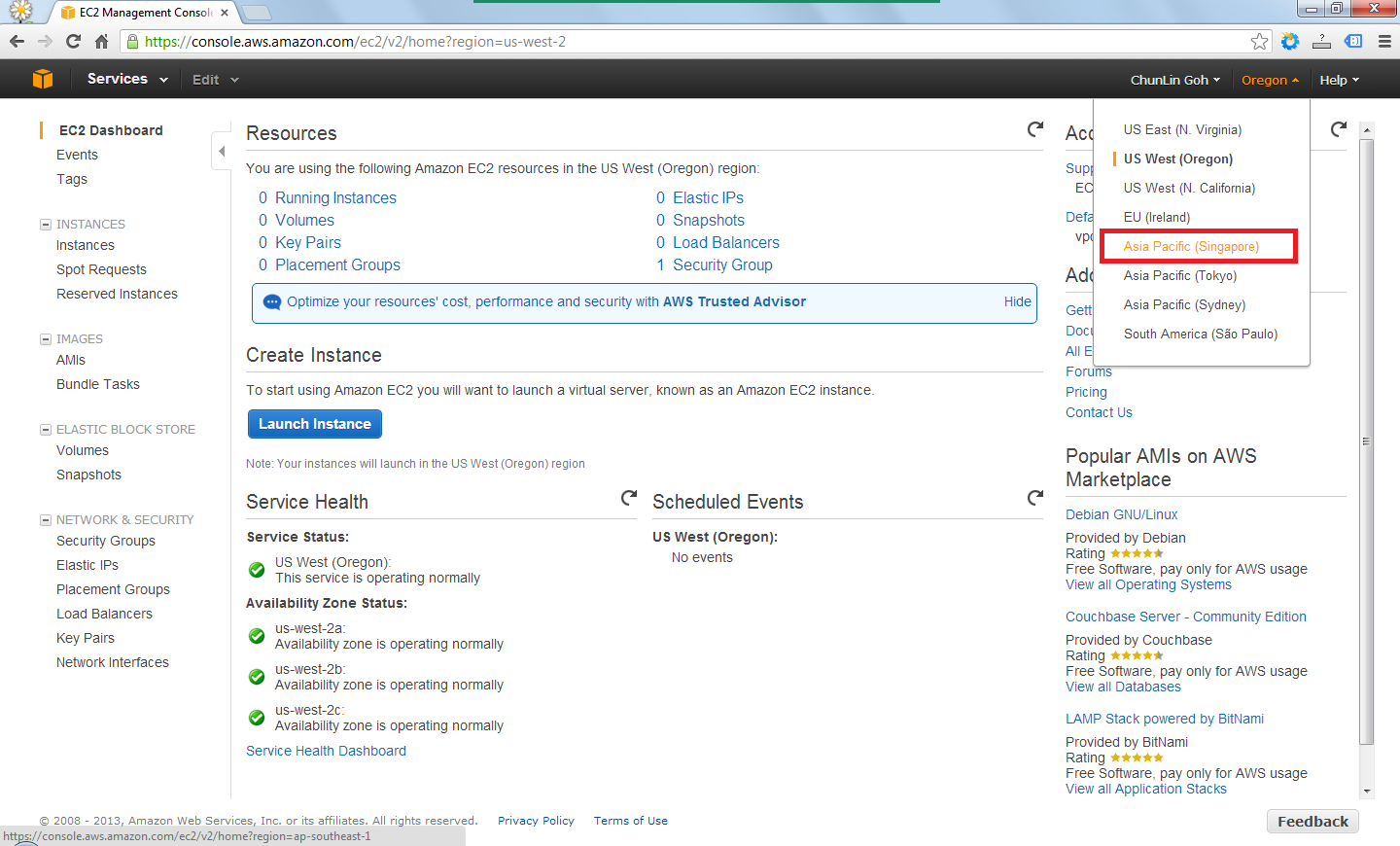
After signing up at Amazon Web Service website, I visited the EC2 Dashboard from the AWS Management Console. Since I’d like to setup one instance in Singapore, I had to choose the region from the drop-down list at the top-right corner of the website.
Choosing region for the instance.
After the region was chosen, I clicked on the blue “Launch Instance” button located at the middle of the web page to launch my first virtual server on EC2. Normally I chose the Classic Wizard so that some configurations could be changed before the setup.
Create a new instance.
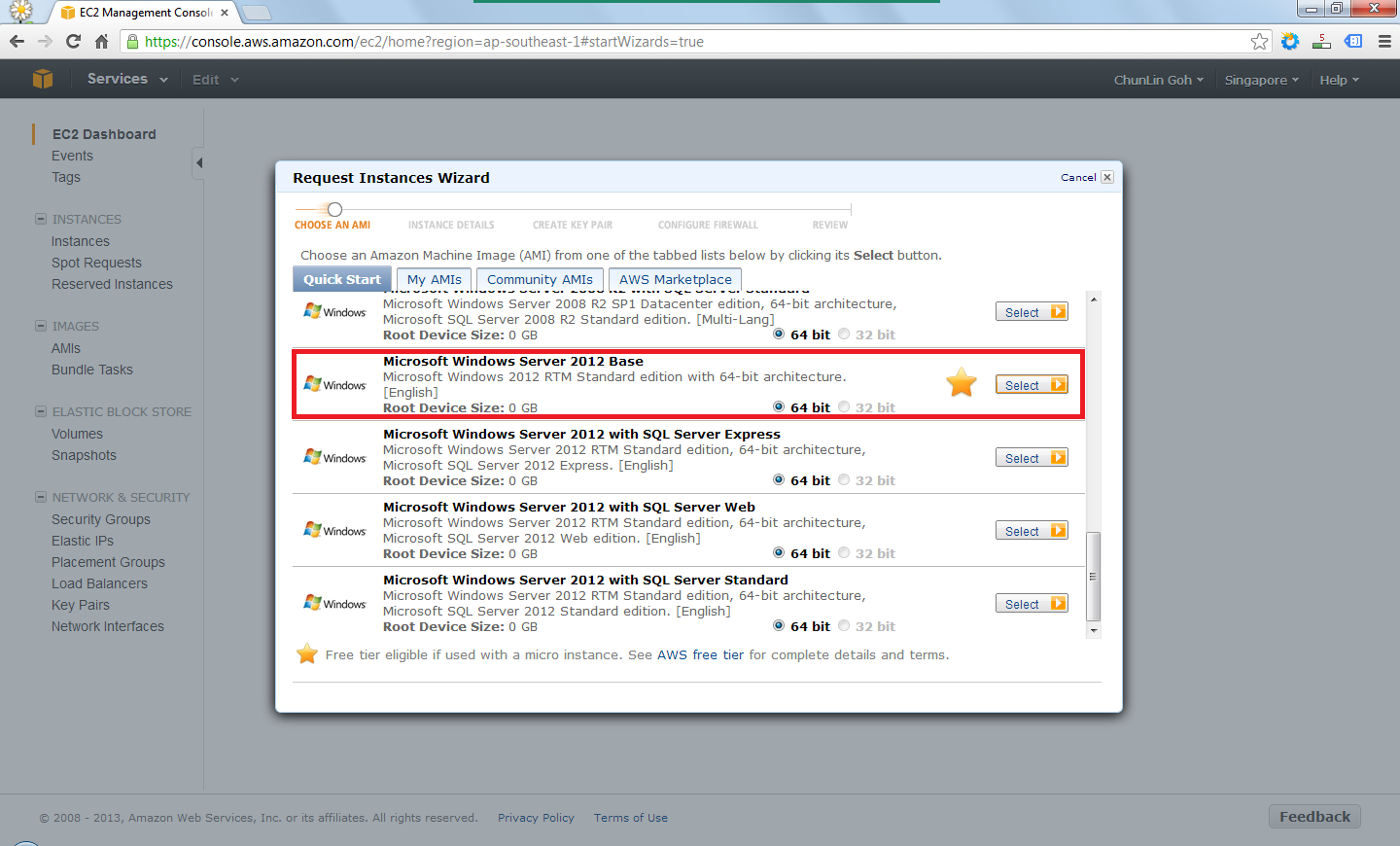
The following step would be choosing an Amazon Machine Image (AMI). Somehow the Root Device Size was 0 GB which I had no idea why so. Due to the fact that I only wanted to try out AWS, I chose the one with Free Usage Tier, i.e. the Microsoft Windows Server 2012 Base.
Choose an AMI.
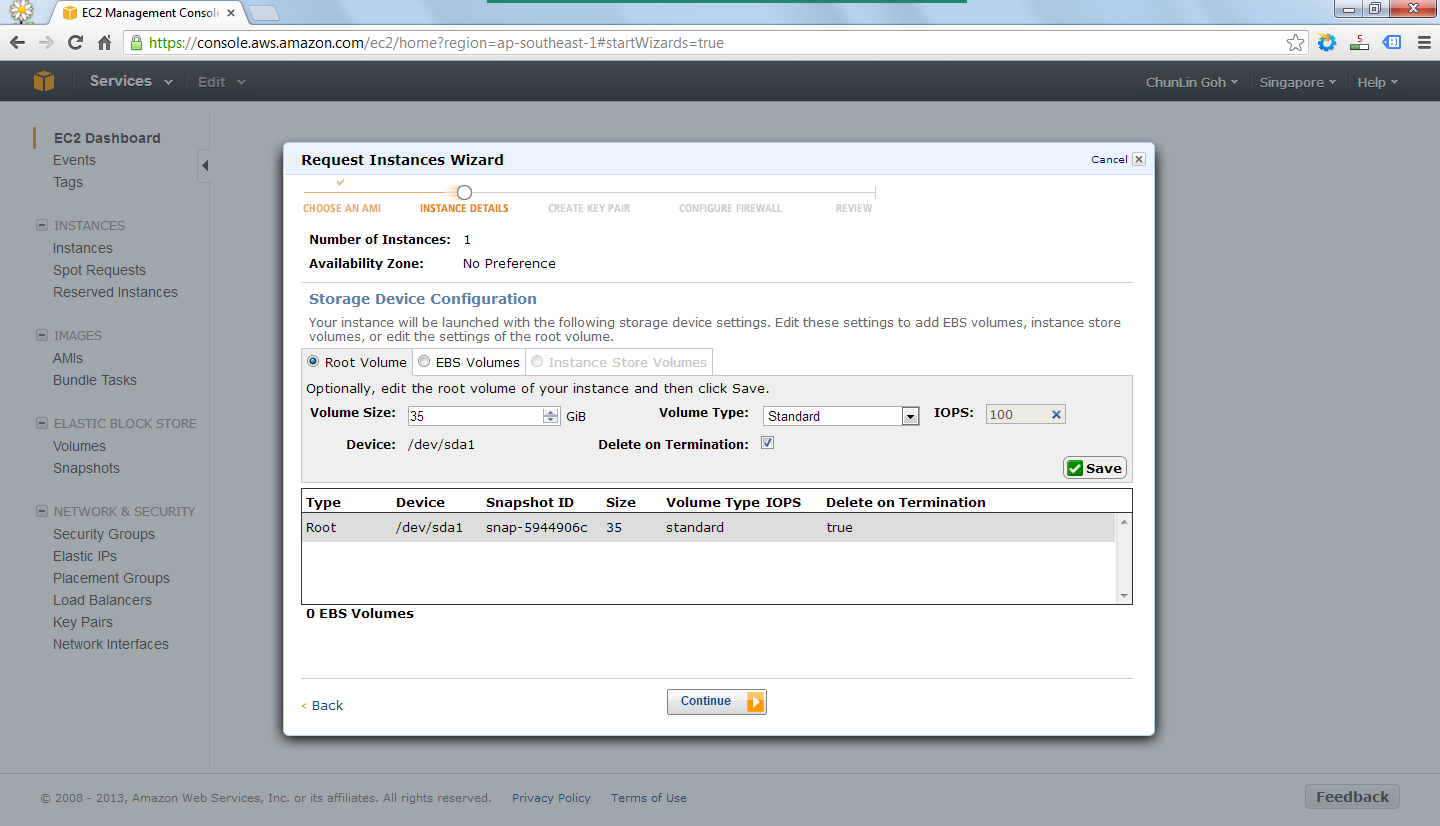
In the following steps, there were options for me to set the number of instances required, instance type (set to Micro to enjoy free usage tier), subnet, network interfaces, etc. After all these, there would be a section to set the root volume size. By default, it’s 0 GB. So the instance wouldn’t be launched if the value was left default. I set it to 35 GB.
Set the volume size of the root to be 35GB.
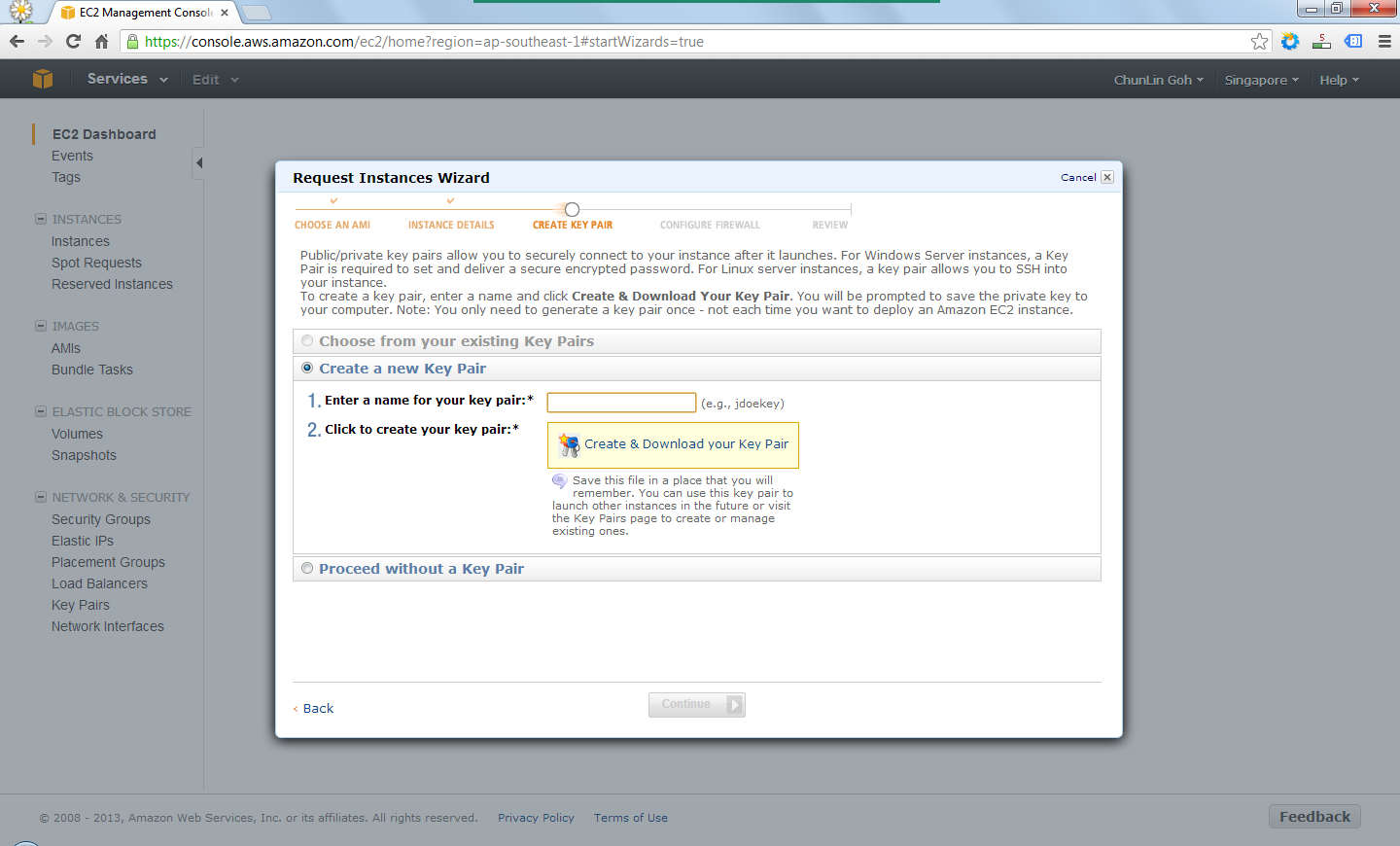
After providing the instance details, the next step would be creating key pair which would be used to decrypt the RDP password in the later stage. Thus, the key pair needed to be downloaded and stored safely on the computer.
Create a key pair.
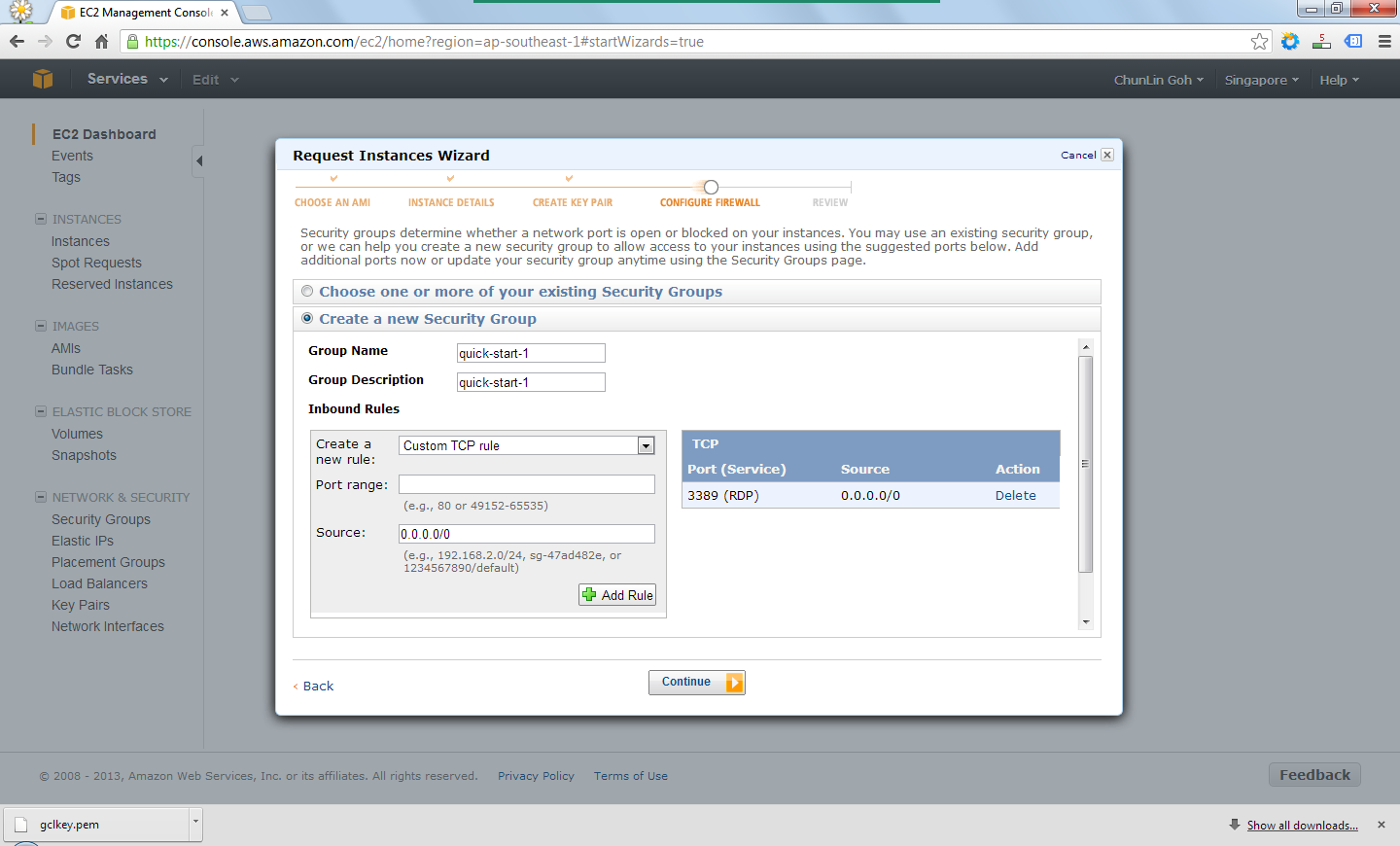
There was also another section to set which ports would be open/blocked on the instance.
Set up security group to determine whether a network port is open or blocked on the instance.
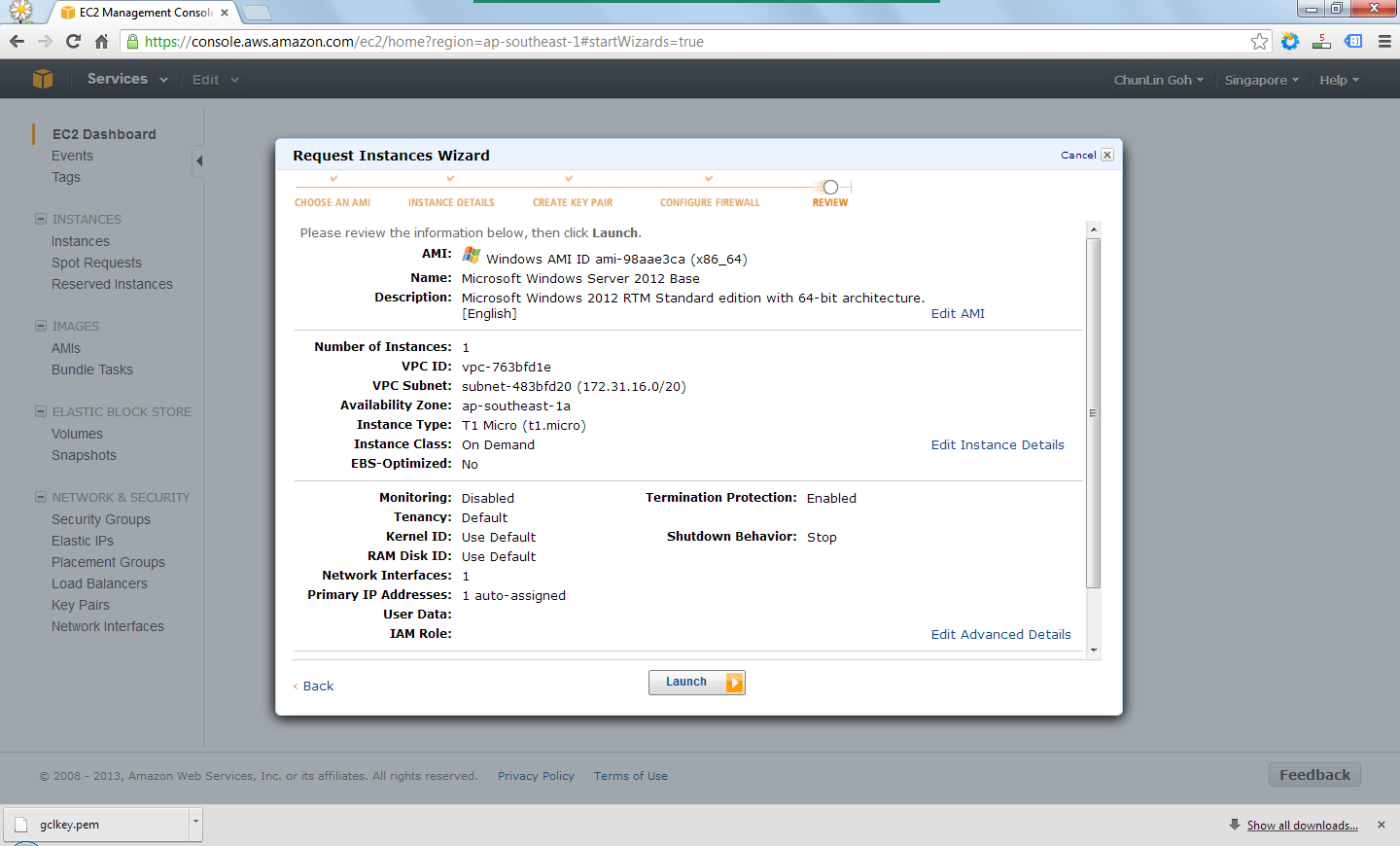
Finally, after reviewing all the details, I just clicked on the “Launch” button to launch the instance.
Review the information provided earlier before the launch of the instance.
Right after the button was clicked, there was a new record added to the Instances table and its State immediately changed to “running”.
The new instance is successfully added.
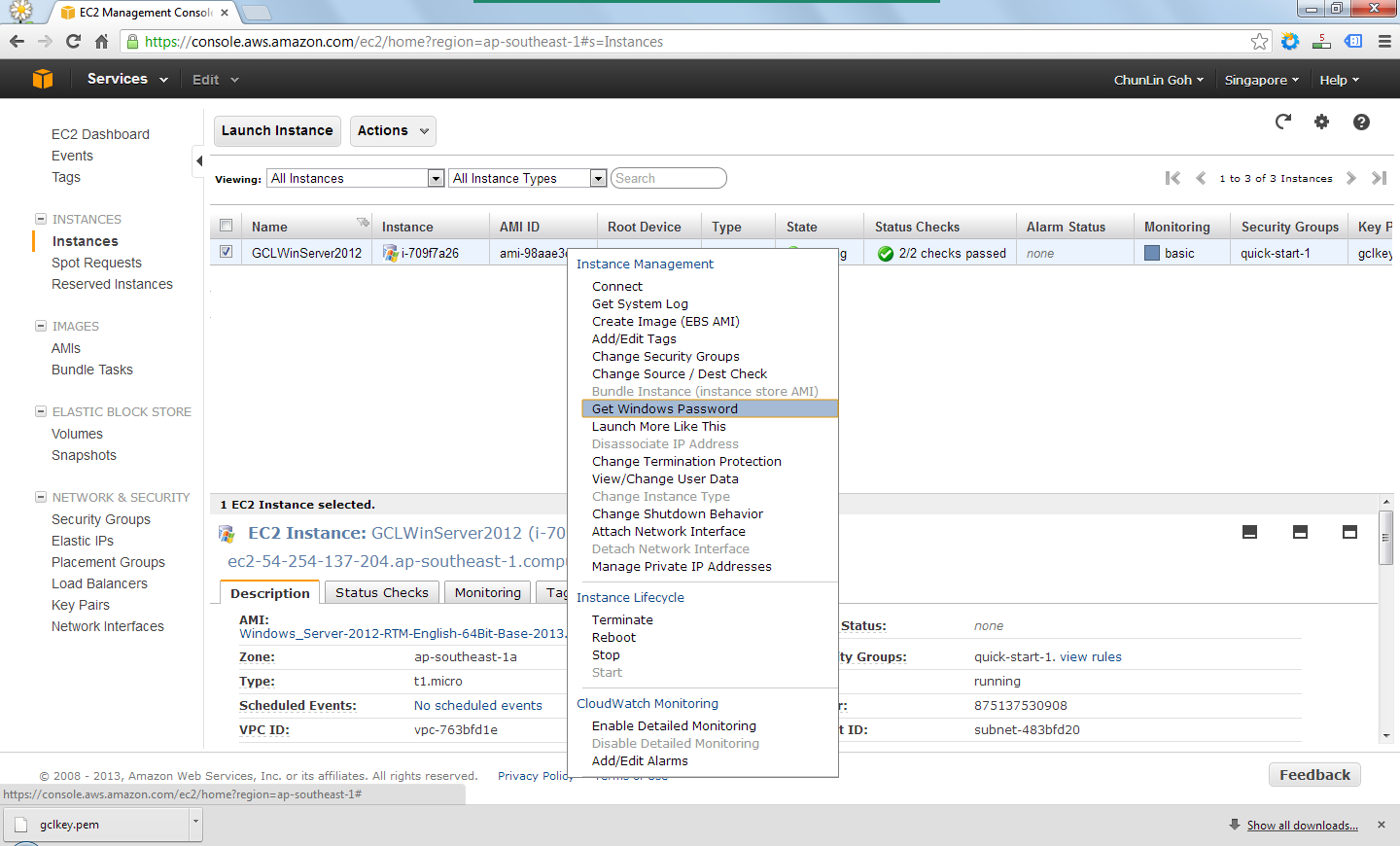
By right-clicking on the instance and choosing the item “Get Windows Password”, I received the default Windows Administrator password which would be used to access the instance remotely via RDP.
Retrieve the Windows Administrator password.
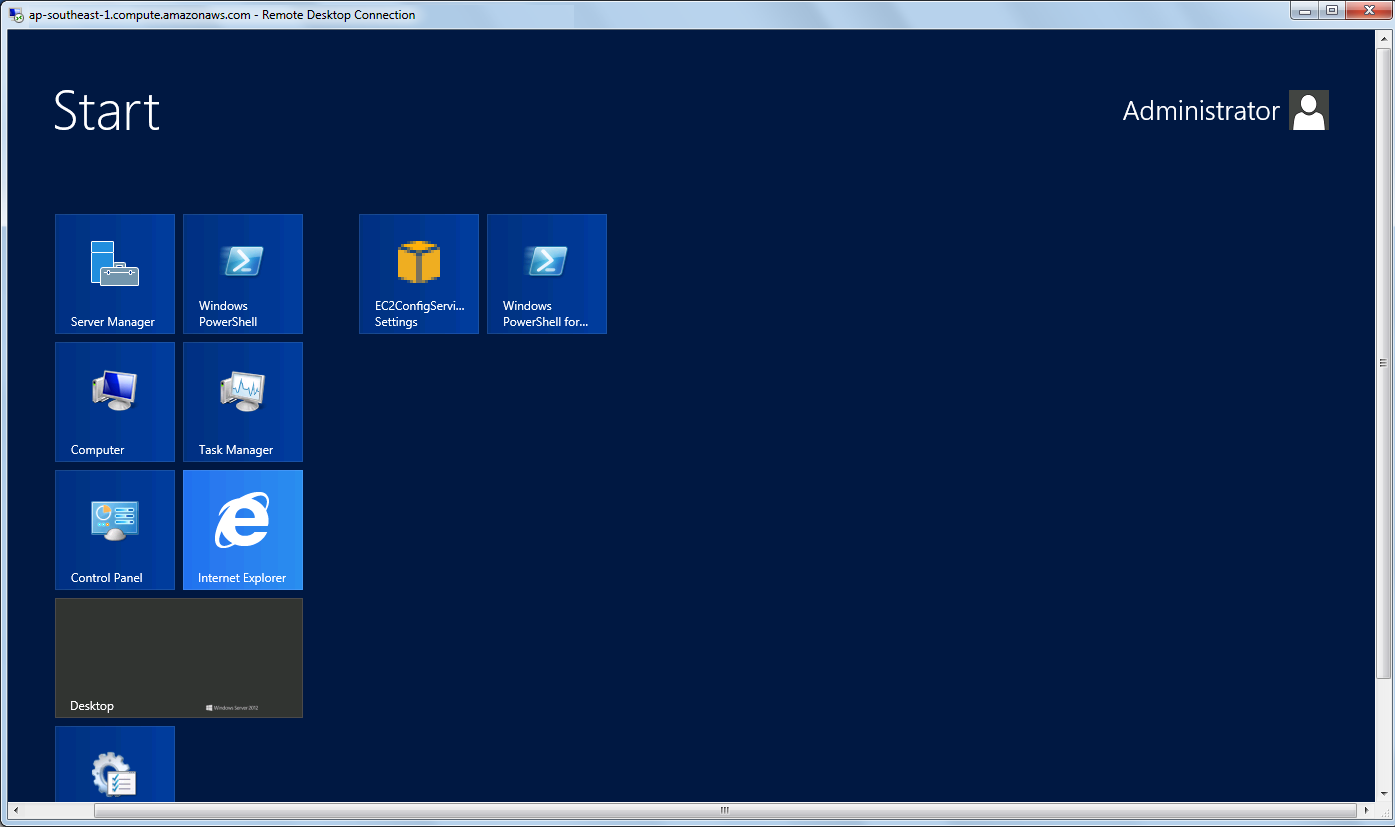
Yup, finally I can start playing with Windows Server 2012. =D
Yesh, successfully access the new Windows Server 2012!
I saw a status on Facebook saying that a professional model submitted her resume to a company looking for 3D modeller. I think most probably she misread “3D modeller” as “36D model” or something. So, I wonder whether people do read the job position and requirements that they are applying for carefully. However, if she is really interested in 3D modelling, she can probably try out some free 3D modelling software first.
I did a simple 3D model of the Town Hall from Warcraft II in my first experiment with the SketchUp. I did not even need to read any tutorial before using it as it’s quite easy to use. In fact, there is also a small window called Instructor to guide users on using the available tools with simple steps.
First Attempt: Warcraft II Town Hall (done in 2011)
Actually there is no need to model everything from scratch. SketchUp got this 3D Warehouse, the largest repository of free 3D content, where many well-done 3D model can be downloaded. I downloaded a nuclear power plant 3D model from there and after a few modification, I got the one as shown in the following picture.
Power plant (modified based on the original one from 3D Warehouse)
Since Hari Raya fell on Thursday and Singapore National Day fell on Friday, we got a long weekend. From what I read on Facebook, many of my friends had interesting plan for the long weekend, such as travelling to overseas. I also travelled back to my home in Johor, Malaysia.
Malaysia checkpoint is always crowded on weekends, I decided to wake up early on the first day of the long weekend to catch the early bus to Malaysia so that I could avoid the crowd. Even though I had alarm clock and phone, as a snooze button king, I sometimes still overslept. Thus, I decided to turn my laptop into a alarm as well.
My laptop is running on Fedora. So, I decided to write a cron job that would play a music or song in the early morning to wake me up.
Firstly, I created a bash script to play an FLV, MP3 or MP4 file stored on the disk. I had VLC Media Player installed on the laptop. So, what I needed was just a command to open the audio/video file using the media player. The following is the simple script.
That was my first time writing a cron job in Fedora, so I only successfully wrote it after reading quite a number of online forums and tutorials to understand how to do that.
For the line export DISPLAY=:0, I did not include it in the script before and no music video was played. It worked only after I found an online discussion about the command and added it back to the script. As mentioned in the online discussion, DISPLAY=:0 means the GPUs in the system. So, without that command, the VLC Media Player was not launched previously.
I used xdg-open(1) because it is able to open a file or URL in the user’s preferred application (as stated in xdg-open Manual). Due to the fact that VLC Media Player is set as the default application of media files on my laptop, that command will automatically launch the program with the specified music video.
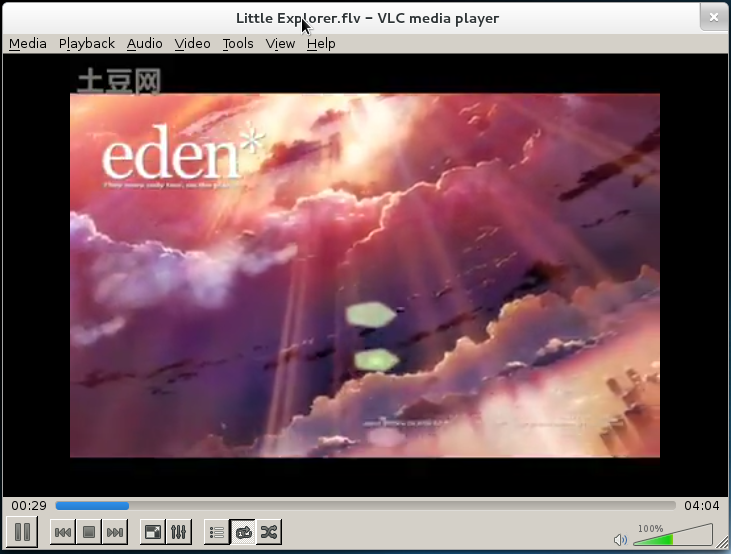
Little Explorer music video
I then saved the script as /home/chunlin/Music/alarm.sh. Next, I made the file executable.
[chunlin@chunlin Music]$ chmod +x alarm.sh
Finally, I just needed to schedule it in crontab. Crontab is the program used to install, remove or list the tables used to serve the cron(8) daemon (Reference: man crontab).
After that, the gedit window would popup (Oh yeah, I like gedit). In the editor, I just needed to key in the following line in the file.
0 7 * * * /home/chunlin/Music/alarm.sh
The first five fields are time and date fields. The first one is minute (0 – 59), followed by hour (0 – 23), followed by day of month (1 – 31), followed by month (1 – 12) and day of week (sun, mon, …, sat). Any of the five fields can contain an asterisk which means “first-last”. So, “0 7 * * *” means the task will be scheduled at 7am everyday.
After saving the file and closing the gedit window, a line saying “crontab: installing new crontab” would be printed on the Terminal window. That meant the cron job had been added successfully and the alarm clock was created.
During the time I was doing this alarm, I also found some interesting and useful online discussion about the crontab and shell script as stated below.
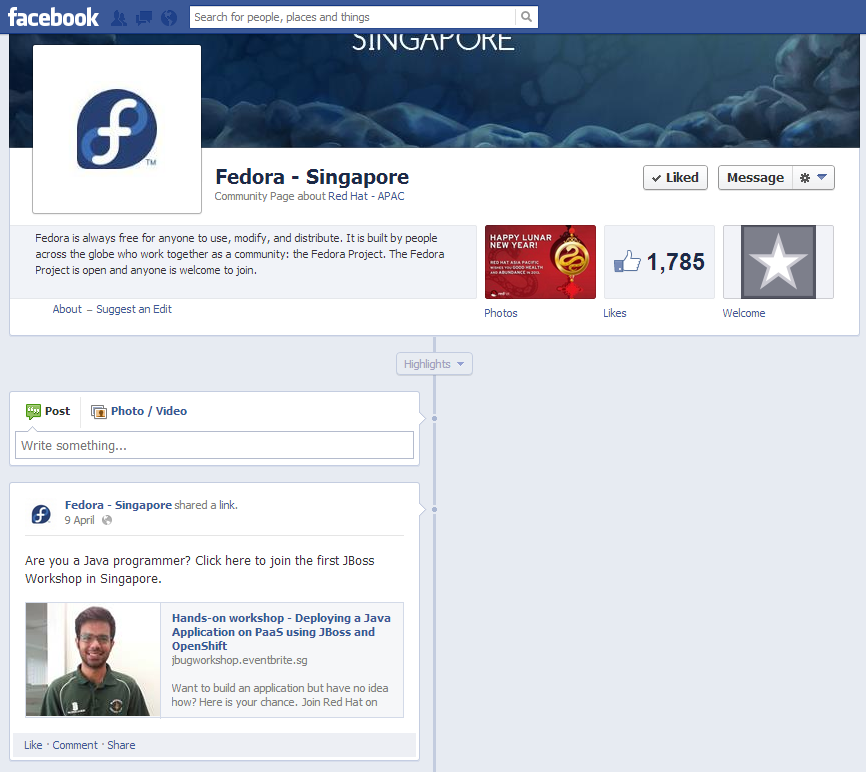
I saw a Facebook post announcing the first JBoss workshop in Singapore. However, since I had meeting overseas at that time, I couldn’t attend the event. Fortunately, my good friend, Wai Hong, who is also interested in Java programming decided to attend the workshop as well. After the workshop, he shared with me the notes so that I could learn it myself also. Thus, here I’d like to thank Wai Hong for his kindness. =D
The first JBoss Workshop in Singapore!
In this post, I want to share my JBoss learning journey after going through the notes, online tutorials, and online forums. Meanwhile, I also developed a new app, My YouTube RePlayer, and then deployed it on OpenShift, the Red Hat cloud hosting service, during the long weekend.
Set Up JBoss Developer Studio
In order to build web applications and then to publish them easily to the OpenShift, I choose to use the recommended IDE in the workshop, the JBoss Developer Studio 6.0.0.GA (JBDS).
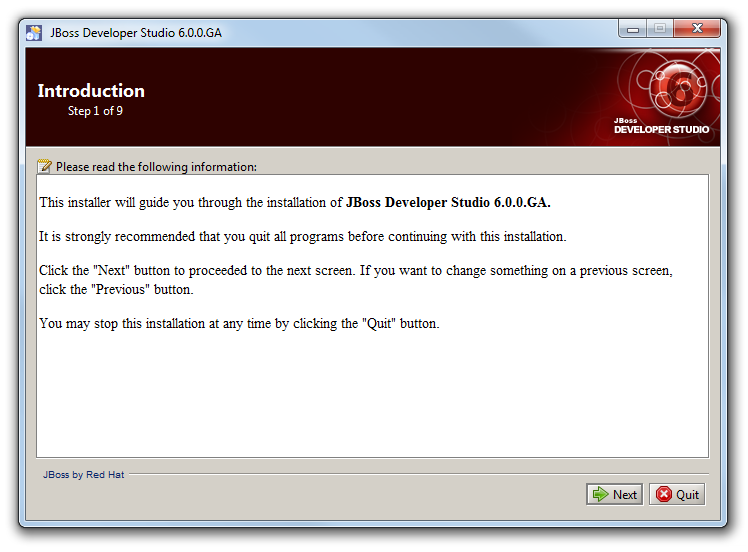
In the beginning of the installation, there are short introduction and the End User License Agreement. Please spend some time to read it.
Let’s get started with JBDS installation.
The next step will be selecting the installation path. I guess there is no need to put a screenshot for this?
After choosing the installation path, there will be an option to choose Java VM. So, the directory chosen will be the jre directory in the place Java is installed on the PC.
Select the Java Virtual Machine.
The next step will be “Select Platforms and Servers” which can be skipped because this part will be done in later stage.
At the end of the installation, if everything goes well, there will be a message saying “Installation has been completed successfully” in Step 9, which is also the last step. That means JBDS can be used now.
Launch JBoss Developer Studio
JBDS is almost like Eclipse. Well, this is because it includes not only the web development tools, but also Eclipse.
Hello, JBDS!
In the workshop, a quickstart project sample called kitchensink-html5-mobile is used. Due to the fact that I was following the workshop tutorial, I ended up using it to build my app, My YouTube RePlayer, eventually.
Choose the kitchensink-html5-mobile sample project as starting point.
Under the “Requirements” section, there are four items. On my PC, three of the plugins were found. Only the JBoss Enterprise Application Platoform 6 or JBoss Application Server 7.1 was missing. I thus installed the JBoss Application Server 7.1 which was given by Wai Hong together with his notes. I think it can also be downloaded in the “Download and Install…” section.
Download and install the JBoss Application Server 7.1.
After the runtime is added, just click on the “Finish” button and the project will be imported.
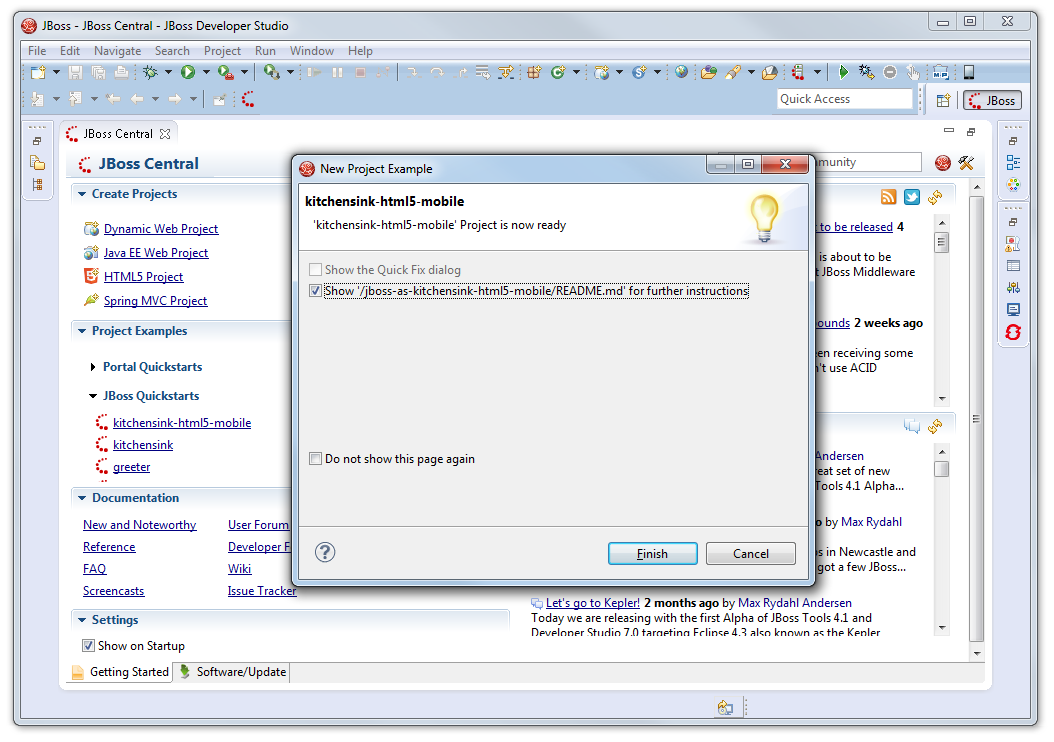
Once a message saying “‘kitchensink-html5-mobile’ Project is now ready” appears, that means everything has been done correctly so far. Yesh!
The project is now ready!
Deploy to OpenShift
I decided to use the sample project as a template to build my app, My YouTube RePlayer.
Before deploying to the cloud, I needed to test my app on local. To do that, firstly, right-click on the project folder in the “Project Explorer” window and then choose “Run As -> Maven Install” to build the project. Secondly, right-click on the project folder again and then choose “Run As -> Run on Server” to deploy on a local JBoss application server. Finally, the app will appears in the browser nicely.
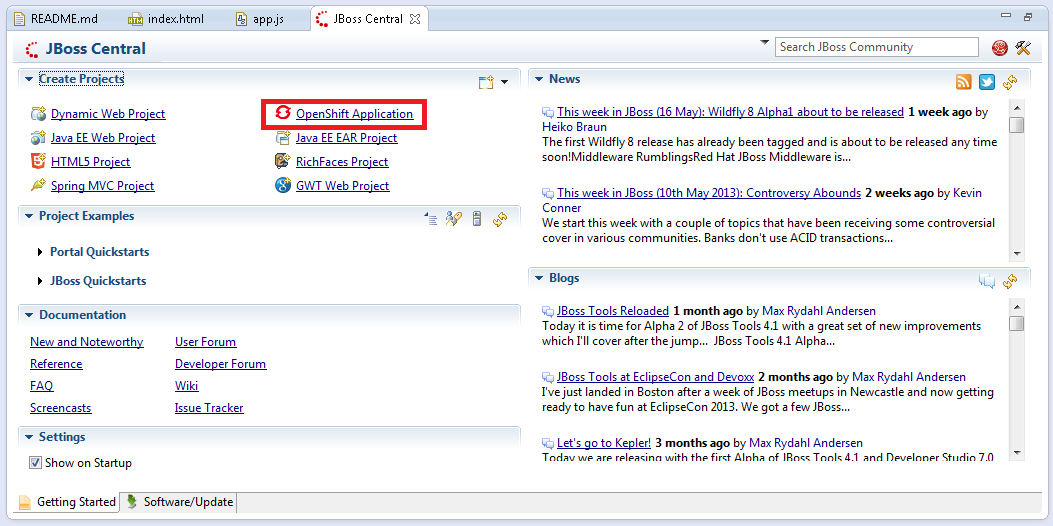
After testing on localhost, it is time to deploy the app to the cloud. First thing to do is to go back to the JBoss Central tab and click on the “OpenShift Application” button.
Click on the “OpenShift Application” button to start setting up the app on the cloud server.
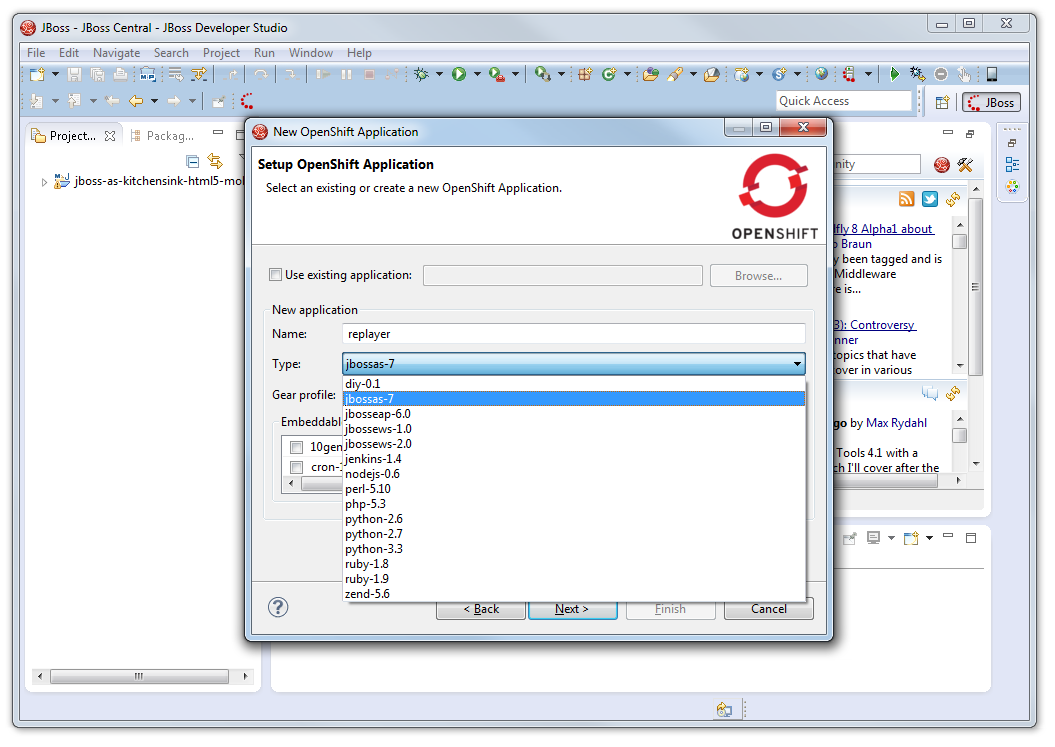
The next step will be naming the application. The naming is very important because both the application name and OpenShift username will appear in the URL of the app on OpenShift in the following format: <application name>-<username>.rhcloud.com.
Choose jbossas-7 under the application type option.
For the “Type” drop-down list, I chose jbossas-7.
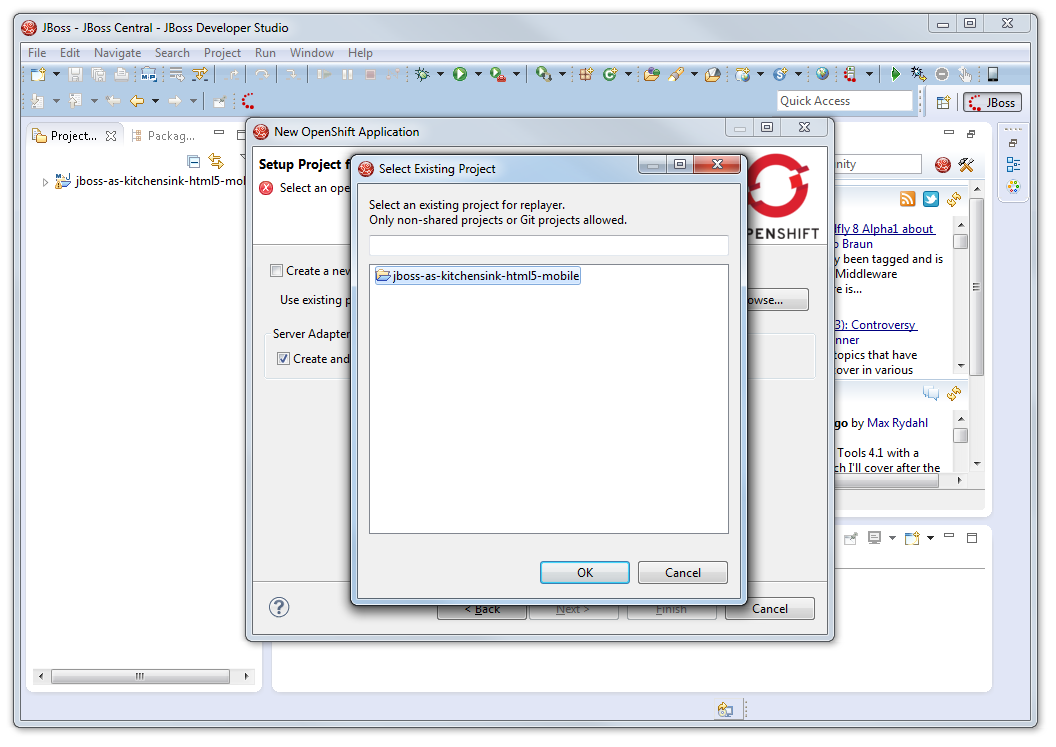
In the next window, I setup the project for the new OpenShift application. Due to the fact that I just would like to deploy my existing project, I unchecked the “Create a new project” checkbox and browsed to my modified sample project folder.
Choose to use existing project instead of create a new project on OpenShift.
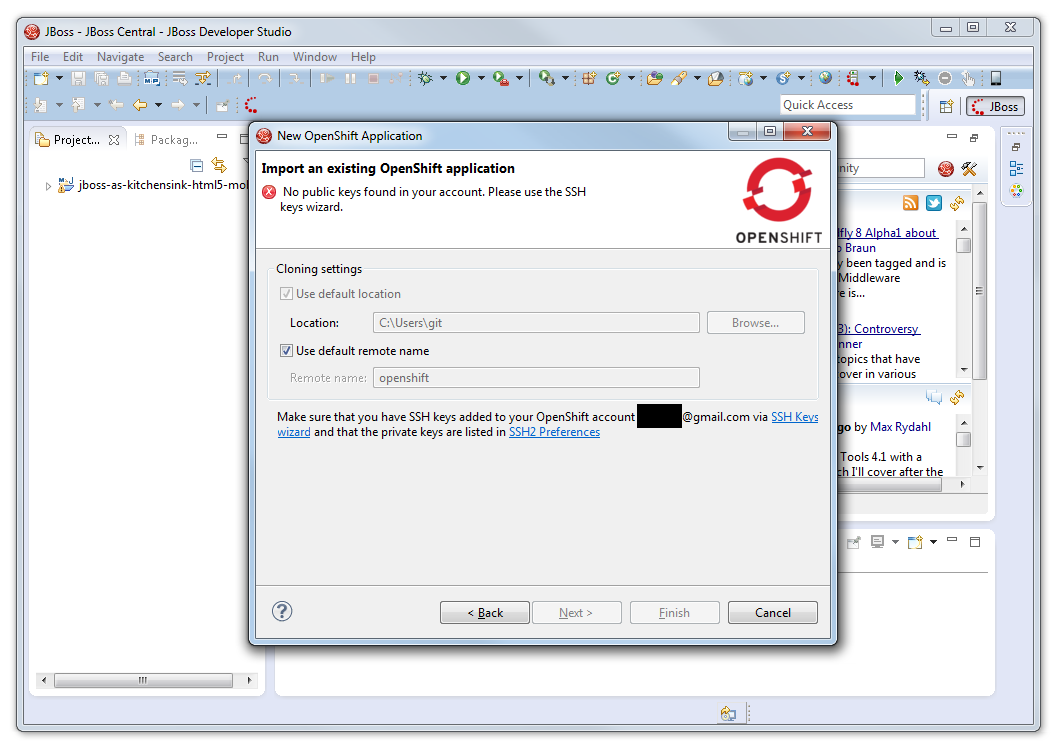
After having all these done, I reached the step where I needed to add SSH key to OpenShift account for authentication purpose. I first clicked on the “SSH2 Preferences” link.
Click on the SSH2 Preferences link.
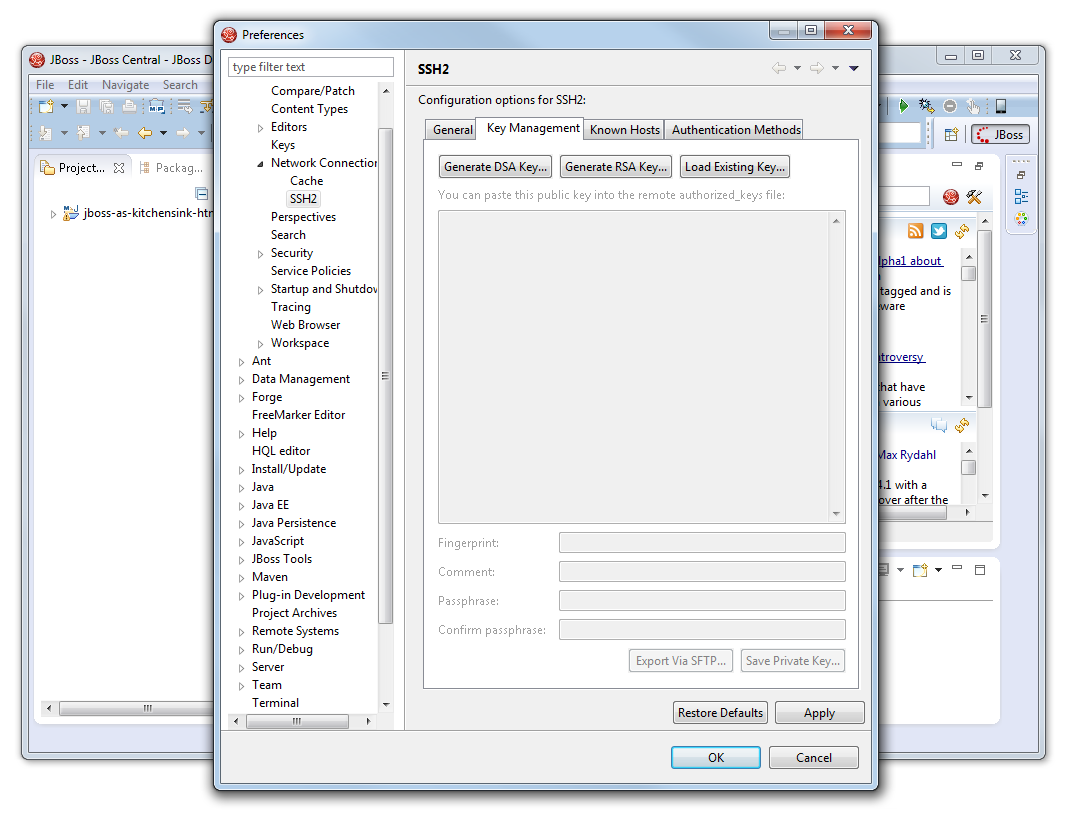
As I did not yet have an SSH key, I had to click on the “Generate RSA Key…” button to generate the key under the “Key Management” tab of the popped out window. After the key was generated, I clicked on the “Save Private Key…” button to save the private key for later use when publishing the app to OpenShift. It is recommended to have passphrase set, unless you also like to live dangerously.
The place to generate RSA key.Not enter any passphrase?
After the private key is saved, the public key also needs to be taken care of. The generated public key should be copied to clipboard (or paste it somewhere for later use). This is because after the keys are generated, the public key has to be added through the “SSH Keys wizard”. This is to setup the authentication between the local PC and the remote OpenShift server.
Click on the SSH Keys Wizard link.
Once everything is done, click on the “Finish” button.
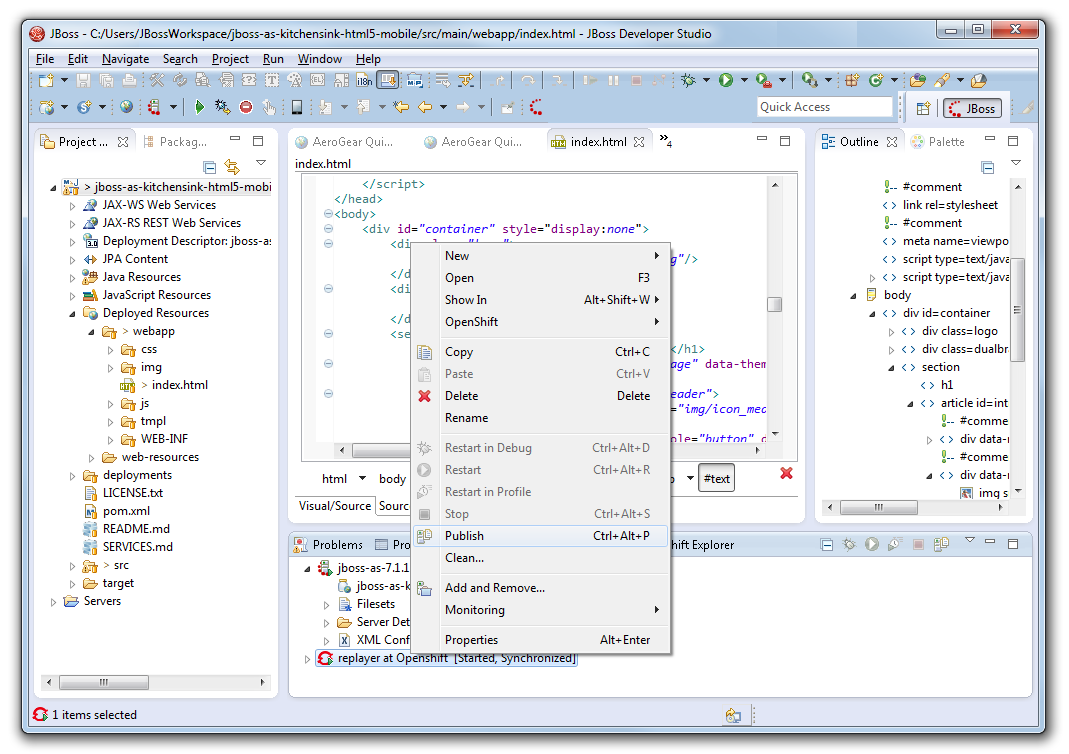
Now, it is time to publish the app. To do so, right-click on the OpenShift server item in the “Servers” tab and then choose “Publish”. That’s all.
This is how I published my new app My YouTube RePlayer.
Publish the project and deploy it on OpenShift.
My YouTube RePlayer
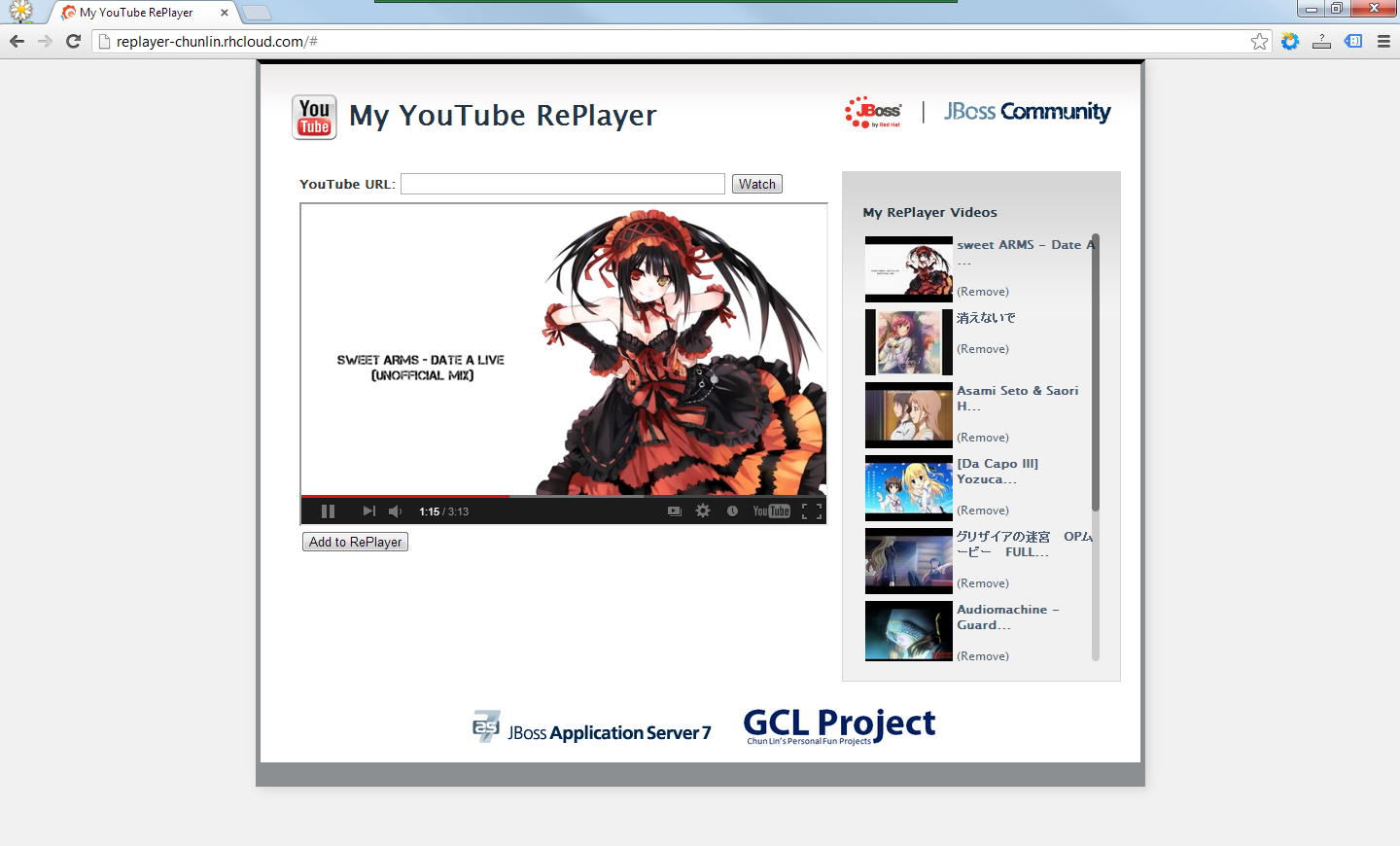
So, what is My YouTube RePlayer that I built in the project above?
I love listening to music and thus I like YouTube as well. However, there is a feature that is still not yet found on YouTube website. The auto replay. To solve this problem, I have been working on several versions of YouTube Re-Player since 2009. Some are web applications and some are desktop applications.
Playing a well done unofficial mix of “Date a Live” done by DaRk5nAk3 on My YouTube RePlayer.
This time, I am using the HTML5 technology in my new YouTube Re-Player app. Instead of using database, I directly use the available web storage to store the video ids (YouTube has unique id assigned to each online YouTube video). However, I think it is still good to have a database so that the data won’t be just stored locally on user’s browser and thus can be synced over different PCs with the same login.
Thus, although the workshop is more on building a Java web application, I end up doing my own HTML 5 application. Haha. Oh well, see if I got time to continue this project next time.








 cuteprogramming