Personal Email Server on Windows 7 with hMailServer

Due to the fact that the number of emails that can be sent per day via the Amazon SES SMTP is limited, I decided to run my own email server on a desktop. However, it’s unfortunate that the IIS 7.0 in Windows 7 does not have SMTP server installed by default. After doing some google searches, I came to an online forum about SMTP service in Windows 7. There is where I got to know more about hMailServer, a free email server for Windows.

The good thing about hMailServer is that it is very easy to install and configure.

Installation

During the installation, we will be asked to select the components that we would like to install. Here, we will proceed with the default option, the Full Installation, which contains both server and administrative tools.
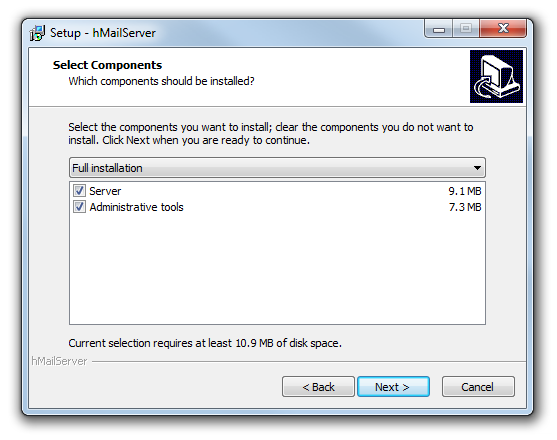
Select components.
Select components.

After that, we will have to choose a database server type. We can chose either built-in database engine (MS SQL Compact) or external database engine (MS SQL, MySQL or PostgreSQL). According to the hMailServer documentation, built-in database engine option is only suitable for personal use, instead of commercial use because the Microsoft SQL Server Compact Edition comes with hMailServer is limited to only 4GB.
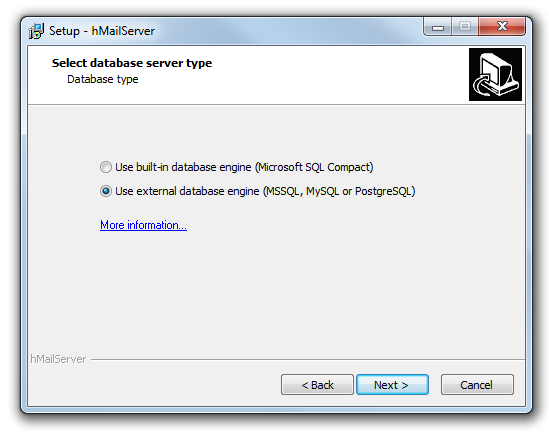
Select database server type.

During the installation, an admin account will be created. The admin will be in charge of managing hMailServer configuration later. Thus, we will need to enter a password for the admin account.

Before the installation process is completed, we will need to enter the password that we assigned to the admin account earlier before we can proceed.

There is a need to re-enter password before the completion of installation.

If the option of using external database engine was chosen earlier during the installation, we will need to go through another step of seting up the hMailServer database. We are basically given three options to choose: MS SQL Server, MySQL, and PostgreSQL. The following screenshot shows the database created in MS SQL Server after finishing the database setup.
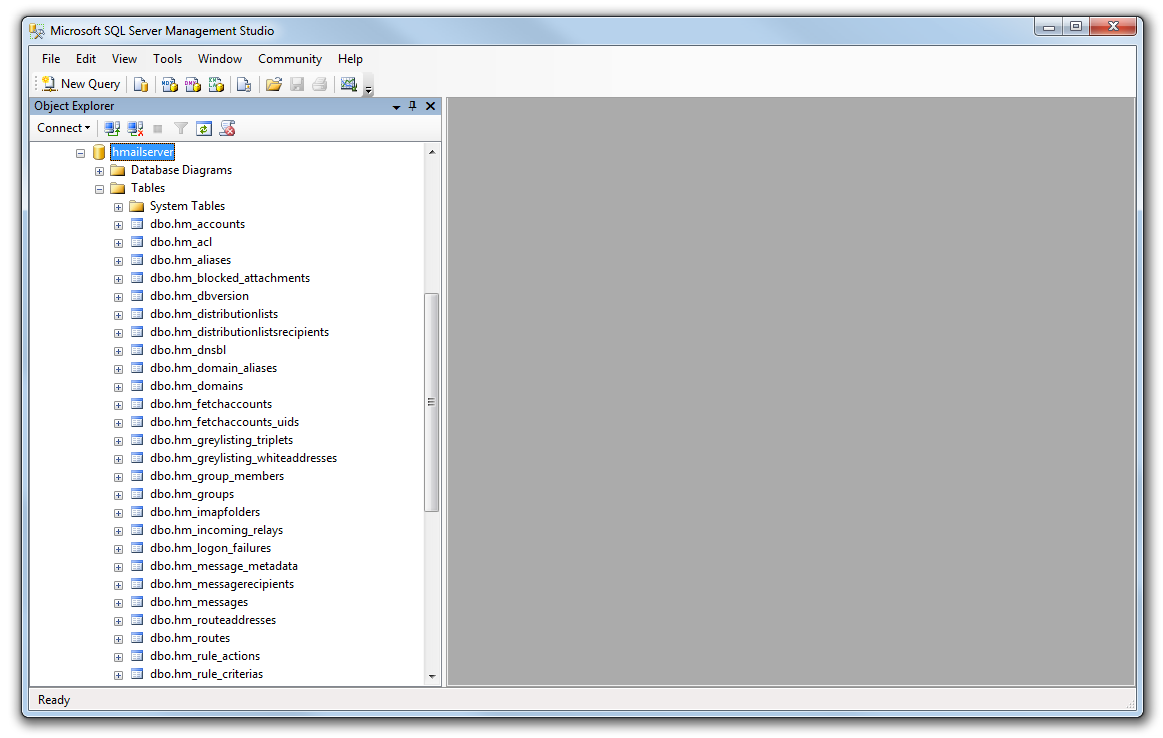
Tables created and used in hMailServer.

Configuration

After the database is created, we would be able to connect to the hMailServer by choosing the correct host and user. Here, we need to again key in the password that we used earlier.
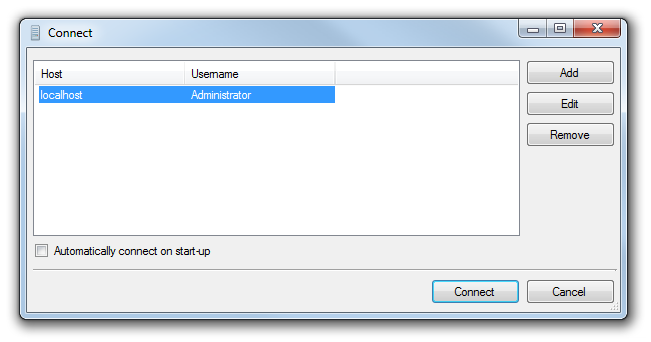
Choose an account to connect to hMailServer

We will then be brought to the hMailServer Administrator window where we can continue to configure the settings in hMailServer.

Firstly, we will create a domain and then add user accounts to the domain.
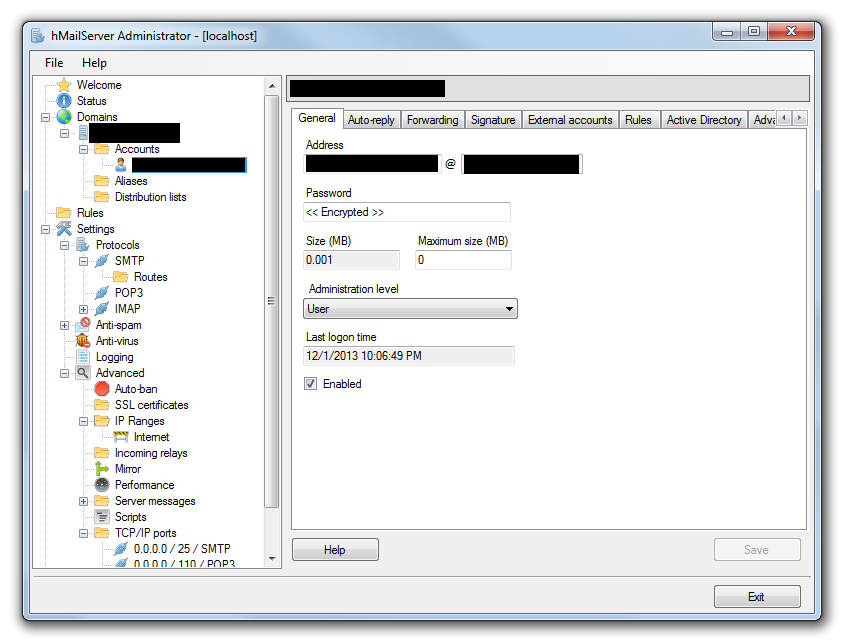
hMailServer Domain and Account

Secondly, we will choose SMTP as the only protocol that we want to use in hMailServer.
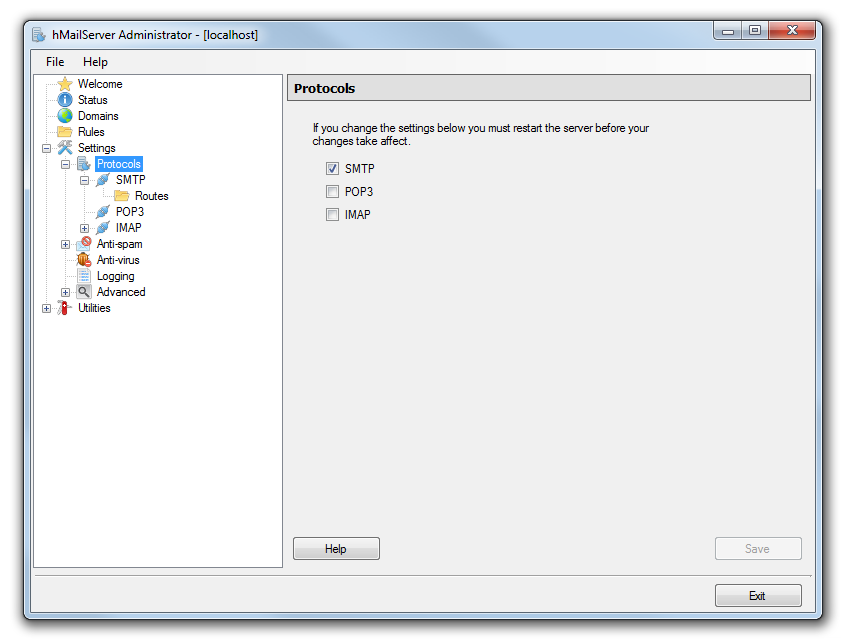
Three protocols are available in hMailServer: SMTP, POP3, and IMAP.

Some Internet Service Providers (ISPs) block outgoing traffic on port 25, which will be used for email. Thus, to test if the port 25 is blocked or not, we just need to telnet mail.hmailserver.com 25 on command line. If it is not blocked, a message “220 mail.hmailserver.com ESMTP” will be shown.
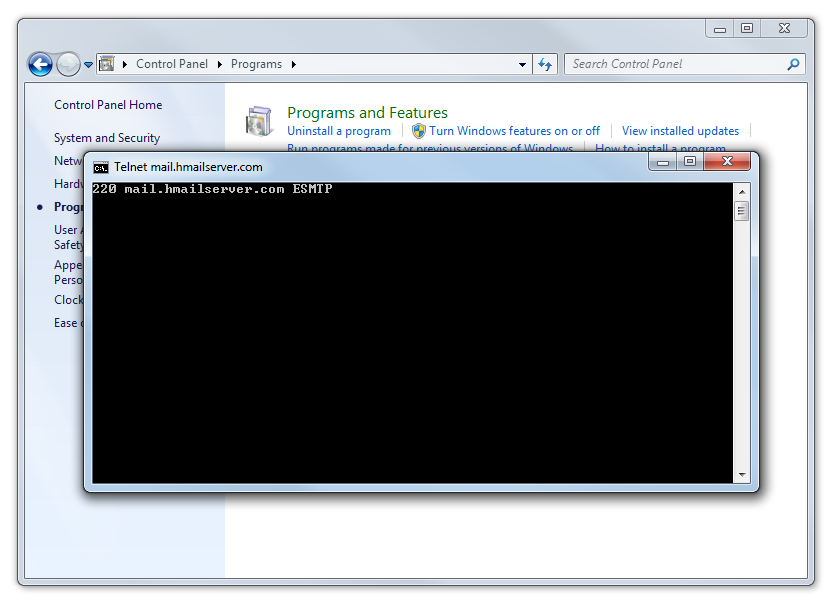
Port 25 is not blocked!

However, since the Telnet client has been removed in recent versions of Windows, we will need to add it back in Windows Features before we can try out the command above. Otherwise we will get an error message saying telnet is not recognized as an internal or external command.
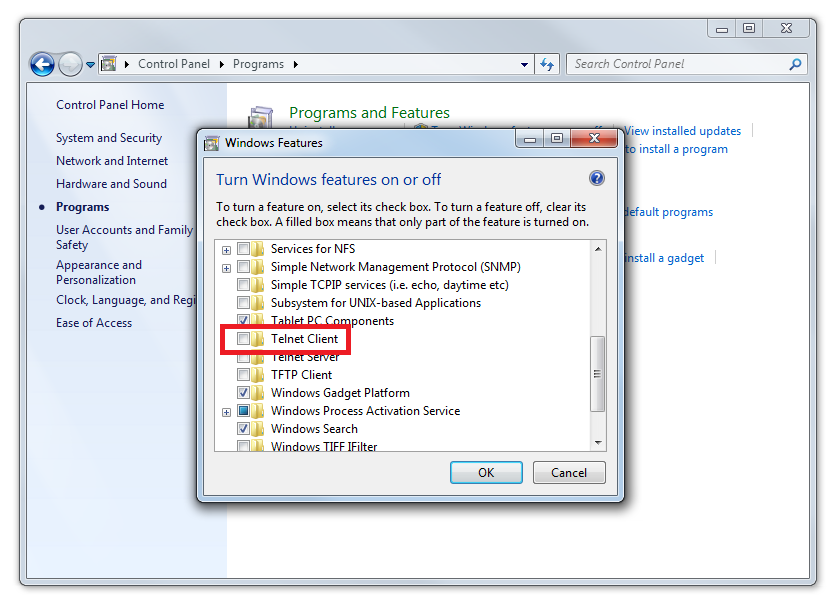
Switching on telnet client in Windows Features.

Thirdly, the logging feature, which is by default disabled, needs to be switched on. The log gives very useful information to check if the emails are sent successfully.
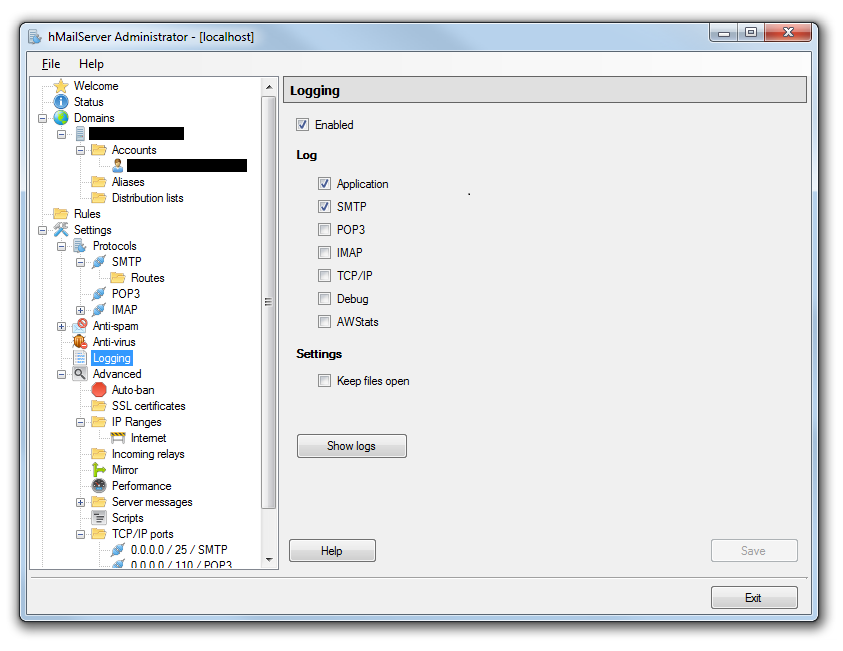
Logging Configuration

Finally, to prevent this personal email server vulnerable to spam, we should configure the hMailServer IP range. By default, the option Internet has a IP range from 0.0.0.0 to 255.255.255.255. This has to be disabled otherwise hMailServer will promt a critical configuration warning at the Status page.
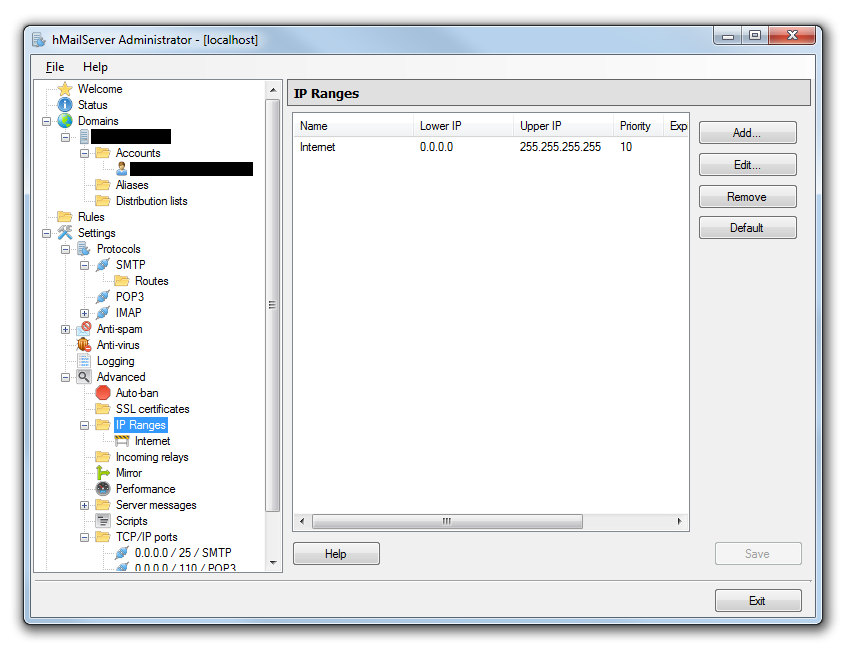
Internet IP Range
Internet Option IP Range

Experiment

After doing all these, the email server should be ready to go. However, when I check the log, there are messages as follows.

“Our system has detected an unusual rate of unsolicited mail originating from your IP address. To protect our users from spam, mail sent from your IP address has been blocked. Please visit http://www.google.com/mail/help/bulk_mail.html to review our Bulk Email Senders Guidelines.” (for gmail.com email)

“Sending unsolicited commercial or bulk e-mail to Microsoft’s computer network is prohibited. Other restrictions are found at http://privacy.microsoft.com/en-us/anti-spam.mspx.” (for hotmail.com email)

“Connections not accepted from IP addresses on Spamhaus XBL; see http://postmaster.yahoo.com/errors/550-bl23.html” (for yahoo.com email)

Hence, now I have no choice but to use the SMTP Relayer on hMailServer to help sending the email successfully.
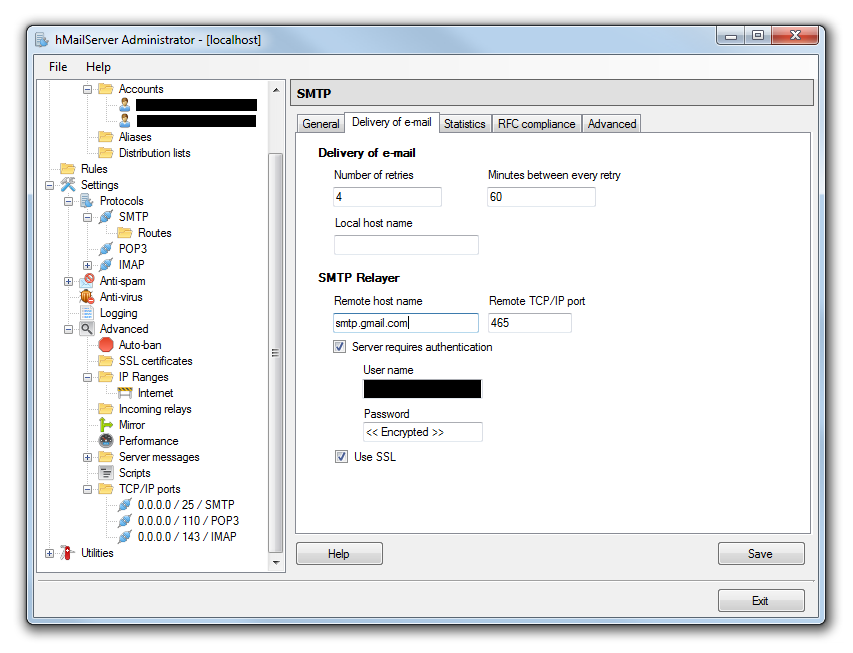
SMTP Relayer
SMTP Relayer

Edit

After reading Aaron’s comment, I looked into the SMTP authentication portion and realized a new way to solve the problem above. Please click here to read more.

From Windows 8 to Windows 8.1

Yesterday night, I was updating Windows 8 to Windows 8.1 to enjoy the new exciting features offered in the latest version of Windows.

Although it’s said to be very simple to update to Windows 8.1 for those who were already using Windows 8, I was stuck in the first step. I couldn’t find the Windows 8.1 update on Windows Store. The update should be provided as free on Windows Store. After reading the help, it turned out that the reason why the update wasn’t available was due to the fact that some important Windows updates were not installed on the computer, especially the KB2871389. Thus, before getting the Windows 8.1 update, I downloaded the required Windows updates in PC Settings.

Downloading Windows Update
Downloading Windows Update (20 minutes)

After successfully installed the updates and restarted my computer, I finally could see the Windows 8.1 update in the Windows Store!

Windows 8.1 Update for Free!
Windows 8.1 Update for free!

It took about one and half hour to finish downloading the update. After that it took another few hours to complete the installation and setup. I went to sleep after starting the update. So by the time I woke up, Windows 8.1 was already ready to use!

Windows 8.1 Is Ready!
Windows 8.1 is ready!

Meanwhile, there is a happy user commenting on EsplanadeGo!, the Windows 8 app developed by my NUS coursemate and me! It’s great to see there are people out there who love using your apps, isn’t it? =D

EsplanadeGo! User Review
Thanks Jackson Loh for supporting our app, EsplanadeGo!.

Google DevFest Singapore 2013

I attended the first Google DevFest in 2008. It should be the first Google hackathon in South East Aaia (Oops, Asia). During the event, we got the chance to try out the new APIs, such as Google Maps API and YouTube API. That was how I started one of my favourite personal projects, the YouTube RePlayer (latest version is hosted on OpenShift at http://replayer-chunlin.rhcloud.com/).

The GUI of YouTube Re-Player (Localhost) 1.0
YouTube Re-Player (Localhost) 1.0, the first version of the app which was done after attending Google DevFest 2008

This year, Google DevFest was back to Singapore again on last Saturday. So, I decided to attend to get inspired and explore new ideas and opportunities to network. The topics of this year event are listed below.

  1. Intro to OpenCV in Android;
  2. Android Permission Architecture: Invisible Security Threats;
  3. Managing Arduinos with Androids;
  4. Running Android OS on Raspberry Pi (nothing much covered);
  5. Angular JS (I skipped the AngularJS talk to take some rest);
  6. Google BigQuery with Cloud Storage;
  7. Google Developers.

Before going into each of the topics above, I would like to comment about the (free) food offered in the event. In the 2008 event, the organizer dabao Singapore chicken rice only for us as dinner. This year, they provided delicious breakfast, lunch, and afternoon tea!

Talk #1: Intro to OpenCV in Android

The talk was given by Badrinath Kulkarni, an Android developer from GDG Bangalore. The talk basically just covered some general image processing functions available in OpenCV as well as steps to install the OpenCV library in Eclipse for Android app development.

He started the tutorial by showing us a simple and frequently used image processing operation, image smoothing. He demo it using the medianBlur() to reduce noise of the image taken with a smartphone camera.

Image Registration is also covered in this talk. The reason to do Image Registration is to find out a geometrical transformation that aligns points in one view of an object in an image with corresponding points in another view of that object. There are some online resources that discuss Image Registration in detail.

In short, this is more like a talk about image processing. However, the speaker does have an interesting blog at http://ibadrinath.in/.

Talk #2: Android Permission Architecture: Invisible Security Threats

Even though Android applications by default do not have access to phone number, browser history, and other user’s private information on the phone, the applications can request for access to this information at install time. The options that the users can choose are only grant all access requested or not install the application. So, this talk basically covered the problems of having over-privileged Android applications in the market.

The talk was delivered by Jiten Jain from India. During his talk, he further demonstrated how he could easily get the contact information, messages, and account usernames of the users using his Android app. Yup, now it is important to find out what the apps on our phone can actually do. Not just graphical implementation of the apps, but all the tasks that can be done by the apps.

Talk #3: Managing Arduinos with Androids

This is another interesting talk in the event. In fact, it’s very enjoyable. It was given by Harish Pillay from Red Hat. I think he was named a SPRING Singapore’s award recipient just three months ago.

The talk basically focused on how Annikken Andee, an Arduino bluetooth add-on shield, gives developers an easier way to make Android to interact with the physical world. Annikken Andee can communicate with the Annikken Andee Android app via bluetooth.

Here is a 2-minute short interesting video explaining what Annikken Andee is.

By the way, just a fun fact: The language that we use to program the Arduino board is C/C++ but the IDE is written in Java.

Fun fact #2: Even high school students in Malaysia know Arduino. So please learn Arduino if you don’t know about it. =P

Talk #4: Google BigQuery with Cloud Storage

The first lesson learnt from this talk given by Dr S P T Krishnan from I²R is that Google BigQuery is not a magic wand. Hmm, I thought it was a magic. Oh well.

The first time I heard about Big Data was during the Linus Lee’s talk on Analytics Stack at Twitter back in January. He shared with us the role and responsibilities of a data scientist and the working evironment in Twitter. For more details about his talk, there is an online article about it at e27.

After Linus Lee’s talk, I tried out Google BigQuery at https://bigquery.cloud.google.com/. If you would like to play with Google BigQuery, perhaps you can find more about BigQuery and go through the quickstarts first.

Talk #5: Google Developers

The cool applications done by developers is available at https://developers.google.com/showcase/.

There was a YouTube video shared with us during the talk also. It is about how Google Play helps Colopl, a very cool Japanese company.

A Fruitful Event

Because of Google DevFest 2008, I got to know more about the cool Google APIs, which later help me on developing many useful applications on my own. This time, the event once again opens my eyes to the exciting new technologies out there. Yup, so I am looking forward to the next Google DevFest. =)

Presentation Materials from Google DevFest Singapore 2013

Morning Sessions

Afternoon Sessions

Photos of the Event

https://plus.google.com/photos/118002244286788294009/albums/5934101450469153025?sqi=116183805383104277986&sqsi=569a5eaf-3753-4187-9983-ff0fd7d8d371

IE Is Being Mean to Me: Episode 2 – Uppercase HTML Tag

It’s my mistake again. It’s morning and I realized my little code as shown below did not work properly on IE 7 and IE8.

var i = $('#someStuff').html().indexOf("<a>");

It turns out that in IE 7 and IE 8, the HTML tags returned by .html() are all in uppercase. Thus the result is not as expected. Luckily, this is not the case anymore in the latest version, IE 10. So, in order to solve the problem, the code has to be modified to be as follows by converting the result to have lowercase.

var i = $('#someStuff').html().toLowerCase().indexOf("<a>");

Actually this is an known issue in older version of IE. It’s just that I forgot about it.

Meanwhile, I also found some interesting articles about this.

In the past, there were people having a debate on whether the weird behavior of innerHTML or html() in IE 7/8 is a feature or bug. For example, there is a discussion on this in 2008: Bug of Feature – Live .innerHTML in IE.

Currently, XHTML1.0 is still an implemented standard in most of the Internet browsers. In XHTML 1.0: The Extensible HyperText Markup Language (Second Edition), it points out that XHTML documents must use lower case for all HTML element and attribute names. This difference is necessary because XML is case-sensitive e.g. <li> and <LI> are different tags.

For CSS, even though its syntax is not case-sensitive, since element names are not under the control of CSS, the element names used in CSS are also case-sensitive in XHTML (but not HTML).

Anyway, I would like to thank Microsoft engineers for making IE 10 to do the right things. Here is a promo video of IE 10.