When your database is big, sometimes just its backup will be around 20GB in size already. Hence, keeping them on disk is always not a solution even though Microsoft Azure provides a data disk with 1TB.
Hence, Chun Siong from Microsoft Singapore suggested my company to try out this service to store our database backups. It turns out that it can be easily done in just 3 steps.
Step 1: Create Azure Storage Account and Retrieve Access Keys
To create a new Azure Storage Account, I simply login to the Azure Management Portal and then choose the Quick Create option of the Storage under Data Services section. I am able to specify the affinity group and replication rule for the Storage Account.
Creating a Storage Account.
After the Storage is created, I can retrieve access keys which will be used later in SQL Server to access the Storage Account.
Retrieve the access keys to the Storage Account.
Finally, I just need to create a Container in the Storage Account. All the database backup files will be put inside the Container later.
Created a container in the Storage Account.
Step 2: Create SQL Server Credentials
I then execute the following T-SQL statement to create credentials so that SQL Server later can connect to the Storage Account.
The Storage Account access key here can be either Primary or Secondary access key retrieved in Step 1 above.
Step 3: Backup Database
I create a scheduled job in SQL Server Agent to do backup of my database daily. The URL is the URL of the container created in Step 1.
BACKUP DATABASE mydatabase
TO URL = 'https://chunlindbbackup.blob.core.windows.net/dbbackup/mydatabase_' + REPLACE(CONVERT(VARCHAR ,GETDATE(),126) ,':','_')+ '.bak'
WITH CREDENTIAL = 'mycredential', INIT, NAME = 'Backup of Database mydatabase'
So yup, now the database backups will be stored on the Storage Account directly.
Restore Database Backup from Azure Storage
To restore a database backup from Storage Account, if the backup file is small, I can just simply execute the following T-SQL statements. The URL of the database backup can be found in the Container in Azure Management Portal.
RESTORE DATABASE mydatabase_test
FROM URL = 'https://chunlindbbackup.blob.core.windows.net/dbbackup/mydatabase_2014-10-14T13_16_01.243.bak'
WITH RECOVERY,
MOVE 'mydatabase_db_Data' TO 'F:\db\mydatabase_test_Data.mdf',
MOVE 'mydatabase_db_Log' TO 'F:\db\mydatabase_test_Log.ldf',
CREDENTIAL = 'mycredential'
GO
Unfortunately, the backup that I have is too big. So, I can only download it from Azure Management Portal to the database server first before restoring the database. The download is quite fast.
Download backup file from Storage Account
In case, you wonder why I do not use tool like Azure Storage Explorer, no, it did not work. It would crash also if the backup file was too big.
I already forgot how I got to know about Microsoft hackathon back in 2012, few months after I entered my first job.
Dream Build Launch, Wowzapp~
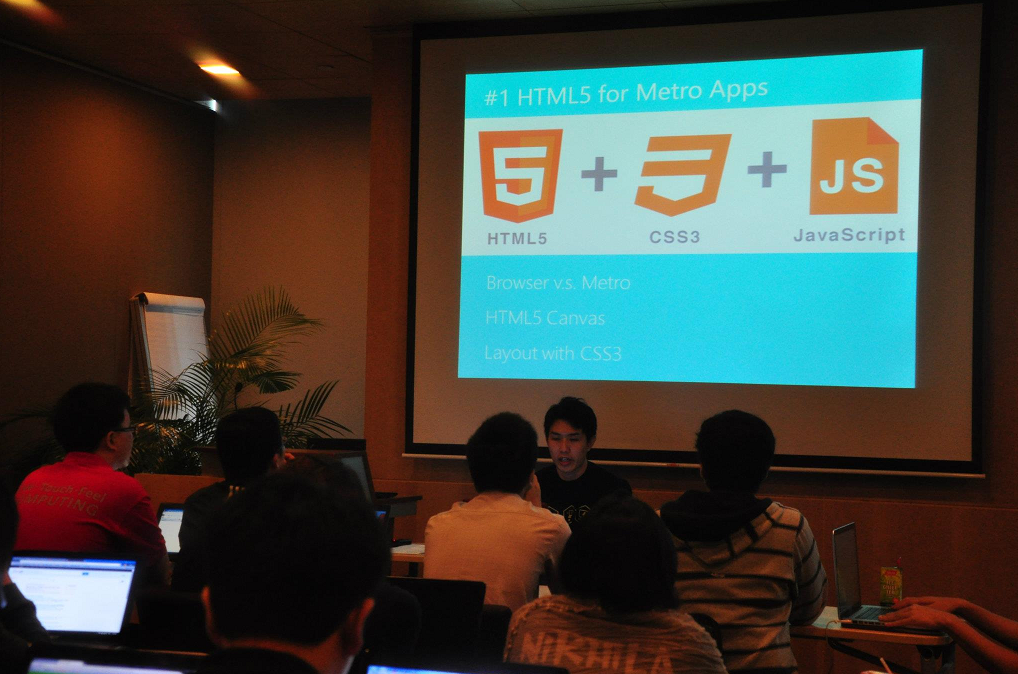
The first hackathon that I took part in is Dream Build Launch. I worked together with my C# guru, Desmond, to build our first Windows 8 app (which was called Metro App back then). We successfully published the app to Windows Store after two rounds of Microsoft Premier Field Engineer (PFE) consultation sessions. We named our first Windows 8 app “EsplanadeGo!”, which has 51 downloads today.
HTML5 for Metro Apps talk given by Alex Goh during Dream Build Launch event. Photo Credits: Spiffy
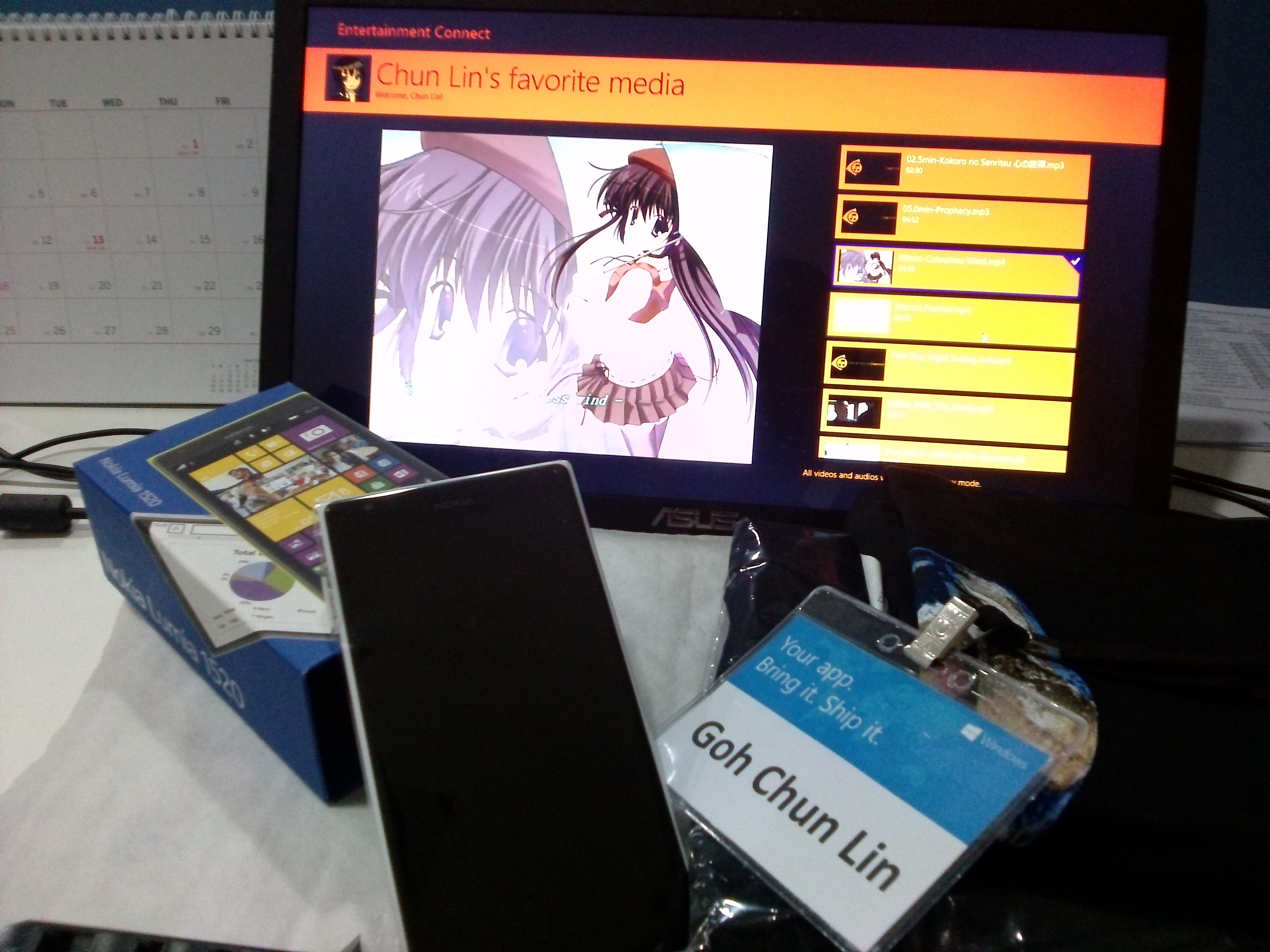
In December 2012, I participated in another Microsoft hackathon, Wowzapp. That was the first time I won the first prize in Microsoft competition after I graduated from university. The app that I built was called Entertainment Connect, also a Windows 8 app. User can use it to connect to his/her Dropbox account to retrieve media files and then play them in the app.
Near the end of the Wowzapp hackathon, one of the judges from Microsoft Singapore, Eugene, suggested me to build another app which connected to SkyDrive (which was later renamed to OneDrive) because he would love to use such an app and SkyDrive API was still quite new back then.
Because of Eugene’s idea of the app, I challenged myself again in the hackathon organized by Microsoft Singapore in 2014, //publish/. I decided to make Eugene’s dream come true.
//publish/
The special thing about //publish/ was that participants were allowed to bring their own existing Windows 8/8.1 projects. The focus of the event was more about publishing app to Windows Store. Hence, I took the opportunity to complete my second personal Windows 8 app, Entertainment Connect.
//publish/ hackathon was actually a 2D1N event happening worldwide. Personally, I thought the one in Singapore was the most special one because Inori Aizawa was invited as special guest to the event as well! Participants got the chance to take photo with her and won cute prizes. Also, we had the chance to try out Xbox One, the device that people were willing to queue up at Funan DigitaLife Mall for a few hours just to buy one.
Where else can you see Inori Aizawa playing Xbox One? Photo Credits: Microsoft Singapore//publish/ organized by Microsoft in Singapore. Photo Credits: Microsoft Singapore
The event took place at The Co., a very comfortable place just next to my office. So, I got to bring laptop external keyboard and mouse, which helped to improve my coding speed.
There were tech talks given in the first morning. One of them was about Push Notification with Microsoft Azure. This talk in fact helped me a lot in my work when our company decided to do a push notification to Android and iOS phone.
Tech talk about Cortana delivered by Chun Siong. Photo Credits: Microsoft Singapore
Meet People
One of the great things that I love about Microsoft hackathon is that I always can meet imba people here. By just having a chat with them, I get to learn more technologies out there, such as Arduino, Azure Media Services, iOS development, and so on.
Entertainment Connect is my submission for //publish/ in 2014.
Entertainment Connect (Available now at Windows Store)
What’s so special about Entertainment Connect? Isn’t it just a media player that can play videos and songs? What else?
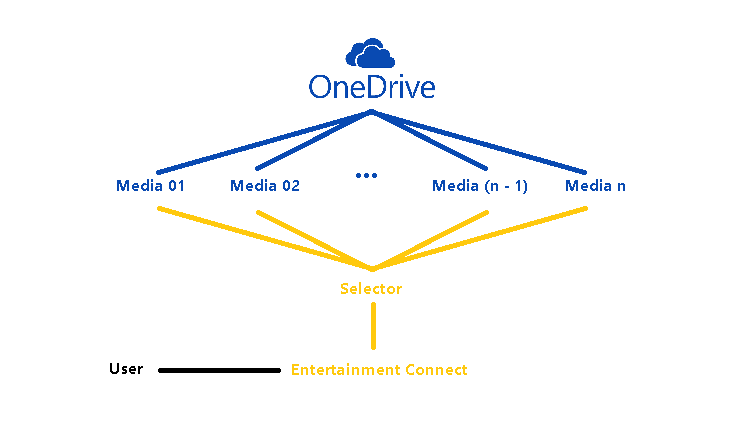
Firstly, yes, it is a media player. However, it is not a normal media player which can only play the local media files. It connects to your OneDrive account and retrieves available media files from there.
Secondly, I make it so that when you switch from one media file to another, the previous media file is paused and is hidden in the background. So, you can, let’s say, click on one video, play it halfway, then click on another song, then jump back to the same video again and continue from where you stop earlier. So this is actually similar to the “Parallel Video Downloading” feature that I introduced back then in YouTube Re-Player (Desktop) in 2009. The only difference is that now it does not limit the number of videos to be just 5.
Parallel Media Downloading from OneDrive to Entertainment Connect
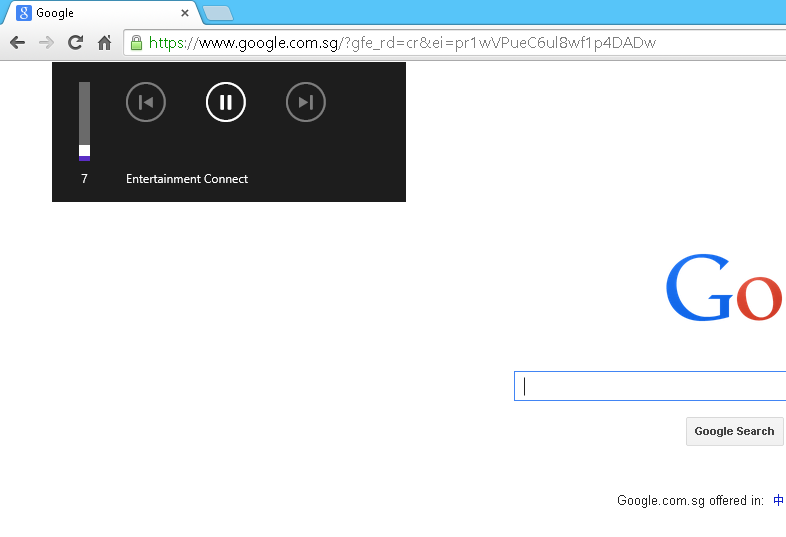
Thirdly, it supports playing audio in the background. This means that even though the app is running in the background, users can still continue listening to the music and at the same time they can also control the media player.
SystemMediaTransportControls
Finally, it can loop songs and videos. Yup, re-playing is always the must-have feature in the media player programs that I build. =)
Wait, It Was 6 Months Ago!
Some of the readers by now should have realized that //publish/ actually happened 6 months ago. Why do I only blog about it now? Well, the answer is that I choose to blog about it after I successfully publish Entertainment Connect to Windows Store. So, why does it take so long for me to publish an app? This is because I have little time to work on it after the event.
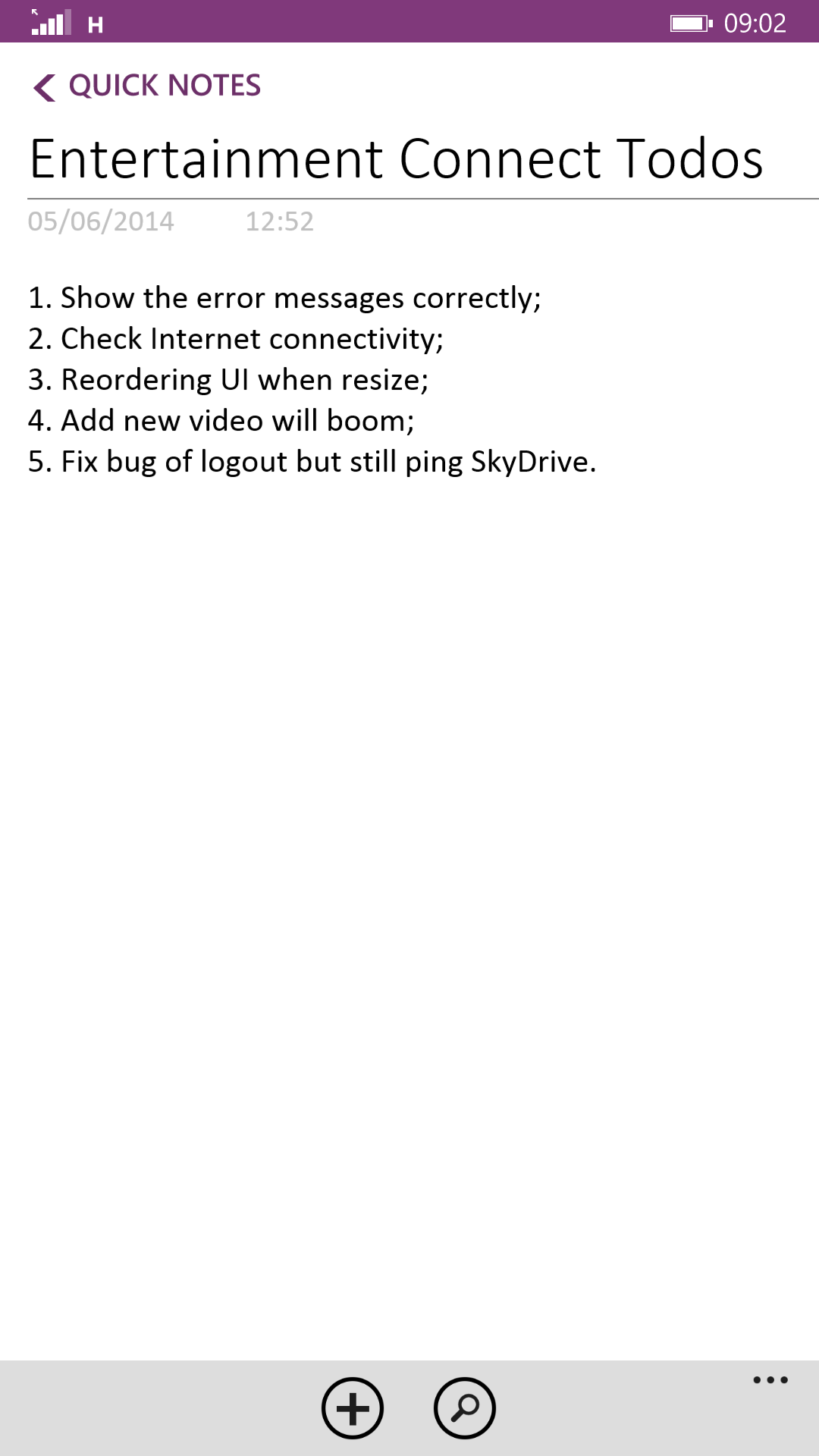
Simple to-do list kept in OneNote
I have learnt the key to finishing a personal project is to work on the project every day. However, I have a full-time work which requires me to OT always. Sleeping has thus become my top priority after work. However, I still try to at least work on the project by writing a few lines of code or just staring at Visual Studio for a few minutes. So, after 6 months of doing so, I am finally able to publish Entertainment Connect.
There is a saying, “Only do side projects you are absolutely crazy about.” Hence, I also installed Entertainment Connect on my laptop so I got to use it daily. The reason of doing so is to force me to remember about the project and to easily find out bugs in the app.
Today, I am happy that I successfully realize the dream of Eugene about a Windows 8 app that he can use to connect to play the media files stored in his OneDrive. In fact, I am very happy to have taken up this challenge and complete the app by myself even though the entire process is tiring.
Prize
Prize is Nokia Lumia 1520!
I’d also like to take this chance to thank Microsoft Singapore team for giving me a special prize for Entertainment Connect during //publish/. It was a brand new Nokia Lumia 1520. Coincidentally, my Android phone stopped functioning few days before the event. So, I managed to get a new modern smart phone for free.
I should blog about the phone next time to show how good/bad Nokia Lumia 1520 is. =P
It has been more than two years since I first published OneSimpleTablePaging, a simple JavaScript library which does HTML table paging on web pages. The purpose of working on this project is to provide an alternative by just doing all the table pagination in one JavaScript file without using any image.
Floating Table Header <thead>
I blogged about this two years ago. Since then, I have been receiving feedback from readers on how to make the library do more.
One of the suggestions from trdunsworth is to implement a floating table header. This will help the header of the table to be fixed at the original position when readers scrolling the web page up and down. I like this idea very much.
Fortunately, there are many resources available online which shows how a floating table header can be done easily. A very simple solution that I first found is suggested by Andrew Whitaker on StackOverflow. He even nicely provided a demo on JSFiddle. However, his solution is too simple. It does not take into the consideration of, for example, hiding the floating header if the table has been scrolled too way up and is no longer visible. Another solution on CodePen thus gave me some ideas on how to improve the code further.
After spending one afternoon, I successfully implemented the feature and published a new version of OneSimpleTablePaging. I also did a simple demo page to show how the pagingnation and floating header work: https://db.tt/6DUQxQzv.
From Google Code to GitHub
I have been using Google Code since the time when I was studying in university. Recently, with the increasing popularity of GitHub, I decided to try it out. Hence, I have moved the project OneSimpleTablePaging to GitHub: https://github.com/goh-chunlin/one-simple-table-paging.
Yup, so now please visit the new homepage for OneSimpleTablePaging at GitHub! Thanks. =)
Not many people that I know like to try things that they are not familiar with because unfamiliar is scary. However, working in startup, like my current company, basically forces one to always learn more and learn faster. Hence, after getting approval from the top management, my senior and I migrated our web applications to Microsoft Azure.
Just when we thought we did everything beautifully, our instances on Azure went down for 72 minutes on 4 August, one month after the migration. The reason given by Microsoft team is that there was an issue in one of the clusters within the DC. 3 weeks later, our database instance on Azure went down again for 22 minutes because of a scheduled system update.
Fortunately, Microsoft Singapore is willing to guide us to make high availability in our web applications possible. I am very happy to have Chun Siong, Technical Evangelist from Microsoft Singapore, to help us out.
Last month, Chun Siong successfully to have the database mirroring setup for our database instances on Azure. Since he did all of the work himself, in order to learn and to master the database mirroring, I had to do everything myself from the beginning again.
In this post, I will share the mistakes I made when I tried doing database mirroring myself so that I won’t repeat the same mistakes again.
Beginning of the Journey
There is an easy-to-follow tutorial available on MSDN about how to implement database mirroring in Azure. I used it as a reference to setup one principle database server, one mirror database server, and one witness server within the same availability set.
Elements in my simple database mirroring setup.
Mistake #1: Firewall Blocking Remote Access of SQL Server
If I had read the tutorial carefully, I wouldn’t have to make this mistake because it’s mentioned in the beginning of the tutorial.
I found out this mistake only when I tried to connect to the mirror server from the principal database server. It kept throwing me the Error 1418 saying that the mirror server was not reachable. After reading a checklist of the error, I found out that it’s because I never create an inbound rule on Windows Firewall to allow the access of the SQL server.
Thanks Chun Siong for pointing it out also. =)
By the way, on the article about Error 1418 (http://msdn.microsoft.com/en-us/library/aa337361.aspx), there is a checklist to check if everything is done correctly. I copied and pasted it below for quick reference.
Make sure that the mirror database is ready for mirroring.
Make sure that the name and port of the mirror server instance are correct.
Make sure that the destination mirror server instance is not behind a firewall.
Make sure that the principal server instance is not behind a firewall.
Verify that the endpoints are started on the partners by using the state or state_desc column the of the sys.database_mirroring_endpoints catalog view. If either endpoint is not started, execute an ALTER ENDPOINT statement to start it.
Make sure that the principal server instance is listening on the port assigned to its database mirroring endpoint and that and the mirror server instance is listening on its port. If a partner is not listening on its assigned port, modify the database mirroring endpoint to listen on a different port.
There is a need to allow the access of SQL server in three instances.
Mistake #2: Typo when Creating Certificates
In the tutorial, the recommended way to deploy database mirroring is to use certificates. After certificates of three servers are created, we need to grant login permission on each server to another two servers. That is when we will use the certificates to create a common login account id called DBMirroringLogin.
I had one typo in the password in one of the certificates. only realized it at the very end when I tried to connect to my witness server. So, yup. Be careful during the database mirroring configuration steps. One small mistake can waste us time to find out why.
Grant login permissions to other two servers.
Mistake #3: Mismatch Edition of Principal and Mirror
I only had time to learn database mirroring using my personal account after work. So I screamed in my room at the moment when I realized that it is not allowed to have mirror server using Standard Edition while the principal is not using Standard Edition.
The mirror server instance cannot be Standard Edition if the principal server instance is not Standard Edition.
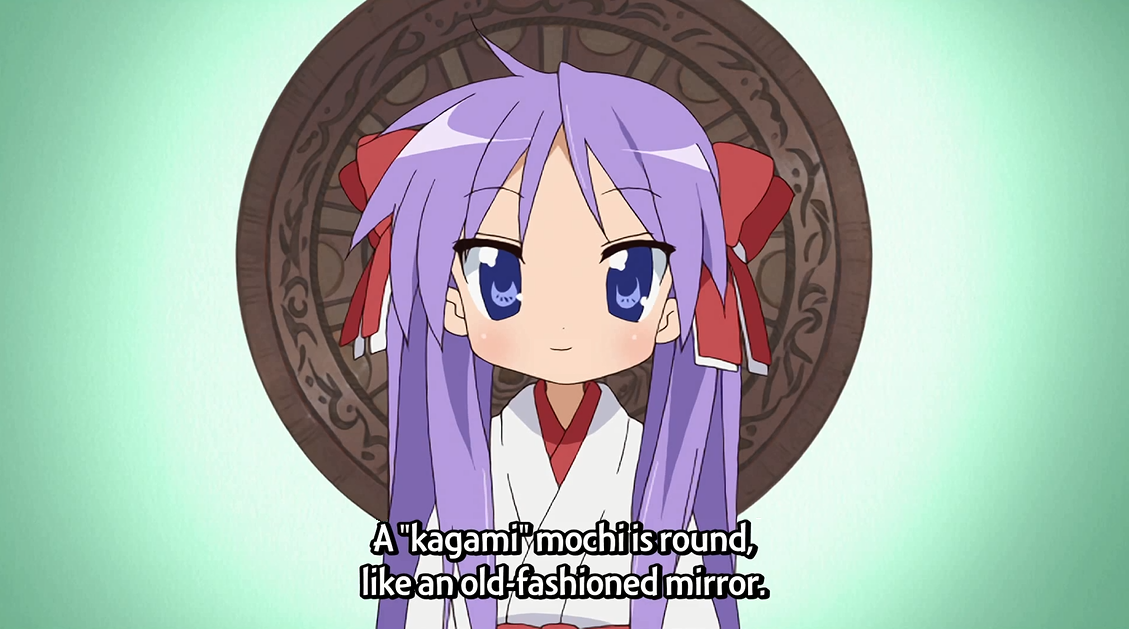
So in the end, I shut down the mirror instance and created another virtual machine which has Enterprise Edition SQL Server installed. Fortunately, it could be done quite fast on Microsoft Azure. I did not want to use back the old name so I named the new mirror server mydb-01-kagami.
Kagami means “mirror” in Japanese. (Image Credit: Lucky Star)
Mistake #4: Three Virtual Machines Not in Same Availability Set
The principal database, witness, and mirror database instances need to be put inside the same availability set.
When I was deploying the database mirroring, I forgot to have the witness instance in the same availability set as principal and mirror. So end up I couldn’t successfully connect to the witness from the principal.
Three instances need to be in the same available set.
Work and Learn
I spent about three days in Microsoft office to learn from Chun Siong. I then took another one month to do it myself. Wait, what? One month, seriously? Don’t be surprised. As usual, I have only little time (about half an hour per day) after work to do my personal projects. Sometimes, once I reached my room from office, I just jumped into bed and fell asleep within minutes. So, in fact, I only spent about 15 to 20 hours on learning database mirroring myself. Hence, I am really glad that I have colleagues as well as friends from Microsoft to be willing to support me in my learning journey.
Finally, some little notes to myself and readers who want to try out database mirroring (on Azure).
Be very careful during the whole database mirroring configuration process. Don’t have typo or set something wrongly. You may need to delete and create a new instance because of the mistakes;
Witness (but not principal and mirror) can use Express Edition of SQL Server. So, to save cost, please use that;
Set database to full recovery model before backing up the database on principal;












 cuteprogramming