Here Comes the Win2D

Win2D - VS2015

I am very fortunate to be able to attend the Singapore .NET Developer meetup of this month. The topics of the meetup are MVVM, Windows 10, and Win2D. We are glad to have experienced developer, Riza, to be one of the speakers.

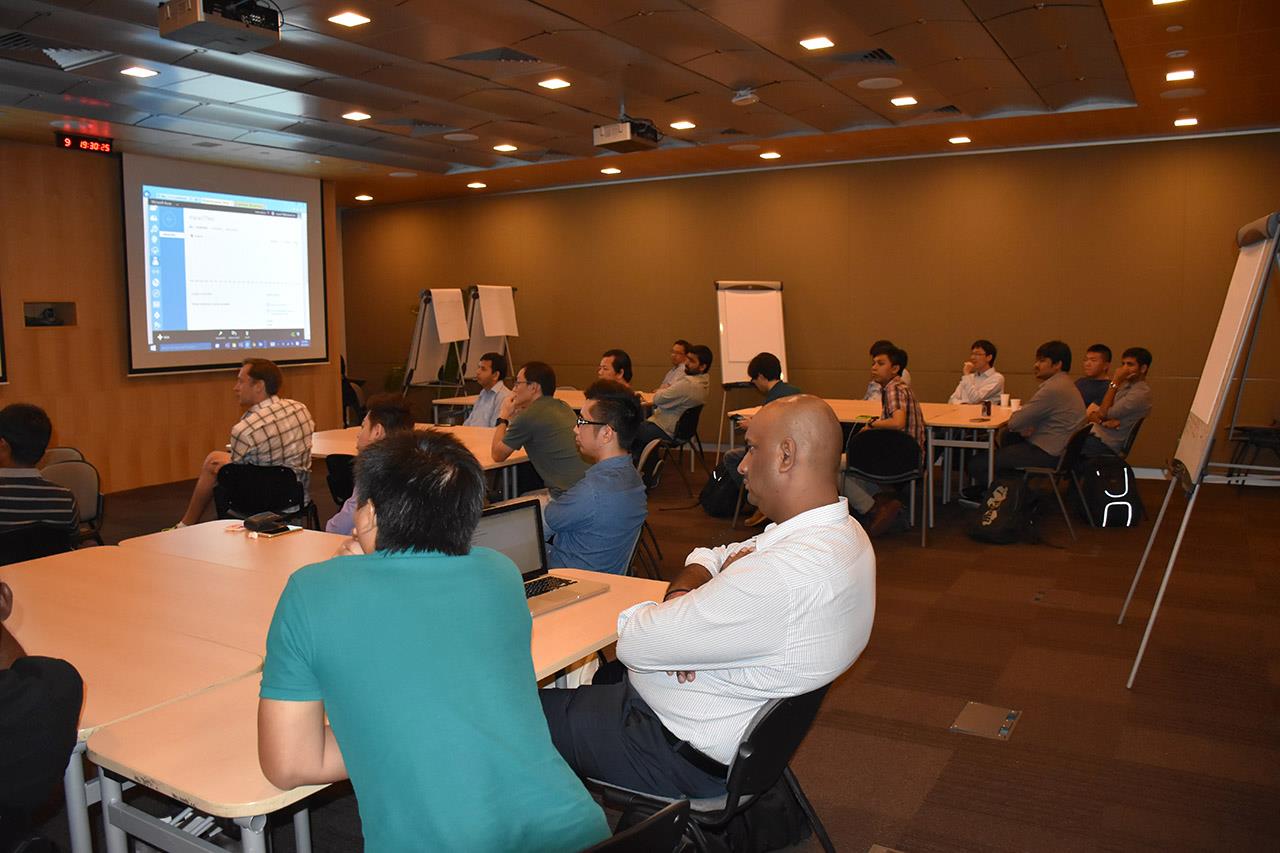
Riza's sharing his thoughts about Win2D.
Riza’s sharing his thoughts about Win2D. (Image Credit: .NET Developer Singapore Community)

Due to time constraint, Riza only managed to show us some basic codes for Win2D, a WinRT API for Immediate Mode 2D Graphic Rendering with GPU Acceleration.

Immediate Mode and Retained Mode are two main categories in Graphics API. What are they? I always use the following explanations to help me differentiate between the two modes.

Retained Mode does not directly cause actual graphic rendering. Example: WPF.

Immediate Mode will directly cause actual graphic rendering. Example: Direct2D and System.Drawing library.

Last year, Microsoft proudly announced the Win2D which developers could use it to bring hardware accelerated Direct2D graphics to Windows 8.1 Universal Apps. This undoubtedly is a great news for game developers who would like to publish their games on Surface and Windows Phone in the future.

Let’s Start Coding!

I thus decided to read through some online tutorials to try out this new cool API. The following are two tutorials that I read.

  1. Introduction to Win2D
  2. Win2D – WinRT API for 2D Graphics

The first app that I developed is an app similar to what is being shown in the first tutorial listed above.

Pavel’s code doesn’t work well when I am using the latest version of Win2D from Nuget (Version 0.0.20). For example, the way he sets the speed of the moving circle is as follows.

circle.Speed = new Vector2(-circle.Speed.X, circle.Speed.Y);

However, this won’t work in my project. So, I changed it to the code below.

circle.Speed = new Vector2() { X = -circle.Speed.X, Y = circle.Speed.Y };

For those who play with XNA Framework often should know Vector2 quite well. Yup, it is a vector with 2 components, X and Y. In Win2D, besides Vector2, there are also Vector3 and Vector4.

Required Nuget Package

Before doing the coding, there is a need to add Win2D to the Windows 8.1 Universal App project first.

The interface of Nuget Package Manager has changed in VS2015! Here, we can find Win2D package.

VS2015 and Azure

As you can see from the screenshot above, it’s actually VS2015 on Microsoft Azure! On Azure, we can easily create a VM with one of the following editions of VS2015 installed: Professional, Enterprise, and Community. Hence, I no longer need to download VS2015 to my own laptop. =)

However, when I first started the VS 2015 on the new VM, I encountered two problems once I tried to compile my Windows 8.1 Universal App.

Firstly, it said developer license couldn’t be approved because of having no Desktop Experience feature enabled.

“We couldn’t get your developer license for Windows Server 2012 R2”

This was easily solved by enabling the Desktop Experience feature. In the beginning, I was having a hard time finding where to enable the Desktop Experience. Thanks to a blog post written by Tamer Sherif Mahmoud, I found the option as shown in the following screenshot.

Desktop Experience option is actually under User Interfaces and Infrastructure.

Secondly, VS2015 complaint that the Windows 8.1 Universal App couldn’t be activated by the Built-in Adminstrator.

“This app can’t be activated by the Built-in Adminstrator”

What I did to fix this problem is only switching on the Admin Approval Mode for the Built-in Administrator account in Local Group Policy Editor, as shown in the screenshot below.

Enable the UAC: Admin Approval Mode for the Built-in Administrator Error - Solution Step 3 - UAC Admin Approval Mode for Built-in Administrator account.
Enable the UAC: Admin Approval Mode for the Built-in Administrator Error – Solution Step 3 – UAC Admin Approval Mode for Built-in Administrator account.

After doing all these, I could finally compile my first Windows 8.1 Universal App in VS2015.

The UI

<Page
 x:Class="MyUniversal.MainPage"
 xmlns="http://schemas.microsoft.com/winfx/2006/xaml/presentation"
 xmlns:x="http://schemas.microsoft.com/winfx/2006/xaml"
 xmlns:local="using:MyUniversal"
 xmlns:d="http://schemas.microsoft.com/expression/blend/2008"
 xmlns:mc="http://schemas.openxmlformats.org/markup-compatibility/2006"
 xmlns:win2d="using:Microsoft.Graphics.Canvas.UI.Xaml" 
 mc:Ignorable="d">
    <Grid x:Name="_mainGrid" Background="{ThemeResource ApplicationPageBackgroundThemeBrush}">
        <win2d:CanvasControl ClearColor="Black" Grid.Row="1" Draw="OnDraw" x:Name="_canvas" Tapped="OnTapped" />
    </Grid>
</Page>

In order to use CanvasControl, I need to include Microsoft.Graphics.Canvas.UI.Xaml, as highlighted in green in the code above.

The Logic

The following is my Main method.

public MainPage()
{
    this.InitializeComponent();
    _width = (float)Window.Current.Bounds.Width;
    _height = (float)Window.Current.Bounds.Height;
    _timer.Tick += (s, e) => {
        Dictionary<CircleData, int> reference = _circles.ToDictionary(x => x.Key, x => x.Value);

        foreach (var circleKeyPair in reference)
        {
            var circle = circleKeyPair.Key;

            int circleRadiusChangingSpeed = circleKeyPair.Value;

            float posX = circle.Speed.X + circle.Center.X; 
            float posY = circle.Speed.Y + circle.Center.Y;
            circle.Radius += circleRadiusChangingSpeed;

            if (circle.Radius > _height / 4 || circle.Radius <= 0)
            {
                _circles[circle] = -1 * circleKeyPair.Value;
            }

            var radius = circle.Radius;
            if (posX + radius > _width || posX - radius < 0) 
            {
                circle.Speed = new Vector2() { X = -circle.Speed.X, Y = circle.Speed.Y };
            } 
            else if (posY + radius > _height || posY - radius < 0) 
            {
                circle.Speed = new Vector2 { X = circle.Speed.X, Y = -circle.Speed.Y };
            }
            circle.Center = new Vector2 { X = circle.Speed.X + circle.Center.X, Y = circle.Speed.Y + circle.Center.Y };
        }
        
        _canvas.Invalidate();
    };
    
    _timer.Start();
}

In the code, I first define the area to have the circles by declaring two variables _width and _height to be the width and height of the current window. I can’t use the width and height (or even actualWidth and actualHeight) of the grid because they are always 0.

Then same as Pavel, I also move the circles around by having the following code.

circle.Center = new Vector2 { X = circle.Speed.X + circle.Center.X, Y = circle.Speed.Y + circle.Center.Y };

Here, I can’t set X = posX and Y = posY because the circle.Speed here, which is used to define the moving speed and direction, can be already different as the circle.Speed when posX and posY were calculated.

In addition, I also add in the code to change the size of the circle every time it moves. The circle will grow until a certain size and then its radius will be decreased to 0. Once the radius is 0, it will start to increase again.

if (circle.Radius > _height / 4 || circle.Radius <= 0)
{
    _circles[circle] = -1 * circleKeyPair.Value;
}

For those who are wondering what the following line of code does, it is basically just a way to make the canvas control to redraw.

_canvas.Invalidate();

For the OnTapped and OnDraw, I am using the same codes as Pavel’s.

The following screenshot shows the colourful circles created by clicking on the app a few times.

Colourful circles created with DrawCircle.

That is done using DrawCircle. So, let’s see what will happen if I change to use FillCircle with an image, as taught in the second tutorial mentioned above.

session.FillCircle(circle.Center, circle.Radius, circle.CircleInnerImageBrush);

The CircleInnerImageBrush is created in the following way.

CanvasBitmap image = await CanvasBitmap.LoadAsync(_canvas.Device,
    new Uri("<URL to the image here>"));
CanvasImageBrush imageBrush = new CanvasImageBrush(_canvas.Device, image)
{
     ExtendX = CanvasEdgeBehavior.Clamp,
     ExtendY = CanvasEdgeBehavior.Wrap,
     SourceRectangle = new Rect(0, 0, image.Bounds.Width, image.Bounds.Height)
};

Then I am able to get the following cool effects!

FillCircle + Image
FillCircle + Image

Win2D is Open Source

That’s what I have learnt so far after listening to Riza’s 10-minute sharing on Win2D. I will probably try out the API more in the near future because Win2D looks very promising!

In case, you wonder how much I spent on running VS2015 on Azure, running an A4 (8 cores, 14GB memory) instance for about one week costed me about USD 90.

Oh ya, Win2D is open source! For those who are interested to find out more, please take a look at their GitHub site.

Machine Learning in Microsoft Azure

Let me begin with a video showing how Machine Learning helps to improve our life.

The lift is called ThyssenKrupp Elevator, an example of Predictive Maintenance. For more information about it, please read an article about how the system works and the challenges of implementing it on different types of lift.

I first learnt about the term “Machine Learning” when I was taking the online Stanford AI course in 2011. The course basically taught us about the basics of Artificial Intelligence. So, I got the opportunity to learn about Game Theory, object recognition, robotic car, path planning, machine learning, etc.

We learnt stuff like Machine Leaning, Path Planning, AI in the online Stanford AI course.

Meetup in Microsoft

I was very excited to see the announcement from Azure Community Singapore saying that there would be a Big Data expert to talk about Azure Machine Learning in the community monthly meetup.

Doli was telling us story about Azure Machine Learning.
Doli was telling us story about Azure Machine Learning. (Photo Credit: Azure Community Singapore)

The speaker is Doli, Big Data engineer working in Malaysia iProperty Group. He gave us a good introduction to Azure Machine Learning, and then followed by Market Basket Analysis, Regression, and a recommendation system works on Azure Machine Learning.

I found the talk to be interesting, especially for those who want to know more about Big Data and Machine Learning but still new to them. I will try my best to share with you here what I have learned from Doli’s 2-hour presentation.

Ano… What is Machine Learning?

Could we make the computer to learn and behave more intelligently based on the data? For example, is it possible that from both the flight and weather data, we can know which scheduled flights are going to be delayed? Machine Learning makes it possible. Machine Learning takes historical data and make prediction about future trend.

This Sounds Similar to Data Mining

During the meetup, there was a question raised. What is the difference between Data Mining and Machine Learning?

Data Mining is normally carried out by a person to discover the pattern from a massive, complicated dataset. However, Machine Learning can be done without human guidance to predict based on previous patterns and data.

There is a very insightful discussion on Cross Validated that I recommend for those who want to understand more about Data Mining and Machine Learning.

Supervised vs. Unsupervised Learning

Two types of Machine Learning tasks are highlighted in Doli’s talk. Supervised and unsupervised learning.

Machine Learning - Supervised vs Unsupervised Learning
Machine Learning – Supervised vs Unsupervised Learning

In supervised learning, new data is classified based on the training data which are accompanied with labels to help the system to learn by example. The web app how-old.net which went viral recently is using supervised learning. There is an interesting discussion on Quora about how how-old.net works. In the discussion, the Microsoft Bing Senior Program Manager, Eason Wang, also shared his blog post about this how-old.net project that he works on.

Gmail is also using supervised learning to find out which emails are spam or need to be prioritized. In the slides of Introduction to Apache Mahout, it uses YouTube Recommendation an example of supervised learning. This is because the recommendation given by YouTube has taken videos explicitly liked, added to favourites, rated by the user.

I love watching anime so YouTube recommended me some great anime videos. =P

Unlike supervised learning, unsupervised learning is trying to find structure in unlabeled data. Clustering, as one of the unsupervised learning techniques, is grouping data into small groups based on similarity such that data in the same group are as similar as possible and data in different groups are as different as possible. An example for unsupervised learning is called the k-means Clustering.

Clearly, the prediction of Machine Learning is not about perfect accuracy.

Azure Machine Learning: Experiment!

With Azure Machine Learning, we are now able to perform cloud-based predictive analysis.

Azure Machine Learning is a service that developer can use to build predictive analytic models with training datasets. Those models then can be deployed for consumption as web service in C#, Python, and R. Hence, the process can be summarized as follows.

  1. Data Collection: Understanding the problem and collecting data
  2. Train: Training the model
  3. Analyze: Validating and tuning the data
  4. Deploy: Exposing the model to be consumed

Data Collection

Collecting data is part of the Experiment stage in Machine Learning. In case some of you wonder where to get large datasets, Doli shared with us a link to a discussion on Quora about where to find those public accessible large datasets.

In fact, there are quite a number of sample datasets available in Azure Machine Learning Studio too. During the presentation, Doli also showed us how to use Reader to connect to a MS SQL server to get data.

Get data either from sample dataset or from reader (database, Azure Blob Storage, data feed reader, etc.)
Get data either from sample dataset or from reader (database, Azure Blob Storage, data feed reader, etc.).

To see the data of the dataset, we can click on the output port at the bottom of the box and then select “Visualize”.

Visualize the dataset.

After getting the data, we need to do pre-processing, i.e. cleaning up the data. For example, we need to remove rows which have missing data.

In addition, we will choose relevant columns from the dataset (aka features in machine learning) which will help in the prediction. Choosing columns requires a few rounds of experiments before finding a good set of features to use for a predictive model.

Let's clean up the data and select only what we need.
Let’s clean up the data and select only what we need.

Train and Analyze

As mentioned earlier, Machine Learning learns from a dataset and apply it to new data. Hence, in order to evaluate an algorithm in Machine Learning, the data collected will be split into two sets, the Training Set for Machine Learning to train the algorithm and Testing Set for prediction.

Doli said that the more data we use to train the model the better. However, they are many people having different opinions. For example, there is one online discussion about the optimal ratio between the Training Set and Testing Set. Some said 3:2, some said 1:1, and some said 3:1. I don’t know much about Statistical Analysis, so I will just make it 1:1, as shown in the tutorial in Machine Learning Studio.

Randomly split the dataset into two halves: a training set and a testing set.

So, what “algorithm” are we talking about here? In Machine Learning Studio, there are many learning algorithms to choose from. I won’t go into details about which algo to choose here. =)

Choose learning algorithm and specify the prediction target.

Finally, we just hit the “Run” button located at the command bar to train the model and make a prediction on the test dataset.

After the run is successfully completed, we can view the prediction results.

Visualize results.
Visualize results.

Deploy

From here, we can improve the model by changing the features, properties of algorithm, or even algorithm itself.

When we are satisfied with the model, we can publish it as a web service so that we can directly use it for new data in the future. Alternatively, you can also download an Excel workbook from the Machine Learning Studio which has macro added to compute the predicted values.

Read More and Join Our Meetup!

If you would like to find out more about Azure Machine Learning, there is a detailed step-by-step guide available on Microsoft Azure documentation about how to create an experiment in Machine Learning Studio. There is also a free e-book from Microsoft about Azure Machine Learning. Please take a look!

Oh ya, in case you would like to know more about how-old.net which is using Machine Learning, please visit the homepage of Microsoft Project Oxford to find out more about the Face APIs, Speech APIs, Computer Vision APIs, and other cools APIs that you can use.

Please correct me if you spot any mistake in my post because I am still very, very new to Machine Learning. Please join our meetup too, if you would like to know more about Azure.

Azure Cloud Service and SSL

I recently read an article written by Jeff Atwood on Coding Horror about whether we should encrypt all the traffic to our websites. I have a website which is utilizing external accounts with the help of .NET Identity, hence I must use HTTPs for my site before enabling users to login with their Facebook or Google accounts.

Purchase SSL Certificate from RapidSSL

My website is .NET web application with MVC 5 as front-end. It is also being hosted on Azure Cloud Service. For SSL certificate, I got it from RapidSSL.

RapidSSL Enrollment
RapidSSL Enrollment

Previously when I renewed the certificate for web application hosted on virtual machine, I could easily RDP to the virtual machine to configure its IIS settings. Now, the way to do it for Azure Cloud Service on the Azure Management Portal is a bit different.

Enter Certificate Signing Request (CSR)

In the process of purchasing SSL certificate on RapidSSL, I needed to submit CSR. To generate a CSR, what I did is just launching the IIS Manager on my Windows 8.1 machine. The process is pretty straightforward, as demonstrated on DigiCert website. The steps are as follows.

  1. Double click on “Server Certificates” feature of the local server;
  2. Under the “Action” panel, choose “Create Certificate Request…” link;
  3. Then there would be a window called “Distinguished Name Properties” popped out;
  4. Key in the correct information about the Common Name (which is the domain name of my website) and organization in the window;
  5. Choose “Microsoft RSA SChannel Cryptographic Provider” as the cryptographic service provider;
  6. Input “2048” as bit length.

CSR was generated successfully. I copied the generated text to RapidSSL textbox to continue the purchase.

Install SSL Certificate

After my payment went through, I received the certificate in text format via email from RapidSSL as shown below.

Web Server CERTIFICATE
----------------

-----BEGIN CERTIFICATE-----
<encoded data>
-----END CERTIFICATE-----

I then copied it to a text file and saved the file with the .cer extension.

Then, I went back to the IIS Manager on my computer. In the same Actions panel where I created the CSR, I then chose another option “Complete Certificate Request…”. In the new window, I provided the .cer file generated earlier.

Update Service Definition File

After that, in the Visual Studio Solution Window of my web project, I added a <Certificates> section, a new <InputEndpoint> for HTTPS, and a <Binding> element to map the HTTPS endpoint to my website within the WebRole section in the ServiceDefinition.csdef file.

<WebRole name="MyWebsiteWeb" vmsize="Medium">
    <Sites>
        <Site name="Web">
            <Binding>
                ...
                <Binding name="HTTPSEndpoint" endpointName="EndpointS" />
            </Bindings>
        </Site>
    </Sites>
    <Endpoints>
        ...
        <InputEndpoint name="EndpointS" protocol="https" port="443" certificate="SampleCertificate" />
    </Endpoints>
    ...
    <Certificates>
        <Certificate name="SampleCertificate" storeLocation="CurrentUser" storeName="My" />
    </Certificates>
</WebRole>

Update Service Configuration File

In addition, I edited the ServiceConfiguration.Cloud.cscfg file with one new <Certificates> section in the Role section.

<Role name="MyWebsiteWeb">
    ...
    <Certificates>
        ...
        <Certificate name="SampleCertificate" thumbprint="xxxxxx" thumbprintAlgorithm="xxx" />
    </Certificates>
</Role>

Both the thumbprint and thumbprintAlgorithm can be retrieved by double clicking on the .cer file.

Thumbprint and Its Algorithm
Thumbprint and its algorithm

Export Certificate as .pfx File

When I uploaded .cer file to Azure Management Portal, it couldn’t work. I had no idea why. Hence, I tried the alternative, which is using .pfx file. To do that, I first exported the certificate as .pfx file.

Firstly, I launched the Microsoft Management Console by running mmc.exe.

Export certificate from Microsoft Management Console.

Secondly, I did the following steps to trigger the Certificate Export Wizard.

  1. File > Add/Remove Snap-in…
  2. Choose “Certificate” under “Available snap-ins” and then click “Add >”
  3. In the popup “Certificates snap-in” window, choose “Computer account”
  4. With the previous choice, I make snap-in to always manage in “Local computer”
  5. After clicking on the “Finish” button, I then click on the “Certificates” folder under “Personal” folder under “Certificates (Local Computer)” under the “Console Root”
  6. Right-click on the certificate that I want to export and choose export
  7. Finally the “Certificate Export Wizard” appears!

Finally, in the wizard, I followed the following steps to create a .pfx file of the certificate.

  1. Choose to export private key with the certificate
  2. Format will be Personal Information Exchange – PKCS #12 with all certificates in the certification path is included, if possible
  3. Enter a password to protect the private key
  4. Export
Certificate Export Wizard - Password and Private Key
Certificate Export Wizard – Password and Private Key

More detailed instructions can be found online, for example a page on Thawte about export a certificate from Microsoft IIS 7.

Upload Certificate to Azure

I then uploaded it to Microsoft Azure. It’s very simple. Just choose the cloud service and then upload the .pfx file (and enter the password used earlier for protecting the private key) to the certificate collection of the cloud service.

Upload certificate to Microsoft Azure in the Certificates tab.

That’s all. It’s pretty straightforward, isn’t it?

If you would like to read more about Azure Cloud Service and SSL, please read the following articles which I find to be very useful.

Journey to Microsoft Azure: Good and Bad Times

I told my friends about problems I encountered on Microsoft Azure. One of my friends, Riza, then asked me to share my experience of hosting web applications on Azure during the Singapore Azure Community meetup two weeks ago.

Azure Community March Meetup in Microsoft Singapore office.
Azure Community March Meetup in Microsoft Singapore office. (Photo credit: Riza)

Problems with On-Premise Servers

Our web applications were hosted on-premise for about 9 years. Recently, we realized that our systems were running slower and slower. The clients kept receiving timeout exception. At the same time, we also ran out of storage space. We had to drive all the way to data centre which is about 15km away from our office just to connect one 1TB external hard disk to our server.

Hence, in one of our company meetings in June, we finally decided to migrate our web applications and databases to the cloud. None of the developers, besides me, knew about cloud hosting. Hence, we all agreed to use Microsoft Azure, the only cloud computing platform that I was familiar with.

Self Learning Microsoft Azure on MVA

When I first heard that the top management of our company had the intentions to migrate web applications to cloud last year, I already started to learn Azure on Microsoft Virtual Academy (MVA) at my own time and pace.

MVA is an online learning platform for public to get free IT training, including some useful introductory courses to Microsoft Azure, as listed below.

  1. Establish Microsoft Azure IaaS Technical Fundamentals
  2. Windows Azure for IT Pros Jump Start
  3. Microsoft Azure IaaS Deep Dive Jump Start
  4. SQL Server in Windows Azure Virtual Machines Jump Start

If you have noticed, the courses above are actually mostly related to IaaS. This is because IaaS was the most straightforward way for us who were going to migrate systems and databases from on-premise to the cloud. If we had chosen PaaS, we would need to redo our entire code base.

You can enjoy the fun shows presented by David and David on MVA

If you are more into reading books, you can also checkout some free eBooks about Microsoft Azure available on MVA. Personally, I didn’t read any of the book because I found watching MVA training videos was far more interesting.

I learnt after work and during weekends. I started learning Azure around March and the day we did the migration from on-premise to Azure was July. So I basically had a crash course of Azure in just four months.

Now I will say that the learning approach is not recommended. If you are going to learn Azure, it’s important to understand key concepts by reading books and talking to people who are more experience with Microsoft Azure and networking. Otherwise, you might encounter some problems that were hard to be fixed in later stage.

Migration at Midnight

Before doing a migration, we had to do some preparation work.

Firstly, we called our clients one by one. This is because we also hosted clients’ websites on our server. So, we need to inform them to update A record in their DNS. Later, we found out that, in fact, they should be using CNAME so that change of IP address on our side shouldn’t affect them.

Secondly, we prepared a file called app_offline.htm. This is a file to put in the root folder of our web applications hosted on our on-premise server. It would show a page telling our online users that our application was under maintenance no matter the user visited which web page.

Website is under maintenance. Sorry about that!

Finally, we did backup for all our databases which were running on our on-premise servers. Due to the fact that our databases were big, it took about 20-30 minutes for us to just do a backup of one database. Of course, this could only be done right before we migrated to the cloud.

We chose to do the migration at midnight because we had many online transactions going on at daytime. In our company, only my senior and I were in charge of doing the migration. The following schedule listed the main activities during our midnight migration.

  • 2am – 3am: Uploading app_offline.htm and backing up databases
  • 3am – 4am: Restoring databases on Azure
  • 4am – 5am: Uploading web applications to Azure and updating DNS in Route 53

Complaints Received on First Day after Migration

We need to finish the migration by 5am because that is when our clients start logging in to our web applications. So, everything was done in a rush and thus we received a number of calls from our clients after 6am on the day.

Some clients complaining that our system became very slow. It turns out that this has to do with us not putting our web application and databases in the same virtual network (v-net). Without putting them in the same v-net, every time our web application called the databases, they had to go through the Internet, instead of the internal connection. Thus the connection was slow and expensive (Azure charged us for outbound data transfer).

We also received calls complaining their websites were gone. That was actually caused by them not updating their DNS records fast enough.

Another interesting problem is part of our system was rejected by our client’s network because they only allowed traffics from certain IP address to access. So, we had to give them the new IP address of our Azure server before everything can work at their side again.

Downtime: The Impact and Microsoft Responses

The web applications have been running for about 8 months on Azure environment since July 2014. We encountered roughly 10 downtimes. Some are because we setup wrongly. Some are due to the Azure platform errors, as reported by Microsoft Azure team.

Our first downtime happened on 4 August 2014, from 12pm to 1:30pm. It’s expected to have high volume to our websites at noon. So, the downtime caused us to loss a huge amount of online sales. The cause of the downtime was later reported by Microsoft Azure team as all our deployments were in the affected cluster in Southeast Asia data centre.

Traffic Manager Came to Rescue

That was when we started to plan to host the backup of all our web applications in another Azure data centre. We then use traffic manager to do a failover load balancing. We planned to carry that out so that when our primary server went down, the backup server was still be there running fine.

Azure Traffic Manager helps to redirect traffic to deployments in another DC when current DC fails to work.

In the reply Microsoft Azure team sent us, they also mentioned that uptime SLA of virtual machine requires 2 or more instances. Hence, they highly recommended to implement the Availability set configuration for our deployment. Before that, we always thought that it’s sufficient to have one instance running. However, the planned maintenance in Azure was, in fact, quite frequent and sometimes the maintenance took a long time to complete.

Database Mirroring: DB Will Always be Available

So, in addition to the traffic manager, we also applied database mirroring to our setup. We then had three database servers, instead of just one. One as principal, one as witness, and one as mirror. Regarding steps on how we set that up can be find in my another post.

Elements in my simple database mirroring setup.

With all these setup, we thought the downtime would not happen again. However, soon we realized that the database mirroring was not working.

When the principal was down, there was auto failover. However, none of our web application could connect to the mirror. Also, when the original principal was back online, it would still be a mirror until I did a manual failover. After a few experiments with Microsoft engineers, we concluded that it could be due to the fact that our web applications were not in the same virtual network as the database instances.

Availability Set: At Least One VM is Running

Up to this point, I haven’t talked about configuring two virtual machines in an availability set. That is to make sure that in the same data centre, when one of the virtual machines goes down, another will still be up and running. However, for our web applications, due to the fact that they were all using old version of .NET framework, Azure Redis Cache Service couldn’t even help.

Our web applications use session state a lot. Hence, without Redis, an external session state provider, we had no choice but to use SQL Server as the external session state provider. Otherwise, we would be limited to run web applications on only one instance.

Soon, we found out that we couldn’t even use SQL Server mode for session state because some of the values stored in our session are not serialisable. We had no other option but to rely on Traffic Manager at that moment.

In October 2014, few days after we encountered our third downtime, Microsoft Azure announced the new distribution mode in Azure Load Balancer, called Source IP Affinity. We were so happy when we heard that because that means sticky session would be possible on Azure. Soon, we configured the second instance successfully in the same availability set.

Source IP Affinity
Source IP Affinity

High Availability

After all these have been done, there were still downtime or restarts for one of the virtual machine. However, thanks to load balancer and traffic manager, our websites were still up and running. Regarding the random restarts of virtual machines, Microsoft Azure team had investigated the issue and identified that some of them were due to platform bugs.

There are still more work needs to be done to achieve high availability for our web applications on Azure. If you are interested to find out more about high availability and disaster recovery on Azure, please read this article from Microsoft Azure.

Migrating Back to On-Premise?

When we were still using on-premise, we had only one web server and one database server. However, when we moved to Azure, we had to setup seven servers. So, it’s a challenge to explain to managers on the increase of the cost.

Sometimes, our developers would be also asked by manager if moving back to on-premise was a better option. I have no answer for that. However, if we migrated back to on-premise and there was a downtime happening, who would be in charge of fixing the problems rapidly?

Hence, what we can do now as developers, is to learn as much as we can on how to improve the performance as well as the stability of our web application on Azure. In addition, we will also need to seek help from Microsoft Azure team, if necessary, to introduce new cloud solution to our web applications.

Claudia Madobe, the heroine of Microsoft Azure, is cute but how much do we really know about her?
Claudia Madobe, the heroine of Microsoft Azure, is cute but how much do we really know about her? (Image Credit: Microsoft)