Rewrite

This is a post about code refactoring, the long journey of removing technical debts in the system I have built at work.

Since late 2015, I have been working on a system which is supposed to be extensible and scalable to support our branches in different countries. With the frequent change of user requirements and business strategies, mistakes and system-wide code refactoring are things that I can’t avoid.

Today, I’m going to list down some key lessons and techniques I learned in this one year plus of journey of clearing technical debts.

…we are not living in a frozen world of requirements and changes. So you can’t and shouldn’t avoid refactoring at all.

The risk in avoiding would definitely bring up messy codes, and tough maintenance of your software, you can leave it behind but somebody else would suffer.

— Nail Yuce, Author of the redbook “Collaborative Application Lifecycle Management”

Databases Organization

Originally, we have three branches in three countries. The branches are selling the same product, laptop. It’s business decision that these three branches should behave individually with different names so that customers generally can’t tell that these three branches are operated by one company.

Let’s say these three branches have names as such, Alpha, Beta, and Gamma. Instead of setting up different databases for the branches, I put the tables of these three branches in the same database for two reasons:

  1. Save cost;
  2. Easy to maintain because there will be only one database and one connection string.

These two points turn out to be invalid few months after I designed the system in such a way.

I’m using Azure SQL, actually separating databases won’t incur higher cost because of the introduction of Elastic Database Pool in Microsoft Azure. It’s also not easy to maintain because to put three business entities in one database, I have two ways to do it.

  1. Have a column in each table specifying the record is from/for which branch;
  2. Prefix the table names.

I chose the 2nd way. Prefix the table names. Hence, instead of a simple table name such as Suppliers, I now have three tables, APSupplier, BTSupplier, and GMSupplier, where AP, BT, and GM are the abbreviation of the branch names.

This design decision leads to the second problem that I am going to share with you next.

Problem of Prefixing Table Names

My senior once told me that experience was what made a software developer valuable. The “experience” here is not about technical experience because technology simply moves forward at a very fast pace, especially in web development.

The experience that makes a software developer valuable is more about system design and decision making in the software development process. For example, now I know prefixing table names in my case is a wrong move.

TooYoungTooSimple
Experience helps in building a better system which is not “too simple and naive”.

There are actually a few obvious reasons of not prefixing.

For those who are using Entity Framework and love intellisense feature in Visual Studio IDE, they will know my pain. When I’m going to search for Supplier table, I have to type the two-letter branch abbreviation first then search for the Supplier table. Hence in the last one year, our team spent lots of man hours going through all these AP, BT, and GM things. Imaging the company starts to grow to 20 countries, we will then have AP, BT, GM, DT (for Delta), ES (for Epsilon), etc.

To make things worse, remember that three branches are actually just selling the laptops with the similar business models? So what would we get when we use inheritance for our models? Many meaningless empty sub-classes.

public abstract class BaseSupplier
{
    public int Id { get; set; }
    public string Name { get; set; }
    public string PersonInCharge { get; set; }
    public string Email { get; set; }
    public bool Status { get; set; }
}

public class APSupplier : BaseSupplier { }

public class BTSupplier : BaseSupplier { }

public class GMSupplier : BaseSupplier { }

So if we have branches in 20 countries (which is merely 10% of the total number of countries in the world), then our software developers’ life is going to be miserable because they need to maintain all these meaningless empty classes.

Factory Design Pattern and Template Methods

However, the design above actually at the same time also makes our system to be flexible. Now, imagine that one of the branches requests for a system change which requires addition of columns in its own Supplier table, we can simply change the corresponding sub-class without affecting the rest.

It-Is-Not-Bad-If-You-Know-How-To-Use_It
Design Patterns are good if we know how to use them properly. (Image Source: Rewrite)

This leads us to the Factory Design Pattern. Factory Design Pattern allows us to standardize the system design for each of the branch in the same system while at the same time allowing for individual branch to define their own business models.

public abstract class SupplierFactory
{
    public static SupplierFactory GetInstance(string portal)
    {
        return Activator.CreateInstance(Type.GetType($"Lib.Factories.Supplier.{portal}SupplierFactory")) as SupplierFactory;
    }

    protected abstract BaseSupplier CreateInstanceOfSupplier();

    protected abstract void InsertSupplierToDatabase(BaseSupplier newSupplier);

    public abstract IQueryable RetrieveSuppliers();

    public async Task AddNewSupplierAsync(SupplierManageViewModel manageVM)
    {
        ...
        var newSupplier = CreateInstanceOfSupplier();
        newSupplier.Name = manageVM.Name;
        newSupplier.PersonInCharge = manageVM.PersonInCharge;
        newSupplier.Email= manageVM.Email;
        newSupplier.Status = manageVM.Status;
        InsertSupplierToDatabase(newSupplier);
    }

    ...
}

For each of the branch, then I define their own SupplierFactory which inherits from this abstract class SupplierFactory.

public class AlphaSupplierFactory : SupplierFactory
{
    private AlphaDbContext db = new AlphaDbContext();

    public override IQueryable RetrieveSuppliers()
    {
        return db.APSuppliers;
    }

    protected override void InsertSupplierToDatabase(BaseSupplier newSupplier)
    {
        db.APSuppliers.Add((APSupplier)newSupplier);
    }

    ...
 }

As shown in the code above, firstly, I no longer use the abbreviation for the prefix of the class name. Yup, having abbreviation hurts.

Secondly, I have also split the big database to different smaller databases which store each branch’s info separately.

The standardization of the workflow is done using Template Method such as AddNewSupplier method shown above. The creation of new supplier will be using the same workflow for all branches.

Reflection

public static SupplierFactory GetInstance(string portal)
{
    return Activator.CreateInstance(Type.GetType($"Lib.Factories.Supplier.{portal}SupplierFactory")) as SupplierFactory;
}

For those who wonder what I am doing with the Activator.CreateInstance in the GetInstance method, I use it to create an instance of the specified type that type’s default constuctor with portal acts as an indicator on which sub-class the code should pick using reflection with the Type.GetType method. So the values for portal will be Alpha, Beta, Gamma, etc. in my case.

This unfortunately adds one more burden to our development team to pay attention to the naming convention of the classes.

Fluent API: ToTable

All these unnecessary complexity is finally coming to an end after my team found out how to make use of the Fluent API. Fluent API provides several important methods to configure entities which help to override Code First conventions. ToTable method is one of them.

ToTable helps mapping entity to the actual table name. Hence, now we can fix our naming issues in our databases with the codes below in each of the branch’s database context class.

protected override void OnModelCreating(DbModelBuilder modelBuilder)
{
    base.OnModelCreating(modelBuilder);

    modelBuilder.Entity().ToTable("APSuppliers");
    ... // mappings for other tables
 }

With this change, we can furthermore standardize the behavior and workflow of the system for each of our branch. However, since we only start to apply this after we have expanded our business to about 10 countries, there will be tons of changes waiting for us if we are going to apply Fluent API to refactor our codes.

Technical Debts

I made a few mistakes in the beginning of system design because of lacking of experience building extensible and scalable systems and lack of sufficient time and spec given to do proper system design.

This naming issue is just one of the debts we are going to clear in the future. Throughout the one year plus of system development, the team also started to realize many other ways to refactor our codes to make it more robust.

As a young team in a non-software-development environment, we need to be keen on self-learning but at the same time understand that we can’t know everything. We will keep on fighting to solve the crucial problems in the system and at the same time improving the system to better fit the changing business requirements.

I will discuss more about my journey of code refactoring in the future posts. Coming soon!

I-Was-Such-An-Idiot-Back-Then.png
Reading my old codes sometimes makes me slap myself. (Image Source: Rewrite)

Exploring Azure Functions for Scheduler

azure-function-documentdb.png

During my first job after finishing my undergraduate degree in NUS, I worked in a local startup which was then the largest bus ticketing portal in Southeast Asia. In 2014, I worked with a senior to successfully migrate the whole system from on-premise to Microsoft Azure Virtual Machines, which is the IaaS option. Maintaining the virtual machines is a painful experience because we need to setup the load balancing with Traffic Manager, database mirroring, database failover, availability set, etc.

In 2015, when I first worked in Singapore Changi Airport, with the support of the team, we made use of PaaS technologies such as Azure Cloud Services, Azure Web Apps, and Azure SQL, we successfully expanded our online businesses to 7 countries in a short time. With the help of PaaS option in Microsoft Azure, we can finally have a more enjoyable working life.

Azure Functions

Now, in 2017, I decided to explore Azure Functions.

Azure Functions allows developers to focus on the code for only the problem they want to solve without worrying about the infrastructure like we do in Azure Virtual Machines or even the entire applications as we do in Azure Cloud Services.

There are two important benefits that I like in this new option. Firstly, our development can be more productive. Secondly, Azure Functions has two pricing models: Consumption Plan and App Service Plan, as shown in the screenshot below. The Consumption Plan lets us pay per execution and the first 1,000,000 executions are free!

Screen Shot 2017-02-01 at 2.22.01 PM.png
Two hosting plans in Azure Functions: Consumption Plan vs. App Service Plan

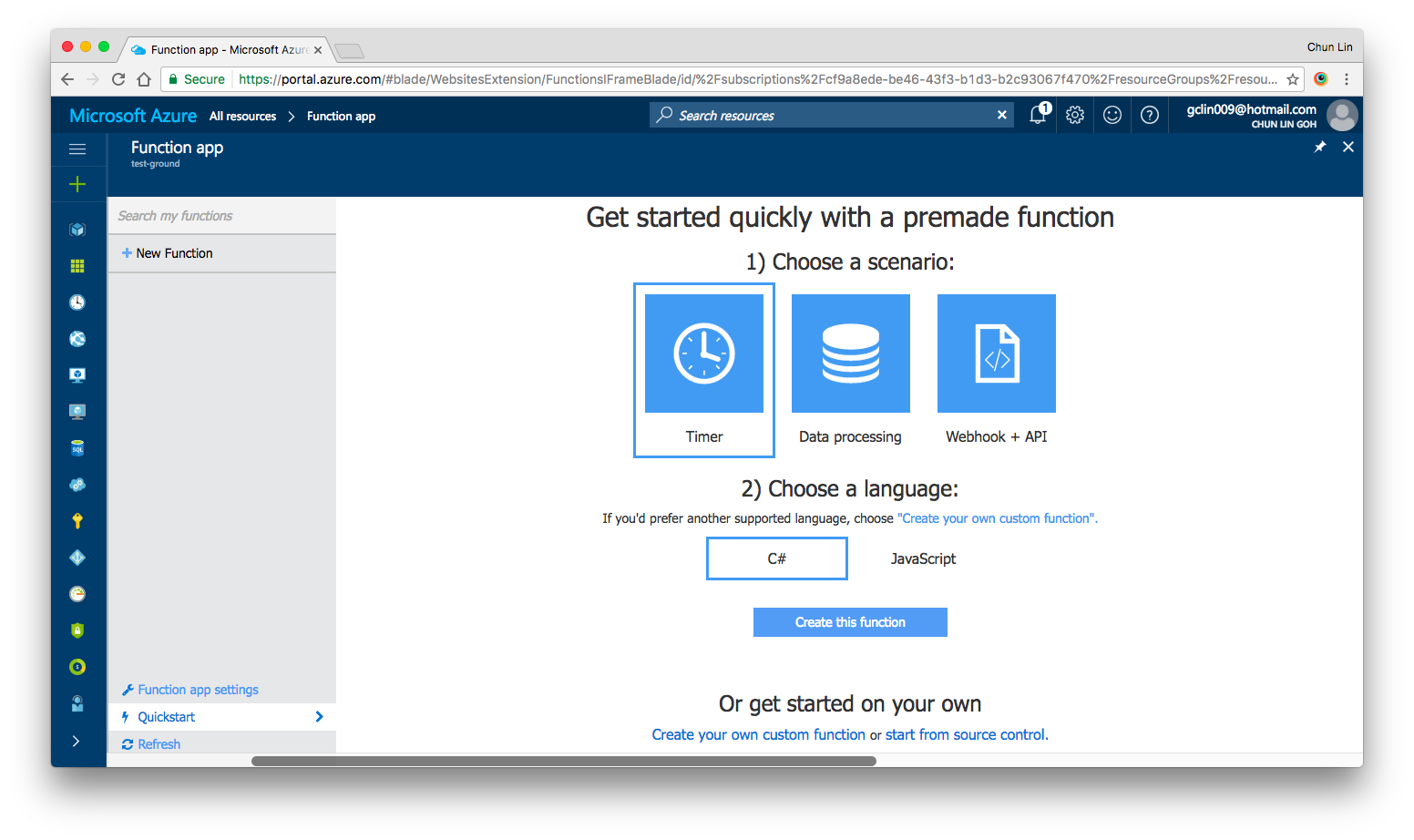
After setting up the Function App, we can choose “Quick Start” to have a simpler user interface to get started with Azure Function.

Under “Quick Start” section, there are three triggers available for us to choose, i.e. Timer, Data Processing, and Webhook + API. Today, I’ll only talk about Timer. We will see how we can achieve the scheduler functionality on Microsoft Azure.

Screen Shot 2017-02-05 at 11.16.40 PM.png
Quick Start page in Azure Function.

Timer Trigger

Timer Trigger will execute the function according to a schedule. The schedule is defined using CRON expression. Let’s say if we want our function to be executed every four hours, we can write the schedule as follows.

0 0 */4 * * *

This is similar to how we did in the cron job. The CRON expression consists of six fields. The first one is second (0-59), followed by minute (0 – 59), followed by hour (0 – 23), followed by day of month (1 – 31), followed by month (1 – 12) and day of week (0-6).

Similar to the usual Azure Web App, the default time zone used in Azure Functions is also UTC. Hence, if we would like to change it to use another timezone, what we need to do is just add the WEBSITE_TIME_ZONE application setting in the Function App.

Companion File: function.json

So, where do we set the schedule? The answer is in a special file called function.json.

In the Function App directory, there always needs a function.json file. The function.json file will contain the configuration metadata for the function. Normally, a function can only have a single trigger binding and can have none or more than one I/O bindings.

The trigger binding will be the place we set the schedule.

{
    "bindings": [
        {
            "name": "myTimer",
            "type": "timerTrigger",
            "direction": "in",
            "schedule": "0 0 */4 * * *"
        },
        ...
    ],
    ...
}

The name attribute is to specify the name of the parameter used in the C# function later. It is used for the bound data in the function.

The type attribute specifies the binding time. Our case here will be timerTrigger.

The direction attribute indicates whether the binding is for receiving data into the function (in) or sending data from the function (out). For scheduler, the direction will be “in” because later in our C# function, we can actually retrieve info from the myTimer parameter.

Finally, the schedule attribute will be where we put our schedule CRON expression at.

To know more about binding in Azure Function, please refer to the Azure Function Developer Guide.

Function File: run.csx

2nd file that we must have in the Function App directory is the function itself. For C# function, it will be a file called run.csx.

The .csx format allows developers to focus on just writing the C# function to solve the problem. Instead of wrapping everything in a namespace and class, we just need to define a Run method.

#r "Newtonsoft.Json"

using System;
using Newtonsoft.Json;
...

public static async Task Run(TimerInfo myTimer, TraceWriter log)
{
    ...
}

Assemblies in .csx File

Same as how we always did in C# project, when we need to import the namespaces, we just need to use the using clause. For example, in our case, we need to process the Json file, so we need to make use of the library Newtonsoft.Json.

using Newtonsoft.Json;

To reference external assemblies, for example in our case, Newtonsoft.Json, we just need to use the #r directive as follows.

#r "Newtonsoft.Json"

The reason why we are allowed to do so is because Newtonsoft.Json and a few more other assemblies are “special case”. They can be referenced by simplename. As of Jan 2017, the assemblies that are allowed to do so are as follows.

  • Newtonsoft.Json
  • Microsoft.WindowsAzure.Storage
  • Microsoft.ServiceBus
  • Microsoft.AspNet.WebHooks.Receivers
  • Microsoft.AspNet.WebHooks.Common
  • Microsoft.Azure.NotificationHubs

For other assemblies, we need to upload the assembly file, for example MyAssembly.dll, into a bin folder relative to the function first. Only then we can reference is as follows.

#r "MyAssembly.dll"

Async Method in .csx File

Asynchronous programming is recommended best practice. To make the Run method above asynchronous, we need to use the async keyword and return a Task object. However, developers are advised to always avoid referencing the Task.Result property because it will essentially do a busy-wait on a lock of another thread. Holding a lock creates the potential for deadlocks.

Inputs in .csx File and DocumentDB

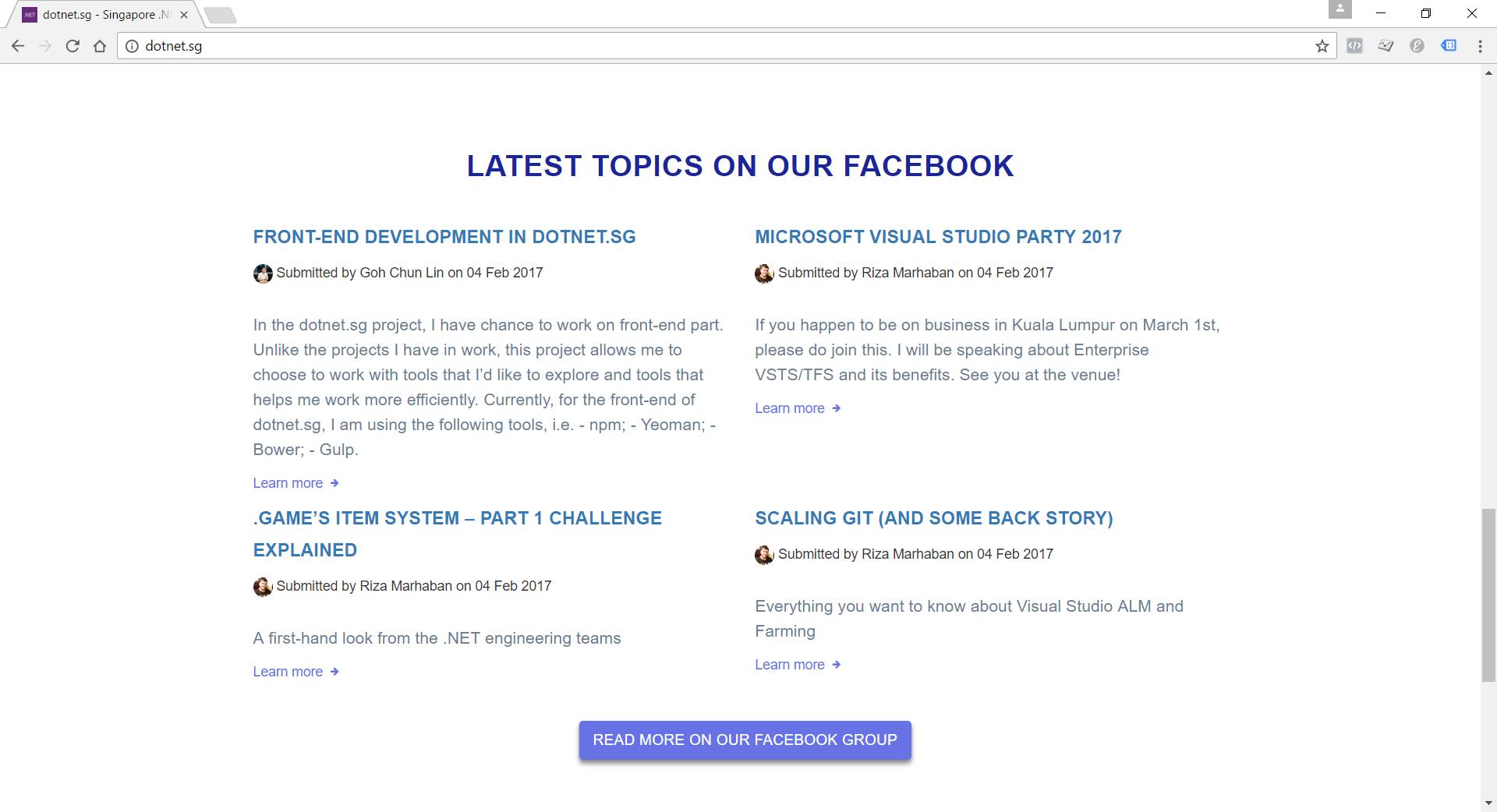
latest-topics-on-dotnet-sg-facebook-group
This section will display the top four latest Facebook posts pulled by Azure Function.

For our case, the purpose of Azure Function is to process the Facebook Group feeds and then store the feeds somewhere for later use. The “somewhere” here is DocumentDB.

To gets the inputs from DocumentDB, we first need to have 2nd binding specified in the functions.json as follows.

{
    "bindings": [
        ...
        {
            "type": "documentDB",
            "name": "inputDocument",
            "databaseName": "feeds-database",
            "collectionName": "facebook-group-feeds",
            "id": "41f7adb1-cadf-491e-9973-28cc3fca57df",
            "connection": "dotnetsg_DOCUMENTDB",
            "direction": "in"
        }
    ],
    ...
}

In the DocumentDB input binding above, the name attribute is, same as previous example, used to specify the name of the parameter in the C# function.

The databaseName and collectionName attributes correspond to the names of the database and collection in our DocumentDB, respectively. The id attribute is the Document Id of the document that we want to retrieve. In our case, we store all the Facebook feeds in one document, so we specify the Document Id in the binding directly.

The connection attribute is the name of the Azure Function Application Setting storing the connection string of the DocumentDB account endpoint. Yes, Azure Function also has Application Settings available. =)

Finally, the direction attribute must be “in”.

We can then now enhance our Run method to include inputs from DocumentDB as follows. What it does is basically just reading existing feeds from the document and then update it with new feeds found in the Singapore .NET Facebook Group

#r "Newtonsoft.Json"

using System;
using Newtonsoft.Json;
...

private const string SG_DOT_NET_COMMUNITY_FB_GROUP_ID = "1504549153159226";

public static async Task Run(TimerInfo myTimer, dynamic inputDocument, TraceWriter log)
{
    string sgDotNetCommunityFacebookGroupFeedsJson = 
        await GetFacebookGroupFeedsAsJsonAsync(SG_DOT_NET_COMMUNITY_FB_GROUP_ID);
    
    ...

    var existingFeeds = JsonConvert.DeserializeObject(inputDocument.ToString());

    // Processing the Facebook Group feeds here...
    // Updating existingFeeds here...

    inputDocument.data = existingFeeds.Feeds;
}

Besides getting input from DocumentDB, we can also have DocumentDB output binding as follows to, for example, write a new document to DocumentDB database.

{
    "bindings": [
        ...
        {
            "type": "documentDB",
            "name": "outputDocument",
            "databaseName": "feeds-database",
            "collectionName": "facebook-group-feeds",
            "id": "41f7adb1-cadf-491e-9973-28cc3fca57df",
            "connection": "dotnetsg_DOCUMENTDB",
            "createIfNotExists": true,
            "direction": "out"
        }
    ],
    ...
}

We don’t really use this in our dotnet.sg case. However, as we can see, there are only two major differences between DocumentDB input and output bindings.

Firstly, we have a new createIfNotExists attribute which specify whether to create the DocumentDB database and collection if they don’t exist or not.

Secondly, we will have to set the direction attribute to be “out”.

Then in our function code, we just need to have a new parameter with “out object outputDocument” instead of “in dynamic inputDocument”.

You can read more at the Azure Functions DocumentDB bindings documentation to understand more about how they work together.

Application Settings in Azure Functions

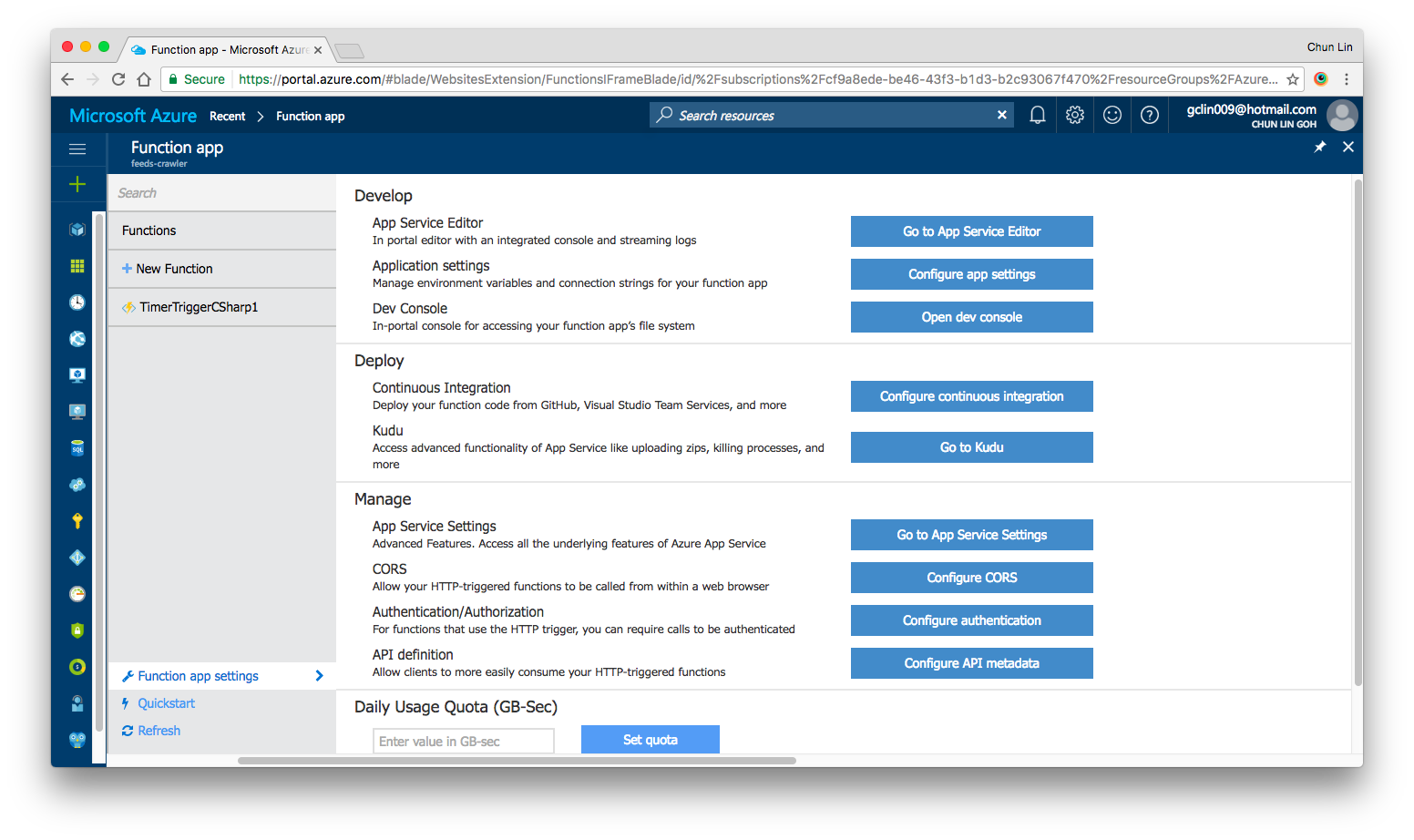
Yes, there are our familiar features such as Application Settings, Continuous Integration, Kudu, etc. in Azure Functions as well. All of them can be found under “Function App Settings” section.

Screen Shot 2017-02-18 at 4.40.24 PM.png
Azure Function App Settings

As what we have been doing in Azure Web Apps, we can also set the timezone, store the App Secrets in the Function App Settings.

Deployment of Azure Functions with Github

We are allowed to link the Azure Function with variety of Deployment Options, such as Github, to enable the continuous deployment option too.

There is one thing that I’d like to highlight here is that if you are also starting from setting up your new Azure Function via Azure Portal, then when in the future you setup the continuous deployment for the function, please make sure that you first create a folder having the same name as the name of your Azure Function. Then all the files related to the function needs to be put in the folder.

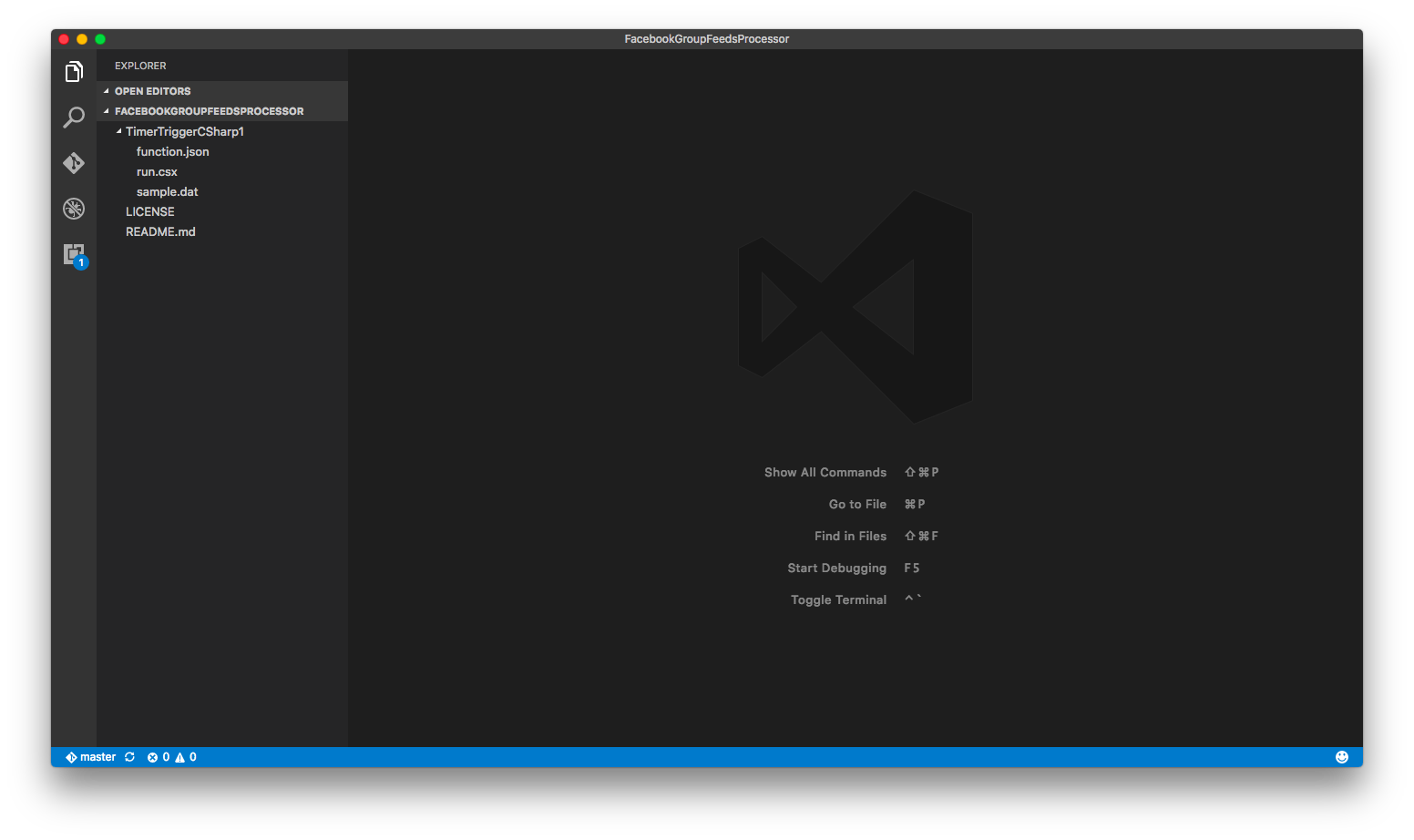
For example, in dotnet.sg case, we have the Azure Function called “TimerTriggerCSharp1”. we will have the following folder structure.

Screen Shot 2017-02-18 at 4.49.11 PM.png
Folder structure of the TimerTriggerCsharp1.

When I first started, I made a mistake when I linked Github with Azure Function. I didn’t create the folder with the name “TimerTriggerCSharp1”, which is the name of my Azure Function. So, when I deploy the code via Github, the code in the Azure Function on the Azure Portal is not updated at all.

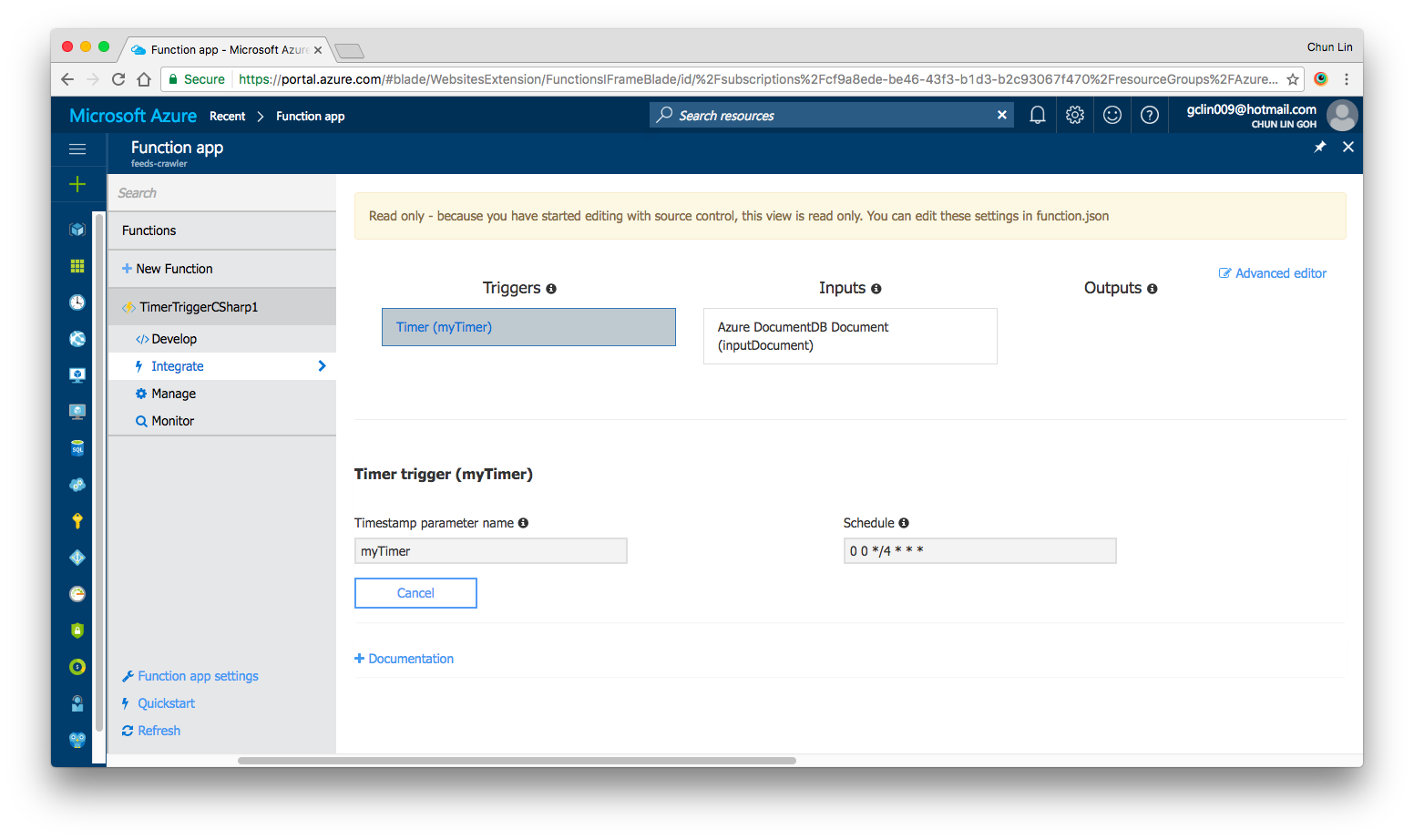
In fact, once the Continuous Deployment is setup, we are no longer able to edit the code directly on the Azure Portal. Hence, setting up the correct folder structure is important.

Screen Shot 2017-02-18 at 4.52.17 PM.png
Read only once we setup the Continuous Deployment in Azure Function.

If you would like to add in more functions, simply create new folders at the same level.

Conclusion

Azure Function and the whole concept of Serverless Architecture are still very new to me. However, what I like about it is the fact that Azure Function allows us to care about the codes to solve a problem without worrying about the whole application and infrastructure.

In addition, we are also allowed to solve the different problems using the programming language that best suits the problem.

Finally, Azure Function is cost-saving because we can choose to pay only for the time our code is being executed.

If you would like to learn more about Azure Functions, here is the list of references I use in this learning journey.

You can check out my code for TimerTriggerCSharp1 above at our Github repository: https://github.com/sg-dotnet/FacebookGroupFeedsProcessor.

Never Share Your Secrets (Secret Manager and Azure Application Settings)

secret-manager-tool-azure-app-service-2

It’s important to keep app secrets out of our codes. Most of the app secrets are however still found in .config files. This way of handling app secrets becomes very risky when the codes are on public repository.

Thus, they are people put some dummy text in the .config files and inform the teammates to enter their respective app secrets. Things go ugly when this kind of “common understanding” among the teammates is messed up.

i-made-a-mistake-cannot-be-reversed
The moment when your app secrets are published on Github public repo. (Image from “Kono Aozora ni Yakusoku o”)

Secret Manager Tool

So when I am working on the dotnet.sg website, which is an ASP .NET Core project, I use the Secret Manager tool.It offers a way to store sensitive data such as app secrets in our local development machine.

To use the tool, firstly, I need to add it in project.json as follows.

{
    "userSecretsId": "aspnet-CommunityWeb-...",
    ...
    "tools": {
        ...
        "Microsoft.Extensions.SecretManager.Tools": "1.0.0-preview2-final"
    }
}

Due to the fact that the Secret Manager tool makes use of project specific configuration settings kept in user profile, we need to specify a userSecretsId value in the project.json as well.

After that, I can start storing the app secrets in the Secret Manager tool by entering the following command in the project directory.

$ dotnet user-secrets set AppSettings:MeetupWebApiKey ""

Take note that currently (Jan 2017) the values stored in the Secret Manager tool are not encrypted. So, it is just for development only.

As shown in the example above, the name of the secret is “AppSettings:MeetupWebApiKey”. This is because in the appsettings.json, I have the following.

{
    "AppSettings": {
        "MeetupWebApiKey": ""
    },
    ...
}

Alright, now the API key is stored in the Secret Manager tool, how is it accessed from the code?

By default, appsettings.json is already loaded in startup.cs. However, we still need to add the following bolded lines in startup.js to enable User Secrets as part of our configuration in the Startup constructor.

public class Startup
{
    public Startup(IHostingEnvironment env)
    {
        var builder = new ConfigurationBuilder()
            .SetBasePath(env.ContentRootPath)
            .AddJsonFile("appsettings.json", optional: true, reloadOnChange: true)
            .AddJsonFile($"appsettings.{env.EnvironmentName}.json", optional: true);
            
        if (env.IsDevelopment())
        {
            builder.AddUserSecrets();
        }

        builder.AddEnvironmentVariables();

        Configuration = builder.Build();
    }
    ...
}

Then in the Models folder, I create a new class called AppSettings which will be used later when we load the app secrets:

public class AppSettings
{
    public string MeetupWebApiKey { get; set; }

    ...
}

So, let’s say I want to use the key in the HomeController, I just need to do the following.

public class HomeController : Controller
{
    private readonly AppSettings _appSettings;

    public HomeController(IOptions appSettings appSettings)
    {
        _appSettings = appSettings.Value;
    }

    public async Task Index()
    {
        string meetupWebApiKey = _appSettings.MeetupWebApiKey;
        ...
    }
    
    ...
}

Azure Application Settings

Just now Secret Manager tool has helped us on managing the app secrets in local development environment. How about when we deploy our web app to Microsoft Azure?

For dotnet.sg, I am hosting the website with Azure App Service. What so great about Azure App Service is that there is one thing called Application Settings.

Screen Shot 2017-01-29 at 11.19.42 PM.png
Application Settings option is available in Azure App Service.

For .NET applications, the settings in the “App Settings” will be injected into the AppSettings at runtime and override existing settings. Thus, even though I have empty strings in appsettings.json file in the project, as long as the correct values are stored in App Settings, there is no need to worry.

Thus, when we deploy web app to Azure App Service, we should never put our app secrets, connection strings in our .config and .json files or even worse, hardcode them.

Application Settings and Timezone

Oh ya, one more cool feature in App Settings that was introduced in 2015 is that we can change the server time zone for web app hosted on Azure App Service easily by just having a new entry as follows in the App Settings.

WEBSITE_TIME_ZONE            Singapore Standard Time

The setting above will change the server time zone to use Singapore local time. So DateTime.Now will return the current local time in Singapore.

References

If you would like to read more about the topics above, please refer to following websites.

Deploy ASP .NET Core Directly via Git

secret-manager-tool-azure-app-service-2

You can deploy ASP .NET Core web apps to Azure App Service directly using Git.

This is actually part of the Continuous Deployment workflow for apps in Azure App Service. Currently, Azure App Service integrate with not only Github, but also Visual Studio Team Services, BitBucket, Dropbox, OneDrive, and so on.

screen-shot-2017-01-30-at-1-14-16-pm
Available deployment source options in Azure App Service.

Although dotnet.sg source code is on Github, choosing the “GitHub” option cannot detect its repository. This is because the Github option only lists the repositories on my personal Github account. The dotnet.sg repo whereas is under the sg-dotnet Github Organization account. Hence, I have to choose “External Repository” as the deployment source instead.

Screen Shot 2017-01-30 at 1.21.03 PM.png
Setting up External Repository (Git) as deployment source in Azure App Service.

After that, whenever there is a new commit, if we do “Sync”, it will create a new deployment record, as shown in the screenshot below. We can anytime revert back to the previous deployment by right-clicking on the desired deployment record and select “Redeploy”.

Screen Shot 2017-01-30 at 1.13.35 PM.png
Deployment history in Azure App Service.

Kudu

So what if we want to customize the deployment process?

Before going into that, the first thing we need to say hi to is Kudu. What is Kudu? Kudu is the engine behind Git deployment in Azure App Service. It is also a set of troubleshooting and analysis tools for use with Azure App Service. It can capture hang dump for worker process for performance analyzing purposes.

On Kudu, we can also download the deployment script, deploy.cmd. We can then edit the file with any custom step we have and put the file under the root of repository.

There is another simpler way which is using a file with the filename “.deployment” at the root of repository. Then in the content of the file, we can specify our command to run during deployment as follows.

[config]
command = THE COMMAND TO RUN FOR DEPLOYMENT

To learn more about Kudu, please watch the following video clip from Channel 9.

References

If you would like to read more about the topics above, please refer to following websites.