It’s quite common that Business Analyst will always ask for the permission to access the databases of our systems to do data analysis. However, most of the time we will only give them read-only access. With on-premise MS SQL Server and SQL Management Studio, it is quite easily done. However, how about for those databases hosted on Azure SQL?
Login as Server Admin
To make things simple, we will first login to the Azure SQL Server as Server admin on SQL Management Studio. The Server Admin name can be found easily on Azure Portal, as shown in the screenshot below. Its password will be the password we use when we create the SQL Server.
Identifying the Server Admin of an Azure SQL Server. (Source: Microsoft Azure Docs)
Create New Login
By default, the master database will be the default database in Azure SQL Server. So, once we have logged in, we simply create the read-only login using the following command.
CREATE LOGIN <new-login-id-here>
    WITH PASSWORD = '<password-for-the-new-login>'
GO
Alternatively, we can also right-click on the “Logins” folder under “Security” then choose “New Login…”, as shown in the screenshot below. The same CREATE LOGIN command will be displayed.
Adding new login to the Azure SQL Server.
Create User
After the new login is created, we need to create a new user which is associated with it. The user needs to be created and granted read-only permission in each of the databases that the new login is allowed to access.
Firstly, we need to expand the “Databases” in the Object Explorer and then look for the databases that we would like to grant the new login the access to. After that, we right-click on the database and then choose “New Query”. This shall open up a new blank query window, as shown in the screenshot below.
Opening new query window for one of our databases.
Then we simply need to run the following query for the selected database in the query window.
CREATE USER <new-user-name-here> FROM LOGIN <new-login-id-here>;
Please remember to run this for the master database too. Otherwise we will not be able to login via SQL Management Studio at all with the new login because the master database is the default database.
Grant Read-only Permission
Now for this new user in the database, we need to give it a read-only permission. This can be done with the following command.
Repeat the two steps above for the remaining databases that we want the new login to have access to. Finally we will have a new login that can read from only selective databases on Azure SQL Server.
KOSD, or Kopi-O Siew Dai, is a type of Singapore coffee that I enjoy. It is basically a cup of coffee with a little bit of sugar. This series is meant to blog about technical knowledge that I gained while having a small cup of Kopi-O Siew Dai.
KOSD, or Kopi-O Siew Dai, is a type of Singapore coffee that I enjoy. It is basically a cup of coffee with a little bit of sugar. This series is meant to blog about technical knowledge that I gained while having a small cup of Kopi-O Siew Dai.
Last year, Riza shared a very interesting topic twice during Singapore .NET Developers Community in Microsoft office. For those who attended the meetups, do you still remember? Yes, it’s about IdentityServer.
IdentityServer 4 is a middleware, an OpenID Connect provider built to spec, which provides user identity and access control in ASP .NET Core applications.
In my example, I will start with the simplest setup where there will be one Authenticate Server and one Application Server. Both of them in my example will be using ASP .NET Core.
How an application uses JWT to authenticate a user.
In the Authenticate Server, I register the minimum required dependencies in ConfigureServices method of its Startup.cs as follows.
I won’t be talking about how IdentityServer works here. Instead, I will be focusing on the “AddDeveloperSigningCredential” method here.
JSON Web Token (JWT)
By default, IdentityServer issues access tokens in the JWT format. According to the abstract definition in RCF 7519 from Internet Engineering Task Force (IETF) , JWT is a compact, URL-safe means of representing claims between two parties where claims are encoded as JSON objects which can be digitally signed or encrypted.
In the diagram above, the Application Server receives the secret key used in signing the JWT from the Authentication Server when the app sets up its authentication process. Hence, the app can verify whether the JWT comes from an authentic source using the secret key.
During development, we normally don’t have cert prepared yet. Hence, AddTemporarySigningCredential can be used to auto-generate certificate to sign JWT. However, this method has a disadvantage. Every time the IdentityServer is restarted, the certificate will change. Hence, all tokens that have been signed with the previous certificate will fail to validate.
Anyway, as documented, we are only allowed to use AddDeveloperSigningCredential in development environments. In addition, AddDeveloperSigningCredential can only be used when we host IdentityServer on single machine. What should we do when we are going to deploy our code to the production environment? We need a signing key service that will provide the specified certificate to the various token creation and validation services. Thus now we need to change to use AddSigningCredential method.
Production Code
For production, we need to change the code earlier to be as follows.
X509Certificate2 cert = null;
using (X509Store certStore = new X509Store(StoreName.My, StoreLocation.CurrentUser))
{
    certStore.Open(OpenFlags.ReadOnly);
    var certCollection = certStore.Certificates.Find(
        X509FindType.FindByThumbprint,
        Configuration["AppSettings:IdentityServerCertificateThumbprint"],
        false);

    // Get the first cert with the thumbprint
    if (certCollection.Count > 0)
    {
        cert = certCollection[0];
    }
}

services.AddIdentityServer()
     .AddSigningCredential(cert)
     .AddInMemoryIdentityResources(...)
     .AddInMemoryApiResources(...)
     .AddInMemoryClients(...)
     .AddAspNetIdentity();
We use AddSigningCredential to replace the AddDeveloperSigningCredential method. Now, AddSigningCredential requires a X509Certificate2 cert as parameter.
Key-in and remember the password for the private key;
Import the certificate to the Current User Certificate Store on developer’s local machine by double-clicking on the newly generated .pfx file. We will be asked to key in the password used in Step 4 above again.
Importing certificate.
Now, we need to find out the Thumbprint of it. This is because in our production code above, we are using Thumbprint to look for the cert.
Thumbprint and Microsoft Management Console (MMC)
To retrieve the Thumbprint of a certificate, we need help from a tool called MMC.
Using MMC to view certificates in the local machine store for current user account.
We will then be able to find the new certificate that we have just created and imported. To retrieve its Thumbprint, we first need to open it, as shown in the screenshot below.
Open the new cert in MMC.
A popup window called Certificate will appear. Simply copy the value of the Thumbprint under the Details tab.
Thumbprint!
After keeping the value of the cert thumbprint in the appsettings.Development.json of the IdentityServer project, we can now build and run the project on localhost without any problem.
Deployment to Microsoft Azure Web App
Before we talk about how to deploy the IdentityServer project to Microsoft Azure Web App, do you realize how come in the code above, we are looking cert only My/Personal store of the CurrentUser registry, i.e. “StoreName.My, StoreLocation.CurrentUser”? This is because this is the place where Azure will load the certificate from.
So now, we will first proceed to upload the certificate as Private Certificate that we self-sign above to Azure Web App. After selecting the .pfx file generated above and keying-in the password, the cert will appear as one of the Private Certificates of the Web App.
To upload the cert, we can do it in “SSL certificates” settings of our Web App on Azure Portal.
Last but not least, in order to make the cert to be available to the app, we need to have the following setting added under “Application settings” of the Web App.
WEBSITE_LOAD_CERTIFICATES setting is needed to make the cert to be available to the app.
Brock also provided a link in the discussion to his blog post on how to create signing cert using makecert instead of OpenSSL as discussed earlier. In fact, during Riza’s presentation, he was using makecert to self-sign his cert too. Hence, if you are interested about how to use makecert to do that, please read his post here: https://brockallen.com/2015/06/01/makecert-and-creating-ssl-or-signing-certificates/.
Conclusion
This episode of KOSD series is a bit long such that drinking a large cup of hot KOSD while reading this post seems to be a better idea. Anyway, I think this post will help me and other beginners who are using IdentityServer in their projects to understand more about the framework bit by bit.
There are too many things that we can learn in the IdentityServer project and I hope to share what I’ve learnt about this fantastic framework in my future posts. Stay tuned.
KOSD, or Kopi-O Siew Dai, is a type of Singapore coffee that I enjoy. It is basically a cup of coffee with a little bit of sugar. This series is meant to blog about technical knowledge that I gained while having a small cup of Kopi-O Siew Dai.
During a late dinner with my friend on 12 January last month, he commented that he encountered a very serious performance problem in retrieving data from Cosmos DB (pka DocumentDB). It’s quite strange because, in our IoT project which also stores millions of data in Cosmos DB, we never had this problem.
Two weeks later, on 27 January, he happily showed me his improved version of the code which could query the data in about one to two seconds.
Yesterday, after having a discussion, we further improved the code. Hence, I’d like to write down this learning experience here.
Due to the fact that we couldn’t demonstrate using the real project code, I thus created a sample project getting data from database and collection on my personal Azure Cosmos DB account. The database contains one collection which has 23,967 records of Student data.
The Student class and the BaseEntity class that it inherits from are as follows.
public class Student : BaseEntity
{
    public string Name { get; set; }

    public int Age { get; set; }

    public string Description { get; set; }
}
public abstract class BaseEntity
{
    [JsonProperty(PropertyName = "id")]
    public string Id { get; set; }

    public string Type { get; set; }

    public DateTime CreatedAt { get; set; } = DateTime.Now;
}
You may wonder why I have Type defined.
Type and Cost Saving
The reason of having Type is that, before DocumentDB was rebranded as Cosmos DB in May 2017, the DocumentDB pricing is based on collections. Hence, the more collection we have in the database, the more we need to pay.
DocumentDB was billed per collection in the past. (Source: Stack Overflow)
To overcome that, we squeeze the different types of entities in the same collection. So, in the example above, let’s say we have three classes — Students, Classroom, Teacher that inherit from BaseEntity, then we will put the data of the three classes in the same collection.
Then here comes a problem: How do we know which document in the collection is Student, Classroom or Teacher? There is where the property Type will help us. So in our example above, the possible value for Type will be Student, Classroom, and Teacher.
Hence, when we add a new document through repository design pattern, we have the following method.
We used the following code to retrieve data of a class from the collection.
public async Task<IEnumerable<T>> GetAllAsync(Expression<Func<T, bool>> predicate = null)
{
    var query = _documentDbClient.CreateDocumentQuery<T>(UriFactory.CreateDocumentCollectionUri(_databaseId, _collectionId));

    var documentQuery = (predicate != null) ?
        (query.Where(predicate)).AsDocumentQuery():
        query.AsDocumentQuery();

    var results = new List<T>();
    while (documentQuery.HasMoreResults)
    {
        results.AddRange(await documentQuery.ExecuteNextAsync<T>());
    }

    return results.Where(x => x.Type == typeof(T).Name).ToList();
}
This query will run very slow because the line where it filters the class is after querying data from the collection. Hence, in the documentQuery, it may already contain data of three classes (Student, Classroom, and Teacher).
Improved Version of Query
So one obvious way is to move the line of filtering by Type above. The improved version of code now looks as such.
public async Task<IEnumerable<T>> GetAllAsync(Expression<Func<T, bool>> predicate = null)
{
    var query = _documentDbClient
        .CreateDocumentQuery<T>(UriFactory.CreateDocumentCollectionUri(_databaseId, _collectionId))
        .Where(x => x.Type == typeof(T).Name);

    var documentQuery = (predicate != null) ?
        (query.Where(predicate)).AsDocumentQuery():
        query.AsDocumentQuery();

    var results = new List<T>();
    while (documentQuery.HasMoreResults)
    {
        results.AddRange(await documentQuery.ExecuteNextAsync<T>());
    }

    return results;
}
By doing so, we managed to reduce the query time significantly because all the actual filtering will be done at Cosmos DB side. For example, there was one query I managed to reduce the query time of it from 1.38 minutes to 3.42 seconds using the 23,967 records of Student data.
Multiple Predicates
The code above however has a disadvantage. It cannot accept multiple predicates.
I thus changed it to be as follows so that it returns IQueryable.
This has another inconvenience is there whenever I call GetAll, I need to remember to load the data with HasMoreResults as shown in the code below.
var studentDocuments = _repoDocumentDb.GetAll()
    .Where(s => s.Age == 8)
    .Where(s => s.Name.Contains("Ahmad"))
    .AsDocumentQuery();

var results = new List<T>();
while (studentDocuments.HasMoreResults)
{
    results.AddRange(await studentDocuments.ExecuteNextAsync<T>());
}
Conclusion
This is just an after-dinner discussion about Cosmos DB between my friend and me. If you have any better idea of designing repository for Cosmos DB (pka DocumentDB), please let us know. =)
After working on the beacon projects back half a year ago, I was given a new task which is building a dashboard for displaying data collected from IoT devices. The IoT devices basically are GPS tracker with a few other additional sensors such as temperature and shaking detection.
I’m new to IoT field, so I’m going to share in this article what I had learnt and challenges I faced in this project so that it would benefit to juniors who are going to do similar things.
Project Requirements
We plan to have the service to receive data from the IoT devices to be on Microsoft Azure. There will be thousands or even millions of the same devices deployed eventually, so choosing cloud platform to help us scaling up easily.
We also need to store the data in order to display it on dashboard and reports for business use cases.
Challenge 1: Azure IoT Hub and The Restriction of Device Firmware
In the documentation of the device protocol, there is a set of instructions as follows.
First when device connects to server, module sends its IMEI as login request. IMEI is sent the same way as encoding barcode. First comes short identifying number of bytes written and then goes IMEI as text (bytes).
After receiving IMEI, server should determine if it would accept data from this module. If yes server will reply to module 01 if not 00.
I am not sure who wrote the documentation but I am certain that his English is not that easy to comprehend in the first read.
Anyway, this is a good indication that Azure IoT Hub will be helpful because it provides secure and reliable C2D (Cloud-to-Device) and D2C communication with HTTP, AMQP, and MQTT support.
However, when I further read the device documentation, I realized that the device could only send TCP packets over in a protocol the device manufacturer defined. In addition, the device doesn’t allow us to update its firmware at this moment, making it to send data using protocols accepted by Azure IoT Hub is impossible.
The only easy option we have now is to use Azure Cloud Service with Worker Role. Worker Role does not use IIS and it can run our app standalone.
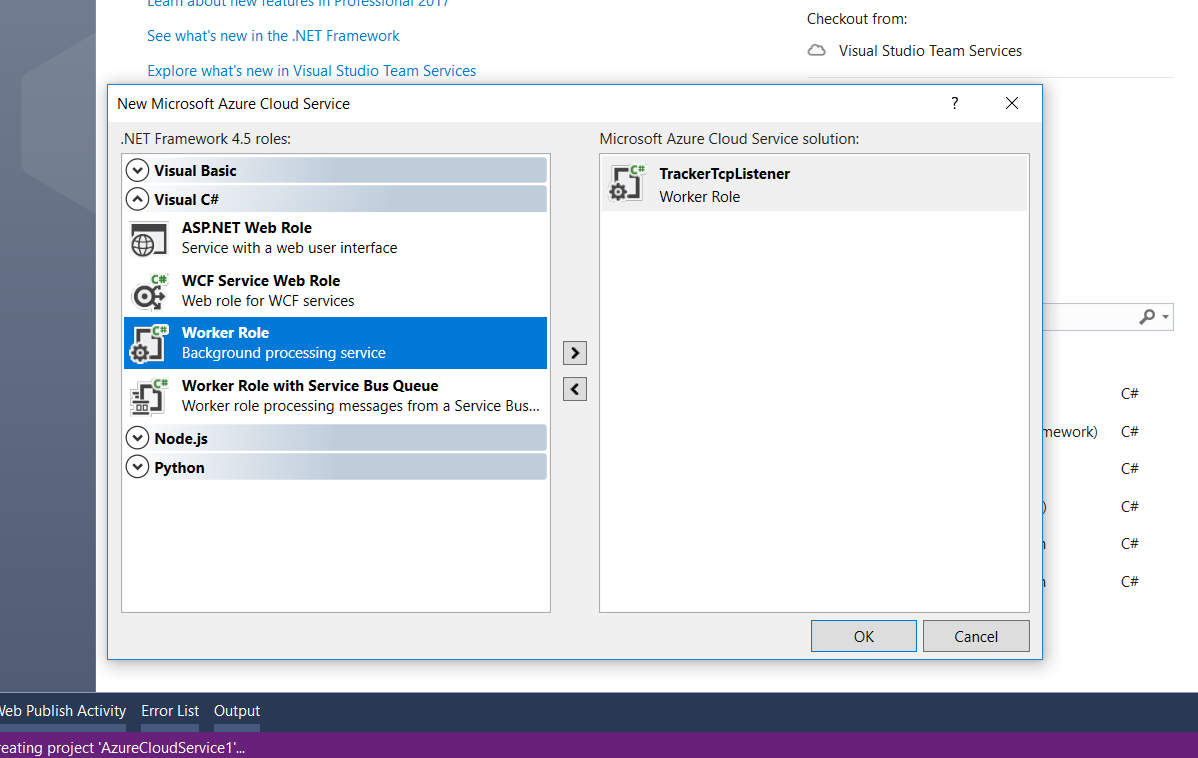
Creating a new Cloud Service project with one Worker Role on Visual Studio 2017.
A default template of WorkerRole class will be provided.
public class WorkerRole : RoleEntryPoint
{
    private readonly CancellationTokenSource cancellationTokenSource = new CancellationTokenSource();
    private readonly ManualResetEvent runCompleteEvent = new ManualResetEvent(false);

    public override void Run()
    {
        Trace.TraceInformation("TrackerTcpListener is running");

        try
        {
            this.RunAsync(this.cancellationTokenSource.Token).Wait();
        }
        finally
        {
            this.runCompleteEvent.Set();
        }
    }

    public override bool OnStart()
    {
        // Set the maximum number of concurrent connections
        ServicePointManager.DefaultConnectionLimit = 12;

        // For information on handling configuration changes
        // see the MSDN topic at https://go.microsoft.com/fwlink/?LinkId=166357.

        bool result = base.OnStart();

        Trace.TraceInformation("TrackerTcpListener has been started");

        return result;
    }

    public override void OnStop()
    {
        Trace.TraceInformation("TrackerTcpListener is stopping");

        this.cancellationTokenSource.Cancel();
        this.runCompleteEvent.WaitOne();

        base.OnStop();

        Trace.TraceInformation("TrackerTcpListener has stopped");
    }

    private async Task RunAsync(CancellationToken cancellationToken)
    {
        // TODO: Replace the following with your own logic.
        while (!cancellationToken.IsCancellationRequested)
        {
            Trace.TraceInformation("Working");
            await Task.Delay(1000);
        }
    }
}
It’s obvious that the first method we are going to work on is the RunAsync method with a “TODO” comment.
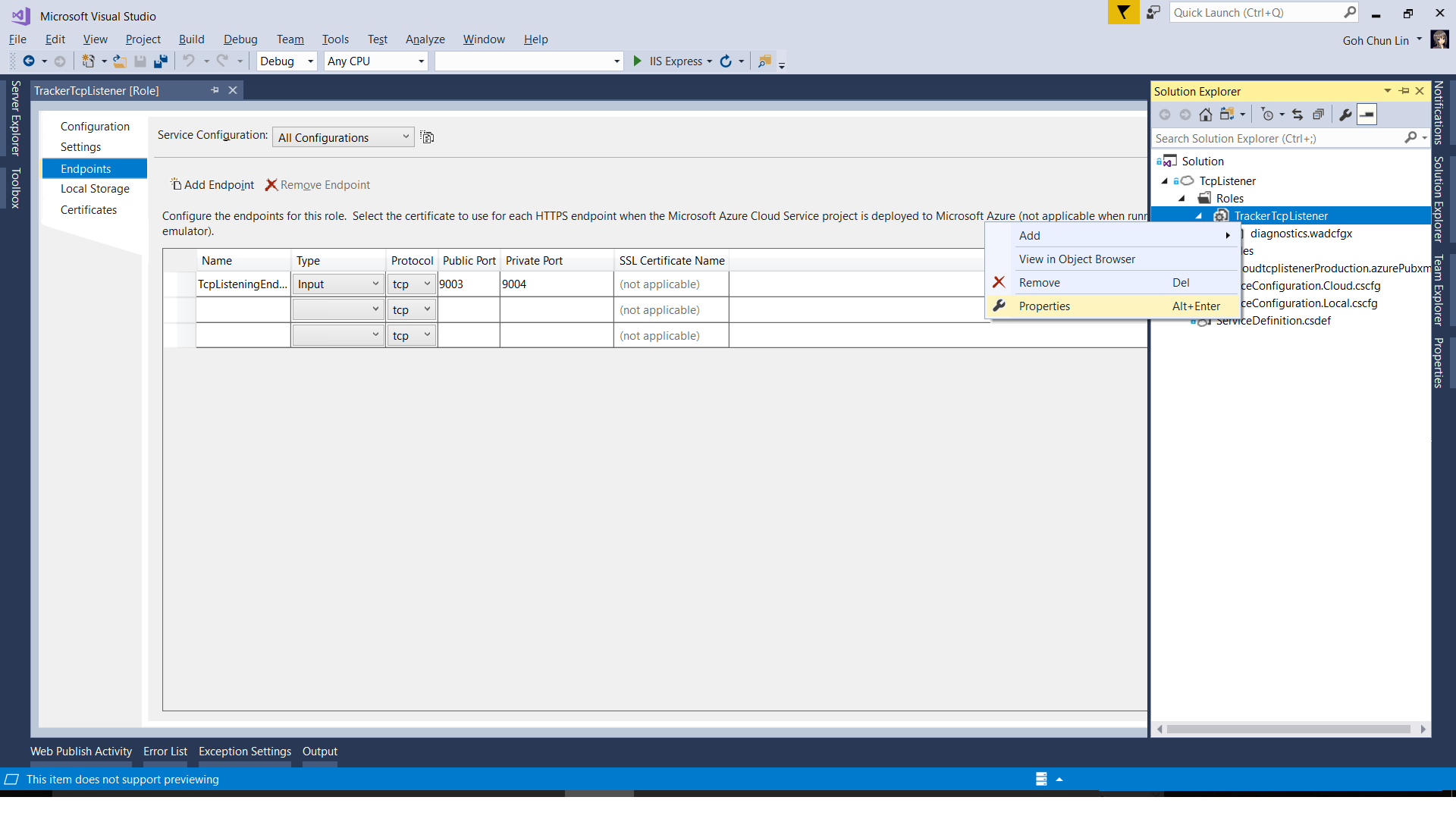
However, before that, we need to define an IP Endpoint for this TCP listener so that we can tell the IoT device to send the packets to the specified port on the IP address.
Configuring Endpoints of a Cloud Service.
With endpoints defined, we can then proceed to modify the code.
private async Task RunAsync(CancellationToken cancellationToken)
{
    try
    {
        TcpClient client;

        while (!cancellationToken.IsCancellationRequested)
        {
            var ipEndPoint = RoleEnvironment.CurrentRoleInstance.InstanceEndpoints["TcpListeningEndpoint1"].IPEndpoint;

            var listener = new System.Net.Sockets.TcpListener(ipEndPoint) { ExclusiveAddressUse = false };
            listener.Start();

            // Perform a blocking call to accept requests.
            client = listener.AcceptTcpClient();

            // Get a stream object for reading and writing
            NetworkStream stream = null;

            try
            {
                stream = client.GetStream();

                await ProcessInputNetworkStreamAsync(stream);
            }
            catch (Exception ex)
            {
                // Log the exception
            }
            finally
            {
                // Shutdown and end connection
                if (stream != null)
                {
                    stream.Close();
                }

                client.Close();

                listener.Stop();
            }
        }
    }
    catch (Exception ex)
    {
        // Log the exception
    }
}
The code for the method ProcessInputNetworkStreamAsync above is as follows.
private async Task ProcessInputNetworkStreamAsync(string imei, NetworkStream stream)
{
    Byte[] bytes = new Byte[5120];
    int i = 0;
    byte[] b = null;
    var receivedData = new List<string>();

    while ((i = stream.Read(bytes, 0, bytes.Length)) != 0)
    {
        receivedData = new List<string>();

        for (int reading = 0; reading < i; reading++)
        {
            using (MemoryStream ms = new MemoryStream())
            {
                ms.Write(bytes, reading, 1);
                b = ms.ToArray();
            }

            receivedData.Add(ConvertHexadecimalByteArrayToString(b));
        }

        Trace.TraceInformation("Received Data: " + string.Join(",", receivedData.ToArray()));

        // Respond from the server to device
        byte[] serverResponse = ConvertStringToHexadecimalByteArray("<some text to send back to the device>");
        stream.Write(serverResponse, 0, serverResponse.Length);
    }
}
You may wonder what I am doing above with ConvertHexadecimalByteArrayToString and ConvertStringToHexadecimalByteArray methods. They are needed because the packets used in the TCP protocol of the device is in hexadecimal. There is a very interesting discussion about how to do the conversion on Stack Overflow, so I won’t repeat it here.
Challenge 3: Multiple Devices
The code above is only handling one port. Unfortunately, the IoT device doesn’t send over the IMEI number or any other identification number of the device when the actual data pack is sent to the server. Hence, that means if there is more than one IoT device sending data to the same port, we will have no way to identify who is sending the data at the server side.
Hence, we need to make our TCP Listener to listen on multiple ports. The way I chose is to use List<Task> in the Run method as shown in the code below.
public override void Run()
{
    try
    {
        // Reading a list of ports assigned for trackers use
        ...

        var tasks = new List<Task>();

        foreach (var port in trackerPorts)
        {
            tasks.Add(this.RunAsync(this.cancellationTokenSource.Token, port));
        }

        Task.WaitAll(tasks.ToArray());
    }
    finally
    {
       this.runCompleteEvent.Set();
    }
}
Challenge 4: Worker Role Not Responding Irregularly
This turns out to be the biggest challenge in using Worker Role. After receiving data from the IoT devices for one or two days, the server was not recording any further new data even though the devices are working fine. So far, I’m still not sure about the cause even though there are people encountering similar issues as well.
I proceed to use Azure Automation which provides Runbooks to help handling the creation, deployment, monitoring, and maintenance of Azure resources. The Powershell Workflow Runbook that I use for rebooting the worker role daily is as follows.
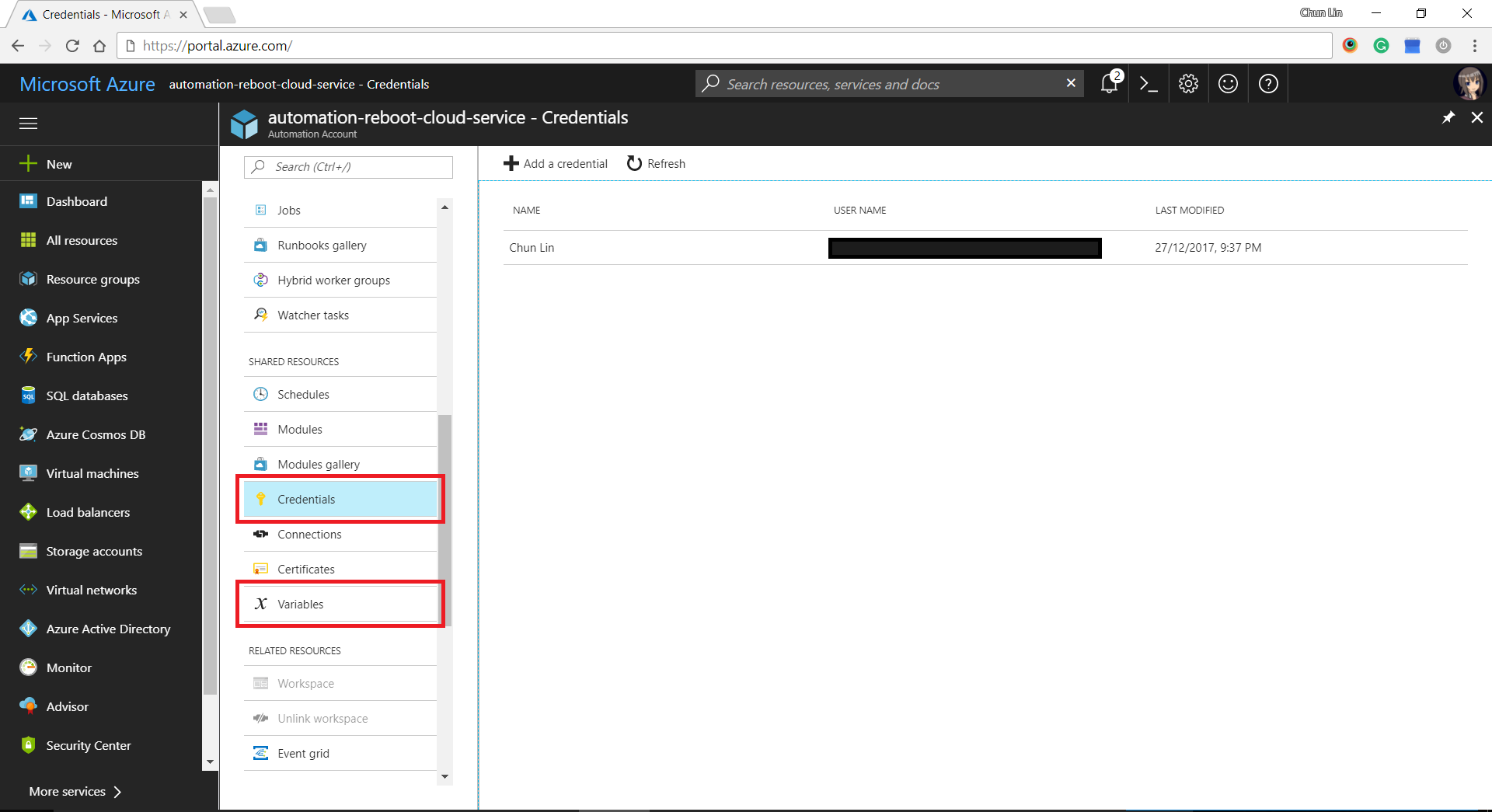
In case you wonder where I defined the values for variables such as AzureSubscriptionId, CloudServiceName, and WorkerRoleInstanceName, as well as automation PowerShell credential, there are all easily found in the Azure Portal under “Share Resources” section of Azure Automation Account.
Providing credentials and variables for the Runbook.
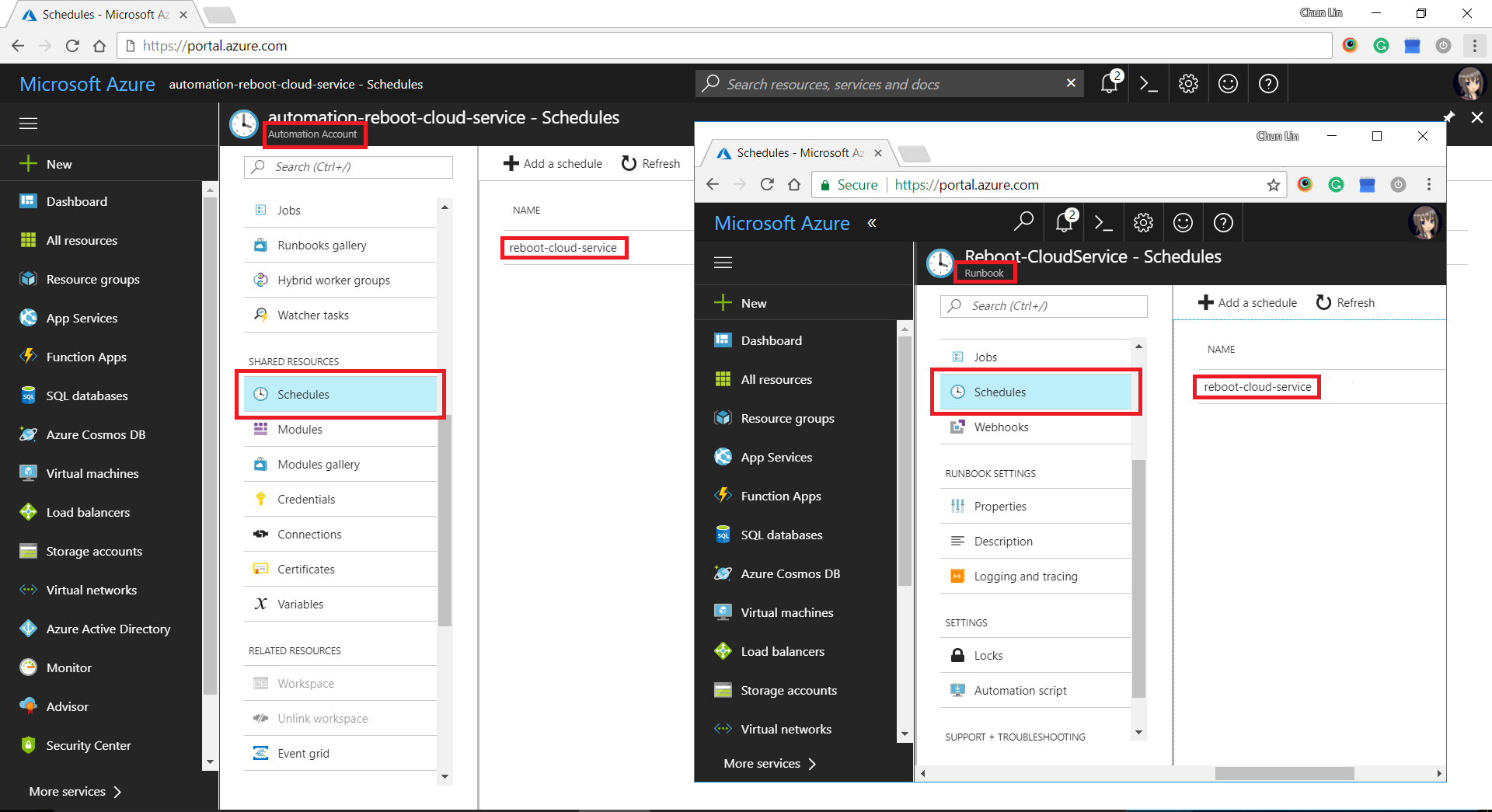
After setting up the Runbook, we need to define schedules in Automation Account and then link it to the Runbook.
Setting up schedule and linking it to the Runbook.
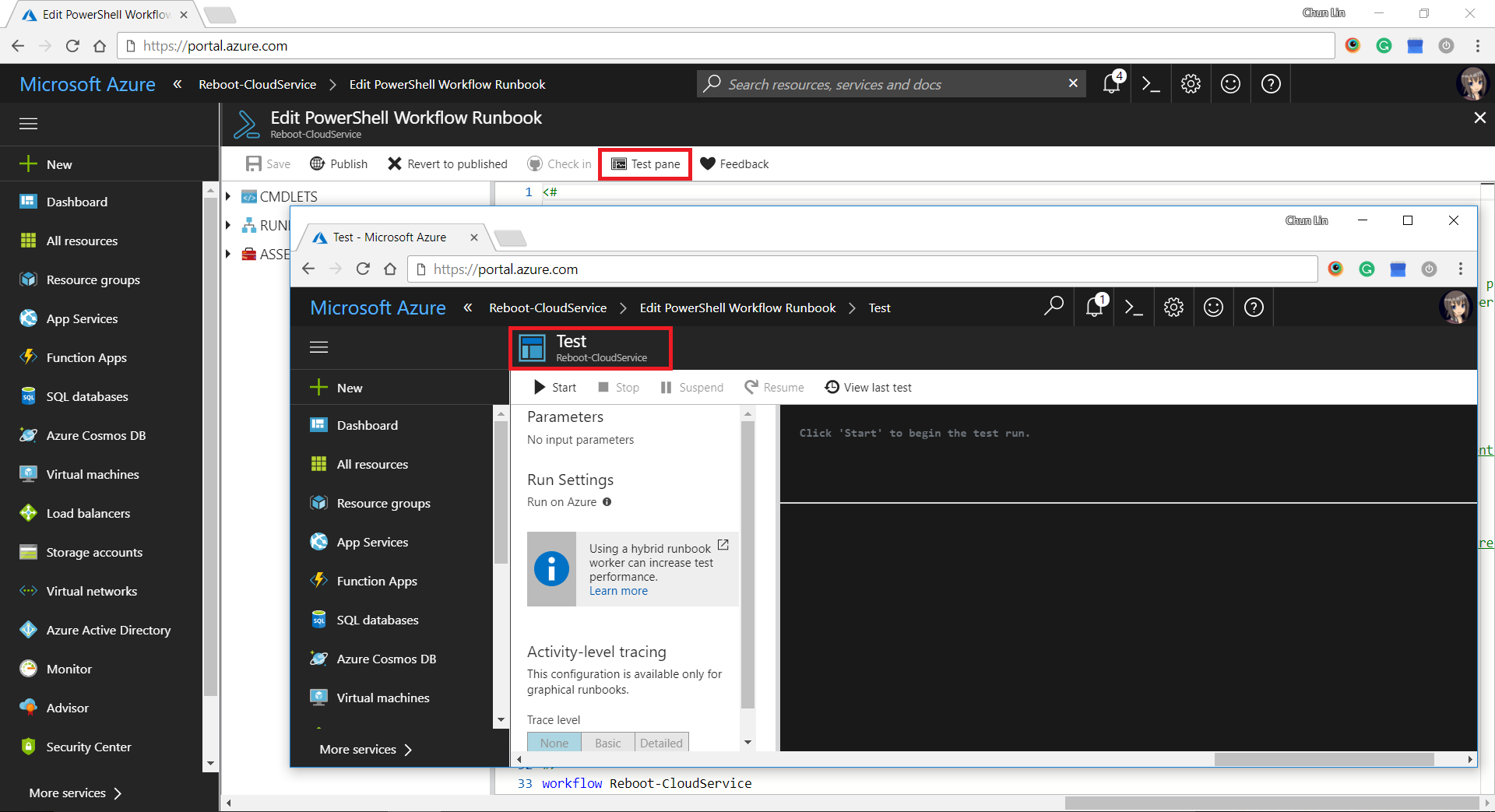
There is another tool in the Azure Portal that I find it to be very useful to debug my PowerShell script in the Runbook. It is called the “Test Pane”. By using it, we can easily find out if the PowerShell script is correctly written to generate desired outcome.
Test Pane available in Runbook.
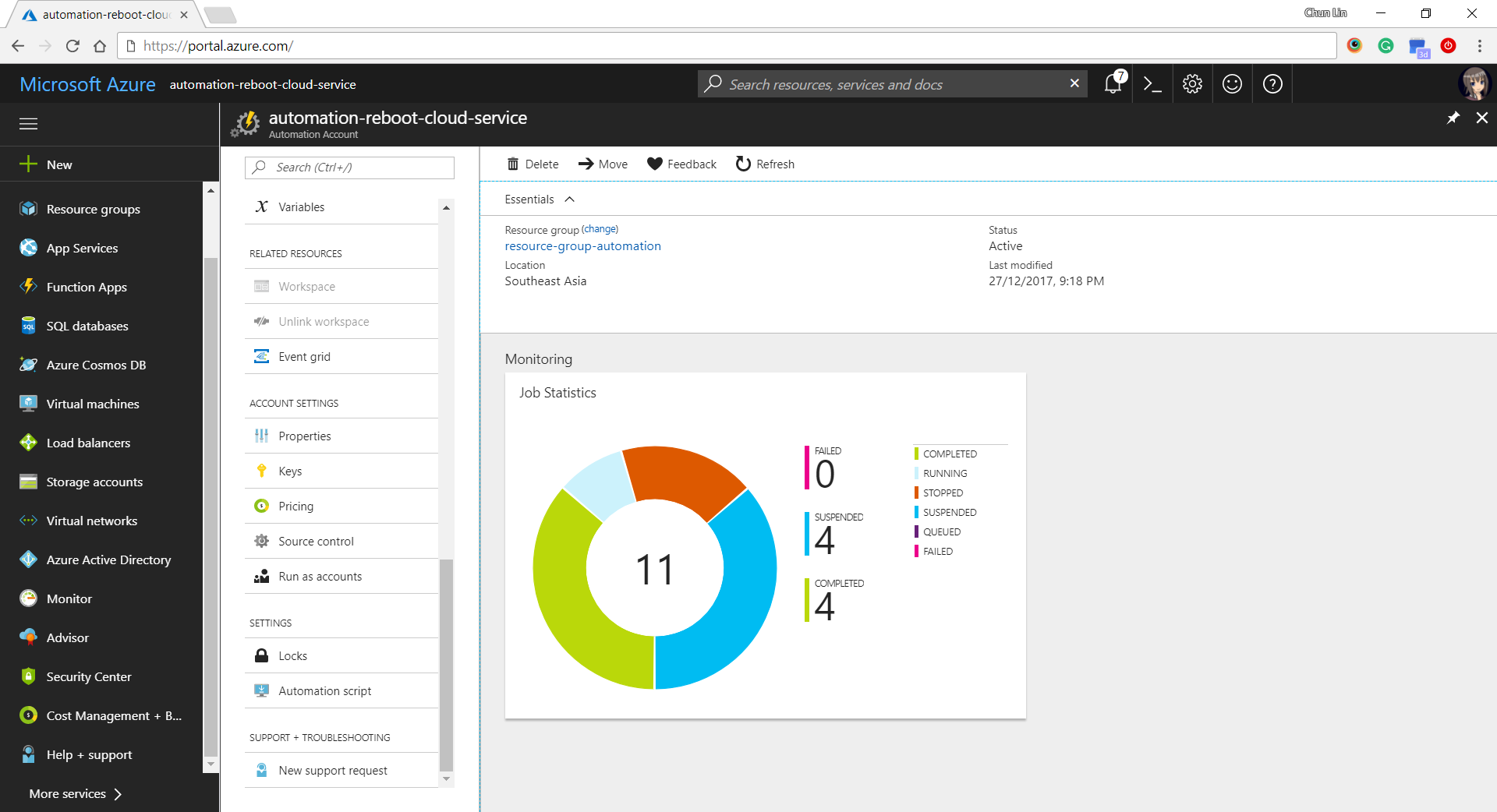
After that, we can easily get a summary of how the job runs on Azure Portal, as shown in the following screenshot.
Job Statistics of Azure Automation.
Yup, that’s all what I had learnt in the December while everyone was enjoying the winter festivals. Please comment if you find a better alternative to handle the challenges above. Thanks in advance and happy new year to you!


 cuteprogramming