Development and DevOps of Desktop Apps with .NET Core 3.0

In September, .NET Core 3.0 was announced in the official .NET Conf 2019. Happily, I’m invited to be speaker in .NET Conf Singapore happening in BLOCK71. I am one the organisers of the event, so theoretically speaking, I invited myself.

The topic that I delivered in the event is “Development and DevOps of Desktop Apps with .NET Core 3.0”. It is a 45-minute talk combining the content from the following three talks.

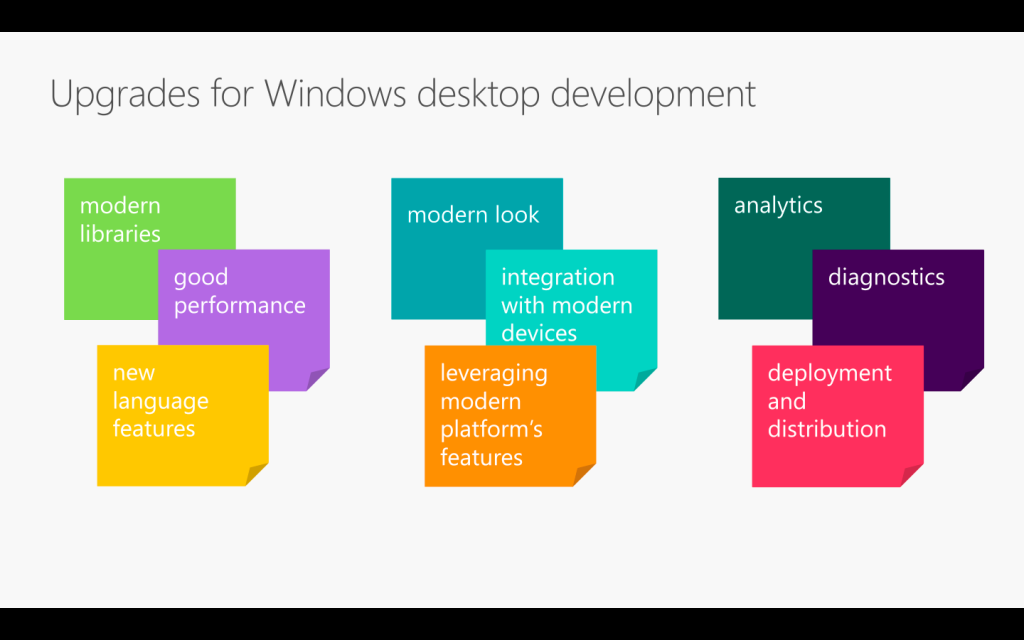
From coding, converting, to deploying. (Image Credit: .NET Conf 2019)

If you watch the videos above, the total length is about 70 minutes. So covering three of them in a 45-minute talk is a challenge to me. Luckily, I have Sabrina to help me out by co-speaking with me.

If you have missed our session, don’t worry, I have uploaded the recordings of the .NET Conf Singapore 2019 to the YouTube: https://www.youtube.com/watch?v=5VX-bAcBOWw&list=PLJEtXrSgWKZqkaYgY3PxBjRbA8O2vKEL7

If you have watched our session, you will realise it’s quite different from the official .NET Conf. In this post, I am going to brief you through about my thoughts and development process of our talk content.

Let’s Hashtag Together!

In order to make the conference to be more engaging, after discussing with Sabrina, I came out with a desktop app which will shows the recent tweets having #dotnetconfsg hashtag, which looks like the following.

Participants tweeting about our sessions.

To make this “game” more interesting, I announced that the top four participants who earn the highest scores would receive prizes from me. The formula to calculate the score is basically

  • +1 point for one tweet;
  • +5 point for one retweet of the tweet;
  • +5 point for one like of the tweet.

Throughout the conference, we thus had seen a huge number of tweets about our event and speakers. Some of them even tweeted with great photos (I should have given 5 points for great photos too).

In our talk, we used this desktop app as our sample. The app is built in .NET Framework 4.7. Sabrina started the demo with showing how we can modernise it to a .NET Core desktop app. I then covered a bit about Hot Reload, the runtime tools (the small little black bar on top of locally launched WPF app), and DevOps part of desktop app.

Starting from .NET Framework 4.7

After the talk, I redo the project to make it nicer. I have also published the code on GitHub: https://github.com/goh-chunlin/DotNetConfSgTweetsDashboard

I am using the Tweetinvi library to retrieve the tweets easily. I originally tried calling the Tweeter APIs directly from C# and it’s a painful experience. Instead of wasting resources on researching the Tweeter APIs, I change to use Tweetinvi because it allows me to easily get the tweets in just two lines of codes.

To improve the GUI, I use the Material Design in XAML Toolkit. So, I can easily change the WPF application to have dark mode. This is very important to me because I realise light mode isn’t displayed well on the projected screen during the event. So, it now looks as shown in the following screenshot.
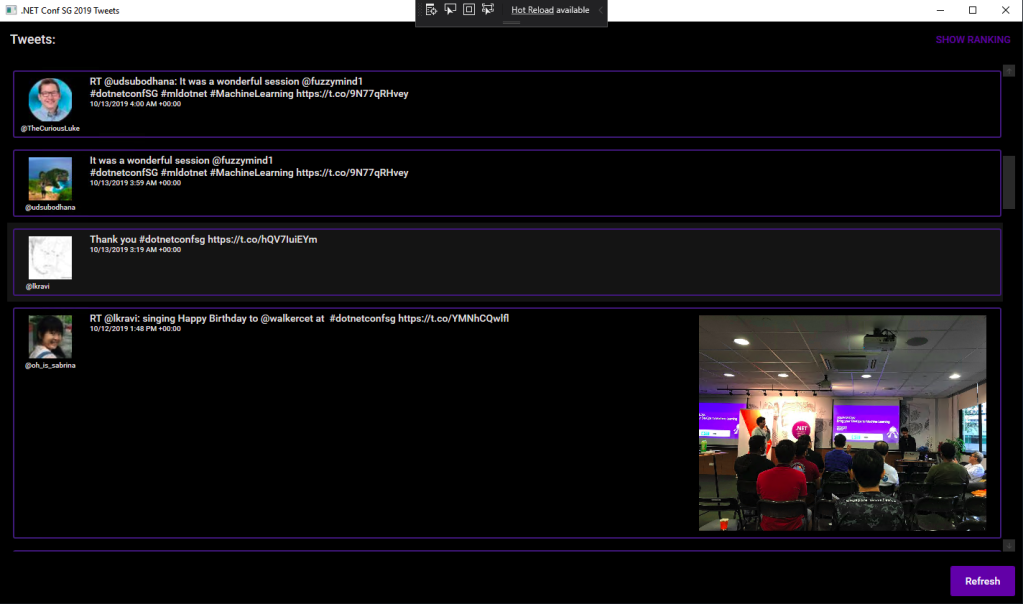
New look with Material Design.

By clicking on the “Show Ranking” button at the top-right corner, we can easily tell the scores received by the participants.
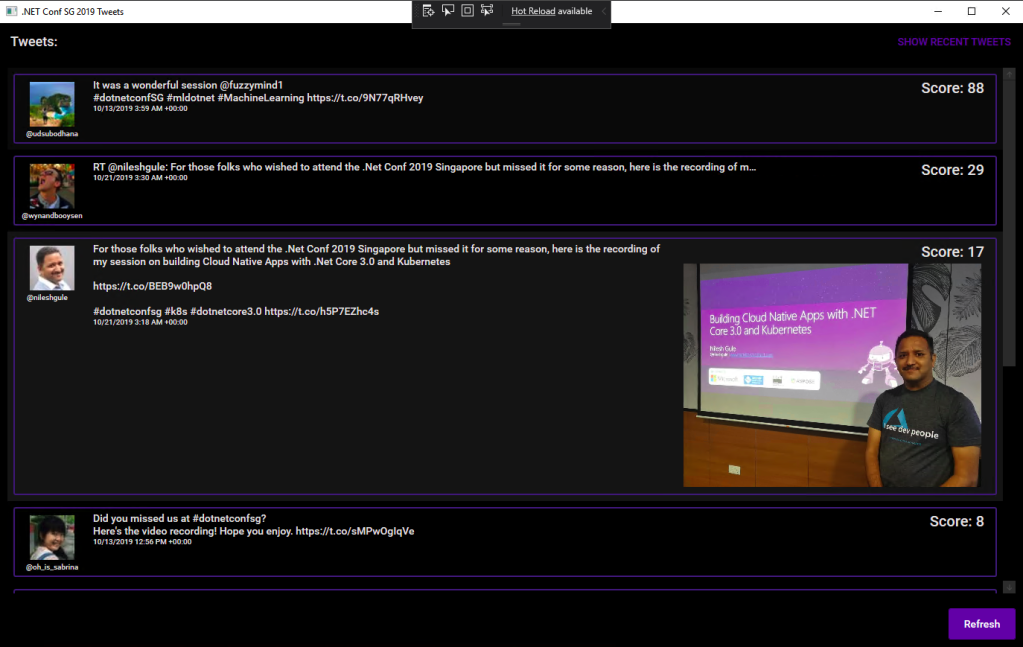
The participants are sorted according to the score they receive.

Migrating to .NET Core 3.0

Now with many third-party libraries used in our WPF application, is the desktop app still compatible with .NET Core? Well, to answer this question, there is a tool from Microsoft called Portability Analyzer can give us a detail report on the set of APIs referenced in our apps that are not yet available in NET Core 3.0.

After downloading it and using it to check our application above, we received the following report.
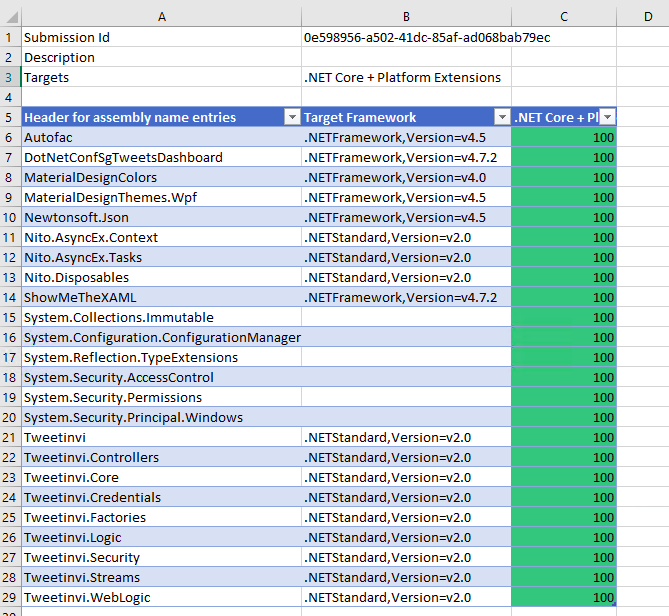
This says that our WPF application is 100% portable to the .NET Core.

The Excel report comes with three tabs, i.e. Portability Summary (the one shown above), Details (empty), and Missing assemblies. There is one item in the report Missing assemblies though, as shown below.

There is one unresolved assembly.

Interestingly, if we refer to the .NET API Portability GitHub repo, we will see an issue filed by Alicia Li. There are many doubts over this tab.

However, if we proceed to use try-convert to migrate our WPF application from .NET Framework to .NET Core, it will be a successful conversion, as shown in the screenshot below.

Converted a .NET Framework project to .NET Core 3.0.

The try-convert tool is an open-source tool that helps us to migrate .NET Framework projects to .NET Core. After installing it, we need to restart the Command Prompt to use it.

The following screenshot shows how the app looks like after being migrated to .NET Core 3.0. Nothing significant is changed. If you would like to find out what have been changed, please visit the commit of this project on GitHub.
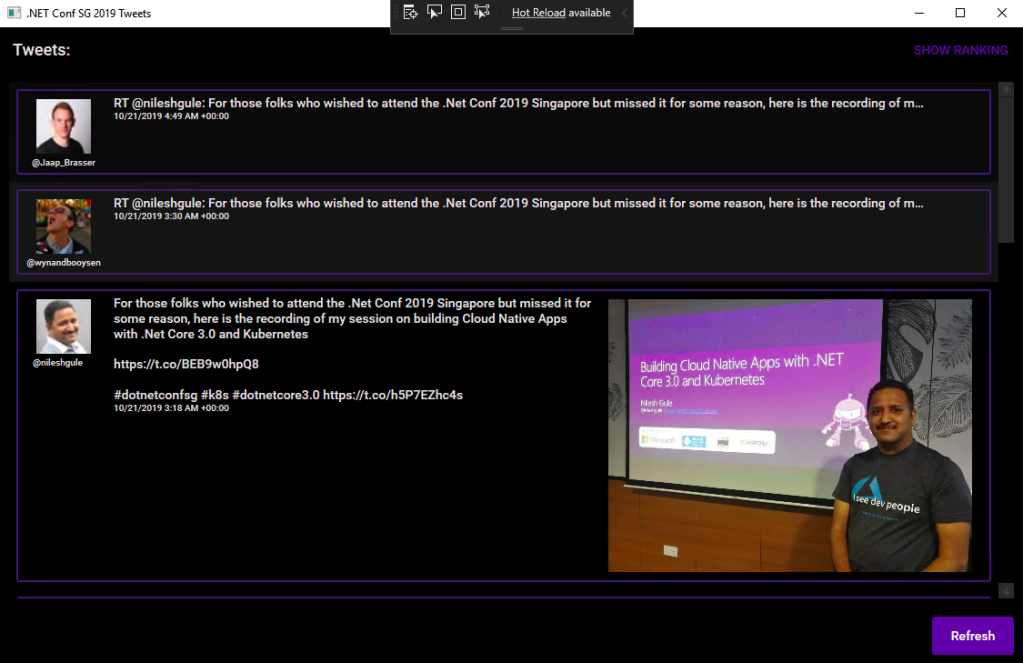
This is a WPF app in .NET Core 3.0.

XAML Islands

There is another thing that I shared in my talk is about XAML Islands. In fact, I talked about XAML Islands in Microsoft Insider Dev Tour too when I was sharing about WinUI.

Image may contain: 10 people, people sitting
Microsoft Insider Dev Tour (Image Credit: Microsoft Malaysia – Insider Dev Tour Kuala Lumpur)

XAML Islands is a feature that allows us to host UWP controls in non-UWP desktop applications. The reason of having it is to improve the UX of existing Win32 apps by leveraging UWP controls.

Although the documentation says it is enabled only starting from Windows 10, version 1903. However, if you are using version 1809, XAML Islands feature is also available already, just that not yet stable. So, the best choice is still using version 1903 and above.

In my presentation, since I was using the Windows 10 image hosted on Microsoft Azure VM, the best version I could get is 1809.
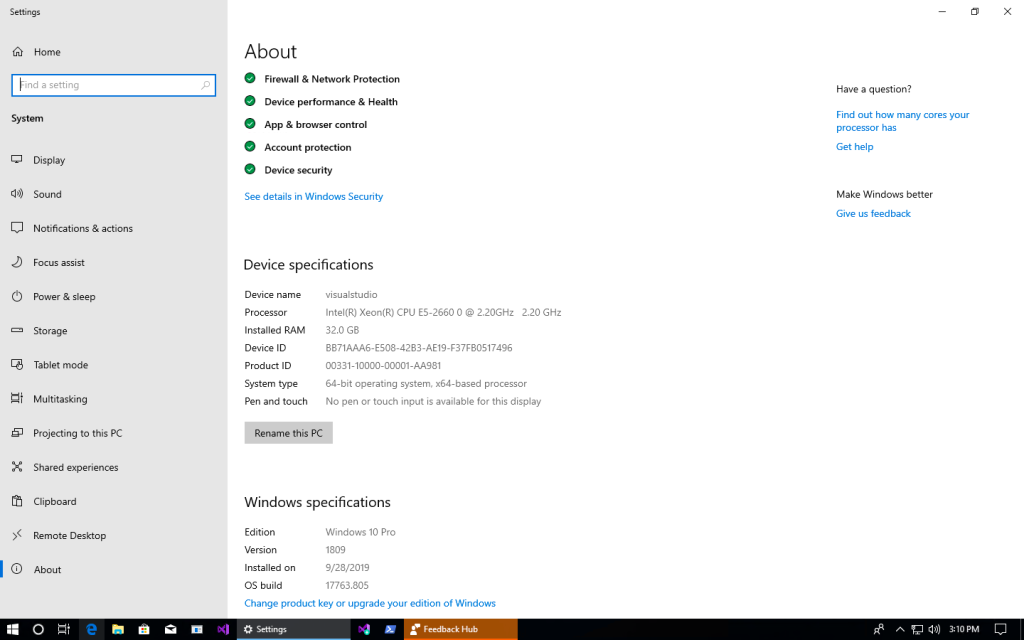
Windows 10 Pro, version 1809 on Microsoft Azure.

The quick-start way to use an XAML Island inside a WPF app is to use the NuGet packages from Microsoft. The one I am using is Microsoft.Toolkit.Wpf.UI.Controls, which has wrapper classes for 1st party controls, such as the InkCanvas, InkToolbar, MapControl, and MediaPlayerElement, all for WPF.

Installed with Microsoft.Toolkit.Wpf.UI.Controls.

You may ask why I am using version 5.1.1 of the Microsoft.Toolkit.Wpf.UI.Controls. On the day of .NET Conf Singapore, the version 6.0 (Preview 9.1) of it is already out. However, when I try to use the library, it threw the exception, as shown in the screenshot below.
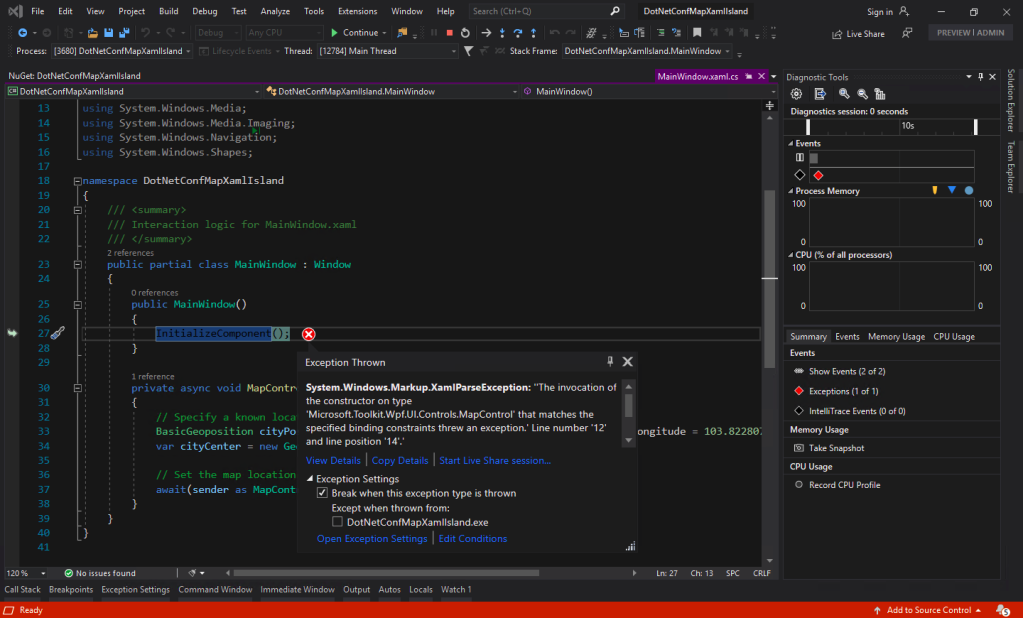
Oops, app crashes with Microsoft.Toolkit.Wpf.UI.Controls 6.0 (Preview 9.1).

I could only demonstrated how I used the MapControl in a WPF app with XAML Islands.
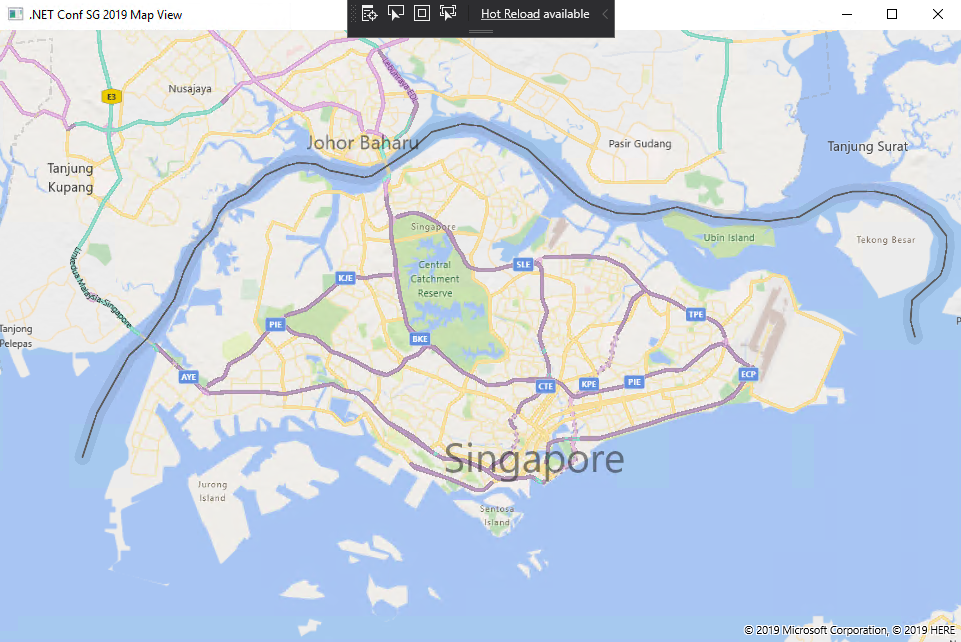
Such a beautiful map displayed on WPF app!

Creating Build Pipeline in Azure DevOps

Now, with the codes of our WPF application on GitHub, we can create a Build pipeline for the app on Azure DevOps. This is not a new feature but it is nice to see how we can now build a .NET Core WPF app on Azure DevOps.
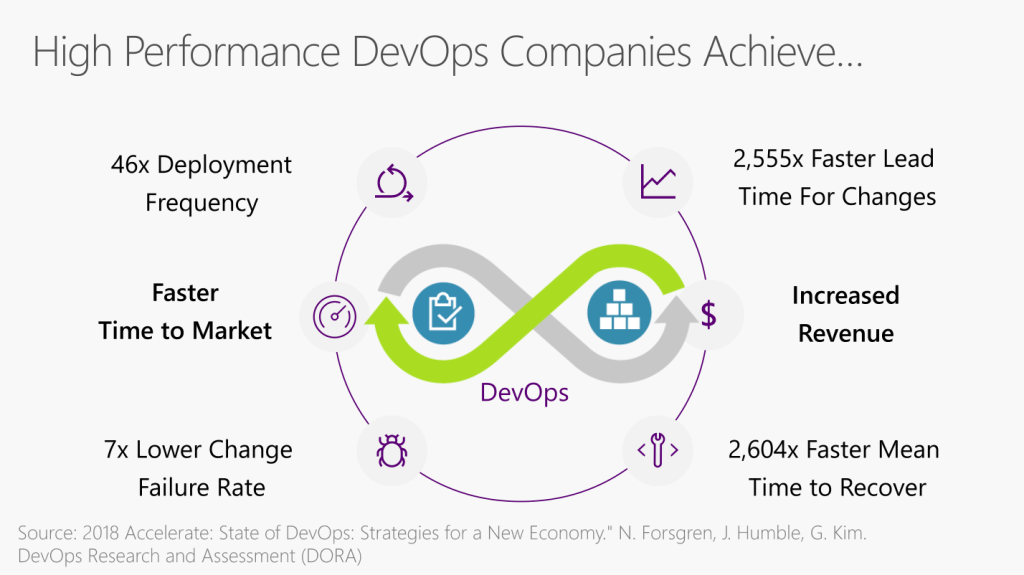
Benefits of DevOps (Image Credit: .NET Conf 2019)

There is a template available on Azure DevOps to build .NET Desktop app.
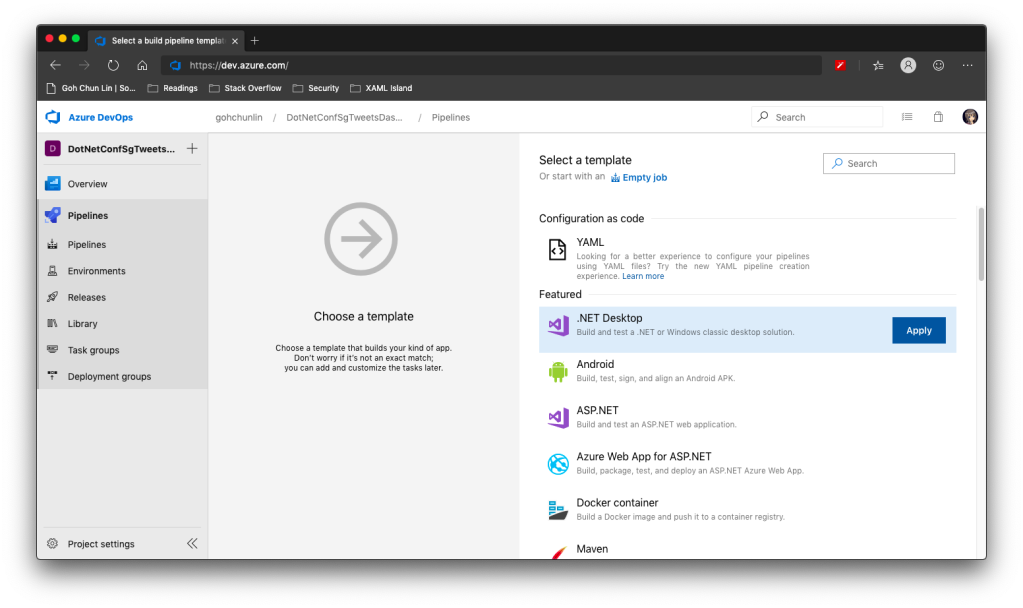
We can apply this template to build .NET Desktop app on Azure DevOps.

However, before we proceed to start the build, we need to make a few changes to it.

Since we will be using dotnet publish later, so the BuildPlatform variable is not necessary and can be removed.
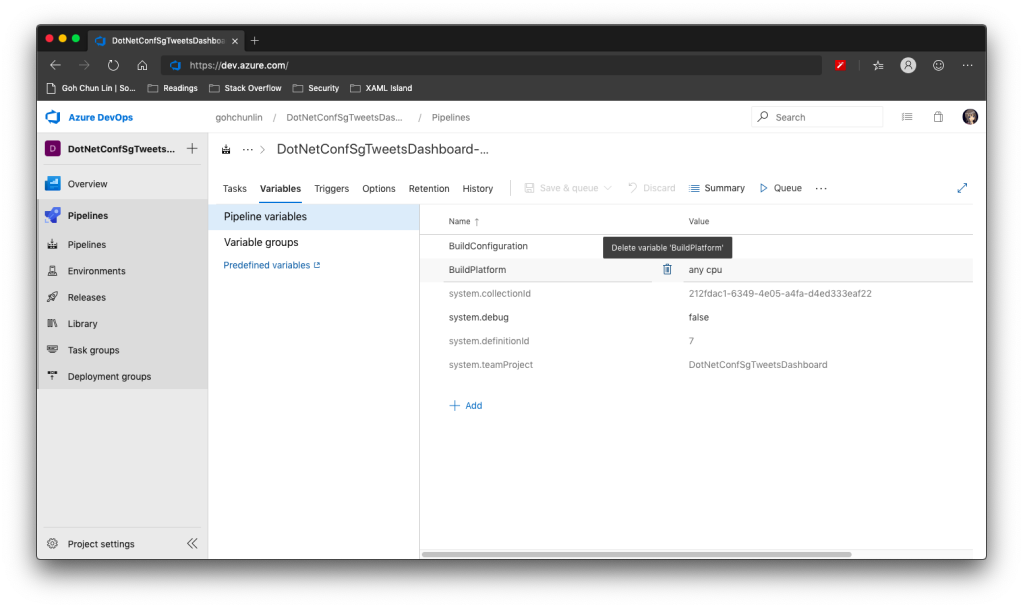
Removing BuildPlatform variable from the pipeline.

Instead, we need to add a new variable called DOTNET_SKIP_FIRST_TIME_EXPERIENCE and set it to true. This is to speed up the build process because by default when we run any .NET Core SDK command on Azure DevOps, it does some caching. However, now we are running this on a hosted build agent, so this caching will never be useful because the agent will be discarded right after the build is completed. Thanks Daniel Jacobson for highlighting this in his video.
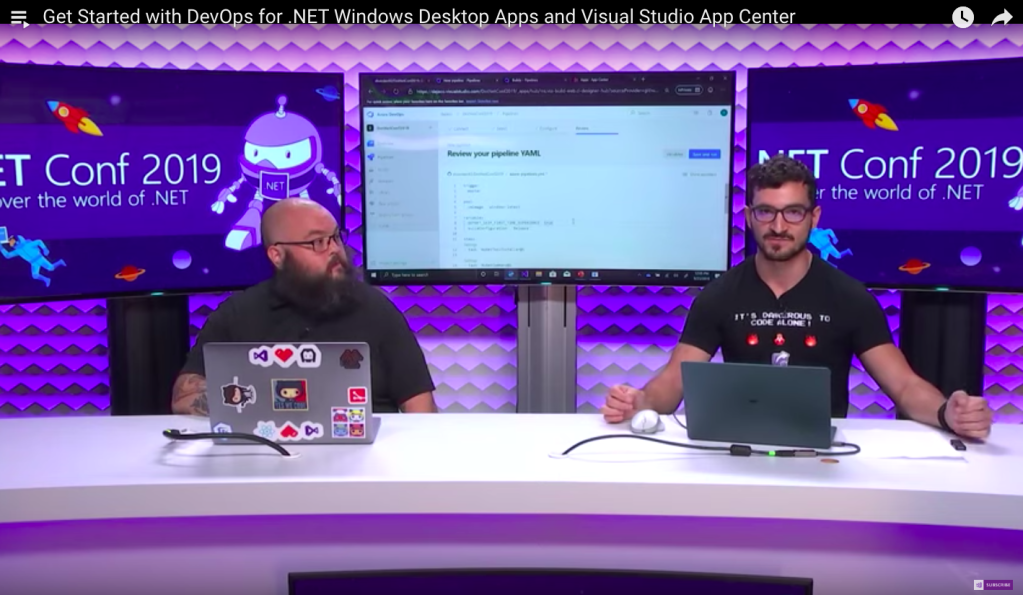
Daniel Jacobson (right) explains about Azure DevOps and .NET Core SDK commands. (Image source: YouTube video)

After that, we need to remove all the default steps because we need to start from scratch for .NET Core.

The first step is to install .NET Core SDK 3.0. Remember to state “3.0.x” as the version otherwise if there is a minor update to .NET Core 3.0, we will still be using the outdated one to build.
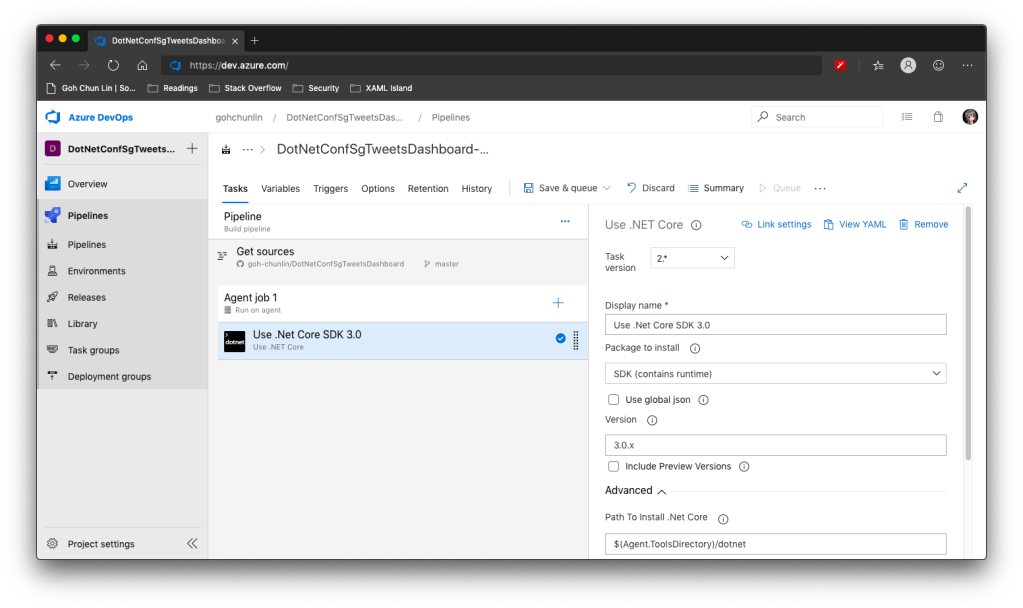
Step 1: Use .NET Core SDK 3.0

After that, we are going to do dotnet publish.

Starting with .NET Core 2.0, we don’t have to run dotnet restore because it’s run implicitly by all commands that require a restore to occur. Also dotnet publish will build the project, so we do not need to run dotnet build.

Since this is a WPF project, so we have to uncheck the “Publish Web Projects” checkbox, together with the other two checkboxes “Zip Published Projects” and “Add project name to publish path”, as shown in the screenshot below.
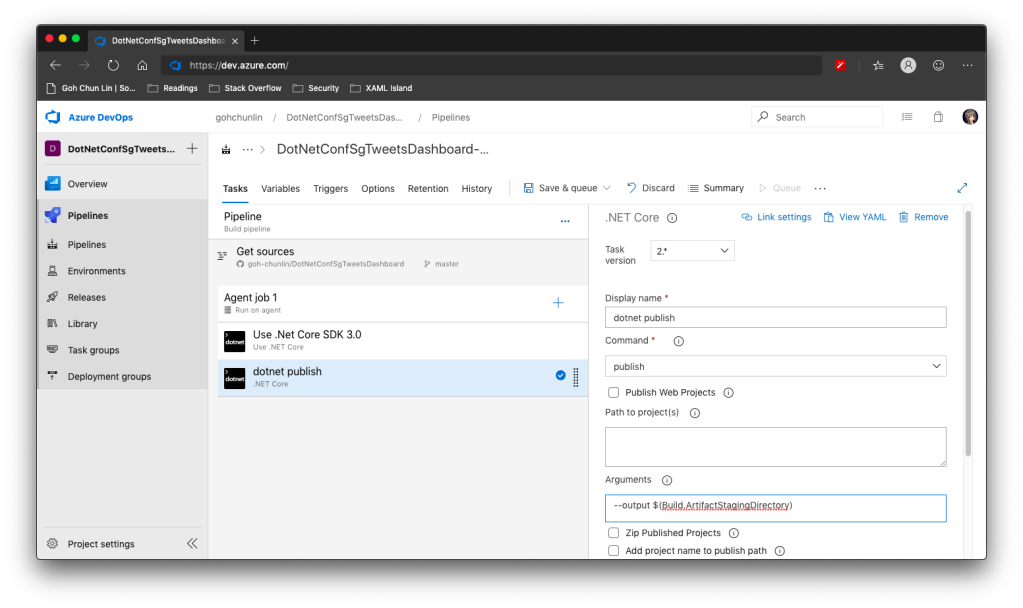
Step 2: dotnet publish

We also need to specify the output of the artifacts. We will put it in a directory known as $(Build.ArtifactStagingDirectory). This is actually a pre-defined variable that we can find in the Azure DevOps documentation. There is a link to this document in the Variables tab.

Now we proceed to add the next step, which is to publish the artifact. Here we specify $(Build.ArtifactStagingDirectory) as the path of the directory to publish. Then we also specify a user friendly name for the artifact.
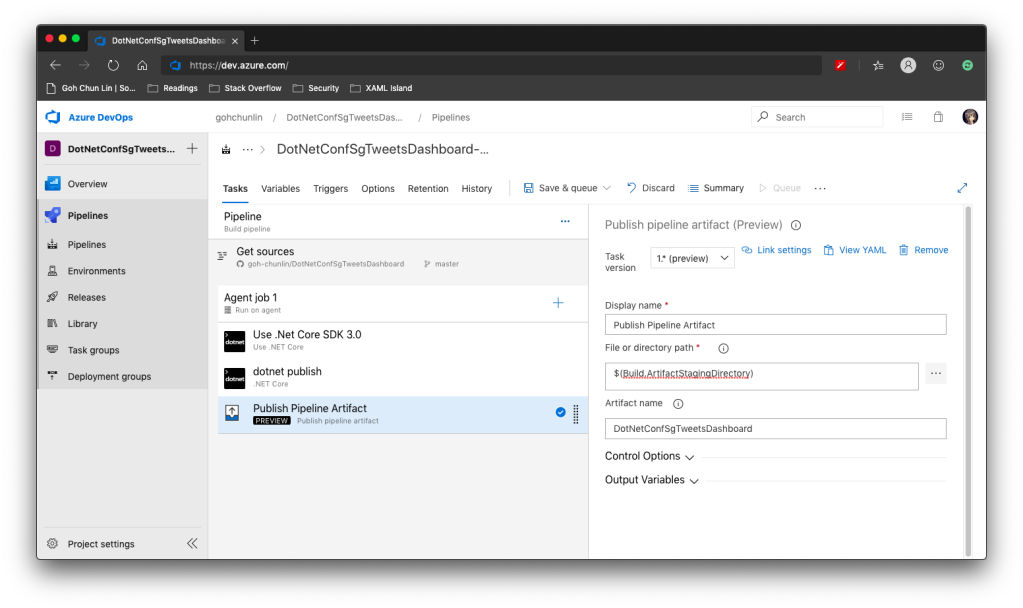
Step 3: Publish Pipeline Artifact

Now we can click the “Save & queue” to run this pipeline.

In the published artifact, we will see the following.
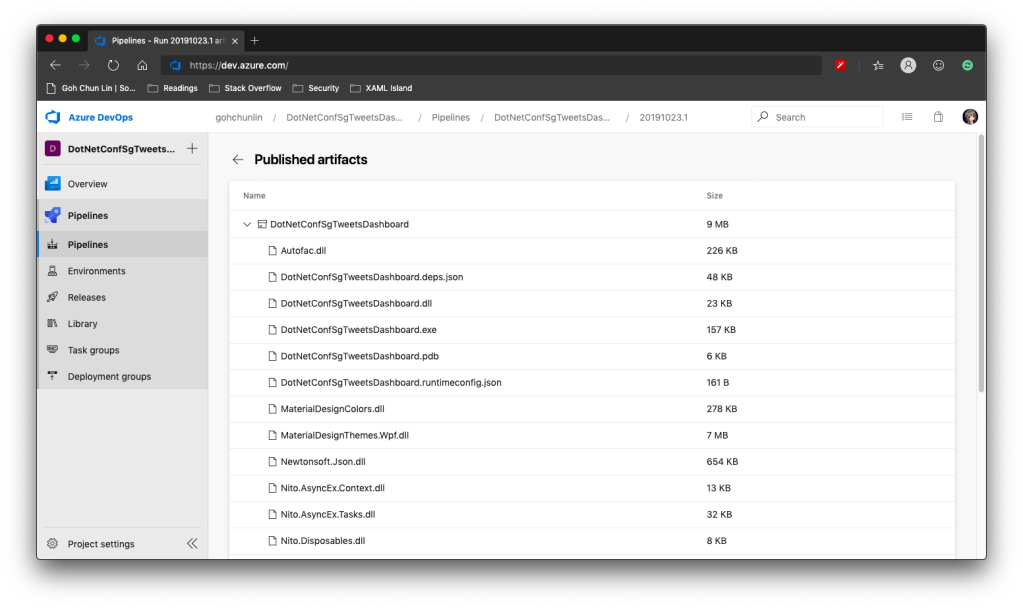
Published artifact in our first attempt.

Wow, there are a lot of DLLs! The .exe file alone is only 157KB.

Fortunately, starting from .NET Core 3.0, as long as we specify the following in our csproj file, it will produce a single .exe file.

<PublishSingleFile>true</PublishSingleFile>

However, there is one more thing to take note is that if we miss out the <RuntimeIdentifier>, there will be an error NETSDK1097 which says, “It is not supported to publish an application to a single-file without specifying a RuntimeIdentifier. Please either specify a RuntimeIdentifier or set PublishSingleFile to false.”

<RuntimeIdentifier>win-x86</RuntimeIdentifier>

With this change, when we run the Build pipeline again, we get the following.
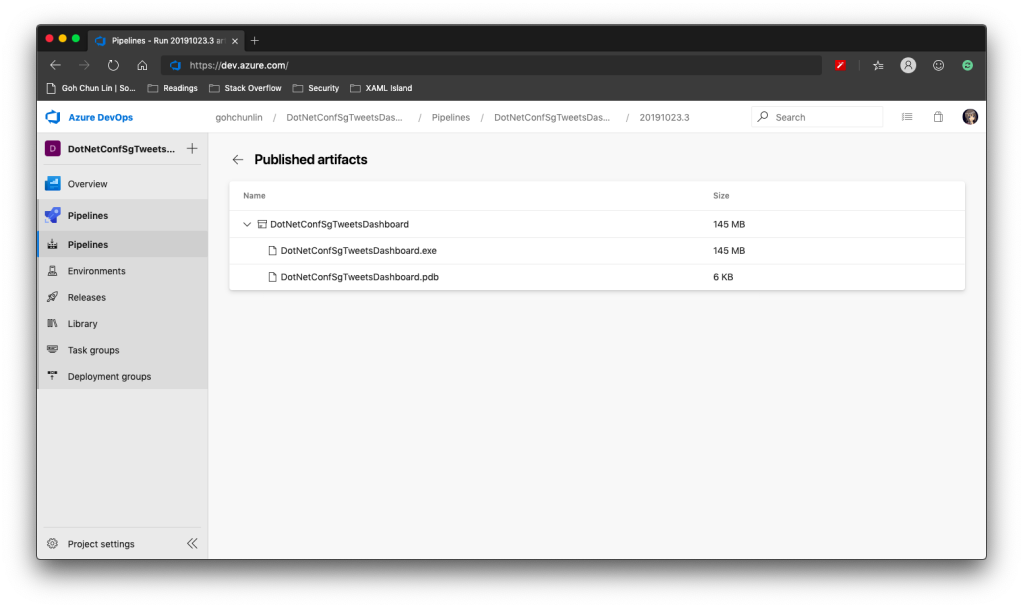
Published artifact with <PublishSingleFile>.

We now only have one .exe file but its size has grown from 157KB to 145MB!

There is mixed feeling for developers in .NET CoreRT project. In their discussion about CoreRT future, they’re disappointed about CoreRT not being mentioned, instead PublishSingleFile was mentioned in the .NET Conf 2019.
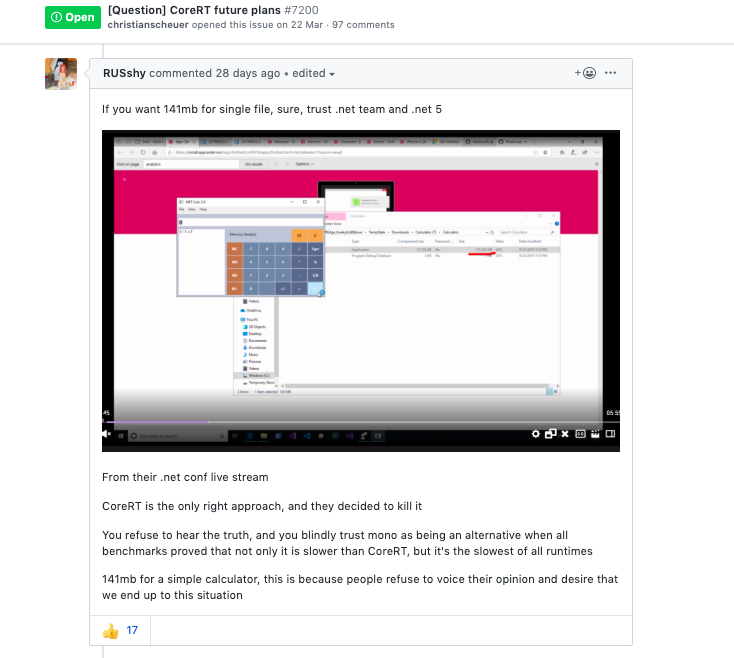
“CoreRT is the only right approach” (Image Soure: .NET CoreRT Issue #7200)

In fact, according to Scott Hanselmen’s blog post “Making a tiny .NET Core 3.0 entirely self-contained single executable”, he suggested to set <PublishTrimmed> to be true to trim out unused codes so that now the .exe will be smaller.
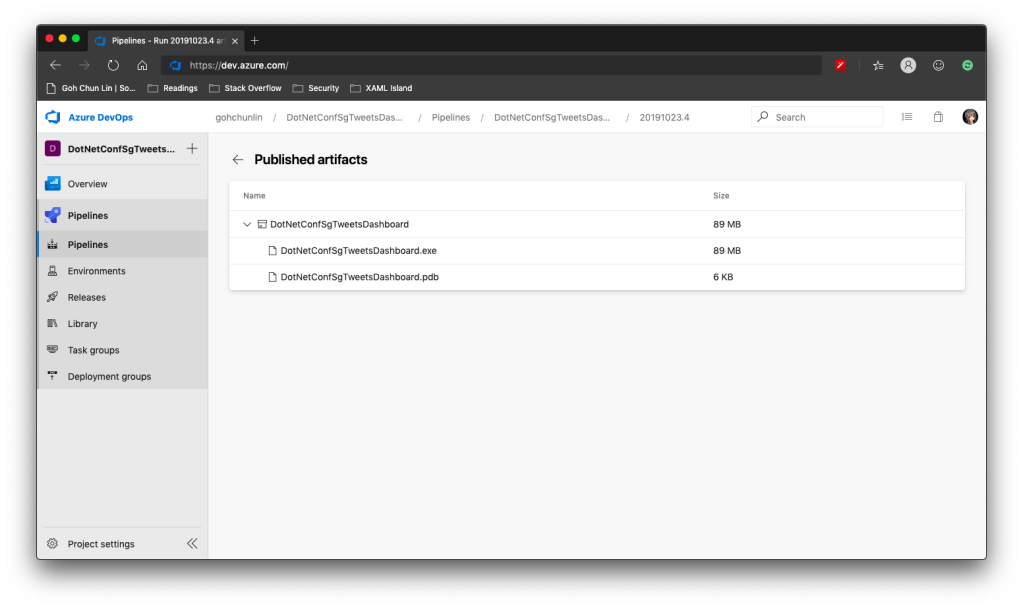
Published artifact with additional <PublishTrimmed>.

Cool, now we have a .exe file with 89MB, instead of the one over 100MB.

With this .exe file, we can proceed to the release of our application.

Releasing WPF Application in VS App Center

VS App Center was launched in 2017, which was previously known as VS Mobile Center. When it was first launched, it was mainly for Android, iOS, macOS, and Windows apps. The “Windows apps” here refer to UWP apps. Only in August 2019, WinForm and WPF applications are supported.
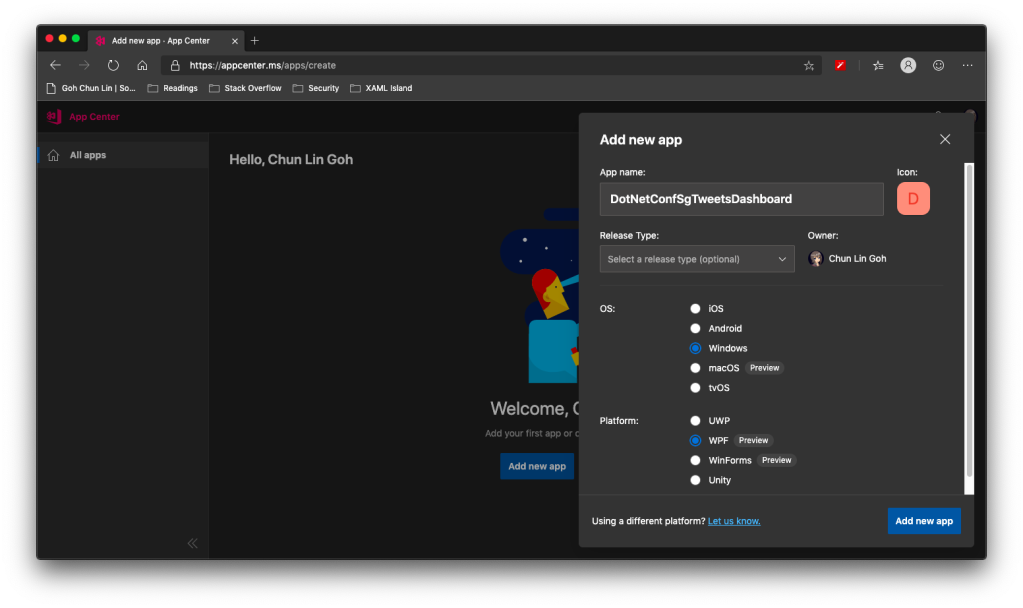
WinForms and WPF are now available on VS App Center but still in preview.

So, the artifact generated in Azure DevOps Build pipeline cannot be automatically delivered to VS App Center even after .NET Conf 2019. We now have to do it manually.

Firstly, we need to download the actifact as a zipped file in Azure DevOps.

Secondly, we need to upload the zipped file to the VS App Center in its Releases tab, as shown in the following screenshot.
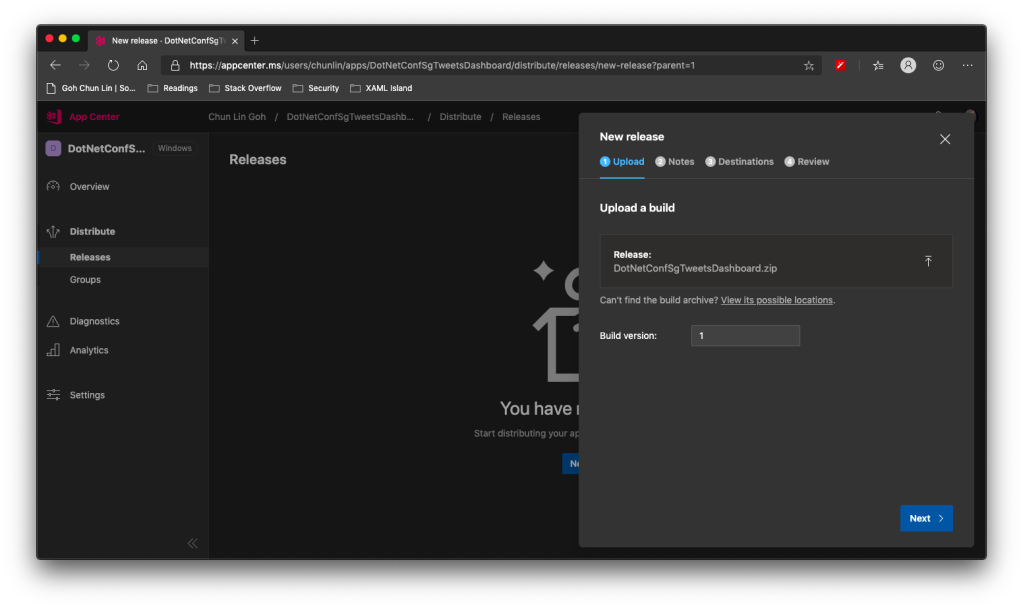
Setting Build version to 1 because this is our first release of the app.

After keying the release notes, we will be landed on a page to choose who we should distribute the app to. Normally they are our developers, business analysts, and testers. Here, in my example, I only have one group called Collaborator and I am the only one in the group.
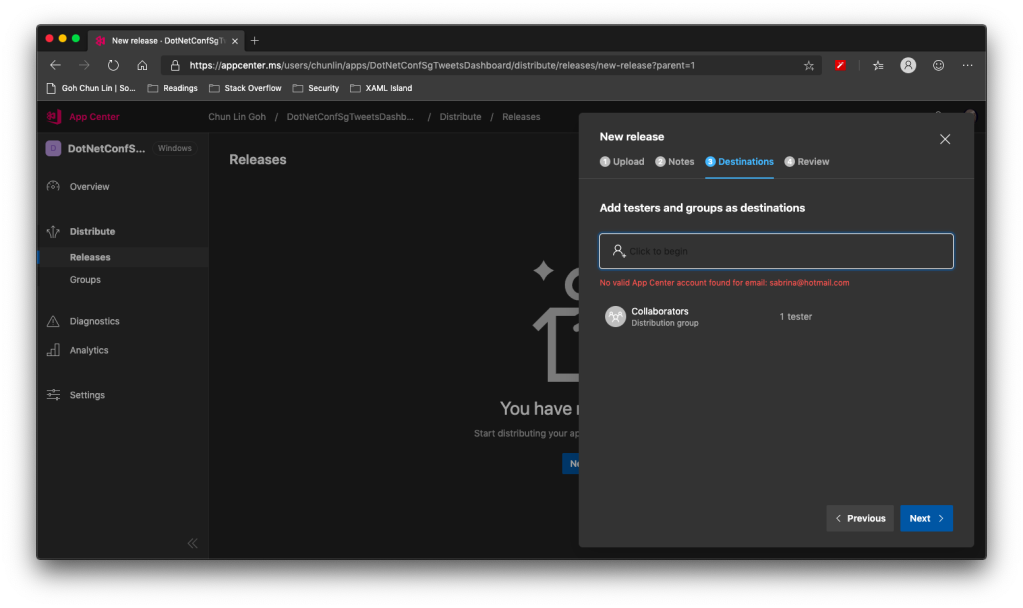
We are not allowed to add those who are not in our App Center as testers.

Finally, we will hit the “Distribute” button to release our app to testers. As tester, I will receive the email notifying about the new release.
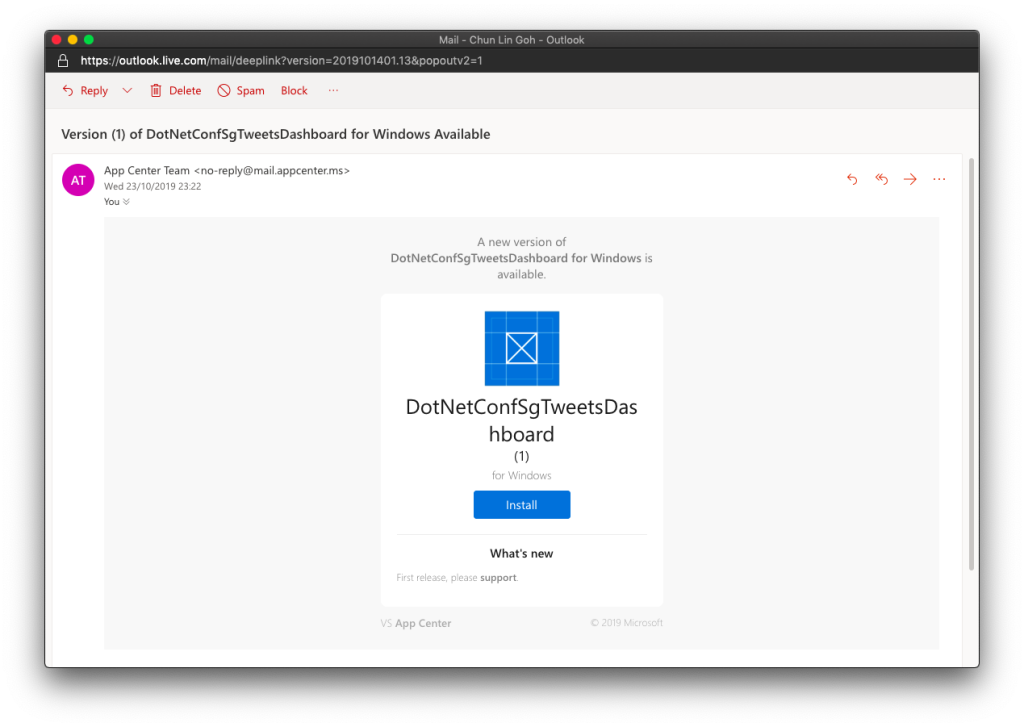
Yay, new release available for in-house testing.

Analytics with App Center SDK

We can also integrate our WPF desktop app with App Center SDK to further collect data to find out how people use our app as well as the crashes in our app.

To do so, firstly, we need to install the following two Nuget packages. As the support for WPF SDK is still in preview, please remember to check the “Include prerelease” checkbox.

  • Microsoft.AppCenter.Analytics;
  • Microsoft.AppCenter.Crashes.
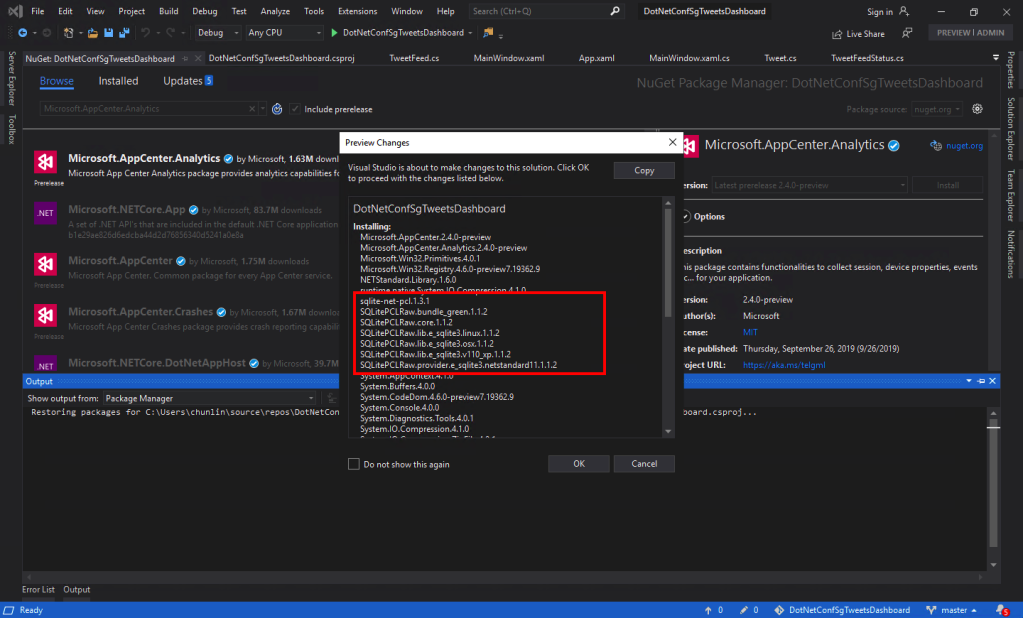
SQLitePLCRaw is being installed when we install the App Center SDK.

Now we can proceed to put the following code in the first window that will be launched in our app. In my case, it is the MainWindow. So, right after the InitializeComponent() is called, the following codes will be executed.

AppCenter.Start("<app-secret>", 
    typeof(Analytics), typeof(Crashes)); 

The App Secret can be found in the code sample of the Overview page in VS App Center.

However, if we run the WPF app now, the Analytics Overview page in VS App Center will still say there is no data. Why is it so?
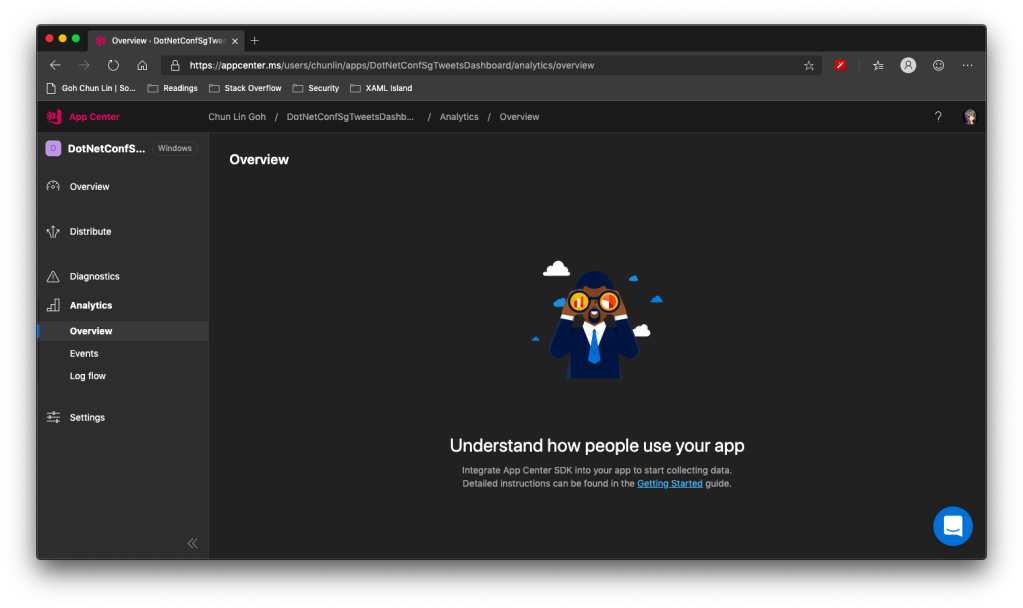
No analytics, how come?

It turns out that, as highlighted in .NET Conf 2019, there is a bug in the preview SDK.
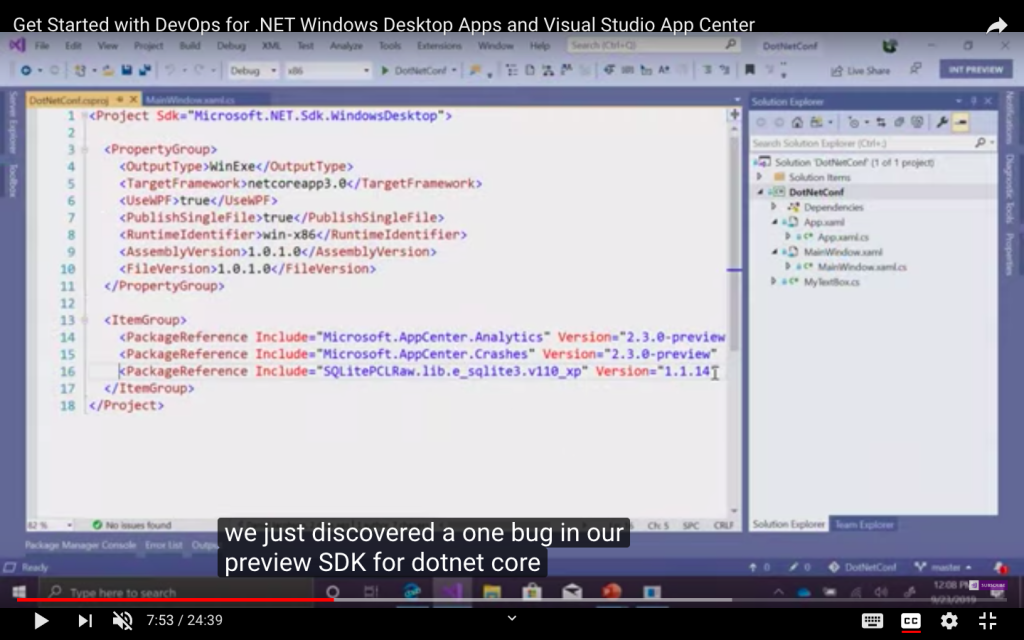
Daniel Jacobson mentions about the bug. (Image source: YouTube video)

So what we need to do is simply to add the following line in <ItemGroup> in the .csproj file.

<PackageReference Include="SQLitePCLRaw.lib.e_sqlite3.v110_xp" Version="1.1.14" />

Yup, if you have noticed earlier when we’re installing the App Center SDK, SQLitePCLRaw was being installed also. Just because of the bug in the SDK, this line was not added to the project file and thus we have to manually reference it. Hopefully this bug gets fixed soon.

Now when we launch our WPF app again, the nice dashboard will show there is 1 user. Yay!
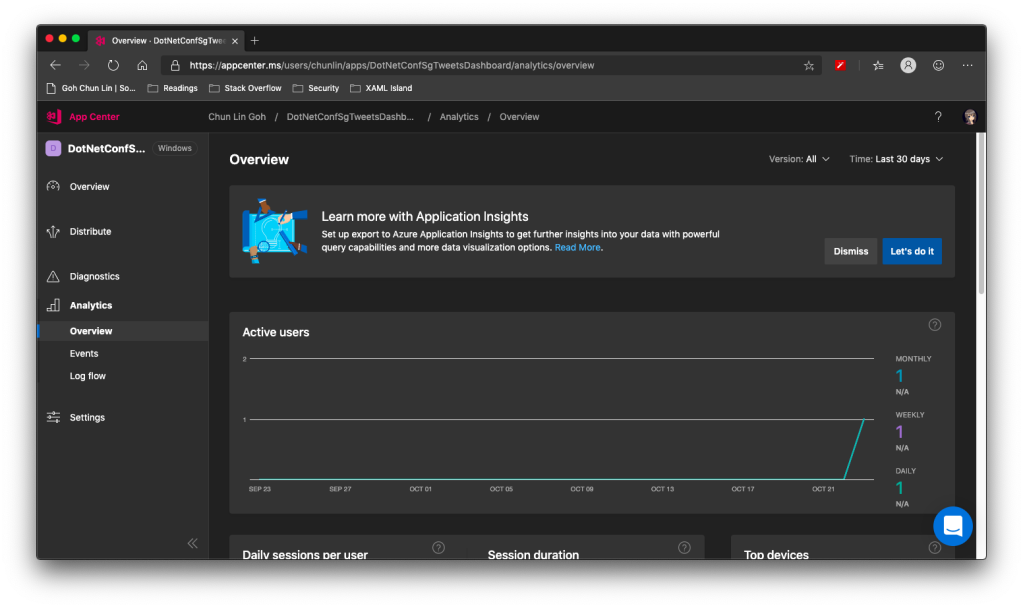
+1 active user in our app!

Conclusion

That’s all so far for what I’d like to share in addition to what I have shared in .NET Conf Singapore 2019.

Happy .NET Conf 2019 from Singapore! (Image Credit: .NET Developers Community Singapore)

If you spot any mistake or you have any suggestion to make, please let me know in the Comments section below. Thank you!

References

Leveraging Golang Concurrency in Web App Development

Continue from the previous topic

I first learned about goroutine and channel when I was attending the Golang meetup in GoJek Singapore. In the talk “Orchestrating Concurrency in Go” delivered by the two GoJek engineers Abhinav Suryavanshi and Douglas Vaz, they highlighted the point “concurrency is not same as parallelism” in the very beginning of their talk.

Goroutines and channels are two main things that provide the concurrency support in Golang. To someone who is from .NET and C# background, we are familiar with threads. Goroutines are similar to threads and in fact, goroutines are multiplexed on threads. Threads are managed by kernel and has hardware dependencies but goroutines are managed by Golang runtime and has no hardware dependencies.

Using goroutines is very simple because we only need to add the keyword go in front of any function. This remind me of the async/await in C# which is also concurrent. Async/await in C# implies that if we make a chain of function calls, and the last function is an async function, then all the functions before it have to be async too. On contrary, there is no such constraint in Golang. So when we do concurrency in Golang, we don’t really have to plan on what’s going to be asynchronous ahead of time.

Applying Goroutines

In the web application we built earlier, we introduce a new feature where users can pick the music categories that they are interested at, then it will insert relevant videos into the playlist.

We have six different music categories to choose.

The codes to do the suggestion is as follows.

for i := 0; i < len(request.PostForm["MusicType"]); i++ {
if request.PostForm["MusicType"][i] != "" {
    go retrieveSuggestedVideos(request.PostForm["MusicType"][i], video, user)
   }
}

Now, if we select all categories and press the Submit button, we will see the videos to be added not following the selection order. For example, as shown in the following screenshot, the Anime related videos actually come after the Piano videos.

A lot suggested videos added to the list.

YouTube Data API

If you are interested at how the relevant videos are retrieved, it is actually done with the YouTube Data API as follows.

...
youtubeDataURL := "https://www.googleapis.com/youtube/v3/search?"
youtubeDataURL += "part=snippet&"
youtubeDataURL += "maxResults=25&"
youtubeDataURL += "topicId=%2Fm%2F04rlf&"
youtubeDataURL += "type=video&"
youtubeDataURL += "videoCategoryId=10&"
youtubeDataURL += "videoDuration=medium&"
youtubeDataURL += "q=" + area + "&"
youtubeDataURL += "key=" + os.Getenv("YOUTUBE_API_KEY")

request, err := http.NewRequest("GET", youtubeDataURL, nil)

checkError(err)

request.Header.Set("Accept", "application/json")

client := &http.Client{}
response, err := client.Do(request)

checkError(err)

defer response.Body.Close()

var youtubeResponse YoutubeResponse
err = json.NewDecoder(response.Body).Decode(&youtubeResponse)
checkError(err)

...

References

Containerize Golang Code and Deploy to Azure Web App

Continue from the previous topic

Learning about containers is essentially a huge topic but for beginners, there needs to be something small to help them get started. Hence, in this article, we will focus only on the key concepts of containers and the steps to containerize the program and deploy it to Azure Web App.

In 2017, Azure introduced Web Apps for Containers. Before that, the Azure Web Apps actually ran on Windows VMs managed by Microsoft. So now with this new feature, we can build a custom Docker image containing all the binaries and files and then run a Docker container based on the image on Azure Web Apps. Hence, we can now bring our own Docker container images supporting Golang to Azure with its PaaS option.

As explained in the book “How to Containerize Your Go Code“, containers isolates an application so that container thinks it’s running on its own private machine. So, a container is similar to a VM but it uses the OS kernel on the host rather than having its own.

Firstly, we need to prepare the Dockerfile, a file having the instructions telling the Docker how to build the images automatically. So, a Dockerfile is simply a text file containing all the commands a user could call on the command line to assemble an image. Traditionally, the Dockerfile is named Dockerfile and located in the root of the context.

The Dockerfile we have for our project is as follows.

FROM scratch

EXPOSE 80

COPY GoLab /
COPY public public
COPY templates templates

ENV APPINSIGHTS_INSTRUMENTATIONKEY '' \
CONNECTION_STRING '' \
OAUTH_CLIENT_ID '' \
OAUTH_CLIENT_SECRET '' \
COOKIE_STORE_SECRET '' \
OAUTH2_CALLBACK ''

CMD [ "/GoLab" ]

The Dockerfile starts with a FROM command that specifies the starting point for the image to build. For our project, we don’t have any dependencies, so we can start from scratch. So what is scratch? Scratch is basically a special Docker image that is empty (0B). That means there will be nothing else in our container later aside from what we put in with the rest of the Dockerfile.

The reason why we build from scratch is because not only we can have a smaller image to build later, but also our container will have smaller attack surface. This is because the less code there is within our container, the less likely it is to include a vulnerability.

The EXPOSE 80 command is telling Docker that we need to open the port 80 because the web server is listening on port 80. Hence, in order to access our program from outside the container through HTTP, we need to define it in the Dockerfile that we need the port 80 to be always opened.

The next three COPY commands are basically copying firstly the GoLab executable into the root directory of the container and secondly the two directories, public and templates into the container. Without the HTML, CSS, and JavaScript, our web app will not work.

Now you may wonder why the first COPY command says GoLab instead of GoLab.exe. We shall discuss it later in this article.

After that, we use ENV command to set the environment variables that we will be using in the app.

Finally we have the line CMD [“/GoLab”] to directs the container as to which command to execute when the container is run.

Since the container is not a Windows container, the code that runs inside the container thus needs to be a Linux binary. Fortunately, this is really simple to obtain with the cross-compilation support in Go using the following command.

$ $env:GOOS = "linux"
$ go build -o GoLab .

Thus, in the Dockerfile, we use GoLab file instead of GoLab.exe.

We can now proceed to build the container image with the following command (Take note of the dot in the end of line).

$ docker image build -t chunlindocker/golab:v1 .

The -t flag is for us to specify the name and tag of the container. In this case, I call it chunlindocker/golab:v1 where chunlindocker is the Docker ID of my Docker Hub. Naming in such a way later helps me to push it to a registry, i.e. the Docker Hub.

My Docker Hub profile.

If we want to build the image with another dockerfile, for example Dockerfile.development, we can do it as follows.

$ docker image build -t chunlindocker/golab:v1 -f Dockerfile.development .

Once the docker image is built, we can see it listen when we perform the list command as shown in the screenshot below.

Created docker images.

Now the container image is “deployable”. That means we can run it anywhere with a running docker engine. Since our laptop has Docker installed, so we can proceed to run it locally with the following command.

$ docker container run -P chunlindocker/golab:v1

If you run the command above in the Terminal window inside VS Code, you will see that the command line is “stuck”. This is because the container is already running on local machine. So what we need to do is just open another terminal window and view all the running containers.

The docker ps command by default only shows running containers.

To help humans, Docker auto generates a random name with two words and assigns it to the container. We can see that the container we created is given a random name “nifty_elgama”, lol. So now our container has a “human” name to call. If you want to remove the container later, you not only need to Ctrl+C to stop it, but to totally remove it, you need to use the rm command as follows.

$ docker container rm nifty_elgama

The PORTS column shown in the screenshot is important because it tells us how ports exposed on the container can be accessed from the host. So to test it locally, we shall visit http://localhost:32768.

So our next step is to upload it to a container registry so that later it can be pulled onto any machines, including Azure Web Apps, that will run it. To do so, we do push the image we built above to Docker Hub with the following command.

$ docker push chunlindocker/golab:v1
Successfully push our new container image to Docker Hub.

So, now how do we deploy the container to Azure?

Firstly, we need to create a Web App for Containers on the Azure Portal, as shown in the screenshot below.

Creating Web App for Containers.

The last item in the configuration is the “Configure Container”. Clicking on that, we will be brought to the following screen where we can then specify the container image we want to use and pull it from Docker Hub.

We will be deploying single container called chunlindocker/golab:v4 from Docker Hub.

You can of course deploy a private container from Docker Hub by choosing “Private” as Repository Access. Then Azure Portal will prompt you for Docker Hub login credential for it to pull image from Docker Hub.

Once the App Service is created, we can proceed to read the Logs under “Container Settings”. Then we can see the container initializing process.

Logs about the container in App Service.

After that we can proceed to fill up the Application Settings with the environment variables we have in the web application and then we are good to go.

The website is up and running on Azure Web App for Containers.

References

Unit Testing with Golang

Continue from the previous topic

Unit Testing is a level of automated software testing that units which can be modular parts of the program are tested. Normally, the “unit” refers to a function, but it doesn’t necessary always be so. A unit typically takes in data and returns an output. Correspondingly, a unit test case passes data into the unit and check the resultant output to see if they meet the expectations.

Unit Testing Files

In Golang, unit test cases are written in <module>_test.go files, grouped according to their functionality. In our case, when we do unit testing for the videos web services, we will have the unit test cases written in video_test.go. Also, the test files need to be in the same package as tested functions.

Necessary Packages

In the beginning, we need to import the “testing” package. In each of our unit test function, we will take in a parameter t which is a pointer to testing.T struct. It is the main struct that we will be using to call out any failure or error.

In our code video_test.go, we use only the function Error in testing.T to log the errors and to mark the test function fails. In fact, Error function is a convenient function in the package that combines calling of Log function and then the Fail function. The Fail function marks the test case has failed but it still allows the execution of the rest of the test case. There is another similar function called FailNow. The FailNow function is stricter and exits the test case once it’s encountered. So, if FailNow function is what you need, you have to call the Fatal function which is another convenient function that combines Log and FailNow instead of the Error function.

Besides the “testing” package, there is another package that we need in order to do unit testing for Golang web applications. It is the “net/http/httptest” package. It allows us to use the client functions of the “net/http” package to send an HTTP request and capturing the HTTP response.

Test Doubles, Mock, and Dependency Injection

Before proceeding to writing unit test functions, we need to get ready with Test Doubles. Test Double is a generic term for any case where we replace a production object for testing purposes. There are several different types of Test Double, of which a Mock is one. Using Test Doubles helps making the unit test cases more independent.

In video_test.go, we apply the Dependency Injection in the design of Test Doubles. Dependency Injection is a design pattern that decouples the layer dependencies in our program. This is done through passing a dependency to the called object, structure, or function. This dependency is used to perform the action instead of the object, structure, or function.

Currently, the handleVideoRequests handler function uses a global sql.DB struct to open a database connection to our PostgreSQL database to perform the CRUD. For unit testing, we should not depend on database connection so much and thus the dependency on sql.DB should be removed. The dependency on sql.DB then should be injected into the process flow from the main program.

To do so, firstly, we need to introduce a new interface called IVideo.

type IVideo interface {

GetVideo(userID string, id int) (err error)
GetAllVideos(userID string) (videos []Video, err error)
CreateVideo(userID string) (err error)
UpdateVideo(userID string) (err error)
DeleteVideo() (err error)

}

Secondly, we make our Video struct to implement the new interface and let one of the fields in the Video struct a pointer to sql.DB. Unlike in C#, we have to specify which interface the class is implementing, in Golang, as long as the Video struct implements all the methods that IVideo has (which is already does), then Video struct is implementing the IVideo interface. So now our Video struct looks as following.

type Video struct {
Db *sql.DB
ID int `json:"id"`
Name string `json:"videoTitle"`
URL string `json:"url"`
YoutubeVideoID string `json:"youtubeVideoId"`
}

As you can see, we added a new field called Db which is a pointer to sql.DB.

Now, we can create a Test Double called FakeVideo which implements IVideo interface to be used in unit testing.

// FakeVideo is a record of favourite video for unit test
type FakeVideo struct {
ID int `json:"id"`
Name string `json:"videoTitle"`
URL string `json:"url"`
YoutubeVideoID string `json:"youtubeVideoId"`
CreatedBy string `json:"createdBy"`
}


// GetVideo returns one single video record based on id
func (video *FakeVideo) GetVideo(userID string, id int) (err error) {
jsonFile, err := os.Open("testdata/fake_videos.json")
if err != nil {
return
}

defer jsonFile.Close()

jsonData, err := ioutil.ReadAll(jsonFile)
if err != nil {
return
}

var fakeVideos []FakeVideo
json.Unmarshal(jsonData, &fakeVideos)

for _, fakeVideo := range fakeVideos {
if fakeVideo.ID == id && fakeVideo.CreatedBy == userID {
video.ID = fakeVideo.ID
video.Name = fakeVideo.Name
video.URL = fakeVideo.URL
video.YoutubeVideoID = fakeVideo.YoutubeVideoID

return
}
}

err = errors.New("no corresponding video found")

return
}
...

So instead of reading the info from the PostgreSQL database, we read mock data from a JSON file which is stored in testdata folder. The testdata folder is a special folder where Golang will ignores when it builds the project. Hence, with this folder, we can easily read our test data from JSON file fake_videos.json through relative path from video_test.go.

Since now the Video struct is updated, we need to update our handleVideoAPIRequests method to be as follows.

func handleVideoAPIRequests(video models.IVideo) http.HandlerFunc {
    return func(writer http.ResponseWriter, request *http.Request) {
        var err error

       ...

        switch request.Method {
        case "GET":
            err = handleVideoAPIGet(writer, request, video, user)
        case "POST":
            err = handleVideoAPIPost(writer, request, video, user)
        case "PUT":
            err = handleVideoAPIPut(writer, request, video, user)
        case "DELETE":
            err = handleVideoAPIDelete(writer, request, video, user)
        }

        if err != nil {
            util.CheckError(err)
            return
        }
    }
}

So now we pass an instance of the Video struct directly into the handleVideoAPIRequests. The various Video methods will use the sql.DB that is a field in the struct instead. At this point of time, handleVideoAPIRequests no longer follows the ServeHTTP method signature and is no longer a handler function.

Thus, in the main function, instead of attaching a handler function to the URL, we call the handleVideoAPIRequests function as follows.

func main() {
...

mux.HandleFunc("/api/video/",
handleRequestWithLog(handleVideoAPIRequests(&models.Video{Db: db})))

...
}

Writing Unit Test Cases for Web Services

Now we are good to write unit test cases in video_test.go. Instead of passing a Video struct like in server.go, this time we pass in the FakeVideo struct, as highlighted in one of the test cases below.

func TestHandleGetAllVideos(t *testing.T) {
    mux = http.NewServeMux()
    mux.HandleFunc("/api/video/", handleVideoAPIRequests(&models.FakeVideo{}))
    writer = httptest.NewRecorder()

    request, _ := http.NewRequest("GET", "/api/video/", nil)
    mux.ServeHTTP(writer, request)

   if writer.Code != 200 {
        t.Errorf("Response code is %v", writer.Code)
    }

    var videos []models.Video
    json.Unmarshal(writer.Body.Bytes(), &videos)

    if len(videos) != 2 {
        t.Errorf("The list of videos is retrieved wrongly")
    }
}

By doing this, instead of fetching videos from the PostgreSQL database, now it will get from the fake_videos.json in testdata.

Testing with Mock User Info

Now, since we have implemented user authentication, how do we make it works in unit testing also. To do so, in auth.go, we introduce a flag called isTesting which is false as follows.

// This flag is for the use of unit testing to do fake login
var isTesting bool

Then in the TestMain function, which is provided in testing package to do setup or teardown, we will set this to be true.

So how do we use this information? In auth.go, there is this function profileFromSession which retrieves the Google user information stored in the session. For unit testing, we won’t have this kind of user information. Hence, we need to mock this data too as shown below.

if isTesting {
        return &Profile{
            ID: "154226945598527500122",
            DisplayName: "Chun Lin",
            ImageURL: "https://avatars1.githubusercontent.com/u/8535306?s=460&v=4",
        }
    }

With this, then we can test whether the functions, for example, are retrieving correct videos of the specified user.

Running Unit Test Locally and on Azure DevOps

Finally, to run the test cases, we simply use the command below.

go test -v

Alternatively, Visual Studio Code allows us to run specified test case by clicking on the “Run Test” link above the test case.

Running test on VS Code.

We can then continue to add the testing as one of the steps in Azure DevOps Build pipeline, as shown below.

Added the go test task in Azure DevOps Build pipeline.

By doing this, if any of the test cases fails, there won’t be a build made and thus our system becomes more stable now.