Few days ago, my teammate would like to learn how to use MS SQL Server. However, he only has a Macbook and MS SQL Server doesn’t run on macOS. Hence, I decided to write him a quick setup guide on how to do that with the help of container.
🎨 Microsoft introduced SQL Server on Linux in 2016. 🎨
Docker
We need to run Docker on our Mac machine. Since my teammate is new to Docker, he can simply choose a rather straight-forward path for this, which is to use Docker Desktop on Mac. Kindly take note of the system requirement before proceed to install it.
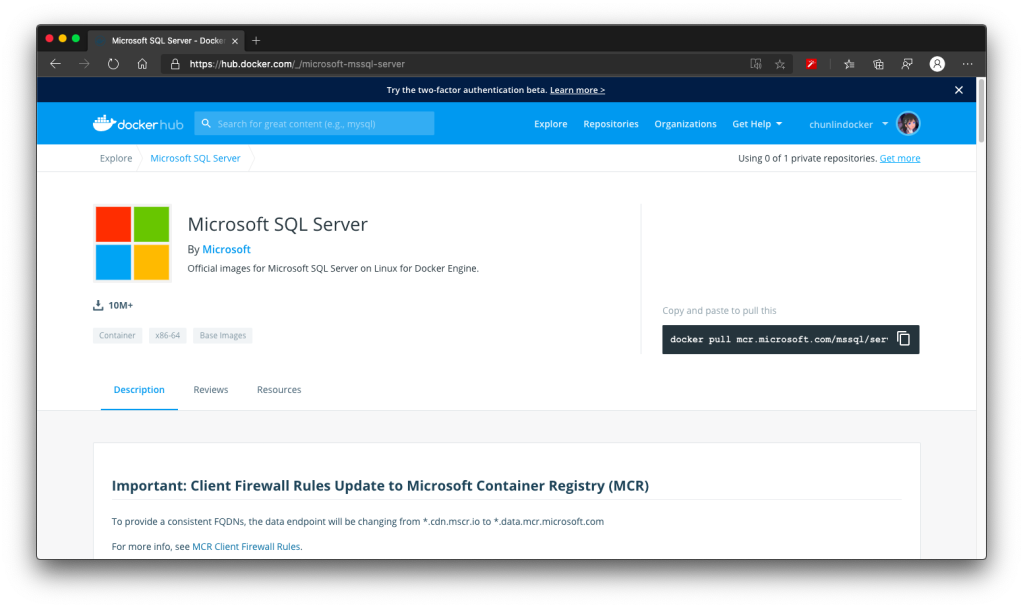
Once the Docker is up and running, we can proceed to pull the image of SQL Server 2019 from the Docker Hub.
We can run the following command in Terminal window to start the database server. Here we are using 1501 as the port. Take note that, we need to replace the password with our password which meets the following guideline:
at least 8 characters;
including uppercase, lowercase letters, base-10 digits and/or non-alphanumeric symbols.
In the command above, there are two environment variables.
Firstly, it is the environment variable “ACCEPT_EULA”. Setting it to Y means that we accept the End-User Licensing Agreement of the product. So far I still couldn’t find the EULA of the Microsoft SQL Server 2019. If you know, please drop me a message in the comment section. Thanks!
Secondly, it is the “SA_PASSWORD” which is used to set the password that we will later use to connect to the SQL server later as the database admin (userid = “sa”).
Actually, there is another environment variable which is not set here. It is the MSSQL_PID, i.e. the product ID of the SQL Server. By default, it is the Developer edition. If we would like to use Express or Enterprise edition, we can specify it here.
To visualise and manage our data in the databases, we need to use tools such as SQL Server Management Studio (SSMS). However, SSMS is only for Windows (AMD or Intel). So, on macOS, we have to choose another cross-platform alternative, which is Azure Data Studio. Azure Data Studio is usable on Windows and Linux too.
Now we can connect to the SQL Server from Azure Data Studio as shown below. Take note that the Server is “localhost,1501” and it is using comma, not dot, between the word localhost and the port number.
🎨 Connecting to the Microsoft SQL Server from Azure Data Studio. 🎨
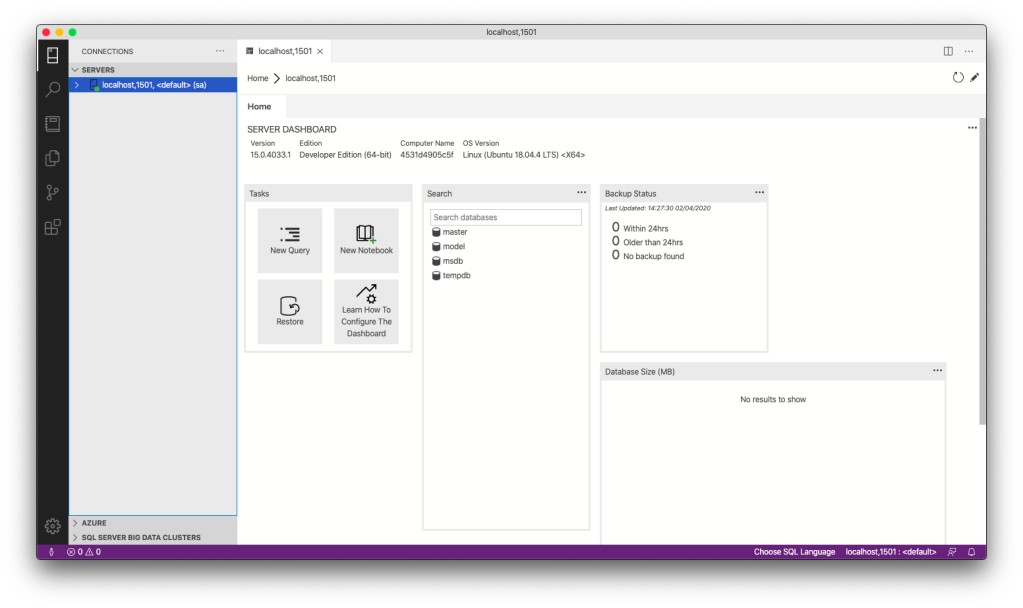
If the connection is successful, we shall be able to see the Server Dashboard as shown below.
🎨 Server Dashboard in Azure Data Studio. 🎨
That’s all. Now we can have MS SQL Server running on our Mac machine for local testing and development.
KOSD, or Kopi-O Siew Dai, is a type of Singapore coffee that I enjoy. It is basically a cup of coffee with a little bit of sugar. This series is meant to blog about technical knowledge that I gained while having a small cup of Kopi-O Siew Dai.
Starting from end of last year, I have been working on several UWP projects at work. Few days ago, I’m glad to have the opportunity to borrow a Surface Dial from Riza.
Surface Dial is a revolutionary input device. It was introduced by Microsoft in the 2016 together with Surface Studio. Most of the time, it works awesome on Surface devices. However, that doesn’t mean we can’t use it with our Windows desktop or laptop. As a secondary input device, it can be used together with our mouse or touch. Developers are also welcomed to customize the abilities of the Surface Dial on their UWP apps.
In this article, I will be sharing on how we can use Surface Dial to support a quick menu of commands in an UWP app.
Installing Surface Dial
First of all, we need to make sure our Windows device is on (Yes, UWP currently can only work on Windows machines). Then we need to turn on the Bluetooth on the machine. If our PC doesn’t come with the Bluetooth hardware installed, we can easily add it by purchasing a Bluetooth USB dongle.
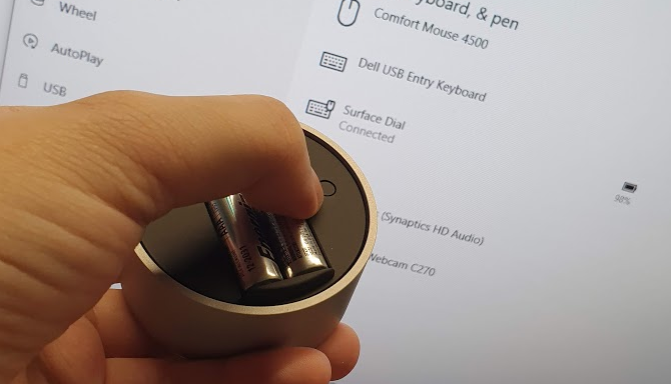
After that, we need to turn our Surface Dial on by removing the cover of its bottom and then pressing the button next to the batteries, as shown in the photo below.
🎨 Added Surface Dial to my PC. 🎨
Now we can find the Surface Dial on the “Bluetooth & other devices” window. We can proceed to add it to our PC.
Adding Menu on Surface Dial
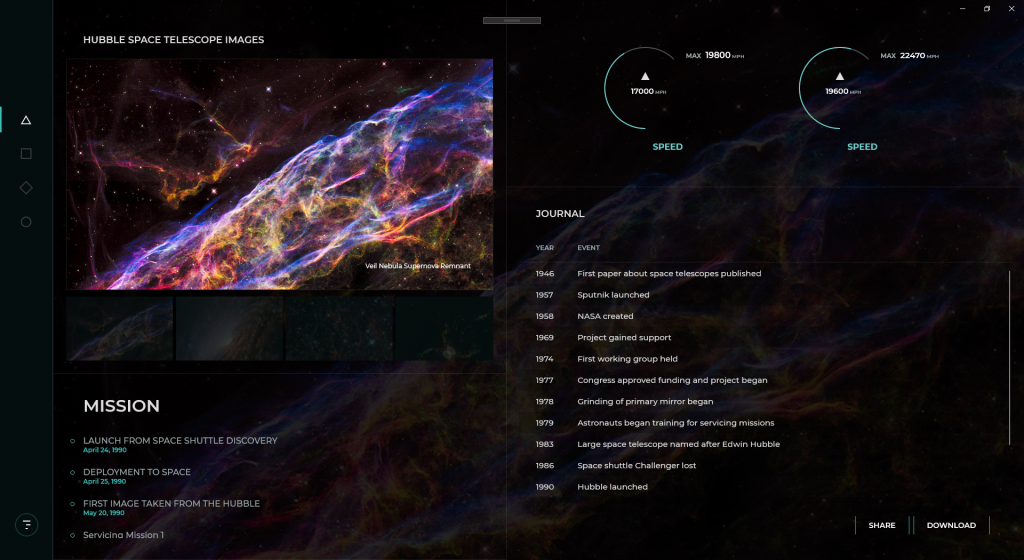
For those who attended my sharing in Microsoft Insider Dev Tour 2019 in Kuala Lumpur and Johor Bahru last year, the following UWP app should be familiar to you.
🎨 The UWP demo app done by Justin Liu for Microsoft Insider Dev Tour. 🎨
Now we will proceed to add Surface Dial menu to this page.
In the code-behind of the page, we will have the following global objects.
// Create a reference to the RadialController.
radialController = RadialController.CreateForCurrentView();
// Set rotation resolution to 1 degree of sensitivity.
radialController.RotationResolutionInDegrees = 1;
What does setting RotationResolutionInDegrees mean here? The value actually is the minimum rotation value required for the RotationChanged event to be fired. So, by setting it to 1, every one degree of rotate on the Surface Dial, the RotationChanged event will be triggered. Also, by default, when the RotationChanged happens, the Surface Dial will vibrate. So it is like massaging your hand when you’re rotating the Surface Dial that has its RotationResolutionInDegrees set to 1.
Then we can proceed to add our menu items to the Surface Dial. Here, we use a font glyph for the custom tool.
However, please take note that, by default, there are built-in menu items for the Surface Dial. So we need to remove them to prevent squeezing in too much menu items to the Surface Dial UI and thus making it harder to control.
To remove the built-in menu items, we just need to reset in the configuration of the Surface Dial. Another thing to take note is that the Surface Dial menu must have at least one menu item, else the default menu items will be restored.
Now there is a funny thing is that if we remove all the built-in menu items before we add our customized menu items, i.e swapping the position of the two blocks of codes above, then we will realize that the default menu items will be restored and our customized menu items will be appended to the default ones, as shown in the screenshot below.
🎨 Oh my tian, the buttons on the Surface Dial menu are so crowded! 🎨
Finally, if we want to handle the events fired from the Surface Dial, for example when users click on it or rotate it, we can use the following handlers.
Please take note that the ButtonClicked event is not triggered when a menu item is selected. Instead we need to do as follows to handle the menu item chosen event.
imageGallery.Invoked += ImageGallery_Invoked;
Result
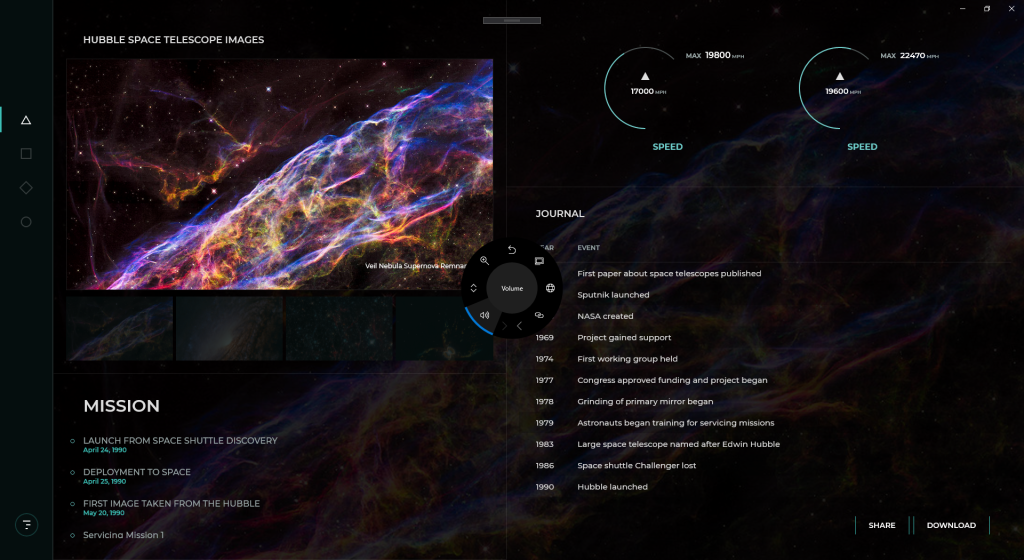
So, now, with all these few lines of codes, we can have a beautiful Surface Dial control on our UWP app, as shown in the following photo. Yay!
KOSD, or Kopi-O Siew Dai, is a type of Singapore coffee that I enjoy. It is basically a cup of coffee with a little bit of sugar. This series is meant to blog about technical knowledge that I gained while having a small cup of Kopi-O Siew Dai.
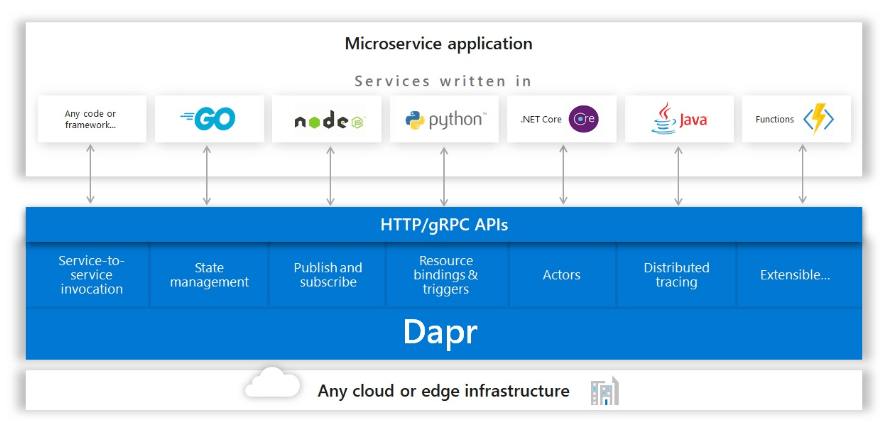
Dapr is an open-source, portable, and event-driven runtime which makes the development of resilient micro-service applications easier.
In addition, Dapr is light-weight and it can run alongside our application either as a sidecar process or container. It offers us some capabilities such as state management, which will be demonstrated in this article today, pub-sub, and service discovery which are useful in building our distributed applications.
🎨 Dapr building blocks which can be called over standard HTTP or gRPC APIs. (Image Credit: Dapr GitHub Project) 🎨
Dapr makes developer’s life better when building micro-service application by providing best-practice building blocks. In addition, since building blocks communicate over HTTP or gRPC, another advantage of Dapr is that we can use it with our favourite languages and frameworks. In this article, we will be using NodeJS.
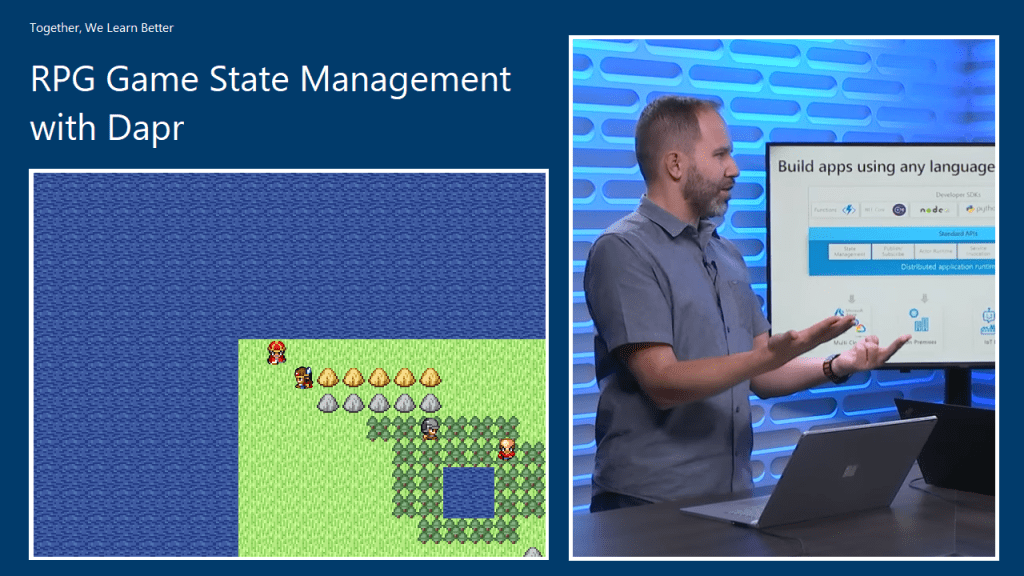
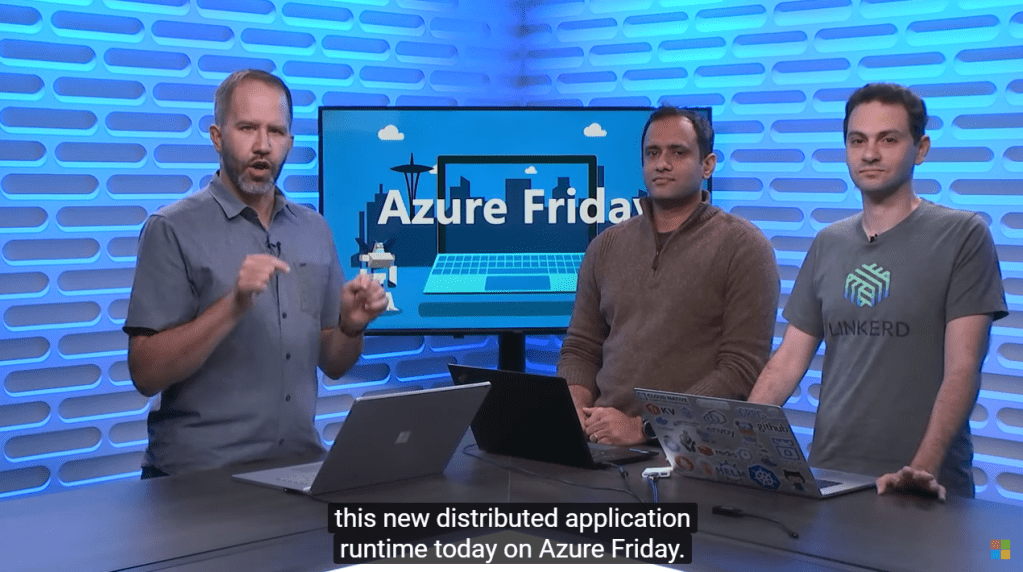
🎨 Yaron explains how developers can choose which building blocks in Dapr to use. (Image Source: Azure Friday) 🎨
In this article, we will be using only the state management feature in Dapr and using one of them doesn’t mean we have to use them all.
Getting Started
We will first run Dapr locally. Dapr can be run in either Standalone or Kubernetes modes. For our local development, we will run it in Standalone mode first. In the future then we will deploy our Dapr applications to Kubernetes cluster.
In order to setup Dapr on our machine locally and manage the Dapr instances, we need to have Dapr CLI installed too.
Before we begin, we need to make sure we have Docker installed on our machine and since the application we are going to build is a NodeJS RPG game, we will need NodeJS (version 8 or greater).
After having Docker, we can then proceed to install Dapr CLI. The machine that I am using is Macbook. On MacOS, the installation is quite straightforward with the following command.
For the project, we have two folders in the project root, which is backend and game.
🎨 Project structure. 🎨
The game project is just a normal NodeJS project where all the relevant codes of the html-rpg is located in the public folder. Then in the app.js, we have the following line.
app.use(express.static('public))
🎨 Four character types (from top to bottom): King, player, soldier, and minister. 🎨
We also update the code of html-rpg so that whenever the player encounters the soldier or the minister face-to-face, the player HP will drop 10 points. To do so, we simply send HTTP POST request to the Dapr instance which is listening on port 4001 (will explain where this port number comes from later).
...
var data = {};
data["data"] = {};
data["data"]["playerHp"] = map.playerHp;

// construct an HTTP request
var xhr = new XMLHttpRequest();
xhr.open("POST", "http://localhost:4001/v1.0/invoke/backend/method/updatePlayerHp", true);
xhr.setRequestHeader('Content-Type', 'application/json; charset=UTF-8');

// send the collected data as JSON
xhr.send(JSON.stringify(data));
...
In the backend project, we will have the code to handle the /updatePlayerHp request, as shown in the code below.
The code above will get the incoming request and then persist the payer HP to the state store.
CosmosDB as State Store
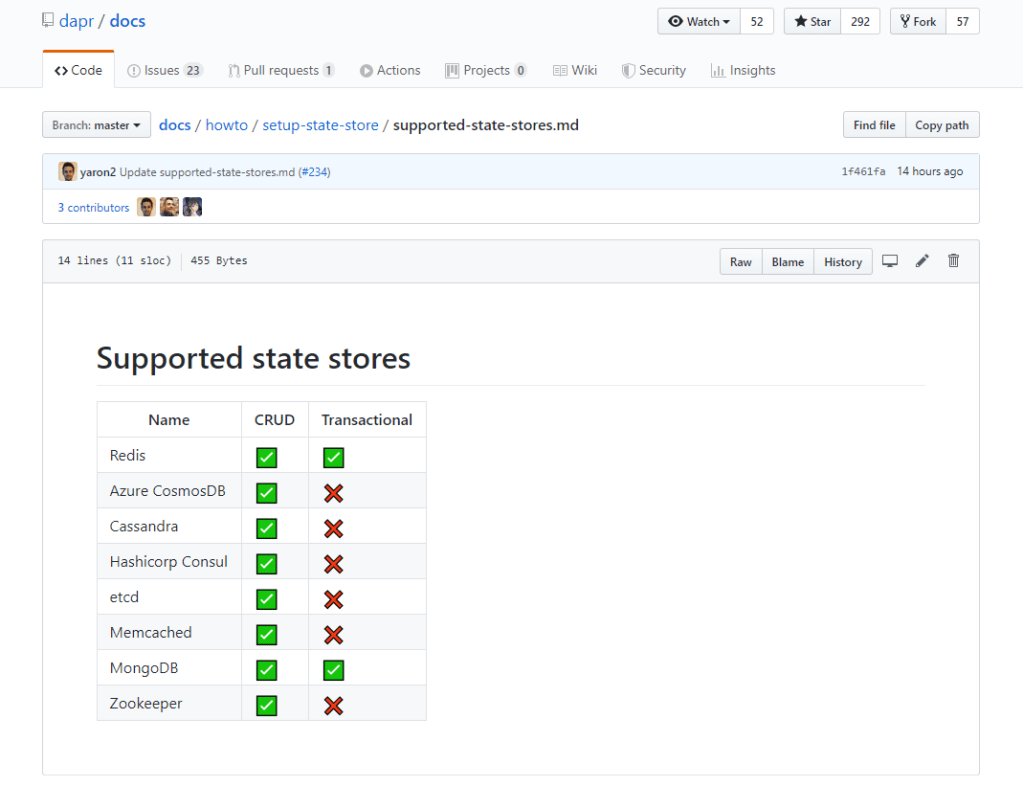
By default, when we run Dapr locally, Redis state store will be used. The two files in the components directory in the backend folder, i.e. redis_messagebus.yaml and redis.yaml are automatically created when we run Dapr with the Dapr CLI. If we delete the two files and run Dapr again, it the two files will still be re-generated. However, that does not mean we cannot choose another storage as state store.
The four required values above can be retrieved from the CosmosDB page on the Azure Portal. There is, however, one thing that we need to be careful, i.e. the Partition Key of the container in CosmosDB.
🎨 Partition Key is a mandatory field during the container creation step. 🎨
When I was working on this project, I always received the following error log from Dapr.
== APP == Failed to persist state: Internal Server Error
I had a great discussion with Yaron on GitHub and he agreed to update the documentation to highlight the fact that we must use “/id” as the partition key.
So, after correcting the partition key, I finally can see the state stored on CosmosDB.
🎨 CosmosDB reflects the current HP of the player which has dropped from 100 to 60. 🎨
For personal learning and knowledge sharing purposes, I decide to note down what I have tried out with O2DES.NET so far.
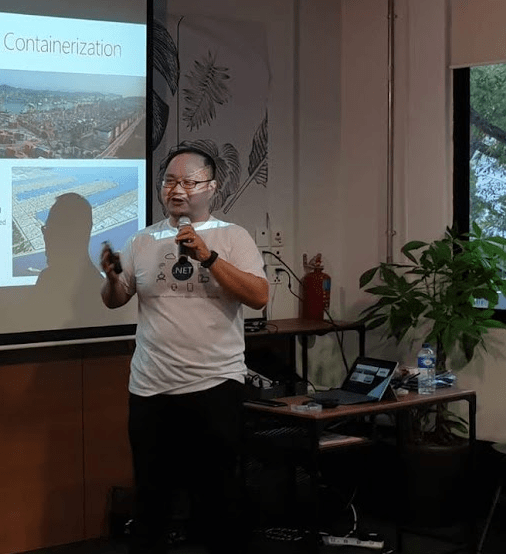
Professor Li Haobin is talking about Docker and containerisation in .NET Conf SG 2019. (Photo Credit: Singapore .NET Developers Community)
What is O2DES?
O2DES.NET is a simulation framework. It is a project started in 2014 by the team and later is used for simulation modelling of mega container port in 2016. Now the team is still actively working on this open-source framework.
O2 stands for Object Oriented and DES stands for Discrete-Event Simulation. I think most of you should have already known about object oriented programming, so I won’t talk about it here.
In the real world, a queue in a restaurant can be modelled for DES. Both the customer queue and the staff can be the system entities. The system events can then be CustomerArrival, FoodOrder, and CustomerDeparture. The random variables characterised to model this system are food ordering time and the customer inter-arrival time.
This actually brings up another interesting point is that, in order to find out the best time to finish the food ordering for the restaurant, we need to use simulation instead of AI.
Modelling and Simulation
So how do we exactly define modelling and simulation?
Simulation of a system is the process of using the model to analyse the performance of the system.
Hence with these two techniques, we can easily understand how the system actually operates. From there, we can then can test and diagnose problems in the system.
Getting Started: Our Basic Model
As a quick start, what we will do is to create a console demo app. Here, we will be using .NET Core 3.0.
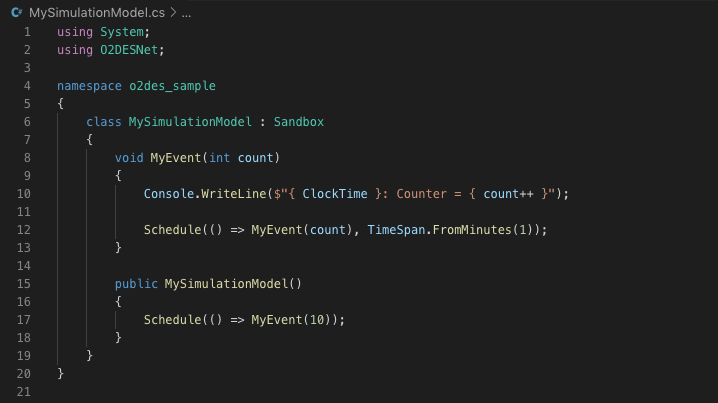
Now we can proceed with our Hello World model which is extended from the abstract class Sandbox from the O2DES.NET library. The following screenshot shows how we do it.
Simple model.
Here we have only one event which is called MyEvent. When this event happens, it will print a line to the console. After that it will schedule next MyEvent in one minute later.
In the simulator constructor, we will schedule our first event which will be executed immediately without any delay.
What is ClockTime? ClockTime is a DateTime variable in Sandbox and its initiate value is DateTime.MinValue. With the Schedule function defined in Sandbox class, the ClockTime will increase by the number of minute based on what we have input.
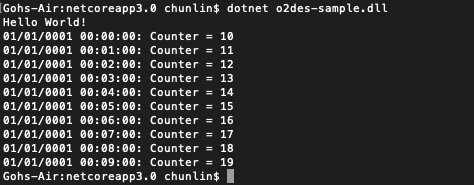
Here, our sample code says TimeSpan.FromMinutes(1), so the console will print the following.
Each line is printed based on the 1-minute schedule.
There are 10 lines above. So does that mean we need to wait 10 minutes to get all of the lines printed? Nope. Since the Sandbox is stimulating time by doing the time ticking, so the time is not our real time. Hence, if we change to print DateTime.Now instead of ClockTime, we will see multiple lines of the same time.
So, why there are only 10 lines printed? It is not because we put in 10 in the MyEvent method. That one is the initial integer for the counter. We need to move on to see how we actually run the model.
stimulation.Run(10) is the reason why only 10 lines printed.
So from this sample code, what we can know is that events can be declared with any number of input parameters because it’s just a normal C# method. However, the return type of the events must always be void. Hence, a void member method of the model class is indifferent from an event.
Also, Professor Li pointed out that all events have to be declared in a model class which it belongs to.
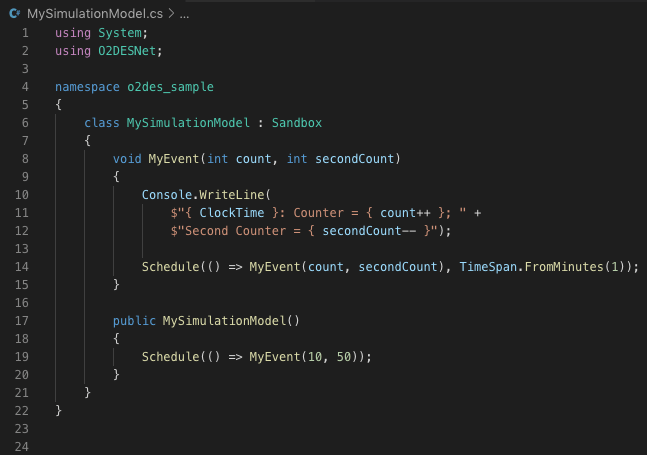
Updated the event to have two parameters.
In addition, with multiple events in a model, one event can also trigger an immediate execution of another event just simply by invoking it as a method.
MyEvent calls MyEventTwo. Can you tell what the outcome is? (Answer below)
Running the model above will have the following results.
Outcome.
What we have seen so far are events in atomic model, i.e. all the events are in a single class. However, what if we have a more complicated system with multiple sub-systems? Luckily, O2DES.NET supports modularisation as well.
For example, we can add the “public” access specifier to the event method, so it can be called from outside of the module.
MyEventTwo now can be accessed from other classes.
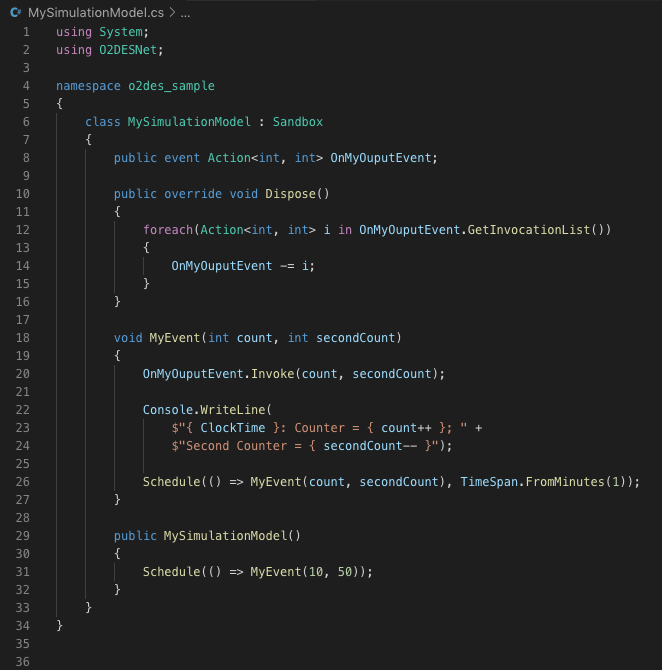
We can also further introduce publisher-subscriber pattern into our model so that we can invite subscribers to subscribe our events.
Declared a publisher method OnMyOutputEvent which can be subscribed.
With the event keyword, it means the OnMyOutputEvent can only be triggered from inside the module, which is through Invoke().
We also added Dispose() method to remove subscribers from the event so that there will be no memory leak.
Now, as an Action type, the event can be subscribed by any external parties which can handle the same parameters.
Scheduling
As we can see in our sample, we have two types of scheduling. First is we call schedule without any parameter, as shown below.
Schedule(() => MyEvent(10, 50));
This means the event will be triggered immediately at the current clock time.
We have also scheduled the event to be called in one minute later by specifying a timespan of one minute.
The first line will thus print “01/01/0001 00:15:00” instead of “01/01/0001 00:00:00”.
Interestingly, the O2DES.NET library also offers methods to generate random time delay based on various statistical distribution. For example, we can have the following.
Using O2DESNet.Distributions to generate random time delay.
Another interesting stuff to take note is the DefaultRS which stands for default random stream. For those who are familiar with MATLAB, random stream should sound familiar to you. The streams can be thought of as a list of pseudo-random numbers that are generated. A stream of random numbers is used to generate samples from the various distributions defined in our model. We are allowed to initiate it with various seed in O2DES.NET.
So running the program above which now has random time delay, we will get something quite similar to the following outcome.
The timespans are different now.
Conclusion
That’s all what I have learned so far. The half-an-hour talk delivered by Profession Li is indeed very interesting and what I have covered here is only the O2DES.NET library part. If you are interested to know more, please refer to the links in References below for more details about this open-source project.











 cuteprogramming