Headless Raspberry Pi 3 Model B SSH Setup on macOS

Image Source: Circuit Board

Two years ago when I visited Microsoft Singapore office, their engineers, Chun Siong and Say Bin, gave me Satya Nadella’s book, Hit Refresh, as well as a Raspberry Pi 3 as gift.

In fact I also got another Raspberry Pi from my brother few years ago and it was running on Windows 10 IoT. It is now in my office together with monitor, keyboard, and mouse. Due to the covid lockdown, I am not allowed to go back to office yet. Hence, I think it’s time to see how we can setup this new Raspberry Pi for headless SSH access with my MacBook.

The method I use here is the headless approach which is suitable if you don’t have access to the GUI to set up a wireless LAN on the Raspberry Pi. Hence, you don’t need to connect monitor, external keyboard, or mouse to the Raspberry Pi at all.

[Image Caption: Enjoying tea break with Chun Siong (Left 1) and Say Bin (Right 2) in October 2018.]

Step 0: Things to Purchase

Besides the Raspberry Pi, we also need to get some other things ready first before we can proceed to setup the device. Most of the things here I bought from Challenger.

Item 1: Toshiba microSDHC UHS-I Card 32GB with SD Adapter

Raspberry Pi uses a microSD card as a hard drive. We can either use a Class 10 microSD card or UHS for Ultra High Speed. Here we are using UHS Class 1. The reason why we do not choose anything greater than 32GB is also because according to the SD specifications, any SD card larger than 32GB is an SDXC card and has to be formatted with the exFAT filesystem which is not supported yet by the Raspberry Pi bootloader. There is of course solutions for this if more SD space is needed for your use cases, please read about it more on Raspberry Pi documentation. The microSD card we choose here is a 32GB SDHC using FAT32 file system which is supported by the Raspberry Pi, so we are safe.

Item 2: USB Power Cable

All models up to the Raspberry Pi 3 require a microUSB power connector (Raspberry Pi 4 uses a USB-C connector). If your Raspberry Pi doesn’t come with the power supply, you can get one from the official website which has the official universal micro USB power supply recommended for Raspberry Pi 1, 2, and 3.

Item 3: Cat6 Ethernet Cable (Optional)

It’s possible to setup Raspberry Pi over WiFi because Model 3 B comes with support of WiFi. However to play safe, I also prepare an Ethernet cable. In the market now, we can find Cat6 Ethernet cable easily which is suitable for transferring heavy files and communication with a local network.

Item 4: USB 2.0 Ethernet Adapter (Optional)

Again, this item is optional if you don’t plan to setup the Raspberry Pi through Ethernet cable and you are not using a machine like MacBook which doesn’t have an Ethernet port.

Step 1: Flash Raspbian Image to SD Card

With the SD card ready, we can now proceed to burn the OS image to it. Raspberry Pi OS (previously called Raspbian) is the official operating system for all models of the Raspberry Pi. There are three types of Raspberry Pi OS we can choose from. Since I don’t need to use the desktop version of it, I go ahead with the Raspberry Pi OS Lite, which is also the smallest in size. Feel free to choose the type that suits your use case most.

[Image Caption: There are three types of Raspberry Pi OS for us to choose.]

Take note that here the Raspberry Pi OS is already based on Debian Buster, which is the development codename for Debian 10 released in July 2019.

After downloading the zip file to MacBook, we need to burn the image to the SD card.

Since the microSD card we bought above comes with the adapter, so we can easily slot them into the MacBook (which has a SD slot). To burn the OS image to the SD card, we can use Etcher for macOS.

[Image Caption: To use Etcher is pretty straight forward.]

The first step in Etcher is to select the Raspberry Pi OS zip file we downloaded earlier. Then we select the microSD card as the target. Finally we just need to click on the “Flash!” button.

After it’s done, we may need to pull out the SD card from our machine and then plug it back in in order to see the image that we flash. On MacBook, it is appears as a volume called “boot” in the Finder.

Step 2: Enabling Raspberry Pi SSH

To enable SSH, we need to place an empty file called “ssh” (without extension) in the root of the “boot” with the following command.

touch /Volumes/boot/ssh

This will later allow us to login to the Raspberry Pi over SSH with the username pi and password raspberry.

Step 3: Adding WiFi Network Info

Again, we need to place a file called “wpa_supplicant.conf” in the root of the “boot”. Then in the file, we will put the following as its content.

network={
    ssid="NETWORK-NAME"
    psk="NETWORK-PASSWORD"
}

The WPA in the file name stands for WiFi Protected Access, a security and security certification program built by the Wi-Fi Alliance® to secure wireless computer networks.

The wpa_supplicant is a free software implementation of an IEEE 802.11i supplicant (To understand what supplicant is, please read here). Using wpa_supplicant to configure WiFi connection on Raspberry Pi is going to be straightforward.

Hence, in order to setup the WiFi connection on the Raspberry Pi, now we just need to specify our WiFi network name (SSID) and its password in the configuration of the wpa_supplicant.

Step 3a: Buster Raspberry Pi Onwards

[Image Caption: The new version of Raspberry Pi OS, Buster, was released in June 2019.]

However, with the latest Buster Raspberry Pi OS release, we must also add a few more lines at the top of the wpa_supplicant.conf as shown below.

ctrl_interface=DIR=/var/run/wpa_supplicant GROUP=netdev
update_config=1
network={
    ssid="NETWORK-NAME"
    psk="NETWORK-PASSWORD"
}

The “ctrl_interface” is for the control interface. When it’s specified, wpa_supplicant will allow external programs to manage wpa_supplicant. For example, we can use wpa_cli, a WPA command line client, to interact with the wpa_supplicant. Here, “/var/run/wpa_supplicant” is the recommended directory for sockets and by default, wpa_cli will use it when trying to connect with wpa_supplicant.

In the Troubleshooting section near the end of this article, I will show how we can use wpa_cli to scan and list network names.

In addition, access control for the control interface can be configured by setting the directory to allow only members of a group to use sockets. This way, it is possible to run wpa_supplicant as root (since it needs to change network configuration and open raw sockets) and still allow GUI/CLI components to be run as non-root users. Here we allow only members of “netdev” who can manage network interfaces through the network manager and Wireless Interface Connection Daemon (WICD).

Finally, we have “update_config”. This option is to allow wpa_supplicant to overwrite configuration file whenever configuration is changed. This is required for wpa_cli to be able to store the configuration changes permanently, so we set it to 1.

Step 3b: Raspberry Pi 3 B+ and 4 B

According to the Raspberry Pi documentation, if you are using the Raspberry Pi 3 B+ and Raspberry Pi 4 B, you will also need to set the country code, so that the 5GHz networking can choose the correct frequency bands. With the country code, it looks something as such. 

country=SG
ctrl_interface=DIR=/var/run/wpa_supplicant GROUP=netdev
update_config=1
network={
ssid="NETWORK-NAME"
psk="NETWORK-PASSWORD"
}

The first line is setting the country in which the device is used. Its value is the country code following ISO 3166 Alpha-2 country code. Here I put SG because I am now in Singapore.

Take note that, Raspberry Pi 3 B doesn’t support 5GHz WiFi networks. It only can work with 2.4GHz WiFi networks.

In the place where I am staying, we have a dual-band router. It uses two bands: 2.4GHz and 5GHz. So my Raspberry Pi can only connect to the 2.4GHz WiFi network.

By the way, 5GHz WiFi or 5G WiFi has nothing to do with the 5G mobile network. =)

Trump bans Huawei 5G in the U.S.
[Image Caption: 5GHz WiFi, or normally referred to as “5G WiFi”, has nothing to do with the new 5G mobile network that is widely discussed now. The 5G in mobile network stands for “5th Generation” instead. (Image Source: CityNews News 1130)]

Step 4: Boot the Raspberry Pi

Now we can eject the SD card from our MacBook and plug it into the Raspberry Pi. After that, we proceed to power on the Raspberry Pi after plug the USB power cable into it.

By default, the hostname of a new Raspberry Pi is raspberrypi. Hence, before we proceed, we need to remove all the keys belonging to raspberrypi.local with the following command, just so that we have a clean start.

ssh-keygen -R raspberrypi.local

Don’t worry if you get a host not found error for this command.

Of course, if you know the Raspberry Pi IP address, you can use its IP address as well instead of “raspberrypi.local”.

Next, let’s login to the Raspberry Pi with the following commands using the username and password in the Step 2 above.

ssh pi@raspberrypi.local

Step 5: Access Raspberry Pi Successfully

Now we should be able to access the Raspberry Pi (If not, please refer to the Troubleshooting section near the end of this article).

Now we have to do a few additional configurations for our Raspberry Pi using the following command.

sudo raspi-config
[Image Caption: Configuration Tool of our Raspberry Pi.]

Firstly, we need to change the password by selecting the “1 Change User Password” item as shown in the screenshot above. Don’t use the default password for security purposes.

Secondly, we also need to change the hostname of the device which is under the “2 Network Options” item. Don’t always use the default hostname else we will end up with many Raspberry Pi using the same “raspberrypi” as the hostname.

Thirdly, under the “4 Localisation Options”, please make sure the Locale (by default should be UTF-8 chosen), Time Zone, and WLAN Country (should be the same we set in Step 3b) are correct.

[Image Caption: Since I am in Singapore, so I choose “Asia” here.]

Finally, if you are also on a new image, we are recommended to expand the file system under the “7 Advanced Options” item.

[Image Caption: Ensuring all of the SD card storage is available to the OS.]

Now we can proceed to reboot our Raspberry Pi with the following command.

sudo reboot

Step 6: Get Updates

After the Raspberry Pi is successfully rebooted, please login to the device again to do updates with the following commands.

sudo apt-get update -y
sudo apt-get upgrade -y

After this, if you would like to switch off the Raspberry Pi, please shut it down properly with the following command else it may corrupt the SD card.

sudo shutdown -h now
[Image Caption: It’s important that our Raspberry Pi gets a clean shutdown else there may be a variety of issues including corruption of our SD card and file system. (Image Source: BC Robotics)]

Troubleshooting WiFi Connection

When I first started connecting to the Raspberry Pi over WiFi, the connection always fails. That’s why in the end I chose to connect the Raspberry Pi with my laptop through Ethernet cable first before I could do some troubleshooting.

Connecting with Ethernet Cable

To connect to the Raspberry Pi via Ethernet cable, we just need to make sure that in the Network settings of our MacBook, the Ethernet connection status is connected, as shown in the following screenshot.

[Image Caption: Connected!]

We also have to make sure that we have “Using DHCP” selected for “Configure IPv4” option. Finally, we also need to check that the “Location” at the top of the dialog box has “Automatic” selected for this Ethernet network configuration.

That’s all to setup the Ethernet connection between the Raspberry Pi and our MacBook.

Troubleshooting the WiFi Connection

If you also have problems in WiFi connection even after you have rebooted the Raspberry Pi, then you can try the following methods after you can access the Raspberry Pi through Ethernet cable.

  1. To get the network interfaces:
    ip link show
  2. To list network names (SSID):
    iwlist wlan0 scan | grep ESSID
  3. To edit or review the WiFi settings on the Raspberry Pi:
    sudo nano /etc/wpa_supplicant/wpa_supplicant.conf
  4. To show wireless devices and their configuration:
    iw list

In the output of iwlist wlan0 frequency command, we can see that all broadcasting WiFi channels are having frequency in the 2.4GHz range, as shown in the following screenshot. Hence we know that the Raspberry Pi 3 Model B can only do 2.4GHz.

[Image Caption: Raspberry Pi 3 Model B does not support 5GHz WiFi networks.]

This is a very crucial thing to take note of because I wrongly set the SSID of a 5GHz WiFi network in the WPA Supplicant configuration file and the Raspberry Pi could not connect to the WiFi network at all.

We can also use wpa_cli to scan and list the network names, as shown in the following screenshot.

[Image Caption: Using wpa_cli to scan for the network.]

In the above scan results, you can see that there are 12 networks that the Raspberry Pi can pick up, the frequency that they are broadcasting on (again, it is shown in the range of 2.4GHz), the signal strength, the security type, and network name (SSID).

You may ask why I need to specify the interface in the wpa_cli command. This is because wpa_cli default interface is actually not the correct WiFi interface the Raspberry Pi has. As shown in the command “ip link show”, we are using wlan0 for WiFi connection. However, if we don’t specify the interface in wpa_cli, then we will get the following issue.

[Image Caption: Oh no, no network results found in the scan_result.]

This is the problem discussed in the Arch Linux forum and solved in February 2018.

Conclusion

That’s all to get my Raspberry Pi up and running. Please let me know in comment section if you have any doubts about the steps listed above.

Here, I’d like to thank Mitch Allen for writing the great tutorial on how to setup Raspberry Pi over WiFi. His tutorial also includes instructions for Windows users, so if you are on Windows, please refer to his tutorial as well.

References

Experience in My First Lightning Talk after the University

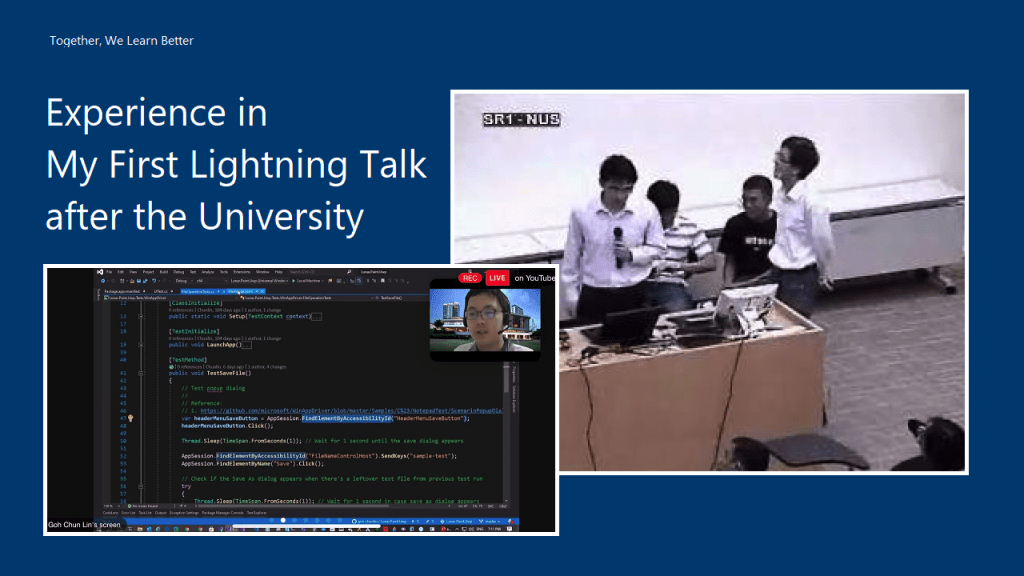
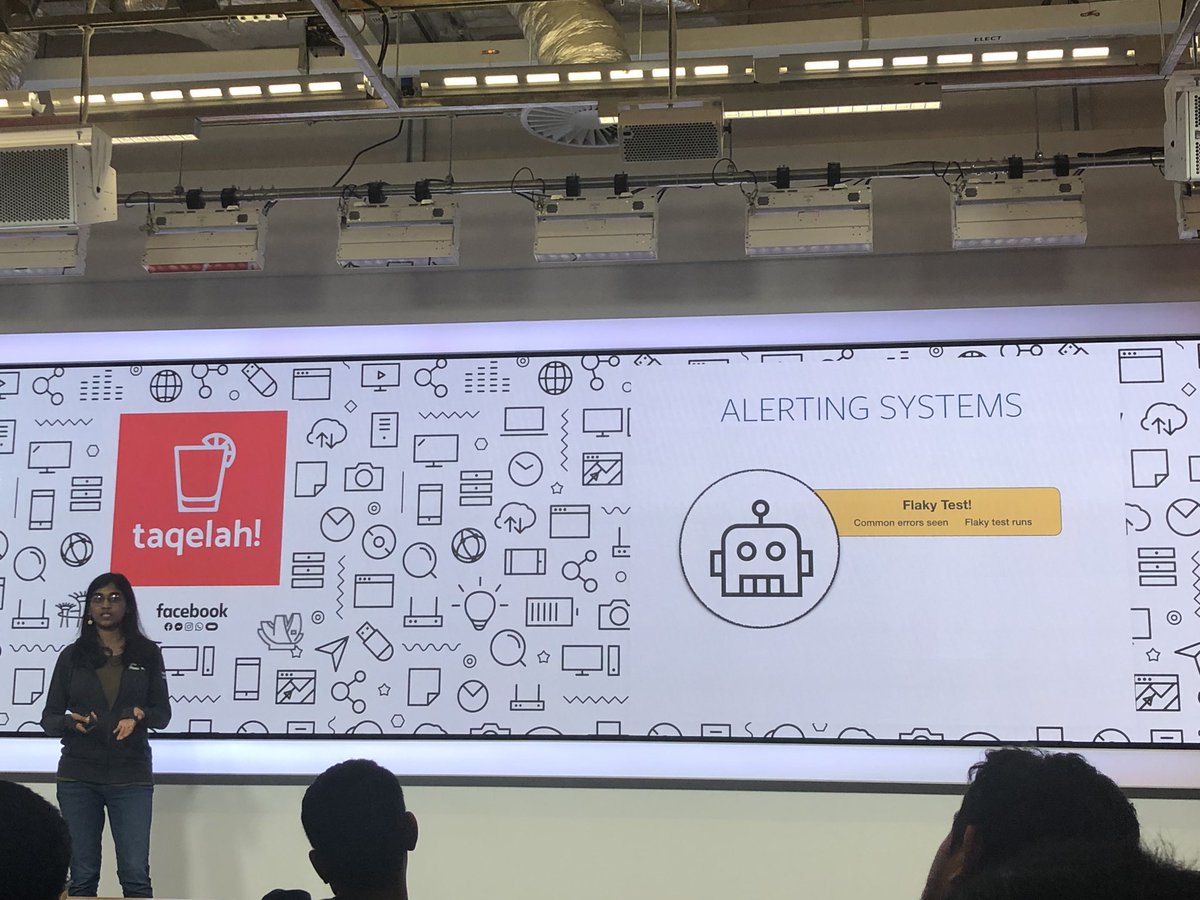
It has been almost a decade since I was given an opportunity to be a speaker in a lightning talk session. My previous lightning talk was given when I was a student in Dr Damith‘s class back in National University of Singapore (NUS). This year, I am glad to be one of the 15 speakers in TAQELAH lightning talk session focusing on different aspects of test engineering and test automation.

[Image Caption: Giving lightning talk about SOA in NUS with friends when I was a student there.]

After graduation from the NUS, I always gave talks in several .NET and Microsoft Azure related events. I was always given the time which is more than enough to cover the entire topic. For example, last year, I was giving a one-hour talk in the Sarawak university. Hence, giving a lightning talk which I’m only allocated a 10-minute slot is very challenging to me.

In order to help me to better prepare for future talks, I thus would like to note down some of the key things in my preparation journey for this 10-min lightning talk. I hope my notes here will help those who are new to giving talks as well.

taqelah hashtag on Twitter
[Image Caption: In the past, TAQELAH meetup was hosted offline. After the COVID-19, all meetups have to move to online but that does not stop more than 500 people signing up for their online meetup event. (Image Source: Glen Fey’s Twitter)]

Content Preparation

Normally, as a speaker, we can choose the topic that we’d like to talk about ourselves. Hence, it’s very important to choose a relevant topic which is going to be useful to the audience.

On top of that, it’s better to share something that we are already quite familiar with or we have been using for quite a while. So I’d never shared anything about Kubernetes, Blockchain, or any other cool technologies in the public talk because I totally have no experience with them even though there are the “hot” topics that will excite the audience.

The topic I choose for TAQELAH sharing session is about doing GUI test automation for UWP apps with Appium and WinAppDriver. I am actually using the same tools in my work. Besides, I have also blogged about it and shared the knowledge with my teammates earlier. So I know at least I don’t make any huge mistake in my blog post. Thus, the content that I use for the talk is mostly from the blog post. This saves me a lot of time on preparing it and I am sure that it’s helpful to other people who are facing the same issues as me in UWP GUI testing.

Another good thing for having a blog post for our topic is that audience can refer to it for more details after the event because to cover all details in a lightning talk is impossible. So that is one way to keep in touch with the audience as well.

Rehearsal and Dry Run

The actual event was on Saturday and I had started prepared for it since Sunday, i.e. 6 days before the event. Everyday I took about one hour to practice it.

Fortunately, TAQELAH team is very friendly that they specially arrange a section for me to do a dry run on Friday evening, which is one day before the event. Not only that, the organising team has also grouped all the speakers in both Telegram and Slack. So we are all always kept updated with the latest arrangement or other news about the event.

So I really must thank the team for putting so much effort to make this event a successfuly one.

[Image Caption: TAQELAH team specially organised a dry run session for speakers before the event.]

Notion and OBS

I have the speech transcript prepared so that I know what to say. Here I am using an app called Notion because it comes with both desktop and app versions for free.

Few days before the talk, I started to work on my speech. After that I used OBS to record down my rehearsals. This helps me to easily time my speech and listen to my voice over the microphone.

So after changing the script for about 10 times, I came up with the final version that I will be using for the talk. In fact, I keep on changing the script until the day itself. Finally I managed to cut down my talk to be less than 8 minutes.

Another thing that I like about Notion is that I can lock the document on the app and prevent me to accidentally edit it while scrolling through it on the phone. So I can easily refer to the script during my talk. Even though I don’t entirely follow the script because it will be quite difficult to look at two screens at the same time, the script helps keeping my talk within the time limit.

Notion's powerful note-taking app is now free for students and teachers -  The Verge
[Image Caption: How Notion looks like. (Image Source: The Verge)]

Noted down Required Programs

If we have demos in our presentation. It’s also important to note down the programs that are needed. In addition, it is better if those programs are launched before the presentation so we don’t have to spend the time opening the programs one by one.

One hour before my presentation, I realised that the Test Explorer in my Visual Studio suddenly couldn’t run the tests. I had no time to find out the reasons. Instead, I chose to restart the computer. Luckily, the restart helped to fix the issue. Also, since I have the list of programs that are needed, after the restart, I easily setup all the programs for demo in less than one minute.

Mute the Notification

It’s important to make sure that all programs that can show notifications, such as Microsoft Teams, Outlook, Whatsapp, etc are muted or closed during the presentation so that there won’t be any interruption happened during the talk.

Easter Egg

Before it’s my turn, I was listening to the sharing done by other speakers in the session. Interestingly, there are speakers talking tools and concepts which are important in my sharing. Hence, I decided to refer to their talk during my sharing to show that the entire session is related to each other. Hopefully this helps the audience to better learn in the session by combining different pieces of information.

Conclusion

Congratulations and thank you to the TAQELAH team for the awesome event. Good job for the speakers and audience for participating in this sharing session on a rainy Saturday as well.

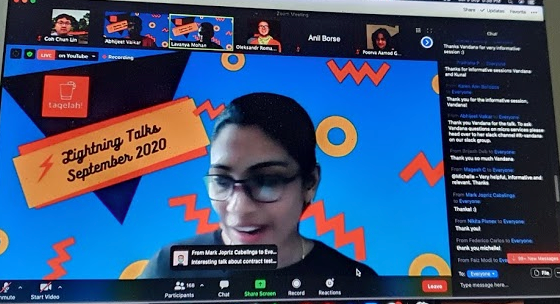
[Image Caption: Lavanya Mohan from TAQELAH team introducing about the event.]

Smart Contracts and Azure Blockchain Service

On 30th July, I’m glad to attend the webinar “Percolation Framework for Loss Distribution of Smart Contract Risks”, which is organised by National University of Singapore.

Assistance Prof. Petar Jevtić from Arizona State University is invited as the webinar key speaker. Prof Jevtić’s research focus is on the modelling of risk with primary applications in Actuarial Science and Mathematical Finance. During the webinar, he shared with us his work done together with Nicolas Lanchier. Since the topic is related to Smart Contracts, in the beginning of his talk, he gave us a clear definition of Smart Contract from Nick Szabo.

For those who have been following Blockchain news, the name “Nick Szabo” should sound familiar because Nick Szabo is the computer scientist known for research in digital currency. Most importantly, although he has repeatedly denied it, people suspect that he is the bitcoin founder, Satoshi Nakamoto.

🎨 Topic and synopsis of the webinar. 🎨

Smart Contracts

So, what is a Smart Contract?

The contract, a set of promises agreed to in a “meeting of the minds”, is the traditional way to formalise a relationship. We sign many different types of contracts in our lives, for example work contract, sale agreement, tenancy agreement, etc. Some of the major problems with the traditional contracts are drafting it takes a long time and we have to go to the hassle of hiring lawyers and detailing every term and condition of the agreement. Hence, what if the contract comes in a digital form where we can code it and then it can understand and execute its own terms?

Smart Contract, according to Nick Szabo, is first defined in 1990s as “a set of promises, specified in digital form, including protocols within which the parties perform on these promises“. So, Smart Contract is a computer program or a transaction protocol which is able to automate a good deal of the contracting process, without anyone intervening.

Since Smart Contract can map legal obligation into an automated process, Smart Contract helps us to reduce the need in trusted intermediators, enforcement cost, and fraud losses by formalising and securing relationships over computer networks.

Azure Blockchain Service (ABS)

When we talk about Smart Contract, there is one thing that we definitely have to discuss as well, i.e. the Blockchain technology. Both of them are of intense interest to businesses. The Smart Contracts are stored on blockchain. It’s extremely difficult for the blockchain system to be corrupted as it would require enormous computing power to override the whole network.

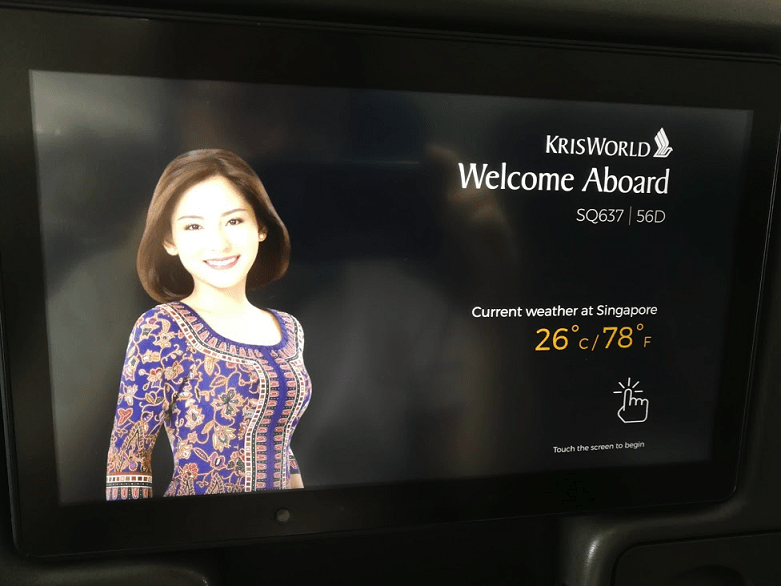
🎨 Taking Singapore Airlines flight from Japan to Singapore. 🎨

Singapore Airlines is one of those businesses that adopt the blockchain technology. In 2018, Singapore Airlines used Azure to convert customers’ airline miles into blockchain-based token which can then be spent across a network of retail partners. They are currently also evaluating Azure Blockchain Service (ABS), the new Microsoft managed service offering for blockchain.

ABS is a fully-managed ledger service in Azure announced in May 2019. With ABS, customers do not need to worry about developing and maintaining the underlying blockchain infrastructure.

🎨 Azure Blockchain Service is still in preview in July 2020. 🎨

There are a few things that I’d like to share regarding the ABS, even though it is still in preview now (as of July 2020).

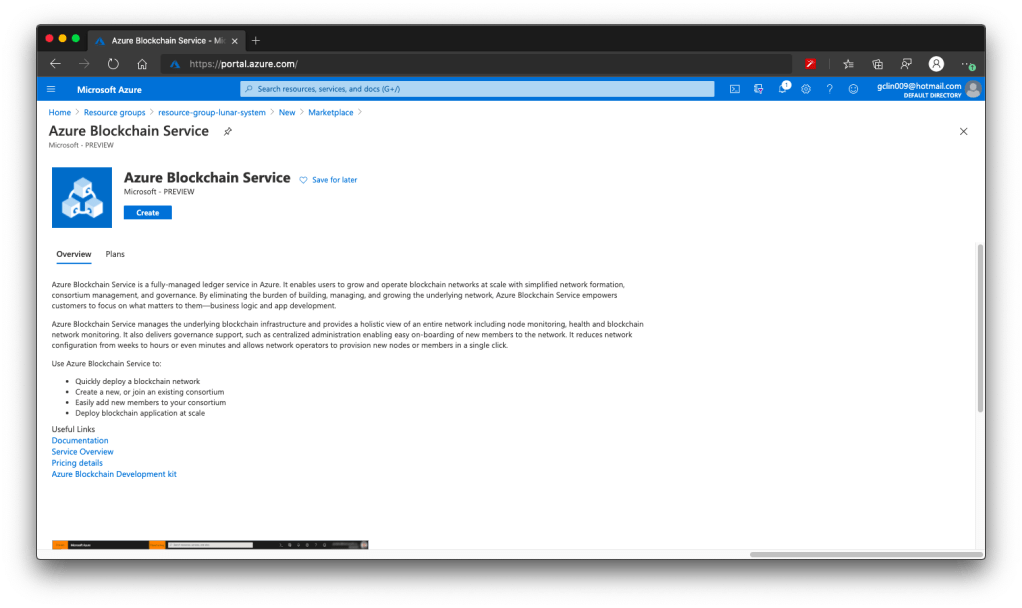
Firstly, currently the ABS is supported only in a few regions, such as Southeast Asia, West Europe, East US, and so on, as shown in the following screenshot.

🎨 The supported regions in Azure Blockchain Service. 🎨

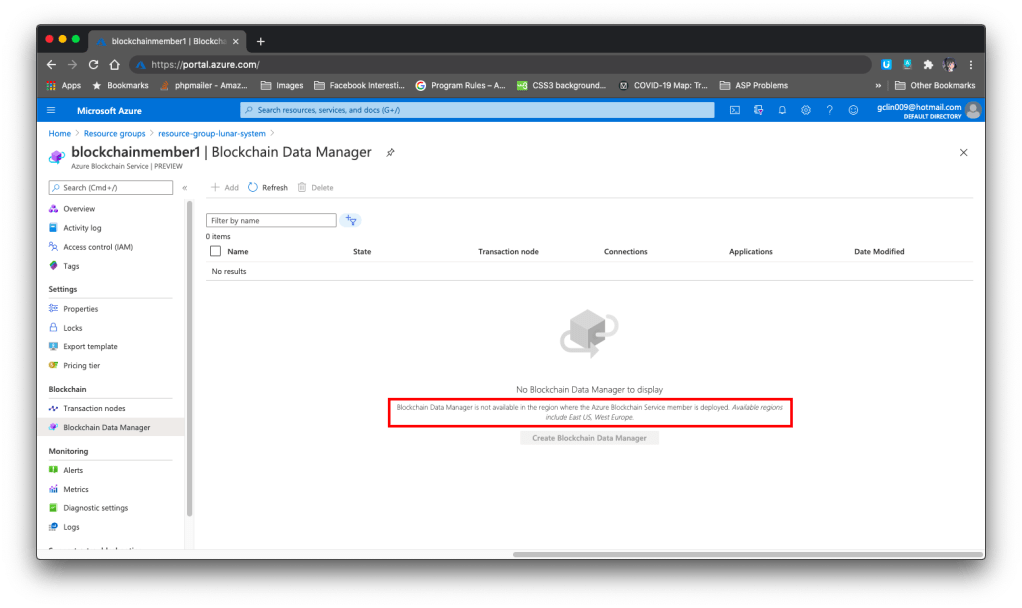
However, if we would like to capture, transform, and delivers transaction data using the Blockchain Data Service, then we have to be extra careful in choosing the region. As of July 2020, Blockchain Data Manager is only available in the East US and West Europe regions. Hence, if we choose any region outside of the two, we will not be able to access the Blockchain Data Manager, as shown in the screenshot below.

🎨 Blockchain Data Manager is only available in the East US and West Europe regions. 🎨

Secondly, as shared by Mark Russionovich, the Azure CTO, in his announcement of ABS, Microsoft is partnering with J.P. Morgan to make Quorum the first ledger available in the service. What is Quorum? Quorum is an Ethereum-based distributed ledger protocol with transaction/contract privacy and new consensus mechanisms.

Hence, we need to know that currently ABS supports only Quorum as the ledger protocol.

Thirdly, if we would like to have some sample codes on how to interact with the transaction nodes on the blockchain, there are a few samples available on the Azure Portal where we can refer to, as shown in the following screenshot.

🎨 Sample codes on how to connect to the transaction node. 🎨

Currently it takes about 10 minutes to create an ABS successfully on the Azure Portal.

Local Deployment of Smart Contracts, Problems Encountered, and GitHub Issues

With the Azure Blockchain Development Kit for Ethereum extension, we can connect to the ABS consortium from the Visual Studio Code. With the development kit, developers can easily create, connect, build, and deploy smart contracts locally.

There is a very good quick-start guide on how to do all these on Microsoft Docs, so I will not talk about it here. Instead, I will share about problems that I encounter during the development and deployment phases.

As mentioned in the Microsoft Docs, the programming language used to implement Smart Contracts are Solidity. The first problem comes from here. In the new Solidity project created by the development kit, the sample HelloBlockchain as well as the Migrations files are having some issues.

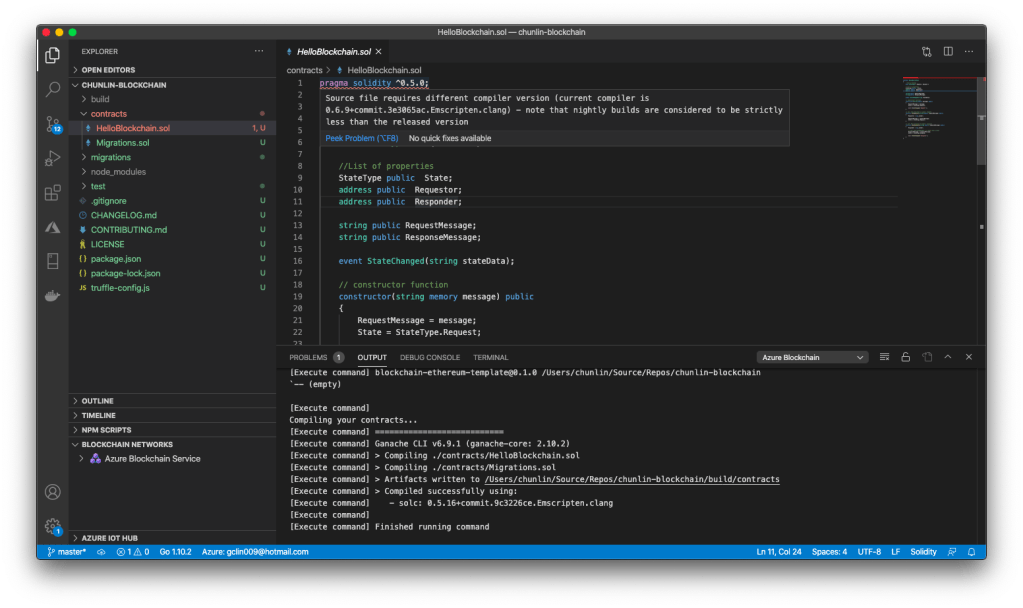
🎨 Error happens in the line having pragma keyword. 🎨

Firstly, there is an issue regarding the compiler version, as highlighted in the first line that starts with Pragma keyword in the screenshot above.

Pragma is a keyword used to enable certain compiler features or checks. As shared by Alex Beregszaszi, the Solidity Co-Lead at Ethereum Foundation, ^0.5.0 means >=0.5.0 and < 0.6.0. Thus, in order to support both 0.5.x and 0.6.x, we need to change it to >=0.5.0, as recommended on Stack Overflow.

Secondly, by default there is no SPDX license identifier in the Solidity files. What is a SPDX license? SPDX stands for Software Package Data Exchange, an open standard about the software licenses under which a software is distributed. So, why do we need SPDX here? The Solidity documentation explains it well as follows.

Trust in smart contract can be better established if their source code is available. Since making source code available always touches on legal problems with regards to copyright, the Solidity compiler encourages the use of machine-readable SPDX license identifiers. Every source file should start with a comment indicating its license…

Layout of a Solidity Source File

Hence, we need to add the SPDX license identifier at the top of Solidity files, for example

// SPDX-License-Identifier: MIT

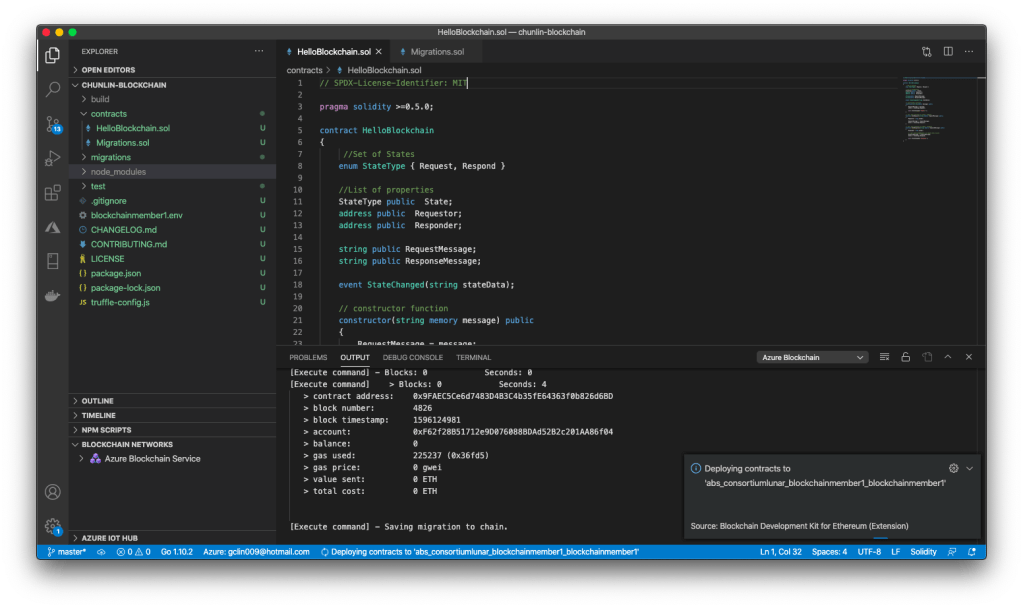
Now, we can proceed to build and deploy the Smart Contract.

🎨 Deploying contracts to the cloud. 🎨

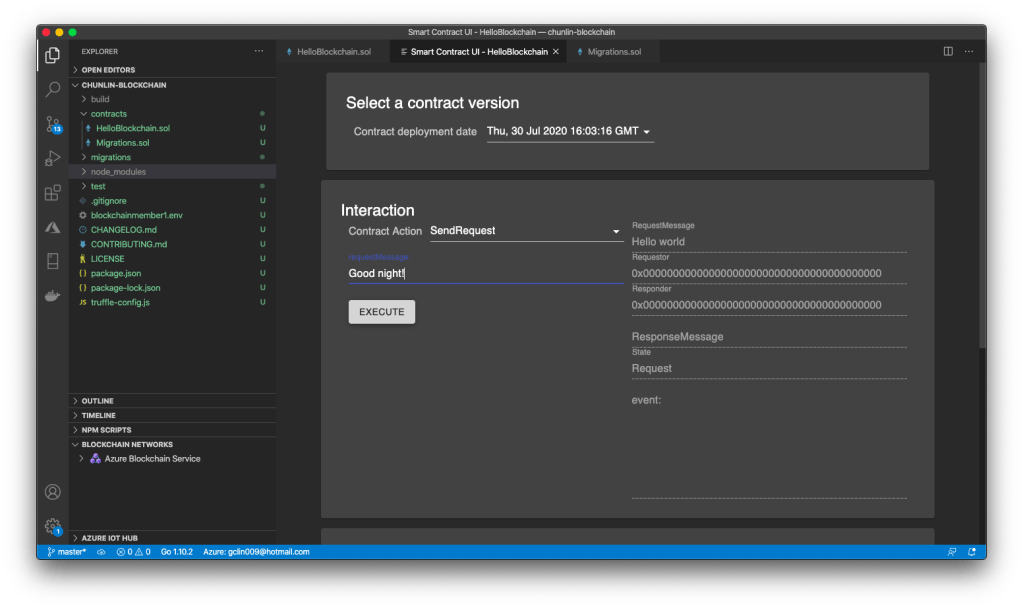
According to the Microsoft Docs, we should be able to use the Smart Contract UI provided in the Visual Studio Code to call the contract functions. However, it is not possible at all if we have deployed the Smart Contracts to the Azure.

So the third problem that I’d like to share is that, according to Cale Teeter, Microsoft SDE and Senior Software Engineer in Blockchain Engineering, currently there is “no version of the extension support Smart Contract Interaction with remote contracts (including ABS). This will only work for locally deployed contracts“. Hence, I’ve submitted a new Pull Request to Microsoft Docs to add this notice in the documentation. Pat Altimore, Microsoft Senior Content Developer, later agreed with me and was planning to remove this part of the documentation from the Microsoft Docs.

🎨 The Smart Contract UI. It will show “method handler crashed” if the Smart Contract is on ABS. 🎨

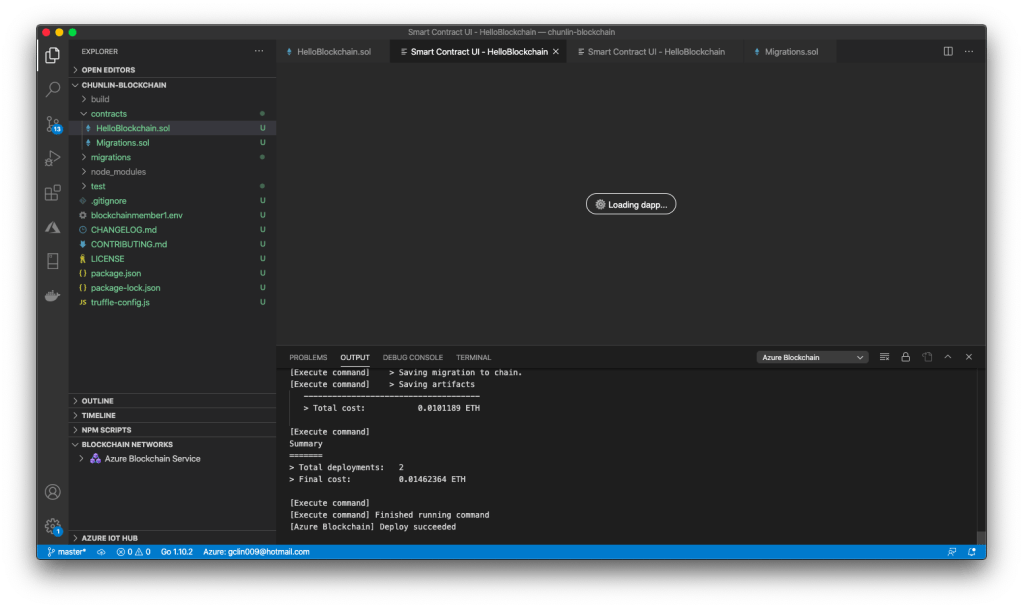
Now here comes the fourth problem. When I launched the VS Code again, I could no longer get the Smart Contract UI back even though I redeploy the Smart Contract to local instead of ABS. VS Code will simply keep showing the message “Loading dapp…”, as shown in the screenshot below.

🎨 I raised an issue regarding this on GitHub. 🎨

I thus highlighted this issue on GitHub and later in a discussion with Cale Teeter, we both agree that we really need to think of supporting the Smart Contract UI page in different manner because this Smart Contract UI page is actually a react app and as Cale Teeter himself explains, “supporting the react app inside the IDE requires some IPC magic that hides too much of what is going on“.

Future Work

Currently the issues highlighted above are new. The last one was just raised about two weeks when I am writing this article. So, if you have any new findings or doubts, please always let us know on the GitHub Issues of the project.

That’s all for my journey with Azure Blockchain Service which is still in preview and very young.

By the way, Mark Russinovich did a very good introductory presentation on what blockchain is. If you are interested in blockchain and would like to have a quick overview about this cool technology, please watch the YouTube video below.