Hello Cloud Computing: Deploying PHP + MySQL Web Application on Azure

Introduction
Deploying web application itself is already a very interesting experience. If you are good at computing, you can follow the steps below and try to make your own web application running on Windows Azure.

Before the start of the talk, you should know about Cloud Computing and Windows Azure. There is also an interesting article about this topic about the differences between cloud and other hosting services: Click here.

Phase 0: Getting Started
There are a few things that you need to install before you deploy your web application on Windows Azure. First of all, I’d like to remind you that all things below are done using the Microsoft Visual Web Developer 2008 Express with SP1. I am not sure whether there is a difference between using Web Developer and Eclipse.

After installing the Web Developer, you can use the Microsoft Web Platform Installer to easily install the necessary tools. The download link for Microsoft Web Platform Installer is http://www.microsoft.com/web/downloads/platform.aspx. At a minimum, install the following components:
1. Web Server –> ASP.NET
2. Web Server –> CGI
3. SQL —> SQL Server 2008 with Service Pack 1
4. Azure Tools —> Windows Azure Tools for Microsoft Visual Studio 2008 v1.0

Next, you have to make sure that WCF HTTP Activation is enabled for your PC. To check this, please go to the Programs and Features in the Control Panel and check the WCF HTTP Activation checkbox under Microsoft .NET Framework in Turn Windows features on or off page.

After doing all these, you now should be able to deploy your PHP or ASP web application to the Windows Azure. However, in order to allow your PHP application connects to the MySQL database on Windows Azure, you have to install more stuff as stated below.

First of all, you must have PHP binaries for IIS (not the one in WAMP), MySQL binaries (without installer) and PhpMyAdmin package in your local machine. The versions for these three components are 5.2.12, 5.1.41 and 3.2.1, respectively, in my computer. The download links of these three components are listed here:
PHP Binaries for IIS
MySQL Binaries (Without Installer)
PhpMyAdmin Package

Phase 1: Setup: Using the MySQL PHP Solution Accelerator
What is MySQL PHP Solution Accelerator? The Microsoft staff introduced it in the workshop. It is something to make the process of deploying PHP + MySQL application on Windows Azure become faster and easier.

The steps are listed below.
1. Click here to Install the MySQL PHP Solution Accelerator
2. Extract the PHP binaries for IIS to the “php” folder in the PhpMyAdminWebRole directory, i.e.
“..\AzureMySQLPHP_x86\PhpMyAdminWebRole\php”
3. Extract the MySQL binaries to the “mysql” folder in the MySQL_Worker Role directory, i.e.
“..\AzureMySQLPHP_x86\MySQL_WorkerRole”
4. Extract the PhpMyAdmin files to the directory “..\AzureMySQLPHP_x86\PhpMyAdminWebRole\PHPMyAdmin\”

Phase 2: Create Windows Azure Cloud Service

After putting all the files into the MySQL PHP Solution Accelerator, now you can start your Microsoft Visual Web Developer 2008 Express Edition. After that, you just need to follow the steps listed below.
1. Create a new “Windows Azure Cloud Service” solution in Visual Studio
2. Choose “Add” -> “Existing Project…” and open “MySql_WorkerRole.csprojā€ (Can be found in the
Solution Accelerator).
3. Again, choose “Add” -> “Existing Project…” and open “PhpMyAdminWebRole.csproj” (Also can be
found in the Solution Accelerator).

Phase 3: Configuring MySQL Worker Role
This is the difficult part. Here we only show you how to configure the work role to have only 1 instance.

First of all, you have to double click on the MySql_WorkerRole under Roles in the Solution Explorer window. Then there will be a new tab named MySql_WorkerRole [Role] appearing on the main window. There are several options available on the left site of the configuration page, choose Settings.

After that, for each item listed below, you have to first press ‘Add Setting’ button and then keying in the info (each of them is ordered in this format: Name, Type, Value).
– DiagnosticsConnectionString, ConnectionString, UseDevelopmentStorage=true
– DataConnectionString, ConnectionString, UseDevelopmentStorage=true
– TableStorageEndpoint, String, http://table.core.windows.net
– BlobStorageEndpoint, String, http://blob.core.windows.net
– ContainerName, String, mysqlphp11
– FullBackupHour, String, 06:00
– IncrementalBackupDuration, String, 10
– RecycleThreadSleepTime, String, 300
– EnableWindowsAzureDrive, String, False
– EnableBackup, String, False
Note: We will be using the Dev Fabric Storage in this walkthrough, feel free to use your cloud storage if any.

Please press Ctrl+S now. Next, we will move on to the next part in the configuration page, which is Endpoints. Same as previous one, for each item listed below, you have to first press ‘Add Endpoint’ button and then keying in the info (each of them is ordered in this format: Name, Type, Protocol).
– PeerEndpointIn, Internal, tcp
– MasterElectionService, Internal, tcp
– MySQL, Internal, tcp
– InstanceManagerEndpontIn, Internal, tcp

Now save it and move on to the last part of the MySQL Worker Role configuration, which is Local Storage. Same as what you did previously, for each item listed below, you have to first press ‘Add Local Storage’ button and then keying in the info (each of them is ordered in this format: Name, Size (MB)).
– MySQLStorage, 200
– MySQLDatastore, 1024
– BlobBackup, 500

Alright, now please save it before we see the PhpMyAdmin page showing on our screen.

Now, please open up the C# file MySQLAccess.cs in the “MySql_WorkerRole” project. Please add a line of code: private const string REL_PATH_TO_PHP_INI = “./../../PhpMyAdminWebRole/approot/php/php.ini”; inside the internal class MySQLClient. It is a relative path to your php.ini file.

After that, please modify the function Start(int id) so that it looks something like this:

public bool Start(int id)
{
    try
    {
        //Modified by Chun Lin:
        string baseDir = RoleEnvironment.GetLocalResource("MySQLStorage").RootPath.Replace('\\', '/');
        string dataDir = RoleEnvironment.GetLocalResource("MySQLDatastore").RootPath.Replace('\\', '/');
        string blobDir = RoleEnvironment.GetLocalResource("BlobBackup").RootPath.Replace('\\', '/');
        LogError("MySql Base directory: {0}", baseDir);
        LogError("MySql Data directory: {0}", dataDir);
        string command = Path.Combine(baseDir, @"bin\mysqld.exe");
        SetupBlobBackup(blobDir);
        if (!File.Exists(command))
        {
            SetupAzureMySql(baseDir);
            SetupAzureMySqlDataDir(dataDir);
        }
        MySqlConnection rootConn = GetConnection(_endpointName);
        if (IsRunning(_endpointName)) 
        {
            int currentId = GetMySqlServerId(); 
            if (currentId == id)
            {
                return true;
            }
            //TODO:make sure shutdown existing SQL
            command = Path.Combine(baseDir, @"bin\mysqladmin.exe");
            Process.Start(command, "-u root shutdown");
        }
        RoleInstanceEndpoint instance; 
        //Get the "MySQL" instance
        instance = RoleEnvironment.CurrentRoleInstance.InstanceEndpoints["MySQL"];
        //Get the port of the instance 
        string port = instance.IPEndpoint.Port.ToString();
        //Added by Chun Lin:
        Environment.SetEnvironmentVariable("MasterPort", port, EnvironmentVariableTarget.Process); 
        //Added by Chun Lin: Get the IP address of the instance
        string masterHost = instance.IPEndpoint.Address.ToString();
        Environment.SetEnvironmentVariable("MasterHost", masterHost, EnvironmentVariableTarget.Process); 
        string iniFile = Path.Combine(baseDir, "my.ini"); 
        File.Copy("my.ini", iniFile, true); 
        //update the my.ini file with mysql server details
        UpdateMyIni(iniFile, baseDir, dataDir, port, id.ToString()); 
        ProcessStartInfo startInfo = new ProcessStartInfo(command);
        startInfo.RedirectStandardOutput = true; 
        startInfo.WorkingDirectory = baseDir; 
        startInfo.UseShellExecute = false; 
        //Modified by Chun Lin: 
        startInfo.CreateNoWindow = false; 
        //Added by Chun Lin: 
        startInfo.Arguments = "--console"; 
        Process driver = new Process(); 
        driver.StartInfo = startInfo; 
        driver.Start();
        StreamReader sr = driver.StandardOutput; 
        string output = sr.ReadToEnd();
        while (!IsRunning(_endpointName)) 
        { 
            Thread.Sleep(TimeSpan.FromSeconds(10)); 
        } 
    } 
    catch (Exception ex) 
    {
         LogError("Error in MySqlAccess start(): {0}", ex.Message + ex.StackTrace);
         return false;
    } 
    return true;
}

Phase 4: Run PhpMyAdmin
Now, you can just press F5 to run it.

Sometimes, you will face a problem here: You cannot log in to the PhpMyAdmin site. What you need to do is just editing the config.inc.php file in the PHPMyAdmin root folder. If you cannot find it, please create it. You have to first check that $cfg[‘blowfish_secret’] is set (If not, you can enter anything there, for example $cfg[‘blowfish_secret’] = ‘Secret’; as shown below). Then, for user and password, you can leave them as ‘root’ and ”, respectively. Of course, to allow no password, you have to add this line: $cfg[‘Servers’][$i][‘AllowNoPassword’] = true;. The following code is just part of the code in config.inc.php. The rest of the code is not shown here because there is no modification needed for it.

/*
 * This is needed for cookie based authentication to encrypt password in
 * cookie
 */
$cfg['blowfish_secret'] = 'Secret'; /* YOU MUST FILL IN THIS FOR COOKIE AUTH! */
/*
 * Servers configuration
 */
$i = 0;
/*
 * First server
 */ 
$i++; 
/* Authentication type */
$cfg['Servers'][$i]['auth_type'] = 'cookie';
/* Server parameters */
$cfg['Servers'][$i]['host'] = '127.0.0.1';
$cfg['Servers'][$i]['connect_type'] = 'tcp';
$cfg['Servers'][$i]['compress'] = false;
/* Select mysqli if your server has it */
$cfg['Servers'][$i]['user'] = 'root';
$cfg['Servers'][$i]['password'] = '';
$cfg['Servers'][$i]['extension'] = 'mysql';
$cfg['Servers'][$i]['AllowNoPassword'] = true;

Alright, even after doing this step, there will still be some people getting this error when they try to log in to the PhpMyAdmin. The error says that “#2003 – The Server Is Not Responding”. It is possible that you MySQL Server is not running. Thus, please install it (Remember that the MySQL we downloaded before is “without installer”, hence you may need to download the installer this time). Finally, you need to configure your MySQL Server (Online help: Step-by-Step guide for Installing MySQL on Windows).

One of my favourite references: http://innovativesingapore.com/post/Deploying-PHP-MySQL-Wordpress-on-Azure.aspx

YouTube Re-Player (Desktop)

The Motivation
“How to repeat the YouTube music video without pressing the Replay button every time when it ends?” Two years ago, there were many people asking this question in some IT forums. The answer was usually “Just download it and play it using FLV player”. That time, downloading seemed like the only way to play YouTube music videos in loop. Then there were some people asking “Is it legal to download YouTube videos?”.

After attending a Google workshop last year, I easily solved this problem. In January 2009, I successfully built YouTube Re-Player (Localhost) 1.0, my first application that used YouTube API. It not only could automaticallyĀ loop the YouTube music videos, but also allowed the user to keep one’s own favourite videos in the database so that one was able to view it again later.

When I was doing the YouTube Re-Player project, there were many people around the world doing the similar things. Nowadays, you can easily find applications like Muziic, YouTube Repeat and some browser add-ons which do exactly the same thing: Auto replay YouTube videos and/or store them in database. I am quite happy that I am not alone. There are many people trying to do this as well.

From Web Application to Desktop Application
In this winter vacation, I tried to challenge myself again. I not only deployed my YouTube Re-Player on Windows Azure, but also developed a desktop version of it, known as YouTube Re-Player (Desktop).

YouTube Re-Player (Desktop)

Parallel Video Downloading
YouTube Re-Player (Desktop) is a desktop application.

Parallel Video Downloading

Before playing the YouTube video, the player first needs to download the video from YouTube site. Depends on the speed of the Internet connection, it will sometimes take quite a long time to finish downloading the video. Hence, in the YouTube Re-Player (Desktop), there are five Flash Object Holders which are responsible for downloading and showing the YouTube videos running in the background. Each of them will download different YouTube videos. So, the user can first view the video which has been downloaded while he is waiting for other videos to be downloaded.

Quick Launch Bar
Quick Launch Bar

Thus, when all videos are completely downloaded, user can watch them without downloading them again until the sixth video is requested from the YouTube site. This will save a lot of time on just waiting the video to be downloaded.

Aero Glass Background
For those who are using Windows Vista, they should be quite familiar with the term “Aero Glass”. Since YouTube Re-Player (Desktop) is a WPF application, the Aero Glass effect can be easily done using C#. This feature is only available in Windows Vista and above. For those users who are using Windows XP, they will see a background similar to the one in YouTube Re-Player (Localhost).

Conclusion
After YouTube Re-Player is successfully built in last semester, I received many useful and interesting feedback from my friends. I will try my best to implement those useful features in the future versions of YouTube Re-Player.

Since the YouTube Re-Player (Localhost) was coded in PHP and JavaScript, developing YouTube Re-Player (Desktop) in C# is a bit painful. There are things that can be easily done in PHP and JS previously cannot be easily coded in C#, for example the database connection. However, that problem can be easily solved after googling. Secondly, embedding YouTube video in WPF application is not that easy.

The next step of this project will be finding a better way to manage the videos stored in the database. Also, searching feature will also be added to the next version. Besides, after I found a way to deploy the PHP, PhpMyAdmin and MySQL on Windows Azure Development Fabric, I think that I should try to deploy the YouTube Re-Player (Localhost) 2.1 on cloud as well.

Hello Cloud Computing: Windows Azure and YouTube Re-Player at Cloud

After my YouTube Re-Player (Localhost) 2.0 was built in May 2009, my friends told me that they would like to play with it also. Hence, I hoped that I could find a place to host my app.

Last Wednesday, I was given a free Windows azure access token during the Windows Azure workshop organised by Microsoft. Hence, the first thing I did was trying to build my YouTube Re-Player on Windows Azure.

The Wow-wow Workshop
The Windows Azure workshop was held on last Wednesday at SMU. There were only about 30 students from NUS, NTU and SMU in the workshop. Thus, eventually, almost everyone of us was able to get a free access token.

During the workshop, we were taught how to build a hello world web application and later upload it to Windows Azure.Ā Before getting started, I had to install quite many stuff on my computer, for example Visual Web Developer 2008 Express, Windows Azure Tools, SQL Server 2008, ASP.NET, CGI and so on. Luckily with the Microsoft provided the Microsoft Web Platform Installer, the installation was quite straight-forward.

Windows Azure Platform

YouTube Re-Player at Cloud
Because of the Windows Azure, I could finally find a place to host my YouTube Re-Player; however my free account on Windows Azure will be deleted after 31 December 2009 (This is because Windows Azure Platform will go into production on 1 January 2010).

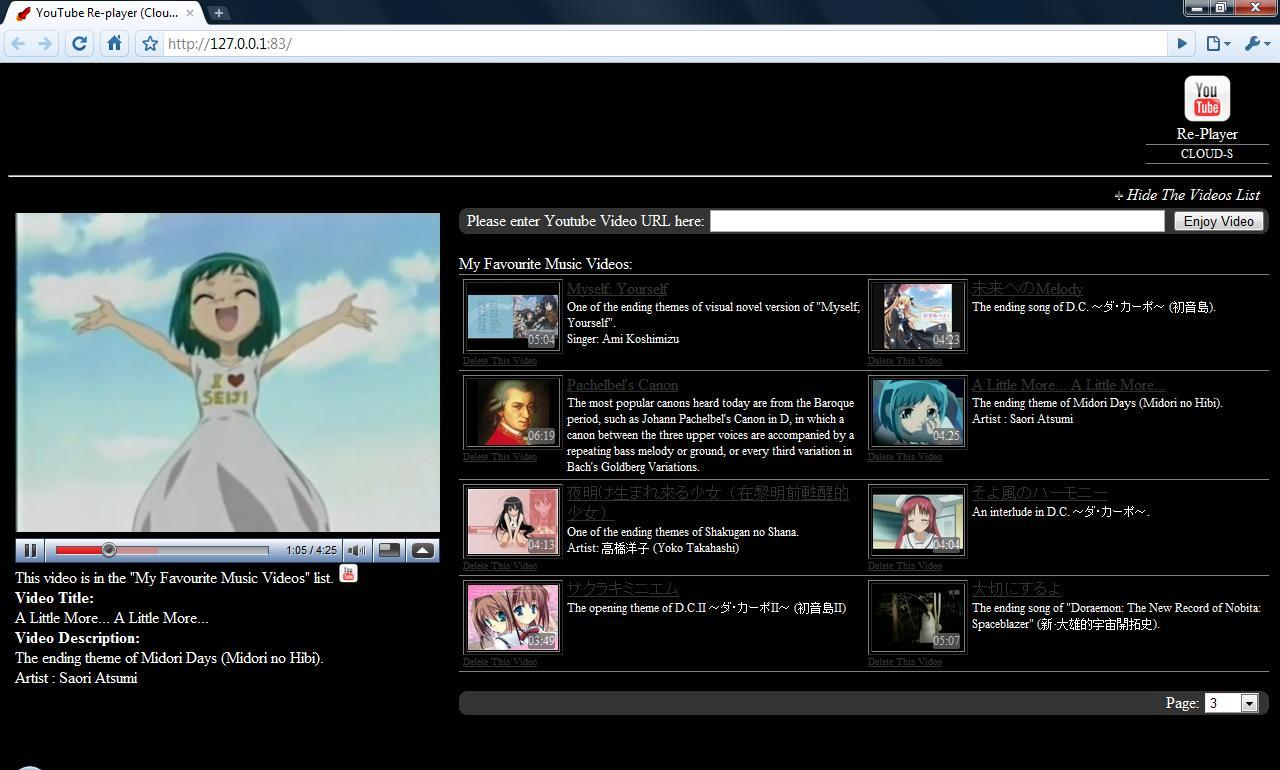
Actually, I currently have two versions of YouTube Re-Player which are used to run on Windows Azure. The first version is called YouTube Re-Player at Cloud. It is now available online (Click here to access). The second version is called YouTube Re-Player (Cloud-S) which I will introduce it later.

Before I introduce YouTube Re-Player at Cloud, it is better if you know its senpai, i.e. YouTube Re-Player (Localhost) 1.0 and 2.0 (Click here to read more about these two applications).

YouTube Re-Player at Cloud doesn’t use any database. However, it still provides the main feature of the YouTube Re-Player series products: Playing a YouTube video unlimited times without pressing the Replay button. Although it has no database to keep the data, it still stores the history record of the viewed YouTube videos. Thus, every time the user plays a new YouTube music video, the name of the video will be added to the “Viewed Videos List” so that he is able to play the video again later.

YouTube Replayer at Cloud

YouTube Re-Player (Cloud-S)
Recently, Microsoft announced that PHP developers were able to build their PHP and MySQL applications on Windows Azure Platform also (More about this: Click here). So, after the YouTube Re-Player at Cloud was done on last Friday, I decided to move YouTube Re-Player (Localhost) 2.1 to cloud as well.

However, developing PHP and MySQL on Windows Azure Platform is painful. To build a simple PHP web application on Azure, I have to do is just adding some codes to the configuration files of Web and Web Role. Meanwhile, I also need to copy and paste the whole php folder (the one containing php.ini) into the solution. Then how about MySQL? This is the headache part. According to the Microsoft, there is a MySQL PHP Solution Accelerator to help solving this problem. However, I can’t even run it successfully. So, I am not able to run the MySQL as a Worker Role in cloud. What I can do is just migrating all my data from Sybase to MySQL and let the whole application running on the Windows Azure Simulation Environment. That’s why I call this application YouTube Re-Player (Cloud-S), where the “S” stands for “Simulation”.

YouTube Re-Player Cloud-S

All the new features in the YouTube Re-Player (Localhost) 2.1, such as showing video length of each video, are available in the YouTube Re-Player (Cloud-S) as well. The only difference between two of them is the database. Localhost version is using Sybase while Cloud-S version is using MySQL. In addition, there is also a problem when I run it on the simulation environment. Since all the content of my application is preloaded, sometimes it will suddenly stop in the middle way and then I have to refresh the whole page.

Only Available Until 31 December 2009
Well, my YouTube Re-Player at Cloud will only be available to public until 31 December 2009. So, please visit http://imbachunlin.cloudapp.net/ now to try it. =)

YouTube Re-Player (Localhost)

Motivation
There are a lot of music videos available on YouTube, the largest worldwide video-sharing community. However, YouTube does not allow user to play a YouTube video over and over again without pressing theĀ ReplayĀ button. Hence, it is quite troublesome for user to just loop a YouTube music video. In addition, for those who do not have a YouTube account, they also cannot keep their favourite YouTube videos in their computer, unless they bookmark the URL to the videos.

Hence, since November 2008, I had tried to find out the ways to solve these problems. In January 2009, I built the YouTube Re-Player (Localhost) 1.0, which not only allowed the user to replay the YouTube videos without clicking on the Replay button, but also stored the URL of the YouTube videos in the user’s computer.

The GUI of YouTube Re-Player (Localhost) 1.0
YouTube Re-Player (Localhost) 1.0

In May 2009, the YouTube Re-Player (Localhost) 2.0 was successfully completed. The main improvement was allowing user to have a faster way to edit and load the music videos with the help from AJAX. TheĀ Presentation ModeĀ was added as a new feature in the version also.

The GUI of YouTube Re-Player (Localhost) 2.0
YouTube Re-Player (Localhost) 2.0

About YouTube Re-Player (Localhost)
YouTube Re-Player (Localhost) is an application running on the localhost. This explains the word “Localhost” in its name. Both the first and second versions use PHP and JavaScript.

YouTube Re-Player (Localhost) allow the users to give a new name and description for the YouTube videos they added to it.

Paging
Paging

The JavaScript is used to do the paging. In every page, the list only displays eight video links. If there are more than eight videos in the database, then the rest of the links will go to the next page. The JavaScript is used here so that the page will not be refreshed when the user goes to another page. In the second version, there are two options, i.e. “Prev” and “Next”, added to the page options list. So, even if there are many videos, the user won’t find it difficult to navigate.

With JavaScript, the background of YouTube Re-Player will display different colour based on the time of day.Ā The background will change based on the time of day.

YouTube Re-Player 2.0 (Localhost) Background Color
Background Color

In the second version, the AJAX technology is used to load the video and its information. Hence, the user can easily change the video to view or update its information without refreshing the whole page. Because of the AJAX, the user is able to have a faster way to edit the video information and load his favourtie music videos.

Edit Video Info with AJAX Help

Another new feature added to the YouTube Re-player is the “Presentation Mode” which allows user to hide the videos list and to show only the video player. This is useful because sometimes there is a need to play a YouTube video over and over during the presentation. It will be a bit strange if the videos list is shown during the presentation. Hence, the second version provides the user an option to hide the videos list.

Presentation Mode
Presentation Mode

The Database Management System used in both versions is Sybase, not MySQL. Thus, before using the YouTube Re-Player, the user has to install the Sybase in his computer.

Feedback from Friends
1. The user should be able to enter subtitle to the videos.
2. It shouldn’t use the Sybase as its DBMS.
3. It should have a full screen mode.