Long Weekend Activity #1: Writing My First Bash Script

Since Hari Raya fell on Thursday and Singapore National Day fell on Friday, we got a long weekend. From what I read on Facebook, many of my friends had interesting plan for the long weekend, such as travelling to overseas. I also travelled back to my home in Johor, Malaysia.

Malaysia checkpoint is always crowded on weekends, I decided to wake up early on the first day of the long weekend to catch the early bus to Malaysia so that I could avoid the crowd. Even though I had alarm clock and phone, as a snooze button king, I sometimes still overslept. Thus, I decided to turn my laptop into a alarm as well.

My laptop is running on Fedora. So, I decided to write a cron job that would play a music or song in the early morning to wake me up.

Firstly, I created a bash script to play an FLV, MP3 or MP4 file stored on the disk. I had VLC Media Player installed on the laptop. So, what I needed was just a command to open the audio/video file using the media player. The following is the simple script.

#!/bin/bash
export DISPLAY=:0
xdg-open "/home/chunlin/Music/Little Explorer.flv"

That was my first time writing a cron job in Fedora, so I only successfully wrote it after reading quite a number of online forums and tutorials to understand how to do that.

#! (Shebang or Hashbang) is used as the first two bytes of an executable file, it will be interpreted by the program loader and then the program loader will parse the rest of the script’s initial line as interpreter directive. There is a comment on Stack Overflow saying that not including Shebang on the script may cause the script to be not executed in cron job.

For the line export DISPLAY=:0, I did not include it in the script before and no music video was played. It worked only after I found an online discussion about the command and added it back to the script. As mentioned in the online discussion, DISPLAY=:0 means the GPUs in the system.  So, without that command, the VLC Media Player was not launched previously.

I used xdg-open(1) because it is able to open a file or URL in the user’s preferred application (as stated in xdg-open Manual). Due to the fact that VLC Media Player is set as the default application of media files on my laptop, that command will automatically launch the program with the specified music video.

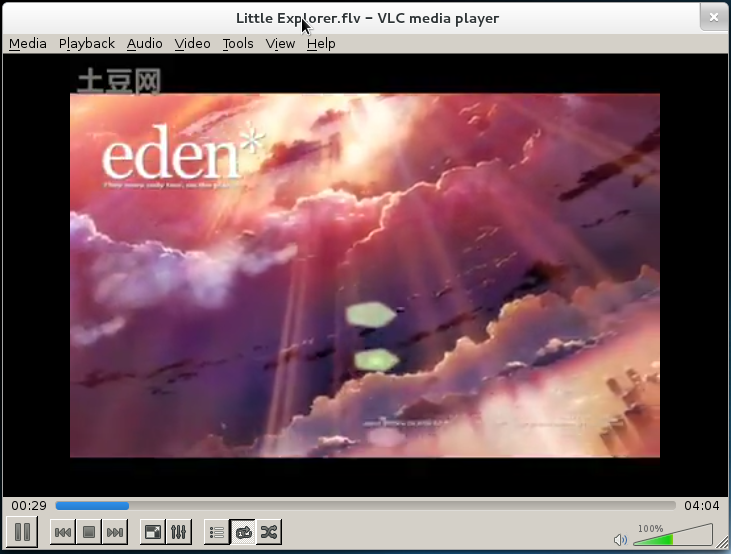
Little Explorer music video

I then saved the script as /home/chunlin/Music/alarm.sh. Next, I made the file executable.

[chunlin@chunlin Music]$ chmod +x alarm.sh

Finally, I just needed to schedule it in crontab. Crontab is the program used to install, remove or list the tables used to serve the cron(8) daemon (Reference: man crontab).

[chunlin@chunlin Music]$ export EDITOR=gedit
[chunlin@chunlin Music]$ crontab -e

After that, the gedit window would popup (Oh yeah, I like gedit). In the editor, I just needed to key in the following line in the file.

0 7  * * * /home/chunlin/Music/alarm.sh

The first five fields are time and date fields. The first one is minute (0 – 59), followed by hour (0 – 23), followed by day of month (1 – 31), followed by month (1 – 12) and day of week (sun, mon, …, sat). Any of the five fields can contain an asterisk which means “first-last”. So, “0 7 * * *” means the task will be scheduled at 7am everyday.

After saving the file and closing the gedit window, a line saying “crontab: installing new crontab” would be printed on the Terminal window. That meant the cron job had been added successfully and the alarm clock was created.

During the time I was doing this alarm, I also found some interesting and useful online discussion about the crontab and shell script as stated below.

  1. How to Schedule Tasks on Linux: An Introduction to Crontab Fileshttp://www.howtogeek.com/101288/how-to-schedule-tasks-on-linux-an-introduction-to-crontab-files/
  2. Shell Script Not Running via Crontab, Runs Fine Manuallyhttp://stackoverflow.com/questions/2224969/shell-script-not-running-via-crontab-runs-fine-manually
  3. Reasons Why Crontab Does Not Workhttp://askubuntu.com/questions/23009/reasons-why-crontab-does-not-work

p/s: Actually, by the time I finished this alarm, it was already 2am. So eventually I still overslept. >__<

JBoss Workshop and My YouTube RePlayer

I saw a Facebook post announcing the first JBoss workshop in Singapore. However, since I had meeting overseas at that time, I couldn’t attend the event. Fortunately, my good friend, Wai Hong, who is also interested in Java programming decided to attend the workshop as well. After the workshop, he shared with me the notes so that I could learn it myself also. Thus, here I’d like to thank Wai Hong for his kindness. =D

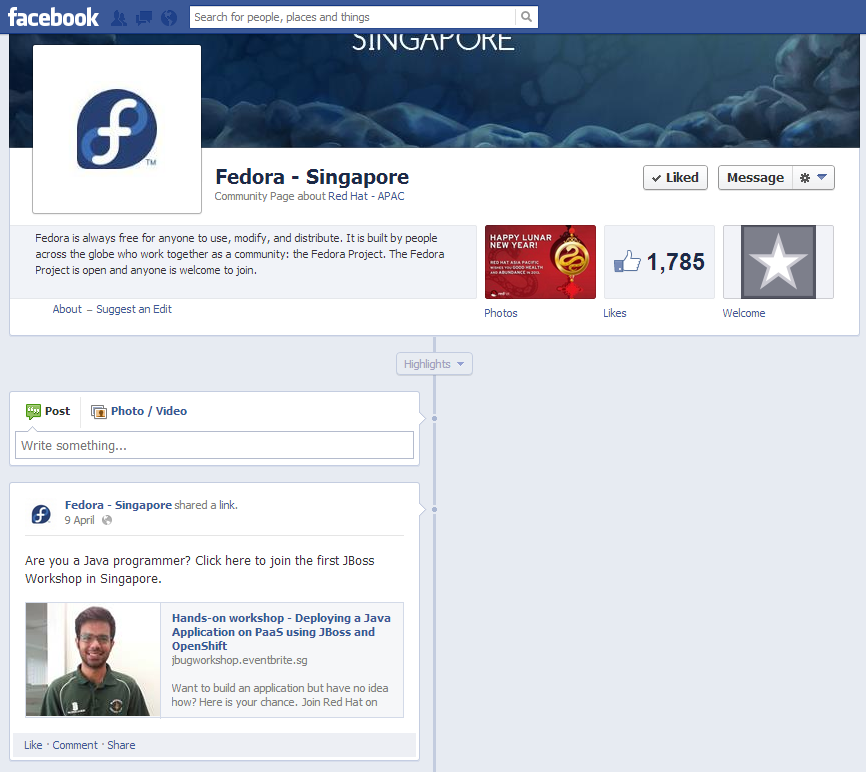
JBoss on Fedora Facebook Page
The first JBoss Workshop in Singapore!

In this post, I want to share my JBoss learning journey after going through the notes, online tutorials, and online forums. Meanwhile, I also developed a new app, My YouTube RePlayer, and then deployed it on OpenShift, the Red Hat cloud hosting service, during the long weekend.

Set Up JBoss Developer Studio

In order to build web applications and then to publish them easily to the OpenShift, I choose to use the recommended IDE in the workshop, the JBoss Developer Studio 6.0.0.GA (JBDS).

JBDS can be downloaded as a standalone version at https://devstudio.jboss.com/download/6.x.html (Note: The Java Development Kit (JDK) needs to be installed first).

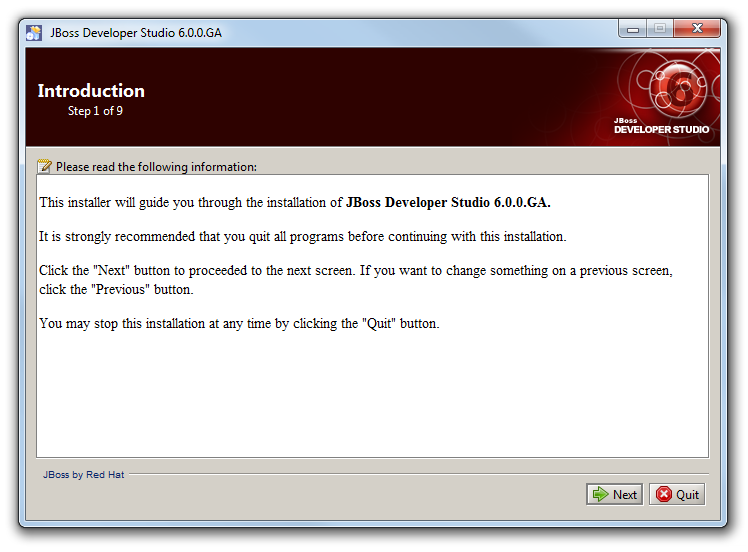
In the beginning of the installation, there are short introduction and the End User License Agreement. Please spend some time to read it.

JBoss Developer Studio Introduction
Let’s get started with JBDS installation.

The next step will be selecting the installation path. I guess there is no need to put a screenshot for this?

After choosing the installation path, there will be an option to choose Java VM. So, the directory chosen will be the jre directory in the place Java is installed on the PC.

Select Java VM
Select the Java Virtual Machine.

The next step will be “Select Platforms and Servers” which can be skipped because this part will be done in later stage.

At the end of the installation, if everything goes well, there will be a message saying “Installation has been completed successfully” in Step 9, which is also the last step. That means JBDS can be used now.

Launch JBoss Developer Studio

JBDS is almost like Eclipse. Well, this is because it includes not only the web development tools, but also Eclipse.

Launch JBoss Developer Studio
Hello, JBDS!

In the workshop, a quickstart project sample called kitchensink-html5-mobile is used. Due to the fact that I was following the workshop tutorial, I ended up using it to build my app, My YouTube RePlayer, eventually.

Quickstart
Choose the kitchensink-html5-mobile sample project as starting point.

Under the “Requirements” section, there are four items. On my PC, three of the plugins were found. Only the JBoss Enterprise Application Platoform 6 or JBoss Application Server 7.1 was missing. I thus installed the JBoss Application Server 7.1 which was given by Wai Hong together with his notes. I think it can also be downloaded in the “Download and Install…” section.

Install Runtime
Download and install the JBoss Application Server 7.1.

After the runtime is added, just click on the “Finish” button and the project will be imported.

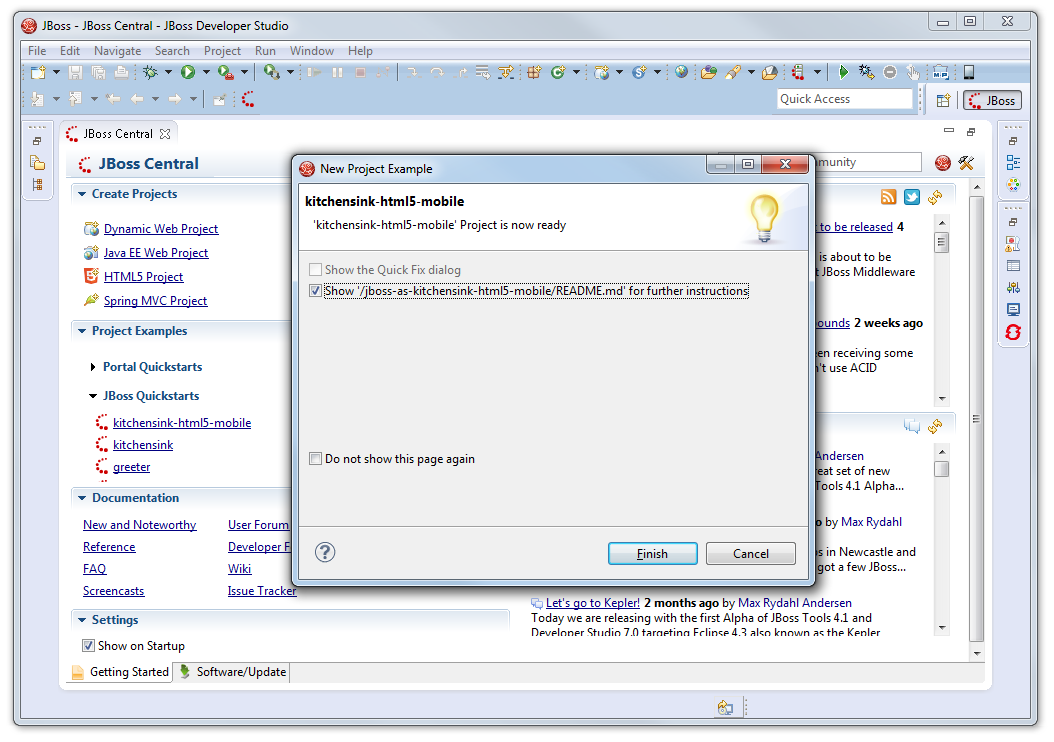
Once a message saying “‘kitchensink-html5-mobile’ Project is now ready” appears, that means everything has been done correctly so far. Yesh!

Project Ready
The project is now ready!

Deploy to OpenShift

I decided to use the sample project as a template to build my app, My YouTube RePlayer.

Before deploying to the cloud, I needed to test my app on local. To do that, firstly, right-click on the project folder in the “Project Explorer” window and then choose “Run As -> Maven Install” to build the project. Secondly, right-click on the project folder again and then choose “Run As -> Run on Server” to deploy on a local JBoss application server. Finally, the app will appears in the browser nicely.

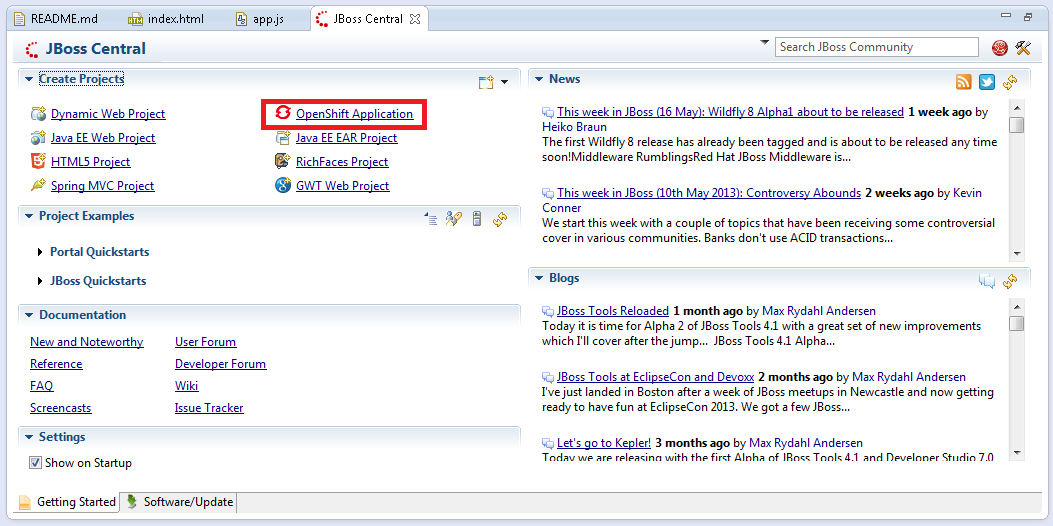
After testing on localhost, it is time to deploy the app to the cloud. First thing to do is to go back to the JBoss Central tab and click on the “OpenShift Application” button.

Create OpenShift Application
Click on the “OpenShift Application” button to start setting up the app on the cloud server.

Then there will be a window popup asking for user credentials to login to the OpenShift. Before the workshop, I already registered for a free OpenShift account at the OpenShift website.

The next step will be naming the application. The naming is very important because both the application name and OpenShift username will appear in the URL of the app on OpenShift in the following format: <application name>-<username>.rhcloud.com.

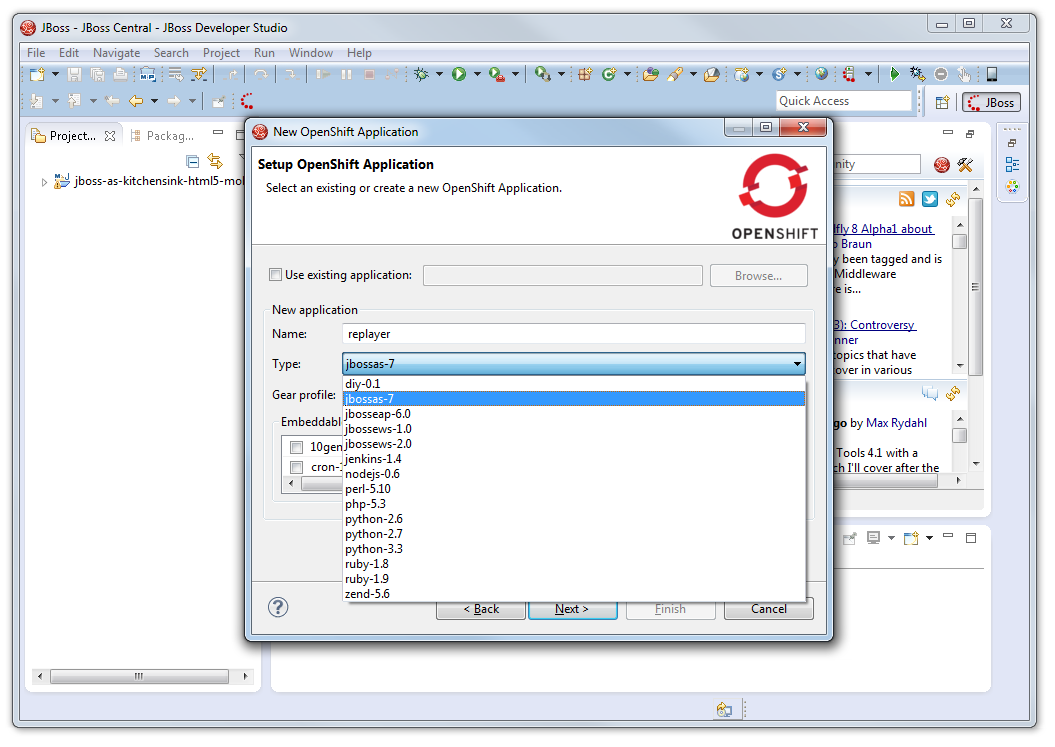
Choose Application Type
Choose jbossas-7 under the application type option.

For the “Type” drop-down list, I chose jbossas-7.

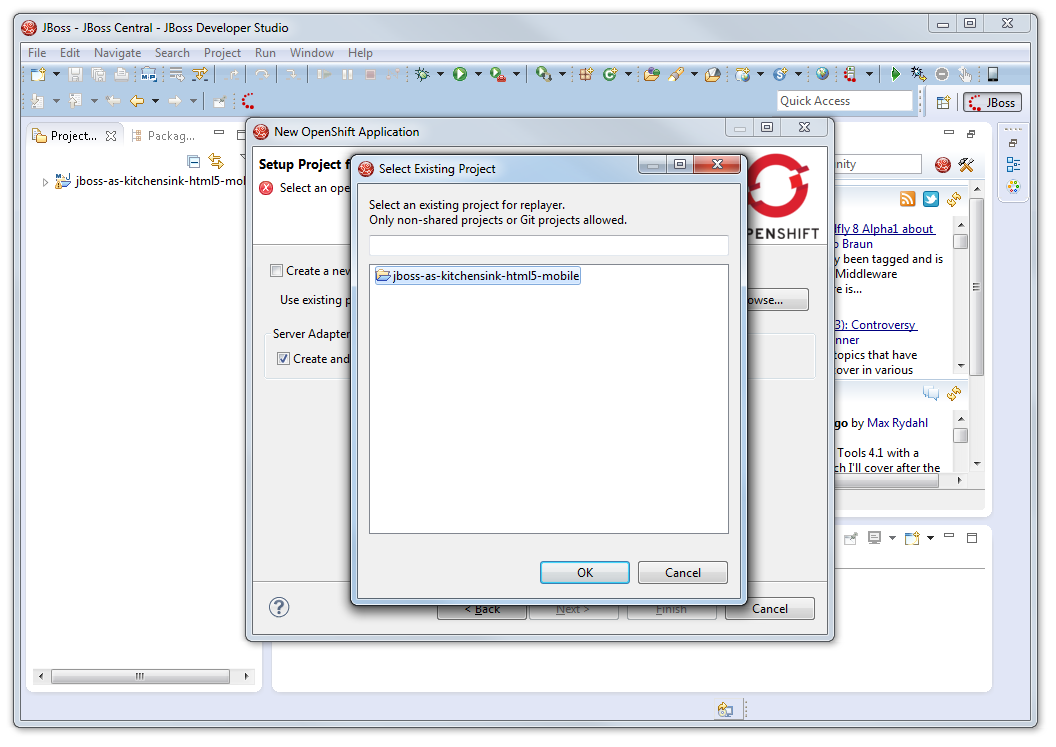
In the next window, I setup the project for the new OpenShift application. Due to the fact that I just would like to deploy my existing project, I unchecked the “Create a new project” checkbox and browsed to my modified sample project folder.

Use Existing Project Instead of New Project
Choose to use existing project instead of create a new project on OpenShift.

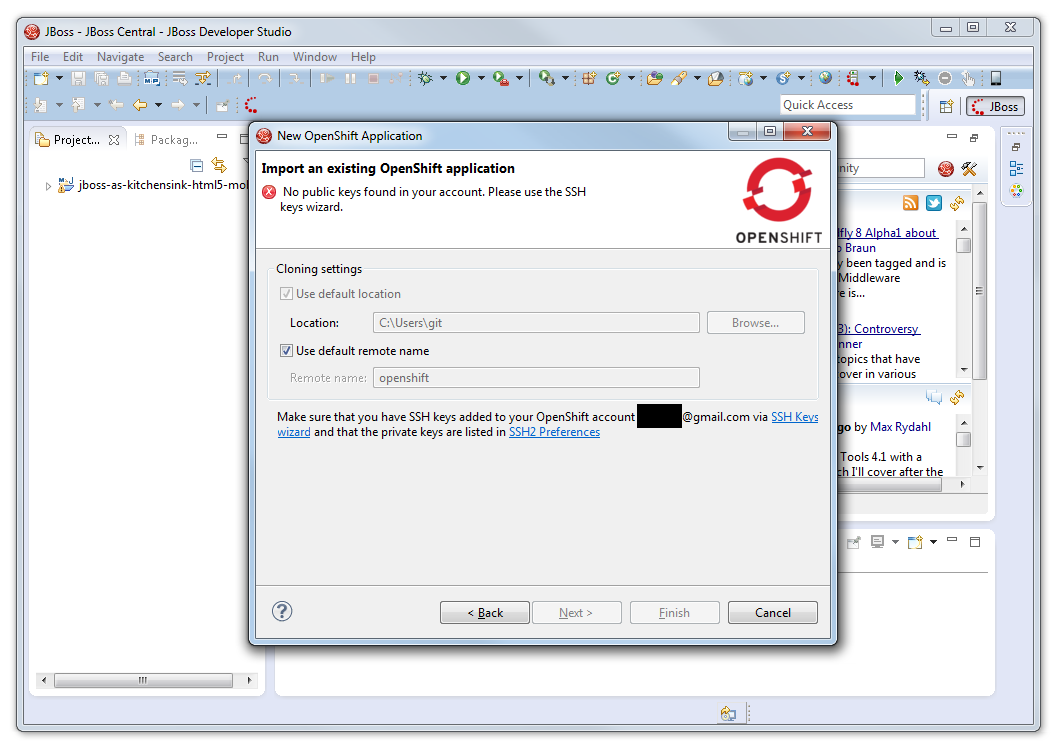
After having all these done, I reached the step where I needed to add SSH key to OpenShift account for authentication purpose. I first clicked on the “SSH2 Preferences” link.

SSH Keys Wizard and SSH2 Preferences Links
Click on the SSH2 Preferences link.

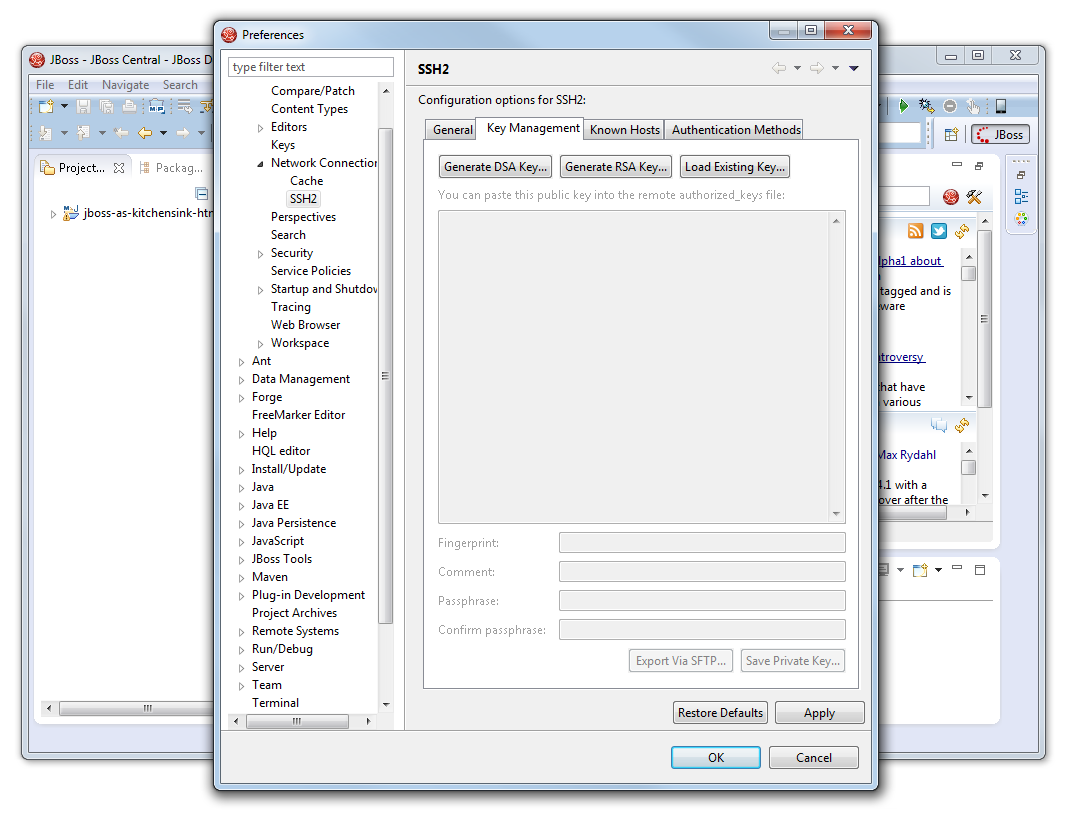
As I did not yet have an SSH key, I had to click on the “Generate RSA Key…” button to generate the key under the “Key Management” tab of the popped out window. After the key was generated, I clicked on the “Save Private Key…” button to save the private key for later use when publishing the app to OpenShift. It is recommended to have  passphrase set, unless you also like to live dangerously.

SSH2 Key Management
The place to generate RSA key.
Meme: I also like to live dangerously
Not enter any passphrase?

After the private key is saved, the public key also needs to be taken care of. The generated public key should be copied to clipboard (or paste it somewhere for later use). This is because after the keys are generated, the public key has to be added through the “SSH Keys wizard”. This is to setup the authentication between the local PC and the remote OpenShift server.

SSH Keys Wizard and SSH2 Preferences Links
Click on the SSH Keys Wizard link.

Once everything is done, click on the “Finish” button.

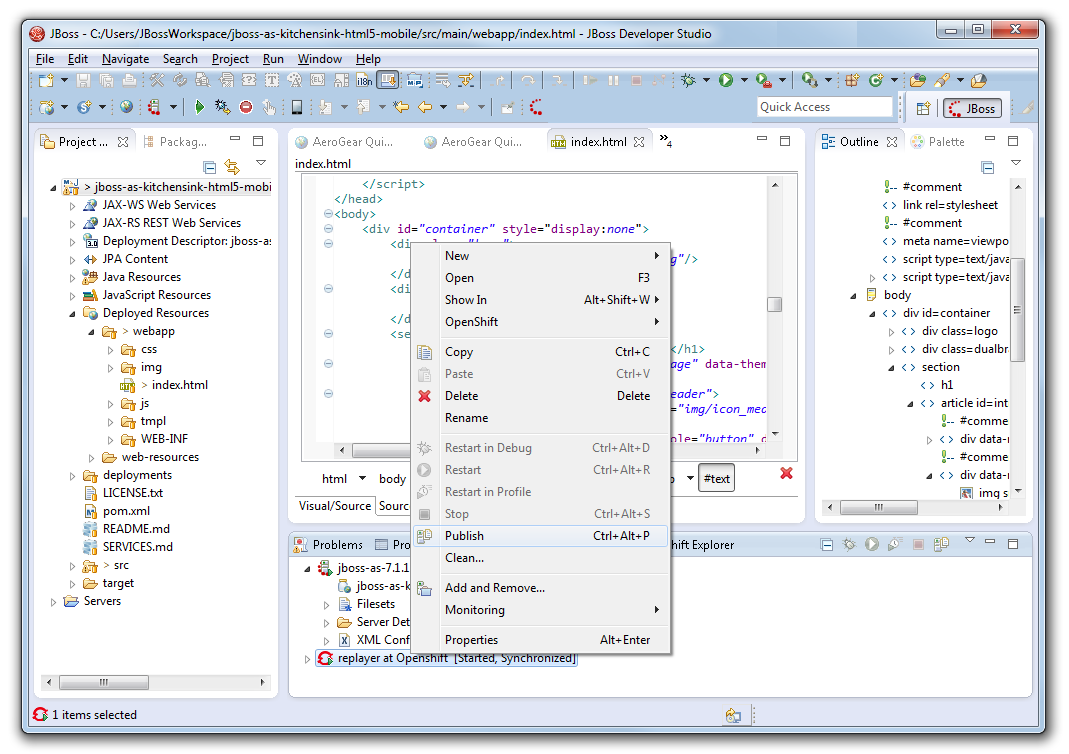
Now, it is time to publish the app. To do so, right-click on the OpenShift server item in the “Servers” tab and then choose “Publish”. That’s all.

This is how I published my new app My YouTube RePlayer.

Publish Project
Publish the project and deploy it on OpenShift.

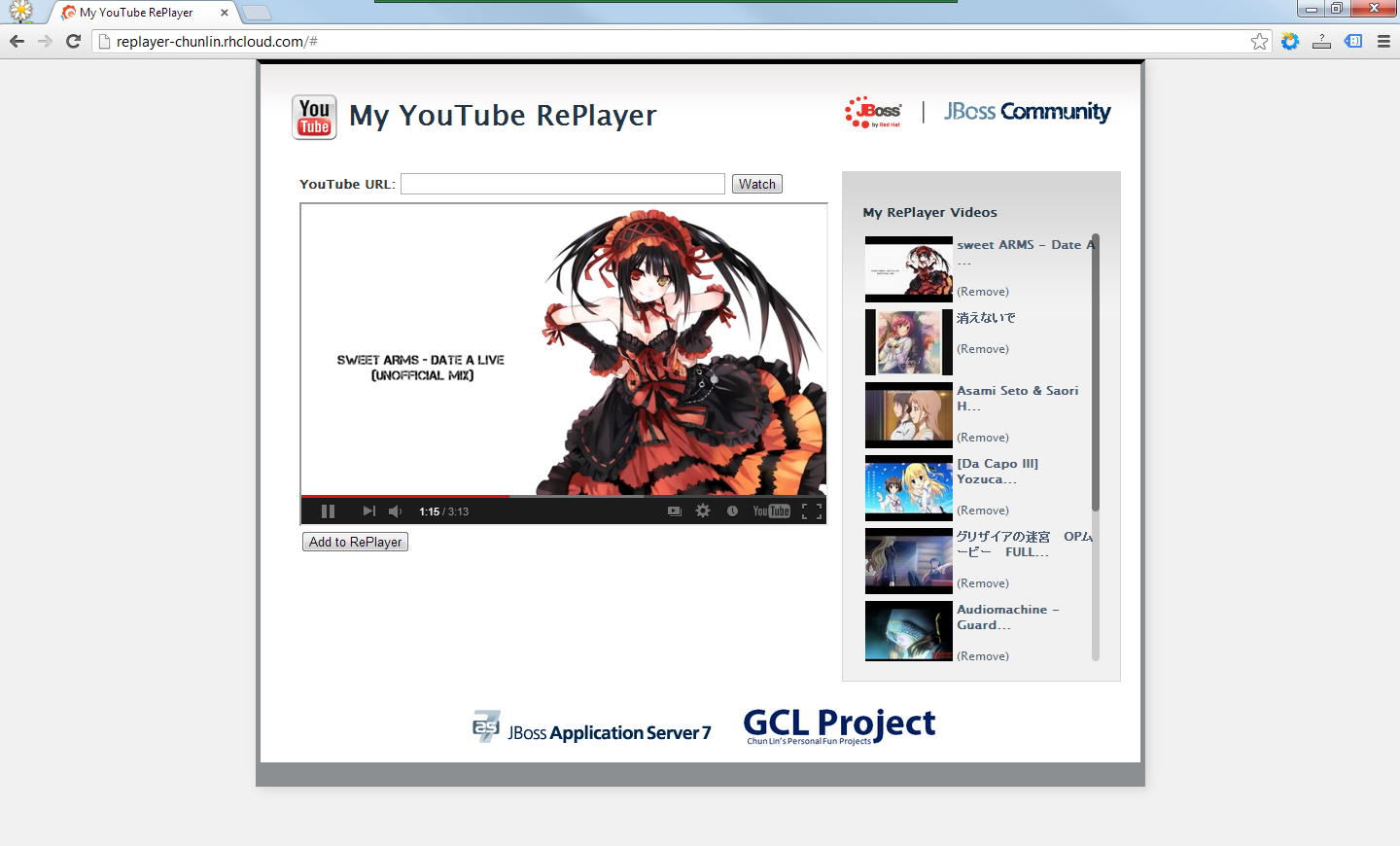
My YouTube RePlayer

So, what is My YouTube RePlayer that I built in the project above?

I love listening to music and thus I like YouTube as well. However, there is a feature that is still not yet found on YouTube website. The auto replay. To solve this problem, I have been working on several versions of YouTube Re-Player since 2009. Some are web applications and some are desktop applications.

My YouTube RePlayer (GCL Project 2013)
Playing a well done unofficial mix of “Date a Live” done by DaRk5nAk3 on My YouTube RePlayer.

In the beginning, the YouTube Re-Player that I built is very simple. I developed it after I attended the Google DevFest 2008 in Singapore. However, I never published it online. Soon after that, I got a chance to attend my friend’s workshop on Windows Presentation Foundation (WPF) in National University of Singapore. I realized that WPF app was very cool. Thus, I went to build another desktop version of YouTube Re-Player in WPF. Before I graduated, I moved on to build another app that can auto-replay not only online YouTube videos, but also FLV, MP3 and MP4 stored in local PC using JW Player.

This time, I am using the HTML5 technology in my new YouTube Re-Player app. Instead of using database, I directly use the available web storage to store the video ids (YouTube has unique id assigned to each online YouTube video). However, I think it is still good to have a database so that the data won’t be just stored locally on user’s browser and thus can be synced over different PCs with the same login.

Thus, although the workshop is more on building a Java web application, I end up doing my own HTML 5 application. Haha. Oh well, see if I got time to continue this project next time.

Now, just start creating your RePlayer list now with your favourite YouTube music videos at My YouTube RePlayer: http://replayer-chunlin.rhcloud.com! =)

Chinese New Year Special: LAMP and CodeIgniter

10 February is the Chinese New Year. I went back to my home in Malaysia  As a multiracial country, Malaysia celebrates this festival with great fanfare as well. So, in the past few days, I got to play and eat a lot without worrying about my work too much. Also, I had more time to work on some personal projects. =D

Chinese New Year dinner!

Since it’s a new year, I decided to work on a totally new project with PHP, a language that I have not been using for about one year. With a few years of experience on using PHP and Drupal, I would like to try a new PHP web application framework which is known as CodeIgniter. I first heard it from my friend last year but I only got the time to play with it now.

Install LAMP

After Windows 8 on my laptop was expired, I changed to use Fedora a few weeks ago. Hence, I am a beginner in the world of Linux. Before working on the PHP project, I have to install the LAMP programs, like Apache, MySQL and PHP on my laptop again.

There are some helpful tutorials online to install three of them. Here is just a list of websites that I referred to during the installation process.
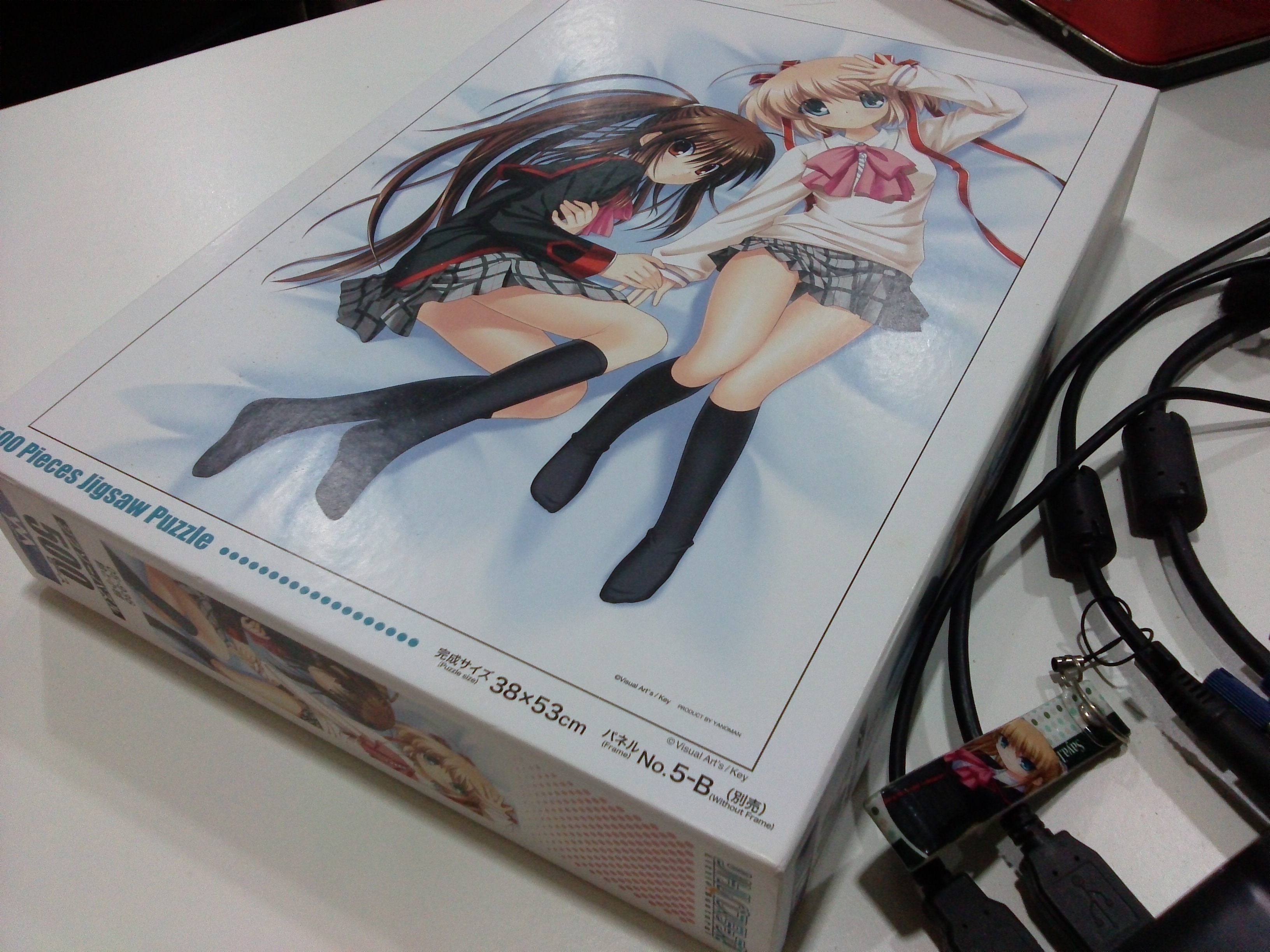
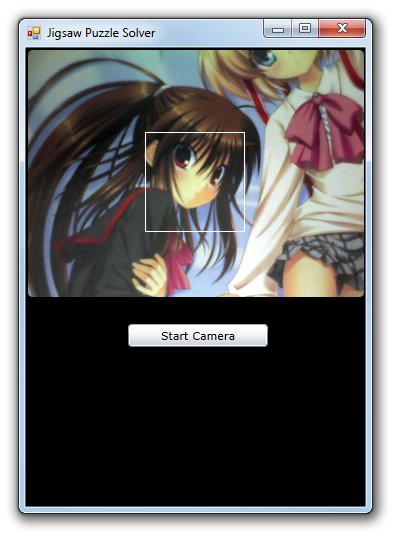
Hello-world Project: Hack Life

CodeIgniter is using MVC design pattern, something I never heard of before when I was developing web app using Drupal. Drupal does not comply with the MVC design. I just googled and found that Drupal is actually using something called PAC (Presentation-Abstraction-Control) design pattern.

There are very simple and detailed getting-started tutorials available on CodeIgniter website. After going through the tutorials, I can already build a simple web app. The app is called Hack Life which will show a quote randomly retrieved from the database.

Randomly Retrieved Quote on Hack Life
Randomly Retrieved Quote on Hack Life Homepage

So, in this Chinese New Year, I not only got to eat nice food, watch great fireworks, but also learn some new stuff. =D

EsplanadeGo! and Microsoft PFE Consultation

Few days after the Dream Build Launch hackathon held at Microsoft Singapore office, Desmond and I received an email from Microsoft. The email is to inform us that our app, EsplanadeGo!, that we built during the 24-hour hackathon was selected as one of the applications with high potential on the Windows Store and thus both of us got the opportunity to take part in the Premier Field Engineer (PFE) consultation sessions.

I had been excited about it ever since I received the email and confirmed the 2-hour timeslot for our PFE consultation session. We’re actually invited twice to the PFE consultation session. The first time was in 25 July. During the consultation session, we received feedback from Noemi, Premier Field Engineer from Microsoft Philippines, through Skype. During the consultation session, we went through each item listed on Application Profile Survey. In the survey, as the developers of the app, we needed to answer the questions related to the user experience, user interface and performance of our app.

Through the PFE consultation session, we found out some of the mistakes we made in our app. With the suggestion given by Noemi, we were able to further improve our app which was later reviewed again in 16 August. After the second review, we were finally granted a token which allowed us to submit our Win8 app to the Windows Store. Hence, I decided to have this post to share the problems we encountered in our Win8 app development journey as well as some of the solutions we tried.

Network Connectivity Detection

As what Justin shared in his talk “HTML5 – The road to multi-platform serenity” during the Geekcamp.SG, it’s important to check for the network connection status of a mobile device and to make sure the mobile apps that we build can function properly even in an environment without the Internet access.

I only found out that EsplanadeGo! would crash in Airplane Mode after the end of the hackathon. During our first consultation session, we were advised to use the ConnectionProfile from Windows.Networking.Connectivity to check for network status and to receive network status change event.

In order to have the event handler to be added to the NetworkStatusChanged event at the moment our app runs, we have the following code in our App.xaml.cs.

namespace EsplanadeGo
{
    public delegate void NetworkStatusKenaChangedEventHandler(object sender, NetworkStatusKenaChanged e);
    ...

    sealed partial class App : Application
    {
        public static event NetworkStatusKenaChangedEventHandler NetworkKenaChanged;
        public static bool registeredNetworkStatusNotif = false;
        ...

        public App()
        {
            ...
            if (!registeredNetworkStatusNotif)
            {
                NetworkInformation.NetworkStatusChanged += new NetworkStatusChangedEventHandler(OnNetworkStatusChange);
                registeredNetworkStatusNotif = true;
            }
    }

    public statis bool isConnected()
    {
        ConnectionProfile profile = NetworkInformation.GetInternetConnectionProfile();
        return (profile != null && profile.GetNetworkConnectivityLevel().Equals(NetworkConnectivityLevel.InternetAccess));
    }

    void OnNetworkStatusChange(object sender) 
    { 
        NetworkKenaChanged(this, new NetworkStatusKenaChanged(isConnected()));
    }

    ...
}

The reason why we have another event defined by us triggered when OnNetworkStatusChange event occurs is that we need to show a message to our user telling him/her that there is currently no Internet access. However, we cannot directly add the code in OnNetworkStatusChange() because a change to the UI through a non-GUI thread will raise an error: Element not found.

After doing some searching on the Internet, I found a solution suggested by invalidusername on StackOverflow. Although that is a Windows Phone 7 related discussion, his method works very well in our Win8 app. So, when App class receives a notification about the change of network connectivity status, it will trigger another event, NetworkKenaChanged, which is subscribed by all the pages in our app. As a result, no matter where the user enters our app, the user will always receive the notification about the change of network connectivity.

Here is what we have in our NetworkStatusKenaChanged class (By the way, “kena” is Singlish, which is served as the passive marker as “by” in English).

public class NetworkStatusKenaChanged:EventArgs
{
    bool isConnected = false;

    public NetworkStatusKenaChanged(bool isConnected):base()
    {
        this.isConnected = isConnected;
    }

    public book ConnectionStatus
    {
        get { return isConnected; }
    }
 }

Thus, in every single page in our app, after subscribing the event, what we need to do is just having the following code to show the message telling our user that there is no Internet connection.

private async void App_NetworkKenaChanged(object sender, NetworkStatusKenaChanged e)
{
    if(App.isConnected())
    {
        await Dispatcher.RunAsync(Windows.UI.Core.CoreDispatcherPrority.Normal, 
            async() => { RetrieveItemInfoFromWeb(); });
    }
    else
    {
        await Dispatcher.RunAsync(Windows.UI.Core.CoreDispatcherPrority.Normal, async() =>
            {
                MessageDialog msg = new MessageDialog("There is no Internet connection.", 
                    "No Internet Access");
                await msg.ShowAsync();
            });
    }
}
EsplanadeGo! - No Internet Access
Since EsplanaGo! uses data from the Internet, so it’s important to inform the user if there is no Internet connection.

Local Storage

In the first design of our app, Esplanade web pages would be crawled each time when the app was launched. As suggested in the Application Profile Survey, unnecessary or repeated downloads should be minimized. Thus, now, our app will crawl one Esplanade web page only when a certain tile is clicked by the user.

In addition, since the data we use in our app is live data. So, we need to store the data in local storage so that our app is still usable under the environment without the Internet access.

There are nothing much to store in local storage for our app. What we are going to store is just be the info of the events, such as date, venue and description of the event. Since they are just texts, so we can easily do the local storing with ApplicationData.LocalSettings, as shown below.

// For storing local settings
Windows.Storage.ApplicationDataContainer localData = Windows.Storage.ApplicationData.Current.LocalSettings;
// Save event info to Local Settings
localData.Values["Title"] = individualEvent.Name;
localData.Values["Subtitle"] = individualEvent.DateTime;
localData.Values["ImagePath"] = individualEvent.ImagePath;
localData.Values["Description"] = individualEvent.Venue;
localData.Values["Content"] = synopsis.ToString();

To retrieve the information from local storage, we simply need to use the ApplicationDataContainer.Values property to access the setting in the localData container.

Cached Images Hide-and-Seek

Something that I did not find out before attending the second PFE consultation session is that how come the event thumbnails are cached without us doing anything in our code.

During the second consultation session, we spent about half an hour just to find out the place where the thumbnails were cached. It turns out that the cached thumbnails are actually located in “C:\Users\<UserName>\AppData\Local\Packages\<AppName>\AC\INetCache”. It is a hidden folder which “Hide protected operating system files (Recommended)” under the Folder Views needs to be unchecked first before it can be visible.

FolderViewsOption
Allow to display protected OS files.
Cached Images Folder
The images are actually cached and stored in separate folders.

For the <AppName>, it can be found in the Windows App Certificate Kit Test (WACK) Results report.

App Name Found In WACK
The AppName can be found in the Windows App Certificate Kit (WACK) Test Results.

It is interesting to know that the caching of images used in the app is automatically handled without doing any programming. Thus, we only store the path to the image in the local settings without storing the image itself.

Besides, under the directory “C:\Users\<UserName>\AppData\Local\Packages\<AppName>\Settings”, there should be a file named settings.dat where values stored in local settings can be found.

Handle PLM State Appropriately

PLM stands for “Process Life-cycle Management”.  As stated in the Application Profile Survey, handling PLM is “to allow your users to switch across apps and feel like they never left your app”.

One way of doing that is saving the application data when the app is being suspended. This helps the app to be resumed even if it is terminated by Windows. There is, in fact, a list of official guidelines for app suspend and resume available as well.

For our app, EsplanadeGo!, due to the fact that we already store the relevant information when the user clicks on a tile, so we do not need to write any code for the app suspend. What we do is actually just to have the following code in the App.xaml.cs to load the saved states of the app.

/// <summary>
/// Invoked when the application is launched normally by the end user. Other entry points
/// will be used when the application is launched to open a specific file, to display
/// search results, and so forth.
/// </summary>
/// <param name="args">Details about the launch request and process.</param>
protected override async void OnLaunched(LaunchActivatedEventArgs args)
{
    // Do not repeat app initialization when already running, just ensure that
    // the window is active
    if (args.PreviousExecutionState == ApplicationExecutionState.Running)
    {
        Window.Current.Activate();
        return;
    }
    // Create a Frame to act as the navigation context and associate it with
    // a SuspensionManager key
    var rootFrame = new CharmFrame { CharmContent = new CustomCharmFlyout() };
    SuspensionManager.RegisterFrame(rootFrame, "AppFrame");
    if (args.PreviousExecutionState == ApplicationExecutionState.Terminated)
    {
        // Restore the saved session state only when appropriate
        await SuspensionManager.RestoreAsync();
    }
    if (rootFrame.Content == null)
    {
        // When the navigation stack isn't restored navigate to the first page,
        // configuring the new page by passing required information as a navigation parameter
        if (!rootFrame.Navigate(typeof(ItemsPage), "AllGroups"))
        {
            throw new Exception("Failed to create initial page");
        }
    }
    // Place the frame in the current Window and ensure that it is active
    Window.Current.Content = rootFrame;
    Window.Current.Activate();
}

If you are using a template project offered by Visual Studio 2012, then all these are actually done for you already. Thanks nice guy Visual Studio. =P

So, when will the app terminated? According to MSDN on the topic of application life-cycle, “Windows may terminate your app after it has been suspended for a number of reasons. The user may manually close your app, or sign out, or the system may be running low on resources.” Thus, in the code above, there is this line which helps us to check if the app is terminated by Windows or not:

args.PreviousExecutionState == ApplicationExecutionState.Terminated

Settings Charm

EsplanadeGo! - About Page - Simulator - Horizontal - Details
Displaying About panel (in Simulator).

Another thing we added to the second version of our app is the About and Privacy pages added to the Settings Charm. To do that, we first downloaded and installed the CharmFlyout package provided by NuGet.org. There is a very detailed tutorial written by John Michael Hauck on how to add CharmFlyout to Grid App.

Configure Capabilities
The capabilities of the app can be hidden through the Package.appxmanifest in Visual Studio.

Meanwhile, it is also important to not show permissions that are not even used in the app. For example, an app like our EsplanadeGo! which only display data should not have permission settings like Webcam, Microphone, Location and so on. All these can be managed under the Capabilities tab in Package.appxmanifest.

App Bar

In the second version of EsplanadeGo!, we introduce a Refresh function in the App Bar. The position of the button in App Bar is important. Based on and the UX design guidelines in MSDN and the official guidelines for commands in the App Bar, we should always places persistent and default commands on the right side of the App Bar and starts our commands on the right.

EsplanadeGo! - App Bar
Refresh function is available in EsplanadeGo!.

The following is the XAML code to include a Refresh button in the App Bar.

<Page.BottomAppBar>
    <AppBar x:Name="BottomAppBar1" Padding="10,0,10,0">
        <Grid>
            <Grid.ColumnDefinitions>
                <ColumnDefinition Width="50*"/>
                <ColumnDefinition Width="50*"/>
            </Grid.ColumnDefinitions>
            <StackPanel x:Name="LeftPanel" Orientation="Horizontal" Grid.Column="0" HorizontalAlignment="Left">
            </StackPanel>
            <StackPanel x:Name="RightPanel" Orientation="Horizontal" Grid.Column="1" HorizontalAlignment="Right">
                <Button x:Name="Refresh" Style="{StaticResource RefreshAppBarButtonStyle}" Tag="Refresh" Click="Refresh_Click"/>
            </StackPanel>
        </Grid>
    </AppBar>
</Page.BottomAppBar>

Previously, we wrongly put a Share command in the App Bar to invoke sharing. This is, in fact, not a recommended way of using the App Bar, as specified in the guidelines for sharing content.

RenRen with Our App: Share Fun with Your Friends

The reason why we had a Share command in the App Bar is because we implemented Share Source Contract in our app. When I first heard about Sharing Charm two month ago, I had always wanted to tried it out once myself.

To have this feature, I use DataTransferManager in our app. The following code is what I have in one of our pages to allow user to share an event info, such as event name and description to other app (RenRen HD, Mail, etc.).

DataTransferManager dataTransferManager;
protected override void OnNavigatedTo(NavigationEventArgs e)
{
    base.OnNavigatedTo(e);
    // Register this page as a share source.
    this.dataTransferManager = DataTransferManager.GetForCurrentView();
    this.dataTransferManager.DataRequested += new TypedEventHandler<DataTransferManager, DataRequestedEventArgs>(this.DataRequested);
}
protected override void OnNavigatedFrom(NavigationEventArgs e)
{
    base.OnNavigatedFrom(e);
    // Unregister this page as a share source.
    this.dataTransferManager.DataRequested -= new TypedEventHandler<DataTransferManager, DataRequestedEventArgs>(this.DataRequested);
}
private void DataRequested(DataTransferManager sender, DataRequestedEventArgs e)
{
    var selectedItem = (SampleDataItem)this.itemsViewSource.View.CurrentItem;
    if (selectedItem != null)
    {
        DataRequest request = e.Request;
        request.Data.Properties.Title = selectedItem.Title != null ? selectedItem.Title : "";
        request.Data.Properties.Description = selectedItem.Subtitle != null ? selectedItem.Subtitle : "";
        request.Data.SetText(selectedItem.Content);
    }
}
RenRen with EsplandeGo!
Sharing event info with RenRen friends.

Here, I need to apologize to my friends on RenRen because I spammed their wall when I was testing this feature. =P

Logos: Design Is Important Also

During our first PFE consultation session, we were asked to have a better design for our app logo. To give the users a better experience when they are using our app, we were advised to have the same logo used for Wide Logo, Small Logo and Splash Screen.

EsplanadeGo! Logo on Start Menu
EspanadeGo! Small Logo
EspanadeGo! Small Logo now uses the same logo as the Wide Logo.

In addition, it is important not to have app name appeared on both logo and the tile at the same time. Hence, it there is already a word “Esplanade” as part of the logo, then we should hide the app name”EsplanadeGo!” on the tile on Start page.

ProgressRing, Not Onion Ring: The App Is Still Loading!

Back in the old days, we have only things like progress bar to show the loading speed of tasks. Now, in Windows 8, we have a cooler control known as the Progress Ring. I love how a progress ring can be added to the GUI easily with just one line in XAML.

<ProgressRing x:Name="prLoading" Width="32" Height="32" IsActive="True" />
EsplanadeGo! - ProgressRing
Spinning… Loading…

I also read a post on Windows 8 App Developer Blog on how to add a progress ring to the Splash Screen. I like how it explains the app launch events in a detailed manner. Due to the fact that our app does not require additional loading on launch, the Default App Launch without a progress ring is sufficient.

VariableSizedWrapGrid

Thanks to Noemi’s recommendations in our second PFE consultation session, I get to read great tutorials on implementing a variable-sized grid-view cells in the homepage of EsplanadeGo!. The one I read and found it useful is the article posted by Diederik Krols. There is also a documentation on MSDN about VariableSizedWrapGrid.

To implement that look-and-feel, I modified the sample code generated by Visual Studio in SampleDataSource.cs as follows.

namespace EsplanadeGo.Data
{
    public interface IResizable
    {
        int Width { get; set; }
        int Height { get; set; }
    }

/// <summary>
/// Base class for <see cref="SampleDataItem"/> and <see cref="SampleDataGroup"/> that
/// defines properties common to both.
/// </summary>
[Windows.Foundation.Metadata.WebHostHidden]
public abstract class SampleDataCommon : HelloWorldSplit.Common.BindableBase, IResizable
{
    ...
    public SampleDataCommon(String uniqueId, String title, String subtitle, String imagePath, String description, int width, int height)
    {
        ...
        this._width = width;
        this._height = height;
    }

    ...
    private int _width = 0;
    public int Width 
    {
        get { return this._width; }
        set { this.SetProperty(ref this._width, value); }
    }
    private int _height = 0;
    public int Height
    {
        get { return this._height; }
        set { this.SetProperty(ref this._height, value); }
    }
}
EsplanadeGo! - 3rd Homepage Design
The latest version of EsplanadeGo! homepage design with VariableSizedWrapGrid.

Having Dinner with EsplanadeGo!

In the last few weeks, I went to Bugis Junction and some other restaurants with Internet access to have dinner so that I can work on our EsplanadeGo! project after work. Although my daily work is already all about C# and ASP.NET and I have only my dinner time to work on this project, it is still quite fun to work on EsplanadeGo! (Imagine, coding with nice food in a comfortable environment. How fun is that? =P).

Thanks to this project, I get to try many new stuff that I haven’t seen before and share the new technology with my colleagues and my boss. Yup, they all love it very much and would like to learn more about Windows 8 app development. Who knows? Maybe one day our company will have our first mobile app on Surface. =P