OneSimpleTablePaging 2.0: Now with Floating Table Header!

It has been more than two years since I first published OneSimpleTablePaging, a simple JavaScript library which does HTML table paging on web pages. The purpose of working on this project is to provide an alternative by just doing all the table pagination in one JavaScript file without using any image.

Floating Table Header <thead>

I blogged about this two years ago. Since then, I have been receiving feedback from readers on how to make the library do more.

OneSimpleTablePaging.JS Demo Site
OneSimpleTablePaging.JS Demo Site at https://db.tt/6DUQxQzv.

One of the suggestions from trdunsworth is to implement a floating table header. This will help the header of the table to be fixed at the original position when readers scrolling the web page up and down. I like this idea very much.

Fortunately, there are many resources available online which shows how a floating table header can be done easily. A very simple solution that I first found is suggested by Andrew Whitaker on StackOverflow. He even nicely provided a demo on JSFiddle. However, his solution is too simple. It does not take into the consideration of, for example, hiding the floating header if the table has been scrolled too way up and is no longer visible. Another solution on CodePen thus gave me some ideas on how to improve the code further.

After spending one afternoon, I successfully implemented the feature and published a new version of OneSimpleTablePaging. I also did a simple demo page to show how the pagingnation and floating header work: https://db.tt/6DUQxQzv.

From Google Code to GitHub

I have been using Google Code since the time when I was studying in university. Recently, with the increasing popularity of GitHub, I decided to try it out. Hence, I have moved the project OneSimpleTablePaging to GitHub: https://github.com/goh-chunlin/one-simple-table-paging.

Yup, so now please visit the new homepage for OneSimpleTablePaging at GitHub! Thanks. =)

OneSimpleTablePaging is now on GitHub!
OneSimpleTablePaging is now on GitHub: https://github.com/goh-chunlin/one-simple-table-paging!

February Self-Learning: Let’s Take a Tour to Malaysia with HTML5

February is a short month so I have to plan my self-learning accordingly so that I can get myself more focused. Due to the fact that I can only spend on average one hour per day to work on my personal project and self-learning, I choose to learn not only something which is easier, faster to learn, but also a technology that is more interesting. So, the topic of February self-learning is HTML5! (Notice/Joke: ! is exclamation mark here. It doesn’t mean 5! which equals to 120).

Canvas

Canvas element is indeed an exciting addition to HTML5. Thanks to <canvas>, we can now draw graphics on the web page easily via, for example, JavaScript. I have seen many people trying to use CSS to do drawing. There are even people successfully using CSS to render Homer Simpson. Oh my tian. It’s a fun thing to draw stuff in CSS but it’s just a hack after all.

Draw in CSS? Come, I clap for you.

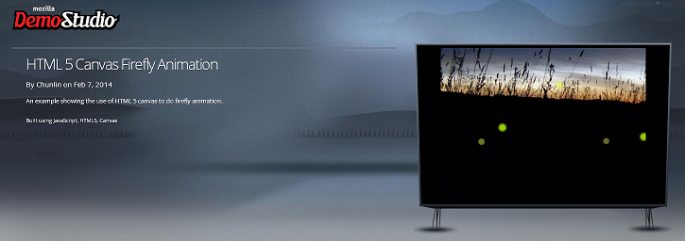
I do a firefly animation by using this new <canvas> element in a simple way. Firstly, I draw some fireflies on the canvas.

cxt.globalAlpha = 0.4;
cxt.beginPath();
cxt.arc(x, y, ((fireflyLightMaxDiameter - fireflyDiameter) * brightnessRatio) + fireflyDiameter, 0, Math.PI * 2, true);
cxt.closePath();
var grd = cxt.createRadialGradient(x, y, 1, x, y, 4);
grd.addColorStop(0, "#FFFFFF"); // white
grd.addColorStop(1, "#FFFF00"); // yellow
cxt.fillStyle = grd;
cxt.fill();
cxt.globalAlpha = brightnessRatio;
cxt.fillStyle = "#99FF00";
cxt.beginPath();
cxt.arc(x, y, fireflyDiameter, 0, Math.PI * 2, true);
cxt.closePath();
cxt.fill();

Secondly, I will redraw the whole canvas for every 60 milliseconds. Then in each redraw function, I randomly assign flying speed and direction to every single firefly. Also, there is a counter set so that the firefly won’t change its direction too often.

dx = Math.floor(Math.random() * fireflyMaxSpeed);
dy = Math.floor(Math.random() * fireflyMaxSpeed);
firefliesDx[i] = dx;
firefliesDy[i] = dy;
x += dx * directionX[i];
y += dy * directionY[i];
if (callCounter % 40 == 0) { // Don't change the flying direction too often
    directionX[i] = ((Math.floor(Math.random() * 10) < 5) ? 1 : -1);
    directionY[i] = ((Math.floor(Math.random() * 10) < 5) ? 1 : -1);
}

Thirdly, I set a counter to do the brightness changing of each firefly.

brightness[i] += fireflyBrightnessSpeed * brightnessDirection[i];
if (brightness[i] > fireflyMaxBrightness) {
    brightnessDirection[i] = -1;
} else if (brightness[i] < 0) {
    brightnessDirection[i] = 1;
}

So, yup, that’s the basic idea on how I  do firefly animation in <canvas>. Since this year is the tourism year in my country, I apply the firefly animation in a page about watching fireflies in Kuala Selangor, Malaysia. To get the source code, you can visit my page of this animation in the Mozilla Demo Studio. Don’t forget to click “Like It” button if you really like it. =P

Firefly HTML5 Animation
Firefly HTML5 Animation: The page is to promote Kuala Selangor, the world’s biggest firefly colony

Popcorn.js: Integrating Video and the Web Content

However, promoting just one attraction in my country is not enough. So, I am thinking of building a page which will guide the viewer through different places in Malaysia.

I get a promotional video about Malaysia tourism from YouTube. In the video, it shows several famous tourist attractions in Malaysia. I want to build a web page showing a short introduction as well as a map (or even street view) about those places. I thus chose Popcorn.js.

Popcorn.js is an open-source HTML5 video framework which allows us to create time-based interactive media on the web. So, we can now bring content in a web page into a video easily. People watching a video on the website now can also read a web page content which is relevant to the video content. So, this JavaScript library basically allows to add value to a video.

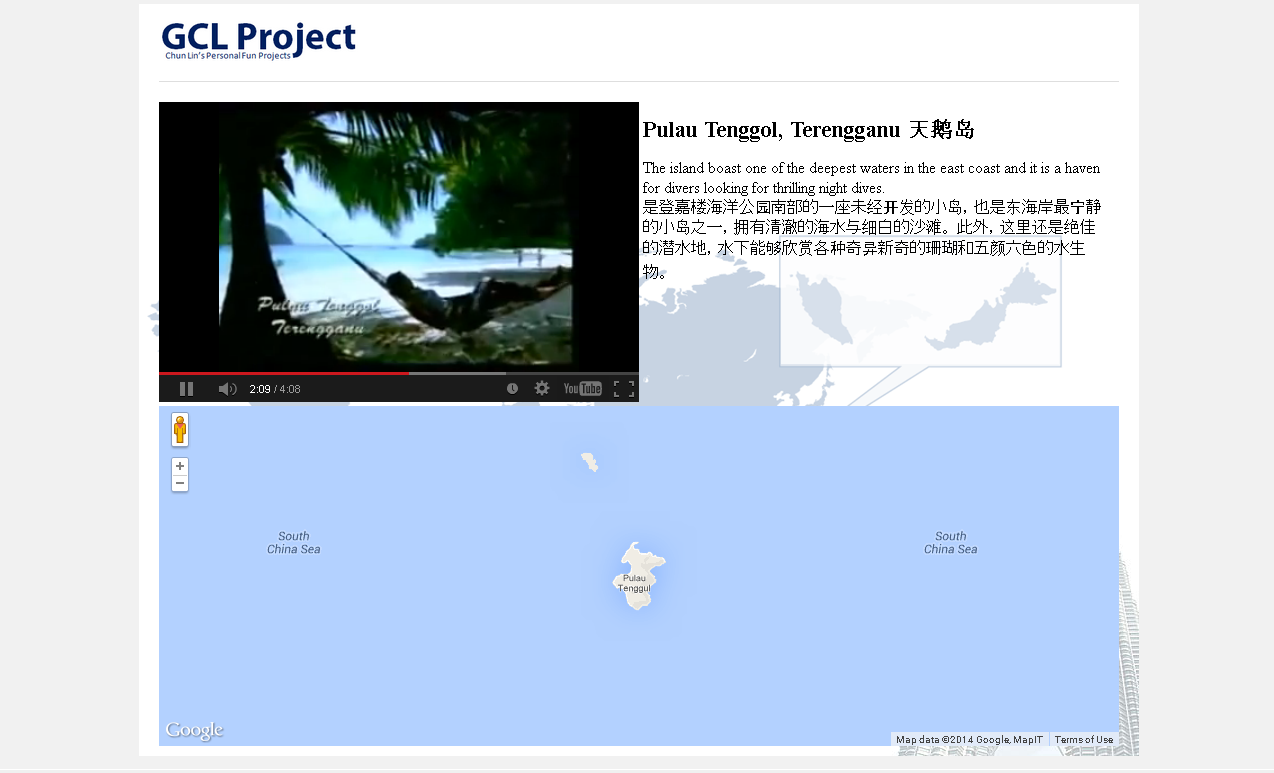
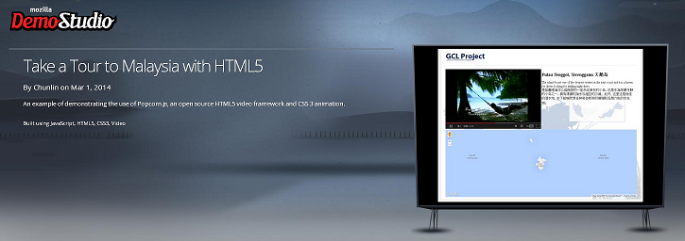
The following screenshot shows how the page looks when the video is displaying a picture of Pulau Tenggol.

Popcorn.js in action.

YouTube Plug-in Issue in Popcorn.js

There is a problem if we are using the YouTube plug-in offered in the Popcorn.js. After the video ends, the YouTube player will show a group of relevant videos. So it basically allows the viewer to change the content of the video player. Hence, to solve this problem, I added one value to the playerVars in popcorn.js.

playerVars = { wmode: "transparent", rel: 0 };

By default, rel is 1. The rel parameter in YouTube Player API indicated whether related videos should be shown in the player after the video finishes. So setting it to 0 fixes the problem.

CSS Animation

Although it’s not encouraged to use CSS to do complicated drawing on the web pages, thanks to the CSS3, we can now create animations with CSS by using @keyframes. For example, the following is part of my CSS which does the animation of the name of each attraction in the web page.

#footNote h1 {
    -webkit-animation:blurFadeIn 5s; 
    animation:blurFadeIn 5s; 
    font-family:KaiTi 隶书 Arial;
}
@-webkit-keyframes blurFadeIn{
    0%{
        opacity:0;
        text-shadow:0px 0px 40px #fff;
        -webkit-transform:scale(1.5);
    }
    100%{
        opacity:1;
        text-shadow:0px 0px 1px #fff;
        -webkit-transform:scale(1);
    }
}
@keyframes blurFadeIn{
    0%{
       opacity:0;
       text-shadow:0px 0px 40px #fff;
       transform:scale(1.5);
    }
    100%{
       opacity:1;
       text-shadow:0px 0px 1px #fff;
       transform:scale(1);
    }
}

What it does is basically just a simple fade-in animation of the text.

To view the finalized version of the web page, please visit to my page on Mozilla Demo Studio.

Visit Malaysia 2014

Both of the web pages mentioned above are all about Malaysia tourism. Why? This is because this year, Malaysians are having the nation’s largest tourism celebration. We had one back in 2007 when we were celebrating the 50th years anniversary of independent in Malaysia. Then Prime Minister, Abdullah Ahmad Badawi, even showed up in the Visit Malaysia 2007 promotional video.

So, if you haven’t visited Malaysia before, please bring your family and friends to this lovely country and join us in this grand tourism celebration. However, before that, kindly vote for my following two demos by clicking the “Like It” button. Thanks. =D

Enjoy the HTML5 firefly animation here.
Take a tour to Malaysia with HTML5 here.

Entertainment Hub Version 1

I received my first Raspberry Pi back in October, ten days after I ordered it online. After that I brought it back to my home in Kluang, Malaysia. The reason is that I would like to setup a home theatre with the help of Raspberry Pi. Hopefully in near future, I can have a complete entertainment hub setup for my family. Thus, I name this project, the Entertainment Hub.

Gunung Lambak, the highest point in Kluang.

Getting Raspberry Pi

Raspberry Pi is a credit-card-sized computer. According to the official website, it is designed to help the students to learn programming with lower cost. To understand more about Raspberry Pi, you can read its detailed FAQ. By saving S$1 per day, I easily got myself a new Raspberry Pi Model B (with 8GB SD card) after 2 months.

Entertainment Hub Project

Before the use of Raspberry Pi, I was using a Wireless 1080p Computer to HD Display Kit from IOGEAR to stream video from my laptop to the home TV. It requires a one-time installation of both the software and drivers on the laptop before I can use its wireless USB transmitter to connect between the PC and the wireless receiver which is connected to the TV with HDMI. Afer the installation, whenever I want to show the videos stored in external hard disk on the big screen, I always first need to switch on the receiver at TV side and then plug in the wireless USB transmitter on laptop. Now with the use of Raspberry Pi, I can easily browse the videos directly on the TV.

I only worked on the Entertainment Hub when I was at home. Also due to the fact that I only went back to home on Saturday and I would need to go back to Singapore on the following day, I didn’t really got much time to work on the project. Hence, I finally got video to show on the TV only after four times of travelling back to home.

Connecting External Hard Disk to Raspberry Pi

Before I started this project, I thought connecting an external hard disk directly to the Raspberry Pi would be enough. However, it turned out that it’s not the case. When I connected the external hard disk to the Raspberry Pi directly, the USB optical mouse, which was connected to another USB port of the Raspebrry Pi, lost its power. After doing some searches online, I found that it was most probably due to the fact that the Raspberry Pi didn’t have enough power to power up both the hard disk and the optical mouse at the same time.

The USB hard disk I have is 2.5” Portable HDD (Model: IM100-0500K) from Imation. After finding out that Raspebrry Pi had insufficient power for the portal hard disk, I chose to get a powered USB hub. Fortunately, there are nice people done a lot of tests on many, many USB hubs to find out which powered USB hubs are best to use together with Raspberry Pi. They posted a useful list of working powered USB hubs online for us to use as a guideline when choosing USB hub for Raspberry Pi. I bought the Hi-Speed USB 2.0 7-Port Hub by Belkin at Funan. Even though the model isn’t same as the one in the list, the USB hub works fine in my case.

To find out if Raspberry Pi can detect the portable hard disk or not, simply use the following command.

sudo blkid

If the external hard disk can be detected, then a similar results as follows should be printed.

/dev/sda1: LABEL=”HDD Name” UUID=”xxxxxxxxxxxxxxxxxx” TYPE=”ntfs”

Luckily my Raspberry Pi can auto detect the external hard disk and then can mount it automatically.

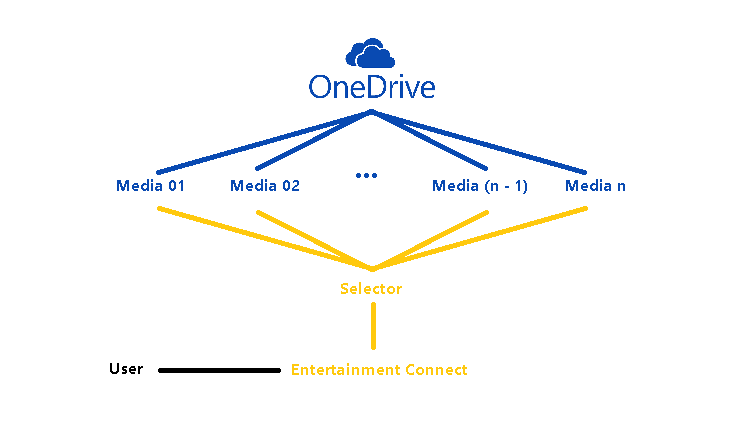
Entertainment Hub Version 1 Structure

Enjoy Movies on Raspberry Pi

After successfully mounting the external hard disk on Raspberry Pi, I just need to browse to the folders on the hard disk to pick the video files and then play them using OMXPlayer, a video player pre-installed on Raspberry Pi. As I used HDMI cable to connect Raspberry Pi and TV, so by using the following command, both audio and video can be successfully transferred to the TV.

omxplayer -o hdmi -r video.flv

The reason of having -r here is to adjust video framerate and resolution. Without it, not only the video won’t be displayed in full screen on TV, but there also won’t be any audio from TV.

When I first used omxplayer, it showed a black screen after I closed the program. There are online documentation and solution about this issue as well. For me, after I rebooted the Raspberry Pi, the issue disappeared.

Watching Movie with Help of Raspberry Pi
Watching movie with the help of Raspberry Pi.

Dad’s Help in the Project

The case of my Raspberry Pi is designed and made by my Dad. I am very happy and thankful that my Dad helped making a case for my Raspberry Pi. Usually the case of Raspberry Pi is box-shaped. However, the case I have here is a cylinder. So my Raspberry Pi looks special. =)

A closer look of my Raspberry Pi.

Future Work

With this little success of having movies played on Raspberry Pi, the first part of the Entertainment Hub is done. Now, there are more things needed to be done in order to make it more user friendly and robust. First of all, there needs a playlist support. Secondly, the ability of replaying the videos. Thirdly, a better GUI to select videos, instead of just a command-line UI. All of these depend on how fast I learn to program an app in Raspberry Pi.

Let’s look forward to completion of this project.

Jigsaw Puzzle and Image Processing (ジグソーパズルと画像処理)

Recently, I got a Little Busters! (リトルバスターズ!) jigsaw puzzle of 500 pieces. According to the description printed on the box, the size of the puzzle is 38 x 53 cm. The estimated time to complete the whole puzzle will be 15 hours. So, I decided to build a tool to help me complete the task by identifying the location of each piece of the jigsaw puzzle.

Little Busters! 500 Pieces Jigsaw Puzzle
Little Busters! (Rin and Komari) 500 Pieces Jigsaw Puzzle

The first thing I need is a webcam. Most of the modern laptops have a webcam, even Chromebook has one. So, the next problem will be capturing image using the webcam. Therefore, I built a simple project to do that using Silverlight because it is very easy to achieve simple webcam image capturing in Silverlight.

After that, since the Silverlight project is web based, I can embed it in another my Windows Form C# application with the WebBrowser control easily. So now what I have is a image capturing app without the saving function yet.

Successfully capture the image from webcam.

The main task of the C# application is to save the captured image and then compare it with a target image to identify the matching pieces in the jigsaw puzzle. The square with white border is the area where the image will be saved as an image for the use of image comparison later. The templates that the captured image will be compared with are the 500 squares from the original complete image. To save only the captured image inside the square (100×100 pixels), I do the following.

Rectangle bounds = this.Bounds;
int widthOfCaptureArea = 100;
int heightOfCaptureArea = 100;
int captureAreaX = 120;
int captureAreaY = 85;
Size captureArea = new Size(widthOfCaptureArea, heightOfCaptureArea);
Point webBrowserLocation = webBrowser1.PointToClient(new Point(bounds.Left, bounds.Top));
using (Bitmap bitmap = new Bitmap(widthOfCaptureArea, heightOfCaptureArea))
{
    using (Graphics g = Graphics.FromImage(bitmap))
    {
        g.CopyFromScreen(
        new Point(bounds.Left + captureAreaX + webBrowserLocation.X * -1, bounds.Top + captureAreaY + webBrowserLocation.Y * -1), Point.Empty, captureArea);
    }
    bitmap.Save("D://.../source.jpg", ImageFormat.Jpeg);
    bitmap.Dispose();
 }

With the help of AForge.NET framework, I can easily get the similarity of source and template images using its ExhaustiveTemplateMatching class to compare pixel-by-pixel between the source image and the template image.

private float CheckSimilarity(Bitmap sourceImage, Bitmap targetImage) 
{
   // create template matching algorithm's instance
   ExhaustiveTemplateMatching tm = new ExhaustiveTemplateMatching(0.8f);
   // find all matchings with specified above similarity
   TemplateMatch[] matchings = tm.ProcessImage(sourceImage, targetImage);
   float similarity = 0;
   foreach (TemplateMatch m in matchings)
   {
       similarity = m.Similarity;
   }
   return similarity;
}

When comparing the images, I perform rotation three times because the direction of the piece is uncertain. So, I will just need to rotate the source image three times and compare the source and the template for each of the time to get the highest similarity value.

float similarity = CheckSimilarity(sourceImage, targetImage);
// Rotate the source image 90 degrees
for (int i = 1; i <= 3; i++)
{
    sourceImage.RotateFlip(RotateFlipType.Rotate90FlipNone);
    if (CheckSimilarity(sourceImage, targetImage) > similarity)
    {
        similarity = CheckSimilarity(sourceImage, targetImage);
    }
}
Similarity of 83%
Similarity of 83% between this particular piece with one of the template images from the original complete image

Yup, now it is done and I can thus use it to complete my 500-piece jigsaw puzzle. However, in the whole project, I actually assume each piece to be a perfect square. So the similarity value is not that accurate as well. This can be improved in the next version to take the pattern of each piece into consideration.