Personal OneDrive Music Player on Raspberry Pi with a Web-based Remote Control (Part 2)

There are so much things that we can build with a Raspberry Pi. It’s always my small little dream to have a personal music player that sits on my desk. In the Part 1, we already setup the music player programme which is written in Golang on Raspberry Pi successfully.

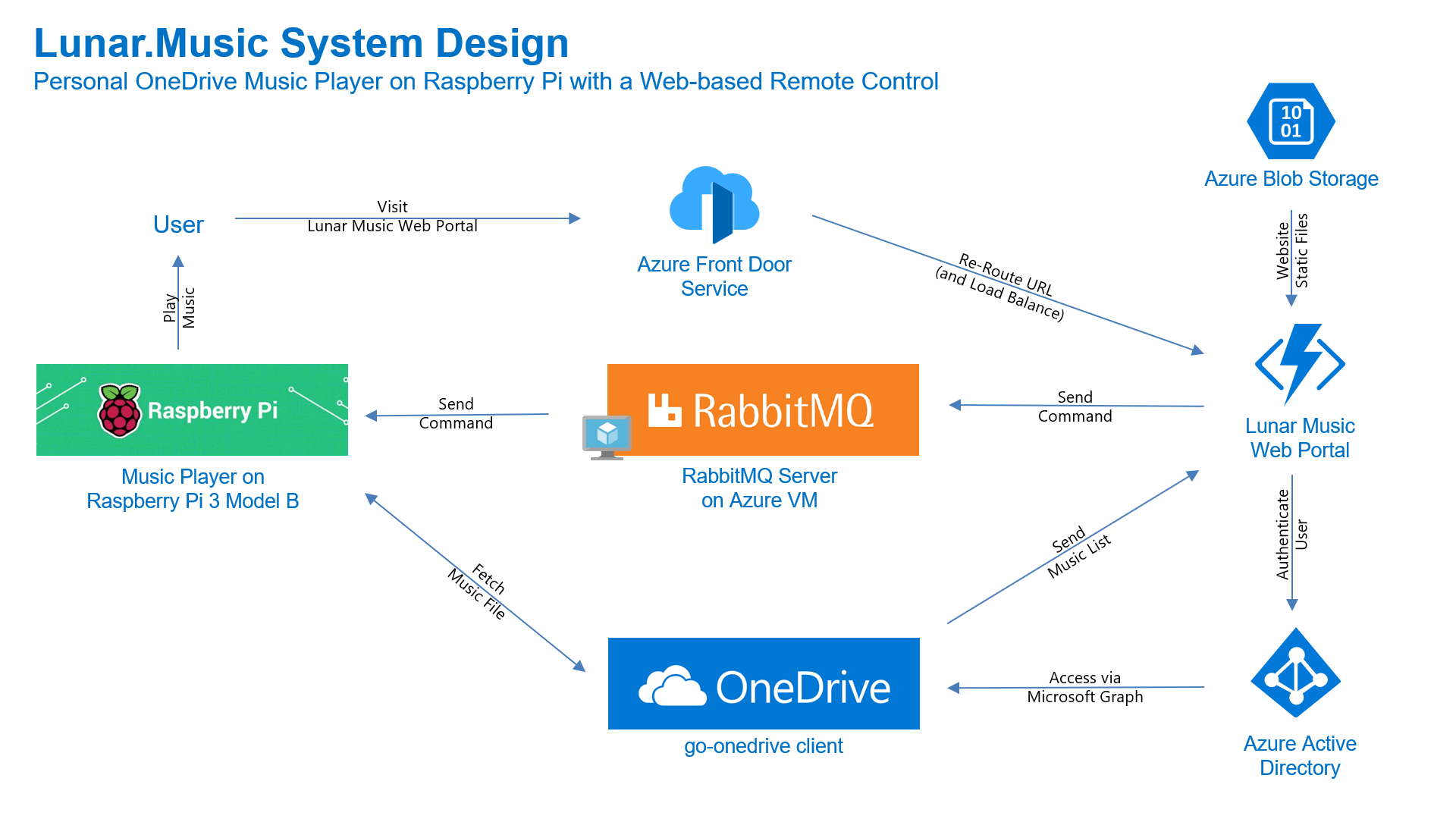
Now we need to have a web app as a remote control which will send command to the music player to play the selected song. In this article, we will talk about the web portal and how we access the OneDrive with Microsoft Graph and go-onedrive client.

[Image Caption: System design of this music player together with its web portal.]

Project GitHub Repository

The complete source code of this web-based music player remote control can be found at https://github.com/goh-chunlin/Lunar.Music.Web.

Gin Web Framework

I had a discussion with Shaun Chong, the Ninja Van CTO, and I was told that they’re using Gin web framework. Hence, now I decide to try the framework out in this project as well.

Gin offers a fast router that’s easy to configure and use. For example, to serve static files, we simply need to have a folder static_files, for example, in the root of the programme together with the following one line.

router.StaticFS("/static", http.Dir("static_files"))

However, due to the fact that later I need to host this web app on Azure Function, I will not go this route. Hence, currently the following are the main handlers in the main function.

router.LoadHTMLGlob("templates/*.tmpl.html")

router.GET("/api/HttpTrigger/login-url", getLoginURL)
router.GET("/api/HttpTrigger/auth/logout", showLogoutPage)
router.GET("/api/HttpTrigger/auth/callback", showLoginCallbackPage)

router.GET("/api/HttpTrigger/", showMusicListPage)

router.POST("/api/HttpTrigger/send-command-to-raspberrypi", sendCommandToRaspberryPi)

The first line is to load all the HTML template files (*.tmpl.html) located in the templates folder. The templates we have include some reusable templates such as the following footer template in the file footer.tmpl.html.

<!-- Footer -->
<footer id="footer">
    <div class="container">
        ...
    </div>
</footer>

We can then import such reusable templates into other HTML files as shown below.

<!DOCTYPE html>
<html>
    ...
    <body>
        ...
        {{ template "footer.tmpl.html" . }}
        ...
    </body>
</html>

After importing the templates, we have five routes defined. All of the routes start with /api/HttpTrigger is because this web app is designed to be hosted on Azure Function with a HTTP-triggered function called HttpTrigger.

The first three routes are for authentication. Then after that is one route for loading the web pages, and one handler for sending RabbitMQ message to the Raspberry Pi.

The showMusicListPage handler function will check whether the user is logged in to Microsoft account with access to OneDrive or not. It will display the homepage if the user is not logged in yet. Otherwise, if the user has logged in, it will list the music items in the user’s OneDrive Music folder.

func showMusicListPage(context *gin.Context) {
    ...
    defaultDrive, err := client.Drives.Default(context)
    if err == nil && defaultDrive.Id != "" {
        ...
        context.HTML(http.StatusOK, "music-list.tmpl.html", gin.H{ ... })
        
        return
    }

    context.HTML(http.StatusOK, "index.tmpl.html", gin.H{ ... })
}

Hosting Golang Application on Azure Function

There are many ways to host Golang web application on Microsoft Azure. The place we will be using in this project is Azure Function, the serverless service from Microsoft Azure.

Currently, Azure Function offers first-class support for only a limited number of programming languages, such as JavaScript, C#, Python, Java, etc. Golang is not one of them. Fortunately, in March 2020, Azure Function custom handler is announced officially even though it’s still in preview now.

The custom handler provides a lightweight HTTP server written in any language which then enables developers to bring applications, such as those written in Golang, into Azure Function.

Azure Functions custom handler overview
[Image Caption: The relationship between the Functions host and a web server implemented as a custom handler. (Image Source: Microsoft Docs – Azure)]

What is even more impressive is that for HTTP-triggered functions with no additional bindings or outputs, we can enable HTTP Request Forwarding. With this configuration, the handler in our Golang application can work directly with the HTTP requests and responses. This is all configured in the host.json of the Azure Function as shown below.

{
    "version": "2.0",
    "extensionBundle": {
        "id": "Microsoft.Azure.Functions.ExtensionBundle",
"version": "[1.*, 2.0.0)"
    },
    "customHandler": {
        "description": {
            "defaultExecutablePath": "lunar-music-webapp.exe"
        },
        "enableForwardingHttpRequest": true
    }
}

The defaultExecutablePath is pointing to the our Golang web app binary executable which is output by go build command.

So, in the wwwroot folder of the Azure Function, we should have the following items, as shown in the screenshot below.

[Image Caption: The wwwroot folder of the Azure Function.]

Since we have already enabled the HTTP Request Forwarding, we don’t have to worry about the HttpTrigger directory. Also, we don’t have to upload our web app source codes because the executable is there already. What we need to upload is just the static resources, such as our HTML template files in the templates folder.

The reason why I don’t upload other static files, such as CSS JavaScript, and image files, is that those static files can be structured to have multiple directory levels. We will encounter a challenge when we are trying to define the Route Template of the Function, as shown in the screenshot below. There is currently no way to define route template without knowing the maximum number of directory level we can have in our web app.
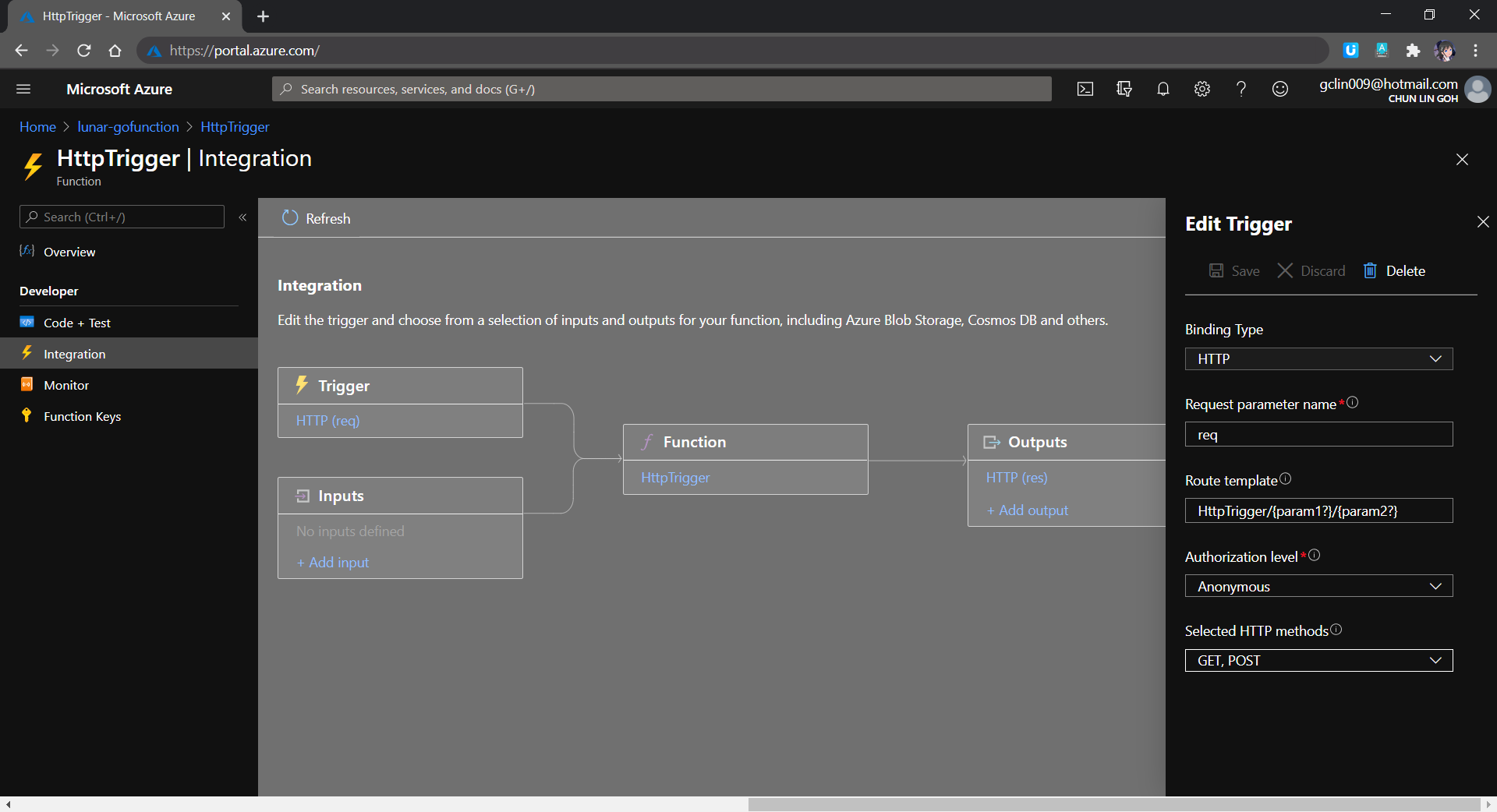
[Image Caption: Defining the route template in the HTTP Trigger of a function.]

Hence, I move all the CSS, JS, and image files to Azure Storage instead.

From the Route Template in the screenshot above, we can also understand why the routes in our Golang web app needs to start with /api/HttpTrigger.

Golang Client Library for OneDrive API

In this project, users will first store the music files online at their personal OneDrive Music folder. I restrict it to only the Music folder is to make the management of the music to be more organised. So it is not because there is technical challenge in getting files from other folders in OneDrive.

Referring to the Google project where they build a Golang client library for accessing the GitHub API, I have also come up with go-onedrive, a Golang client library, which is still in progress, to access the Microsoft OneDrive.

Currently, the go-onedrive only support simple API methods such as getting Drives and DriveItems. These two are the most important API methods for our web app in this project. I will continue to enhance the go-onedrive library in the future.

[Image Caption: OneDrive can access the metadata of a music file as well, so we can use API to get more info about the music.]

The go-onedrive library does not directly handle authentication. Instead, when creating a new client, we need to pass an http.Client that can handle authentication. The easiest and recommended way to do this is using the oauth2 library.

So the next thing we need to do is adding user authentication feature to our web app.

Microsoft Graph and Microsoft Identity platform

Before our web app can make requests to OneDrive, it needs users to authenticate and authorise the application to have access to their data. Currently, the official recommended way of doing so is to use Microsoft Graph, a set of REST APIs which enable us to access data on Microsoft cloud services, such as OneDrive, User, Calendar, People, etc. For more information, please refer to the YouTube video below.

So we can send HTTP GET requests to endpoints to retrieve information from OneDrive, for example /me/drives will return the default drive of the currently authenticated user.

Generally, to access OneDrive API, developers are recommend to use the standard OAuth 2.0 authorisation framework with the Azure AD v2.0 endpoint. This is where we will talk about the new Microsoft Identity Platform, which is the recommended way for accessing Microsoft Graph APIs.  Microsoft Identity Platform allows developers to build applications that sign in users, get tokens to call the APIs, as shown in the diagram below.

Microsoft identity platform today
[Image Caption: Microsoft Identity Platform experience. (Image Source: Microsoft Docs – Azure)]

By the way, according to Microsoft, the support for ADAL will come to an end in June 2022. So it’s better to do the necessary migration if you are still using the v1.0. Currently, the Golang oauth2 package is already using the Microsoft Identity Platform endpoints.

[Image Caption: Microsoft Identity Platform endpoints are used in the Golang OAuth2 package since December 2017.]

Now the first step we need to do is to register an Application with Microsoft on the Azure Portal. From there, we can get both the Client ID and the Client Secret (secret is now available under the “Certificates & secrets” section of the Application).

After that, we need to find out the authentication scopes to use so that the correct access type is granted when the user is signed in from our web app.

With those information available, we can define the OAuth2 configuration as follows in our web app.

var oauthConfig = &oauth2.Config{
    RedirectURL:  AzureADCallbackURL,
    ClientID:     AzureADClientID,
    ClientSecret: AzureADClientSecret,
    Scopes:       []string{"files.read offline_access"},
    Endpoint:     microsoft.AzureADEndpoint("common"),
}
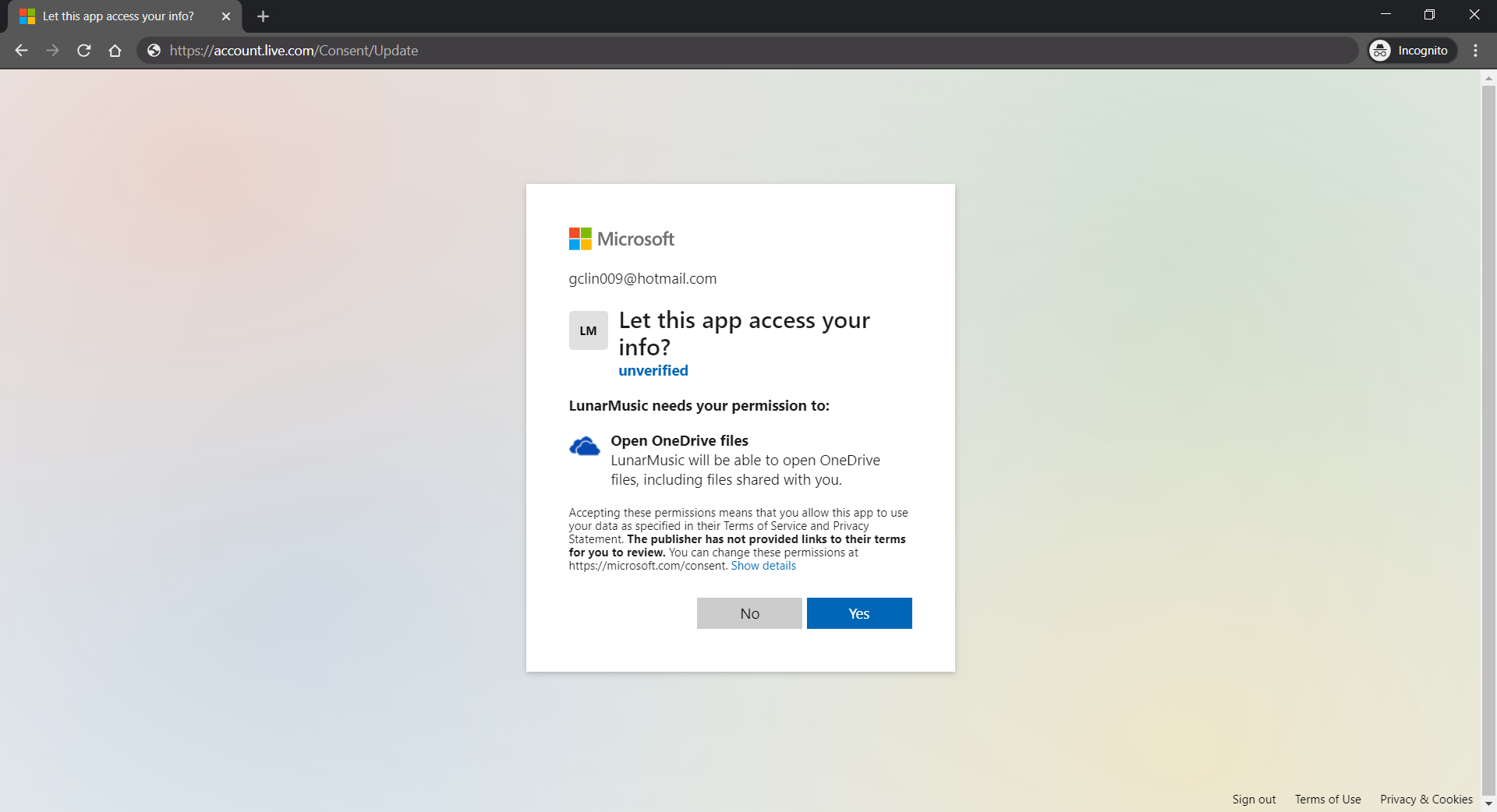
The “file.read” scope is to grant read-only permission to all OneDrive files of the logged in user. By the way, to check the Applications that you are given access to so far in Microsoft Account, you can refer to the consent management page of Microsoft Account.

Access Token, Refresh Token, and Cookie

The “offline_access” scope is used here because we need a refresh token that can be used to generate additional access tokens as necessary. However, please take note that this “offline_access” scope is not available for the Token Flow. Hence, what we can only use is the Code Flow, which is described in the following diagram.

Authorization Code Flow Diagram
[Image Caption: The Code Flow. (Image Source: Microsoft Docs – OneDrive Developer)]

Hence, this explains why we have the following codes in the /auth/callback, which is the Redirect URL of our registered Application. What the codes do is to get the access token and refresh token from the /token endpoint using the auth code returned from the /authorize endpoint.

r := context.Request
code := r.FormValue("code")

response, err := http.PostForm(
    microsoft.AzureADEndpoint("common").TokenURL,
    url.Values{
        "client_id":     {AzureADClientID},
        "redirect_uri":  {AzureADCallbackURL},
        "client_secret": {AzureADClientSecret},
        "code":          {code},
        "grant_type":    {"authorization_code"}
    }
)

Here, we cannot simply decode the response body into the oauth2.Token yet. This is because the JSON in the response body from the Azure AD token endpoint only has expires_in but not expiry. So it does not have any field that can map to the Expiry field in oauth2.Token. Without Expiry, the refresh_token will never be used, as highlighted in the following screenshot.

[Image Caption: Even though the Expiry is optional but without it, refresh token will not be used.]

Hence, we must have our own struct tokenJSON defined so that we can first decode the response body to tokenJSON and then convert it to oauth2.Token with value in the Expiry field before passing the token to the go-onedrive client. By doing so, the access token will be automatically refreshed as necessary.

Finally, we just need to store the token in cookies using gorilla/securecookie which will encode authenticated and encrypted cookie as shown below.

encoded, err := s.Encode(ACCESS_AND_REFRESH_TOKENS_COOKIE_NAME, token)
if err == nil {
    cookie := &http.Cookie{
        Name: ACCESS_AND_REFRESH_TOKENS_COOKIE_NAME,
        Value: encoded,
        Path: "/",
        Secure: true,
        HttpOnly: true,
        SameSite: http.SameSiteStrictMode,
    }
    http.SetCookie(context.Writer, cookie)
}

Besides encryption, we also enable both Secure and HttpOnly attributes so that the cookie is sent securely and is not accessed by unintended parties or JavaScript Document.cookie API. The SameSite attribute also makes sure the cookie above not to be sent with cross-origin requests and thus provides some protection against Cross-Site Request Forgery (CSRF) attacks.

Microsoft Graph Explorer

For testing purposes, there is an official tool known as the Graph Explorer. It’s a tool that lets us make requests and see responses against the Microsoft Graph. From the Graph Explorer, we can also retrieve the Access Token and use it on other tools such as Postman to do further testing.
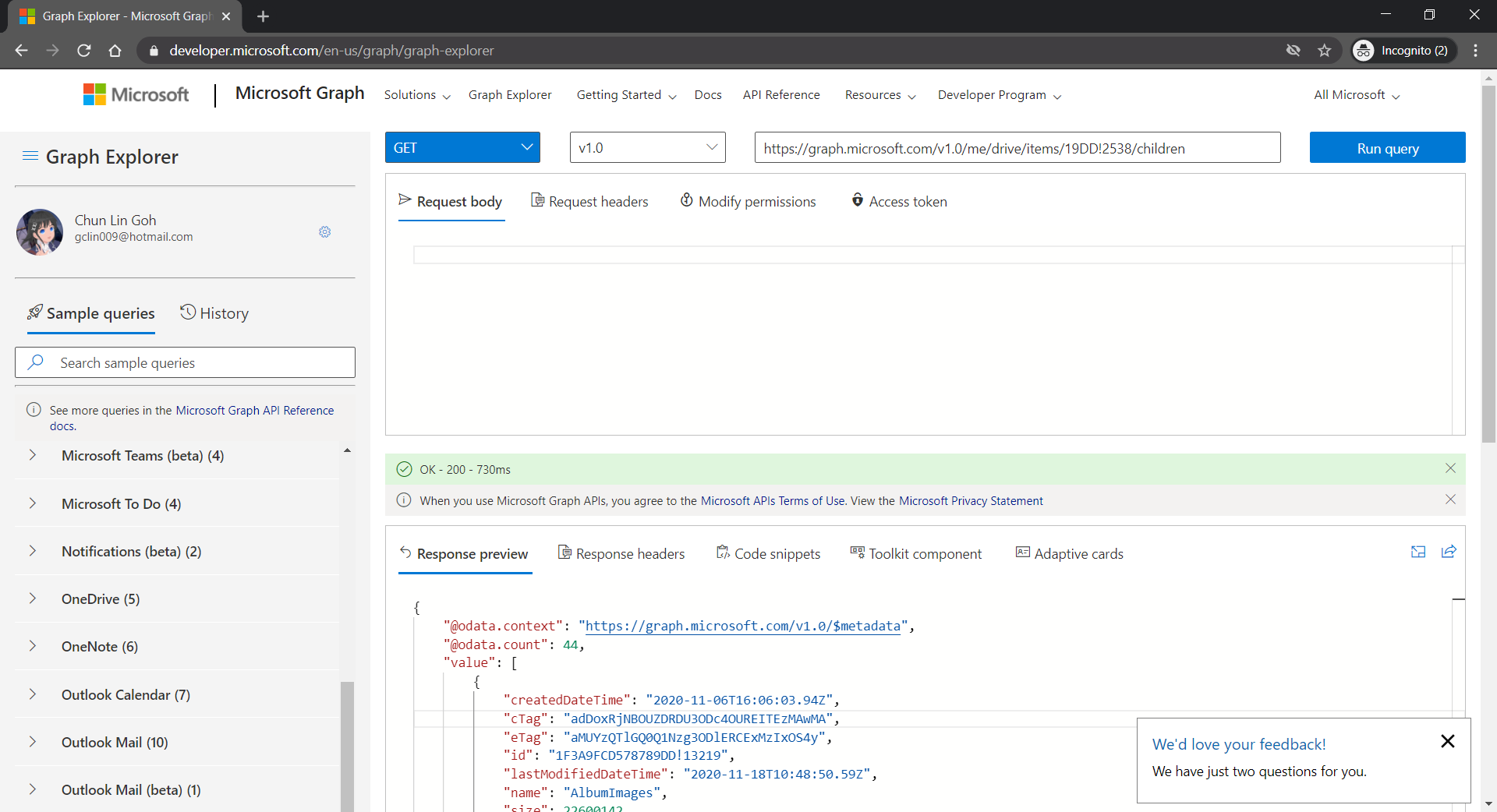
[Image Caption: Checking the response returned from calling the get DriveItems API.]

Azure Front door

In additional, Azure Front Door is added between the web app and the user in order to give us convenience in managing the global routing for the traffic to our web app.

The very first reason why I use Azure Front Door is also because I want to hide the /api/HttpTrigger part from the URL. This can be done by setting the custom forwarding path which points to the /api/HttpTrigger/ with URL rewrite enabled, as shown in the screenshot below.
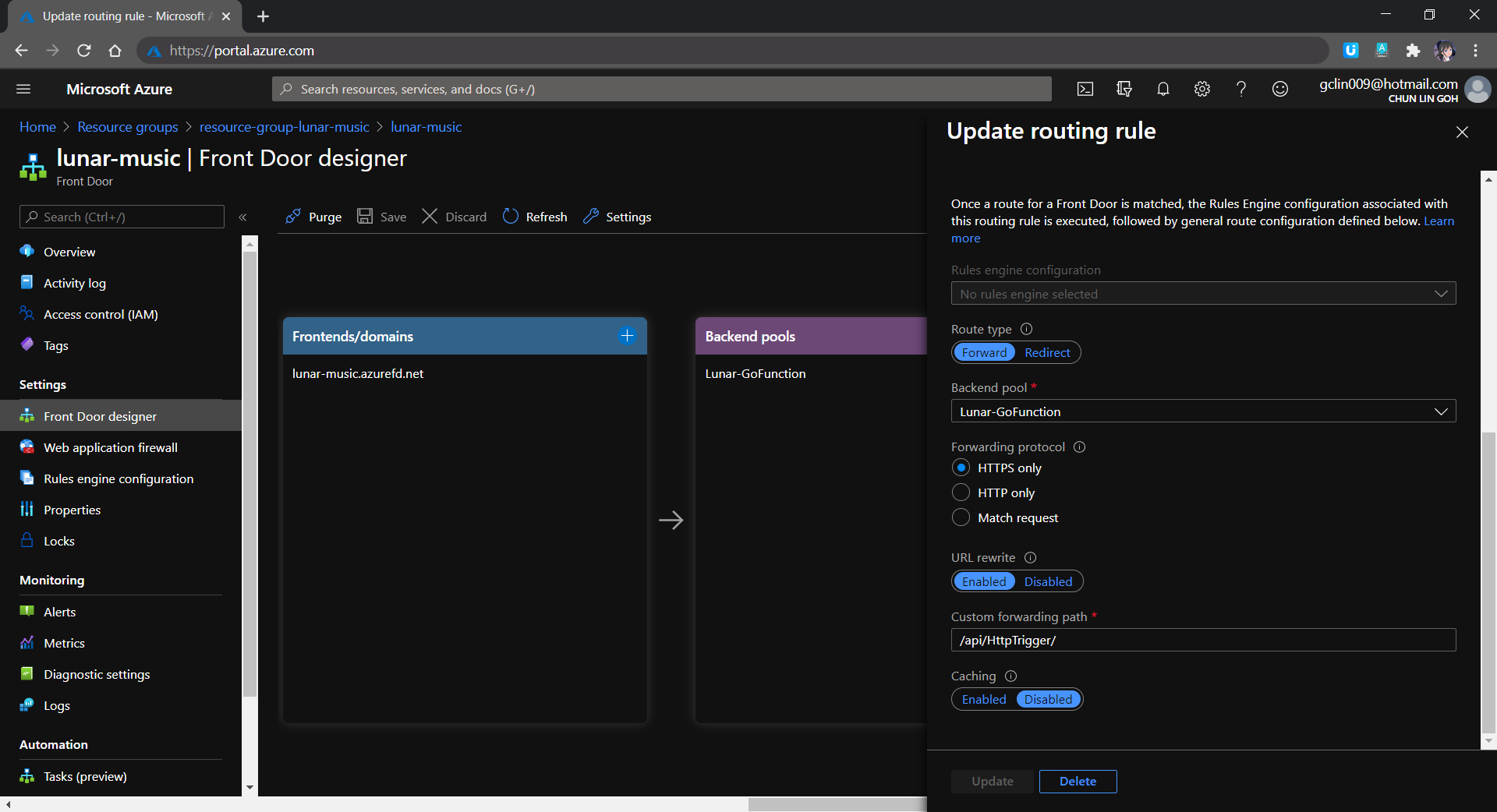
[Image Caption: Setting the route details for the Rules Engine in Azure Front Door.]

In the screenshot above, we also notice a field called Backend Pool. A backend pool is a set of equivalent backends to which Front Door load balances your client requests. In our project, this will be the Azure Function that we’ve created above. Hence, in the future, when we have deployed the same web app to multiple Azure Functions so that Azure Front Door can help us to do load balancing.

Finally, Azure Front Door also provides a feature called Session Affinity which enables direct subsequent traffic from a user session to the same application backend for processing using Front Door generated cookies. This feature can be useful if we are building a stateful applications.

Final Product

Let’s take a look what it looks like after we’ve deployed the web app above and uploaded some music to the OneDrive. The web app is accessible through the Azure Front Door URL now at https://lunar-music.azurefd.net/.

[Image Caption: My playlist based on my personal OneDrive Music folder.]

Yup, that’s all. I finally have a personal music entertainment system on Raspberry Pi. =)

References

The code of the music player described in this article can be found in my GitHub repository: https://github.com/goh-chunlin/Lunar.Music.Web.

If you would like to find out more about Microsoft Identity Platform, you can also refer to the talk below given by Christos Matskas, Microsoft Senior Program Manager. Enjoy!
Personal OneDrive Music Player on Raspberry Pi with a Web-based Remote Control (Part 1)

There are so much things that we can build with a Raspberry Pi. It’s always my small little dream to have a personal music player that sits on my desk. With the successful setup of the Raspberry Pi 3 Model B few weeks ago, it’s time to realise that dream.

Project GitHub Repository

The complete source code of the music player program on the Raspberry Pi mentioned in this article can be found at https://github.com/goh-chunlin/Lunar.Music.RaspberryPi.

Project Objective

In this article and the next, I will be sharing with you the journey of building a personal music player on Raspberry Pi. The end product will just be like Spotify on Google Nest Hub where we can listen to our favourite music not on our computer or smart phone but on another standalone device, which is Raspberry Pi in this case.

In this project, there is no monitor or any other displays connected to my Raspberry Pi. So the output is simply music and songs. However, since there is no touch screen for user to interact with the Raspberry Pi like how Google Nest Hub does, we will need to use a web app which acts as the remote control of the Raspberry Pi music player. With the web app, user will be able to scan through the playlist and choose which music or song to play.

A month in, I barely use the Google Nest Hub Max (yet I still recommend it)
[Image Caption: Spotify on Google Nest Hub (Image Credit: Android Authority)]

In addition, while Google Nest Hub has its music streamed from Spotify, the music that our Raspberry Pi music player will use is available on our personal OneDrive Music folder. In the next article, I will talk more about how we can use Azure Active Directory and Microsoft Graph API to connect with our personal OneDrive service.

So with this introduction, we can confirm that the objective of this project is to build a music player on a Raspberry Pi which can be controlled remotely via a web app to play music from OneDrive.

[Image Caption: System design of this music player together with its web portal.]

We will only focus on the setup of Raspberry Pi and RabbitMQ server in this Part 1 of the article. In the Part 2, which can be found by clicking here, we will continue to talk about the web portal and how we access the OneDrive with Microsoft Graph and go-onedrive client.

Installing Golang on Raspberry Pi

The music player that we are going to build is using Golang. The reason of choosing Golang is because it’s easy to work with, especially integrating with the RabbitMQ server.

To install Golang on a Raspberry Pi, we can simply use the following command.

$ sudo apt-get install golang

However, please take note that the version of the Golang downloaded is not the latest one. So the alternative way of doing it is download the package from the Golang official website with the following commands.

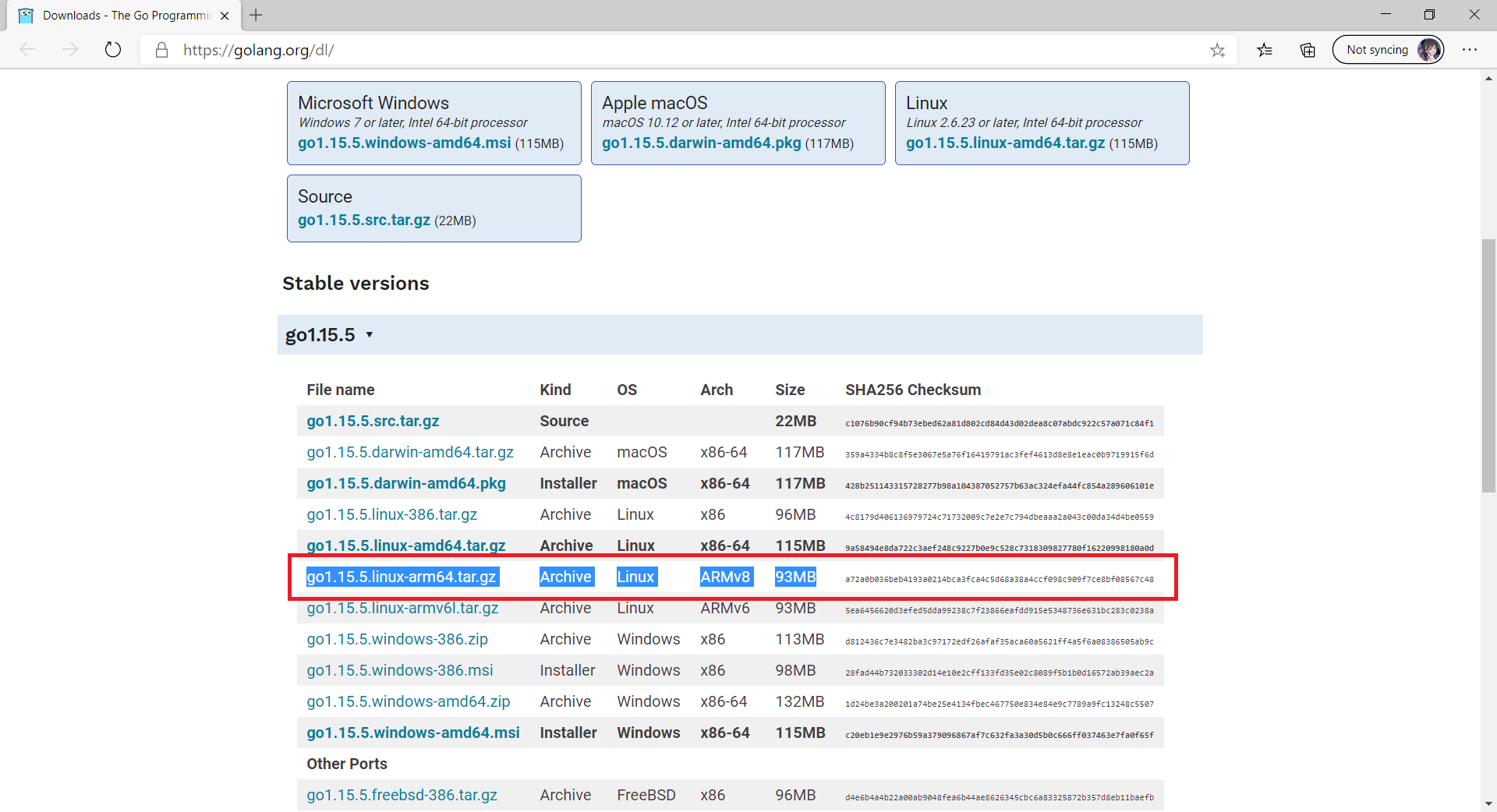
Since the Raspberry Pi 3 Model B is having a 64-bit ARMv8 CPU and the latest Golang version is 1.15.5, according to the Golang website, what we need to download is the highlighted one in the following screenshot. Hence, we can run the following commands.

$ wget https://golang.org/dl/go1.15.5.linux-arm64.tar.gz
$ sudo tar -C /usr/local -xzf go1.15.5.linux-arm64.tar.gz
$ rm go1.15.5.linux-arm64.tar.gz
[Image Caption: Finding the correct package to download for Raspberry Pi 3 Model B.]

Now we have Golang installed on our Raspberry Pi, we can proceed to build the music player.

Music Player on Raspberry Pi

The multimedia player used in this project is the VLC Media Player which is not only free and open-source but also cross-platform. The reason VLC Media Player is chosen is also because it has nvlc, a command-line ncurses interface to play an MP3. Hence, to play an MP3 with nvlc, we just need to run the following command.

$ nvlc <mp3_file> --play-and-exit

The –play-and-exit flag is added to make sure that the VLC will exit once the particular music is finished.

Also, we can use Go exec command to execute the command above. For example, if we have an MP3 file called song and it’s stored in the directory songFileRoot, then we can play the MP3 file with the following codes.

cmd := exec.Command("nvlc", song, "--play-and-exit")

cmd.Dir = songFileRoot
cmd.Stdout = os.Stdout
cmd.Stderr = os.Stdout

if err := cmd.Run(); err != nil {
    fmt.Println("Error:", err)
}

Messaging, RabbitMQ, and Remote Controlling Via Web App

Now we need a communication channel for our web app to tell the Golang programme above which MP3 file to play.

A common way is to use HTTP and REST to communicate. That will require us to design some RESTful HTTP APIs and turn our Raspberry Pi to be a web server so that the web app can invoke the APIs with HTTP request.

Using RESTful API sounds great and easy but what if the Raspberry Pi is not responding? Then our web app has to implement some sort of reconnection or failover logic. In addition, when our web app makes a call to the API, it will be blocked waiting for a response. Finally, due to the nature of RESTful API, there will always be some coupling of services.

This makes me turn to an alternative way, which is messaging which is loose coupling and asynchronous. Using messaging with message brokers like RabbitMQ helps a lot with scalability too.

Here RabbitMQ is used because is a popular light-weight message broker and it’s suitable for general-purpose messaging. Also, I like how RabbitMQ simply stores messages and passes them to consumers when ready.

It’s also simple to setup RabbitMQ on a cloud server too. For example, now on Microsoft Azure, we can just launch a VM running Ubuntu 18.04 LTS and follow the steps listed in the tutorials below to install RabbitMQ Server on Azure.

RabbitMQ supports several messaging protocols, directly and through the use of plugins. Here we will be using the AMQP 0-9-1 which we have Golang client support for it as well.

How about the message format? Basically, to RabbitMQ, all messages are just byte arrays. So, we can store our data in JSON and serialise the JSON object to byte array before sending the data via RabbitMQ. Hence, we have the two structs below.

type Command struct {
    Tasks []*Task `json:"tasks"`
}

type Task struct {
    Name    string   `json:"name"`
    Content []string `json:"content"`
}

With this, we then can publish the message via RabbitMQ as follows.

ch, err := conn.Channel()
...
err = ch.Publish(
    "",     // exchange
    q.Name, // routing key
    false,  // mandatory
    false,  // immediate
    amqp.Publishing{
        ContentType: "application/json",
        Body:        body,
    }
)

When the message is received at Raspberry Pi side, we simply need to de-serialise it accordingly to get the actual data.

Now, by connecting both the Raspberry Pi music player and the web app to the RabbitMQ server, both of them can communicate. We will then make our app web app as a sender to send the music filename over to the music player on the Raspberry Pi to instruct it to play the music.

Transferring OneDrive Music to Raspberry Pi

The music is stored on personal OneDrive Music folder online. Hence, it’s not a wise idea to always let our Raspberry Pi to stream the music from OneDrive every time the same music is chosen. Instead, we shall download only once to the Raspberry Pi right before the first time of a music is playing.

Hence, in our music player programme, we have a data file called playlist.data which keeps track of the OneDrive Item ID and its local file name on the Raspberry Pi. Once the music is successfully downloaded to the Raspberry Pi, a new line of record as shown below will be appended to the data file.

121235678##########music.mp3

Hence for the subsequent play of the same music, the music player programme will scan through the data file and play the local MP3 file instead of downloading it again from OneDrive.

func isDriveItemDownloaded(driveItemId string) bool {
    isMusicFileDownloaded := false

    dataFile, err := os.Open("playlist.dat")

    defer dataFile.Close()

    if err == nil {
        scanner := bufio.NewScanner(dataFile)
        scanner.Split(bufio.ScanLines)

        for scanner.Scan() {
            line := scanner.Text()
            if !isMusicFileDownloaded && 0 == strings.Index(line, driveItemId) {
                lineComponents := strings.Split(line, "##########")
                playSingleMusicFile(lineComponents[1])
                isMusicFileDownloaded = true
            }
        }
    }
    return isMusicFileDownloaded
}

Launch the Music Player Automatically

With our music player ready, instead of having us to launch it manually, could we make it run on our Raspberry Pi at startup? Yes, there are five ways of doing so listed on the Dexter Industry article. I choose to modify the .bashrc file which will run the music player when we boot up the Raspberry Pi and log in to it.

$ sudo nano /home/pi/.bashrc

In the .bashrc file, we simply need to append the following lines where we will change directory to the root of the music player programme. We cannot simply just run the programme just yet. We need to make sure two things.

Firstly, we need to make our music player run in the background. Doing so is because we want to continue to use the shell without waiting for the song finishes playing. So we can simply add the & to the end of the command so that the music player programme will start in the background.

Secondly, since we login to the Raspberry Pi using SSH, when we start a shell script and then logout from it, the process will be killed and thus cause the music player programme to stop. Hence, we need nohup (no hang up) command to catch the hangup signal so that our programme can run even after we log out from the shell.

# auto run customised programmes
cd /home/pi/golang/src/music-player
nohup ./music-player &

USB Speaker and ALSA

Next, we need to connect our Raspberry Pi to a speaker.

I get myself a USB speaker from Sim Lim Square which uses a “C-Media” chipset.. Now, I simply need to connect it to the Raspberry Pi.

[Image Caption: C-Media Electronics Inc. is a Taiwan computer hardware company building processors for audio devices.]

Next, we can use lsusb, as shown below, to display information about USB buses in Raspberry Pi and the devices connected to them. We should be able to locate the speaker that we just connect.

$ lsusb
Bus 001 Device 004: ID ... C-Media Electronics, Inc. Audio Adapter
Bus 001 Device 003: ID ...
...

Hence now we know that the USB speaker is successfully picked up by the Raspberry Pi OS.

We can then proceed to list down all soundcards and digital audio devices with the following command.

$ aplay -l
**** List of PLAYBACK Hardware devices ****
card 0: Headphones...
  Subdevices: 8/8
  Subdevices #0: ...
  ...
card 1: Set [C-Media USB Headphone Set], device 0: USB Audio [USB Audio]
  ...

Now we also know that the USB speaker is at the Card 1. With this info, we can set the USB speaker as the default audio device by editing the configuration file of ALSA, the Advanced Linux Sound Architecture. ALSA is used for providing kernel driven sound card drivers.

$ sudo nano /usr/share/alsa/alsa.conf

The following two lines in the file are the only lines we need to update to be as follows in the file. The reason we put “1” for both of them because the USB speaker is using card 1, as shown above. So the number may be different for your device. For more information about this change, please refer to the ALSA Project page about setting default device.

defaults.ctl.card 1
defaults.pcm.card 1

Finally, if you would like to adjust the volume of the speaker, you can use alsamixer. Alsamixer is an ncurses mixer program for use with ALSA soundcard drivers.

$ alsamixer

There is a very good article about setting up USB speaker on Raspberry Pi by Matt on raspberrypi-spy.co.uk website. Feel free to refer to it if you would like to find our more.

Next: The Web-Based Remote Control and OneDrive

Since now we’ve already successfully setup the music player on the Raspberry Pi, it’s time to move on to see how we can control it from a website and how we can access our personal OneDrive Music folder with Azure AD and Microsoft Graph.

When you’re ready, let’s continue our journey here: https://cuteprogramming.wordpress.com/2020/11/21/personal-onedrive-music-player-on-raspberry-pi-with-a-web-based-remote-control-part-2/.

References

The code of the music player described in this article can be found in my GitHub repository: https://github.com/goh-chunlin/Lunar.Music.RaspberryPi.

Make the Most of Life in Haulio System Development Team

Haulio is a technology startup founded in 2017 which aims to provide the simplest and most reliable way for businesses to get their containers moved. Yes, we are talking about the physical containers here not the Docker containers.

In Haulio, we ask our employees to give their best in work, and we’re committed to doing the same. It’s why we offer great opportunities to empower each of us in the team.

Maximizing Engineering Velocity

As a startup, it’s crucial for us to focus on getting a high-quality product to market quickly. Hence, we have been putting in a lot of efforts to organize our System Development Team in Haulio.

Developing products for B2B business like Haulio is challenging in the sense that making fatal technology decisions need to be avoided in all cost. Hence, in the early stage of Haulio, we hire seniors who are very self-directed, which allows me as the team lead to spend time on other stuff.

Since Haulio is still very young, engineers in Haulio are able to contribute their ideas to the product development and their decisions all have a profound long-term impact on the company. Every week, after our CPO’s discussion with product designers and UX researchers, he will approach our engineers to spend many hours in discussions about our data model, architecture, timeline, and implementation approach.

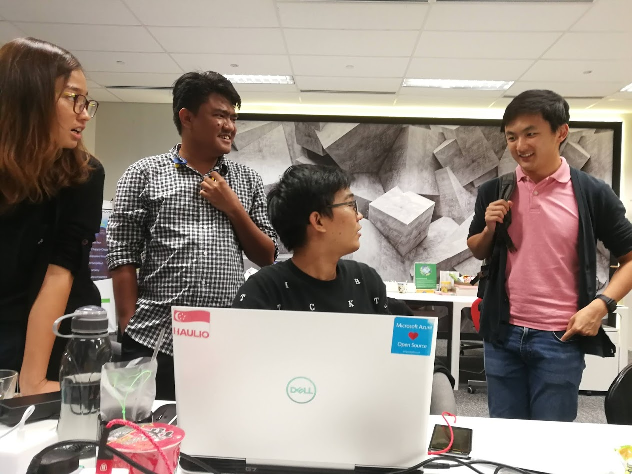
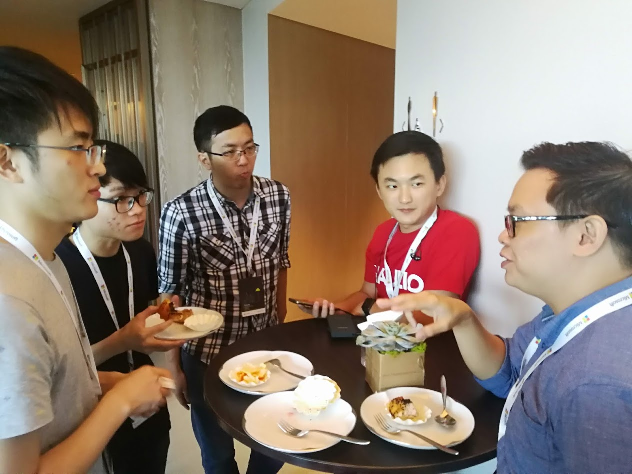
Our CPO, Sebastian Shen, and the engineers are having a great chat.

Organized Product Development Stages

With Azure DevOps, the System Development Team is able to work on rapid product development and deployment in a well managed manner. The DevOps process in the cloud lets us release and iterate quickly, even several times a day with the help of continuous deployment.

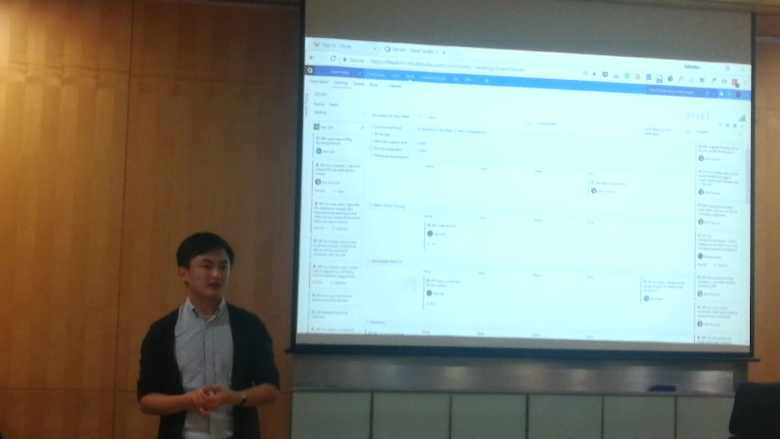
Sebastian is invited to give a talk in Microsoft about how Haulio uses Azure DevOps.

In the early stage of a user story or bug, we will have a discussion about the story points and areas before we assign the tasks to the engineers. After the feature is done or the bug is fixed, a pull request will be created and then it will go through code review process which is done by our senior engineers. Once the pull request is approved, the staging server will automatically be updated with the latest changes. Our Product Team and QA Team will then join the testing process before the changes are deployed.

We host all our projects on Azure DevOps so that all our engineers can easily contribute to the projects. With just a team of seven full-time engineers and one intern across two countries, last year we celebrated the 1,000 pull requests. This shows a successful cumulative effort by a cross-nation team of engineers.

Applying New Knowledge

In June 2018, Microsoft announced that .NET Core 2.0 would soon reach its end of life in October 2018. As Haulio products are built using .NET Core 2.0 framework, our System Development Team react to the issue quickly by first learning the new frameworks such as .NET Core 2.1 and 2.2. Then after a few months, we successfully migrated all our codes to be using .NET Core 2.1 with almost no downtime to our online systems.

Our engineers are talking about the plan to upgrade our codes from .NET Core 2.0 to 2.1.

In December 2018, our team also made use of Pusher and Handsontable to build a cloud-connected spreadsheet right in our system to enable our accountants to easily collaborate with each other. After the project is done, we’re so exciting that we actually did a small Google Spreadsheet alike product.

One of the ways we keep our team members to always stay up to date is through a culture called Continuous Learning Culture.

Continuous Learning Culture and Buddy System

We are firm believers of self learning and knowledge sharing. Hence, in the team, we have this continuous learning culture that we share knowledge with each other frequently through many channels.

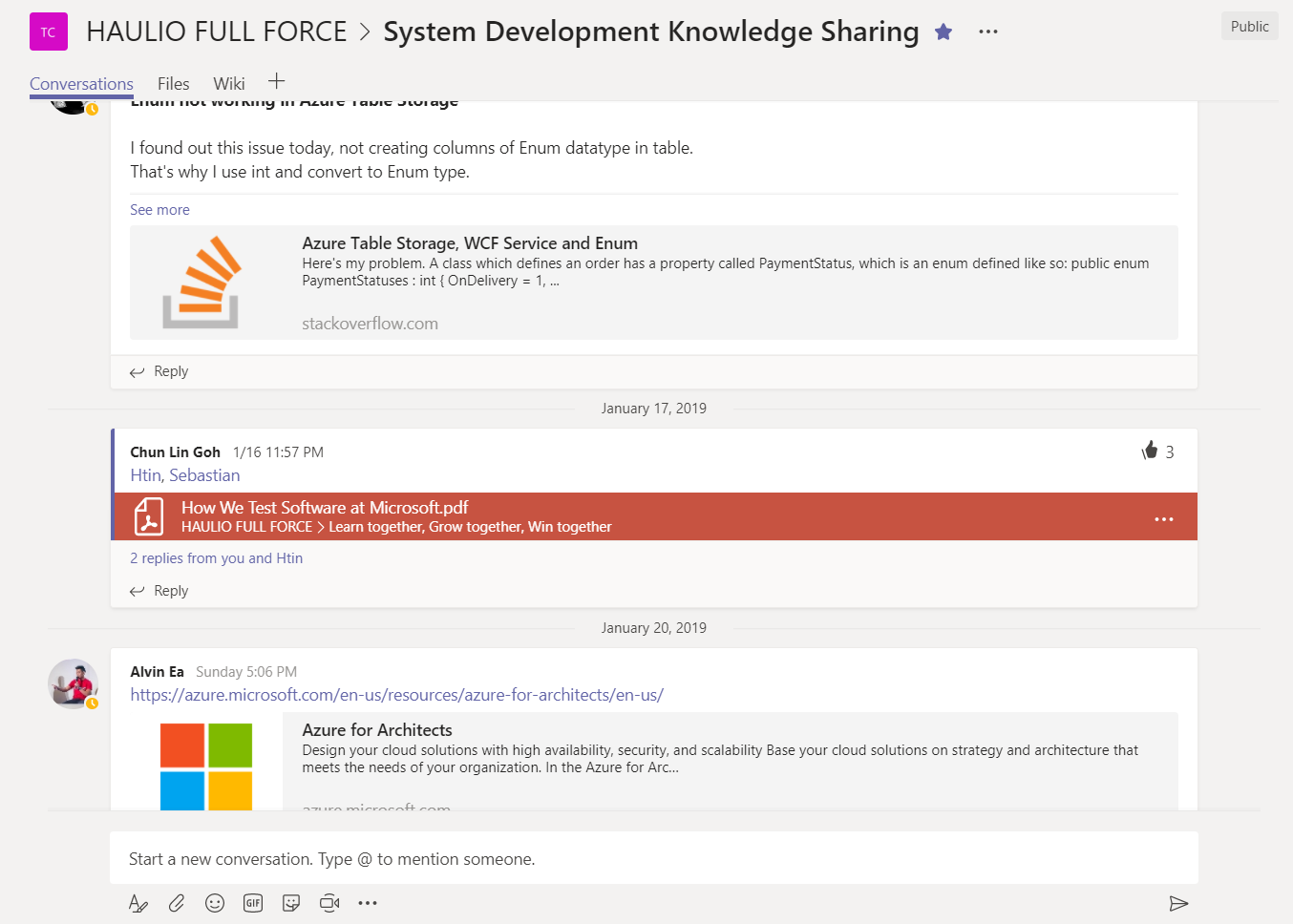
On Microsoft Teams, we have a channel called “System Development Knowledge Sharing” dedicated for this continuous learning culture.

Our CEO, Alvin Ea, is participating in the sharing as well to talk about cloud architecture.

Beside this, we also have a Buddy System where we help each other, especially seniors helping juniors and university interns to catch up by guiding them in learning new technology skills. Hence, unlike most of the companies, our interns actually have the chance to get their hands dirty to build something real for our business.

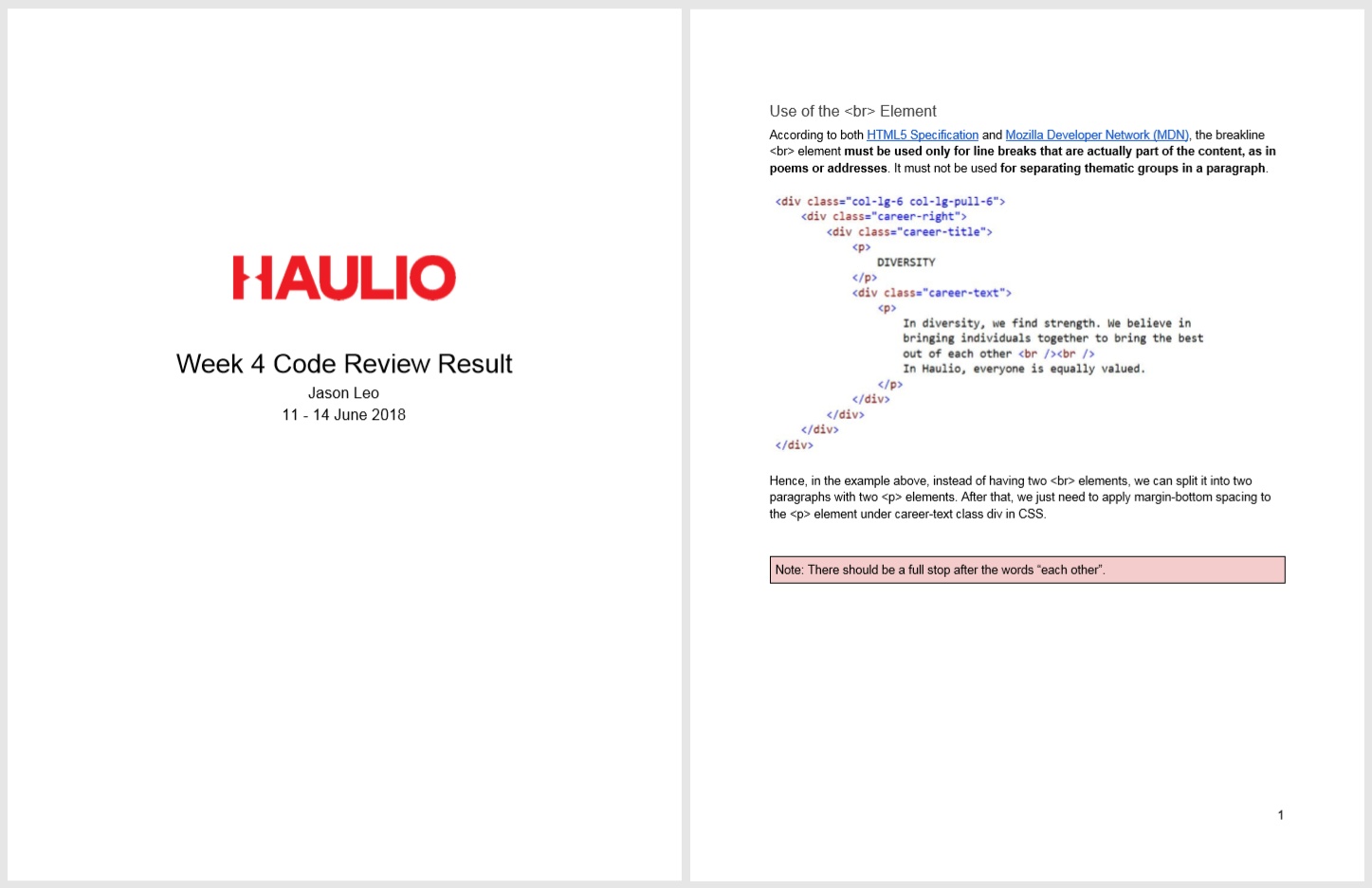
Code review feedback that our interns will receive on weekly basis.

Networking and Talks

In the System Development Team of Haulio, we can attend or help organize technical sharing sessions. As a startup supporting by Microsoft BizSpark, we make use of Microsoft technologies to drive our business. Thus, the technical talks we organize are mainly related to .NET and Azure technology.

During the sessions, we also encourage our fellow engineers to network with other technical professionals by exchanging their ideas during the events. This is one of my favorite perks because the topics discussed are always very interesting, compelling, and eye-opening.

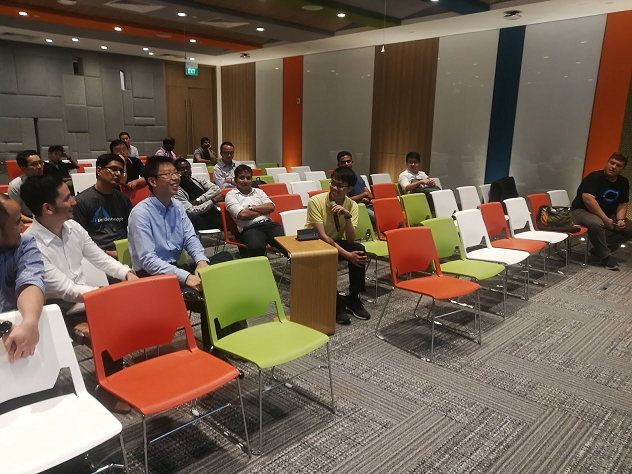
Marvin is sharing about how he builds a solution with Microsoft Custom Vision API.

Contributing to Development of World-Class System

As a startup, Haulio is a place where each of us has loads of responsibilities and we are able to work on many different types of projects. This means that there will be tons of opportunities for learning and growth abound. Founders and employees work together; there’s no middle management, so we learn from the best.

The whole team share in the birth, growth, and success of the company. Everyone of us wants to belong to something big, something special, and most importantly, something useful to the society. Hence, we all have the pride in our work.

The developers are learning how to drive a prime mover.

Caring and Love

Since most of us are young and on average we are only 29 years old, we not only work closely with each other, but also help each other outside of the work.

In order to promote healthy lifestyle, almost every month we have outing in Singapore, Malaysia, Indonesia, and even Myanmar! So, we work hard and we play hard.

Together, we eat better.

Join Us!

If you would like to find out more about the our System Development Team, please pay us a visit at PSA Unboxed or visit our homepage at haulio.io.

Front-end Development in dotnet.sg

yeoman-bower-npm-gulp

The web development team in my office at Changi Airport is a rather small team. We have one designer, one UI/UX expert, and one front-end developer. Sometimes, when there are many projects happening at the same time, I will also work on the front-end tasks with the front-end developer.

In the dotnet.sg project, I have chance to work on front-end part too. Well, currently I am the only one who actively contribute to the dotnet.sg website anyway. =)

Screen Shot 2017-01-29 at 12.49.23 AM.png
Official website for Singapore .NET Developers Community: http://dotnet.sg

Tools

Unlike the projects I have in work, dotnet.sg project allows me to choose to work with tools that I’d like to explore and tools that helps me work more efficiently. Currently, for the front-end of dotnet.sg, I am using the following tools, i.e.

  • npm;
  • Yeoman;
  • Bower;
  • Gulp.

Getting Started

I am building the dotnet.sg website, which is an ASP .NET Core web app, on Mac with Visual Studio Code. Hence, before I work on the project, I have to download NodeJs to get npm. The npm is a package manager that helps to install tools like Yeoman, Bower, and Gulp.

After these tools are installed, I proceed to get a started template for my ASP .NET Core web app using Yeoman. Bower will then follow up immediately to install the required dependencies in the web project.

screen-shot-2017-01-28-at-9-03-10-pm
Starting a new ASP .NET Core project with Yeoman and Bower.

From Bower with bower.json…

Working on the dotnet.sg project helps me to explore more. Bower is one of the new things that I learnt in this project.

To develop a website, I normally make use of several common JS and CSS libraries, such as jQuery, jQuery UI, Bootstrap, Font Awesome, and so on. With so many libraries to manage, things could be quite messed up. This is where Bower comes to help.

Bower helps me to manage the 3rd party resources, such as Javascript libraries and frameworks, without the need to locate the script files for each resources myself.

For example, we can do a search of a library we want to use using Bower.

Screen Shot 2017-01-28 at 9.44.47 PM.png
Search the Font Awesome library in Bower.

To install the library, for example Font Awesome in this case, then with just one command, we can easily do it.

$ bower install fontawesome

The libraries will be installed in the directory as specified in the Bower Configuration file, .bowerrc. By default, the libraries will be located at the lib folder in wwwroot.

screen-shot-2017-01-28-at-10-08-44-pm
Downloaded libraries will be kept in wwwroot/lib as specified in .bowerrc.

Finally, to check the available versions of a library, simply use the following command to find out more about the library.

$ bower info fontawesome

I like Bower because checking bower.json into the source control ensures that every developer in the team has exactly the same code. On top of that, Bower also allows us to lock the libraries to a specific version. This will thus prevent some developers to download some different version of the same library from different sources themselves.

…to npm with package.json

So, now some of you may wonder, why are we using Bower when we have npm?

Currently, there are also developers supporting the act to stop using Bower and switch to npm. Libraries such as jQuery, jQuery UI, and Font Awesome, can be found on npm too. So, why do I still talk about Bower so much?

Screen Shot 2017-01-28 at 11.30.58 PM.png
Searching for packages in npm.

For ASP .NET Core project, I face a problem on referring to node_module from the View. Similar as Bower, npm will position the downloaded packages in a local folder also. The folder turns out to be node_module, which is on the same level as wwwroot folder in the project directory.

As ASP .NET Core serves the CSS, JS, and other static files from the wwwroot folder which doesn’t have node_module in it, the libraries downloaded from npm cannot be loaded. One way will be using Gulp Task but that one is too troublesome for my projects so I choose not to go that way.

Please share with me how to do it with npm in an easier way than with Bower, if you know any. Thanks!

Goodbye, Gulp

I first learnt Gulp was when Riza introduced it one year ago in .NET Developers Community Singapore meetup. He was then talking about the tooling in ASP .NET Core 1.0 projects.

Riza Talking about Gulp.png
Riza is sharing knowledge about Gulp during dotnet.sg meetup in Feb 2016.

However, about four months after the meetup, I came to a video on Channel9 announcing that the team removed Gulp from the default ASP .NET template. I’m okay with this change because using BundleMinifier to do bundling and minifying of CSS and JS now without using Gulp because using bundleconfig.json in BundleMinifier seems to be straightforward.

Screen Shot 2017-01-28 at 11.59.18 PM.png
Discussion on Channel 9 about the removal of Gulp in Jun 2016.

However, the SCSS compilation is something I don’t know how to do it without using Gulp (Please tell me if you know a better way. Thanks!).

To add back Gulp to my ASP .NET Core project, I do the following four steps.

  1. Create a package.json with only the two compulsory properties, i.e. name and version (Do this step only when package.json does not exist in the project directory);
  2. $ npm install --save-dev gulp
  3. $ npm install --save-dev gulp-sass
  4. Setup the generated gulp.js file as shown below.
var gulp = require('gulp');
var sass = require('gulp-sass');

gulp.task('compile-scss', function(){
    gulp.src('wwwroot/sass/**/*.scss')
        .pipe(sass().on('error', sass.logError))
        .pipe(gulp.dest('wwwroot/css/'));
})

//Watch task
gulp.task('default', function() {
    gulp.watch('wwwroot/sass/**/*.scss', ['compile-scss']);
})

After that, I just need to execute the following command to run gulp and changes made to the .scss files in the sass directory will trigger the Gulp Task to compile the SCSS to corresponding CSS.

$ gulp

There is also a very detailed online tutorial written by Ryan Christiani, the Head Instructor and Development Lead at HackerYou, explaining each step above.

Oh ya, in case you are wondering what is the difference between –save and –save-dev in the npm commands above, I like how it is summarized on Stack Overflow by Tuong Le, as shown below.

  • –save-dev is used to save the package for development purpose. Example: unit tests, minification.
  • –save is used to save the package required for the application to run.

Conclusion

I once heard people saying that web developers were the cheap labour in software development industry because they are still having the mindset that web developers just plug-and-play modules on WordPress.

After working on the dotnet.sg project and helping out in front-end development at work, I realize that web development is not an easy plug-and-play job at all.