Submitting My First UWP App to the Microsoft Store

The credit of photo used: Fortune

Getting our apps to the market is always an exciting moment. I once remembered I worked with the business co-founders until mid-night when we launched our first version of the app. There was also a time when minister and other government officers visited the launch event of our UWP app. So, yup, publishing and releasing the apps to market is a crucial knowledge to learn for developers. Today, this post will share my journey of submitting my first UWP app to the Microsoft Store.

Microsoft Store is a digital distribution platform for distributing our UWP apps which. It has a great amount of users which can be helpful in getting exposure. Once our UWP apps are ready on the platform, Windows 10 users can conveniently download and install our apps to their Windows 10 machine. In addition, organizational customers can acquire our apps to distribute internally to their organizations through the Microsoft Store for Business.

As a staff in an education institute, I can access Microsoft Store for Education too.

When we package our apps using Visual Studio and then release it to the Microsoft Store, a special capability will be added automatically. It’s called runFullTrust, a restricted capability. It allows our apps to run at the full trust permission level and to have full access to resources on the users’ machine. Hence, we need to submit our apps to the Microsoft Store and then wait for approval from Microsoft before our apps can be released on the Microsoft Store.

So, let’s start the app publish journey with me now.

Mission 1: Setup App Manifest

Before we release our app, we should make sure it works as expected on all device families that we plan to support. It’s important to test our app with the Release configuration and check that our app behaves as expected.

After that, we will proceed to configure our app manifest file Package.appxmanifest. It’s an XML file that contains the properties and settings required to create our app package.

The Display Name and Description are controlled in the resource file Resources.resw. I also set my app to support the Landscape views only.

After that, we will need to upload the product logo. Even though there are many visual assets for different sizes of tiles, icons, package logo, and splash screen, what we need to do is simply just upload one logo image which is at least 400×400 pixels. Then Visual Studio will be able to help us to generate the necessary assets.
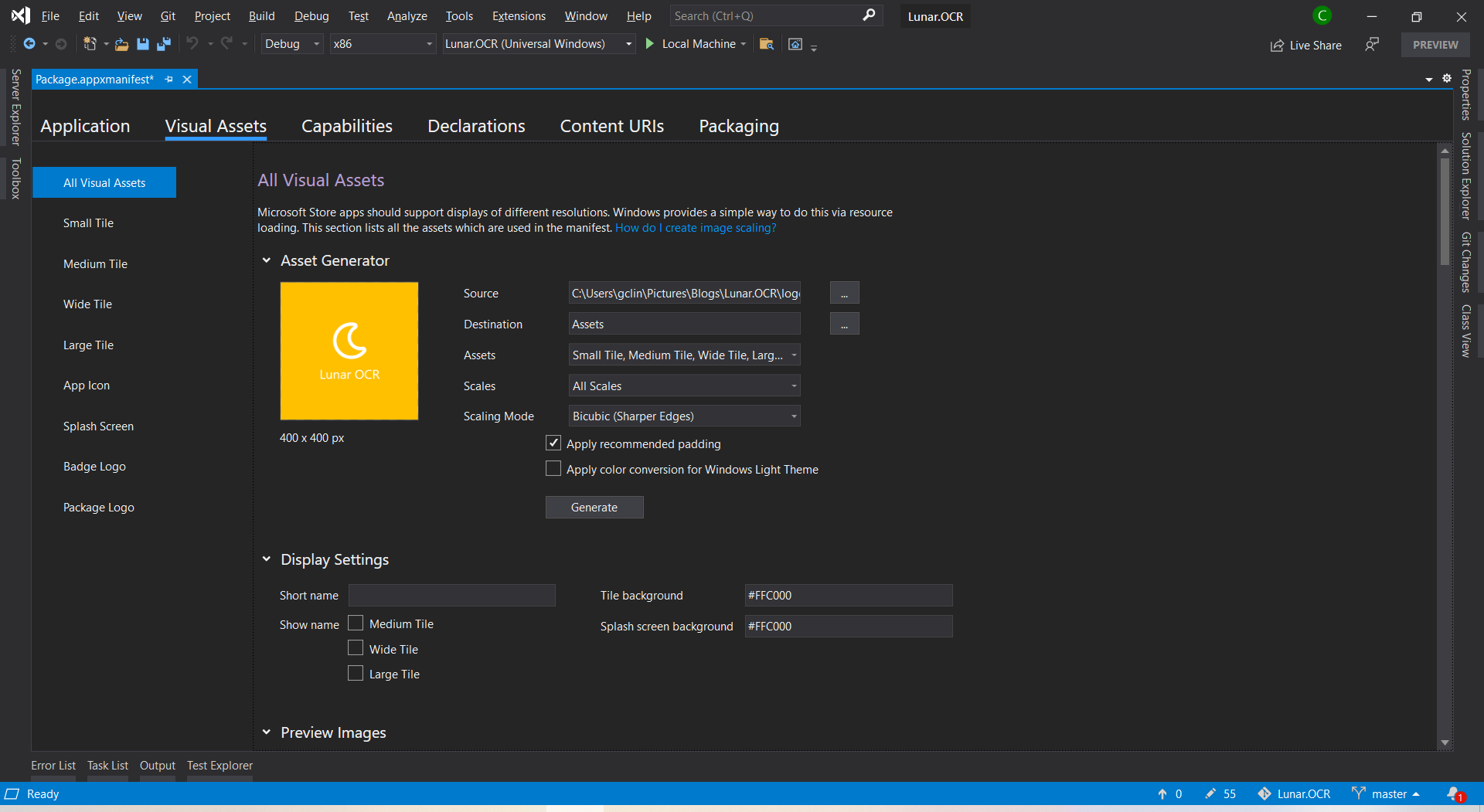
I set the background of tile and splash screen to be the same colour as the uploaded logo because the logo file comes with a background colour.

I will skip the Capabilities, Declarations, and Content URIs tabs here because they are not relevant to our app for now.

Mission 2: Create Developer Account

Before we proceed, we need to make sure we have a Microsoft Developer account so that we can submit our UWP apps to the Microsoft Store.

We need to pay a one-time registration fee with no renewal is required. In Singapore, individual account costs SGD 24 and company account is SGD 120.

After we have logged in to the Microsoft Partner Center, we can first reserve our product name first. So we can take our time developing and publishing our apps without worrying the name will be used by other developer or company within the next three months.

Reserving a name for our app before submitting it is similar to the act of placing packets of tissue on empty tables to reserve seats while we go grab our food. (Photo Credit: The Straits Times)

Mission 3: Associate App with the Microsoft Store

After we have successfully created a developer account, we can then associate our app with the Microsoft Store in Visual Studio.

Right click our solution and we can associate our app with the Microsoft Store.

After the association is done, we will see that, in the Packaging tab of our app manifest, the app has already been signed with a trusted certificate. This allows the users to install and run our app without installing the associated app signing certificate.

Mission 4: Create the App Package

Since we have already associated the app, now when we proceed to create the app package, we will have an option to distribute to the Microsoft Store for the app directly.
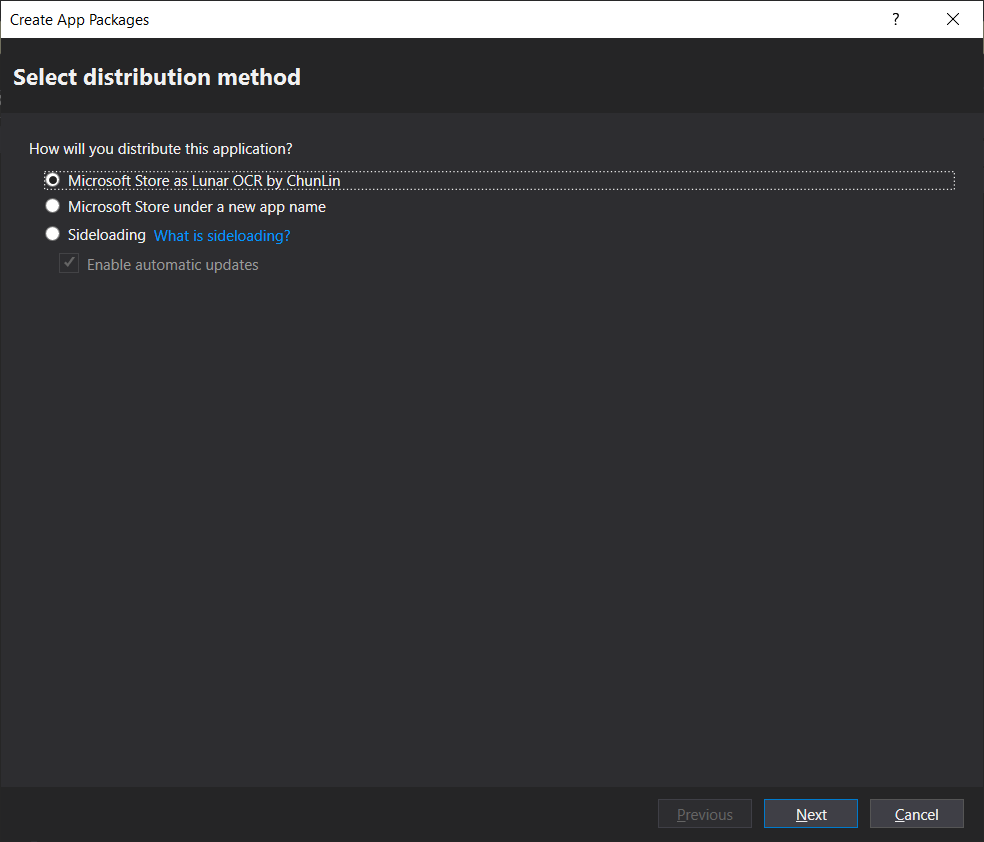
Choosing the distribution method.

After that, we will need to select the architectures for our app. In order to make it runnable on most of the platforms, we should choose relevant ones.

Windows 10 devices and architectures. (Image Source: MSIX Docs)

After that, we can proceed to create the app package. The app package creation will take about 1 to 2 minutes to complete. Then we will be promoted, as shown below, to validate our app package. The validation process involves a tool called Windows App Certification Kit (WACK). It is to make sure that our app complies with Microsoft Store requirements and is ready to publish.

Certification tests for our app on Windows App Certification Kit.

This mission is successfully completed as long as the Overall Result shows “PASSED”.

Mission 5: Publish to Microsoft Store!

Before we can submit our package on the Microsoft Partner Center, there are a few information we need to prepare.

Both privacy policy and website of my app are hosted as GitHub Pages.
  • Support Contact Info: Please do not enter email as Support Contact Info, provide URL of a support page of the app instead. I received many spam mails after using my email for this field. Haha.
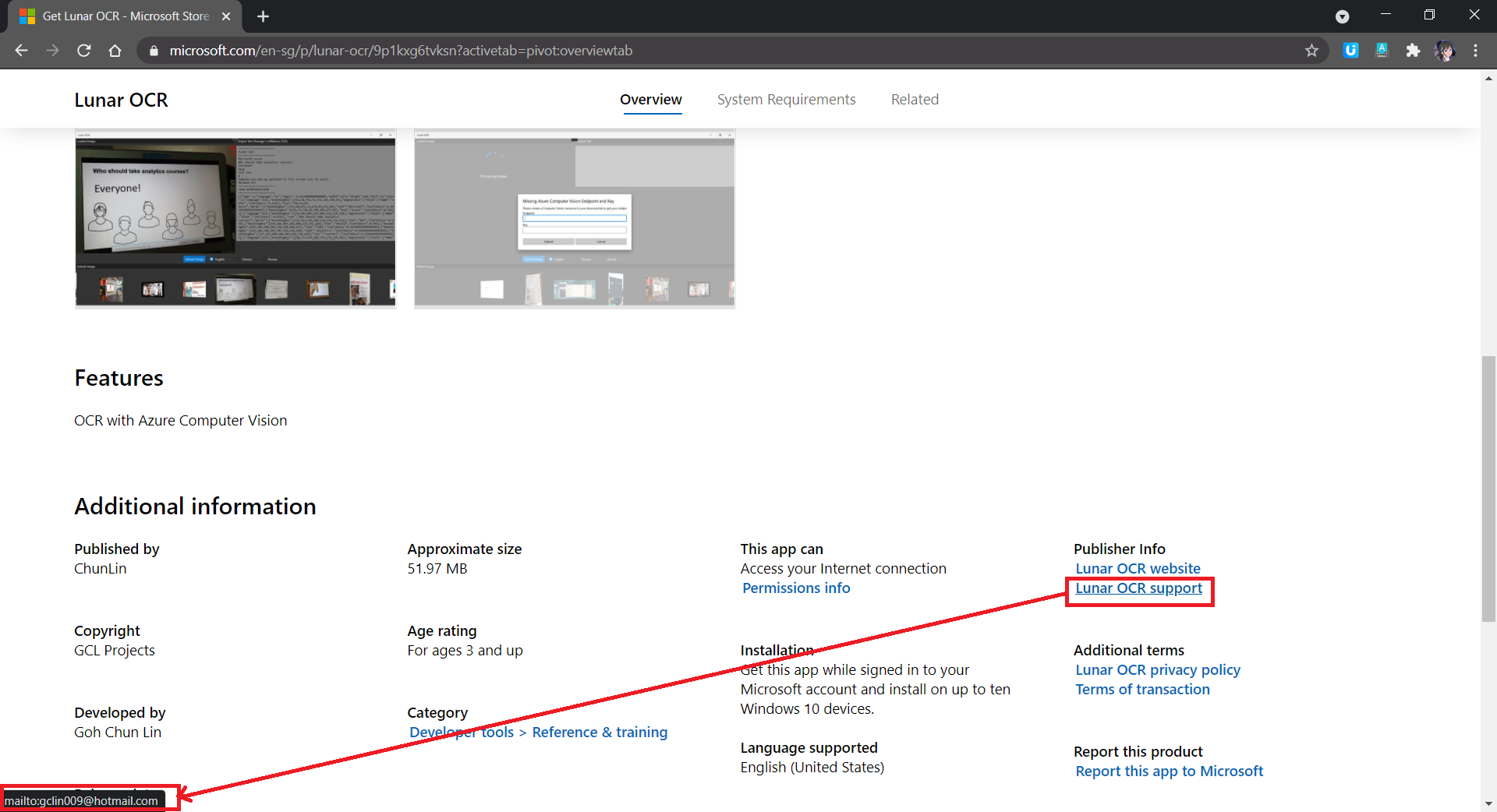
If email is used as Support Contact Info, web crawlers can easily retrieve our email address and spam us.
  • System Requirements: If customers are using hardware that doesn’t meet the minimum requirements, they may see a warning before they download our app.
  • Age Rating: There will be a tool to help us determine the rating of our app in each of the markets.
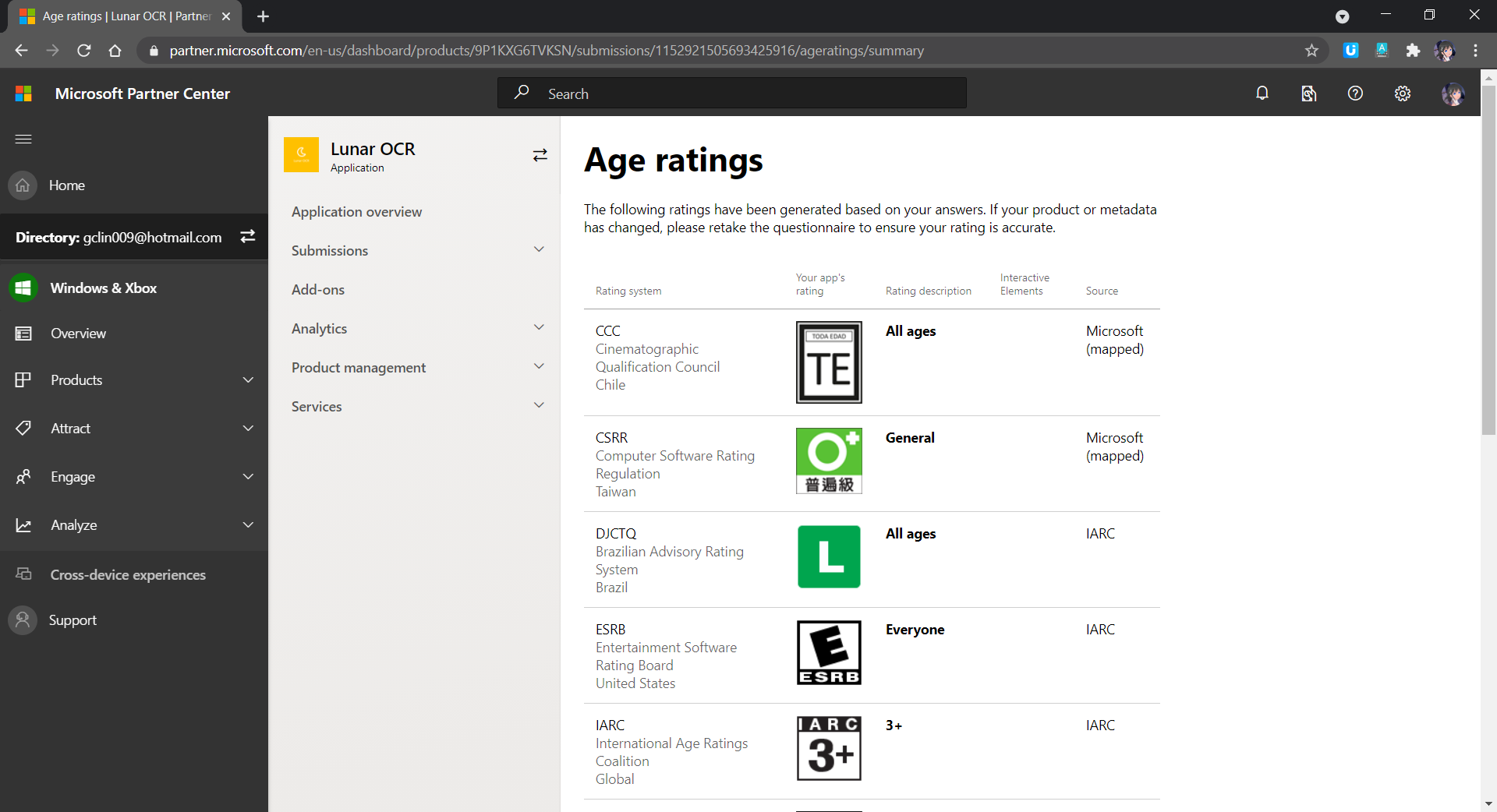
Age rating of our app.
  • Publish Date: By default, our app will be published to the Microsoft Store as soon as the submission passes certification. However, we can also manually publish it later or schedule the publish to a later date and time.

Once we have provided all the information above, we can proceed to upload our app package to the Packages section, as shown in the screenshot below.

If the submission is rejected, we simply replace the app package here with a new one and then resubmit the same submission.

After our submission is done, we just need to wait for the Microsoft staff to certify our app.

If our submission is rejected, we will see a report as follows under the Submission where there will be details on action to take.

Oh no, there is an uncaught exception in our app. We gonna fix it fast.

If there is no problem, we will be able to see our app on the Microsoft Store, as demonstrated in the following screenshot. The whole certification and release process is very fast to me.
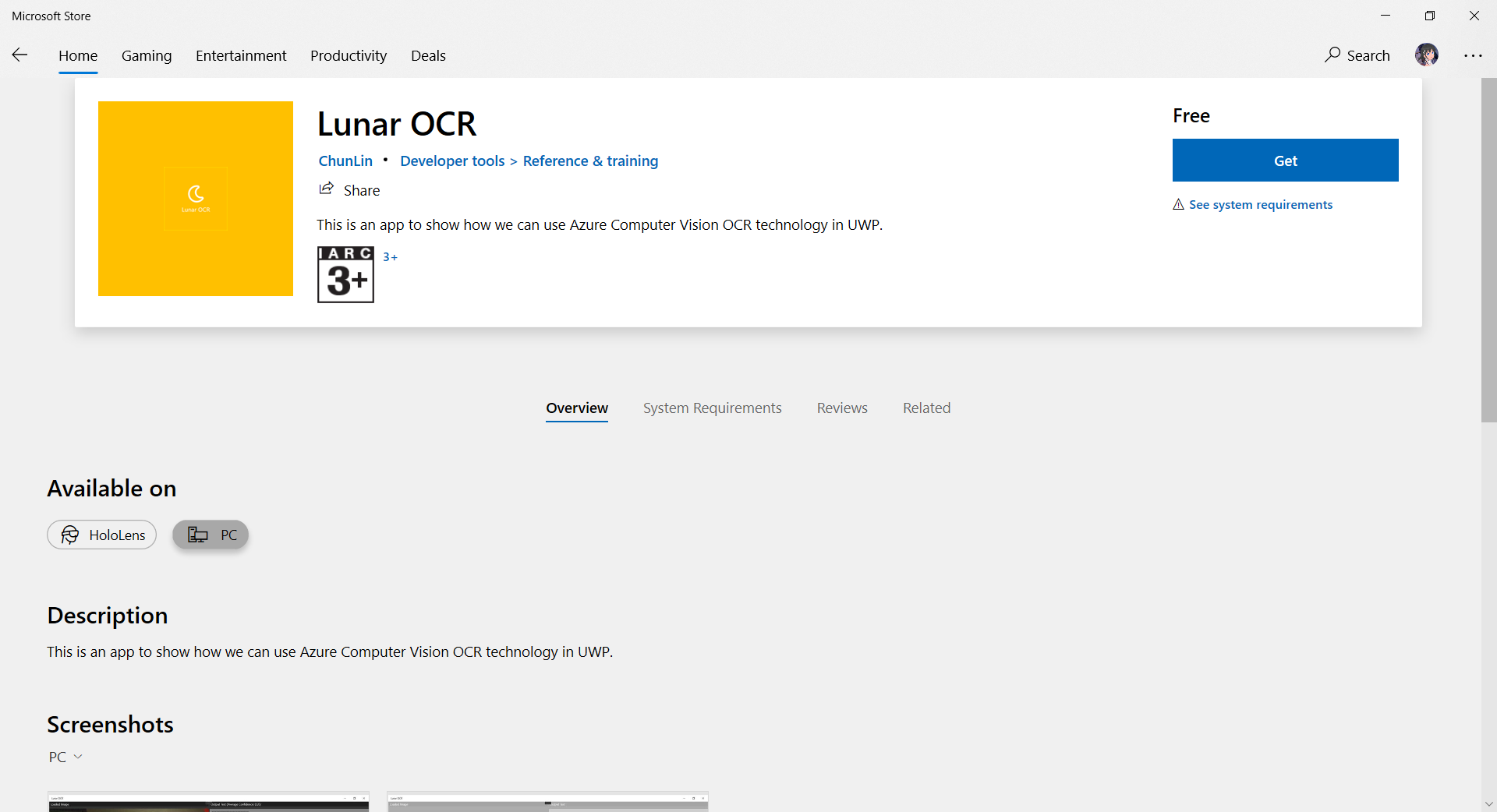
I submitted the app on Sunday night (SGT) and my app was approved on Monday night (SGT) after fixing the problems reported by Microsoft and re-submitting again for one time on Monday evening (SGT).

Mission 6: Monetise App with In-app Ads

Since I am supporting open-source software, so the apps I publish are all free to the public to download. However, it would still be great if I can get financial supports from users who love my work. Hence, monetisation our app with in-app ads is one of the options.

Unfortunately, starting from 2020, the Microsoft Ad Monetization platform for UWP apps had been shut down. So, we have no choice but to look into 3rd party solutions. The service that I am using is AdsJumbo, a verified advertisement network for Windows 10, desktop apps & games because it is straightforward to use.

It is better to get our app approved on Ads Jumbo before uploading our app with in-app ads to the Microsoft Store.

The approval process on Ads Jumbo is fast to me. My app was approved on the day I submitted it on Ads Jumbo. While waiting for approval, we can also first do a test so that we can visualise the ads positioning in our app, as shown below.
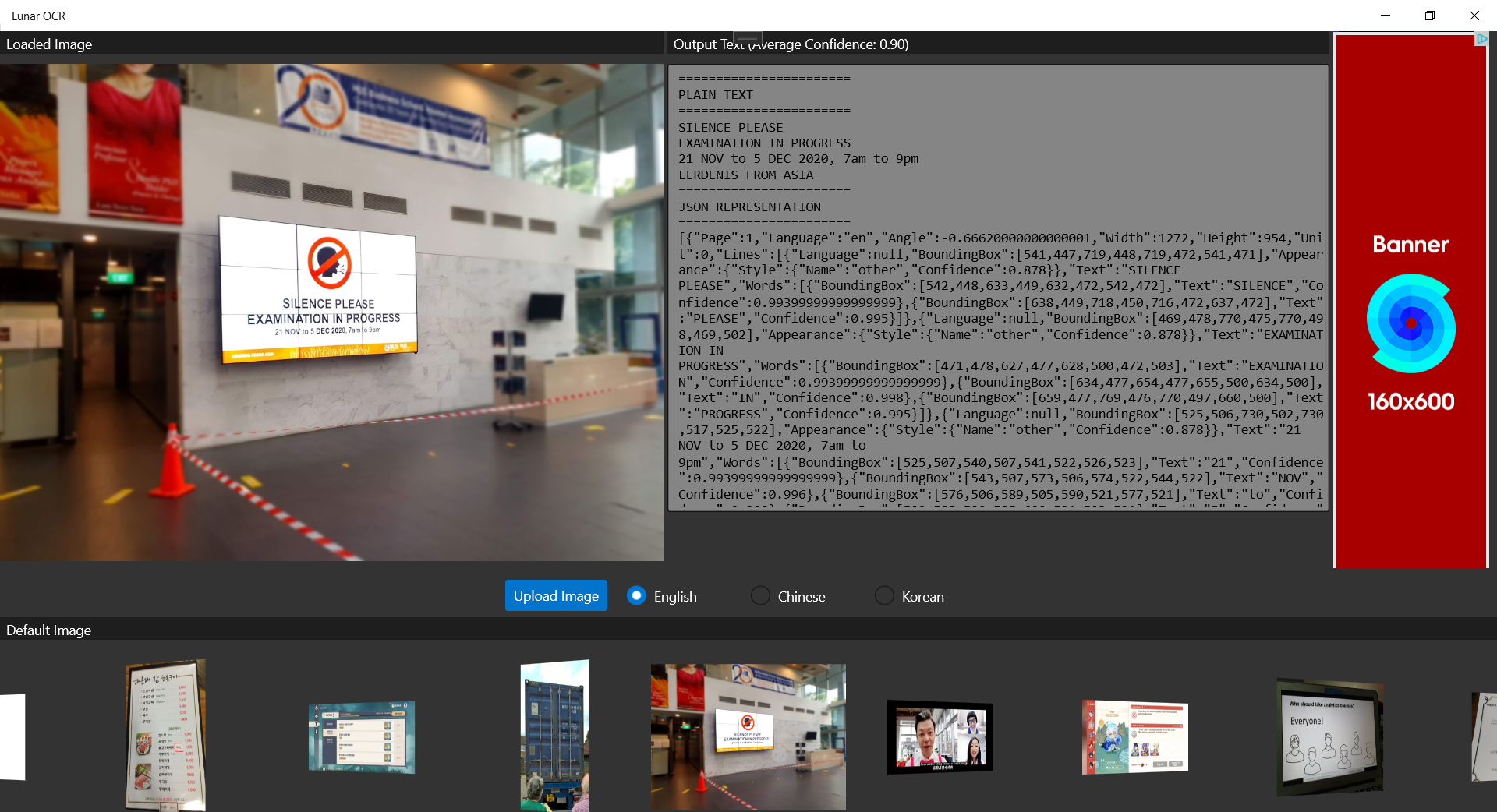
We should test to see how the ads would be positioned before publishing it.

Yup, that’s all about my journey of getting my first Windows 10 UWP app on the Microsoft Store. Please download it now and let me know what you think. Thank you!

Download URL: https://www.microsoft.com/en-sg/p/lunar-ocr/9p1kxg6tvksn

Source Code: https://github.com/goh-chunlin/Lunar.OCR/tree/microsoft-store

References

Implement OCR Feature in UWP for Windows 10 and Hololens 2

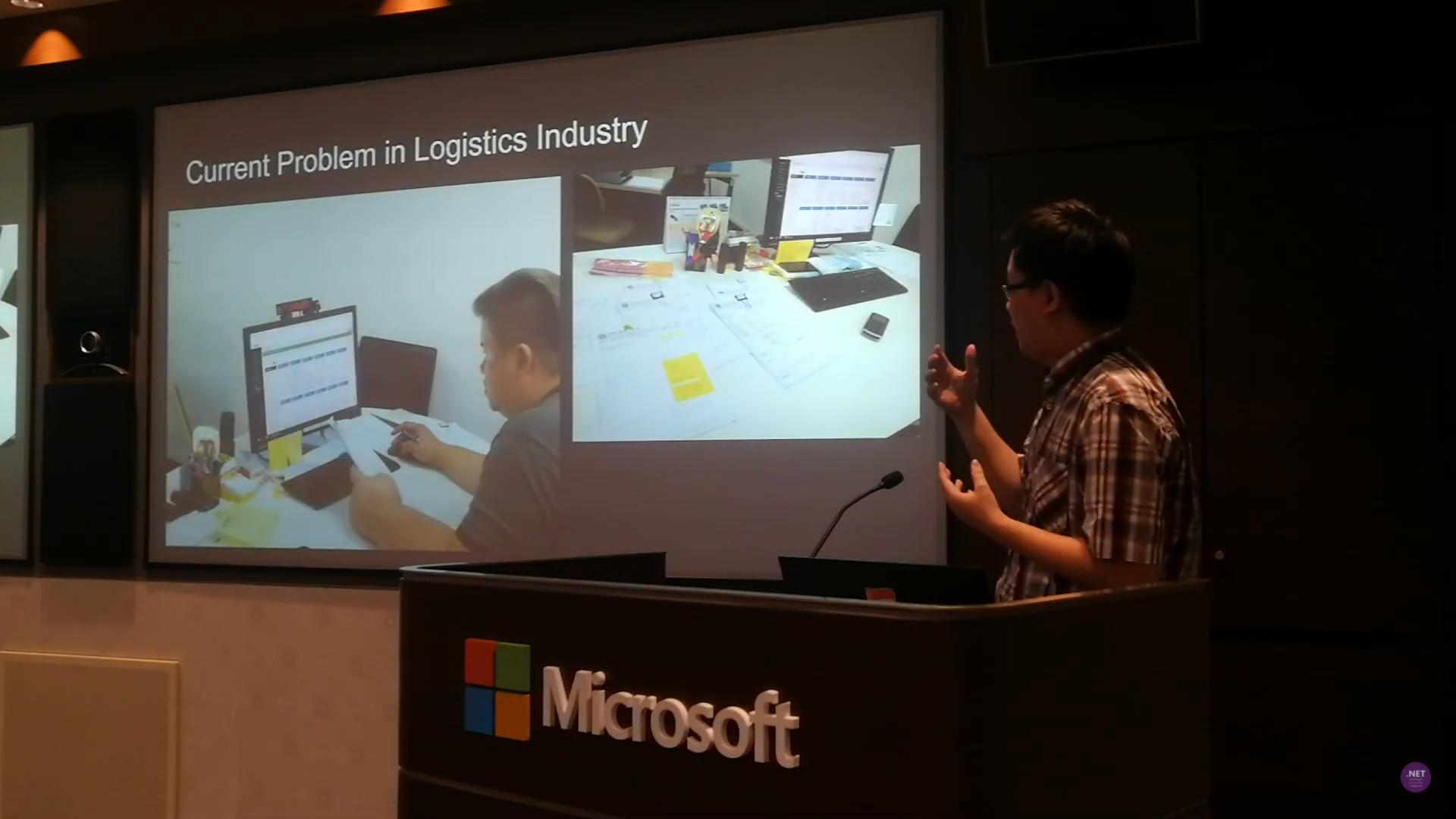
I have been in the logistics and port industry for more than 3 years. I have also been asked by different business owners and managers about implementing OCR in their business solutions for more than 3 years. This is because it’s not only a challenging topic, but also a very crucial feature in their daily jobs.

For example, currently the truck drivers need to manually key in the container numbers into their systems. Sometimes, there will be human errors. Hence, they always have this question about whether there is a feature in their mobile app, for example, that can extract the container number directly from merely a photo of the container.

In 2019, I gave a talk about implementing OCR technology in the logistics industry during a tech meetup in Microsoft Tokyo. At that point of time, I demoed using Microsoft Cognitive Services. Since then many things have changed. Thus, it’s now a good time to revisit this topic.

Pen and paper is still playing an important role in the logistics industry. So, can OCR help in digitalising the industry? (Image Source: Singapore .NET Developers Community YouTube Channel)

Performing OCR Locally with Tesseract

Tesseract is an open-source OCR engine currently developed and led by Ray Smith from Google. The reason why I choose Tesseract is because there is no Internet connection needed. Hence, OCR can be done quickly without the need to upload images to the cloud to process.

In 2016, Hewlett Packard Enterprise senior developer, Yoisel Melis, created a project which enables developers to use Tesseract on Windows Store Apps. However, it’s just a POC and it has not been updated for about 5 years. Fortunately, there is also a .NET wrapper for Tesseract, done by Charles Weld, available on NuGet. With that package, we now can easily implement OCR feature in our UWP apps.

Currently, I have tried out the following two features offered by Tesseract OCR engine.

  1. Reading text from the image with confidence level returned;
  2. Getting the coordinates of the image.

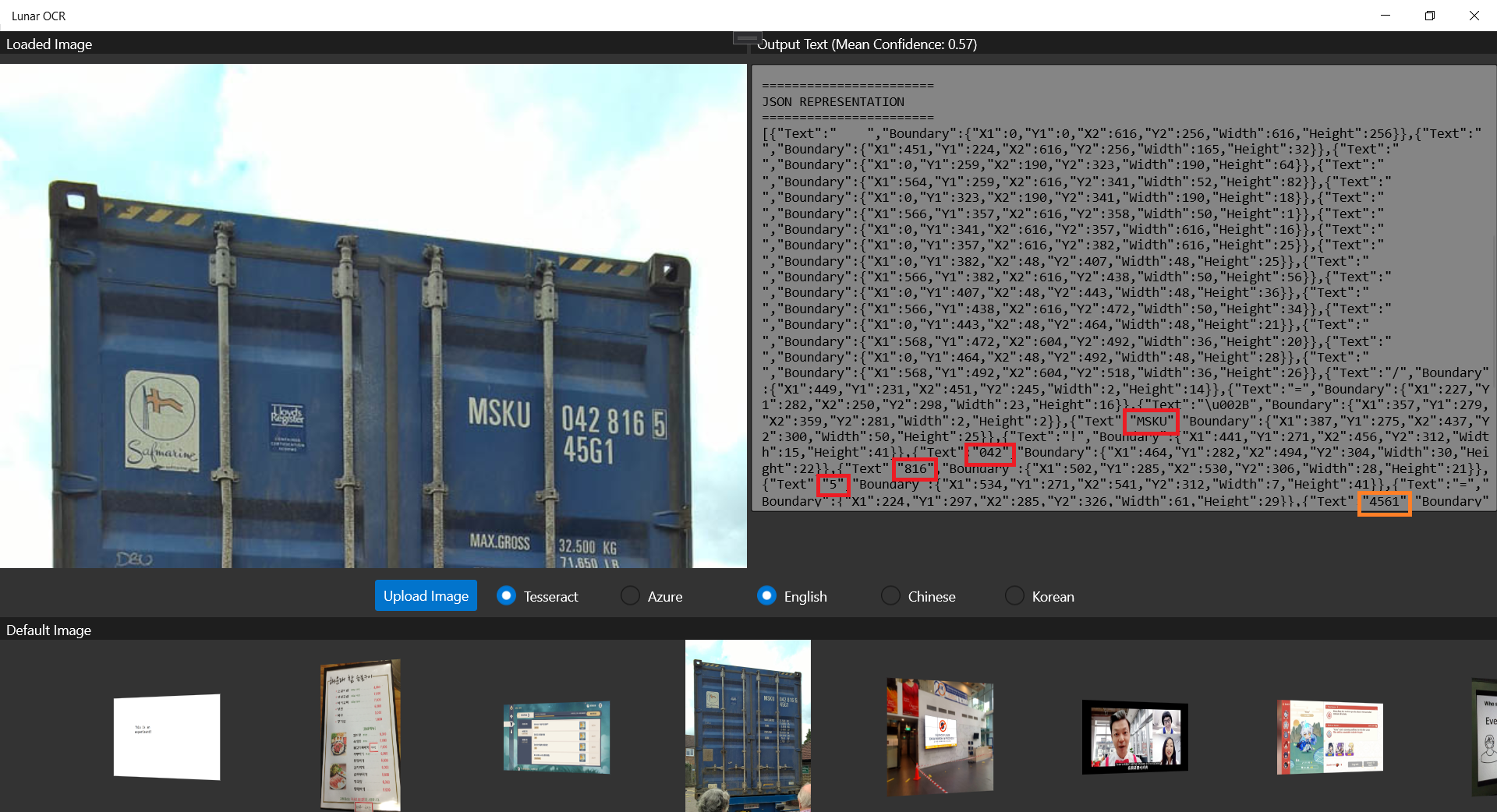
The following screenshot shows that Tesseract is able to retrieve the container number out from a photo of a container.

Only the “45G1” is misread as “4561”m as highlighted by the orange rectangle. The main container number is correctly retrieved from the photo.

Generally, Tesseract is also good at recognizing multiple fonts. However, sometimes we do need to train it based on certain font to improve the accuracy of text recognition. To do so, Bogusław Zaręba has written a very detailed tutorial on how to do it, so I won’t repeat the steps here.

Tesseract can also work with multiple languages. To recognise different languages, we simply need to download the corresponding language data files for Tesseract 4 and add them to our UWP project. The following screenshot shows the Chinese text that Tesseract can extract from a screenshot of a Chinese game. The OCR engine performs better on images with lesser noise, so in this case, some Chinese words are not recognised.

Many Chinese words are still not recognised.

So, how about doing OCR with Azure Cognitive Services? Will it perform better than Tesseract?

Performing OCR on Microsoft Azure

On Azure, Computer Vision is able to analyse content in images and video. Similar as Tesseract, Azure Computer Vision can also extract printed text written in different languages and styles from images. It currently also offers free instance which allows us to have 5,000 free transactions per month. Hence, if you would like to try out the Computer Vision APIs, you can start with the free tier.

So, let’s see how well Azure OCR engine can recognise the container number shown on the container image above.

Our UWP app can run on the Hololens 2 Emulator.

As shown in the screenshot above, not only the container number, but also the text “45G1” is correctly retrieved by the Computer Vision OCR API. The only downside of the API is that we need to upload the photo to the cloud first and it will then take one to two minutes to process the image.

Computer Vision OCR also can recognise non-English words, such as Korean characters, as shown in the screenshot below. So next time we can travel the world without worry with Hololens translating the local languages to us.

With Hololens, now I can know what I’m ordering in a Korean restaurant. I want 돼지갈비 (BBQ Pork)~

Conclusion

That’s all for my small little experiment on the two OCR engines, i.e. Tesseract and Azure Computer Vision. Depends on your use cases, you can further update the engine and the UWP app above to make the app works smarter in your business.

Currently I am still having problem of using Tesseract on Hololens 2 Emulator. If you know how to solve this problem, please let me know. Thanks in advance!

I have uploaded the project source code of the UWP app to GitHub, feel free to contribute to the project.

Together, we learn better.

References

Build Xamarin.CommunityToolkit Sample App on Windows 10 in March 2021

In January 2021, a new stable version of Xamarin.Forms, the version 5.0, is released. Actually I had been playing with it when its preview version was released in the previous year. Together with the release of Xamarin.Forms 5, Microsoft also announced Xamarin Community Toolkit which provides a collection of common elements for mobile development with Xamarin.Forms.

Xamarin Community Toolkit is available on GitHub as an open-source .NET Foundation project. There is a sample solution offered as well in the repository. So, we can simply clone the GitHub project and build it on our Windows 10 machine to find out how behaviors, converters, effects, MVVM utilities, and new controls can be implemented.

UWP version of the Xamarin Community Toolkit sample.

However, to successfully build the sample project, it’s not that straightforward, at least at the point of time I write this article in March 2021. So I will guide you through building and running the Xamarin Community Toolkit sample on Windows 10 machine.

Tools

In this article, I’m using the following tools.

  • Windows 10 Home version 20H2;
  • Visual Studio 2019 Professional Preview (16.10.0 Preview 10);
  • .NET 5 (5.0.200-preview.21077.7);
  • NuGet Packages:
    • Xamarin.Essentials 1.6.1;
    • Xamarin.Forms 5 (5.0.0.2012);
    • Microsoft.NETCore.UniversalWindowsPlatform 6.2.12;
    • Xamarin.CommunityToolkit 1.0.3.

Setup the Project

Firstly, we can directly clone the Xamarin Community Toolkit sample from its GitHub repository.

There are many platforms supported in the sample application. However, here I will only talk about UWP and a bit of Android. So I am going to unload the projects for iOS, GTK, Tizen, and WPF. After that, I will set the UWP project as the Startup Project, as shown in the screenshot below.

UWP project is set as the Startup Project.

Now, we can proceed to run it. However, some of us may encounter a few issues. I will share what I have encountered so far and how I proceed to fix them.

Issue 01: UWP Build Errors

The build errors that I encountered all originated from the Xamarin.CommunityToolkit project which targets at Windows 10 SDK 10.0.17763 and .NET Standard 1.0, as shown in the following screenshot.

Build errors in Xamarin.CommunityToolkit targetting at Windows 10

There are a few solutions to this problem. Firstly is head to Visual Studio Installer to install the Windows 10 SDK 10.0.17763.0, which took additional 2.8 GB in space.

Installing Windows 10 SDK 10.0.17763.0.

Second solution to this issue is that we can re-target the Xamarin.CommunityToolkit to the latest Windows 10 SDK that you have. For my case, it is 10.0.19041.0. So I simply need to update the UAP version in the .csproj of the project, as shown in the screenshot below.

Re-targeting Xamarin.CommunityToolkit dependency on UWP framework.

Once we have done either of the above, the build errors should be gone.

Of course, if you don’t want to touch the Xamarin.Community.Toolkit project which is referenced by the sample application, we can unload the project. After that, in each of the platform project, we change to use the NuGet package of the Xamarin.Community.Toolkit which is stable and we don’t have to re-build it ourselves.

Issue 02: File Path Too Long

If you happen to put the sample project in a directory having a long path length, then there will be some files not being generated, for example the Java file as shown in the screenshot below. This is because on Windows, there is a limitation of the file path length.

The path length is too long!

So, once we move the entire solution to another directory with shorter path length, we shall be able to see the sample project being shown successfully.

Xamarin Community Toolkit sample on Android.

Issue 03: Blank UWP Page

The sample application will look similar on the UWP as well. However, besides the first screen, most of the subsequent screen has a blank content. However, as shown in the video clip below, the pages will actually back to normal once we resize the app window.

After few hours of investigation, I found that as long as we comment out or remove the CollectionView.Footer used in those pages, we realise that the problem above will be fixed.

The CollectionView.Footer in App.xaml is shared by those blank UWP pages.

Currently, I have filed an issue on the Xamarin Community Toolkit GitHub about this issue and workaround. So, let’s wait and see if this will be fixed in the future releases. Other than all these issues, the Xamarin Community Toolkit is still a very good tool for the developers.

Learn More about Xamarin Community Toolkit

There is a Xamarin Community Toolkit YouTube video with Gerald Versluis shared by my senior Riza Marhaban. I find it to be very useful and I hope you enjoy learning more about Xamarin too. Have fun!

Automated GUI Testing of UWP Apps Using Appium and Azure DevOps

There is a popular yet simple checklist on how good a software team is from Joel Spolsky, who has been the CEO of Stack Overflow until last year (2019). The checklist is called the Joel Test. The test has only 12 items but 7 of them are related about DevOps, debugging, and testing.

Software testing makes sure that the software is doing exactly what it is supposed to do and it also points out all the problems and errors found in the software. Hence, involving testing as early as possible and as frequent as possible is a key to build a quality software which will be accepted by the customers or the clients.

There are many topics I’d love to cover about testing. However, in this article, I will only focus on my recent learning about setting up automated GUI testing for my UWP program on Windows 10.

Appium

One of the key challenges in testing UWP app is to do the GUI testing. In the early stage, it’s possible to do that manually by clicking around the app. However, as the app grows larger, testing it manually is very time consuming. After sharing my thoughts with my senior Riza Marhaban, he introduced me a test automation framework called Appium.

What is Appium? Appium is basically an open source test automation framework for iOS, Android, and Windows apps. Here it says Windows apps because besides UWP, using it to test WPF app is possible as well.

Together with Windows App Driver which enables Appium by using new APIs added in Windows 10 Anniversary Edition, we can use them to do GUI test automation on Windows apps. The following video demonstrates the results of GUI testing with Appium in my demo project Lunar.Paint.Uwp.

Here, I will list down those great tutorials about automated GUI testing of UWP apps using Appium which are ranked top in Google Search:

Some of them were written about four years ago when Barack Obama was still the President of the USA. In addition, none of them continues the story with DevOps. Hence, my article here will talk about GUI testing with Appium from the beginning of a new UWP project until it gets built on Azure DevOps.

🎨  Barack Obama served as the 44th president of the United States from 2009 to 2017. (Image Credit: CBS News) 🎨 

Getting Started with Windows Template Studio for UWP

Here, I will start a new UWP project using Windows Template Studio.

🎨  Configuring the Testing of the UWP app with Win App Driver. 🎨 

There is one section in the project configuration called Testing, as shown in the screenshot above. In order to use Appium, we need to add the testing with Win App Driver feature. After that, we shall see a Test Project suffixed with “Tests.WinAppDriver” being added.

By default, the test project has already come with necessary NuGet packages, such as Appium.WebDriver and MSTest.

🎨  NuGet packages in the test project. 🎨 

Writing GUI Test Cases: Setup

The test project comes with a file called BasicTest.cs. In the file, there are two important variables, i.e. WindowsApplicationDriverUrl and AppToLaunch.

The WindowsApplicationDriverUrl is pointing to the server of WinAppDriver which we will install later. Normally we don’t need to change it as the default value will be “http://127.0.0.1:4723”.

The AppToLaunch variable is the one we need to change. Here, we need to replace the part before “!App” with the Package Family Name, which can be found in the Packaging tab of the UWP app manifest, as shown in the screenshot below.

🎨  Package Family Name 🎨 

Take note that there is a line of comment right above the AppToLaunch variable. It says, “The app must also be installed (or launched for debugging) for WinAppDriver to be able to launch it.” This is a very important line. It means when we are testing locally, we need to make sure the latest of our UWP app is deployed locally. Also, it means that the UWP app needs to be available on the Build Agent which we will talk about in later part of this article.

I will not go through on how to write the test cases as they are available on my GitHub project: https://github.com/goh-chunlin/Lunar.Paint.Uwp/tree/master/Lunar.Paint.Uwp.Tests.WinAppDrive. Instead, I will highlight a few important points here.

Writing GUI Test Cases: AccessibilityId

In the test cases, to identify the GUI element in the program, we need to use

AppSession.FindElementByAccessibilityId(<The AccessibilityId of the GUI Element>);

By default, the AccessibilityId is mapped to the x:Name of the XAML control in our UWP app. For example, we have a “Enter” button as follow.

<Button x:Name="WelcomeScreenEnterButton"
        Content="Enter"... />

To access this button, in the test code, we can do like the following.

var welcomeScreenEnterButton = AppSession.FindElementByAccessibilityId("WelcomeScreenEnterButton");

Of course, if we want to have an AccessibilityId which is different from the Name of the XAML control (or the XAML control doesn’t have a Name), then we can specify the AccessibilityId in the XAML directly as follows.

<Button x:Name="WelcomeScreenEnterButton"
        AutomationProperties.AutomationId="EnterButton"
        Content="Enter"... />

Then to access this button, in the test code, we need to use EnterButton instead.

var welcomeScreenEnterButton = AppSession.FindElementByAccessibilityId("EnterButton");

Writing GUI Test Cases: AccessibilityName

The method above works well with XAML controls which are having simple text as the content. If the content property is not string, for example if the XAML control is a Grid that consists of many other XAML controls or the XAML control is a custom user control, then Appium will fail to detect the control with the AccessibilityId with the following exception message “OpenQA.Selenium.WebDriverException: An element could not be located on the page using the given search parameters”.

Thanks to GeorgiG from UltraPay, there is a solution to this problem. As GeorgiG pointed out in his post on Stack Overflow, the workaround is to overwrite the AutomationProperties.Name with a non-empty string value, such as “=”.

🎨  My comment on GeorgiG’s solution. 🎨 

Hence, in my demo project, I have the following code for a Grid.

<Grid x:Name="WelcomeScreen" AutomationProperties.Name="-">
    ...
</Grid>

Then in the test cases, I can easily access the Grid with the following code.

var welcomeScreen = AppSession.FindElementByAccessibilityId("WelcomeScreen");

Writing GUI Test Cases: Inspect Tool

The methods listed out above work fine for the XAML controls in our program. How about for the prompt? For example, when user clicks on the “Open” button and an “Open” window is prompted. How do we instruct Appium to react to that?

Here, we will need a tool called Inspect.

We first need to access the Developer Command Prompt for Visual Studio. Then we type “Inspect” to launch the Inspect tool.

🎨  Launched the “Inspect” tool from the Developer Command Prompt for VS 2019. 🎨 

Next, we can mouse over the Open prompt to find out the AccessibilityId of the GUI element that we need to access. For example, the AccessibilityId of the area where we key in the file name is 1148, as shown in the screenshot below.

🎨  Highlighted in red is the AccessibilityId of the File Name text input area. 🎨 

This explains why in the test cases, we have the following code to access it.

var openFileText = AppSession.FindElementByAccessibilityId("1148");

There is also a very good tutorial on how to deal with the Save prompt in the WinAppDriver sample on GitHub. In the sample, it shows how to interact with the Save prompt in the Notepad via Appium.

Alright, that’s all for how to write GUI test cases for our UWP app with Appium. I have the some simple test cases written in my demo project which has its source code available on my GitHub repo, please feel free to review it: https://github.com/goh-chunlin/Lunar.Paint.Uwp/tree/master/Lunar.Paint.Uwp.Tests.WinAppDriver.

🎨  All GUI test cases passed! 🎨 

Azure DevOps Build Pipeline Setup

Now, we have done our software test locally. How do we make the testing to be part of our build pipeline on Azure DevOps?

This turns out to be quite a complicated setup. Here, I setup the build pipeline based on the .NET Desktop pipeline in the template.

🎨  .NET Desktop build pipeline. 🎨 

Next, we need to make sure the pipeline is building our solution with VS2019 on Windows 10 at least. Otherwise, we will receive the error “Error CS0234: The type or namespace name ‘ApplicationModel’ does not exist in the namespace ‘Windows’ (are you missing an assembly reference?)” in the build pipeline.

🎨  The “Agent Specification” of the pipeline needs to be at least “windows-2019”. 🎨 

Now, if we queue our pipeline again, we will encounter a new error which states that “Error APPX0104: Certificate file ‘xxxxxx.pfx’ not found.” This is because for UWP app, we need to package our app with a cert. However, by default, the cert will not be committed to the Git repository. Hence, there is no such cert in the build pipeline.

To solve this problem, we need to first head to the Library of the Pipelines and add the following Variable Group.

🎨  This is basically the file name of the cert and its password. 🎨 

Take note that, the required cert is now still not yet available on the pipeline. Hence, we need to upload the cert as one of the Secured Files in the Library as well.

🎨  Uploaded pfx to the Azure DevOps Pipeline Library. 🎨 

So, how to we move this cert from the Library to the build pipeline? We need the following task.

🎨  Download secure file from the Library. 🎨 

This is not enough because the task will only copy the cert to a temporary storage on the build agent. However, when the agent tries to build, it will still be searching for the cert in the project folder of our UWP app, i.e. Lunar.Paint.Uwp.

Hence, as shown in the screenshot above, we have two more powershell script tasks to do a little more work.

The first script is to add the cert to the certificate store in the build agent. The script can be found on Damien Aicheh’s excellent tutorial about installing cert on Azure DevOps pipeline.

🎨  Installing the cert to the store. 🎨 

The second script after it is to copy the cert from the temporary storage in the build agent to the project folder.

🎨  Copy the cert to our UWP app project folder. 🎨 

Oh ya, as you can see in the screenshot above, I am using NuGet 5.5.1. By default, the NuGet is 4.4.1 in the template. I am worried that it may cause some problems as it did when it was building UWP NuGet library, so I change it to 5.5.1, which is the latest stable version.

With these three new tasks, the build task should be executed correctly.

🎨  Build solution task. 🎨 

Here, my BuildPlatform is x64 and the BuildConfiguration is set to release. Also in the MSBuild Arguments, I specify the PackageCertificatePassword because otherwise it will throw an error in the build process saying “[error]C:\Program Files (x86)\Microsoft Visual Studio\2019\Enterprise\MSBuild\Microsoft\VisualStudio\v16.0\AppxPackage\Microsoft.AppXPackage.Targets(828,5): Error : Certificate could not be opened: Lunar.Paint.Uwp_TemporaryKey.pfx.”

Introduction of WinAppDriver to the Build Pipeline

Okay, so how do we run the test cases above on Azure DevOps?

Actually, it only requires the following five steps as highlighted in the following screenshot.

🎨  The five steps for GUI testing. 🎨 

Firstly, we need to start the WinAppDriver.

Secondly, we need to introduce two tasks after it to execute some PowerShell scripts. Before showing what they are doing, we need to recall one thing.

Remember the one line of comment above the AppToLaunch variable in our test project? It says, “The app must also be installed (or launched for debugging) for WinAppDriver to be able to launch it.” Hence, we must install the UWP app using the files in AppxPackages generated by the Build task. This is what the two Powershell tasks are doing.

The first Powershell task is to import the cert to the store.

Import-Certificate -FilePath $(Build.ArtifactStagingDirectory)\AppxPackages\Lunar.Paint.Uwp_1.0.0.0_Test\Lunar.Paint.Uwp_1.0.0.0_x64.cer -CertStoreLocation 'Cert:\LocalMachine\Root' -Verbose

The second task, as shown in the following screenshot, is to install the UWP app using Add-AppDevPackage.ps1. Take note that here we need to do SilentContinue else it will wait for user interaction and cause the pipeline to be stuck.

🎨  Run the PowerShell file generated by Build Solution task directly to install our UWP app. 🎨 

At the point of writing this article, the Windows Template Studio automatically sets the Targeting of the UWP app to be “Windows 10, version 2004 (10.0; Build 19041)”. However, the Azure DevOps pipeline is still not yet updated to Windows 10 v2004, so we should lower the Target Version to be v1903 and minimum version to be v1809 in order to have the project built successfully on the Azure DevOps pipeline.

Thirdly, we will need the test with VsTest. This task exists in the default template and nothing needs to be changed here.

Fourthly, we need to stop the WinAppDriver.

That’s all. Now when the Build Pipeline is triggered, we can see the GUI test cases are being run as well.

🎨  Yay, our GUI test cases are being tested successfully. 🎨 

In addition, Azure DevOps will also give us a nice test report for each of our builds, as shown in the following the screenshot.

🎨  Test report in Azure DevOps. 🎨 

Conclusion: To Be Continued

Well, this is actually just the beginning of testing journey. I will continue to learn more about software testing especially in the DevOps part and share with you all in the future.

Feel free to leave a comment here to share with other readers and me about your thoughts. Thank you!

🎨 To be continued… (Image Credit: JoJo’s Bizarre Adventure) 🎨

Project Links