When Pinecone Wasn’t Enough: My Journey to pgvector

If you work with machine learning or natural language processing, you have probably dealt with storing and searching through vector embeddings.

When I created the Honkai: Star Rail (HSR) relic recommendation system using Gemini, I started with Pinecone. Pinecone is a managed vector database that made it easy to index relic descriptions and character data as embeddings. It helped me find the best recommendations based on how similar they were.

Pinecone worked well, but as the project grew, I wanted more control, something open-source, and a cheaper option. That is when I found pgvector, a tool that adds vector search to PostgreSQL and gives the flexibility of an open-source database.

About HSR and Relic Recommendation System

Honkai: Star Rail (HSR) is a popular RPG that has captured the attention of players worldwide. One of the key features of the game is its relic system, where players equip their characters with relics like hats, gloves, or boots to boost stats and unlock special abilities. Each relic has unique attributes, and selecting the right sets of relics for a character can make a huge difference in gameplay.

An HSR streamer, Unreal Dreamer, learning the new relic feature. (Image Source: Unreal Dreamer YouTube)

As a casual player, I often found myself overwhelmed by the number of options and the subtle synergies between different relic sets. Finding the good relic combination for each character was time-consuming.

This is where LLMs like Gemini come into play. With the ability to process and analyse complex data, Gemini can help players make smarter decisions.

In November 2024, I started a project to develop a Gemini-powered HSR relic recommendation system which can analyse a player’s current characters to suggest the best options for them. In the project, I have been storing embeddings in Pinecone.

Embeddings and Vector Database

An embedding is a way to turn data, like text or images, into a list of numbers called a vector. These vectors make it easier for a computer to compare and understand the relationships between different pieces of data.

For example, in the HSR relic recommendation system, we use embeddings to represent descriptions of relic sets. The numbers in the vector capture the meaning behind the words, so similar relics and characters have embeddings that are closer together in a mathematical sense.

This is where vector databases like Pinecone or pgvector come in. Vector databases are designed for performing fast similarity searches on large collections of embeddings. This is essential for building systems that need to recommend, match, or classify data.

pgvector is an open-source extension for PostgreSQL that allows us to store and search for vectors directly in our database. It adds specialised functionality for handling vector data, like embeddings in our HSR project, making it easier to perform similarity searches without needing a separate system.

Unlike managed services like Pinecone, pgvector is open source. This meant we could use it freely and avoid vendor lock-in. This is a huge advantage for developers.

Finally, since pgvector runs on PostgreSQL, there is no need for additional managed service fees. This makes it a budget-friendly option, especially for projects that need to scale without breaking the bank.

Choosing the Right Model

While the choice of the vector database is important, it is not the key factor in achieving great results. The quality of our embeddings actually is determined by the model we choose.

For my HSR relic recommendation system, when our embeddings were stored in Pinecone, I started by using the multilingual-e5-large model from Microsoft Research offered in Pinecone.

When I migrated to pgvector, I had the freedom to explore other options. For this migration, I chose the all-MiniLM-L6-v2 model hosted on Hugging Face, which is a lightweight sentence-transformer designed for semantic similarity tasks. Switching to this model allowed me to quickly generate embeddings for relic sets and integrate them into pgvector, giving me a solid starting point while leaving room for future experimentation.

The all-MiniLM-L6-v2 model hosted on Hugging Face.

Using all-MiniLM-L6-v2 Model

Once we have decided to use the all-MiniLM-L6-v2 model, the next step is to generate vector embeddings for the relic descriptions. This model is from the sentence-transformers library, so we first need to install the library.

pip install sentence-transformers

The library offers SentenceTransformer class to load pre-trained models.

from sentence_transformers import SentenceTransformer

model_name = 'all-MiniLM-L6-v2'
model = SentenceTransformer(model_name)

At this point, the model is ready to encode text into embeddings.

The SentenceTransformer model takes care of tokenisation and other preprocessing steps internally, so we can directly pass text to it.

# Function to generate embedding for a single text
def generate_embedding(text):
# No need to tokenise separately, it's done internally
# No need to average the token embeddings
embeddings = model.encode(text)

return embeddings

In this function, when we call model.encode(text), the model processes the text through its transformer layers, generating an embedding that captures its semantic meaning. The output is already optimised for tasks like similarity search.

Setting up the Database

After generating embeddings for each relic sets using the all-MiniLM-L6-v2 model, the next step is to store them in the PostgreSQL database with the pgvector extension.

For developers using AWS, there is a good news. In May 2023, AWS announced that Amazon Relational Database Service (RDS) for PostgreSQL would be supporting pgvector. In November 2024, Amazon RDS started to support pgvector 0.8.0.

pgvector is now supported on Amazon RDS for PostgreSQL.

To install the extension, we will run the following command in our database. This will introduce a new datatype called VECTOR.

CREATE EXTENSION vector;

After this, we can define our table as follows.

CREATE TABLE IF NOT EXISTS embeddings (
id TEXT PRIMARY KEY,
vector VECTOR(384),
text TEXT
);

Besides the id column which is for the unique identifier, there are two other columns that are important.

The text column stores the original text for each relic (the two-piece and four-piece bonus descriptions).

The vector column stores the embeddings. The VECTOR(384) type is used to store embeddings, and 384 here refers to the number of dimensions in the vector. In our case, the embeddings generated by the all-MiniLM-L6-v2 model are 384-dimensional, meaning each embedding will have 384 numbers.

Here, a dimension refers to one of the “features” that helps describe something. When we talk about vectors and embeddings, each dimension is just one of the many characteristics used to represent a piece of text. These features could be things like the type of words used, their relationships, and even the overall meaning of the text.

Updating the Database

After the table is created, we can proceed to create INSERT INTO SQL statements to insert the embeddings and their associated text into the database.

In this step, I load the relic information from a JSON file and process it.

import json

# Load your relic set data from a JSON file
with open('/content/hsr-relics.json', 'r') as f:
relic_data = json.load(f)

# Prepare data
relic_info_data = [
{"id": relic['name'], "text": relic['two_piece'] + " " + relic['four_piece']} # Combine descriptions
for relic in relic_data
]

The relic_info_data will then be passed to the following function to generate the INSERT INTO statements.

# Function to generate INSERT INTO statements with vectors
def generate_insert_statements(data):
# Initialise list to store SQL statements
insert_statements = []

for record in data:
# Extracting text and id from the record
id = record.get('id')
text = record.get('text')

# Generate the embedding for the text
embedding = generate_embedding(text)

# Convert the embedding to a list
embedding_list = embedding.tolist()

# Create the SQL INSERT INTO statement
sql_statement = f"""
INSERT INTO embeddings (id, vector, text)
VALUES (
'{id.replace("'", "''")}',
ARRAY{embedding_list},
'{text.replace("'", "''")}')
ON CONFLICT (id) DO UPDATE
SET vector = EXCLUDED.vector, text = EXCLUDED.text;
"""

# Append the statement to the list
insert_statements.append(sql_statement)

return insert_statements
The embeddings of the relic sets are successfully inserted to the database.

How It All Fits Together: Query the Database

Once we have stored the vector embeddings of all the relic sets in our PostgreSQL database, the next step is to find the relic sets that are most similar to a given character’s relic needs.

Just like what we have done for storing relic set embeddings, we need to generate an embedding for the query describing the character’s relic needs. This is done by passing the query through the model as demonstrated in the following code.

def query_similar_embeddings(query_text):
query_embedding = generate_embedding(query_text)

return query_embedding.tolist()

The generated embedding is an array of 384 numbers. We simply use this array in our SQL query below.

SELECT id, text, vector <=> '[<embedding here>]' AS distance
FROM embeddings
ORDER BY distance
LIMIT 3;

The key part of the query is the <=> operator. This operator calculates the “distance” between two vectors based on cosine similarity. In our case, it measures how similar the query embedding is to each stored embedding. The smaller the distance, the more similar the embeddings are.

We use LIMIT 3 to get the top 3 most similar relic sets.

Test Case: Finding Relic Sets for Gallagher

Gallagher is a Fire and Abundance character in HSR. He is a sustain unit that can heal allies by inflicting a debuff on the enemy.

According to the official announcement, Gallagher is a healer. (Image Source: Honkai: Star Rail YouTube)

The following screenshot shows the top 3 relic sets which are closely related to a HSR character called Gallagher using the query “Suggest the best relic sets for this character: Gallagher is a Fire and Abundance character in Honkai: Star Rail. He can heal allies.”

The returned top 3 relic sets are indeed recommended for Gallagher.

One of the returned relic sets is called the “Thief of Shooting Meteor”. It is the official recommended relic set in-game, as shown in the screenshot below.

Gallagher’s official recommended relic set.

Future Work

In our project, we will not be implementing indexing because currently in HSR, there are only a small number of relic sets. Without an index, PostgreSQL will still perform vector similarity searches efficiently because the dataset is small enough that searching through it directly will not take much time. For small-scale apps like ours, querying the vector data directly is both simple and fast.

However, when our dataset grows larger in the future, it is a good idea to explore indexing options, such as the ivfflat index, to speed up similarity searches.

References

Multi-Container ASP .NET Core Web App with Docker Compose

Previously, we have seen how we could containerise our ASP .NET Core 6.0 web app and manage it with docker commands. However, docker commands are mainly for only one image/container. If our solution has multiple containers, we need to use docker-compose to manage them instead.

docker-compose makes things easier because it encompasses all our parameters and workflow into a configuration file in YAML. In this article, I will share my first experience with docker-compose to build mutli-container environments as well as to manage them with simple docker-compose commands.

To help my learning, I will create a simple online message board where people can login with their GitHub account and post a message on the app.

PROJECT GITHUB REPOSITORY

The complete source code of this project can be found at https://github.com/goh-chunlin/Lunar.MessageWall.

Create Multi-container App

We will start with a solution in Visual Studio with two projects:

  • WebFrontEnd: A public-facing web application with Razor pages;
  • MessageWebAPI: A web API project.

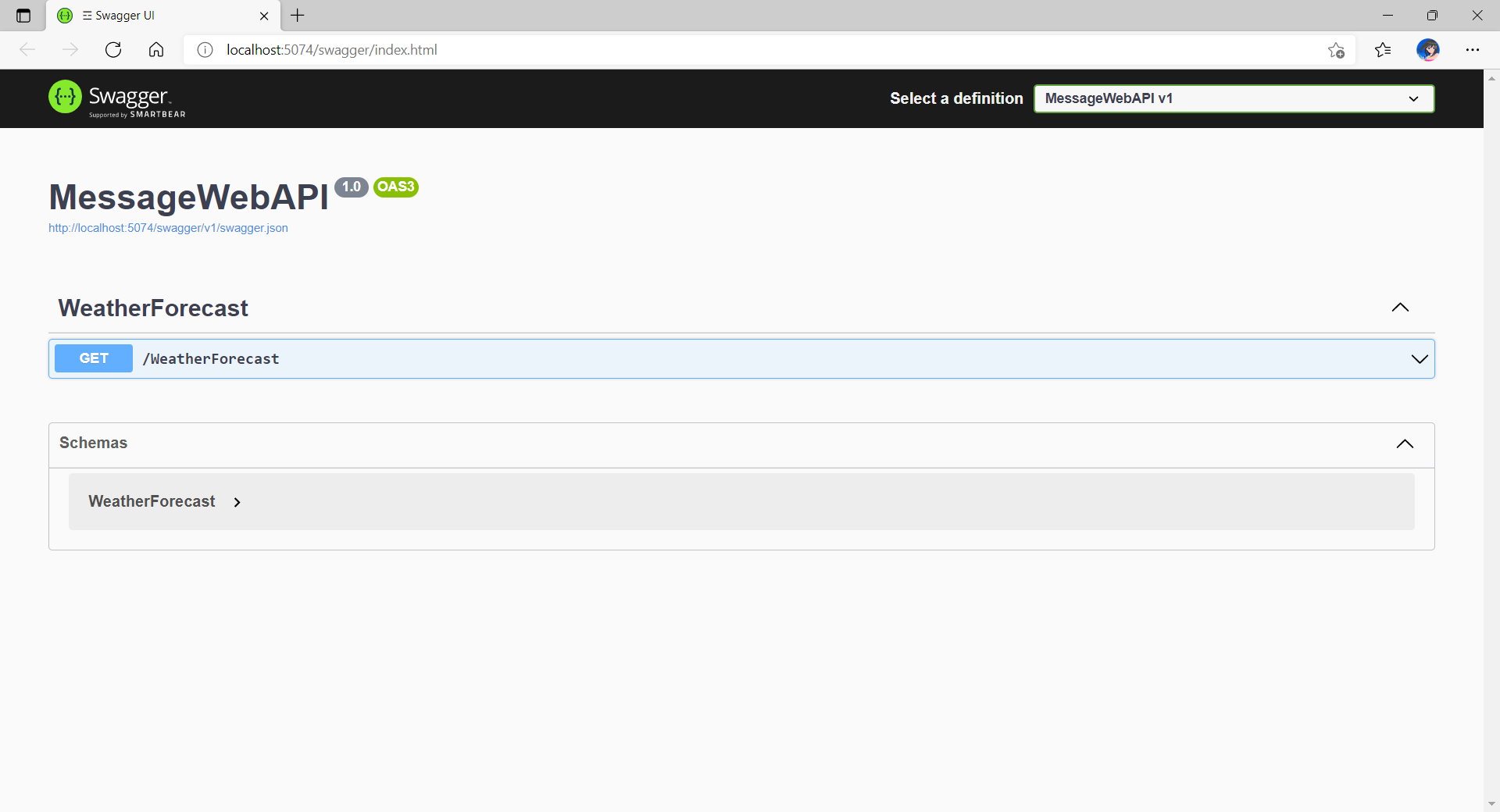
By default, the web API project will have a simple GET method available, as shown in the Swagger UI below.

Default web API project created in Visual Studio will have this WeatherForecast API method available by default.

Now, we can make use of this method as a starting point. Let’s have the our client, WebFrontEnd, to call the API and output the result returned by the API to the web page.

var request = new System.Net.Http.HttpRequestMessage();
request.RequestUri = new Uri("http://messagewebapi/WeatherForecast");

var response = await client.SendAsync(request);

string output = await response.Content.ReadAsStringAsync();

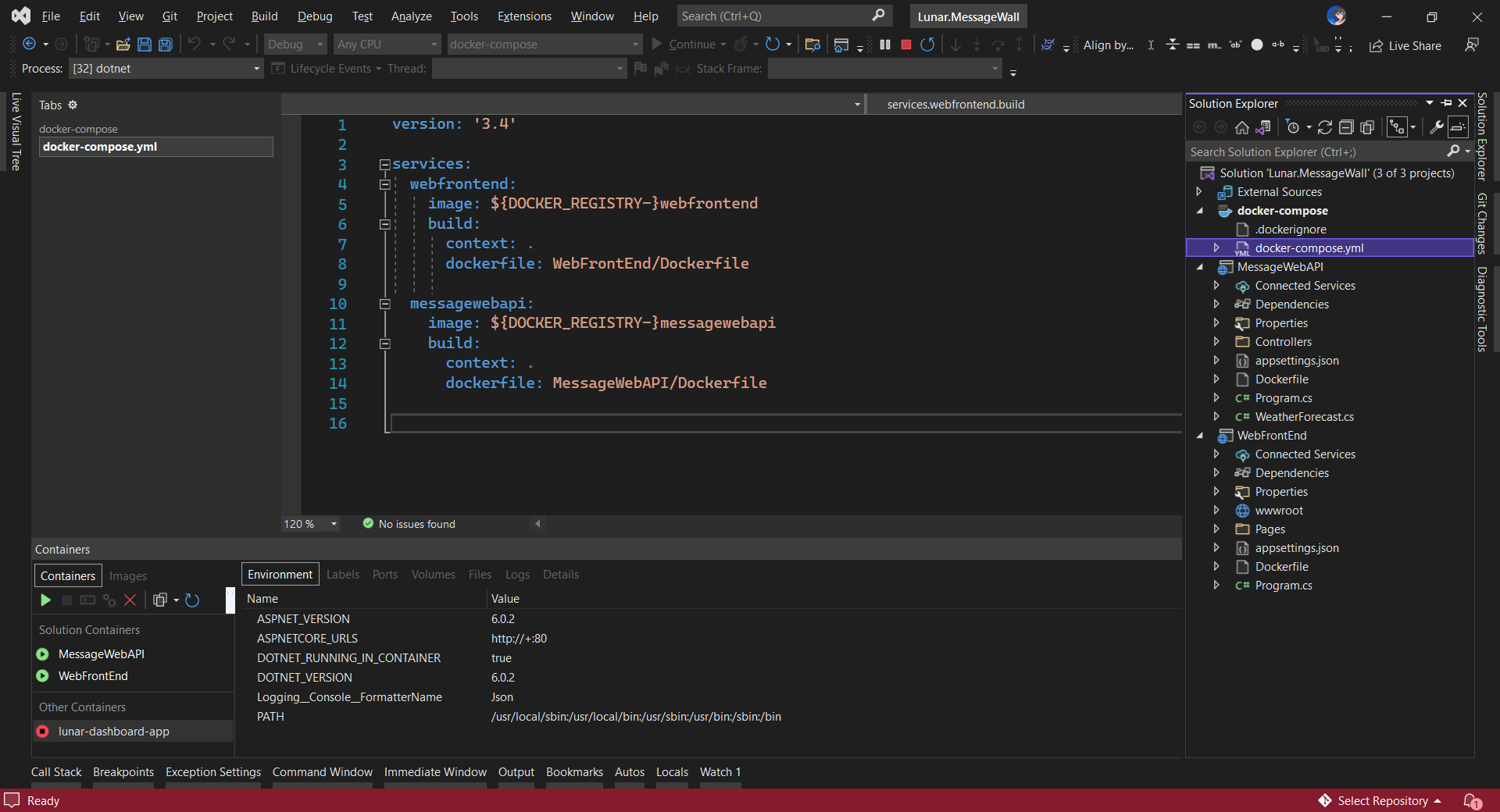
In both projects, we will add Container Orchestrator Support with Linux as the target OS. Once we have the docker-compose YAML file ready, we can directly run our docker compose application by simply pressing F5 in Visual Studio.

The docker-compose YAML file for our solution.

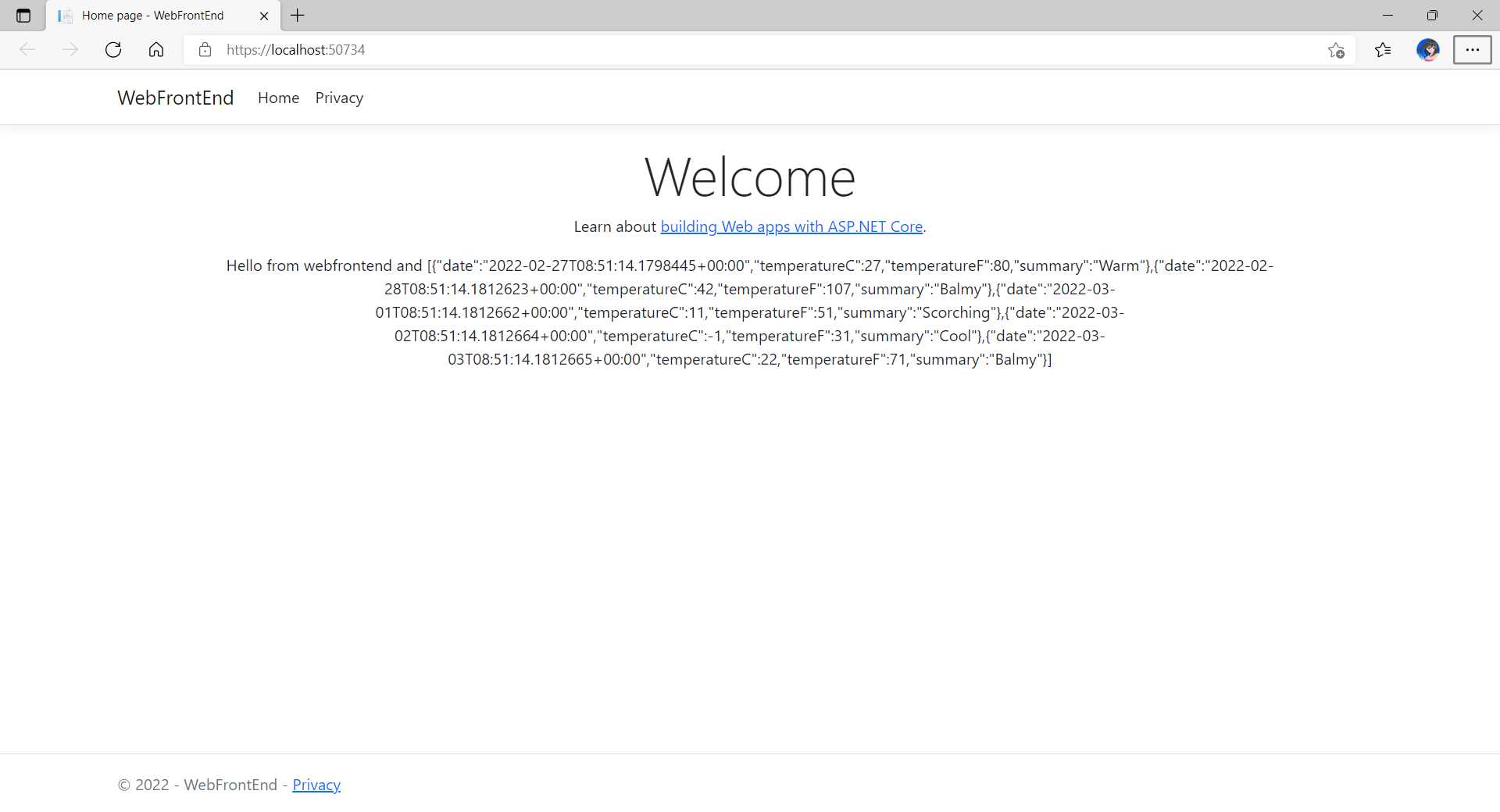
Now, we shall be able to see the website output some random weather data returned by the web API.

Congratulations, we’re running a docker compose application.

Configure Authentication in Web App

Our next step is to allow users to login to our web app first before they can post a message on the app.

It’s usually a good idea not to build our own identity management module because we need to deal with a lot more than just building a form to allow users to create an account and type their credentials. One example will be managing and protecting our user’s personal data and passwords. Instead, we should rely on Identity-as-a-Service solutions such as Azure Active Directory B2C.

Firstly, we will register our web app in our Azure AD B2C tenant.

Normally for first-timers, we will need to create a Azure AD B2C tenant first. However, there may be an error message saying that our subscription is not registered to use namespace ‘Microsoft.AzureActiveDirectory’. If you encounter this issue, you can refer to Adam Storr’s article on how to solve this with Azure CLI.

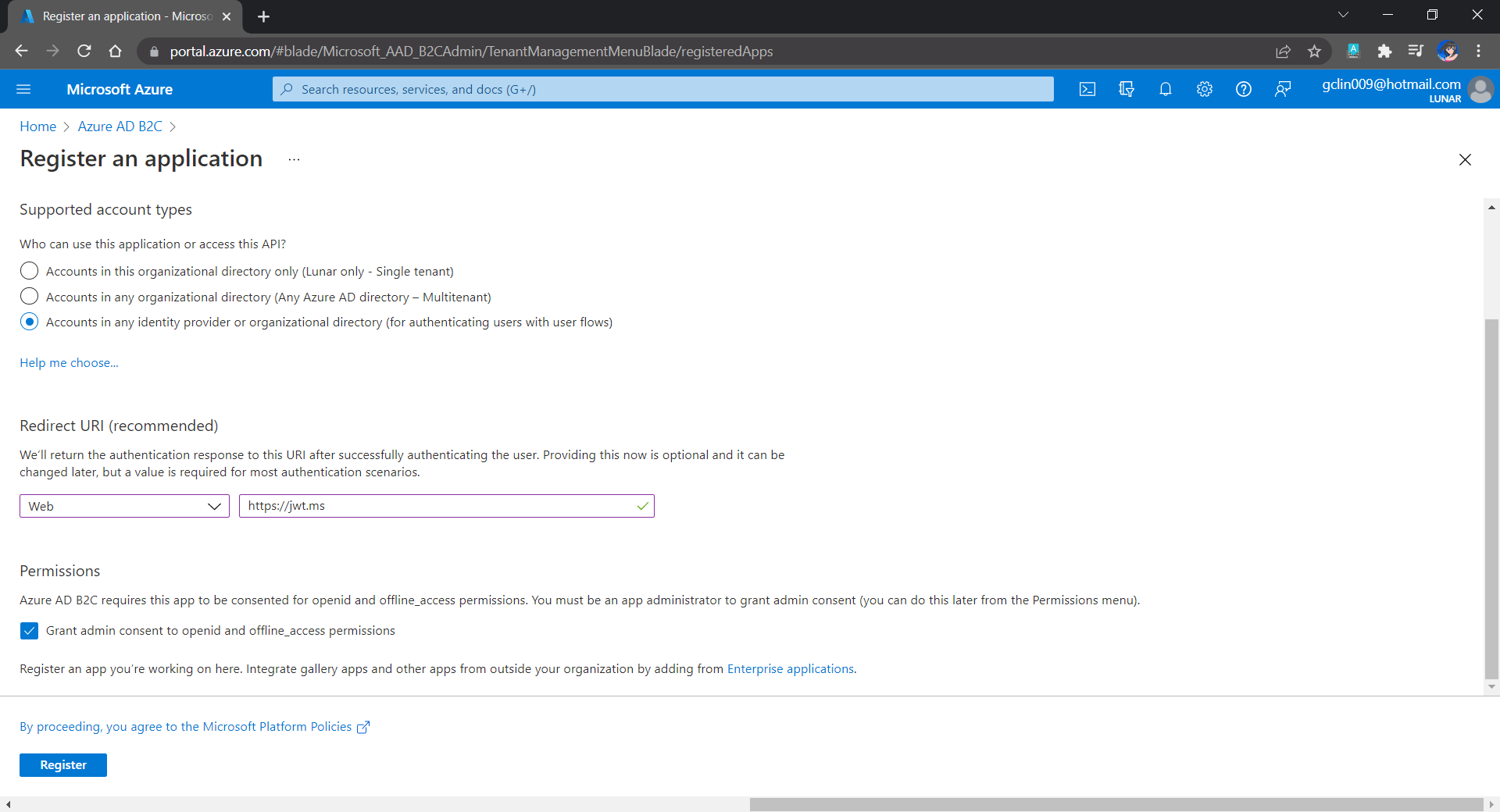
Once we have our Azure AD B2C tenant ready (which is Lunar in my example here), we can proceed to register our web app, as shown below. For testing purposes, we set the Redirect URI to https://jwt.ms, a Microsoft-owned web application that displays the decoded contents of a token. We will update this Redirect URL in the next section below when we link our web app with Azure AD B2C.

Registering a new app “Lunar Message Wall” under the Lunar Tenant.

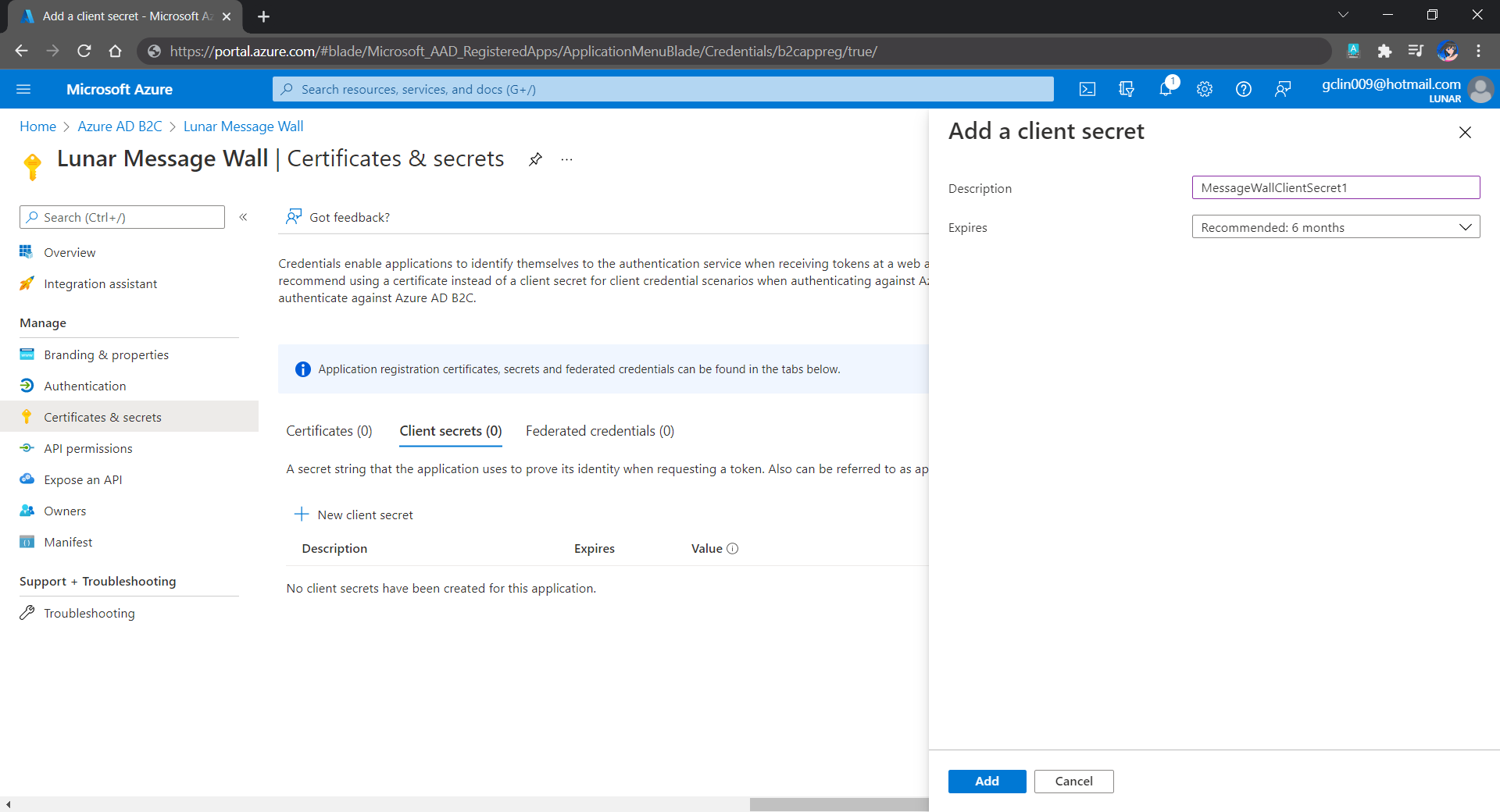
Secondly, once our web app is registered, we need to create a client secret, as shown below, for later use.

Secrets enable our web app to identify itself to the authentication service when receiving tokens. In addition, please take note that although certificate is recommended over client secret, currently certificates cannot be used to authenticate against Azure AD B2C.

Adding a new client secret which will expire after 6 months.

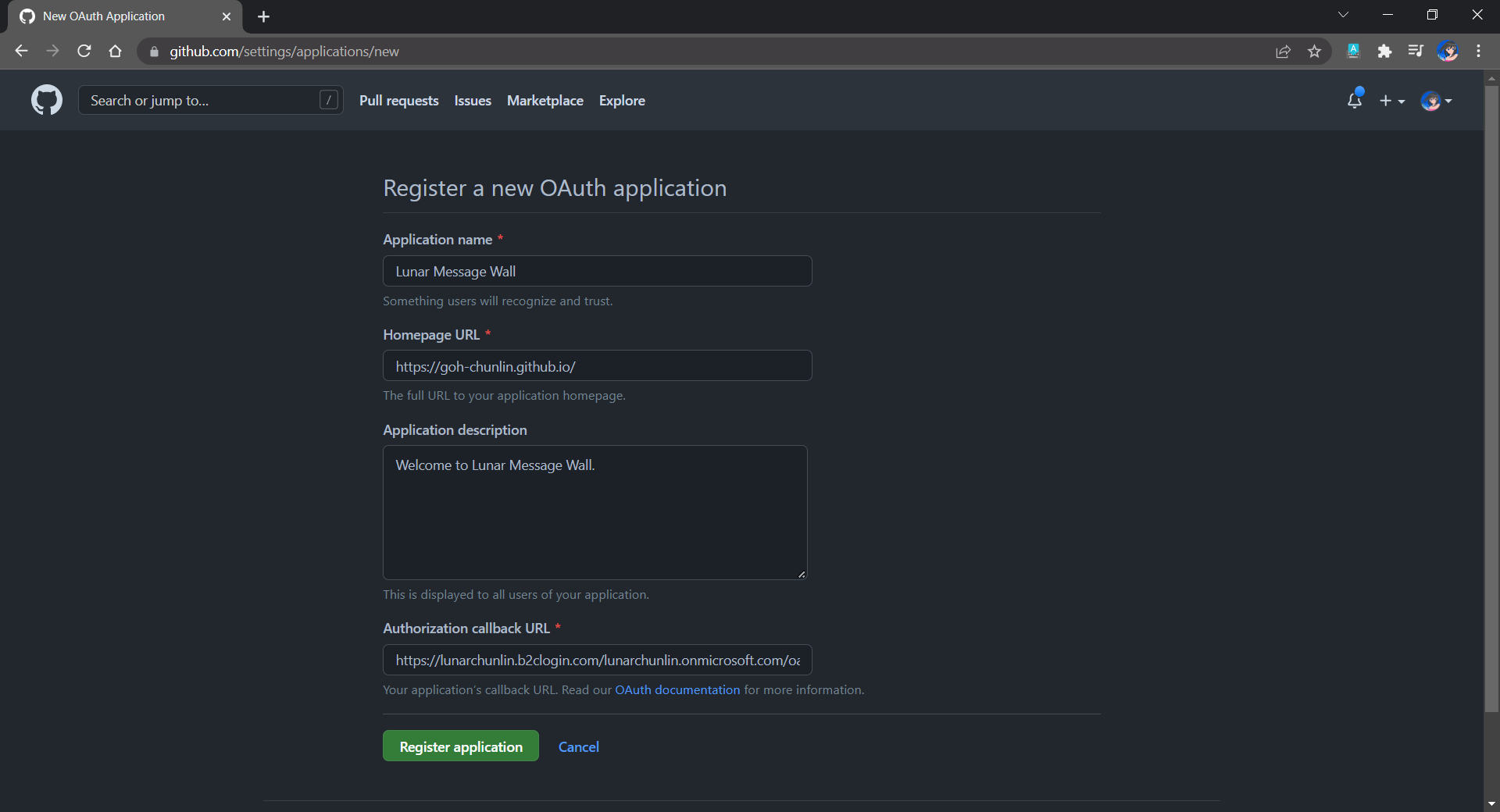
Thirdly, since we want to allow user authentication with GitHub, we need to create a GitHub OAuth app first.

The Homepage URL here is a temporary dummy data.

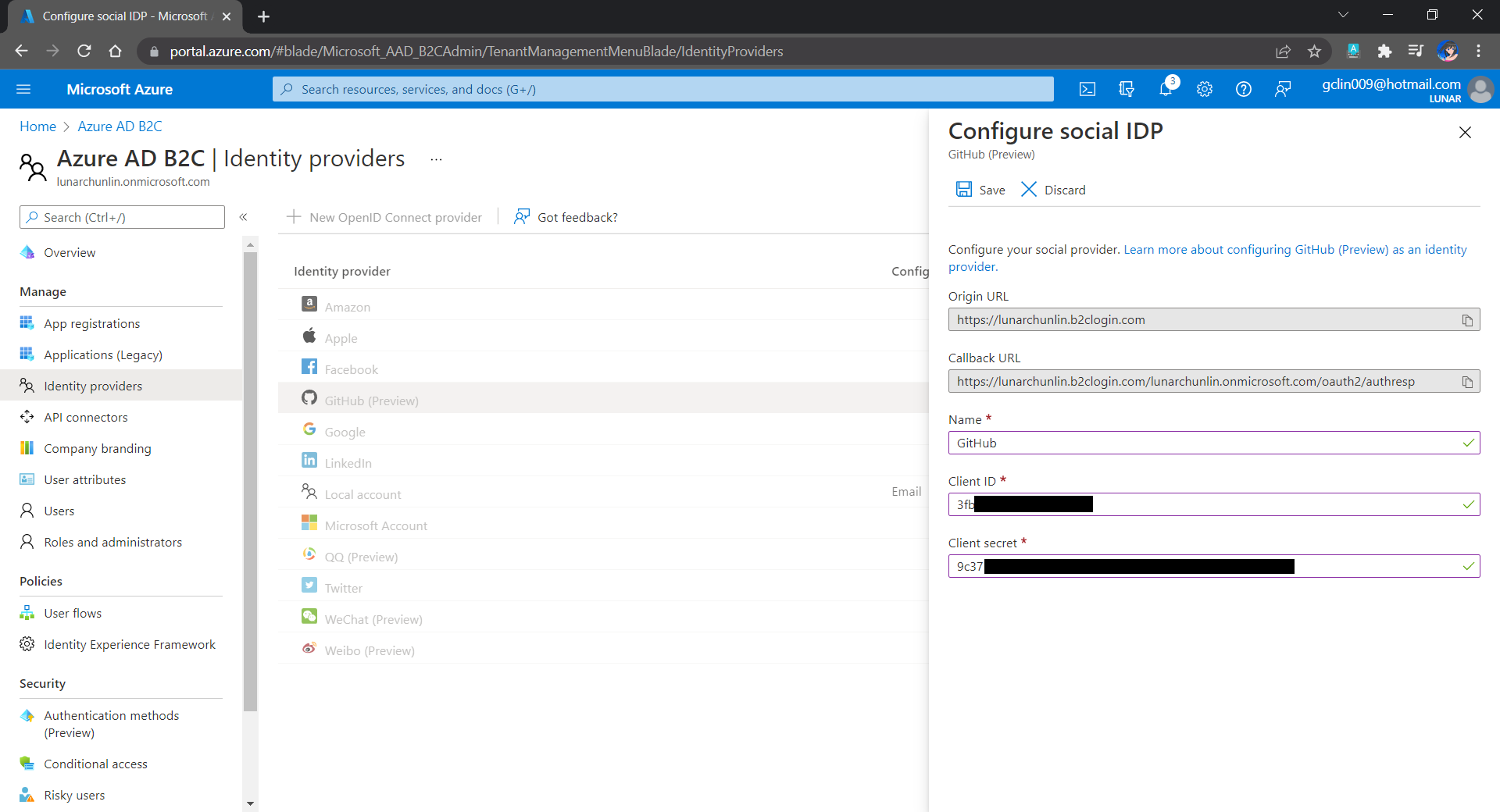
After we have registered the OAuth app on GitHub, we will be provided a client ID and client secret. These two information are needed when we configure GitHub as the social identity provider (IDP) on our Azure AD B2C, as shown below.

Configuring GitHub as an identity provider on Azure AD B2C.

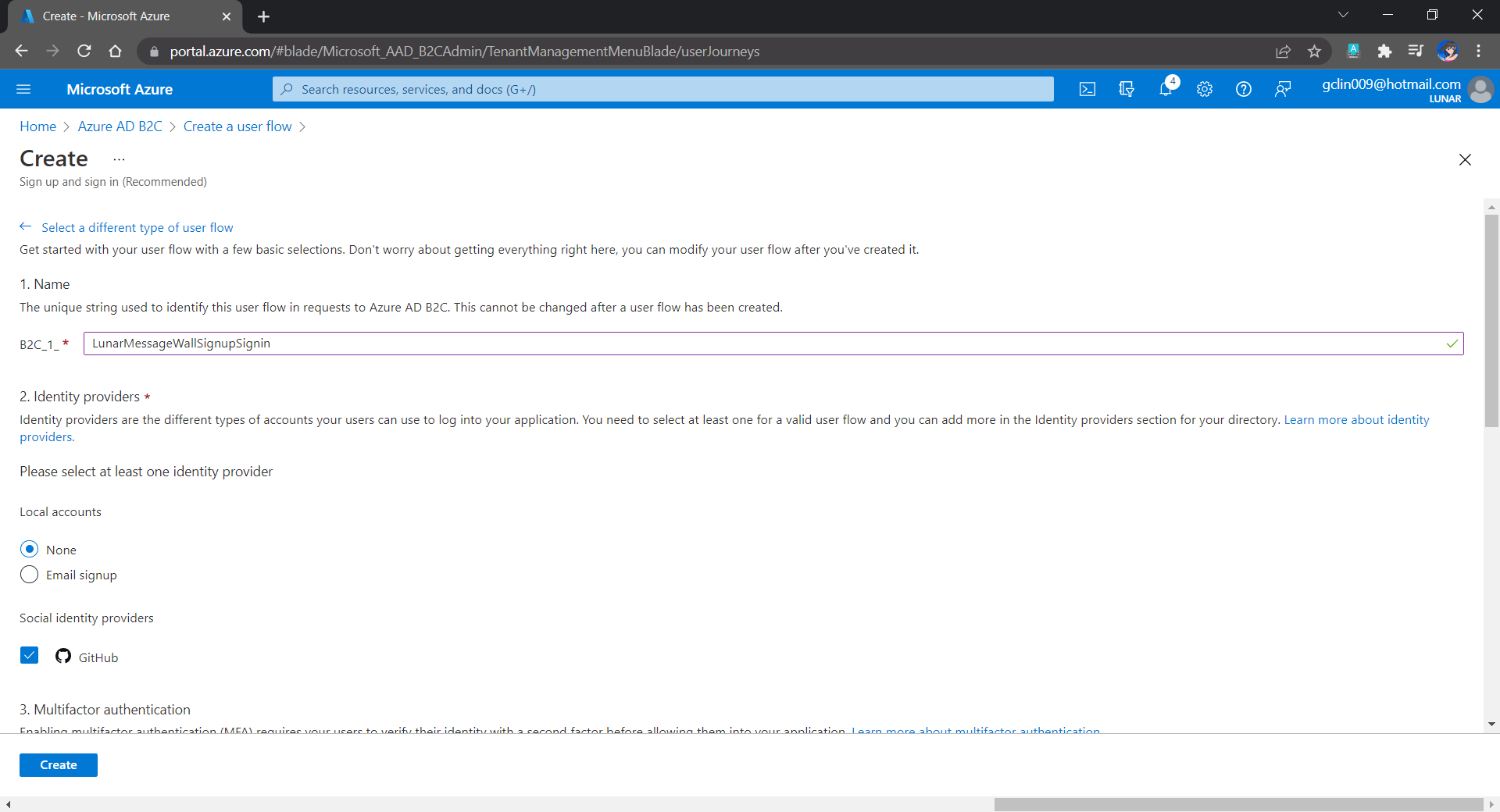
Fourthly, we need to define how users interact with our web app for processes such as sign-up, sign-in, password reset, profile editing, etc. To keep thing simple, here we will be using the predefined user flows.

For simplicity, we allow only GitHub sign-in in our user flow.

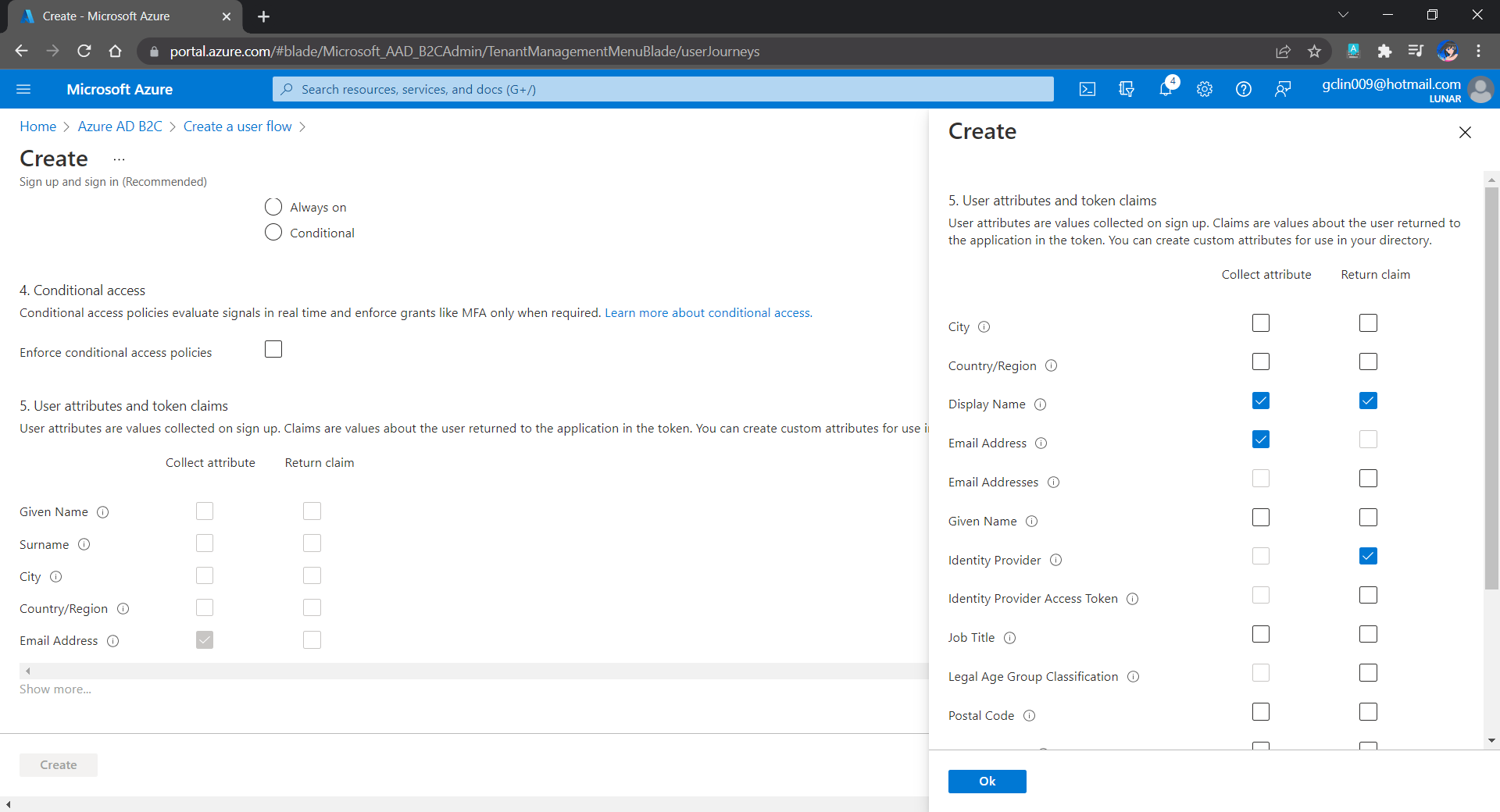
We can also choose the attributes we want to collect from the user during sign-up and the claims we want returned in the token.

User attributes and token claims.

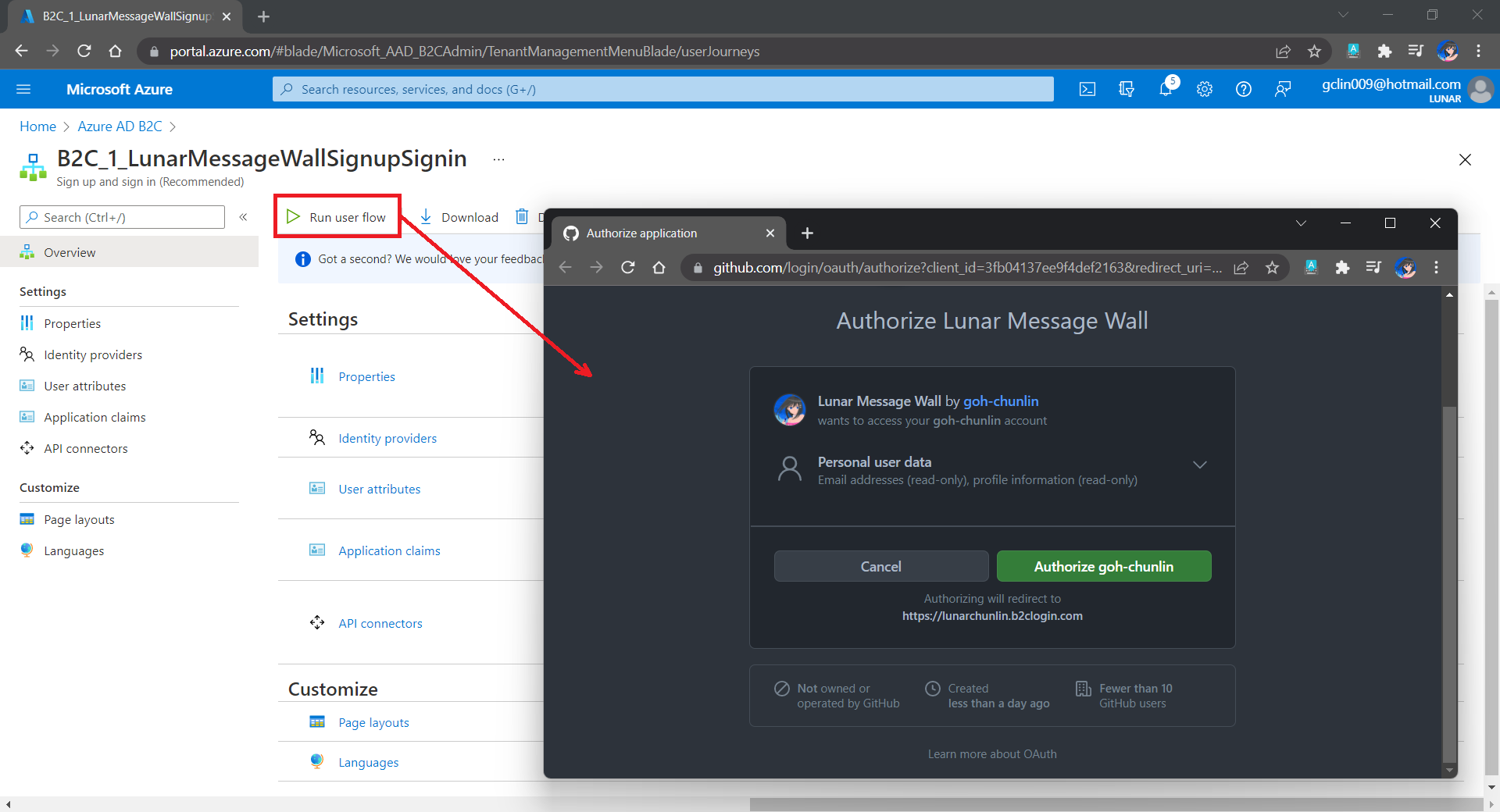
After we have created the user flow, we can proceed to test it.

In our example here, GitHub OAuth app will be displayed.

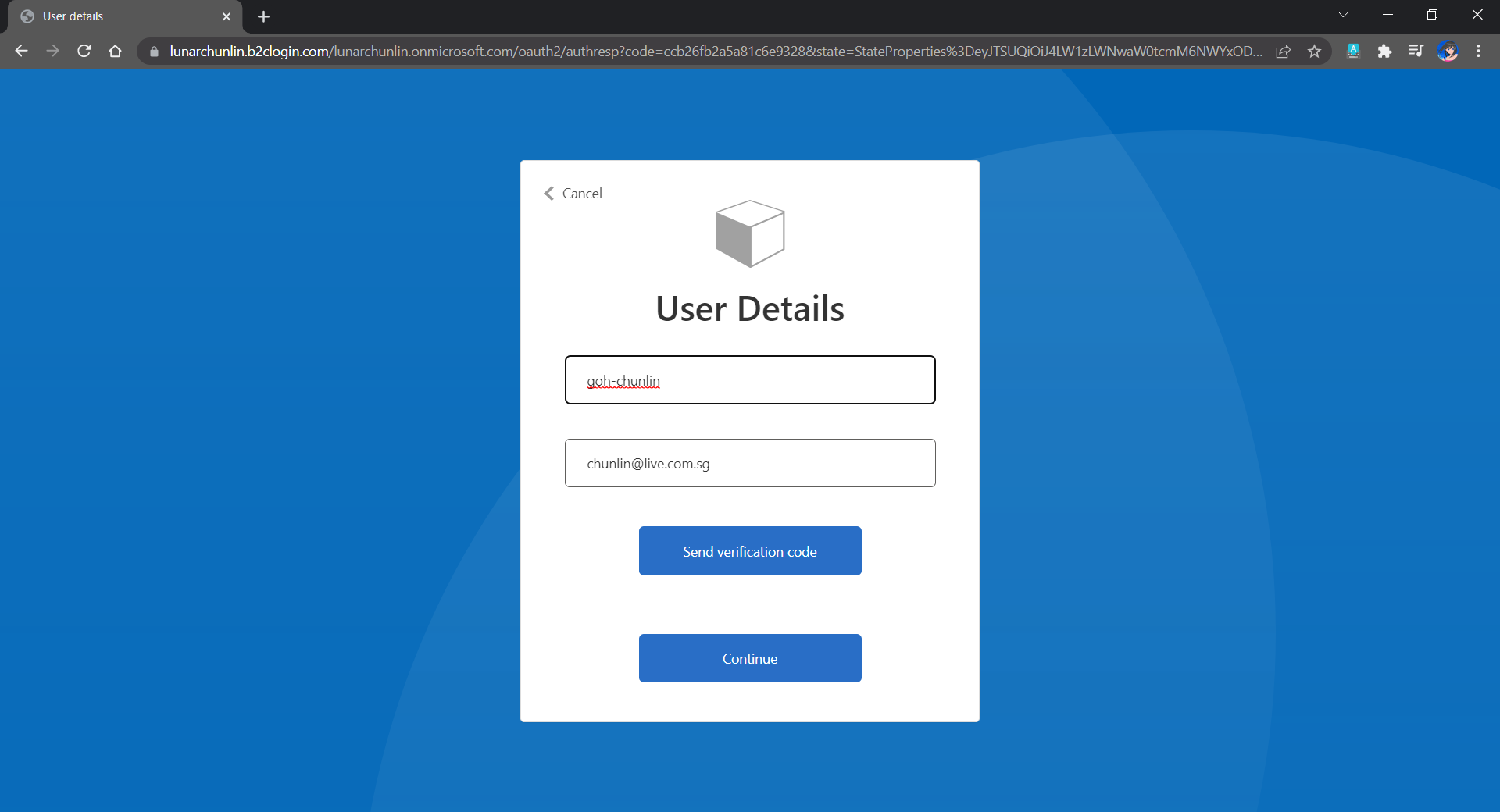
Since we specify in our user flow that we need to collect the user’s GitHub display name, there is a field here for the user to enter the display name.

The testing login page from running the user flow.

Setup the Authentication in Frontend and Web API Projects

Now, we can proceed to add Azure AD B2C authentication to our two ASP.NET Core projects.

We will be using the Microsoft Identity Web library, a set of ASP.NET Core libraries that simplify adding Azure AD B2C authentication and authorization support to our web apps.

dotnet add package Microsoft.Identity.Web

The library configures the authentication pipeline with cookie-based authentication. It takes care of sending and receiving HTTP authentication messages, token validation, claims extraction, etc.

For the frontend project, we will be using the following package to add GUI for the sign-in and an associated controller for web app.

dotnet add package Microsoft.Identity.Web.UI

After this, we need to add the configuration to sign in user with Azure AD B2C in our appsettings.json in both projects (The ClientSecret is not needed for the Web API project).

"AzureAdB2C": {
    "Instance": "https://lunarchunlin.b2clogin.com",
    "ClientId": "...",
    "ClientSecret": "...",
    "Domain": "lunarchunlin.onmicrosoft.com",
    "SignedOutCallbackPath": "/signout/B2C_1_LunarMessageWallSignupSignin",
    "SignUpSignInPolicyId": "B2C_1_LunarMessageWallSignupSignin"
}

We will use the configuration above to add the authentication service in Program.cs of both projects.

With the help of the Microsoft.Identity.Web.UI library, we can also easily build a sign-in button with the following code. Full code of it can be seen at _LoginPartial.cshtml.

<a class="nav-link text-dark" asp-area="MicrosoftIdentity" asp-controller="Account" asp-action="SignIn">Sign in</a>

Now, it is time to update the Redirect URI to the localhost. Thus, we need to make sure our WebFrontEnd container has a permanent host port. To do so, we first specify the ports we want to use in the launchsettings.json of the WebFrontEnd project.

"Docker": {
    ...
    "environmentVariables": {
      "ASPNETCORE_URLS": "https://+:443;http://+:80",
      "ASPNETCORE_HTTPS_PORT": "44360"
    },
    "httpPort": 51803,
    "sslPort": 44360
}

Then in the docker-compose, we will specify the same ports too.

services:
  webfrontend:
    image: ${DOCKER_REGISTRY-}webfrontend
    build:
      context: .
      dockerfile: WebFrontEnd/Dockerfile
    ports:
      - "51803:80"
      - "44360:443"

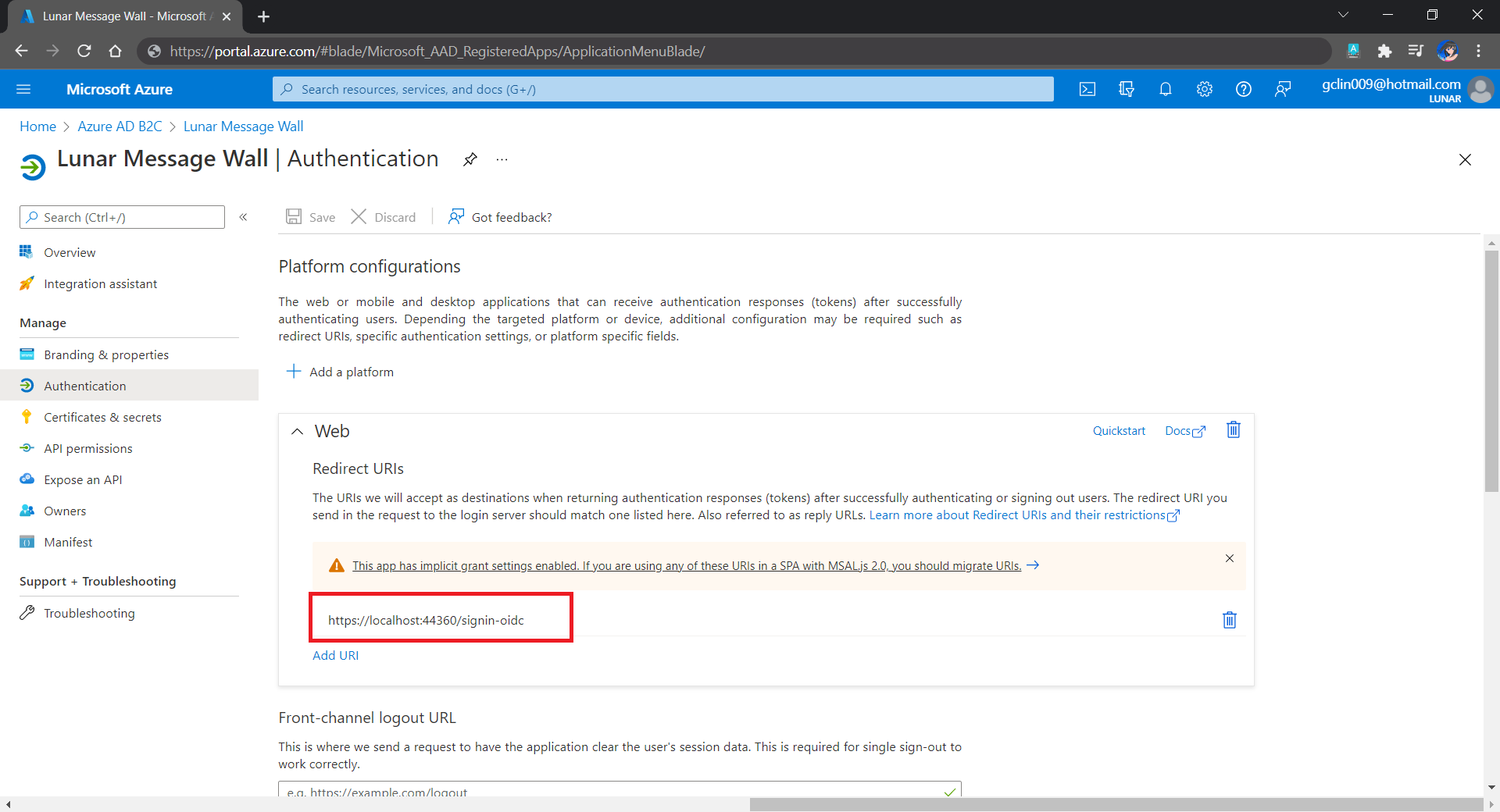
Finally, we will update the Redirect URI in Azure AD B2C according, as shown below.

Updated the Redirect URI to point to our WebFrontEnd container.

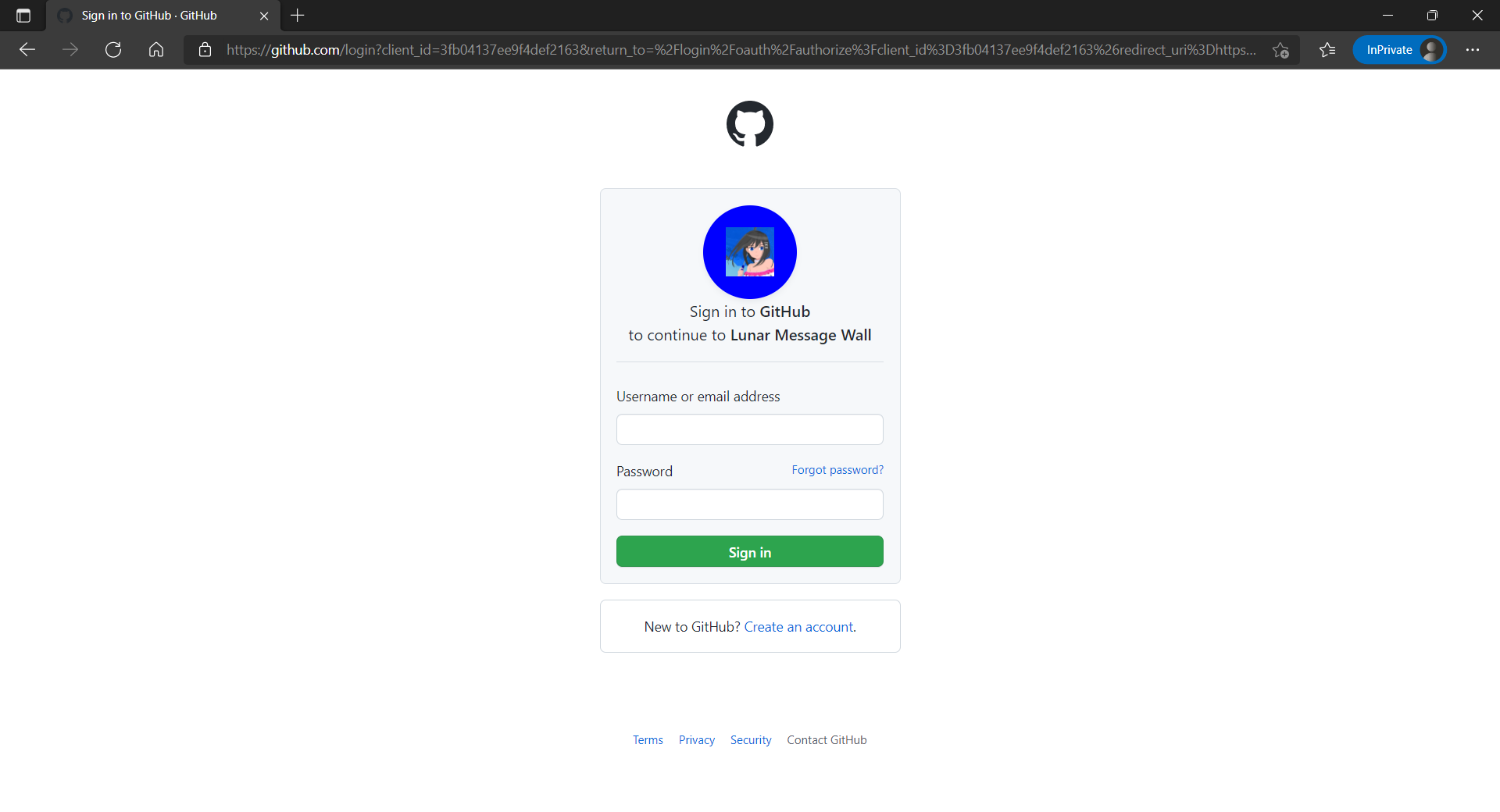
Now, right after we click on the Sign In button on our web app, we will be brought to a GitHub sign-in page, as shown below.

The GitHub sign-in page.

Currently, our Web API has only two methods which have different required scopes declared, as shown below.

[Authorize]
public class UserMessageController : ControllerBase
{
    ...
    [HttpGet]
    [RequiredScope("messages.read")]
    public async Task<IEnumerable<UserMessage>> GetAsync()
    {
        ...
    }

    [HttpPost]
    [RequiredScope("messages.write")]
    public async Task<IEnumerable<UserMessage>> PostAsync(...)
    {
        ...
    }
}

Hence, when the frontend needs to send the GET request to retrieve messages, we will first need to get a valid access token with the correct scope.

string accessToken = await _tokenAcquisition.GetAccessTokenForUserAsync(new[] { "https://lunarchunlin.onmicrosoft.com/message-api/messages.read" });

client.DefaultRequestHeaders.Authorization = new AuthenticationHeaderValue("Bearer", accessToken);

client.DefaultRequestHeaders.Accept.Add(new MediaTypeWithQualityHeaderValue("application/json"));

Database

Since we need to store the messages submitted by the users, we will need a database. Here, we use PostgresSQL, an open-source, standards-compliant, and object-relational database.

To run the PostgresSQL with docker-compose we will update our docker-compose.yml file with the following contents.

services:
  ...
  messagewebapi:
    ...
    depends_on:
     - db

  db:
    container_name: 'postgres'
    image: postgres
    environment:
      POSTGRES_PASSWORD: ...

In our case, only the Web API will interact with the database. Hence, we need to make sure that the db service is started before the messagewebapi. In order to specify this relationship, we will use the depends_on option.

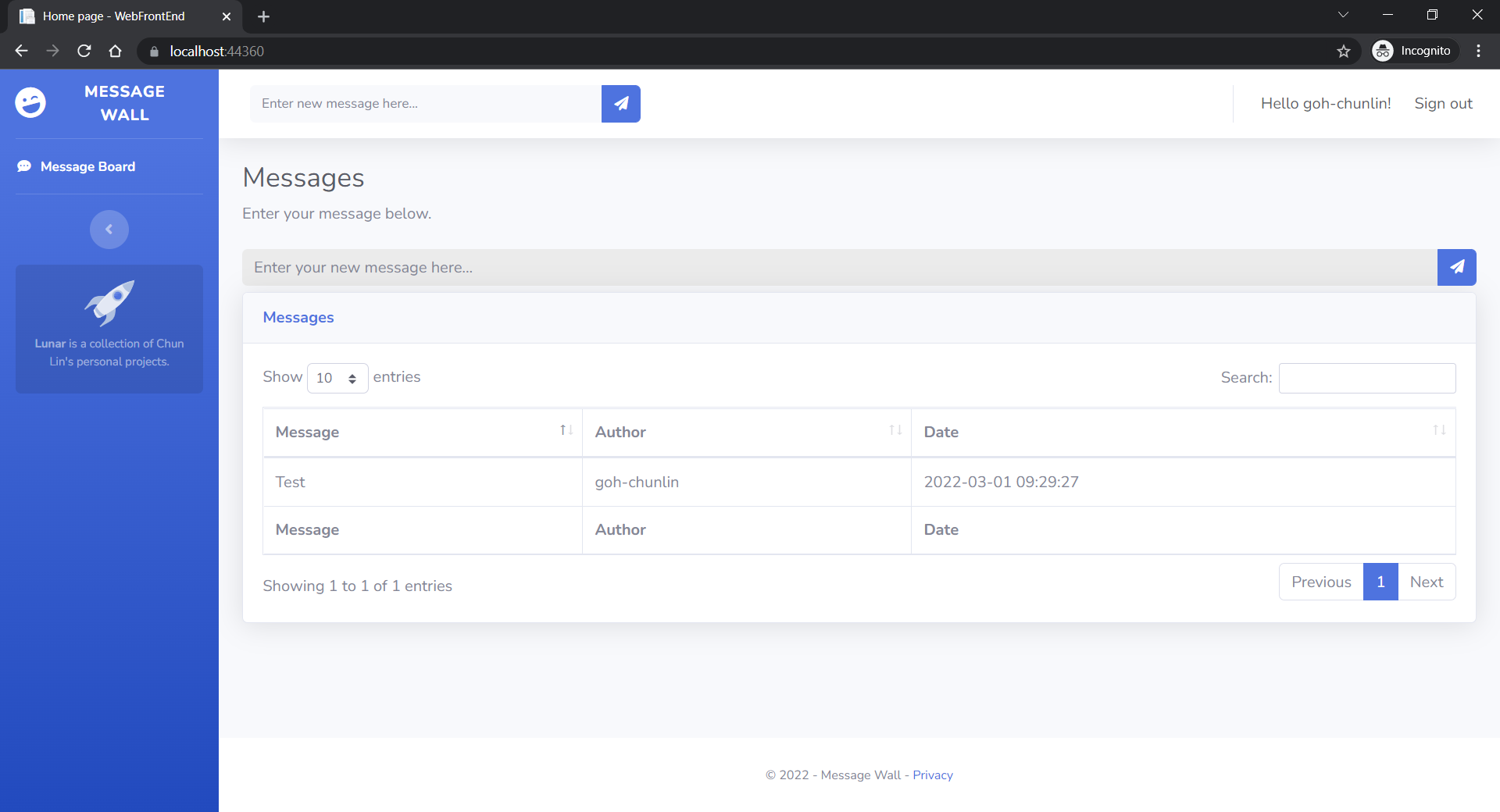
User’s messages can now be stored and listed on the web page.

Next Step

This is just the very beginning of my learning journey of dockerising ASP .NET Core solution. In the future, I shall learn more in this area.

References

Getting Started: Making It a Golang Web Application

Continue from the previous topic

Playing YouTube video via console is cool but it’s not user friendly. Hence, I decided to move on to make it a web app. Design of a web app that I chose to follow is the one shared in Sau Sheong Chang’s book, Go Web Programming. The following diagram covers the overview of the architecture of the web app.

Overview of the web application. (Source: Go Web Programming)

Hence, I started of with two folders and two Go files in the project folder. The two folders are public and templates folders. The public folder stores all CSS files and Javascript files. Then we have one index.go file which is basically the handler function for the homepage of our web app and finally server.go file.

The server.go

In the server.go file, we have our multiplexer which in charge of inspecting the URL being requested and redirecting the request to the correct handler. The main function also sits in server.go file. There is where we also connect to the database which has its connection made to be global. The following code shows the beginning of our main function.

package main

...

var db *sql.DB

func main() {

    var err error

    // Initialize connection string.
    var connectionString = fmt.Sprintf(os.Getenv("CONNECTION_STRING"))

    // Initialize connection object.
    db, err = sql.Open("postgres", connectionString)
    checkError(err)

// Set up multiplexer
    mux := http.NewServeMux()

// Handle static files in the public folder
    staticFiles := http.FileServer(http.Dir("public"))
    mux.Handle("/static/", http.StripPrefix("/static/", staticFiles))

    mux.HandleFunc("/index", index)

    server := &http.Server{
        Addr: "127.0.0.1:8081",
        Handler: mux,
    }

    server.ListenAndServe()
}

There is one thing that needs to take note is that, as described on the GoDoc, “The returned DB (of sql.Open) is safe for concurrent use by multiple goroutines and maintains its own pool of idle connections. Thus, the Open function should be called just once. It is rarely necessary to close a DB.” So we don’t close the DB here.

The index.go

For the index.go file where we have our homepage handler function, we will first connect to the database to retrieve the list of videos from the table. In addition, the index handler function will be in charge of generating the HTML responses with templates that we define in templates folder, which is index.html in this case.

The following code shows the index handler function where it retrieves all the video records from the table then store them into a map, the built-in dictionary data type in Go.

package main

...

func index(writer http.ResponseWriter, request *http.Request) {
    template, _ := template.ParseFiles("templates/index.html")

    err := db.Ping()
    checkError(err)

    if err != nil {
        template.Execute(writer, "Cannot connect to the database")
    } else {
        // Read data from table.
...

        sqlStatement := "SELECT * FROM videos;"

        rows, err := db.Query(sqlStatement)
        checkError(err)

        defer rows.Close()

        videos := make(map[string]string)

        ...

        template.Execute(writer, videos)
    }
}

The templates/index.html

Now, let’s see what’s inside index.html template file. It basically uses the Bootstrap 4.2.1 template that I downloaded from Bootswatch.

<!DOCTYPE html>
<html lang="en">

<head>
<meta charset="utf-8">
<title>YouTube RePlayer</title>
<meta name="viewport" content="width=device-width, initial-scale=1">
<meta http-equiv="X-UA-Compatible" content="IE=edge" />
<link rel="stylesheet" href="static/bootstrap.min.css" media="screen">
</head>

<body>
...
{{ range $videoId, $videoName := . }}
...
<span>{{ $videoName }}</span>
...
{{ end }}
...
</body>
</html>

There are two highlights in the code above.

Firstly, even though we put the CSS and JS files in the public folder, we still have their relative path as “static/…”. The reason is because of the lines in server.go as shown below.

// Handle static files in the public folder
staticFiles := http.FileServer(http.Dir("public"))
mux.Handle("/static/", http.StripPrefix("/static/", staticFiles))

Secondly, we iterate through the map using range. That will help to list down the videos we retrieved earlier on the HTML side.

The public Folder

Since we are using Bootstrap, we need to have the CSS and JS files of the framework locally. Hence, they are all put under the public folder. Then files with my customized CSS and JS codes are also put in this folder.

This is the web app so far with the “Add To List” function that will be covered in another article later.

Form Submission

Now I move on to add a function that allows users to add new YouTube video the the video list. On HTML, we have the following hidden fields. They are hidden fields because the values, i.e. YouTube video id and video title, are retrieved from the URL and the YouTube API, respectively.

<form action="/addVideo" method="POST">
<input id="hidVideoID" name="hidVideoID" type="hidden" />
<input id="hidVideoName" name="hidVideoName" type="hidden" />

<input id="btnAddToList" type="submit" class="btn btn-primary btn-lg" value="Add to List"></input>
</form>

After that, due to the fact that I want the form to be posted to the relative request URL /addVideo, so there is a new handler needed. Hence, a new line as follows is added to the server.go file.

mux.HandleFunc("/addVideo", addVideo) 

Then we have our new handler function in a new file, addVideo.go, as shown below.

package main

...

func addVideo(writer http.ResponseWriter, request *http.Request) {
    request.ParseForm()

    err := db.Ping()
    checkError(err)

    if err != nil {

        http.Redirect(writer, request, "/index", http.StatusSeeOther)

    } else {

        // Insert data into the table.
        sqlStatement := "INSERT INTO videos (name, url) VALUES ($1, $2);"

        _, err = db.Exec(sqlStatement, request.PostForm["hidVideoName"][0], "https://www.youtube.com/watch?v="+(request.PostForm["hidVideoID"][0]))
        checkError(err)

        http.Redirect(writer, request, "/index", http.StatusSeeOther)
}
}

As the code above shows, after the data is successfully saved to the database table, we need to redirect the user back to the homepage.

References

1. Golang: http.Redirect;
2. Golang SQL Database Open and Close;
3. Golang: How to Redirect to an URL.

Getting Started: Connecting Golang Console App with Azure PostgreSQL Database

Setting up Go in VS Code

Firstly, I need to equip Visual Studio Code with the Go language support by installing Go extension in the IDE. Installing the extension helps us to do day-to-day job, such as, code navigating, code editing, code testing and debugging in an easy and efficient manner.

Installed and enabled the Go extension from Microsoft.

There are many cool features I like in the extension.

Firstly, it’s the convenience of F12 Code Navigation. With Go extension, in Go code I can easily view the source code of the type definition with just F12 or Alt+F12 on it. This is similar to my C# coding experience on Visual Studio too. To show all references of the type, I can simply use Shift+F12.

Secondly, for every file save, the extension will build, vet, and lint. Build (go build) builds the command or the package. Vet (go vet) examines Go source code and reports suspicious constructs, such as Printf calls whose arguments do not align with the format string. A linter is a tool giving coding style feedback and suggestions. By default, this extension uses the official golint as a linter.

We can update go.lintTool to other linter, for example the more advanced Go Meta Linter. Take note of the warnings (and errors) shown under the Problems tab below.

After I have installed the Go extension, I proceed to start coding. The app that I am going to build in this learning journey is a YouTube video player app. So, let’s get started!

Storing Connection String in Environment

I will start with building a console application connecting to Azure PostgreSQL. To do that, I will connect to the database as follows.

package main;

const (
// Initialize connection constants.
HOST = "...postgres.database.azure.com"
DATABASE = "..."
USER = "..."
PASSWORD = "..."
)

...

function main() {
var connectionString = fmt.Sprintf("host=%s port=5432 user=%s password=%s dbname=%s sslmode=require", HOST, USER, PASSWORD, DATABASE)
...
}

The code above is quite straight-forward. However, it does have a problem. The configuration to connect to database is hard-coded in the code. This will thus reduce the code maintainability. Also, it is extremely bad to have password appearing in the code in plain text. To store such sensitive data, we need to store them as Environment variables, as recommended by the article Best Practice for Configuration File in Your Code.

In Powershell, there are two ways of setting Environment variable. The first one is a temporarily variable that lasts only as long as the Powershell session. The command is as follows.

> $env:CONNECTION_STRING = '...'

If what you are looking for is a permanent one, you can do as follows.

> [environment]::SetEnvironmentVariable("CONNECTION_STRING", "...", "User")

After setting the connection string in environment variable, we then can edit the earlier code to be something shorter as follows.

package main;

…

function main() {
var connectionString = fmt.Sprintf(os.Getenv("CONNECTION_STRING"))

…
}

Connecting to Database

After that, we can initialize the connection object.

package main

...

func checkError(err error) {
    if err != nil {
        log.Fatal(err)
        panic(err)
    }
}

func main() {
var connectionString = ...

// Initialize connection string.
db, err := sql.Open("postgres", connectionString)
checkError(err)

err = db.Ping()
    checkError(err)
    fmt.Println("Successfully created connection to database")

...
}

The Ping() function verifies a connection to the database is alive and it will establish a connection if necessary. After that, we can use the database handler db to do CRUD operations, as demonstrated below.

Remember to allow the PostgreSQL access to Azure service and also your local IP if you need to access the database from your local machine.

Insert Data into Table

sqlStatement := "INSERT INTO table (column1) VALUES ($1);"
_, err = db.Exec(sqlStatement, "New Value")
checkError(err)

Read Data from Table

var id int
var column1 string

sqlStatement := "SELECT * from table;"
rows, err := db.Query(sqlStatement)
checkError(err)

defer rows.Close()

for rows.Next() {
switch err := rows.Scan(&id, &column1); err {
case sql.ErrNoRows:
fmt.Println("No rows were returned")
case nil:
fmt.Printf("Data row = (%d, %s)\n", id, column1)
default:
checkError(err)
}
}

Update Data in Database

sqlStatement := "UPDATE table SET column1 = $1 WHERE id = $2;"
_, err = db.Exec(sqlStatement, "New Value 2", 1)
checkError(err)

Delete Data from Database

sqlStatement := "DELETE FROM table WHERE id = $1;"
_, err = db.Exec(sqlStatement, 1)
checkError(err)

A YouTube Playlist Console App

With the codes above, we then can create a simple table to store our YouTube video URLs as a playlist, as shown in the following screenshot.

The console app allows user to choose video from the list and plays it on default browser.

To make the program to play the video on a browser, we then can make use of the code written by hyg (黄勇刚) which is to open a web page on the default browser of the machine, as shown below.

func openbrowser(url string) {
var err error

switch runtime.GOOS {
case "linux":
err = exec.Command("xdg-open", url).Start()
case "windows":
err = exec.Command("rundll32", "url.dll,FileProtocolHandler", url).Start()
case "darwin":
err = exec.Command("open", url).Start()
default:
err = fmt.Errorf("unsupported platform")
}

if err != nil {
checkError(err)
}

}

Playing YouTube video via console is cool, isn’t it? Next, we will see how we can make it to be web application so that we can have a better UI/UX.

To be continued in next article

References

1. Quickstart: Create an Azure Database for PostgreSQL server in the Azure portal;
2. Azure Database for PostgreSQL: Use Go language to connect and query data;
3. [StackOverflow] List all environment variables from command line;
4. Azure Database for PostgreSQL Server firewall rules;
5. PostgreSQL – CREATE Database;
6. [StackOverflow] How to switch databases in psql?;
7. [StackOverflow] How to read input from console line?;
8. [StackOverflow] Convert string to integer type in Go?;
9. [StackOverflow] Reading an integer from standard input;
10. [StackOverflow] How to exit from PostgreSQL command line utility: psql.