Unit Test Stored Procedures and Automate Build, Deploy, Test Azure SQL Database Changes with CI/CD Pipelines

I was recently asked about how to unit test stored procedures before deploying to servers. Unfortunately, there are not much discussions about unit testing stored procedures, especially with tools like SSDT and Azure DevOps. Hence, I decide to write this walkthrough to share my approach to this issue.

PROJECT GITHUB REPOSITORY

The complete source code of this project can be found at https://github.com/goh-chunlin/Lunar.Spending.

Unit Testing

According to The Art of Unit Testing, a unit test is an automated piece of code that invokes the unit of work being tested, and then checks some assumptions about a single end result of that unit.

Without unit testing, one has no choice but to rely on system and integration tests which are normally performed in the later stage of the SDLC. Some teams may even resort to the troublesome way, i.e. manually testing the end product they’re developing to invoke their codes.

Unit testing of stored procedures is also very crucial. If the bugs in stored procedures are not caught in the early stage of development, it is very challenging to rollback the data changes that have been made to the database.

Setup SSDT (SQL Server Data Tools)

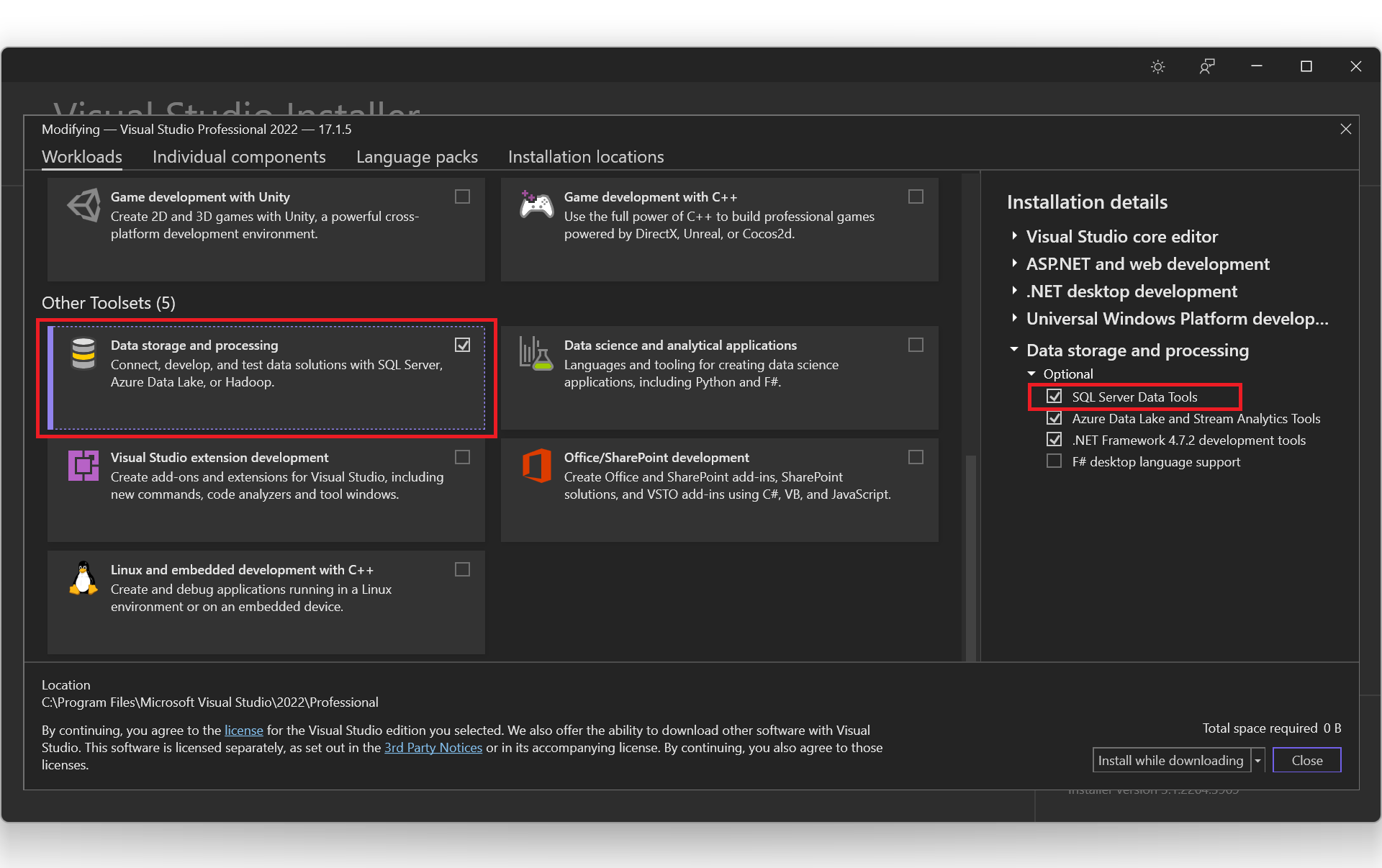
SSDT is a development tool for building SQL Server relational databases, including databases in Azure SQL. The core SSDT functionality to create database projects has remained integral to Visual Studio 2022. Thus, we can easily include SSDT by selecting the “Data storage and processing” workload in the Visual Studio Installer, as shown below.

Setting up SSDT in Visual Studio 2022.

With SSDT, we can work directly with a connected database instance on/off-premise. We can use SSDT Transact-SQL design capabilities to build, debug, maintain, and refactor databases. In this article, we will be using SSDT to create unit tests that verify the behavior of several stored procedures.

Create a New Database Project

In this article, we will assume that we have an existing database hosted on Azure SQL server.

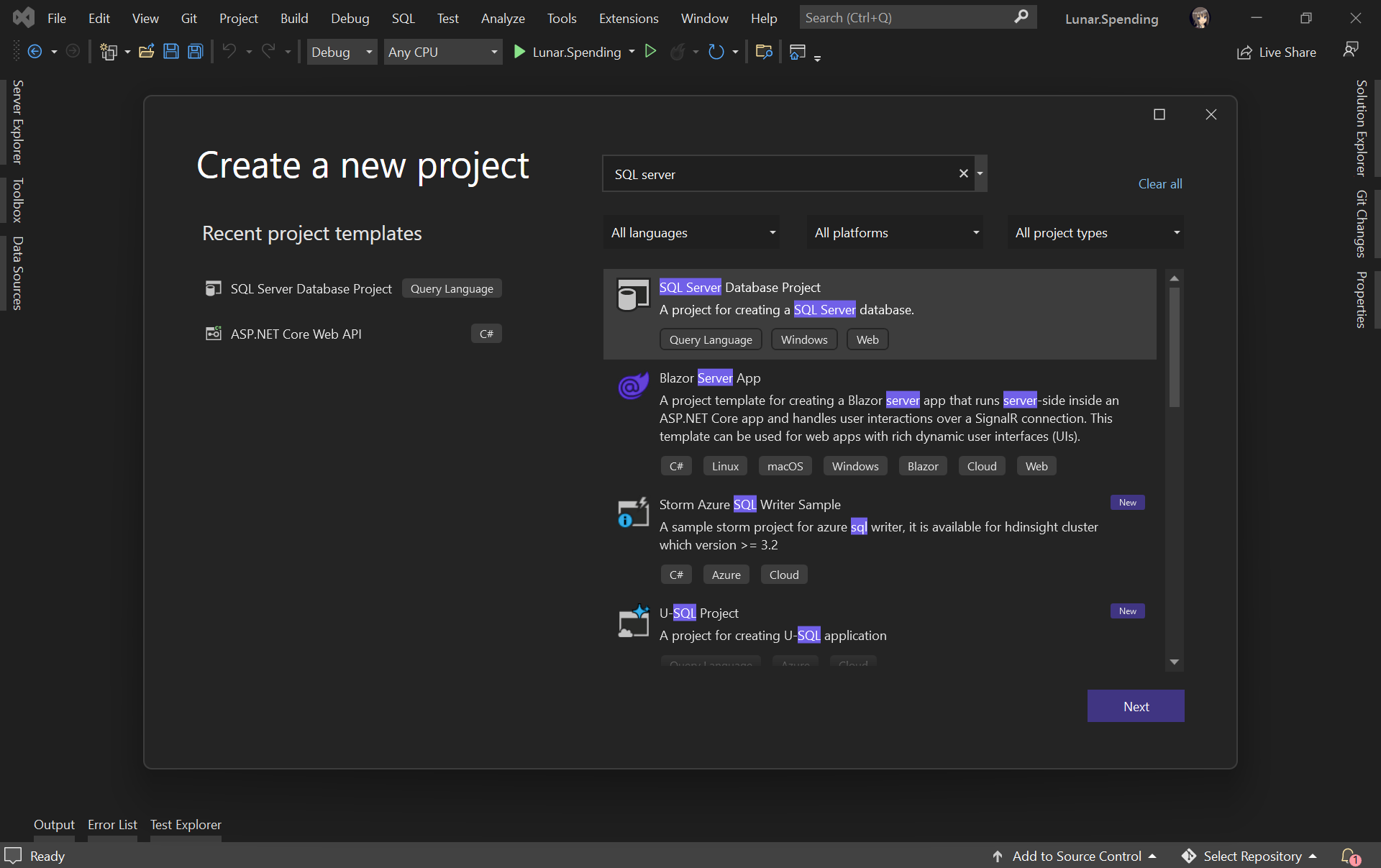
Firstly, as shown in the screenshot below, we need to create a new database project in order to import database schema and stored procedures from the database on Azure.

Creating a new SQL Server Database project on VS 2022.

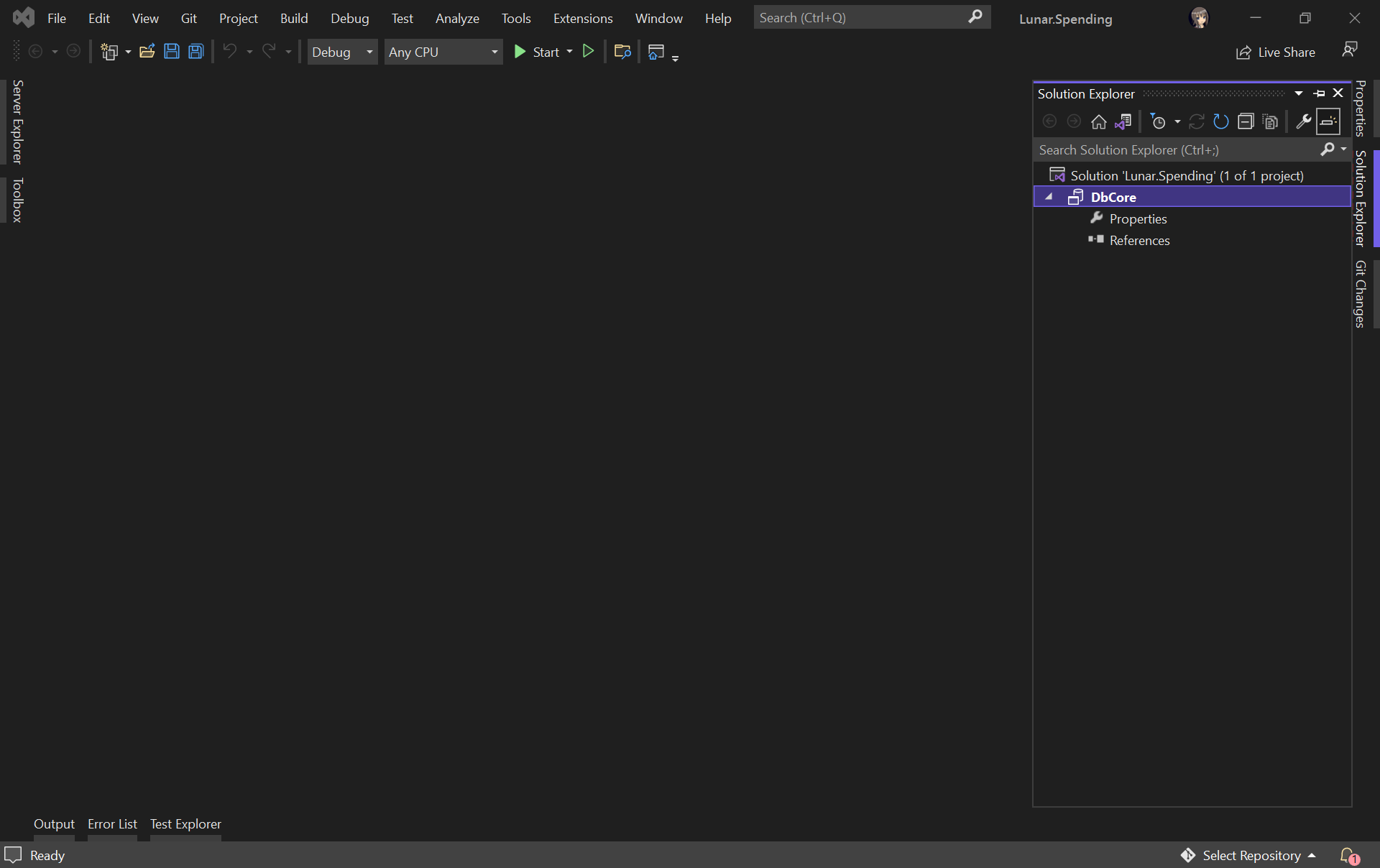
Let’s name our project DbCore. We will then see a simple DbCore project shown in our Solution Explorer, as demonstrated in the screenshot below.

The database project is successfully created.

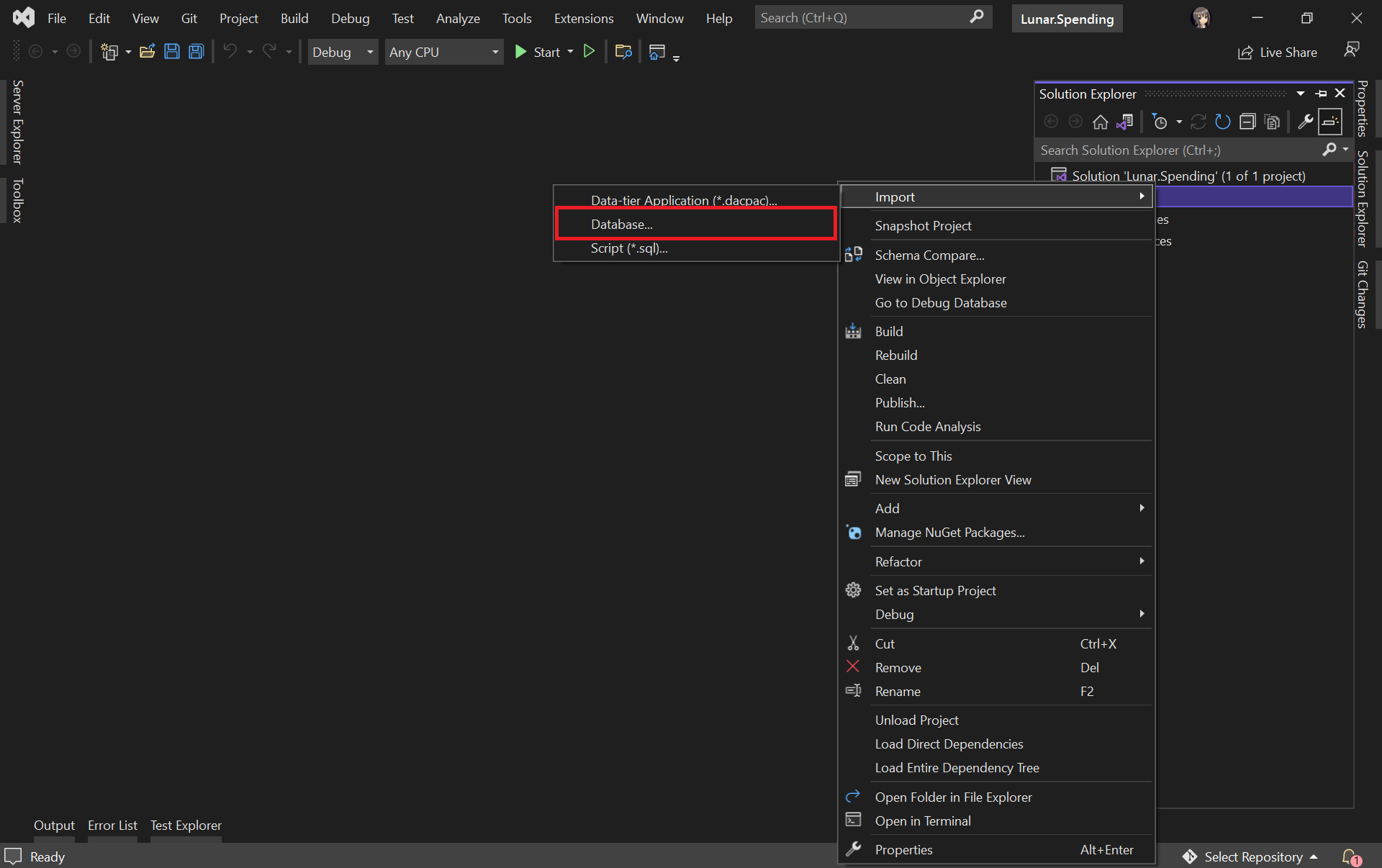
Next, we will import our Azure database into the database project by right-clicking on it in the Solution Explorer.

Select the “Database…” option to import from existing Azure database.

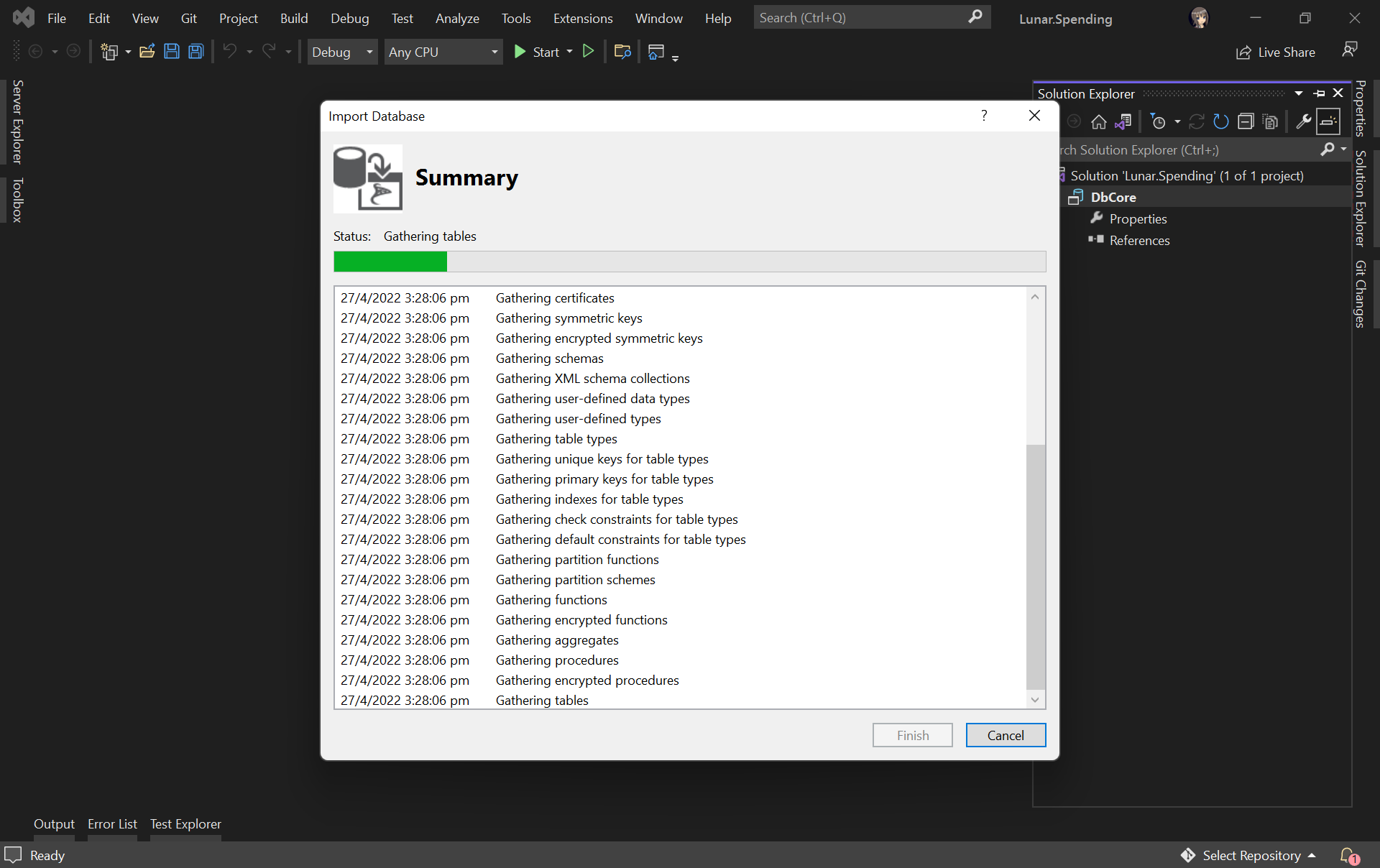
The widget will then import the data from the Azure database based on the given connection string, as shown below.

Importing database to our database project.

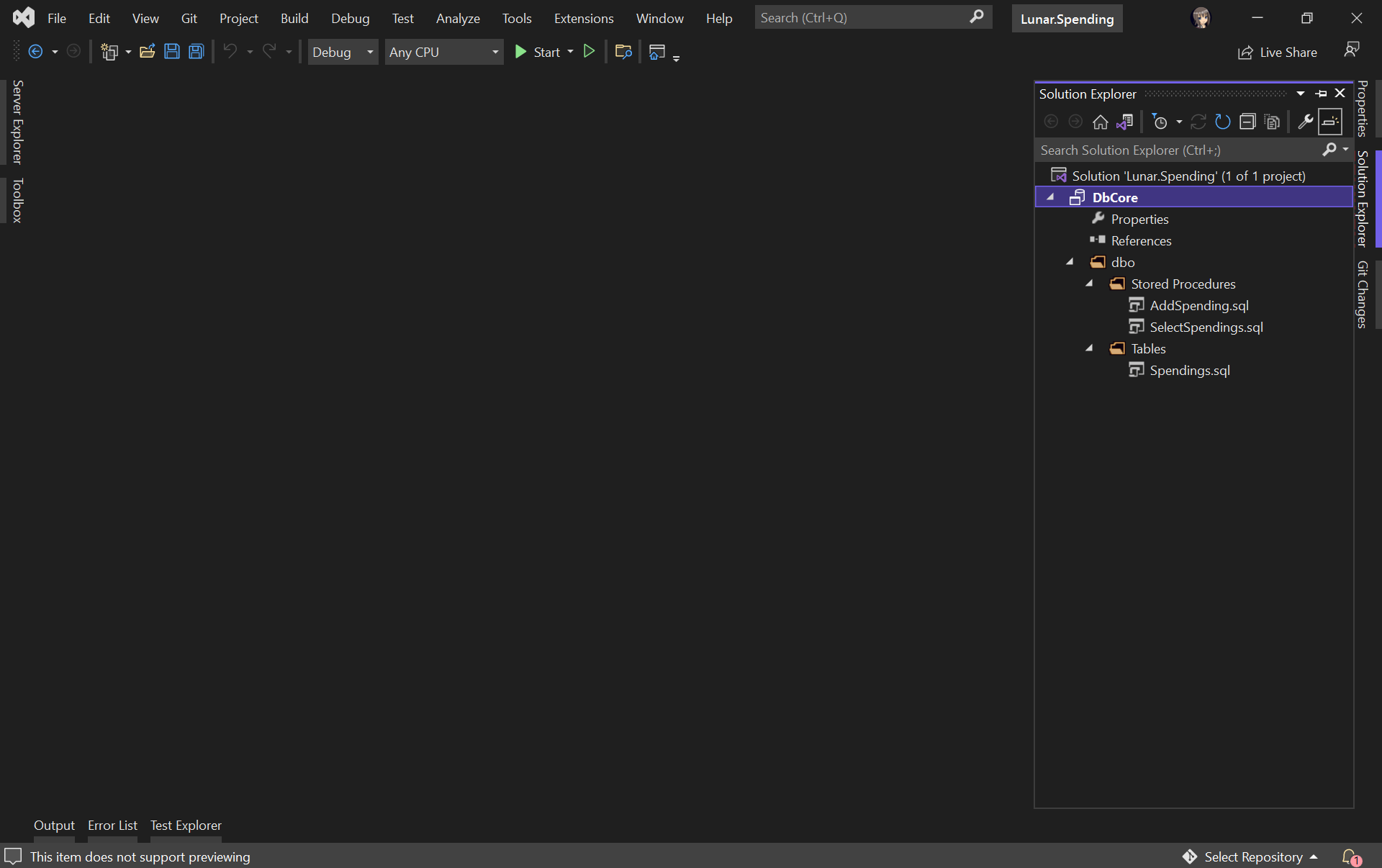
Once the import is done, we shall see our tables and stored procedures listed under the dbo directory in Solution Explorer, as shown below.

Table and stored procedures are successfully imported!

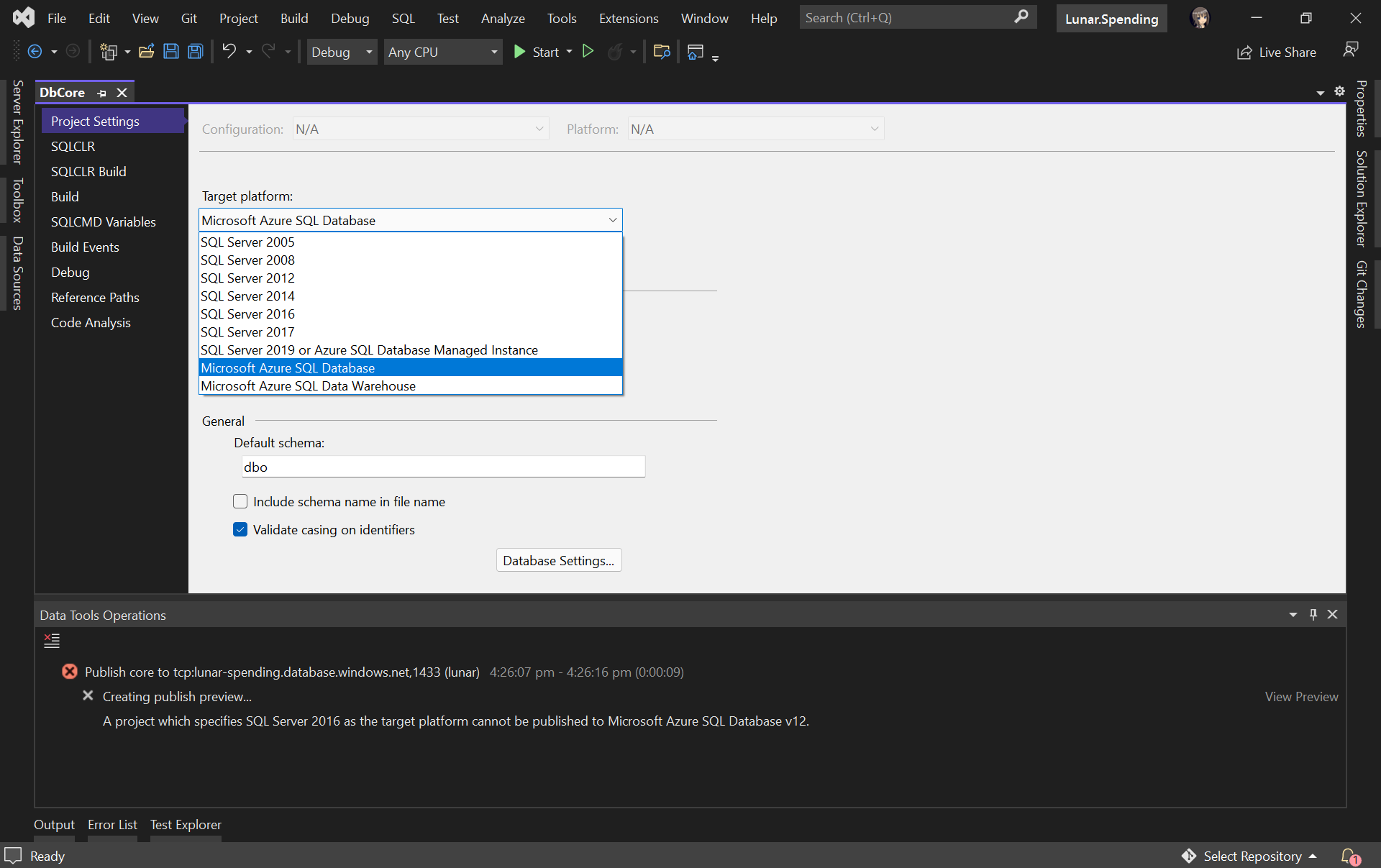
Before we continue, we need to edit the Target Platform of our database project accordingly, as shown in the following screenshot, otherwise we will not be able to publish the database later.

Changing the target platform to avoid the publish error.

Create Unit Test for Stored Procedure

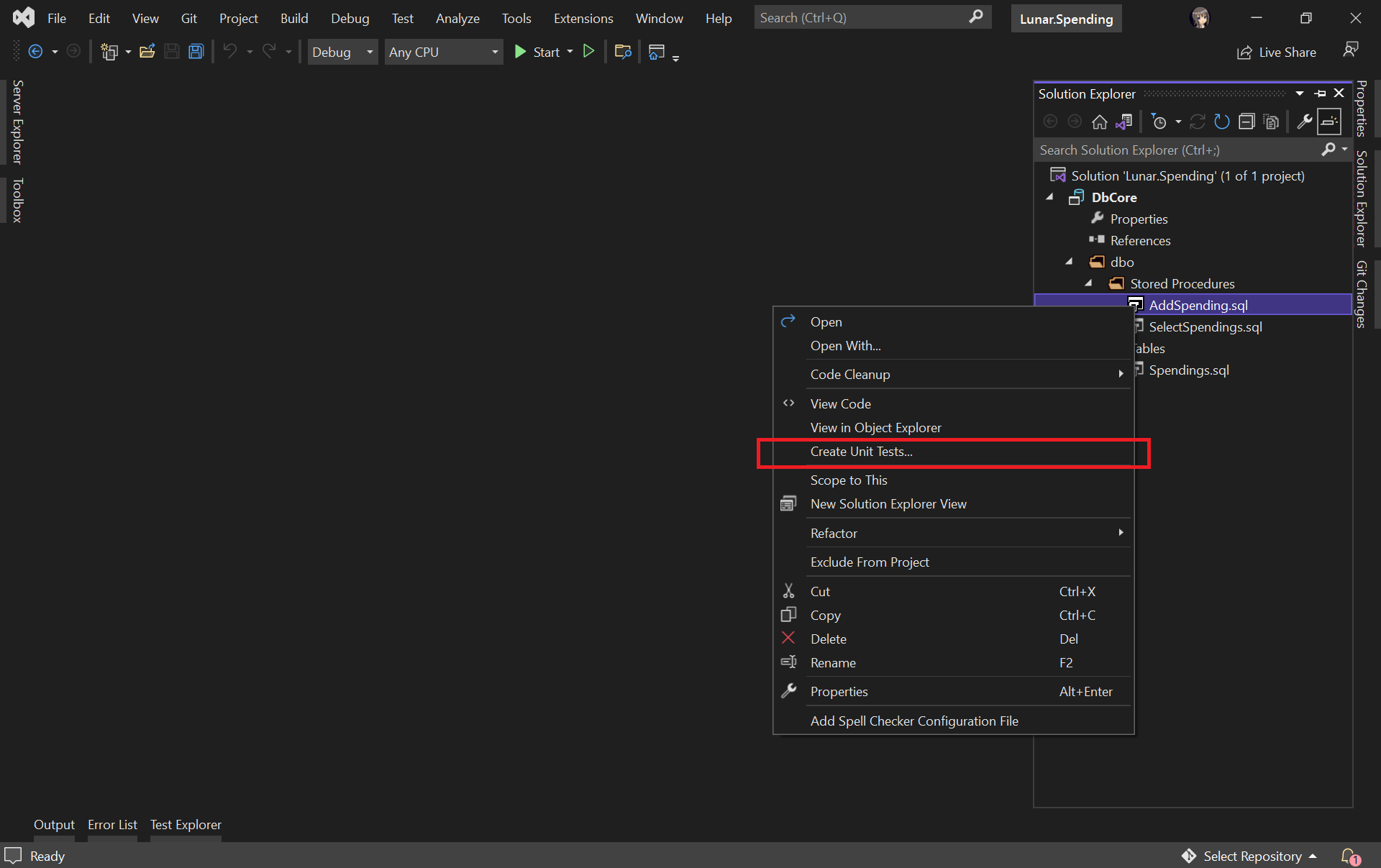
Let’s say we would like to unit test the AddSpending stored procedure. What we need to do is simply right-clicking the AddSpending stored procedure and then click on the “Create Unit Tests…” option, as demonstrated below.

Adding unit test for a selected stored procedure.

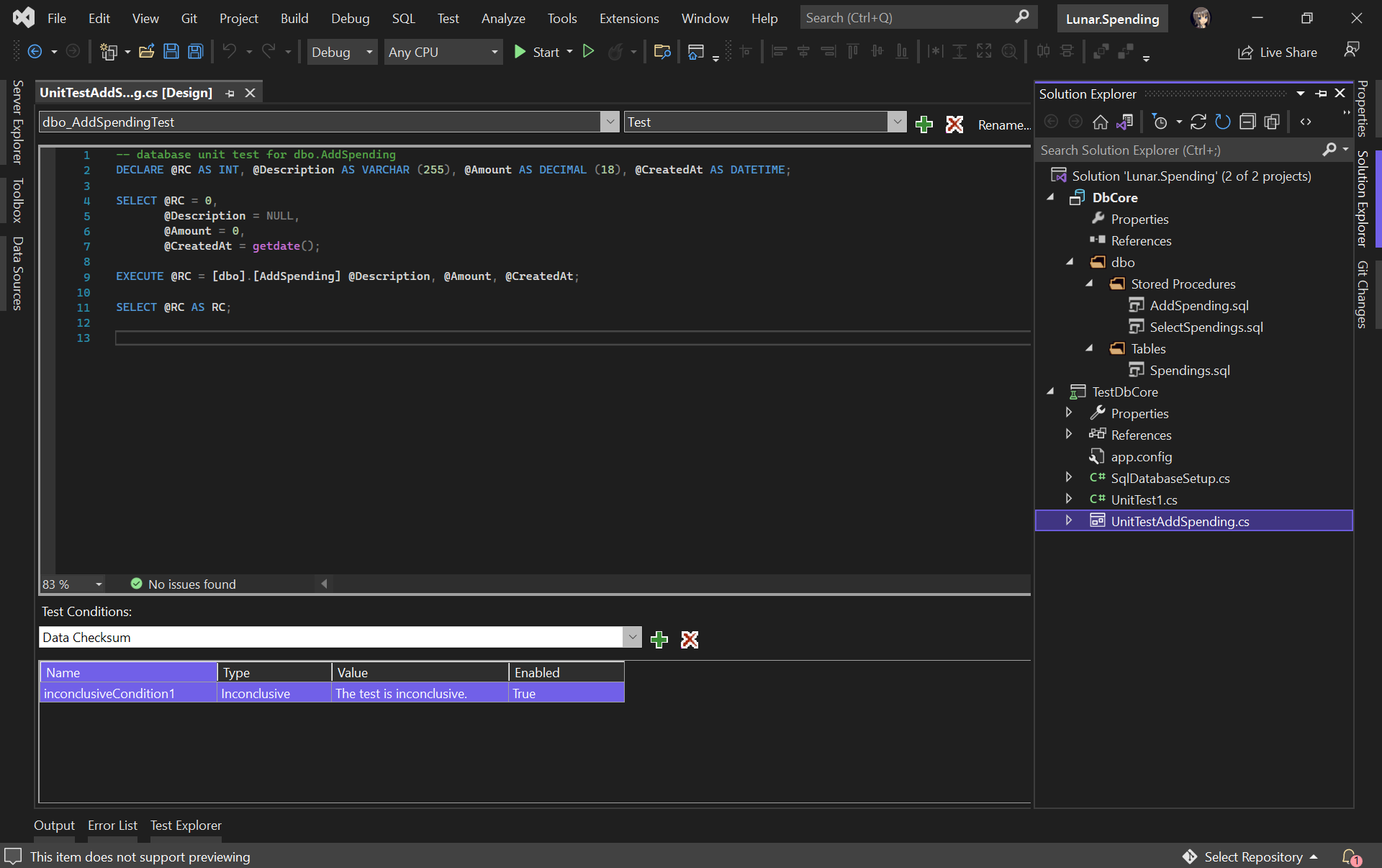
We will then be asked for the connection string of the database that the unit test project will be connecting to. Once the project has been successfully created, we will be given a template unit test as follows.

A boilerplate code of stored procedure unit test.

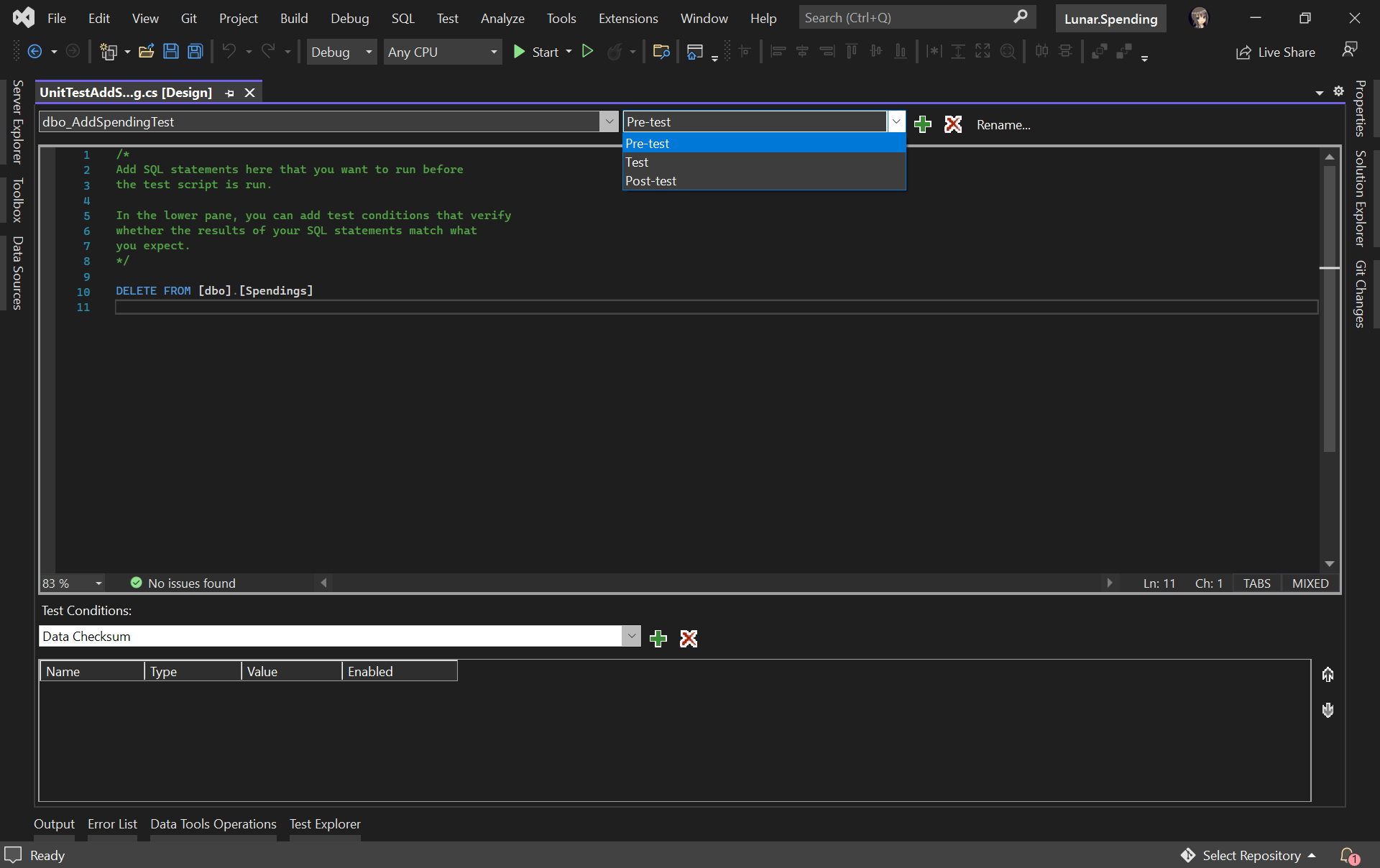
We can include pre and post test SQL statements which will be run before and after the test script is executed, respectively.

For example, we would like to have a clean Spendings table before the unit test runs, we can have the following SQL script to delete all rows in the table.

Pre-test script will be run before the test script.

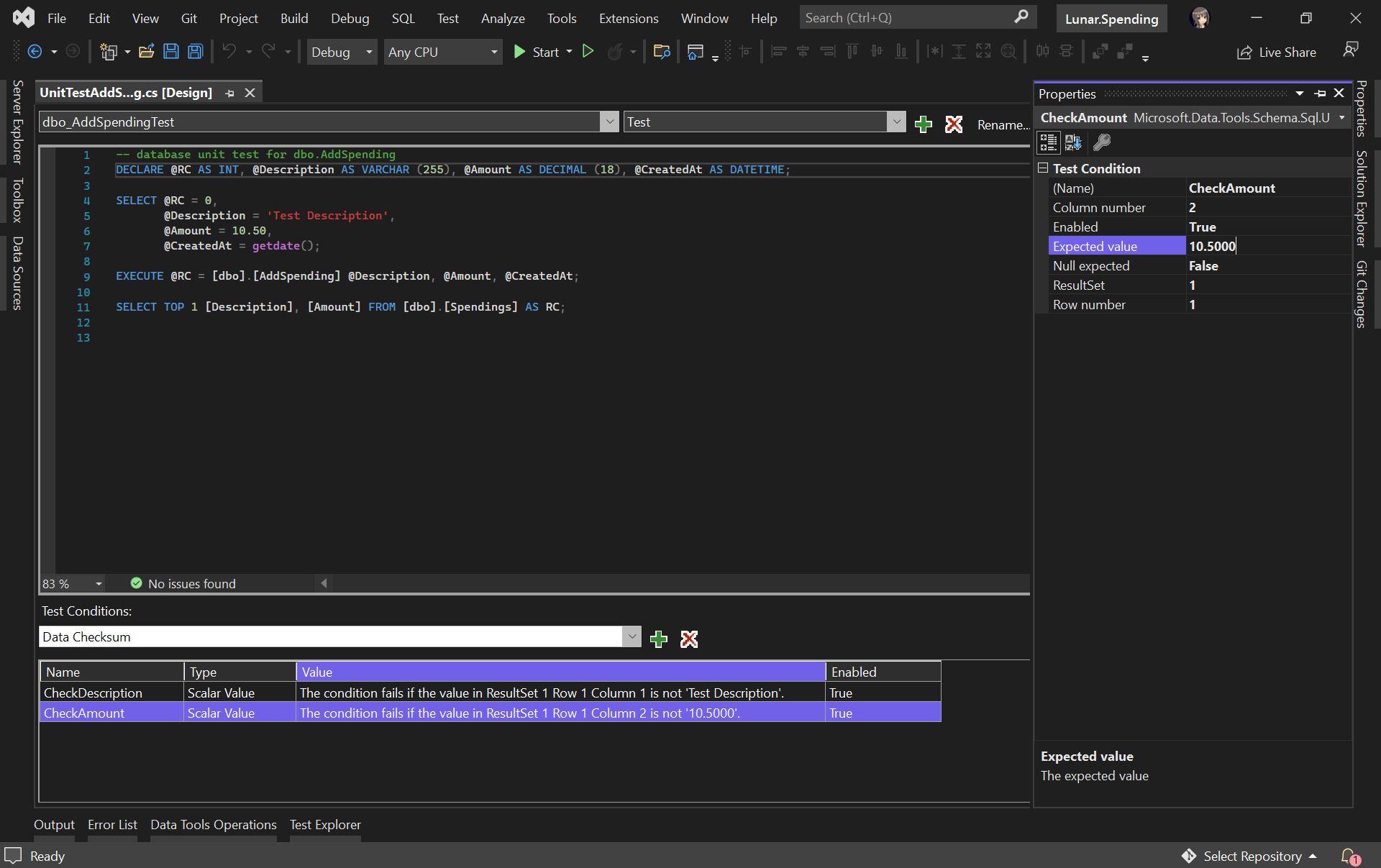
In our test script, we will test to see if the description and amount can be stored correctly in the database. Hence, we need to specify two Test Conditions to verify the two columns, as shown in the following screenshot.

RC means Return Code. It can later be used in a test case assertion.

Now, we can run our very first unit test with the Test Explorer to see if our stored procedure has any issue or not.

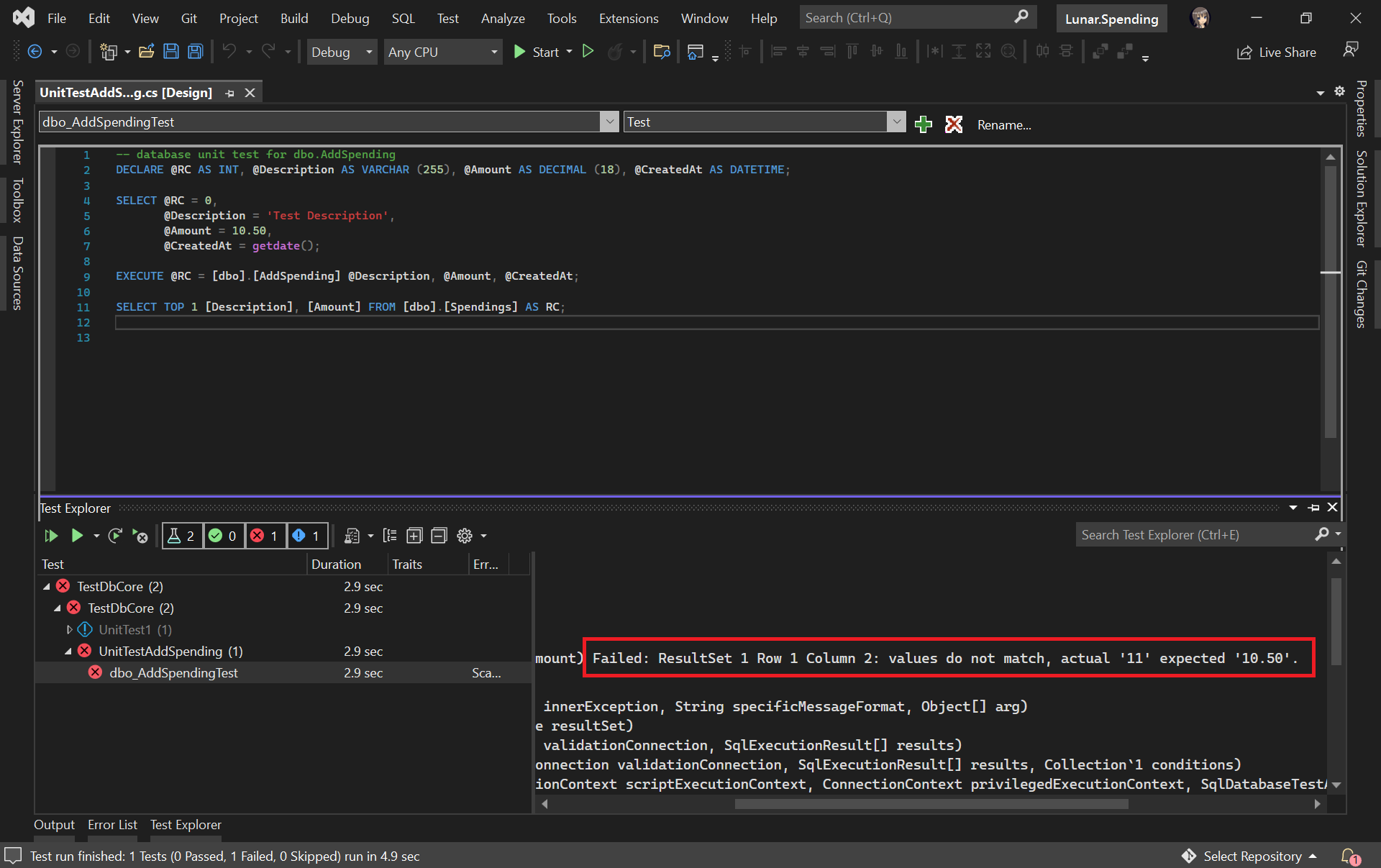
The test case fails. We shall check why the number is rounded up.

It turns out that this bug is caused by wrong data type used for the Amount column. Now we can proceed to fix it.

The test passed after we fixed the issue in our table schema and stored procedure.

Getting Ready for Publishing Database

As we discussed earlier, unit testing is not only about writing a piece of code to test our unit of work, but also making it to be automatically testable.

Hence, our next move is to automate the build, test, and release of our database.

Firstly, we shall make sure the source code of our projects is on GitHub (or any source control supported in Azure DevOps).

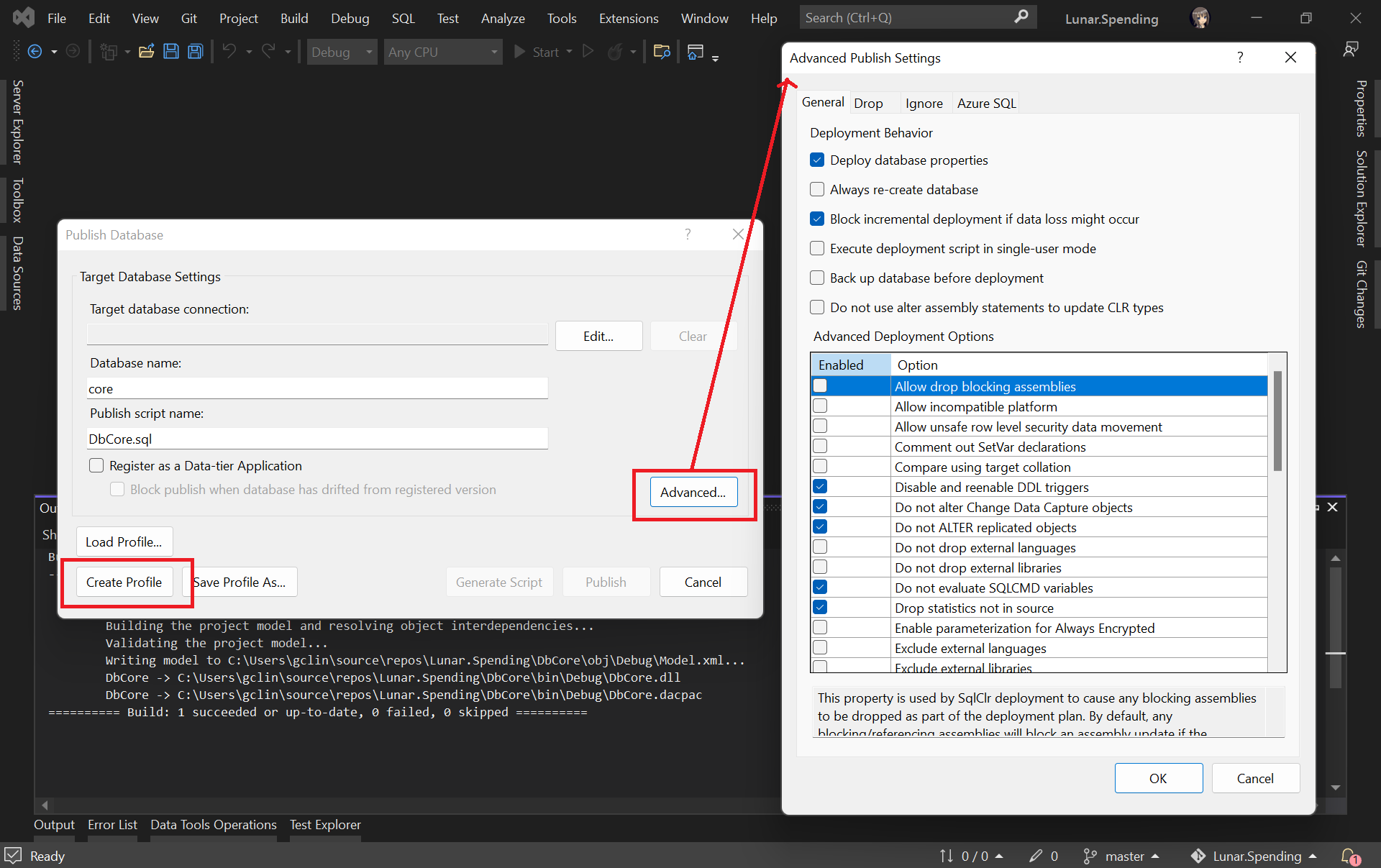
Secondly, we need to create the Publish Profile of our database. To do so, we simply right click on database project and choose the “Publish…” option. There will be a window popped out, as shown below.

Configuring the Publish Profile of our database.

As shown in the screenshot above, there are many settings that can be configured, including Azure SQL related settings. After configuring them accordingly, please click on the “Create Profile” button. Once it is grayed out, it means that the profile has been generated successfully. We can then proceed to close the popped-out window.

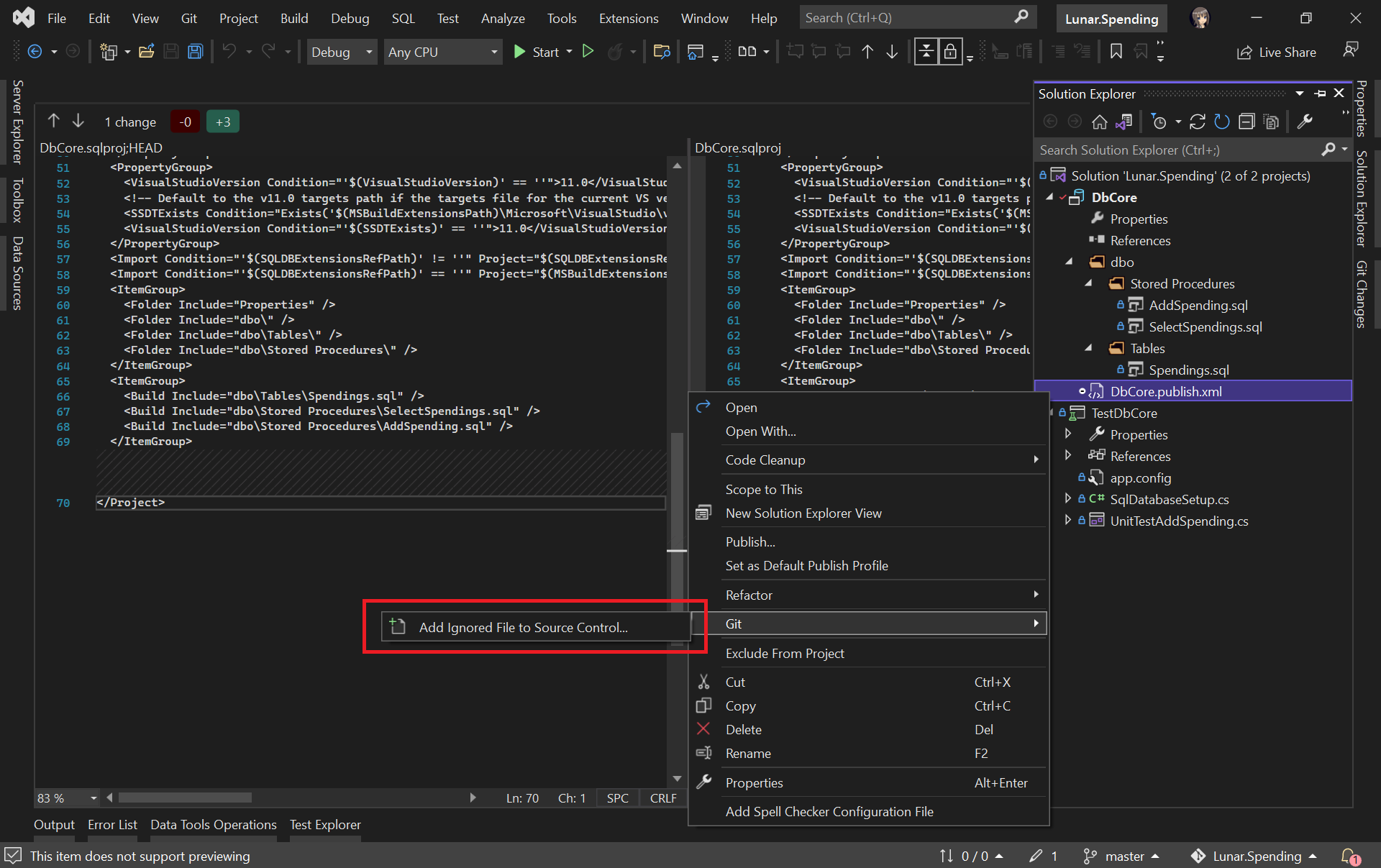
Please make sure the generated Database Profile file is included in the source control. Kindly add it to Git if it is not, as shown in the screenshot below. This is because this file is needed in our Azure DevOps build pipeline later.

Please make sure our Database Profile is included in source control.

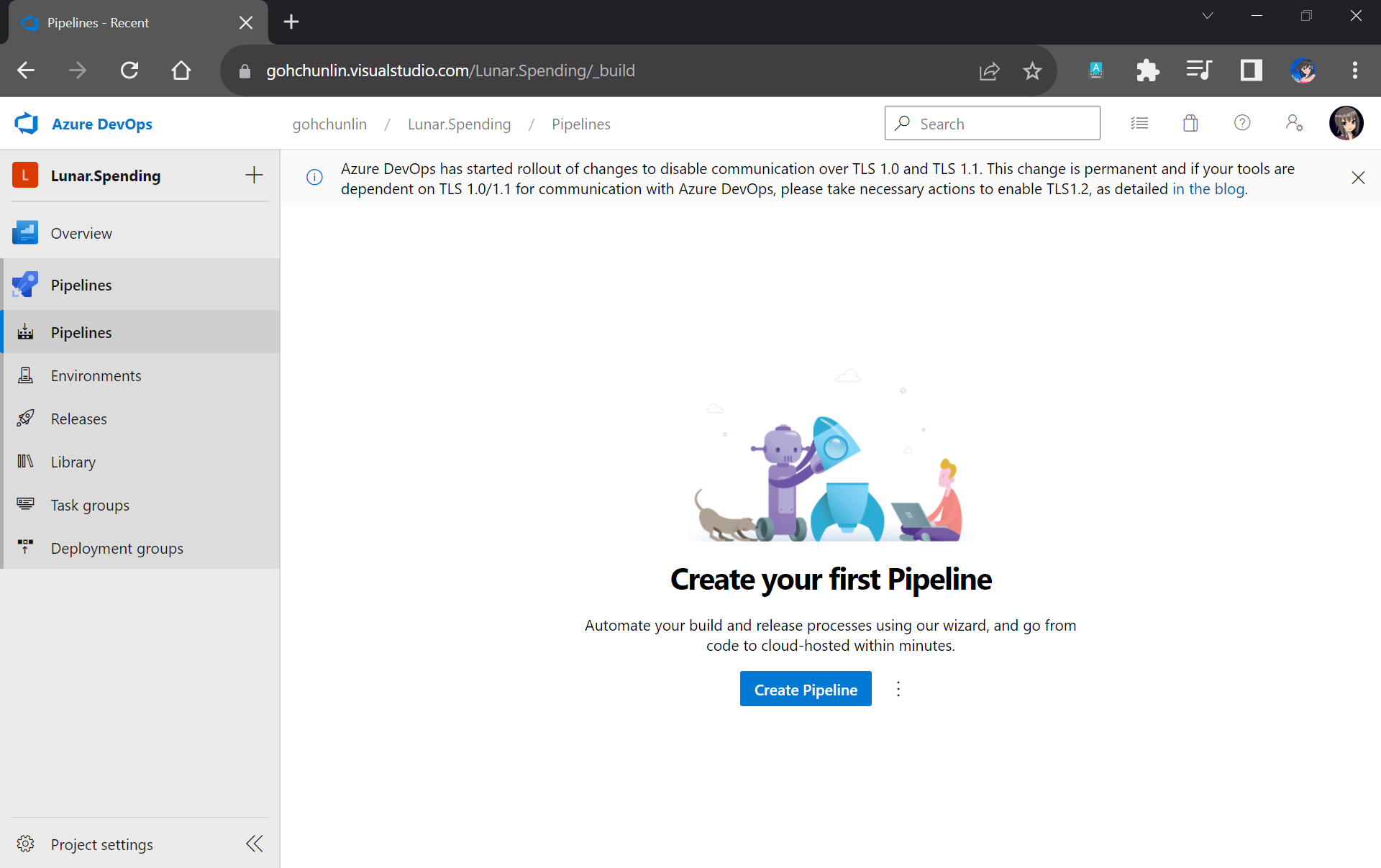
Finally, let’s create a project on Azure DevOps which will host the build and release pipelines for our automatic database deployment.

We will configure our project to have only the Pipelines service on Azure DevOps.

Setup Build Pipeline

Once we have created our project on Azure DevOps, we can proceed to create our Build Pipeline.

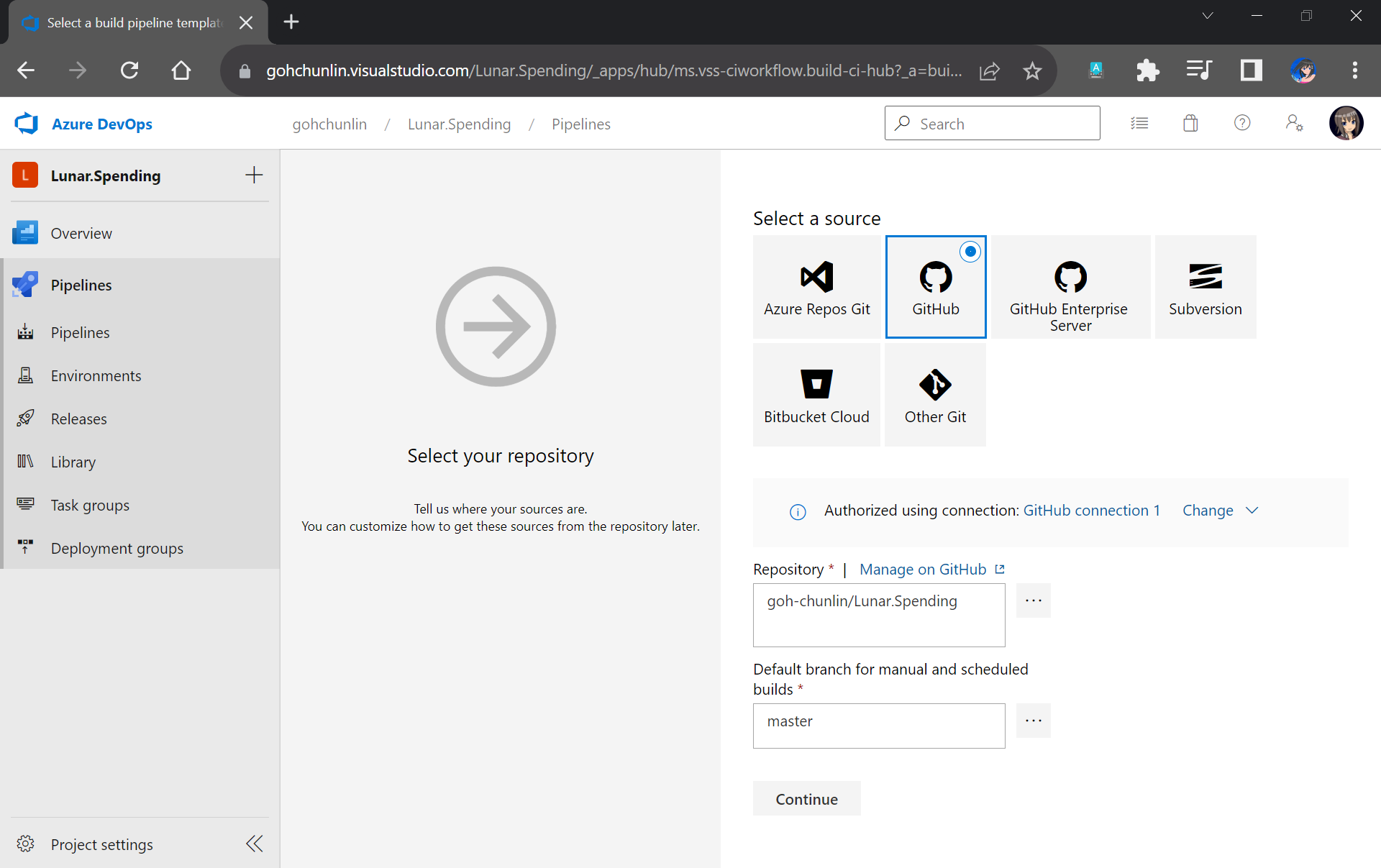
Firstly, we need to specify the code repository we are using. Since our code sists on GitHub, we will connect Azure DevOps with our project on GitHub as shown in the screenshot below.

Please remember to select the correct branch too.

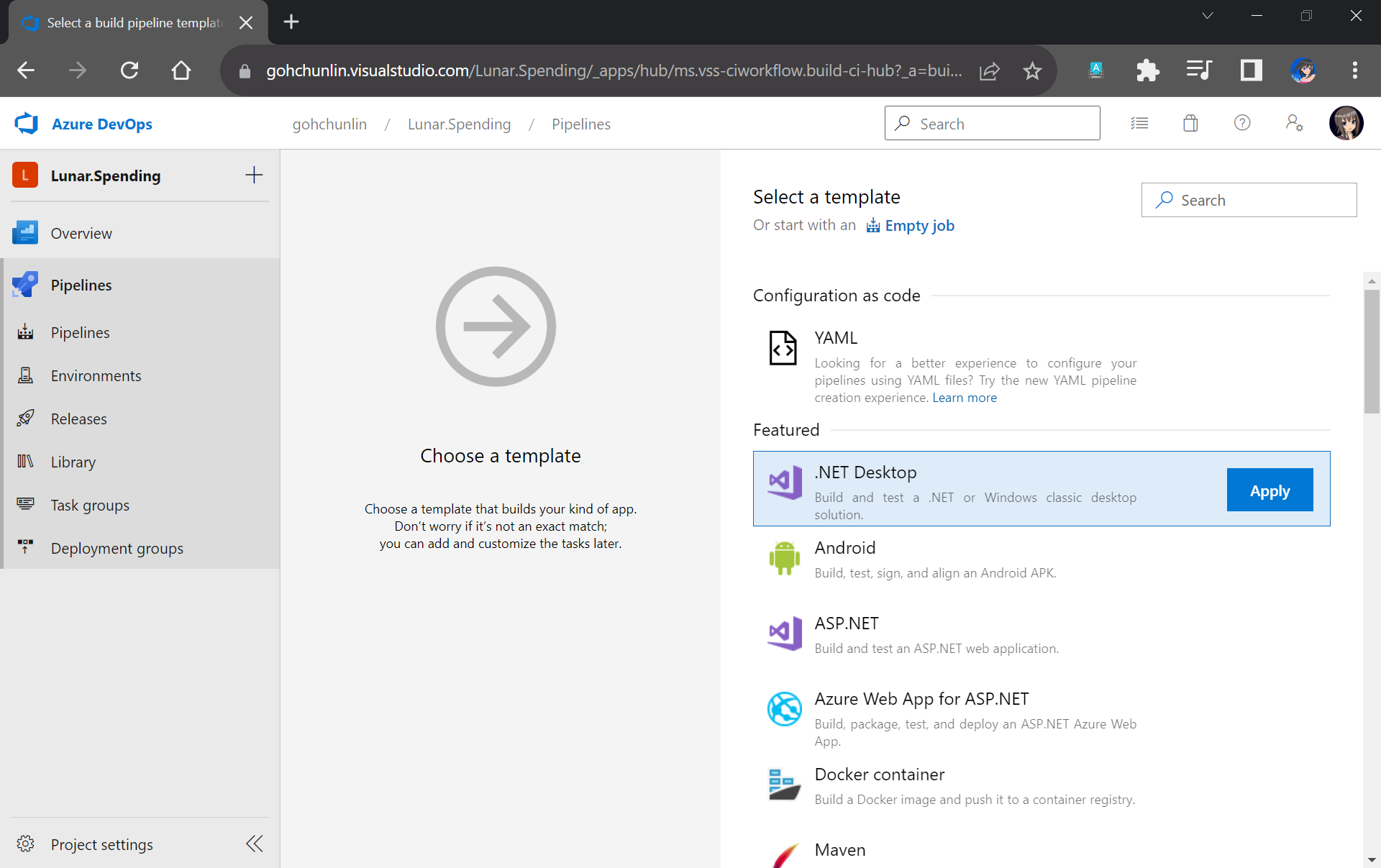
Next, we will start off from the .NET Desktop template. The reason why we choose this template is because it contains many tasks that we can use in our database build pipeline.

We will make use of the .NET Desktop template for our database build pipeline.

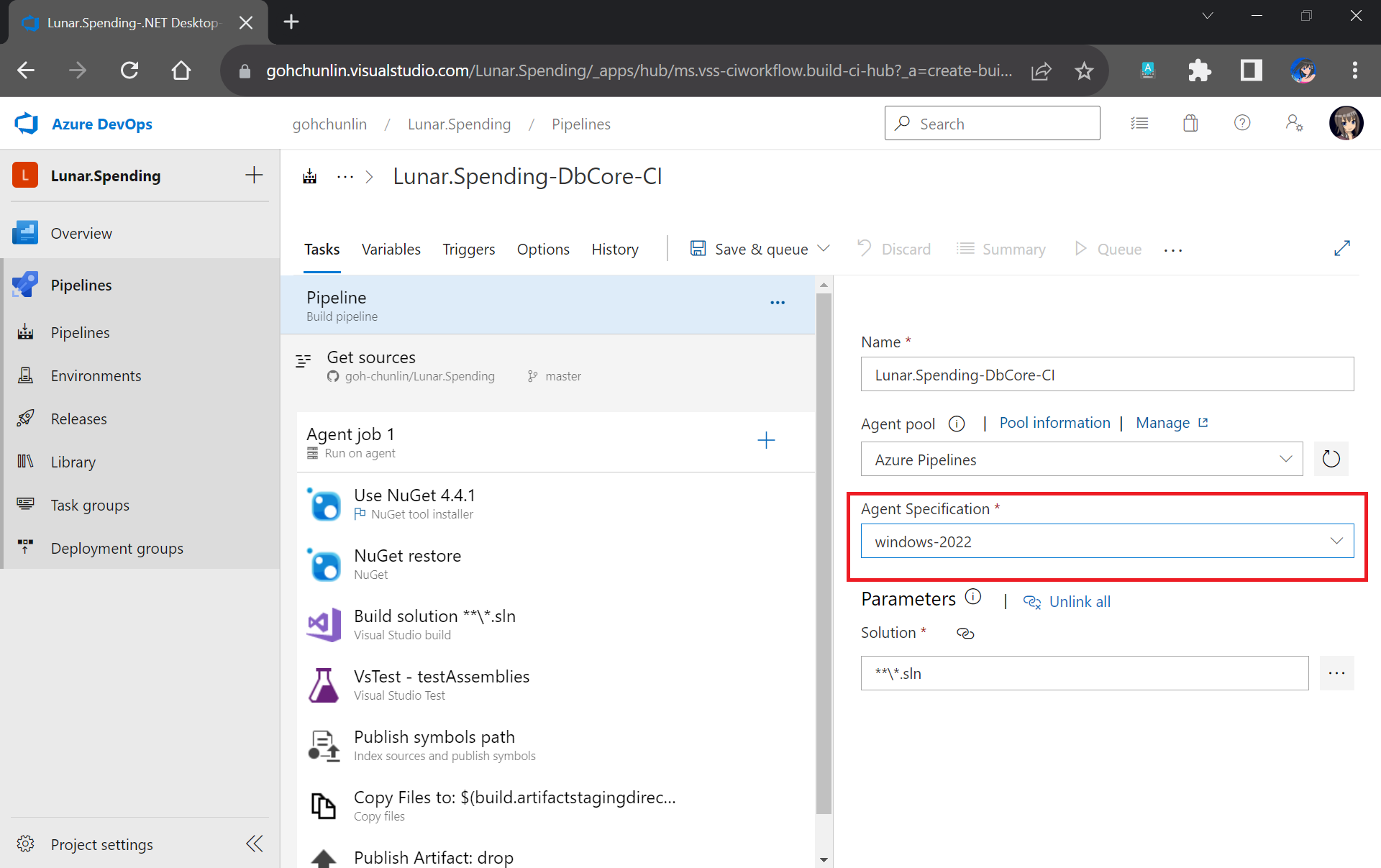
Here we will be using the Microsoft-hosted agent in our build pipeline. With Microsoft-hosted agents, maintenance and upgrades are taken care of for us. Each time we run a pipeline, we will get a fresh virtual machine for each job in the pipeline.

We need to make sure that “windows-2022” (Windows Sever 2022 with VS2022 installed), which is the latest version as of now, is chosen in the Agent Specification field. I have tried with the default “windows-2019” option before and there would be an error message “Error CS0234: The type or namespace name ‘Schema’ does not exist in the namespace ‘Microsoft.Data.Tools’ (are you missing an assembly reference?)”.

Please update to use windows-2022 as our build agent or else there would be issues later.

Next, we need to update the version of NuGet to be the latest, which is now 6.1.0.

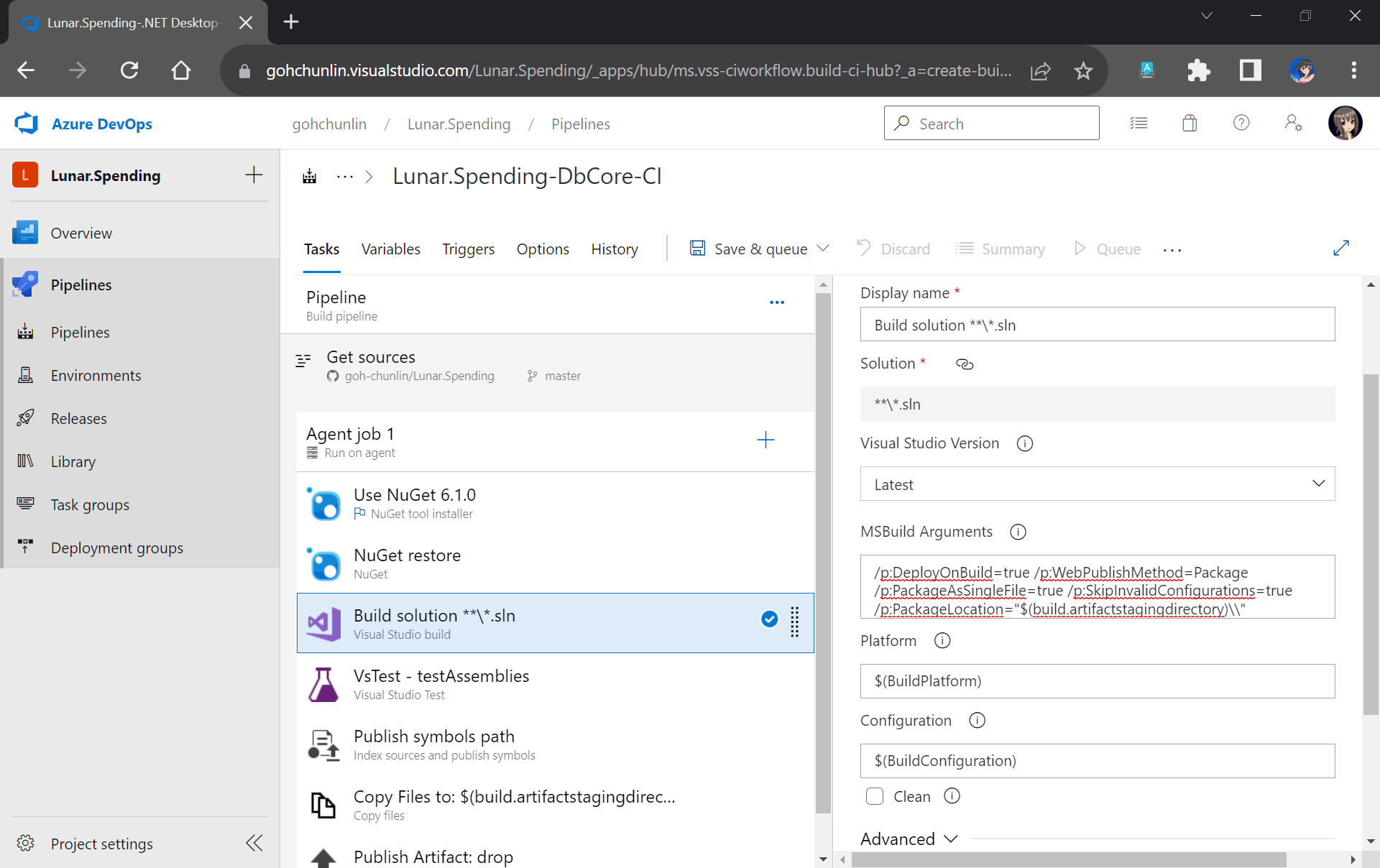
After that, we move on to the third task in the pipeline which is building our Solution in Release mode with the following MSBuild Arguments on Any CPU.

/p:DeployOnBuild=true /p:WebPublishMethod=Package /p:PackageAsSingleFile=true /p:SkipInvalidConfigurations=true /p:PackageLocation="$(build.artifactstagingdirectory)\\"
Configuring the Build task.

We will remove the VsTest from the Build Pipeline because it will be proper to run the unit tests after changes have been deployed to the database. Otherwise, we will still be testing against the old schema and old stored procedures. Hence, we will add the testing task in the Release pipeline instead.

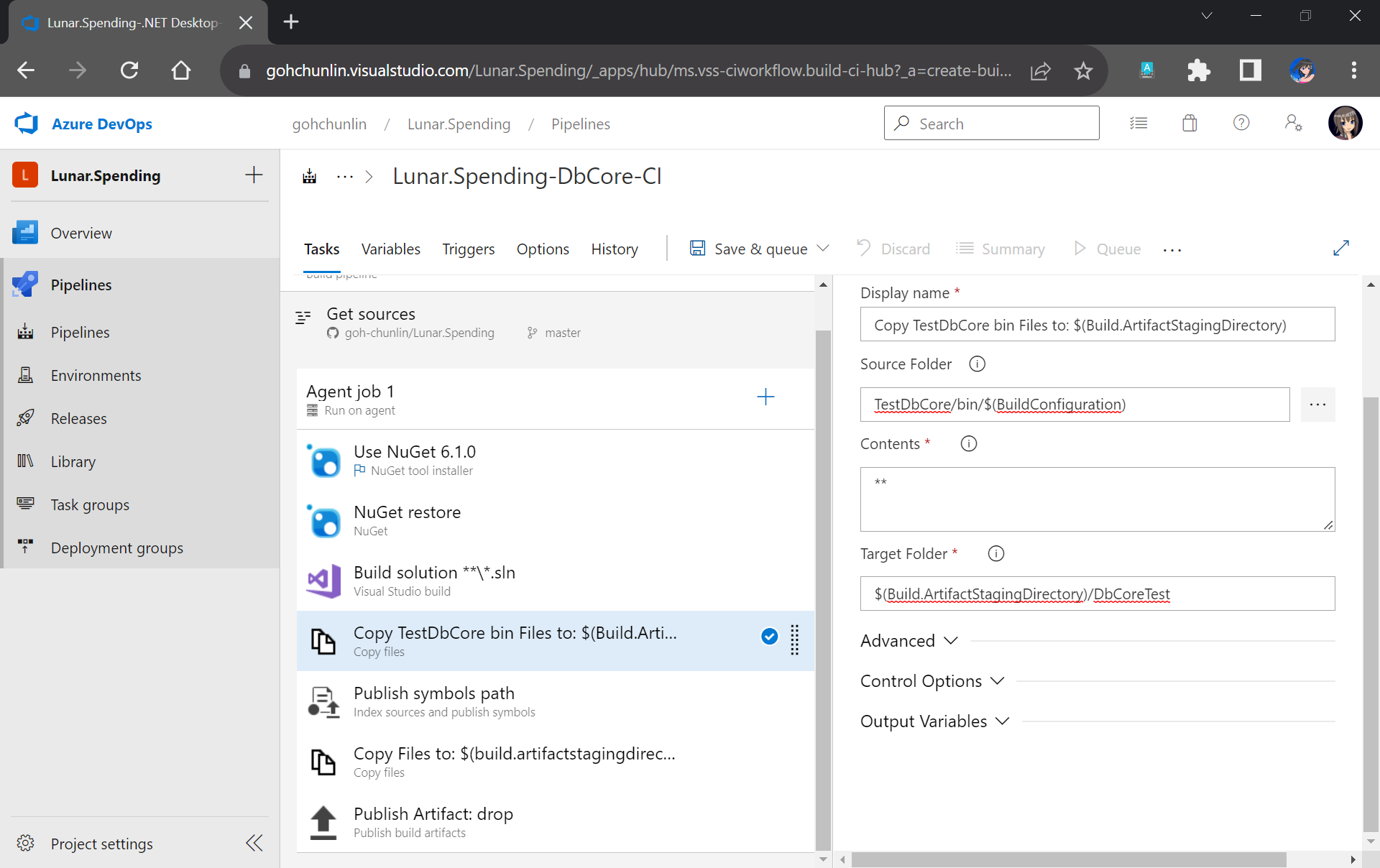
Now, since the testing will be done in the Release Pipeline instead, we shall create a task to copy the assemblies of TestDbCore project to the Build Artifact so that the assemblies can be used in the Release Pipeline later. Thus, we will add a new task “Copy Files” as shown in the screenshot below.

TestDbCore assemblies and other relevant files will be copied to DbCoreTest folder in the Build Artifact.

We will also remove the next task, which is publishing symbols because it is not necessary.

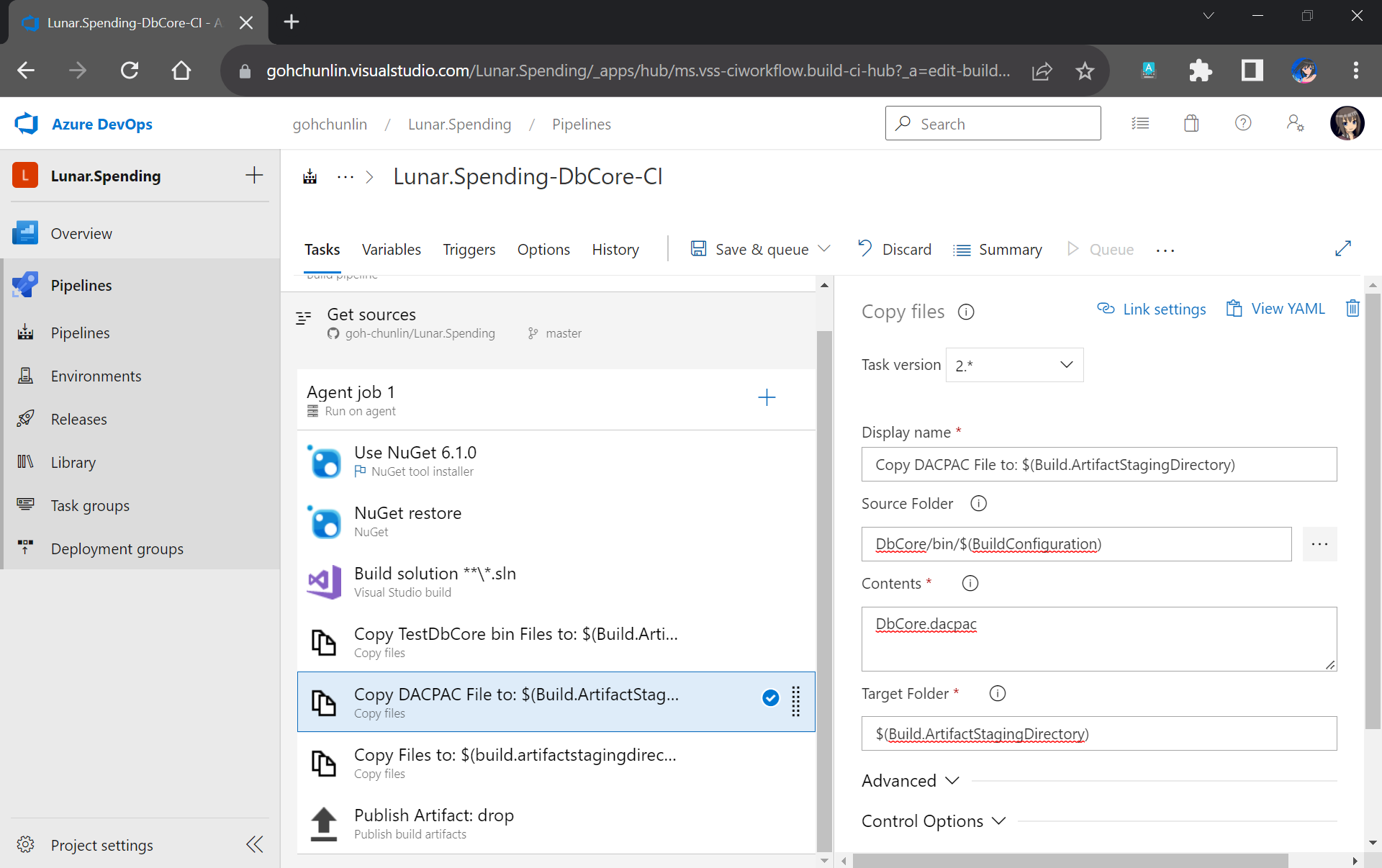
After that, we will add a new task to copy DACPAC file, which is generated during Build, to the Build Artifact, as shown in the following screenshot.

DACPAC file is needed to deploy our database to an existing instance of Azure SQL database.

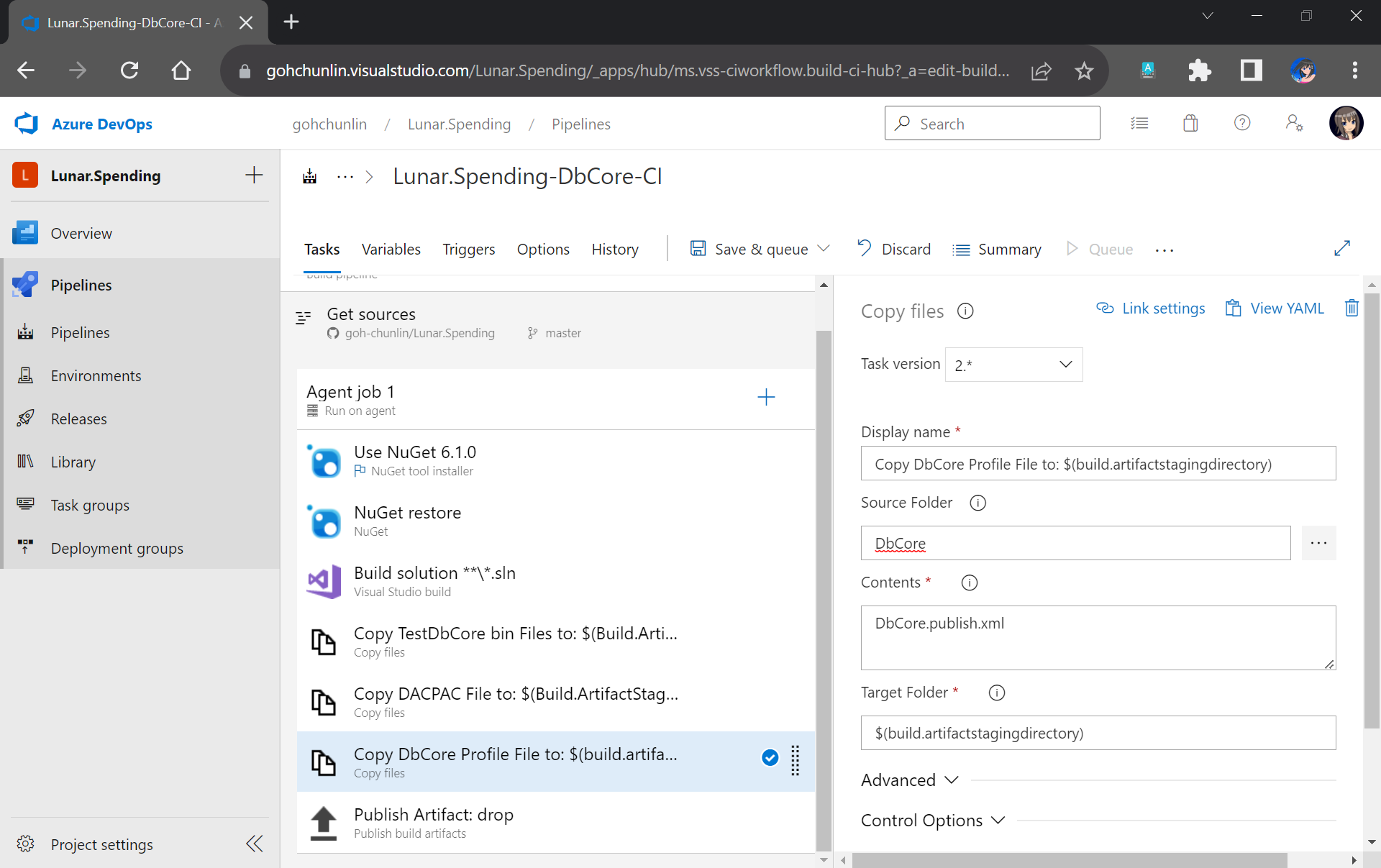
Another file we need to copy is our Database Profile. This is the reason why earlier we have to make sure the profile file needs to be in the source control.

The database publish profile needs to be copied to the Build Artifact directory as well.

There is nothing to change for the Publish Artifact task. So, we can now move on to enable the Continuous Integration for the Build Pipeline, as shown in the screenshot below.

We can enable the continuous CI under the Triggers section of our Build Pipeline.

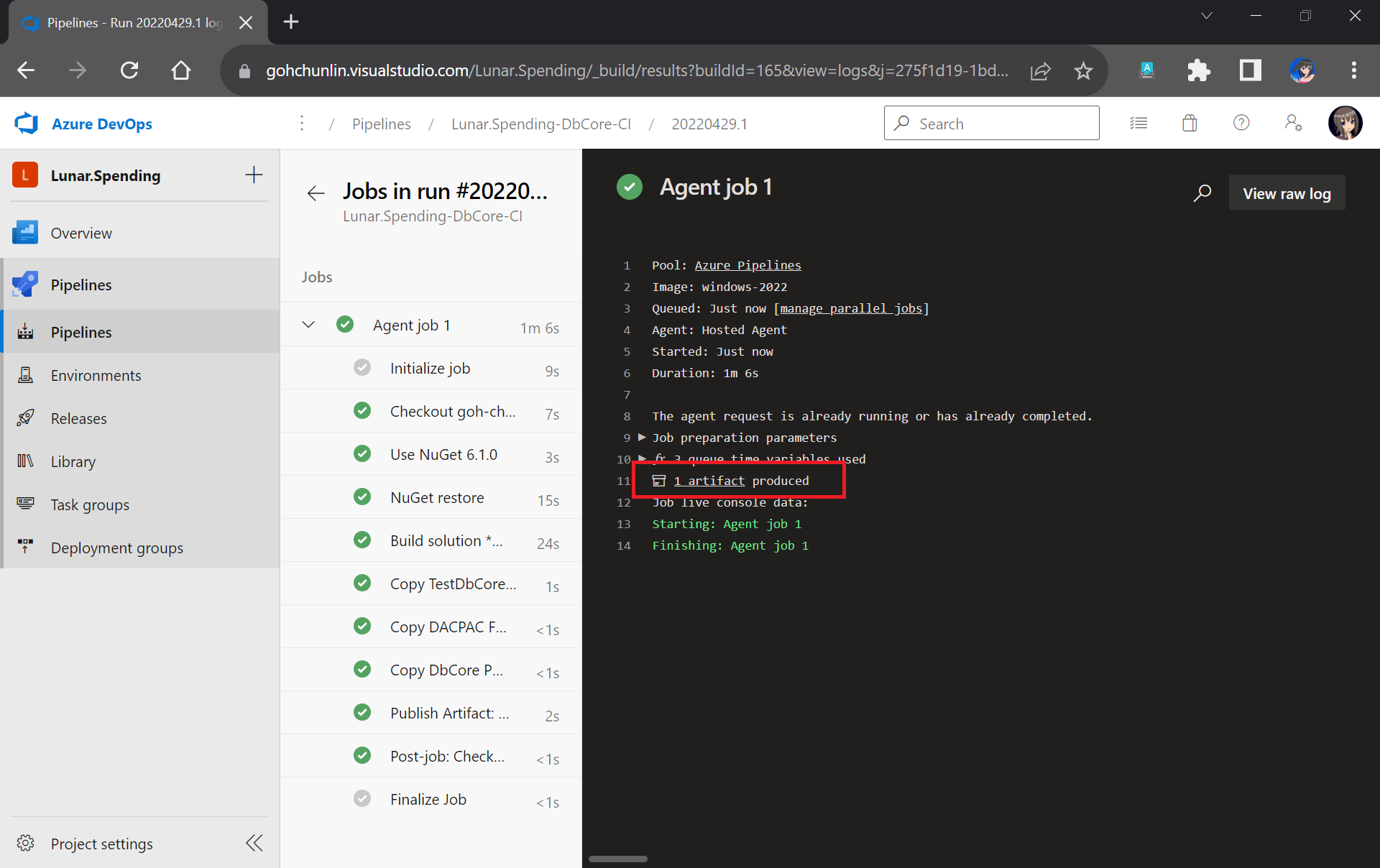
Finally, we can save and queue our Build Pipeline. If the build is successful, we will be able to see a Build Artifact produced, as shown in the screenshot below.

Build is successfully executed!

Setup Release Pipeline

In order to automatically deploy our database changes after the database project and unit test project are built successfully, we need to configure the Release Pipeline.

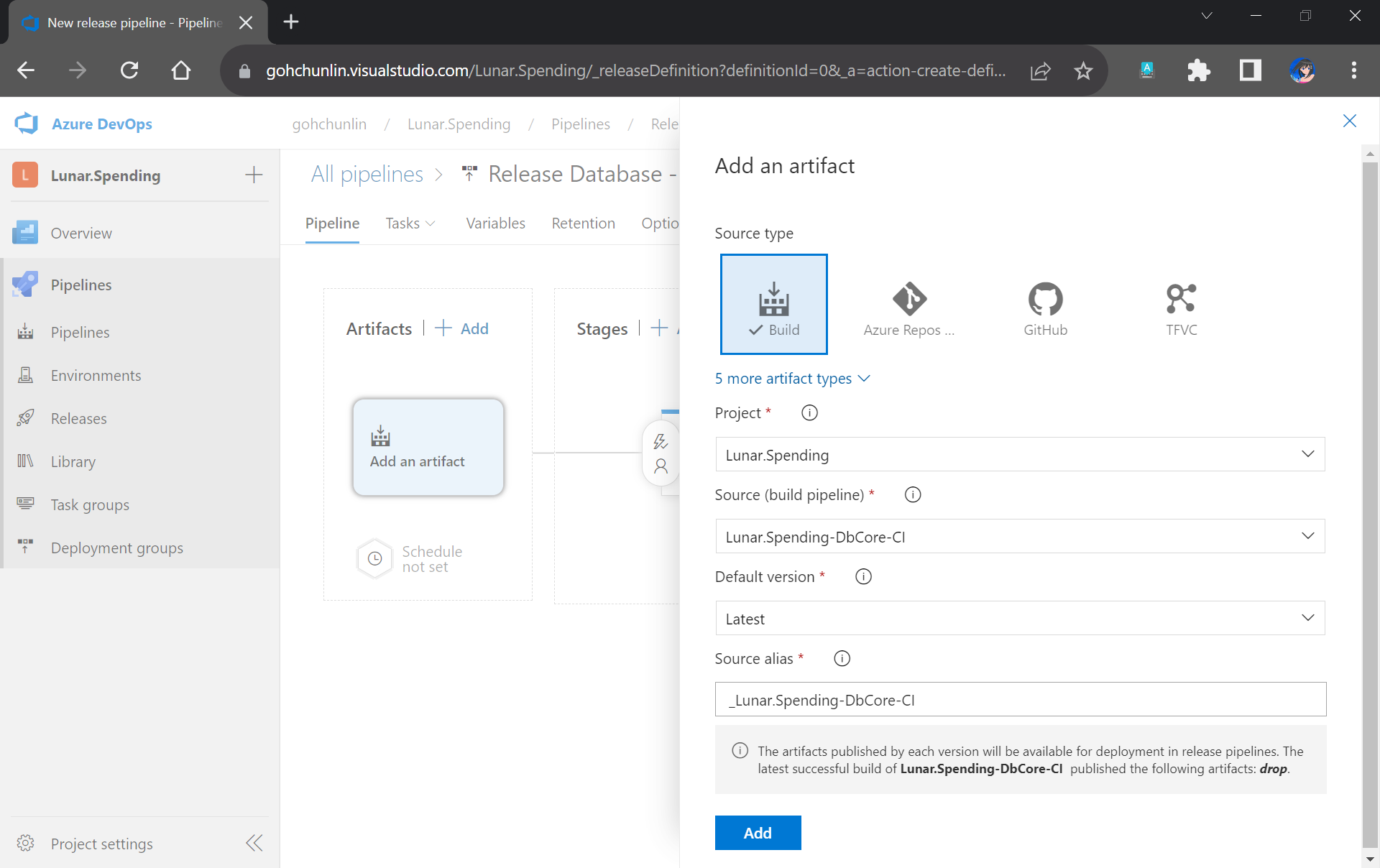
First of all, we need to integrate our Build Pipeline with this new Release Pipeline, as demonstrated in the following screenshot.

Adding the Build Artifact generated earlier in the Build Pipeline.

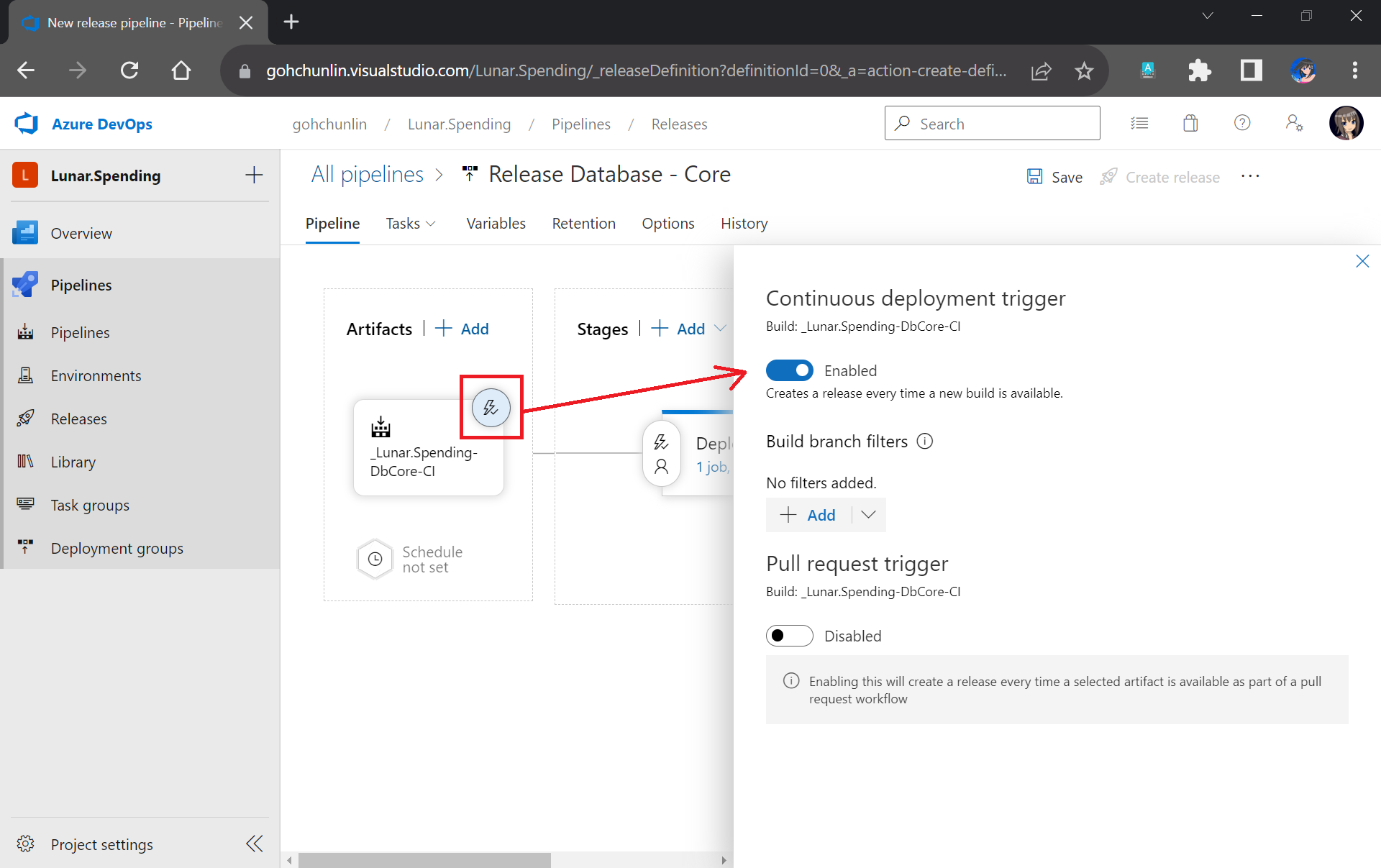
Next, we can enable the Continuous Deployment, as shown in the screenshot below. This is to make sure that we can deploy the database changes and test them automatically right after the build is completed successfully.

Enabling CD in our Release Pipeline.

Now, we can move on to configure the tasks in the stage. Here, I have renamed the stage as “Deploy DbCore”. To be consistent with the Build Pipeline, here we will be using “windows-2022” as the agent in our Release Pipeline too.

Please update to use windows-2022 as our agent or else there would be issues later.

The first task will be deploying database changes to Azure SQL with the task “Azure SQL Database deployment”. In the task, we need to select our Azure subscription and provide our Azure SQL database admin login credential so that the database changes can be deployed to Azure SQL on our behalf.

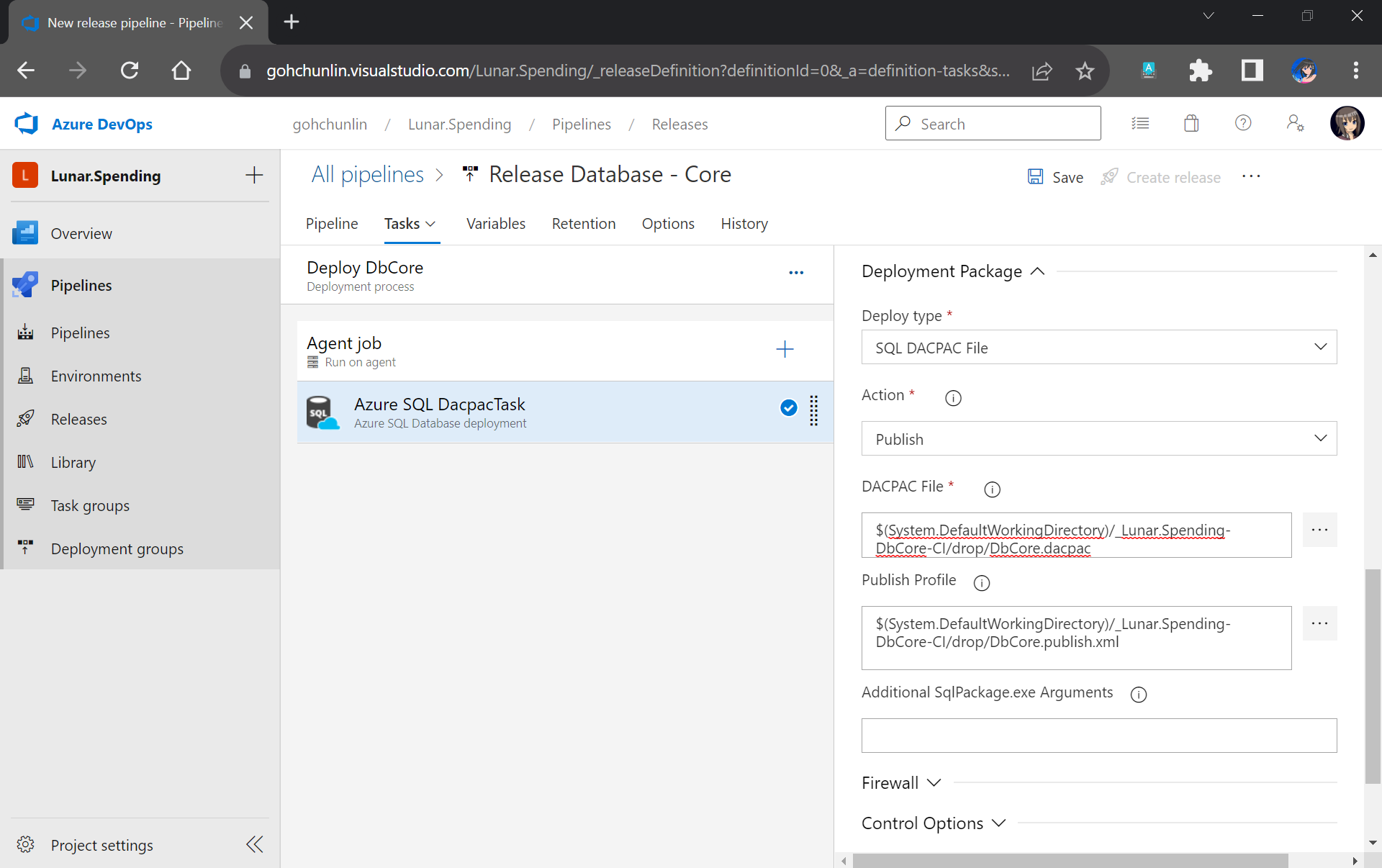
In the same task, under the Deployment Package section, we need to state that we will be deploy with a DACPAC file. This is also where we will use the DACPAC file and publish profile file in the Build Artifact.

Setting up the deployment package.

Next, we will run into a problem. We are supposed to add the testing task next. However, connection strings to the database are needed. So how could we securely store the connection strings in our pipeline?

Shanmugam Chinnappa proposed three ways to solve this problem. I will demostrate how I use his method of using user-defined secret variables. This is the most straightforward way among the three.

Firstly, we need to edit the app.config file in the TestDbCore project. In this file, two connection strings can be found. The connection string in ExecutionContext is used to execute the test script in our unit test. The PrivilegedContext connection is used to test interactions with the database outside the test script in our unit test.

To keep things simple, we will use the same connection string for both contexts. We thus can replace the connection string in those two contexts with a token #{TestDbCoreConnection}#.

<ExecutionContext Provider="System.Data.SqlClient" 
    ConnectionString="#{TestDbCoreConnection}#" CommandTimeout="30" />

<PrivilegedContext Provider="System.Data.SqlClient" 
    ConnectionString="#{TestDbCoreConnection}#" CommandTimeout="30" />

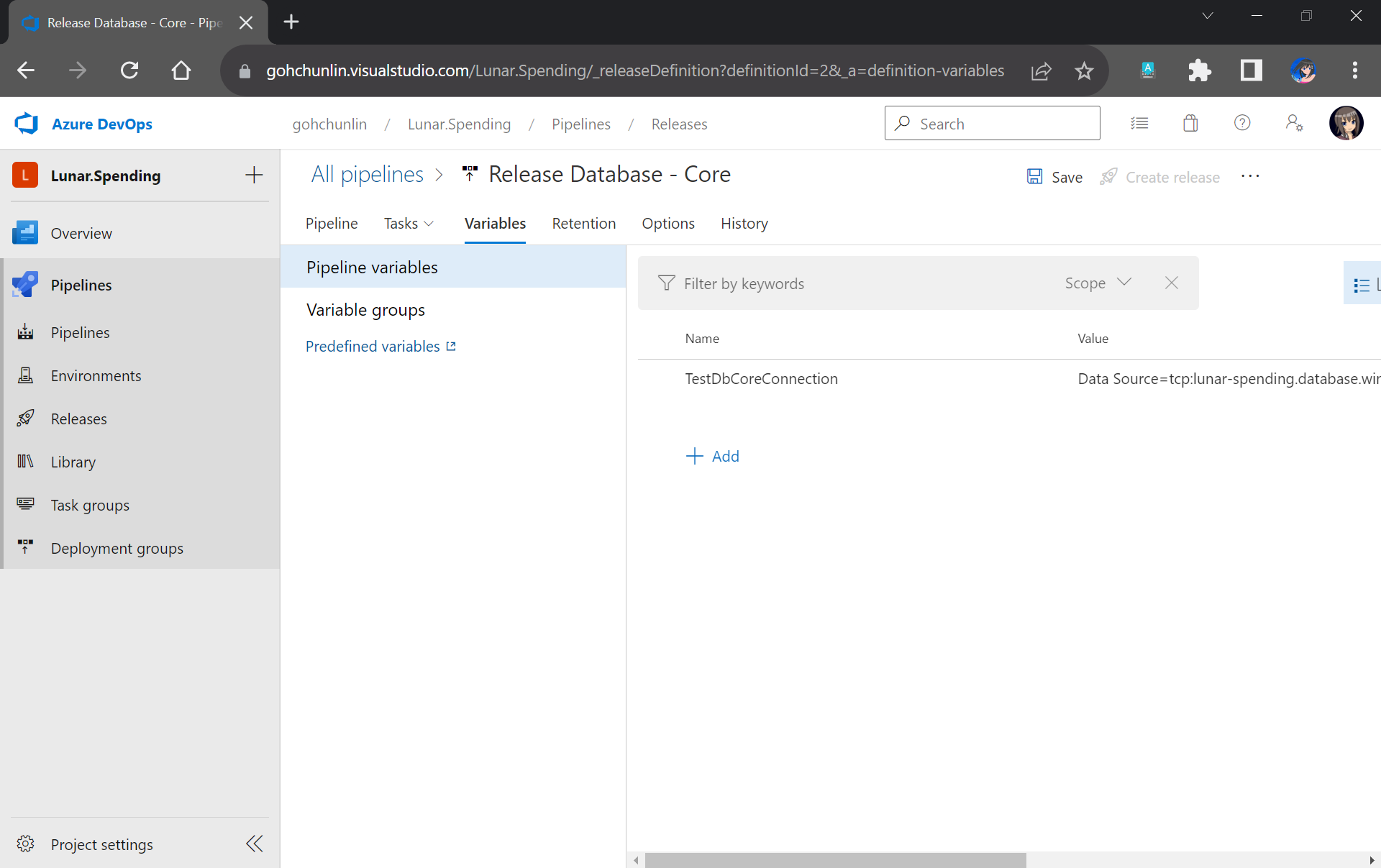
After committing this change to our GitHub repo, we will specify the actual connection string in the Pipeline Variables section under the same name as the token. Since we use TestDbCoreConnection as our token label, the variable is thus called TestDbCoreConnection as well, as shown in the screenshot below.

Storing the actual database connection string in the Pipeline Variables of our Release Pipeline.

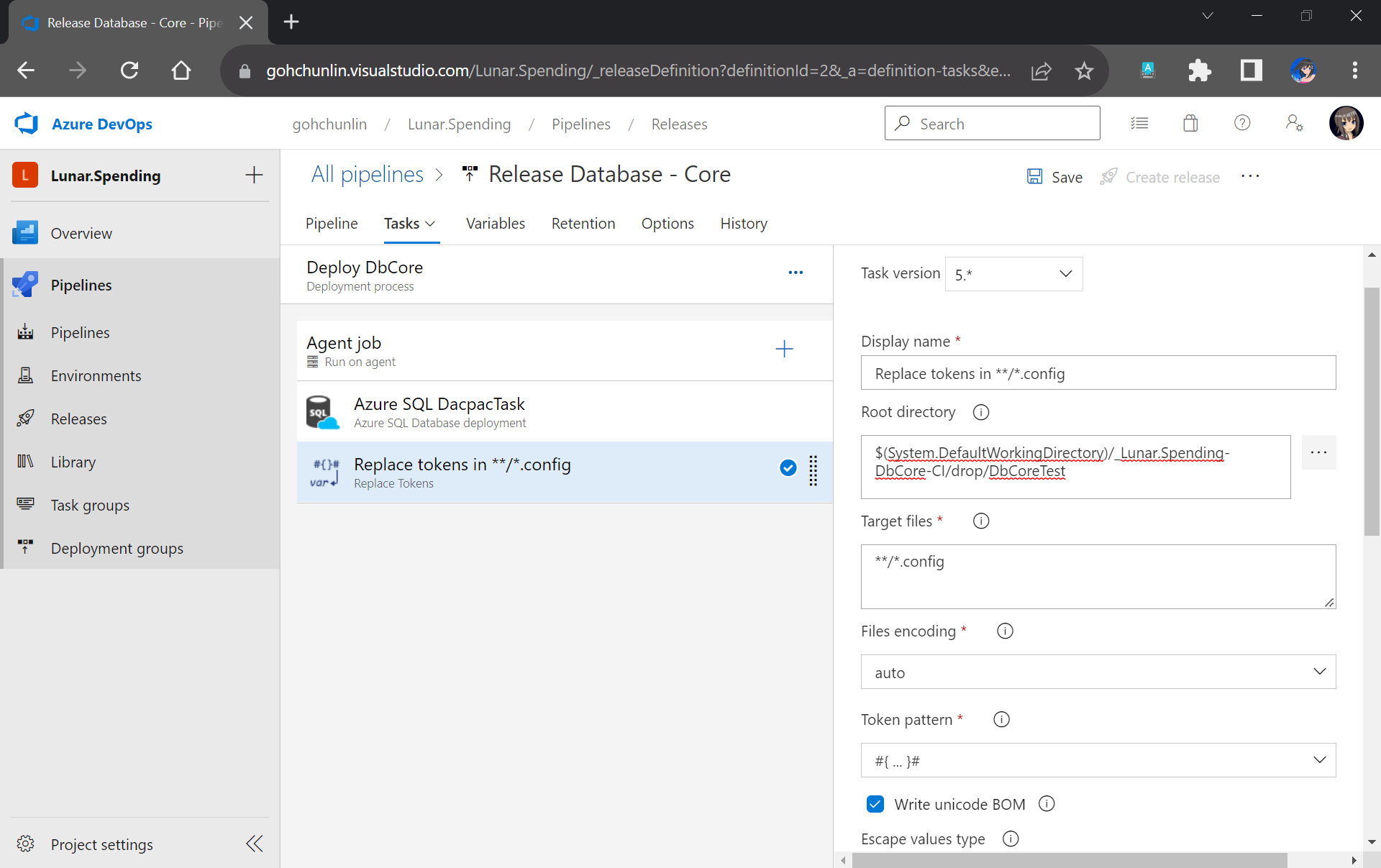
Now we will need a task which would replace the tokens in the app.config file with the actual value. The task we will be using here is the “Replace Tokens” done by Guillaume Rouchon.

Previously we have moved the TestDbCore bin/Release folder to the Build Artifact. In fact, app.config, which is renamed to TestDbCore.dll.config, is in the folder as well. Hence, we can locate the config file easily by pointing the task to the Build Artifact accordingly, as demonstrated in the screenshot below.

We will only need to specify the Root Directory of where our TestDbCore.dll.config is located.

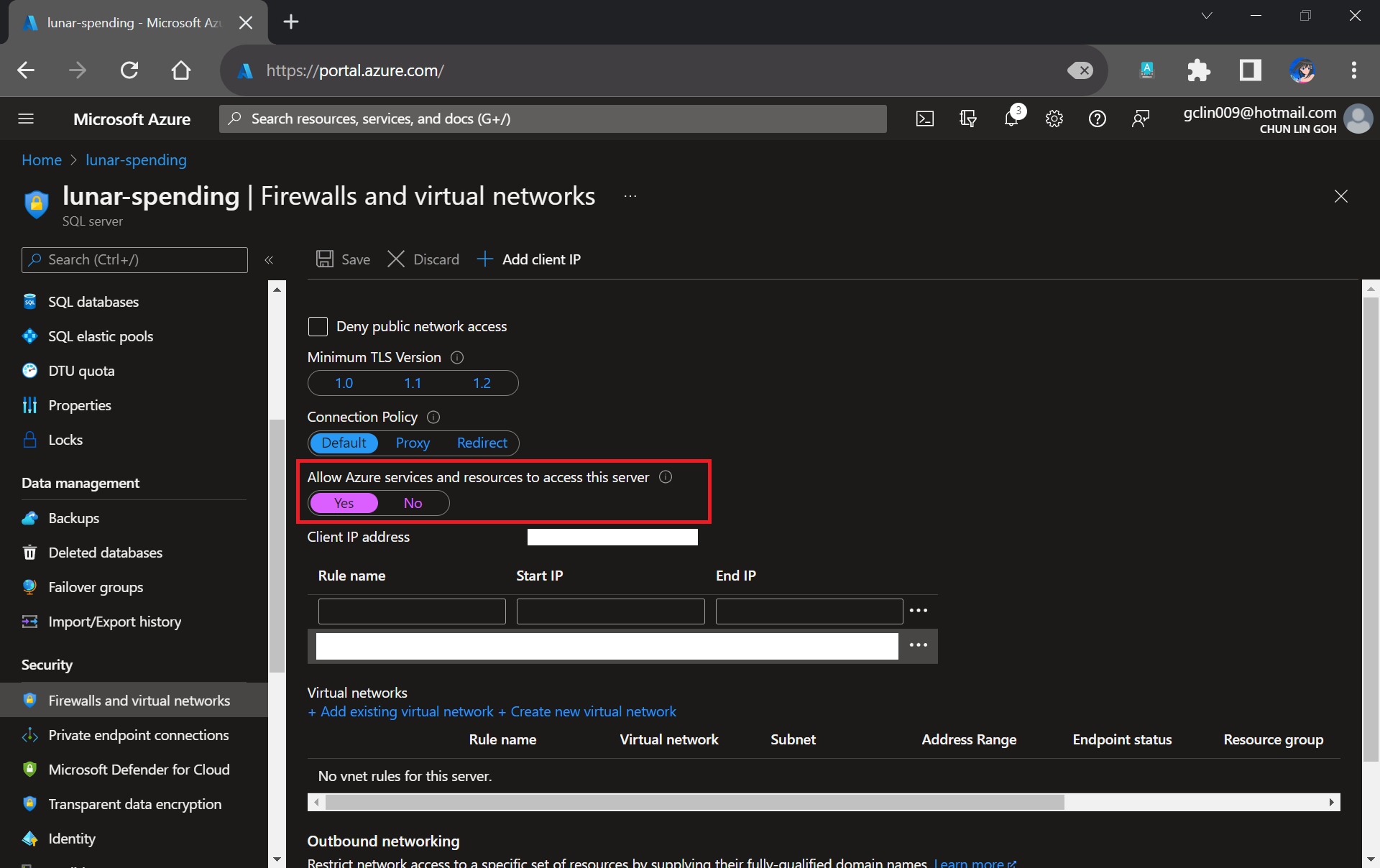
Please take note that since our unit tests need to test the Azure SQL database specified in the connection string, we need to allow Azure services and resources to access our Azure SQL server by configuring its firewall, as shown in the following screenshot. Otherwise, all our unit tests will fail because the Azure SQL server cannot be reached.

Interestingly, the Azure AQL Database deployment task will still be executed successfully even though we do not allow the access mentioned above.

We need to allow Azure services and resources to access the relevant Azure SQL server.

With the actual connection string in place, we can now add our Visual Studio Test (2.*) task back to execute our unit test.

We have our test files in the folder DbCoreTest in the Build Artifact as we designed earlier in the Build Pipeline. Hence, we simply need to point the Search Folder of the Visual Studio Test task to the folder accordingly.

Setting up Visual Studio Test to run our unit test for our stored procedures.

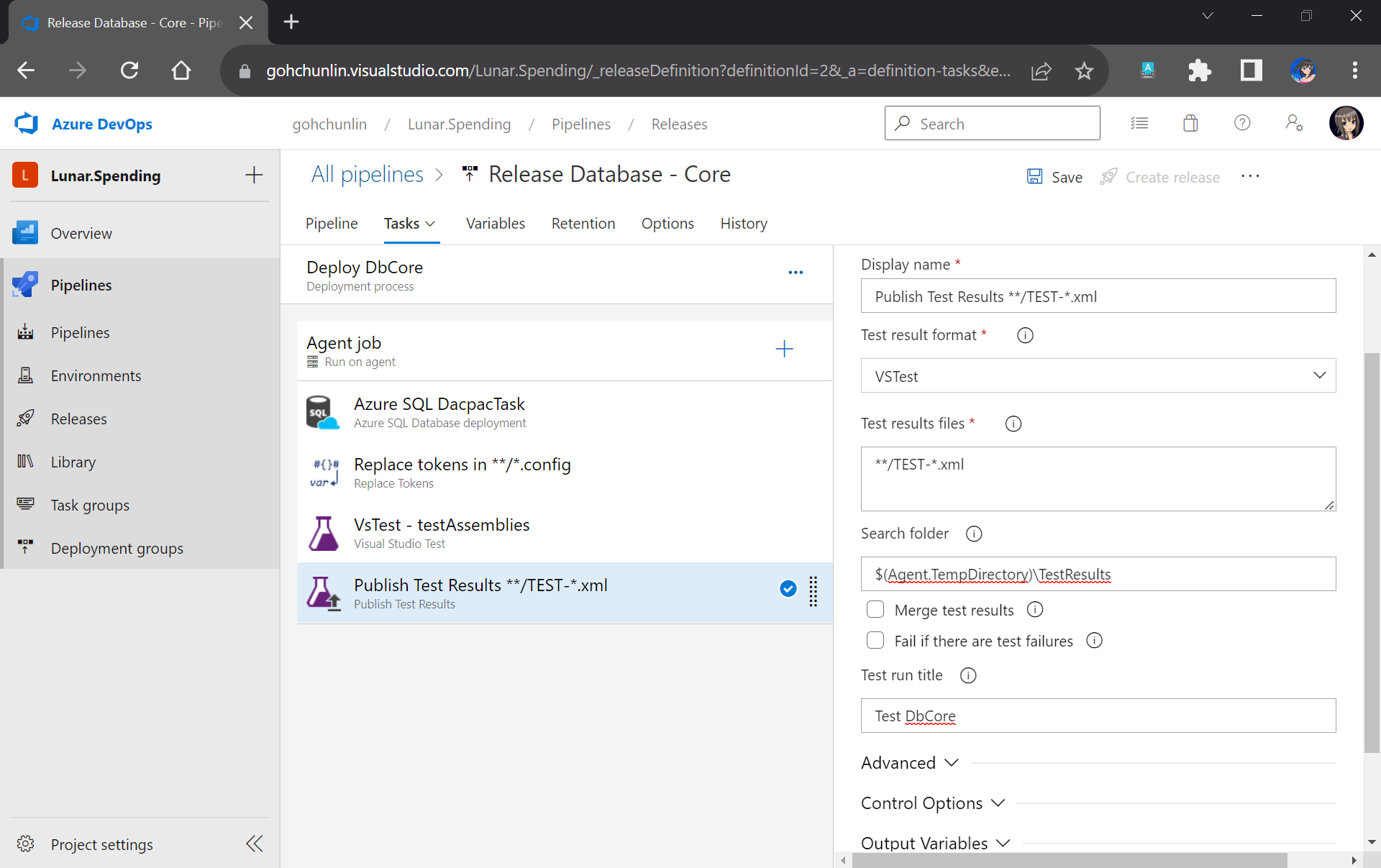
You may have noticed that the test results will be stored in a folder called $(Agent.TempDirectory)\TestResults. So, let’s add our last task of the stage which is to publish the test results.

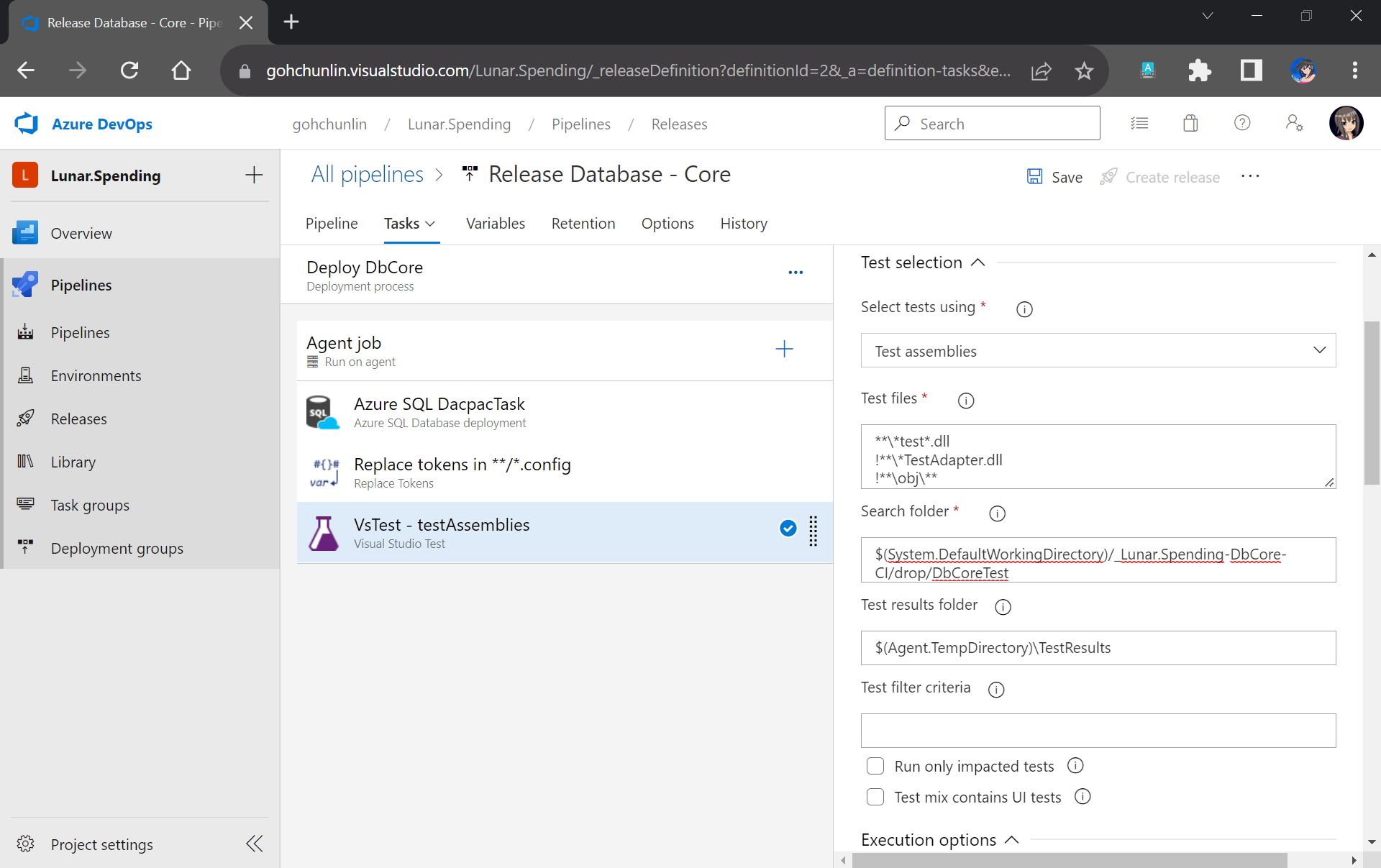
We will need to specify that our test results are generated by VSTest. Aftervthat, we point the task to look for test results in the $(Agent.TempDirectory)\TestResults folder. Finally, we name our test run.

We can publish our test results to the Release Pipeline.

That’s all! Please remember to save the Release Pipeline changes.

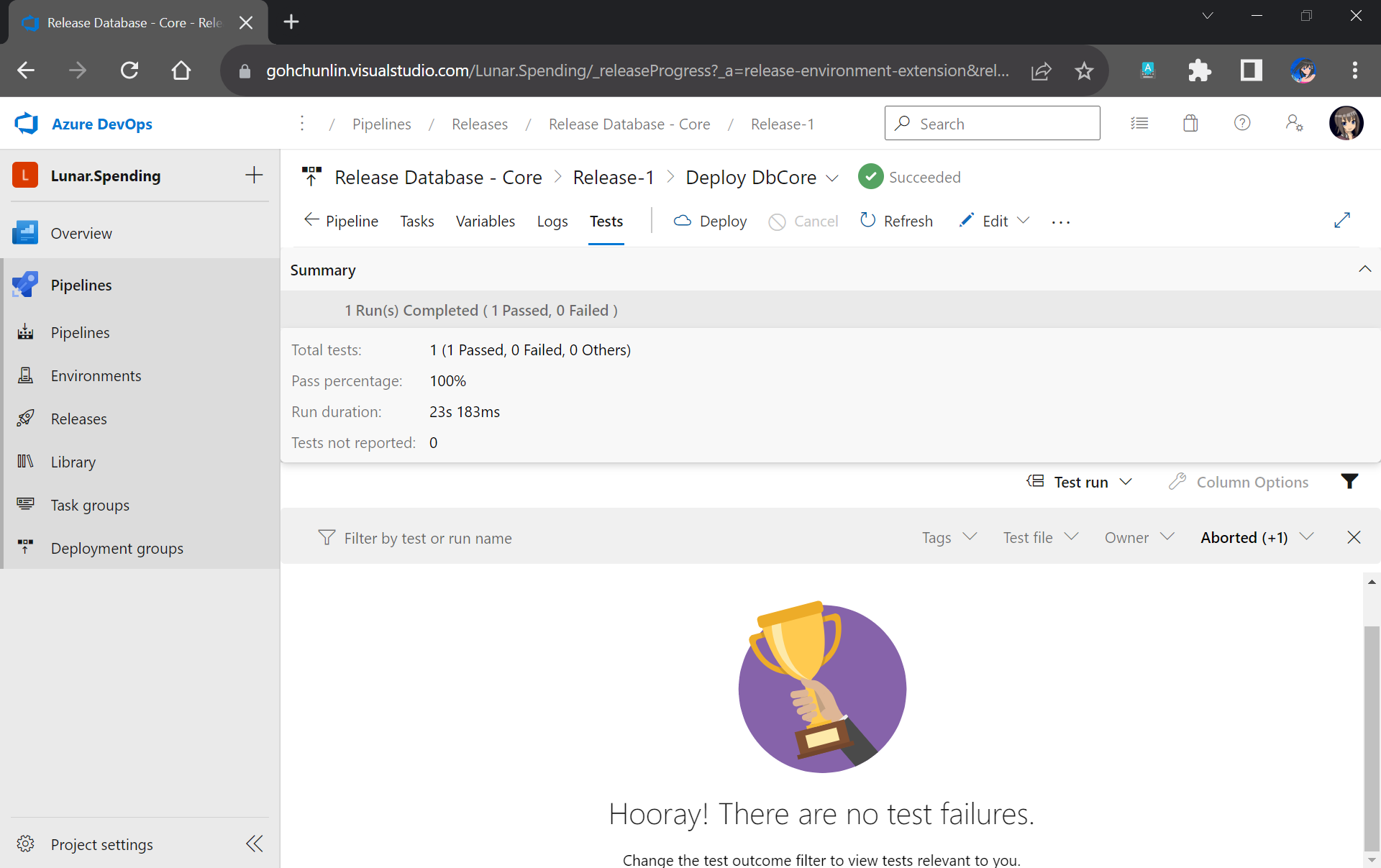
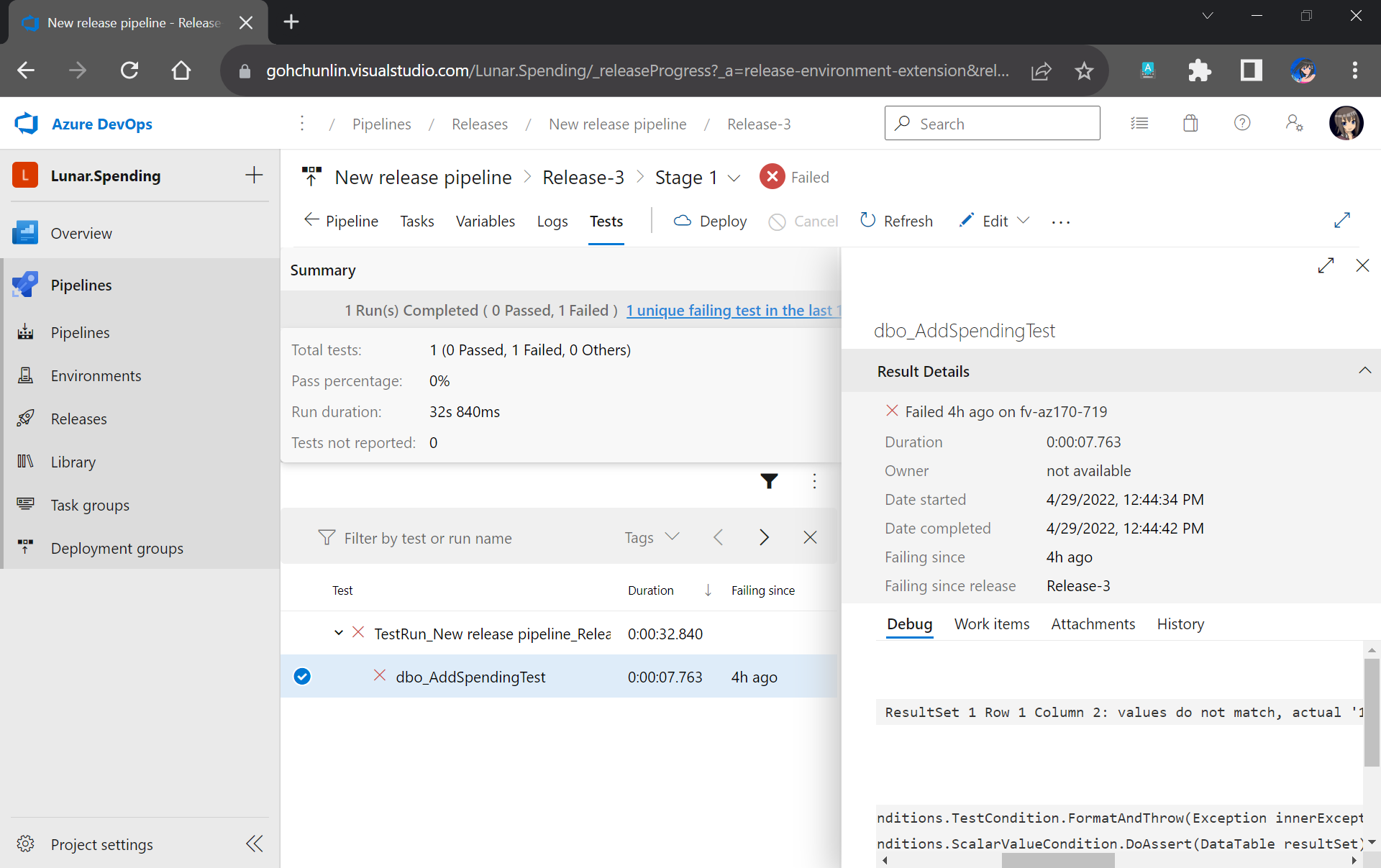
Now when there is a new build completed, the Release Pipeline will be automatically triggered. Once it is completed, not only our database on Azure SQL will be updated accordingly, but also we will have a detailed test result. For example, when all of our unit tests have passed, we will get a test result as shown below.

If all tests have passed, we will receive a trophy. 🙂

However, if there is one or many tests fail, we can easily locate the failed tests easily in the report.

This shows that our stored procedure dbo_AddSpendingTest has issues which need our attention.

That’s all for a simple walkthrough from writing unit tests for stored procedures to automatically deploying and testing them with Azure DevOps CI/CD pipelines.

I actually started learning all these after watching Hamish Watson’s sharing on DevOps Lab show which was released four years ago in 2018. In the video, he also shared about how DBA could do unit testing of their database changes tSQLt. Please watch the full YouTube video if you would like to find out more about unit testing our stored procedures.

Damian meets with Hamish Watson at the MVP Summit to talk about testing our database changes.

References

Multi-Container ASP .NET Core Web App with Docker Compose

Previously, we have seen how we could containerise our ASP .NET Core 6.0 web app and manage it with docker commands. However, docker commands are mainly for only one image/container. If our solution has multiple containers, we need to use docker-compose to manage them instead.

docker-compose makes things easier because it encompasses all our parameters and workflow into a configuration file in YAML. In this article, I will share my first experience with docker-compose to build mutli-container environments as well as to manage them with simple docker-compose commands.

To help my learning, I will create a simple online message board where people can login with their GitHub account and post a message on the app.

PROJECT GITHUB REPOSITORY

The complete source code of this project can be found at https://github.com/goh-chunlin/Lunar.MessageWall.

Create Multi-container App

We will start with a solution in Visual Studio with two projects:

  • WebFrontEnd: A public-facing web application with Razor pages;
  • MessageWebAPI: A web API project.

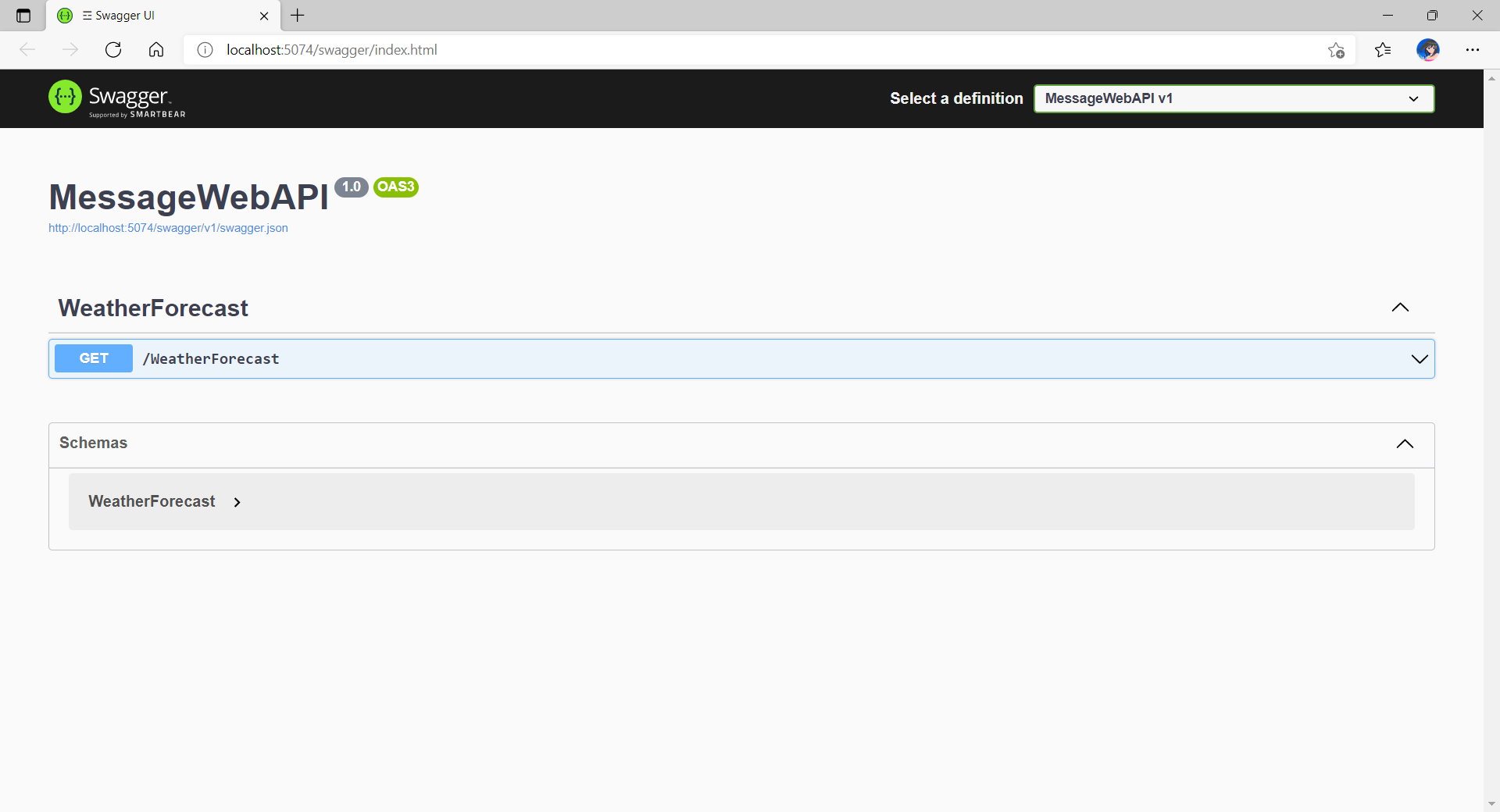
By default, the web API project will have a simple GET method available, as shown in the Swagger UI below.

Default web API project created in Visual Studio will have this WeatherForecast API method available by default.

Now, we can make use of this method as a starting point. Let’s have the our client, WebFrontEnd, to call the API and output the result returned by the API to the web page.

var request = new System.Net.Http.HttpRequestMessage();
request.RequestUri = new Uri("http://messagewebapi/WeatherForecast");

var response = await client.SendAsync(request);

string output = await response.Content.ReadAsStringAsync();

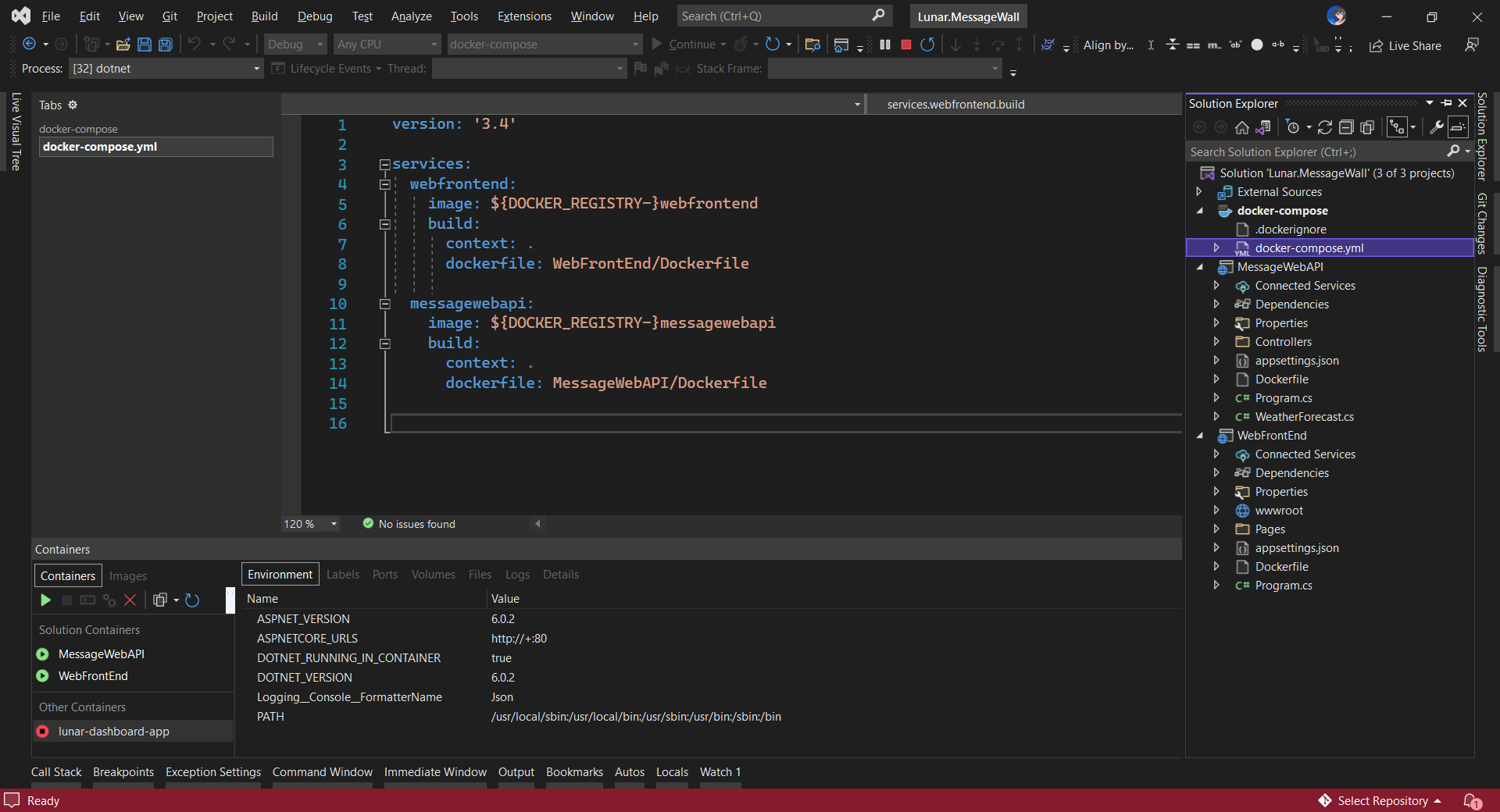
In both projects, we will add Container Orchestrator Support with Linux as the target OS. Once we have the docker-compose YAML file ready, we can directly run our docker compose application by simply pressing F5 in Visual Studio.

The docker-compose YAML file for our solution.

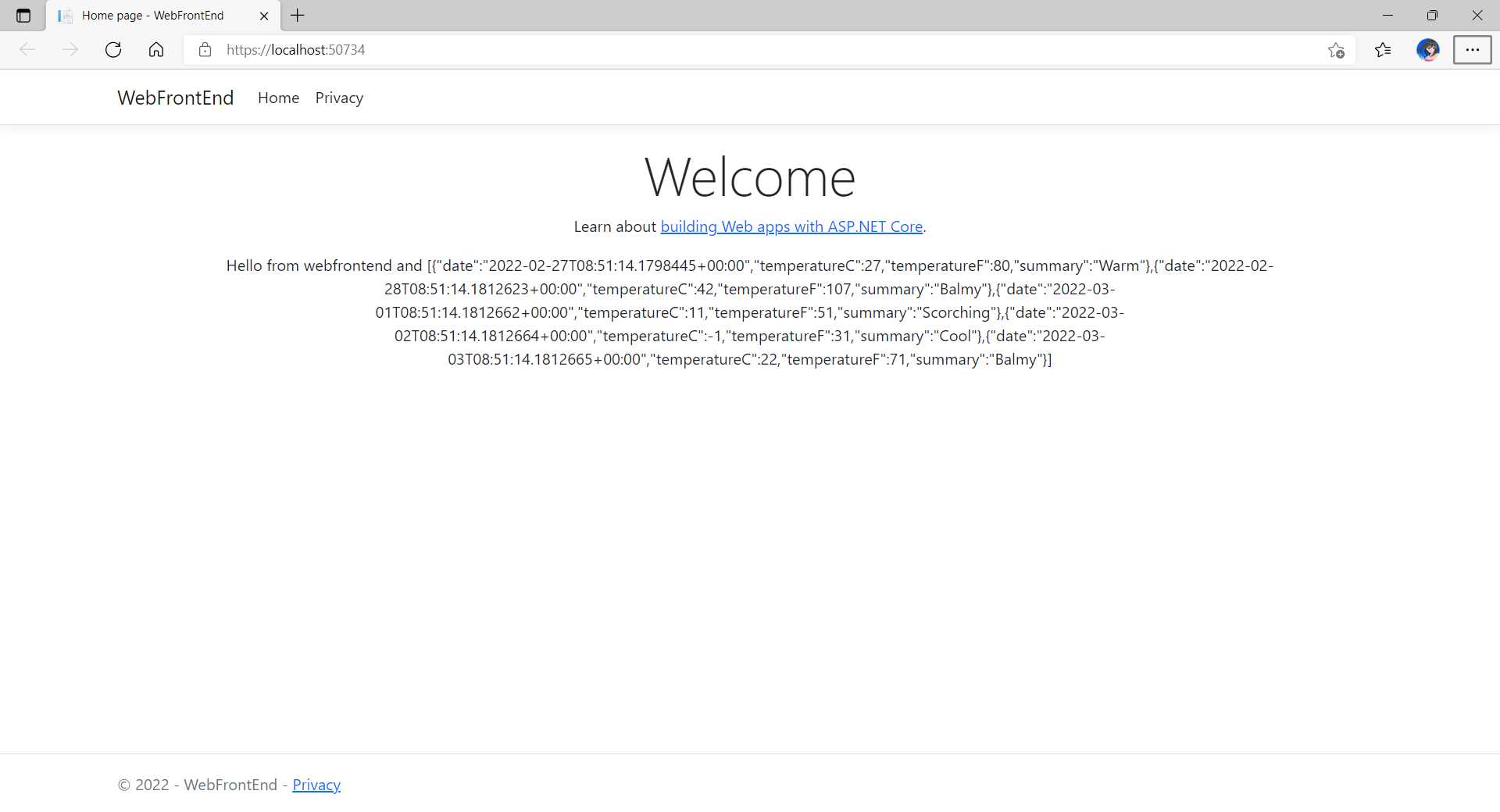
Now, we shall be able to see the website output some random weather data returned by the web API.

Congratulations, we’re running a docker compose application.

Configure Authentication in Web App

Our next step is to allow users to login to our web app first before they can post a message on the app.

It’s usually a good idea not to build our own identity management module because we need to deal with a lot more than just building a form to allow users to create an account and type their credentials. One example will be managing and protecting our user’s personal data and passwords. Instead, we should rely on Identity-as-a-Service solutions such as Azure Active Directory B2C.

Firstly, we will register our web app in our Azure AD B2C tenant.

Normally for first-timers, we will need to create a Azure AD B2C tenant first. However, there may be an error message saying that our subscription is not registered to use namespace ‘Microsoft.AzureActiveDirectory’. If you encounter this issue, you can refer to Adam Storr’s article on how to solve this with Azure CLI.

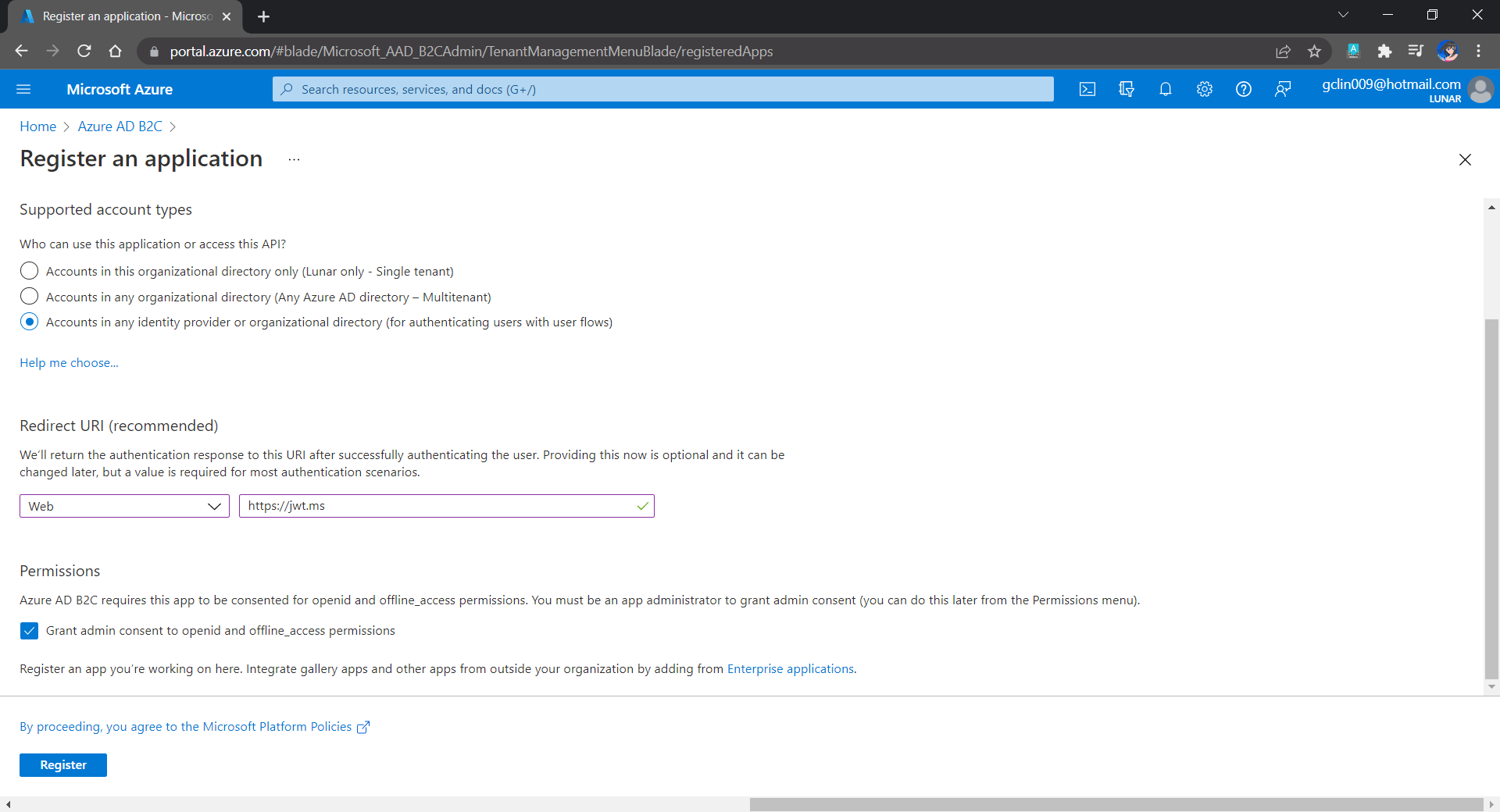
Once we have our Azure AD B2C tenant ready (which is Lunar in my example here), we can proceed to register our web app, as shown below. For testing purposes, we set the Redirect URI to https://jwt.ms, a Microsoft-owned web application that displays the decoded contents of a token. We will update this Redirect URL in the next section below when we link our web app with Azure AD B2C.

Registering a new app “Lunar Message Wall” under the Lunar Tenant.

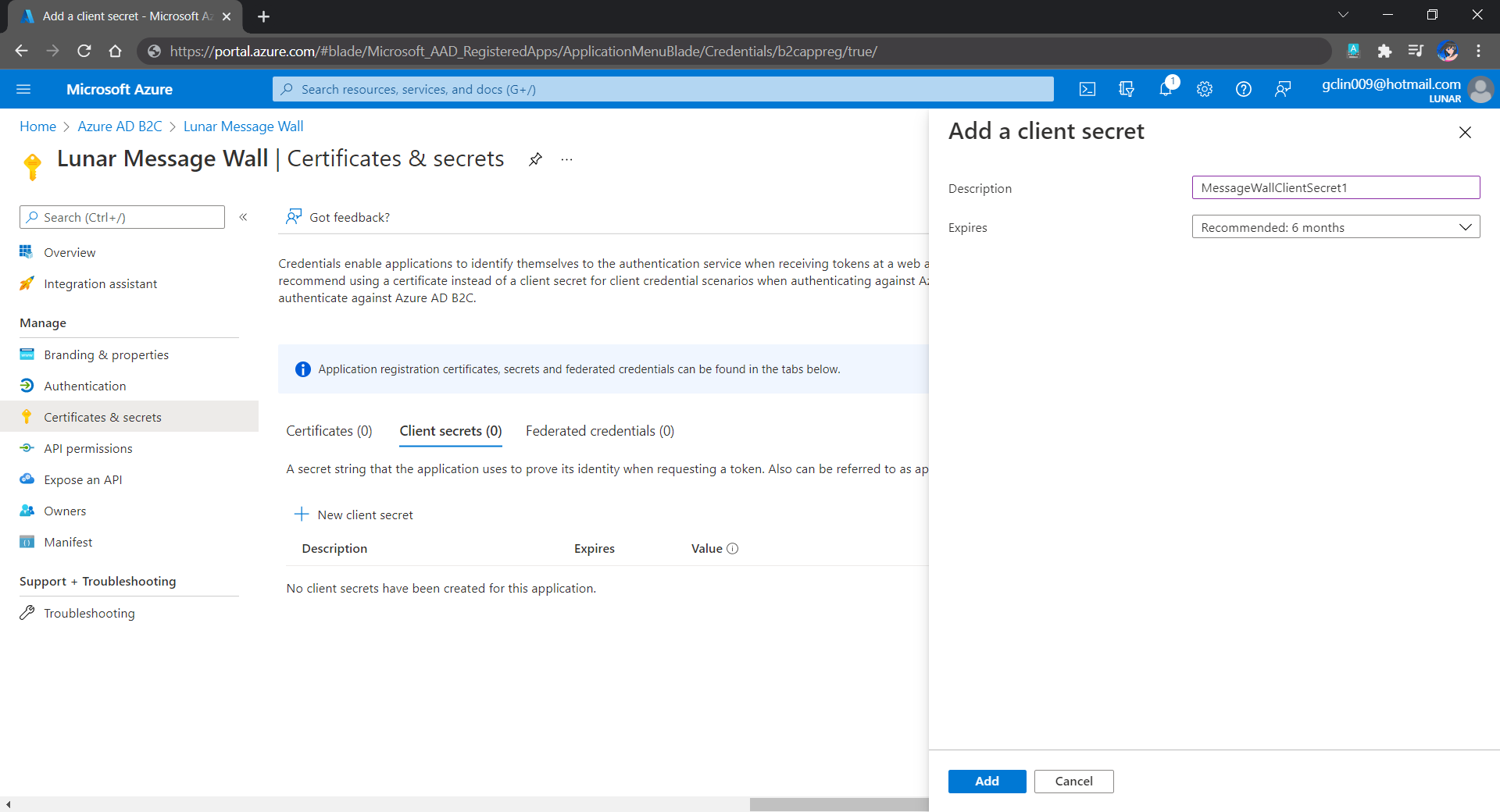
Secondly, once our web app is registered, we need to create a client secret, as shown below, for later use.

Secrets enable our web app to identify itself to the authentication service when receiving tokens. In addition, please take note that although certificate is recommended over client secret, currently certificates cannot be used to authenticate against Azure AD B2C.

Adding a new client secret which will expire after 6 months.

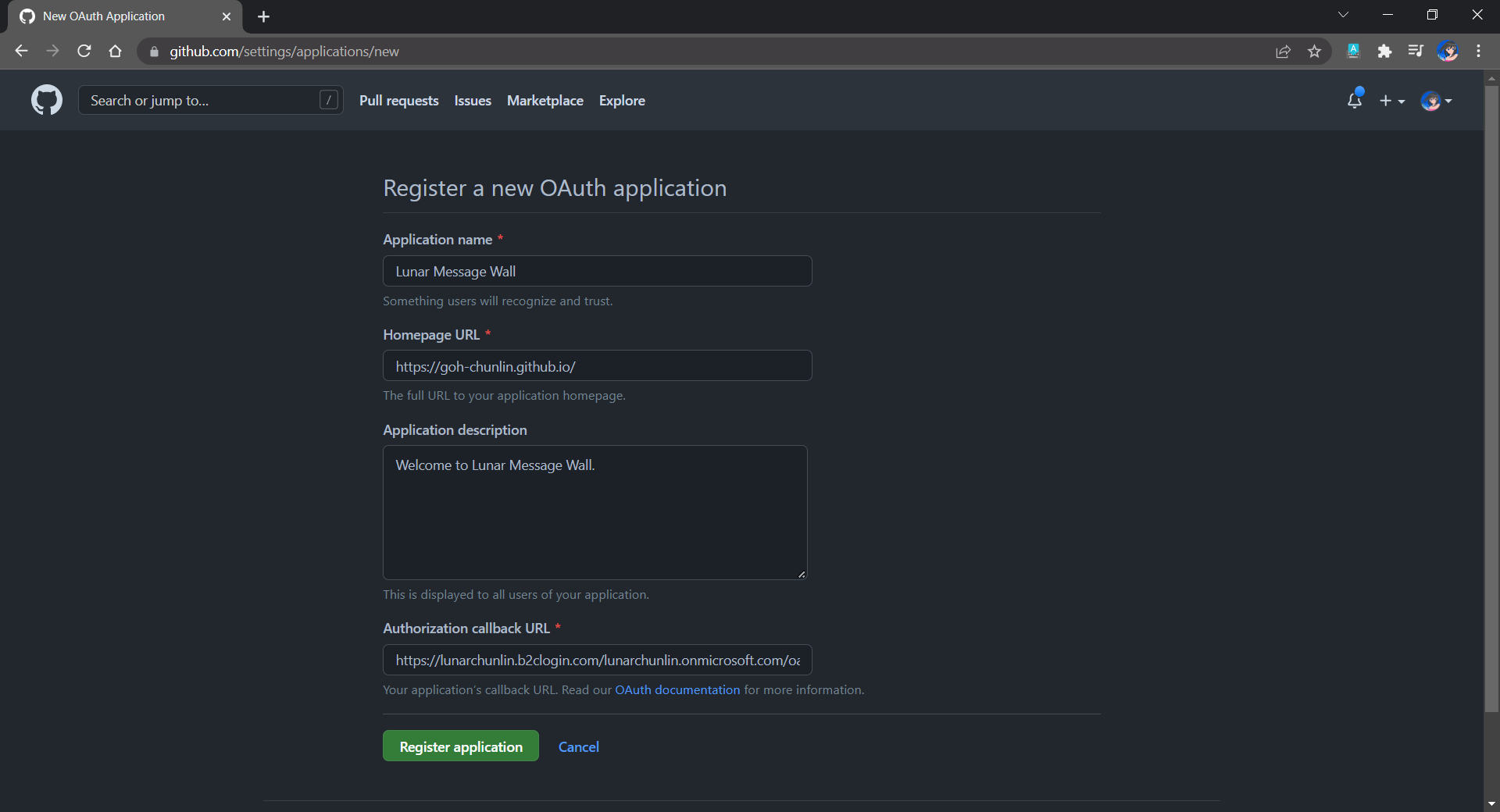
Thirdly, since we want to allow user authentication with GitHub, we need to create a GitHub OAuth app first.

The Homepage URL here is a temporary dummy data.

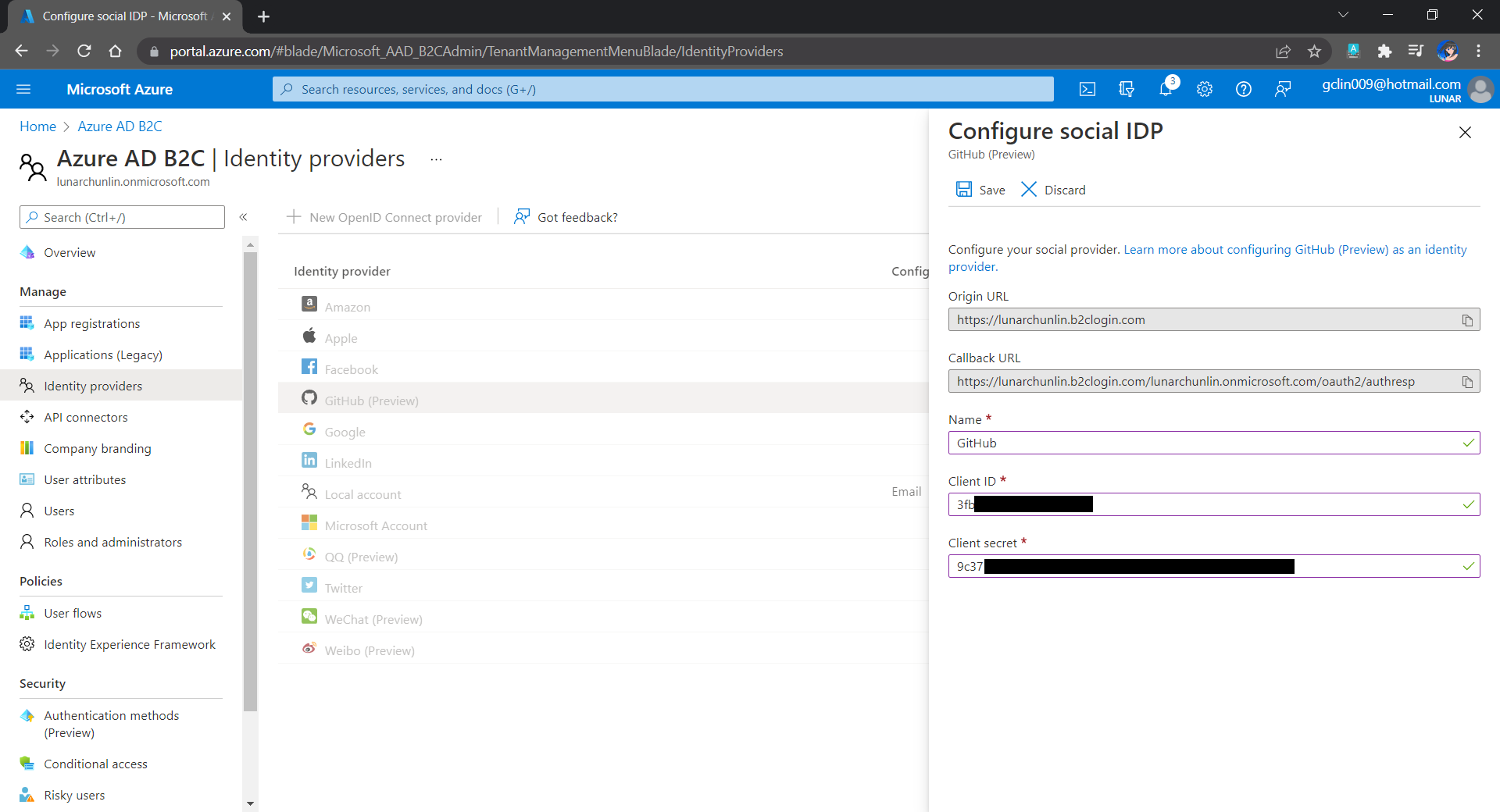
After we have registered the OAuth app on GitHub, we will be provided a client ID and client secret. These two information are needed when we configure GitHub as the social identity provider (IDP) on our Azure AD B2C, as shown below.

Configuring GitHub as an identity provider on Azure AD B2C.

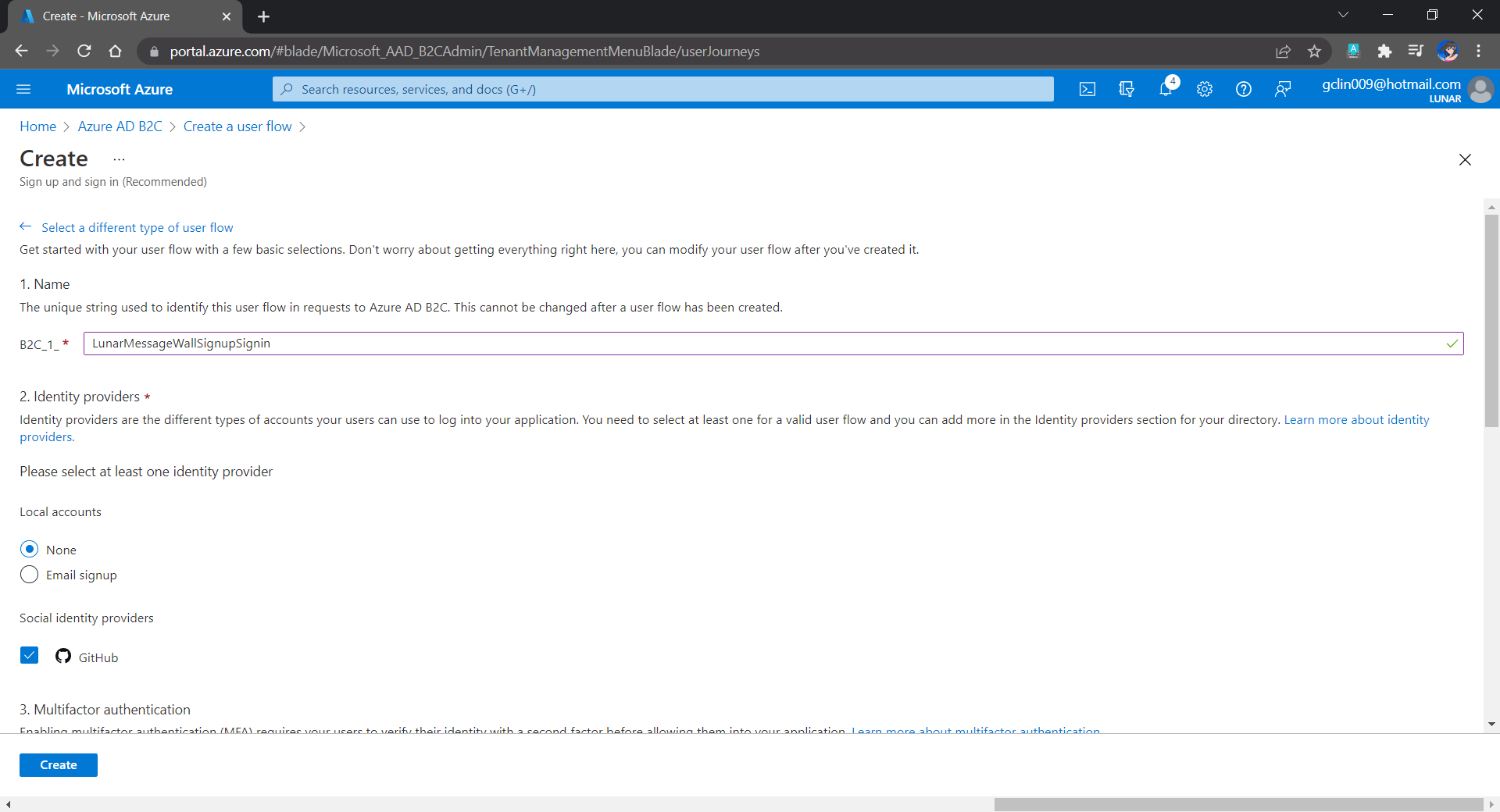
Fourthly, we need to define how users interact with our web app for processes such as sign-up, sign-in, password reset, profile editing, etc. To keep thing simple, here we will be using the predefined user flows.

For simplicity, we allow only GitHub sign-in in our user flow.

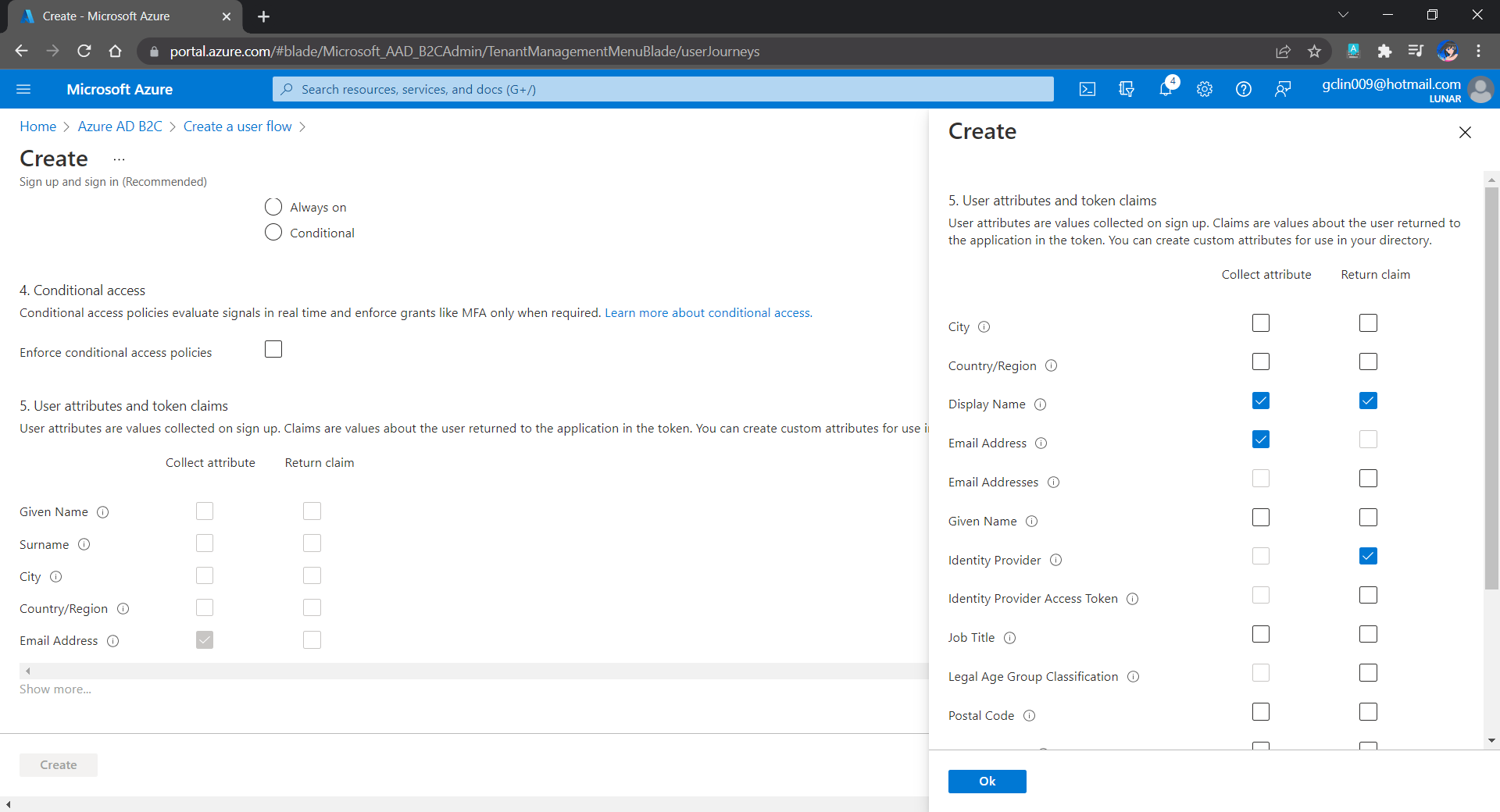
We can also choose the attributes we want to collect from the user during sign-up and the claims we want returned in the token.

User attributes and token claims.

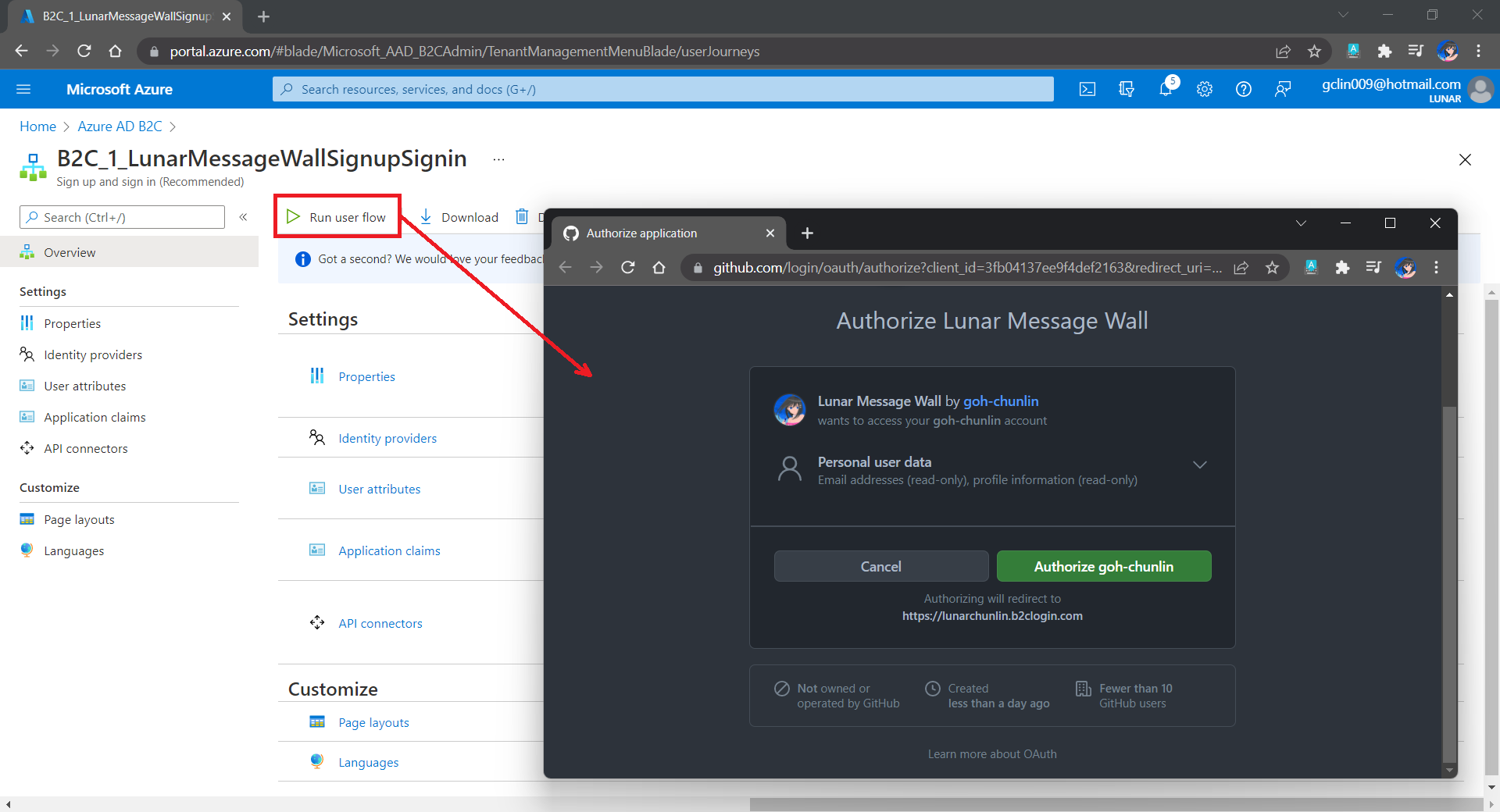
After we have created the user flow, we can proceed to test it.

In our example here, GitHub OAuth app will be displayed.

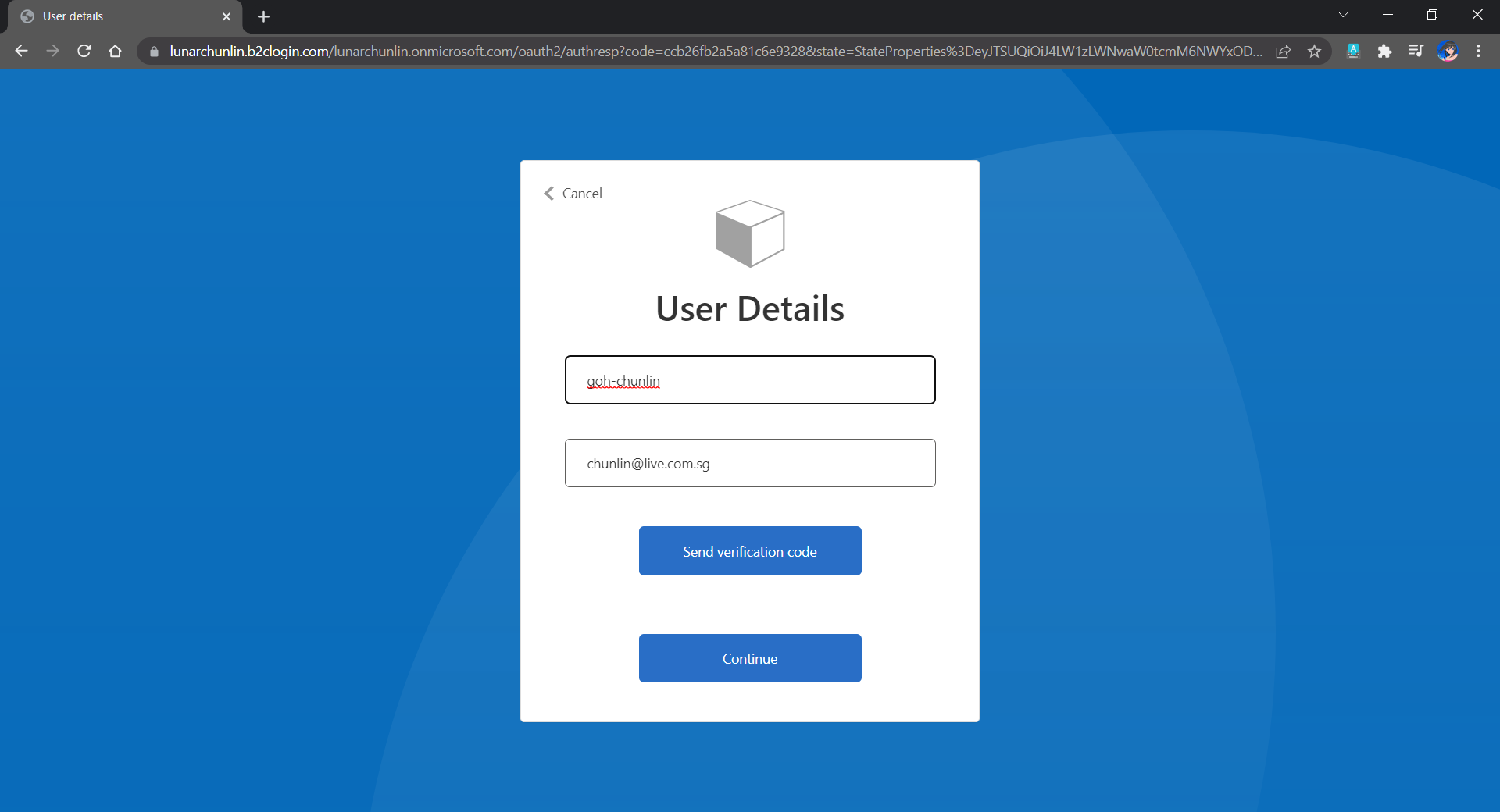
Since we specify in our user flow that we need to collect the user’s GitHub display name, there is a field here for the user to enter the display name.

The testing login page from running the user flow.

Setup the Authentication in Frontend and Web API Projects

Now, we can proceed to add Azure AD B2C authentication to our two ASP.NET Core projects.

We will be using the Microsoft Identity Web library, a set of ASP.NET Core libraries that simplify adding Azure AD B2C authentication and authorization support to our web apps.

dotnet add package Microsoft.Identity.Web

The library configures the authentication pipeline with cookie-based authentication. It takes care of sending and receiving HTTP authentication messages, token validation, claims extraction, etc.

For the frontend project, we will be using the following package to add GUI for the sign-in and an associated controller for web app.

dotnet add package Microsoft.Identity.Web.UI

After this, we need to add the configuration to sign in user with Azure AD B2C in our appsettings.json in both projects (The ClientSecret is not needed for the Web API project).

"AzureAdB2C": {
    "Instance": "https://lunarchunlin.b2clogin.com",
    "ClientId": "...",
    "ClientSecret": "...",
    "Domain": "lunarchunlin.onmicrosoft.com",
    "SignedOutCallbackPath": "/signout/B2C_1_LunarMessageWallSignupSignin",
    "SignUpSignInPolicyId": "B2C_1_LunarMessageWallSignupSignin"
}

We will use the configuration above to add the authentication service in Program.cs of both projects.

With the help of the Microsoft.Identity.Web.UI library, we can also easily build a sign-in button with the following code. Full code of it can be seen at _LoginPartial.cshtml.

<a class="nav-link text-dark" asp-area="MicrosoftIdentity" asp-controller="Account" asp-action="SignIn">Sign in</a>

Now, it is time to update the Redirect URI to the localhost. Thus, we need to make sure our WebFrontEnd container has a permanent host port. To do so, we first specify the ports we want to use in the launchsettings.json of the WebFrontEnd project.

"Docker": {
    ...
    "environmentVariables": {
      "ASPNETCORE_URLS": "https://+:443;http://+:80",
      "ASPNETCORE_HTTPS_PORT": "44360"
    },
    "httpPort": 51803,
    "sslPort": 44360
}

Then in the docker-compose, we will specify the same ports too.

services:
  webfrontend:
    image: ${DOCKER_REGISTRY-}webfrontend
    build:
      context: .
      dockerfile: WebFrontEnd/Dockerfile
    ports:
      - "51803:80"
      - "44360:443"

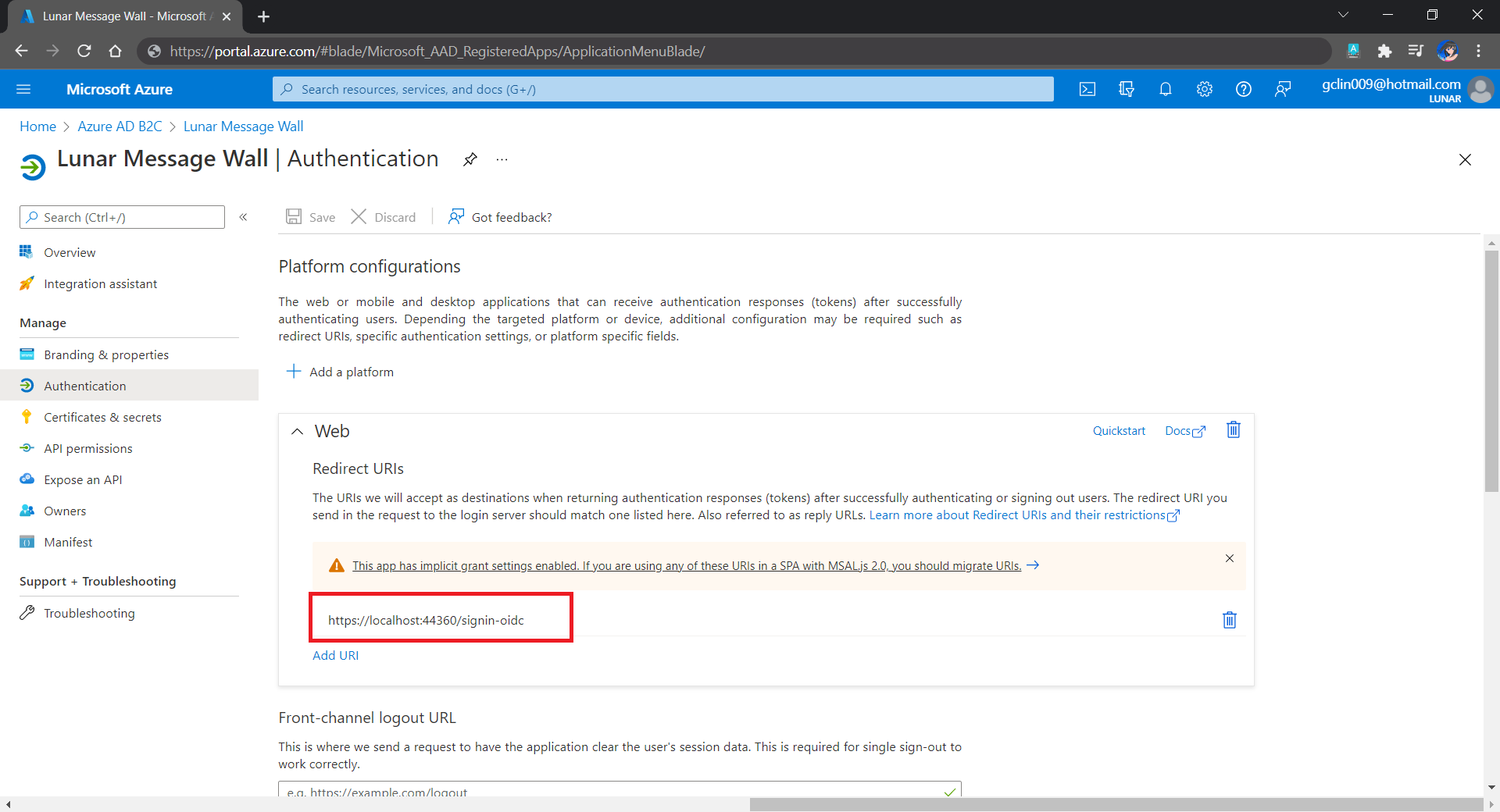
Finally, we will update the Redirect URI in Azure AD B2C according, as shown below.

Updated the Redirect URI to point to our WebFrontEnd container.

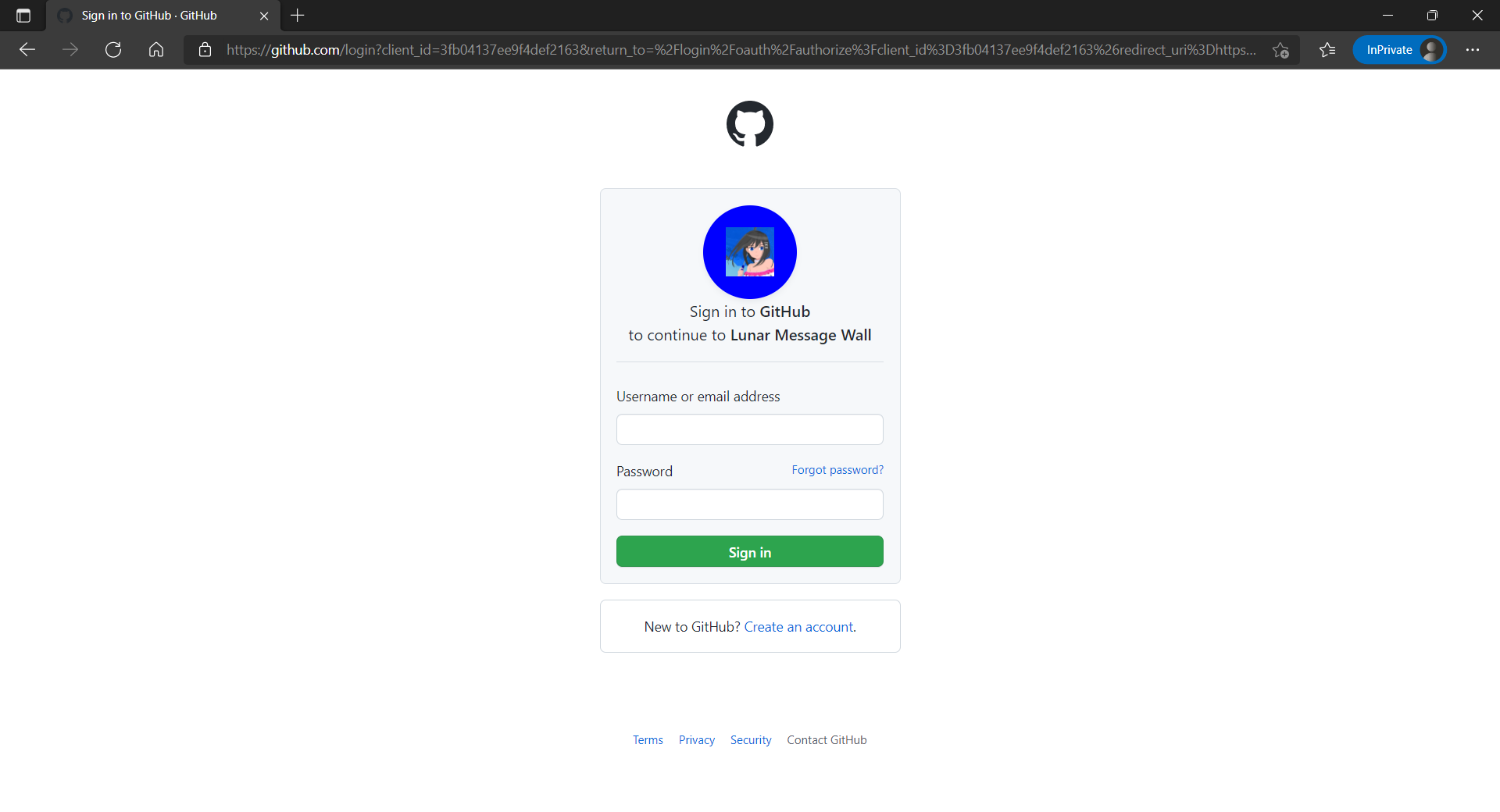
Now, right after we click on the Sign In button on our web app, we will be brought to a GitHub sign-in page, as shown below.

The GitHub sign-in page.

Currently, our Web API has only two methods which have different required scopes declared, as shown below.

[Authorize]
public class UserMessageController : ControllerBase
{
    ...
    [HttpGet]
    [RequiredScope("messages.read")]
    public async Task<IEnumerable<UserMessage>> GetAsync()
    {
        ...
    }

    [HttpPost]
    [RequiredScope("messages.write")]
    public async Task<IEnumerable<UserMessage>> PostAsync(...)
    {
        ...
    }
}

Hence, when the frontend needs to send the GET request to retrieve messages, we will first need to get a valid access token with the correct scope.

string accessToken = await _tokenAcquisition.GetAccessTokenForUserAsync(new[] { "https://lunarchunlin.onmicrosoft.com/message-api/messages.read" });

client.DefaultRequestHeaders.Authorization = new AuthenticationHeaderValue("Bearer", accessToken);

client.DefaultRequestHeaders.Accept.Add(new MediaTypeWithQualityHeaderValue("application/json"));

Database

Since we need to store the messages submitted by the users, we will need a database. Here, we use PostgresSQL, an open-source, standards-compliant, and object-relational database.

To run the PostgresSQL with docker-compose we will update our docker-compose.yml file with the following contents.

services:
  ...
  messagewebapi:
    ...
    depends_on:
     - db

  db:
    container_name: 'postgres'
    image: postgres
    environment:
      POSTGRES_PASSWORD: ...

In our case, only the Web API will interact with the database. Hence, we need to make sure that the db service is started before the messagewebapi. In order to specify this relationship, we will use the depends_on option.

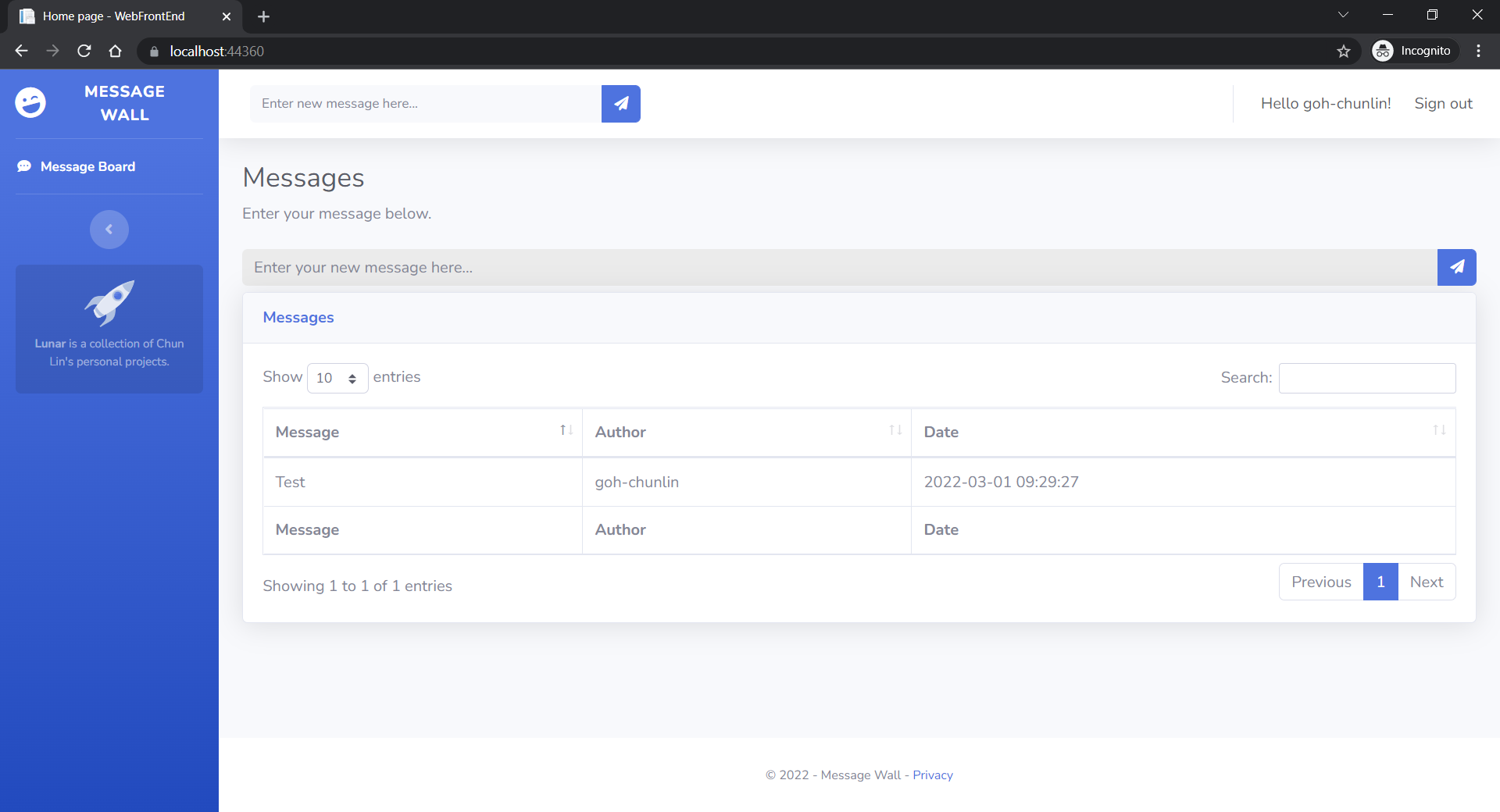
User’s messages can now be stored and listed on the web page.

Next Step

This is just the very beginning of my learning journey of dockerising ASP .NET Core solution. In the future, I shall learn more in this area.
References

Modern Data Warehouse with Azure

This month marks my third year in port and logistics industry.

In April, I attended a talk organised by NUS Business School on the future-ready supply chain. The talk is delivered by Dr Robert Yap, the YCH Group Executive Chairman. During the talk, Dr Yap mentioned that they innovated to survive because innovation was always at the heart of their development and growth. To him and his team, technology is not only an enabler for the growth of their business, but also a competitive advantage of the YCH Group.

In YCH Group, they have a vision of integrating the data flows in the supply chain with their unique analytics capabilities so that they can provide a total end-to-end supply chain enablement and transformation. Hence, today I’d like to share about how, with Microsoft Azure, we can build a data pipeline and modern data warehouse which helps to enable logistics companies to gear towards a future-ready supply chain.

Dr Yap shared about the The 7PLâ„¢ Strategy in YCH Group.

Two months ago, I also had the opportunity to join an online workshop to learn from Michelle Xie, Microsoft Azure Technical Trainer, about Azure Data Fundamentals. The workshop consists of four modules. In the workshop, we learnt core data concepts, relational and non-relational data offerings in Azure, modern data warehouses, and Power BI. Hence, I will share with you what I have learned in the workshop in this article as well.

About Data

Data is a collection of facts, figures, descriptions, and objects. Hence, data can be texts written on papers, or it can be in digital form and stored inside the electronic devices, or it could be facts that are in our mind. Data can be classified as follows.

Unstructured data like image is frequently used in combination with Machine Learning or Azure Cognitive Services capabilities to extract data.
ETL Data Pipeline

To build an data analytical system, we normally will have the following steps in a data pipeline to perform ETL procedure. ETL stands for Extract, Transform and Load. ETL loads data first into the staging storage server and then into the target storage system, as shown below.
ETL procedure in a data processing pipeline.
  • Data Ingestion: Data is moved from one or many data sources to a destination where it can be stored and further analysed;
  • Data Processing: Sometimes the raw data may not in the format suitable for querying. Hence, we need to transform and clean up the data;
  • Data Storage: Once the raw data has been processed, all the cleaned and transformed data will be stored to different storage systems which serve different purposes;
  • Data Exploration: A way of analysing performance through graphs and charts with business intelligence tools. This is helpful in making informed business decisions.
A map in the Power BI report showing the location of a prime mover within a time period.

In the world of big data, raw data often comes from different endpoints and the data is stored in different storage systems. Hence, there is a need of a service which can orchestrate the processes to refine these enormous stores of raw data into actionable business insights. This is where the Azure Data Factory, a cloud ETL service for scale-out serverless data integration and data transformation, comes into picture.

There are two ways of capturing the data in the Data Ingestion stage.

The first method is called the Batch Processing where a set of data is first collected over time and then fed into an analytics system to process them in group. For example, the daily sales data collected is scheduled to be processed every midnight. This is not just because midnight is the end of the day but also because the business normally ends at night and thus midnight is also the time when the servers are most likely to have more computing capacity.

Another method will be Streaming model where data is fed into analytics tools as it arrives and the data is processed in real time. This is suitable for use cases like collecting GPS data sent from the trucks because every piece of new data is generated in continuous manner and needs to be sent in real time.

Modern Data Warehouse

A modern data warehouse allows us to gather all our data at any scale easily, and to get insights through analytics, dashboard, and reports. The following image shows the data warehouse components on Azure.

Architecture diagram
Azure modern data warehouse architecture. (Image Source: Azure Docs)

For a big data pipeline, the data is ingested into Azure through Azure Data Factory in batches, or streamed near real-time using Apache Kafka, Event Hub, or IoT Hub. This data will then land in Azure Data Lake Storage long term persisted storage.

The Azure Data Lake Storage is an enterprise-wide hyper-scale repository for large volume of raw data. It is a suitable staging storage for our ingested data before the data is converted into a format suitable for data analysis. Thus, it can store any data in its native format, without requiring any prior transformations. Data Lake Storage can be accessed from Hadoop with the WebHDFS-compatible REST APIs.

As part of our data analytics workflow, we can use Azure Databricks as a platform to run SQL queries on the data lake and provide results for the dashboards in, for example, PowerBI. In addition, Azure Databricks also integrates with the MLflow machine learning platform API to support the end-to-end machine learning lifecycle from data preparation to deployment.

In the logistics industry, the need to store spatial data is greater than ever.

Let’s say a container trucking company collects data about each container delivery through an IoT device installed on the vehicle. Information such as the location and the speed of the prime mover is constantly sent from the IoT device to Azure Event Hub. We then can use Azure Databricks to correlate of the trip data, and also to enrich the correlated data with neighborhood data stored in the Databricks file system.

In addition, to process large amount of data efficiently, we can also rely on the Azure Synapse Analytics, which is basically an analytics service and a cloud data warehouse that lets us scale, compute, and store elastically and independently, with a massively parallel processing architecture.

Finally, we have Azure Analysis Services, which is an enterprise-grade analytics engine as a service. It is used to combine the data, define metrics, and secure the data in a single, trusted tabular semantic data model with enterprise-grade data models. As mentioned by Christian Wade, the Power BI Principal Program Manager in Microsoft, in March 2021, they have brought Azure Analysis Services capabilities to Power BI.

Pricing tiers available for Azure Analysis Services.

Relational Database Deployment Options on Azure and HOSTING COST

On Azure, there are two database deployment options available, i.e. IaaS and PaaS. IaaS option means that we have to host our SQL server on their virtual machines. For PaaS approach, we are able to either use Azure SQL Database, which is considered as DBaaS, or Azure SQL Managed Instance. Unless there is a need for the team to have OS-level access and control to the SQL servers, PaaS approach is normally the best choice.

Both PaaS and IaaS options include base price that covers underlying infrastructure and licensing. In IaaS, we can reduce the cost by shutting down the resources. However, in PaaS, the resources are always running unless we drop and re-create our resources when they are needed.

Cloud SQL Server options: SQL Server on IaaS, or SaaS SQL Database in the cloud.
The level of administration we have over the infrastructure and by the degree of cost efficiency. (Image Source: Azure Docs)

SQL Managed Instance is the latest deployment option which enables easy migration of most of the on-premises databases to Azure. It’s a fully-fledged SQL instance with nearly complete compatible with on-premise version of SQL server. Also, since SQL Managed Instance is built on the same PaaS service infrastructure, it comes with all PaaS features. Hence, if you would like to migrate from on-premise to Azure without management overhead but at the same time you require instance-scoped features, such as SQL Server Agent, you can try the SQL Managed Instance.

Andreas Wolter, one of the only 7 Microsoft Certified Solutions Masters (MCSM) for the Data Platform worldwide, once came to Singapore .NET Developers Community to talk about the SQL Database Managed Instance. If you’re new to SQL Managed Instance, check out the video below.

Spatial Data Types

Visibility plays a crucial role in the logistics industry because it relates to the ability of supply chain partners to be able to access and share operation information with other parties. Tracking the asset locations with GPS is one of the examples. However, how should we handle the geography data in our database?

Spatial data, also known as geospatial data, is data represented by numerical values in a geographic coordinate system. There are two types of spatial data, i.e. the Geometry Data Type, which supports Euclidean flat-earth data, and the Geography Data Type, which stores round-earth data, such as GPS latitude and longitude coordinates.

In Microsoft SQL Server, native spatial data types are used to represent spatial objects. In addition, it is able to index spatial data, provide cost-based optimizations, and support operations such as the intersection of two spatial objects. This functionality is also available in Azure SQL Database and Azure Managed Instances.

geom_hierarchy
The geometry hierarchy upon which the geometry and geography data types are based. (Image Source: SQL Docs)

Let’s say now we want to find the closest containers to a prime mover as shown in the following map.

The locations of 5 containers (marked as red) and location of the prime mover (marked as blue).

In addition, we have a table of container positions defined with the schema below.

CREATE TABLE ContainerPositions
(
    Id int IDENTITY (1,1),
    ContainerNumber varchar(13) UNIQUE,
    Position GEOGRAPHY
);

We can then simply use spatial function as shown below like STDistance, which will return the shortest distance between the two geography locations, in our query to sort the containers having the shortest to the longest distance from the prime mover.

The container “HKXU 200841-9” is the nearest container to the prime mover.

In addition, starting from version 2.2, Entity Framework Core also supports mapping to spatial data types using the NetTopologySuite spatial library. So, if you are using EF Core in your ASP .NET Core project, for example, you can easily get the mapping to spatial data types.

In the .NET Conference Singapore 2018, we announced the launch of Spatial Extension in EF Core 2.2.

Non-Relational DatabaseS on Azure

Azure Table Storage is one of the Azure services storing non-relational structured data. It provides a key/attribute store with a schema-less design. Since it’s a NoSQL datastore, it is suitable for datasets which do not require complex joins and can be denormalised for fast access.

Each of the Azure Table Storage consists of relevant entities, similar to a database row in RDBMS. Then each entity can have up to 252 properties to store the data together with a partition key. Entities with the same partition key will be stored in the same partition and the same partition server. Thus, entities with the same partition key can be queried more quickly. This also means that batch processing, the mechanism for performing atomic updates across multiple entities, can only operate on entities stored in the same partition.

In Azure Table Storage, using more partitions increases the scalability of our application. However, at the same time, using more partitions might limit the ability of the application to perform atomic transactions and maintain strong consistency for the data. We can then make use of this design to store, for example, data from each of the IoT devices in a warehouse, into different partition in the Azure Table Storage.

For a larger scale of the system, we can also design a data solution architecture that captures real-time data via Azure IoT Hub and store them into Cosmos DB which is a fast and flexible distributed database that scales seamlessly with guaranteed latency and throughput. If there is existing data in other data sources, we can also import data from data sources such as JSON files, CSV files, SQL database, and Azure Table storage to the Cosmos DB with the Azure Cosmos DB Migration Tool.

Azure Cosmos DB Migration Tool can be downloaded as a pre-compiled binary.

Globally, supply chain with Industry 4.0 is transformed into a smart and effective procedure to produce new outlines of income. Hence, the key impression motivating Industry 4.0 is to guide companies by transforming current manual processes with digital technologies.

Hard-copy of container proof of delivery (POD), for example, is still necessary in today’s container trucking industry. Hence, storing images and files for document generation and printing later is still a key feature in the digitalised supply chain workflow.

Proof of Delivery is now still mostly recorded on paper and sent via email or instant messaging services like Whatsapp. There is also no acceptable standard for what a proof of delivery form should specify. Each company more or less makes up their own rules.

On Azure, we can make use of Blob Storage to store large, discrete, binary objects that change infrequently, such as the documents like Proof of Delivery mentioned earlier.

In addition, there is another service called Azure Files available to provide serverless enterprise-grade cloud file shares. Azure Files can thus completely replace or supplement traditional on-premises file servers or NAS devices.

Hence, as shown in the screenshot below, we can upload files from a computer to the Azure File Share directly. Then the files will be accessible in another computer which is also connected to the Azure File Share, as shown below.

We can mount Azure File Share on macOS, Windows, and even Linux.

The Data Team

Setting up a new data team, especially in a startup, is a challenging problem. We need to explore roles and responsibilities in the world of data.

There are basically three roles that we need to have in a data team.

  • Database Administrator: In charge of operations such as managing the databases, creating database backups, restoring backups, monitoring database server performance, and implementing data security and access rights policy.
    • Tools: SQL Server Management Studio, Azure Portal, Azure Data Studio, etc.
  • Data Engineer: Works with the data to build up data pipeline and processes as well as apply data cleaning routine and transformations. This role is important to turn the raw data into useful information for the data analysis.
    • Tools: SQL Server Management Studio, Azure Portal, Azure Synapse Studio.
  • Data Analysis: Explores and analyses data by creating data visualisation and reporting which transforms data into insights to help in business decision making.
    • Tools: Excel, Power BI, Power BI Report Builder

In 2016, Gartner, a global research and advisory firm, shared a Venn Diagram on how data science is multi-disciplinary as shown below. Hence, there are some crucial technical skills needed, such as statistics, querying, modelling, R, Python, SQL, and data visualisation. Besides the technical skill, the team also needs to be equipped with business domain knowledge and soft skills.

The data science Venn Diagram. (Image source: Gartner)

In addition, the data team can also be organised in two manners, according to Lisa Cohen, Microsoft Principal Data Science Manager.

  • Embedded: The data science teams are spread throughout the company and each of the teams serves specific functional team in the company;
  • Centralised: There will be a core data team providing services to all functional teams across the company.

References

Building COVID-19 Dashboard in Golang with Google BigQuery

It has been almost half a year since the first case relating to the COVID-19 pandemic in Singapore, the country I am now working at, was confirmed. Two days after the first case was confirmed in Singapore, eight travellers entering Malaysia, my home country, from Singapore were confirmed to be infected as well.

Since then, we were asked to work from home as travel restriction is applied in both countries. While the situation is not getting better, it’s quite disappointing to know that there are still people believing that COVID-19 is a hoax.

Fortunately, there are still a lot more people working hard in this tough period. Earlier on, my friend who is doing research in Colorado told me that she’s working hard with a group of scientists to educate the public about the virus.

🎨  People endured hours-long queues to enter Singapore from Malaysia before the travel restrictions to curb the spread of COVID-19 came into force. 🎨 

In addition, to aid the researchers and data scientists in an effort to combat the pandemic disease, Google BigQuery also decided to host a repository of public datasets from JHU CSSE (Johns Hopkins Center for Systems Science and Engineering). With the public datasets, we can now query up to 1TB for free each month on COVID-19 datasets and the queries over COVID-19 data are free (until 15th of September 2020).

In my previous article, I talked about how Google BigQuery could work together with Google Data Studio to render beautiful reports without any coding. Thus, in this article, I will show how we can write a simple web client in Golang to fetch data from the BigQuery via its API.

BigQuery Public Datasets Programme

There are a huge number of datasets hosted by Google where we can access and integrate them into our applications but Google pays for the storage. Using the public datasets, we only need to pay for the queries we perform on the data.

🎨  There are a lot of public datasets available in the GCP Marketplace. 🎨 

In order to access the public datasets, we first need to enable them through the Google BigQuery documentation (I find this to be quite funny because Google makes the enabling link to be so hidden). In the “Using the Web UI” page, as shown in the screenshot below, we can then find an URL which will let us open the public datasets project manually through browser (Remember to update the &page=project to your project in GCP).

There are also detailed steps written in the documentation of Data Analytics Products (Yes, the same info is spread all over different places).

🎨  The link to enable the public datasets in the web UI. 🎨 

The COVID-19 Dataset

Once we have done the steps above, we shall see the public datasets, including the COVID-19 datasets, available in our Google BigQuery. The dataset that I will be using in this article is the covid19_jhu_csse, a daily updated data repository for COVID-19 from JHU CSSE.

🎨  The covid19_jhu_csse dataset. 🎨 

There are four tables under the dataset where the first three recording the number of confirmed cases, the number of reported deaths, and the number of recovered cases, respectively, in each of the country or region.

The interesting about the first three tables is that they recorded the numbers of each day in a separated column. Hence, every day, there will be one new column added to three of the tables. I’m not sure why they do so but this actually requires us to write our own client in order to get the data. Google Data Studio cannot work well with dynamic column names.

🎨  A column for each of the day. 🎨 

Luckily, there is a fourth table called summary which actually has just one date column and every record for each day is one row instead of one column. This is a more SQL-friendly table and can be integrated with Google Data Studio easily.

🎨  The summary table is more SQL-friendly because the date is stored in just one column. 🎨 

In this article, I will demonstrate using 1st, 2nd, and 4th table in order to show how we can programmatically get the data through the BigQuery API.

BigQuery Client Library for Golang

There are many client libraries of Google BigQuery for different types of programming languages, including C#. In this article, we choose to use Golang.

Before we proceed, we need to make sure that we have already enabled the BigQuery API for our project in the GCP. From the GCP Cloud Console, we will get the credential which will allow us to connect to the Google BigQuery and thus we must keep this credential file in a safe and secret place.

Now we can proceed to build our Golang client.

Firstly, we need to install the client library using go get command.

go get -u cloud.google.com/go/bigquery

Secondly, we need to initialise a Google BigQuery client.

ctx := context.Background()
client, err := bigquery.NewClient(ctx, projectID)

if err != nil {
    log.Fatalf("bigquery.NewClient: %v", err)
}

defer client.Close()

Querying the Tables

Next, we can start to query the data in the BigQuery.

rows, err := queryData1(ctx, client)
if err != nil {
    log.Fatal(err) 
}

queryResult := processQueryResult1(rows)

If we have other different queries for different tables or even datasets, we can continue to query in the same way as above.

So what does queryData1 look like? It is basically as simple as follows.

func queryData1(ctx context.Context, client *bigquery.Client) (*bigquery.RowIterator, error) { 
    query := client.Query("<SQL here>")
    
    return query.Read(ctx)
}

For example, if we are fetching the date as well as numbers of confirmed cases and deaths, we will be using the the following SQL.

`SELECT 
    CAST(date as STRING) as date, 
    IFNULL(confirmed, 0) as confirmed_cases, 
    IFNULL(deaths, 0) as deaths 
FROM ` + "`bigquery-public-data.covid19_jhu_csse.summary`" + ` ORDER BY date;

There are a few things to take note here is the use of CAST.

It casts the date field to string otherwise we may encounter problems such as having error of “schema field date of type DATE is not assignable to struct field date of type time.Time” when we unmarshal the returned JSON from the BigQuery in Golang later. The reason why I choose CAST is because casting from a date type to a string is independent of time zone and is of the form YYYY-MM-DD.

In addition, we also use IFNULL to make sure that the value in the confirmed_cases and deaths are always non-negative integers. In the original tables, the numbers can be null.

Now, we just need to have a struct where we can apply RowIterator.Next() to load each row into it. The struct that corresponding to the SQL above is as follows.

type QueryResultDataRow struct { 
    Date           string `bigquery:"date"` 
    ConfirmedCases int64  `bigquery:"confirmed_cases"` 
    Deaths         int64  `bigquery:"deaths"`
}

To iterate, we can use the code below.

func processQueryResult1(iter *bigquery.RowIterator) []QueryResultDataRow { 
    var result []QueryResultDataRow

    for { 
        var row QueryResultDataRow

        err := iter.Next(&row)

        if err == iterator.Done { 
            break 
        }

        if err != nil { 
            log.Print(err) 
            continue 
        }

        result = append(result, row) 
    }
    
    return result
}

Here, I’d like to share that there was a mistake I made when I wrote the code above. I forgot that I should end the for loop when the iterator is done, i.e. when err == iterator.Done. So the return statement will never reach. Please take note of this when you are writing this type of iteration.

Challenge: The Tables Having Dates as Columns

If you would like to challenge yourself to retrieve the data from the tables having dates as their columns, it is possible too, just with a few challenges.

First challenge is that we are not sure when the dataset will be updated. So, we can never be sure for the value of the last column. Since the dataset will be updated daily, to be safe, we can let the date of two days ago to be the last column in our query.

Second challenge is the format of the date. We cannot use the Golang magical reference date (Mon, Jan 2 15:04:05 MST 2006) to format the date because of the underscores found in the column name. There is a very interesting discussion about the origin of the magical reference date on Stack Overflow, in case you are interested, but it’s not important here. Hence, we will use the following code to format the date instead.

latestDateInQuery := fmt.Sprintf("_%v_%v_%v", int(d.Month()), d.Day(), d.Year() - 2000)

So the following code will help us to get the count from the second latest, if not the latest, column.

latestDate := time.Now().AddDate(0, 0, -2)
latestDateInQuery := fmt.Sprintf("_%v_%v_%v", int(latestDate.Month()), latestDate.Day(), latestDate.Year()-2000)

Once we get the column name, we can then use it in the following query.

`SELECT 
    IFNULL(province_state, "") AS place, 
    country_region, 
    latitude, 
    longitude, 
    (` + latestDateInQuery + `) AS count 
FROM ` + "`bigquery-public-data.covid19_jhu_csse.confirmed_cases`;"

Visualising the Data

With the queries above, we can then easily generate results with Google Charts. Here, I use the Line Chart and the GeoChart.

🎨  The COVID-19 dashboard powered by Golang and Google BigQuery. 🎨 

There is an interesting feature in GeoChart is that, by default, when we are using latitude and longitude instead of the address to identify the places, the text shown on the map tooltip will be the latitude and longitude, which is not user friendly. However, we can actually change the text by putting a description column right after the longitude column, as discussed over here on Google Groups. It’s interesting because this is said to be an undocumented support for such a column. So we’re not sure where this will stop working.

Next, I am using web page done with Material Design to display the charts. Please enjoy the following screenshots.

🎨  Charts showing the situation in both of my beloved countries. 🎨 
🎨  Top 10 countries having the most confirmed cases. 🎨 
🎨  The global situation where we locate the places with latitudes and longitudes. 🎨 

That’s all for the COVID-19 dashboard done using Golang and Google BigQuery. Also, thanks to JHU CSSE and Google, we are able to access to such an important data for free.

Finally, I’d like to wish all of you and your loved ones to stay safe and healthy.

🎨  A nurse checks the temperature of a visitor as part of the COVID-19 screening procedure. (Photo Credit: The Straits Times) 🎨Â