In our previous post, we introduced SilverVector as a “Day 0” dashboard prototyping tool. Today, we are going to show you exactly how powerful that can be by applying it to a real-world, complex open-source CMS: Orchard Core.
Orchard Core is a fantastic, modular CMS built on ASP.NET Core. It is powerful, flexible, and used by enterprises worldwide. However, because it is so flexible, monitoring it on dashboard like Grafana can be a challenge. Orchard Core stores content as JSON documents, which means “simple” questions like “How many articles did we publish today?” often require complex queries or custom admin modules.
With SilverVector, we solved this in seconds.
Grafana: Your open and composable observability stack. (Event Page)
The “Few Clicks” Promise
Usually, building a dashboard for a CMS like Orchard Core involves:
Installing a monitoring plugin (if one exists).
Configuring Prometheus exporters.
Building panels manually in Grafana.
With SilverVector, we took a different approach. We simply asked: “What does the database look like?”
We took the standard SQL file containing Orchard Core DDL, i.e the script that creates the database tables used in the CMS. We did not need to connect to a live server. We also did not need API keys. We just needed the schema.
We taught SilverVector to recognise the signature of an Orchard Core database.
It sees ContentItemIndex? It knows this is an Orchard Core CMS;
It sees UserIndex? It knows there are users to count;
It sees PublishedUtc? It knows we can track velocity.
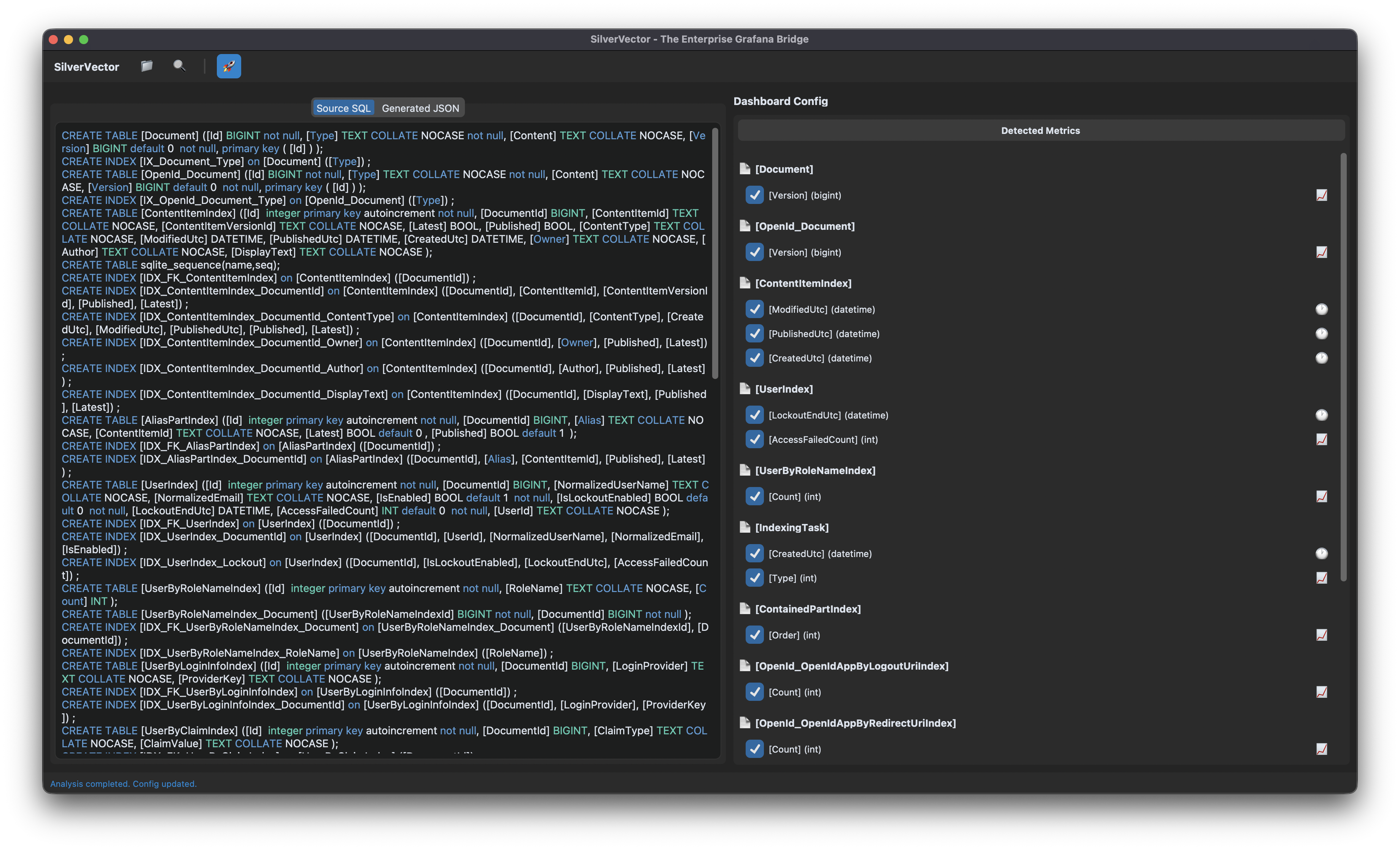
SilverVector detects the relevant metrics from the Orchard Core DDL that could be used in Grafana dashboard.
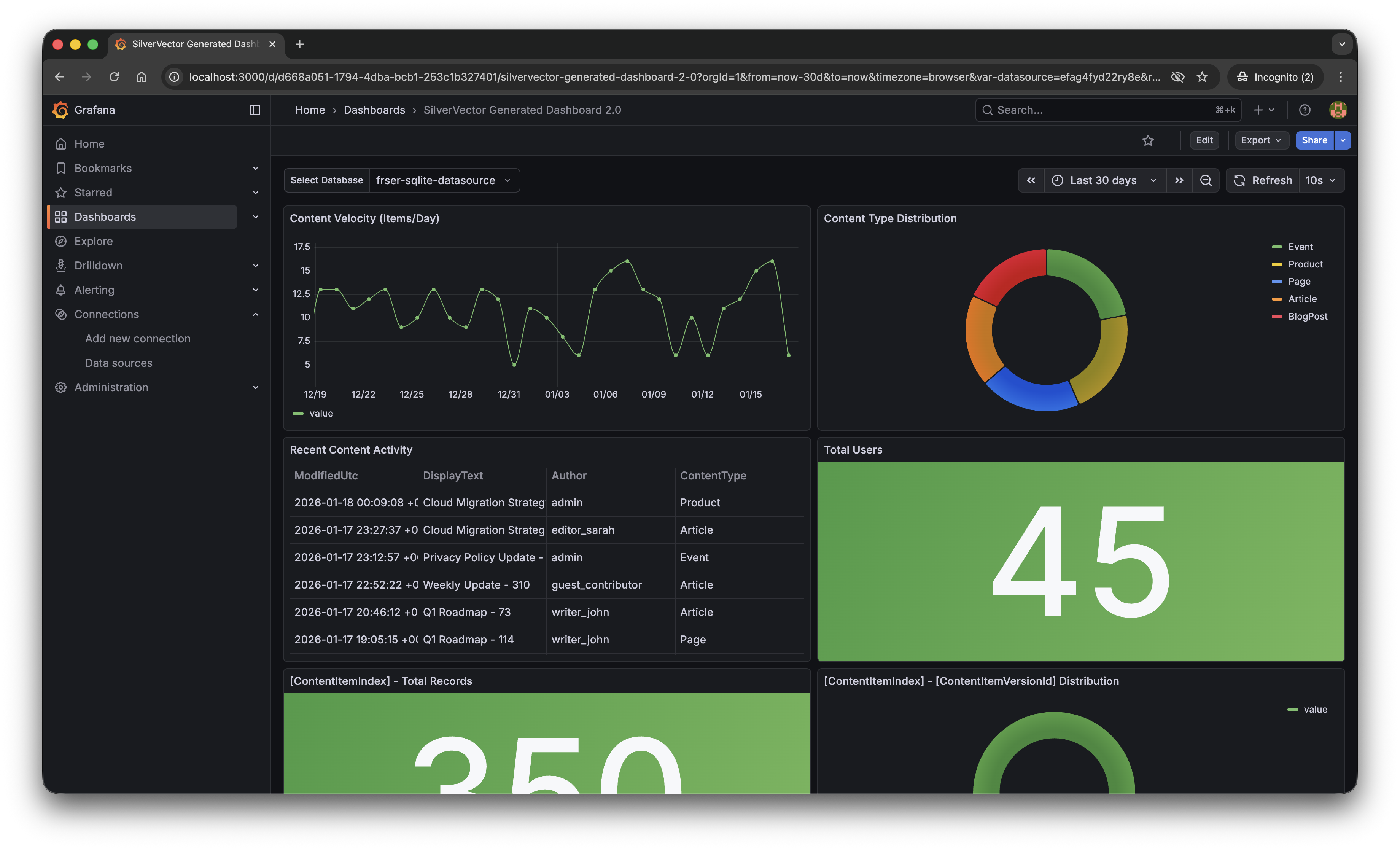
With a single click of the “blue rocket” button, SilverVector generated a JSON dashboard pre-configured with:
Content Velocity: A time-series graph showing publishing trends over the last 30 days.
Content Distribution: A pie chart breaking down content by type (Articles, Products, Pages).
Recent Activity: A detailed table of who changed what and when.
User Growth: A stat panel showing the total registered user base.
The “Content Velocity” graph generated by SilverVector.
Why This Matters for Orchard Core Developers
This is not just about saving 10 minutes of clicking to setup the initial Grafana dashboard. It is about empowerment.
As Orchard Core developers, you do not need to commit to a complex observability stack just to see if it is worth it. You can generate this dashboard locally, just as demonstrated above, point it at a backup of your production database, and instantly show your stakeholders the value of your work.
For many small SMEs in Singapore and Malaysia, as shared in our earlier post, the barrier of deploying observability stack is not just technical but it is survival. They are often too busy worrying about the rent of this month to invest time in a complex tech stack they do not fully understand. SilverVector lowers that barrier to minimal.
SilverVector gives you the foundation. We generate the boring boilerplate, i.e. the grid layout, the panel IDs, the basic SQL queries. Once you have that JSON, you are free to extend it! For example, you want to add CPU Usage? Just add a panel for your server metrics. Want to track Page Views? Join it with your IIS/Nginx logs.
In addition, since we rely on standard SQL indices such as ContentItemIndex, this dashboard works on any Orchard Core installation that uses a SQL database (SQL Server, SQLite, PostgreSQL, MySQL). You do not need to install a special module in your CMS application code.
A Call to Action
We believe the “Day 0” of observability should not be hard. It should be a default.
If you are an Orchard Core developer, try SilverVector today. Paste in your DDL, generate the dashboard, and see your Orchard Core CMS in a whole new light.
SilverVector is open source. Fork it, tweak the detection logic, and help us build the ultimate “Day 0” dashboard tool for every developer.
In the world of data visualisation, Grafana is the leader. It is the gold standard for observability, used by industry leaders to monitor everything from bank transactions to Mars rovers. However, for a local e-commerce shop in Penang or a small digital agency in Singapore, Grafana can feel like bringing a rocket scientist tool to cut fruits because it is powerful, but perhaps too difficult to use.
This is why we build SilverVector.
SilverVector generates standard Grafana JSON from DDL.
Why SilverVector?
In Malaysia and Singapore, SMEs are going digital very fast. However, they rarely have a full DevOps team. Usually, they just rely on The Solo Engineer, i.e. the freelancer, the agency developer, or the “full-stack developer” who does everything.
A common mistake in growing SMEs is asking full-stack developers to build meaningful business insights. The result is almost always a custom-coded “Admin Panel”.
While functional, these custom tools are hidden technical debt:
High Maintenance: Every new metric requires a code change and a deployment;
Poor Performance: Custom dashboards are often unoptimised;
Lack of Standards: Every internal tool looks different.
Custom panels developed in-house in SMEs are often ugly, hard to maintain, and slow because they often lack proper pagination or caching.
SilverVector allows you to skip building the internal tool entirely. By treating Grafana as your GUI layer, you get a standardised, performant, and beautiful interface for free. You supply the SQL and Grafana handles the rendering.
In addition, to some of the full-stack developers, building a proper Grafana dashboard from scratch involves hours of repetitive GUI clicking.
For an SME, “Zero Orders in the last hour” is not just a statistic. Instead, it is an emergency. SilverVector focuses on this Operational Intelligence, helping backend engineers visualise their system health easily.
Why not just use Terraform?
Terraform (and GitOps) is the gold standard for long-term maintenance. But terraform import requires an existing resource. SilverVector acts as the prototyping engine. It helps us in Day 0, i.e. getting us from “Zero” to “First Draft” in a few seconds. Once the client approves the dashboard, we can export that JSON into our GitOps workflow. We handle the chaotic “Drafting Phase” so our Terraform manages the “Stable Phase.”
Another big problem is trust. In the enterprise world, shadow IT is a nightmare. In the SME world, managers are also afraid to give API keys or database passwords to a tool they just found on GitHub.
SilverVector was built on a strict “Zero-Knowledge” principle.
We do not ask for database passwords;
We do not ask for API keys;
We do not connect to your servers.
We only ask for one safe thing: Schema (DDL). By checking the structure of your data (like CREATE TABLE orders...) and not the meaningful data itself, we can generate the dashboard configuration file. You take that file and upload it to your own Grafana yourself. We never connect to your production environment.
Key Technical Implementation
Building this tool means we act like a translator: SQL DDL -> Grafana JSON Model. Here is how we did it.
We did not use a heavy full SQL engine because we are not trying to be a database. We simply want to be a shortcut.
We built SilverVectorParser using regex and simple logic to solve the “80/20” problem. It guesses likely metrics (e.g., column names like amount, duration) and dimensions. However, regex is not perfect. That is why the Tooling matters more than the Parser. If our logic guesses wrong, you do not have to debug our python code. You just uncheck the box in the UI.
The goal is not to be a perfect compiler. Instead, it is to be a smart assistant that types the repetitive parts for you.
Screenshot of the SilverVector UI Main Window.
For the interface, we choose CustomTkinter. Why a desktop GUI instead of a web app?
It comes down to Speed and Reality.
Offline-First: Network infrastructure in parts of Malaysia, from remote industrial sites in Sarawak to secure server basements in Johor Bahru can be spotty. This is critical for engineers deploying to Self-Hosted Grafana (OSS) instances where Internet access is restricted or unavailable;
Zero Configuration: Connecting a tool to your Grafana API requires generating service accounts, copying tokens, and configuring endpoints. It is tedious. SilverVector bypasses this “configuration tax” by generating a standard JSON file when you can just generate, drag, and drop.
Human-in-the-Loop: A command-line tool runs once and fails if the regex is wrong. Our UI allows you to see the detection and correct it instantly via checkboxes before generating the JSON.
To make the tool feel like a real developer product, we integrate a proper code experience. We use pygments to read both the input SQL and the output JSON. We then map those tokens to Tkinter text tags colours. This makes it look familiar, so you can spot syntax errors in the input schema easily.
Close-up zoom of the text editor area in SilverVector.
Technical Note: To ensure the output actually works when you import it:
Datasources: We set the Data Source as a Template Variable. On import, Grafana will simply ask you: “Which database do you want to use?” You do not need to edit the JSON helper IDs manually.
Performance: Time-series queries automatically include time range clauses (using $__from and $__to). This prevents the dashboard from accidentally scanning your entire 10-year history every time you refresh;
SQL Dialects: The current version uses SQLite for the local demo so anyone can test it immediately without spinning up Docker containers.
Future-Proofing for Growth
SilverVector is currently in its MVP phase, and the vision is simple: Productivity.
If you are a consultant or an engineer who has to set up observability for many projects, you know the pain of configuring panel positions manually. SilverVector is the painkiller. Stop writing thousands of lines of JSON boilerplate. Paste your schema, click generate, and spend your time on the queries that actually matter.
The resulting Grafana dashboard generated by SilverVector.
A sensible question that often comes up is: “Is this just a short-term fix? What happens when I hire a real team?”
The answer lies in Standardisation.
SilverVector generates standard Grafana JSON, which is the industry default. Since you own the output file, you will never be locked in to our tool.
Ownership: You can continue to edit the dashboard manually in Grafana OSS or Grafana Cloud as your requirements change;
Scalability: When you eventually hire a full DevOps engineer or migrate to Grafana Cloud, the JSON generated by SilverVector is fully compatible. You can easily convert it into advanced Code (like Terraform) later. We simply do the heavy lifting of writing the first 500 lines for them;
Stability: By building on simple SQL principles, the dashboard remains stable even as your data grows.
In addition, since SilverVector generates SQL queries that read from your database directly, you must be a responsible engineer to ensure your columns (especially timestamps) are indexed properly. A dashboard is only as fast as the database underneath it!
In short, we help you build the foundation quickly so you can renovate freely later.
In cloud infrastructure, the ultimate challenge is building systems that are not just resilient, but also radically efficient. We cannot afford to provision hardware for peak loads 24/7 because it is simply a waste of money.
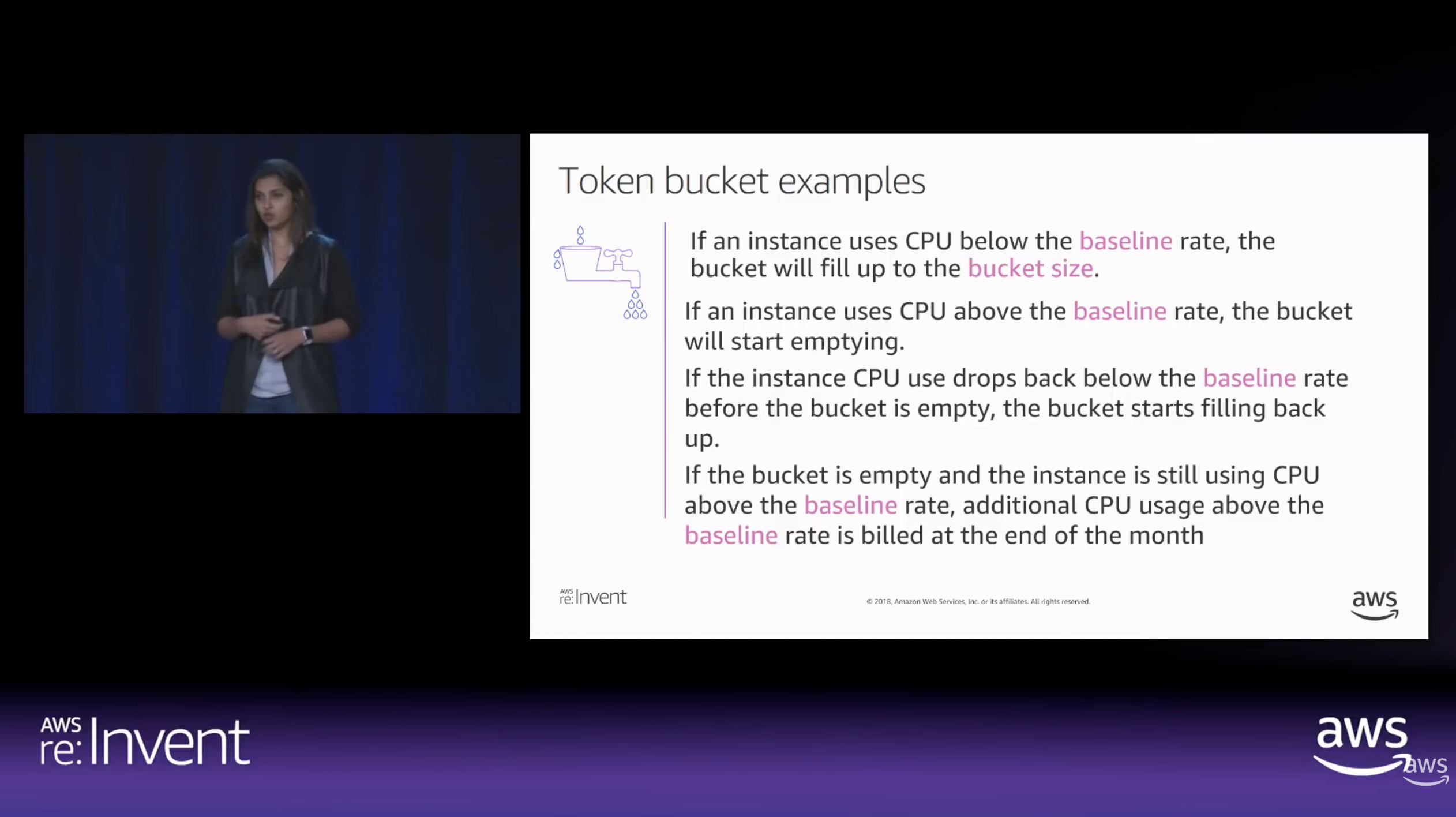
To achieve radical efficiency, AWS offers the T-series (like T3 and T4g). These instances allow us to pay for a baseline CPU level while retaining the ability to “burst” during high-traffic periods. This performance is governed by CPU Credits.
Modern T3 instances run on the AWS Nitro System, which offloads I/O tasks. This means nearly 100% of the credits we burn are spent on our actual SQL queries rather than background noise.
By default, Amazon RDS T3 instances are configured for “Unlimited Mode”. This prevents our database from slowing down when credits hit zero, but it comes with a cost: We will be billed for the Surplus Credits.
How CPU Credits are earned vs. spent over time. (Source: AWS re:Invent 2018)
The Experiment: Designing the Stress Test
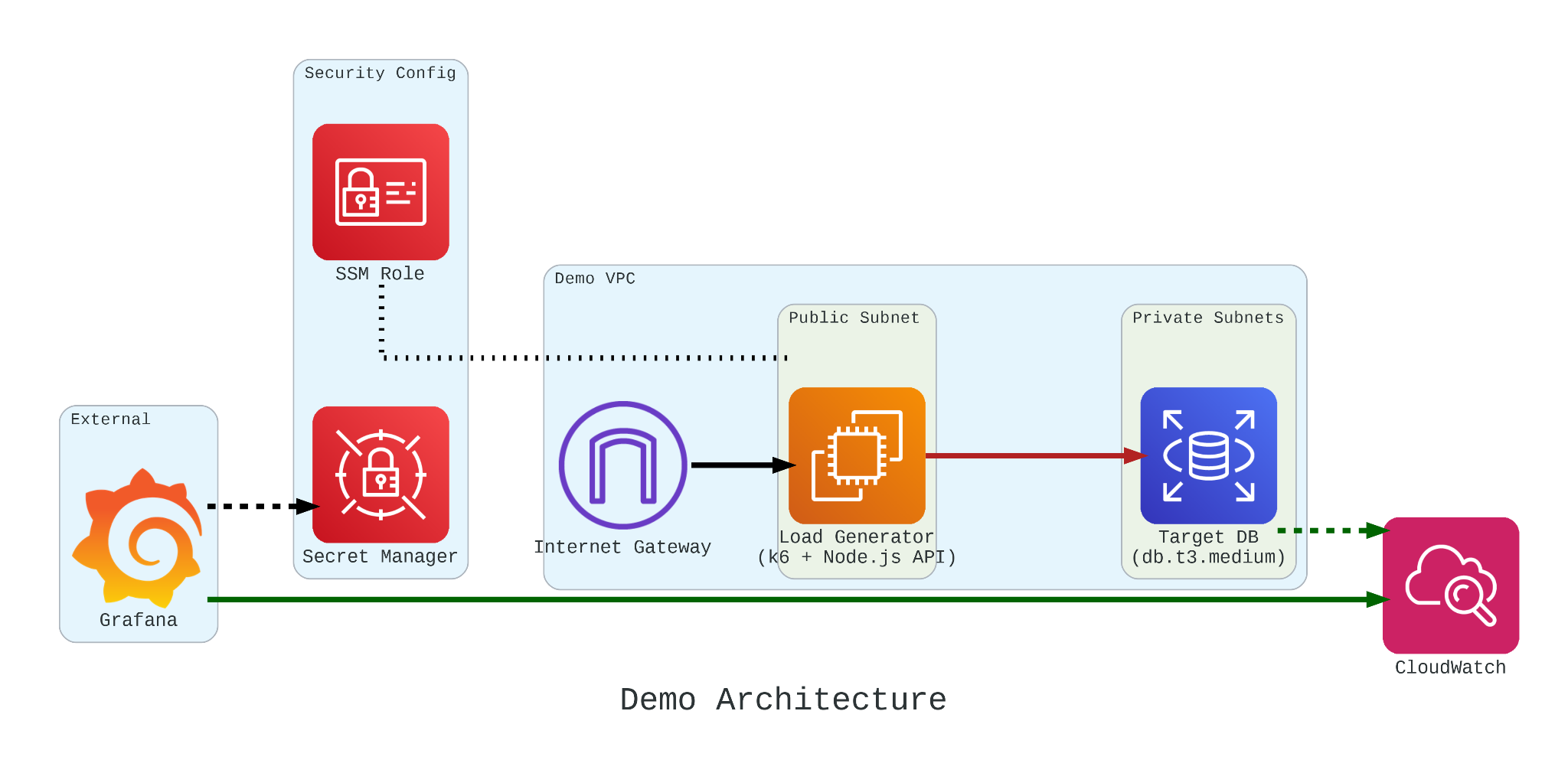
To truly understand how these credits behave under pressure, we built a controlled performance testing environment.
Our setup involved:
The Target: An Amazon RDS db.t3.medium instance.
The Generator: An EC2 instance running k6. We chose k6 because it allows us to write performance tests in JavaScript that are both developer-friendly and incredibly powerful.
The Workload: We simulated 200 concurrent users hitting an API that triggered heavy, CPU-bound SQL queries.
Simulation Fidelity with Micro-service
If we had k6 connect directly to PostgreSQL, it would not look like real production traffic. In order to make our stress test authentic, we introduce a simple NodeJS micro-service to act as the middleman.
This service does two critical things:
Implements a Connection Pool: Using the pg library Pool with a max: 20 setting, it mimics how a real-world app manages database resources;
Triggers the “Heavy Lifting”: The /heavy-query endpoint is designed to be purely CPU-bound. It forces the database to perform 1,000,000 calculations per request using nested generate_series.
In our k6 load test, we do not just flip a switch. We design a specific three-stage lifecycle for our RDS instance:
Ramp Up: We started with a gradual ramp-up from 0 to 50 users. This allows the connection pool to warm up and ensures we are not seeing performance spikes just from initial handshakes;
High-load Burn: We push the target to 200 concurrent users. These users will be hitting a /heavy-query endpoint that forces the database to calculate a million rows per second. This stage is designed to drain the CPUCreditBalance and prove that “efficiency” has its limits;
Ramp Down: Finally, we ramp back down to zero. This is the crucial moment in Grafana where we watch to see if the CPU credits begin to accumulate again or if the instance remains in a “debt” state.
import http from 'k6/http'; import { check, sleep } from 'k6';
export default function () { const res = http.get('http://localhost:3000/heavy-query'); check(res, { 'status was 200': (r) => r.status == 200 }); sleep(0.1); }
Monitoring with Grafana
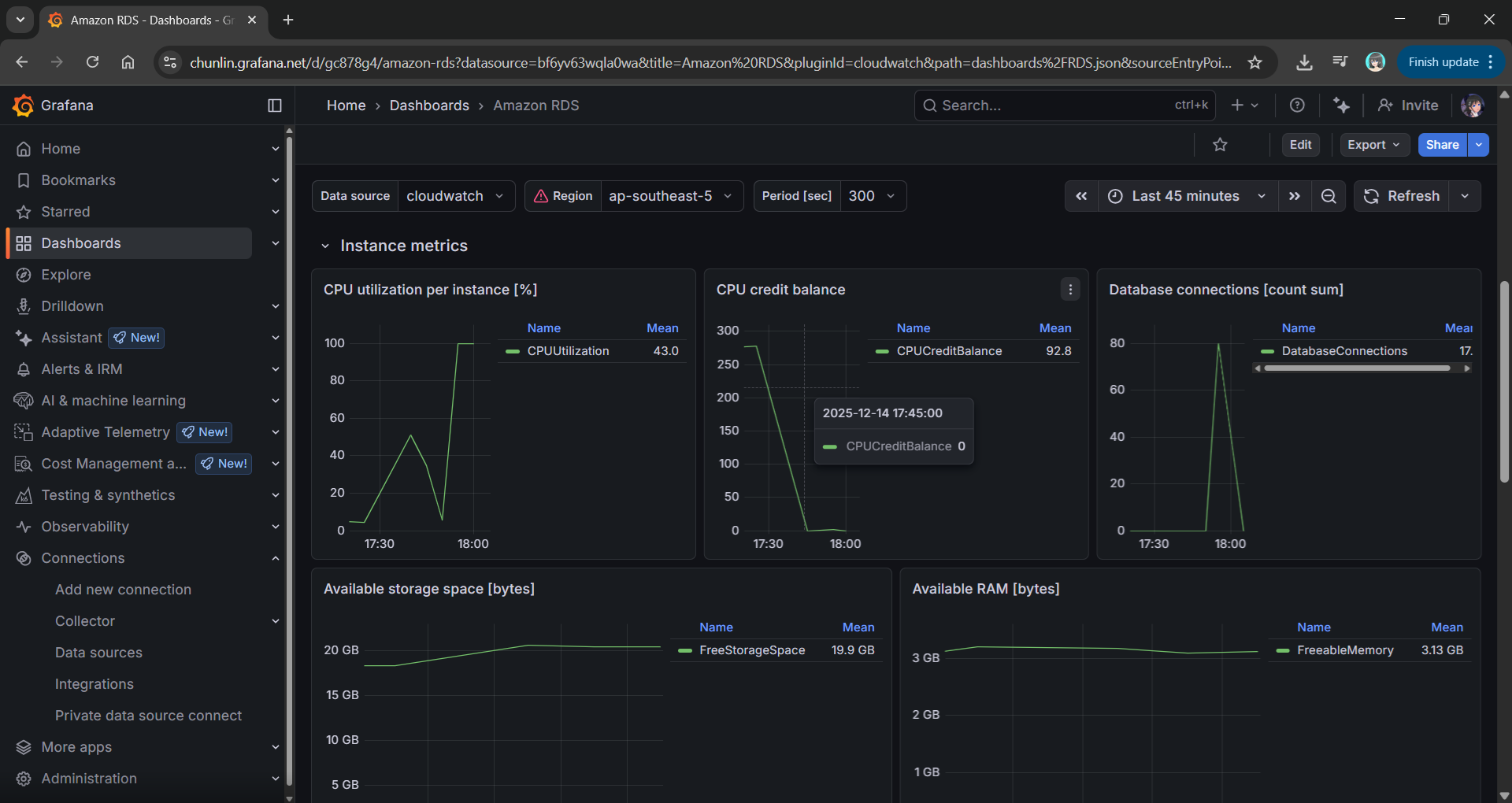
If we are earning CPU credits slower than we are burning them, we are effectively walking toward a performance (or financial) cliff. To be truly resilient, we must monitor our CPUCreditBalance.
We use Grafana to transform raw CloudWatch signals into a peaceful dashboard. While “Unlimited Mode” keeps the latency flat, Grafana reveals the truth: Our credit balance decreases rapidly when CPU utilisation goes up to 100%.
Grafana showing the inverse relationship between high CPU Utilisation and a dropping CPU Credit Balance.
Predicting the Future with Discrete Event Simulation
Physical load testing with k6 is essential, but it takes real-time to run and costs real money for instance uptime.
Simulate a 24-hour traffic spike in just a few seconds;
Mathematically prove whether a rds.t3.medium is more cost-effective for a specific workload;
Predict exactly when an instance will run out of credits before we ever deploy it.
Simulation results from the SNA.
Final Thoughts
Efficiency is not just about saving money. Instead, it is about understanding the mathematical limits of our architecture. By combining AWS burstable instances with deep observability and predictive discrete event simulation, we can build systems that are both lean and unbreakable.
For those interested in the math behind the simulation, check out the SNA Library on GitHub.
Pinecone worked well, but as the project grew, I wanted more control, something open-source, and a cheaper option. That is when I found pgvector, a tool that adds vector search to PostgreSQL and gives the flexibility of an open-source database.
About HSR and Relic Recommendation System
Honkai: Star Rail (HSR) is a popular RPG that has captured the attention of players worldwide. One of the key features of the game is its relic system, where players equip their characters with relics like hats, gloves, or boots to boost stats and unlock special abilities. Each relic has unique attributes, and selecting the right sets of relics for a character can make a huge difference in gameplay.
As a casual player, I often found myself overwhelmed by the number of options and the subtle synergies between different relic sets. Finding the good relic combination for each character was time-consuming.
This is where LLMs like Gemini come into play. With the ability to process and analyse complex data, Gemini can help players make smarter decisions.
In November 2024, I started a project to develop a Gemini-powered HSR relic recommendation system which can analyse a player’s current characters to suggest the best options for them. In the project, I have been storing embeddings in Pinecone.
Embeddings and Vector Database
An embedding is a way to turn data, like text or images, into a list of numbers called a vector. These vectors make it easier for a computer to compare and understand the relationships between different pieces of data.
For example, in the HSR relic recommendation system, we use embeddings to represent descriptions of relic sets. The numbers in the vector capture the meaning behind the words, so similar relics and characters have embeddings that are closer together in a mathematical sense.
This is where vector databases like Pinecone or pgvector come in. Vector databases are designed for performing fast similarity searches on large collections of embeddings. This is essential for building systems that need to recommend, match, or classify data.
pgvector is an open-source extension for PostgreSQL that allows us to store and search for vectors directly in our database. It adds specialised functionality for handling vector data, like embeddings in our HSR project, making it easier to perform similarity searches without needing a separate system.
Unlike managed services like Pinecone, pgvector is open source. This meant we could use it freely and avoid vendor lock-in. This is a huge advantage for developers.
Finally, since pgvector runs on PostgreSQL, there is no need for additional managed service fees. This makes it a budget-friendly option, especially for projects that need to scale without breaking the bank.
Choosing the Right Model
While the choice of the vector database is important, it is not the key factor in achieving great results. The quality of our embeddings actually is determined by the model we choose.
For my HSR relic recommendation system, when our embeddings were stored in Pinecone, I started by using the multilingual-e5-large model from Microsoft Research offered in Pinecone.
When I migrated to pgvector, I had the freedom to explore other options. For this migration, I chose the all-MiniLM-L6-v2 model hosted on Hugging Face, which is a lightweight sentence-transformer designed for semantic similarity tasks. Switching to this model allowed me to quickly generate embeddings for relic sets and integrate them into pgvector, giving me a solid starting point while leaving room for future experimentation.
The all-MiniLM-L6-v2 model hosted on Hugging Face.
Using all-MiniLM-L6-v2 Model
Once we have decided to use the all-MiniLM-L6-v2 model, the next step is to generate vector embeddings for the relic descriptions. This model is from the sentence-transformers library, so we first need to install the library.
pip install sentence-transformers
The library offers SentenceTransformer class to load pre-trained models.
from sentence_transformers import SentenceTransformer

model_name = 'all-MiniLM-L6-v2'
model = SentenceTransformer(model_name)
At this point, the model is ready to encode text into embeddings.
The SentenceTransformer model takes care of tokenisation and other preprocessing steps internally, so we can directly pass text to it.
# Function to generate embedding for a single text
def generate_embedding(text):
    # No need to tokenise separately, it's done internally
    # No need to average the token embeddings
    embeddings = model.encode(text)

    return embeddings
In this function, when we call model.encode(text), the model processes the text through its transformer layers, generating an embedding that captures its semantic meaning. The output is already optimised for tasks like similarity search.
Setting up the Database
After generating embeddings for each relic sets using the all-MiniLM-L6-v2 model, the next step is to store them in the PostgreSQL database with the pgvector extension.
Here, a dimension refers to one of the “features” that helps describe something. When we talk about vectors and embeddings, each dimension is just one of the many characteristics used to represent a piece of text. These features could be things like the type of words used, their relationships, and even the overall meaning of the text.
Updating the Database
After the table is created, we can proceed to create INSERT INTO SQL statements to insert the embeddings and their associated text into the database.
In this step, I load the relic information from a JSON file and process it.
import json

# Load your relic set data from a JSON file
with open('/content/hsr-relics.json', 'r') as f:
    relic_data = json.load(f)

# Prepare data
relic_info_data = [
    {"id": relic['name'], "text": relic['two_piece'] + " " + relic['four_piece']}  # Combine descriptions
    for relic in relic_data
]
The relic_info_data will then be passed to the following function to generate the INSERT INTO statements.
# Function to generate INSERT INTO statements with vectors
def generate_insert_statements(data):
    # Initialise list to store SQL statements
    insert_statements = []

    for record in data:
        # Extracting text and id from the record
        id = record.get('id')
        text = record.get('text')

        # Generate the embedding for the text
        embedding = generate_embedding(text)

        # Convert the embedding to a list
        embedding_list = embedding.tolist()

        # Create the SQL INSERT INTO statement
        sql_statement = f"""
        INSERT INTO embeddings (id, vector, text)
        VALUES (
          '{id.replace("'", "''")}',
          ARRAY{embedding_list},
          '{text.replace("'", "''")}')
        ON CONFLICT (id) DO UPDATE
        SET vector = EXCLUDED.vector, text = EXCLUDED.text;
        """

        # Append the statement to the list
        insert_statements.append(sql_statement)

    return insert_statements
The embeddings of the relic sets are successfully inserted to the database.
How It All Fits Together: Query the Database
Once we have stored the vector embeddings of all the relic sets in our PostgreSQL database, the next step is to find the relic sets that are most similar to a given character’s relic needs.
Just like what we have done for storing relic set embeddings, we need to generate an embedding for the query describing the character’s relic needs. This is done by passing the query through the model as demonstrated in the following code.
The generated embedding is an array of 384 numbers. We simply use this array in our SQL query below.
SELECT id, text, vector <=> '[<embedding here>]' AS distance
FROM embeddings
ORDER BY distance
LIMIT 3;
The key part of the query is the <=> operator. This operator calculates the “distance” between two vectors based on cosine similarity. In our case, it measures how similar the query embedding is to each stored embedding. The smaller the distance, the more similar the embeddings are.
We use LIMIT 3 to get the top 3 most similar relic sets.
Test Case: Finding Relic Sets for Gallagher
Gallagher is a Fire and Abundance character in HSR. He is a sustain unit that can heal allies by inflicting a debuff on the enemy.
According to the official announcement, Gallagher is a healer. (Image Source: Honkai: Star Rail YouTube)
The following screenshot shows the top 3 relic sets which are closely related to a HSR character called Gallagher using the query “Suggest the best relic sets for this character: Gallagher is a Fire and Abundance character in Honkai: Star Rail. He can heal allies.”
The returned top 3 relic sets are indeed recommended for Gallagher.
One of the returned relic sets is called the “Thief of Shooting Meteor”. It is the official recommended relic set in-game, as shown in the screenshot below.
Gallagher’s official recommended relic set.
Future Work
In our project, we will not be implementing indexing because currently in HSR, there are only a small number of relic sets. Without an index, PostgreSQL will still perform vector similarity searches efficiently because the dataset is small enough that searching through it directly will not take much time. For small-scale apps like ours, querying the vector data directly is both simple and fast.
However, when our dataset grows larger in the future, it is a good idea to explore indexing options, such as the ivfflat index, to speed up similarity searches.








 cuteprogramming