In today’s interconnected world, APIs are the backbone of modern apps. Protecting these APIs and ensuring only authorised users access sensitive data is now more crucial than ever. While many authentication and authorisation methods exist, OAuth2 Introspection stands out as a robust and flexible approach. In this post, we will explore what OAuth2 Introspection is, why we should use it, and how to implement it in our .NET apps.
Before we dive into the technical details, let’s remind ourselves why API security is so important. Think about it: APIs often handle the most sensitive stuff. If those APIs are not well protected, we are basically opening the door to some nasty consequences. Data breaches? Yep. Regulatory fines (GDPR, HIPAA, you name it)? Potentially. Not to mention, losing the trust of our users. A secure API shows that we value their data and are committed to keeping it safe. And, of course, it helps prevent the bad guys from exploiting vulnerabilities to steal data or cause all sorts of trouble.
The most common method of securing APIs is using access tokens as proof of authorization. These tokens, typically in the form of JWTs (JSON Web Tokens), are passed by the client to the API with each request. The API then needs a way to validate these tokens to verify that they are legitimate and haven’t been tampered with. This is where OAuth2 Introspection comes in.
OAuth2 Introspection
OAuth2 Introspection is a mechanism for validating bearer tokens in an OAuth2 environment. We can think of it as a secure lookup service for our access tokens. It allows an API to query an auth server, which is also the “issuer” of the token, to determine the validity and attributes of a given token.
The workflow of an OAuth2 Introspection request.
To illustrate the process, the diagram above visualises the flow of an OAuth2 Introspection request. The Client sends the bearer token to the Web API, which then forwards it to the auth server via the introspection endpoint. The auth server validates the token and returns a JSON response, which is then processed by the Web API. Finally, the Web API grants (or denies) access to the requested resource based on the token validity.
Introspection vs. Direct JWT Validation
You might be thinking, “Isn’t this just how we normally validate a JWT token?” Well, yes… and no. What is the difference, and why is there a special term “Introspection” for this?
With direct JWT validation, we essentially check the token ourselves, verifying its signature, expiry, and sometimes audience. Introspection takes a different approach because it involves asking the auth server about the token status. This leads to differences in the pros and cons, which we will explore next.
With OAuth2 Introspection, we gain several key advantages. First, it works with various token formats (JWTs, opaque tokens, etc.) and auth server implementations. Furthermore, because the validation logic resides on the auth server, we get consistency and easier management of token revocation and other security policies. Most importantly, OAuth2 Introspection makes token revocation straightforward (e.g., if a user changes their password or a client is compromised). In contrast, revoking a JWT after it has been issued is significantly more complex.
.NET Implementation
Now, let’s see how to implement OAuth2 Introspection in a .NET Web API using the AddOAuth2Introspection authentication scheme.
The core configuration lives in our Program.cs file, where we set up the authentication and authorisation services.
// ... (previous code for building the app)

builder.Services.AddAuthentication("Bearer")
   .AddOAuth2Introspection("Bearer", options =>
   {
       options.IntrospectionEndpoint = "<Auth server base URL>/connect/introspect";
       options.ClientId = "<Client ID>";
       options.ClientSecret = "<Client Secret>";

       options.DiscoveryPolicy = new IdentityModel.Client.DiscoveryPolicy
       {
           RequireHttps = false,
       };
   });

builder.Services.AddAuthorization();

// ... (rest of the Program.cs)
This code above configures the authentication service to use the “Bearer” scheme, which is the standard for bearer tokens. AddOAuth2Introspection(…) is where the magic happens because it adds the OAuth2 Introspection authentication handler by pointing to IntrospectionEndpoint, the URL our API will use to send the token for validation.
Usually, RequireHttps needs to be true in production. However, in situations like when the API and the auth server are both deployed to the same Elastic Container Service (ECS) cluster and they communicate internally within the AWS network, we can set it to false. This is because the Application Load Balancer (ALB) handles the TLS/SSL termination and the internal communication between services happens over HTTP, we can safely disable RequireHttps in the DiscoveryPolicy for the introspection endpoint within the ECS cluster. This simplifies the setup without compromising security, as the communication from the outside world to our ALB is already secured by HTTPS.
Finally, to secure our API endpoints and require authentication, we can simply use the [Authorize] attribute, as demonstrated below.
[ApiController]
[Route("[controller]")]
[Authorize]
public class MyController : ControllerBase
{
   [HttpGet("GetData")]
   public IActionResult GetData()
   {
       ...
   }
}
Wrap-Up
OAuth2 Introspection is a powerful and flexible approach for securing our APIs, providing a centralised way to validate bearer tokens and manage access. By understanding the process, implementing it correctly, and following best practices, we can significantly improve the security posture of our apps and protect our valuable data.
We use Amazon S3 to store data for easy sharing among various applications. However, each application has its unique requirements and might require a different perspective on the data. To solve this problem, at times, we store additional customised datasets of the same data, ensuring that each application has its own unique dataset. This sometimes creates another set of problems because we now need to maintain additional datasets.
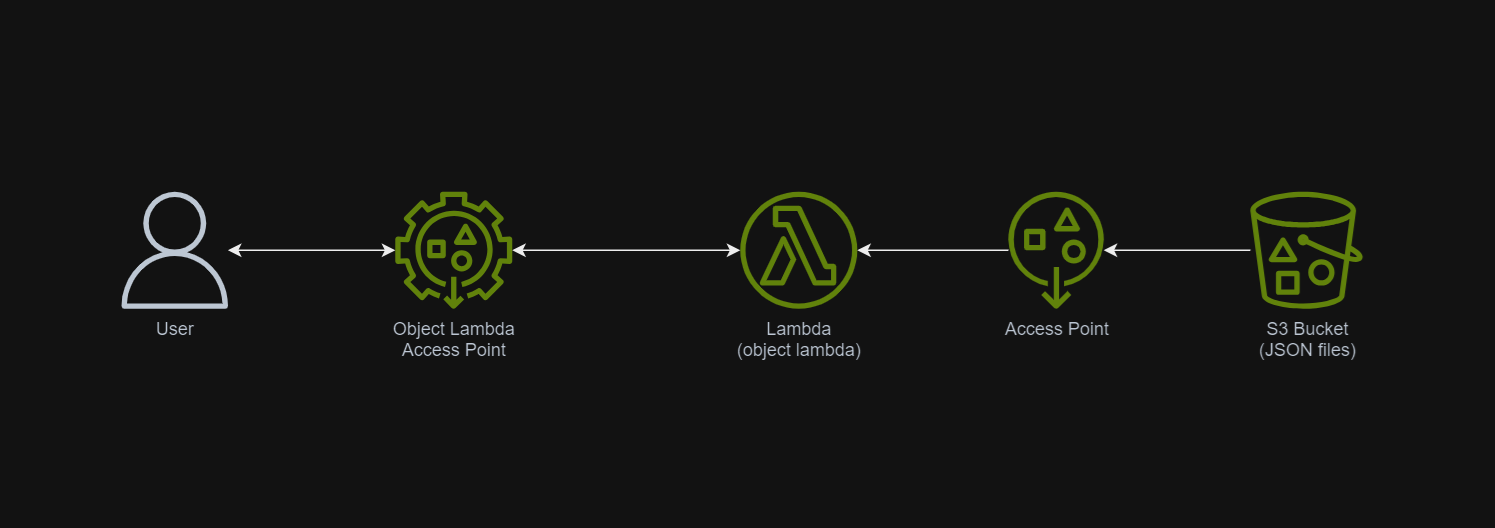
In March 2021, a new feature known as S3 Object Lambda was introduced. Similar to the idea of setting up a proxy layer in front of S3 to intercept and process data as it is requested, Object Lambda uses AWS Lambda functions to automatically process and transform your data as it is being retrieved from S3. With Object Lambda, we only need to change our apps to use the new S3 Object Lambda Access Point instead of the actual bucket name to retrieve data from S3.
Simplified architecture diagram showing how S3 Object Lambda works.
Example: Turning JSON to Web Page with S3 Object Lambda
I have been keeping details of my visits to medical centres as well as the treatments and medicines I received in a JSON file. So, I would like to take this opportunity to show how S3 Object Lambda can help in doing data processing.
We need a Lambda Function to do the data format transformation from JSON to HTML. To keep things simple, we will be developing the Function using Python 3.12.
Object Lambda does not need any API Gateway since it should be accessed via the S3 Object Lambda Access Point.
In the beginning, we can have the code as follows. The code basically does two things. Firstly, it performs some logging. Secondly, it reads the JSON file from S3 Bucket.
import json import os import logging import boto3 from urllib import request from urllib.error import HTTPError from types import SimpleNamespace
def lambda_handler(event, context): object_context = event["getObjectContext"] # Get the presigned URL to fetch the requested original object from S3 s3_url = object_context["inputS3Url"] # Extract the route and request token from the input context request_route = object_context["outputRoute"] request_token = object_context["outputToken"]
# Get the original S3 object using the presigned URL req = request.Request(s3_url) try: response = request.urlopen(req) responded_json = response.read().decode() except Exception as err: logger.error(f'Exception reading S3 content: {err}') return {'status_code': 500}
Step 1.1: Getting the JSON File with Presigned URL
In the event that an Object Lambda receives, there is a property known as the getObjectContext, which contains useful information for us to figure out the inputS3Url, which is the presigned URL of the object in S3.
By default, all S3 objects are private and thus for a Lambda Function to access the S3 objects, we need to configure the Function to have S3 read permissions to retrieve the objects. However, with the presigned URL, the Function can get the object without the S3 read permissions.
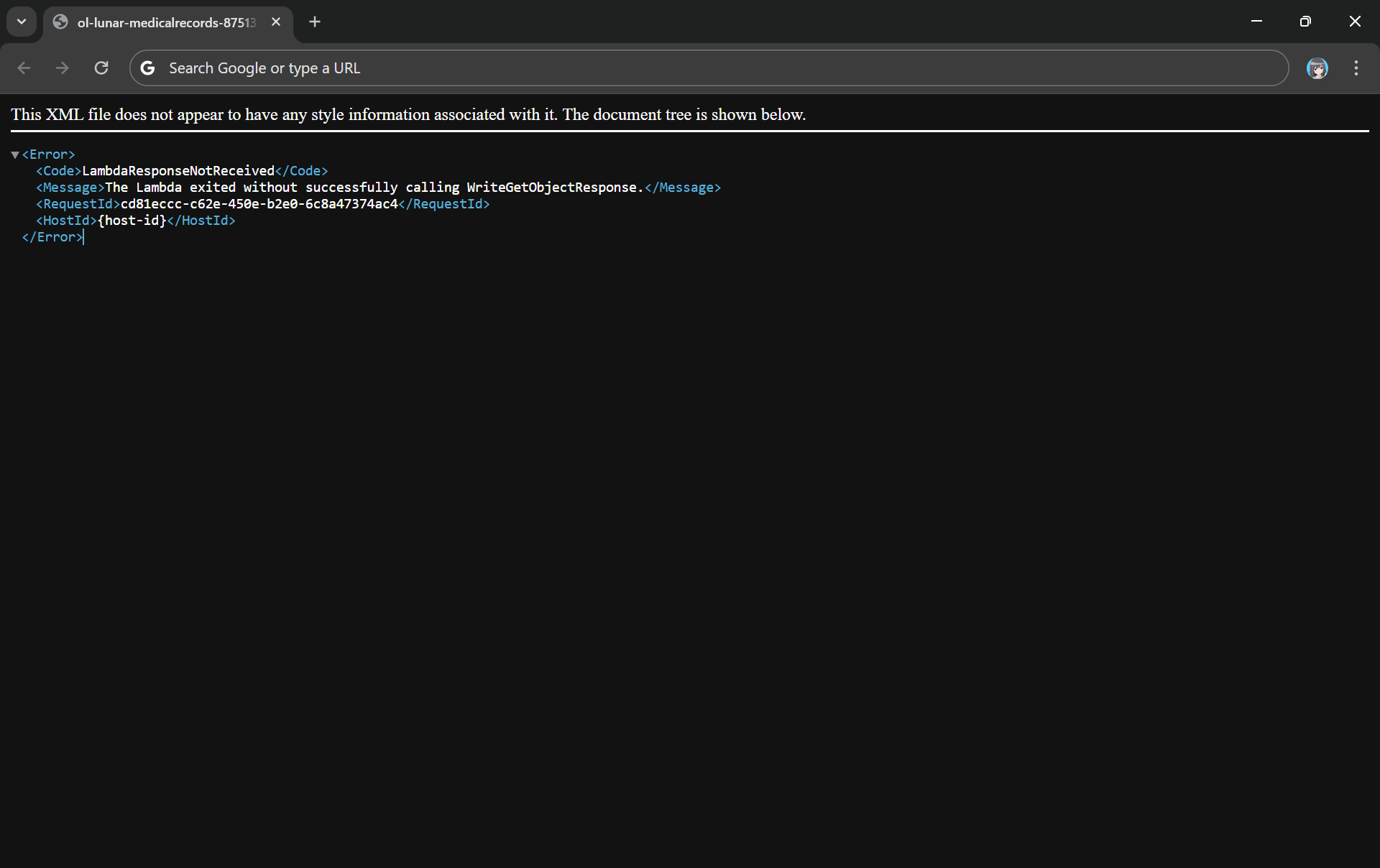
Since the purpose of Object Lambda is to process and transform our data as it is being retrieved from S3, we need to pass transformed object to a GetObject operation in the Function via the method write_get_object_response. Without this method, there will be an error from the Lambda complaining that it is missing.
Error: The Lambda exited without successfully calling WriteGetObjectResponse.
html = template_content.replace('{{DYNAMIC_TABLE}}', dynamic_table)
Step 2: Give Lambda Function Necessary Permissions
With the setup we have gone through above, we understand that our Lambda Function needs to have the following permissions.
s3-object-lambda:WriteGetObjectResponse
s3:GetObject
Step 3: Create S3 Access Point
Next, we will need to create a S3 Access Point. It will be used to support the creation of the S3 Object Lambda Access Point later.
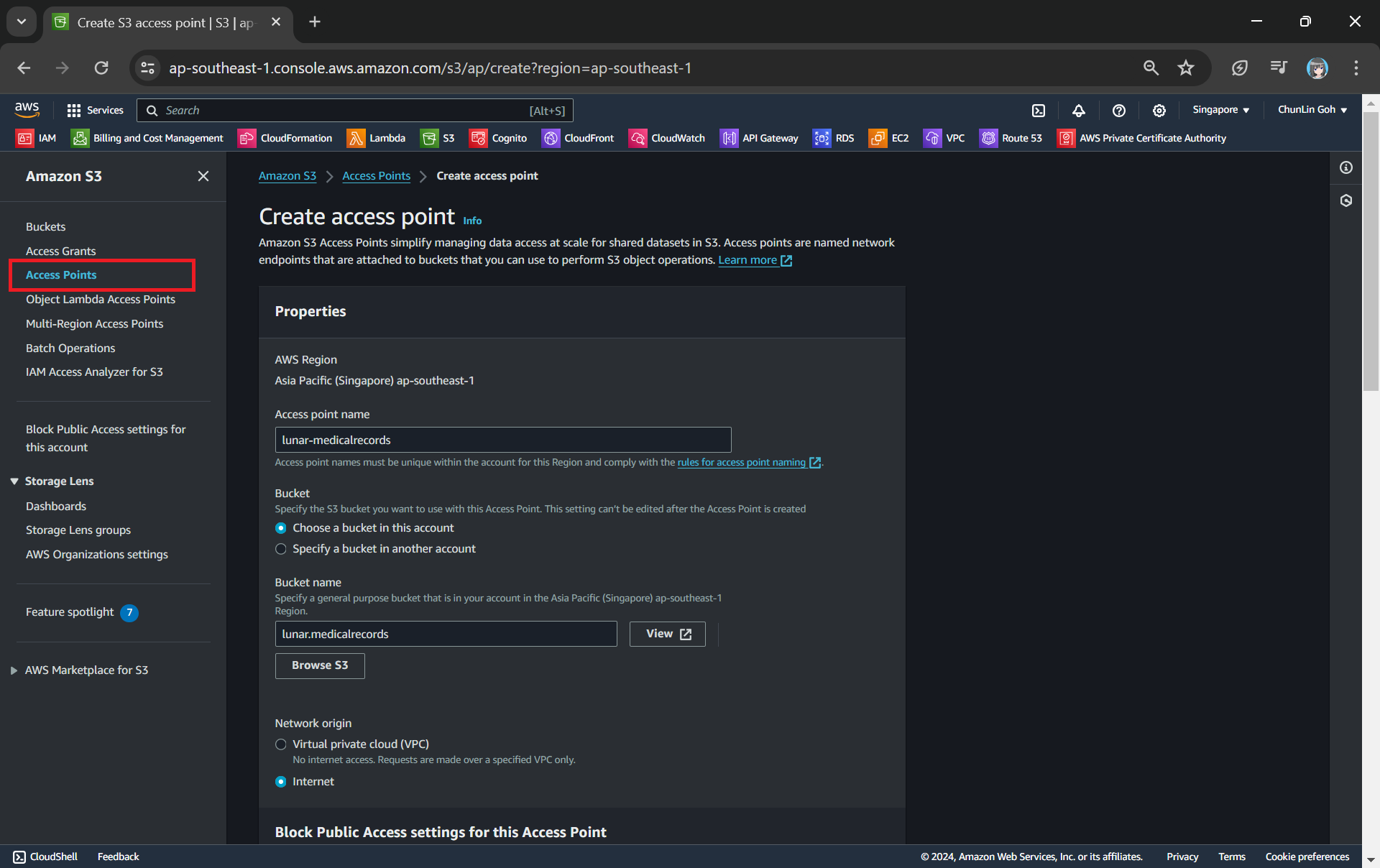
One of the features that S3 Access Point offers is that we can specify any name that is unique within the account and region. For example, as shown in the screenshot below, we can actually have a “lunar-medicalrecords” access point in every account and region.
Creating an access point from the navigation pane of S3.
When we are creating the access point, we need to specify the bucket which resides in the same region that we want to use with this Access Point. In addition, since we are not restricting the access of it to only a specific VPC in our case, we will be choosing “Internet” for the “Network origin” field.
After that, we keep all other defaults as is. We can directly proceed to choose the “Create access point” button.
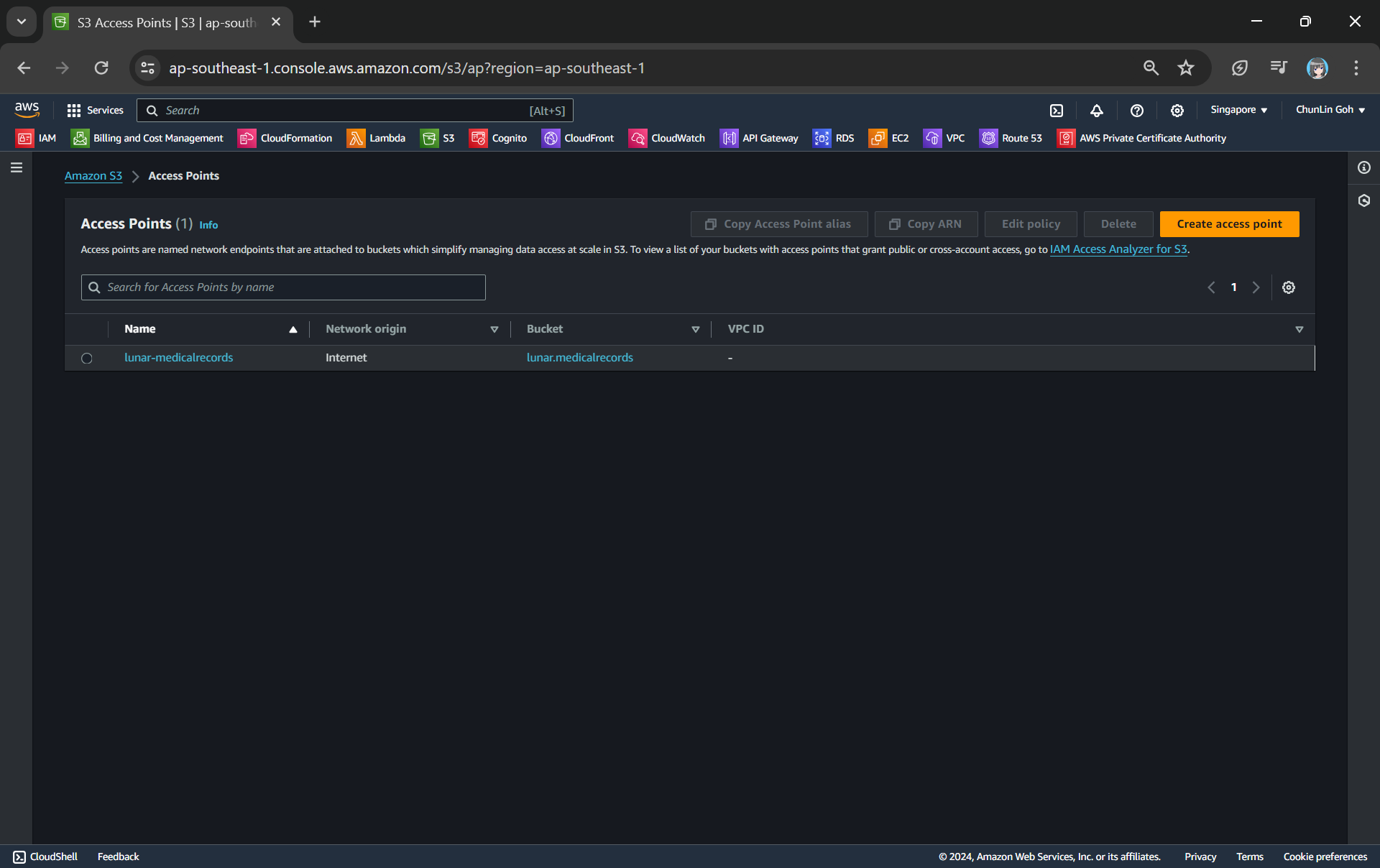
Our S3 Access Point is successfully created.
Step 4: Create S3 Object Lambda Access Point
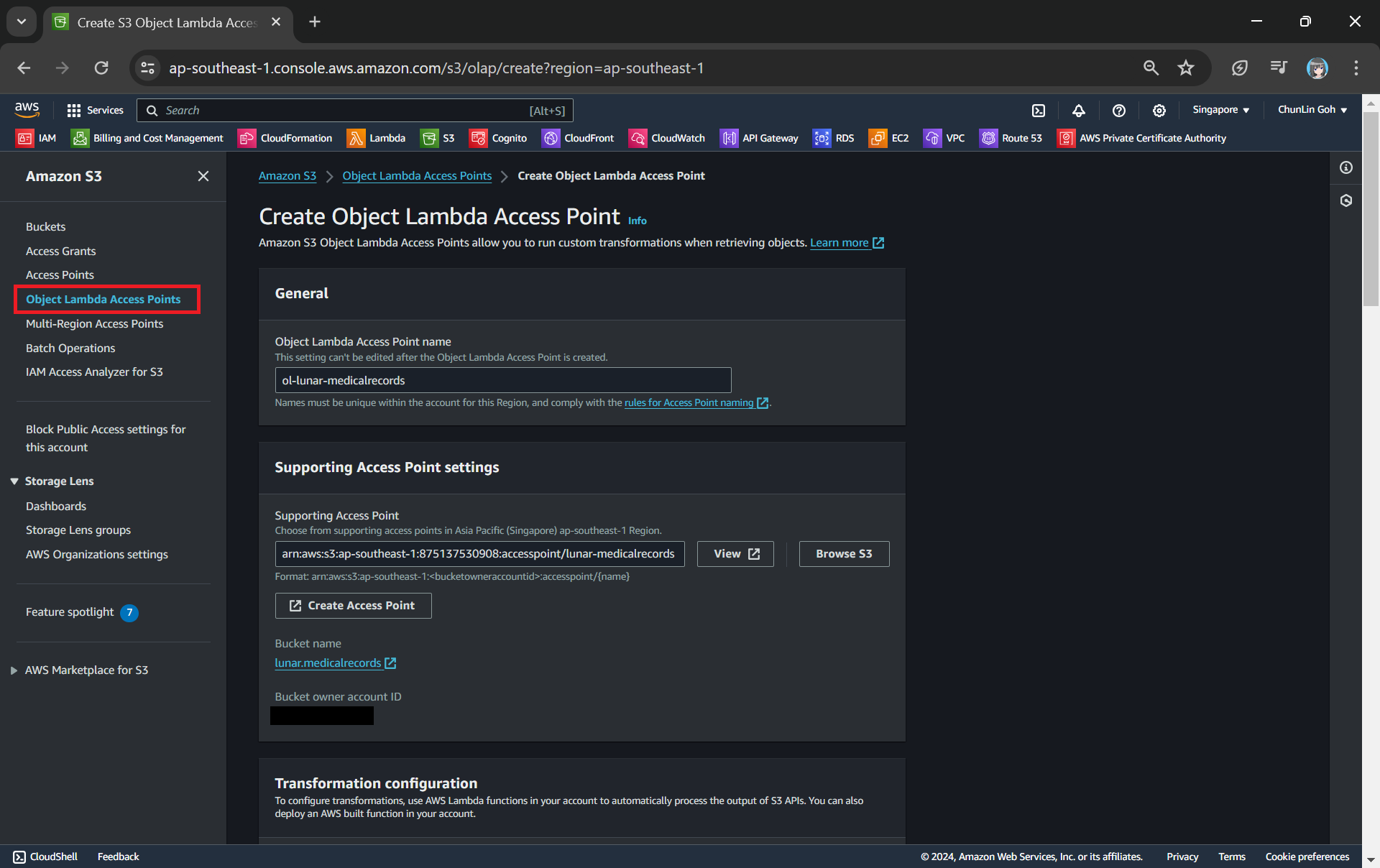
After getting our S3 Access Point set up, we can then move on to create our S3 Object Lambda Access Point. This is the actual access point that our app will be using to access the JSON file in our S3 bucket. It then should return a HTML document generated by the Object Lambda that we built in Step 1.
Creating an object lambda access point from the navigation pane of S3.
In the Object Lambda Access Point creation page, after we give it a name, we need to provide the Supporting Access Point. This access point is the Amazon Resource Name (ARN) of the S3 Access Point that we created in Step 3. Please take note that both the Object Lambda Access Point and Supporting Access Point must be in the same region.
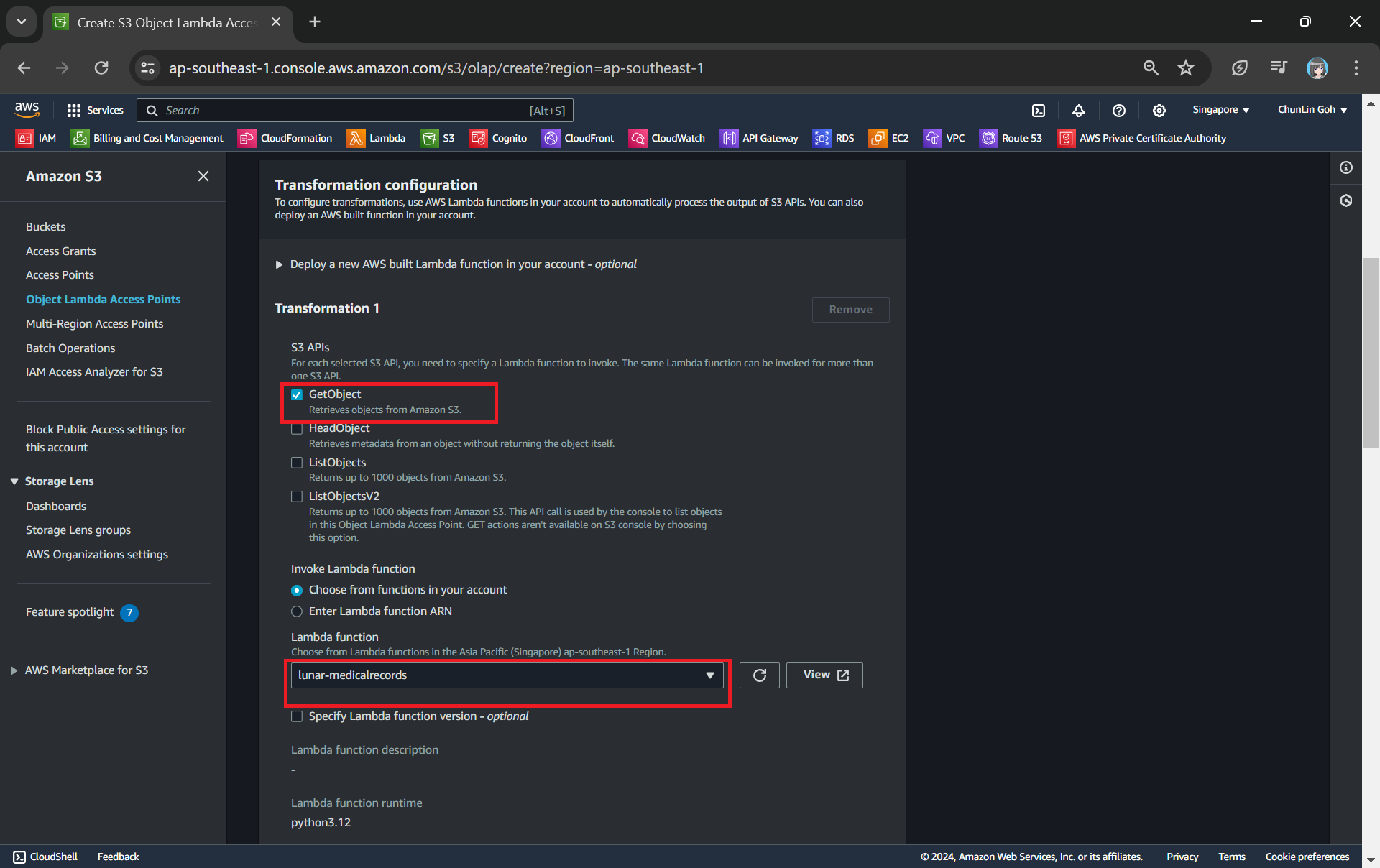
Next we need to setup the transformation configuration. In our case, we will be retrieving the JSON file from the S3 bucket to perform the data transformation via our Lambda Function, so we will be choosing GetObject as the S3 API we will be using, as shown in the screenshot below.
Configuring the S3 API that will be used in the data transformation and the Lambda Function to invoke.
Once all these fields are keyed in, we can proceed to create the Object Lambda Access Point.
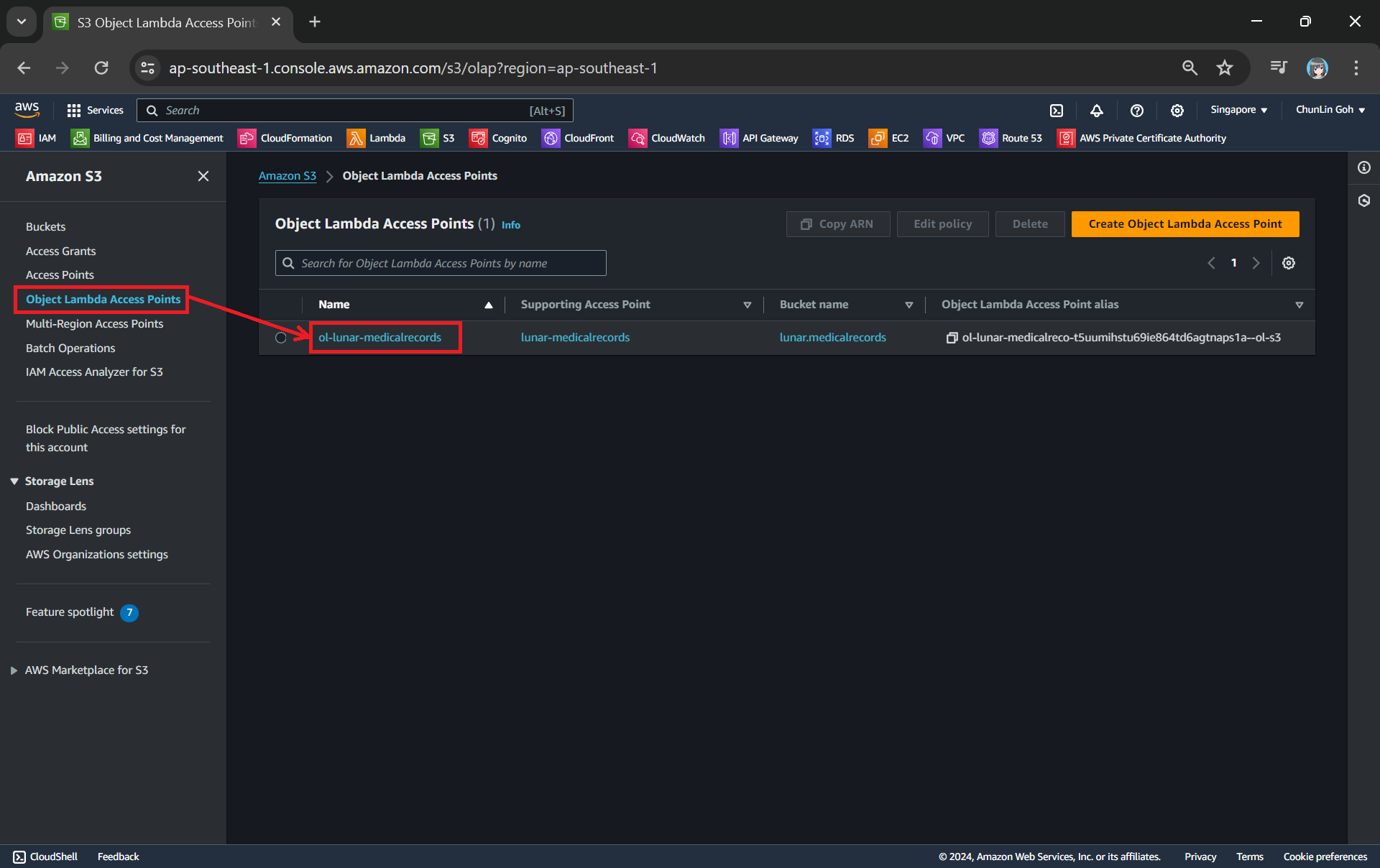
Now, we will access the JSON file via the Object Lambda Access Point to verify that the file is really transformed into a web page during the request. To do so, firstly, we need to select the newly create Object Lambda Access Point as shown in the following screenshot.
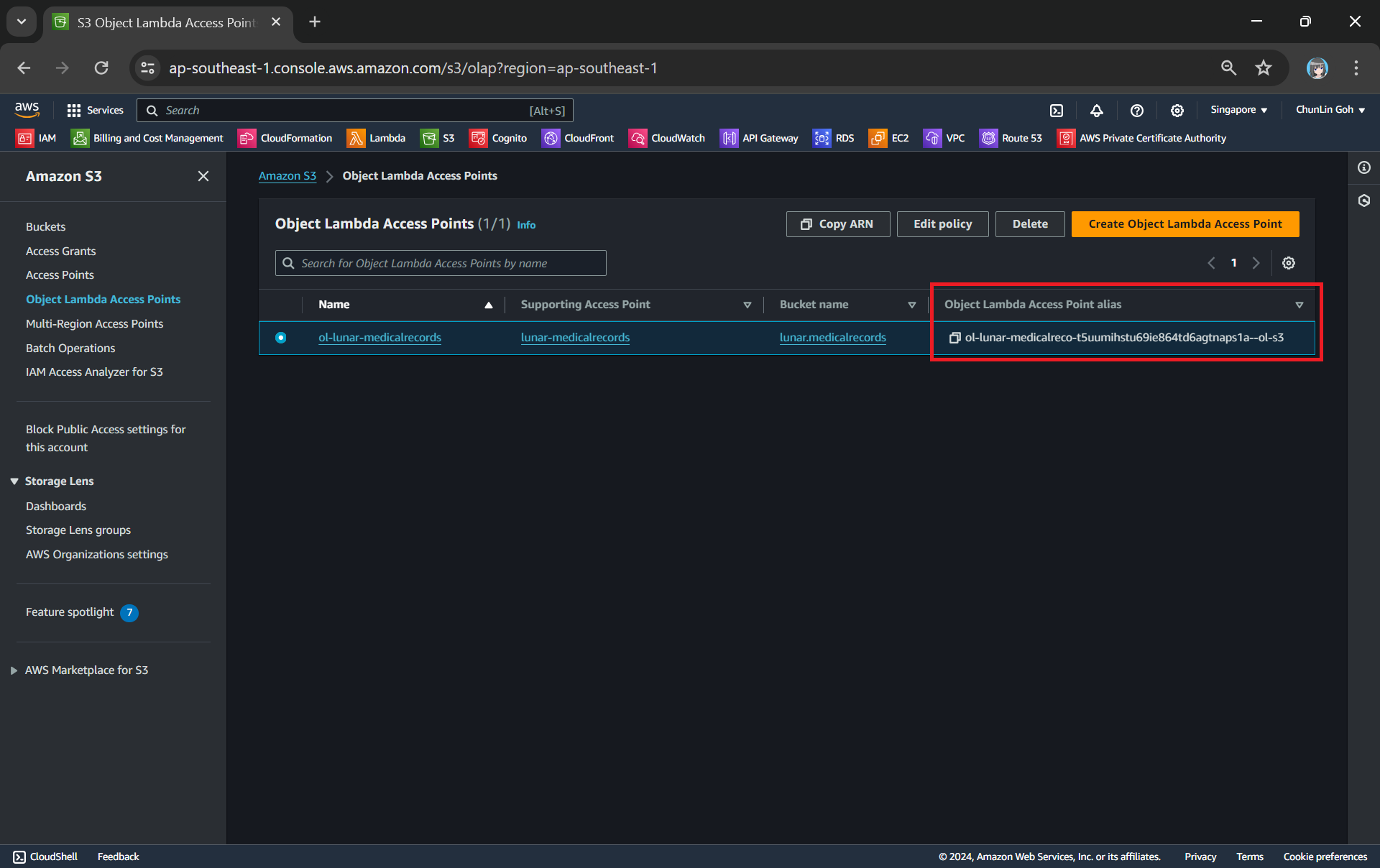
Locate the Object Lambda Access Point we just created in the S3 console.
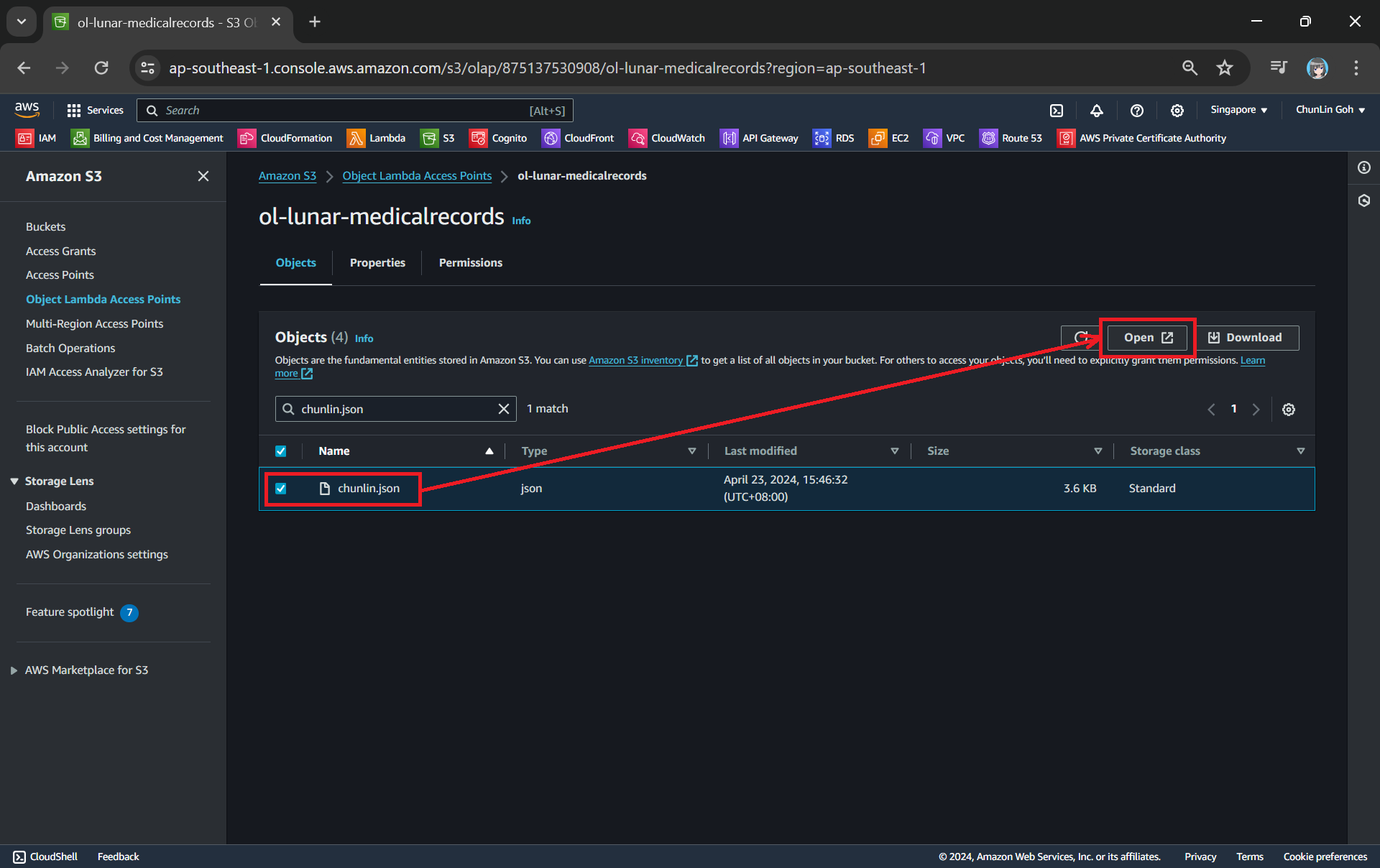
Secondly, we will be searching for our JSON file, for example chunlin.json in my case. Then, we will click on the “Open” button to view it. The reason why I name the JSON file containing my medical records is because later I will be adding authentication and authorisation to only allow users retrieving their own JSON file based on their login user name.
This page looks very similar to the usual S3 objects listing page. So please make sure you are doing this under the “Object Lambda Access Point”.
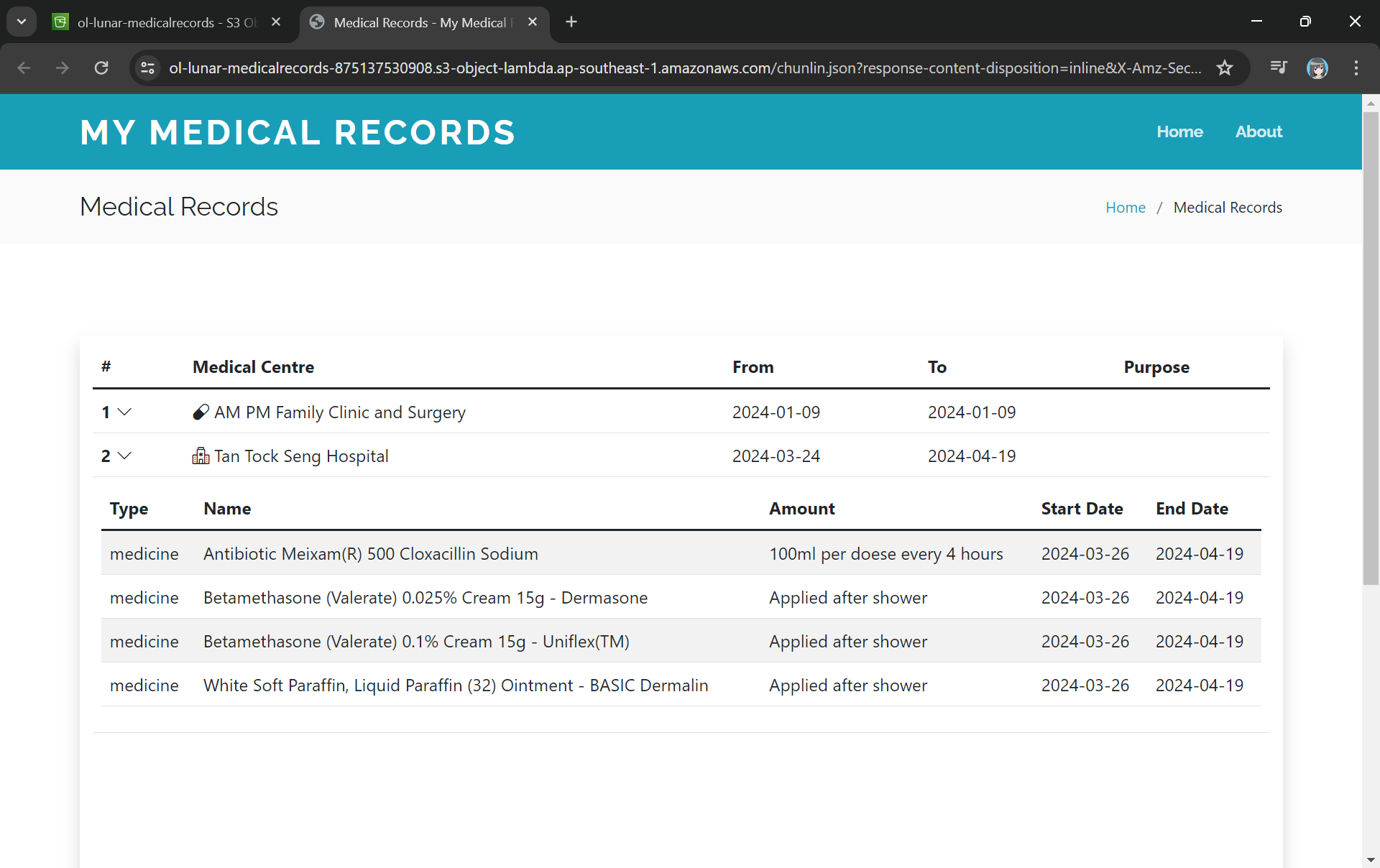
There will be new tab opened showing the web page as demonstrated in the screenshot below. As you have noticed in the URL, it is still pointing to the JSON file but the returned content is a HTML web page.
The domain name is actually no longer the usual S3 domain name but it is our Object Lambda Access Point.
Using the Object Lambda Access Point from Our App
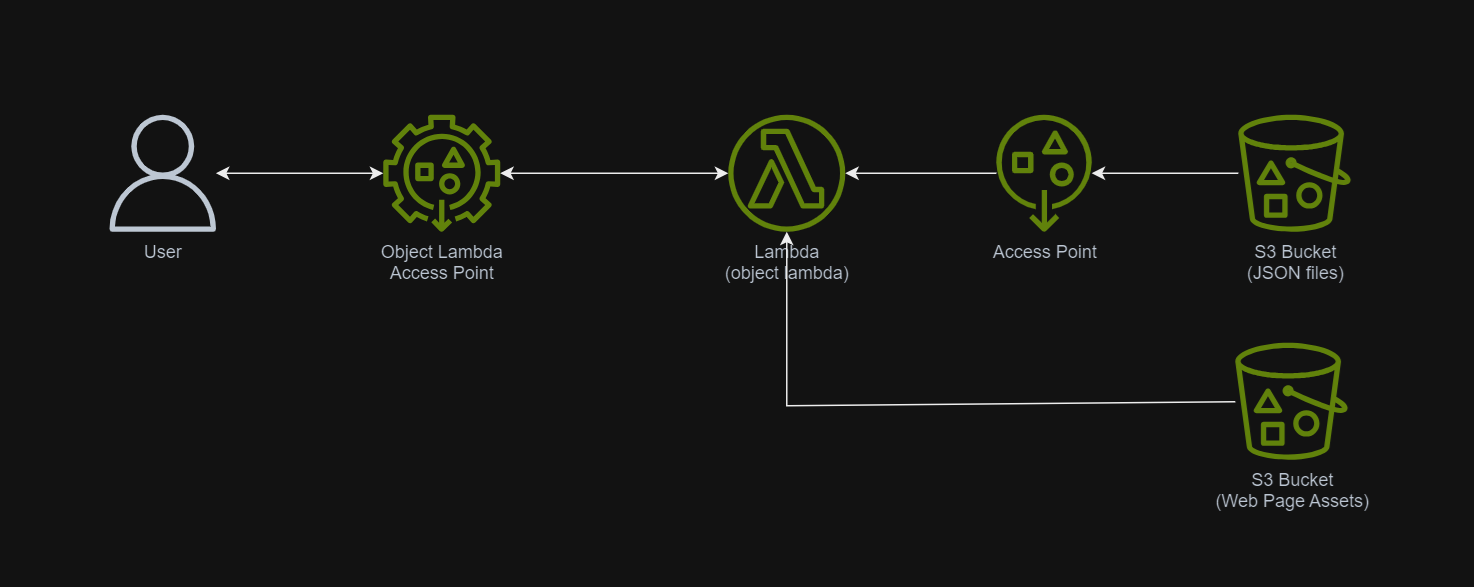
With the Object Lambda Access Point successfully setup, we will show how we can use it. To not overcomplicate things, for the purposes of this article, I will host a serverless web app on Lambda which will be serving the medical record website above.
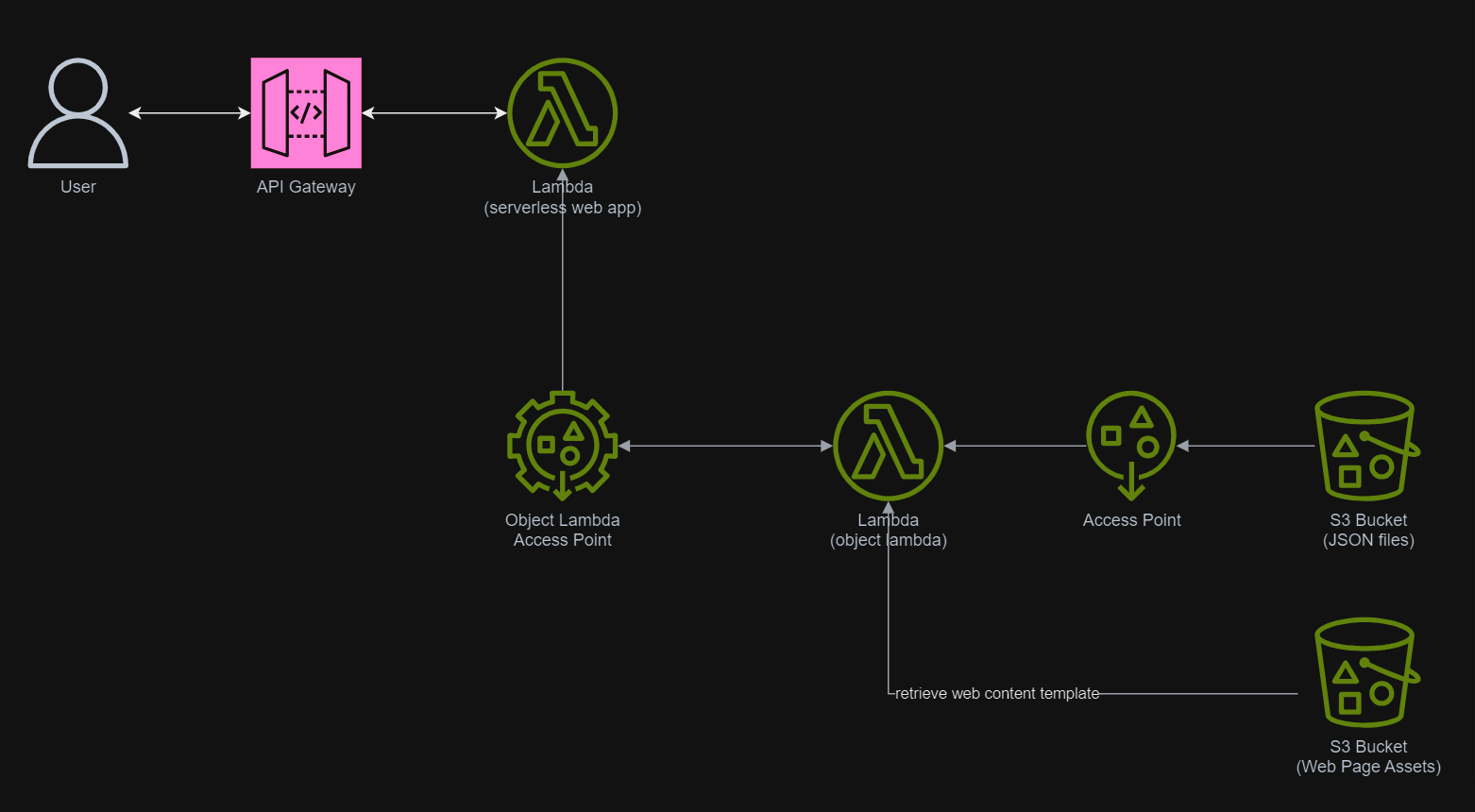
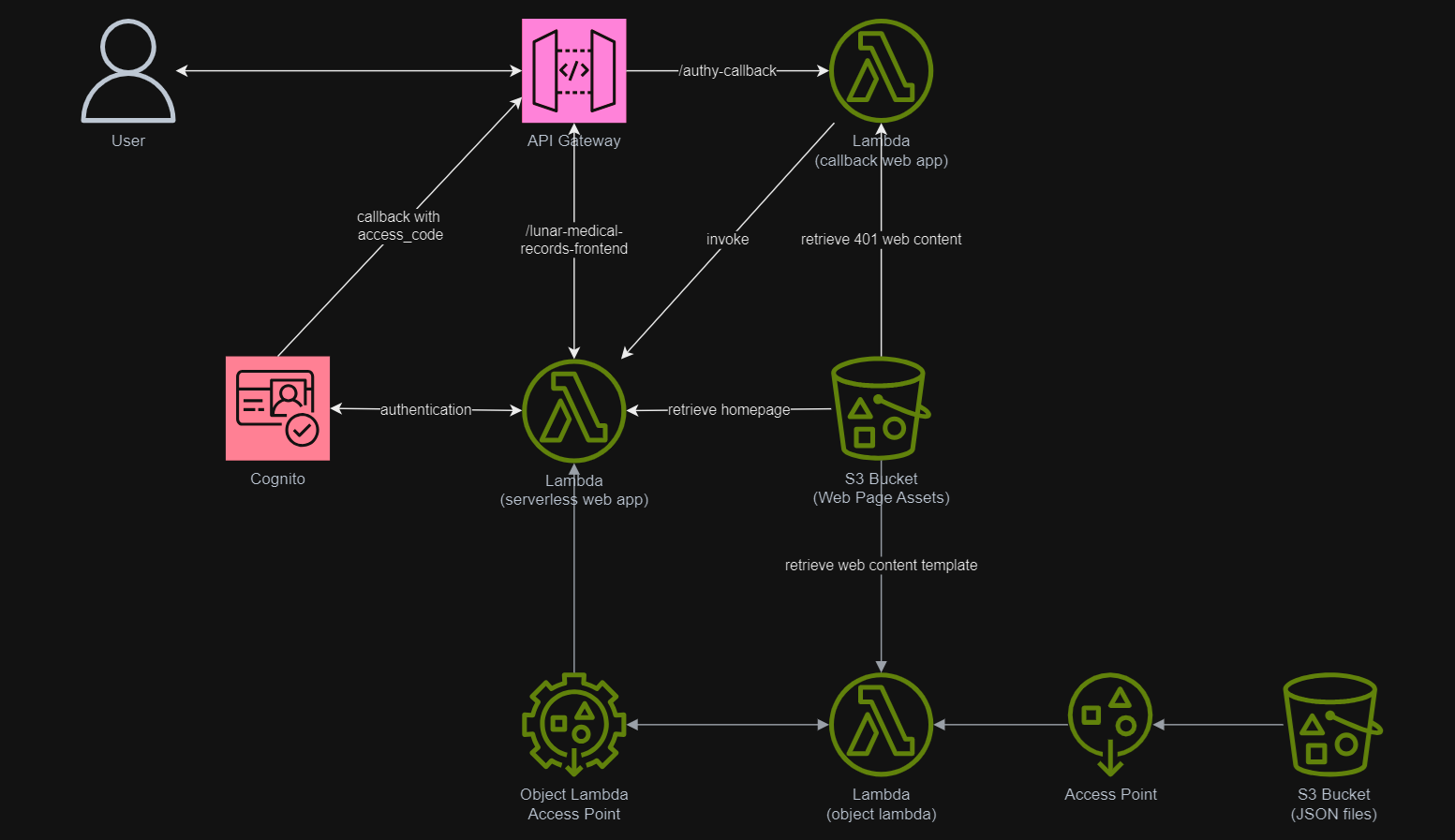
In addition, since Lambda Functions are by default not accessible from the Internet, we will be using API Gateway so that we can have a custom REST endpoint in the AWS and thus we can map this endpoint to the invokation of our Lambda Function. Technically speaking, the architecture diagram now looks as follows.
This architecture allows public to view the medical record website which is hosted as a serverless web app.
In the newly created Lambda, we will still be developing it with Python 3.12. We name this Lambda lunar-medicalrecords-frontend. We will be using the following code which will retrieve the HTML content from the Object Lambda Access Point.
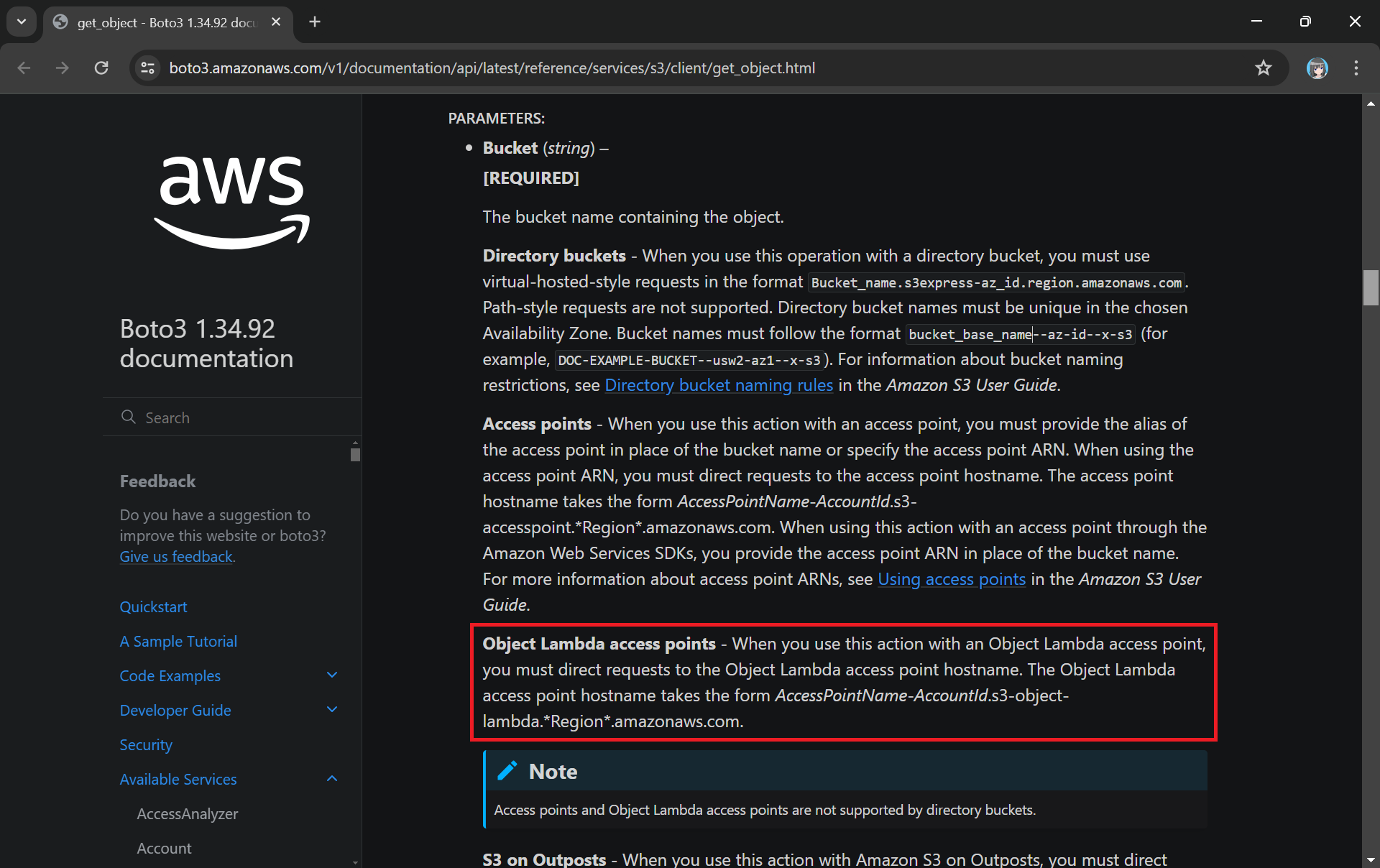
The Boto3 documentation highlights the use of Object Lambda Access Point in get_object.
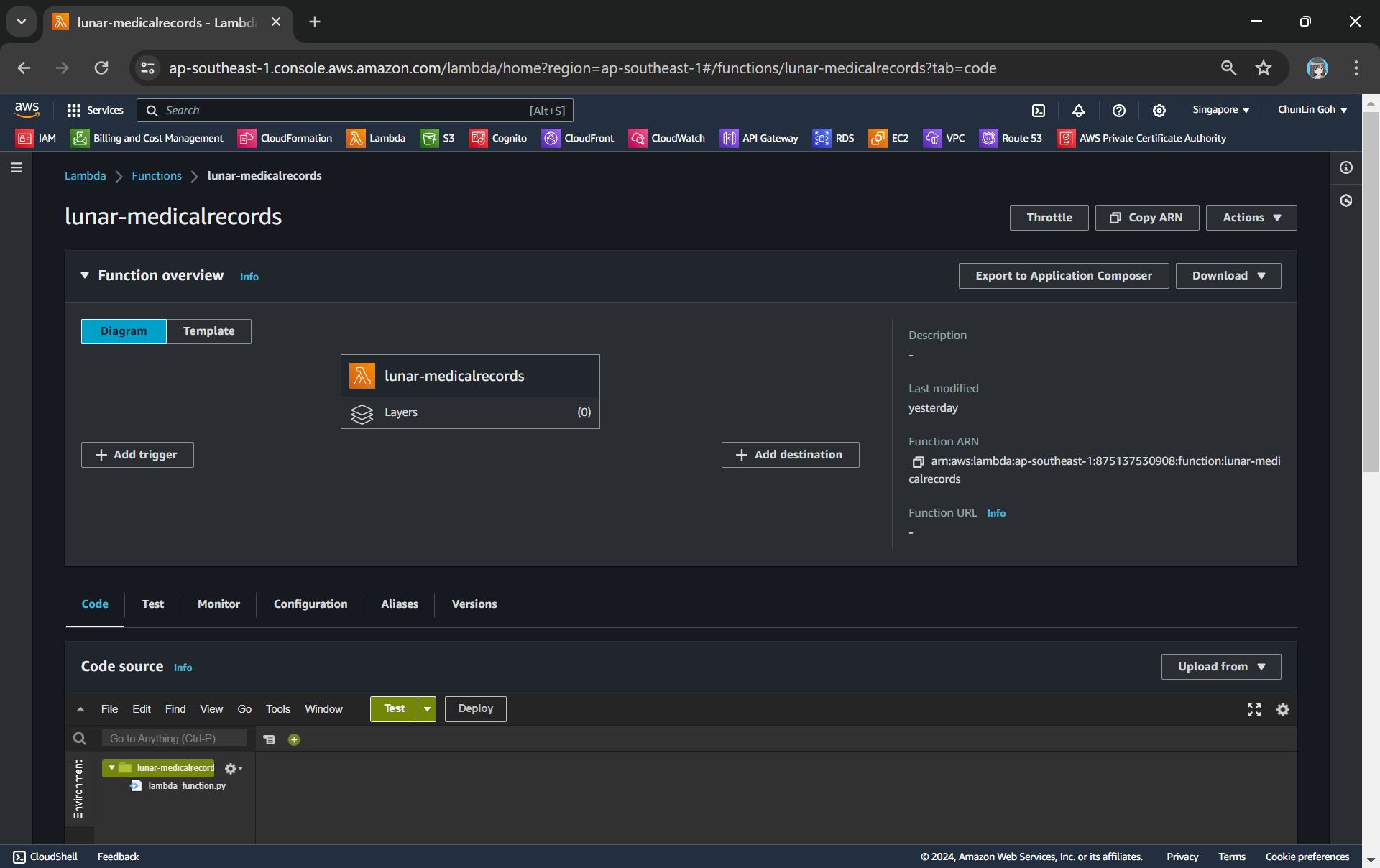
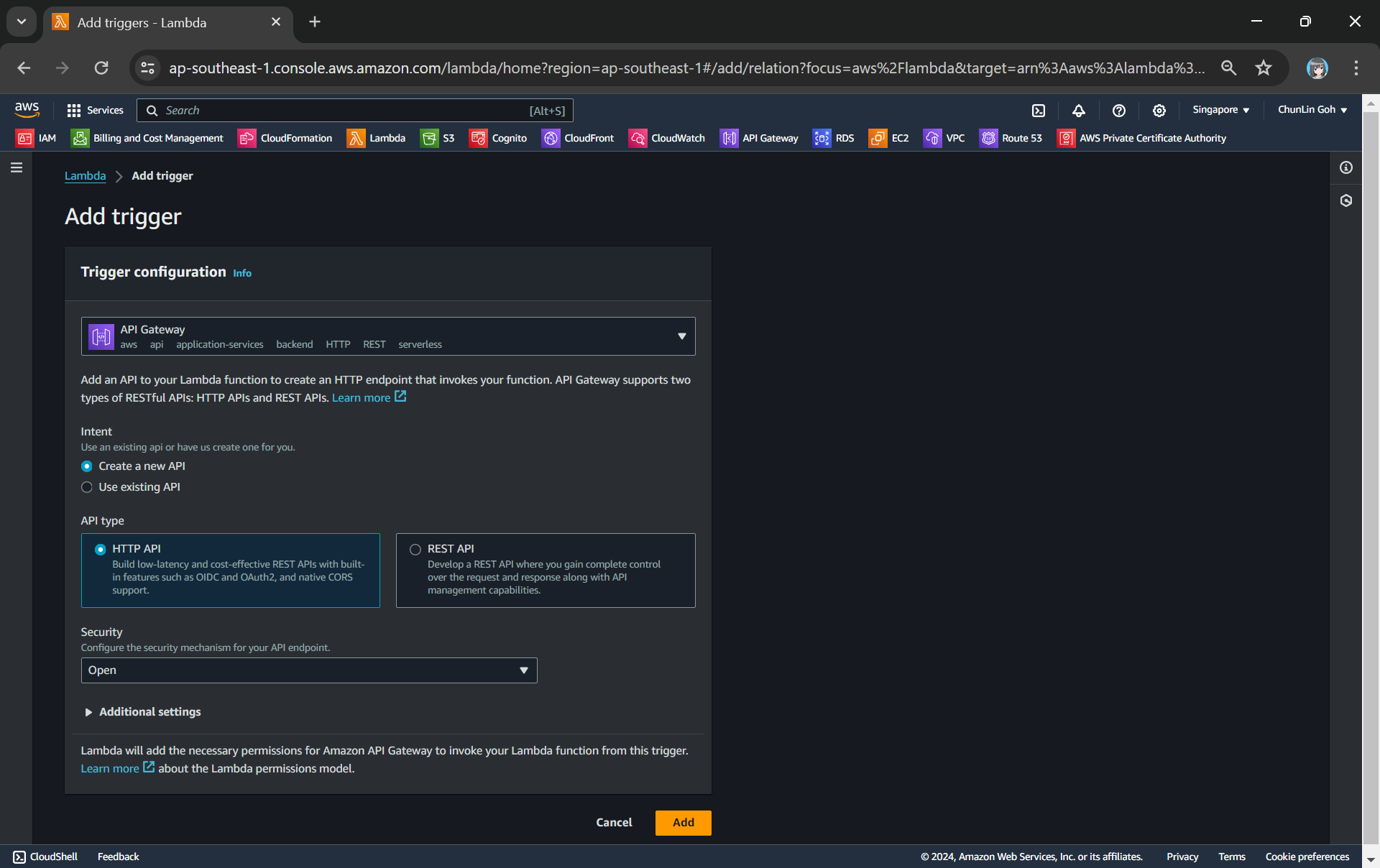
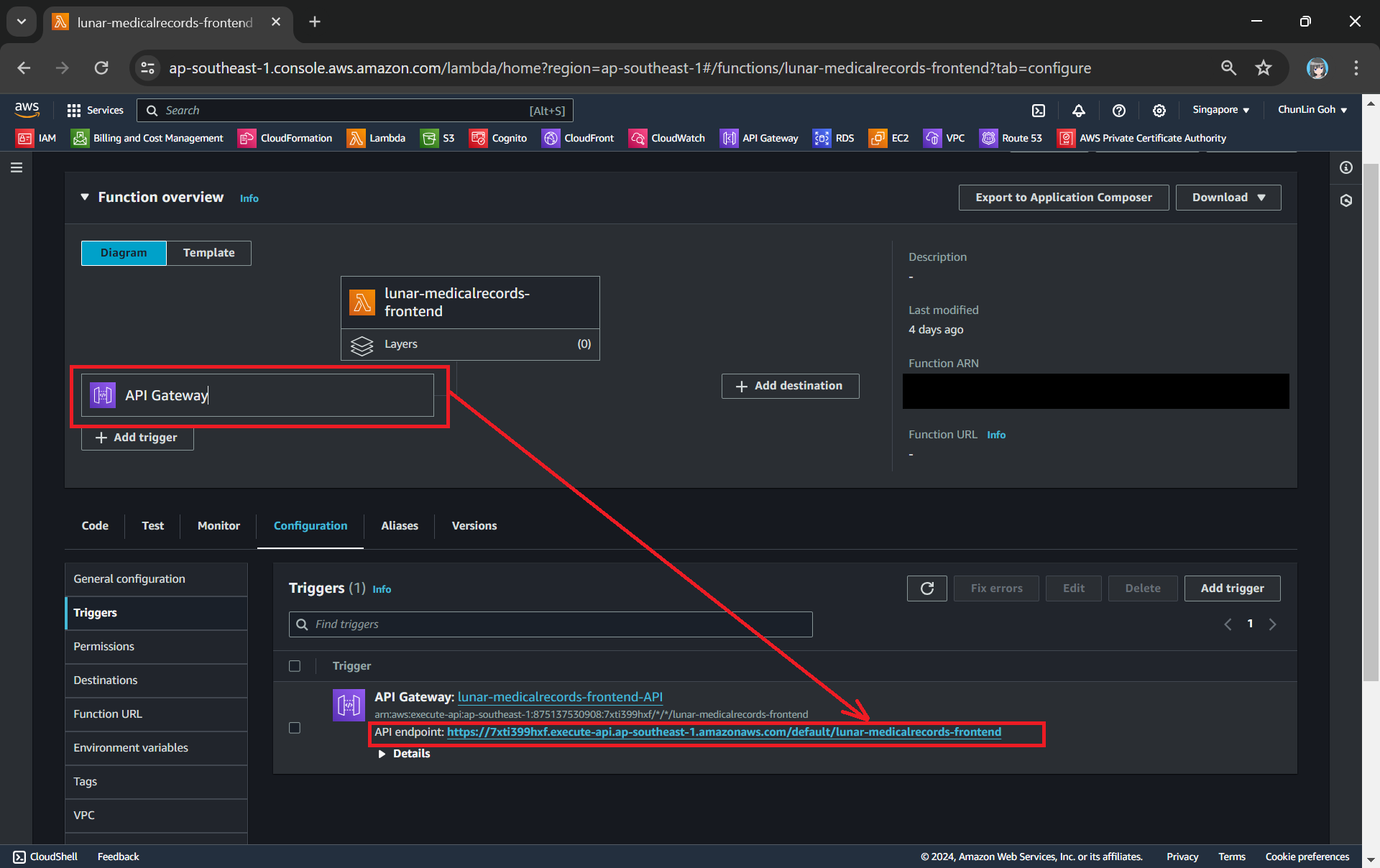
The API Gateway for the Lambda Function is created with HTTP API through the “Add Trigger” function (which is located at the Function overview page). For the Security field, we will be choosing “Open” for now. We will add the login functionality later.
Adding API Gateway as a trigger to our Lambda.
Once this is done, we will be provided an API Gateway endpoint, as shown in the screenshot below. Visiting the endpoint should be rendering the same web page listing the medical records as we have seen above.
Getting the API endpoint of the API Gateway.
Finally, for the Lambda Function permission, we only need to grand it the following.
s3:GetObject.
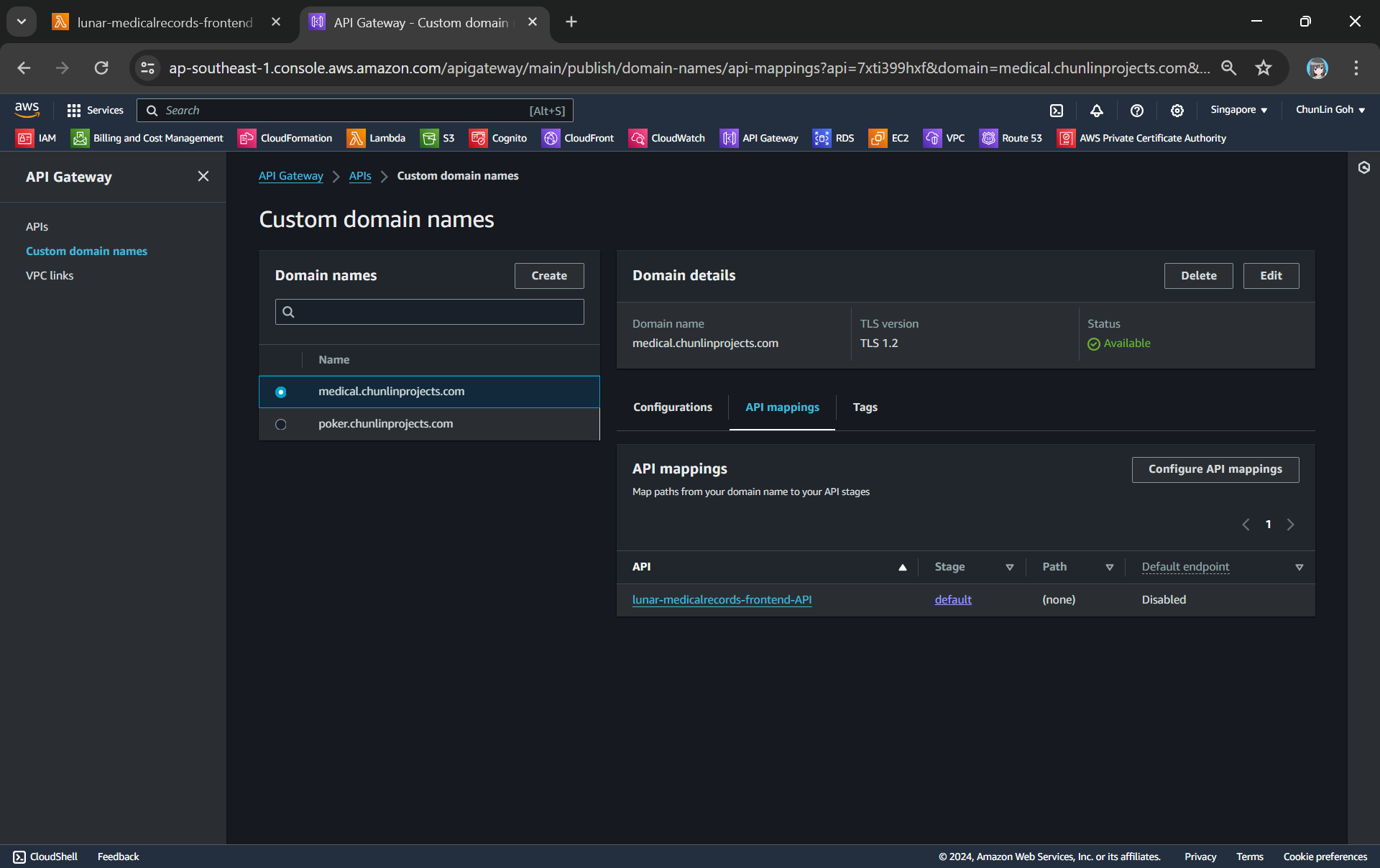
To make the API Gateway endpoint looks more user friendly, we can also introduce Custom Domain to the API Gateway, following the guide in one of our earlier posts.
Assigned medical.chunlinprojects.com to our API Gateway.
Protecting Data with Cognito
In order to ensure that only authenticated and authorised users can access their own medical records, we need to securely control access to our the app with the help from Amazon Cognito. Cognito is a service that enables us to add user sign-in and access control to our apps quickly and easily. Hence it helps authenticate and authorise users before they can access the medical records.
Step 1: Setup Amazon Cognito
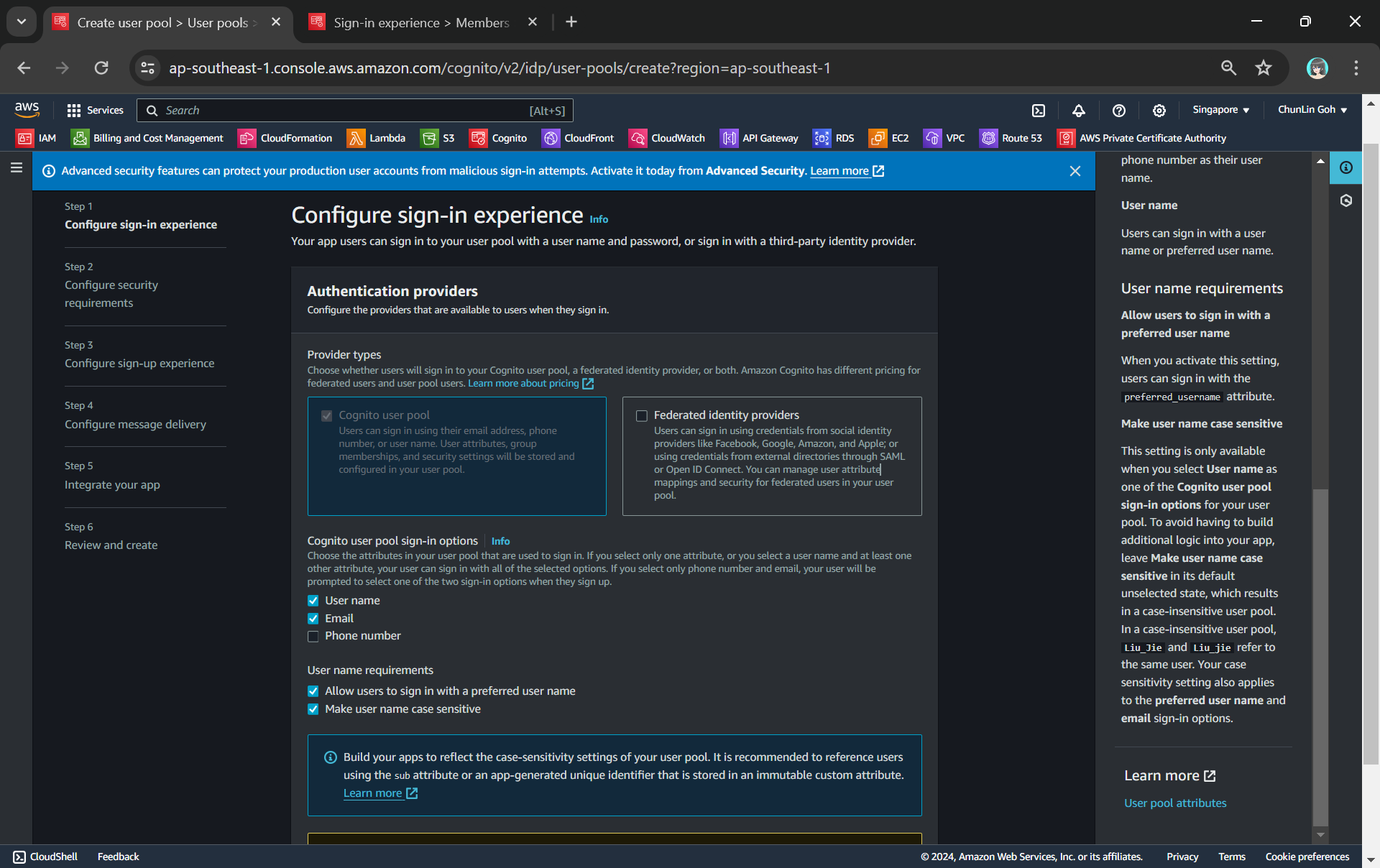
To setup Cognito, firstly, we need to configure the User Pool by specifying sign-in options. User pool is a managed user directory service that provides authentication and user management capabilities for our apps. It enables us to offload the complexity of user authentication and management to AWS.
Configuring sign-in options and user name requirements.
Please take note that Cognito user pool sign-in options cannot be changed after the user pool has been created. Hence, kindly think carefully during the configuration.
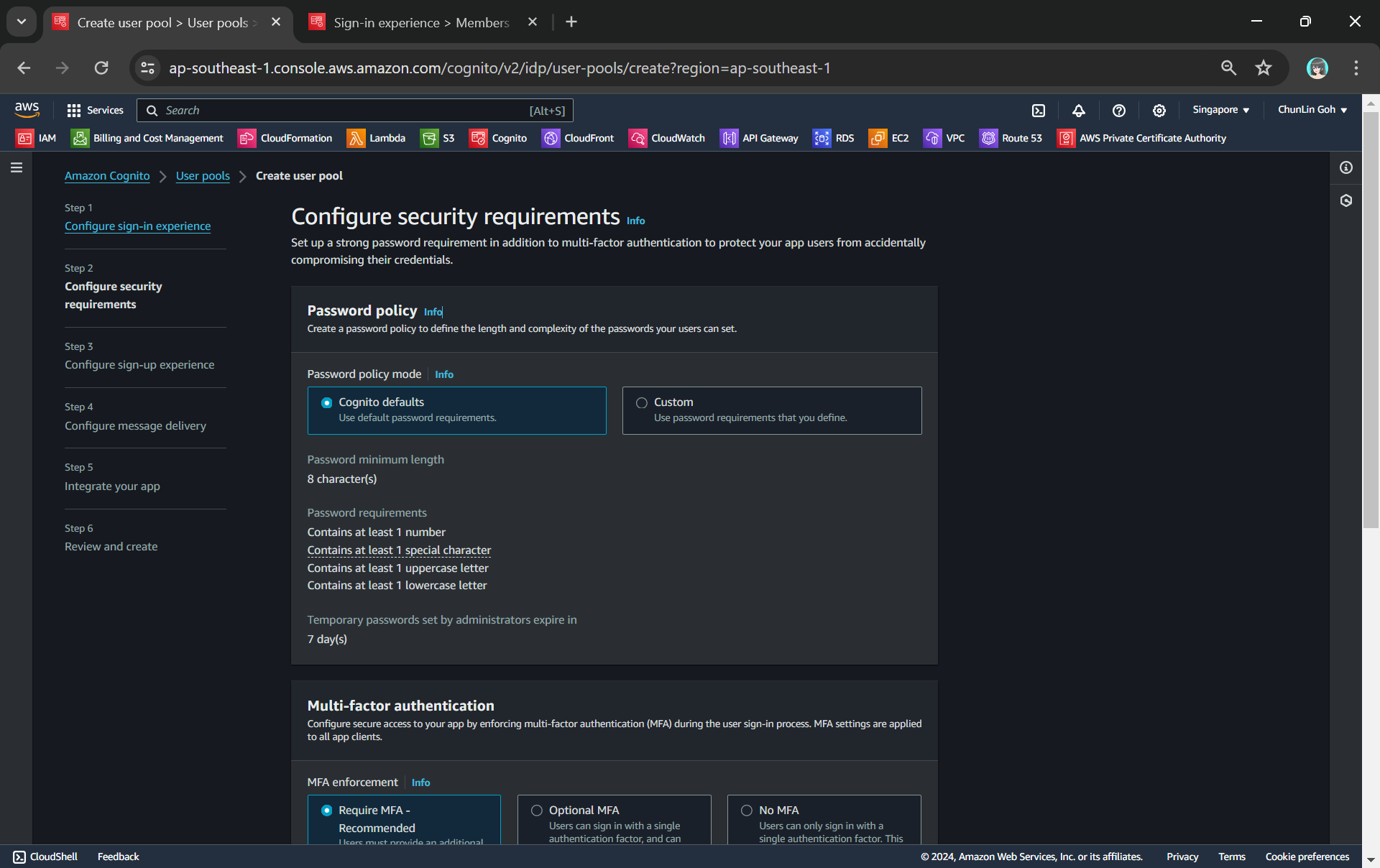
Configuring password policy.
Secondly, we need to configure password policy and choose whether to enable Multi-Factor Authentication (MFA).
By default, Cognito comes with a password policy that ensures our users maintain a password with a minimum length and complexity. For password reset, it will also generate a temporary password to the user which will expire in 7 days, by default.
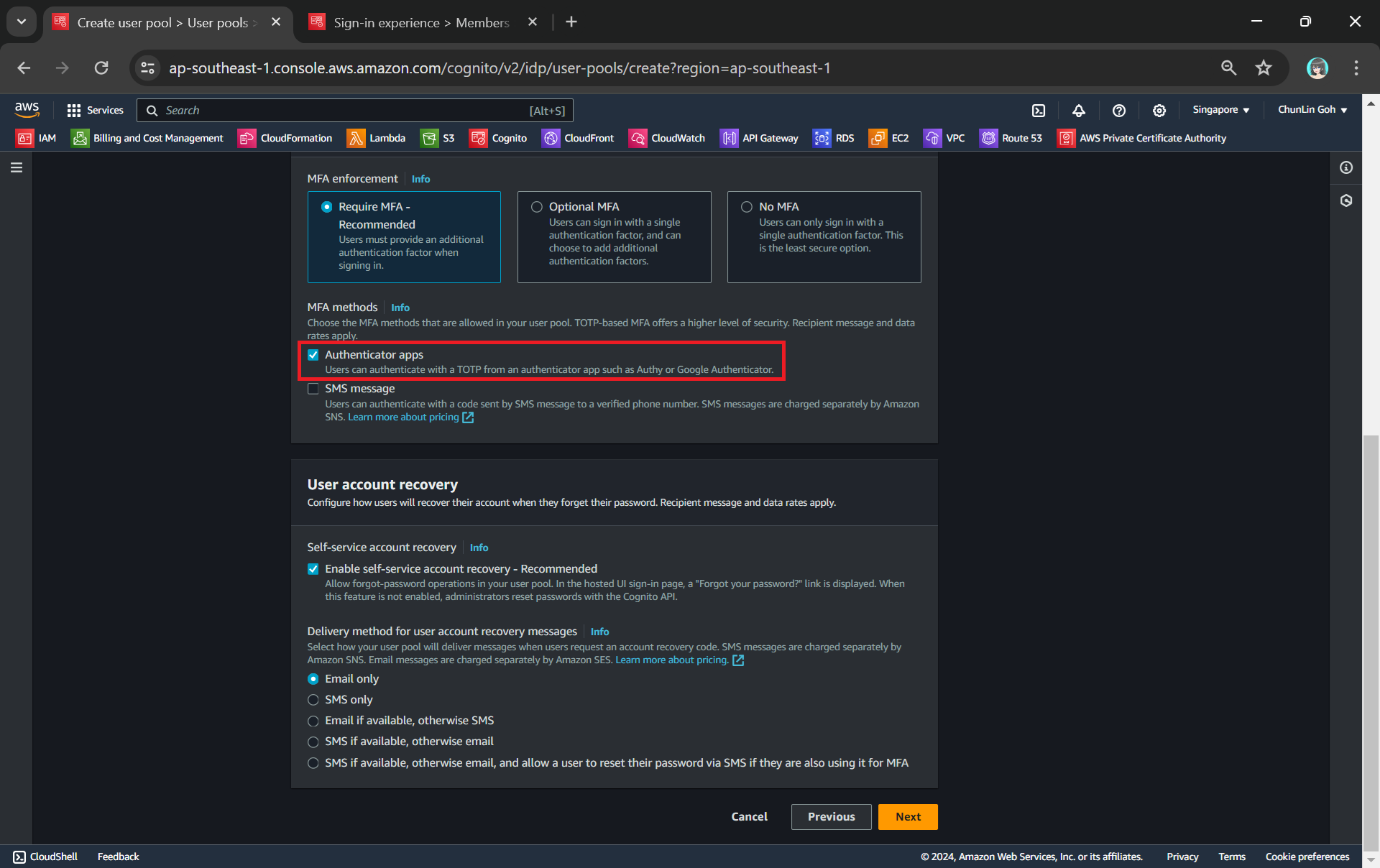
MFA adds an extra layer of security to the authentication process by requiring users to provide additional verification factors to gain access to their accounts. This reduces the risk of unauthorised access due to compromised passwords.
Enabling MFA in our Cognito user pool.
As shown in the screenshot above, one of the methods is called TOTP. TOTP stands for Time-Based One-Time Password. It is a form of multi-factor authentication (MFA) where a temporary passcode is generated by the authenticator app, adding a layer of security beyond the typical username and password.
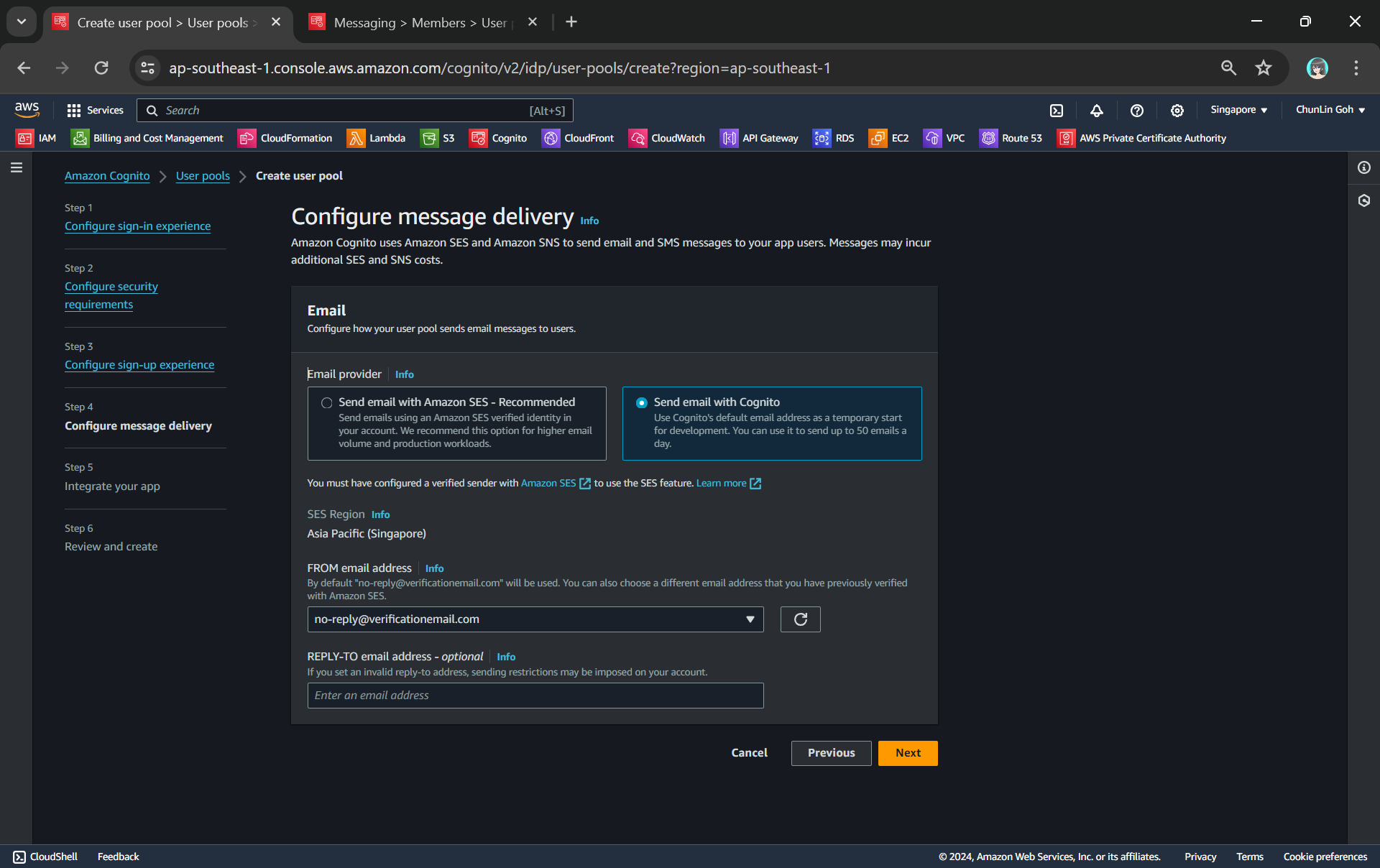
Thirdly, we will be configuring Cognito to allow user account recovery as well as new user registration. Both of these by default require email delivery. For example, when users request an account recovery code, an email with the code should be sent to the user. Also, when there is a new user signing up, there should be emails sent to verify and confirm the new account of the user. So, how do we handle the email delivery?
We can choose to send email with Cognito in our development environment.
Ideally, we should be setting up another service known as Amazon SES (Simple Email Service), an email sending service provided by AWS, to deliver the emails. However, for testing purpose, we can choose to use Cognito default email address as well. This approach is normally only suitable for development purpose because we can only use it to send up to 50 emails a day.
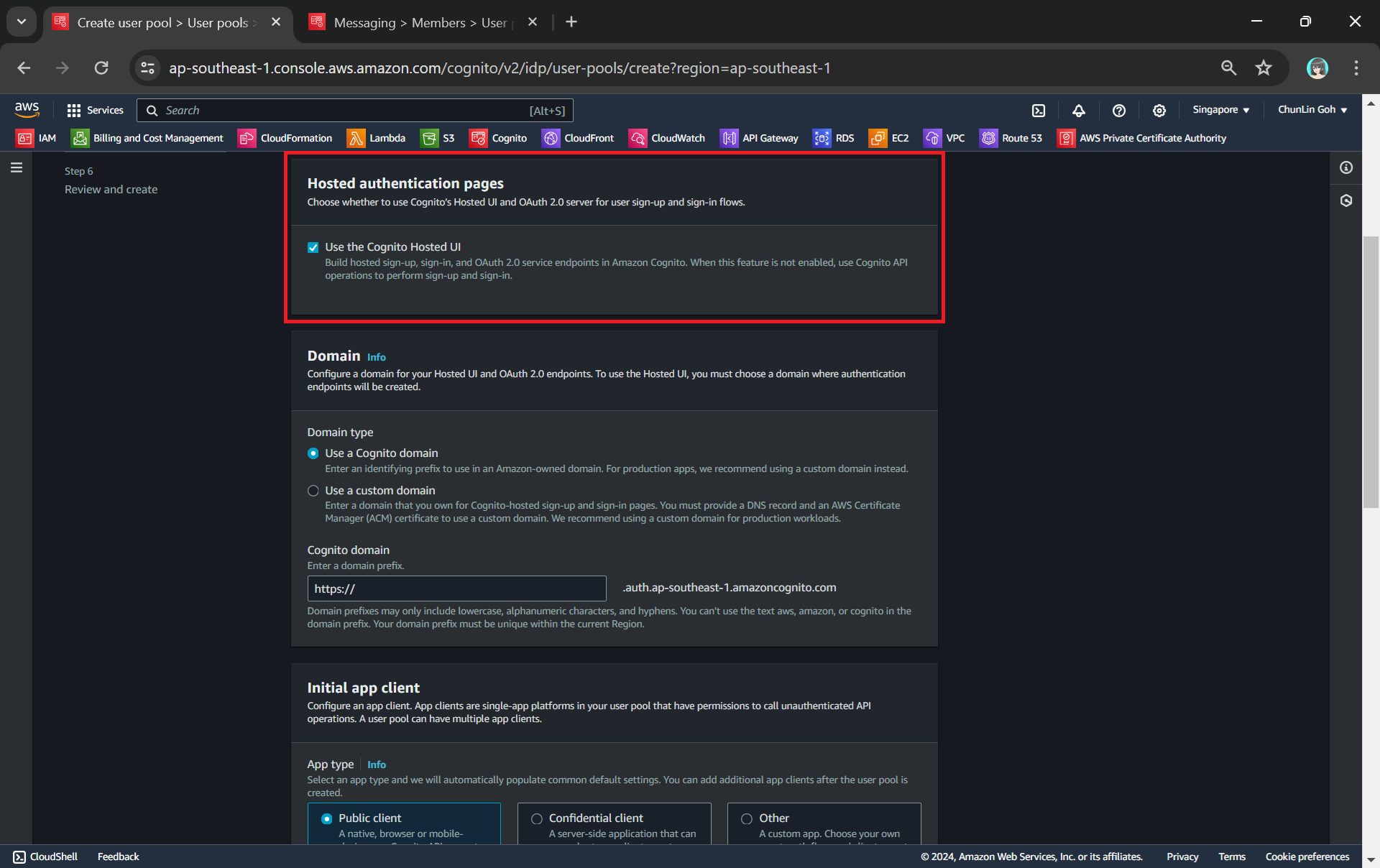
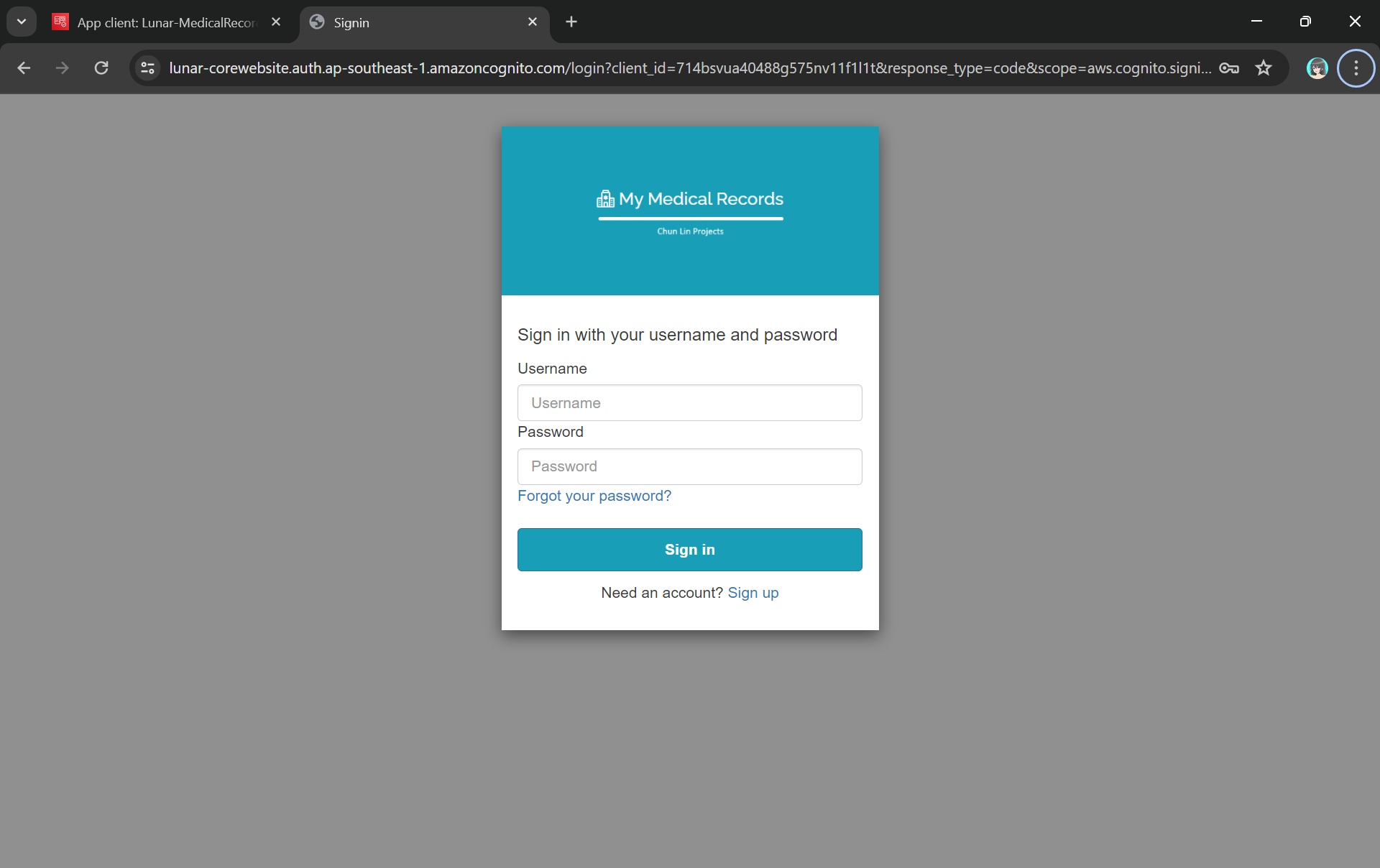
Finally, we will be using the hosted authentication pages for user sign-in and sign-up, as demonstrated below.
Using hosted UI so that we can have a simple frontend ready for sign-in and sign-up.
Step 2: Register Our Web App in Cognito
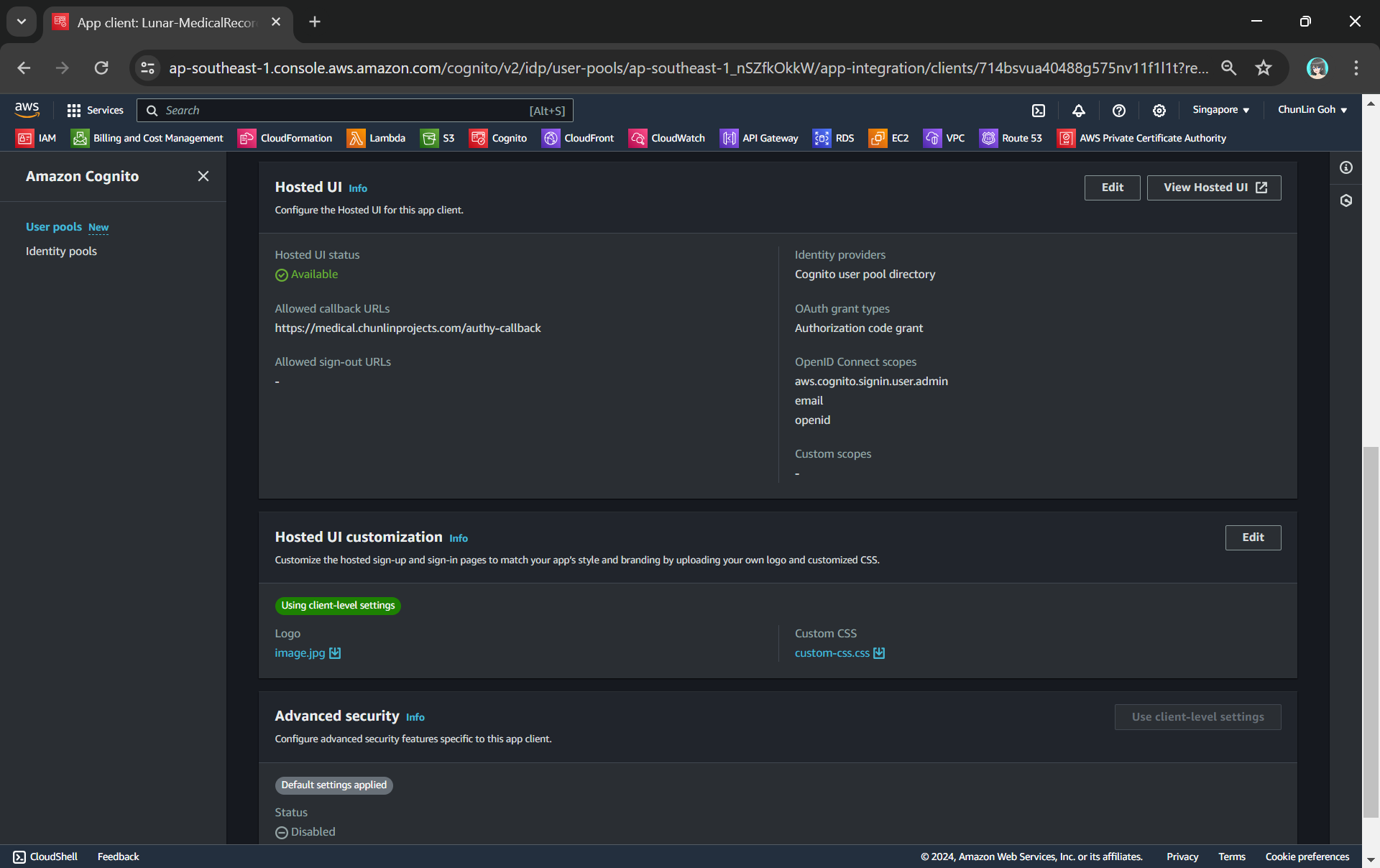
To integrate our app with Cognito, we still need to setup the app client. An App Client is a configuration entity that allows our app to interact with the user pool. It is essentially an application-specific configuration that defines how users will authenticate and interact with our user pool. For example, we have setup a new app client for our medical records app as shown in the following screenshot.
We customise the hosetd UI with our logo and CSS.
As shown in the screenshot above, we are able to to specify customisation settings for the built-in hosted UI experience. Please take note that we are only able to customise the look-and-feel of the default “login box”, so we cannot modify the layout of the entire hosted UI web page, as demonstrated below.
The part with gray background cannot be customised with the CSS.
In the setup of the app client above, we have configured the callback URL to /authy-callback. So where does this lead to? It actually points to a new Lambda function which is in charge of the authentication.
Step 3: Retrieve Access Token from Cognito Token Endpoint
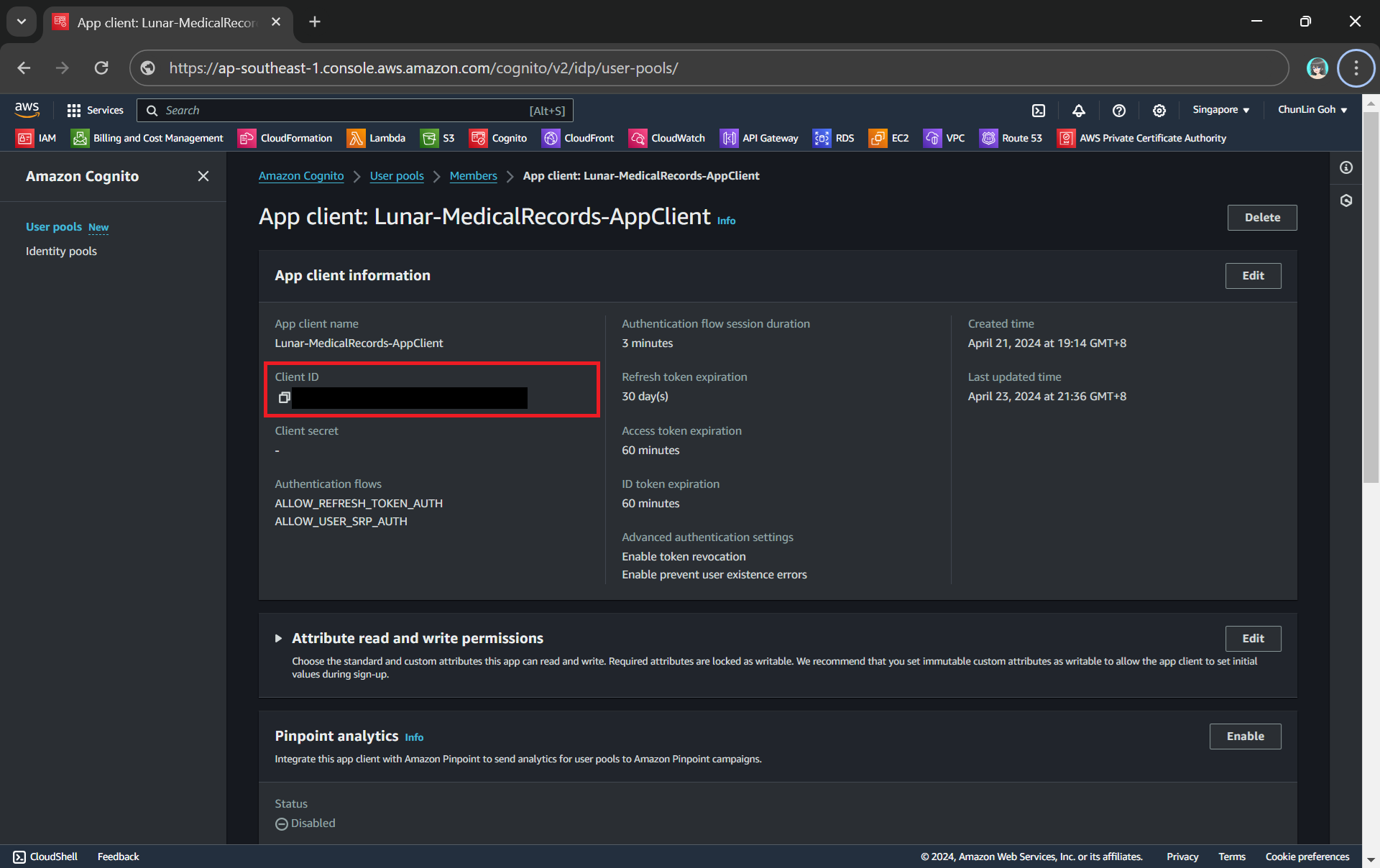
Here, Cognito uses the OAuth 2.0 authorization code grant flow. Hence, after successful authentication, Cognito redirects the user back to the specified callback URL with an authorisation code included in the query string with the name code. Our authentication Lambda function thus needs to makes a back-end request to the Cognito token endpoint, including the authorisation code, client ID, and redirect URI to exchange the authorisation code for an access token, refresh token, and ID token.
Client ID can be found under the “App client information” section.
token_url = "https://lunar-corewebsite.auth.ap-southeast-1.amazoncognito.com/oauth2/token" client_id = "<client ID to be found in AWS Console>" callback_url = "https://medical.chunlinprojects.com/authy-callback"
A successful response from the token endpoint typically is a JSON object which includes:
access_token: Used to access protected resources;
id_token: Contains identity information about the user;
refresh_token: Used to obtain new access tokens;
expires_in: Lifetime of the access token in seconds.
Hence we can retrieve the medical records if there is an access_token but return an “HTTP 401 Unauthorized” response if there is no access_token returned.
if 'access_token' not in tokens: return { 'statusCode': 401, 'body': get_401_web_content(), 'headers': { 'Content-Type': 'text/html' } }
The function get_401_web_content is responsible to retrieve a static web page showing 401 error message from the S3 bucket and return it to the frontend, as shown in the code below.
For the get_web_content function, we will be passing the access token to the Lambda that we developed earlier to retrieve the HTML content from the Object Lambda Access Point. As shown in the following code, we invoke the Lambda function synchronously and wait for the response.
In the Lambda function lunar-medicalrecords-frontend, we will no longer need to hardcode the object key as chunlin.json. Instead, we can just retrieve the user name from the Cognito using the access token, as highlighted in bold in the code below.
... import boto3
cognito_idp_client = boto3.client('cognito-idp')
def lambda_handler(event, context): if 'access_token' not in event: return { 'statusCode': 200, 'body': get_homepage_web_content(), 'headers': { 'Content-Type': 'text/html' } }
The get_homepage_web_content function above basically is to retrieve a static homepage from the S3 bucket. It is similar to how the get_401_web_content function above works.
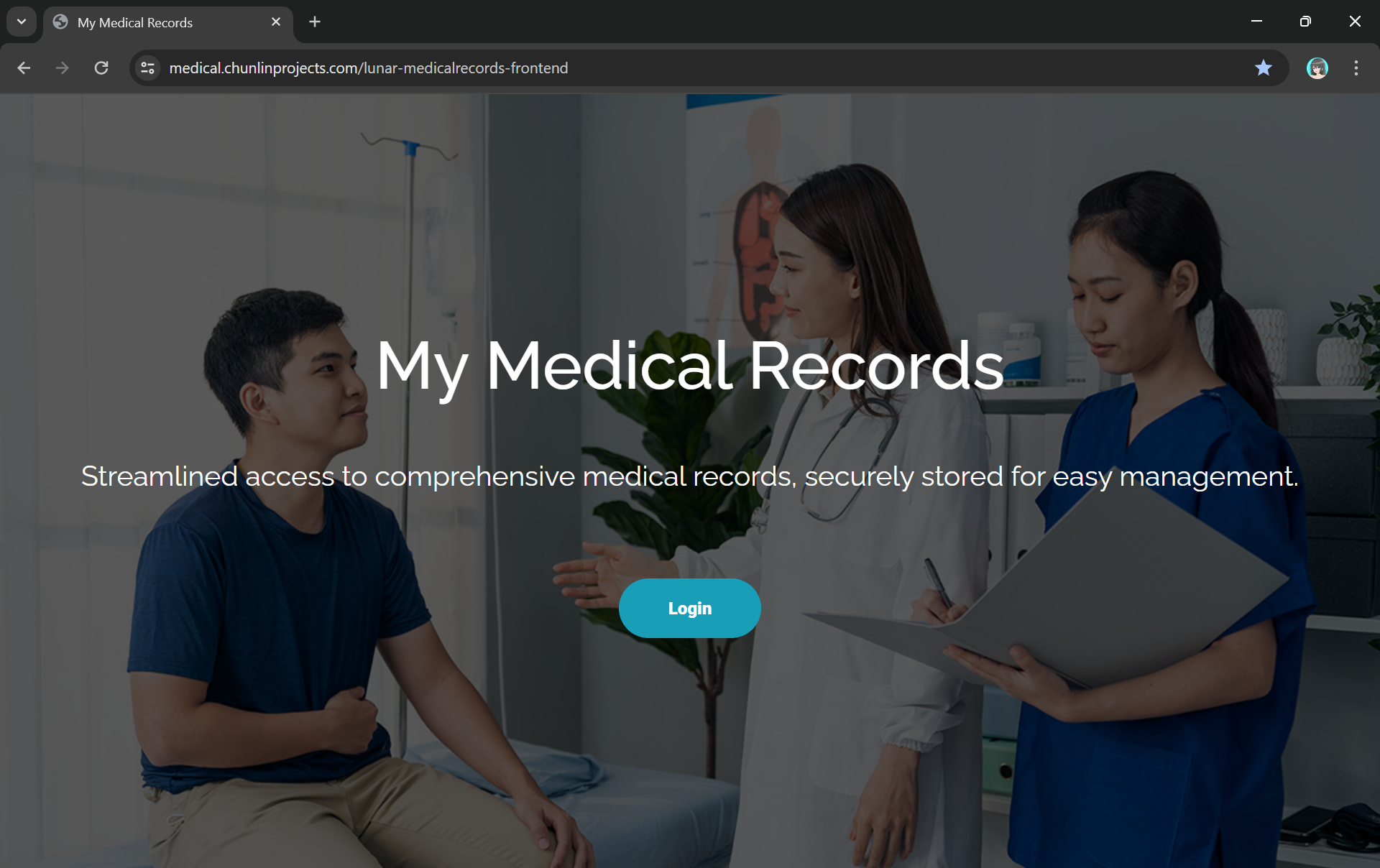
The homepage comes with a Login button redirecting users to Hosted UI of our Cognito app client.
Step 5: Store Access Token in Cookies
We need to take note that the auth_code above in the OAuth 2.0 authorisation code grant flow can only be used once. This is because single-use auth_code prevents replay attacks where an attacker could intercept the authorisation code and try to use it multiple times to obtain tokens. Hence, our implementation above will break if we refresh our web page after logging in.
To solve this issue, we will be saving the access token in a cookie when the user first signs in. After that, as long as we detect that there is a valid access token in the cookie, we will not use the auth_code.
In order to save an access token in a cookie, there are several important considerations to ensure security and proper functionality:
Set the Secure attribute to ensure the cookie is only sent over HTTPS connections. This helps protect the token from being intercepted during transmission;
Use the HttpOnly attribute to prevent client-side scripts from accessing the cookie. This helps mitigate the risk of cross-site scripting (XSS) attacks;
Set an appropriate expiration time for the cookie. Since access tokens typically have a short lifespan, ensure the cookie does not outlive the token’s validity.
Thus the code at Step 3 above can be improved as follows.
def lambda_handler(event, context): now = datetime.now(timezone.utc)
if 'cookies' in event: for cookie in event['cookies']: if cookie.startswith('access_token='): access_token = cookie.replace("access_token=", "") break
Now we need to have a web app as a remote control which will send command to the music player to play the selected song. In this article, we will talk about the web portal and how we access the OneDrive with Microsoft Graph and go-onedrive client.
[Image Caption: System design of this music player together with its web portal.]
I had a discussion with Shaun Chong, the Ninja Van CTO, and I was told that they’re using Gin web framework. Hence, now I decide to try the framework out in this project as well.
Gin offers a fast router that’s easy to configure and use. For example, to serve static files, we simply need to have a folder static_files, for example, in the root of the programme together with the following one line.
However, due to the fact that later I need to host this web app on Azure Function, I will not go this route. Hence, currently the following are the main handlers in the main function.
The first line is to load all the HTML template files (*.tmpl.html) located in the templates folder. The templates we have include some reusable templates such as the following footer template in the file footer.tmpl.html.
After importing the templates, we have five routes defined. All of the routes start with /api/HttpTrigger is because this web app is designed to be hosted on Azure Function with a HTTP-triggered function called HttpTrigger.
The first three routes are for authentication. Then after that is one route for loading the web pages, and one handler for sending RabbitMQ message to the Raspberry Pi.
The showMusicListPage handler function will check whether the user is logged in to Microsoft account with access to OneDrive or not. It will display the homepage if the user is not logged in yet. Otherwise, if the user has logged in, it will list the music items in the user’s OneDrive Music folder.
There are many ways to host Golang web application on Microsoft Azure. The place we will be using in this project is Azure Function, the serverless service from Microsoft Azure.
The custom handler provides a lightweight HTTP server written in any language which then enables developers to bring applications, such as those written in Golang, into Azure Function.
[Image Caption: The relationship between the Functions host and a web server implemented as a custom handler. (Image Source: Microsoft Docs – Azure)]
The defaultExecutablePath is pointing to the our Golang web app binary executable which is output by go build command.
So, in the wwwroot folder of the Azure Function, we should have the following items, as shown in the screenshot below.
[Image Caption: The wwwroot folder of the Azure Function.]
Since we have already enabled the HTTP Request Forwarding, we don’t have to worry about the HttpTrigger directory. Also, we don’t have to upload our web app source codes because the executable is there already. What we need to upload is just the static resources, such as our HTML template files in the templates folder.
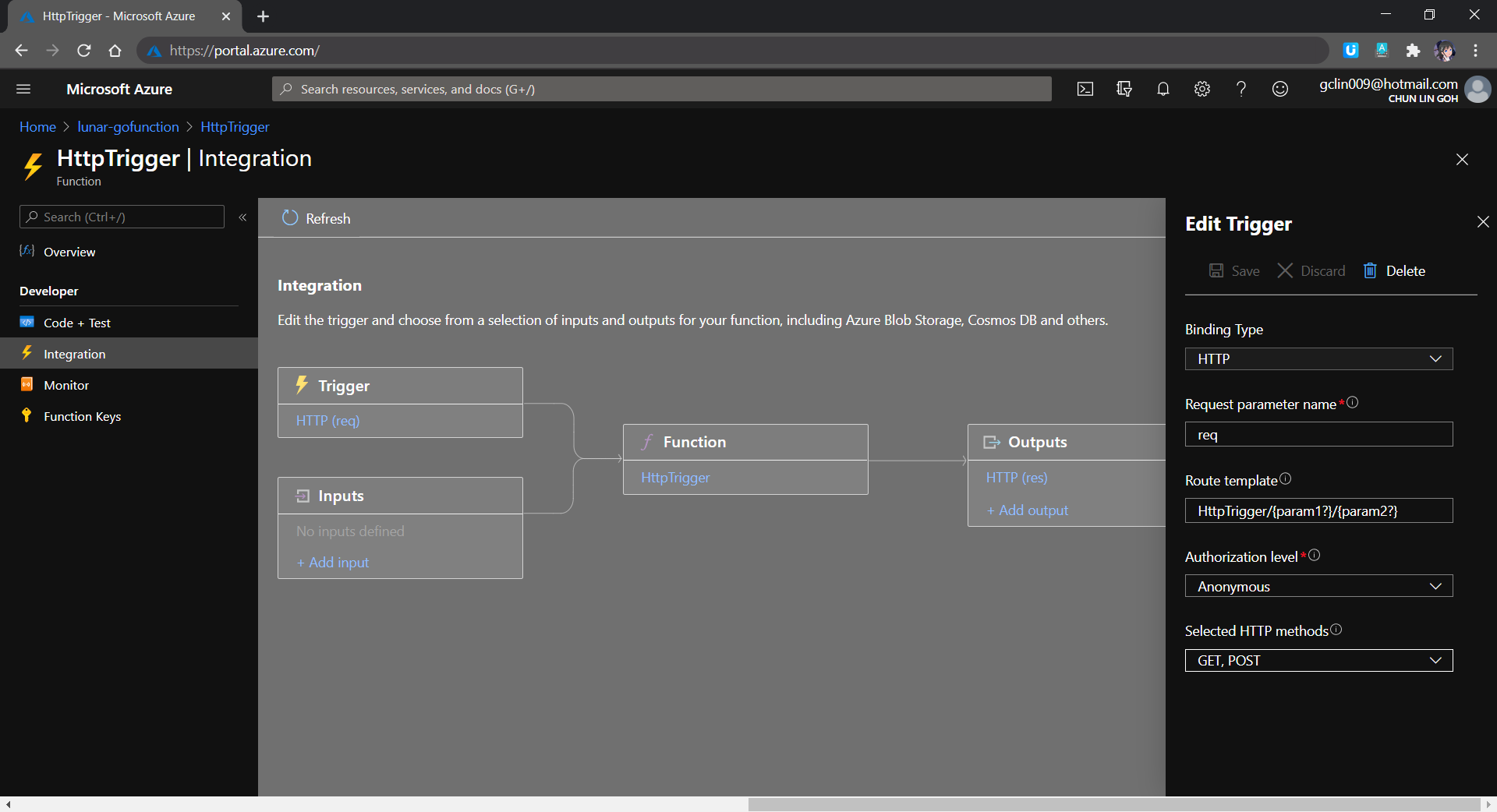
The reason why I don’t upload other static files, such as CSS JavaScript, and image files, is that those static files can be structured to have multiple directory levels. We will encounter a challenge when we are trying to define the Route Template of the Function, as shown in the screenshot below. There is currently no way to define route template without knowing the maximum number of directory level we can have in our web app.
[Image Caption: Defining the route template in the HTTP Trigger of a function.]
Hence, I move all the CSS, JS, and image files to Azure Storage instead.
From the Route Template in the screenshot above, we can also understand why the routes in our Golang web app needs to start with /api/HttpTrigger.
Golang Client Library for OneDrive API
In this project, users will first store the music files online at their personal OneDrive Music folder. I restrict it to only the Music folder is to make the management of the music to be more organised. So it is not because there is technical challenge in getting files from other folders in OneDrive.
Currently, the go-onedrive only support simple API methods such as getting Drives and DriveItems. These two are the most important API methods for our web app in this project. I will continue to enhance the go-onedrive library in the future.
[Image Caption: OneDrive can access the metadata of a music file as well, so we can use API to get more info about the music.]
The go-onedrive library does not directly handle authentication. Instead, when creating a new client, we need to pass an http.Client that can handle authentication. The easiest and recommended way to do this is using the oauth2 library.
So the next thing we need to do is adding user authentication feature to our web app.
Microsoft Graph and Microsoft Identity platform
Before our web app can make requests to OneDrive, it needs users to authenticate and authorise the application to have access to their data. Currently, the official recommended way of doing so is to use Microsoft Graph, a set of REST APIs which enable us to access data on Microsoft cloud services, such as OneDrive, User, Calendar, People, etc. For more information, please refer to the YouTube video below.
So we can send HTTP GET requests to endpoints to retrieve information from OneDrive, for example /me/drives will return the default drive of the currently authenticated user.
Generally, to access OneDrive API, developers are recommend to use the standard OAuth 2.0 authorisation framework with the Azure AD v2.0 endpoint. This is where we will talk about the new Microsoft Identity Platform, which is the recommended way for accessing Microsoft Graph APIs. Microsoft Identity Platform allows developers to build applications that sign in users, get tokens to call the APIs, as shown in the diagram below.
[Image Caption: Microsoft Identity Platform experience. (Image Source: Microsoft Docs – Azure)]
[Image Caption: Microsoft Identity Platform endpoints are used in the Golang OAuth2 package since December 2017.]
Now the first step we need to do is to register an Application with Microsoft on the Azure Portal. From there, we can get both the Client ID and the Client Secret (secret is now available under the “Certificates & secrets” section of the Application).
After that, we need to find out the authentication scopes to use so that the correct access type is granted when the user is signed in from our web app.
With those information available, we can define the OAuth2 configuration as follows in our web app.
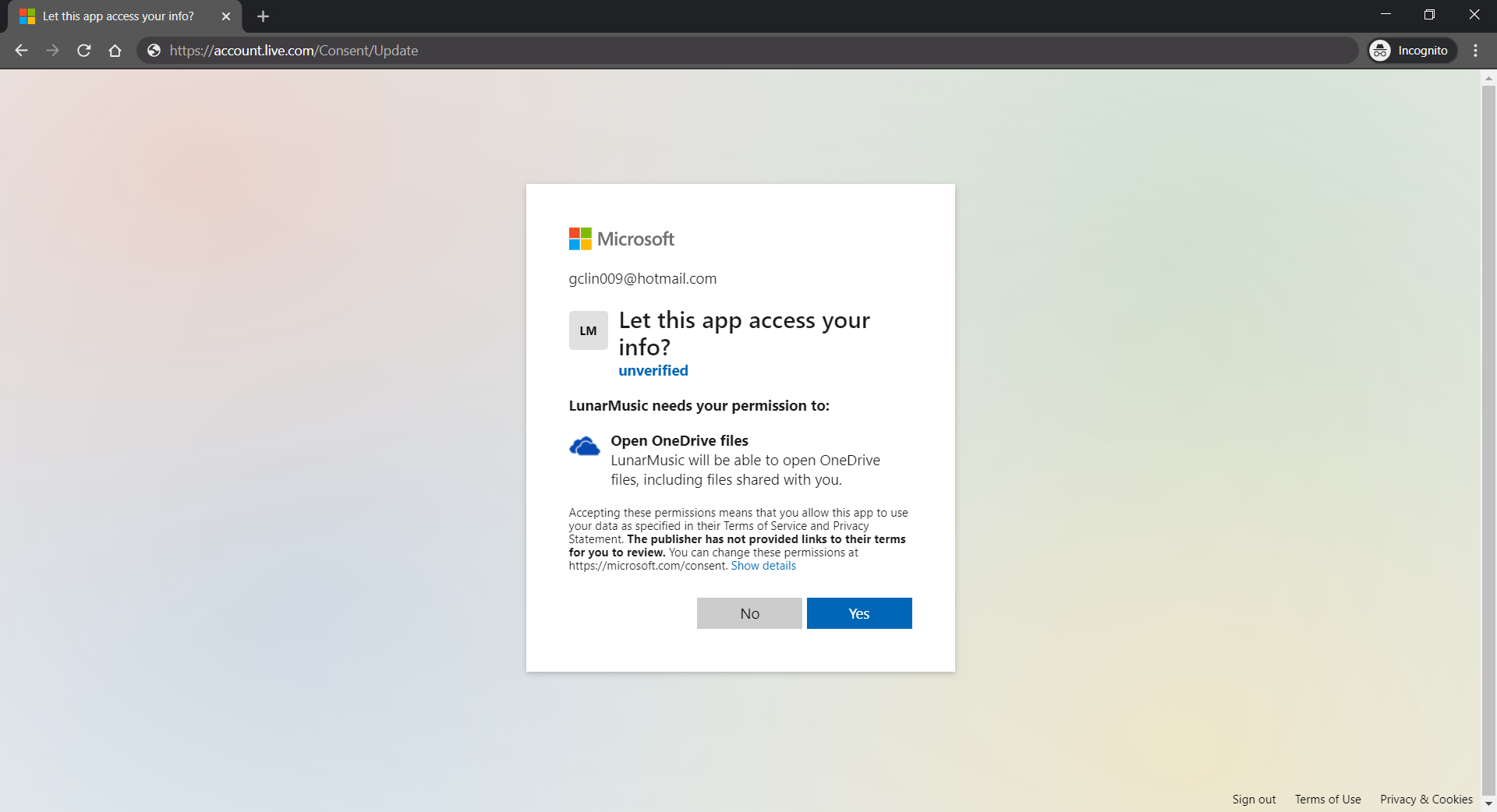
The “file.read” scope is to grant read-only permission to all OneDrive files of the logged in user. By the way, to check the Applications that you are given access to so far in Microsoft Account, you can refer to the consent management page of Microsoft Account.
Access Token, Refresh Token, and Cookie
The “offline_access” scope is used here because we need a refresh token that can be used to generate additional access tokens as necessary. However, please take note that this “offline_access” scope is not available for the Token Flow. Hence, what we can only use is the Code Flow, which is described in the following diagram.
Hence, this explains why we have the following codes in the /auth/callback, which is the Redirect URL of our registered Application. What the codes do is to get the access token and refresh token from the /token endpoint using the auth code returned from the /authorize endpoint.
Here, we cannot simply decode the response body into the oauth2.Token yet. This is because the JSON in the response body from the Azure AD token endpoint only has expires_in but not expiry. So it does not have any field that can map to the Expiry field in oauth2.Token. Without Expiry, the refresh_token will never be used, as highlighted in the following screenshot.
[Image Caption: Even though the Expiry is optional but without it, refresh token will not be used.]
Hence, we must have our own struct tokenJSON defined so that we can first decode the response body to tokenJSON and then convert it to oauth2.Token with value in the Expiry field before passing the token to the go-onedrive client. By doing so, the access token will be automatically refreshed as necessary.
Finally, we just need to store the token in cookies using gorilla/securecookie which will encode authenticated and encrypted cookie as shown below.
Besides encryption, we also enable both Secure and HttpOnly attributes so that the cookie is sent securely and is not accessed by unintended parties or JavaScript Document.cookie API. The SameSite attribute also makes sure the cookie above not to be sent with cross-origin requests and thus provides some protection against Cross-Site Request Forgery (CSRF) attacks.
Microsoft Graph Explorer
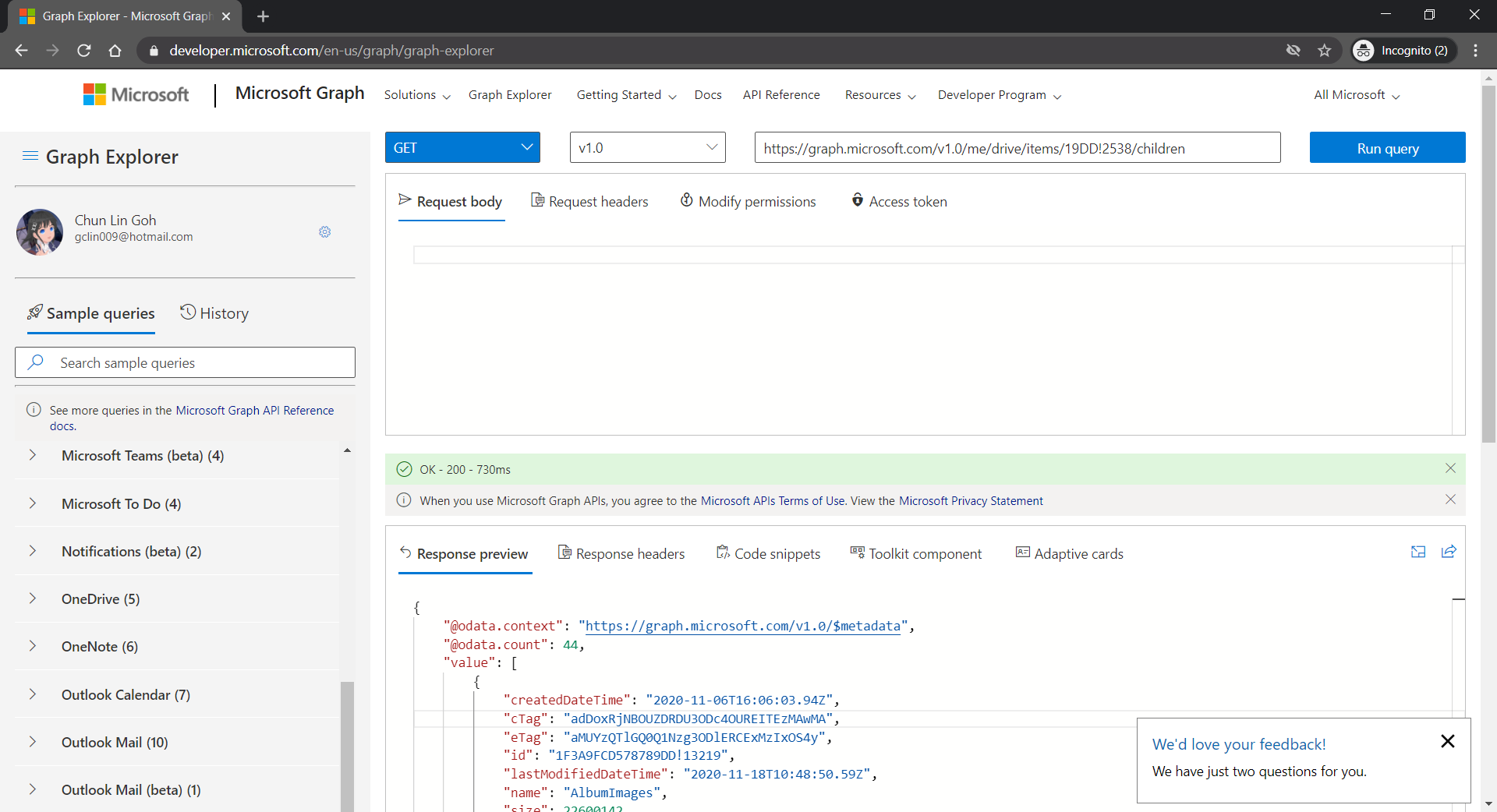
For testing purposes, there is an official tool known as the Graph Explorer. It’s a tool that lets us make requests and see responses against the Microsoft Graph. From the Graph Explorer, we can also retrieve the Access Token and use it on other tools such as Postman to do further testing.
[Image Caption: Checking the response returned from calling the get DriveItems API.]
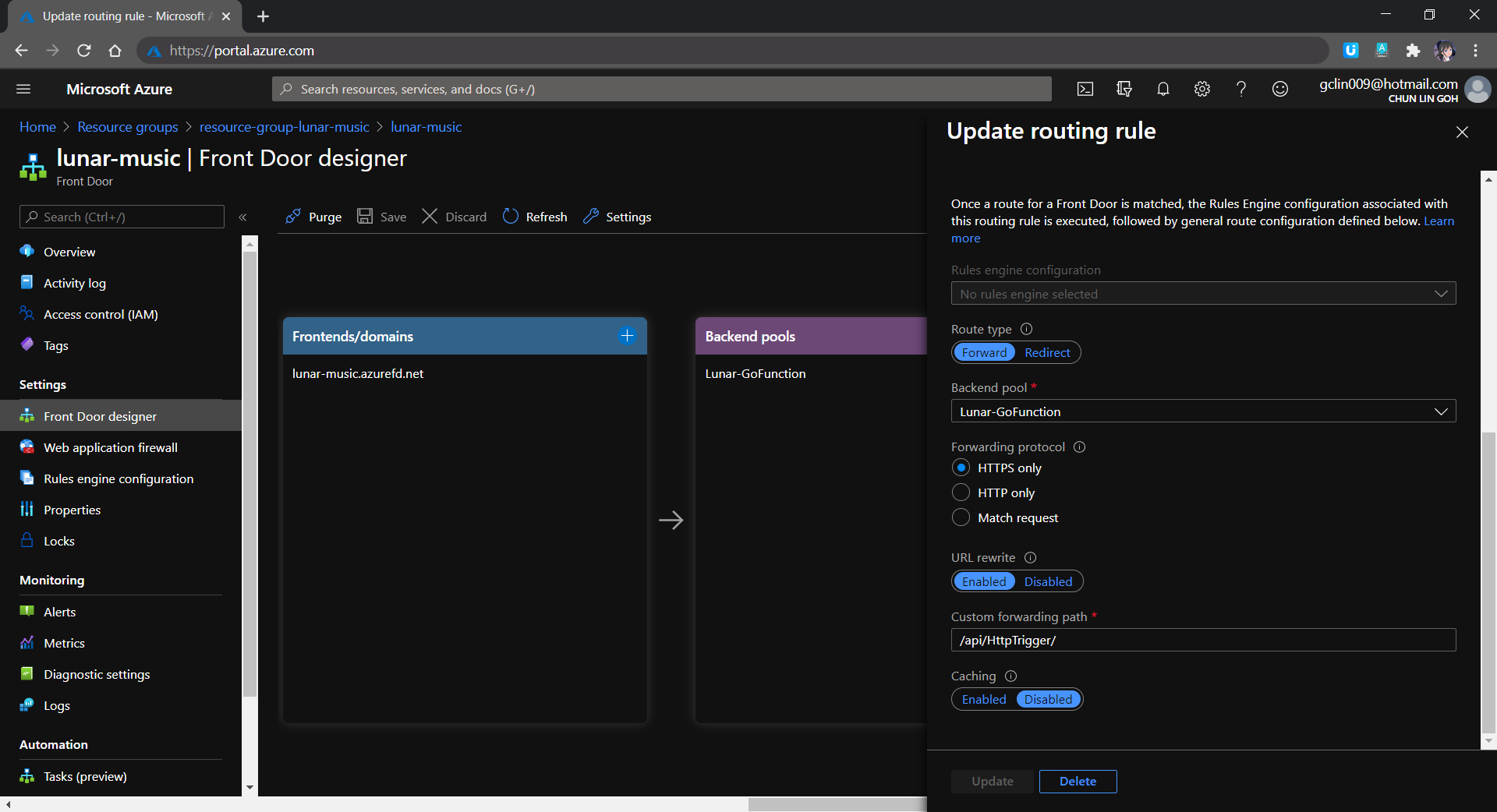
The very first reason why I use Azure Front Door is also because I want to hide the /api/HttpTrigger part from the URL. This can be done by setting the custom forwarding path which points to the /api/HttpTrigger/ with URL rewrite enabled, as shown in the screenshot below.
[Image Caption: Setting the route details for the Rules Engine in Azure Front Door.]
Let’s take a look what it looks like after we’ve deployed the web app above and uploaded some music to the OneDrive. The web app is accessible through the Azure Front Door URL now at https://lunar-music.azurefd.net/.
[Image Caption: My playlist based on my personal OneDrive Music folder.]
Yup, that’s all. I finally have a personal music entertainment system on Raspberry Pi. =)
If you would like to find out more about Microsoft Identity Platform, you can also refer to the talk below given by Christos Matskas, Microsoft Senior Program Manager. Enjoy!
Without user authentication, we cannot secure our web services and protect our users’ privacy on our application. Hence, it is important to introduce ways to authenticate users in our Golang web application now.
In this article, we will focus only on authenticating users on our Golang web application with Google Sign-In in Google Identity Platform.
Configure OAuth on Google Cloud Platform
We first need to create a Project on Google Cloud Platform (GCP).
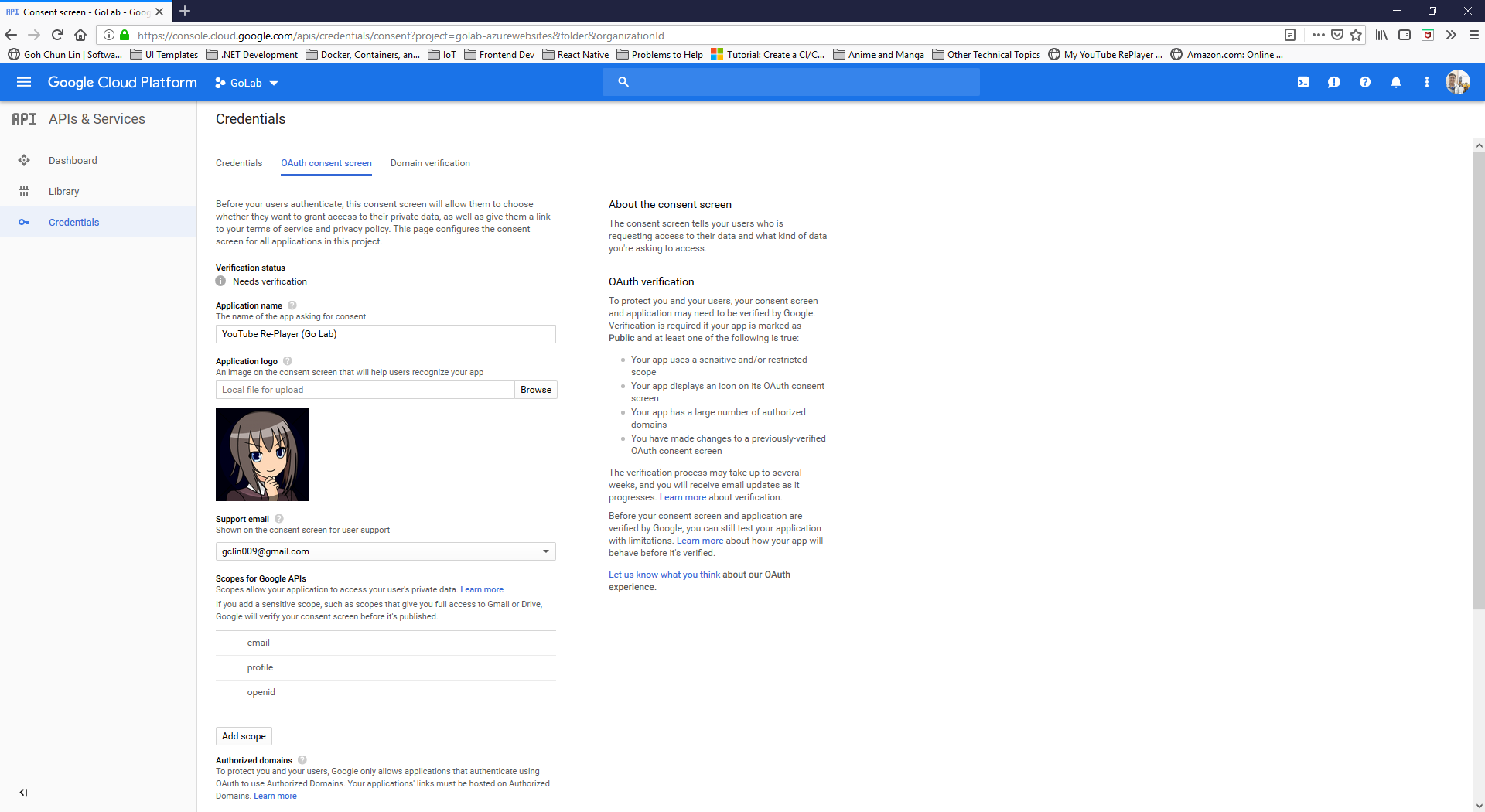
After the Project is created successfully, we need to proceed to OAuth Consent Screen to enter the information of our Golang web application, as shown in the following screenshot.
Setting up the OAuth consent screen for our Golang web application.
As you should have noticed by now, we are using OAuth because OAuth authentication system from Google makes it easy to provide a sign-in flow for all users of our application and provides our application with access to basic profile information about authenticated users.
Currently, Google only allows applications that authenticate using OAuth to use Authorized Domains which are required for redirect or origin URIs. Another thing to take note is that Authorized Domains must be a Top Private Domain. Hence, even though azurewebsites.net is a top level domain but it is not privately owned, so we cannot use the default Azure Web App URL. We thus need to assign a domain which is owned by us.
After entering all the information, we can then submit for verification. Interestingly, the verification step is not compulsory. We can choose to just save the information without submitting it for verification. However, users of unverified web applications might get warnings based on the OAuth scopes we’re using. This is how Google protects users and their data from deceptive applications.
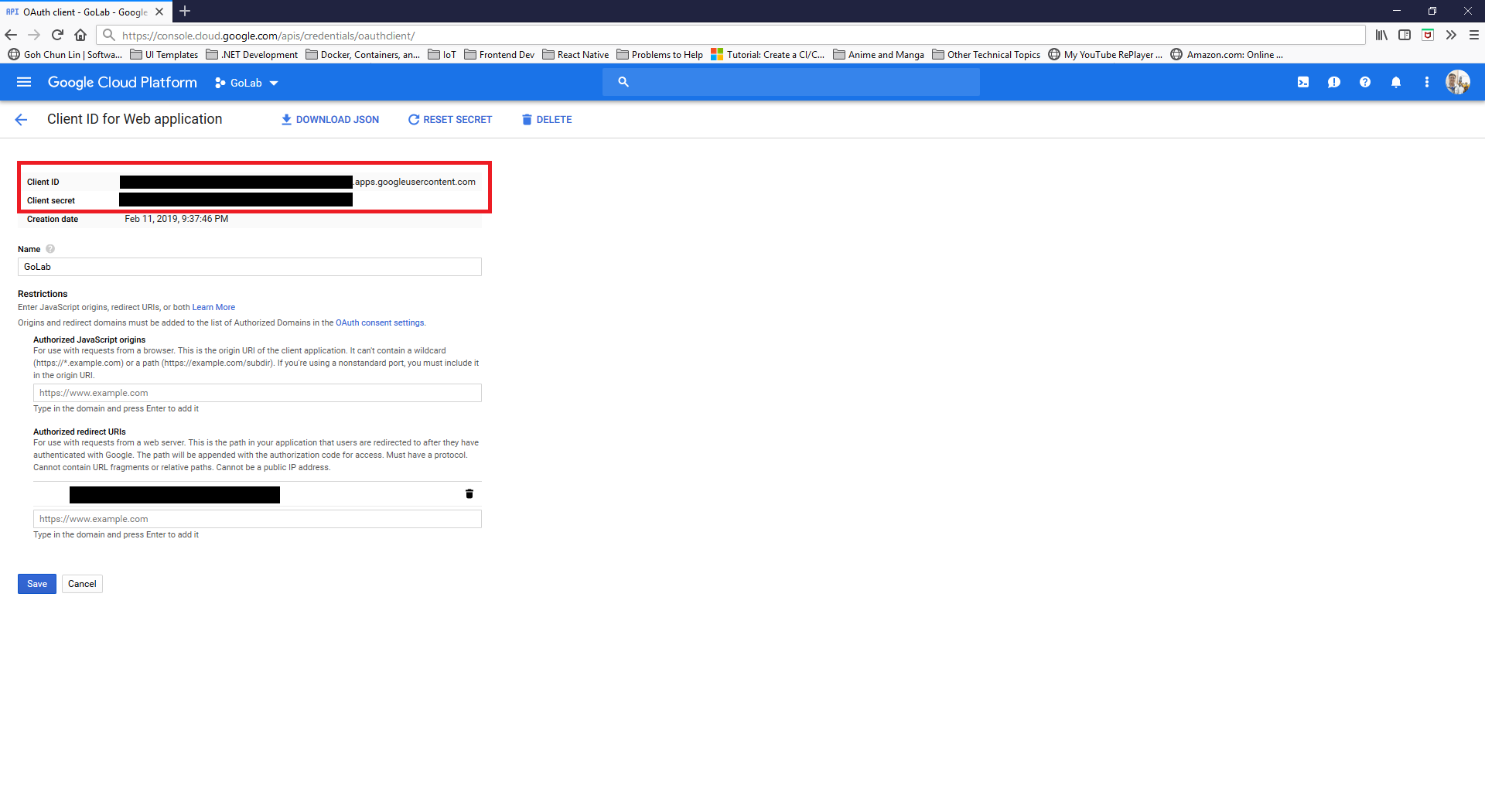
We will then be able to get both Client ID and Client Secret of our OAuth client for later use, as shown in the screenshot below.
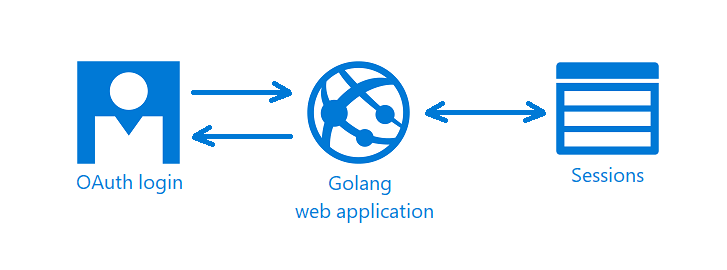
There is Sessions in the graph above because we need a way to store information about the current user. To do so, we make use of the CookieStore implementation to store session data in a secure cookie.
There are basically two new files need to be introduced.
Firstly, we have auth.go which is in charge of handling login/logout requests, handling callback from the OAuth, fetching user profile, and validating redirect URL to make sure there will be no attempts to redirect users to a path not existing within the web application.
Secondly, we have config.go which has all the configuration needed for the OAuth client on our web application. The two main functions are as follows. So this is the part when the Client ID and Client Secret from the GCP will be used.
func init() { // To enable user sign-in OAuthConfig = configureOAuthClient(os.Getenv("OAUTH_CLIENT_ID"), os.Getenv("OAUTH_CLIENT_SECRET"))
Our index handler will be changed to the following where it will show the homepage asking for user to login if the user is not yet logged in. Otherwise, it will bring the user to the page with the player.
func index(writer http.ResponseWriter, request *http.Request) { user := profileFromSession(request) if user == nil {
Users can login to our Golang web application through Google Sign-In.
Updates of Web Service
We also need to update the functions that we have done earlier for HTTP methods so that each of the functions will check for the user profile first. So we need to change the function handleVideoAPIRequests() to include the following code.
if user == nil { err = errors.New("sorry, you are not authorized") writer.WriteHeader(401)
return }
... } }
The response will be HTTP 401 Unauthorized if the user profile is not found.
If the user profile is found, then we will use the updated code to retrieve only the videos added by the current user. For example, when we are updating the info of a video record, we will need to also make sure the video record belongs to the current user, as shown in the following code.
func handleVideoAPIPut(...) (err error) {
    ...

    err = video.GetVideo(user.ID, videoID)
    if err != nil {
        // update the video record
    }
}
That means, the GetVideo function needs to be updated as well, as shown below, so that it can retrieve only video related to the currently logged-in user.
// GetVideo returns one single video record based on id func (video *Video) GetVideo(userID string, id int) (err error) { sqlStatement := "SELECT id, name, url FROM videos WHERE created_by = $1 AND id = $2;"












 cuteprogramming