[KOSD] Solving SQL File Encoding Issues on Git with PowerShell

Few days ago, some of our teammates discovered that the SQL files they tried to pull from our GitHub repo had encoding issue. When they did git pull, there would be an error saying “fatal: failed to encode ‘…/xxxxx.sql’ from UTF-16-LE-BOM to UTF-8”.

In addition, on GitHub, the SQL files we committed to the GitHub are all marked as binary files. Thus we couldn’t view the changes we made to those files in the commit.

Cause of the Issue

It turns out that those SQL files are generated from SQL Server Management Studio (SSMS).

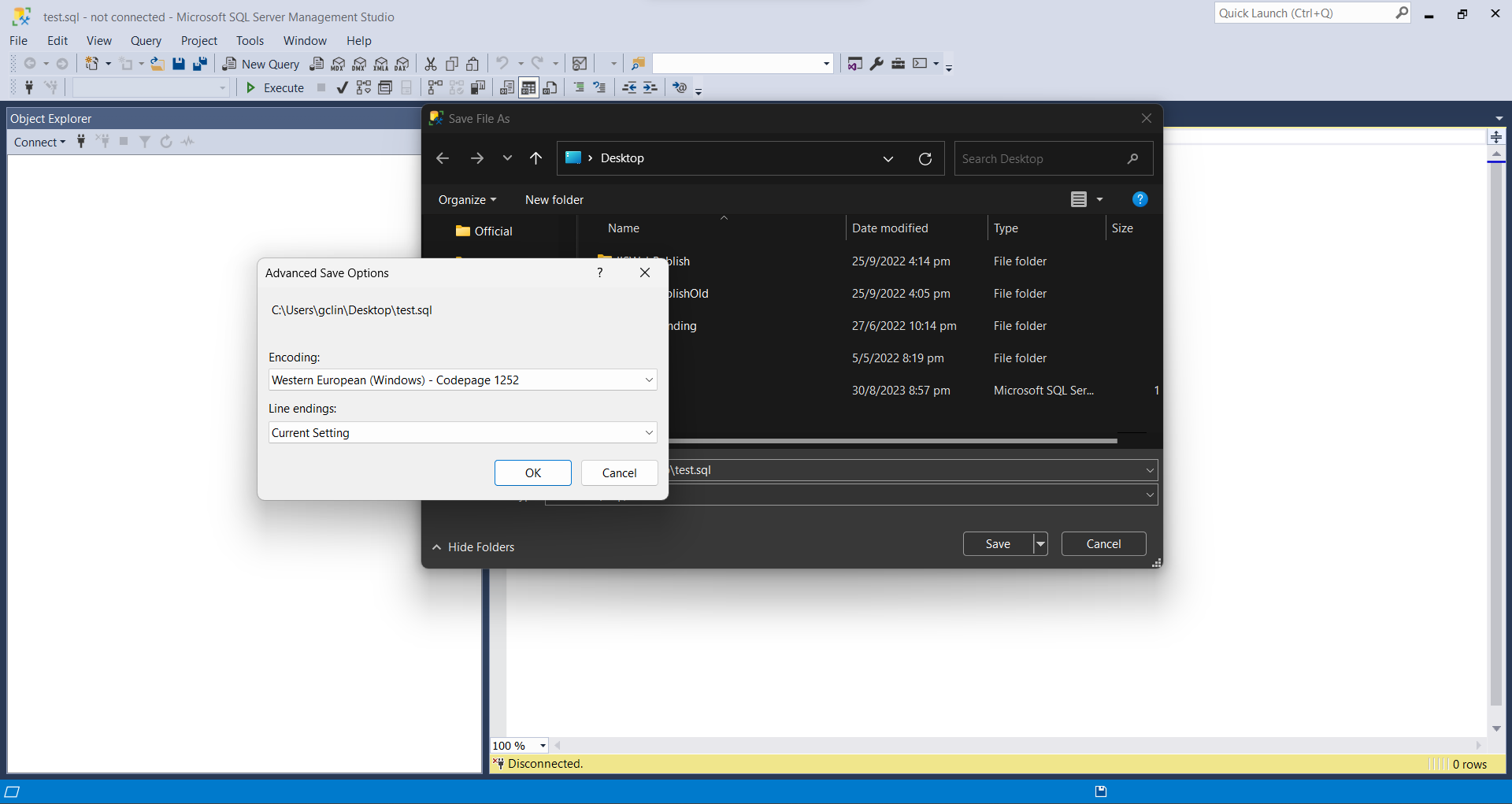
Default file encoding of SSMS is Western European (Windows) – Codepage 1252.

By default, the encoding used to save SQL files in SSMS is UTF-16. For my case, my default encoding is the “Western European (Windows) – Codepage 1252”. Codepage 1252 is a single-byte character encoding of the Latin alphabet that was used in Windows for English and many Romance and Germanic languages. This encoding will cause Git to treat the files as binary files.

Solution

The way to resolve this issue is to force the file to use UTF-8 encoding. We can run the following PowerShell script to change the encoding of all SQL files in a given directory and its subdirectories.

$Utf8NoBomEncoding = New-Object System.Text.UTF8Encoding $False

Get-ChildItem "<absolute directory path>" -Recurse *.sql | foreach {
    $FilePath = $_.FullName
    $FileContent = Get-Content $FilePath
    [System.IO.File]::WriteAllLines($FilePath, $FileContent, $Utf8NoBomEncoding)
}

The BOM (Byte Order Mark), a sequence of bytes at the start of a text stream (0xEF, 0xBB, 0xBF), is used to signal the endianness of an encoding, but since endianness is irrelevant to UTF-8, the BOM is unnecessary. This explains why we pass $False to the constructor of UTF8Encoding to indicate that BOM is not needed.

Wrap-Up

That’s all for a short little PowerShell script we used to solve the encoding issue of our SQL files.

There is an interesting discussion on StackOverflow about this issue, please give it a read too.

KOSD, or Kopi-O Siew Dai, is a type of Singapore coffee that I enjoy. It is basically a cup of coffee with a little bit of sugar. This series is meant to blog about technical knowledge that I gained while having a small cup of Kopi-O Siew Dai.

Improve Life with Codes

In the realm of software development and business practices, not automating processes when it could bring significant benefits will normally be considered a missed opportunity or an inefficient use of resources. It could lead to wasted time, increased chances of errors, and reduced productivity.

Background Story

My teammate encountered this strange issue that a third-party core component in the system which run as a Windows service would stop randomly. The service is listening to a certain TCP port. When the service was down, telnet to that port would show that the connection was not successful.

After weeks of intensive log investigation, my teammate still could not figure out the reason why it would stop working. However, a glimmer of insight emerged: restarting the Windows service would consistently bring the component back online.

Hence, he solution is creating an alert system which would trigger email to him and the team to restart the Windows service when it goes down. The alert system is basically a scheduler checking the health of the TCP port which the service is listening to.

Since my teammate was only the few ones who could login to the server, he had to standby during weekends too to restart the Windows service. Not long after that, he submitted his resignation and left the company. Other teammates thus had to take over this manual restarting Windows service task.

Auto Restart Windows Service with C#

In order to avoid teammates getting burnout from manually restarting Window service frequently even at nights and during weekends, I decided to develop a C# programme which will be executed every 10 minutes at the server. The C# programme will make a connection to the port being listened by the Windows service to check whether the service is running or not. If it is not, the programme will restart it.

The code is as follows.

try
{
    using (TcpClient tcpClient = new())
    {
        tcpClient.Connect(serverIpAddress, port);
    }

    Console.WriteLine("No issue...");
}
catch (Exception)
{
    int timeoutMilliseconds = 120000;

    ServiceController service = new(targetService);

    try
    {
        Console.WriteLine("Restarting...");
        int millisec1 = Environment.TickCount;

        TimeSpan timeout = TimeSpan.FromMilliseconds(timeoutMilliseconds);

        if (service.Status != ServiceControllerStatus.Stopped) 
        {
            Console.WriteLine("Stopping...");
            service.Stop();
            service.WaitForStatus(ServiceControllerStatus.Stopped, timeout);
        }

        Console.WriteLine("Stopped!");
        int millisec2 = Environment.TickCount;
        timeout = TimeSpan.FromMilliseconds(timeoutMilliseconds - (millisec2 - millisec1));

        Console.WriteLine("Starting...");
        service.Start();
        service.WaitForStatus(ServiceControllerStatus.Running, timeout);

        Console.WriteLine("Restarted!");
    }
    catch (Exception ex) 
    {
        Console.WriteLine(ex.Message);
    }
}

In the programme above, we implement a timeout of 2 minutes. So after waiting the Windows service to stop, we will use the remaining time to wait for the service to be back to the Running status within the remaining time.

After the team had launched this programme as a scheduler, no one has to wake up at midnight just to login to server to restart the Windows service anymore.

Converting Comma-Delimted CSV to Tab-Delimted CSV

Soon, we realised another issue. The input files sent to the Windows service to process has invalid file content. The service is expecting tab-delimited CSV files but the actual content is comma-delimited. The problem has been there since last year, so there are hundreds of files not being processed.

In order to save his time, I wrote a Powershell script to do the conversion.

Get-ChildItem "<directory contains the files>" -Filter *.csv | 
Foreach-Object {
    Import-Csv -Path $_.FullName -Header 1,2,3,4,5,6,7,8,9 | Export-Csv -Path ('<output directory>' + $_.BaseName + '_out.tmp') -Delimiter `t -NoTypeInformation 

    Get-Content ('<output directory>' + $_.BaseName + '_out.tmp') | % {$_ -replace '"', ''} | Select-Object -Skip 1 | out-file -FilePath ('<output directory>' + $_.BaseName + '.csv')

    Remove-Item ('<output directory>' + $_.BaseName + '_out.tmp')
}

The CSV files do not have the header row and they all have 9 columns. Hence, that is the reason why I use “-Header 1,2,3,4,5,6,7,8,9” to add a temporary header. Otherwise, the script will treat the first line in the file to be header. This means that if the first line has multiple columns having the same value, the Import-Csv will fail. This is the reason why we need to add a temporary header with unique column values.

When using Export-Csv, all fields in the CSV are enclosed in quotation marks. Hence, we need to remove the quotation marks and remove the temporary header before we generate a tab-delimited CSV file as the output.

With this my teammate easily transform all the files to the correct format in less than 5 minutes.

Searching File Content with PowerShell

A few days after that, I found out that another teammate was reading the log files manually to find out the lines containing a keyword “access”. I was shocked by what he was doing because there were hundreds of logs everyday and that would mean he needed to spend hours or even days on the task.

Hence, I wrote him another simple PowerShell just to do the job.

Get-ChildItem "<directory contains the files>" -Filter *.log | 
Foreach-Object {
    Get-Content $_.FullName | % { if($_ -match "access") {write-host $_}}
}

With this, my teammate finally could finish his task early.

Wrap-Up

Automating software development processes is a common practice in the industry because of the benefits it offers. It saves time, reduces errors, improves productivity, and allows the team to focus on more challenging and creative tasks.

From a broader perspective, not automating the process but doing it manually might not be a tragic event in the traditional sense, as it does not involve loss of life or extreme suffering. However, it could be seen as a missed chance for improvement and growth.

Multipart Form Upload using WebClient in .NET Framework 3.5

Prior to my team lead’s resignation, he assigned me a task of updating a legacy codebase written in .NET Framework 3.5. The task itself involved submitting a multipart form request to a Web API, which made it relatively straightforward.

However, despite potential alternatives, my team lead insisted that I continue using .NET Framework 3.5. Furthermore, I was not allowed to incorporate any third-party JSON library into the changes I made.

SHOW ME THE CODE!

The complete source code of this project can be found at https://github.com/goh-chunlin/gcl-boilerplate.csharp/tree/master/console-application/HelloWorld.MultipartForm.

Multipart Form

A multipart form request is a type of form submission used to send data that includes binary or non-textual files, such as images, videos, or documents, along with other form field values. In a multipart form, the data is divided into multiple parts or sections, each representing a different form field or file.

The multipart form data format allows the data to be encoded and organized in a way that can be transmitted over HTTP and processed by web servers. For the challenge given by my team lead, the data consists of two sections, i.e. main_message, a field containing a JSON object, and a list of files.

The JSON object is very simple, which has only two fields called message and documentType, which can only be the value “PERSONAL”, for now.

{
    "message": "...",
    "documentType": "PERSONAL"
}

When the API server handles a multipart form request, it will parse the data by separating the different parts based on the specified boundaries and retrieves the values of each field or file for further processing or storage.

About the Boundaries

In a multipart form, the boundary is a unique string that serves as a delimiter between different parts of the form data. It helps in distinguishing one part from another. The following is an example of what a multipart form data request might look like with the boundary specified.

POST /submit-form HTTP/1.1
Host: example.com
Content-Type: multipart/form-data; boundary=--------------------------8db792beb8632a9

----------------------------8db792beb8632a9
Content-Disposition: form-data; name="main_message"

{
    "message": "...",
    "documentType": "PERSONAL"
}
----------------------------8db792beb8632a9
Content-Disposition: form-data; name="attachments"; filename="picture.jpg"
Content-Type: application/octet-stream

In the example above, the boundary is set to ----------------------------8db792beb8632a9. Each part of the form data is separated by this boundary, as indicated by the dashed lines. When processing the multipart form data on the server, the server uses the boundary to identify the different parts and extract the values of each form field or file.

The format of the boundary string used in a multipart form data request is specified in the HTTP/1.1 specification. The boundary string must meet the following requirements:

  1. It must start with two leading dashes “–“.
  2. It may be followed by any combination of characters, excluding ASCII control characters and the characters used to specify the end boundary (typically dashes).
  3. It should be unique and not appear in the actual data being transmitted.
  4. It should not exceed a length of 70 characters (including the leading dashes).

Besides the leading dashes, the number of dashes depends on how many we want there. It also can be zero, if you like, it is just that more dashes makes the boundary more obvious. Also to make it unique, we use timestamp converted into hexadecimal.

Boundary = "----------------------------" + DateTime.Now.Ticks.ToString("x");

Non-Binary Fields

In the example above, besides sending the files to the server, we also have to send the data in JSON. Hece, we will be having a code to generate the section in following format.

----------------------------8db792beb8632a9
Content-Disposition: form-data; name="main_message"

{
    "message": "...",
    "documentType": "PERSONAL"
}

To do so, we have a form data template variable defined as follows.

static readonly string FormDataTemplate = "\r\n--{0}\r\nContent-Disposition: form-data; name=\"{1}\";\r\n\r\n{2}";

Binary Fields

For the section containing binary file, we will need a code to generate something as follows.

----------------------------8db792beb8632a9
Content-Disposition: form-data; name="attachments"; filename="picture.jpg"
Content-Type: application/octet-stream

Thus, we have the following variable defined.

static readonly string FileHeaderTemplate = "Content-Disposition: form-data; name=\"{0}\"; filename=\"{1}\"\r\nContent-Type: application/octet-stream\r\n\r\n";

Ending BOUNDARY

The ending boundary is required in a multipart form data request to indicate the completion of the form data transmission. It serves as a signal to the server that there are no more parts to process and that the entire form data has been successfully transmitted.

The ending boundary is constructed in a similar way to the regular boundary but with an additional two trailing dashes “–” at the end to indicate its termination. Hence, we have the following codes.

void WriteTrailer(Stream stream)
{
    byte[] trailer = Encoding.UTF8.GetBytes("\r\n--" + Boundary + "--\r\n");
    stream.Write(trailer, 0, trailer.Length);
}

Stream.CopyTo Method

As you may have noticed in our code, we have a method called CopyTo as shown below.

void CopyTo(Stream source, Stream destination, int bufferSize)
{
    byte[] array = new byte[bufferSize];
    int count;
    while ((count = source.Read(array, 0, array.Length)) != 0)
    {
        destination.Write(array, 0, count);
    }
}

The reason we have this code is because the Stream.CopyTo method, that reads the bytes from the current stream and writes them to another stream, is only introduced in .NET Framework 4.0. Hence, we have to write our own CopyTo method.

JSON Handling

To handle the JSON object, the following items are all not available in a .NET Framework 3.5 project.

Hence, if we are not allowed to use any third-party JSON library such as Json.NET from Newtonsoft, then we can only write our own in C#.

string mainMessage =
    "{ " +
        "\"message\": \"" + ConvertToUnicodeString(message) + "\",  " +
        "\"documentType\": \"PERSONAL\" " +
    "}";

The method ConvertToUnicodeString is to support unicode characters in our JSON.

private static string ConvertToUnicodeString(string text)
{
    StringBuilder sb = new StringBuilder();

    foreach (var c in text)
    {
        sb.Append("\\u" + ((int)c).ToString("X4"));
    }

    return sb.ToString();
}

Wrap-Up

This concludes the challenge my team lead presented to me before his resignation.

He did tell me that migrating the project to the modern .NET framework requires significant resources, including development time, training, and potential infrastructure changes. Hence, he foresaw that with limited budgets, the team could only prioritise other business needs over framework upgrades.

After completing the challenge, my team lead has resigned for quite some time. With his departure in mind, I have written this blog post in the hopes that it may offer assistance to other developers facing similar difficulties in their career.

The complete source code of this sample can be found on my GitHub project: https://github.com/goh-chunlin/gcl-boilerplate.csharp/tree/master/console-application/HelloWorld.MultipartForm.

References

Using Docker and Kubernetes without Docker Desktop on Windows 11

Last week, my friend who is working on a microservice project at work suddenly messaged me saying that he realised Docker Desktop is no longer free.

Docker Desktop is basically an app that can be installed on our Windows machine to build and share containerised apps and microservices. It provides a straightforward GUI to manage our containers and images directly from our local machine.

Docker Desktop also includes a standalone Kubernetes server running locally within our Docker instance. It is thus very convenient for the developers to perform local testing easily using Docker Desktop.

Despite Docker Desktop remaining free for small businesses, personal use, education, and non-commercial open source projects, it now requires a paid subscription for professional use in larger businesses. Consequently, my friend expressed a desire for me to suggest a fast and free alternative for development without relying on Docker Desktop.

Install Docker Engine on WSL

Before we continue, we need to understand that Docker Engine is the fundamental runtime that powers Docker containers, while Docker Desktop is a higher-level application that includes Docker Engine. Hence, Docker Engine can also be used independently without Docker Desktop on local machine.

Fortunately, Docker Engine is licensed under the Apache License, Version 2.0. Thus, we are allowed to use it in our commercial products for free.

In order to install Docker Engine on Windows without using Docker Desktop, we need to utilise the WSL (Windows Subsystem for Linux) to run it.

Step 1: Enable WSL

We have to enable WSL from the Windows Features by checking the option “Windows Subsystem for Linux”, as shown in the screenshot below.

After that, we can press “OK” and wait for the operation to be completed. We will then be asked to restart our computer.

If we already have WSL installed earlier, we can update the built-in WSL to the Microsoft latest version of WSL using the “wsl –update” command in Command Prompt.

Later, if we want to shutdown WSL, we can run the command “wsl –shutdown”.

Step 2: Install Linux Distribution

After we restarted our machine, we can use the Microsoft Store app and look for the Linux distribution we want to use, for example Ubuntu 20.04 LTS, as shown below.

We then can launch Ubuntu 20.04 LTS from our Start Menu. To find out the version of Linux you are using, you can run the command “wslfetch”, as shown below.

For the first timer, we need to set the Linux username and password.

Step 3: Install Docker

Firstly, we need to update the Ubuntu APT repository using the “sudo apt update” command.

After we see the message saying that we have successfully updated the apt repository, we can proceed to install Docker. Here, the “-y” option is used to grant the permission to install required packages automatically.

When Docker is installed, we need to make a new user group with the name “docker” by utilising the below-mentioned command.

Docker Engine acts as a client-server application with a server that has a long-running daemon process dockerd. dockerd is the command used to start the Docker daemon on Linux systems. The Docker daemon is a background process that manages the Docker environment and is responsible for creating, starting, stopping, and managing Docker containers.

Before we can build images using Docker, we need to use dockerd, as shown in the screenshot below.

Step 4: Using Docker on WSL

Now, we simply need to open another WSL terminal and execute docker commands, such as docker ps, docker build, etc.

With this, we can now push our image to Docker Hub from our local Windows machine.

Configure a local Kubernetes

Now if we try to run the command line tool, kubectl, we will find out that the command is still not yet available.

We can use the following commands to install kubectl.

$ curl -LO https://storage.googleapis.com/kubernetes-release/release/`curl -s https://storage.googleapis.com/kubernetes-release/release/stable.txt`/bin/linux/amd64/kubectl


$ chmod +x ./kubectl


$ sudo mv ./kubectl /usr/local/bin/kubectl


$ kubectl version --client

The following screenshot shows what we can see after running the commands above.

After we have kubectl, we need to make Kubernetes available on our local machine. To do so, we need to install minikube, a local Kubernetes. minikube can setup a local Kubernetes cluster on macOS, Linux, and Windows.

To install the latest minikube stable release on x86-64 Linux using binary download:

$ curl -LO https://storage.googleapis.com/minikube/releases/latest/minikube-linux-amd64

$ sudo install minikube-linux-amd64 /usr/local/bin/minikube

The following is the results of running the installation of minicube. We also run the minicube by executing the command “minikube start”.

We can now run some basic kubectl commands, as shown below.

References