I like to explore interesting new technologies. I also love to learn more from the materials available on Microsoft Virtual Academy, Google Developers channel, and several other tech/dev events.
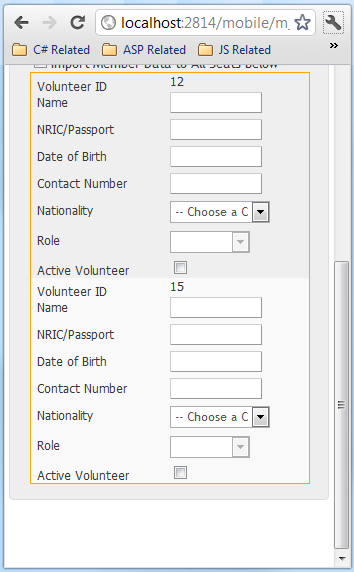
Most of the mobile phones have vertical screen, so building a mobile website where user needs to scroll horizontally frequently is a No. Thus, it is not a good idea to have HTML tables which are very wide, especially those have text-boxes and many other fields for user to fill in as shown below.
Have to scroll horizontally to fill up information in a wide table
After the first version of the mobile website is done, I now focus on making the columns of the wide tables to be shown vertically, like the one shown below.
Columns now become rows
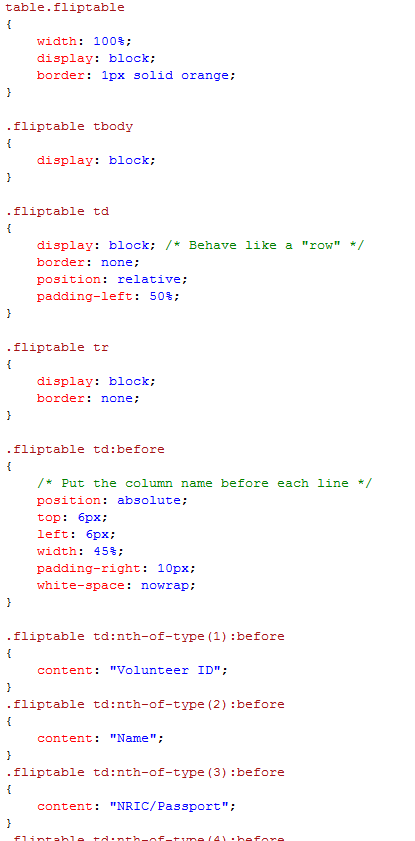
It is done using CSS. I like the solution very much because unlike some other solutions which require changes done to the ASPX, this solution with CSS will not affect the C# code behind.
The CSS part is quite straight-forward. The idea is just to make each cell of every row to show line by line in the row. After that, the name of the columns will be placed in front of each line:
The rest of the CSS is just adding header text to each row
There is an advanced solution posted online where the table can actually decide the layout itself based on the screen size: http://css-tricks.com/responsive-data-table-roundup/. That advanced version allows the user to get different look-and-feel on different devices. However, I somehow could not get it to work on my ASP website. Thus, I modified it to a simpler version as shown above.
Oh yeah, the CSS above does not work in Internet Explorer. According to a discussion on Stack Overflow, adding “float: left” to .fliptable td seems to solve the problem (at least in IE9).
I enjoy watching YouTube on my Android because I don’t sit in front of my PC for a long time. I found that the mobile version of YouTube was quite simple, straight-forward and easy. It is very easy to look for videos in Subscriptions, personal Playlists, History and Favourites. I like how YouTube handles playlists which are very long (having more than 12 videos in it). Instead of showing all the videos in a long playlist, the mobile version of YouTube shows only the first few. The user then has to click on the “Show more videos” button at the bottom of the page to view more of the playlist. This is a bit troublesome for the user but that feature helps in showing the playlist videos page faster. This feature is introduced because of the smaller display we have in mobile phones.
Usability
Recently, I am doing the mobile version for an existing ASP website. Learning from YouTube mobile and some other mobile website online tutorials, I introduce a few changes in the mobile version of the ASP website:
Remove large images, especially not-so-useful advertisement pictures shown on the original site and background images. This helps in reducing the bandwidth;
Make the mobile version of the website to be single column. The original site has a multi-column layout. This makes the user needs to scroll a lot (horizontally and vertically) on the phone just to view the entire web page. The what-the-hash moment comes when the page contains too much unnecessary content, and the user has to spend time on scrolling and finding the important info on the page;
Increase the click-able area. It will never be a good idea to ask user to zoom in to the page just to click on the tiny check-box or radio button. So, I have a large table cells there to replace the radio buttons and check-boxes so that user has a wider area to click on. Drop-down list can also be used to replace radio buttons because it is easier to choose item from the drop-down list in the mobile phone;
No Flash and Silverlight. Removing all the animation thingy is a good choice;
Build a fluid layout. Since different types of the mobile phones have different screen size, so it is good to fix the width of the display area;
Have a “Back” button to go to the previous page. The original site has a section where the user has to go through several steps to get to see their results. So, a “Back” button is important in section like this on mobile version.
Besides, the links should be avoided for any important call to action. YouTube mobile still has this problem. Previously, they even placed the “Sign out” link very close to the “Show more videos” button. So, there are many times I accidentally clicked on the “Sign out” link. In the latest version, YouTube mobile has changed the position of the “Sign out” link. However, it is still placed not far from the frequently used buttons and they still do not ask for conformation when user clicks on the “Sign out” link. Haiz…
The "Sign out" link in YouTube mobile is still close to the "Show more videos" button. Argg...
Also, I am thinking of having the functionality of allowing the user to view the address on the map on smartphone. This is to help user find out the actual position of the place easily. Allow users to automatically call the number when they click on the number on the web page is also helpful. I think some users will go crazy if they have to first note down the number on paper and then type the number on the phones just to call the person.
Detect the Mobile Device
Since it is an ASP website, I decided to use ASP to do the device detection.
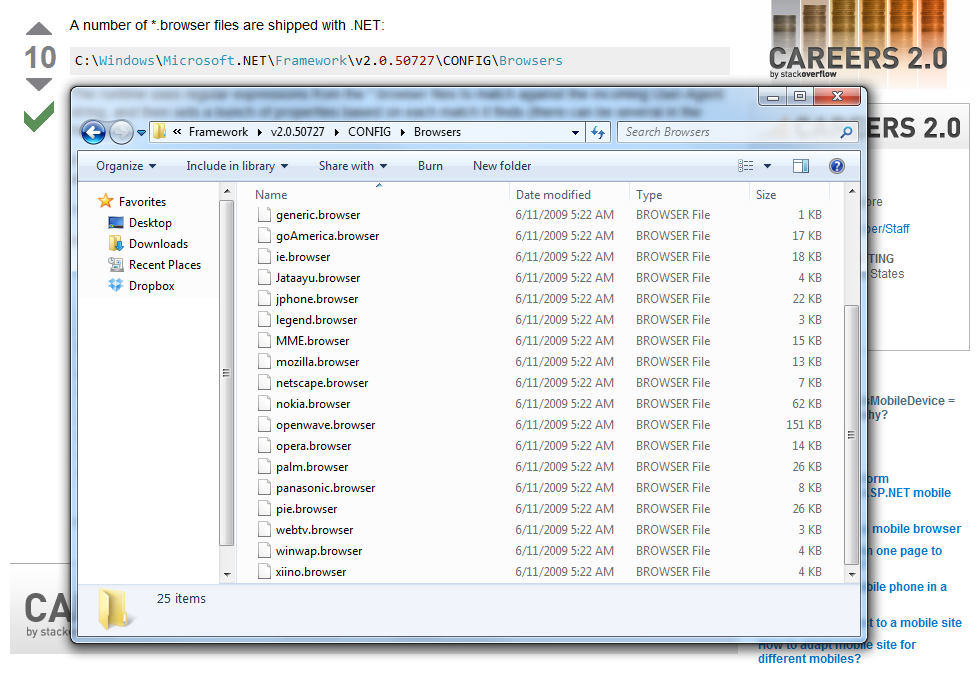
MSDN shows a very easy tutorial to do that: http://msdn.microsoft.com/en-us/library/fhhycabe.aspx. The tutorial shows how to use Request.Browser[“IsMobileDevice”] to check if it is a mobile device that is accessing the page right now. According the a discussion thread on the StackOverflow (http://stackoverflow.com/questions/1829089/how-does-ismobiledevice-work), by calling Request.Browser[“IsMobileDevice”], the runtime uses regular expression from the *.browser files to match against the incoming User-Agent string. However, this does not work at my side.
The *.browser files shipped with .NETI then tried another solution found on another thread ASP.NET Forums (http://forums.asp.net/t/1175390.aspx):
An advanced version of code to check the device being usedThe method suggested by anantjains uses several stuff to check: IsMobileDevice, HTTP_X_WAP_PROFILE, HTTP_ACCEPT and HTTP_USER_AGENT. The code actually works when I use User Agent Switcher on Firefox to test it. Yup, so I will use the code for now.
Meanwhile, according to a page in ASP.NET (http://www.asp.net/mobile), there is a third-party project on detecting the mobile devices, including those which are just released recently. The project is an open-source project and it is called 51degree.mobi Foundation: http://51degrees.codeplex.com/. I have not tried it yet though.
Testing Mobile Website on PC
I usually tested my ASP and C# code on localhost first before deploy it on the server. So, for the mobile ASP website, I need a way to test it on my PC also.
True mobile browsing can be done on Firefox with the help of User Agent Switcher add-on (https://addons.mozilla.org/en-US/firefox/addon/user-agent-switcher/). With just the User Agent and a short description in the User Agent Switcher, a new user agent option can then be added to the list. By switching to the correct mobile user agent, the mobile version of the page can be viewed properly.
When working as a software developer in multi-cultural countries, like Malaysia and Singapore, localization of your app is very important sometimes. To reach out more users, it’s better if your app can communicate with the users no matter what language they speak.
Resource Files for ASP.NET I tried doing localization for OneSync two years ago when I was developing its third version. The localization for C# desktop app is easy and straight-forward. It just needs to have different resource files for different languages and then retrieve the information from the files based on user’s selected language.
So, how about ASP.NET? It is basically the same thing. Resources are available in ASP for web pages contents localization as well (Reference: http://msdn.microsoft.com/en-us/library/ms228208.aspx). In ASP, there are two types of resource files: Global Resource Files and Local Resource Files. According to MSDN (http://msdn.microsoft.com/en-us/library/ms247246.aspx), global resource files are available to any web page in the web site and local resource files are only associated with a single web page. Does that mean we should store the resources that will be used in more than one web page under the Global Resource Files? I guess so. However, I once tried putting all my localized texts under the Local Resource Files folder. It did not actually stopping me from retrieving the localized texts in the local resource files from more than just one web page. I’m still not sure why it’s so.
Where to Store Language Setting?
One place to store the user language setting for your ASP website can be cookies. This is because information about user language selection should be saved permanently. Actually it’s not really permanent storage because the Expires field of a cookie must be set. If it’s not set, then the cookie will be treated as a session, meaning the cookie expires when the session ends. Thus, no expiry date means the cookies won’t be stored in the user’s hard disk at all (Reference: http://msdn.microsoft.com/en-us/library/ms178194.aspx).
To create a new cookie, I currently use the following codes.
Here, I make the cookies expiration to be one year later of its creation.
To read the user language setting from the cookie, I just need to use the following code: Request.Cookies[“language”].Value and then I can happily get the user language selection.
Yup, that’s all with my first attempt in ASP localization.
I was playing with MS SQL just now and I encounter a problem when I would like to update a table in database. It later turned out that the problem was not in my UPDATE statement, but due to the fact that the user inputs in ASP textboxes are “not captured”.
Let me simplify the scenario. I have one textbox and one submit button.
If I entered a value, for example “Konata”, into the textbox tb_editName and then clicked the button btn_editInfo, the UPDATE statement will always update the table in database with the value “Kagami”, instead of the user input “Konata”.
I searched on Google and then found the following online discussion: http://forums.asp.net/t/1104590.aspx/1. They said the problem was due to the fact that the Page_Load event would be fired in each postback.
Ah-ha! I found the solution: Using Page.IsPostBack. So basically I just need to make sure my table is updated before the DataBind() is called. Yup, after I have done that, everything is working fine again. =)
What about >=2 Buttons?
The example above has only 1 button. So, will there by any different if we have two or more buttons? The answer is yes.
Page.IsPostBack does not say anything about which button is pressed. So, to handle the cases where we have two or more buttons, we should have a change in the code organization shown above. A detailed discussion can be found here: http://p2p.wrox.com/asp-net-3-5-basics/79502-how-check-if-button-clicked-asp.html. Page_Load should have only the code which needs to be executed every time when the page loads. The actions that need to be carried out after a button is clicked should still be handled in the click event of the button.




 cuteprogramming