[KOSD] Multiple Parallel Operations in Entity Framework Core (.NET 8)

In a .NET Web API project, when we have to perform data processing tasks in the background, such as processing queued jobs, updating records, or sending notifications, it’s likely designed to concurrently perform database operations using Entity Framework (EF) in a BackgroundService when the project starts in order to significantly reduce the overall time required for processing.

However, by design, EF Core does not support multiple parallel operations being run on the same DbContext instance. So, we need to approach such background data processing tasks in a different manners as discussed below.

Code Setup

Let’s begin with a simple demo project setup.

In many ASP.NET Core applications, DbContext is registered with the Dependency Injection (DI) container, typically with a scoped lifetime. For example, in Program.cs, we can configure MyDbContext to connect to a MySQL database with .

builder.Services.AddDbContext<MyDbContext>(options =>
options.UseMySql(connectionString));

Next, we have a scoped service defined as follows. It will retrieve a set of relevant records from the database MyTable.

public class MyService : IMyService
{
private readonly MyDbContext _myDbContext;

public MyService(MyDbContext myDbContext)
{
_myDbContext = myDbContext;
}

public async Task RunAsync(CancellationToken cToken)
{
var result = await _myDbContext.MyTable
.Where(...)
.ToListAsync();

...
}
}

Here we will be consuming this MyService in a background task. In Program.cs, using the code below, we setup a background service called MyProcessor with the DI container as a hosted service.

builder.Services.AddHostedService<Processor>();

Hosted services are background services that run alongside the main web application and are managed by the ASP.NET Core runtime. A hosted service in ASP.NET Core is a class that implements the IHostedService interface, for example BackgroundService, the base class for implementing a long running IHostedService.

As shown in the code below, since MyService is a scoped service, we first need to create a scope because there will be no scope created for a hosted service by default.

public class MyProcessor : BackgroundService
{
private readonly IServiceProvider _services;
private readonly IList<Task> _processorWorkTasks;

public Processor(IServiceProvider services)
{
_services = services;
_processorWorkTasks = new List<Task>();
}

protected override async Task ExecuteAsync(CancellationToken cToken)
{
int numberOfProcessors = 100;

for (var i = 0; i < numberOfProcessors; i++)
{
await using var scope = _services.CreateAsyncScope();
var myService = scope.ServiceProvider.GetRequiredService<IMyService>();

var workTask = myService.RunAsync(cToken);
_processorWorkTasks.Add(workTask);
}

await Task.WhenAll(_processorWorkTasks);
}
}

As shown above, we are calling myService.RunAsync, an async method, without await it. Hence, ExecuteAsync continues running without waiting for myService.RunAsync to complete. In other words, we will be treating the async method myService.RunAsync as a fire-and-forget operation. This can make it seem like the loop is executing tasks in parallel.

After the loop, we will be using Task.WhenAll to await all those tasks, allowing us to take advantage of concurrency while still waiting for all tasks to complete.

Problem

The code above will bring us an error as below.

System.ObjectDisposedException: Cannot access a disposed object.
Object name: ‘MySqlConnection’.

System.ObjectDisposedException: Cannot access a disposed context instance. A common cause of this error is disposing a context instance that was resolved from dependency injection and then later trying to use the same context instance elsewhere in your application. This may occur if you are calling ‘Dispose’ on the context instance, or wrapping it in a using statement. If you are using dependency injection, you should let the dependency injection container take care of disposing context instances.

If you are using AddDbContextPool instead of AddDbContext, the following error will occur also.

System.InvalidOperationException: A second operation was started on this context instance before a previous operation completed. This is usually caused by different threads concurrently using the same instance of DbContext. For more information on how to avoid threading issues with DbContext, see https://go.microsoft.com/fwlink/?linkid=2097913.

The error is caused by the fact that, as we discussed earlier, EF Core does not support multiple parallel operations being run on the same DbContext instance. Hence, we need to solve the problem by having multiple DbContexts.

Solution 1: Scoped Service

This is a solution suggested by my teammate, Yimin. This approach is focusing on changing the background service, MyProcessor.

Since DbContext is registered as a scoped service, within the lifecycle of a web request, the DbContext instance is unique to that request. However, in background tasks, there is no “web request” scope, so we need to create our own scope to obtain a fresh DbContext instance.

Since our BackgroundService implementation above already has access to IServiceProvider, which is used to create scopes and resolve services, we can change it as follows to create multiple DbContexts.

public class MyProcessor : BackgroundService
{
private readonly IServiceProvider _services;
private readonly IList<Task> _processorWorkTasks;

public Processor(
IServiceProvider services)
{
_services = services;
_processorWorkTasks = new List<Task>();
}

protected override async Task ExecuteAsync(CancellationToken cToken)
{
int numberOfProcessors = 100;

for (var i = 0; i < numberOfProcessors; i++)
{
_processorWorkTasks.Add(
PerformDatabaseOperationAsync(cToken));
}

await Task.WhenAll(_processorWorkTasks);
}

private async Task PerformDatabaseOperationAsync(CancellationToken cToken)
{
using var scope = _services.CreateScope();
var myService = scope.ServiceProvider.GetRequiredService<IMyService>();
await myService.RunAsync(cToken);
}
}

Another important change is to await for the myService.RunAsync method. If we do not await it, we risk leaving the task incomplete. This could lead to problem that DbContext does not get disposed properly.

In addition, if we do not await the action, we will also end up with multiple threads trying to use the same DbContext instance concurrently, which could result in exceptions like the one we discussed earlier.

Solution 2: DbContextFactory

I have proposed to my teammate another solution which can easily create multiple DbContexts as well. My approach is to update the MyService instead of the background service.

Instead of injecting DbContext to our services, we can inject DbContextFactory and then use it to create multiple DbContexts that allow us to execute queries in parallel.

Hence, the service MyService can be updated to be as follows.

public class MyService : IMyService
{
private readonly IDbContextFactory<MyDbContext> _contextFactory;

public MyService(IDbContextFactory<MyDbContext> contextFactory)
{
_contextFactory = contextFactory;
}

public async Task RunAsync()
{
using (var context = _contextFactory.CreateDbContext())
{
var result = await context.MyTable
.Where(...)
.ToListAsync();

...
}
}
}

This also means that we need to update AddDbContext to AddDbContextFactory in Program.cs so that we can register this factory as follows.

builder.Services.AddDbContextFactory<MyDbContext>(options =>
options.UseMySql(connectionString));

Using AddDbContextFactory is a recommended approach when working with DbContext in scenarios like background tasks, where we need multiple, short-lived instances of DbContext that can be used concurrently in a safe manner.

Since each DbContext instance created by the factory is independent, we avoid the concurrency issues associated with using a single DbContext instance across multiple threads. The implementation above also reduces the risk of resource leaks and other lifecycle issues.

Wrap-Up

In this article, we have seen two different approaches to handle concurrency effectively in EF Core by ensuring that each database operation uses a separate DbContext instance. This prevents threading issues, such as the InvalidOperationException related to multiple operations being started on the same DbContext.

The first solution where we create a new scope with CreateAsyncScope is a bit more complicated but If we prefer to manage multiple scoped services, the CreateAsyncScope approach is appropriate. However, If we are looking for a simple method for managing isolated DbContext instances, AddDbContextFactory is a better choice.

References

KOSD, or Kopi-O Siew Dai, is a type of Singapore coffee that I enjoy. It is basically a cup of coffee with a little bit of sugar. This series is meant to blog about technical knowledge that I gained while having a small cup of Kopi-O Siew Dai.

Kaizen: My Journey to be Azure Developer Associate

I’m grateful to share that I’ve successfully renewed my Microsoft Certified: Azure Developer Associate certification few months before its expiration. This journey has taught me valuable lessons, and I’m eager to share my experiences with you.

Exam Overview

Those who take the exam are responsible for participating in all phases of development, including requirements gathering, design, development, deployment, security, maintenance, performance tuning, and monitoring.

The exam consists of 10 sections to measure different Azure skills, and I have passed 8 of them, which are:

  • Explore Azure Functions;
  • Develop Azure Functions;
  • Implement Azure Key Vault (full score!);
  • Implement Azure App Configuration;
  • Monitor App Performance;
  • Manage Container Images in Azure Container Registry (full score!);
  • Work with Azure Cosmos DB;
  • Consume an Azure Cosmos DB for NoSQL change feed using the SDK.

I didn’t pass the section “Implement Azure Container Apps” and scored 0 in “Run Container Images in Azure Container Instances” section. These areas remind me that there is always room for improvement and growth.

The certificate is signed by Microsoft CEO!

The Kaizen Journey

Since 2019, I have not been actively using Azure at my work. I now work with AWS at work, but I still learn Azure on my own. Even though I’m not using Azure at work, I keep learning and growing my cloud computing skills. I share my AWS knowledge with the community, but my heart is still with Azure too. I want to be good at both AWS and Azure!

As a developer working primarily with AWS, taking the Azure certification may seem unconventional, but it’s a wise move. Not only Azure certification allows me to demonstrate my commitment to continuous learning and adaptability, but also having expertise in multiple cloud platforms makes a developer a more attractive candidate in the current job market.

I hope my journey inspires you to pursue your own path of learning and growth. As Riza Marhaban, my senior who is also Senior Associate Director (IT) at NUS told me, certifications are not just about achieving a credential, but about the journey of self-improvement and the positive impact it can have on those around us.

Riza shared with me the Kaizen philosophy. The Kaisan philosophy teaches us to embrace challenges, learn from failures, and strive for excellence. Hence, I apply this philosophy to my own journeys, embracing each step as an opportunity to learn and grow.

Wrap-Up

Renewing my certification has reminded me of the importance of continuous learning. I hope my story inspires you to stay humble, stay hungry, and always strive for excellence.

Together, we learn better!

Pushing Pkl Content from GitHub to AWS S3

In the previous article, we talked about using the S3 Object Lambda to transform the medical records, which are stored in a JSON file, into a presentable web page. However, maintaining medical records in JSON files could be challenging. In this article, we will further investigate how we can generate those JSON files.

We’re going to explore Pkl—pronounced “Pickle”—a configuration-as-code language renowned for its robust validation features and tooling. It was first introduced by Apple as an open-source project in February 2024. Pkl allows us to write configurations as code, validate them, and convert them to existing static formats.

The part highlighted in red will be the focus of this article.

About Pkl

Pkl streamlines the creation of JSON scripts, enhancing maintainability and reducing verbosity through reuse, templating, and abstraction, all supported seamlessly right out of the box.

As we can expect from our medical records in JSON, the JSON files will grow larger over time. Hence it will be increasingly difficult to maintain. Pkl can help reduce the size and complexity of our JSON files by introducing abstractions for common elements and describing similar elements in terms of their differences.

A .pkl file describes a module. Modules are objects that can be referred to from other modules.

Pkl comes with basic types, such as Numbers, Strings, Durations, etc. Having a notation for basic types, we can thus write typed objects. For example, the following module shows how we will define our medical records structure in Pkl.

module medicalVisitTemplate

class MedicalVisit {

medicalCentreName: String

centreType: "clinic"|"specialist"|"hospital"

visitStartDate: Date

visitEndDate: Date

remark: String

treatments: Listing<Treatment>

}

class Treatment {

name: String

type: "medicine"|"operation"|"scanning"

amount: String

startDate: Date

endDate: Date

}

class Date {

year: Int(isBetween(2000, 2100))

month: Int(isBetween(1, 12))

day: Int(isBetween(1, 31))
}

visits: Listing<MedicalVisit>

Listing is a collection in Pkl. It contains exclusively Elements, i.e., object members. In the code above, we define visits to be a collection of MedicalVisits. The MedicalVisit class contains information about the visit, for example type and name of the medical centres the patient visited, visiting period, remark, etc. The visiting period is then defined by Date class which stores year, month, and day.

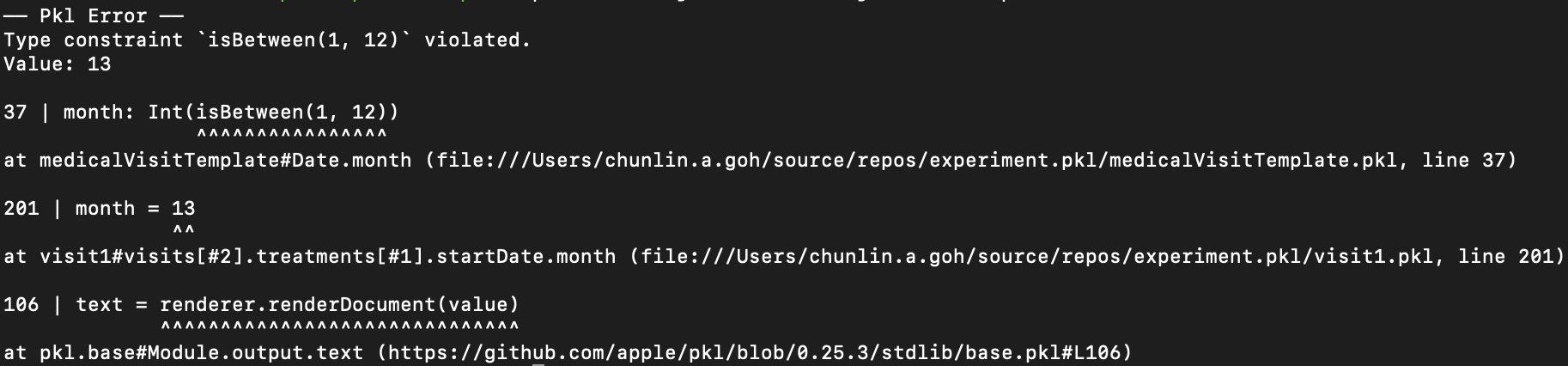
In the Date class, since the month can only be an integer from 1 to 12, so we can restrict it to an integer range by using Int and isBetween constraint. Later, as Pkl evaluates our configuration, if there is an invalid value, for example 13, provided to the month, there will be an error shown to us, as demonstrated below.

Pkl CLI will evaluate our configuration and show detected invalid values.

Generate JSON with Pkl

So now how do we generate JSON with the module above?

Before we can generate a JSON file, we need to understand the Amending concept in Pkl. As a first intuition, think of “amending a module” as “filling out a form.”

So, to generate the chunlin.json file that was shown in the previous blog post, we can amend the medicalVisitTemplate module above with another Pkl file called chunlin.pkl as shown below.

amends "medicalVisitTemplate.pkl"

visits = new Listing<MedicalVisit> {

...
// Omitted for brevity

new {

medicalCentreName = "Tan Tock Seng Hospital"

centreType = "hospital"

visitStartDate {

year = 2024

month = 3

day = 24

}

visitEndDate {

year = 2024

month = 4

day = 19

}

remark = ""

treatments = new Listing<Treatment> {

...
// Omitted for brevity

new {

name = "Betamethasone (Valerate) 0.025% Cream 15g - Dermasone"

type = "medicine"

amount = "Applied after shower"

startDate {

year = 2024

month = 3

day = 26

}

endDate {

year = 2024

month = 4

day = 19

}

}

new {

name = "Betamethasone (Valerate) 0.1% Cream 15g - Uniflex(TM)"

type = "medicine"

amount = "Applied after shower"

startDate {

year = 2024

month = 3

day = 26

}

endDate {

year = 2024

month = 4

day = 19

}

}

}

}

}

Now if we execute the command below on Pkl CLI to evaluate the given modules and render the

$ ./pkl eval -f json -o ./output/chunlin.json ./input/chunlin.pkl

With the command above, we can get the same output as we see in chunlin.json.

Maintain Pkl in GitHub

Static files like Pkl or JSON can be easily maintained in code repositories such as GitHub. Using GitHub for version control allows us to track changes to our PKL files over time. This makes it easy to revert to previous versions if something goes wrong, compare changes, and understand the evolution of our configuration files. Additionally, we can use GitHub Actions to automate various tasks related to our PKL files, enhancing efficiency and reliability in our workflow.

GitHub Actions is an automation tool that allows us to create workflows triggered by events within our repository. These workflows can automate tasks like testing, building, and deploying code, or even running scripts. By using GitHub Actions, we can streamline the development and transformation process of our Pkl files, ensure consistency, and improve efficiency.

Thus, our mission is now to configure GitHub Actions so that a JSON file can be produced from the Pkl file and sent to the Amazon S3 bucket that we setup in another article earlier.

Configure GitHub Actions Workflow

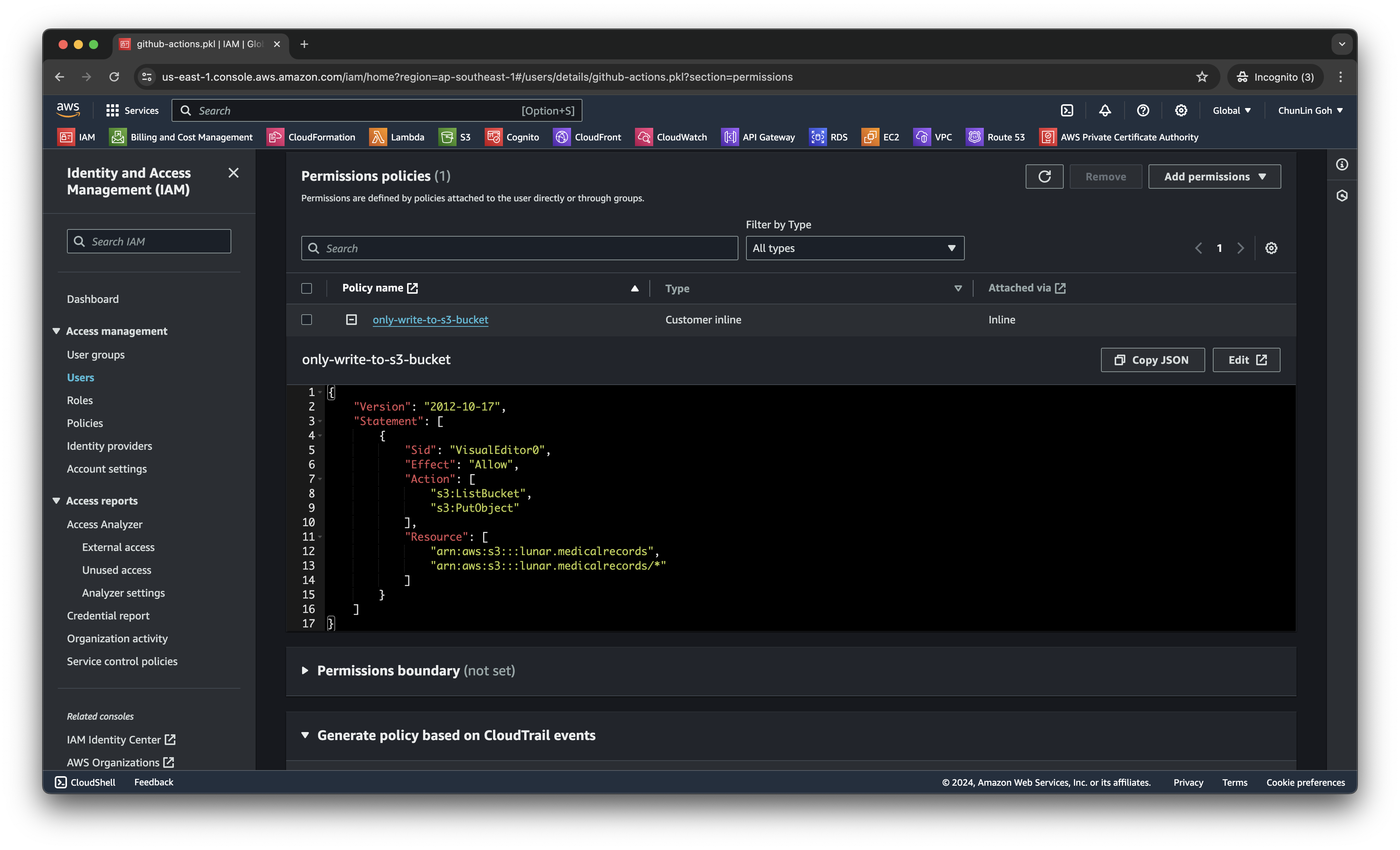
Firstly, we need to give permission to GitHub Actions to access our S3 bucket. To do so, we will create a new user in AWS Console with appropriate rights.

We only need two permissions, s3:ListBucket and s3:PutObject, to copy files from local to the S3 bucket.

After attaching the policy, we proceed to generate an access key for this newly created user.

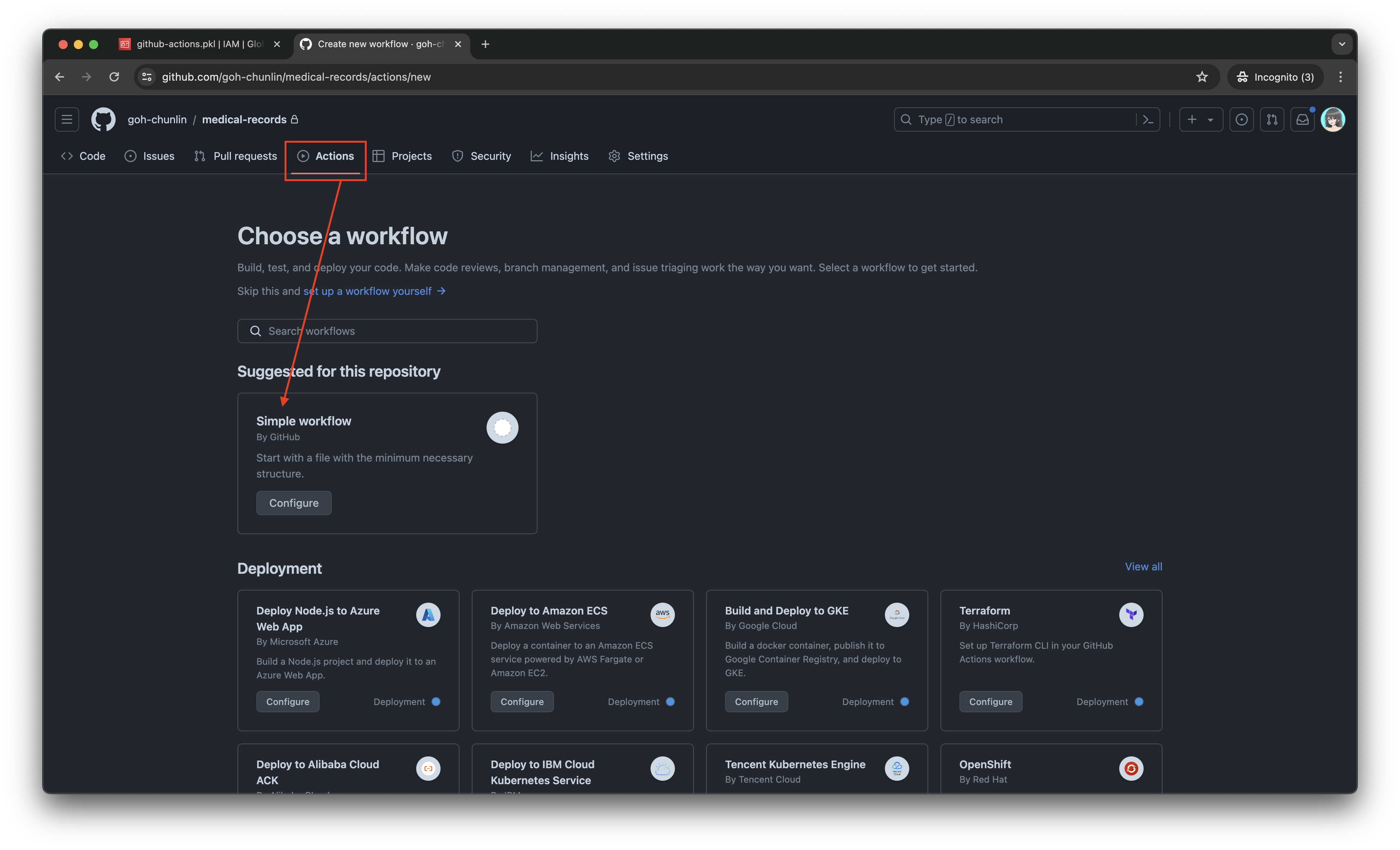
Secondly, we need to navigate to our repository and then click on the Actions tab to create a new simple workflow, as shown below.

Let’s start with the simple workflow.

To begin, let’s download a new Linter available for Pkl files in the workflow. The linter is known as pkl-linter done by Eduardo Aguilar Yépez, a senior software engineer at Draftea.

name: Evaluate Pkl and store it in S3 as JSON

on:
push:
branches: [ "main" ]

# Allows us to run this workflow manually from the Actions tab
workflow_dispatch:

jobs:
build:
runs-on: ubuntu-latest

steps:
- uses: actions/checkout@v4

- uses: actions/setup-go@v5
with:
go-version: '>=1.17.0'

- name: Get Go Version
run: go version

- name: Install Linter
run: go install github.com/Drafteame/pkl-linter@latest

- name: Run pkl-linter
run: pkl-linter medical-records
The linter analyses our code and shows detected stylistic errors.

Next, we need to install the Pkl CLI to evaluate Pkl modules and write their output to a file. There are native executables available for us to use. As shown in the workflow above, the GitHub Actions runner is ubuntu-latest, which uses the Ubuntu 22.04 LTS image as of Jun 2024. It uses the amd64 architecture. Hence, we can download the Pkl Linux executable for amd64 architecture.

name: Evaluate Pkl and store it in S3 as JSON

...
# Omitted for brevity

jobs:
build:
runs-on: ubuntu-latest

steps:
...
# Omitted for brevity

- name: Install Pkl CLI
run: curl -L -o pkl https://github.com/apple/pkl/releases/download/0.25.3/pkl-linux-amd64

- name: Grant execute permission to Pkl CLI
run: chmod +x pkl

- name: Get Pkl CLI version
run: ./pkl --version

- name: Eval the Pkl files
run: |
cd medical-records
files=$(find . -name "*.pkl")
count=0
for file in $files; do
output_filename="${file%.pkl}.json"
../pkl eval -f json -o ../output/$output_filename $file
done
cd ..

When my workflow is executed in June 2024, the version of the Pkl CLI is “Pkl 0.25.3 (Linux 5.15.0-1053-aws, native)”.

As shown in the last step above, it will loop through the JSON file in the medical-records folder and evaluate them one-by-one using the Pkl CLI. The JSON files generated will be stored in the output folder.

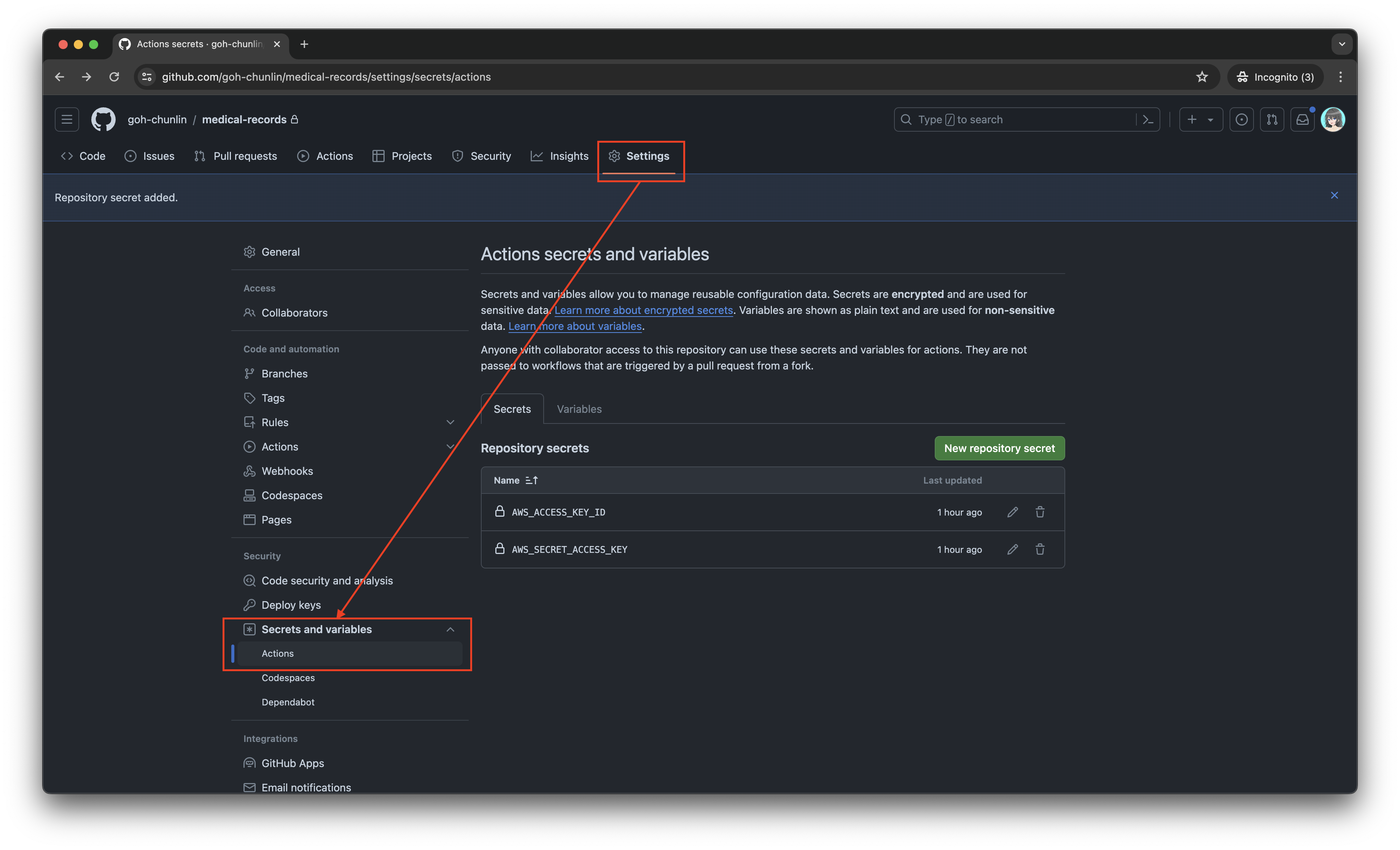
Eventually, what we need to do is to upload the file over to our AWS S3 bucket. However, before that, let’s make sure the AWS access key and secret access key we generated earlier are stored securely on GitHub Actions, a shown in the screenshot below.

The AWS access key and secret access key should be stored as GitHub Actions secrets.

Now, we can easily setup AWS CLI with the secrets above and use the s3 cp command to move the generated JSON files over to our S3 bucket. To do so, we only need to complete our workflow with the following.

name: Evaluate Pkl and store it in S3 as JSON

...
# Omitted for brevity

jobs:
build:
runs-on: ubuntu-latest

steps:
...
# Omitted for brevity

- name: Setup AWS CLI
uses: aws-actions/configure-aws-credentials@v1
with:
aws-access-key-id: ${{ secrets.AWS_ACCESS_KEY_ID }}
aws-secret-access-key: ${{ secrets.AWS_SECRET_ACCESS_KEY }}
aws-region: ap-southeast-1

- name: Copy files to S3 bucket
run: |
aws s3 cp output s3://lunar.medicalrecords --exclude "*" --include "*.json" --recursive

Please take note that the s3 cp command performs operation only on single file, hence we need to apply the --recursive flag to indicate that the command should run on all files under the specified directory, i.e. output.

Wrap-Up

In conclusion, utilising Pkl for generating and maintaining JSON files offers significant advantages in terms of reducing complexity and enhancing maintainability. By abstracting common elements and leveraging typed objects, Pkl simplifies the management of large and evolving datasets. The structured approach provided by Pkl not only minimises redundancy but also ensures that configurations remain consistent and error-free through its robust validation features.

Additionally, by using GitHub Actions, we can automate the process of evaluating Pkl files, generating the corresponding JSON files as output, and uploading these JSON files to our S3 bucket. This automation not only enhances efficiency but also ensures that changes are tracked and managed effectively.

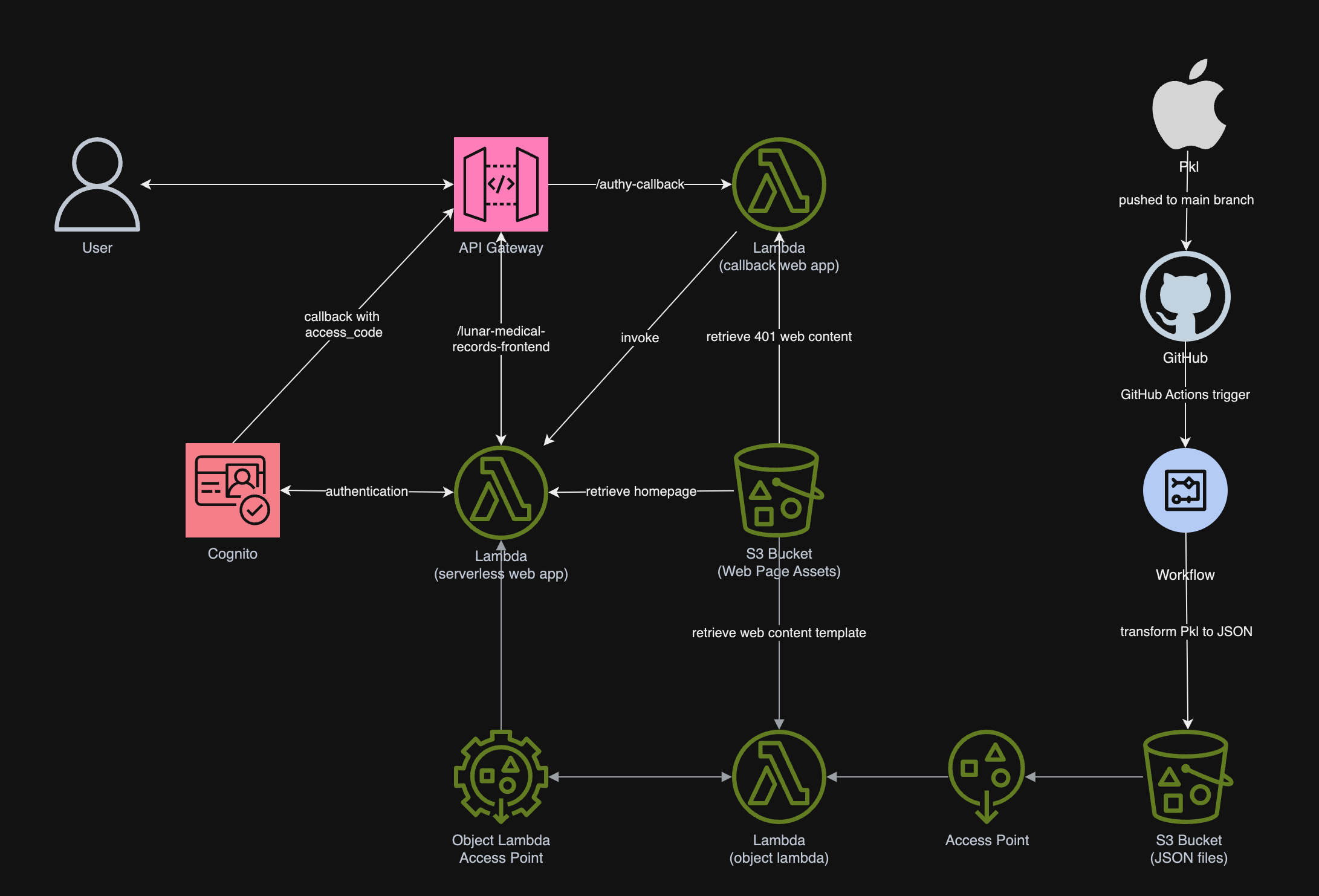
In summary, we can conclude the infrastructure that we have gone through above and our previous article in the following diagram.

References

Learning Postman Flows and Newman: A Beginner’s Journey

For API developers, Postman is a popular tool that streamlines the process of testing APIs. Postman is like having a Swiss Army knife for API development as it allows developers to interact with APIs efficiently.

In March 2023, Postman Flows was officially announced. Postman Flows is a no-code visual tool within the Postman platform designed to help us create API workflows by dragging and dropping components, making it easier to build complex sequences of API calls without writing extensive code.

Please make sure Flows is enabled in our Postman Workspace.

Recently, my teammate demonstrated how Postman Flows works, and I’d like to share what I’ve learned from him in this article.

Use Case

Assume that there is a list of APIs that we need to call in sequence every time, then we can make use of Postman Flows. For demonstration purpose, let’s say we have to call the following three AWS APIs for a new user registration.

We will first need to define the environment variables, as shown in the following screenshot.

We keep the region variable to be empty because the region of IAM setup should be Global.

Next, we will setup the three API calls. For example, to create a new user on AWS, we need to make an HTTP GET request to the IAM base URL with CreateUser as the action, as shown in the following screenshot.

The UserName will be getting its value from the variable userName.

To tag the user, for example assigning the user above to a team in the organisation, we can do so by setting TagUser as the action, as shown in the screenshot below. The team that the user will be assigned to is based on their employee ID, which we will discuss later in this article.

The teamName is a variable with value determined by another variable.

Finally, we will assign the user to an existing user group by setting AddUserToGroup as its action.

The groupName must be having a valid existing group name in our AWS account.

Create the Flow

As demonstrated in the previous section, calling the three APIs sequentially is straightforward. However, managing variables carefully to avoid input errors can be challenging. Postman Flows allows us to automate these API calls efficiently. By setting up the Flow, we can execute all the API requests with just a few clicks, reducing the risk of mistakes and saving time.

Firstly, we will create a new Flow called “AWS IAM New User Registration”, as shown below.

Created a new Flow.

By default, it comes with three options that we can get started. We will go with the “Send a request” since we will be sending a HTTP GET request to create a user in IAM. As shown in the following screenshot, a list of variables that we defined earlier will be available. We only need to make sure that we choose a correct Environment. The values of service, region, accessKey, and secretKey will then be retrieved from the selected Environment.

Choosing the environment for the block.

Since the variable userName will be used in all three API calls, let’s create a variable block and assign it a value called “postman03”.

Created a variable and assigned a string value to it.

Next, we simply need to tell the API calling block to assign the value of userName to the field userName.

Assigning variable to the query string in the API call.

Now if we proceed to click on the “Run” button, by right, the call should respond with HTTP 200 and relevant info returned from AWS, as demonstrated below.

Yes, the user “postman03” is created successfully on AWS IAM.

With the success of user creation, the next step is to call the user tagging API. In this API, we will have two variables, i.e. userName and teamName. Let’s assume that the teamName is assigned based on whether the user’s employeeId is an even or odd number, we can design the Flow as shown in the following screenshot.

With two different employeeId, the teamNames are different too.

As shown in the Log, when we assign an even number to the user postman06, the team name assigned to it is “Team A”. However, when we assign an odd number to another user postman07, its team name is “Team B”.

Finally, we can complete the Flow with the third API call as shown below.

The groupName variable is introduced for the third API call.

Now, we can visit AWS Console to verify that the new user postman09 is indeed assigned to the testing-user-group.

The new user is assigned to the desired user group.

The Flow above only can create one new user in every Flow execution. By using the Repeat block which takes a numeric input N and iterates over it from 0 to N - 1, we can create multiple users in a single run, as shown in the following updated Flow.

This flow will create 5 users in one single execution.

Variable Limitation in Flows

Could we save the response in a variable that allows us to reuse its value in other Flow? We would guess this is possible with variables in Postman.

Postman supports variables at different scopes, in order from broadest to narrowest, these scopes are: global, collection, environment, data, and local.

The variable with the broadest scope in Postman is the global variables which are available throughout a workspace. So what we can do is actually storing the response in the global variables.

To do so, we need to update our request in the Collection. One of the snippets provided is actually about setting a global variable, so we can use it. For example, we add it to the post-response script of “Create IAM User” request, as shown in the screenshot below.

Postman provides snippets to help us quickly generate boilerplate code for common tasks, including setting global variables.

Let’s change the boilerplate code to be as follows.

pm.globals.set("my_global", pm.response.code);

Now, if we send a “Create IAM User” request, we will notice that a new global variable called my_global has been created, as demonstrated below.

The response code received is 400 and thus my_global is 400.

However, now if we run our Flow, we will realise that my_global is not being updated even though the response code received is 200, as illustrated in the following screenshot.

Our global variable is not updated by Flow.

Firstly, we need to understand that nothing is wrong with environments or variables. The reason why it did not work is because the variables just work differently in Flows from how they used to work in the Collection Runner or the Request Tab, as explained by Saswat Das, the creator of Postman Flows.

According to Saswat, global variables and environment variables are now treated as read-only values in the Flows, and any updates made to them through script are not respected.

So the answer to the question whether we can share variable across different Flows earlier is simply a big no by design currently.

Do It with CLI: Newman

Is there any alternative way that we can use instead of relying on the GUI of Postman?

Another teammate of mine from the QA team recently also showed how Newman, a command-line Collection Runner for Postman, can help.

A command-line Collection Runner is basically a tool that allows users to execute API requests defined in Postman collections directly from the command line. So, could we use Newman to do what we have done above with Postman Flows as well?

Before we can use Newman, we first need to export our Collection as well as the corresponding Environment. To do so, firstly, we click on the three dots (…) next to the collection name and select Export. Then, we choose the format (usually Collection v2.1 is recommended) and click Export. Secondly, we proceed to click on the three dots (…) next to the environment name and select Export as well.

Once we have the two exported files in the same folder, for example a folder canned “experiment.postman.newman”, we can run the following command.

$ newman run aws_iam.postman_collection.json -e aws_iam.postman_environment.json --env-var "userName=postman14462" --env-var "teamName=teamA" --env-var "groupName=testing-user-group"

While Newman and Postman Flows can both be used to automate API requests, they are tailored for different use cases: Newman is better suited for automated testing, integration into CI/CD pipelines, and command-line execution. Postman Flows, on the other hand, is ideal for visually designing the workflows and interactions between API calls.

References