Azure Cloud Service and SSL

I recently read an article written by Jeff Atwood on Coding Horror about whether we should encrypt all the traffic to our websites. I have a website which is utilizing external accounts with the help of .NET Identity, hence I must use HTTPs for my site before enabling users to login with their Facebook or Google accounts.

Purchase SSL Certificate from RapidSSL

My website is .NET web application with MVC 5 as front-end. It is also being hosted on Azure Cloud Service. For SSL certificate, I got it from RapidSSL.

RapidSSL Enrollment
RapidSSL Enrollment

Previously when I renewed the certificate for web application hosted on virtual machine, I could easily RDP to the virtual machine to configure its IIS settings. Now, the way to do it for Azure Cloud Service on the Azure Management Portal is a bit different.

Enter Certificate Signing Request (CSR)

In the process of purchasing SSL certificate on RapidSSL, I needed to submit CSR. To generate a CSR, what I did is just launching the IIS Manager on my Windows 8.1 machine. The process is pretty straightforward, as demonstrated on DigiCert website. The steps are as follows.

  1. Double click on “Server Certificates” feature of the local server;
  2. Under the “Action” panel, choose “Create Certificate Request…” link;
  3. Then there would be a window called “Distinguished Name Properties” popped out;
  4. Key in the correct information about the Common Name (which is the domain name of my website) and organization in the window;
  5. Choose “Microsoft RSA SChannel Cryptographic Provider” as the cryptographic service provider;
  6. Input “2048” as bit length.

CSR was generated successfully. I copied the generated text to RapidSSL textbox to continue the purchase.

Install SSL Certificate

After my payment went through, I received the certificate in text format via email from RapidSSL as shown below.

Web Server CERTIFICATE
----------------

-----BEGIN CERTIFICATE-----
<encoded data>
-----END CERTIFICATE-----

I then copied it to a text file and saved the file with the .cer extension.

Then, I went back to the IIS Manager on my computer. In the same Actions panel where I created the CSR, I then chose another option “Complete Certificate Request…”. In the new window, I provided the .cer file generated earlier.

Update Service Definition File

After that, in the Visual Studio Solution Window of my web project, I added a <Certificates> section, a new <InputEndpoint> for HTTPS, and a <Binding> element to map the HTTPS endpoint to my website within the WebRole section in the ServiceDefinition.csdef file.

<WebRole name="MyWebsiteWeb" vmsize="Medium">
    <Sites>
        <Site name="Web">
            <Binding>
                ...
                <Binding name="HTTPSEndpoint" endpointName="EndpointS" />
            </Bindings>
        </Site>
    </Sites>
    <Endpoints>
        ...
        <InputEndpoint name="EndpointS" protocol="https" port="443" certificate="SampleCertificate" />
    </Endpoints>
    ...
    <Certificates>
        <Certificate name="SampleCertificate" storeLocation="CurrentUser" storeName="My" />
    </Certificates>
</WebRole>

Update Service Configuration File

In addition, I edited the ServiceConfiguration.Cloud.cscfg file with one new <Certificates> section in the Role section.

<Role name="MyWebsiteWeb">
    ...
    <Certificates>
        ...
        <Certificate name="SampleCertificate" thumbprint="xxxxxx" thumbprintAlgorithm="xxx" />
    </Certificates>
</Role>

Both the thumbprint and thumbprintAlgorithm can be retrieved by double clicking on the .cer file.

Thumbprint and Its Algorithm
Thumbprint and its algorithm

Export Certificate as .pfx File

When I uploaded .cer file to Azure Management Portal, it couldn’t work. I had no idea why. Hence, I tried the alternative, which is using .pfx file. To do that, I first exported the certificate as .pfx file.

Firstly, I launched the Microsoft Management Console by running mmc.exe.

Export certificate from Microsoft Management Console.

Secondly, I did the following steps to trigger the Certificate Export Wizard.

  1. File > Add/Remove Snap-in…
  2. Choose “Certificate” under “Available snap-ins” and then click “Add >”
  3. In the popup “Certificates snap-in” window, choose “Computer account”
  4. With the previous choice, I make snap-in to always manage in “Local computer”
  5. After clicking on the “Finish” button, I then click on the “Certificates” folder under “Personal” folder under “Certificates (Local Computer)” under the “Console Root”
  6. Right-click on the certificate that I want to export and choose export
  7. Finally the “Certificate Export Wizard” appears!

Finally, in the wizard, I followed the following steps to create a .pfx file of the certificate.

  1. Choose to export private key with the certificate
  2. Format will be Personal Information Exchange – PKCS #12 with all certificates in the certification path is included, if possible
  3. Enter a password to protect the private key
  4. Export
Certificate Export Wizard - Password and Private Key
Certificate Export Wizard – Password and Private Key

More detailed instructions can be found online, for example a page on Thawte about export a certificate from Microsoft IIS 7.

Upload Certificate to Azure

I then uploaded it to Microsoft Azure. It’s very simple. Just choose the cloud service and then upload the .pfx file (and enter the password used earlier for protecting the private key) to the certificate collection of the cloud service.

Upload certificate to Microsoft Azure in the Certificates tab.

That’s all. It’s pretty straightforward, isn’t it?

If you would like to read more about Azure Cloud Service and SSL, please read the following articles which I find to be very useful.
Journey to Microsoft Azure: Good and Bad Times

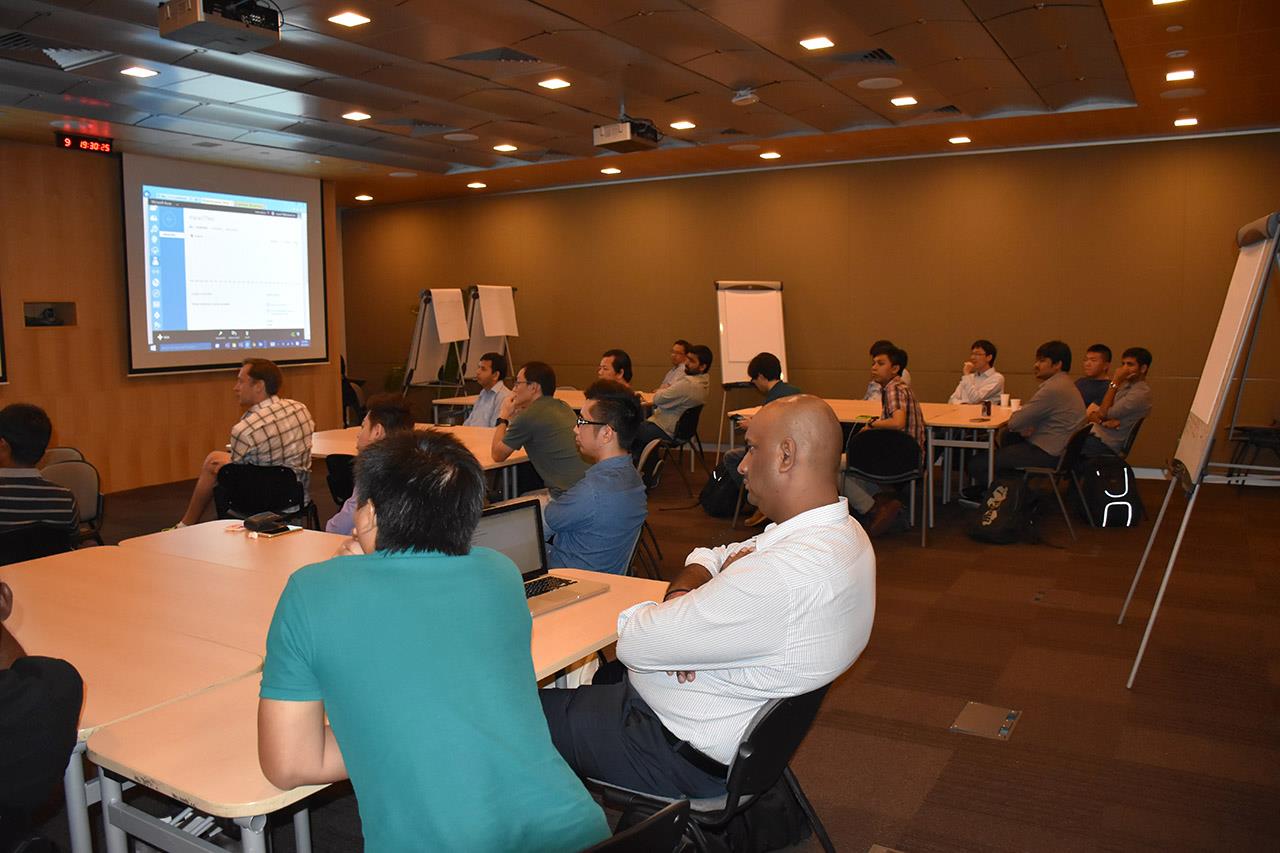
I told my friends about problems I encountered on Microsoft Azure. One of my friends, Riza, then asked me to share my experience of hosting web applications on Azure during the Singapore Azure Community meetup two weeks ago.

Azure Community March Meetup in Microsoft Singapore office.
Azure Community March Meetup in Microsoft Singapore office. (Photo credit: Riza)

Problems with On-Premise Servers

Our web applications were hosted on-premise for about 9 years. Recently, we realized that our systems were running slower and slower. The clients kept receiving timeout exception. At the same time, we also ran out of storage space. We had to drive all the way to data centre which is about 15km away from our office just to connect one 1TB external hard disk to our server.

Hence, in one of our company meetings in June, we finally decided to migrate our web applications and databases to the cloud. None of the developers, besides me, knew about cloud hosting. Hence, we all agreed to use Microsoft Azure, the only cloud computing platform that I was familiar with.

Self Learning Microsoft Azure on MVA

When I first heard that the top management of our company had the intentions to migrate web applications to cloud last year, I already started to learn Azure on Microsoft Virtual Academy (MVA) at my own time and pace.

MVA is an online learning platform for public to get free IT training, including some useful introductory courses to Microsoft Azure, as listed below.

  1. Establish Microsoft Azure IaaS Technical Fundamentals
  2. Windows Azure for IT Pros Jump Start
  3. Microsoft Azure IaaS Deep Dive Jump Start
  4. SQL Server in Windows Azure Virtual Machines Jump Start

If you have noticed, the courses above are actually mostly related to IaaS. This is because IaaS was the most straightforward way for us who were going to migrate systems and databases from on-premise to the cloud. If we had chosen PaaS, we would need to redo our entire code base.

You can enjoy the fun shows presented by David and David on MVA

If you are more into reading books, you can also checkout some free eBooks about Microsoft Azure available on MVA. Personally, I didn’t read any of the book because I found watching MVA training videos was far more interesting.

I learnt after work and during weekends. I started learning Azure around March and the day we did the migration from on-premise to Azure was July. So I basically had a crash course of Azure in just four months.

Now I will say that the learning approach is not recommended. If you are going to learn Azure, it’s important to understand key concepts by reading books and talking to people who are more experience with Microsoft Azure and networking. Otherwise, you might encounter some problems that were hard to be fixed in later stage.

Migration at Midnight

Before doing a migration, we had to do some preparation work.

Firstly, we called our clients one by one. This is because we also hosted clients’ websites on our server. So, we need to inform them to update A record in their DNS. Later, we found out that, in fact, they should be using CNAME so that change of IP address on our side shouldn’t affect them.

Secondly, we prepared a file called app_offline.htm. This is a file to put in the root folder of our web applications hosted on our on-premise server. It would show a page telling our online users that our application was under maintenance no matter the user visited which web page.

Website is under maintenance. Sorry about that!

Finally, we did backup for all our databases which were running on our on-premise servers. Due to the fact that our databases were big, it took about 20-30 minutes for us to just do a backup of one database. Of course, this could only be done right before we migrated to the cloud.

We chose to do the migration at midnight because we had many online transactions going on at daytime. In our company, only my senior and I were in charge of doing the migration. The following schedule listed the main activities during our midnight migration.

  • 2am – 3am: Uploading app_offline.htm and backing up databases
  • 3am – 4am: Restoring databases on Azure
  • 4am – 5am: Uploading web applications to Azure and updating DNS in Route 53

Complaints Received on First Day after Migration

We need to finish the migration by 5am because that is when our clients start logging in to our web applications. So, everything was done in a rush and thus we received a number of calls from our clients after 6am on the day.

Some clients complaining that our system became very slow. It turns out that this has to do with us not putting our web application and databases in the same virtual network (v-net). Without putting them in the same v-net, every time our web application called the databases, they had to go through the Internet, instead of the internal connection. Thus the connection was slow and expensive (Azure charged us for outbound data transfer).

We also received calls complaining their websites were gone. That was actually caused by them not updating their DNS records fast enough.

Another interesting problem is part of our system was rejected by our client’s network because they only allowed traffics from certain IP address to access. So, we had to give them the new IP address of our Azure server before everything can work at their side again.

Downtime: The Impact and Microsoft Responses

The web applications have been running for about 8 months on Azure environment since July 2014. We encountered roughly 10 downtimes. Some are because we setup wrongly. Some are due to the Azure platform errors, as reported by Microsoft Azure team.

Our first downtime happened on 4 August 2014, from 12pm to 1:30pm. It’s expected to have high volume to our websites at noon. So, the downtime caused us to loss a huge amount of online sales. The cause of the downtime was later reported by Microsoft Azure team as all our deployments were in the affected cluster in Southeast Asia data centre.

Traffic Manager Came to Rescue

That was when we started to plan to host the backup of all our web applications in another Azure data centre. We then use traffic manager to do a failover load balancing. We planned to carry that out so that when our primary server went down, the backup server was still be there running fine.

Azure Traffic Manager helps to redirect traffic to deployments in another DC when current DC fails to work.

In the reply Microsoft Azure team sent us, they also mentioned that uptime SLA of virtual machine requires 2 or more instances. Hence, they highly recommended to implement the Availability set configuration for our deployment. Before that, we always thought that it’s sufficient to have one instance running. However, the planned maintenance in Azure was, in fact, quite frequent and sometimes the maintenance took a long time to complete.

Database Mirroring: DB Will Always be Available

So, in addition to the traffic manager, we also applied database mirroring to our setup. We then had three database servers, instead of just one. One as principal, one as witness, and one as mirror. Regarding steps on how we set that up can be find in my another post.

Elements in my simple database mirroring setup.

With all these setup, we thought the downtime would not happen again. However, soon we realized that the database mirroring was not working.

When the principal was down, there was auto failover. However, none of our web application could connect to the mirror. Also, when the original principal was back online, it would still be a mirror until I did a manual failover. After a few experiments with Microsoft engineers, we concluded that it could be due to the fact that our web applications were not in the same virtual network as the database instances.

Availability Set: At Least One VM is Running

Up to this point, I haven’t talked about configuring two virtual machines in an availability set. That is to make sure that in the same data centre, when one of the virtual machines goes down, another will still be up and running. However, for our web applications, due to the fact that they were all using old version of .NET framework, Azure Redis Cache Service couldn’t even help.

Our web applications use session state a lot. Hence, without Redis, an external session state provider, we had no choice but to use SQL Server as the external session state provider. Otherwise, we would be limited to run web applications on only one instance.

Soon, we found out that we couldn’t even use SQL Server mode for session state because some of the values stored in our session are not serialisable. We had no other option but to rely on Traffic Manager at that moment.

In October 2014, few days after we encountered our third downtime, Microsoft Azure announced the new distribution mode in Azure Load Balancer, called Source IP Affinity. We were so happy when we heard that because that means sticky session would be possible on Azure. Soon, we configured the second instance successfully in the same availability set.

Source IP Affinity
Source IP Affinity

High Availability

After all these have been done, there were still downtime or restarts for one of the virtual machine. However, thanks to load balancer and traffic manager, our websites were still up and running. Regarding the random restarts of virtual machines, Microsoft Azure team had investigated the issue and identified that some of them were due to platform bugs.

There are still more work needs to be done to achieve high availability for our web applications on Azure. If you are interested to find out more about high availability and disaster recovery on Azure, please read this article from Microsoft Azure.

Migrating Back to On-Premise?

When we were still using on-premise, we had only one web server and one database server. However, when we moved to Azure, we had to setup seven servers. So, it’s a challenge to explain to managers on the increase of the cost.

Sometimes, our developers would be also asked by manager if moving back to on-premise was a better option. I have no answer for that. However, if we migrated back to on-premise and there was a downtime happening, who would be in charge of fixing the problems rapidly?

Hence, what we can do now as developers, is to learn as much as we can on how to improve the performance as well as the stability of our web application on Azure. In addition, we will also need to seek help from Microsoft Azure team, if necessary, to introduce new cloud solution to our web applications.

Claudia Madobe, the heroine of Microsoft Azure, is cute but how much do we really know about her?
Claudia Madobe, the heroine of Microsoft Azure, is cute but how much do we really know about her? (Image Credit: Microsoft)

The Little Problem when Consuming .NET Web Service via kSOAP

In one of our projects, we have a .NET web service. On the client side, we have phone running Android which will consume the web service. Hence, the first option that came to my teammate’s mind is to use kSOAP2, a lightweight SOAP client library for Android.

Problem

When we first tried out our Android app, we realized that it worked fine if the app was calling a web method with no parameter. However, when the app called another web method with one or more parameters, the web service complaint that the value it received was always null.

My colleague discovered this issue around 5:40pm, 20 minutes before I could leave the office. I always hope that I can enjoy a sunset on my way back from office. Hence, I decided to help him settle that little problem within the 20 minutes. Otherwise, I might miss the sunset for the day.

Just a monkey watching the sunset

First Check: Parameter Name

According to an article on CodeProject regarding kSOAP and .NET web services, it is a must to have the name and type of PropertyInfo to be the same as the web method parameter name and type.

My colleague had the parameter name same and the type is always string. So, this is not the cause.

Second Check: dotNet Flag

I am not sure why some people saying that the dotNet flag doesn’t need to be set to true (or commented out). However, it turns out that later even when we didn’t do anything about this dotNet flag, it still worked. So we just kept the following line in our code.

envelope.dotNet = true;

Third Check: Namespace

I finally came across this discussion on Stack Overflow which suggested that the problem we’re facing was probably caused by the namespace. DanneJaha, the author of the post, commented that if trailing “/” was used in our web service, we needed to have the same in our application as well.

After we added the trailing “/”, our application worked when calling web methods with parameters! Yahoo!

If this doesn’t help in your case, according to other comments on Stack Overflow, the namespace, SOAP action, etc are case sensitive. So, please check that too.

30 Minutes Crash Course of kSOAP

I left the office around 6:10pm so I still had chance to enjoy the sunset.

Anyway, this is actually a good opportunity for me to learn a bit about kSOAP and how Android app communicates with .NET web service. So, it’s fun to get involve in some other projects which you are not working on usually. =)

There are more to learn though.

First Draft of Android Wear App

As a software engineer, it’s always fun when trying out to build some new technology and new tool. It all started with a question from my colleagues, “Is it possible to build an app for Samsung Gear?” The answer is yes, but how? I had never built an app for Android Wear and I didn’t even own any smart watch. Hence I decided to give it a try.

First View

I built the app using Android Studio.

I like the launching animation on the Android Wear emulator. Below are some amazing screenshots taken.

Android Wear Emulator Launched!
Android Wear Emulator launched!

In fact, I could not get the emulator in the first place. When I tried to launch the Android Wear Square emulator, it threw the following error messages on Android Studio.

emulator: ERROR: x86 emulation currently requires hardware acceleration! 
Please ensure Intel HAXM is properly installed and usable. 
CPU acceleration status: HAX kernel module is not installed!

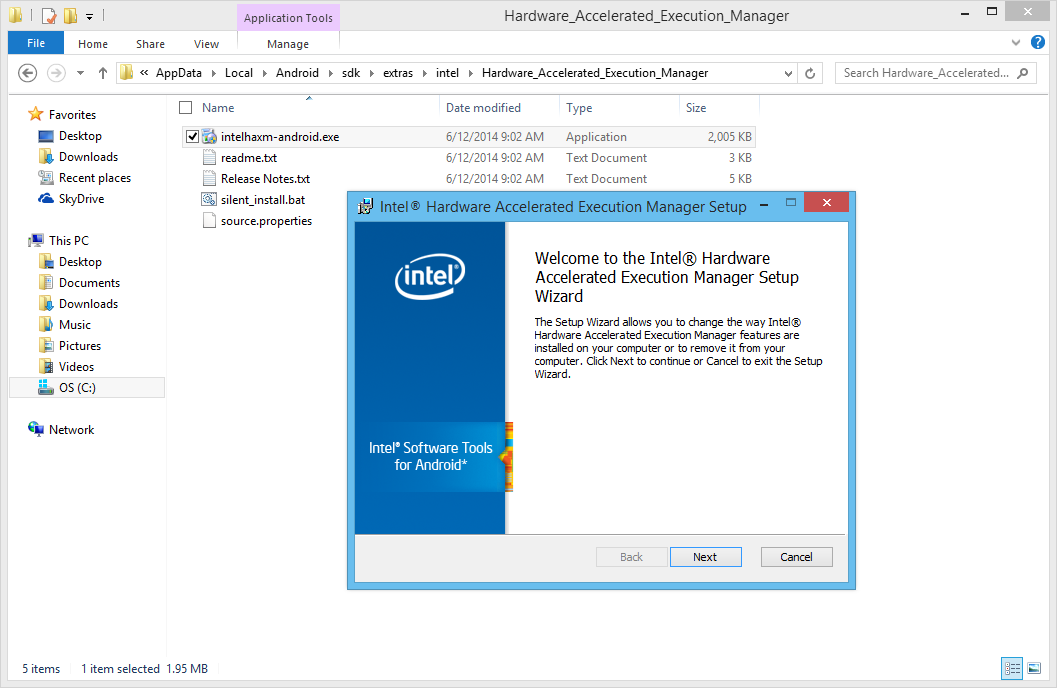
Hence, what needed to be done was just installing the Intel x86 Emulator Accelerator (HAXM) installer under the Extras folder in Android SDK Manager.

After the installation is done, there is also a need to run the installer located in the Hardware_Accelerated_Execution_Manager folder. Once it is installed on the computer, the Android Wear emulator should be able to be launched!

There is a very good discussion on Stack Overflow about this issue, please check it out if you are interested to know more.

The Intel Hardware Accelerated Execution Manager Setup

First Draft

Currently, I haven’t finished my first app for Android Wear, Gym Challenge. However, there are already some screenshots available for it which demonstrates the look-and-feel of the application on the Android Wear Square emulator.

Gym Challenge homepage


One of the features in Gym Challenge is to keep track of the user's time spent on gym.
One of the features in Gym Challenge is to keep track of the user’s time spent on gym.

Meanwhile, I still have no idea on how to try out the functionality to get the heart rate of the user without connecting the emulator to the real smart watch. So, things like SensorManager mSensorManager = ((SensorManager)getSystemService(SENSOR_SERVICE)); is never tested on my app. =P

Anyway, this is just a beginning of my Android Wear app development journey. Feel free to comment or correct me if you spot anything wrong in this post. Thanks! =)