Troubleshooting and Diagnostics in Cloud Service

As a developer working on web applications deployed on the cloud, I am always asked to make sure the applications are always up and running. Hence, it is very important to understand some of the diagnostics resources available for Azure.

Logs

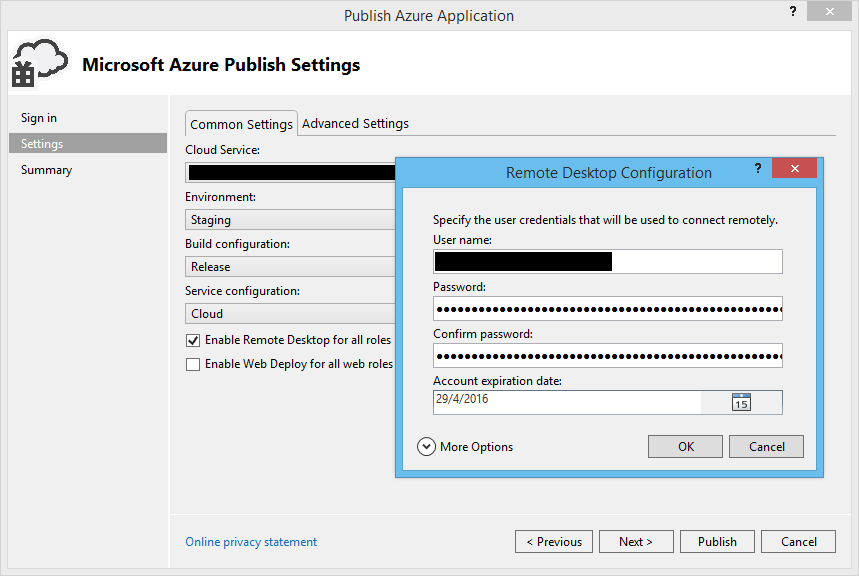
The first thing that comes to my mind is reading the Event Logs and IIS Logs in the VMs. To allow this, we first need to enable Remote Desktop for all roles.

You can enable Remote Desktop for all roles before publish.

This approach should be familiar for those who are using on-premise. So, where to find the log files?

Kevin Williamson from Microsoft has listed out most commonly visited diagnostic data locations.

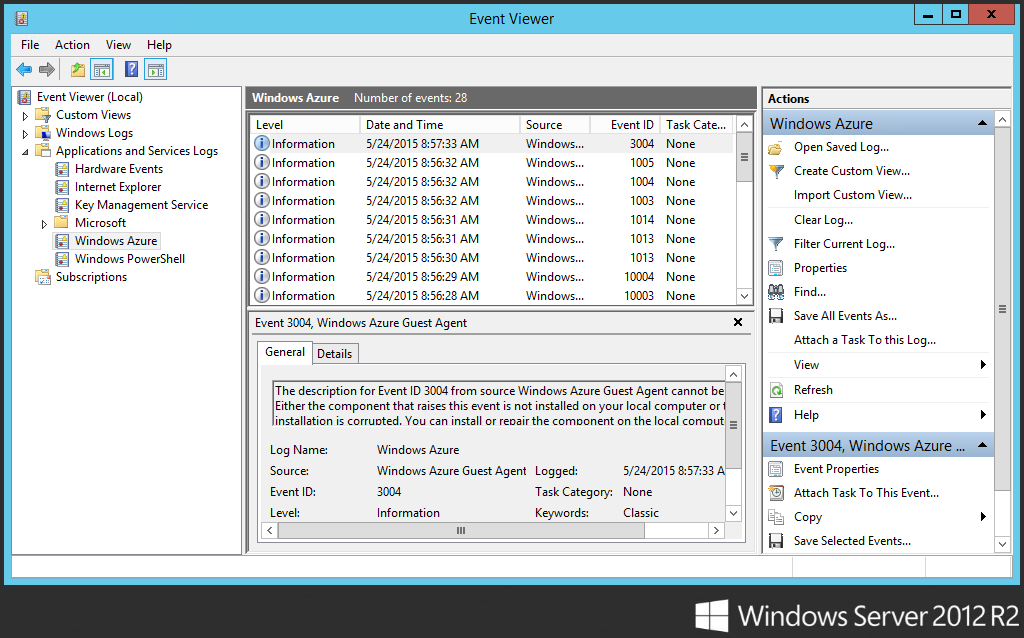
  • Azure Event Logs: Diagnostic output from the Windows Azure Runtime, including information such as role start/stop, startup tasks, crashes, recycles, etc.
Location of Azure Event Logs
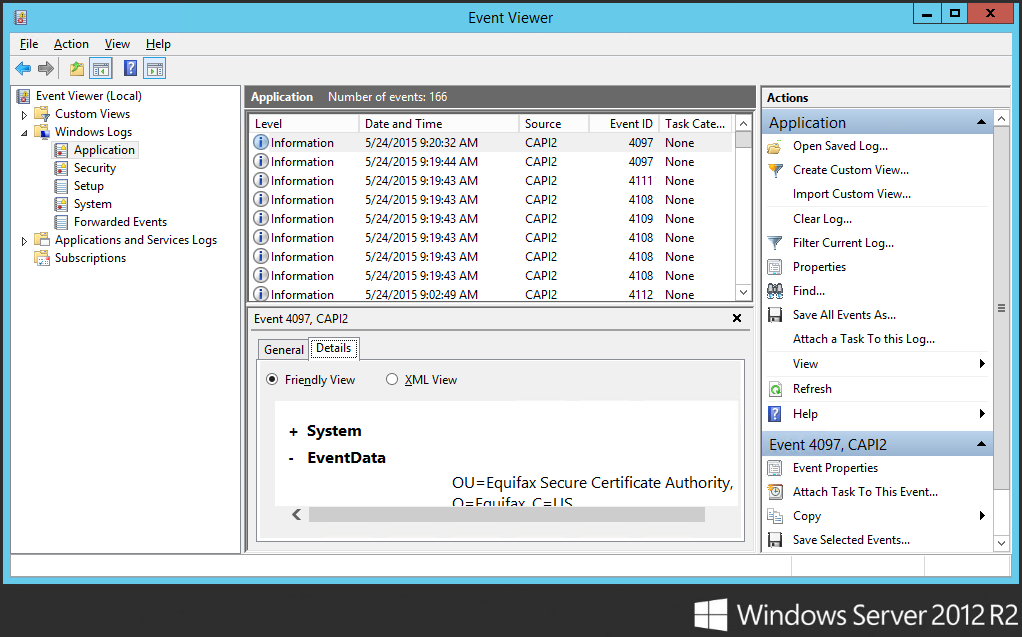
  • Application Event Logs: Often can find w3wp.exe (a process associated with the application pool in IIS) related errors here.
Location of Application event logs.
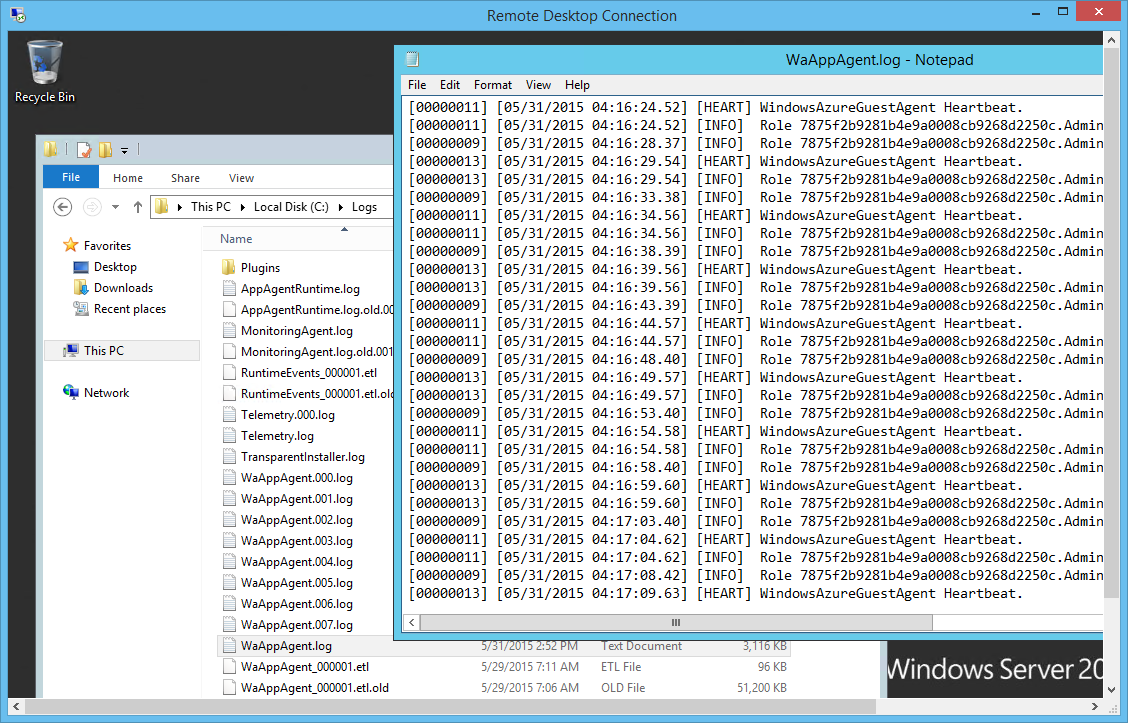
  • App Agent HeartBeat Logs: Useful for determining the current state of the role within the VM. It can be used to find out the health status of the role in the past as well. These logs are generated by WindowsAzureGuestAgent.exe.
Location of App Agent Heartbeat logs.

When I viewed the App Agent Heartbeat logs two hours after my website went down, I saw the following records in the file.

[00000011] [06/19/2015 05:59:43.37] [HEART] WindowsAzureGuestAgent Heartbeat.
[00000011] [06/19/2015 05:59:43.37] [INFO] Generating substatus from system events.
[00000011] [06/19/2015 05:59:43.37] [INFO] Substatus is Sites are being deployed. [2015-06-19T05:59:42Z]
[00000011] [06/19/2015 05:59:43.37] [INFO] Role 1234f2b2986b4e9a1234cc9268d2250c.MyWebRole_IN_0 is reporting state NotReady with sub-status Starting and details Starting role... Sites are being deployed. [2015-06-19T05:59:42Z].
[00000008] [06/19/2015 05:59:46.64] [INFO] Role 1234f2b2986b4e9a1234cc9268d2250c.MyWebRole_IN_0 has current state Unhealthy, desired state Started, and goal state execution status StartInProgress.

After my website went back online, then I found the following records which marked the role to be healthy then.

[00000011] [06/19/2015 06:00:03.70] [HEART] WindowsAzureGuestAgent Heartbeat.
[00000011] [06/19/2015 06:00:03.70] [INFO] Role 1234f2b2986b4e9a1234cc9268d2250c.MyWebRole_IN_0 is reporting state Ready.
[00000008] [06/19/2015 06:00:06.89] [INFO] Role 1234f2b2986b4e9a1234cc9268d2250c.MyWebRole_IN_0 has current state Started, desired state Started, and goal state execution status StartSucceeded.
  • App Agent Runtime Logs: If you would like to get an overview of the events happening over time to a role, you can refer to AppAgentRuntime.log in C:\Logs which logs major changes to the role without logging heartbeats.
  • IIS Logs: To determine whether a problem is caused by the website itself or comes from Azure, it is always good to check the IIS logs first.
Location of IIS logs: C:\Resources\Directory\{DeploymentID}.{Rolename}.DiagnosticStore\LogFiles\Web
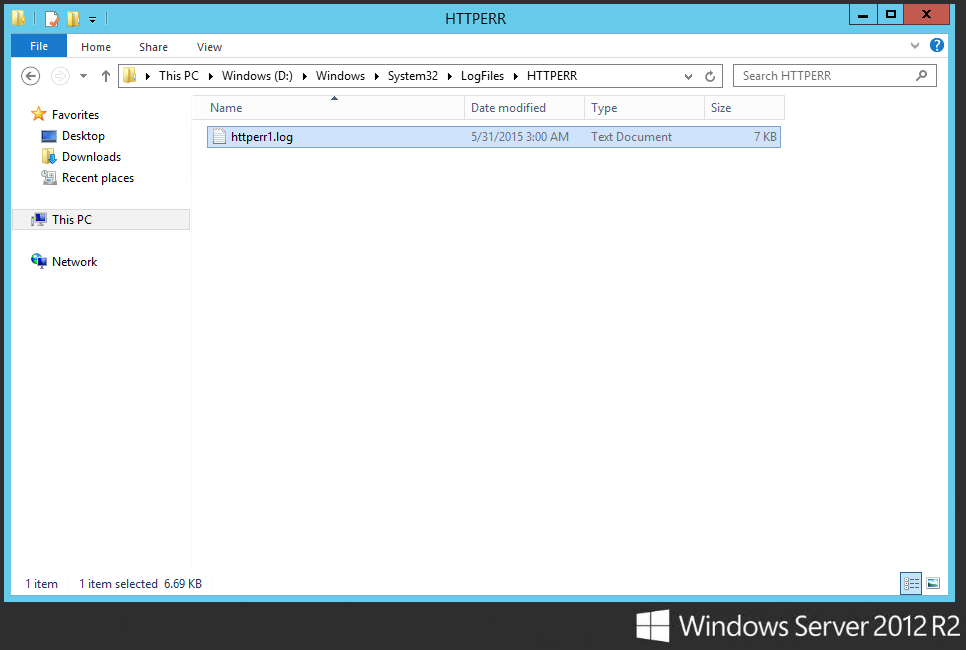
  • HTTP.SYS Logs: Very important to troubleshoot an issue with a hosted service website not responding. The evidence of, for example, IIS not being able to process the high-volume requests can be found in HTTP.SYS logs.
HTTP.SYS logs can be found here!

Monitoring ASP .NET Web Application with Application Insights

If you would like to have a graphical dashboard with diagrams showing availability, performance, usage, failures, and other events happening on your web apps, please try out Application Insights too.

The reason I like it very much because with Visual Studio 2013, Application Insights can be added to the application with just a few clicks.

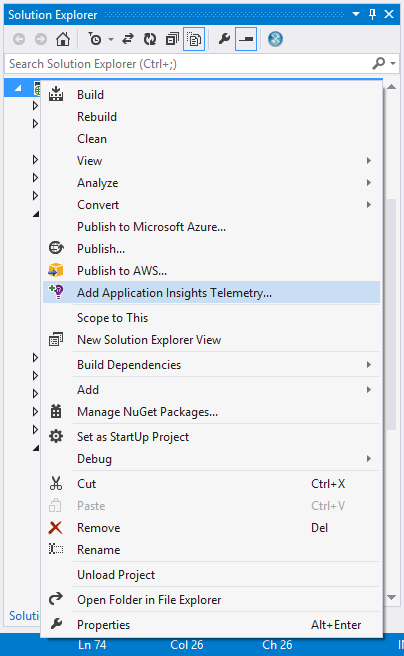
Just right click your project in Solution Explorer and choose "Add Application Insights Telemetry".
Just right click your project in Solution Explorer and choose “Add Application Insights Telemetry”.

After Application Insights is successfully added, the ApplicationInsights.config file with an instrumentation key will be added to your project.

However, by doing this, Visual Studio will not add the JavaScript SDK to the web pages of the project. If you are interested to know more about load time and user events, you can proceed to add it. After the JavaScript SDK is successfully added, you should be able to see the following lines of codes in your web pages.

    var appInsights=window.appInsights||function(config){
    function s(config){...}({instrumentationKey:"02gh149f-3ce6-47cf-b49a-6efg14d83928"});
 
     window.appInsights=appInsights;
     appInsights.trackPageView();

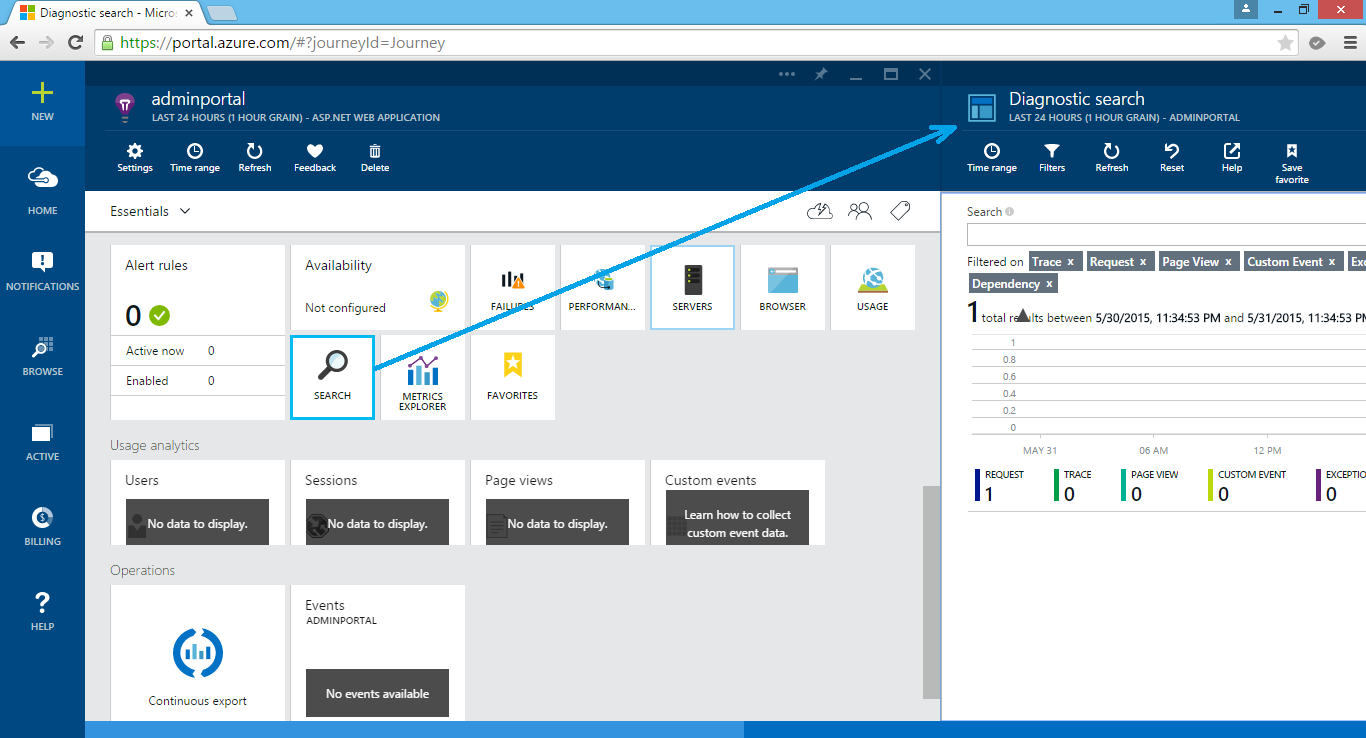
Now, if you right-click on the same project again, you will be able to launch the Application Insights of the project in the new Azure portal.

Application Insights on Azure.

Yup, let’s start improving our web applications based on these useful insights and reports. =)

Summer 2015 Self-Learning Project

This article is part of my Self-Learning in this summer. To read the other topics in this project, please click here to visit the project overview page.

Summer Self-Learning Banner

Protect Your ASP .NET Applications

ASP .NET MVC - Entity Framework - reCAPTCHA - OWASP - JSON

Here is a just a few items that I learnt on how to protect and secure my web applications in recent ASP .NET projects.

reCAPTCHA in Razor

CAPTCHA is an acronym for “Completely Automated Public Turing test to tell Computers and Humans Apart”.

CAPTCHA is a program to find out if the current user is whether a human or a robot by asking the user to do some challenge-response tests. This feature is important in some websites to prevent machine to, for example, auto login to the websites, to do online transactions, to register as members, and so on. Luckily, it’s now very easy to include CAPTCHA in our ASP .NET MVC web applications.

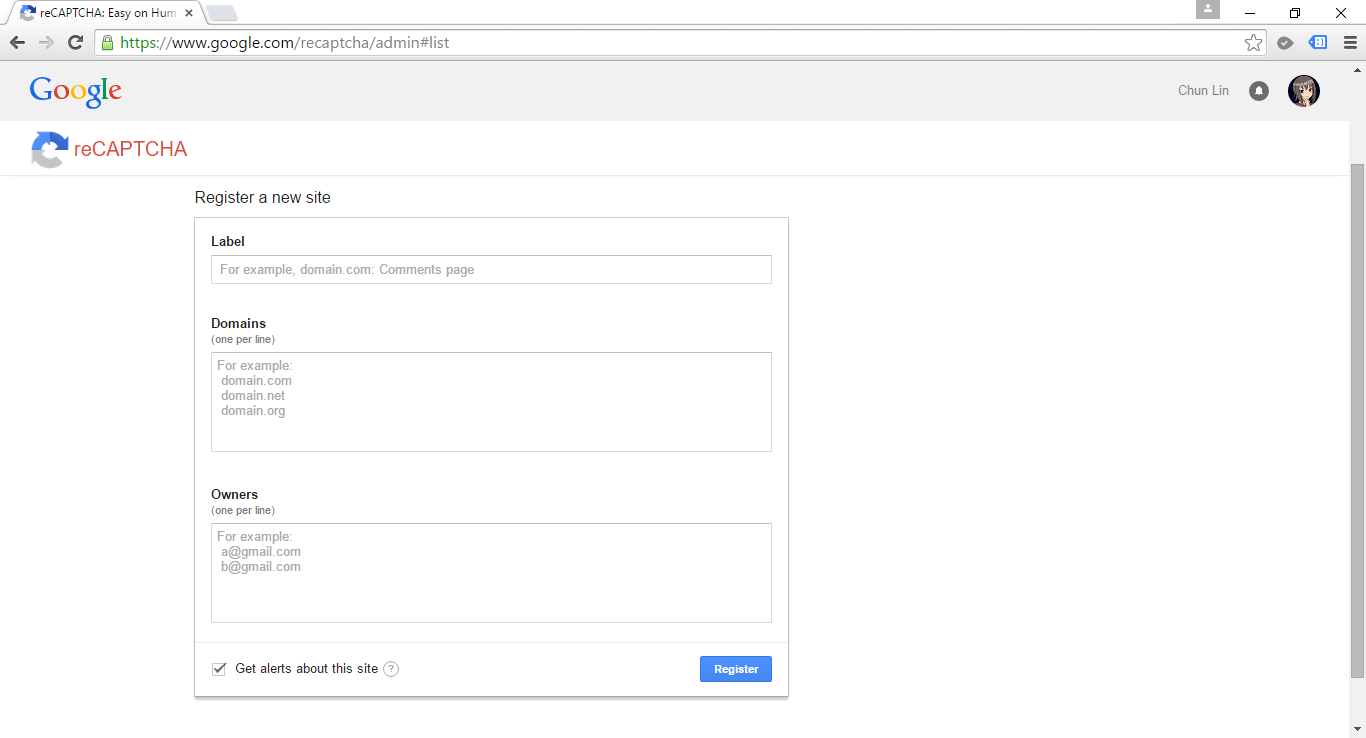
Register your website here to use reCAPTCHA: https://www.google.com/recaptcha/admin.

reCAPTCHA is a free Google CAPTCHA service that comes in the form of widget that can be added to websites easily. So, how do we implement reCAPTCHA in our ASP .NET MVC sites?

The library that I use is called ReCaptcha for MVC5, which can be downloaded from Codeplex. With the help of it, I am able to easily plugin reCAPTCHA in my MVC5 web applications.

After adding ReCaptcha.Mvc5.dll in my project, I will need to import its namespace to the Razor view of the page which needs to have reCAPTCHA widget.

@using ReCaptcha.Mvc5;

To render the reCAPTCHA widget in, for example, a form, we will do the following.

< div class="form-group">
    @Html.LabelFor(model => model.recaptcha_response_field, new { @class = "control-label col-md-2" })
    < div class="col-md-10">
        <!--Render the recaptcha-->
        @Html.reCAPTCHA("<public key here>")
    < /div>
 < /div>

The public key can be retrieved from the official reCAPTCHA page after you register your website there.

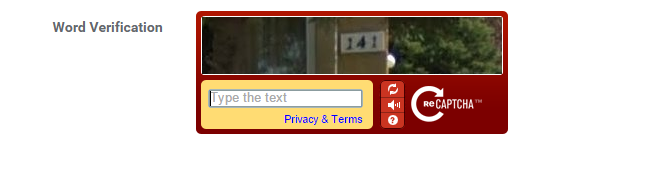
reCAPTCHA Widget on Website

In the code above, there is a field called recaptcha_response_field, which will be added in our model class as demonstrated below.

public class RegistrationViewModel : ReCaptchaViewModel
{
    ...

    [Display(Name = "Word Verification")]
    public override string recaptcha_response_field { get; set; }
}

To do verification in the controller, we will have the following code to help us.

[HttpPost]
[ValidateAntiForgeryToken]
public async Task<ActionResult> Register(RegistrationViewModel registrationVM)
{
    ...

    if (!string.IsNullOrEmpty(checkoutVM.recaptcha_response_field))
    {
        // Verify the recaptcha response.
        ReCaptchaResponse response = 
            await this.verifyReCAPTCHA(registrationVM, "<private key here>", true);

        if (response.Success)
        {
            // Yay, the user is human!
        } 
        else 
        {
            ModelState.AddModelError("", "Please enter correct verification word.");
        }
    }
}

The private key can also be found in the official reCAPTCHA page after you have submitted your website.

After doing all these, you are now be able to have a working reCAPTCHA widget in your website.

XSRF: Cross-Site Request Forgery

In the controller code above, there is one attribute called ValidateAntiForgeryToken. The purpose of this attribute is to prevent XSRF by adding anti-forgery tokens in both a hidden form field and the cookies to the server.

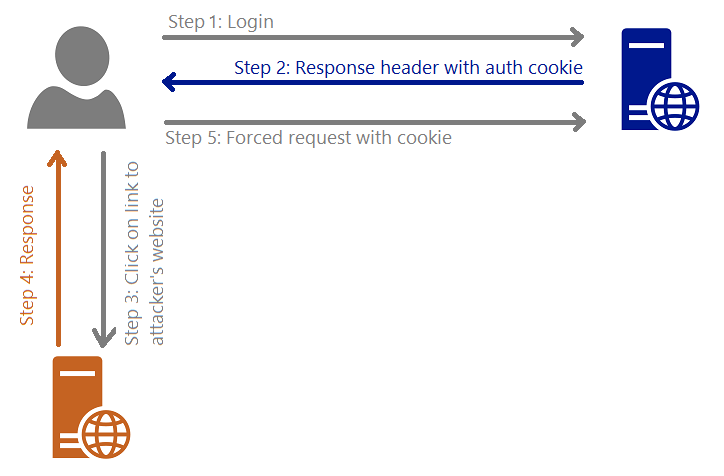
I draw a graph for me to better explain about what XSRF is.

XSRF (Cross-Site Request Forgery)

Steps are as follows.

  1. The user logs in to, for example, a bank website.
  2. The response header from the bank site will contain the user’s authentication cookie. Since authentication cookie is a session cookie, it will only be cleared when the process ends. Thus, until that time, the browser will always include the cookie with each request to the same bank website.
  3. The attacker sends to the user a link and somehow encourage the user to click on it. This causes sending a request to the attacker’s server.
  4. The attacker website has the following form.
    <body onload="document.getElementById('attack-form').submit()">
        <form id="fm1" action="https://bank.com/TransferMoney" method="post">
            <input name="transferTo" value="attackerAccount" />
            <input name="currency" value="USD" />
            <input name="money" value="7,000,000,000" />
        </form>
    </body>
  5. Because of Step 4, the user will be forced to send a request to the bank website to transfer money to attacker’s account with the user’s authentication cookie.

Hence, the attribute ValidateAntiForgeryToken helps to avoid XSRF by checking both the cookie and form have anti-forgery tokens and their values match.

Mass-Assignment Vulnerability and Over-Posting Attack

Few years ago, Github was found to have Mass-Assignment Vulnerability. The vulnerability allows people to perform Over-Posting Attack to the site so that the attackers can modify data items which are not normally allowed to access. Due to the fact that ASP .NET MVC web application is using Model Binding, the same vulnerability can happen in ASP .NET MVC environment as well.

You want to control what is being passed into the binder.

There are two my personal favourite solutions to avoid Over-Posting Attack.

One is using Bind attribute in the controller method. For example, in order to prevent users editing the value of isAdmin when they update their profile, I can do something as follows.

[HttpPost]
public ViewResult Edit([Bind(Exclude = "IsAdmin")] User user)
{
    ...
}

Alternatively, we can also use “Include” to define those fields that should be included in the binding.

Second solution is using view model. For example, the following class will not contain properties such as IsAdmin which are not allowed to be edited in the form post of profile edit.

public class UserProfileUpdateViewModel
{
    public string FirstName { get; set; }
    public string LastName { get; set; }
    ...
}

XSS: Cross-Site Scripting

According to OWASP (Open Web Application Security Project), XSS attacks

…are a type of injection, in which malicious scripts are injected into otherwise benign and trusted web sites… Flaws that allow these attacks are quite widespread and occur anywhere a web application uses input from a user within the output it generates without validating or encoding it.

Kirill Saltanov from NUS is explaining to guests about XSS during 5th STePS event.

Currently, by default ASP .NET will throw exception if potentially dangerous content is detected in the request. In addition, the Razor view engine protect us against most of the XSS attacks by encoding data which is displayed to web page via the @ tag.

In View, we also need to encode any user-generated data that we are putting into our JavaScript code. Starting from ASP .NET 4.0, we can call HttpUtility.JavaScriptStringEncode. HttpUtility.JavaScriptStringEncode helps to encode a string so that it is safe to display and characters are escaped in a way that JavaScript can understand.

In order to avoid our database to have malicious markup and script, we need to encode the user inputs in the Controller as well using Server.HtmlEncode.

[AllowHtml]

There are some cases where our web application should accept HTML tags. For example, we have a <textarea> element in our blogging system where user can write the content of post, then we need to skip the default checking of ASP .NET.

To post HTML back to our Model, we can simply add the [AllowHtml] attribute to the corresponding property in the Model, for example

public class BlogPost {
    [Key]
    public int ID { get; set; }
    ...
    [AllowHtml]
    public string Content { get; set; }
}

Then in the View, we will need to use @Html.Raw to tell Razor not to encode the HTML markup.

@Html.Raw(post.Content)

Wait… Won’t this make XSS attack possible in our website? Yup, of course. So, we must be very careful whenever we are trying to bypass the Razor encoding. The solution will then be using AntiXSS encoding library from Microsoft.

AntiXSS uses a safe list approach to encoding. With its help, we will then able to remove any malicious script from the user input in the Controller, as demonstrated below.

[HttpPost]
[ValidateAntiForgeryToken]
public ActionResult CreatePost(BlogPost post)
{
    if (ModelState.IsValid)
    {
        ...
        post.Content = Sanitizer.GetSafeHtmlFragment(post.Content);
        ...
        db.BlogPosts.Add(post);
        db.SaveChanges();
        return RedirectToAction("Index");
    }
    return View(post);
}

ASP .NET Request Validation

Previously in the discussion of XSS, we know that by default ASP .NET throws exception if potentially dangerous content is detected in the request. This is because of the existence of ASP .NET Request Validation.

However, according to OWASP, Request Validation should not be used as our only method of XSS protection because it does not guarantee to catch every type of invalid input.

HttpOnly Cookies

In order to reduce the risk of XSS, popular modern browsers have added a new attribute to cookie called HttpOnly Cookie. This new attribute specifies that a cookie is not accessible through script. Hence, it prevents the sensitive data contained in the cookie can be sent to attacker’s side via malicious JavaScript in XSS attack.

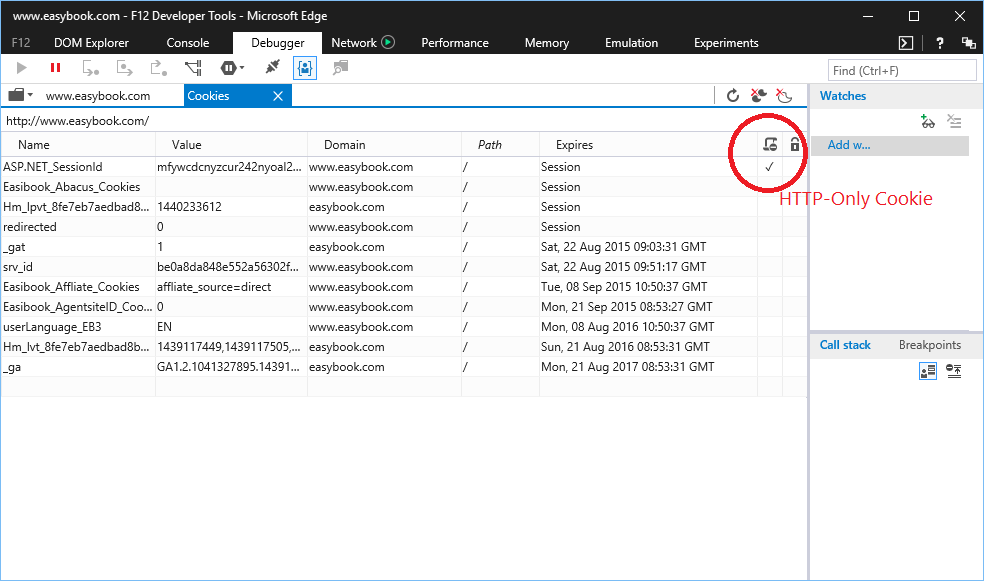
When a cookie is labelled as HttpOnly, it tells the browser that the cookie should only be accessed by the server. It is very easy to check which cookies are HttpOnly in the developer tool of modern browsers.

Microsoft Edge F12 Developer Tools can tell which are the HttpOnly cookies.

So, how do we create HttpOnly cookies in ASP .NET web applications? Just add a new line to set HttpOnly attribute of the cookie to true is fine.

HttpCookie myCookie = new HttpCookie("MyHttpOnlyCookie");
myCookie["Message"] = "Hello, world!";
myCookie.Expires = DateTime.Now.AddDays(30);
myCookie.HttpOnly = true;
Response.Cookies.Add(myCookie);

Alternatively, HttpOnly attribute can be set in web.config.

<httpCookies httpOnlyCookies="true" ...>

However, as pointed out in OWASP, if a browser is too old to support HttpOnly cookie, the attribute will be ignored by the browser and thus the cookies will be vulnerable to XSS attack. Also according to MSDN, HttpOnly does not prevent attacker with access to the network channel from accessing the cookie directly, so it recommends the use of SSL in addition of HttpOnly attribute.

HttpOnly Cookie was introduced in 2002 in IE6. Firefox 2.0.0.5 only supported HttpOnly attribute in 2007, 5 years later. However, soon people realized that in Firefox, there was still a bug in the HttpOnly implementation. Firefox allowed attackers to do an XMLHttpRequest to get the cookie values from the HTTP Response headers. 2 years later, in 2009, Mozilla finally fixed the bug. Since then, the XMLHttpRequest can no longer access the Set-Cookie and Set-Cookie2 headers of any response no matter the HttpOnly attribute is set to true or not.

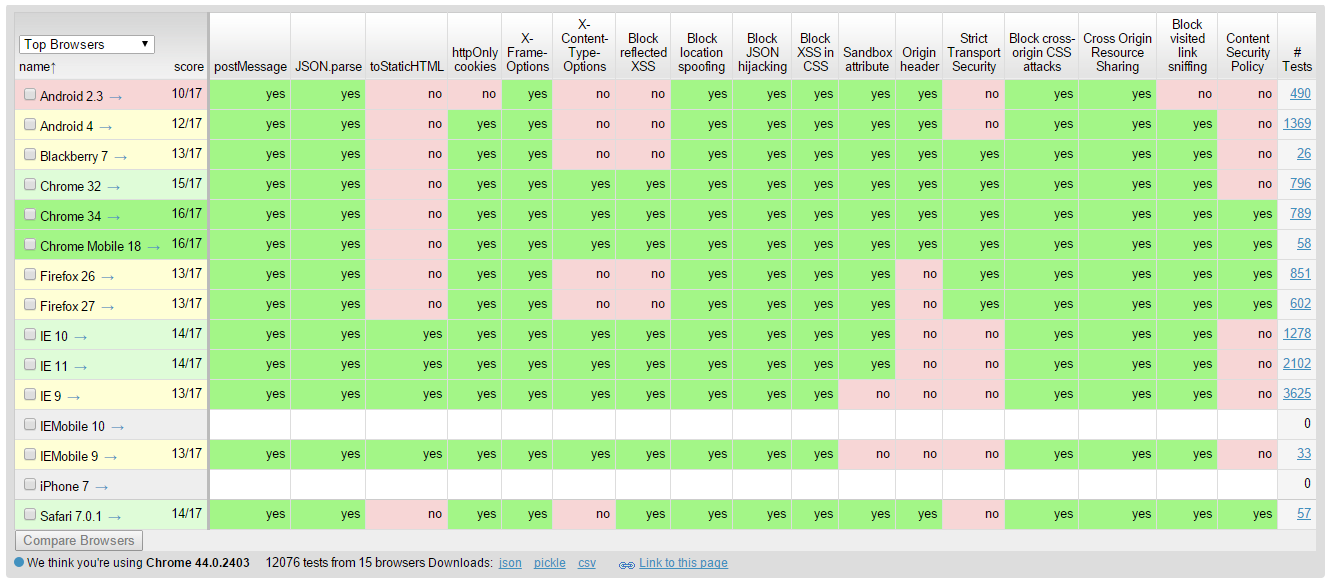
Browserscope provides a good overview about the security functionalities in major browsers.

SQL Injection and Entity SQL

When I first learned SQL in university, I always thought escaping user inputs helped to prevent SQL Injection. This approach doesn’t work actually. I just read an article written by Steve Friedl regarding how escaping the input strings does not protect our applications from being attacked by SQL Injection. The following is the example Steve gave.

SELECT fieldlist
FROM table
WHERE id = 23 OR 1=1;  -- Boom! Always matches!

When I was working in the Summer Fellowship Programme, I started to use Parameterized SQL.

SqlConnection conn = new SqlConnection(connectionString); 
conn.Open(); 
string sql = "SELECT fieldlist FROM table WHERE id = @id";
SqlCommand cmd = new SqlCommand(sql); 
cmd.Parameters.Add("@id", SqlDbType.Int, id); 
SqlDataReader reader = cmd.ExecuteReader();

This approach provides a huge security performance benefits.

In January, I started to learn Entity Framework. In Entity Framework, there are three types of queries:

  • Native SQL
  • Entity SQL
  • LINQ to Entity

In the first two types, there is a risk of allowing SQL Injection if the developers are not careful enough. Hence, it’s recommended to use parameterized queries. In addition, we can also use Query Builder Methods to safely construct Entity SQL, for example

ObjectQuery<Flight> query =
    context.Flights
    .Where("it.FlightCode = @code",
    new ObjectParameter("code", flightCode));

However, if we choose to use LINQ to Entity, which does not compose queries by using string manipulation and concatenation, we will not have the problem of being attacked by traditional SQL Injection.

JsonResult and JSON Hijacking

Using the MVC JsonResult, we are able to make our controller in ASP .NET MVC application to return Json. However, by default, ASP .NET MVC does not allow us to response to an HTTP GET request with a JSON payload (Book: Professional ASP .NET MVC 5). Hence, if we test the controller by just typing the URL directly in the browser, we will receive the following error message.

This request has been blocked because sensitive information could be disclosed to third party web sites when this is used in a GET request. To allow GET requests, set JsonRequestBehavior to AllowGet.

Since the method only accepts POST requests, unless Cross-Origin Resource Sharing (CORS) is implemented, the browser will be able to protect our data from returning the Json result to other domains.

This is actually a feature introduced by ASP .NET MVC team in order to mitigate a security threat known as JSON Hijacking. JSON Hijacking is an attack similar to XSRF where attacker can access cross-domain JSON data which is returned as array literals.

The reason why “returning JSON data as array” is dangerous is that although browsers nowadays stop us from making cross domain HTTP request via JavaScript, we are still able to use a <script> tag to make the browser load a script from another domain.

<script src="https://www.bank.com/Home/AccountBalance/12"></script>

Due to the fact that a JSON array will be treated as a valid JavaScript script and can thus be executed. So, we need to wrap the JSON result in an object, just like what ASP .NET and WCF do. The ASP.NET AJAX library, for example, automatically wraps JSON data with { d: [] } construct to make the returned value to become an invalid JavaScript statement which cannot be executed:

{"d" : ["balance", "$7,000,000,000.00"] }

So, to avoid JSON Hijacking, we need to

  1. never return JSON array
  2. not allow HTTP GET request to get the sensitive data

Nowadays, even though JSON Hijacking is no longer a known problem in modern browsers, it is still a concern because “you shouldn’t stop plugging a security hole just because it isn’t likely to be exploited“.

By the way, GMail was successfully exploited via JSON Hijacking. =)

Summer 2015 Self-Learning Project

This article is part of my Self-Learning in this summer. To read the other topics in this project, please click here to visit the project overview page.

Summer Self-Learning Banner

Nice Report Always Comes with Colourful Charts

Normally, we will show only tabular data in our online report module. However, tables are not exciting. So, why don’t we add some charts to the report to better describe the data? Thanks to Google Charts, web developers can add colourful charts to the web pages easily.

Step 1: The Required Libraries

The first thing we need is the Google API Loader which allows us later to easily load APIs from Google. So, with the help of it, we can make use of the Google Hosted Libraries.

 type="text/javascript" src="https://www.google.com/jsapi">

After that, we will load the API which will help us drawing charts. To do so, we will have the following JavaScript code.

google.load("visualization", "1.1", { packages: ["corechart"] });

Material Design

What is Google Material Design? There is an interesting video from Google Design team sharing the ideas behind it. (Image Credit: Google Design)

Recently, in order to support a common look-and-feel across all Google properties and apps running on Google platforms, Material Design is introduced to Google Charts as well.

There are more than 20 of charts available in Google Chart Gallery. Depends on which chart that you would like to use, you need to load different API in order to use the Material version of each chart. I played around with some of them which are useful in my use cases.

The first chart that I use is the Column Chart which is to draw vertical bar chart. So, the API can be called as follows.

google.load("visualization", "1.1", { packages: ["bar"] });

Other than vertical bar chart, another common graphs used in report will be Line Chart. The API of Line Chart can be called as follows.

google.load("visualization", "1.1", { packages: ["line"] });
Line Chart is available on Google Charts.

The third chart that I use is Timeline. This chart is different from the two charts introduced above because so far I still can’t find the non-Material version of it. So, the only way to call the API of Timeline is as follows.

google.load("visualization", "1.1", { packages: ["timeline"] });
Timeline is a chart describing the happening events over time.

Step 2: The Data

After we have loaded API of the chart that we want to use, then we need to pump in the data.

var data = new google.visualization.DataTable();
data.addColumn('string', 'Branch');
data.addColumn('number', 'Sales');
data.addRows([
    ['Ang Mo Kio', 1205.80],
    ['Bedok', 828.90],
    ['Clementi', 2222.10],
    ['Dhoby Ghaut', 3180.00]
]);

In the code above, I created a data table with 2 columns. Then I added 4 rows of data with addRows.

The addRows part can be done using a simple for loop. However, due to the fact that not all browsers support Tailing Comma, the for loop needs to have additional step to remove Tailing Comma.

Step 3: Chart Render

After we have the data, now we can proceed to draw the chart. For example, if we want to draw a Column Chart for the data table above, then we will use the following code.

var chart = new google.visualization.ColumnChart(document.getElementById('chart_div'));chart.draw(data);

The HTML element chart_div above is just an empty div where the chart should be rendered at.

We will then be able to get the following diagram (Non-Material).

A simple Column Chart.

Customization of Charts with Options

Google Charts allows us to customize the diagram. For example, we can add title for the diagram, horizontal axis, and vertical axis.

var options = {
    title: 'Sales of Branches',
    hAxis: {
        title: 'Branch'
    },
    vAxis: {
        title: 'Amount (SGD)',
        minValue: 0
    },
    legend: {
        position: 'none'
    }
 };

chart.draw(data, options);

In the code above, I not only added titles, but I also force the vertical axis to start from 0 and hide the legend by setting its position to none.

Column chart is now updated with helpful titles.

What we have seen so far is the non-Material Column Chart. So how will a Material Column Chart look like?

To get a Material Column Chart, we will change the code above to the following.

var options = {
    chart: {
        title: 'Sales of Branches',
        subtitle: '2015 First Quarter'
    },
    axes: {
        y: { 0: { label: 'Amount (SGD)' } },
        x: { 0: { label: 'Branch' } } 
    },
    legend: {
        position: 'none'
    }
};

var chart = new google.charts.Bar(document.getElementById('chart_div'));

chart.draw(data, options);

Then we will be able to get the Material version of the chart. Now, we are even able to define a subtitle for the diagram.

Yup, we successfully upgraded our chart to the Material version.

In case you would like convert a non-Material Column Chart to a Material version, you can do so with the code below too.

chart.draw(data, google.charts.Bar.convertOptions(options));

Challenge with Tab in Bootstrap

When I was adding Google Charts to one of my web page with tabs using Bootstrap framework, I realized there was a problem with the display of the rendered diagram. The labels in the chart are incorrectly positioned. This problem has been discussed on Stack Overflow as well.


Display Issues of Google Charts in Bootstrap Tabs

Interestingly, if the chart happens to be in the first tab which is visible by default, then there won’t be any display issue on the chart. This problem only occurs when the charts are located in those subsequent tabs which are hidden during the first load of the page. When user clicks on any of those subsequent tabs, then the display issue will happen.

So one obvious solution is actually to only call the Google API to render the graph when the tab is clicked. To be safe enough, I actually put a delay to the click event of the tab so that the chart will be drawn 3 seconds after the the corresponding tab is clicked. This seems to help fixing the display problem.

Similar to my solution, there is also a better alternative which is to bind the draw function to the show event of the tab, as discussed on Stack Overflow. I like the solution too because of its cleanliness of the code.

Try More with Google Charts

Google Charts is undoubtedly a very easy-to-use solution for web developers to present their data. So, please try it out and be amazed by the number of charts available on Google Charts.

Summer 2015 Self-Learning Project

This article is part of my Self-Learning in this summer. To read the other topics in this project, please click here to visit the project overview page.

Summer Self-Learning Banner

Azure Cloud Service: Say Hi to PaaS

“Let’s move our web applications to cloud.”

It’s quite scary when managers suddenly said something like that. I migrated several web applications which were previously hosted on-premise to Microsoft Azure previously. In order to have least number of codes to change, we chose to use Azure IaaS Virtual Machines (VMs).

From IaaS to PaaS

Creating and managing VMs, however, requires skills and a lot of efforts. I shared my story in Azure Community Singapore meetup previously regarding how our developers sacrificed our sleeping time and weekends just to handle those cloud hosting tasks. Hence, I am now looking for a solution that our developers can just focus on development, not system administration work. That’s when I start to learn more about Azure Cloud Service, the PaaS solution from Azure.

IaaS vs. PaaS
IaaS vs. PaaS

With PaaS, Azure handles most of the system administration work for us. One thing to take note is that even though the applications are still running in VMs, Cloud Service is PaaS, not IaaS. Hence, the developers can simply focus on the deployment of the applications. The platform management will be handled by Azure.

Using PaaS does sound easy. However, unlike IaaS, we need to modify our codes to turn the project into a scalable Azure Cloud Service project that runs on Azure. Also, the disks used in PaaS VMs are no longer persistent. So storage needs to be handled differently.

If you would like to find out more about IaaS and PaaS, please read the Microsoft Azure Documentation about compute hosting options. You will find out one more interesting hosting option available in PaaS called Website (renamed to Web App Service in 2015).

Slots: Production and Staging

When Windows Azure was first announced in Singapore in 2009, I was still studying in NUS School of Computing. I thus had the opportunity to join the Azure student workshop to learn about this cool technology. At that time, publishing a web application to Azure PaaS took about 20 to 30 minutes.

Windows Azure Platform
Windows Azure Platform back in 2009

Today, the deployment speed has been shortened to around 6-10 minutes. The interface of Azure Management Portal has been greatly improved as well. Luckily, some good features, especially the Production and Staging Slots, are still around.

Production and Staging Slots are interesting feature in Azure PaaS. There is no such capability in IaaS because in IaaS, the slot will always be production.

Hence, in IaaS, if we want to upload a new version of codes, normally first we will just go to the live server and then replace the existing applications with the updated version. That normally will make the live web applications go down for a few minutes. This is because the affected websites in IIS may be restarted. In addition, when there is a need to rollback the latest upload on live server, there will be cause troubles for developers too.

In PaaS, we have two slots, Production and Staging. Both of them are given different Virtual IP. The new updates of our code can thus be deployed on the Staging Slot first. Once tested successfully, we simply perform a Virtual IP Swap. The staging environment takes over the VIP of the production environment and then the current production environment takes the staging VIP to become staging environment. The swap happens quickly because the only thing changed is the VIPs. What if we want to rollback the latest upload? Just swap again!

Zero-Downtime Deployment: Slot Swap

The Slot Swap is so interesting that I would like to demo it here.

When we publish the web application to Azure through Visual Studio, we can choose whether to publish it directly to Production Slot or just Staging Slot.

Choose to publish to Production or Staging environment.

After the code is successfully deployed to Staging Slot, an URL having GUID string will be created and shown in Microsoft Azure Activity Log window in Visual Studio. Click on the link to visit our web application deployed on Staging Slot.

After tested the web application successfully, we can now swap it with Production Slot.

Let's swap Production and Staging Slots!
Let’s swap Production and Staging Slots!

When I did a swap, the entire process took less than 1 minute to complete. This is very impressive.

Is There a Way to Use Different AppSetting and ConnectionString Based on Production or Staging Environment?

When I first started with Azure Cloud Service, I always thought the “Staging Slot” is meant for testing environment. However, later it turns out that the real purpose of having Production and Staging Slots is to achieve zero-downtime deployment. Hence, the word “staging” should be renamed to something like “Pre-Production”.

Hence, it’s clear that we should not change our web.config based on the environment. This is simply because Staging Slot is not designed for testing environment. So, for testing environment, we should not use the Staging Slot. Instead, we have to setup another Azure Cloud Service for testing purpose.

Many people have been discussing this issue on Stack Overflow.

For me, I will still use the Staging environment for QA. However, to do this, I have to re-configure the web.config in staging before and after VIP swapping. After a swap, I need to publish again the project to staging with testing configuration.

However, if you really, really want to use Staging for QA, please read a code sample which will tell which slot your instance is in. I haven’t tried it yet but it does look promising.

SlotStickyAppSettingNames

For those who are familiar with Azure PowerShell commands, there are actually two commands to make app settings and connection strings not to be swapped together with the slots.

For app settings, we have the following command.

Set-AzureWebsite -Name mywebsite - SlotStickyAppSettingNames @("setting1", "setting2")

For connection string, we use the following command.

Set-AzureWebsite -Name mywebsite -SlotStickyConnectionStringNames @("conn1", "conn2")

In fact, these commands had been recently made available in the new Azure Preview Portal. You just need to choose one of your Azure Web Apps, go to its “Settings” page and then click on “Application Settings”.

Wait… This is for Azure Web App only! Yes, so we now (May 2015) still have no such convenience solution for Azure Cloud Service.

For Azure Web App only: We can now make App Settings and Connection Strings to be sticky to the slots.

Pricing

Cloud Service offers a lower rate as compared to Virtual Machine. Previously, when we were using just A1 instance VM in Standard Tier, we have to pay about USD 67 per month with a disk size of 40GB (in 2015). However, for Cloud Service, we pay only about USD 60 per month and the C drive comes with it is already 224GB (in 2015). Wow!

Even so, we need to keep the cost of hosting application on Azure PaaS low because it’s always challenging to answer manager’s questions like “how come we pay even more to host on cloud?”.

I don't money! (Image Credit: Tari Tari)
I don’t money! (Image Credit: Tari Tari)

In additional, it turns out that Staging slot is not free. Both Production and Staging slots will be charged at the same rate. Hence, it’s better to delete the Staging slot if it’s already not in use.

Another of my way to save money is to setup multiple website projects in one web role. By doing so, I don’t have to setup different instances for different website projects. There are many approaches to achieve the goal of multiple websites in one web role. Currently, I have only tried partitioning a domain by using virtual application.

To add a virtual web application to an existing web role, I right-click my solution in Solution Explorer in Visual Studio. After that, I create a new Web Application project.

Add new virtual web application to an existing web role.

After that, in the ServiceDefinition.csdef, there should be following lines under the <Sites> element.

<Sites>
    <Site name="Web">
        <VirtualApplication name="admin" physicalDirectory="..\AdminPortal" />
        <Bindings>
            <Binding name="Endpoint1" endpointName="Endpoint1" />
        </Bindings>
    </Site>
</Sites>

To access the newly added virtual web application, I just need to append the value of the name attribute to the URI of the primary website. For example, if my primary website is http://www.mywebsite.com, then the virtual web application above will be accessed at http://www.mywebsite.com/admin.

Yup, so now we can have multiple websites in one web role even though we are using PaaS.

Summer 2015 Self-Learning Project

This article is part of my Self-Learning in this summer. To read the other topics in this project, please click here to visit the project overview page.

Summer Self-Learning Banner