Role Management and Social Network Login

ASP .NET MVC - Entity Framework - Facebook - Google - Twitter

Often, we need to specify the resources users in our web application are allowed to access. For example, the sales report can only be seen by managers. The control panel can only be accessed by admin of the company.

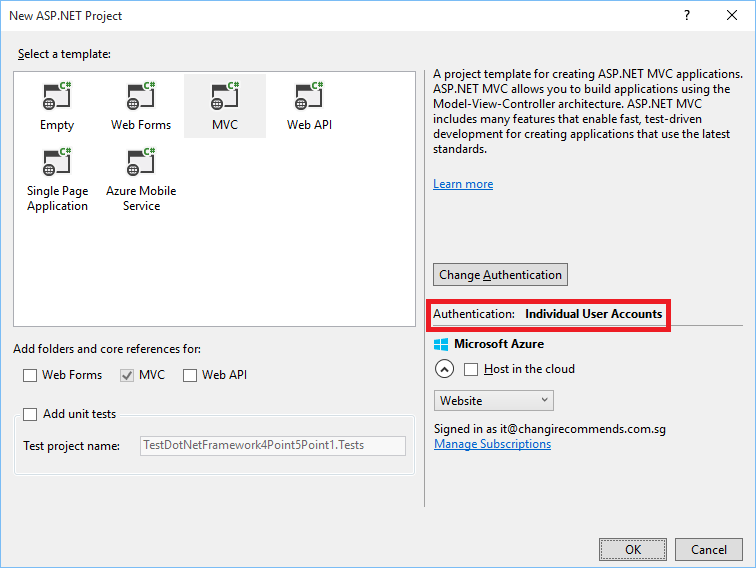
Individual User Account

In Visual Studio 2013, when we first create an ASP .NET MVC5 project, we will always have the option to choose authentication mode. One of the available modes is Individual User Account.

Individual User Account is the default Authentication method.

Individual User Account offers two channels for users to log in.

Firstly, user can register on the web application by entering email and password. The application will then create an account with the password hashed and stored in the database. Next time, the user can just log in with email and password which will be verified by the ASP .NET Identity.

Secondly, user can also register and log in with external service, such as Facebook, Twitter, and Google+. Interestingly, no password will be stored in our database for this method. Instead, the user will be authenticated by signing in to the external service.

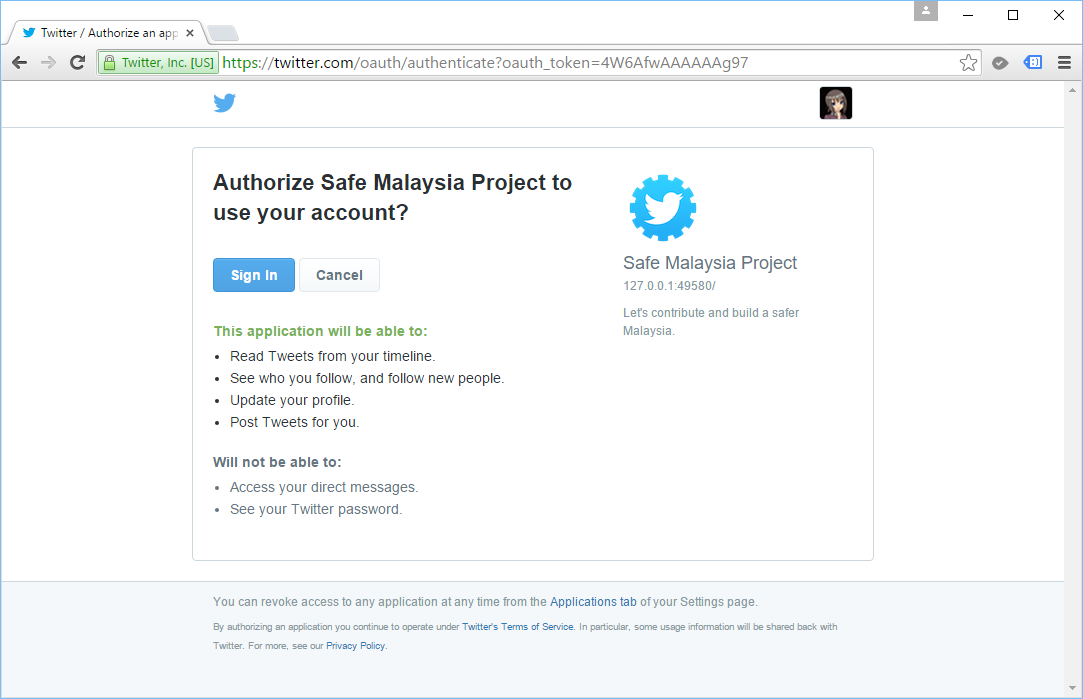
Login to our ASP .NET web application via Twitter.

Identity and Entity Framework 6 Code First

When an ASP .NET MVC 5 web application with Individual User Account as Authentication is created, a new ASP .NET Identity Provider using EF6 Code First will be added to the project as well.

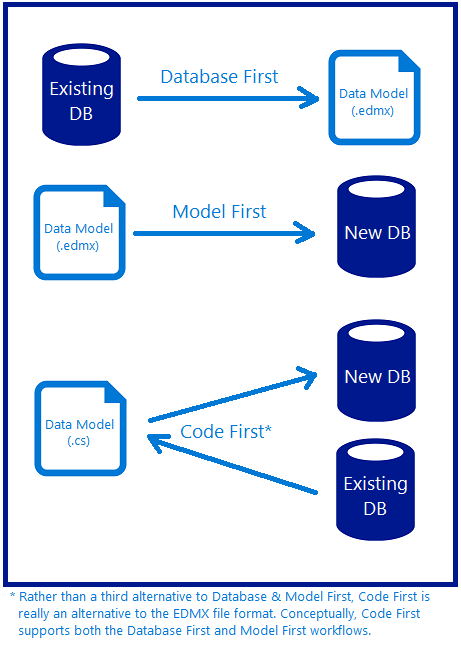
Calling Code First "Code-Based Modeling" is more suitable.
Calling Code First “Code-Based Modeling” is more suitable. (Reference)

Code First APIs will create new database if no existing database attached to the web application. Code First will map our entity classes with the database using default conventions. Hence, with the Code First approach, the developers can focus on the domain design and later have the database tables created according to the entity classes.

Because of Code First, in the first run of the application which has no database attached to it, EF6 will automatically create a database. If we have attempted to access any Identity functionality, there will be following 5 tables created automatically.

  • AspNetRoles
  • AspNetUserClaims
  • AspNetUserLogins
  • AspNetUserRoles
  • AspNetUsers

Role Based Security

Besides AspNetUserClaims table, the other four tables will be used in the role based security in our ASP .NET web application.

AspNetUsers table stores the profile information of a user, such as Email, Password, and Phone Number. To add more fields to the table, simply add the new fields in ApplicationUser class in IdentityModels.cs.

public class ApplicationUser : IdentityUser
{
    ...

    public string FirstName { get; set; }
    public string LastName { get; set; }
    public DateTime DateOfBirth { get; set; }
}

To create new role, we can do the following in the Seed() method in Configuration.cs, as suggested in an online tutorial about ASP .NET Identity.

using Microsoft.AspNet.Identity;
using Microsoft.AspNet.Identity.EntityFramework;
...

internal sealed class Configuration : DbMigrationsConfiguration<ApplicationDbContext>
{
    ...

    protected override void Seed(ApplicationDbContext context)
    {
        var roleManager = 
            new RoleManager<IdentityRole>(new RoleStore<IdentityRole>(context));
       
        //Create Role Admin if it does not exist
        if (!roleManager.RoleExists("Admin"))
        {
            roleManager.Create(new IdentityRole("Admin"));
        }
    }
}

To add a user to one or many roles, we can do the following. Hence, we can assign roles to new user upon registration.

var roleManager = 
    new RoleManager<IdentityRole>(new RoleStore<IdentityRole>(context));
var roles = roleManager.Roles.ToList();

foreach(var role in roles) { 
    var isInRole = await UserManager.IsInRoleAsync(userId, role); 
    if(!isInRole) 
    { 
         await UserManager.AddToRoleAsync(userId, role); 
    }
}

So, when user is accessing a page which is allowed for members having a certain role, we first need to check if the user is logging in with the following code.

if (Request.IsAuthenticated)
{
    ...
}

Inside the IF statement, we can continue to check if the user is having a certain role, as shown in the following code.

if (Request.IsAuthenticated && User.IsInRole("Admin"))
{
    ...
}

Alternatively, if we only allow the page to be accessed by Admin user, then we can use AuthorizeAttribute.

[Authorize(Roles="Admin")]
public ActionResult Report()
{
    . . .
}

Facebook OAuth2 Authentication

As said earlier, Individual User Account allows user to log in to the web application via external service, such as Facebook, as well. Before we can use the Facebook OAuth2 authentication, we need to register as a Facebook developer (Instruction here). I have already registered as a Facebook developer few years ago, so I just start directly from the Facebook Developers page.

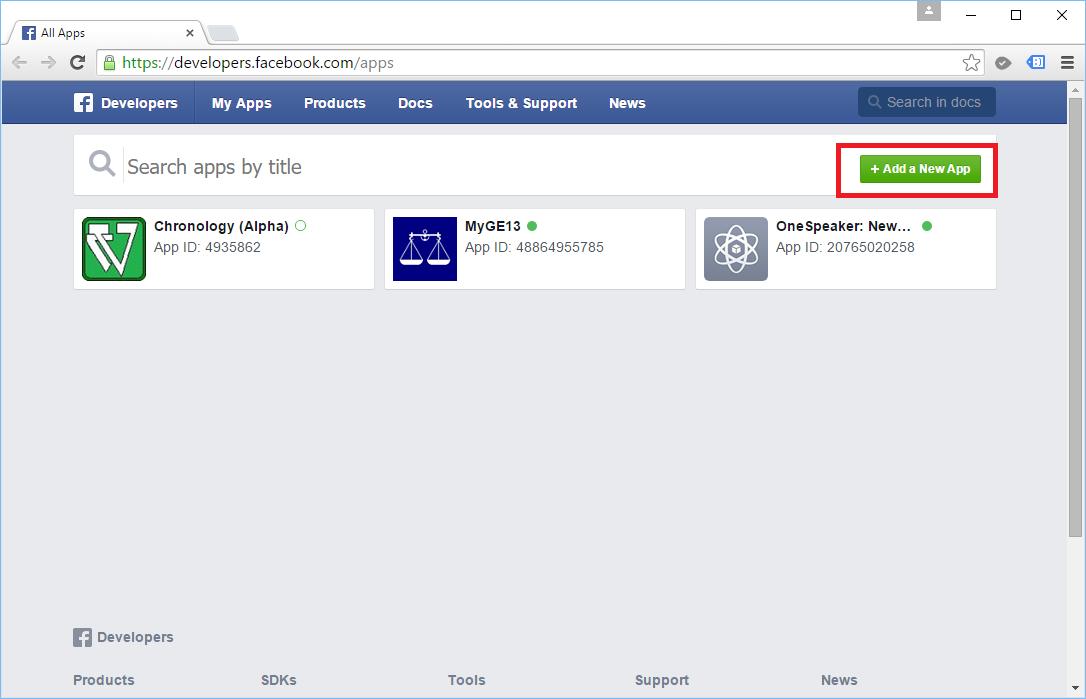
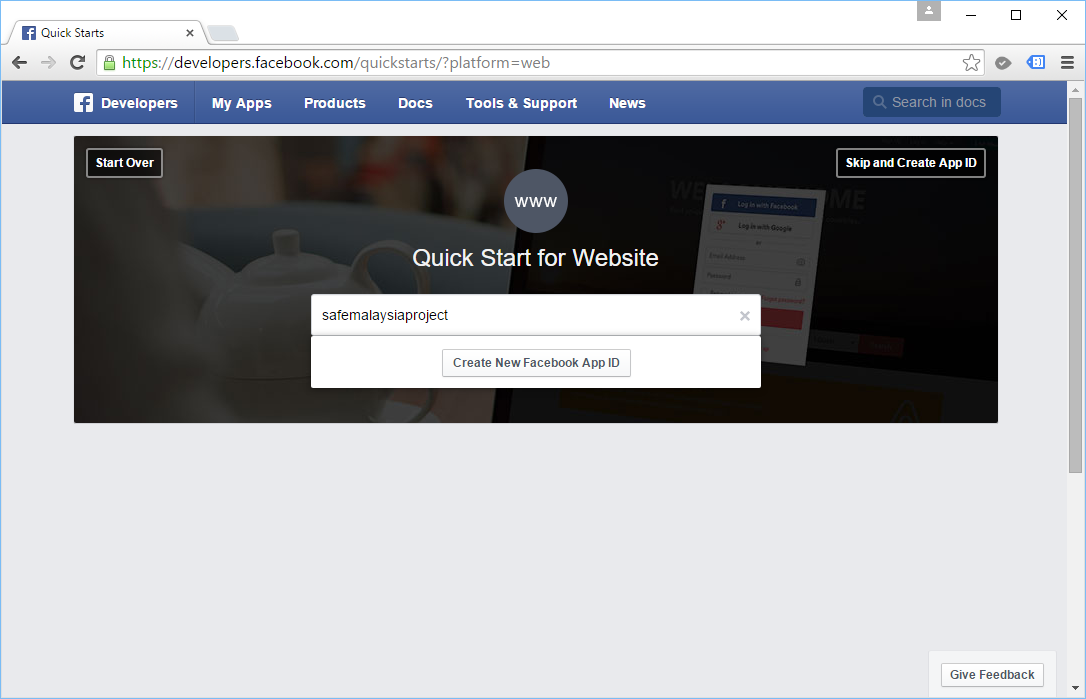
First of all, we will click on the “Add a New App” button to begin. Then we will choose “Website” as our platform.

Adding a new app in Facebook Developers.

Secondly, we will key in name of our web application before we can create a new Facebook App ID. After that, we will select a category for our app.

Entering app name.
Entering app name.

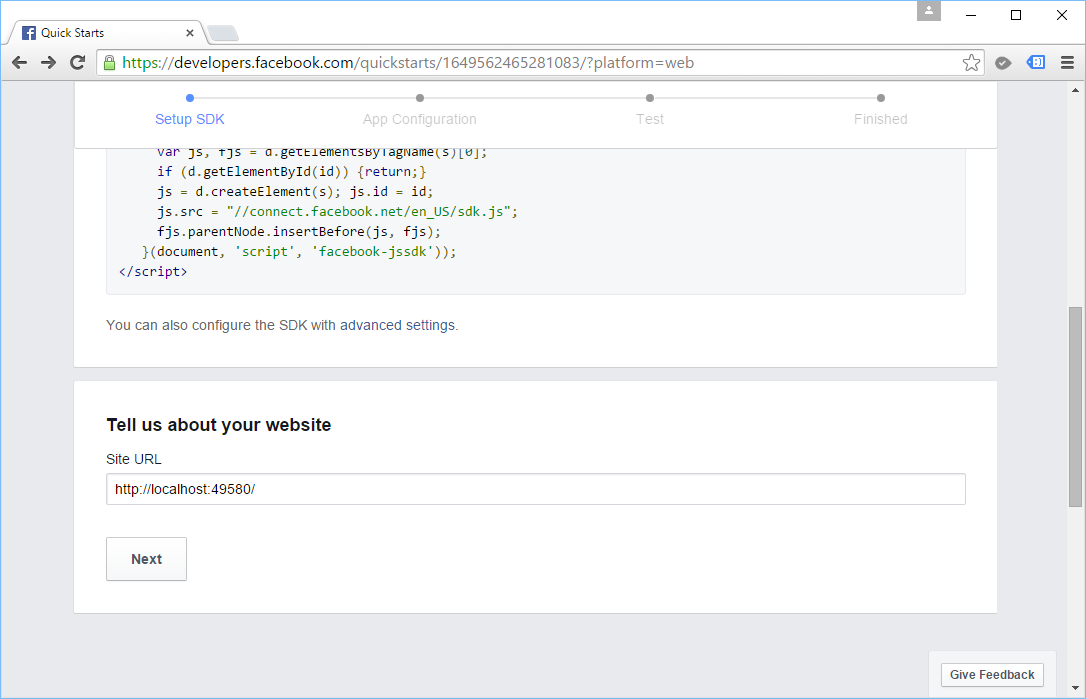
Thirdly, we have to provide the URL of our website. Fortunately, Facebook allows us to key in non-https localhost URL. =)

Yup, tell them about our site!

After that, we just scroll up to the top of the page and then click on the “Skip Quick Start” button. It will then bring us to a page with more details about the new Facebook App that we have just created.

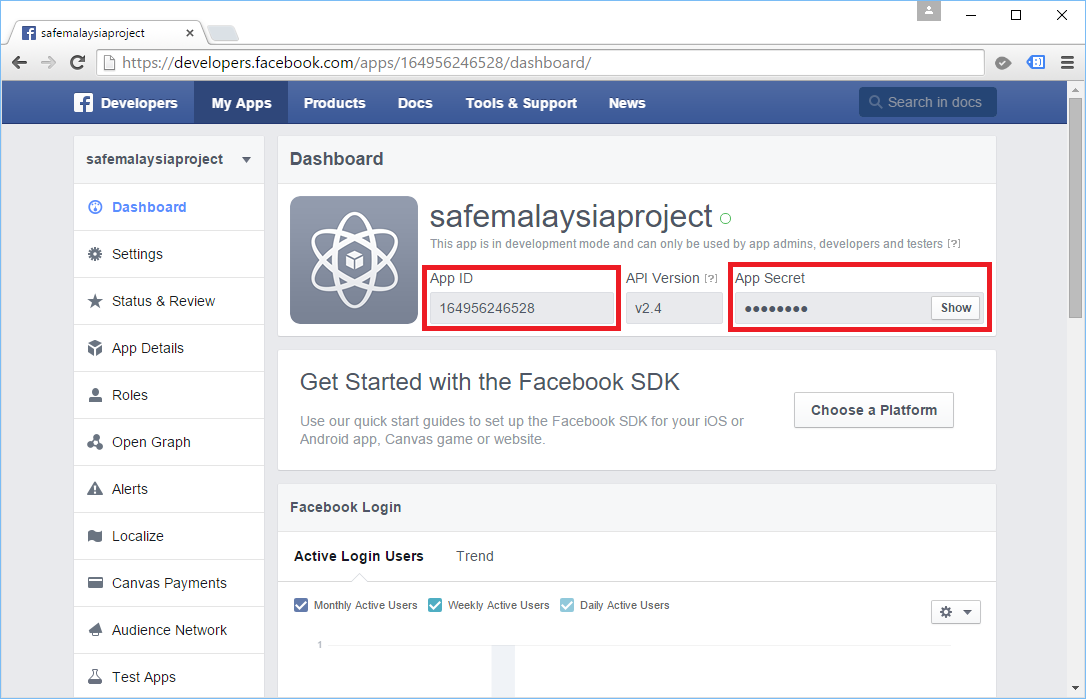
Facebook App ID and App Secret can be found in the Dashboard of our app.

With the App ID and App Secret, we can now put in these values to the sample codes in Startup.Auth.cs to activate Facebook login. Yup, now user can just log in to our web application with their Facebook account!

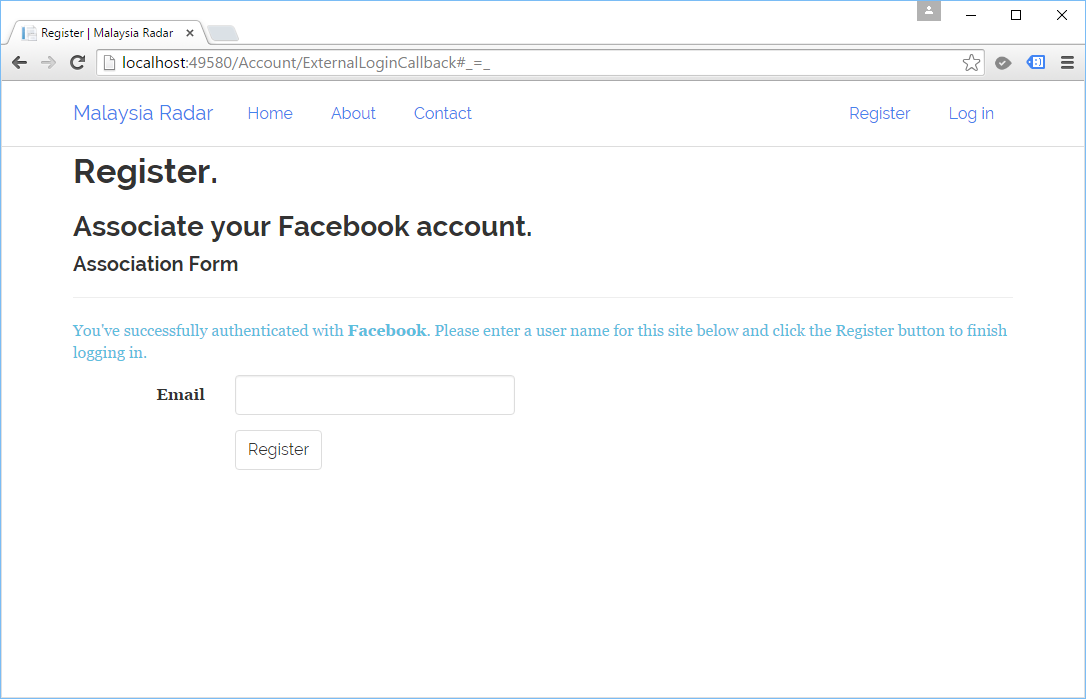
After logging in, user still need to enter their email address in order to finish the new user registration process on our website. Without doing this step, both the AspNetUserLogins and AspNetUsers tables in our database will have no record of this user.

Once the user finishes the registration, we will be able to see their info in both of the tables mentioned above. The AspNetUserLogins table will keep data such as Login Provider (Facebook), Provider Key (a reference key to Facebook users table), and UserId (which is a reference key to AspNetUsers table).

Interestingly, as Facebook says, “(The web app) may still have the data you share with them” even though we unlink the app from our Facebook account.

Link with Google

To enable user to log in to our ASP .NET website using Google account, we will head towards the Google Developers Console to configure.

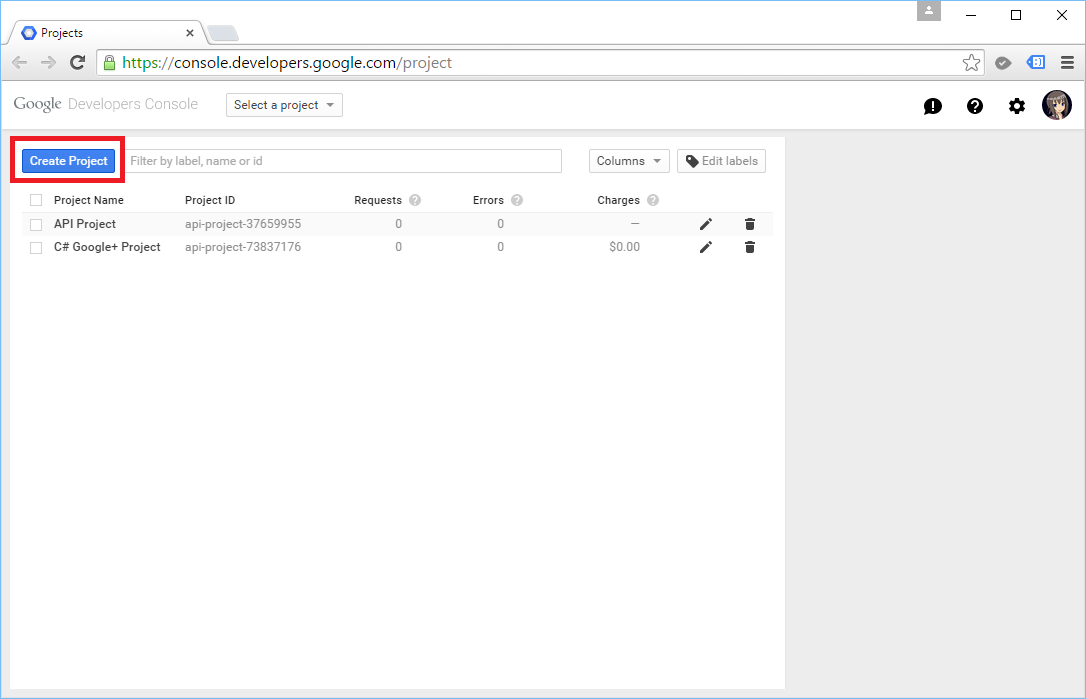
In the first step, we need to give a name to our project. Next, we can just click on the “Create” button to add the project to the console.

Adding a new project in Google Developers Console.

After the project is created, we will proceed to the Credentials under the APIs & Auth section.

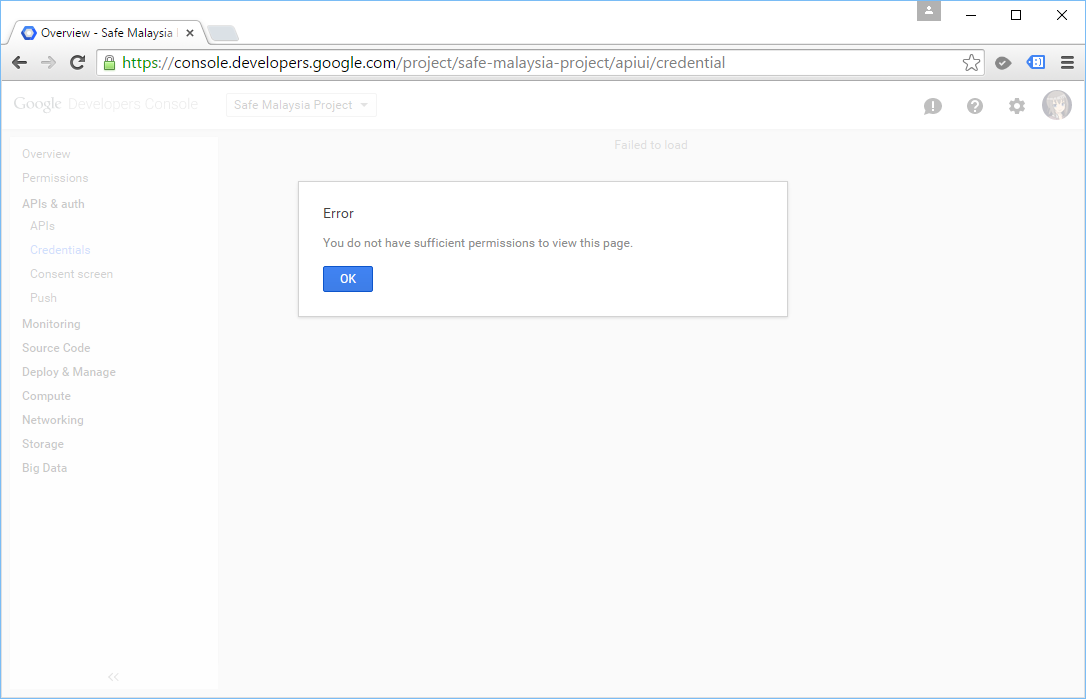
"You do not have sufficient permissions to view this page." What?
“You do not have sufficient permissions to view this page.” What?

If you encounter issue on viewing the Credentials page because it kept complaining “You do not have sufficient permissions to view this page”, please switch to use another browser which has no Google account already signed in. For my case, I use the new browser from Microsoft, Edge.

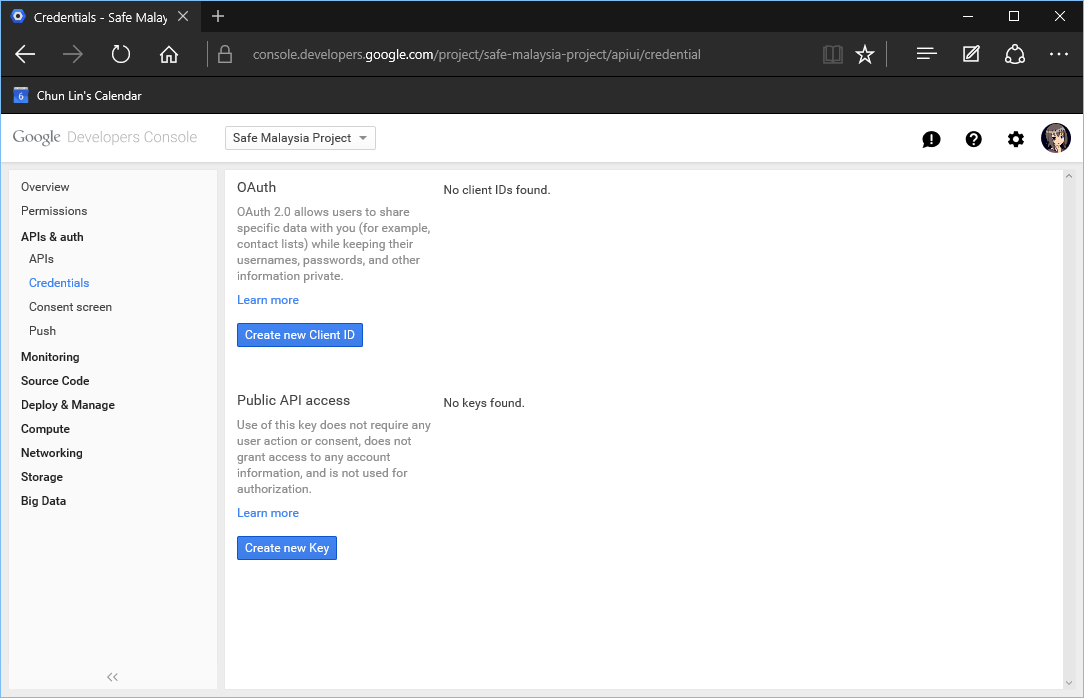
Create new Client ID.

Click on the “Create New Client ID” button under OAuth. It will then ask for Application Type. For our case, it will be the default option, “Web application”.

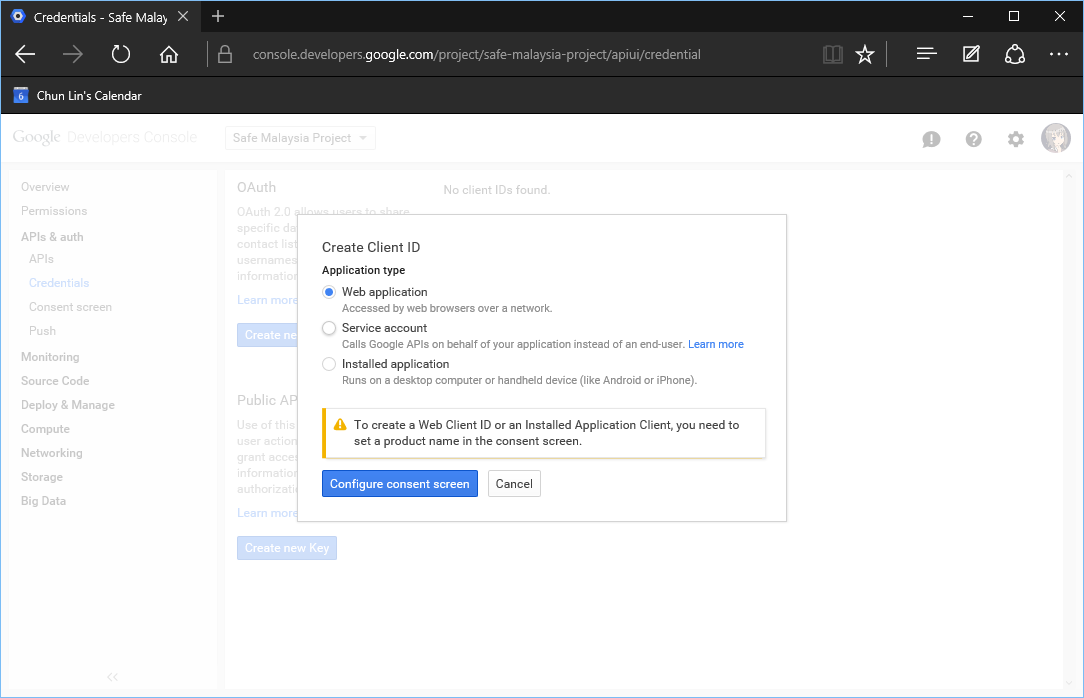
Select application type.

Do you notice the little warning there saying we need to provide a Product Name? So after that, we will be brought to the Consent Screen page to fill in our Product Name. In the same page, we can also key in URL to our homepage, product logo, Google+ page, privacy policy, and ToS.

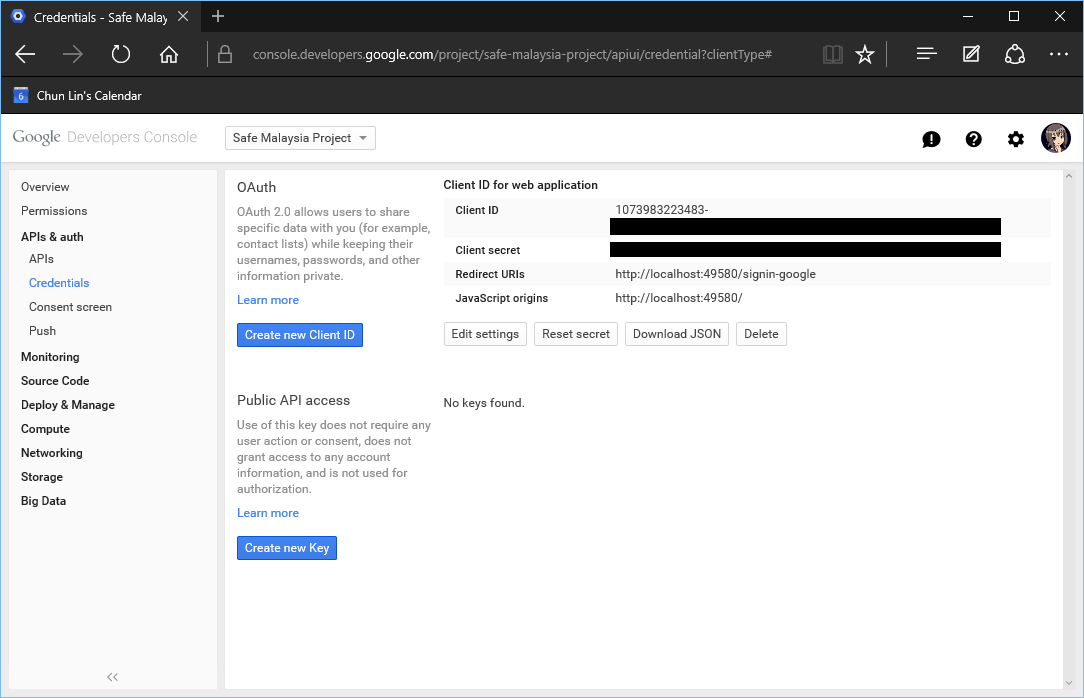
After saving the updates on Consent Screen page, we will be prompted to key in two important information: Authorized JS Origins and Authorized Redirect URIs. For local testing purpose, it accepts non-https localhost URL as well.

After that, we should receive a Client ID for our web application.

Google Client ID and Client Secret.

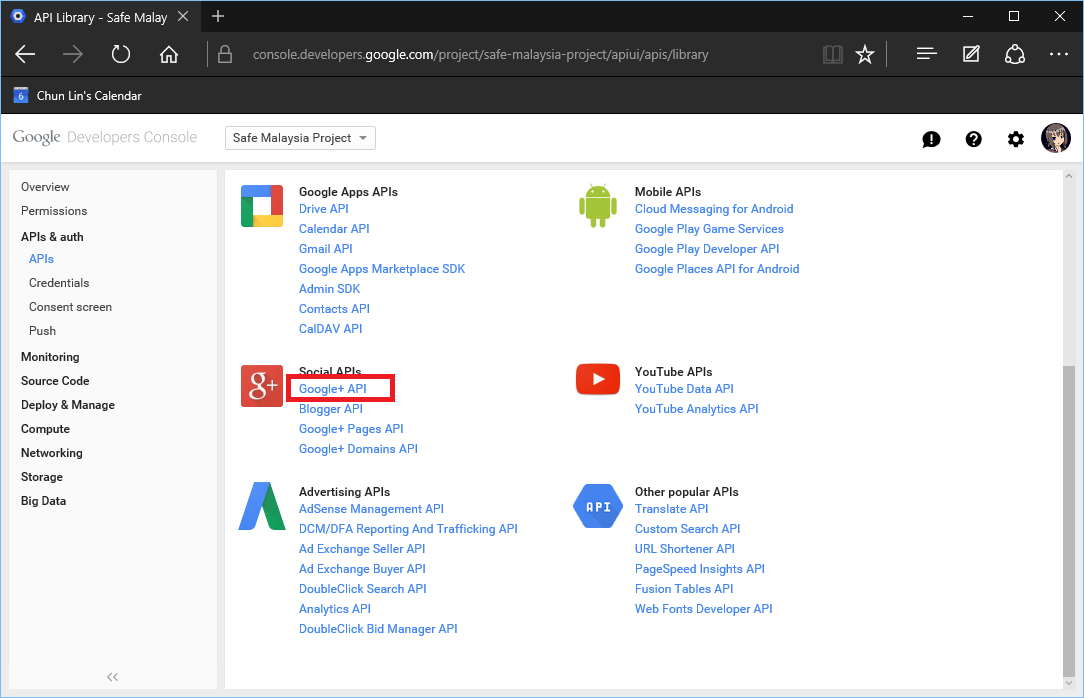
Before going back to Visual Studio, we will proceed to the APIs section under the APIs & Auth. There, we can enable the Google+ API.

Enabling Google+ API.

Same as Facebook, with the Client ID and Client Secret, we can now put in these values to the sample codes in Startup.Auth.cs to activate Google login. Yup, now user can just log in to our web application with their Google account!

Interestingly, I am not able to access the Credentials page after this again. =P

Logging In with Twitter

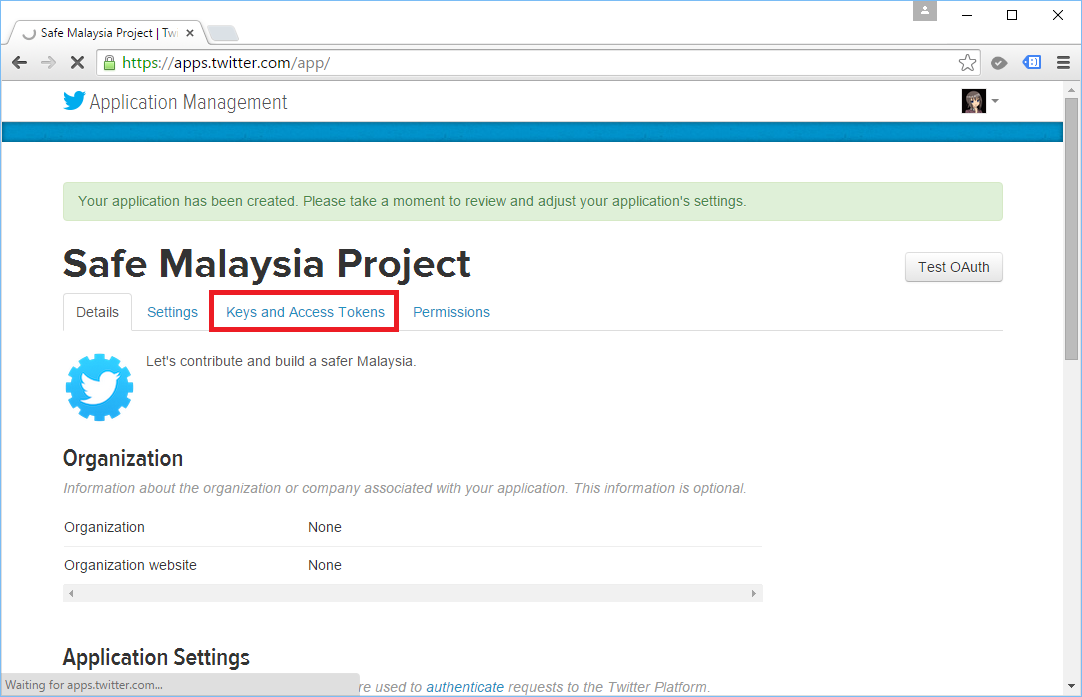
To get the Consumer Key and Consumer Secret from Twitter, we first need to login to the Twitter Apps.

According to Twitter, we must add mobile phone number to our Twitter profile before creating an application. For the Callback URL field, although it is optional, we have to put in our localhost URL (for testing environment) first. Otherwise, we will receive 401Unauthorized Error. Also, Twitter considers “localhost” as invalid in URL, so we have to use “127.0.0.1” instead.

After creating the new app, we will be given the Consumer Key and Consumer Secret that we can use to put in our Startup.Auth.cs.

Twitter Customer Key and Customer Secret.

More External Services Providing Login

If you would like to read more about allowing user to login to your ASP .NET website with 3rd party services, I would like to suggest a few articles to you.

Customizing Association Form

As mentioned earlier, we can modify the AspNetUsers table to store other profile information of a user by adding new fields in ApplicationUser class in IdentityModels.cs.

public class ApplicationUser : IdentityUser
{
    ...

    public string FirstName { get; set; }
    public string LastName { get; set; }
    public DateTime DateOfBirth { get; set; }
}
Association Form
Association Form

For external login, we need to update the fields to the Association Form as well so that no matter where the user comes from, we will always capture the same set of user info.

Firstly, in the AccountViewModels.cs, we need to add the three new fields to the ExternalLoginConfirmationViewModel.

public class ExternalLoginConfirmationViewModel
{
    [Required]
    [Display(Name = "Email")]
    public string Email { get; set; }

    [Required]
    [Display(Name = "First Name")]
    public string FirstName { get; set; }

    [Required]
    [Display(Name = "Last Name")]
    public string LastName { get; set; }

    [Required]
    [Display(Name = "Date of Birth")]
    public DateTime DateOfBirth { get; set; }
}

Then we will update the Views accordingly to enable user to key in those info.

In AccountController.cs, we will then add in logic to ExternalLoginConfirmation HttpPost method to store data of the three new fields into the AspNetUsers table.

var user = new ApplicationUser {
    ...
    FirstName = model.FirstName,
    LastName = model.LastName,
    DateOfBirth = model.DateOfBirth
};

If you are still not clear about what I am writing here, please read a more detailed tutorial written by Rick Anderson about adding new fields to the Association Form.

Summer 2015 Self-Learning Project

This article is part of my Self-Learning in this summer. To read the other topics in this project, please click here to visit the project overview page.


Summer Self-Learning Banner

Playing with Fiddler

Fiddler - HTTPS

I just downloaded Fiddler. I would like to see how I can make use of it, so I noted down some of the things that I have tried out.

Experiment 01: Process Filter

The first thing that I realized when I used Fiddler is that there are too many information being displayed especially when there are too many programs accessing the Internet. This is because, as advertised, Fiddler is a web debugging proxy for any browser (Microsoft Edge is included as well!) that works independently.

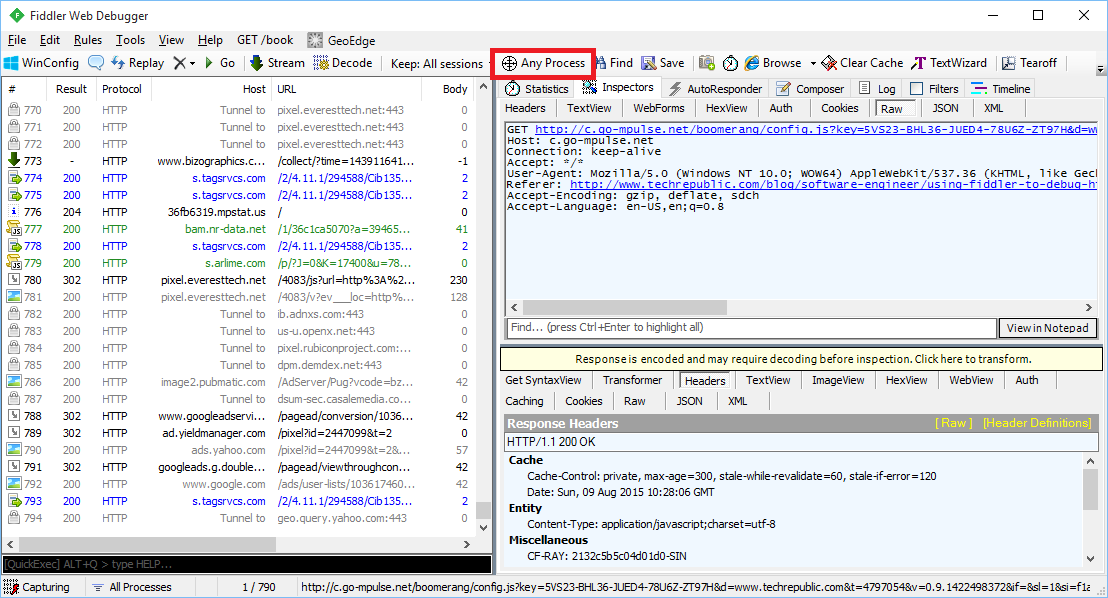
Fortunately, Fiddler providing a filtering function “Process Filter” to enable us to capture traffic coming from a particular browser, instead of all browsers.

Just drag and drop the icon on the browser you want to track.

Experiment 02: Performance Profiling

By just filtering and selecting the relevant sessions, we would be able to generate a web page performance report about total number of requests, total bytes sent and received, response time, DNS lookup time, response bytes by content type in a pie chart, etc.

Performance profiling of id.easybook.com, an Indonesia bus ticket booking website.
Performance profiling of id.easybook.com, an Indonesia bus ticket booking website.

By clicking on the “Timeline” tab, we will be able to get an overview of activities recorded. It is one of the useful features to start investigating performance issues in our web application.

Transfer Timeline diagram of id.easybook.com.

Experiment 03: Decrypt HTTPS Traffic

By default, Fiddler disables HTTPS decryption. However, nowadays most of the websites that we would like to debug are using HTTPS encryption. So, it’s sometimes necessary to set it up to work with HTTPS traffic.

HTTPS decryption is disabled by default.

First of all, we just click Tools -> Fiddler Options.

In the “HTTPS” tab of the popup window, we need to enable both “Capture HTTP CONNECTs” and “Decrypt HTTPS Traffic”. To intercept HTTPS traffic, Fiddler generates a unique root certificate. In order to suppress Windows security warnings, Fiddler recommends to have our PC to trust the cert. Hence, there will be a warning message shown after we click on the “OK” button.

Yes, scary text! Are you sure you want to trust the certificate?

However, Windows cannot validate the certificate properly, so we will be asked if we really want to install the cert.

Are you sure you want to install certificate from DO_NOT_TRUST_FiddlerRoot?

Finally, we will also be asked if we wish to add the cert to our PC’s Trusted Root List.

Adding cert to PC Trusted Root List.

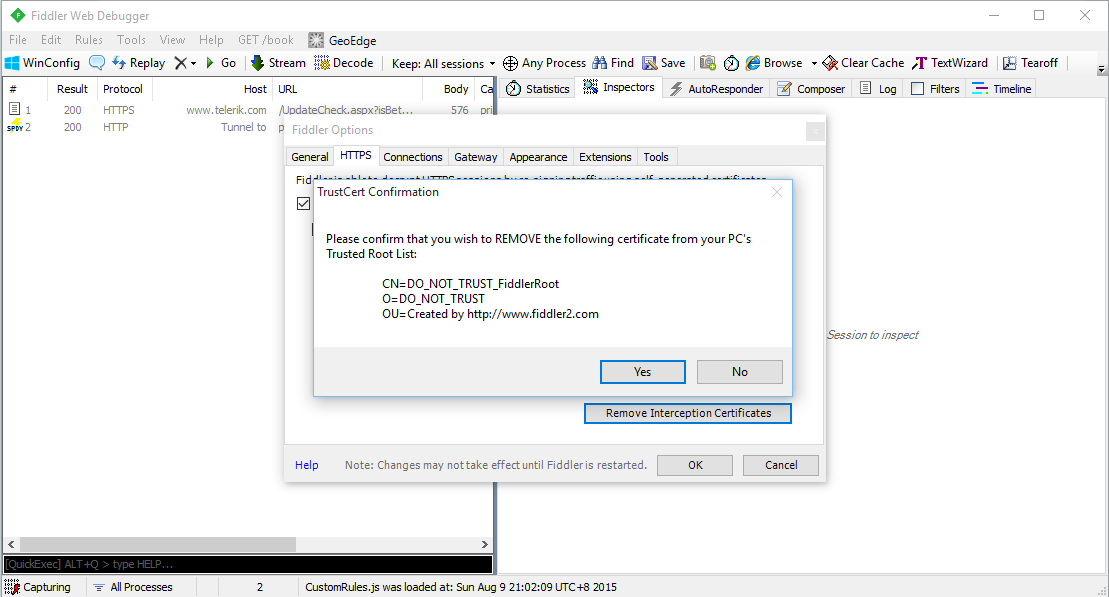
If we want to remove the cert from the PC’s Trusted Root List, we can always do so by clicking on the “Remove Interception Certificate” button in the Fiddler Options window.

Removing cert from PC Trusted Root List.

To understand the implications of enabling HTTPS encryption and installing the cert, you can read a discussion on Information Security Stack Exchange about 3rd party root certificates.

Summer 2015 Self-Learning Project

This article is part of my Self-Learning in this summer. To read the other topics in this project, please click here to visit the project overview page.
Summer Self-Learning Banner

Entity Framework and Database

By using Entity Framework, we can save a lot of time on writing SQL ourselves because Entity Framework, a Microsoft-supported ORM for .NET, is able to generate the SQL for us.

I started to use ADO .NET when I was building .NET web applications in my first job. I learnt about how to call stored procedures with ADO .NET. I witnessed how my colleague wrote a 400-line SQL to complete a task which we normally will choose to do it in C#. I also realized the pain of forgetting to update the stored procedure when the C# code is already different.

After that, my friend introduced me Entity Framework when I was working on my first ASP .NET MVC project. Since then, I have been using Entity Framework because it enables me to deliver my web applications faster without writing (and debugging) any SQL myself. I read a very interesting article comparing between Entity Framework and ADO .NET. The author also acknowledged that the performance of Entity Framework was slower than hand-coded ADO .NET. He emphasized that, however, Entity Framework did maximize his productivity.

How I react when I read a 400-line stored procedure submitted by my colleague.

What Is Happening in Database with Entity Framework?

The SQL generated by Entity Framework is believed to be pretty good. However, it’s still nice to be aware of what SQL is being generated. For example, I have the following code to retrieve Singapore weather info.

using (var db = new ApplicationDbContext())
{
    var forecastRecords = db.SingaporeWeathers.ToList();
}

In Visual Studio, I can just mouse-over “SingaporeWeather” to get the following query.

SELECT 
    [Extent1].[RecordID] AS [RecordID], 
    [Extent1].[LocationID] AS [LocationID], 
    [Extent1].[WeatherDescription] AS [WeatherDescription], 
    [Extent1].[Temperature] AS [Temperature], 
    [Extent1].[UpdateDate] AS [UpdateDate]
FROM [dbo].[SingaporeWeathers] AS [Extent1]

If I have the following code which retrieves only records having temperature greater than 37, then I can use ToString().

using (var db = new ApplicationDbContext())
{
    var query = from sw in db.SingaporeWeathers where sw.Temperature > 37 select sw;
    Console.WriteLine(query.ToString());
}
SELECT
     [Extent1].[RecordID] AS [RecordID],
     [Extent1].[LocationID] AS [LocationID],
     [Extent1].[WeatherDescription] AS [WeatherDescription]
     [Extent1].[Temperature] AS [Temperature],
     [Extent1].[UpdateDate] AS [UpdateDate]
FROM [dbo].[SingaporeWeathers] AS [Extent1]
WHERE [Extent1].[Temperature] > cast(37 as decimal(18))

I am using DBContect API, so I can just use ToString(). Alternatively, you can also use ToTraceString(), which is a method of ObjectQuery, to get the generated SQL.

SQL Logging in Entity Framework 6

It is a great news for developer when Entity Framework is announced to have SQL Logging feature added For example, to write database logs to a file, I just need to do as follows.

using (var db = new ApplicationDbContext())
{
    var logFile = new StreamWriter("C:\\temp\\log.txt");
    db.Database.Log = logFile.Write;
    var forecastRecords = db.SingaporeWeathers.Where(x => x.Temperature > 37).ToList();
    logFile.Close();
}

Then in the log file, I can see logs as follows.

...
Closed connection at 6/6/2015 10:59:32 PM +08:00
Opened connection at 6/6/2015 10:59:32 PM +08:00
SELECT TOP (1) 
    [Project1].[C1] AS [C1], 
    [Project1].[MigrationId] AS [MigrationId], 
    [Project1].[Model] AS [Model], 
    [Project1].[ProductVersion] AS [ProductVersion]
FROM ( SELECT 
    [Extent1].[MigrationId] AS [MigrationId], 
    [Extent1].[Model] AS [Model], 
    [Extent1].[ProductVersion] AS [ProductVersion], 
    1 AS [C1]
    FROM [dbo].[__MigrationHistory] AS [Extent1]
    WHERE [Extent1].[ContextKey] = @p__linq__0
) AS [Project1]
ORDER BY [Project1].[MigrationId] DESC
-- p__linq__0: 'MyWeb.Migrations.Configuration' (Type = String, Size = 4000)
-- Executing at 6/6/2015 10:59:32 PM +08:00
-- Completed in 70 ms with result: SqlDataReader

Closed connection at 6/6/2015 10:59:32 PM +08:00
Opened connection at 6/6/2015 10:59:32 PM +08:00
SELECT 
    [Extent1].[RecordID] AS [RecordID], 
    [Extent1].[WeatherDate] AS [WeatherDate], 
    [Extent1].[WeatherDescription] AS [WeatherDescription], 
    [Extent1].[WeatherSecondaryDescription] AS [WeatherSecondaryDescription], 
    [Extent1].[IconFileName] AS [IconFileName], 
    [Extent1].[Temperature] AS [Temperature], 
    [Extent1].[UpdateDate] AS [UpdateDate]
FROM [dbo].[Weathers] AS [Extent1]
WHERE [Extent1].[Temperature] > cast(37 as decimal(18))
-- Executing at 6/6/2015 10:59:33 PM +08:00
-- Completed in 28 ms with result: SqlDataReader
...

So, as you can see, even the Code First migration related activity is logged as well. If you would like to know what are being logged, you can read an article about SQL Logging in EF6 which was written before it’s released.

Migration and the Verbose Flag

Speaking of Code First migration, if you would like to find out the SQL being generated when Update-Database is executed, you can add a Verbose flag to the command.

Update-Database -Verbose

Navigation Property

“I have no idea why tables in our database don’t have any relationship especially when we are using relational database.”

I heard from my friend that my ex-colleague shouted this in the office. He left his job few days after. I think bad codes and bad design do anger some of the developers. So, how do we do “relationship” in Entity Framework Code First? How do we specify the foreign key?

I quit!
I quit!

In Entity Framework, we use the Navigation Property to represent the foreign key relationship inside the database. With Navigation Property, we can define relationship between entities.

If we have a 1-to-1 Relationship between two entities, then we can have the following code.

public class Entity1
{
    [Key]
    public int Entity1ID { get; set; }
    public virtual Entity2 Entity2 { get; set; }
}

public class Entity2
{
    [Key, ForeignKey("Entity1")]
    public int Entity1ID { get; set; }
    public virtual Entity1 Entity1 { get; set; }
}

By default, navigation properties are not loaded. Here, the virtual keyword is used to achieve the lazy loading, so that the entity is automatically loaded from the database the first time a property referring to the entity is accessed.

However, there are people against using virtual keyword because they claim that lazy loading will have subtle performance issue in the application using it. So, what they suggest is to use the include keyword, for example

dbContext.Entity1.Include(x => x.Entity2).ToArray();

By specifying the ForeignKey attribute for Entity1ID in Entity2 class, Code First will then create a 1-to-1 Relationship between Entity1 and Entity2 using the DataAnnotations attributes.

For 1-to-n Relationship, we then need to change the navigation property, for example, in Entity1 class to use collection as demonstrated in the code below.

public class Entity1
{
    [Key]
    public int Entity1ID { get; set; }
    public virtual ICollection<Entity2> Entity2s { get; set; }
}

Finally, how about n-to-m Relationship? We will just need to change the navigation property in both Entity1 and Entity2 classes to use collection.

public class Entity2
{
    [Key]
    public int Entity2ID { get; set; }
    public virtual ICollection<Entity1> Entity1s { get; set; }
}

Together with the following model builder statement.

protected override void OnModelCreating(DbModelBuilder modelBuilder)
{
    modelBuilder.Entity<Entity2>()
        .HasMany(e2 => e2.Entity1s)
        .WithMany(e1 => e1.Entity2s)
        .Map(e12 => 
            {
                e12.MapLeftKey("Entity1ID");
                e12.MapRightKey("Entity2ID");
                e12.ToTable("Entity12");
            });
}

The code above is using Fluent API which won’t be discussed in this post.

Database Context Disposal

When I first used Scaffolding in MVC 5, I noticed the template of controller class it generates look something as follows.

public class MyController : Controller
{
    private MyContext db = new MyContext();
    
    protected override void Dispose(bool disposing)
    {
        if (disposing) 
        {
            db.Dispose(); 
        } 
        base.Dispose(disposing);
    }
}

Before using Scaffolding, I have always been using the Using block, so I only create database context where I have to, as recommended in a discussion on StackOverflow. Also, the Using block will have the Dispose() be called automatically at the end of the block, so I don’t need to worry about forgetting to include the Dispose() method to dispose the database context in my controller.

Azure SQL: Database Backup and Restore

Before ending this post, I would like to share about how DB backup and restore is done in Azure SQL Database.

First of all, Azure SQL Database has built-in backups and even self-service point in time restores. Yay!

For each activate databases, Azure SQL will create a backup and geo-replicate it every hour to achieve 1-hour Recovery Point Objective (RPO).

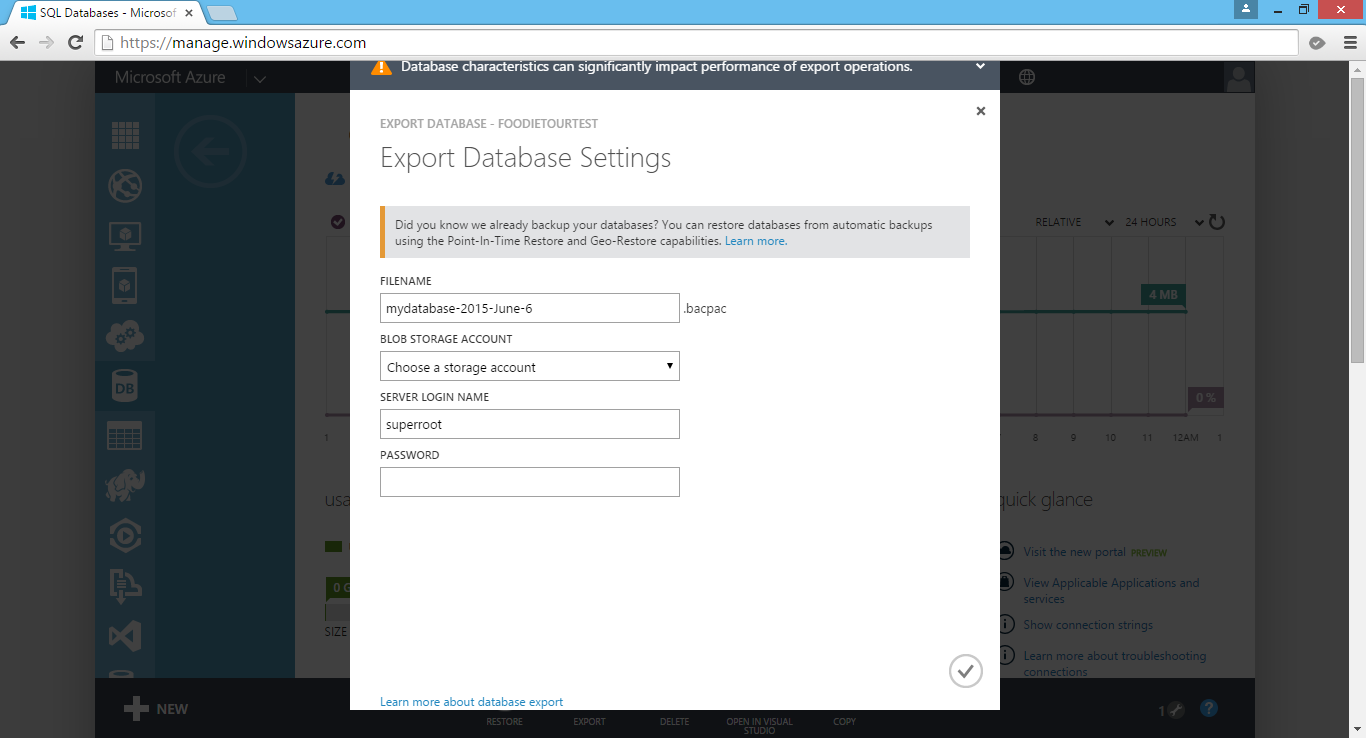
If there is a need to migrate the database or archive it, we can also export the database from Azure SQL Database. Simply click on the Export button in the SQL Databases section of Azure Management Portal and then choose an Azure blob storage account to export the database to.

Finally, just provide the server login name and password to the database and you are good to go.

Export DB from Azure SQL Database.

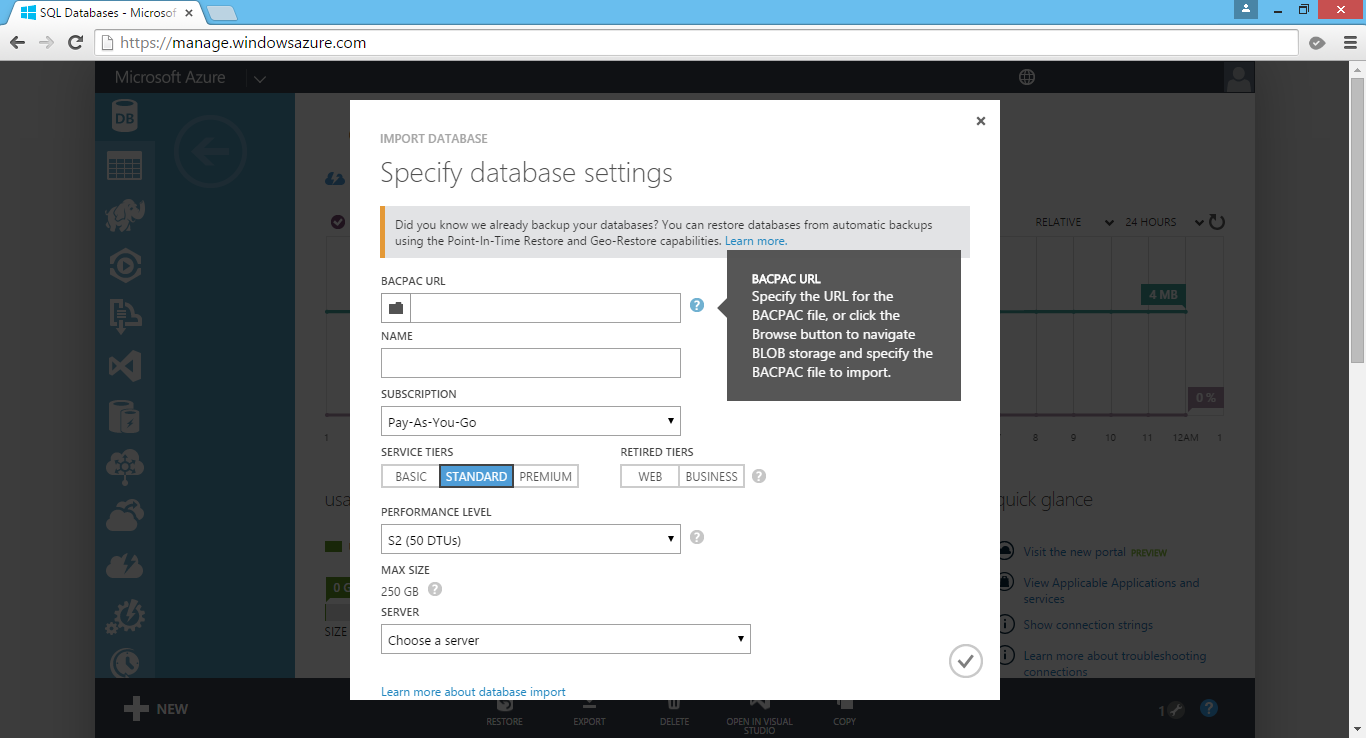
Later, we can also create a new database using the BACPAC file which is being generated by the Export function. In the Azure Management Portal, click New > Data Services > SQL Database > Import. This will open the Import Database dialog, as shown in the screenshot below.

Create a new database in Azure SQL Database by import BACPAC file.

Okai, that’s all for this post on Entity Framework, database, and Azure SQL Database. Thank you for your time and have a nice day!

Summer 2015 Self-Learning Project

This article is part of my Self-Learning in this summer. To read the other topics in this project, please click here to visit the project overview page.
Summer Self-Learning Banner

jQuery Plugins: XDSoft DateTimePicker and Jssor Slider

jQuery - DateTimePicker - Jssor Slider

It is quite common that we need our users to input date and time on the web pages. For example, when you search for flight schedules, you normally need to tell the search engine your journey period.

The Datepicker offered by jQuery UI is normally what people will use in their website. It offers a user-friendly way for the user to input a date from a popup calendar. However, it has a disadvantage. Datepicker doesn’t come with an interface for users to input the time. Workaround is normally to provide two more drop-down boxes for user to choose the hour and minute. However, this means that users have to click more times to input both date and time.

A long list of time for customer to pick in The Haven Gateway Lounge reservation page.

DateTimePicker

To solve the problem, I use the DateTimePicker, a cool jQuery plugin from XDSoft. Besides the calendar view, it also has a timer view which enables us to specify the time.

To use the plugin, first I need to include the DateTimePicker CSS file as well as the DateTimePicker JavaScript library.

After that, I need to bind the plugin to all HTML elements having “date_field” as their class.

$(function () {
    $('.date_field').datetimepicker({ format: 'Y-m-d H:i', step: 15, minDate: '0' });
}

In the sample code above, the step defines the gap (in terms of minutes) between two time selections in the plugin. The value of minDate is set to 0 so that the earliest date the user can choose is today.

That’s all. Now you can use the plugin in a text field for user to input both date and time.

@Html.EditorFor(model => model.IncidentTime, 
    new { 
        htmlAttributes = new { 
            @class = "form-control date_field", 
            @placeholder = "Incident Date & Time", 
            @style = "max-width: 100%" 
        } 
    }
)
DateTimePicker enables us to specify both date and time in a user-friendly way.

More Options in DateTimePicker

There are many options available in the plugin. I will just highlight some that I use often here.

If you would like to restrict the time options that can be chosen, you can use the allowTimes together with a defaultTime value as demonstrated below.

$('.date_field_2').datetimepicker({
    format: 'Y-m-d H:i', step: 15, defaultTime: '09:00', minDate: '0',
    allowTimes: [
        '09:00', '09:15', '09:30', '09:45',
        '10:00', '10:15', '10:30', '10:45',
        '11:00', '11:15', '11:30', '11:45',
        '12:00'
    ]
});

The time picker will then only show the 13 options specified in the code above. If user doesn’t pick any of the time option, then by default the chosen time will be 9am.

In case you would like to hide the time picker, you can do so by setting timepicker to false.

$('.date_field').datetimepicker({ format: 'Y-m-d', timepicker: false });

Some users sent their feedback to me about the visibility of time picker on the plugin. To them, the time picker is not so obvious. Hence, I change to use a brighter background colour in one of the class definition in jquery.datetimepicker.css.

.xdsoft_datetimepicker .xdsoft_timepicker .xdsoft_time_box >div >div {
    background: #5cb85c; /* Updated here */
    border-top: 1px solid #ddd;
    color: #666;
    font-size: 12px;
    text-align: center;
    border-collapse: collapse;
    cursor: pointer;
    border-bottom-width: 0;
    height: 25px;
    line-height: 25px;
}

Image Slider

Jssor Slider is another free jQuery plugin that I like. It provides a convenient way to do image slider.

I tried it out in my MVC project. Basically, what I do is just use one of the examples as reference, and then include one JS library (Suggestion from the author: Use ‘jssor.slider.mini.js’ (40KB for jQuery Plugin) or ‘jssor.slider.min.js’ (60KB for No-jQuery Version) for release) and some other JavaScript codes together with some inline CSS. I don’t want to talk much about it here because, hey, they have hosted the code and samples on GitHub for public to download!

Jssor Slider with thumbnail navigator is one of the available templates that I like.

Summer 2015 Self-Learning Project

This article is part of my Self-Learning in this summer. To read the other topics in this project, please click here to visit the project overview page.
Summer Self-Learning Banner