Run an Audio Server on Azure

Recently with music-streaming services like Spotify and YouTube Music getting popular, one may ask whether it’s possible to setup personal music-streaming service. The answer is yes.

There is a solution called Subsonic, which is developed by Sindre Mehus. However, Subsonic is no longer open source after 2016. Hence, we would talk about another open-source project inspired by Subsonic, i.e. Airsonic. According the the official website, the goal of Airsonic is to provide a full-featured, stable, self-hosted media server based on the Subsonic codebase that is free, open source, and community driven. So, let’s see how we can get Airsonic up and running on Azure.

Ubuntu on Microsoft Azure

Azure Virtual Machines supports running Linux and Windows. Airsonic can be installed on both Linux and Windows too. Since Linux is an open-source software server, it will be cheaper to run it on Azure than a Windows server.

Currently, Azure supports common Linux distributions including Ubuntu, CentOS, Debian, Red Hat, SUSE. Here, we would choose to use Ubuntu because it certainly has the upper hand when it comes to documentation and online help which makes finding OS-related solutions to easy. In addition, Ubuntu is updated frequently with LTS (Long Term Support) version released once every two years. Finally, if you are users of Debian-style distributions, Ubuntu will be a comfortable pick.

Ubuntu LTS and interim releases timeline. (Source: ubuntu.com)

Azure VM Size, Disk Size, and Cost

We should deploy a VM that provides the necessary performance for the workload at hand.

The B-series VMs are ideal for workloads that do not need the full performance of the CPU continuously. Hence, things like web servers, small databases, and our current project Airsonic is a suitable use case for B-series VMs. Hence, we will go for B1s which has only 1 virtual CPU and 1GiB of RAM. We don’t choose B1ls which has the smallest memory and lowest cost among Azure VM instances is because the installation of Airsonic on B1ls is found to be not successful. The lowest we can go is only B1s.

Choosing B1s as the VM size to host Airsonic.

For the OS disk type, instead of the default Premium SSD option, we will go for Standard SSD because it is not only a lower-cost SSD offering, but also more suitable for our audio application which is lightly used.

Remove Public Inbound Ports and Public IP Address

It’s not alright to have SSH port exposed to the Internet because there will be SSH attacks. Hence, we will remove the default public inbound ports. This will make all traffic from the Internet will be blocked. Later we will need to use a VPN connection instead to connect to the VM.

Remove all public inbound ports.

By default, when we create a VM on Azure Portal, there will be a public IP address given. It’s always recommended to not have public IP bound to the VM directly even there is only a single VM. Instead, we should deploy a load balancer in front of the VM and then have the VM bound to the load balancer. This will eventually make our life easier when we want to scale out our VM.

To not have any public IP address assigned to the VM, as shown in the screenshot below, we need to change the value of Public IP to “None”.

Setting Public IP to “None”.

Setup Virtual Network and VPN Gateway

When we create an Azure VM, we must create a Virtual Network (VNet) or use an existing VNet. A VNet is a virtual, isolated portion of the Azure public network. A VNet can then be further segmented into one or more subnets.

It is important to plan how our VM is intended to be accessed on the VNet before creating the actual VM.

The VNet configuration that we will be setting up for this project.

Since we have removed all the inbound public ports for the VM, we need to communicate with the VM through VPN. Hence, we currently need to have at least two subnets where one is for the VM and another one is for the VPN Gateway. We will add the subnet for VPN Gateway later. Now, we just do as follows.

Configuring VNet for our new VM.

Setup Point-to-Site (P2S) VPN Connection

There are already many tutorials available online about how to setup P2S VPN on Azure, for example the one written by Dishan Francis in Microsoft Tech Community, so I will not talk about how to setup the VPN Gateway on Azure. Instead, I’d like to highlight that P2S Connection is not configurable on Azure Portal if you are choosing the Basic type of the Azure VPN Gateway.

Once the VM deployment is successful, we can head to where the VNet it is located at. Then, we add the VPN Gateway subnet as shown in the screenshot below. As you can see, unlike the other subnets, the Gateway Subnet entry always has its name fixed to “GatewaySubnet” which we cannot modify.

Specifying the subnet address range for the VPN Gateway.

Next, we create a VPN Gateway. Since we are using the gateway for P2S, the type of VPN needs to be route-based. The gateway SKU that we chose here is the lowest cost, which is VpnGw1. Meanwhile, the Subnet field will be automatically chosen once we specify our VNet.

Creating a route-based VPN gateway.

The VPN gateway deployment process takes about 25 minutes. So while waiting for it to complete, we can proceed to create self-sign root and client certificates. Only root cert will be used in setting up the VPN Gateway here. The client certificate is used for installation on other computers which need P2S connections.

Once the VPN gateway is successfully deployed, we will then submit the root cert data to configure P2S, as shown below. In the Address pool field, I simply use 10.4.0.0/24 as the private IP address range that I want to use. VPN clients will dynamically receive an IP address from the range that we specify here.

Configuring Point-to-site. Saving of this will take about 5 minutes.

Now, we can download the corresponding VPN client to our local machine and install it. With this, we will get to see a new connection having our resource group name as its name available as one of the VPN connections on our machine.

A new VPN connection available to connect to our VM.

We can then connect to our VM using its private IP address, as shown in the screenshot below. Now, at least our VM is secured in the sense that its SSH port is not exposed to the public Internet.

We will not be connected with our VM through PuTTY SSH client if the corresponding VPN is disconnected.

Upgrade Ubuntu to 20.04 LTS

Once we have successfully connected to our VM, if we are using the Ubuntu 18.04 provided on Azure, then we will notice a message reminding us that there is a newer LTS version of Ubuntu available, which is Ubuntu 20.04, as shown in the screenshot below. Simply proceed to upgrade it.

New release of Ubuntu 20.04.2 LTS is available now.

Set VM Operating Hours

Since in cloud computing, we pay for what we use. Hence, it’s important that our VMs are only running when it’s necessary. If the VM doesn’t need to run 24-hour everyday, then we can configure its auto start and stop timings. For my case, I don’t listen to music when I am sleeping, so I will turn off the audio server between 12am to 6am.

To start and stop our VM at a scheduled time of the day, we can use the Tasks function, which is still in preview and available under Automation section of the VM. It will create two Logic Apps which will not automatically start or stop the VM.

Instead, I have to change the Logic Apps to send HTTP POST requests to start and powerOff endpoints of Azure directly, as suggested by R:\ob.ert in his post “Start/Stop Azure VMs during off-hours — The Logic App Solution”.

Changed the Logic Apps generated by the auto-power-off-VM template to send POST request to the powerOff endpoint directly.

Install Airsonic and Run as Standalone Programme

Since our VM will be automatically stopped and started everyday, it’s better to integrate Airsonic programme with Systemd so that Airsonic will be automatically run on each boot. There is a tutorial on how to set this up in the Airsonic documentation, so I will not describe the steps here. However, please remember to install Open JDK 8 too because Airsonic is based on Java to run.

Checking the airsonic.service status.

By default, Airsonic will be available at the port 8080 and it is listening on the path /airsonic. If the installation is successful, with our VPN connection connected, then we shall be able to see the following login screen in our first visit. Please immediately change the password as instructed for security purpose.

Welcome to Airsonic!

Public IP on VM Only via Load Balancer

We need to allow Airsonic music streaming over the public Internet and thus the VM needs to be accessible via public IP. However, since we have already earlier configured our VM to not have any public IP address, there needs to be a public load balancer bound to the VM. This setup gives us the flexibility to change the VM in the backend on the fly and secure the VM from Internet traffic.

Now, we can create a public load balancer, as shown in the screenshot below. The reason why Basic SKU which has no SLA is used here is because it’s free. SLA is optional to me here because this VM will be just a personal audio server.

Creating a new load balancer.

Basic SKU public IP address supports a dynamic as the default IP address assignment method. This means that a public IP address will be released from a resource when the resource is stopped (or deleted). The same resource will receive a different public IP address on start-up next time. If this is not what you expect, you can choose to use a static IP address to ensure it remains the same.

We now need to attach our VM to the backend pool of the load balancer, as shown in the following screenshot.

Attaching VM to the backend pool of the Azure Load Balancer.

After that, in order to allow Airsonic to be accessible from the public Internet, we shall set an inbound NAT (Network Address Translation) rule on the Azure Load Balancer. Here since I have only one VM, I directly set the VM as the target and setup a custom port mapping from port 80 to port 8080 (8080 is the default port used by Airsonic), as shown below.

A new inbound NAT rule has been set for the Airsonic VM.

Also, at the same time, we need to allow port 8080 in the Network Interface of the VM, as highlighted in the screenshot below.

Note: The VM airsonic-main-02 shown in the screenshot is the 2nd VM that I have for the same project. It is same as airsonic-main VM.

Allow inbound port 8080 on the Airsonic VM.

Once we have done all these, we can finally access Airsonic through the public IP address of the load balancer.

Enjoy the Music

By default, the media folder that will be used by Airsonic is at /var/music, as shown below. If this music folder does not exist yet, simply proceed to create one.

Airsonic will scan the media folder every day at 3am by default.

By default, the media folder is not accessible by any of the users. We need to explicitly give users the access to the media folders, as shown in the screenshot below.

Giving user access to the media folders.

As recommended by Airsonic, the music folders we add to /var/music and other media folders are better organized in an “artist/album/song” manner. This will help Airsonic to automatically build the albums. In addition, since I have already entered the relevant properties such as title and artist name to the music files, so Airsonic can read them and display on the web app, as shown in the screenshot below.

The cover image is automatically picked up from an image file named cover.png in the corresponding album folder.

In addition, both Airsonic and Subsonic provide the same API. Hence, we can access our music on Airsonic through Subsonic mobile apps as well. Currently I am using the free app Subsonic Music Streamer on my Android phone and it works pretty well.

The music on our Airsonic server can be accessed through Subsonic mobile app too!

References

Build Xamarin.CommunityToolkit Sample App on Windows 10 in March 2021

In January 2021, a new stable version of Xamarin.Forms, the version 5.0, is released. Actually I had been playing with it when its preview version was released in the previous year. Together with the release of Xamarin.Forms 5, Microsoft also announced Xamarin Community Toolkit which provides a collection of common elements for mobile development with Xamarin.Forms.

Xamarin Community Toolkit is available on GitHub as an open-source .NET Foundation project. There is a sample solution offered as well in the repository. So, we can simply clone the GitHub project and build it on our Windows 10 machine to find out how behaviors, converters, effects, MVVM utilities, and new controls can be implemented.

UWP version of the Xamarin Community Toolkit sample.

However, to successfully build the sample project, it’s not that straightforward, at least at the point of time I write this article in March 2021. So I will guide you through building and running the Xamarin Community Toolkit sample on Windows 10 machine.

Tools

In this article, I’m using the following tools.

  • Windows 10 Home version 20H2;
  • Visual Studio 2019 Professional Preview (16.10.0 Preview 10);
  • .NET 5 (5.0.200-preview.21077.7);
  • NuGet Packages:
    • Xamarin.Essentials 1.6.1;
    • Xamarin.Forms 5 (5.0.0.2012);
    • Microsoft.NETCore.UniversalWindowsPlatform 6.2.12;
    • Xamarin.CommunityToolkit 1.0.3.

Setup the Project

Firstly, we can directly clone the Xamarin Community Toolkit sample from its GitHub repository.

There are many platforms supported in the sample application. However, here I will only talk about UWP and a bit of Android. So I am going to unload the projects for iOS, GTK, Tizen, and WPF. After that, I will set the UWP project as the Startup Project, as shown in the screenshot below.

UWP project is set as the Startup Project.

Now, we can proceed to run it. However, some of us may encounter a few issues. I will share what I have encountered so far and how I proceed to fix them.

Issue 01: UWP Build Errors

The build errors that I encountered all originated from the Xamarin.CommunityToolkit project which targets at Windows 10 SDK 10.0.17763 and .NET Standard 1.0, as shown in the following screenshot.

Build errors in Xamarin.CommunityToolkit targetting at Windows 10

There are a few solutions to this problem. Firstly is head to Visual Studio Installer to install the Windows 10 SDK 10.0.17763.0, which took additional 2.8 GB in space.

Installing Windows 10 SDK 10.0.17763.0.

Second solution to this issue is that we can re-target the Xamarin.CommunityToolkit to the latest Windows 10 SDK that you have. For my case, it is 10.0.19041.0. So I simply need to update the UAP version in the .csproj of the project, as shown in the screenshot below.

Re-targeting Xamarin.CommunityToolkit dependency on UWP framework.

Once we have done either of the above, the build errors should be gone.

Of course, if you don’t want to touch the Xamarin.Community.Toolkit project which is referenced by the sample application, we can unload the project. After that, in each of the platform project, we change to use the NuGet package of the Xamarin.Community.Toolkit which is stable and we don’t have to re-build it ourselves.

Issue 02: File Path Too Long

If you happen to put the sample project in a directory having a long path length, then there will be some files not being generated, for example the Java file as shown in the screenshot below. This is because on Windows, there is a limitation of the file path length.

The path length is too long!

So, once we move the entire solution to another directory with shorter path length, we shall be able to see the sample project being shown successfully.

Xamarin Community Toolkit sample on Android.

Issue 03: Blank UWP Page

The sample application will look similar on the UWP as well. However, besides the first screen, most of the subsequent screen has a blank content. However, as shown in the video clip below, the pages will actually back to normal once we resize the app window.

After few hours of investigation, I found that as long as we comment out or remove the CollectionView.Footer used in those pages, we realise that the problem above will be fixed.

The CollectionView.Footer in App.xaml is shared by those blank UWP pages.

Currently, I have filed an issue on the Xamarin Community Toolkit GitHub about this issue and workaround. So, let’s wait and see if this will be fixed in the future releases. Other than all these issues, the Xamarin Community Toolkit is still a very good tool for the developers.

Learn More about Xamarin Community Toolkit

There is a Xamarin Community Toolkit YouTube video with Gerald Versluis shared by my senior Riza Marhaban. I find it to be very useful and I hope you enjoy learning more about Xamarin too. Have fun!

Golang Client Library for OneDrive

As I shared in my talk in Boston Golang Community early this month, I had been using OneDrive since its early days when it was still known as SkyDrive. At that time, there was no official API for accessing SkyDrive. After that, Microsoft rebranded the product to be part of Microsoft Live family and OneDrive finally could be accessible through the Live SDK.

PROJECT GITHUB REPOSITORY

The complete source code of this project can be found at https://github.com/goh-chunlin/go-onedrive.

Motivation

In November 2018, Live SDK officially went offline and gave way to the new standard, the Microsoft Graph. Similar to the capabilities of Live SDK, Microsoft Graph allows us to access multiple Microsoft services such as People, Outlook, OneDrive, Calendar, Teams, etc. Microsoft Graph also offers client libraries for many platforms that can integrate with our application similar to Live SDK, as shown in the screenshot below.

Code languages and platforms officially mentioned for Microsoft Graph.
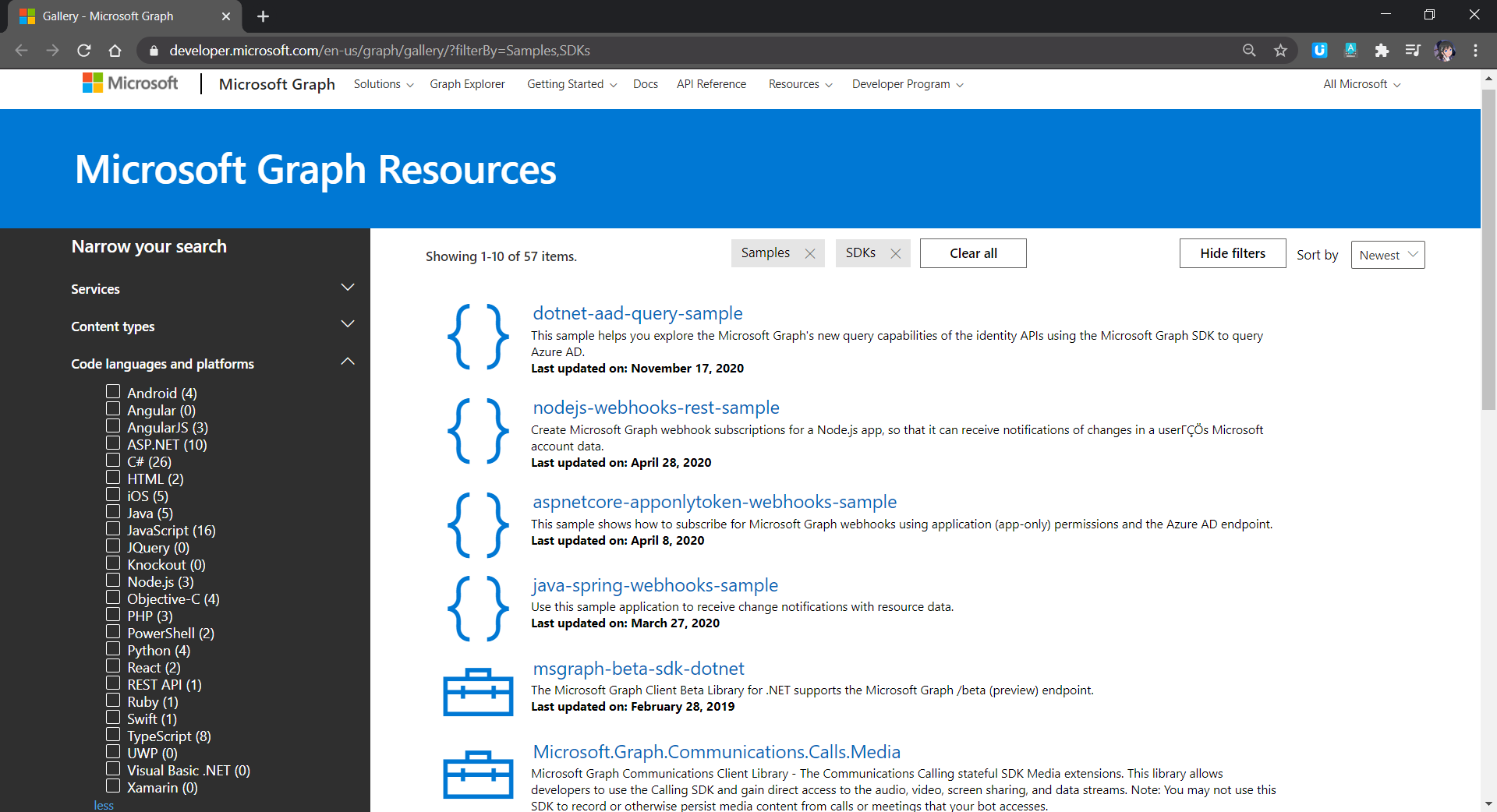
Golang is not in the list. Since I need to access OneDrive in my other Golang applications, I decided to build a OneDrive Golang client library myself.

Project Structure

There is one project go-github from Google about building a Golang client library for accessing the GitHub API. It is similar to what I’d like to achieve so I use the project as a reference.

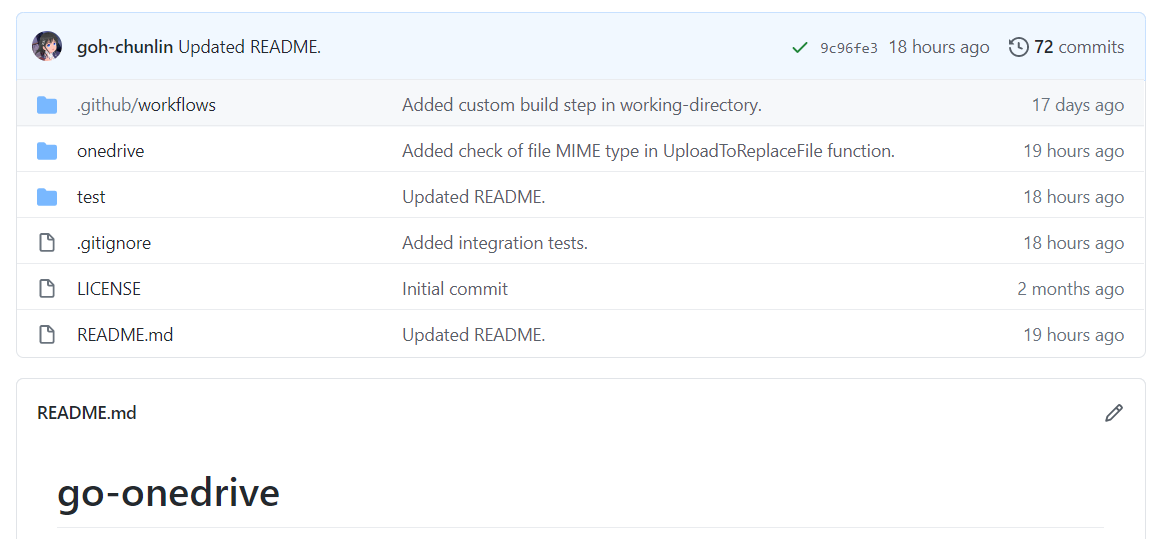
In the early stage of the project, the project structure is exactly the same as go-github, as shown in the screenshot below.

Project structure of the go-onedrive initially.

The onedrive folder consists of the main codes and unit tests for the library and test folder contains additional test suite which will talk to the actual OneDrive account over network and is beyond the unit tests.

Communication with Microsoft Graph

All the communication in the library is done via a client with Base URL pointing to graph.microsoft.com. I like how go-github designs its client so that while it has many services, it still can reuse one single struct for each service on the heap.

onedrive.Client manages communication with the Microsoft Graph.
The go-onedrive library does not directly handle authentication. Instead, when creating a new onedrive.Client, we need to pass an http.Client that can handle authentication. The easiest and recommended way to do so is using the oauth2 library.

For every request to the Microsoft Graph, we need to have a relative URL in which case it is resolved relative to the Base URL of the onedrive.Client.

This works for most of the cases in the OneDrive scenario. However, there is a moment when the client should not be reused, for example, monitoring the asynchronous job status on OneDrive. This is because of the following two reasons

  • Base URL for job monitoring API needs to use api.onedrive.com as domain instead of pointing to Microsoft Graph;
  • We should not pass the user authentication information to the job monitoring API because the request will be rejected.

To solve this problem, I introduce a flag, isUsingPlainHttpClient, to specify whether the is a need to use another new http.Client to send the API request, as shown in the screenshot below.

Checking whether to use the http.Client with authentication.

HTTP 202 and HTTP 204

There are some operations on OneDrive, such as copying drive items, will take a while to complete. That’s where the asynchronous job, as discussed above, comes into picture. So, when we send an API request to copy-and-paste the drive items, the Microsoft Graph will return us HTTP 202 Accepted instead of HTTP 200 OK. The HTTP 202 status code means that our request has been accepted for processing, but the processing has not been completed.

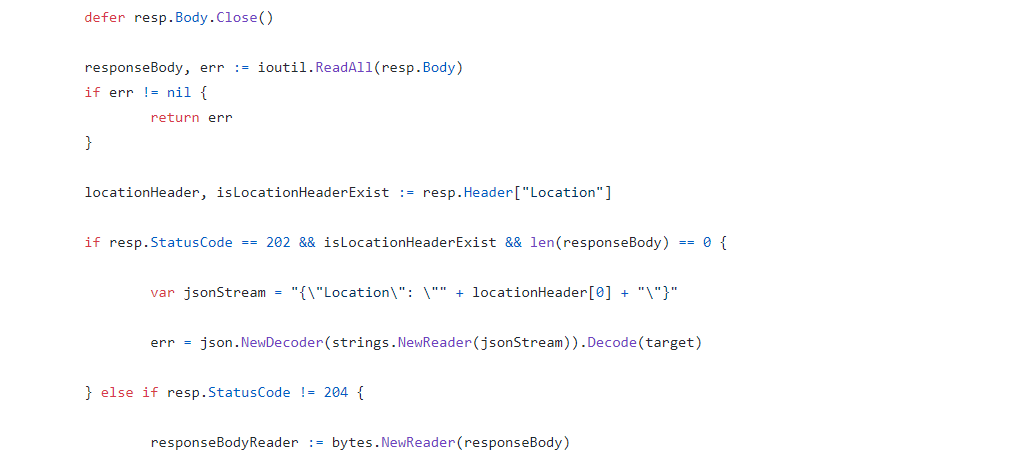
In the example of copy-and-pasting drive items, the response body is empty. It only provides a job monitoring URL (which is pointing to the OneDrive endpoint instead of Microsoft Graph) in the Location response header. Hence, to get this information, I have added in the following piece of codes.

Return the Location header in JSON format.

By doing so, now I can easily retrieve the job monitoring URL from the JSON and pass it to the OneDrive API.

In the codes above, I also check for HTTP 204 No Content because this status code is intended to describe a response with no body. Hence, the onedrive.Client only needs to read the body content if the response code is not 204.

Error Handling

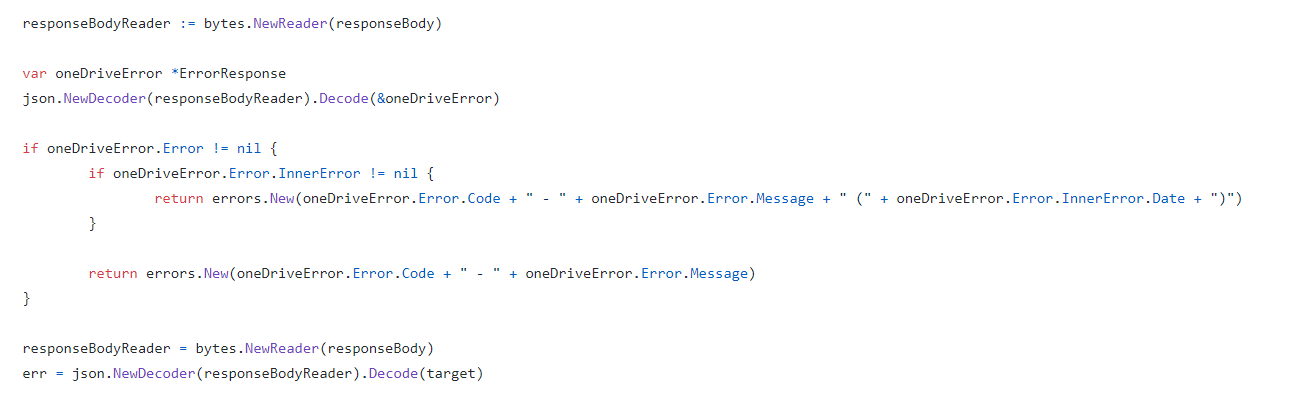
When there is an error, Microsoft Graph will return error information in JSON format. Hence, the onedrive.Client will first check whether the returned JSON object is an error. If yes, it will return the error accordingly. Otherwise, it will continue to decode the response body to a struct, as shown in the following screenshot.

Reading error and response body.

Unit Testing and Integration Testing

I also learned from go-github on how the unit test cases are written.

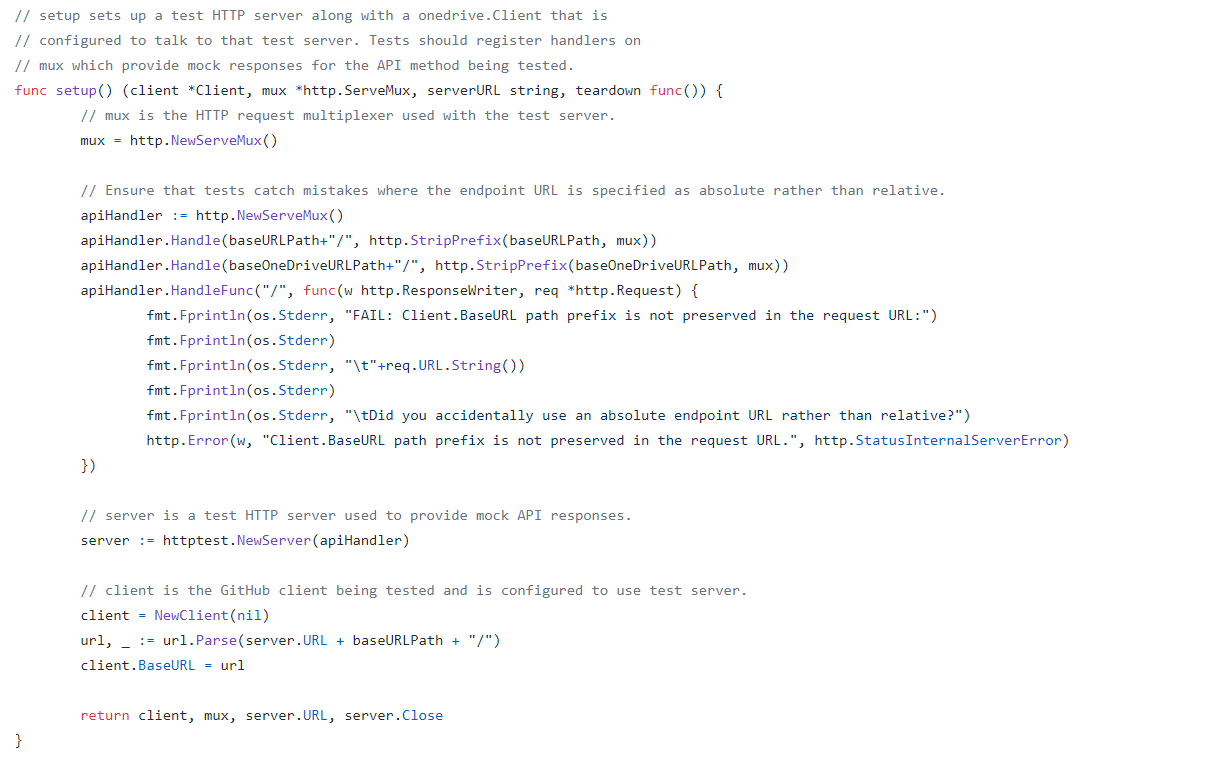
Firstly, we have a test HTTP server setup along with a onedrive.Client that is configured to talk to that test server.

Secondly, in the HTTP request multiplexer used in the test server, since we are providing relative URL for every request, we will also need to ensure tests catch mistakes where the endpoint URL is specified as absolute rather than relative.

Thirdly, we also need to have a HTTP handler in the test server to take care of OneDrive API test which is not based on the Microsoft Graph endpoint.

With all these requirement, we will have the following setup.

Setting up a test HTTP server.

Same as the go-github project, I have also prepared a set of integration tests.

The integration tests will exercise the entire go-onedrive library against the live Microsoft Graph and OneDrive API. These tests will verify that the library is properly coded against the actual behavior of the API, and will fail upon any incompatible change in the API.

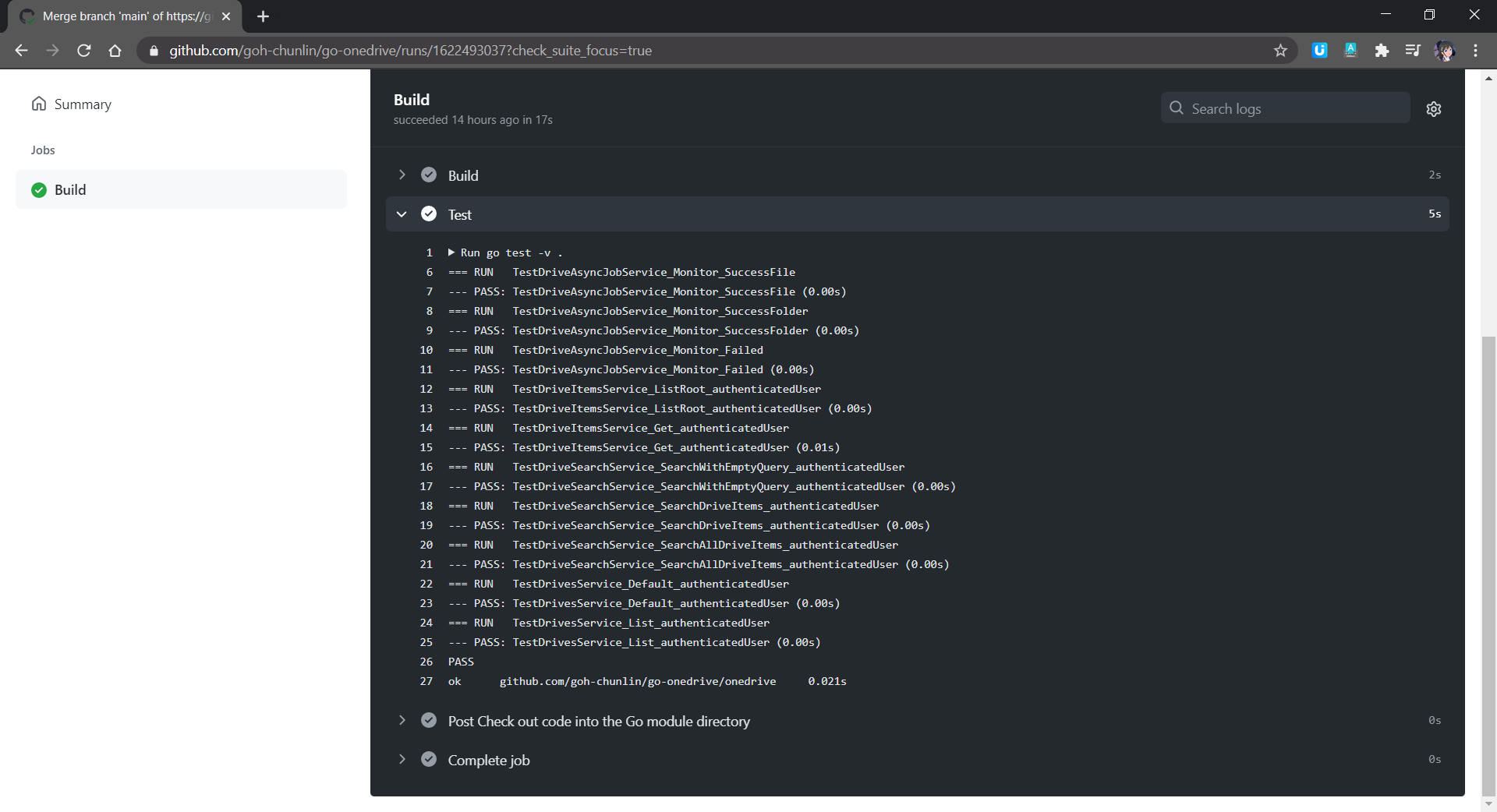
Unlike unit tests which will be run automatically on GitHub Actions, the integration tests are meant to be run manually because it will interact and change the actual OneDrive account.

Unit tests are run in GitHub Actions for every push or PR to the main branch.

Module AND Publishing

Starting from Go 1.11, a new concept called modules is introduced. Using modules, developers are not only no longer confined to working inside GOPATH, but also get to experience the new Go dependency management system that makes dependency version information explicit and easier to manage.

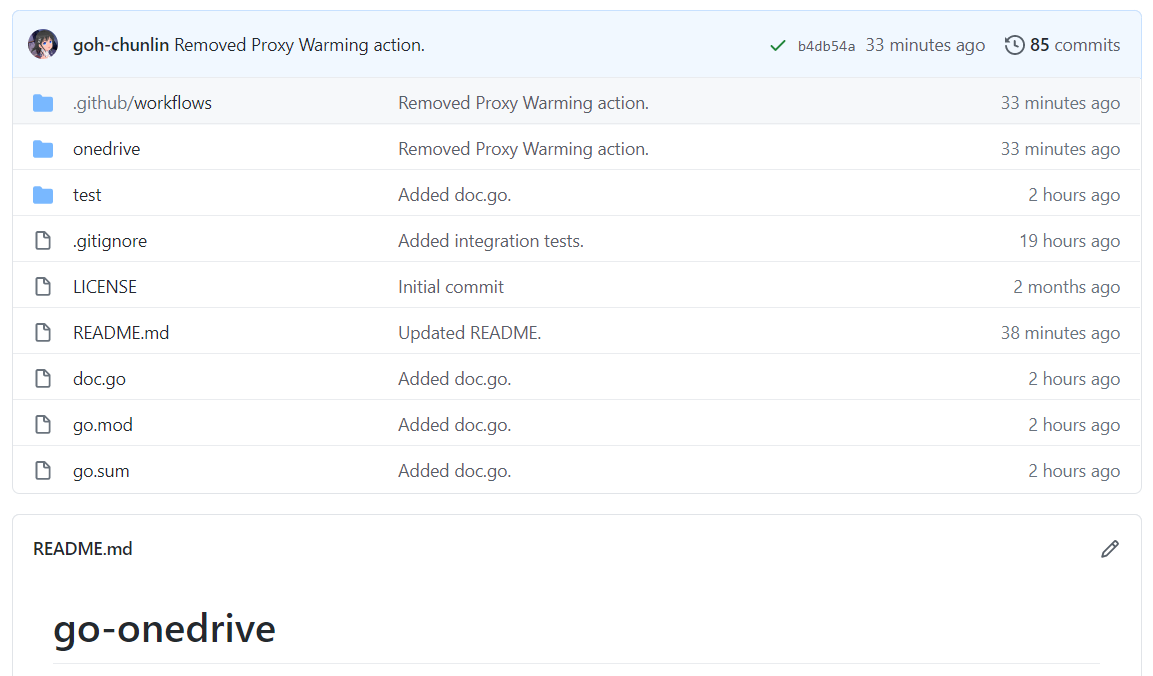
A module is basically a collection of Go packages stored in a file tree with a go.mod file at its root. Hence, if we want to transform our project to a module, we will need to make a small change to our project structure, as shown in the following screenshot.

Introducing go.mod, go.sum, and doc.go.

The approach I took is similar to how Google does for their Google API Go Client project. We need to have a new file called doc.go. This file contains only introductory documentation as comments and a package clause.

After that we make the root of project as the root of the new module with the following command.

go mod init github.com/goh-chunlin/go-onedrive

A go.mod file will be generated with the following content.

A new go.mod file being generated.

Next, we use the following command to tidy up the dependencies. A go.sum file will be also generated at the same time.

go mod tidy

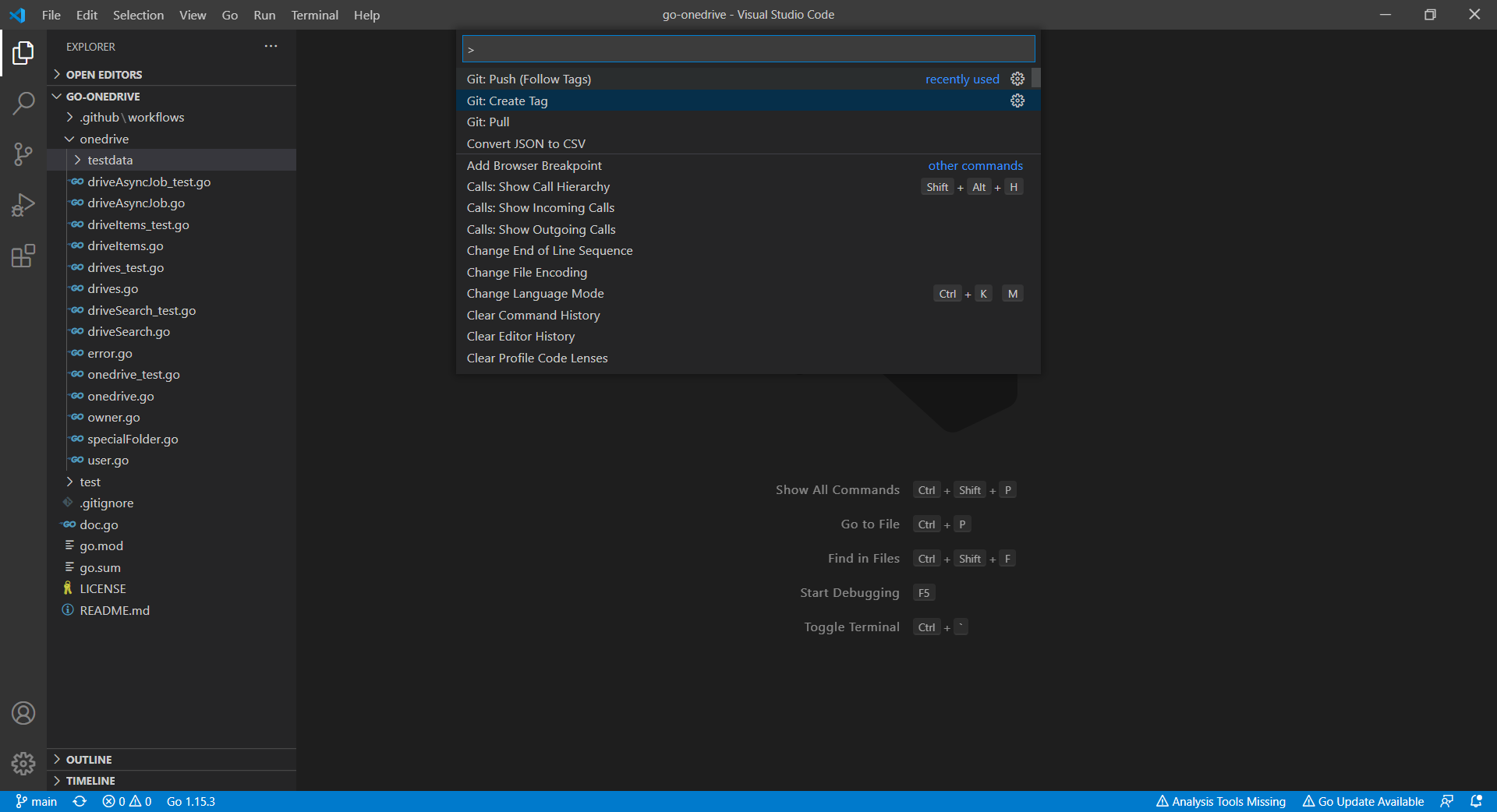
Now we can proceed to publish our module by first creating a Release of it on the GitHub.

Create a release with tag in Visual Studio Code (Read more on Stack Overflow discussion).

However, there is an important question that must be addressed first: subsequently after we upgrade our go-onedrive module, how do our users upgrade dependency of the go-onedrive module to the latest version?

Dependency UPGrade

Before we upgrade the dependencies, we first need to check available dependency upgrades using the following command.

go list -u -m all

The -u flag adds information about available upgrades. The -m flag is to list modules instead of packages. Hence, with the command above, if there is a new version for go-onedrive available, it will show as follows.

github.com/goh-chunlin/go-onedrive v1.0.8 [v1.0.9]

The line above means that the v1.0.8 is being used in the application but there is now a v1.0.9 available. Now we can proceed to download the latest version of dependencies with the following command.

go get -u github.com/goh-chunlin/go-onedrive

Then it will show that the latest version is downloaded.

go: github.com/goh-chunlin/go-onedrive upgrade => v1.0.9
go: downloading github.com/goh-chunlin/go-onedrive v1.0.9

Interestingly, I also found out that the pkg.go.dev website doesn’t reflect the availability of new package immediately after the release of the new version. I waited for the v1.0.9 to be available on the pkg.go.dev website for around 15 minutes.

Another interesting finding is that the “go list” command above actually reflects the latest version about 5-minute faster than the pkg.go.dev website.

About doc.go

The way we structure our project also forces us to have a Go file like doc.go. This is because without doc.go, the only two places we have our codes are onedrive and test folders. Both of them are subdirectories. This will give us two troubles.

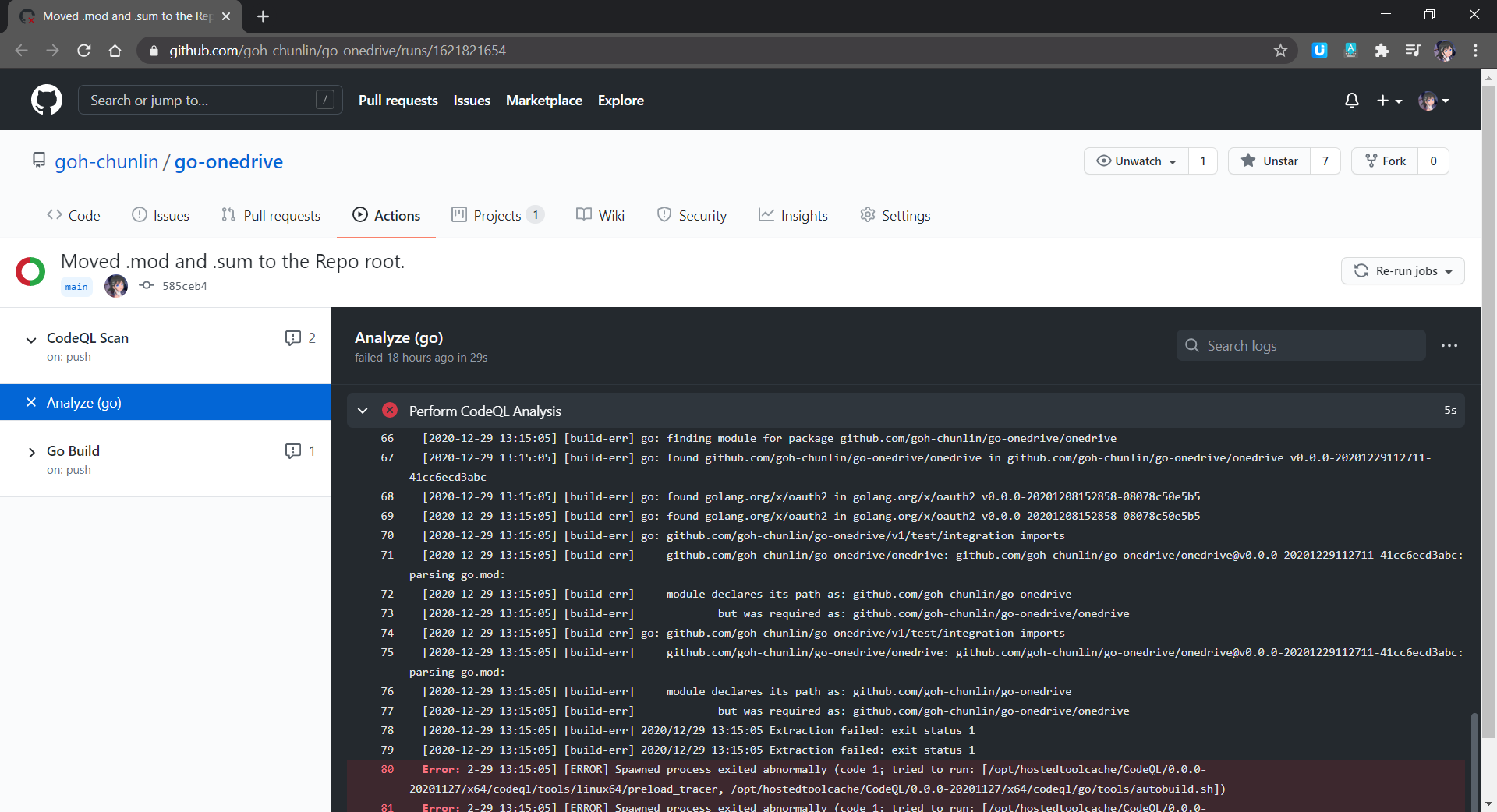
Firstly, somehow it could not work. The package onedrive which is in the subdirectory cannot be located, as shown in the screenshot below.

Error in CodeQL scan on GitHub.

Secondly, when we tag the release with version number, only the version of go-onedrive as a module and test/integration as package is updated, but not the version of onedrive.

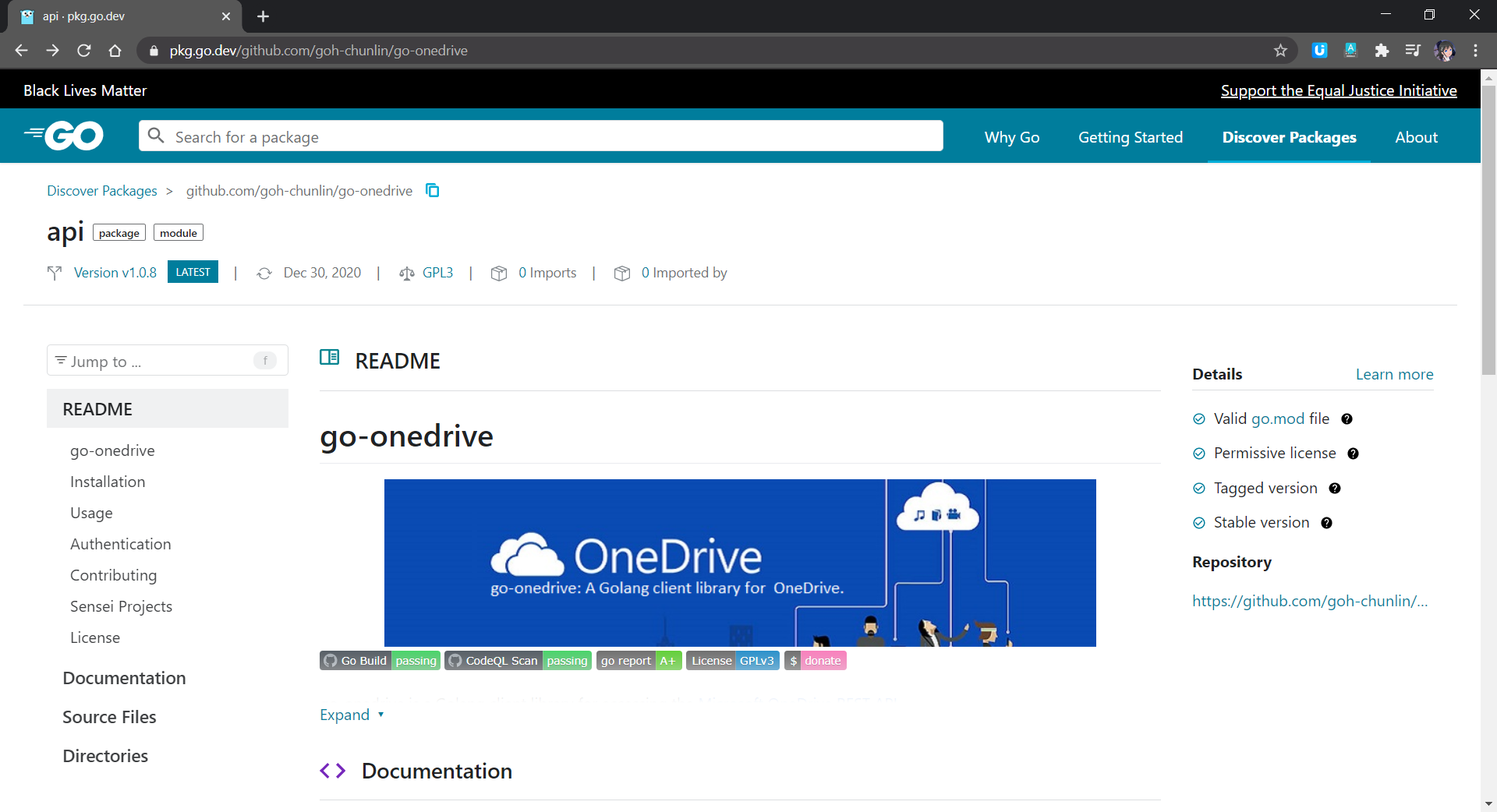
These two troubles went away only after I added in the doc.go in the root. The module of go-onedrive is now also nicely shown on the pkg.go.dev website with 4 checks, as shown in the screenshot below.

go-onedrive module page.

Conclusion

This is just the very first step of me writing a library in Golang and publish it as a module on the pkg.go.dev website. I started this project as one of my after-work projects in October 2020. I only successfully publish its first release in December 2020. This project has been a great learning journey for me. So, I hope my sharing in this article can be somewhat useful to you as well.

The learning is tough but fun at the same time! (Image Credit: Bilibili)

Feel free to let me know if there is a better alternative or improvement needed. I’m always happy to hear from you all.

References

The code of the OneDrive client library described in this article can be found in my GitHub repository: https://github.com/goh-chunlin/go-onedrive.

Look at Me! Webcam Recording with .NET 5 WinForms

Fun fact: Scott Hanselman did a similar project where he was using WIA in 2006.

Project GitHub Repository

The complete source code of this project can be found at https://github.com/goh-chunlin/WebcamWinForm.

Project Introduction

In 2017, inspired by “How to use a web cam in C# with .NET Framework 4.0 and Microsoft Expression Encoder 4”, a project on Code Project by Italian software developer Massimo Conti, I built a simple demo to show how we can connect C# Windows Form with a webcam to record both video and audio.

Few weeks ago, I noticed that actually back in 2019, GitHub had already informed me that some libraries that I used in the project need to be looked into because there is a potential security vulnerability. Meanwhile, in the keynote of .NET Conf 2020, there is a highlight of WinForms. Hence, taking this opportunity, I decided to upgrade the project to use .NET 5 and also to replace the deprecated libraries in the project.

Scott Hunter and Scott Hanselman shared about how we could modernise our WinForms apps during .NET Conf 2020 keynote session.

In this article, I will share some of the issues that I encountered in the journey of modernising the WinForms app and how I fixed them.

Disappearance of Microsoft Expression Encoder

Previously, we relied a lot on Microsoft Expression Encoder to do the video and audio recording. It is very easy to use. However, after its 4th version released in March 2016, Microsoft no longer upgraded the package. Soon after that, the Microsoft.Expression.Encoder NuGet package is marked as deprecated and later unlisted from the NuGet website.

Goodbye, Microsoft Expression Encoder.

So now we need to find alternatives to perform the following three tasks which were previously done easily using Microsoft.Expression.Encoder library.

  • Listing the devices for video and audio on the machine;
  • Recording video;
  • Recording audio.

What Devices Are Available?

Sometimes our machine has more than one webcam devices connected to it. So, how do we locate the devices in our application?

Here, we will need to use another Microsoft multimedia API which is called the DirectShow. Thankfully, there is a latest DirectShow NuGet package for .NET Standard 2.0 available, so we will just be using it in the project.

Using DirectShow, we can then list out the available video and audio devices on our machine. For example, we can iterate through the list of video devices with the following codes.

var videoDevices = new 
    List(DsDevice.GetDevicesOfCat(FilterCategory.VideoInputDevice));

foreach (var device in videoDevices)
{
    ddlVideoDevices.Items.Add(device.Name);
}

If we would like to get the audio devices, we just need to filter the devices with FilterCategory.AudioInputDevice.

The video source is important because we need to later use it to specify which webcam we will be using for recording.

In fact, we can simply use DirectShow to do both video and audio recording. However, I find it to be too troublesome, so let’s choose another easier route, which is using OpenCV, BasicAudio, and FFMpeg for the recording instead.

Recording Video with OpenCV

There is an OpenCV wrapper for .NET available. To use OpenCV for video recording, we first need to pass in the device index. Conveniently, the device index corresponds to the order of the devices returned from the DirectShow library. Hence, we can now directly do the following.

int deviceIndex = ddlVideoDevices.SelectedIndex;
capture = new VideoCapture(deviceIndex);
capture.Open(deviceIndex);

outputVideo = new VideoWriter("video.mp4", FourCC.HEVC, 29, new OpenCvSharp.Size(640, 480));

The video recording will be stored in a file called video.mp4.

The second parameter in VideoWriter is the FourCC (an identifier for a video codec) used to compress the frames. Previously, I was using Intel Iyuv codec and the generated video file is always too huge. Hence, I later changed to use HEVC (High Efficient Video Coding, aka H.265) codec. In the Bitmovin Video Developer Report 2019, HEVC is used by 43% of video developers, and is the second most widely used video coding format after AVC.

The third parameter is the FPS. Here we use 29 because after a few round of experiments, we realise the video generated under FPS of 29 has the real speed and will sync with the audio recording later.

The actual recording takes place in a timer which has interval of 17ms. Hence its Tick method will be triggered 58.82 times per second. In the Tick method, we will capture the video frame and then convert it to bitmap so that it can be shown on the application. Finally, we also write the video frame to the VideoWriter.

...
frame = new Mat();
capture.Read(frame);
...
if (imageAlternate == null)
{
isUsingImageAlternate = true;
imageAlternate = BitmapConverter.ToBitmap(frame);
}
else if (image == null)
{
isUsingImageAlternate = false;
image = BitmapConverter.ToBitmap(frame);
}

pictureBox1.Image = isUsingImageAlternate ? imageAlternate : image;

outputVideo.Write(frame);
...

As you notice in the code above, the image being shown in the pictureBox1 will come from either imageAlternate or image. The reason of doing this swap is so that I can dispose the Bitmap and prevent memory leak. This method was suggested by Rahul and Kennyzx on the Stack Overflow discussion.

Recording Audio with BasicAudio

Since OpenCV only takes care of the video part, we need another library to help us record the audio. The library that we choose here is BasicAudio, which provides audio recording for Windows desktop applications. In November 2020, .NET 5 support was added to this library as well.

Currently, BasicAudio will pick the current audio device. Hence, we don’t need to worry about choosing audio device. We simply need the following code to start/stop the audio recording.

audioRecorder = new Recording();
audioRecorder.Filename = "sound.wav";
...
audioRecorder.StartRecording();
...
audioRecorder.StopRecording();

I’ve also found an interesting video where InteropService is used to directly send commands to an MCI device to do audio recording. I haven’t tried it successfully. However, if you would like to play around with it, feel free to check out the following video.

Merging Video and Audio into One File

Due to the fact that we have one video file and one audio file, we need to merge them into one single multimedia file for convenience. Fortunately, FFmpeg can do that easily. There is also a .NET Standard FFmpeg/FFprobe wrapper available which allows us to merge video and audio file with just one line of code.

FFMpeg.ReplaceAudio("video.mp4", "sound.wav", "output.mp4", true);

The last parameter is set to true so that if video file is shorter than the audio file, then the output file will use the video length; otherwise, it will follow the audio length.

However, to make this line of code to work, we must first have FFmpeg installed on our machine, as shown in the screenshot below.

Uploading the Multimedia File to Azure Blob Storage

This is just a bonus feature added in this project. The previous version of the project also had this feature but it was using the WindowsAzure.Storage library which had been deprecated since year 2018. I have upgraded the project now to use Azure.Storage.Blobs.

With all these done, we can finally get a webcam recording function on our WinForms application, as shown in the screenshot below.

The Azure Blob Storage connection string is left blank here so the recording will be saved only to local disk.

References

The code described in this article can be found in my GitHub repository: https://github.com/goh-chunlin/WebcamWinForm.