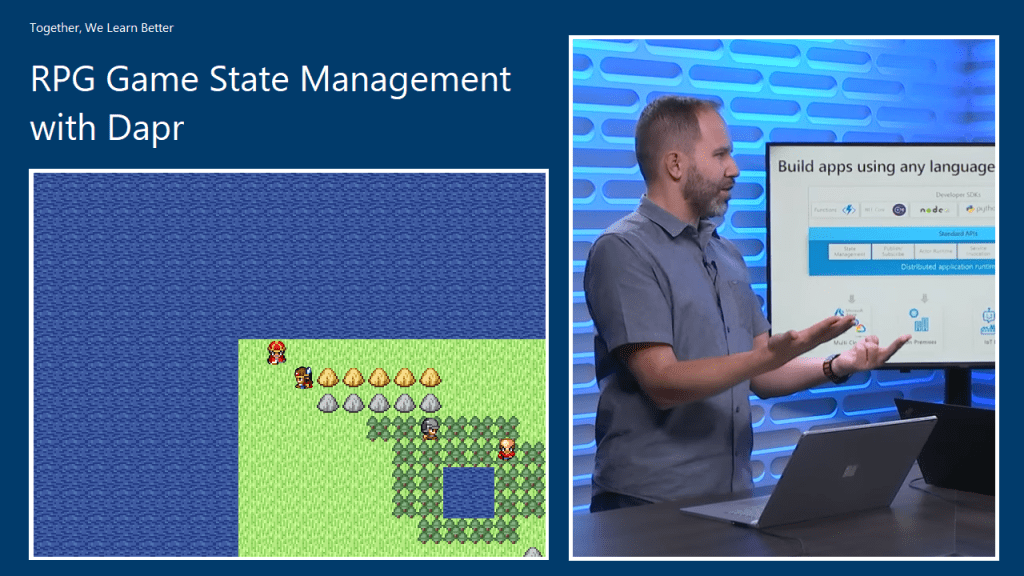
RPG Game State Management with Dapr

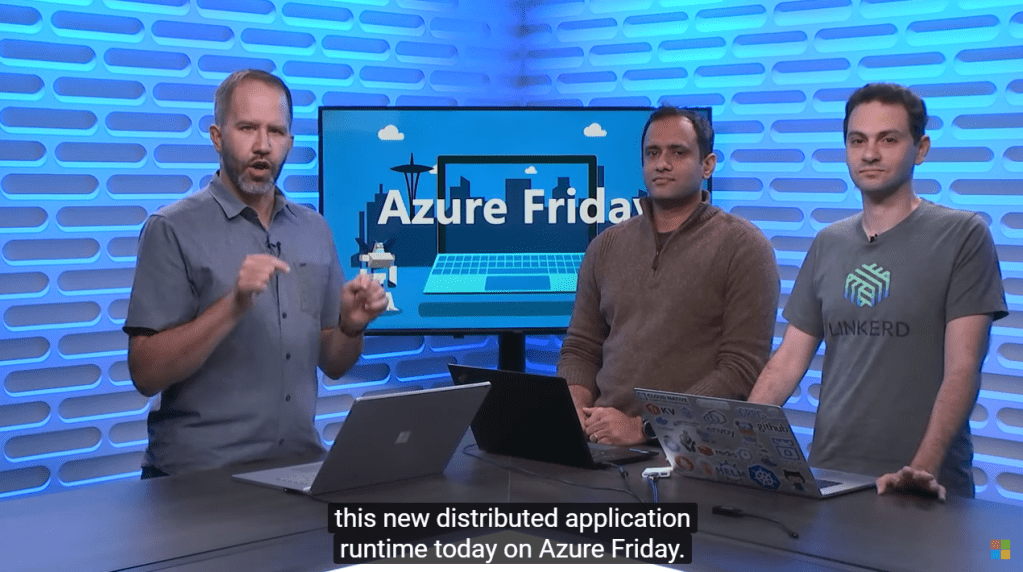
Last month, within one week after .NET Conf Singapore 2019 took place, Microsoft announced their Dapr (Distributed Application Runtime) project. Few days after that, Scott Hanselman invited Aman Bhardwaj and Yaron Schneider to talk about Dapr on Azure Friday.

🎨 Introducing Dapr. (Image Source: Azure Friday) 🎨

Dapr is an open-source, portable, and event-driven runtime which makes the development of resilient micro-service applications easier.

In addition, Dapr is light-weight and it can run alongside our application either as a sidecar process or container. It offers us some capabilities such as state management, which will be demonstrated in this article today, pub-sub, and service discovery which are useful in building our distributed applications.

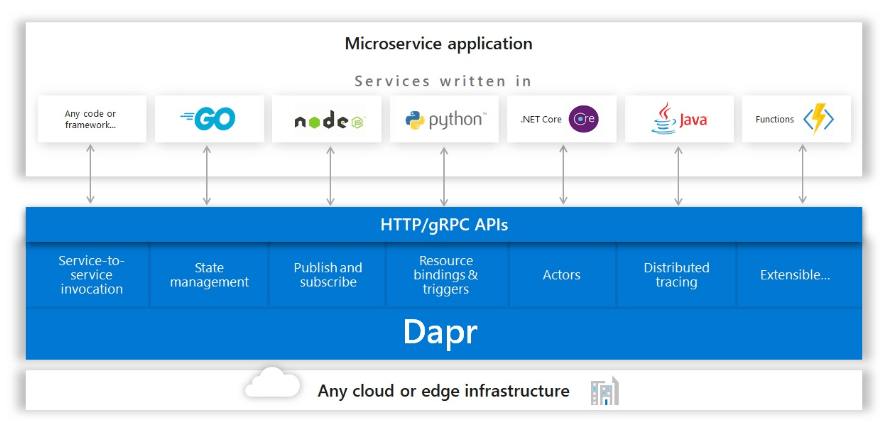
🎨 Dapr building blocks which can be called over standard HTTP or gRPC APIs. (Image Credit: Dapr GitHub Project) 🎨

Dapr makes developer’s life better when building micro-service application by providing best-practice building blocks. In addition, since building blocks communicate over HTTP or gRPC, another advantage of Dapr is that we can use it with our favourite languages and frameworks. In this article, we will be using NodeJS.

🎨 Yaron explains how developers can choose which building blocks in Dapr to use. (Image Source: Azure Friday) 🎨

In this article, we will be using only the state management feature in Dapr and using one of them doesn’t mean we have to use them all.

Getting Started

We will first run Dapr locally. Dapr can be run in either Standalone or Kubernetes modes. For our local development, we will run it in Standalone mode first. In the future then we will deploy our Dapr applications to Kubernetes cluster.

In order to setup Dapr on our machine locally and manage the Dapr instances, we need to have Dapr CLI installed too.

Before we begin, we need to make sure we have Docker installed on our machine and since the application we are going to build is a NodeJS RPG game, we will need NodeJS (version 8 or greater).

After having Docker, we can then proceed to install Dapr CLI. The machine that I am using is Macbook. On MacOS, the installation is quite straightforward with the following command.

curl -fsSL https://raw.githubusercontent.com/dapr/cli/master/install/install.sh | /bin/bash

After the installation is done, we then can use the Dapr CLI to install the Dapr runtime with the following command.

dapr init

That’s all for setting up the Dapr locally.

Project Structure

The NodeJS game that we have here is actually copied from the html-rpg project done by Koichiro Mori on GitHub. The following architecture diagram illustrates the components that make up our application.

🎨 Architecture diagram, inspired by the hello-world sample of Dapr project. 🎨

For the project, we have two folders in the project root, which is backend and game.

🎨 Project structure. 🎨

The game project is just a normal NodeJS project where all the relevant codes of the html-rpg is located in the public folder. Then in the app.js, we have the following line.

app.use(express.static('public))
🎨 Four character types (from top to bottom): King, player, soldier, and minister. 🎨

We also update the code of html-rpg so that whenever the player encounters the soldier or the minister face-to-face, the player HP will drop 10 points. To do so, we simply send HTTP POST request to the Dapr instance which is listening on port 4001 (will explain where this port number comes from later).

...
var data = {};
data["data"] = {};
data["data"]["playerHp"] = map.playerHp;

// construct an HTTP request
var xhr = new XMLHttpRequest();
xhr.open("POST", "http://localhost:4001/v1.0/invoke/backend/method/updatePlayerHp", true);
xhr.setRequestHeader('Content-Type', 'application/json; charset=UTF-8');

// send the collected data as JSON
xhr.send(JSON.stringify(data));
...

In the backend project, we will have the code to handle the /updatePlayerHp request, as shown in the code below.

app.post('/updatePlayerHp', (req, res) => {
    const data = req.body.data;
    const playerHp = data.playerHp;

    const state = [{
        key: "playerHp",
        value: data
    }];

    fetch(stateUrl, {
        method: "POST",
        body: JSON.stringify(state),
        headers: {
            "Content-Type": "application/json"
        }
    }).then((response) => {
        console.log((response.ok) ? "Successfully persisted state" : "Failed to persist state: " + response.statusText);
    });

    res.status(200).send();
});

The code above will get the incoming request and then persist the payer HP to the state store.

CosmosDB as State Store

By default, when we run Dapr locally, Redis state store will be used. The two files in the components directory in the backend folder, i.e. redis_messagebus.yaml and redis.yaml are automatically created when we run Dapr with the Dapr CLI. If we delete the two files and run Dapr again, it the two files will still be re-generated. However, that does not mean we cannot choose another storage as state store.

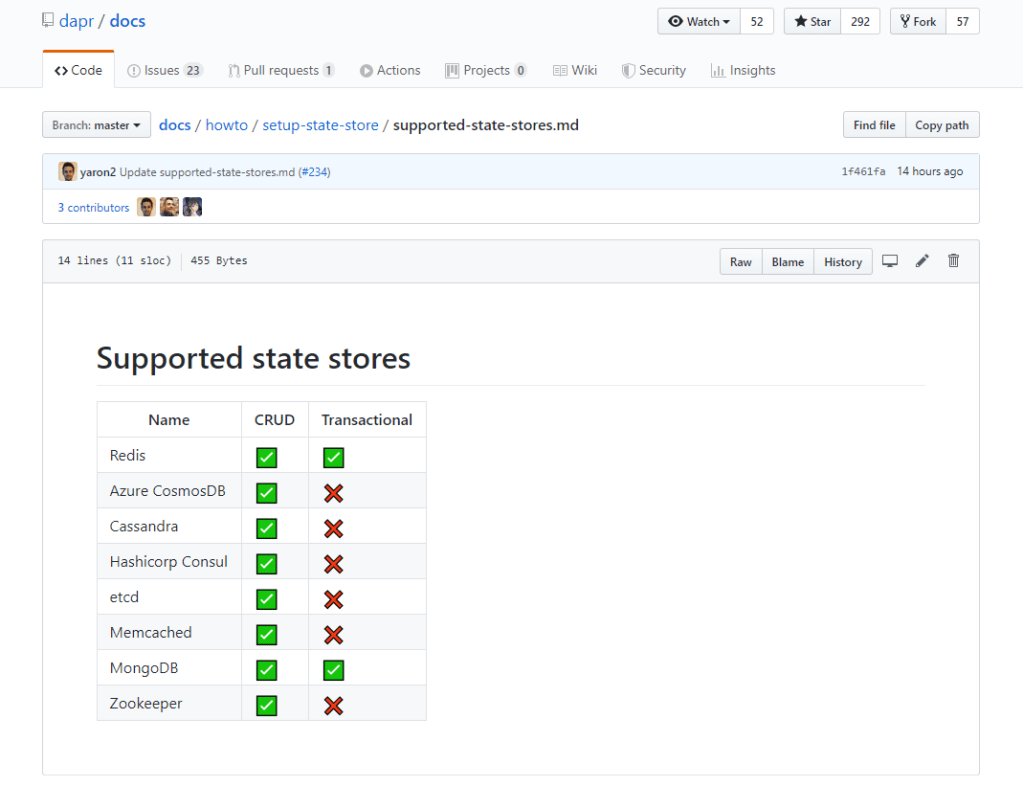
Besides Redis, Dapr also supports several other types of state stores, for example CosmosDB.

🎨 Supported state stores in Dapr as of 9th November 2019. I am one of the contributors to the documentation! =) 🎨

To use CosmosDB as state store, we simply need to replace the content of the redis.yaml with the following.

apiVersion: dapr.io/v1alpha1
kind: Component
metadata:
   name: statestore
spec:
   type: state.azure.cosmosdb
   metadata:
   - name: url
     value: <CosmosDB URI> 
   - name: masterKey
     value: <CosmosDB Primary Key>
   - name: database
     value: <CosmosDB Database Name>
   - name: collection
     value: <CosmosDB Collection Name> 

The four required values above can be retrieved from the CosmosDB page on the Azure Portal. There is, however, one thing that we need to be careful, i.e. the Partition Key of the container in CosmosDB.

🎨 Partition Key is a mandatory field during the container creation step. 🎨

When I was working on this project, I always received the following error log from Dapr.

== APP == Failed to persist state: Internal Server Error

Since Dapr project is quite new and it is still in experimental stage, none of my friends seem to know what’s happening. Fortunately, Yaron is quite responsive on GitHub. Within two weeks, my question about this error is well answered by him.

I had a great discussion with Yaron on GitHub and he agreed to update the documentation to highlight the fact that we must use “/id” as the partition key.

So, after correcting the partition key, I finally can see the state stored on CosmosDB.

🎨 CosmosDB reflects the current HP of the player which has dropped from 100 to 60. 🎨

In the screenshot above, we can also clearly see that “backend-playerHP” is automatically chosen as id, which is what being explained in the Partition Keys section of the documentation.

References

Deploy MongoDB to Azure: It’s Never Been Easier

WebMatrix + MongoLab + Windows Azure

This post is to continue the story of my MongoDB self-learning back in January. Also, the theme for March self-learning is about Windows Azure, thus I guess it’s a good opportunity to combine these two knowledge together. So, let’s continue the story now.

Basically, after the one-month MongoDB learning in January, I have successfully built a simple web application allowing users to add pinpoints on Google Map and store those info on MongoDB. However, all those are happening in local machine. So, how to do that if we would like to deploy it on, for example, Azure for the public to access?

Fortunately, with the help of Microsoft WebMatrix, the whole process is rather simple and straight-forward.

Deploy The Website in 3 Simple Steps

Firstly, there is a Publish feature available on WebMatrix. After adding your Windows account on WebMatrix, there is a simple Publish interface which allows you to publish our current website to either a new site or existing site on Azure.

Create a new website on Windows Azure with WebMatrix.

Secondly, we need to create new MongoDB database on cloud. Windows Azure Store offers a web-based cloud MongoDB management tool, called MongoLab. Currently, MongoLab provides a free sandbox plan for the developers to try out MongoDB on Windows Azure. It also provides some other plans with Replica Set cluster on shared or dedicated Azure VMs. Normally those are for large and heavy traffic sites. For learning purpose, a free plan with 0.5 GB of storage is enough.

MongoLab: One of the MongoDB hosting platforms available on Windows Azure.

Thirdly, once the MongoLab service is added, we can now happily get the Connection Info of the database and then paste it to our code in WebMatrix.

var dbc = monk('mongodb://GCLMongoDB:.../GCLMongoDB');

Connection Info can be found on Windows Azure Portal.

Finally, we can just hit the Publish button on WebMatrix to launch the website on Windows Azure with MongoDB. Ta-da!

MongoLab Helpful Features

In MongoLab, we get to see the documents either in list view or even the table view. List view allows us to read all the documents stored in the collection in JSON format. We can scroll through a consecutive set of documents each in its entirely. By clicking on a document, we then can edit and delete the selected document.

Documents can be presented as JSON List View in MongoLab.

In table view, we get to choose the format of the displayed table by defining how to translate JSON documents in the collection into a 2D table. This is especially useful for those who are familiar with relational database but are still new to document database.

Documents can be shown as table in MongoLab as well.

In addition, there is an editor provided to do query. A friendly quick reference of query displayed at the side of the page to guide new developers along on how to do query also.

We can write queries in MongoLab too!

For the database backup, there is a charge of $0.50 per run + $0.02 per run per GB if we store our backups in MongoLab-owned cloud container. Hence, even for a small-sized database that I have above (2.49 KB), I will already be charged for around $15 monthly for 30 backups.

Conclusion

My friend once said that I used too much Microsoft developer tools and products without knowing what have really been handled by them in the background secretly. I think it’s kind of true. As we can see, to deploy both the website and MongoDB on Windows Azure, it took only a few simple steps as shown above. Thus, I’d encourage to learn in this way only if you are totally new to MongoDB and you would just like to have an overview of how a Node.JS website can work together with MongoDB on the cloud.

If you want to learn more about MongoDB, you can also checkout the following slides from the presentation in Singapore MongoDB User Group Meetup #2. The first half of the slides basically cover some fundamental knowledge about MongoDB which is quite useful for those who are new to this document database.

January Self-Learning: Node.JS + Express + Jade + MongoDB

I am web developer. I do .NET stuff at work. However, it is always good to try something new and different. Thus, in December 2013, I planned a rough schedule for programming self-learning in the first two months of 2014. In January, I decided to spend one hour per day to learn about Node.js and MongoDB.

I only started to learn JavaScript when I was in the first year of my university life. It turns out that it’s a very useful skill that I have because JavaScript is used very widely in my current job. However, I never tried to use JavaScript in server environment before. Here I choose Node.js because it is a very well-known server-side JavaScript example.

For MongoDB, I decided to learn it because I was invited by my friend to join a local MongoDB user group last year. It’s a group formed by developers who are very keen on learning MongoDB and other related new web technologies. After reading through their posts online, I decided to spend sometime on learning MongoDB too. Plus, the first meet up of the group that I’m always looking forward to is going to be held in this coming month, so learning MongoDB will at least help me to communicate with other members better.

Getting Started: Installing Stuff

The web development tool that I use is WebMatrix 3. The reasons that I choose WebMatrix are free, easy-to-use, and Azure-connected. In addition, WebMatrix also comes with Node.js supports and templates. Thus, with the help of WebMatrix, a simple Node.js web application can be done without too much pain.

Node.JS Website Templates
Node.js Website Templates

There are three templates available for Node.js project. The Empty Site template gives a blank website setup with Node.js. This option threw me error saying “This product did not download successfully: The remote server returned an error: (404) Not Found”. According to the installer log, the error happened when downloading file ‘http://download.microsoft.com/download/6/F/4/6F439734-9589-4859-AADE-B88B0B84401E/NodeJsSite.zip‘ because the URL basically just returns error 404. Well done, Microsoft.

Hence, I’m left with two options. The Starter Site template provides a pre-built website setup with not only Node.js, but also the Express web framework. Besides Express, there are many other alternatives actually. In fact, there are reviews of different Node.js web framework available online also.

The good thing about Starter Site template is that without writing a single line of code, a beautiful web app is ready to use. Just click on the Run button in WebMatrix, the sample site will be launched in web browser. From there, you get to learn many new howtos. For example, how mobile-friendly web pages are made, how to design a web page layout with a template engine called Jade, how to enable Facebook and Twitter logins on a website, and also how to use client-side socket.io libraries to implement a chat feature in the website.

The Sample Website from NodeJS Starter Template

As a start, I don’t think it is a good idea to learn so many new knowledge in one month. Thus, I chose the third available template, which is the Express Site. It basically just provides a website setup with Node.js and Express without too many random stuff as what Starter Site offers.

For the modules that I use in my web app, such as Express, Jade, Mongoose, and Monk, they all can be easily installed in the NPM Gallery in WebMatrix. npm stands for Node Packaged Modules, an official package manager for Node.js and online repository for publishing packages. There is one thing that I would like to highlight is that when I didn’t run WebMatrix as administrator, the NPM Gallery seemed to have some problems. I only got to install the modules when I run WebMatrix as administrator.

Designing Web Pages

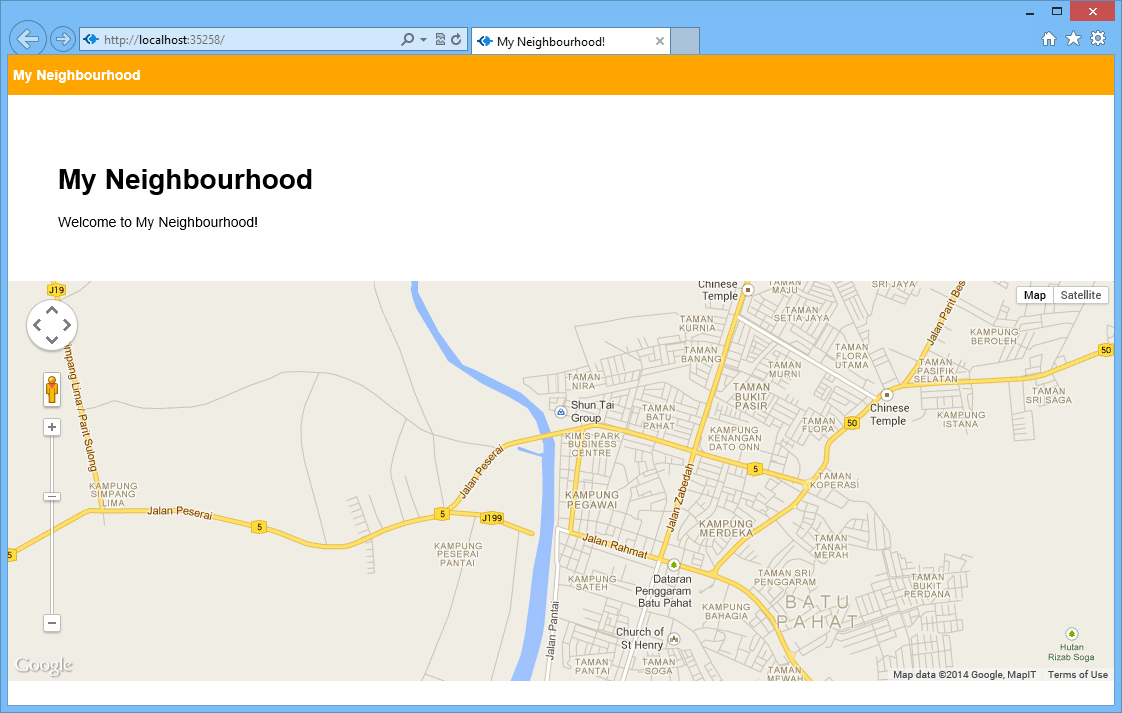
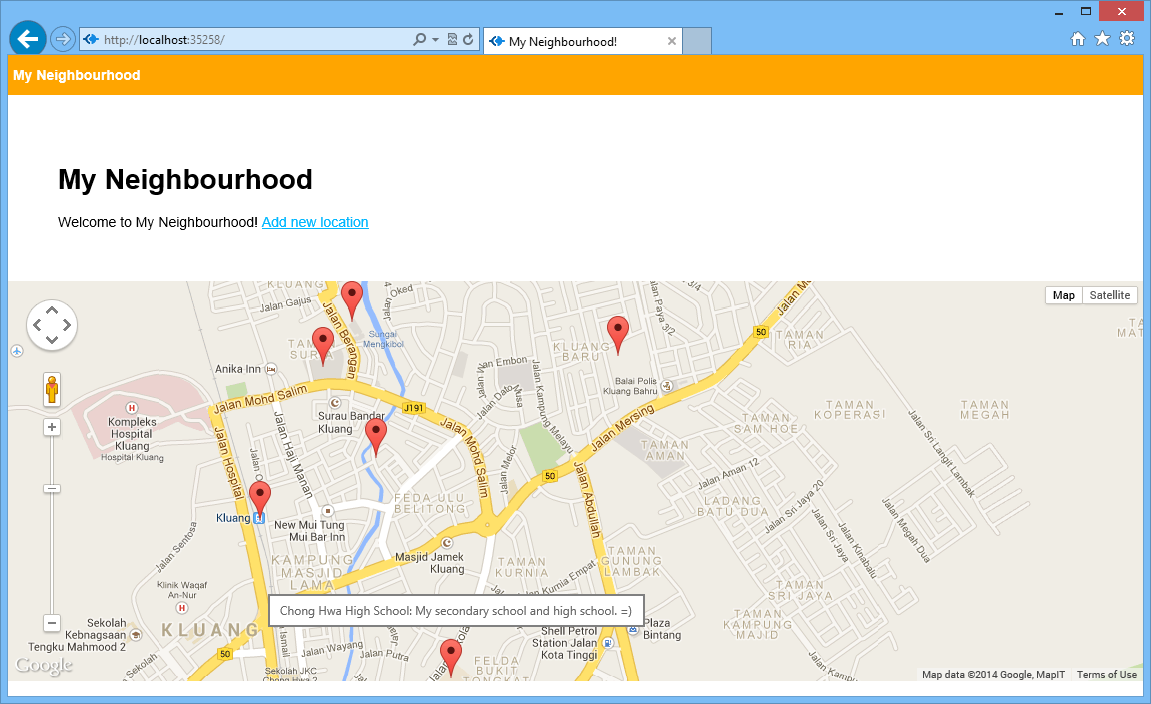
In the homepage, I would like to show a map of the place that I am currently at.

Firstly, I add the following lines in the layout.jade which is in charge of defining the general look-and-feel of each web page in my web app.

doctype html
html
  head
    title= title + "!"
    link(rel='stylesheet', href='/stylesheets/style.css')
  body
    div(style="background-color: orange; color: white; height: 40px;") 
        div(style="padding-top: 12px; padding-left: 5px; font-weight: bold;") #{title}
    block content

Secondly, I proceed to the content block for index.jade, the page displaying the map. The code below basically just loads the Google Maps API library and shows the map on the web page.

extends layout

block content
    div(style="padding: 50px;")
        h1= title
        span Welcome to #{title}! 
    div(id="map-canvas")
    script(type='text/javascript', src='https://maps.googleapis.com/maps/api/js?key=...&sensor=true')
    script(type='text/javascript', src='/javascripts/initGoogleMap.js')

With such simple codes, a page with Google Maps showing the neighbourhood of user’s current location is done.

Guess where I'm now? =)
Can you guess where I’m now? =)

Bringing Data Into The App

A map showing user’s current location is not interesting enough. The next step will be adding an ability for the user to add marker to the map by specifying latitude and longitude.

The database system that I choose here is MongoDB. Normally people will use Mongoose, the officially supported Object Document Mapper (ODM) for Node.js. However, as a beginner, I choose to use a simpler tool, Monk. Monk offers an easier and faster way for me to learn and start working with MongoDB in Node.js.

Firstly, I need to connect to the databases and to setup routes in the server.js.

var express = require('express')
  , routes = require('./routes')
  , newlocation = require('./routes/newlocation')
  , addlocation = require('./routes/addlocation')
  , http = require('http')
  , path = require('path');

...

var monk = require('monk');
var dbc = monk('localhost:27017/test');

app.get('/', routes.index(dbc));
app.get('/newlocation', newlocation.location);
app.post('/addlocation', addlocation.add(dbc));
...

After that, in the newlocation.jade, I create the form to submit the data to addlocation.js.

Interface to add new location.

In the addlocation.js, there will be code to add those user-entered data to the database. With Monk, it can be done easily as shown as follows.

exports.add = function (dbc) {
    return function (req, res) {
        ... 
        // Set our collection
        var collection = dbc.get('LocationInfo');

        // Submit to the DB
        collection.insert({
            "locationLatitude": locationLatitude,
            "locationLongitude": locationLongitude,
            "locationInfo": locationInfo
        }, function (err, doc) {
            if (err) {
                // If it failed, return error
                res.send("There was a problem adding the information to the database. Reason: " + err);
            }
            else {
                // If it worked, set the header so the address bar doesn't still say /addlocation
                res.location("");
                // And forward to the homepage
                res.redirect("");
            }
        });

    }
}

Finally, I just need to retrieve the value from the database and show it in the homepage.

var collection = dbc.get('LocationInfo');

collection.find({}, {}, function (e, locations) {
    res.render('index', {
         "title": "My Neighbourhood",
         "listOfLocations": locations
    });
});

Places that I frequently visit in the neighborhood.
Places that I frequently visit in Kluang.

So with the help of Monk, there is even no need to define a schema at all. Even the collection LocationInfo does not need to be defined.

There is a detailed step-by-step tutorial on setting up Node.js, Express, Jade, and MongoDB available online. I personally find it to be useful because there is where I start my self-learning. In addition, here is a list of online resources that I used in the self-learning.

Conclusion of January Self-Learning

Since I have only one hour per day to do this self-learning, so it’s quite challenging to learn all these new things in one month. In addition, there were days that I needed to work OT. So, I’m quite happy that I manage to complete this first monthly self-learning successfully. =)

Click here to read the following part of the learning: Deploying the website and MongoDB on Azure easily.