JBoss Workshop and My YouTube RePlayer

I saw a Facebook post announcing the first JBoss workshop in Singapore. However, since I had meeting overseas at that time, I couldn’t attend the event. Fortunately, my good friend, Wai Hong, who is also interested in Java programming decided to attend the workshop as well. After the workshop, he shared with me the notes so that I could learn it myself also. Thus, here I’d like to thank Wai Hong for his kindness. =D
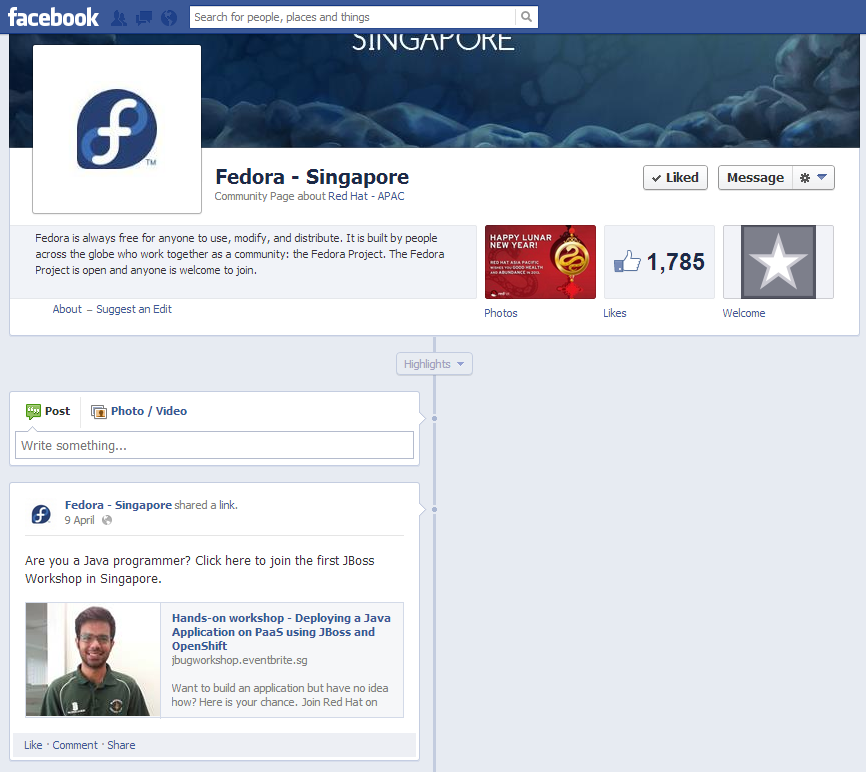
JBoss on Fedora Facebook Page
The first JBoss Workshop in Singapore!

In this post, I want to share my JBoss learning journey after going through the notes, online tutorials, and online forums. Meanwhile, I also developed a new app, My YouTube RePlayer, and then deployed it on OpenShift, the Red Hat cloud hosting service, during the long weekend.

Set Up JBoss Developer Studio

In order to build web applications and then to publish them easily to the OpenShift, I choose to use the recommended IDE in the workshop, the JBoss Developer Studio 6.0.0.GA (JBDS).

JBDS can be downloaded as a standalone version at https://devstudio.jboss.com/download/6.x.html (Note: The Java Development Kit (JDK) needs to be installed first).

In the beginning of the installation, there are short introduction and the End User License Agreement. Please spend some time to read it.
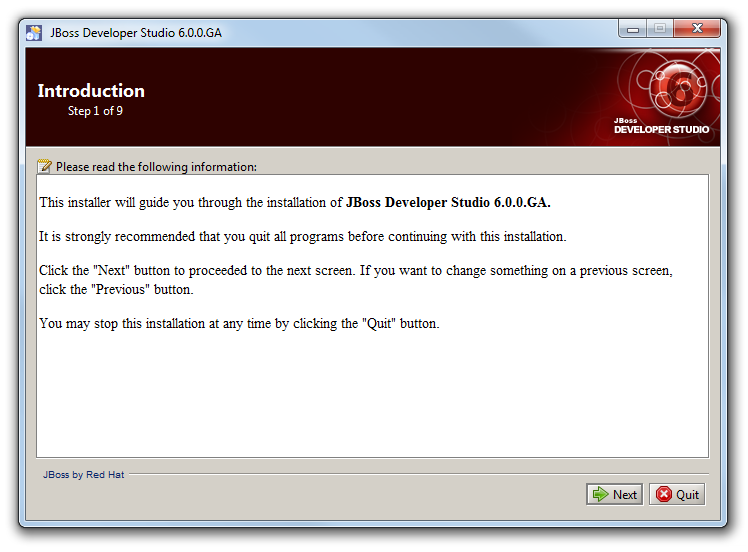
JBoss Developer Studio Introduction
Let’s get started with JBDS installation.

The next step will be selecting the installation path. I guess there is no need to put a screenshot for this?

After choosing the installation path, there will be an option to choose Java VM. So, the directory chosen will be the jre directory in the place Java is installed on the PC.

Select Java VM
Select the Java Virtual Machine.

The next step will be “Select Platforms and Servers” which can be skipped because this part will be done in later stage.

At the end of the installation, if everything goes well, there will be a message saying “Installation has been completed successfully” in Step 9, which is also the last step. That means JBDS can be used now.

Launch JBoss Developer Studio

JBDS is almost like Eclipse. Well, this is because it includes not only the web development tools, but also Eclipse.
Launch JBoss Developer Studio
Hello, JBDS!

In the workshop, a quickstart project sample called kitchensink-html5-mobile is used. Due to the fact that I was following the workshop tutorial, I ended up using it to build my app, My YouTube RePlayer, eventually.

Quickstart
Choose the kitchensink-html5-mobile sample project as starting point.

Under the “Requirements” section, there are four items. On my PC, three of the plugins were found. Only the JBoss Enterprise Application Platoform 6 or JBoss Application Server 7.1 was missing. I thus installed the JBoss Application Server 7.1 which was given by Wai Hong together with his notes. I think it can also be downloaded in the “Download and Install…” section.

Install Runtime
Download and install the JBoss Application Server 7.1.

After the runtime is added, just click on the “Finish” button and the project will be imported.

Once a message saying “‘kitchensink-html5-mobile’ Project is now ready” appears, that means everything has been done correctly so far. Yesh!
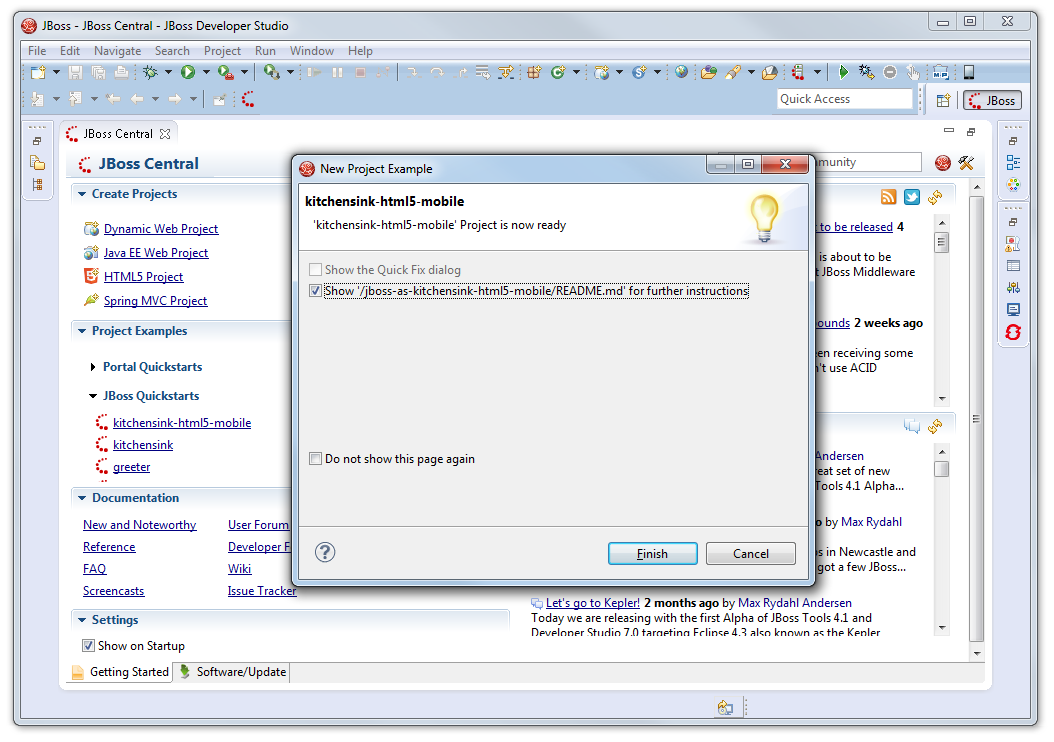
Project Ready
The project is now ready!

Deploy to OpenShift

I decided to use the sample project as a template to build my app, My YouTube RePlayer.

Before deploying to the cloud, I needed to test my app on local. To do that, firstly, right-click on the project folder in the “Project Explorer” window and then choose “Run As -> Maven Install” to build the project. Secondly, right-click on the project folder again and then choose “Run As -> Run on Server” to deploy on a local JBoss application server. Finally, the app will appears in the browser nicely.

After testing on localhost, it is time to deploy the app to the cloud. First thing to do is to go back to the JBoss Central tab and click on the “OpenShift Application” button.
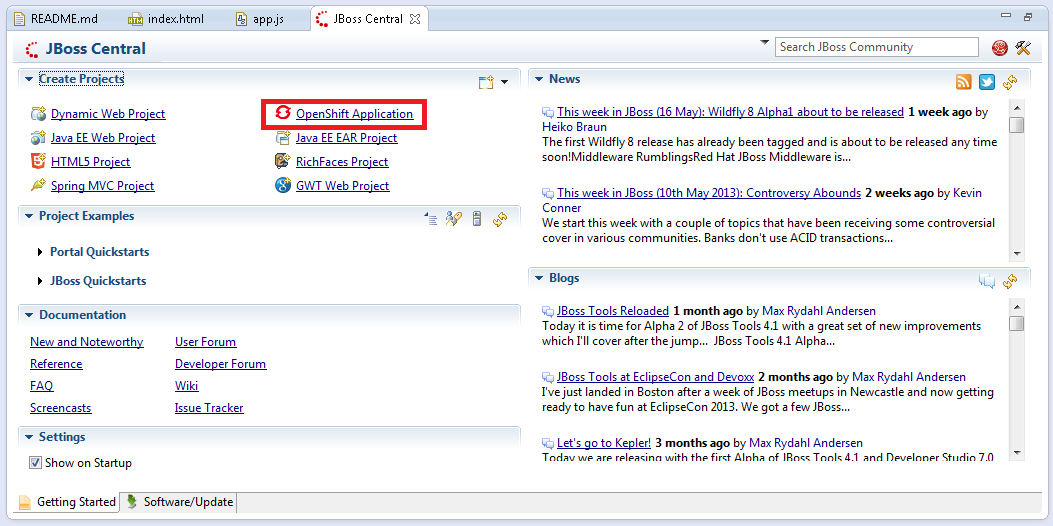
Create OpenShift Application
Click on the “OpenShift Application” button to start setting up the app on the cloud server.

Then there will be a window popup asking for user credentials to login to the OpenShift. Before the workshop, I already registered for a free OpenShift account at the OpenShift website.

The next step will be naming the application. The naming is very important because both the application name and OpenShift username will appear in the URL of the app on OpenShift in the following format: <application name>-<username>.rhcloud.com.
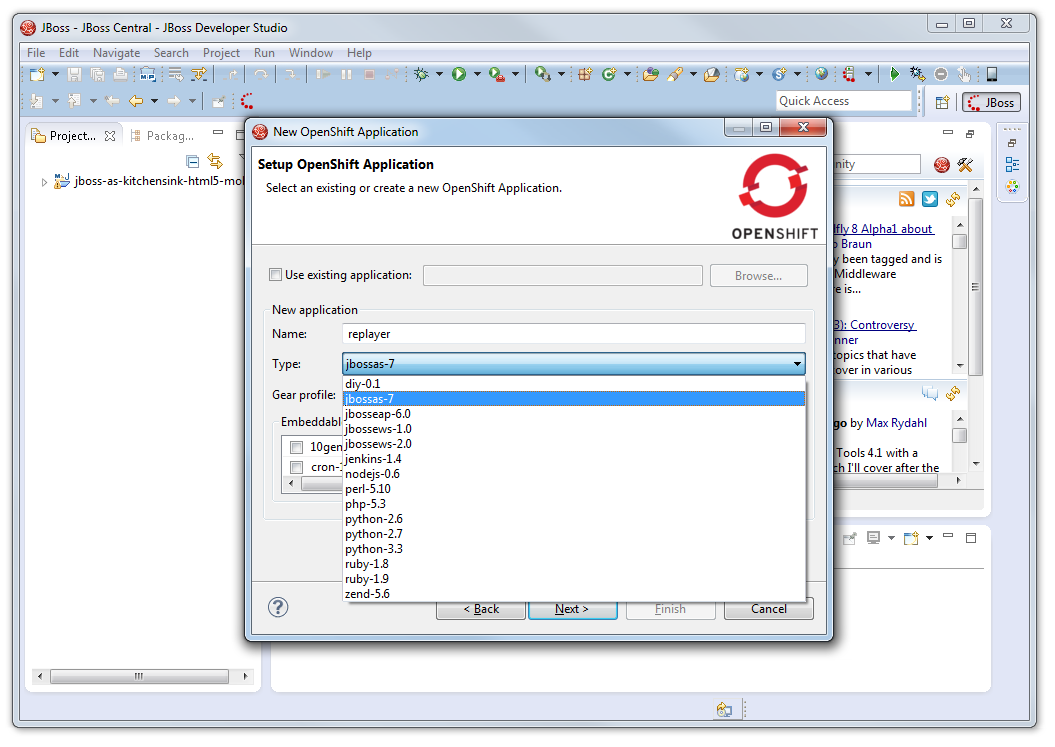
Choose Application Type
Choose jbossas-7 under the application type option.

For the “Type” drop-down list, I chose jbossas-7.

In the next window, I setup the project for the new OpenShift application. Due to the fact that I just would like to deploy my existing project, I unchecked the “Create a new project” checkbox and browsed to my modified sample project folder.
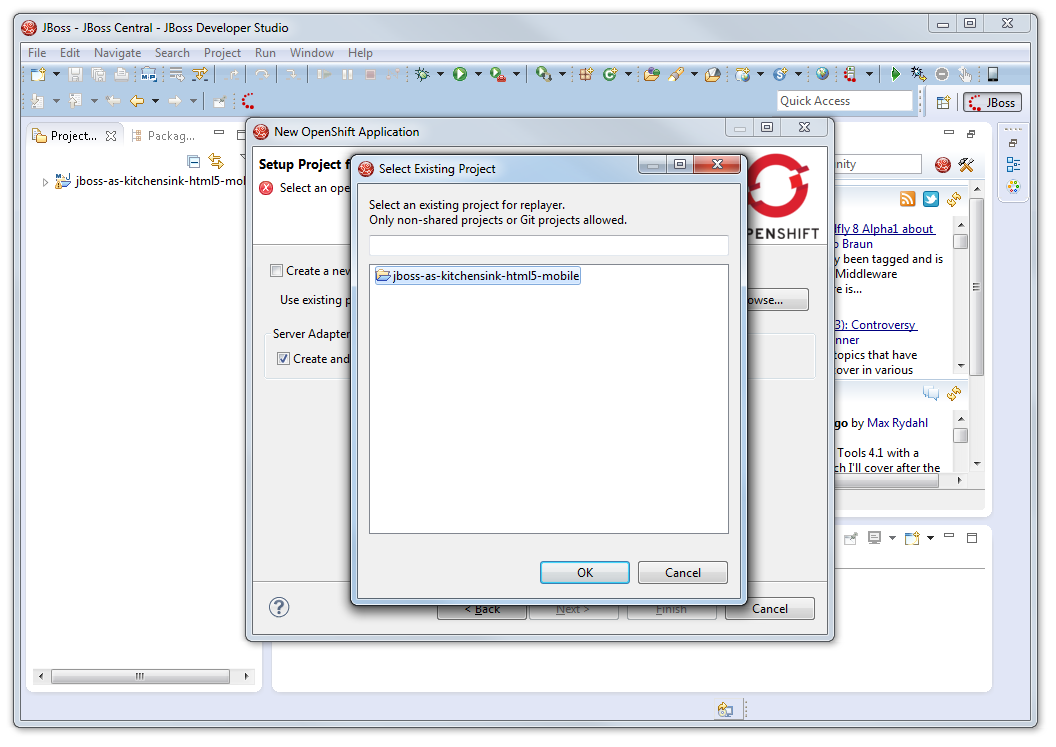
Use Existing Project Instead of New Project
Choose to use existing project instead of create a new project on OpenShift.

After having all these done, I reached the step where I needed to add SSH key to OpenShift account for authentication purpose. I first clicked on the “SSH2 Preferences” link.
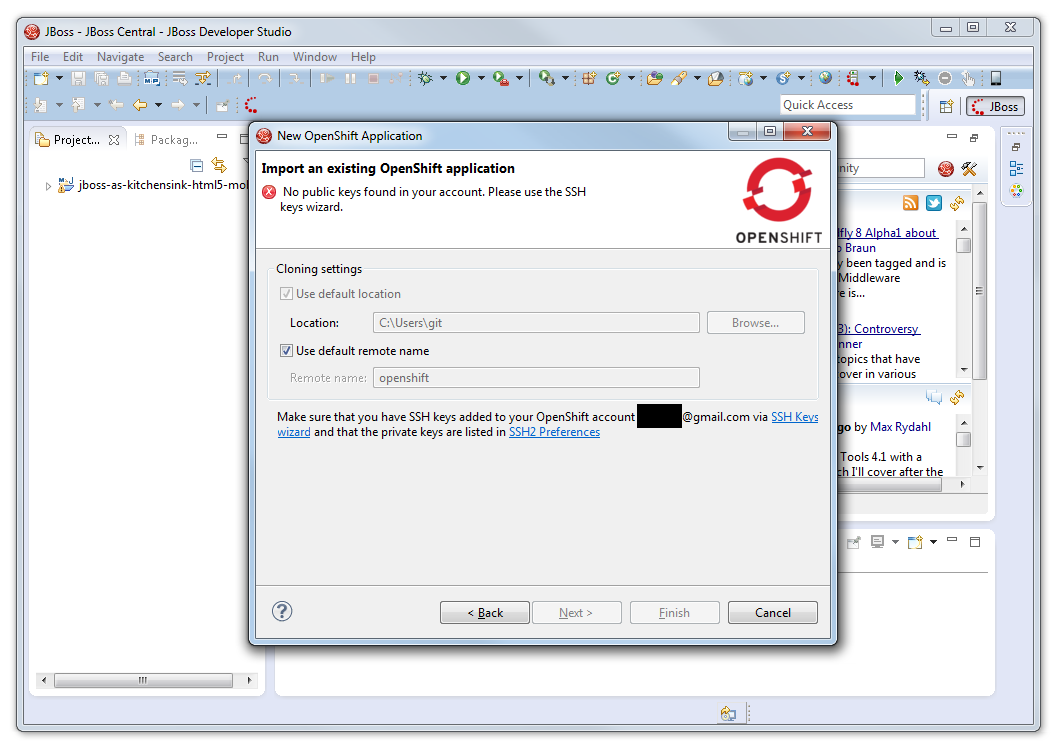
SSH Keys Wizard and SSH2 Preferences Links
Click on the SSH2 Preferences link.

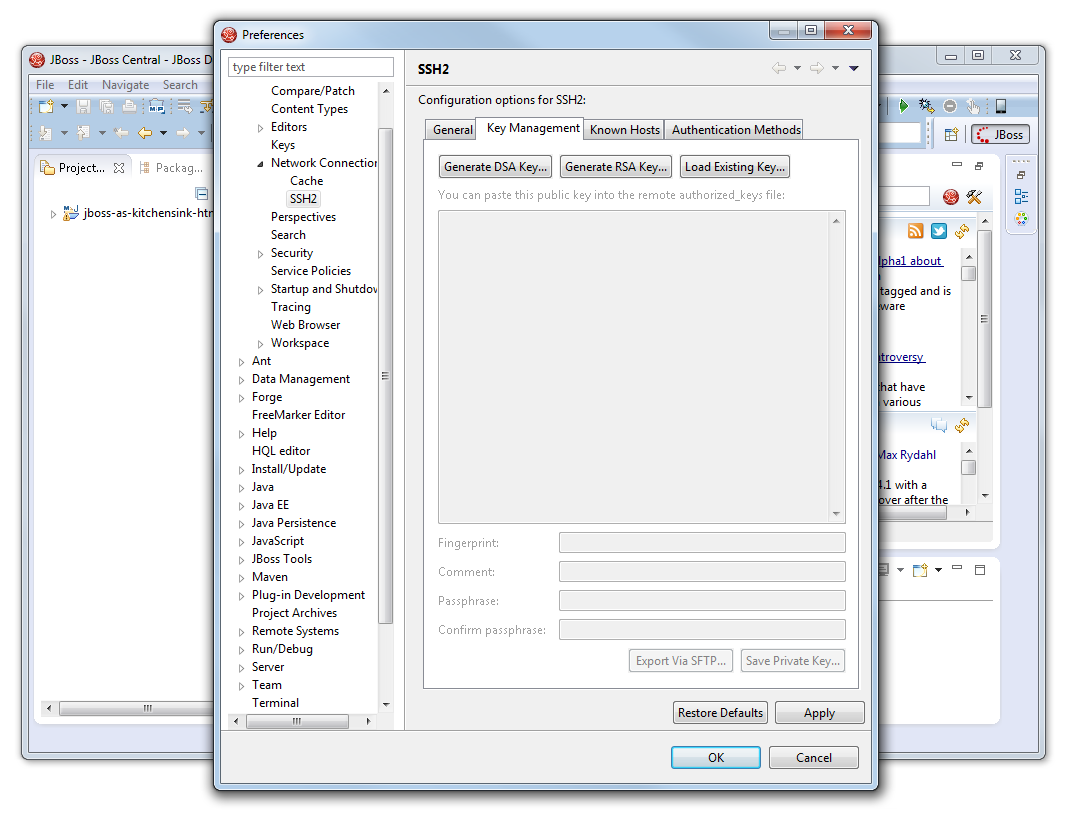
As I did not yet have an SSH key, I had to click on the “Generate RSA Key…” button to generate the key under the “Key Management” tab of the popped out window. After the key was generated, I clicked on the “Save Private Key…” button to save the private key for later use when publishing the app to OpenShift. It is recommended to have  passphrase set, unless you also like to live dangerously.
SSH2 Key Management
The place to generate RSA key.
Meme: I also like to live dangerously
Not enter any passphrase?

After the private key is saved, the public key also needs to be taken care of. The generated public key should be copied to clipboard (or paste it somewhere for later use). This is because after the keys are generated, the public key has to be added through the “SSH Keys wizard”. This is to setup the authentication between the local PC and the remote OpenShift server.

SSH Keys Wizard and SSH2 Preferences Links
Click on the SSH Keys Wizard link.

Once everything is done, click on the “Finish” button.

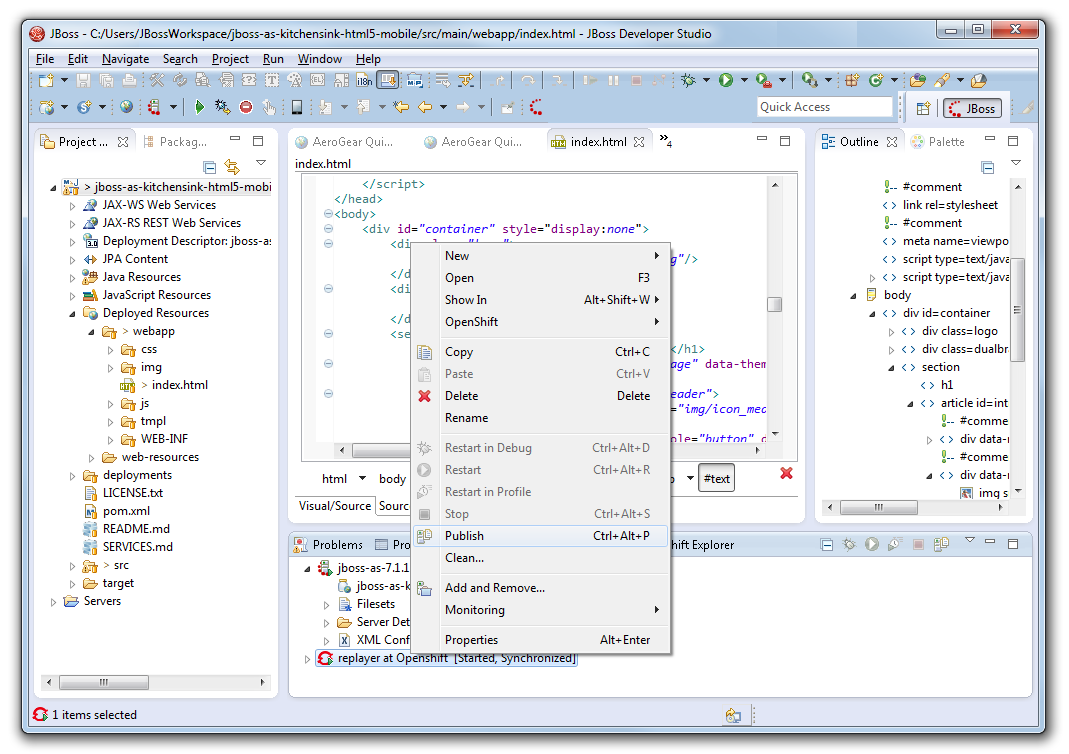
Now, it is time to publish the app. To do so, right-click on the OpenShift server item in the “Servers” tab and then choose “Publish”. That’s all.

This is how I published my new app My YouTube RePlayer.
Publish Project
Publish the project and deploy it on OpenShift.

My YouTube RePlayer

So, what is My YouTube RePlayer that I built in the project above?

I love listening to music and thus I like YouTube as well. However, there is a feature that is still not yet found on YouTube website. The auto replay. To solve this problem, I have been working on several versions of YouTube Re-Player since 2009. Some are web applications and some are desktop applications.
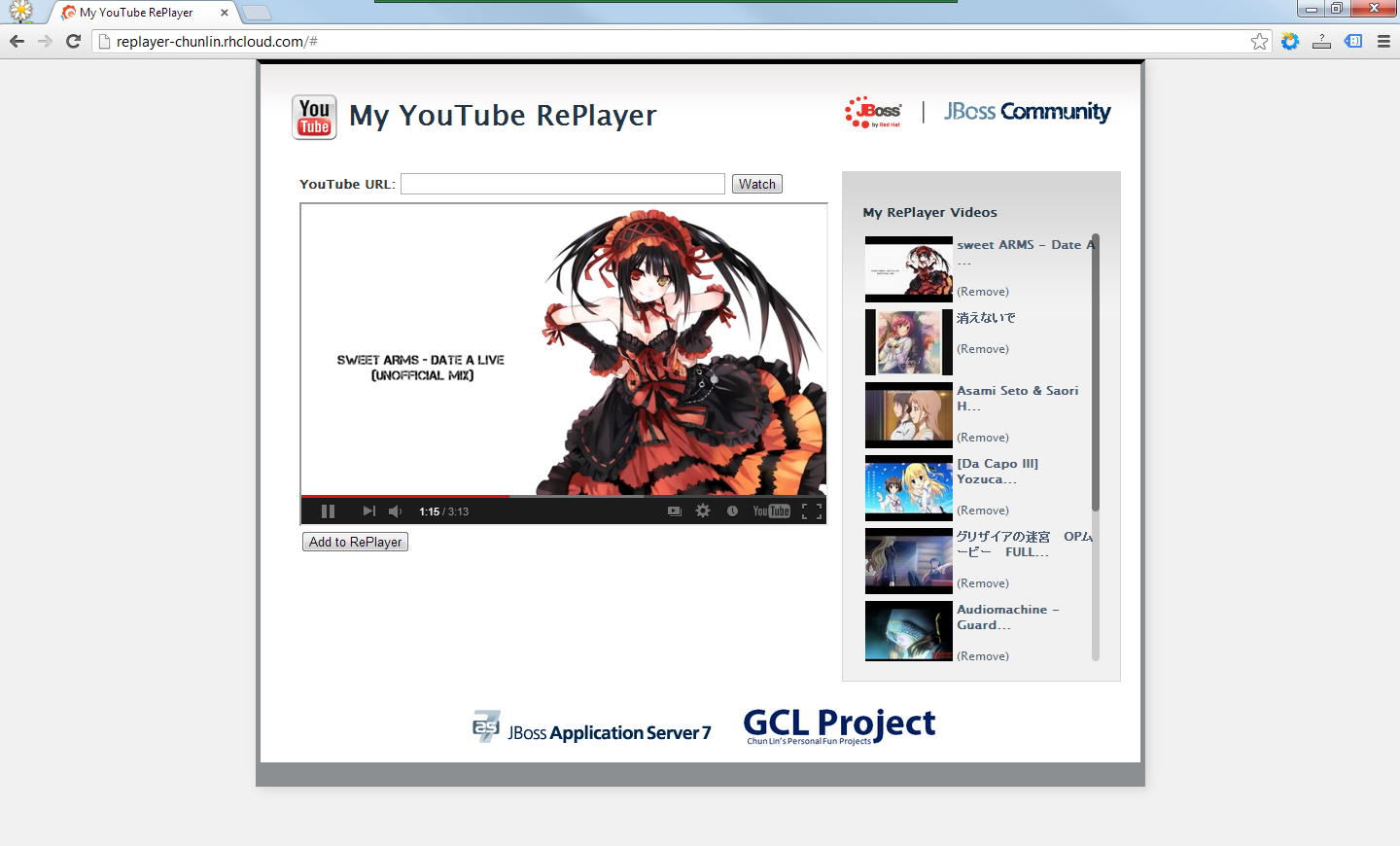
My YouTube RePlayer (GCL Project 2013)
Playing a well done unofficial mix of “Date a Live” done by DaRk5nAk3 on My YouTube RePlayer.

In the beginning, the YouTube Re-Player that I built is very simple. I developed it after I attended the Google DevFest 2008 in Singapore. However, I never published it online. Soon after that, I got a chance to attend my friend’s workshop on Windows Presentation Foundation (WPF) in National University of Singapore. I realized that WPF app was very cool. Thus, I went to build another desktop version of YouTube Re-Player in WPF. Before I graduated, I moved on to build another app that can auto-replay not only online YouTube videos, but also FLV, MP3 and MP4 stored in local PC using JW Player.

This time, I am using the HTML5 technology in my new YouTube Re-Player app. Instead of using database, I directly use the available web storage to store the video ids (YouTube has unique id assigned to each online YouTube video). However, I think it is still good to have a database so that the data won’t be just stored locally on user’s browser and thus can be synced over different PCs with the same login.

Thus, although the workshop is more on building a Java web application, I end up doing my own HTML 5 application. Haha. Oh well, see if I got time to continue this project next time.

Now, just start creating your RePlayer list now with your favourite YouTube music videos at My YouTube RePlayer: http://replayer-chunlin.rhcloud.com! =)

OneSimpleTablePaging: Doing Client-Side Table Pagination Easily

Motivation

Few days ago I was finding a solution for client-side HTML table pagination then I reached this page where I found a rather simple JS table pagination done by Ryan Zielke: http://neoalchemy.org/tablePagination.html

I like his solution very much because it does not require a lot of random CSS and JS files. In order to have the table pagination working in my web page, I just need to include one JS file and four images for the buttons. That’s all.

Few days after that, I started to think if there are ways to simplify his code and also to avoid using any image file. I would like to see if it’s possible that the table pagination can be done with just very simple and easy to understand JS code.

Mission Start!

After spending one day in Alumni Service Centre, NUS, I finally finished the first version of the project. I name it OneSimpleTablePaging: http://one-simple-table-paging.googlecode.com.

It now becomes my another open-source personal project after Google Docs Notifier and OneSync.

In my version, user can only customize the number of rows per page and the position of the pagination bar. This is to keep the code simple. So, if the user is okay with the default settings, after include the jQuery libraries and the OneSimpleTablePaging JS file to his/her web pages, he/she can actually just apply the method oneSimpleTablePagination() with empty array as parameter to existing tables to get the table pagination, for example

$(‘#main-table’).oneSimpleTablePagination({});

Yup, so now everything is so easy and straightforward. =)

Mission Clear

The following screenshot shows the look-and-feel of the table pagination handled by OneSimpleTablePaging.

OneSimpleTablePaging In Action

By the way, the table showed in the screenshot is a collection of my (favourite) watched anime. =P

Yup, now you can visit the project homepage of OneSimpleTablePaging hosted on Google Project Hosting to download the source code and then play with it. =)

Edit (22 Oct 2014)

OneSimpleTablePaging is now on GitHub!
OneSimpleTablePaging is now on GitHub: https://github.com/goh-chunlin/one-simple-table-paging!

Re-Player Wave: Lesson Learnt from YouTube RealTime

Motivation
I have been doing the YouTube related projects since late 2008. As a YouTube user (and fan), I find that watching videos together with friends or family is a very unique experience also because normally we only watch YouTube on our own laptop or computer.

In the early 2010, when I was doing the first assignment for CS4341 Multimedia Technologies in NUS, I found an interesting feature provided by YouTube. It was called YouTube RealTime. In YouTube itself, it allowed user-to-user interaction, an element which is getting more and more important due to the rise of social networking sites.

In YouTube RealTime, people are able to see what their friends are doing on YouTube, for example the videos they are watching, their comments for the videos and so on. They can also receive real-time notifications when their friends add a new comment to the video. So, it is something like Facebook where the users can see their friends’ status as well as receive real-time notification when their friends like or comment on their posts.

YouTube RealTime Toolbar Showing Friend Activities

However, just about one month after the school assignment was done, YouTube RealTime was discontinued by Google in March (Reference: http://www.google.com/support/forum/p/youtube/thread?tid=114593f2f666e137&hl=en). About the same time, I attended a Google Wave workshop for CS3216 students. So, I was thinking whether I could do something similar to YouTube RealTime which would allow me to share and watch videos together with friends staying in different places. On 6 February, a new project Re-Player Wave began.

Google Wave
Google Wave is a software application originally developed by Google and later continued by Apache as its Incubator program on 6 December. Google Wave is mainly for real-time communication and collaboration. It was a cool toy for the web developers as well because they could write a gadget for Google Wave. Building a Wave gadget is not that difficult because it requires simple JavaScript, HTML and XML knowledge only.

Luckily, Google Wave does not meet the same fate as YouTube RealTime which is discontinued by Google. Hence, I was still working on the project of building Re-Player Wave, which is also a Wave gadget, in the past few days.

Real-time Videos Sharing and Communication
Google Wave provides a very interesting feature which is online real-time collaborative editing. The main reason why I choose Google Wave as the platform is also because of this feature. Re-Player Wave allows user to share videos with a selected group of his friends on Wave. For each time he adds a new video to Re-Player Wave, the group of friends will be updated at the same time as well.

In order to prove that Re-Player Wave is able to do that, I borrow my sister’s Wave account to do the experiment. If I add a video on my computer, then my sister’s Wave thread will be updated with the new video which is added by me. Similarly, if I add a video on her computer, then I can see the update in my computer as well. The new video will only be added to the list but will not replace the current viewing video.

Re-Player Wave: Sharing Playlist with Friends

YouTube RealTime also provided the feature for real-time communication. Thanks to the same feature offered by Google Wave, real-time communication will thus be possible in Re-Player Wave as well. Besides, there is no need to find a place to host my YouTube Re-Player because all the key information can be stored easily in the state of each Wave thread. After trying to find a place to host my YouTube Re-Player, I finally find a solution to this problem by just transforming YouTube Re-Player to be a Wave gadget.

JSON-C
I learnt about the JSON in my previous GCL Project. In this project, I came to know about the JSON-C. According to the YouTube API Developer Guide, the developers are encouraged to use the JSON-C, instead of JSON, for their applications because the JSON feed will be eventually be replaced by the new functionality provided by JSON-C.

According to the guide (http://code.google.com/apis/youtube/2.0/developers_guide_jsonc.html#Comparing_JSON_and_JSONC), JSON-C feeds are something like the simplified version of JSON because all those XML namespaces and schema related information will not be kept in JSON-C. So, JSON-C is easier to be parsed and used. I am currently finding ways to improve Google Docs Notifier from my another GCL Project. Google Docs Notifier retrieves all the information stored in the JSON format, not in the JSON-C format. So, it is sometimes very hard for me to find out where I should get a certain information out from the JSON.

YouTube Social
YouTube Social

Another Alternative: YouTube Social
Actually besides YouTube RealTime, there is another application called YouTube Social which does almost the same thing as YouTube RealTime and Re-Player Wave. One interesting feature of YouTube Social is the remote control. Unlike Re-Player Wave which the user cannot control what his or her friends are watching, YouTube Social gives the owner a remote control so that he can control the YouTube player of his or her friends as well. If you find this feature useful, you can try it out at http://www.youtubesocial.com.

Re-Player Wave
Re-Player Wave

What’s In It For The Users?
To summarize, Re-Player Wave is a new way for YouTube users to interact with their friends in real time. With Re-Player Wave, you can:

  1. Share videos with friends;
  2. Invite your friends to watch the video you are watching;
  3. Chat with friends about the videos in real time.

Now the Wave has come back from the dead, so please join the Wave community again. If you want to try out the gadget, you can download it at: http://www.comp.nus.edu.sg/~gohchunl/Re-PlayerWave.xml (available until 31 December 2011).

YouTube Re-Player (Localhost)

Motivation
There are a lot of music videos available on YouTube, the largest worldwide video-sharing community. However, YouTube does not allow user to play a YouTube video over and over again without pressing the Replay button. Hence, it is quite troublesome for user to just loop a YouTube music video. In addition, for those who do not have a YouTube account, they also cannot keep their favourite YouTube videos in their computer, unless they bookmark the URL to the videos.

Hence, since November 2008, I had tried to find out the ways to solve these problems. In January 2009, I built the YouTube Re-Player (Localhost) 1.0, which not only allowed the user to replay the YouTube videos without clicking on the Replay button, but also stored the URL of the YouTube videos in the user’s computer.

The GUI of YouTube Re-Player (Localhost) 1.0
YouTube Re-Player (Localhost) 1.0

In May 2009, the YouTube Re-Player (Localhost) 2.0 was successfully completed. The main improvement was allowing user to have a faster way to edit and load the music videos with the help from AJAX. The Presentation Mode was added as a new feature in the version also.

The GUI of YouTube Re-Player (Localhost) 2.0
YouTube Re-Player (Localhost) 2.0

About YouTube Re-Player (Localhost)
YouTube Re-Player (Localhost) is an application running on the localhost. This explains the word “Localhost” in its name. Both the first and second versions use PHP and JavaScript.

YouTube Re-Player (Localhost) allow the users to give a new name and description for the YouTube videos they added to it.

Paging
Paging

The JavaScript is used to do the paging. In every page, the list only displays eight video links. If there are more than eight videos in the database, then the rest of the links will go to the next page. The JavaScript is used here so that the page will not be refreshed when the user goes to another page. In the second version, there are two options, i.e. “Prev” and “Next”, added to the page options list. So, even if there are many videos, the user won’t find it difficult to navigate.

With JavaScript, the background of YouTube Re-Player will display different colour based on the time of day. The background will change based on the time of day.

YouTube Re-Player 2.0 (Localhost) Background Color
Background Color

In the second version, the AJAX technology is used to load the video and its information. Hence, the user can easily change the video to view or update its information without refreshing the whole page. Because of the AJAX, the user is able to have a faster way to edit the video information and load his favourtie music videos.

Edit Video Info with AJAX Help

Another new feature added to the YouTube Re-player is the “Presentation Mode” which allows user to hide the videos list and to show only the video player. This is useful because sometimes there is a need to play a YouTube video over and over during the presentation. It will be a bit strange if the videos list is shown during the presentation. Hence, the second version provides the user an option to hide the videos list.

Presentation Mode
Presentation Mode

The Database Management System used in both versions is Sybase, not MySQL. Thus, before using the YouTube Re-Player, the user has to install the Sybase in his computer.

Feedback from Friends
1. The user should be able to enter subtitle to the videos.
2. It shouldn’t use the Sybase as its DBMS.
3. It should have a full screen mode.