Building Driver Tracking System with Eventing in Microsoft Azure

Recently due to the coronavirus pandemic, ordering food from online platform becomes one of the popular choices here. Drivers will deliver the food to us without us leaving our house to pickup the food from the restaurants.

The drivers are all equipped with a smart phone that will send I’m not sure how those online food ordering platforms design their backend system to track the drivers. However, today I’d like to suggest how we can build such driver tracking system with Azure Event Hub and Stream Analytics.

The Traditional Approach

Previously, the approach that I took to build such system by building a Web API which provides endpoints for the mobile devices (assuming to be only Android and iOS) to send the GPS data to. Then our Web API will save the data to CosmosDB, which is a good choice for any serverless application that needs low order-of-millisecond response times.

However, this approach is costly in terms of hosting and maintainability, especially with the expensive CosmosDB even though there is now a free tier available for CosmosDB starting March 2020. Also it is not scalable unless we spent extra time working on the infrastructure to load balance the Web APIs and the reporting servers.

So, let’s see how we can use the robust Azure services and Microsoft tools to help us build a better tracking system.

Eventing in Azure

As we all know, GPS reporting of drivers in delivery industry needs real-time processing and the volume of data is always huge to a certain level that there are millions of events happening in every second.

Hence, in this article, I’d like to share with you all an alternative, which is cheaper (unfortunately, not free) and more scalable with higher maintainability.
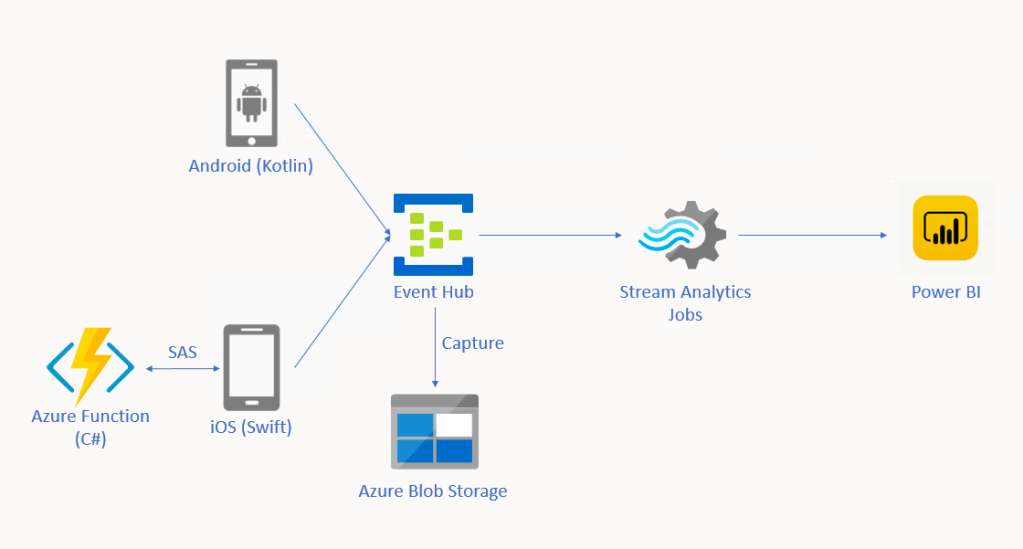
🎨  Alternative solution for driver tracking system with Eventing in Microsoft Azure. 🎨 

In this approach, we will be using tools such as Event Hub, Stream Analytics, and Power BI. There is also Azure Function needed for iOS side which I will explain why later in this article.

Event Hub

As shown in the diagram above, we remove the needs of building the API endpoints and maintaining a reporting module ourselves. Instead, we have Event Hub, a serverless Big Data streaming platform and event ingestion service which can provide real-time event processing and is able to stream million of events per second. Since it’s a serverless setup, we don’t need to provision server resources to handle the events and we also don’t have to pay for large upfront infrastructure cost.
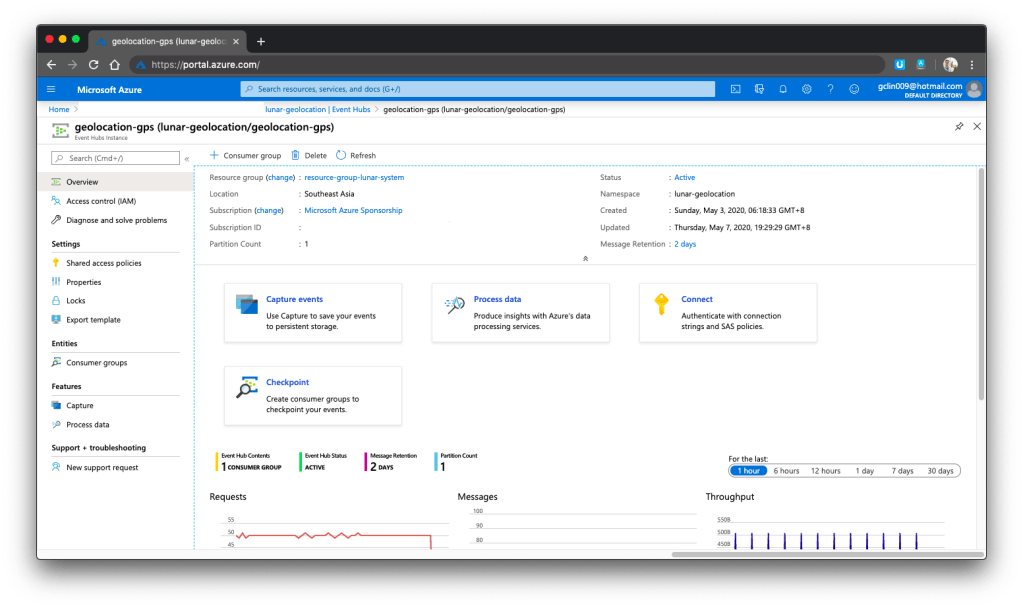
🎨  One of my event hubs that is receiving geolocation data from the mobile devices. 🎨 

Since Event Hub is an open multi-platform, it accepts a range of input methods. So later we shall see how data can be sent to Event Hub from both Android app and iOS app directly.

Event Hub Namespace Throughput Unit

There is a very interesting property in Event Hub Namespace called the Throughput Unit (TU), which is the amount of work that we want to assign to the namespace.

1 TU gives us 1MB/s ingress or 1,000 events/s and 2MB/s outgress or 2,000 events/s. We can scale our namespace up to 20 TUs.

🎨  Scaling the event hub namespace by its TU. 🎨 

In the screenshot above, we can see that there is also a functionality to auto-inflate our namespace which will auto scale-up the TU to a defined limit. This is good for handling sudden peak in volume. However, take note that there is no auto-deflate, so once the TU goes up, we need to use another way to scale it down when the peak is over.

One more thing to take note here is that the TU is shared among the Event Hubs under the namespace.

Capture in Event Hub

By default, Event Hub can store the data for one day. We can adjust it to be the maximum, which is 7 days (in Standard pricing tier only). This is to remind us that Event Hub should not be used as a data storage.

However, with the easy integration of Event Hub with the Azure Stream Analytics, Event Hub can serve as input of the Stream Analytics and output the data to places such as Power BI for data analysis and visualisation or SQL / Azure Storage for data storage.

In addition, we can also enable the Capture function in Event Hub. Capture will automatically persist the data to Azure Storage with no administrative cost. This is the easiest way to load streaming data into Azure without the need of Stream Analytics. The captured streaming data will be stored in the AVRO format which has the data serialised in a compact binary format.

🎨  Viewing the captured streaming data in Azure Storage on the portal. 🎨 

Mobile Clients

Now with the Event Hub setup, we will proceed to discuss how we can send data from our mobile devices to the Event Hub.

🎨  “Driving” on iOS Google map. 🎨 

Unfortunately, there are very little documentation about how to do this online, especially on Kotlin/Swift + Event Hub. Hence, I hope this article can help somebody out there who are interested in similar approach.

Since during the coronavirus pandemic, we are advised not to leave our house so how do I test in such a situation? I thus decide to cheat a bit here. Instead of using the actual mobile location, I will be running my apps on the emulator/simulator. What the apps do is then collecting the latitude and longitude of the points that I click on the app and send them to the Event Hub.

Connecting Android App with Event Hub

GitHub Repo: https://github.com/goh-chunlin/Lunar.Geolocation.Android

In the system, we have both Android and iOS mobile devices that will send GPS data of the users to the Event Hub. For the Android, I will be using Kotlin because it’s the modern recommended way of developing Android app.

If you are interested in using Java, Microsoft has a documentation for connecting Android app to Event Hub in Java. So far I still can’t find Microsoft documentation on using Kotlin to do this task, hence I will be using Kotlin.

Having said that, I will still be using the existing Java client library for Event Hub from the repository. However, there are a few configurations we need to take care of in order to use this Java library.

Firstly, we will add the dependency to the project as follows in the build.gradle of the app.

dependencies {
    ...
    implementation 'com.azure:azure-messaging-eventhubs:5.0.3'
    ...
}

Secondly, there is a need to make adjustment to our gradle file to specify the compatibility of Java in the compileOptions as shown below.

compileOptions {
sourceCompatibility JavaVersion.VERSION_1_8
targetCompatibility JavaVersion.VERSION_1_8
}

Without doing so, it will complain that no methods found for the Event Hub.

Thirdly, there are two markdown files in conflict after we add the library to the project. We can fix that by doing pickFirst.

packagingOptions {
pickFirst 'META-INF/LICENSE.md'
pickFirst 'META-INF/NOTICE.md'
}
🎨 Geolocation data will be sent in batches. 🎨

Another thing why we choose Event Hub is that it allows us to send data in batches. The following function shows how to send data in batch to the Event Hub.

private fun sendLatitudeAndLongitudeDataToAzure() {
    var producer = EventHubClientBuilder()
        .connectionString(BuildConfig.AZURE_EVENT_HUB_CONNECTION_STRING, BuildConfig.AZURE_EVENT_HUB_NAME)
        .buildProducerClient()

    val batch = producer.createBatch()

    recentLatitudeAndLongitudeRecords.forEach {
        batch.tryAdd(EventData(it))
    }

    if (batch.count > 0) {
        producer.send(batch)
    }

    producer.close()
}

The variable recentLatitudeAndLogitudeRecords is a collection of all recent latitude and longitude data collected by the device. In my demo code, which is not shown above, I make it to hold 10 records. So in just one send command, 10 geolocation records will be sent altogether to the Event Hub. The devices thus do not need to make multiple connections to the server to send multiple records.

I only highlighted the key points here for programming an Android app in Kotlin to connect to the Azure Event Hub. The complete demo code is available on GitHub for those who want to find out more about how we can integrate Event Hub in Android projects.

Connecting iOS App with Event Hub

GitHub Repo: https://github.com/goh-chunlin/Lunar.Geolocation.iOS

We should be glad that there is still Event Hub documentation and library available for Android platform because for iOS, there is basically nothing, not even an Event Hub SDK for iOS from Microsoft.

Luckily, there is an excellent blog post on how to connect iOS app to Event Hub written by Luis Delgado back in April 2016. Hmm… 2016? That was written when the President of the USA was still Barack Obama! As we can see, that article is quite outdated so I decided to write down a newer approach on how I do it with Swift 5.

🎨  Barack Obama served as the 44th president of the United States from 2009 to 2017. (Image Credit: CBS News) 🎨 

Since there is no Event Hub SDK for iOS, we have to use its REST APIs instead. For using Event Hub REST APIs, we first need to programmatically generate a SAS (Shared Access Signature) token in order to call the APIs.

This is where the Azure Function comes into picture. In Luis’ blog post, he setup an Azure Web App to host a NodeJS application which will generate SAS token. To be more cost effective, we will be using Azure Function with a short and sweet C# code as shown in the Microsoft documentation.

🎨  Simple C# code to generate SAS token (Please refer to my GitHub repo and its README file for the complete code). 🎨 

With this, then we can then use Alamofire, an HTTP networking library, to make a request to the Azure Event Hub. To send batch data, we first need to make sure the message body to have a valid JSON payload, which is something as follows.

[
{"Body": "<stringify of the record 01 JSON object to send>"}, 
{"Body": "<stringify of the record 02 JSON object to send>"}, 
...
]

We then also need to make sure we have set the Content-Type header to “application/vnd.microsoft.servicebus.json”. For more details, please refer to the Microsoft documentation on sending batch data.

Of course, here I also highlight only the key points to successfully send event data in batch from iOS using Swift 5 to Azure Event Hub. If you would like to find out more, I have my entire demo project for this available on my GitHub repository, please review it.
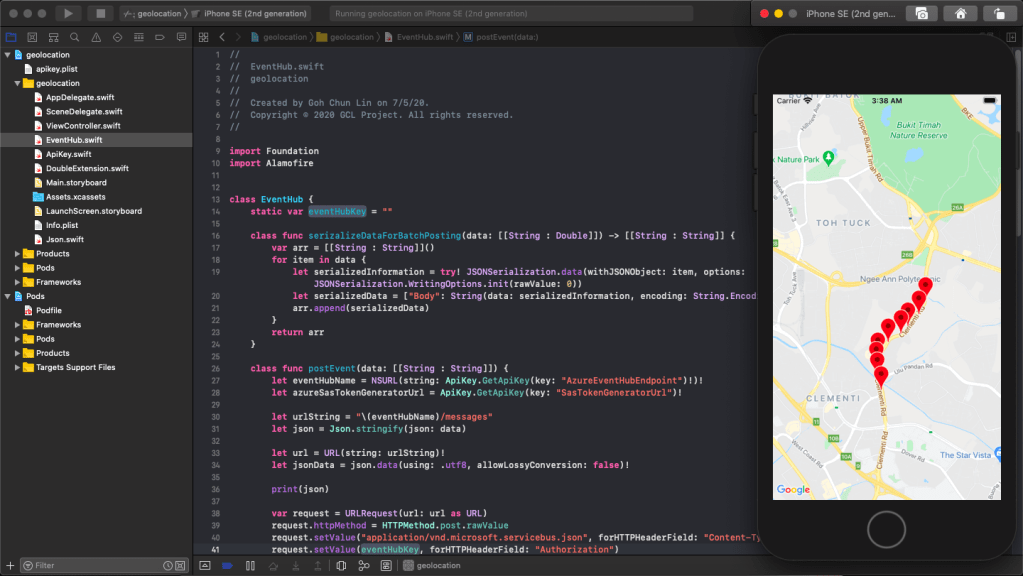
🎨 Running the app which is sending data to the Event Hub on iPhone simulator. 🎨

Stream Analytics

With the events sent from the mobile devices to the Event Hub, we now can link the Event Hub with the Stream Analytics. Take note that Stream Analytics is just one of the many ways of pulling data from the Event Hub. For example, if you are familiar with Apache Storm, you can link it up with that too.

Stream Analytics is a real-time analytics and complex event-processing engine that is designed to analyse and process high volumes of fast streaming data from multiple sources simultaneously. Besides Event Hub, it can also accept inputs from IoT devices or Blob Storage.

The reason why we choose Stream Analytics in our solution is that it requires no upfront infrastructure setup and it is easy to configure and scale.

Consumer Groups in Event Hub

The publish/subscribe mechanism of Event Hubs is enabled through consumer groups. Hence, when we are creating a new Stream Analytics Job, we need to specify the consumer group that we are going to use.

Consumer groups enable multiple consuming applications to each have a separate view of the event stream, and to read the data stream independently. Hence, it is recommended to create a new consumer group for each Stream Analytics Job.

Stream Analytics Query

One exciting feature in the Stream Analytics is the query of data. Stream Analytics has a SQL-like query language which accepts user-defined functions written in JavaScript.

The Stream Analytics accepts multiple inputs and multiple outputs with multiple queries. In our scenario, we have one input from the Event Hub and two outputs to two different datasets on the Power BI.

One dataset is to show all the data points collected by the mobile devices. We will use this dataset to plot the places visited by the drivers on a map. Another dataset will be showing the number of points collected in each mobile device.

Hence, we have the following queries in our Stream Analytics.

SELECT *
INTO [geolocation]
FROM [geolocation-input]

SELECT DeviceLabel, System.Timestamp() AS HappenedAt, COUNT(1) As NumberOfEvents
INTO [geolocation-count]
FROM [geolocation-input]
GROUP BY DeviceLabel, TumblingWindow(minute,3)  

The first query is very straight-forward. What is interesting is the second query where TumblingWindow is used. Tumbling windows are a series of fixed-sized, non-overlapping and contiguous time intervals. So what the query does is using the Aggregate Function Count() over the time window to count the number of data points collected in each device (identified with DeviceLabel) within the 3-minute time window. For more information about the Time Management in Stream Analytics, please read its documentation.

Another interesting point in the second query is the HappenedAt field. It gets its value from System.Timestamp(). In Stream Analytics, every event that flows through the system comes with a timestamp that can be accessed via System.Timestamp(). In our case, since we are using Event Hub, this time is the timestamp given by the Event Hub.

We can now test run the queries above on the Azure Portal, as shown in the screenshot below.
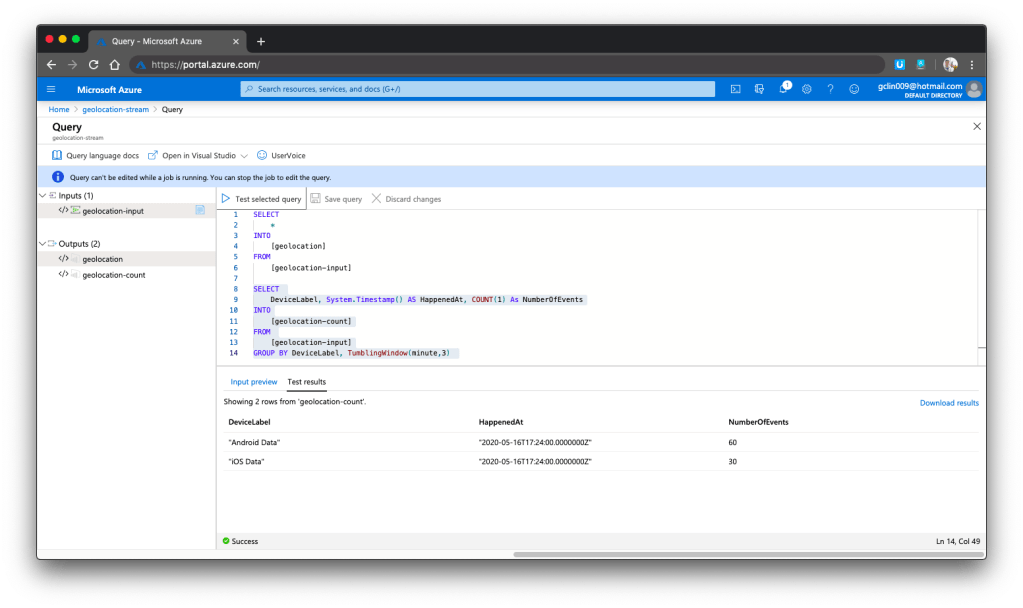
🎨  We can choose to test only the selected query and view its test results. 🎨 

Here, there are additional two things that I’d like to highlight.

Firstly, the data format that we sent to Event Hub is very important. Sometimes it is possible that the Event Hub can receive the messages but due to the wrong format in the messages, Stream Analytics cannot take them as inputs and there will be warning shown in the Overview page of the Stream Analytics.

Secondly, to view detailed logs so that we can better understand what’s happening in Stream Analytics when something goes wrong, it is important to understand how to debug using its Activity Log page and monitor its activities with Azure Monitor.

Data Visualisation with Power BI

Now, let’s see some colourful graphs.

In Power BI, with our setup above in the Stream Analytics, it should now show two datasets.

Firstly, we have the map in Power BI using the first dataset to show the location of the drivers. There are some data points having blank Device ID because it is a new field I added after I setup the first dataset in the Stream Analytics.
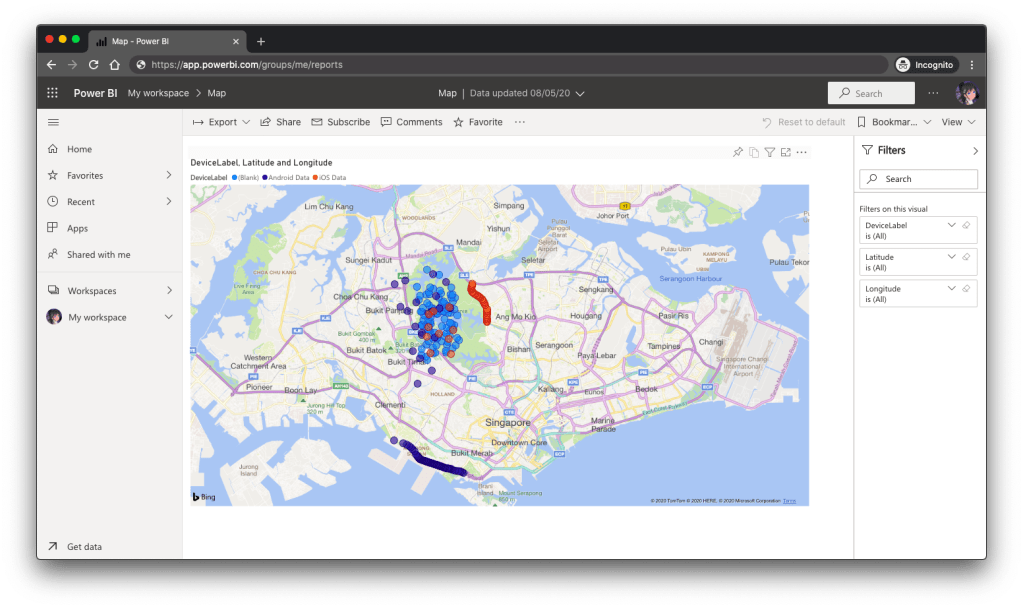
🎨  Map showing the driver locations using results returned from the first query in Stream Analytics. 🎨 

Secondly, we can also visualise the results returned from the second dataset using the Line Chart in Power BI, as shown below.
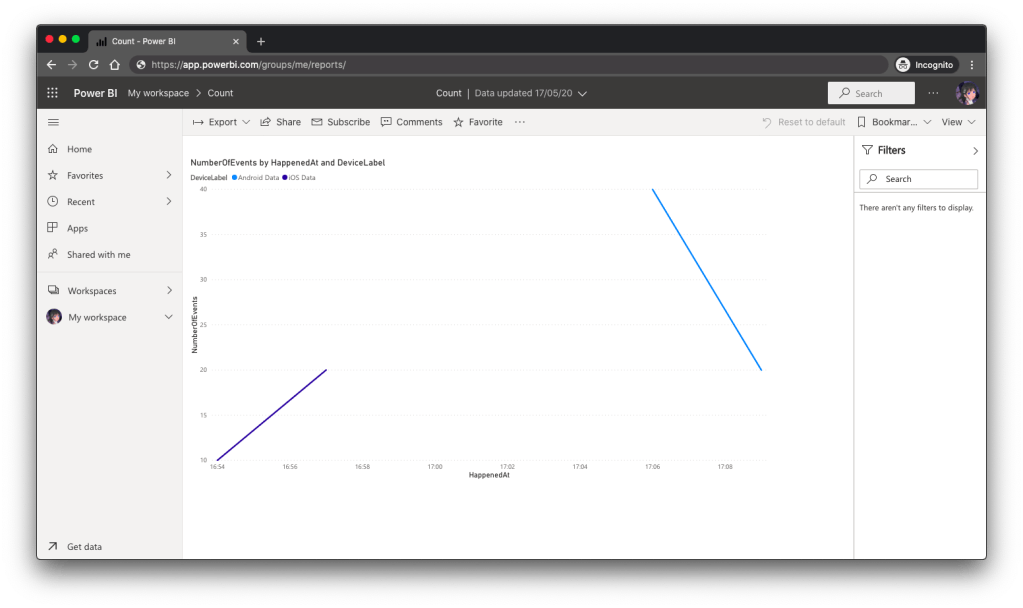
🎨  The second driver starts work after the first driver. 🎨 

Conclusion

So, what do you think about my alternative above? In fact, there are other ways of doing this as well. There is one more alternative that requires Azure Time Series Insights service which I will be researching. Hopefully I can have time to blog about it soon.

If you have any other better solution, feel free to let me know in the comment section. I may not have time to try all of them out but it may help other developers to find out more alternatives. Thank you in advance!

🎨  If you have a good suggestion to share, let’s discuss over a meal. 🎨 

Connecting Android App with IdentityServer4

android-identity-server-appauth.png

For those ASP .NET web developers, Identity Server should be quite familiar to them especially they are looking for SSO solution.

After successfully integrating Identity Server in our ASP .NET Core MVC web applications, it is now time for us to research about how our mobile app can be integrating with IdentityServer4 too.

Background

We have two types of users. The admin will be logging in to the system via our web application. The normal staff will log in to the system via mobile app. Different sets of features are provided for both web and mobile apps.

Setting up Client on Identity Server

To begin, we need to add new client to the MemoryClients of Identity Server.

According to the sample code done by Hadi Dbouk, we setup the new client as shown in the following code.

using IdentityServer4.Models;
...
public class ClientStore : IClientStore {
    ...
    var availableClients = new List();
    ...
    availableClients.Add(new Client 
    {
        ClientId = "my-awesome-app",
        ClientName = "My Awesome App",
        AllowedGrantTypes = GrantTypes.Code,
        RequirePkce = true,
        RequireConsent = false,
        ClientSecrets = 
        {
            new Secret("my-secret".Sha256())
        },
        RefreshTokenUsage = TokenUsage.ReUse,
        RedirectUris = { "gclprojects.chunlin.myapp:/oauth2callback" },
        AllowedScopes = 
        {
            StandardScopes.OpenId,
            StandardScopes.Profile,
            StandardScopes.Email,
            StandardScopes.OfflineAccess
        },
        AllowOfflineAccess = true
    }
    );
}

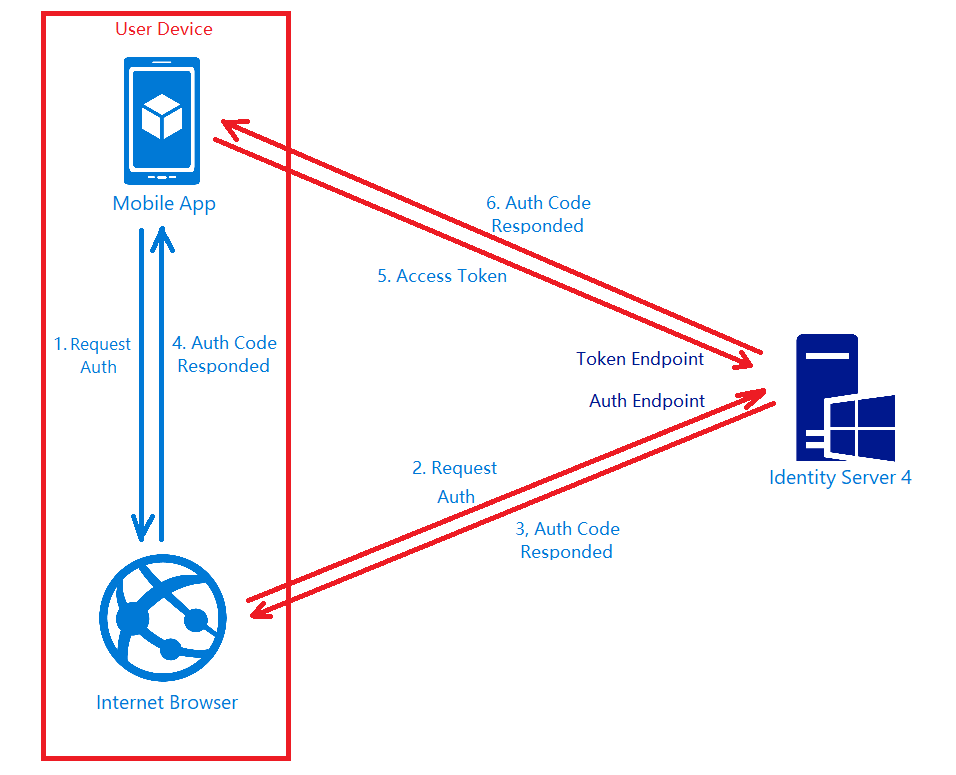
For mobile apps, there are two grant types recommended, i.e. Authorization Code and Hybrid. However, as when this post is written, the support of Hybrid is still not mature in AppAuth for Android, so we decided to use GrantTypes.Code instead.

However, OAuth2.0 clients using authorization codes can be attacked. In the attack, the authorization code returned from an authorization endpoint is intercepted within a communication path that is not protected by TLS. To mitigate the attack, PKCE (Proof Key for Code Exchange) is required.

We don’t have consent screen for our apps, so we set RequireConsent to false.

For the RefreshTokenUsage, there are two possible values, i.e. ReUse and OneTime. The only difference is that ReUse will make the refresh token handle to stay the same when refreshing tokens. OneTime will update the refresh token handle once the tokens are refreshed.

Once the authorization flow is completed, users will be redirected to a URI. As documented in AppAuth for Android Readme, custom scheme based redirect URI (i.e. those of form “my.scheme:/path”) should be used for the authorization redirect because it is the most widely supported across many Android versions.

By setting AllowOfflineAccess to be true and give the client access to the offline_access scope, we allow requesting refresh tokens for long lived API access.

Android Setup: Installation of AppAuth

The version of AppAuth for Android is v0.7.0 at the point of time this post is written. To install it for our app, we first need to set it in build.gradle (Module: app).

apply plugin: 'com.android.application'

android {
    ...    defaultConfig {
        ...
        minSdkVersion 21
        targetSdkVersion 26
        ...
        manifestPlaceholders = [
            'appAuthRedirectScheme': 'gclprojects.chunlin.myapp'
        ]
    }
    ...
}

dependencies {
    ...
    compile 'com.android.support:appcompat-v7:26.+'
    compile 'com.android.support:design:26.+'
    compile "com.android.support:customtabs:26.0.0-alpha1"
    compile 'net.openid:appauth:0.7.0'
    ...
}


appauth-code-flow.png
AppAuth for Android authorization code flow. (Reference: The proper way to use OAuth in a native app.)

Android Setup: Updating Manifest

In the AndroidManifest.xml, we need to add the redirect URI to the RedirectUriReceiverActivity, as shown in the following code.

<?xml version="1.0" encoding="utf-8"?>
<manifest xmlns:android="http://schemas.android.com/apk/res/android"
    package="gclprojects.chunlin.myapp">
    ...
    <application...>
        <activity
            android:name="net.openid.appauth.RedirectUriReceiverActivity"
            android:theme="@style/Theme.AppCompact.NoActionBar">
        <intent-filter>
            <action android:name="android.intent.action.VIEW"/>

            <category android:name="android.intent.category.DEFAULT"/>
            <category android:name="android.intent.category.BROWSABLE"/>

            <data android:scheme="gclprojects.chunlin.myapp"/>
        </intent-filter>
    </application>
    ...
</manifest>

Android Setup: Authorizing Users

On the Android app, we will have one “Login” button.

<Button
    android:onClick="Login"
    android:layout_width="wrap_content"
    android:layout_height="wrap_content"
    android:text="Login"
    android:layout_centerInParent="true"/>

By clicking on it, the authorization steps will begin.

public void Login(View view) {
    AuthManager authManager = AuthManager.getInstance(this);
    AuthorizationService authService = authManager.getAuthService();

    AuthorizationRequest.Builder authRequestBuilder = new AuthorizationRequest
            .Builder(
            authManager.getAuthConfig(),
            "my-awesome-app",
            "code",
            Uri.parse("gclprojects.chunlin.myapp:/oauth2callback"))
            .setScope("openid profile email offline_access");

    String codeVerifier = CodeVerifierUtil.generateRandomCodeVerifier();
    SharedPreferencesRepository sharedPreferencesRepository = new SharedPreferencesRepository(this);
    sharedPreferencesRepository.saveCodeVerifier(codeVerifier);

    authRequestBuilder.setCodeVerifier(codeVerifier);

    AuthorizationRequest authRequest = authRequestBuilder.build();

    Intent authIntent = new Intent(this, LoginAuthActivity.class);
    PendingIntent pendingIntent = PendingIntent.getActivity(this, authRequest.hashCode(), authIntent, 0);

    authService.performAuthorizationRequest(
            authRequest,
            pendingIntent);
}

The code above uses some other classes and interact with other activity. I won’t talk about them here because the codes can be found on my Github repository which is forked from Hadi Dbouk’s.

Android Setup: Post Authorization and Refresh Token

According to the code in the LoginAuthActivity.java, if the login fails, the user will be brought back to the Login Activity. However, if it succeeds, the user can then reach to another activities in the app which require user to login first. We can also then get Access Token, Refresh Token, and ID Token from authManager. With the Access Token, we then can access our backend APIs.

Since access tokens have finite lifetimes, refresh tokens allow requesting new access tokens without user interaction. In order to have the client to request Refresh Token, we need to authorize it by setting AllowOfflineAccess to true. When we make a request to our APIs, we need to check if the Access Token is expired, if it is so, we need to make a new request with the Refresh Token to the IdentityServer to have a new Access Token.

The way how we can retrieve new Access Token with a Refresh Token in AppAuth is shown in the TokenTimer class in TokenService.java using createTokenRefreshRequest.

private class TokenTimer extends TimerTask {
    ...

    @Override
    public void run() {

        if(MyApp.Token == null)
            return;

        final AuthManager authManager = AuthManager.getInstance(TokenService.this);

        final AuthState authState = authManager.getAuthState();


        if(authState.getNeedsTokenRefresh()) {
            //Get New Token

            ClientSecretPost clientSecretPost = new ClientSecretPost("driver008!");
            final TokenRequest request = authState.createTokenRefreshRequest();
            final AuthorizationService authService = authManager.getAuthService();

            authService.performTokenRequest(request, clientSecretPost, new AuthorizationService.TokenResponseCallback() {
                @Override
                public void onTokenRequestCompleted(@Nullable TokenResponse response, @Nullable AuthorizationException ex) {
                    if(ex != null){
                        ex.printStackTrace();
                        return;
                    }
                    authManager.updateAuthState(response,ex);
                    MyApp.Token = authState.getIdToken();
                }
            });

        }

    }
}

Conclusion

Yup, that’s all for integrating the Identity Server in an Android App to provide a seamless login experience to our users. If you find any mistake in this article, kindly let me know in the comment section. Thanks in advance!

References


Magical Experience with Beacons

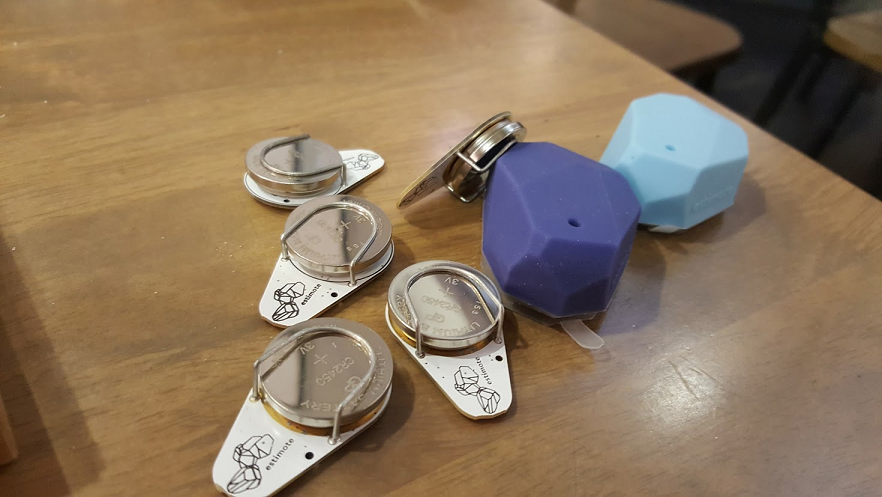
One month ago on 27th of March, my friend passed me a box of Estimote Proximity Beacons. That day marks the beginning of my journey towards a greater understanding of beacons and IoT.

Since the day I joined travel industry, I have always been thinking of providing a fun travel experience with beacon technology. When I joined Changi Airport team in 2015, I proposed to my manager the possibility of applying beacons in the airport. The idea was rejected. Now, I finally get the chance to build something with the small little Estimote Proximity Beacons.

estimote-beacons.png
We forcefully opened up the beacons and replaced the batteries.

Claiming Beacons

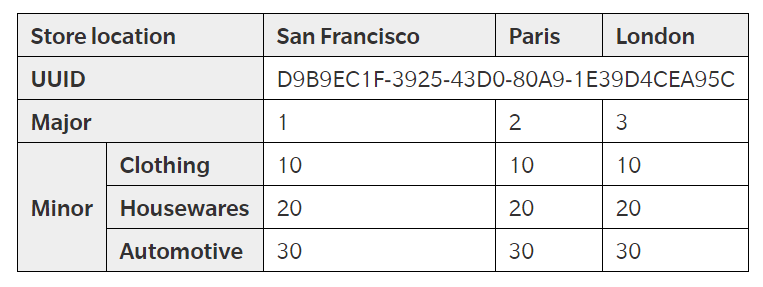
Every Estimote beacons are shipped with an unique ID which we can modify. By default, the beacon ID is in iBeacon format and consists of 3 values:

The three values are hierarchical. The purpose of UUID is to distinguish our beacons from all other beacons in the network. Major and Minor values allow us to label the beacons with higher accuracy.

ibeacon-format
An example of how a chain of retail shops will deploy and label their beacons. (Source: Estimote Developer Docs)

The iBeacon ID can be changed. One way is to use the Estimote app to do it. Since I wasn’t the owner of the beacons, my first step is to claim the beacon using the app. After I successfully claim the beacons, I can then proceed to retrieve detailed info of the beacons and modify their info.

claiming-beacons-and-changing-broadcasting-power.png
Claiming beacon and modifying its info, such as its range (by default it’s ~3.5m).

Google Beacon Platform

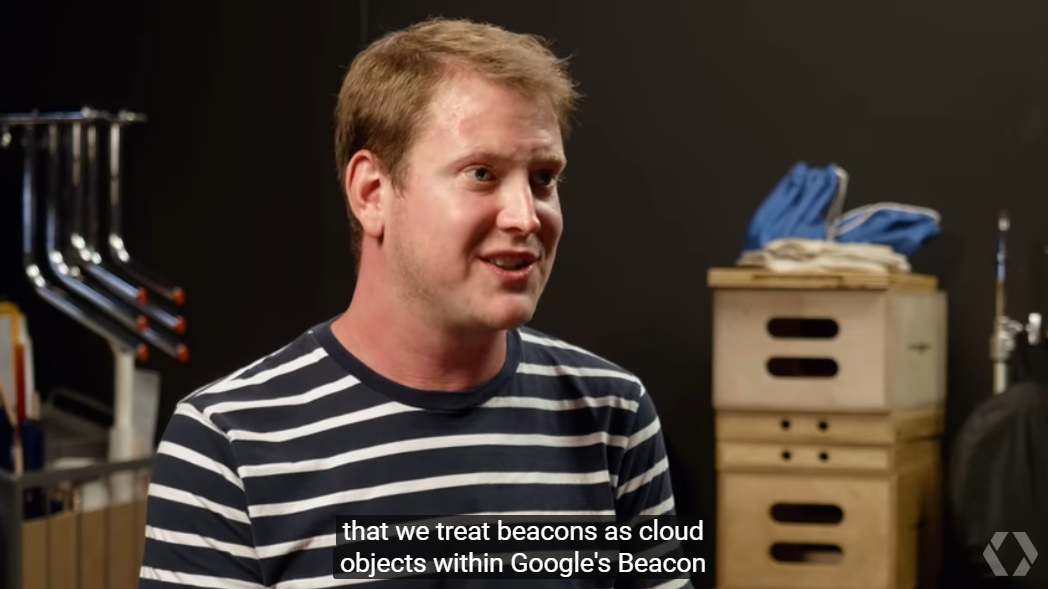
After configuring our beacons, we can then proceed to claim the ownership of our beacons on the Google Beacon Registry. There is a mobile app called Beacon Tools available from Google to help us registering our beacons on Google Beacon Registry. There is a very interesting video interviewing Peter Lewis in the Coffee with a Googler season talking about the steps of beacon registration.

google-beacon-registry.png
Peter shares about Google Beacon Registry and Google Beacon Platform. (Source: YouTube)

After that, we can associate a lot of information with our beacons. To do so, we first are recommended to use Google Beacon Dashboard. There is a very simple tutorial guiding us to use the Google Beacon Dashboard to associate the attachments with the beacons.

attachments
My beacon project, Icy Marshmallow, and the attachments of a beacon in the project.

Read Attachments

I’m using the Nearby Messages API to retrieve the attachments from the beacons. I did a small little Android app (which is properly configured following the recommended steps) with the codes as shown below to achieve this.

package gclprojects.icymarshmallow;

...
import com.google.android.gms.common.ConnectionResult;
import com.google.android.gms.common.api.GoogleApiClient;
import com.google.android.gms.Nearby;
import com.google.android.gms.nearby.messages.Message;
import com.google.android.gms.nearby.messages.MessageListener;
import com.google.android.gms.nearby.messages.Strategy;
import com.google.android.gms.nearby.messages.SubscribeOptions;

public class MainActivity extends AppCompatActivity 
        implements GoogleApiClient.ConnectionCallbacks,
        GoogleApiClient.OnConnectionFailedListener {
    
    private GoogleApiClient mGoogleApiClient;
    private MessageListener mMessageListener;
    ...

    @Override
    protected void onCreate(Bundle savedInstanceState) {
        super.onCreate(savedInstanceState);

        ...

        mGoogleApiClient = new GoogleApiClient.Builder(this)
                .addApi(Nearby.MESSAGES_API)
                .addConnectionCallbacks(this)
                .enableAutoManage(this, this)
                .build();

        mMessageListener = new MessageListener() {
            @Override
            public void onFound(final Message message) {
                // Called when a new message is found.
                // Use message.getType().toString() to read the attachment Type
                // Use new String(message.getContent()) to read the attachment Value
            }
        }
    }

    @Override
    protected void onStart() {
        super.onStart();
        mGoogleApiClient.connect();
    }

    @Override
    protected void onStop() {
        super.onStop();
        mGoogleApiClient.disconnect();
    }

    @Override
    public void onConnected(@Nullable Bundle bundle) {
        if (mGoogleApiClient != null && mGoogleApiClient.isConnected()) {
            subscribe();
        }
    }

    ...

    private void subscribe() {
        SubscribeOptions options = new SubscribeOptions.Builder()
                .setStrategy(Strategy.BLE_ONLY)
                .build();

        Nearby.Messages.subscribe(mGoogleApiClient, mMessageListener);
    }
}

With the codes above, when beacon gets detected by the mobile app, the onFound method gets called for each of the attachment associated with the beacons. If we print the variable message into Log, we shall see something as follows.

Message{namespace='icy-marshmallow', type='string', content=[29 bytes]}

As shown above, the Value of the attachment is base64 encoded. So to read it, we just need to use new String(message.getContent()).

In the subscribe method, since we are only interested in messages attached to BLE (Bluetooth Low Energy) beacons, we use Strategy.BLE_ONLY.

Problem #1: Unsubscribe Method

When the app is running and another app comes into the foreground, we also need to stop subscribing to messages from the beacons. Otherwise, when we navigate back to the app, the messages can no longer be received even though we re-trigger the subscribe method.

So, I added the following codes.

@Override
protected void onPause() {
    if (mGoogleApiClient != null && mGoogleApiCLient.isConnected) {
        unsubsribe();
    }

    super.onPause();
}

@Override
protected void onResume() {
    if (mGoogleApiClient != null && mGoogleApiClient.isConnected) {
        subscribe();
    }

    super.onResume();
}

private void unsubscribe() {
    Nearby.Messages.unsubscribe(mGoogleApiClient, mMessageListener);
}

Problem #2: Stop Receiving Messages After Few Minutes

Another problem I notice is that the messages will stop be “found” after one to two minutes. However, if I re-trigger the mobile app, then I can start seeing the messages being detected for another one or two minutes.

To solve this issue, I use a simple timer which helps to check whether it has been quite some time the app doesn’t detect the beacons. If it’s more than 1 minute, then the timer will do a unsubscribe-then-subscribe-again action. This will help the mobile app to keep receiving the messages from the beacons. It also solve the problem of the mobile app re-visiting the beacons.

Problem #3: Geo-Location

This is not a real problem if we don’t need the geo-location information of the beacons. However, if we need to know the geo-location of the beacon, one simple way is to just use the LocationManager which provides periodic updates of the mobile geographical location.

package gclprojects.icymarshmallow;

...
import android.location.Location;
import android.location.LocationListener;
import android.location.LocationManager;

public class MainActivity extends AppCompatActivity 
        implements GoogleApiClient.ConnectionCallbacks,
        GoogleApiClient.OnConnectionFailedListener {
    LocationManager locationManager;
    ...

    @Override
    protected void onCreate(Bundle savedInstanceState) {
        super.onCreate(savedInstanceState);

        ...

        LocationListener locationListener = new LocationListener() {
            public void onLocationChanged(Location location) {
                // Record down the latitude and longitude of the mobile
            }

            ...
        }

        locationManager = (LocationManager) this.getSystemService(Context.LOCATION_SERVICE);
    
        int permissionCheck = ContextCompat.checkSelfPermission(this, Manifest.permission.ACCESS_FINE_LOCATION);
        if (permissionCheck == PackageManager.PERMISSION_GRANTED) {
            locationManager.requestLocationUpdates(LocationManager.NETWORK.PROVIDER, 0, 0, locationListener);

            ...
        }
    }
}

Writing Data to Firebase

This step is optional unless the data collected needs to be stored for future use.

I use the following codes to write the beacon data to Firebase database.

package gclprojects.icymarshmallow;

...
import com.google.firebase.database.DatabaseReference;
import com.google.firebase.database.FirebaseDatabase;

public class MainActivity extends AppCompatActivity 
        implements GoogleApiClient.ConnectionCallbacks,
        GoogleApiClient.OnConnectionFailedListener {
    private DatabaseReference mDatabase;
    ...

    @Override
    protected void onCreate(Bundle savedInstanceState) {
        super.onCreate(savedInstanceState);

        ...
        
        mDatabase = FirebaseDatabase.getInstance().getReference();

        mMessageListener = new MessageListener() {
            @Override
            public void onFound(final Message message) {
                ...

                Beacon beaconInfo = new Beacon(...);

                Format formatter = new SimpleDateFormat("yyyy-MM-dd-HH:mm:ss");
                mDatabase.child("Person A")
                        .child(formatter.format(new Date())
                        .setValue(beaconInfo);
            }
        }
    }
}

...

public class Beacon { ... }

firebase.png
Successfully recorded the data from beacons in my Firebase database!

To integrate our Android app with Firebase, our friendly Android Studio comes with a tool called the Firebase Assistance which will help us connect to the Firebase. The assistance also comes with short getting-started tutorial to show us how to cinfigure and add realtime database to our mobile app.

beacon-in-changi-airport.png
Spot the beacon. =)

Installing Beacons in Changi Airport

Installing beacons in our Changi Airport is always one of my dreams to enhance the experience of millions of travelers flying in and out of the airport. In fact, currently the Armsterdam city is already making use of beacon technology to build a powerful beacon networks to give the people a better experience when they are walking around in the city. So why can’t we do the same in our friendly Changi Airport? =)

The Little Problem when Consuming .NET Web Service via kSOAP

In one of our projects, we have a .NET web service. On the client side, we have phone running Android which will consume the web service. Hence, the first option that came to my teammate’s mind is to use kSOAP2, a lightweight SOAP client library for Android.

Problem

When we first tried out our Android app, we realized that it worked fine if the app was calling a web method with no parameter. However, when the app called another web method with one or more parameters, the web service complaint that the value it received was always null.

My colleague discovered this issue around 5:40pm, 20 minutes before I could leave the office. I always hope that I can enjoy a sunset on my way back from office. Hence, I decided to help him settle that little problem within the 20 minutes. Otherwise, I might miss the sunset for the day.

Just a monkey watching the sunset

First Check: Parameter Name

According to an article on CodeProject regarding kSOAP and .NET web services, it is a must to have the name and type of PropertyInfo to be the same as the web method parameter name and type.

My colleague had the parameter name same and the type is always string. So, this is not the cause.

Second Check: dotNet Flag

I am not sure why some people saying that the dotNet flag doesn’t need to be set to true (or commented out). However, it turns out that later even when we didn’t do anything about this dotNet flag, it still worked. So we just kept the following line in our code.

envelope.dotNet = true;

Third Check: Namespace

I finally came across this discussion on Stack Overflow which suggested that the problem we’re facing was probably caused by the namespace. DanneJaha, the author of the post, commented that if trailing “/” was used in our web service, we needed to have the same in our application as well.

After we added the trailing “/”, our application worked when calling web methods with parameters! Yahoo!

If this doesn’t help in your case, according to other comments on Stack Overflow, the namespace, SOAP action, etc are case sensitive. So, please check that too.

30 Minutes Crash Course of kSOAP

I left the office around 6:10pm so I still had chance to enjoy the sunset.

Anyway, this is actually a good opportunity for me to learn a bit about kSOAP and how Android app communicates with .NET web service. So, it’s fun to get involve in some other projects which you are not working on usually. =)

There are more to learn though.