Normally on the roads, we will see trailer trucks, which are the combination of a prime mover and a container chassis to carry freight. Container chassis is an important asset of a trucking company. It is usually an unpowered vehicle towed by another. If you still have no idea what it is, please watch the video below.
Tracking container chassis is not a simple problem to solve. We do not only need to build trackers, which are IoT devices to send back telemetry and sensor data collected from the container chassis, but also need to have another system to store, process, and display the data. This does not sound like a system that can be easily built within, let’s say, 5 minutes.
Now what if we can turn our smart phones into trackers and then install one of them on the container chassis? Also, what if we can make use of Microsoft Azure to provide a IoT data dashboard for us in just a few clicks?
Few days ago, Microsoft release a mobile app called IoT Plug and Play on both Android and iOS.
So, you may ask, why is this IoT Plug and Play interesting? This is because it can turn our iOS or Android device into an IoT device without any coding or device modeling. Our phones can then seamlessly connect to Azure IoT Central or IoT Hub with telemetry and sensor data from the devices will be automatically uploaded to the Azure in a defined delivery interval.
In this post, I am just going to share what I have tried out so far. Hopefully it helps my friends who are looking for similar solutions.
Setup Azure IoT Central
Before we proceed further, we need to understand that even though the example I use here may sound simple to you, but the services, such as Azure IoT Central is actually meant for production use so that the industries can use it to build enterprise-grade IoT applications on a secure, reliable, and scalable infrastructure.
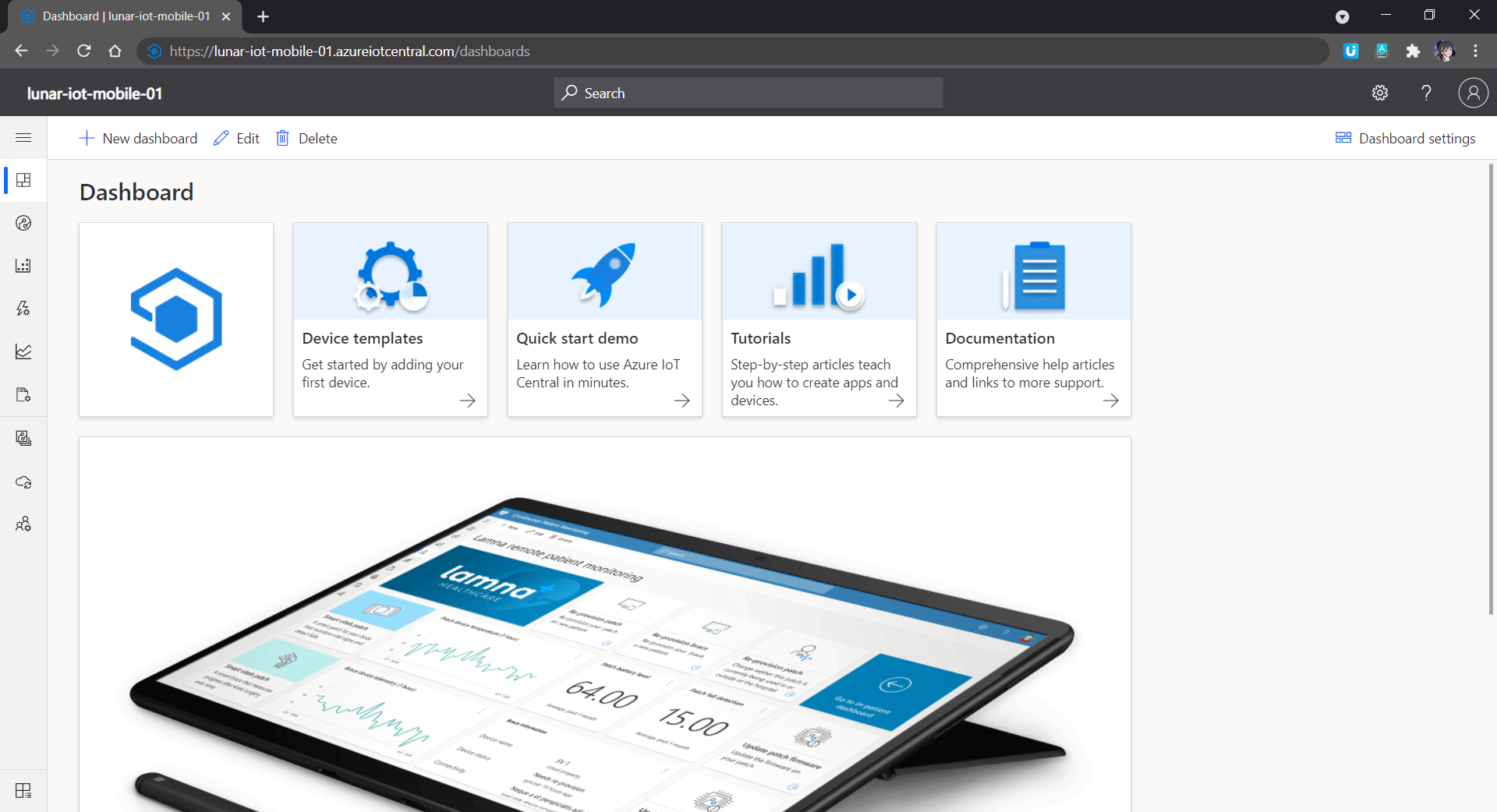
When we are setting up Azure IoT Central, we can have a quick start by directly applying templates which are all industry focused examples available for these industries today. For example, using the templates on Azure, logistics company can create an Azure IoT Central application to track shipments in real time across air, water, and land with location and condition monitoring. This will play an important role in the logistics industry because the technology can then provide total end-to-end supply chain enablement.
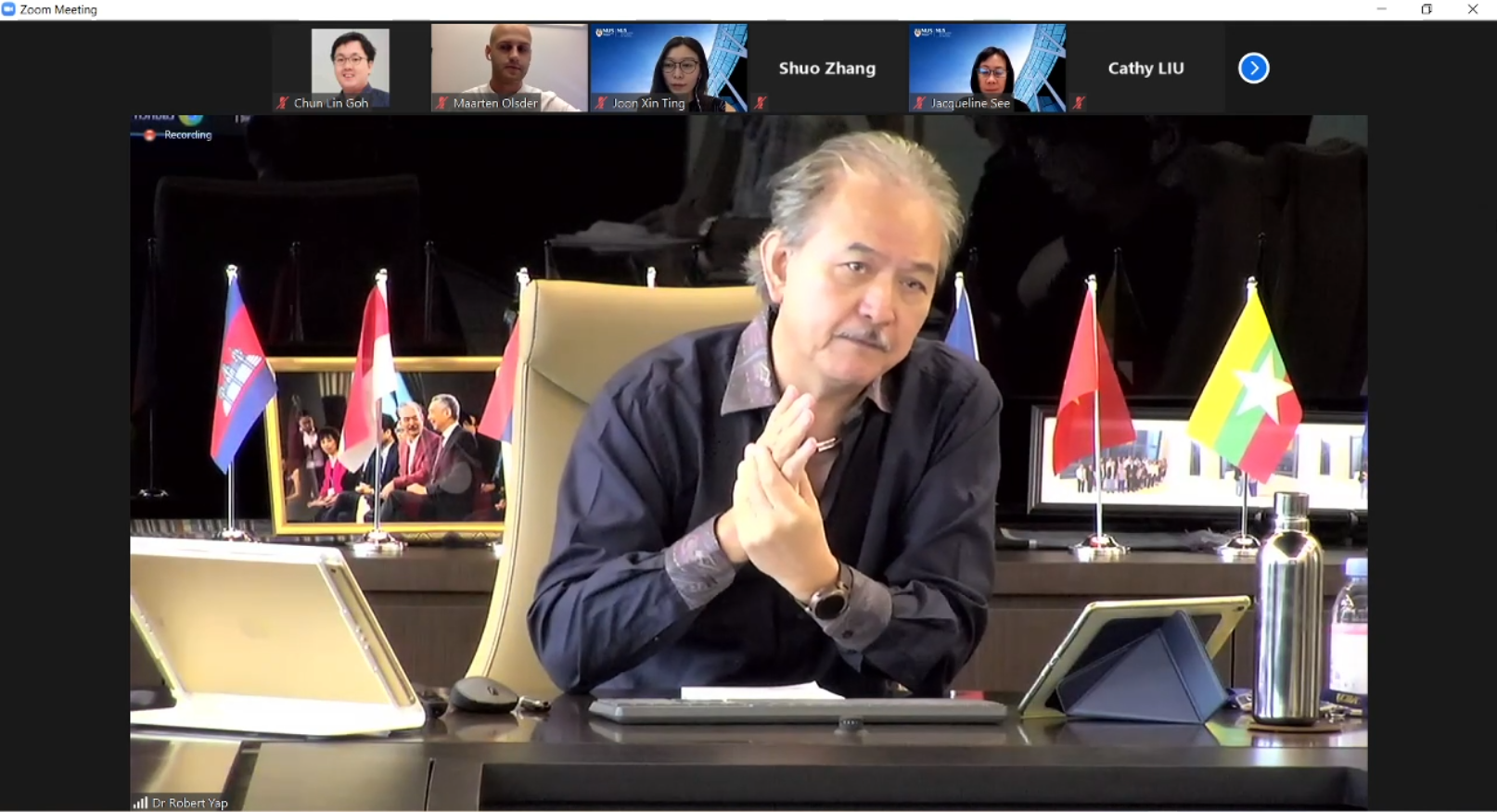
Dr Robert Yap, the Executive Chairman of YCH Group, shared about their vision of integrating the data flows in the supply chain with analytics capabilities.
In my example, I will start with a customised template which has nothing inside. We then can proceed to the “Devices” page to add a devices for our phones.
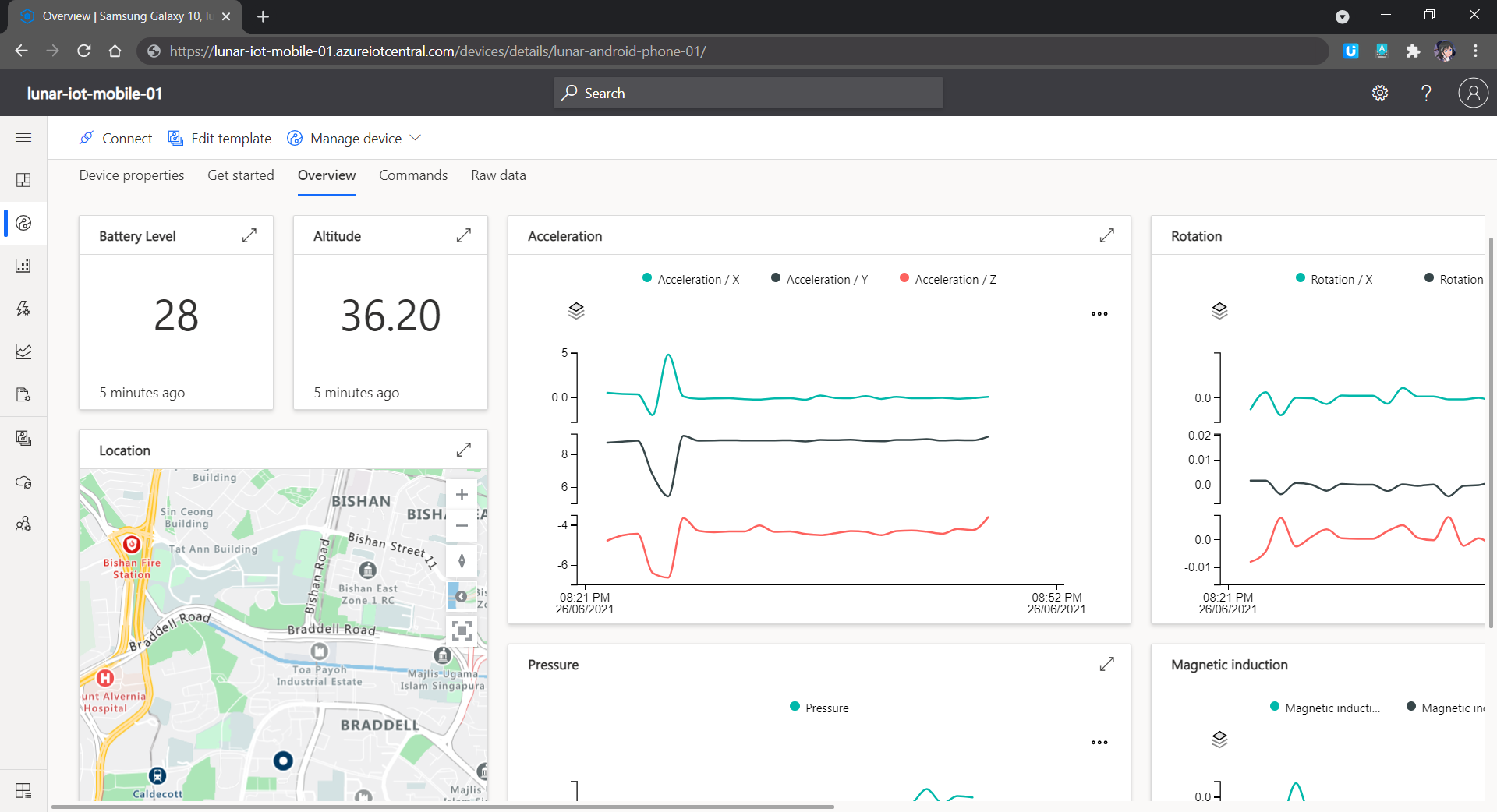
Data collected from accelerometer, gyroscope, magnetometer, and barometer on my phone.
Rules and Triggers
We are also able to specify rules in the Azure IoT Central so that there will be an action triggered when the defined conditions are met. We can also integrate the rule with Power Automate and Azure Logic Apps to perform relevant automated workflows.
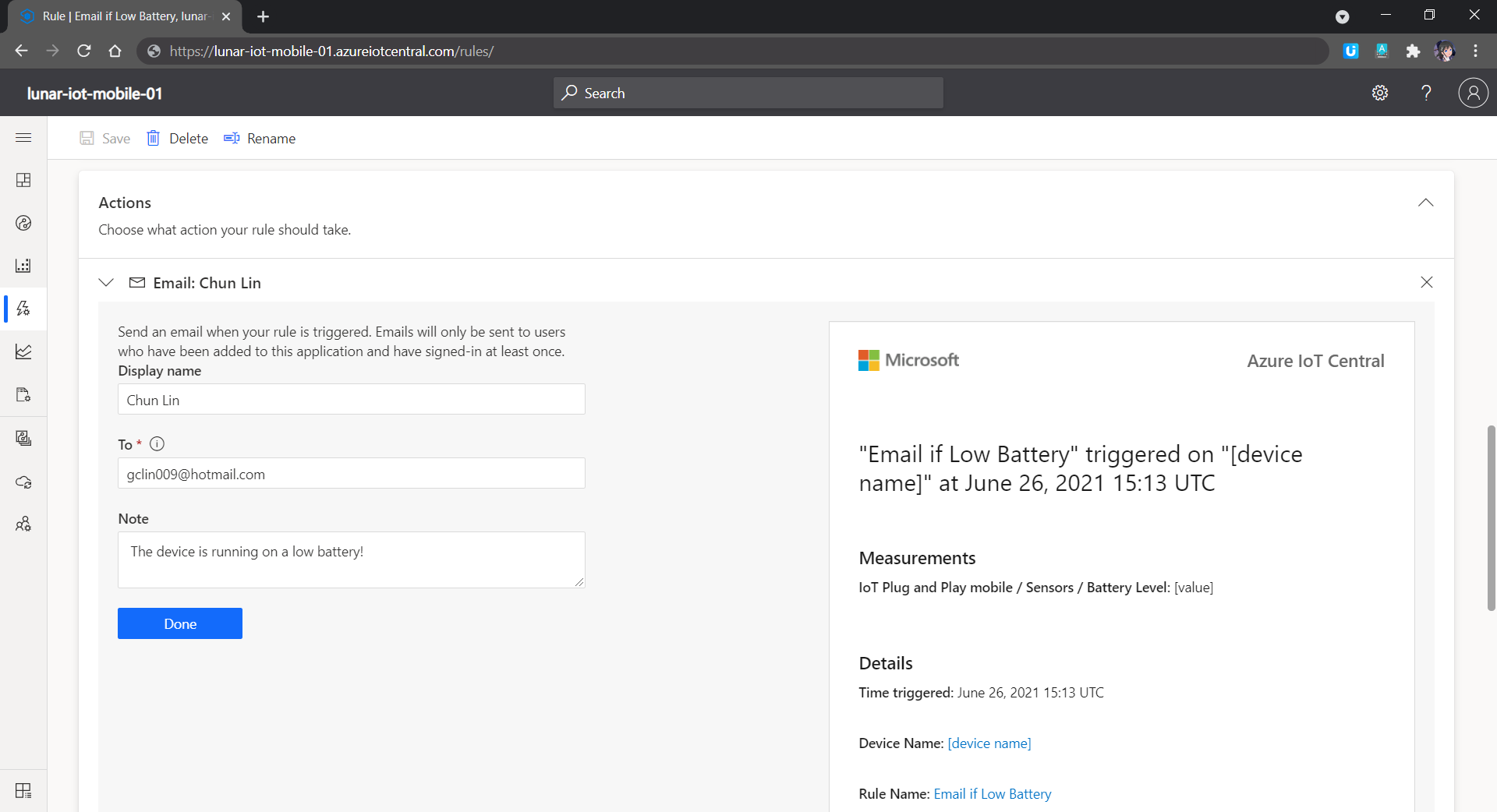
We can also have Azure IoT Central to send us an email when the device is running on low battery, for example.
Scheduled Jobs
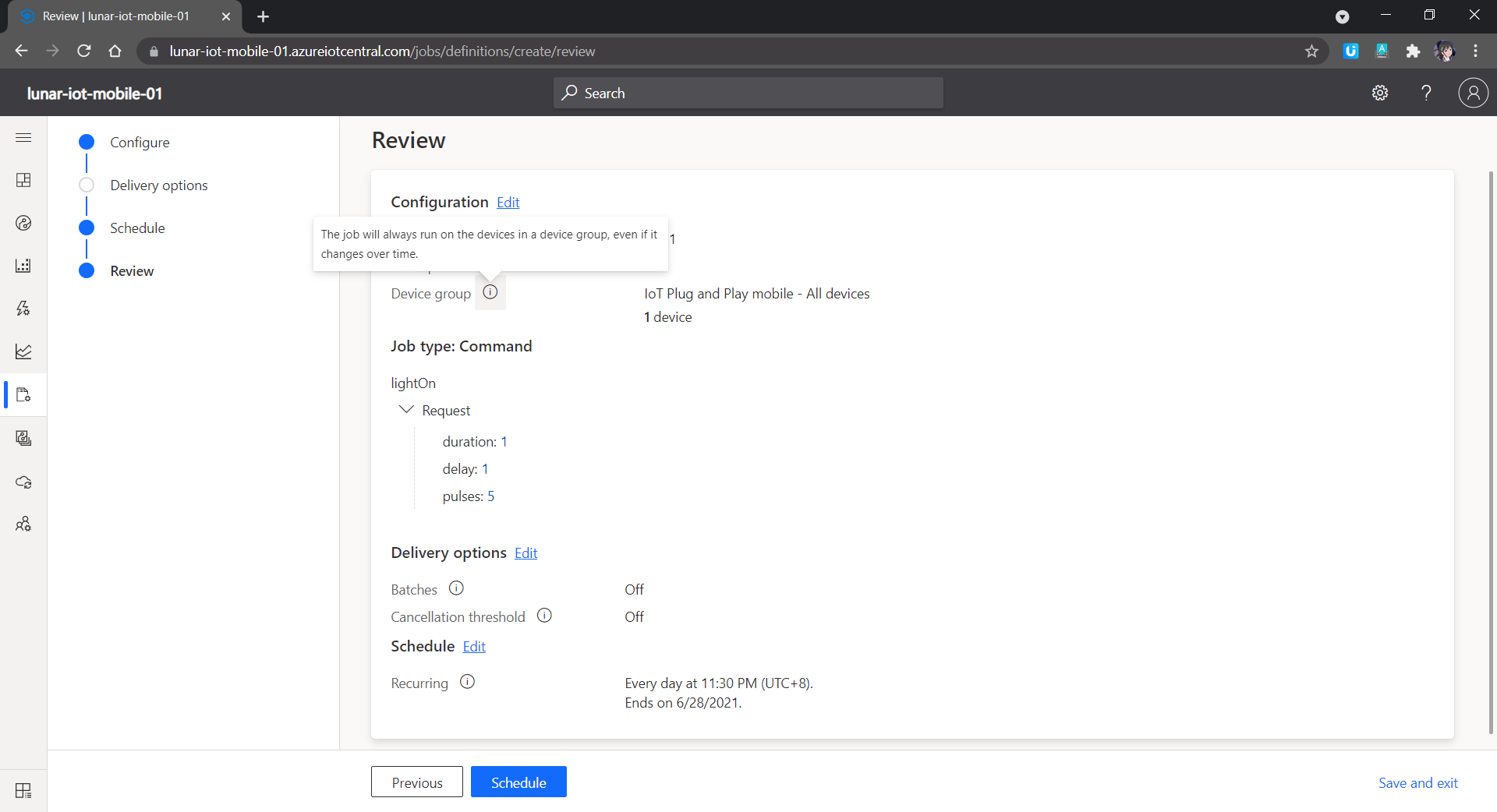
Another cool feature in Azure IoT Central is that we can send the commands back to the devices. In addition, we can send the commands in a scheduled manner. For example, in the following screenshot, the “lightOn” will be sent to all the devices in the Device Group and thus the connected phones in the Device Group will switch on their flashlight at 11.30pm in the midnight.
Don’t be scared if there is flashlight suddenly coming from chassis in midnight.
Image Upload
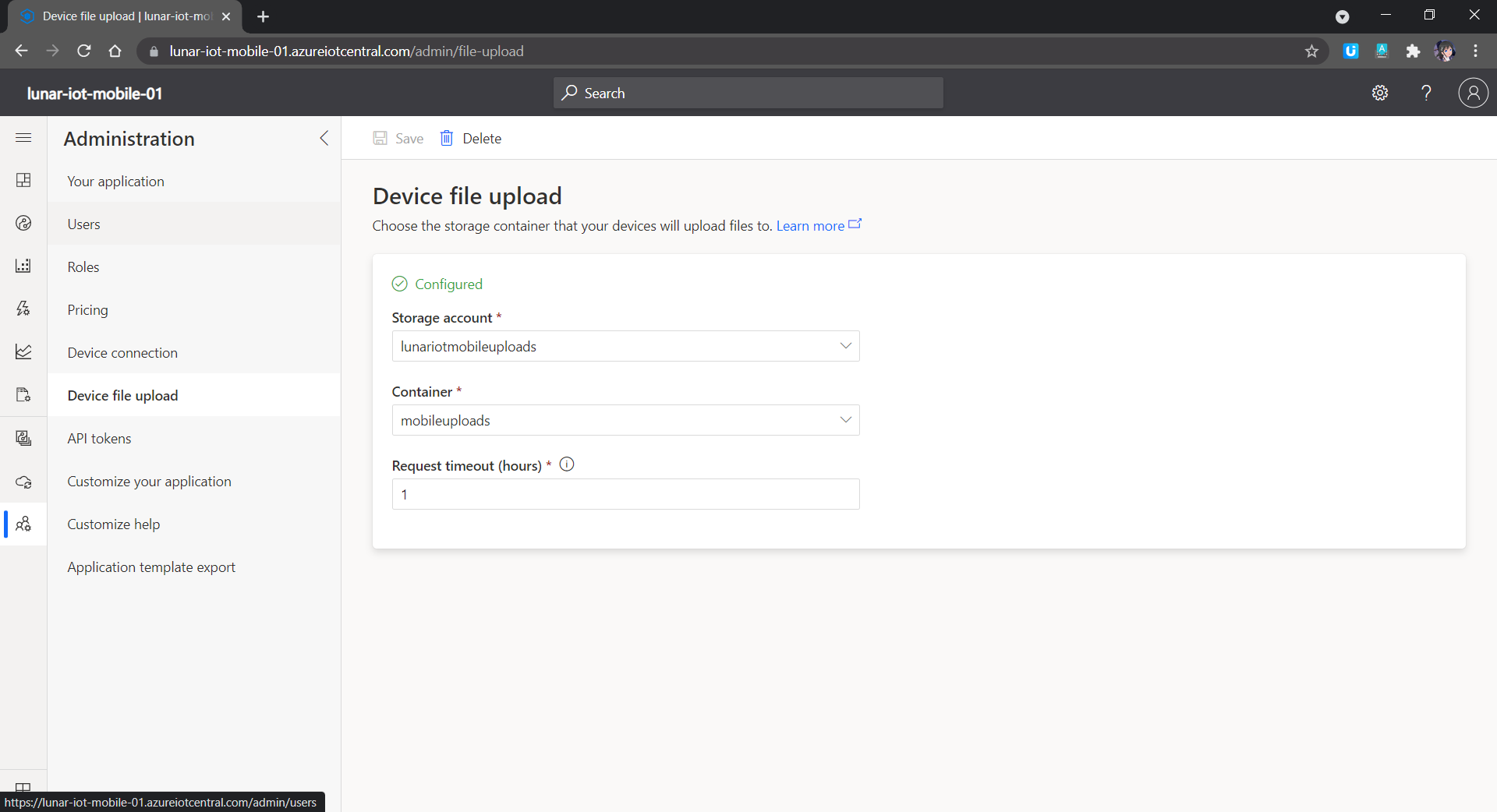
In the IoT Plug and Play app, we can also try out the image upload feature which allows us to submit images to the cloud from the IoT devices. As shown in the screenshot below, each IoT Central app can only link with one Azure Storage container. Hence, in the container, there will be folder for each of the registered IoT devices so that files uploaded will be categorised into their own folder accordingly.
We need to link Azure IoT Central to a container in the Azure Storage.
So with the phones setup as IoT devices, we can now install them on the container chassis to continuously send back the location data to the Azure IoT Central. The business owner can thus easily figure out where their container chassis is located at by looking at the dashboard.
After working on the beacon projects back half a year ago, I was given a new task which is building a dashboard for displaying data collected from IoT devices. The IoT devices basically are GPS tracker with a few other additional sensors such as temperature and shaking detection.
I’m new to IoT field, so I’m going to share in this article what I had learnt and challenges I faced in this project so that it would benefit to juniors who are going to do similar things.
Project Requirements
We plan to have the service to receive data from the IoT devices to be on Microsoft Azure. There will be thousands or even millions of the same devices deployed eventually, so choosing cloud platform to help us scaling up easily.
We also need to store the data in order to display it on dashboard and reports for business use cases.
Challenge 1: Azure IoT Hub and The Restriction of Device Firmware
In the documentation of the device protocol, there is a set of instructions as follows.
First when device connects to server, module sends its IMEI as login request. IMEI is sent the same way as encoding barcode. First comes short identifying number of bytes written and then goes IMEI as text (bytes).
After receiving IMEI, server should determine if it would accept data from this module. If yes server will reply to module 01 if not 00.
I am not sure who wrote the documentation but I am certain that his English is not that easy to comprehend in the first read.
Anyway, this is a good indication that Azure IoT Hub will be helpful because it provides secure and reliable C2D (Cloud-to-Device) and D2C communication with HTTP, AMQP, and MQTT support.
However, when I further read the device documentation, I realized that the device could only send TCP packets over in a protocol the device manufacturer defined. In addition, the device doesn’t allow us to update its firmware at this moment, making it to send data using protocols accepted by Azure IoT Hub is impossible.
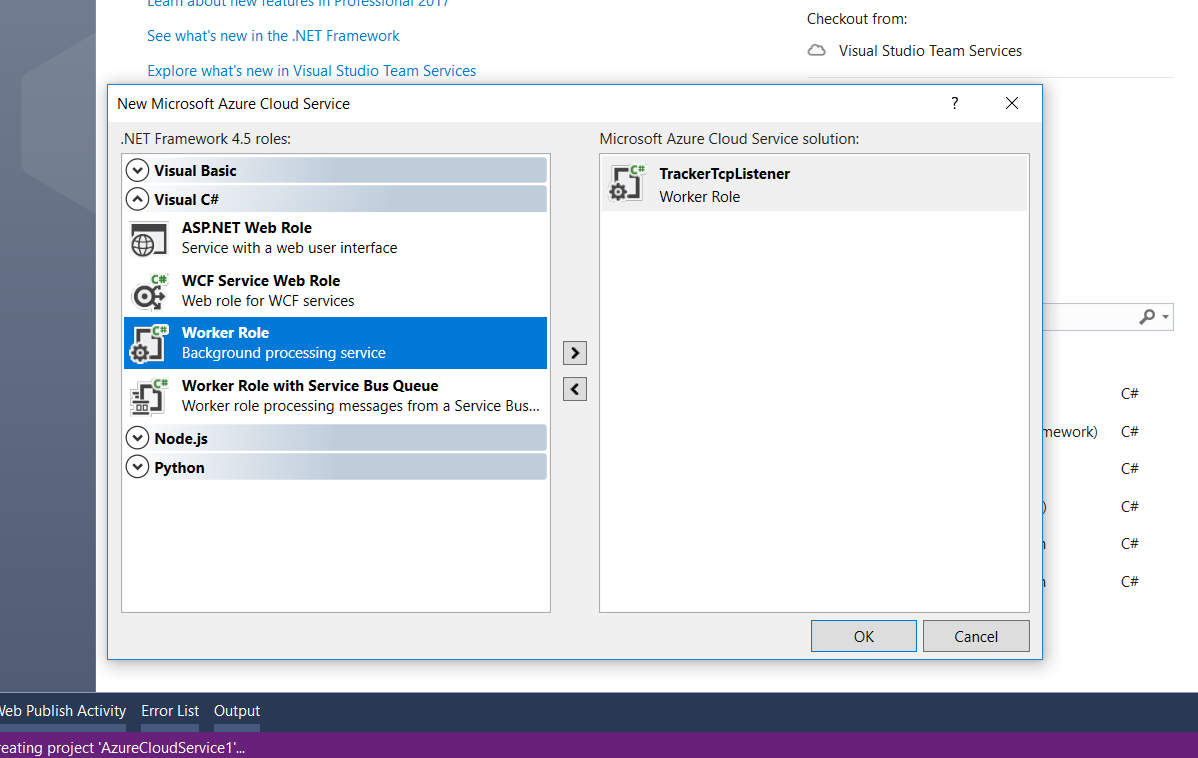
The only easy option we have now is to use Azure Cloud Service with Worker Role. Worker Role does not use IIS and it can run our app standalone.
Creating a new Cloud Service project with one Worker Role on Visual Studio 2017.
A default template of WorkerRole class will be provided.
public class WorkerRole : RoleEntryPoint
{
    private readonly CancellationTokenSource cancellationTokenSource = new CancellationTokenSource();
    private readonly ManualResetEvent runCompleteEvent = new ManualResetEvent(false);

    public override void Run()
    {
        Trace.TraceInformation("TrackerTcpListener is running");

        try
        {
            this.RunAsync(this.cancellationTokenSource.Token).Wait();
        }
        finally
        {
            this.runCompleteEvent.Set();
        }
    }

    public override bool OnStart()
    {
        // Set the maximum number of concurrent connections
        ServicePointManager.DefaultConnectionLimit = 12;

        // For information on handling configuration changes
        // see the MSDN topic at https://go.microsoft.com/fwlink/?LinkId=166357.

        bool result = base.OnStart();

        Trace.TraceInformation("TrackerTcpListener has been started");

        return result;
    }

    public override void OnStop()
    {
        Trace.TraceInformation("TrackerTcpListener is stopping");

        this.cancellationTokenSource.Cancel();
        this.runCompleteEvent.WaitOne();

        base.OnStop();

        Trace.TraceInformation("TrackerTcpListener has stopped");
    }

    private async Task RunAsync(CancellationToken cancellationToken)
    {
        // TODO: Replace the following with your own logic.
        while (!cancellationToken.IsCancellationRequested)
        {
            Trace.TraceInformation("Working");
            await Task.Delay(1000);
        }
    }
}
It’s obvious that the first method we are going to work on is the RunAsync method with a “TODO” comment.
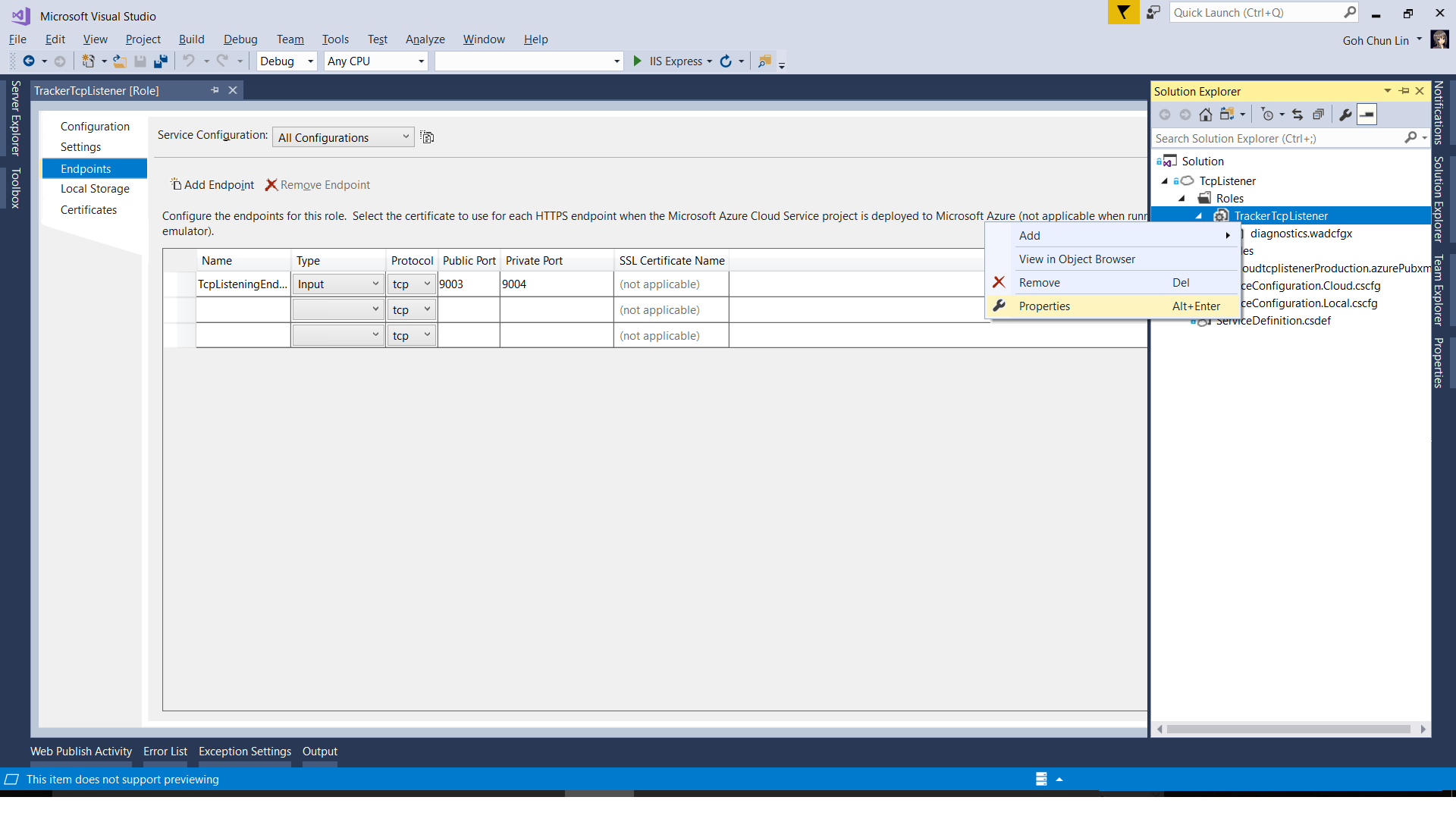
However, before that, we need to define an IP Endpoint for this TCP listener so that we can tell the IoT device to send the packets to the specified port on the IP address.
Configuring Endpoints of a Cloud Service.
With endpoints defined, we can then proceed to modify the code.
private async Task RunAsync(CancellationToken cancellationToken)
{
    try
    {
        TcpClient client;

        while (!cancellationToken.IsCancellationRequested)
        {
            var ipEndPoint = RoleEnvironment.CurrentRoleInstance.InstanceEndpoints["TcpListeningEndpoint1"].IPEndpoint;

            var listener = new System.Net.Sockets.TcpListener(ipEndPoint) { ExclusiveAddressUse = false };
            listener.Start();

            // Perform a blocking call to accept requests.
            client = listener.AcceptTcpClient();

            // Get a stream object for reading and writing
            NetworkStream stream = null;

            try
            {
                stream = client.GetStream();

                await ProcessInputNetworkStreamAsync(stream);
            }
            catch (Exception ex)
            {
                // Log the exception
            }
            finally
            {
                // Shutdown and end connection
                if (stream != null)
                {
                    stream.Close();
                }

                client.Close();

                listener.Stop();
            }
        }
    }
    catch (Exception ex)
    {
        // Log the exception
    }
}
The code for the method ProcessInputNetworkStreamAsync above is as follows.
private async Task ProcessInputNetworkStreamAsync(string imei, NetworkStream stream)
{
    Byte[] bytes = new Byte[5120];
    int i = 0;
    byte[] b = null;
    var receivedData = new List<string>();

    while ((i = stream.Read(bytes, 0, bytes.Length)) != 0)
    {
        receivedData = new List<string>();

        for (int reading = 0; reading < i; reading++)
        {
            using (MemoryStream ms = new MemoryStream())
            {
                ms.Write(bytes, reading, 1);
                b = ms.ToArray();
            }

            receivedData.Add(ConvertHexadecimalByteArrayToString(b));
        }

        Trace.TraceInformation("Received Data: " + string.Join(",", receivedData.ToArray()));

        // Respond from the server to device
        byte[] serverResponse = ConvertStringToHexadecimalByteArray("<some text to send back to the device>");
        stream.Write(serverResponse, 0, serverResponse.Length);
    }
}
You may wonder what I am doing above with ConvertHexadecimalByteArrayToString and ConvertStringToHexadecimalByteArray methods. They are needed because the packets used in the TCP protocol of the device is in hexadecimal. There is a very interesting discussion about how to do the conversion on Stack Overflow, so I won’t repeat it here.
Challenge 3: Multiple Devices
The code above is only handling one port. Unfortunately, the IoT device doesn’t send over the IMEI number or any other identification number of the device when the actual data pack is sent to the server. Hence, that means if there is more than one IoT device sending data to the same port, we will have no way to identify who is sending the data at the server side.
Hence, we need to make our TCP Listener to listen on multiple ports. The way I chose is to use List<Task> in the Run method as shown in the code below.
public override void Run()
{
    try
    {
        // Reading a list of ports assigned for trackers use
        ...

        var tasks = new List<Task>();

        foreach (var port in trackerPorts)
        {
            tasks.Add(this.RunAsync(this.cancellationTokenSource.Token, port));
        }

        Task.WaitAll(tasks.ToArray());
    }
    finally
    {
       this.runCompleteEvent.Set();
    }
}
Challenge 4: Worker Role Not Responding Irregularly
This turns out to be the biggest challenge in using Worker Role. After receiving data from the IoT devices for one or two days, the server was not recording any further new data even though the devices are working fine. So far, I’m still not sure about the cause even though there are people encountering similar issues as well.
I proceed to use Azure Automation which provides Runbooks to help handling the creation, deployment, monitoring, and maintenance of Azure resources. The Powershell Workflow Runbook that I use for rebooting the worker role daily is as follows.
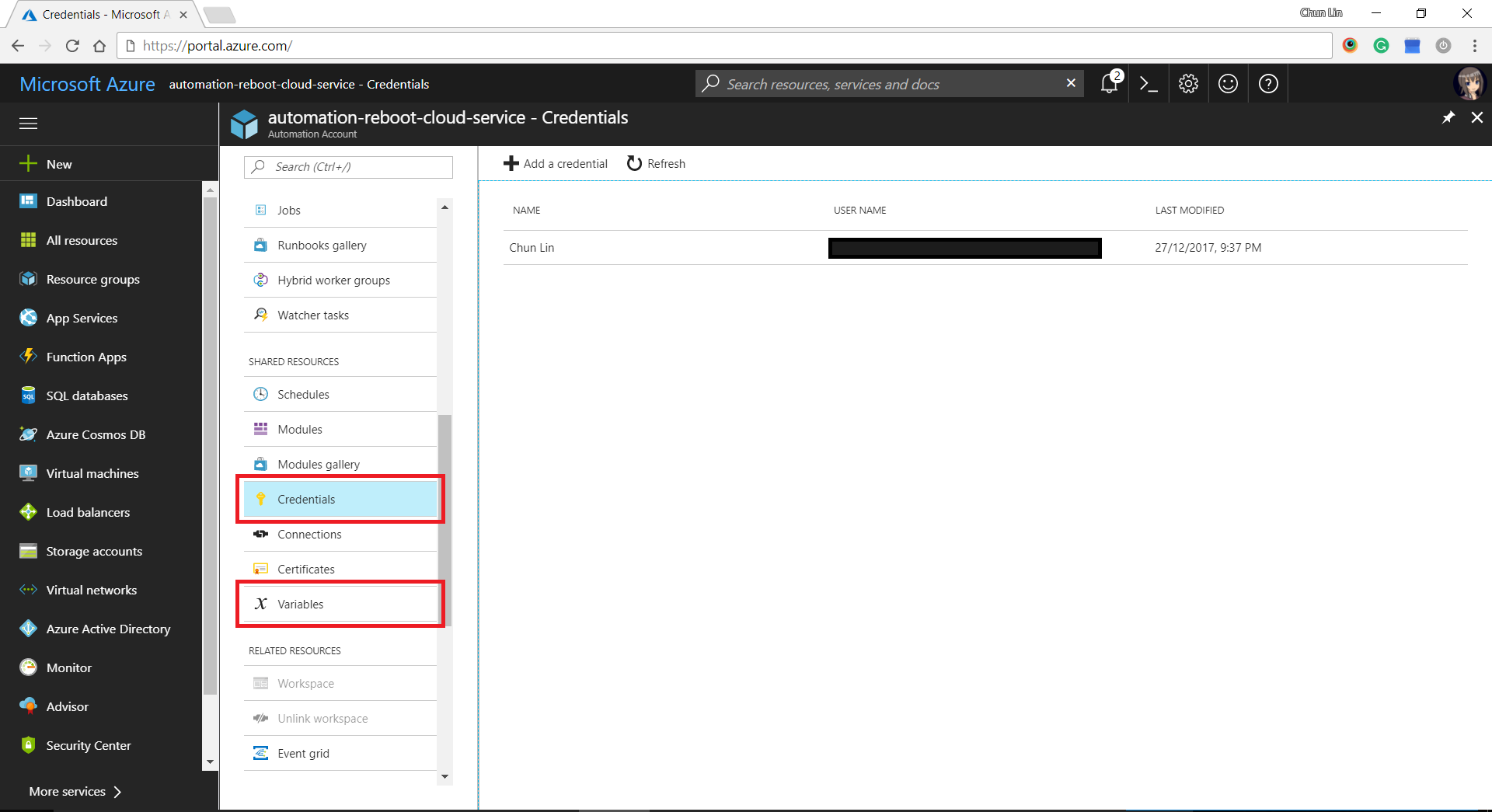
In case you wonder where I defined the values for variables such as AzureSubscriptionId, CloudServiceName, and WorkerRoleInstanceName, as well as automation PowerShell credential, there are all easily found in the Azure Portal under “Share Resources” section of Azure Automation Account.
Providing credentials and variables for the Runbook.
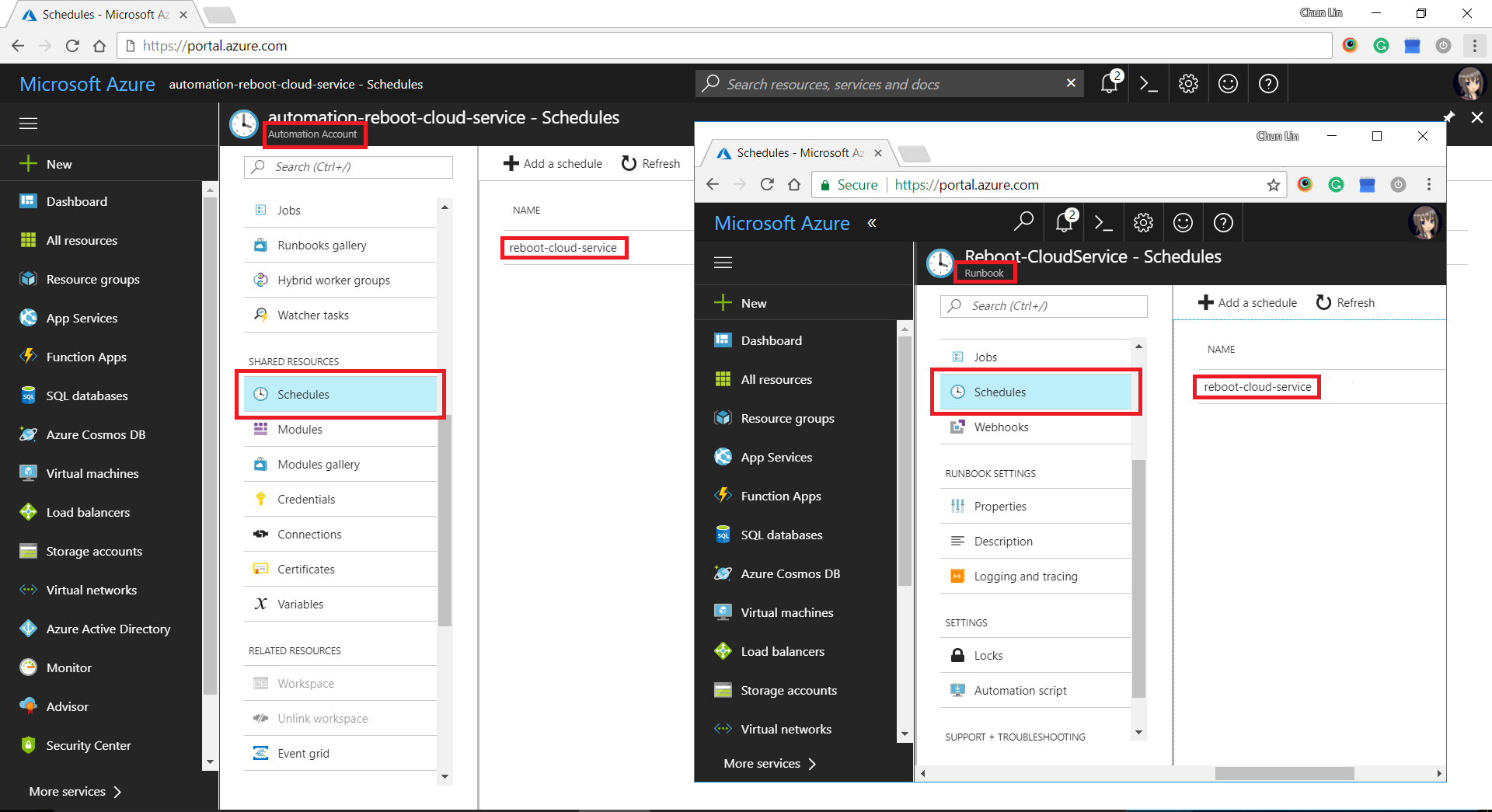
After setting up the Runbook, we need to define schedules in Automation Account and then link it to the Runbook.
Setting up schedule and linking it to the Runbook.
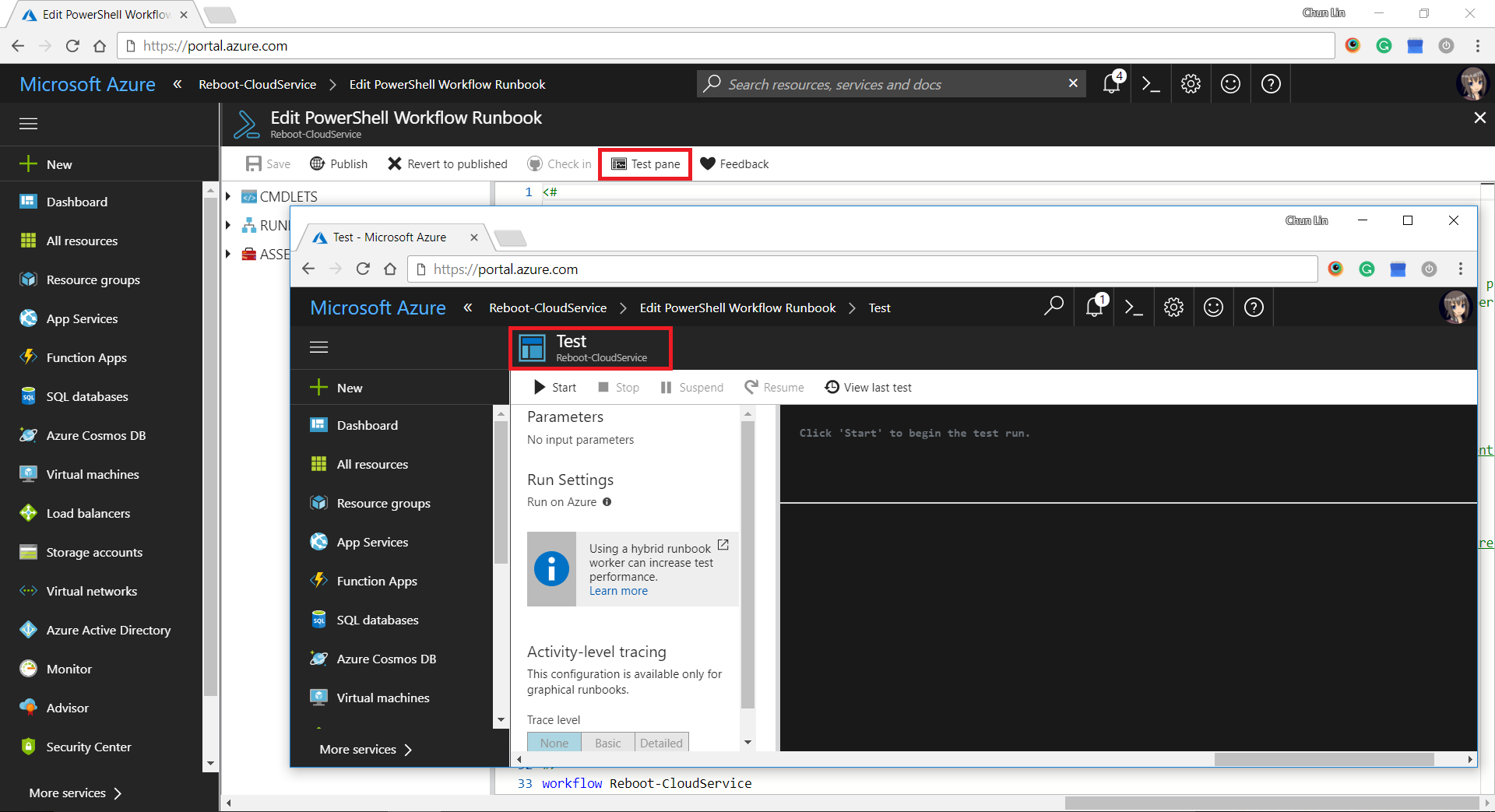
There is another tool in the Azure Portal that I find it to be very useful to debug my PowerShell script in the Runbook. It is called the “Test Pane”. By using it, we can easily find out if the PowerShell script is correctly written to generate desired outcome.
Test Pane available in Runbook.
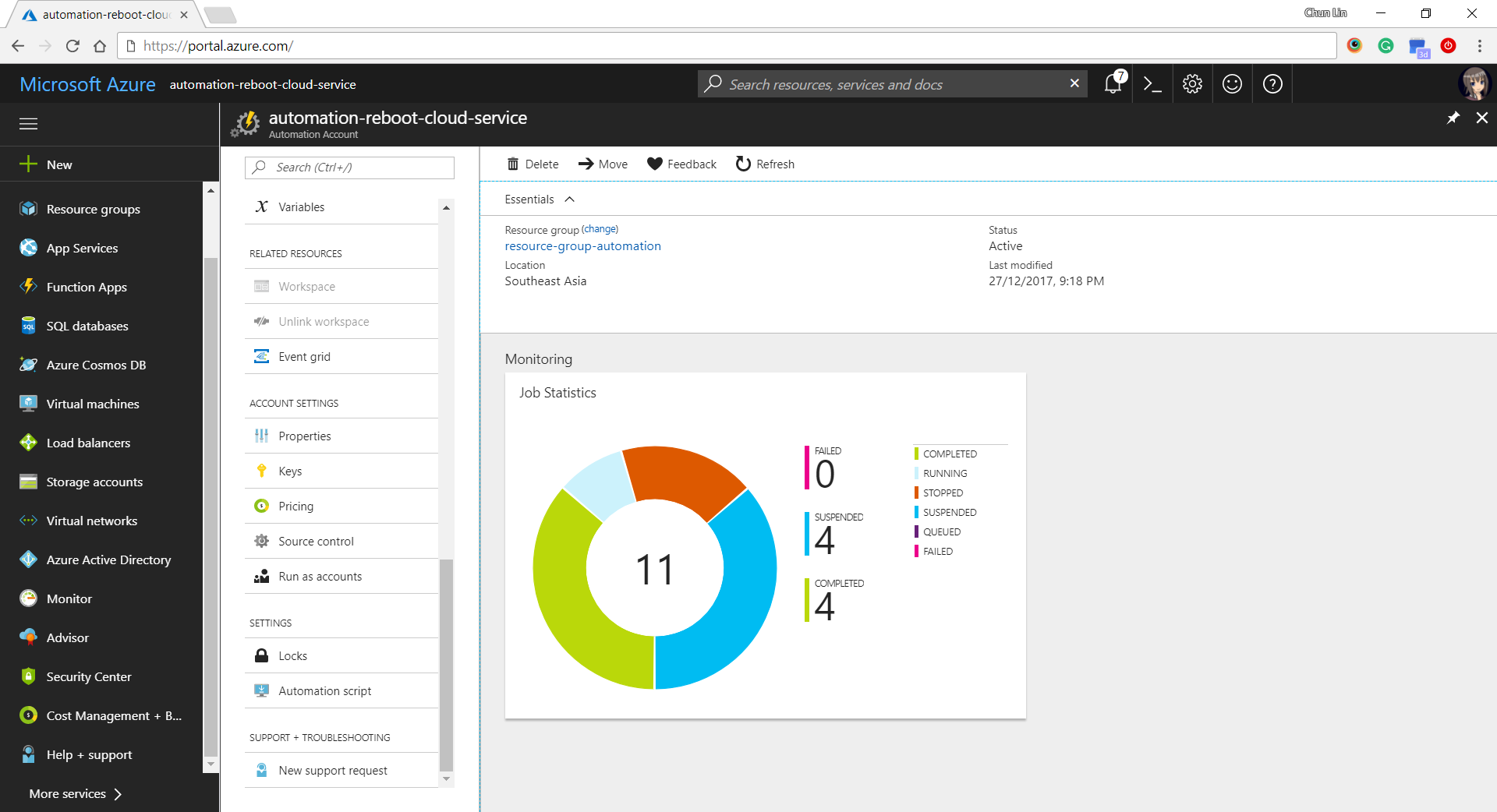
After that, we can easily get a summary of how the job runs on Azure Portal, as shown in the following screenshot.
Job Statistics of Azure Automation.
Yup, that’s all what I had learnt in the December while everyone was enjoying the winter festivals. Please comment if you find a better alternative to handle the challenges above. Thanks in advance and happy new year to you!
One month ago on 27th of March, my friend passed me a box of Estimote Proximity Beacons. That day marks the beginning of my journey towards a greater understanding of beacons and IoT.
Since the day I joined travel industry, I have always been thinking of providing a fun travel experience with beacon technology. When I joined Changi Airport team in 2015, I proposed to my manager the possibility of applying beacons in the airport. The idea was rejected. Now, I finally get the chance to build something with the small little Estimote Proximity Beacons.
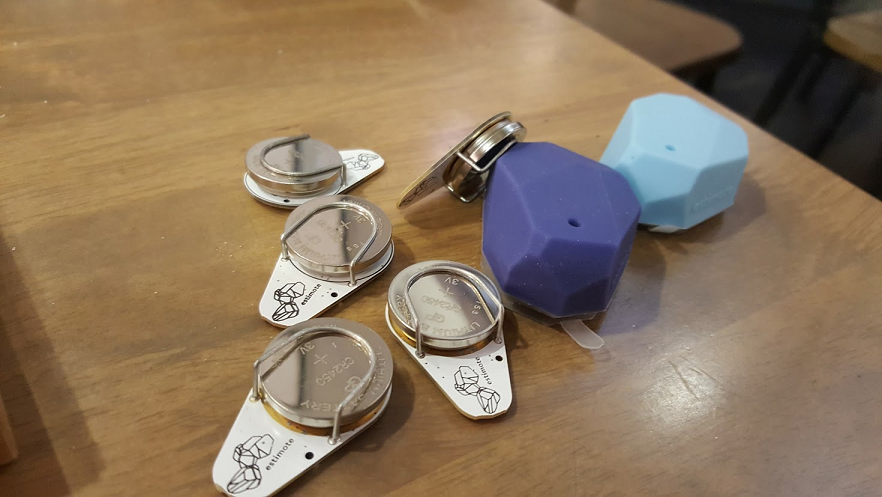
We forcefully opened up the beacons and replaced the batteries.
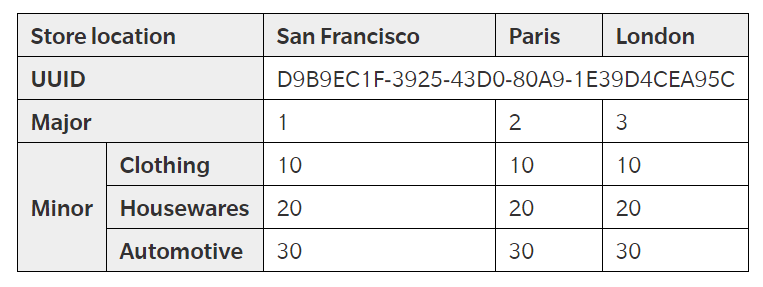
The three values are hierarchical. The purpose of UUID is to distinguish our beacons from all other beacons in the network. Major and Minor values allow us to label the beacons with higher accuracy.
An example of how a chain of retail shops will deploy and label their beacons. (Source: Estimote Developer Docs)
The iBeacon ID can be changed. One way is to use the Estimote app to do it. Since I wasn’t the owner of the beacons, my first step is to claim the beacon using the app. After I successfully claim the beacons, I can then proceed to retrieve detailed info of the beacons and modify their info.
Claiming beacon and modifying its info, such as its range (by default it’s ~3.5m).
package gclprojects.icymarshmallow;

...
import com.google.android.gms.common.ConnectionResult;
import com.google.android.gms.common.api.GoogleApiClient;
import com.google.android.gms.Nearby;
import com.google.android.gms.nearby.messages.Message;
import com.google.android.gms.nearby.messages.MessageListener;
import com.google.android.gms.nearby.messages.Strategy;
import com.google.android.gms.nearby.messages.SubscribeOptions;

public class MainActivity extends AppCompatActivity
        implements GoogleApiClient.ConnectionCallbacks,
        GoogleApiClient.OnConnectionFailedListener {

    private GoogleApiClient mGoogleApiClient;
    private MessageListener mMessageListener;
    ...

    @Override
    protected void onCreate(Bundle savedInstanceState) {
        super.onCreate(savedInstanceState);

        ...

        mGoogleApiClient = new GoogleApiClient.Builder(this)
                .addApi(Nearby.MESSAGES_API)
                .addConnectionCallbacks(this)
                .enableAutoManage(this, this)
                .build();

        mMessageListener = new MessageListener() {
            @Override
            public void onFound(final Message message) {
                // Called when a new message is found.
                // Use message.getType().toString() to read the attachment Type
                // Use new String(message.getContent()) to read the attachment Value
            }
        }
    }

    @Override
    protected void onStart() {
        super.onStart();
        mGoogleApiClient.connect();
    }

    @Override
    protected void onStop() {
        super.onStop();
        mGoogleApiClient.disconnect();
    }

    @Override
    public void onConnected(@Nullable Bundle bundle) {
        if (mGoogleApiClient != null && mGoogleApiClient.isConnected()) {
            subscribe();
        }
    }

    ...

    private void subscribe() {
        SubscribeOptions options = new SubscribeOptions.Builder()
                .setStrategy(Strategy.BLE_ONLY)
                .build();

        Nearby.Messages.subscribe(mGoogleApiClient, mMessageListener);
    }
}
With the codes above, when beacon gets detected by the mobile app, the onFound method gets called for each of the attachment associated with the beacons. If we print the variable message into Log, we shall see something as follows.
As shown above, the Value of the attachment is base64 encoded. So to read it, we just need to use new String(message.getContent()).
In the subscribe method, since we are only interested in messages attached to BLE (Bluetooth Low Energy) beacons, we use Strategy.BLE_ONLY.
Problem #1: Unsubscribe Method
When the app is running and another app comes into the foreground, we also need to stop subscribing to messages from the beacons. Otherwise, when we navigate back to the app, the messages can no longer be received even though we re-trigger the subscribe method.
Problem #2: Stop Receiving Messages After Few Minutes
Another problem I notice is that the messages will stop be “found” after one to two minutes. However, if I re-trigger the mobile app, then I can start seeing the messages being detected for another one or two minutes.
To solve this issue, I use a simple timer which helps to check whether it has been quite some time the app doesn’t detect the beacons. If it’s more than 1 minute, then the timer will do a unsubscribe-then-subscribe-again action. This will help the mobile app to keep receiving the messages from the beacons. It also solve the problem of the mobile app re-visiting the beacons.
Problem #3: Geo-Location
This is not a real problem if we don’t need the geo-location information of the beacons. However, if we need to know the geo-location of the beacon, one simple way is to just use the LocationManager which provides periodic updates of the mobile geographical location.
package gclprojects.icymarshmallow;

...
import android.location.Location;
import android.location.LocationListener;
import android.location.LocationManager;

public class MainActivity extends AppCompatActivity
        implements GoogleApiClient.ConnectionCallbacks,
        GoogleApiClient.OnConnectionFailedListener {
    LocationManager locationManager;
    ...

    @Override
    protected void onCreate(Bundle savedInstanceState) {
        super.onCreate(savedInstanceState);

        ...

        LocationListener locationListener = new LocationListener() {
            public void onLocationChanged(Location location) {
                // Record down the latitude and longitude of the mobile
            }

            ...
        }

        locationManager = (LocationManager) this.getSystemService(Context.LOCATION_SERVICE);

        int permissionCheck = ContextCompat.checkSelfPermission(this, Manifest.permission.ACCESS_FINE_LOCATION);
        if (permissionCheck == PackageManager.PERMISSION_GRANTED) {
            locationManager.requestLocationUpdates(LocationManager.NETWORK.PROVIDER, 0, 0, locationListener);

            ...
        }
    }
}
Writing Data to Firebase
This step is optional unless the data collected needs to be stored for future use.
I use the following codes to write the beacon data to Firebase database.
package gclprojects.icymarshmallow;

...
import com.google.firebase.database.DatabaseReference;
import com.google.firebase.database.FirebaseDatabase;

public class MainActivity extends AppCompatActivity
        implements GoogleApiClient.ConnectionCallbacks,
        GoogleApiClient.OnConnectionFailedListener {
    private DatabaseReference mDatabase;
    ...

    @Override
    protected void onCreate(Bundle savedInstanceState) {
        super.onCreate(savedInstanceState);

        ...

        mDatabase = FirebaseDatabase.getInstance().getReference();

        mMessageListener = new MessageListener() {
            @Override
            public void onFound(final Message message) {
                ...

                Beacon beaconInfo = new Beacon(...);

                Format formatter = new SimpleDateFormat("yyyy-MM-dd-HH:mm:ss");
                mDatabase.child("Person A")
                        .child(formatter.format(new Date())
                        .setValue(beaconInfo);
            }
        }
    }
}

...

public class Beacon { ... }
Successfully recorded the data from beacons in my Firebase database!
To integrate our Android app with Firebase, our friendly Android Studio comes with a tool called the Firebase Assistance which will help us connect to the Firebase. The assistance also comes with short getting-started tutorial to show us how to cinfigure and add realtime database to our mobile app.
Spot the beacon. =)
Installing Beacons in Changi Airport
Installing beacons in our Changi Airport is always one of my dreams to enhance the experience of millions of travelers flying in and out of the airport. In fact, currently the Armsterdam city is already making use of beacon technology to build a powerful beacon networks to give the people a better experience when they are walking around in the city. So why can’t we do the same in our friendly Changi Airport? =)
The Internet of Things (IoT) is here today, and it begins with the data, devices, and services already at work in your organization. When your “things” are connected to each other and to the cloud, you create new ways to improve efficiency, enable innovation, and transform your business.
Gerald is sharing Azure IoT Hub during the lunchtime workshop.
IoT hasn’t gone totally mainstream, however, and we have yet to feel its impact. In many ways it is roughly where the big data movement was few years ago — consisting mainly of a buzzword that’s not yet widely understood.
Nevertheless, Gerald’s workshop does give me, a web developer who doesn’t know much about this field, a helpful quick start about IoT. After reading and experimenting, I learn more about the capability of Microsoft Azure in IoT and thus I’d like to share with you about what I’ve learnt so far about Azure IoT Hub.
Message Broker
I’m working in Changi Airport. In the airport, we have several shops serving the travelers and visitors. Most of the shops have a back-end system that integrates several systems such as the retail system, e-commerce website, payment system, Changi Rewards system, inventory management system, the finance system.
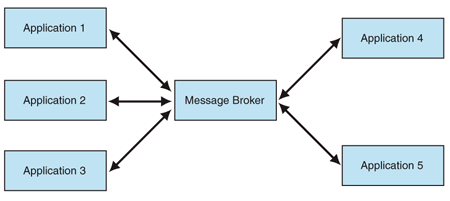
So there will be cases where, when a customer buys something at the shop, the retail system needs to send as request to the payment system. Then when the purchase is successful, another purchase request will be sent to the inventory management system and the finance system.
I’m not too sure how the shops link different systems, especially this kind of point-to-point integration will cause a large number of connections among the systems. Hence, the developers of their system may find Message Broker useful.
Besides AMQP, MQTT (Message Queue Telemetry Transport) is another open protocol based on TCP/IP for asynchronous message queuing which has been developed and matured over past few years.
Dr Andy Stanform-Clark from IBM invented the MQTT protocol. (Image Source: IBM – Wikipedia)
While AMQP is designed to provide the full vibrancy of messaging scenarios, MQTT is designed as an extremely lightweight publish/subscribe message transport for small and simple devices sending small messages on low-bandwidth networks. Hence, MQTT is said to be ideal for mobile applications because of its low power usage and minimized data packets.
When two or more systems want to exchange information, they need a communication facilitator. This is where Microsoft Azure Service Bus comes into picture.
One of the messaging patterns offered in Azure Service Bus is called Service Bus Messaging, or Brokered Messaging. By using it, both senders and receivers do not have to be available at the exact same time.
In AMQP transport mode, the client library of sender will serialize the brokered message into an AMQP message so that the message can be received and interpreted by a receiver running on a different platform.
Since Event Hubs only enable event ingress, i.e. C2D, Azure offers another service, IoT Hub, for both C2D and D2C (Device-to-Cloud) communications which are reliable and secure. Not only allowing bi-directional communication, IoT Hub also supports AMQP, HTTP, and MQTT.
In a Hello World tutorial of connecting stimulated device to IoT Hub using C#, there is a way to add device and retrieve device identity programmatically as shown below.
The Registry Manager, which is connecting to the IoT Hub using a Connection String with proper Policy, will add an device identity with the Device ID “gclRasPi2” to the Device Explorer in Azure.
The device “gclRasPi2” is now in the Device Explorer.
After doing so, a message then can be sent from (stimulated) device to the IoT Hub. For example, the device wants to send data about the temperature and humidity at that moment using MQTT, we can use the following code.
var deviceClient = DeviceClient.Create(
    iotHubUri,
    new DeviceAuthenticationWithRegistrySymmetricKey("gclRasPi2", deviceKey),
    TransportType.Mqtt);

var telemetryDataPoint = new
{
    deviceId = "gclRasPi2",
    temperature = currentTemperature,
    humidity = currentHumidity
};

var messageString = JsonConvert.SerializeObject(telemetryDataPoint);

var message = new Message(Encoding.ASCII.GetBytes(messageString));
message.Properties.Add("temperatureAlert", (currentTemperature > 30) ? "true" : "false");

await deviceClient.SendEventAsync(message);
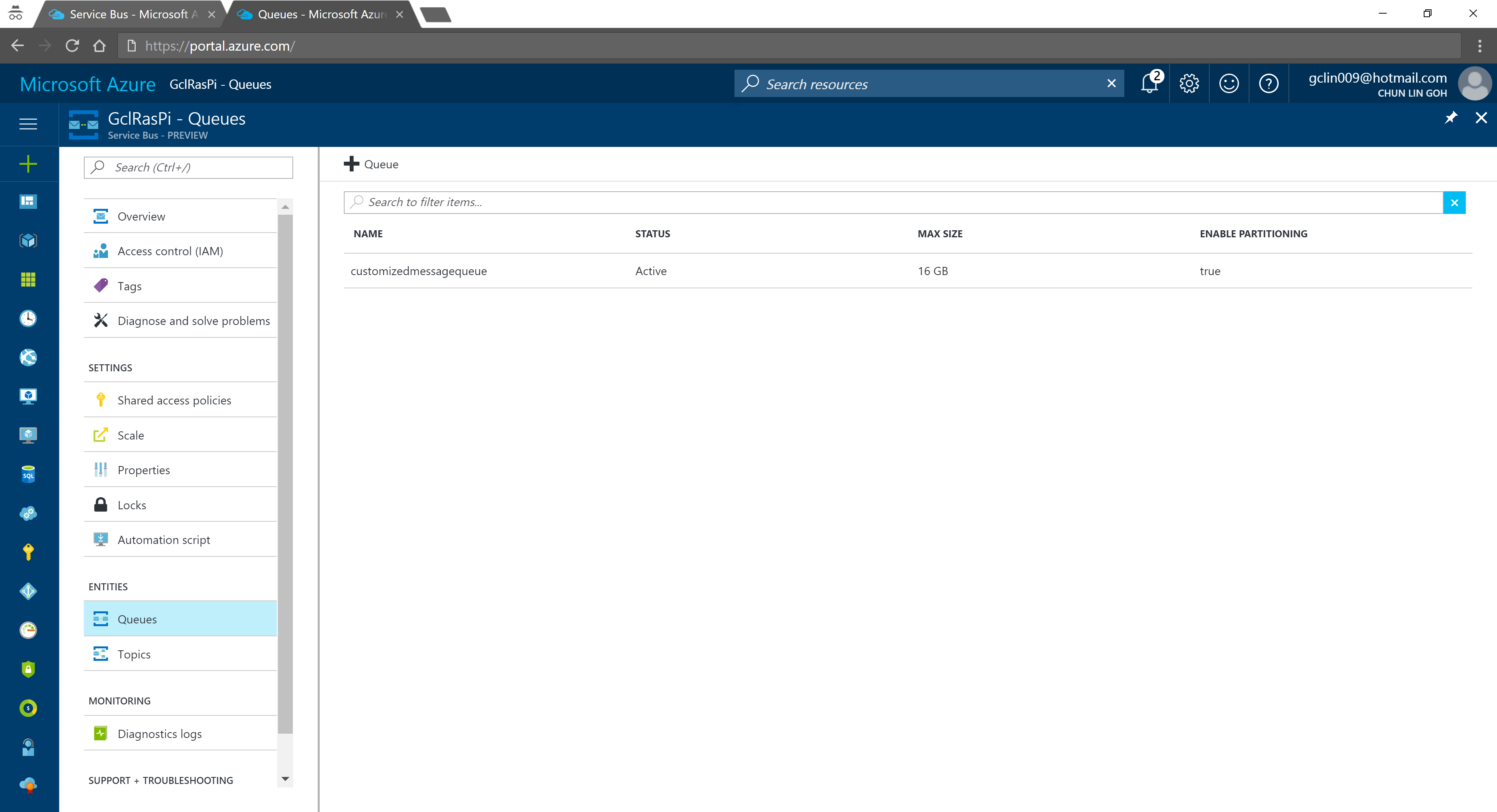
According to the tutorial, we first need to setup a Service Bus queue in the same Azure subscription and region as our IoT Hub.
Created a Queue in the Service Bus.
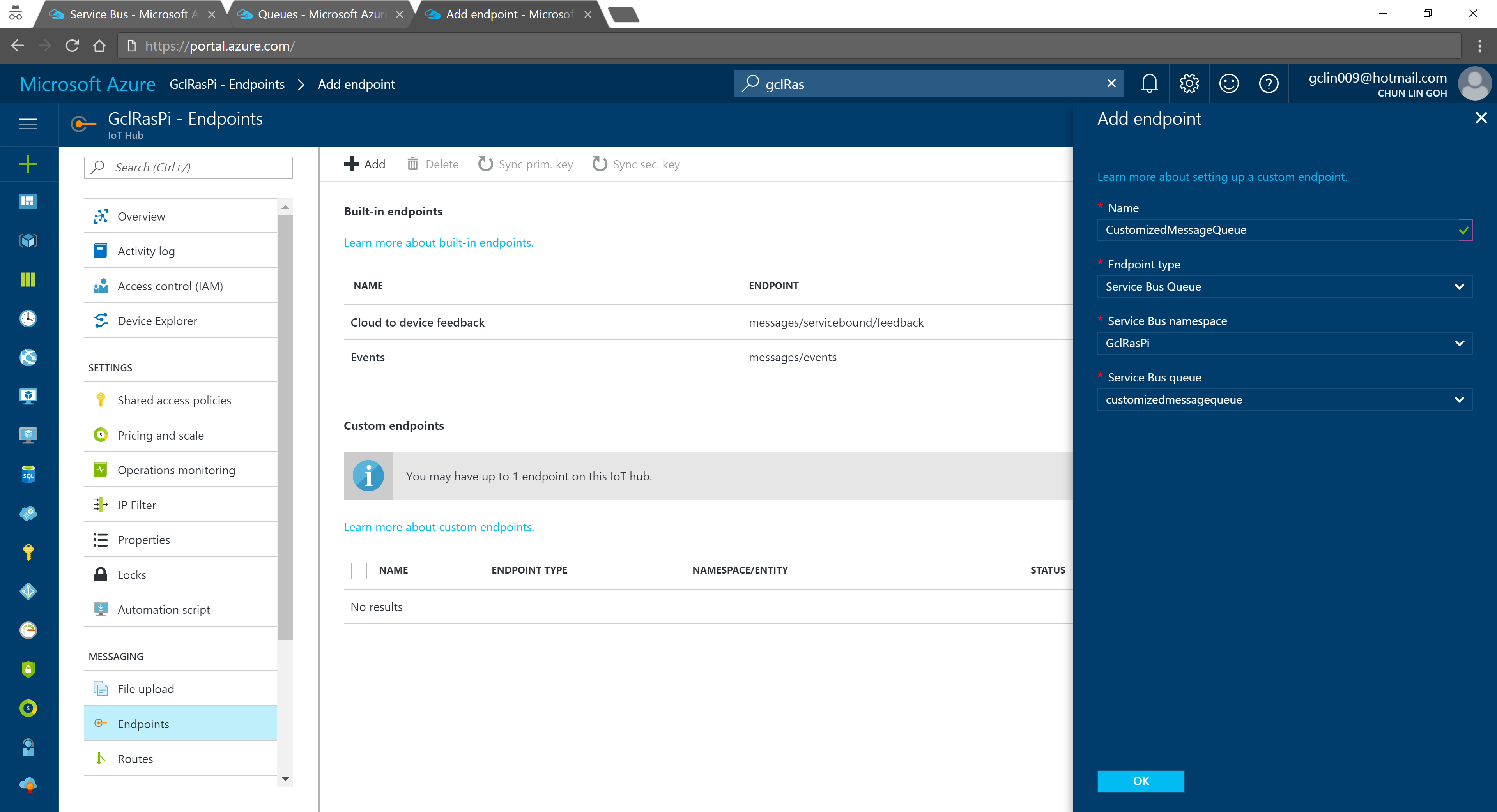
We can then add an Endpoint in the IoT Hub for the queue we just created. As shown in the following screenshot, there is a message saying that “You may have up to 1 endpoint on the IoT hub.” This is because I am using the free IoT Hub. For its paid versions, only at most 10 custom endpoints are allowed.
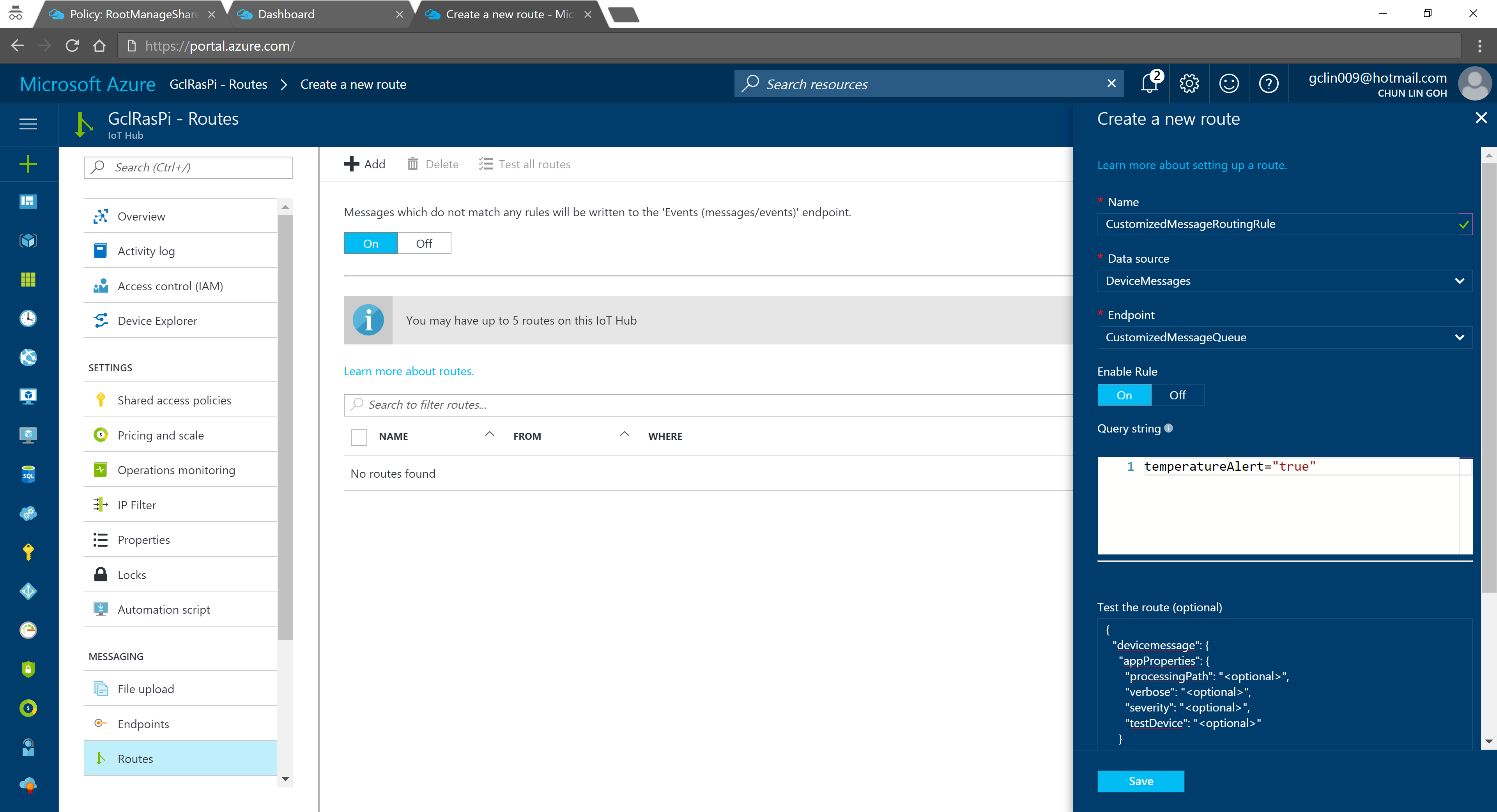
In the query string, I used temperatureAlert = “true” as the condition. Also, as shown on the screenshot above, there is a line saying “Messages which do not match any rules will be written to the ‘Events (messages/events)’ endpoint.” Hence, the following two console applications will show different results: The left one is connecting to the messages/events endpoint while the right one is showing messages that match the CustomizedMessageRoutingRule created above.
Only data with temperatureAlert = “true” will be sent to the “CustomizedMessageRoute”.
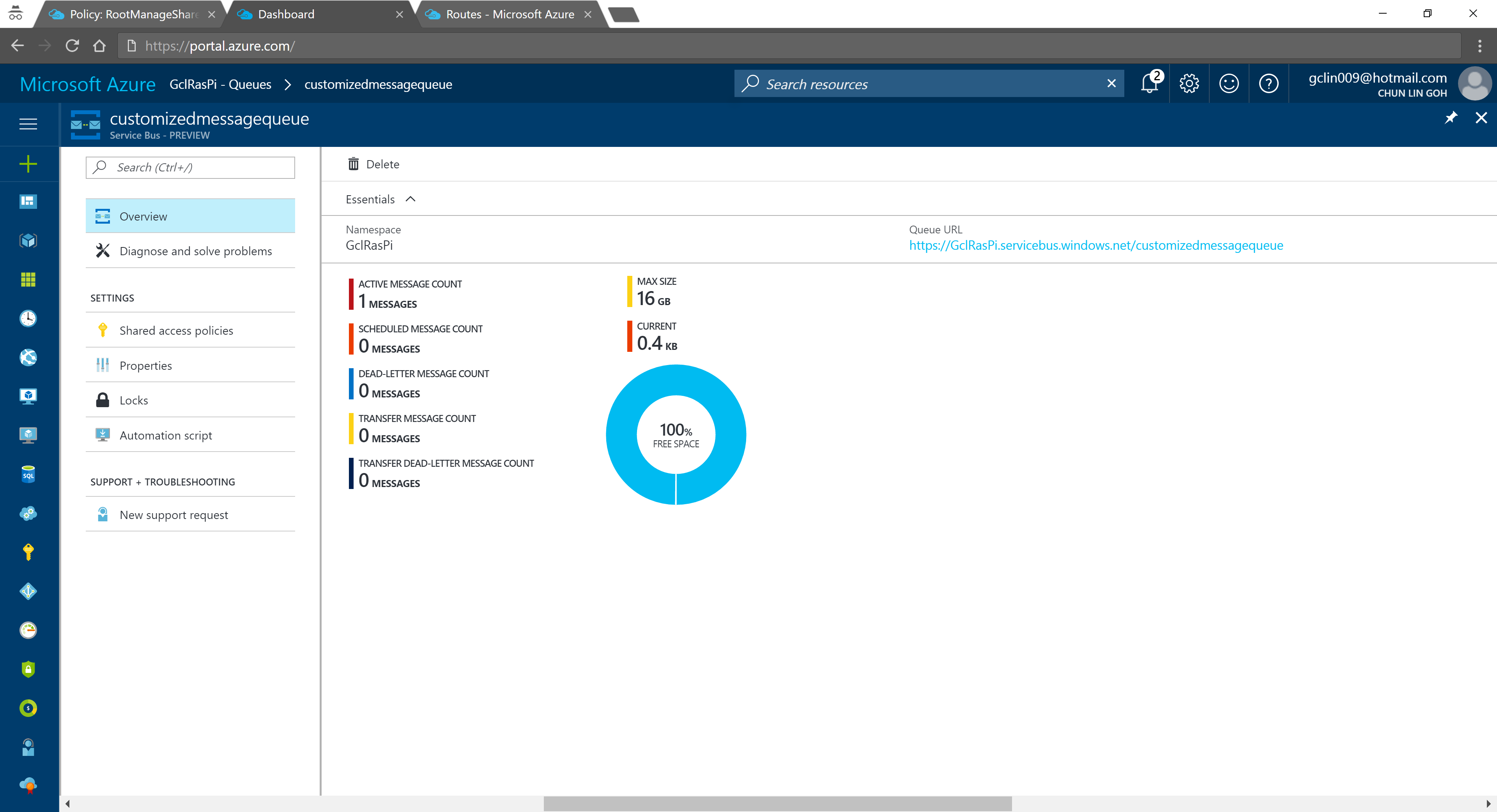
Now if we visit the Service Bus Queue page and IoT Hub page again, we will see some updates on the numbers.
Usage statistics in Service Bus Queue.
2% of 8k messages sent from the stimulated device console application.
Conclusion
That’s all about my first try of Azure IoT Hub after attending the workshop delivered by Gerald. It’s a great lunchtime workshop.
This is just the beginning of my IoT learning journey. There are still more things for me to learn, such as Azure Stream Analysis and Microsoft Azure IoT Suite which is briefly brought up in the booklet mentioned above.
If you spot any mistake in this article or you have more to talk about IoT and in particular IoT in Azure ecosystem, please share with me. =)









 cuteprogramming