Building COVID-19 Dashboard in Golang with Google BigQuery

It has been almost half a year since the first case relating to the COVID-19 pandemic in Singapore, the country I am now working at, was confirmed. Two days after the first case was confirmed in Singapore, eight travellers entering Malaysia, my home country, from Singapore were confirmed to be infected as well.

Since then, we were asked to work from home as travel restriction is applied in both countries. While the situation is not getting better, it’s quite disappointing to know that there are still people believing that COVID-19 is a hoax.

Fortunately, there are still a lot more people working hard in this tough period. Earlier on, my friend who is doing research in Colorado told me that she’s working hard with a group of scientists to educate the public about the virus.

🎨  People endured hours-long queues to enter Singapore from Malaysia before the travel restrictions to curb the spread of COVID-19 came into force. 🎨 

In addition, to aid the researchers and data scientists in an effort to combat the pandemic disease, Google BigQuery also decided to host a repository of public datasets from JHU CSSE (Johns Hopkins Center for Systems Science and Engineering). With the public datasets, we can now query up to 1TB for free each month on COVID-19 datasets and the queries over COVID-19 data are free (until 15th of September 2020).

In my previous article, I talked about how Google BigQuery could work together with Google Data Studio to render beautiful reports without any coding. Thus, in this article, I will show how we can write a simple web client in Golang to fetch data from the BigQuery via its API.

BigQuery Public Datasets Programme

There are a huge number of datasets hosted by Google where we can access and integrate them into our applications but Google pays for the storage. Using the public datasets, we only need to pay for the queries we perform on the data.

🎨  There are a lot of public datasets available in the GCP Marketplace. 🎨 

In order to access the public datasets, we first need to enable them through the Google BigQuery documentation (I find this to be quite funny because Google makes the enabling link to be so hidden). In the “Using the Web UI” page, as shown in the screenshot below, we can then find an URL which will let us open the public datasets project manually through browser (Remember to update the &page=project to your project in GCP).

There are also detailed steps written in the documentation of Data Analytics Products (Yes, the same info is spread all over different places).

🎨  The link to enable the public datasets in the web UI. 🎨 

The COVID-19 Dataset

Once we have done the steps above, we shall see the public datasets, including the COVID-19 datasets, available in our Google BigQuery. The dataset that I will be using in this article is the covid19_jhu_csse, a daily updated data repository for COVID-19 from JHU CSSE.

🎨  The covid19_jhu_csse dataset. 🎨 

There are four tables under the dataset where the first three recording the number of confirmed cases, the number of reported deaths, and the number of recovered cases, respectively, in each of the country or region.

The interesting about the first three tables is that they recorded the numbers of each day in a separated column. Hence, every day, there will be one new column added to three of the tables. I’m not sure why they do so but this actually requires us to write our own client in order to get the data. Google Data Studio cannot work well with dynamic column names.

🎨  A column for each of the day. 🎨 

Luckily, there is a fourth table called summary which actually has just one date column and every record for each day is one row instead of one column. This is a more SQL-friendly table and can be integrated with Google Data Studio easily.

🎨  The summary table is more SQL-friendly because the date is stored in just one column. 🎨 

In this article, I will demonstrate using 1st, 2nd, and 4th table in order to show how we can programmatically get the data through the BigQuery API.

BigQuery Client Library for Golang

There are many client libraries of Google BigQuery for different types of programming languages, including C#. In this article, we choose to use Golang.

Before we proceed, we need to make sure that we have already enabled the BigQuery API for our project in the GCP. From the GCP Cloud Console, we will get the credential which will allow us to connect to the Google BigQuery and thus we must keep this credential file in a safe and secret place.

Now we can proceed to build our Golang client.

Firstly, we need to install the client library using go get command.

go get -u cloud.google.com/go/bigquery

Secondly, we need to initialise a Google BigQuery client.

ctx := context.Background()
client, err := bigquery.NewClient(ctx, projectID)

if err != nil {
    log.Fatalf("bigquery.NewClient: %v", err)
}

defer client.Close()

Querying the Tables

Next, we can start to query the data in the BigQuery.

rows, err := queryData1(ctx, client)
if err != nil {
    log.Fatal(err) 
}

queryResult := processQueryResult1(rows)

If we have other different queries for different tables or even datasets, we can continue to query in the same way as above.

So what does queryData1 look like? It is basically as simple as follows.

func queryData1(ctx context.Context, client *bigquery.Client) (*bigquery.RowIterator, error) { 
    query := client.Query("<SQL here>")
    
    return query.Read(ctx)
}

For example, if we are fetching the date as well as numbers of confirmed cases and deaths, we will be using the the following SQL.

`SELECT 
    CAST(date as STRING) as date, 
    IFNULL(confirmed, 0) as confirmed_cases, 
    IFNULL(deaths, 0) as deaths 
FROM ` + "`bigquery-public-data.covid19_jhu_csse.summary`" + ` ORDER BY date;

There are a few things to take note here is the use of CAST.

It casts the date field to string otherwise we may encounter problems such as having error of “schema field date of type DATE is not assignable to struct field date of type time.Time” when we unmarshal the returned JSON from the BigQuery in Golang later. The reason why I choose CAST is because casting from a date type to a string is independent of time zone and is of the form YYYY-MM-DD.

In addition, we also use IFNULL to make sure that the value in the confirmed_cases and deaths are always non-negative integers. In the original tables, the numbers can be null.

Now, we just need to have a struct where we can apply RowIterator.Next() to load each row into it. The struct that corresponding to the SQL above is as follows.

type QueryResultDataRow struct { 
    Date           string `bigquery:"date"` 
    ConfirmedCases int64  `bigquery:"confirmed_cases"` 
    Deaths         int64  `bigquery:"deaths"`
}

To iterate, we can use the code below.

func processQueryResult1(iter *bigquery.RowIterator) []QueryResultDataRow { 
    var result []QueryResultDataRow

    for { 
        var row QueryResultDataRow

        err := iter.Next(&row)

        if err == iterator.Done { 
            break 
        }

        if err != nil { 
            log.Print(err) 
            continue 
        }

        result = append(result, row) 
    }
    
    return result
}

Here, I’d like to share that there was a mistake I made when I wrote the code above. I forgot that I should end the for loop when the iterator is done, i.e. when err == iterator.Done. So the return statement will never reach. Please take note of this when you are writing this type of iteration.

Challenge: The Tables Having Dates as Columns

If you would like to challenge yourself to retrieve the data from the tables having dates as their columns, it is possible too, just with a few challenges.

First challenge is that we are not sure when the dataset will be updated. So, we can never be sure for the value of the last column. Since the dataset will be updated daily, to be safe, we can let the date of two days ago to be the last column in our query.

Second challenge is the format of the date. We cannot use the Golang magical reference date (Mon, Jan 2 15:04:05 MST 2006) to format the date because of the underscores found in the column name. There is a very interesting discussion about the origin of the magical reference date on Stack Overflow, in case you are interested, but it’s not important here. Hence, we will use the following code to format the date instead.

latestDateInQuery := fmt.Sprintf("_%v_%v_%v", int(d.Month()), d.Day(), d.Year() - 2000)

So the following code will help us to get the count from the second latest, if not the latest, column.

latestDate := time.Now().AddDate(0, 0, -2)
latestDateInQuery := fmt.Sprintf("_%v_%v_%v", int(latestDate.Month()), latestDate.Day(), latestDate.Year()-2000)

Once we get the column name, we can then use it in the following query.

`SELECT 
    IFNULL(province_state, "") AS place, 
    country_region, 
    latitude, 
    longitude, 
    (` + latestDateInQuery + `) AS count 
FROM ` + "`bigquery-public-data.covid19_jhu_csse.confirmed_cases`;"

Visualising the Data

With the queries above, we can then easily generate results with Google Charts. Here, I use the Line Chart and the GeoChart.

🎨  The COVID-19 dashboard powered by Golang and Google BigQuery. 🎨 

There is an interesting feature in GeoChart is that, by default, when we are using latitude and longitude instead of the address to identify the places, the text shown on the map tooltip will be the latitude and longitude, which is not user friendly. However, we can actually change the text by putting a description column right after the longitude column, as discussed over here on Google Groups. It’s interesting because this is said to be an undocumented support for such a column. So we’re not sure where this will stop working.

Next, I am using web page done with Material Design to display the charts. Please enjoy the following screenshots.

🎨  Charts showing the situation in both of my beloved countries. 🎨 
🎨  Top 10 countries having the most confirmed cases. 🎨 
🎨  The global situation where we locate the places with latitudes and longitudes. 🎨 

That’s all for the COVID-19 dashboard done using Golang and Google BigQuery. Also, thanks to JHU CSSE and Google, we are able to access to such an important data for free.

Finally, I’d like to wish all of you and your loved ones to stay safe and healthy.

🎨  A nurse checks the temperature of a visitor as part of the COVID-19 screening procedure. (Photo Credit: The Straits Times) 🎨 

Building Driver Tracking System with Eventing in Microsoft Azure

Recently due to the coronavirus pandemic, ordering food from online platform becomes one of the popular choices here. Drivers will deliver the food to us without us leaving our house to pickup the food from the restaurants.

The drivers are all equipped with a smart phone that will send I’m not sure how those online food ordering platforms design their backend system to track the drivers. However, today I’d like to suggest how we can build such driver tracking system with Azure Event Hub and Stream Analytics.

The Traditional Approach

Previously, the approach that I took to build such system by building a Web API which provides endpoints for the mobile devices (assuming to be only Android and iOS) to send the GPS data to. Then our Web API will save the data to CosmosDB, which is a good choice for any serverless application that needs low order-of-millisecond response times.

However, this approach is costly in terms of hosting and maintainability, especially with the expensive CosmosDB even though there is now a free tier available for CosmosDB starting March 2020. Also it is not scalable unless we spent extra time working on the infrastructure to load balance the Web APIs and the reporting servers.

So, let’s see how we can use the robust Azure services and Microsoft tools to help us build a better tracking system.

Eventing in Azure

As we all know, GPS reporting of drivers in delivery industry needs real-time processing and the volume of data is always huge to a certain level that there are millions of events happening in every second.

Hence, in this article, I’d like to share with you all an alternative, which is cheaper (unfortunately, not free) and more scalable with higher maintainability.

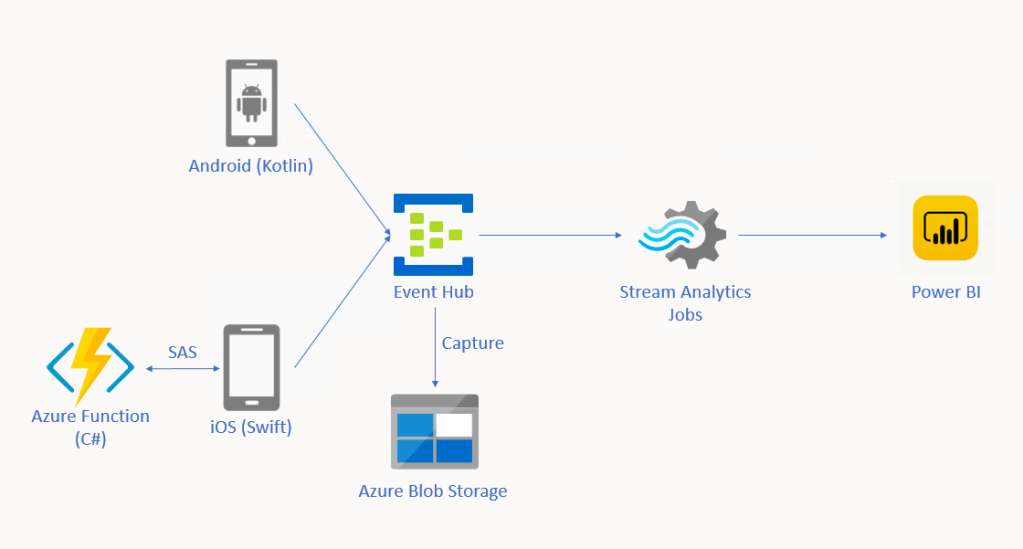
🎨  Alternative solution for driver tracking system with Eventing in Microsoft Azure. 🎨 

In this approach, we will be using tools such as Event Hub, Stream Analytics, and Power BI. There is also Azure Function needed for iOS side which I will explain why later in this article.

Event Hub

As shown in the diagram above, we remove the needs of building the API endpoints and maintaining a reporting module ourselves. Instead, we have Event Hub, a serverless Big Data streaming platform and event ingestion service which can provide real-time event processing and is able to stream million of events per second. Since it’s a serverless setup, we don’t need to provision server resources to handle the events and we also don’t have to pay for large upfront infrastructure cost.

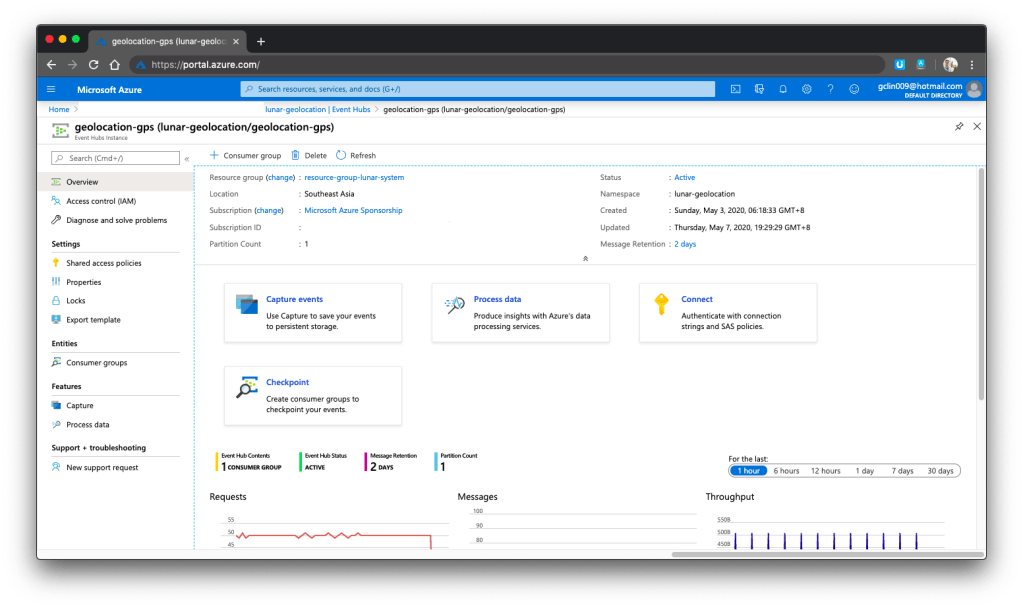
🎨  One of my event hubs that is receiving geolocation data from the mobile devices. 🎨 

Since Event Hub is an open multi-platform, it accepts a range of input methods. So later we shall see how data can be sent to Event Hub from both Android app and iOS app directly.

Event Hub Namespace Throughput Unit

There is a very interesting property in Event Hub Namespace called the Throughput Unit (TU), which is the amount of work that we want to assign to the namespace.

1 TU gives us 1MB/s ingress or 1,000 events/s and 2MB/s outgress or 2,000 events/s. We can scale our namespace up to 20 TUs.

🎨  Scaling the event hub namespace by its TU. 🎨 

In the screenshot above, we can see that there is also a functionality to auto-inflate our namespace which will auto scale-up the TU to a defined limit. This is good for handling sudden peak in volume. However, take note that there is no auto-deflate, so once the TU goes up, we need to use another way to scale it down when the peak is over.

One more thing to take note here is that the TU is shared among the Event Hubs under the namespace.

Capture in Event Hub

By default, Event Hub can store the data for one day. We can adjust it to be the maximum, which is 7 days (in Standard pricing tier only). This is to remind us that Event Hub should not be used as a data storage.

However, with the easy integration of Event Hub with the Azure Stream Analytics, Event Hub can serve as input of the Stream Analytics and output the data to places such as Power BI for data analysis and visualisation or SQL / Azure Storage for data storage.

In addition, we can also enable the Capture function in Event Hub. Capture will automatically persist the data to Azure Storage with no administrative cost. This is the easiest way to load streaming data into Azure without the need of Stream Analytics. The captured streaming data will be stored in the AVRO format which has the data serialised in a compact binary format.

🎨  Viewing the captured streaming data in Azure Storage on the portal. 🎨 

Mobile Clients

Now with the Event Hub setup, we will proceed to discuss how we can send data from our mobile devices to the Event Hub.

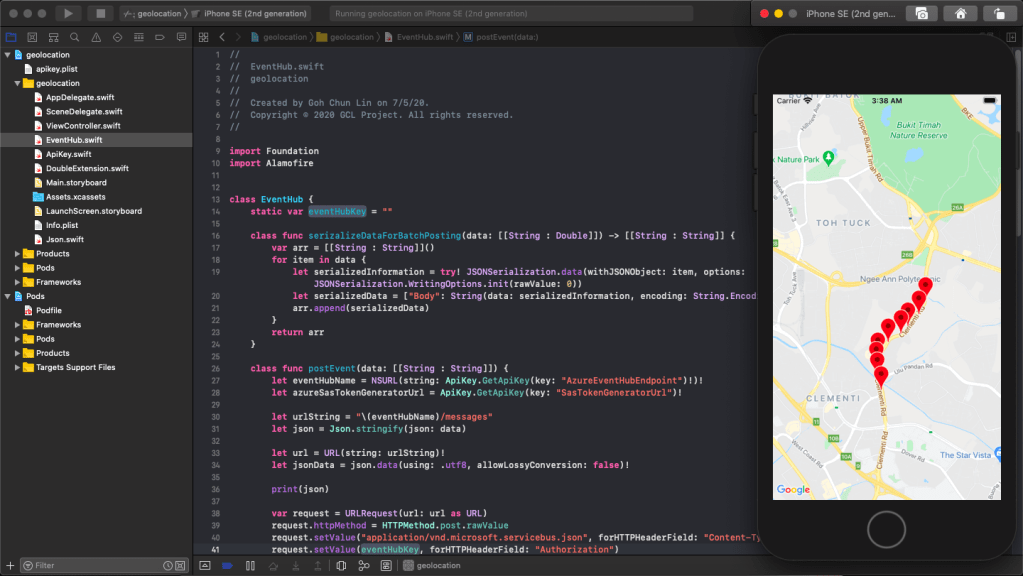
🎨  “Driving” on iOS Google map. 🎨 

Unfortunately, there are very little documentation about how to do this online, especially on Kotlin/Swift + Event Hub. Hence, I hope this article can help somebody out there who are interested in similar approach.

Since during the coronavirus pandemic, we are advised not to leave our house so how do I test in such a situation? I thus decide to cheat a bit here. Instead of using the actual mobile location, I will be running my apps on the emulator/simulator. What the apps do is then collecting the latitude and longitude of the points that I click on the app and send them to the Event Hub.

Connecting Android App with Event Hub

GitHub Repo: https://github.com/goh-chunlin/Lunar.Geolocation.Android

In the system, we have both Android and iOS mobile devices that will send GPS data of the users to the Event Hub. For the Android, I will be using Kotlin because it’s the modern recommended way of developing Android app.

If you are interested in using Java, Microsoft has a documentation for connecting Android app to Event Hub in Java. So far I still can’t find Microsoft documentation on using Kotlin to do this task, hence I will be using Kotlin.

Having said that, I will still be using the existing Java client library for Event Hub from the repository. However, there are a few configurations we need to take care of in order to use this Java library.

Firstly, we will add the dependency to the project as follows in the build.gradle of the app.

dependencies {
    ...
    implementation 'com.azure:azure-messaging-eventhubs:5.0.3'
    ...
}

Secondly, there is a need to make adjustment to our gradle file to specify the compatibility of Java in the compileOptions as shown below.

compileOptions {
sourceCompatibility JavaVersion.VERSION_1_8
targetCompatibility JavaVersion.VERSION_1_8
}

Without doing so, it will complain that no methods found for the Event Hub.

Thirdly, there are two markdown files in conflict after we add the library to the project. We can fix that by doing pickFirst.

packagingOptions {
pickFirst 'META-INF/LICENSE.md'
pickFirst 'META-INF/NOTICE.md'
}
🎨 Geolocation data will be sent in batches. 🎨

Another thing why we choose Event Hub is that it allows us to send data in batches. The following function shows how to send data in batch to the Event Hub.

private fun sendLatitudeAndLongitudeDataToAzure() {
    var producer = EventHubClientBuilder()
        .connectionString(BuildConfig.AZURE_EVENT_HUB_CONNECTION_STRING, BuildConfig.AZURE_EVENT_HUB_NAME)
        .buildProducerClient()

    val batch = producer.createBatch()

    recentLatitudeAndLongitudeRecords.forEach {
        batch.tryAdd(EventData(it))
    }

    if (batch.count > 0) {
        producer.send(batch)
    }

    producer.close()
}

The variable recentLatitudeAndLogitudeRecords is a collection of all recent latitude and longitude data collected by the device. In my demo code, which is not shown above, I make it to hold 10 records. So in just one send command, 10 geolocation records will be sent altogether to the Event Hub. The devices thus do not need to make multiple connections to the server to send multiple records.

I only highlighted the key points here for programming an Android app in Kotlin to connect to the Azure Event Hub. The complete demo code is available on GitHub for those who want to find out more about how we can integrate Event Hub in Android projects.

Connecting iOS App with Event Hub

GitHub Repo: https://github.com/goh-chunlin/Lunar.Geolocation.iOS

We should be glad that there is still Event Hub documentation and library available for Android platform because for iOS, there is basically nothing, not even an Event Hub SDK for iOS from Microsoft.

Luckily, there is an excellent blog post on how to connect iOS app to Event Hub written by Luis Delgado back in April 2016. Hmm… 2016? That was written when the President of the USA was still Barack Obama! As we can see, that article is quite outdated so I decided to write down a newer approach on how I do it with Swift 5.

🎨  Barack Obama served as the 44th president of the United States from 2009 to 2017. (Image Credit: CBS News) 🎨 

Since there is no Event Hub SDK for iOS, we have to use its REST APIs instead. For using Event Hub REST APIs, we first need to programmatically generate a SAS (Shared Access Signature) token in order to call the APIs.

This is where the Azure Function comes into picture. In Luis’ blog post, he setup an Azure Web App to host a NodeJS application which will generate SAS token. To be more cost effective, we will be using Azure Function with a short and sweet C# code as shown in the Microsoft documentation.

🎨  Simple C# code to generate SAS token (Please refer to my GitHub repo and its README file for the complete code). 🎨 

With this, then we can then use Alamofire, an HTTP networking library, to make a request to the Azure Event Hub. To send batch data, we first need to make sure the message body to have a valid JSON payload, which is something as follows.

[
{"Body": "<stringify of the record 01 JSON object to send>"}, 
{"Body": "<stringify of the record 02 JSON object to send>"}, 
...
]

We then also need to make sure we have set the Content-Type header to “application/vnd.microsoft.servicebus.json”. For more details, please refer to the Microsoft documentation on sending batch data.

Of course, here I also highlight only the key points to successfully send event data in batch from iOS using Swift 5 to Azure Event Hub. If you would like to find out more, I have my entire demo project for this available on my GitHub repository, please review it.

🎨 Running the app which is sending data to the Event Hub on iPhone simulator. 🎨

Stream Analytics

With the events sent from the mobile devices to the Event Hub, we now can link the Event Hub with the Stream Analytics. Take note that Stream Analytics is just one of the many ways of pulling data from the Event Hub. For example, if you are familiar with Apache Storm, you can link it up with that too.

Stream Analytics is a real-time analytics and complex event-processing engine that is designed to analyse and process high volumes of fast streaming data from multiple sources simultaneously. Besides Event Hub, it can also accept inputs from IoT devices or Blob Storage.

The reason why we choose Stream Analytics in our solution is that it requires no upfront infrastructure setup and it is easy to configure and scale.

Consumer Groups in Event Hub

The publish/subscribe mechanism of Event Hubs is enabled through consumer groups. Hence, when we are creating a new Stream Analytics Job, we need to specify the consumer group that we are going to use.

Consumer groups enable multiple consuming applications to each have a separate view of the event stream, and to read the data stream independently. Hence, it is recommended to create a new consumer group for each Stream Analytics Job.

Stream Analytics Query

One exciting feature in the Stream Analytics is the query of data. Stream Analytics has a SQL-like query language which accepts user-defined functions written in JavaScript.

The Stream Analytics accepts multiple inputs and multiple outputs with multiple queries. In our scenario, we have one input from the Event Hub and two outputs to two different datasets on the Power BI.

One dataset is to show all the data points collected by the mobile devices. We will use this dataset to plot the places visited by the drivers on a map. Another dataset will be showing the number of points collected in each mobile device.

Hence, we have the following queries in our Stream Analytics.

SELECT *
INTO [geolocation]
FROM [geolocation-input]

SELECT DeviceLabel, System.Timestamp() AS HappenedAt, COUNT(1) As NumberOfEvents
INTO [geolocation-count]
FROM [geolocation-input]
GROUP BY DeviceLabel, TumblingWindow(minute,3)  

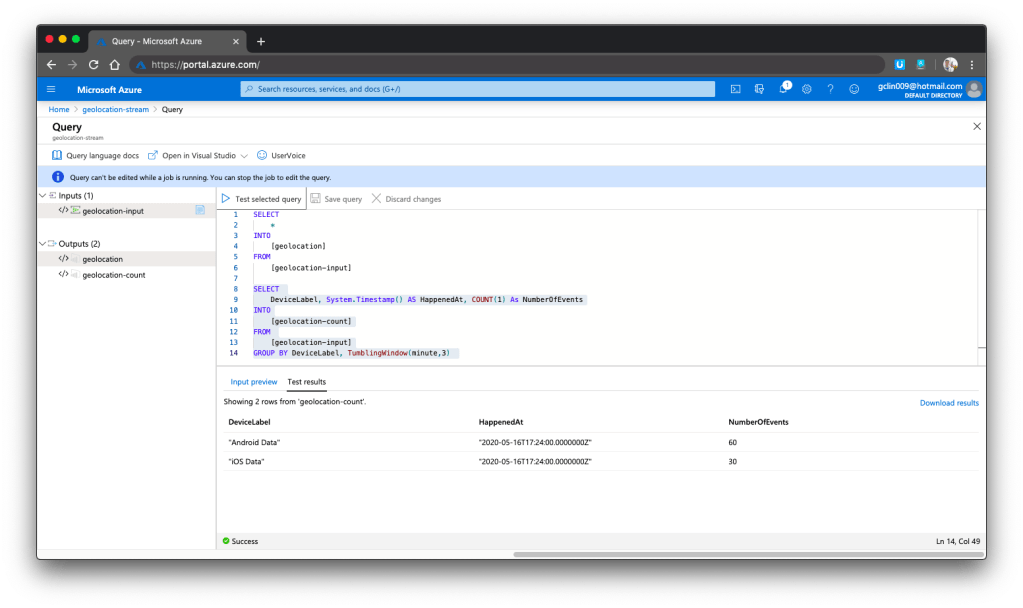
The first query is very straight-forward. What is interesting is the second query where TumblingWindow is used. Tumbling windows are a series of fixed-sized, non-overlapping and contiguous time intervals. So what the query does is using the Aggregate Function Count() over the time window to count the number of data points collected in each device (identified with DeviceLabel) within the 3-minute time window. For more information about the Time Management in Stream Analytics, please read its documentation.

Another interesting point in the second query is the HappenedAt field. It gets its value from System.Timestamp(). In Stream Analytics, every event that flows through the system comes with a timestamp that can be accessed via System.Timestamp(). In our case, since we are using Event Hub, this time is the timestamp given by the Event Hub.

We can now test run the queries above on the Azure Portal, as shown in the screenshot below.

🎨  We can choose to test only the selected query and view its test results. 🎨 

Here, there are additional two things that I’d like to highlight.

Firstly, the data format that we sent to Event Hub is very important. Sometimes it is possible that the Event Hub can receive the messages but due to the wrong format in the messages, Stream Analytics cannot take them as inputs and there will be warning shown in the Overview page of the Stream Analytics.

Secondly, to view detailed logs so that we can better understand what’s happening in Stream Analytics when something goes wrong, it is important to understand how to debug using its Activity Log page and monitor its activities with Azure Monitor.

Data Visualisation with Power BI

Now, let’s see some colourful graphs.

In Power BI, with our setup above in the Stream Analytics, it should now show two datasets.

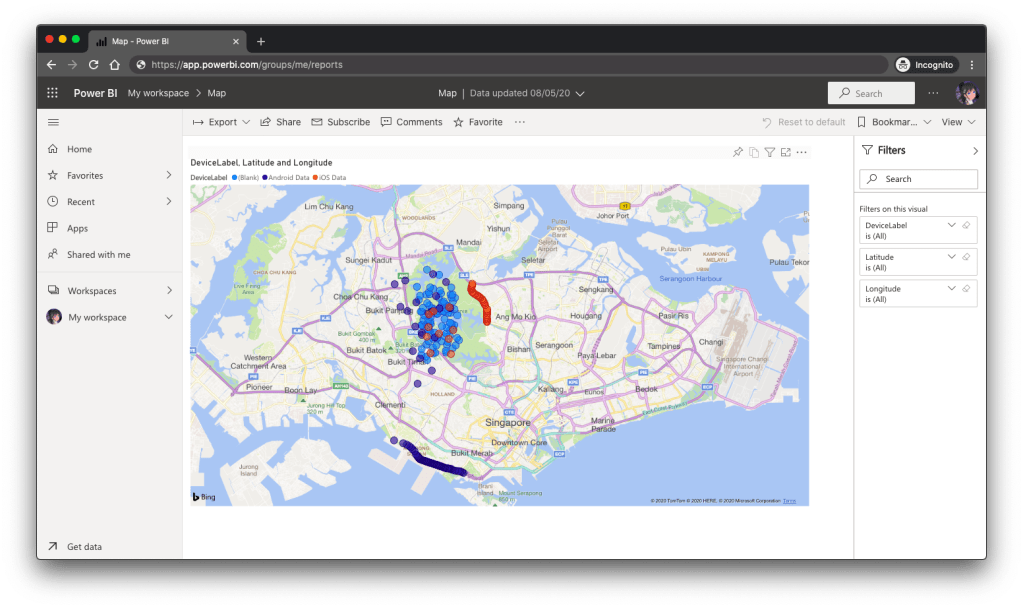
Firstly, we have the map in Power BI using the first dataset to show the location of the drivers. There are some data points having blank Device ID because it is a new field I added after I setup the first dataset in the Stream Analytics.

🎨  Map showing the driver locations using results returned from the first query in Stream Analytics. 🎨 

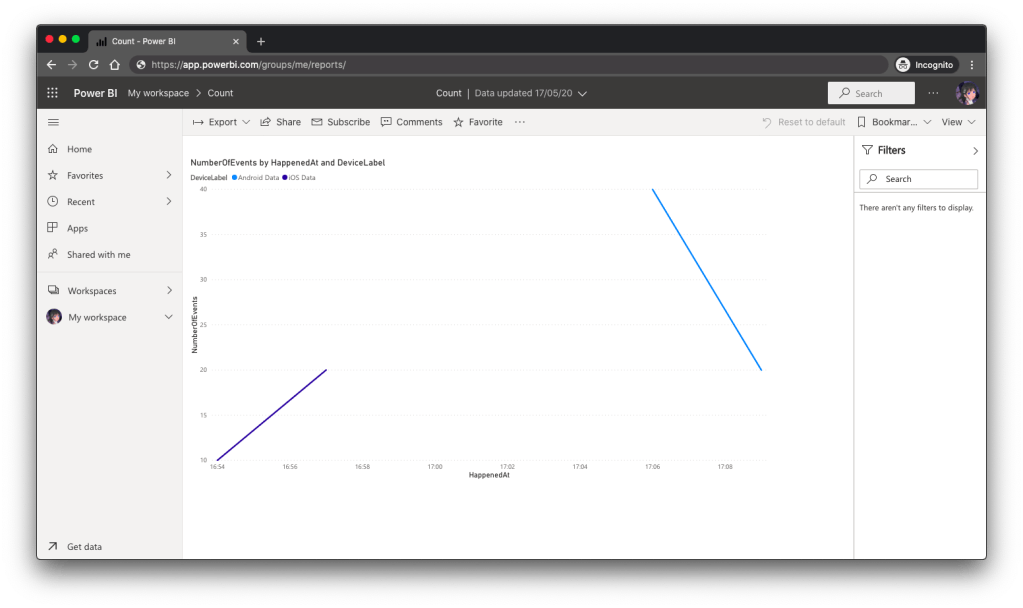
Secondly, we can also visualise the results returned from the second dataset using the Line Chart in Power BI, as shown below.

🎨  The second driver starts work after the first driver. 🎨 

Conclusion

So, what do you think about my alternative above? In fact, there are other ways of doing this as well. There is one more alternative that requires Azure Time Series Insights service which I will be researching. Hopefully I can have time to blog about it soon.

If you have any other better solution, feel free to let me know in the comment section. I may not have time to try all of them out but it may help other developers to find out more alternatives. Thank you in advance!

🎨  If you have a good suggestion to share, let’s discuss over a meal. 🎨 

Playing with Google Maps API

Google Maps - Google Developers - Newtonsoft JSON - Bing Maps

“Given an address, how do I get its latitude and longitude?”

I had been finding the solution for this problem for a long time until I discovered the API from Google Maps, the Geocoding Service.

Recently, I found out that my kampung was actually searchable on Google Maps Street View.

Geocoding

According to the definition given in the Geocoding Service, geocoding is the process of converting human-readable address into geographic coordinates, such as latitude and longitude. Sometimes, the results returned can also include other information like postal code and bounds.

To do a latitude-longitude lookup of a given address, I just need to pass the a GeocodeRequest object Geocoder.geocode method. For example, if I want to find out the latitude and longitude of Changi Airport, I just do the following in JavaScript.

https://maps.googleapis.com/maps/api/js?libraries=places


var geocoder = new google.maps.Geocoder();
if (geocoder) {
    geocoder.geocode(
        { address: "Changi Airport" }, 
        function (result, status) {
            if (status != google.maps.GeocoderStatus.OK) {
                alert(address + " not found!");
            } else {
                var topPick = result[0]; // The first result returned
                
                var selectedLatitude = topPick.geometry.location.lat();
                var selectedLongitude = topPick.geometry.location.lng();

                alert("Latitude: " + selectedLatitude.toFixed(2));
                alert("Longitude: " + selectedLongitude.toFixed(2));
            }
        }
    );
} else {
    alert("Geocoder is not available.");
}

The above method is recommended for dynamic geocoding which will response to user input in real time. However, if what is available is a list of valid addresses, the Google Geocoding API will be another tool that you can use, especially in server applications. The Geocoding API is what I tried out in the beginning too, as shown in the C# code below.

var googleURL = "http://maps.googleapis.com/maps/api/geocode/json?address=" + 
    Server.UrlEncode(address) + "&sensor=false";

using (var webClient = new System.Net.WebClient())
{
    var json = webClient.DownloadString(googleURL);
    dynamic dynObj = JsonConvert.DeserializeObject(json); 
    foreach (var data in dynObj.results) 
    {
        var latitude = data.geometry.location.lat;
        var longitude = data.geometry.location.lng;
        ...
    } 
}

The reason of using dynamic JSON object here is because the Geocoding API returns many information, as mentioned earlier, and what I need is basically just the latitude and longitude. So dynamic JSON parsing allows me to get the data without mapping the entire API to a C# data structure. You can read more about this on Rick Strahl’s post about Dynamic JSON Parsing with JSON.NET. He also uses it for Google Maps related API.

The reason that I don’t use the Geocoding API is because there are usage limits. For each day, we can only call the API 2,500 times and only 5 calls per second are allowed. This means that in order to use the API, we have to get the API Key from Google Developer Console first. Also, it is recommended for use in server applications. Thus I change to use the Geocoding Service.

Where to Get the Address?

This seems to be a weird question. The reason why I worry about this is because it’s very easy to have typos in user input. Sometimes, having a typo is an address can mean two different places, for example the two famous cities in Malaysia, Klang and Kluang. The one without “u” is located at Kuala Lumpur area while the one with “u” is near to Singapore.

Klang and Kluang
Klang and Kluang

So I use the Place Autocomplete from Google Maps JavaScript API to provide user a list of valid place name suggestions.

https://maps.googleapis.com/maps/api/js?libraries=places

...

<input id="LocationName" name="LocationName" type="text" value="">

...


$(function () {
    var input = document.getElementById('LocationName');
    var options = {
        types: ['address'], 
        componentRestrictions: { country: 'tw' }
    };

    autocomplete = new google.maps.places.Autocomplete(input, options);
});

In the code above, I restricted the places which will be suggested by the Place Autocomplete to be only places in Taiwan (tw). Also, what I choose in my code above is “address”, which means the Place Autocomplete will only return me addresses. There are a few Place Types available.

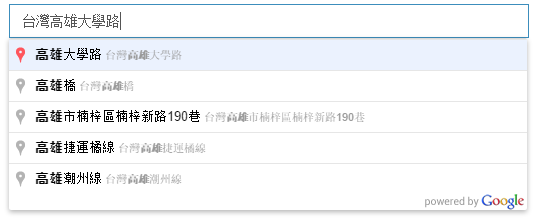
The interesting thing is that even when I input simplified Chinese characters in the LocationName textbox, the Place Autocomplete is able to suggest me the correct addresses in Taiwan, which are displayed in traditional Chinese.

If I search Malaysia places (which are mostly named in Malay or English) with Chinese words, even though the Place Autocomplete will not show anything, the Geocoder is still able to return me accurate results for some popular cities.

Google Place Autocomplete can understand Chinese!

I also notice that if I view the source of the web page, there will be an attribute called “autocomplete” in the LocationName textbox and its value is set to false. However, this should not be a problem for Place Autocomplete API to work. So don’t be frightened if you see that.

<input ... id="LocationName" name="LocationName" type="text" value="" autocomplete="off">

Putting Two Together

Isn’t it good if it can show the location of the address on Google Map after keying in the address in the textbox? Well, it’s simple to do so.

Remember the script to look for Changi Airport latitude and longitude above? I just put the code in a function called showLatLngOfAddress which accepts a parameter as address. Then call it when the LocationName loses focus.

$('#LocationName').blur(function () {
    showLatLngOfAddress(input.value);
});

In addition, I add a few more lines of code to showLatLng to draw a marker on the Google Map to point out the location of the given address on a map.

var marker = null;

function showLatLngOfAddress(address) {
    ...

    var topPick = result[0];

    ...

    //center the map over the result
    map.setCenter(topPick.geometry.location);
    
    //remove existing marker (if any)
    if (marker != null)
    {
        marker.setMap(null);
    }

    //place a marker at the location
    marker = new google.maps.Marker(
    {
        map: map, 
        position: topPick.geometry.location,
        animation: google.maps.Animation.DROP,
        draggable: true
    });
}

Finally, I not only make the marker to be draggable, but also enable it to update the latitude and longitude of the address when it is dragged to another location on the map.

google.maps.event.addListener(marker, 'drag', function (event) {
    alert('New Latitude: ' + event.latLng.lat().toFixed(2));
    alert('New Longitude: ' + event.latLng.lng().toFixed(2));
});

Do you know where 台北大桥 is? The map will tell you.

Bing Maps

If you are interested in using Bing Maps, there are Bing Maps REST Services available too.

I tried to search “Kluang” using Bing Maps API, it returned me two locations. One was in Malaysia and another one was near to Palembang in Indonesia! Wow, cool! On the other hand, Google Places returned me only the Kluang in Malaysia.

Unlike Place Autocomplete from Google, it is not straightforward to do place name suggestion using Bing Maps. If you are interested, please read a tutorial written by Vivien Chevallier on how to use the Bing Maps REST Services with jQuery to build an autocomplete box and find a location dynamically. I haven’t tried it out though. Anyway, Google APIs are still easier to use. =P

Summer 2015 Self-Learning Project

This article is part of my Self-Learning in this summer. To read the other topics in this project, please click here to visit the project overview page.

Summer Self-Learning Banner

Summer 2015 Self-Learning

Summer Self-Learning
It has been about half a year since I started to learn ASP .NET MVC and Entity Framework (EF). In this period of time, I have learnt about not just MVC and EF, but also Azure PaaS, Google Maps API, web application security, cool jQuery plugins, Visual Studio Online, etc.

In the beginning of May, I started to note down useful things I’d learned in my learning journey. Months of bringing together information in this summer has helped me compile my notes about what I’ve learned in the past 6 months. I have currently completed compiling notes for 17 topics that I’ve learnt in this summer.

I listed down the title of the 17 posts below to give you a quick overview about all the 17 topics.

Contents

ASP .NET MVC and Entity Framework

Security

Microsoft Azure

Google APIs

Web Development Tools

Learning After Work

I’m working in Changi Airport. The office working hour is from 8:30am to 6pm. In addition, I am staying quite far from the airport which will take about one hour for me to travel from home to office. Hence, the only time that I can have sufficient time to work on personal projects is weekends.

This summer self-learning project is originally planned to be done by the end of May. Normally, it takes me about one day to finish writing a post. After that, if I find any new materials about the topics, I will then modify the post again. Sometimes, however, I am just too tired and I would not write anything even though it’s weekend. Hence, I end up finishing all the 17 topics three months later.

This summer learning project covers not only what I’ve learnt in my personal projects, but also new skills that I learn in my workplace. I always enjoy having a chat with my colleagues about the new .NET technology, app development, Azure hosting, and other interesting development tools. So yup, these 17 articles combine all the new knowledge I acquire.

I’m also very happy that that I am able to meet developers from both .NET Developers Community Singapore and Azure Community Singapore and share with them what I’ve learnt. That gives me a great opportunity to learn from those experienced .NET developers. =)

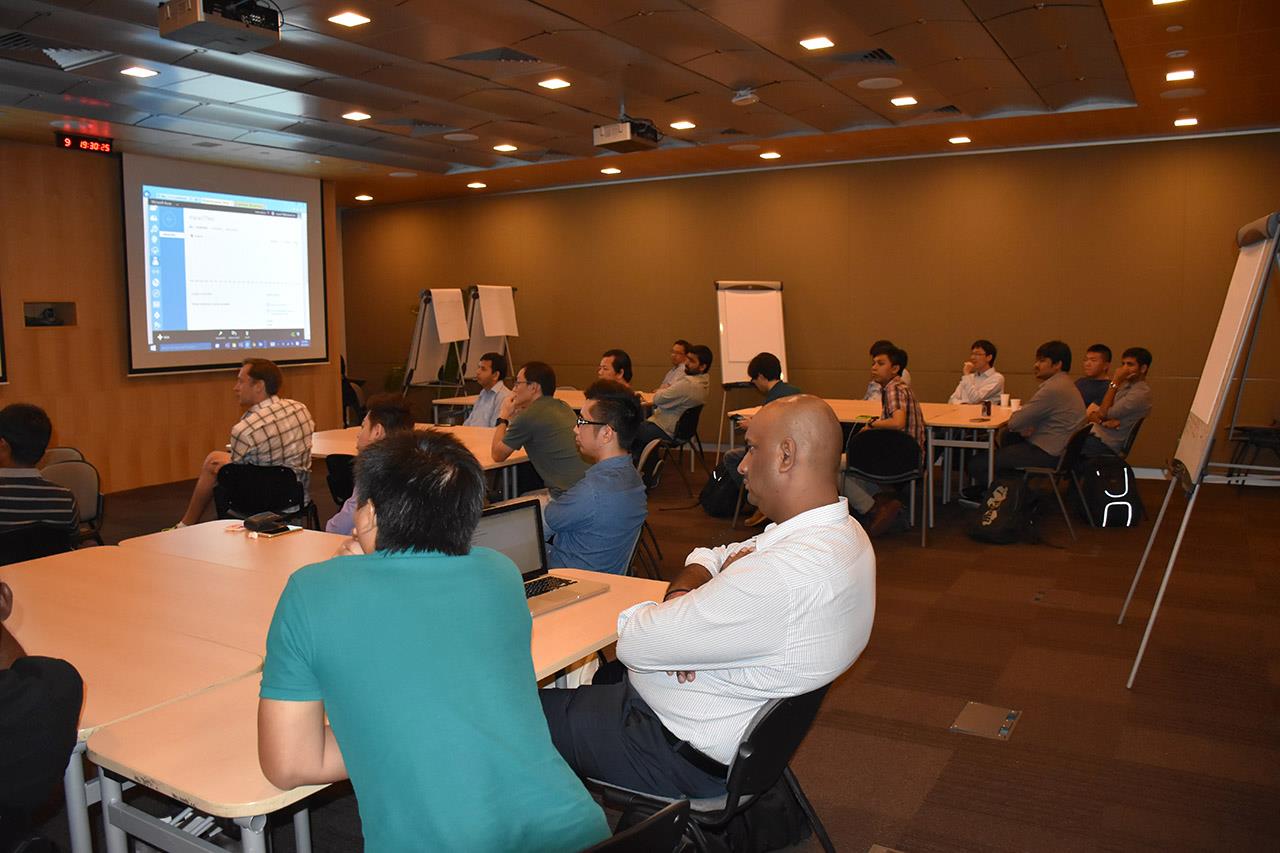
Azure Community March Meetup in Microsoft Singapore office.

I am not that hardworking to work on personal projects every day. Sometimes, I will visit family and friends. Sometimes, I will travel with friends to overseas. Sometimes, I will play computer games or simply just sleep at home. So ya, this self-learning project takes a longer time to complete. =D

Working on personal projects after work is stressful also. Yup, so here is a music that helps reducing my stress. =)