Pushing Pkl Content from GitHub to AWS S3

In the previous article, we talked about using the S3 Object Lambda to transform the medical records, which are stored in a JSON file, into a presentable web page. However, maintaining medical records in JSON files could be challenging. In this article, we will further investigate how we can generate those JSON files.

We’re going to explore Pkl—pronounced “Pickle”—a configuration-as-code language renowned for its robust validation features and tooling. It was first introduced by Apple as an open-source project in February 2024. Pkl allows us to write configurations as code, validate them, and convert them to existing static formats.

The part highlighted in red will be the focus of this article.

About Pkl

Pkl streamlines the creation of JSON scripts, enhancing maintainability and reducing verbosity through reuse, templating, and abstraction, all supported seamlessly right out of the box.

As we can expect from our medical records in JSON, the JSON files will grow larger over time. Hence it will be increasingly difficult to maintain. Pkl can help reduce the size and complexity of our JSON files by introducing abstractions for common elements and describing similar elements in terms of their differences.

A .pkl file describes a module. Modules are objects that can be referred to from other modules.

Pkl comes with basic types, such as Numbers, Strings, Durations, etc. Having a notation for basic types, we can thus write typed objects. For example, the following module shows how we will define our medical records structure in Pkl.

module medicalVisitTemplate

class MedicalVisit {

medicalCentreName: String

centreType: "clinic"|"specialist"|"hospital"

visitStartDate: Date

visitEndDate: Date

remark: String

treatments: Listing<Treatment>

}

class Treatment {

name: String

type: "medicine"|"operation"|"scanning"

amount: String

startDate: Date

endDate: Date

}

class Date {

year: Int(isBetween(2000, 2100))

month: Int(isBetween(1, 12))

day: Int(isBetween(1, 31))
}

visits: Listing<MedicalVisit>

Listing is a collection in Pkl. It contains exclusively Elements, i.e., object members. In the code above, we define visits to be a collection of MedicalVisits. The MedicalVisit class contains information about the visit, for example type and name of the medical centres the patient visited, visiting period, remark, etc. The visiting period is then defined by Date class which stores year, month, and day.

In the Date class, since the month can only be an integer from 1 to 12, so we can restrict it to an integer range by using Int and isBetween constraint. Later, as Pkl evaluates our configuration, if there is an invalid value, for example 13, provided to the month, there will be an error shown to us, as demonstrated below.
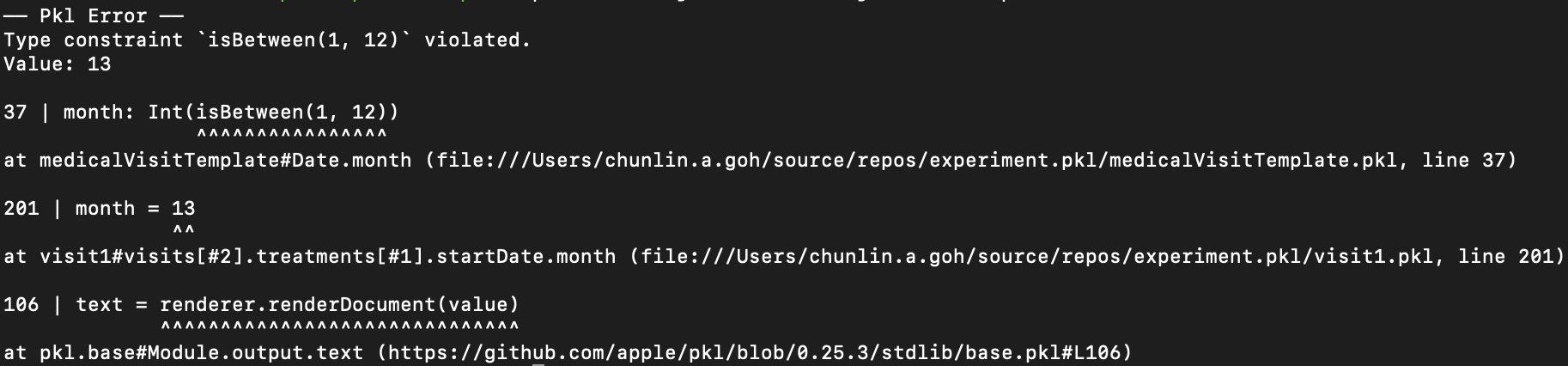
Pkl CLI will evaluate our configuration and show detected invalid values.

Generate JSON with Pkl

So now how do we generate JSON with the module above?

Before we can generate a JSON file, we need to understand the Amending concept in Pkl. As a first intuition, think of “amending a module” as “filling out a form.”

So, to generate the chunlin.json file that was shown in the previous blog post, we can amend the medicalVisitTemplate module above with another Pkl file called chunlin.pkl as shown below.

amends "medicalVisitTemplate.pkl"

visits = new Listing<MedicalVisit> {

...
// Omitted for brevity

new {

medicalCentreName = "Tan Tock Seng Hospital"

centreType = "hospital"

visitStartDate {

year = 2024

month = 3

day = 24

}

visitEndDate {

year = 2024

month = 4

day = 19

}

remark = ""

treatments = new Listing<Treatment> {

...
// Omitted for brevity

new {

name = "Betamethasone (Valerate) 0.025% Cream 15g - Dermasone"

type = "medicine"

amount = "Applied after shower"

startDate {

year = 2024

month = 3

day = 26

}

endDate {

year = 2024

month = 4

day = 19

}

}

new {

name = "Betamethasone (Valerate) 0.1% Cream 15g - Uniflex(TM)"

type = "medicine"

amount = "Applied after shower"

startDate {

year = 2024

month = 3

day = 26

}

endDate {

year = 2024

month = 4

day = 19

}

}

}

}

}

Now if we execute the command below on Pkl CLI to evaluate the given modules and render the

$ ./pkl eval -f json -o ./output/chunlin.json ./input/chunlin.pkl

With the command above, we can get the same output as we see in chunlin.json.

Maintain Pkl in GitHub

Static files like Pkl or JSON can be easily maintained in code repositories such as GitHub. Using GitHub for version control allows us to track changes to our PKL files over time. This makes it easy to revert to previous versions if something goes wrong, compare changes, and understand the evolution of our configuration files. Additionally, we can use GitHub Actions to automate various tasks related to our PKL files, enhancing efficiency and reliability in our workflow.

GitHub Actions is an automation tool that allows us to create workflows triggered by events within our repository. These workflows can automate tasks like testing, building, and deploying code, or even running scripts. By using GitHub Actions, we can streamline the development and transformation process of our Pkl files, ensure consistency, and improve efficiency.

Thus, our mission is now to configure GitHub Actions so that a JSON file can be produced from the Pkl file and sent to the Amazon S3 bucket that we setup in another article earlier.

Configure GitHub Actions Workflow

Firstly, we need to give permission to GitHub Actions to access our S3 bucket. To do so, we will create a new user in AWS Console with appropriate rights.
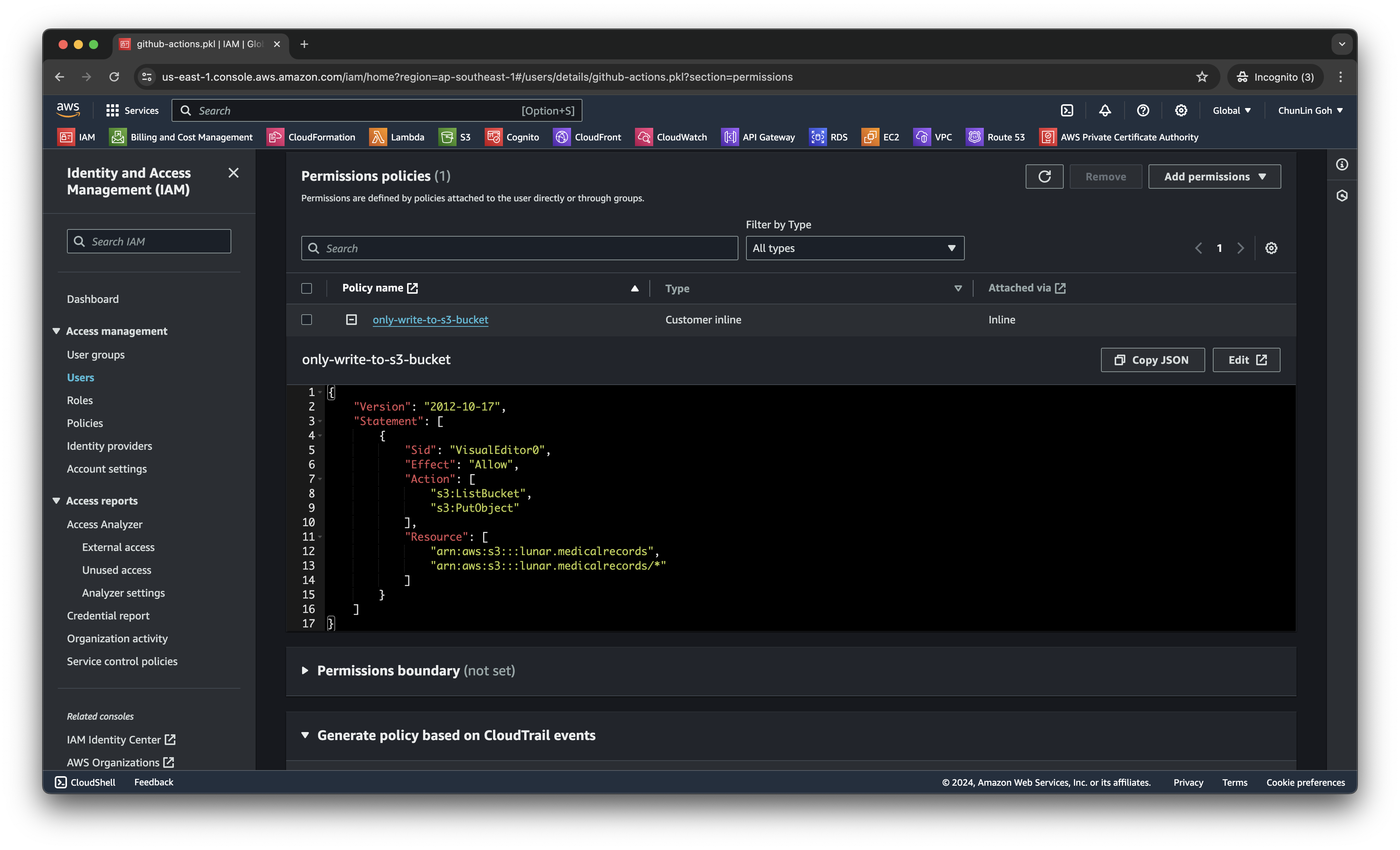
We only need two permissions, s3:ListBucket and s3:PutObject, to copy files from local to the S3 bucket.

After attaching the policy, we proceed to generate an access key for this newly created user.

Secondly, we need to navigate to our repository and then click on the Actions tab to create a new simple workflow, as shown below.
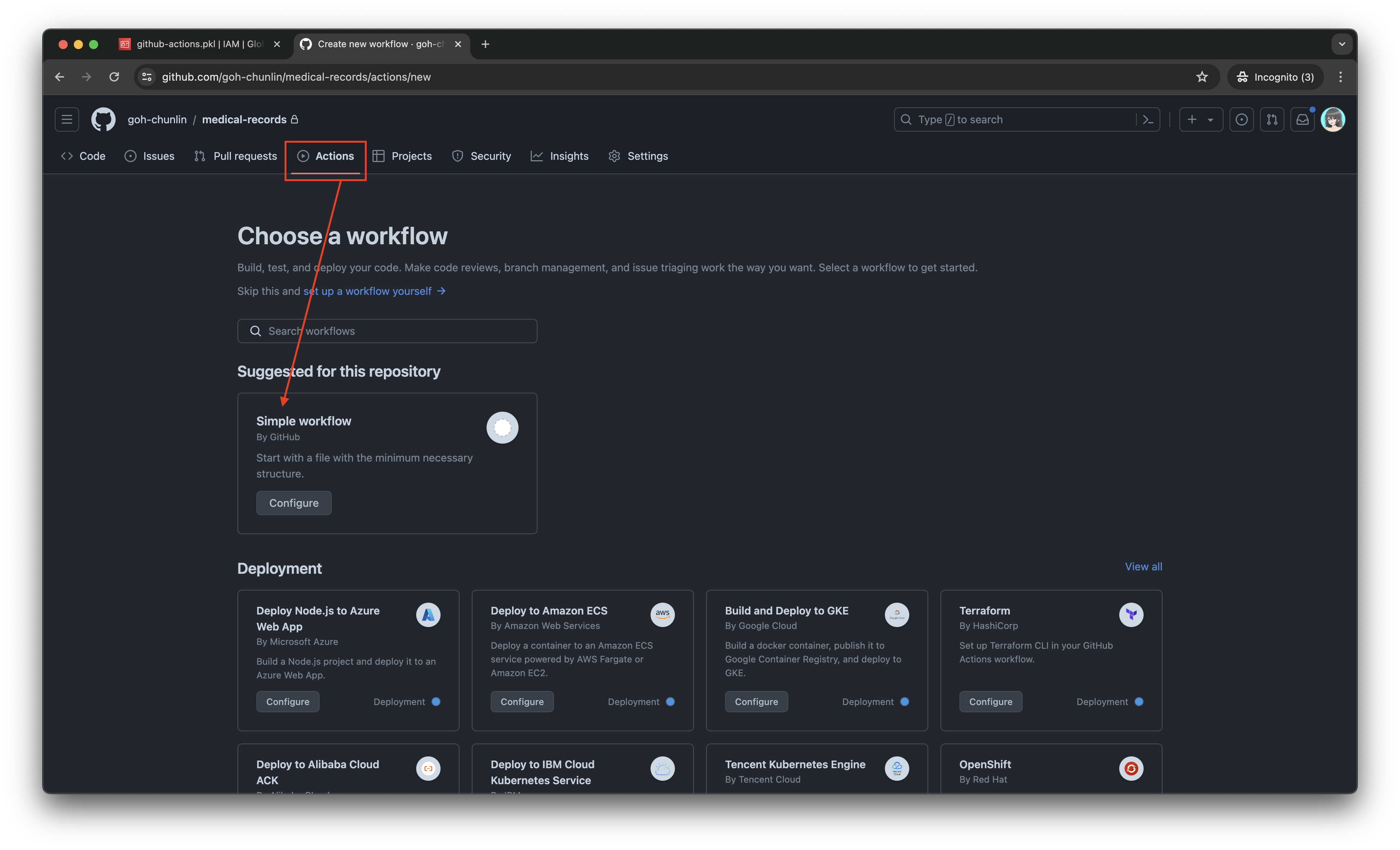
Let’s start with the simple workflow.

To begin, let’s download a new Linter available for Pkl files in the workflow. The linter is known as pkl-linter done by Eduardo Aguilar Yépez, a senior software engineer at Draftea.

name: Evaluate Pkl and store it in S3 as JSON

on:
push:
branches: [ "main" ]

# Allows us to run this workflow manually from the Actions tab
workflow_dispatch:

jobs:
build:
runs-on: ubuntu-latest

steps:
- uses: actions/checkout@v4

- uses: actions/setup-go@v5
with:
go-version: '>=1.17.0'

- name: Get Go Version
run: go version

- name: Install Linter
run: go install github.com/Drafteame/pkl-linter@latest

- name: Run pkl-linter
run: pkl-linter medical-records
The linter analyses our code and shows detected stylistic errors.

Next, we need to install the Pkl CLI to evaluate Pkl modules and write their output to a file. There are native executables available for us to use. As shown in the workflow above, the GitHub Actions runner is ubuntu-latest, which uses the Ubuntu 22.04 LTS image as of Jun 2024. It uses the amd64 architecture. Hence, we can download the Pkl Linux executable for amd64 architecture.

name: Evaluate Pkl and store it in S3 as JSON

...
# Omitted for brevity

jobs:
build:
runs-on: ubuntu-latest

steps:
...
# Omitted for brevity

- name: Install Pkl CLI
run: curl -L -o pkl https://github.com/apple/pkl/releases/download/0.25.3/pkl-linux-amd64

- name: Grant execute permission to Pkl CLI
run: chmod +x pkl

- name: Get Pkl CLI version
run: ./pkl --version

- name: Eval the Pkl files
run: |
cd medical-records
files=$(find . -name "*.pkl")
count=0
for file in $files; do
output_filename="${file%.pkl}.json"
../pkl eval -f json -o ../output/$output_filename $file
done
cd ..

When my workflow is executed in June 2024, the version of the Pkl CLI is “Pkl 0.25.3 (Linux 5.15.0-1053-aws, native)”.

As shown in the last step above, it will loop through the JSON file in the medical-records folder and evaluate them one-by-one using the Pkl CLI. The JSON files generated will be stored in the output folder.

Eventually, what we need to do is to upload the file over to our AWS S3 bucket. However, before that, let’s make sure the AWS access key and secret access key we generated earlier are stored securely on GitHub Actions, a shown in the screenshot below.
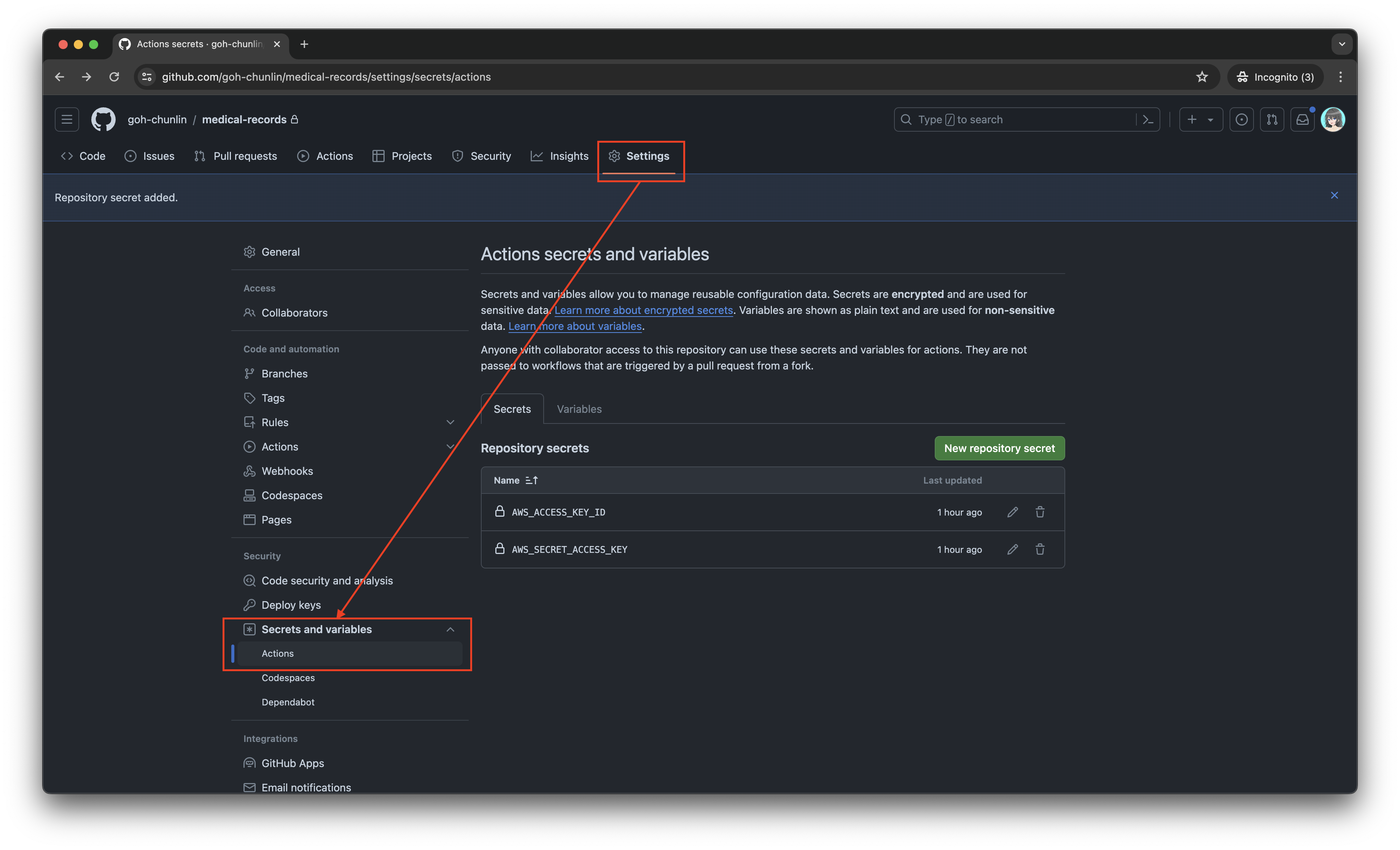
The AWS access key and secret access key should be stored as GitHub Actions secrets.

Now, we can easily setup AWS CLI with the secrets above and use the s3 cp command to move the generated JSON files over to our S3 bucket. To do so, we only need to complete our workflow with the following.

name: Evaluate Pkl and store it in S3 as JSON

...
# Omitted for brevity

jobs:
build:
runs-on: ubuntu-latest

steps:
...
# Omitted for brevity

- name: Setup AWS CLI
uses: aws-actions/configure-aws-credentials@v1
with:
aws-access-key-id: ${{ secrets.AWS_ACCESS_KEY_ID }}
aws-secret-access-key: ${{ secrets.AWS_SECRET_ACCESS_KEY }}
aws-region: ap-southeast-1

- name: Copy files to S3 bucket
run: |
aws s3 cp output s3://lunar.medicalrecords --exclude "*" --include "*.json" --recursive

Please take note that the s3 cp command performs operation only on single file, hence we need to apply the --recursive flag to indicate that the command should run on all files under the specified directory, i.e. output.

Wrap-Up

In conclusion, utilising Pkl for generating and maintaining JSON files offers significant advantages in terms of reducing complexity and enhancing maintainability. By abstracting common elements and leveraging typed objects, Pkl simplifies the management of large and evolving datasets. The structured approach provided by Pkl not only minimises redundancy but also ensures that configurations remain consistent and error-free through its robust validation features.

Additionally, by using GitHub Actions, we can automate the process of evaluating Pkl files, generating the corresponding JSON files as output, and uploading these JSON files to our S3 bucket. This automation not only enhances efficiency but also ensures that changes are tracked and managed effectively.

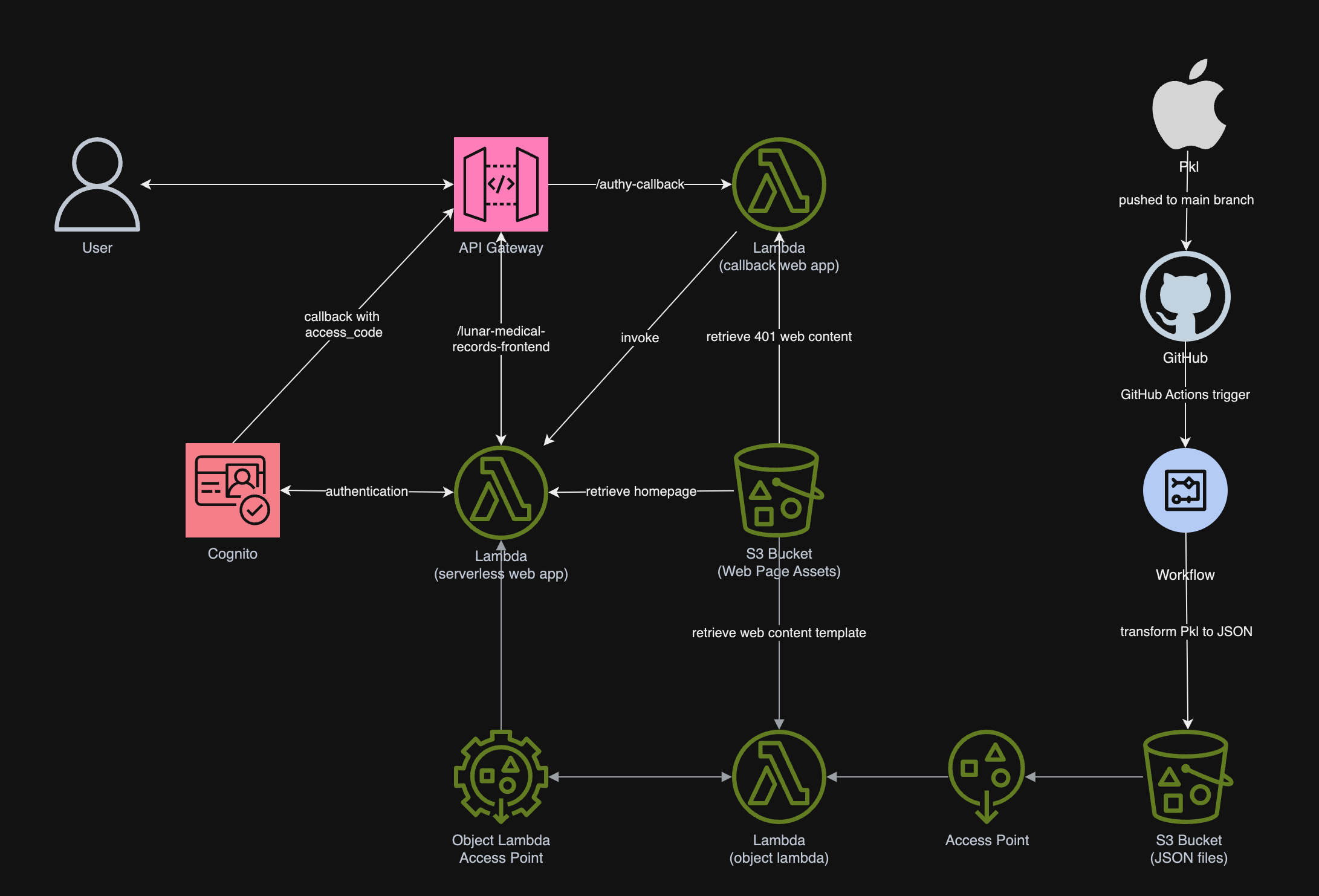
In summary, we can conclude the infrastructure that we have gone through above and our previous article in the following diagram.
References

Unit Test Stored Procedures and Automate Build, Deploy, Test Azure SQL Database Changes with CI/CD Pipelines

I was recently asked about how to unit test stored procedures before deploying to servers. Unfortunately, there are not much discussions about unit testing stored procedures, especially with tools like SSDT and Azure DevOps. Hence, I decide to write this walkthrough to share my approach to this issue.

PROJECT GITHUB REPOSITORY

The complete source code of this project can be found at https://github.com/goh-chunlin/Lunar.Spending.

Unit Testing

According to The Art of Unit Testing, a unit test is an automated piece of code that invokes the unit of work being tested, and then checks some assumptions about a single end result of that unit.

Without unit testing, one has no choice but to rely on system and integration tests which are normally performed in the later stage of the SDLC. Some teams may even resort to the troublesome way, i.e. manually testing the end product they’re developing to invoke their codes.

Unit testing of stored procedures is also very crucial. If the bugs in stored procedures are not caught in the early stage of development, it is very challenging to rollback the data changes that have been made to the database.

Setup SSDT (SQL Server Data Tools)

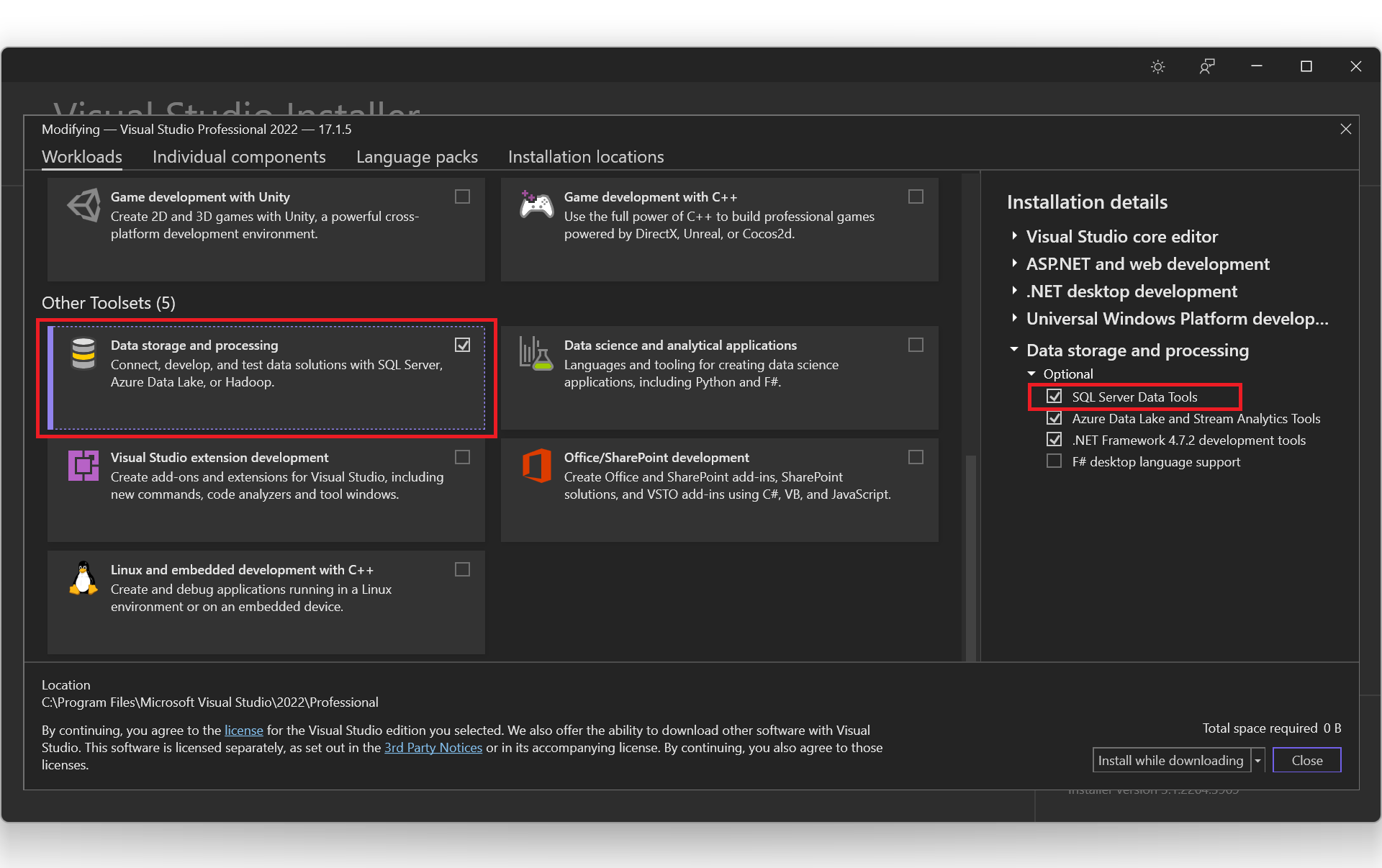
SSDT is a development tool for building SQL Server relational databases, including databases in Azure SQL. The core SSDT functionality to create database projects has remained integral to Visual Studio 2022. Thus, we can easily include SSDT by selecting the “Data storage and processing” workload in the Visual Studio Installer, as shown below.

Setting up SSDT in Visual Studio 2022.

With SSDT, we can work directly with a connected database instance on/off-premise. We can use SSDT Transact-SQL design capabilities to build, debug, maintain, and refactor databases. In this article, we will be using SSDT to create unit tests that verify the behavior of several stored procedures.

Create a New Database Project

In this article, we will assume that we have an existing database hosted on Azure SQL server.

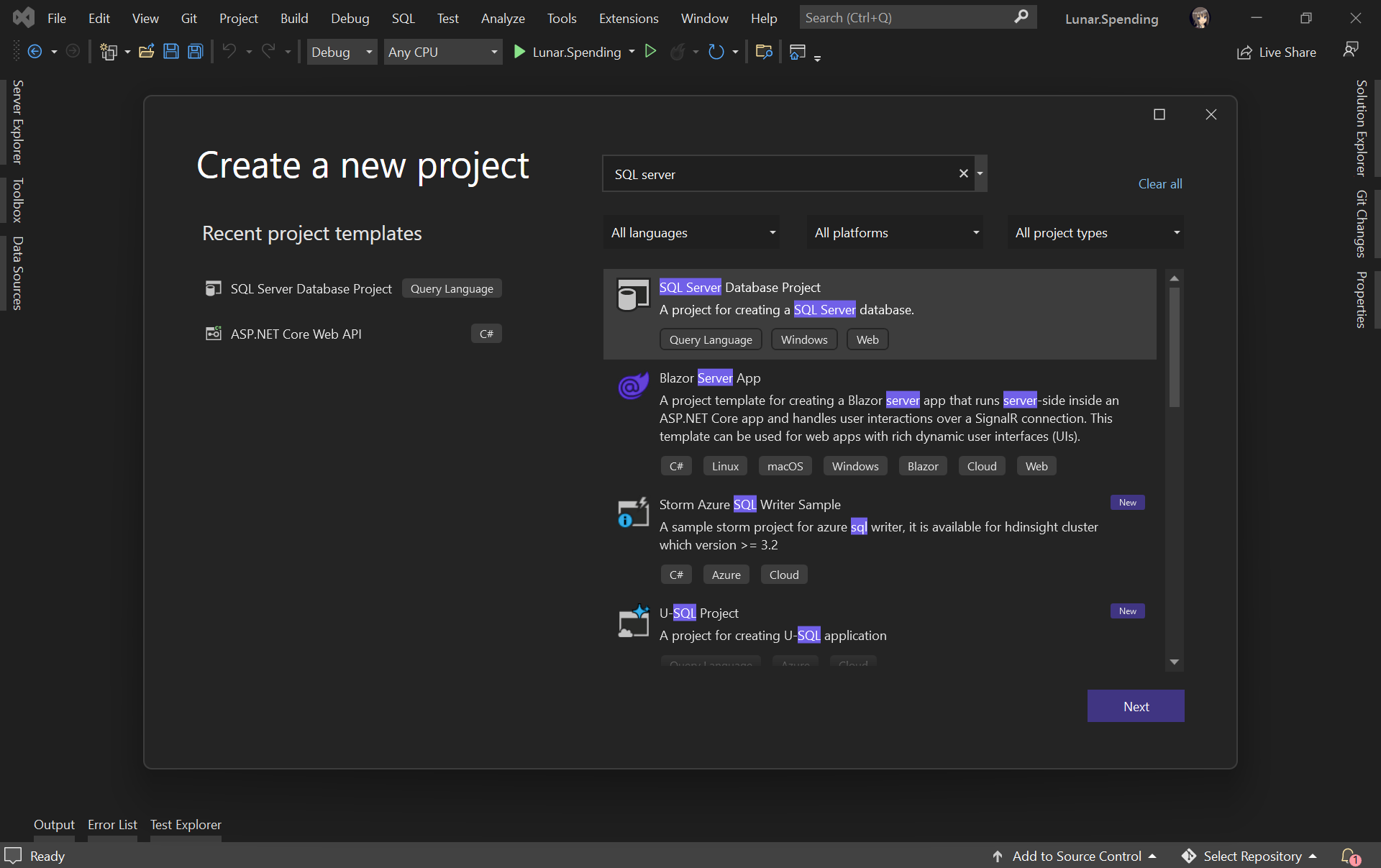
Firstly, as shown in the screenshot below, we need to create a new database project in order to import database schema and stored procedures from the database on Azure.

Creating a new SQL Server Database project on VS 2022.

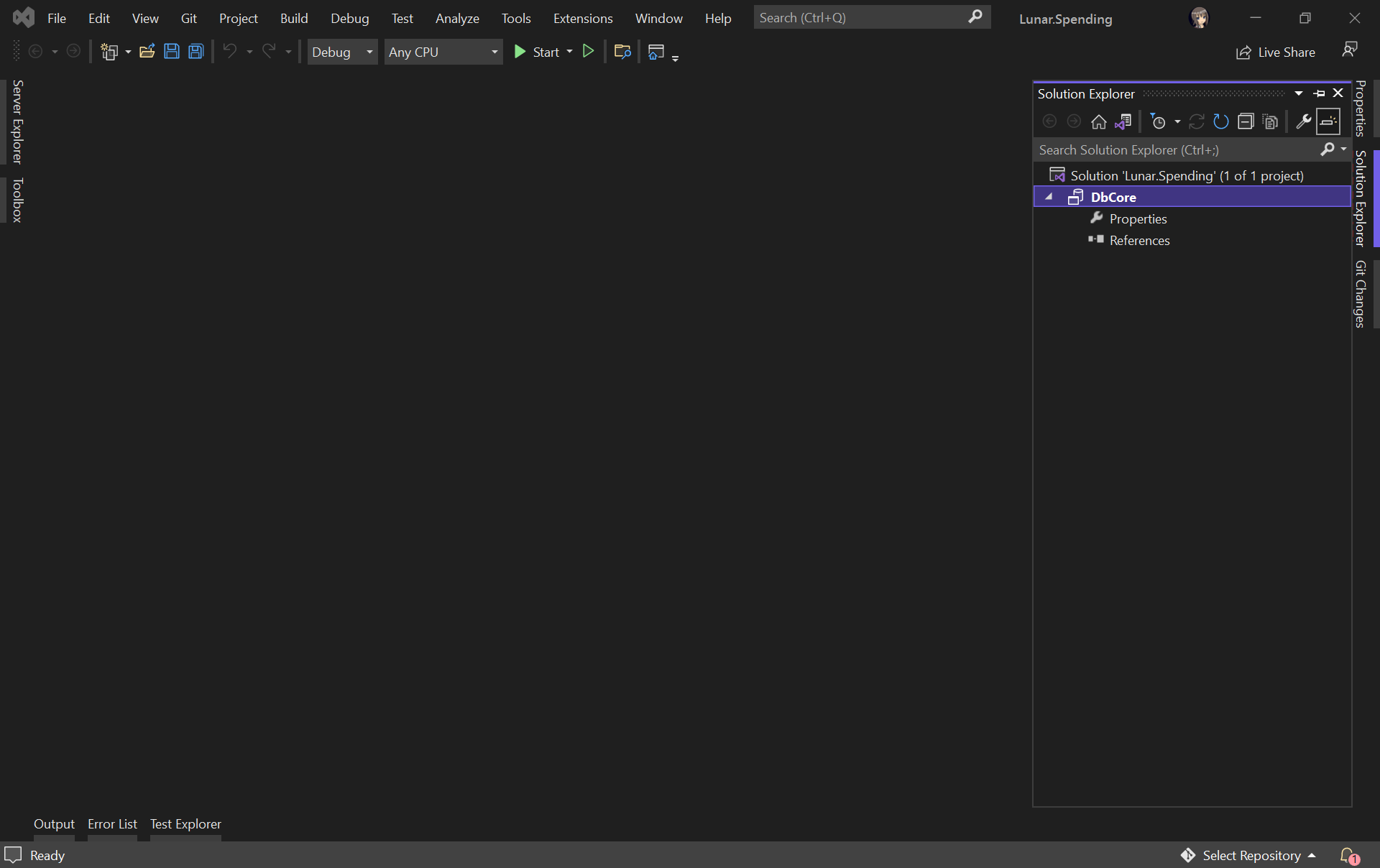
Let’s name our project DbCore. We will then see a simple DbCore project shown in our Solution Explorer, as demonstrated in the screenshot below.

The database project is successfully created.

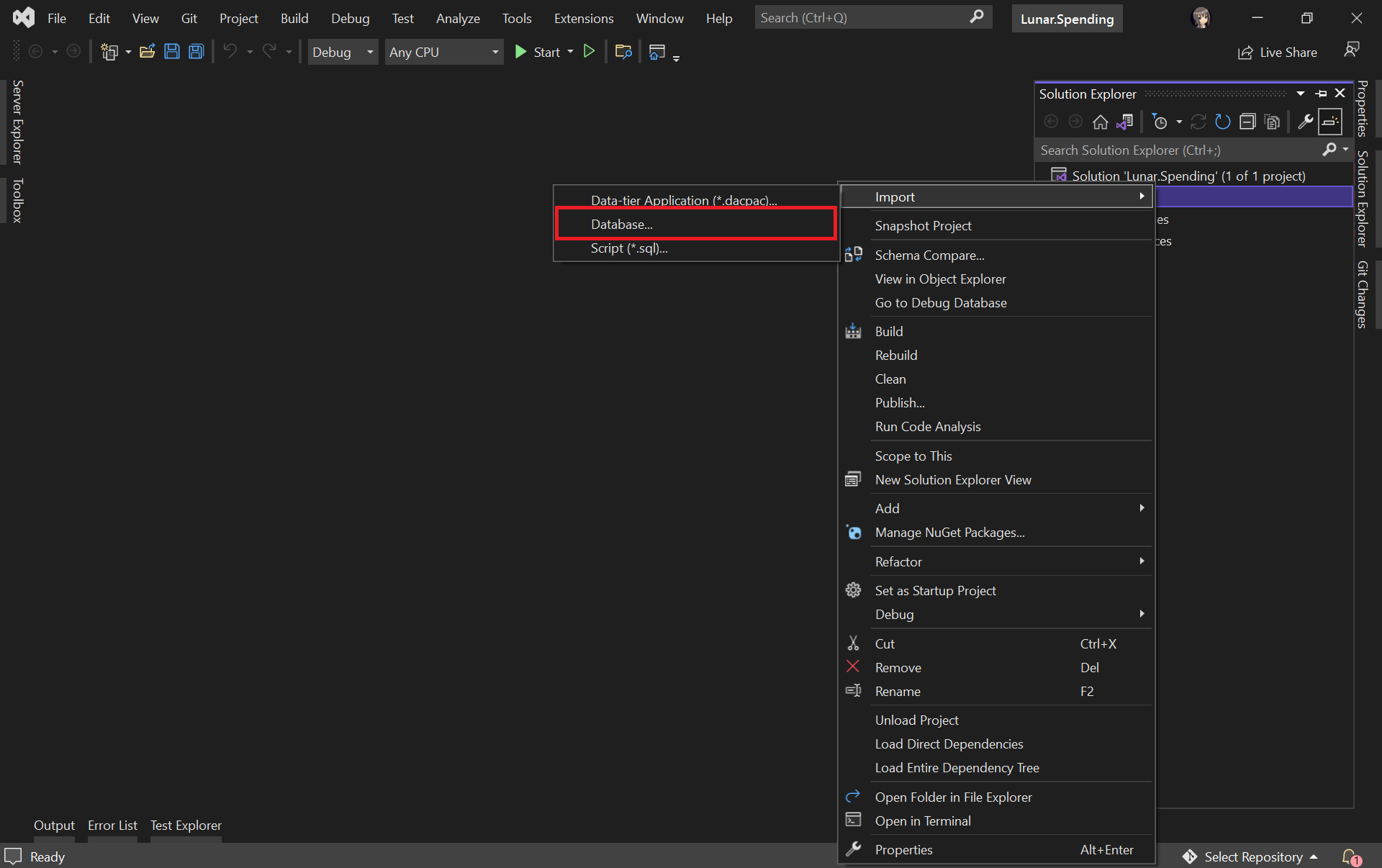
Next, we will import our Azure database into the database project by right-clicking on it in the Solution Explorer.

Select the “Database…” option to import from existing Azure database.

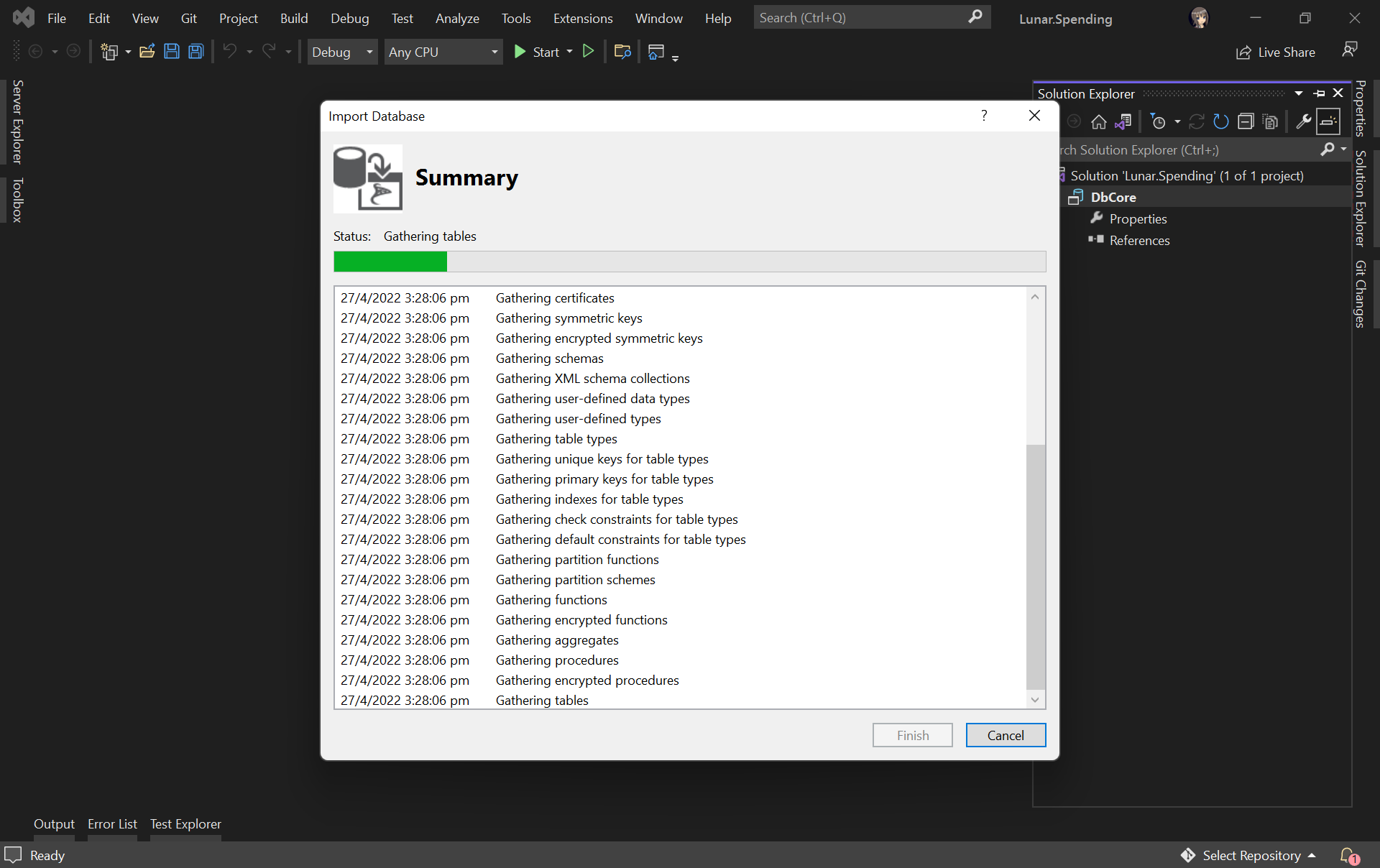
The widget will then import the data from the Azure database based on the given connection string, as shown below.

Importing database to our database project.

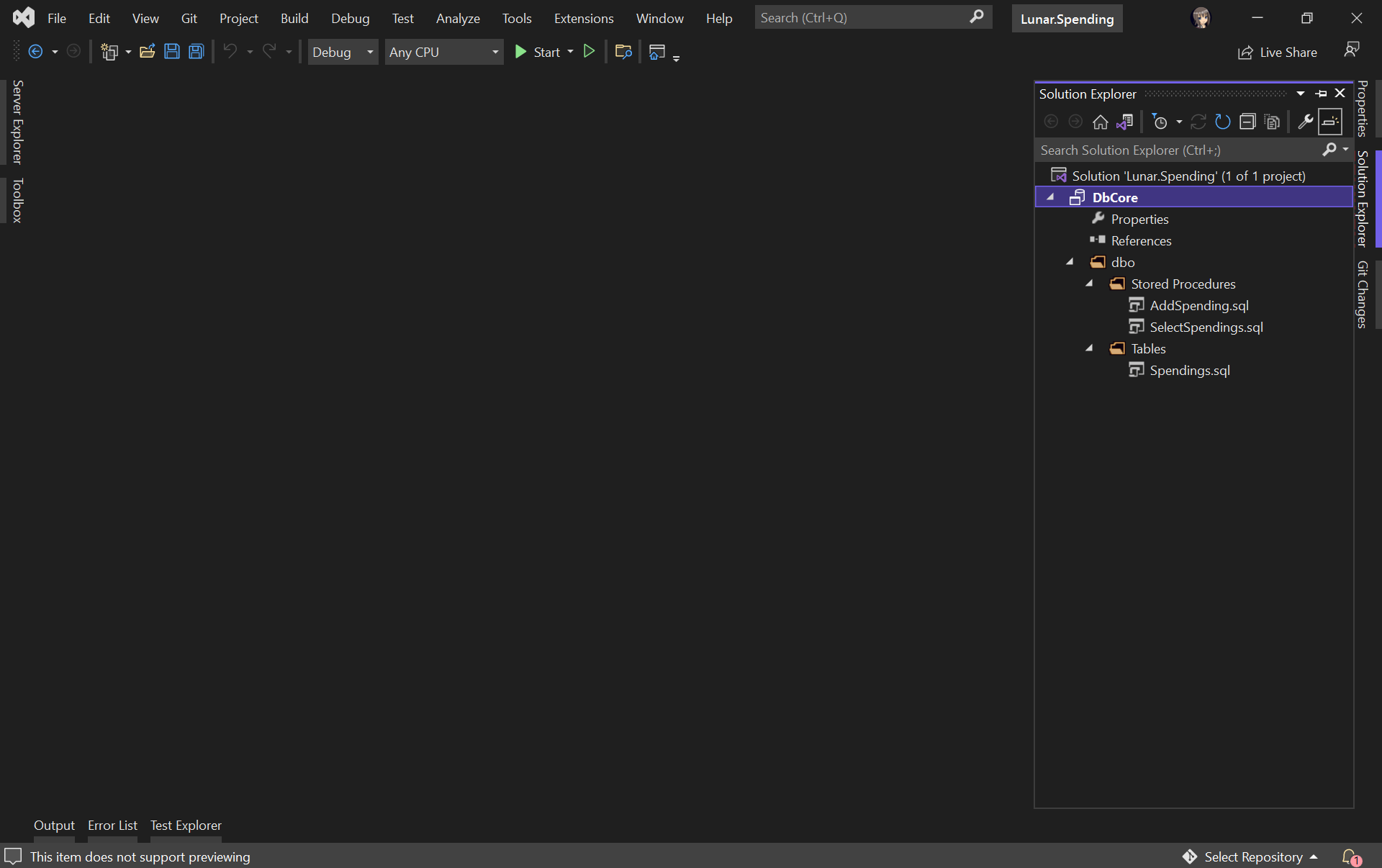
Once the import is done, we shall see our tables and stored procedures listed under the dbo directory in Solution Explorer, as shown below.

Table and stored procedures are successfully imported!

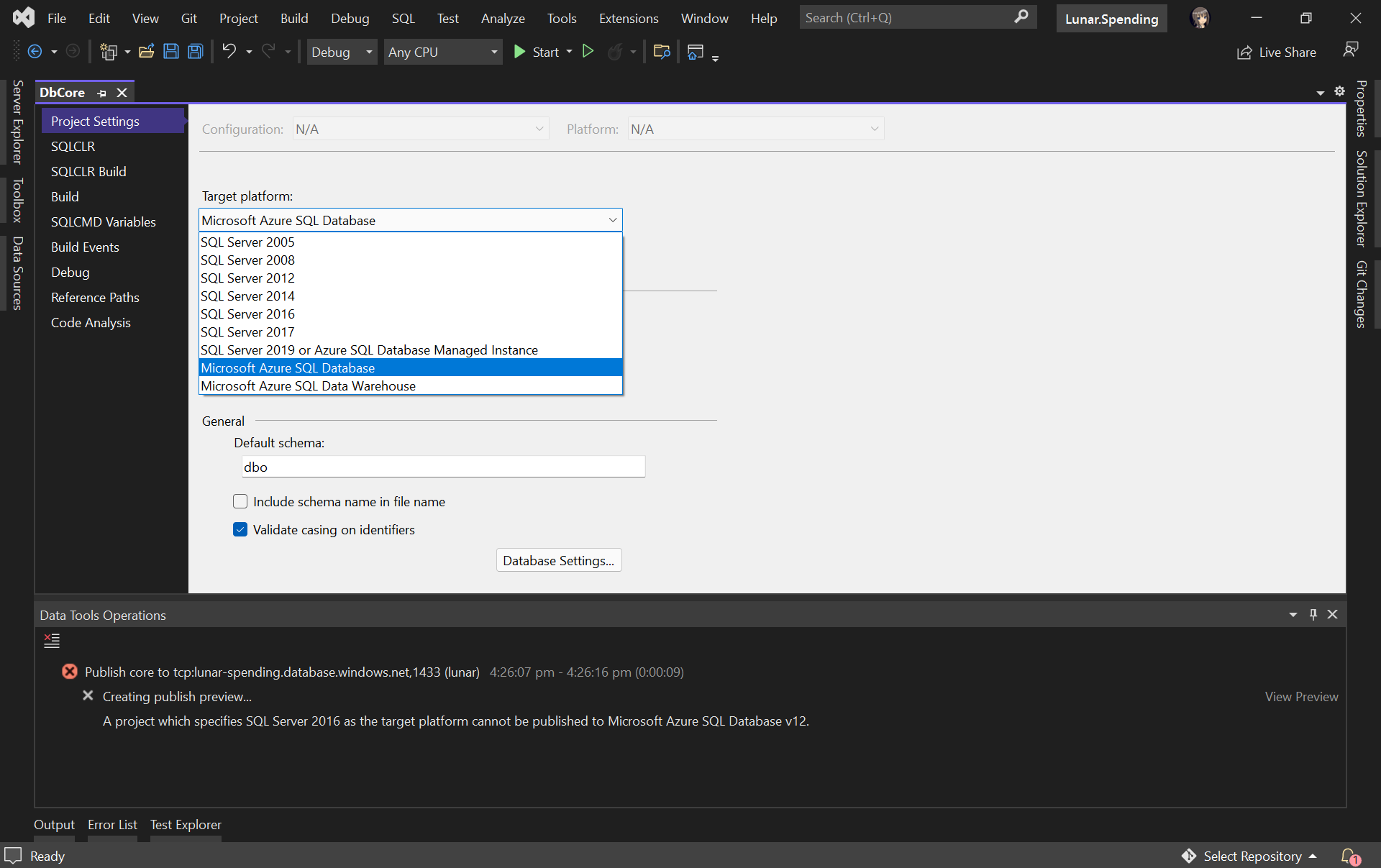
Before we continue, we need to edit the Target Platform of our database project accordingly, as shown in the following screenshot, otherwise we will not be able to publish the database later.

Changing the target platform to avoid the publish error.

Create Unit Test for Stored Procedure

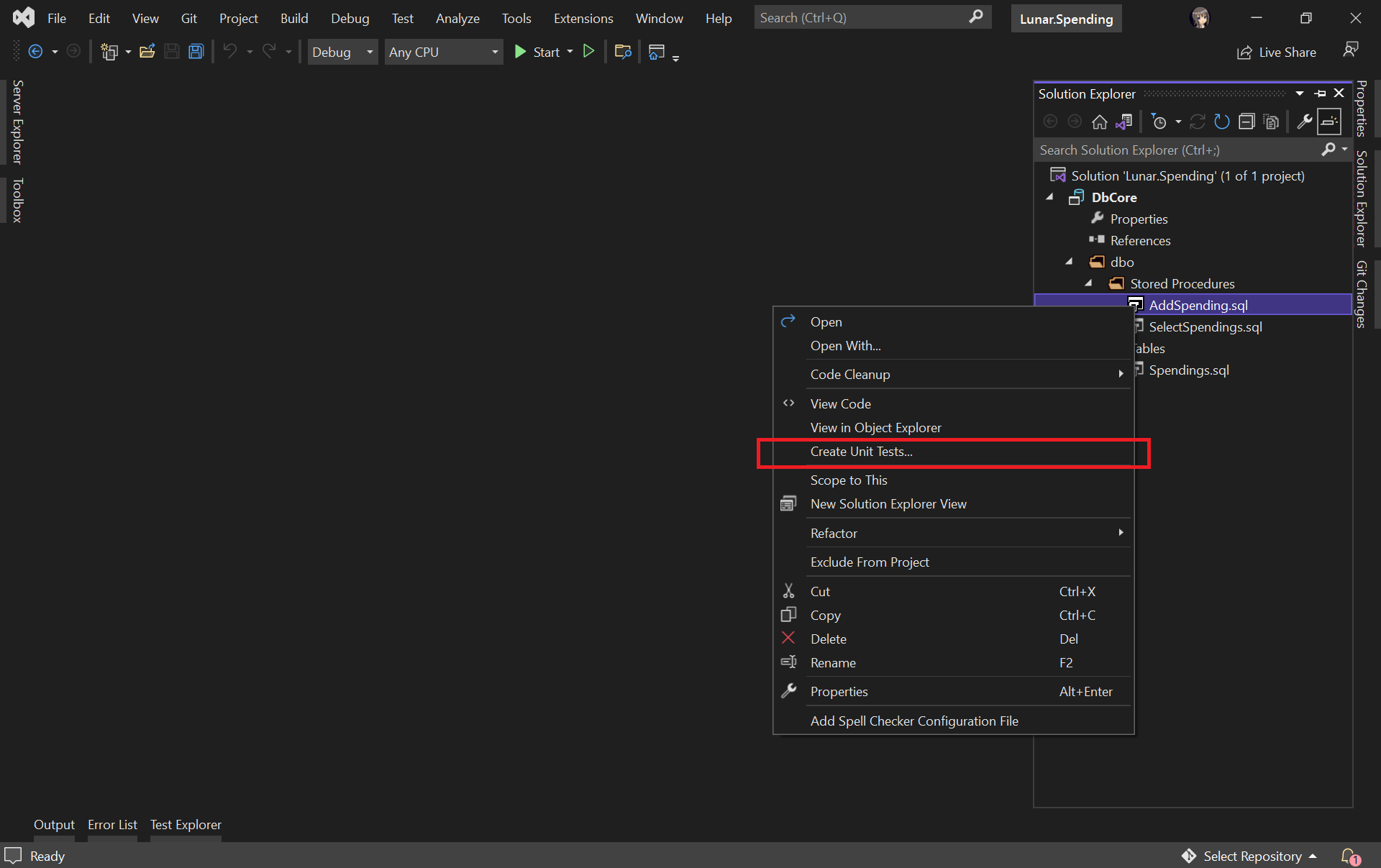
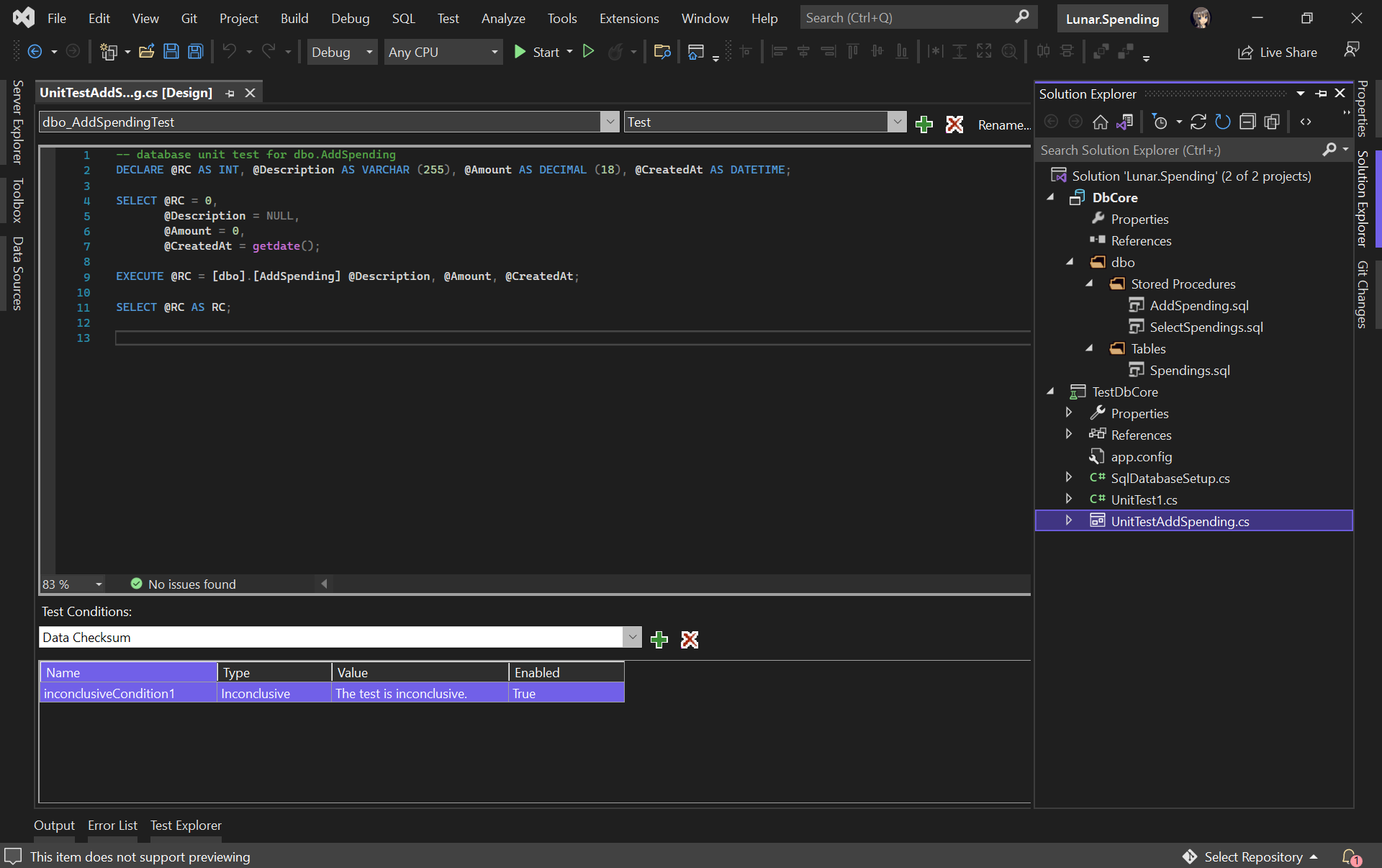
Let’s say we would like to unit test the AddSpending stored procedure. What we need to do is simply right-clicking the AddSpending stored procedure and then click on the “Create Unit Tests…” option, as demonstrated below.

Adding unit test for a selected stored procedure.

We will then be asked for the connection string of the database that the unit test project will be connecting to. Once the project has been successfully created, we will be given a template unit test as follows.

A boilerplate code of stored procedure unit test.

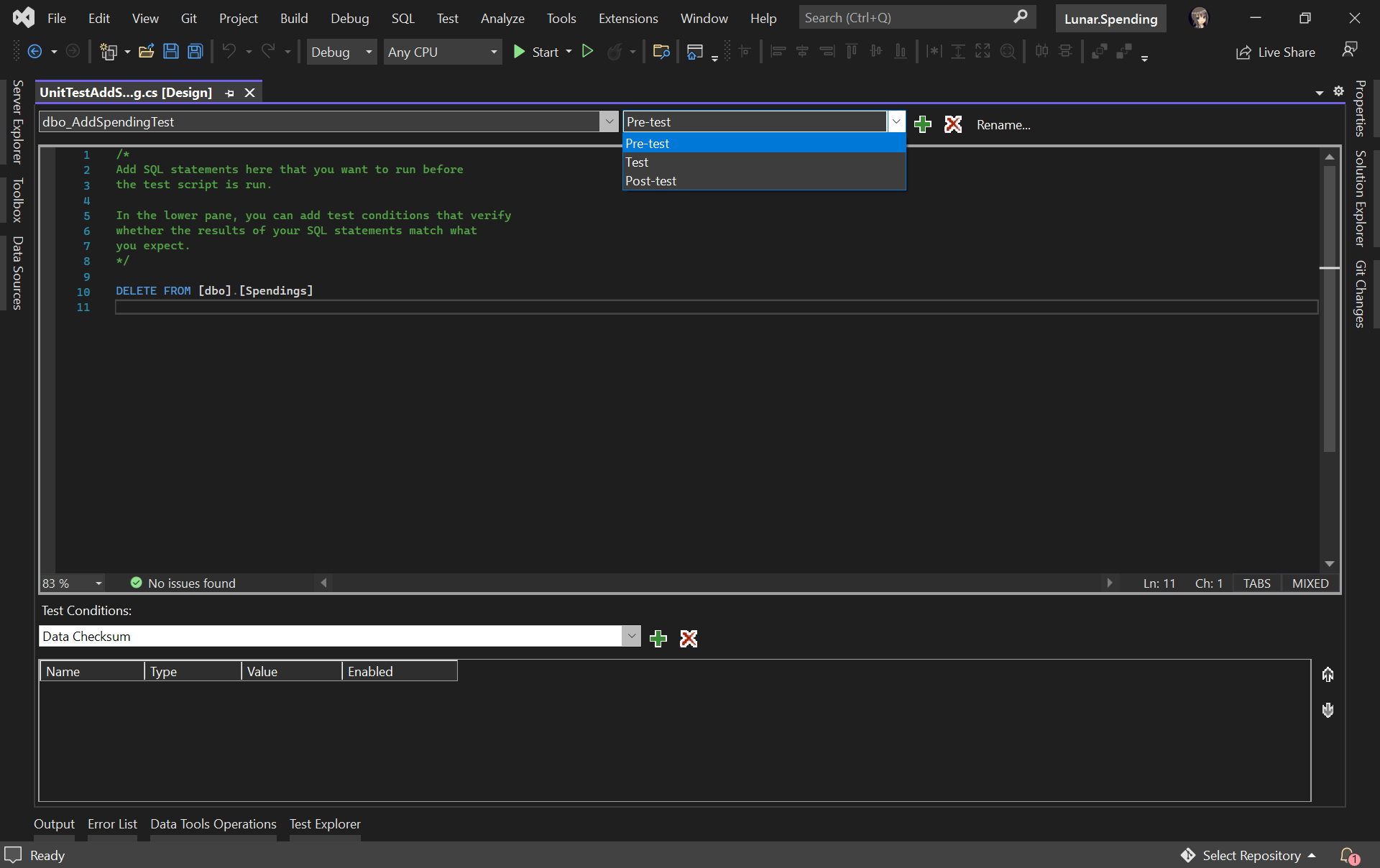
We can include pre and post test SQL statements which will be run before and after the test script is executed, respectively.

For example, we would like to have a clean Spendings table before the unit test runs, we can have the following SQL script to delete all rows in the table.

Pre-test script will be run before the test script.

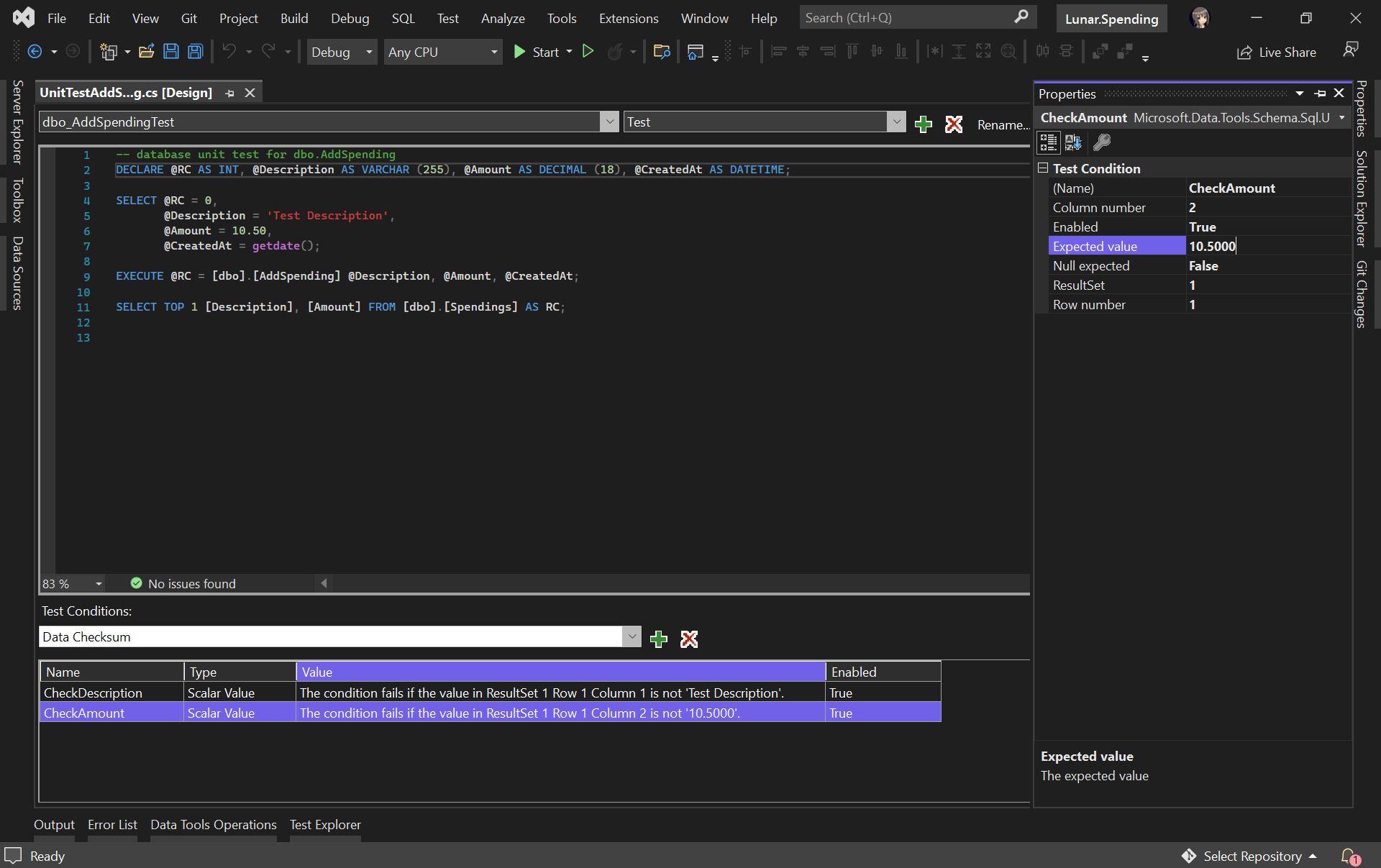
In our test script, we will test to see if the description and amount can be stored correctly in the database. Hence, we need to specify two Test Conditions to verify the two columns, as shown in the following screenshot.

RC means Return Code. It can later be used in a test case assertion.

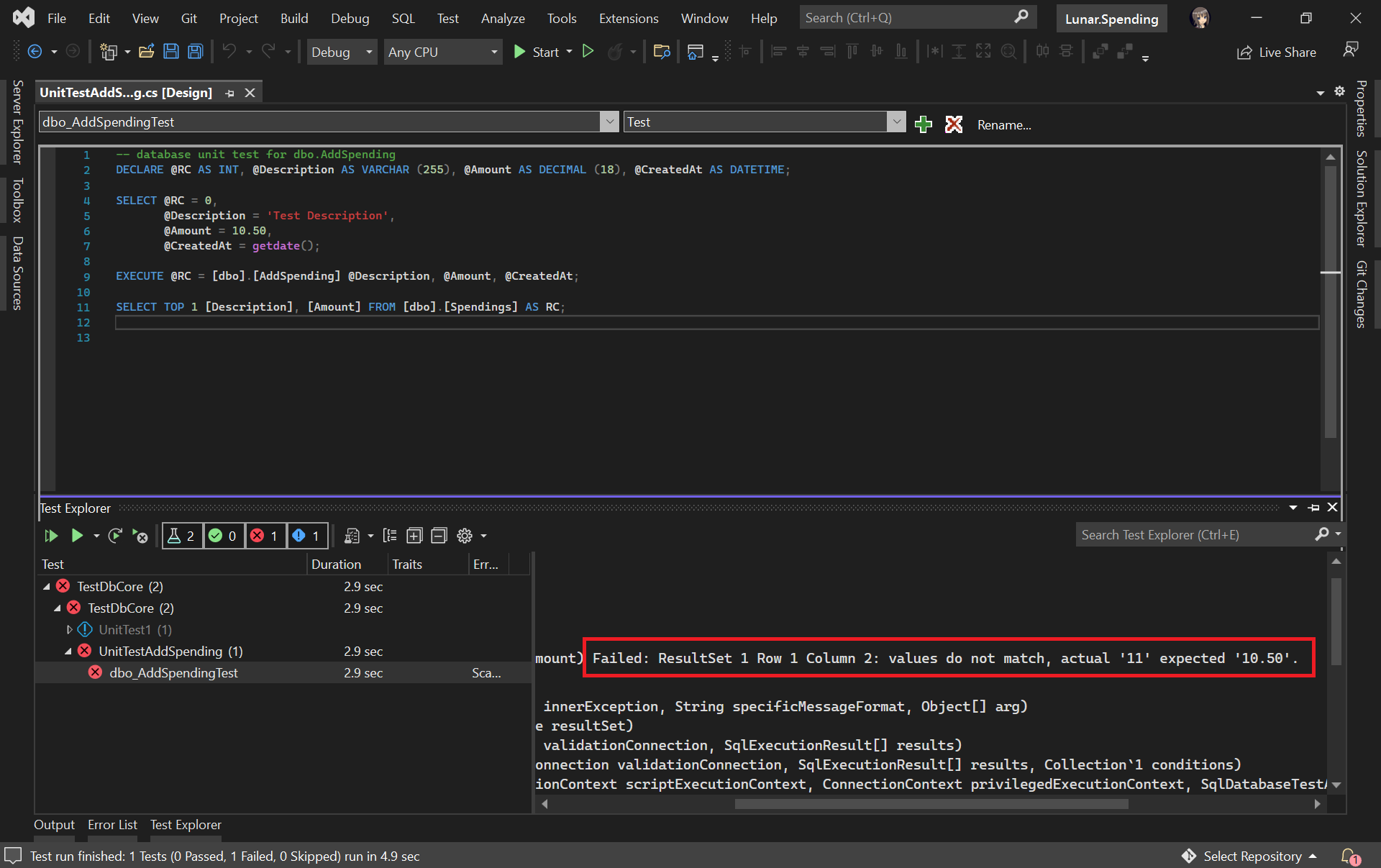
Now, we can run our very first unit test with the Test Explorer to see if our stored procedure has any issue or not.

The test case fails. We shall check why the number is rounded up.

It turns out that this bug is caused by wrong data type used for the Amount column. Now we can proceed to fix it.

The test passed after we fixed the issue in our table schema and stored procedure.

Getting Ready for Publishing Database

As we discussed earlier, unit testing is not only about writing a piece of code to test our unit of work, but also making it to be automatically testable.

Hence, our next move is to automate the build, test, and release of our database.

Firstly, we shall make sure the source code of our projects is on GitHub (or any source control supported in Azure DevOps).

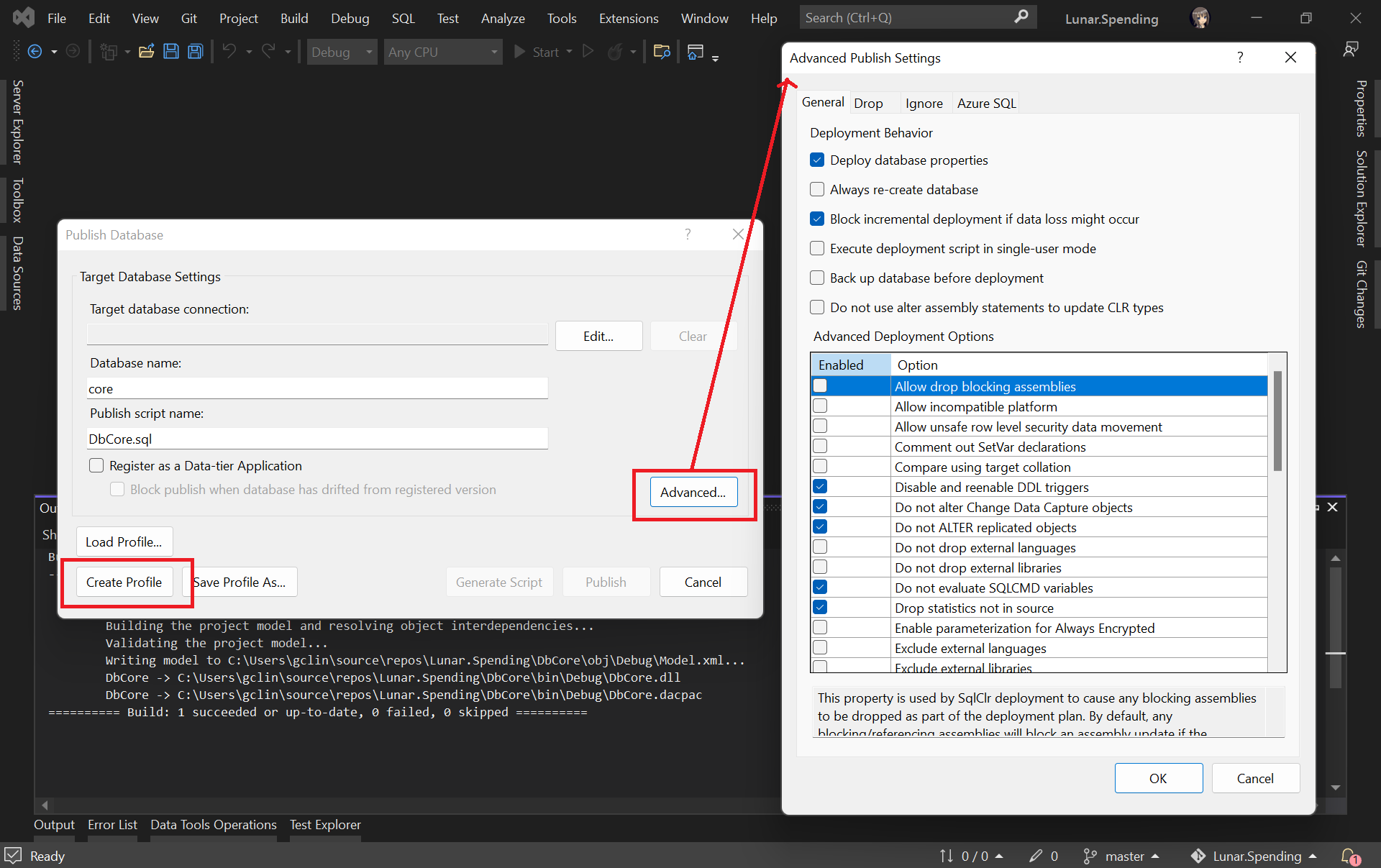
Secondly, we need to create the Publish Profile of our database. To do so, we simply right click on database project and choose the “Publish…” option. There will be a window popped out, as shown below.

Configuring the Publish Profile of our database.

As shown in the screenshot above, there are many settings that can be configured, including Azure SQL related settings. After configuring them accordingly, please click on the “Create Profile” button. Once it is grayed out, it means that the profile has been generated successfully. We can then proceed to close the popped-out window.

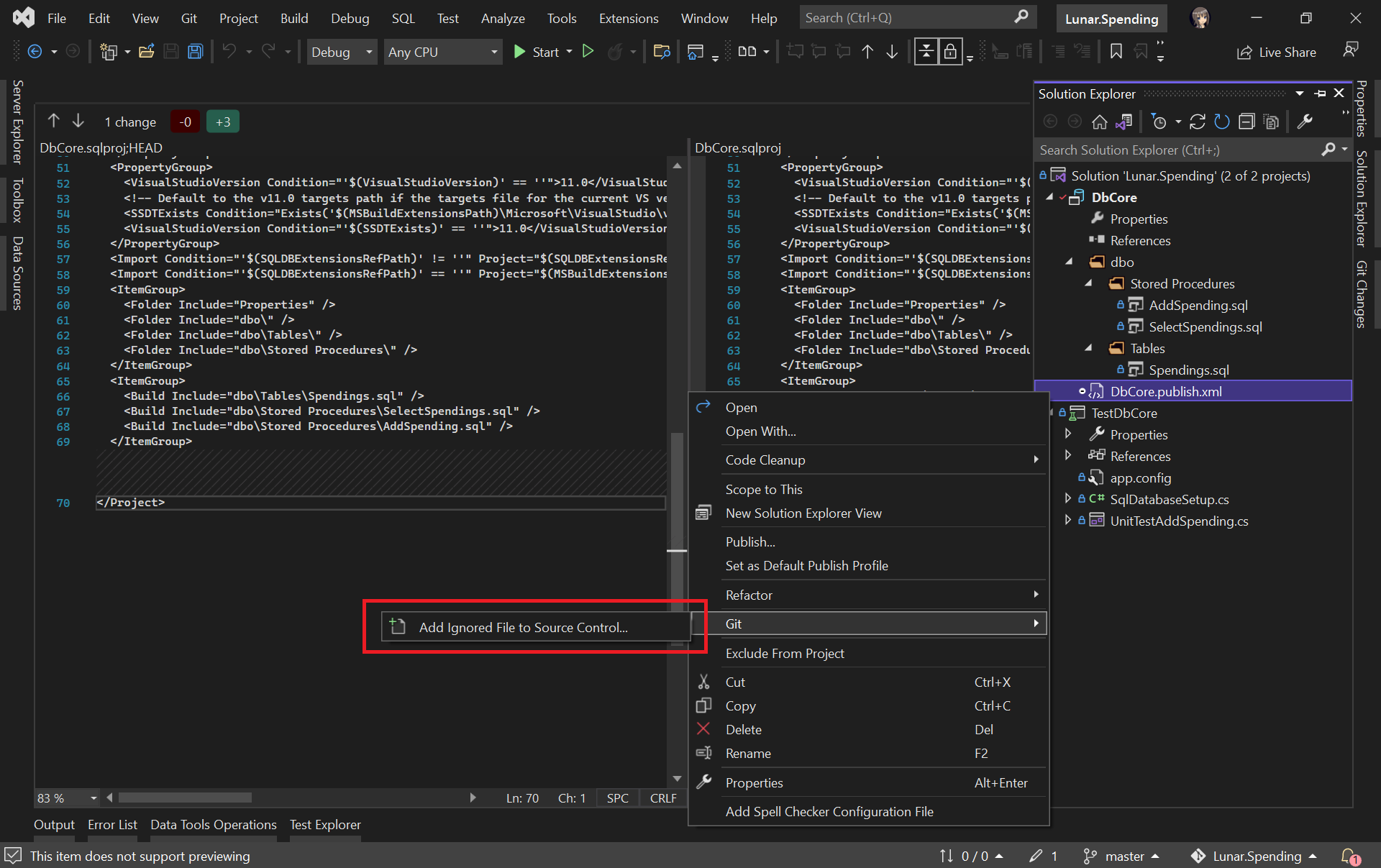
Please make sure the generated Database Profile file is included in the source control. Kindly add it to Git if it is not, as shown in the screenshot below. This is because this file is needed in our Azure DevOps build pipeline later.

Please make sure our Database Profile is included in source control.

Finally, let’s create a project on Azure DevOps which will host the build and release pipelines for our automatic database deployment.

We will configure our project to have only the Pipelines service on Azure DevOps.

Setup Build Pipeline

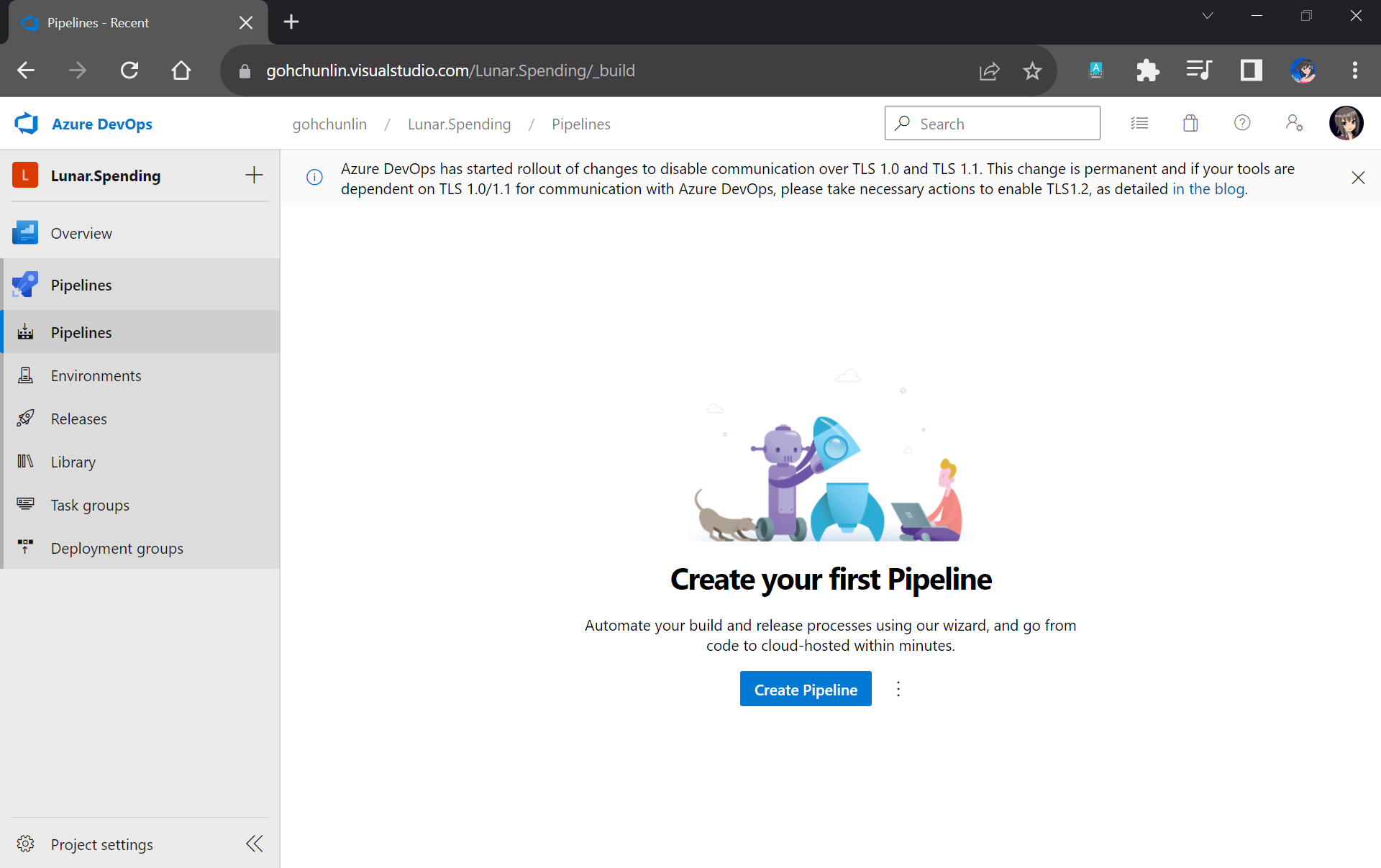
Once we have created our project on Azure DevOps, we can proceed to create our Build Pipeline.

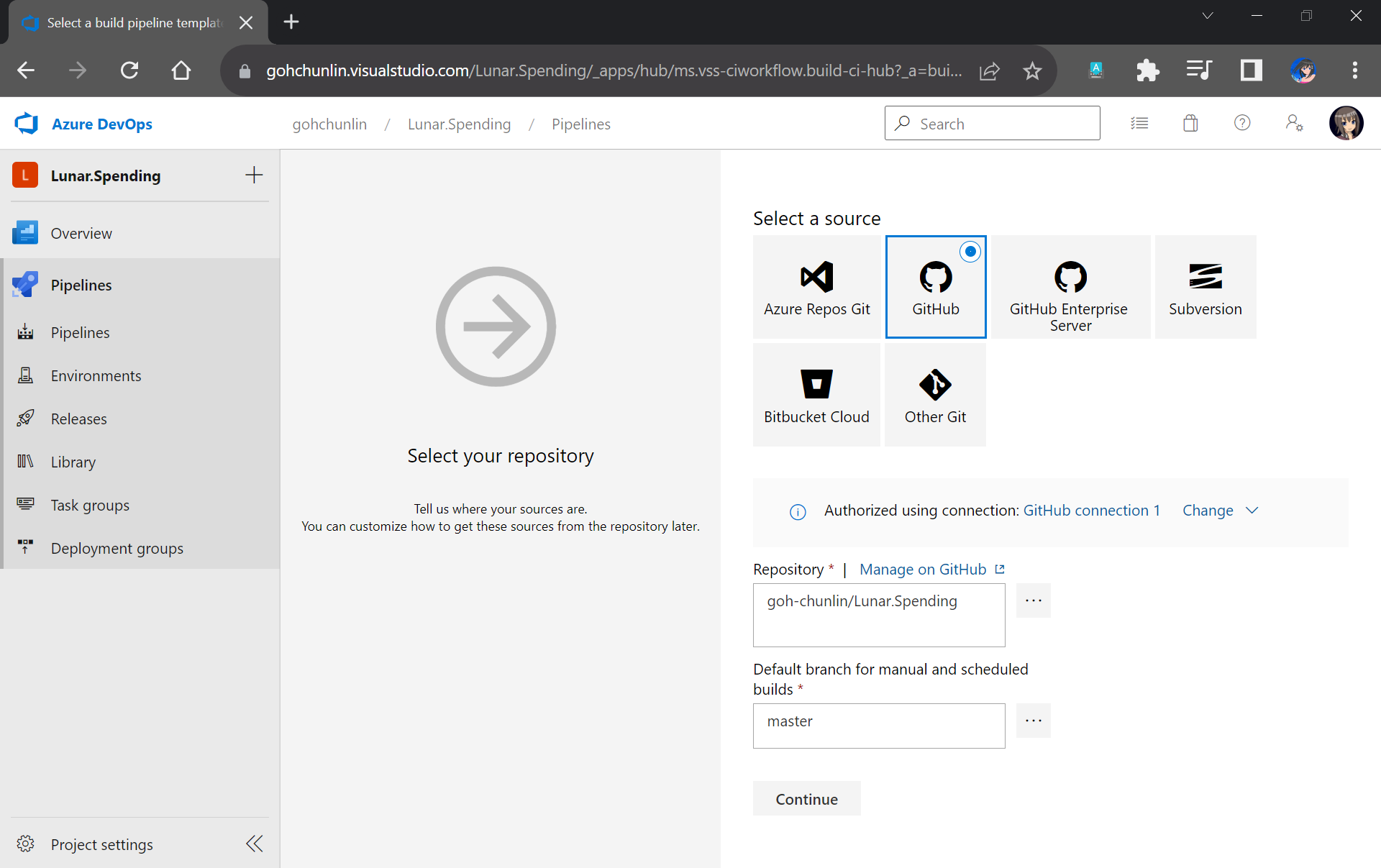
Firstly, we need to specify the code repository we are using. Since our code sists on GitHub, we will connect Azure DevOps with our project on GitHub as shown in the screenshot below.

Please remember to select the correct branch too.

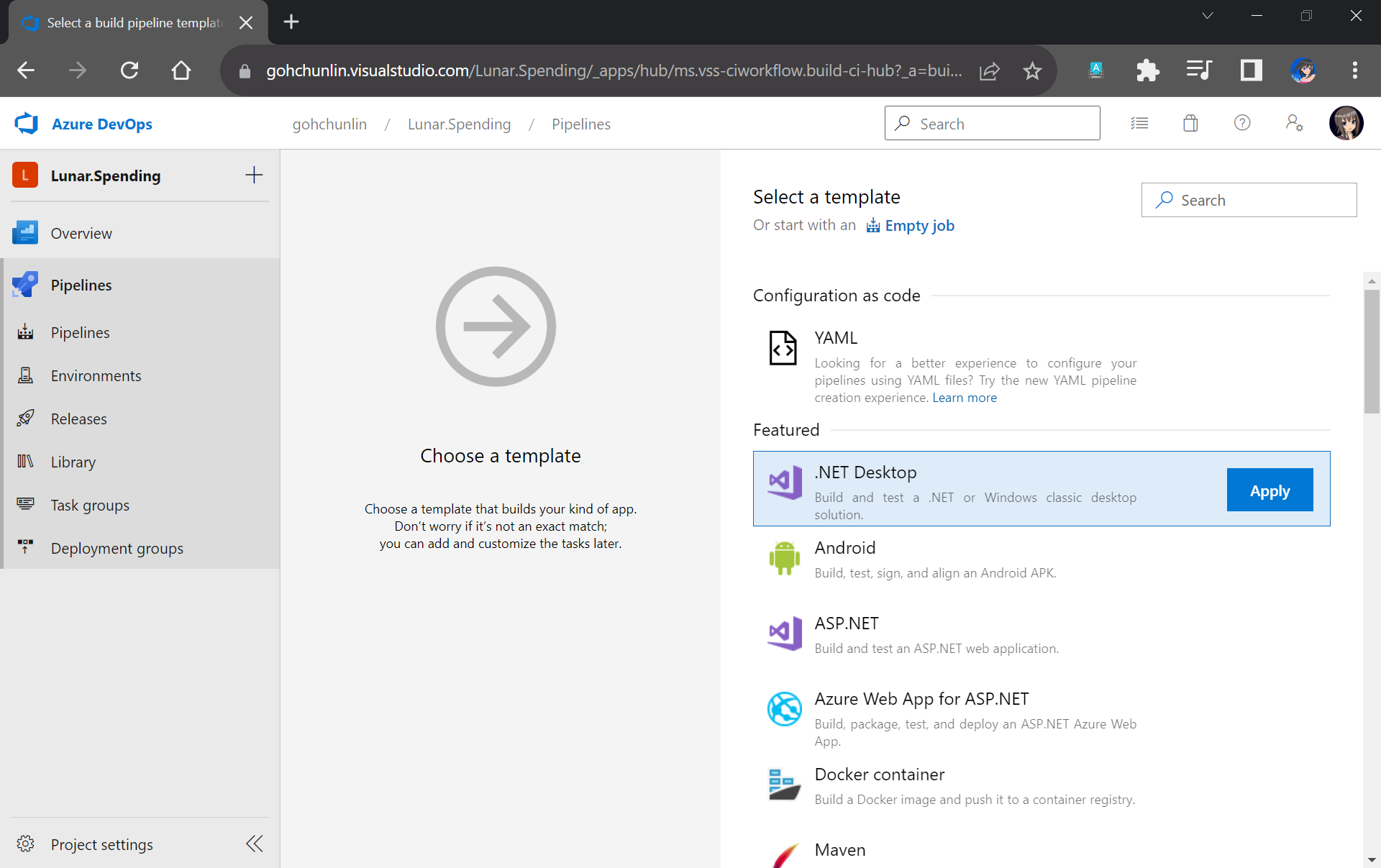
Next, we will start off from the .NET Desktop template. The reason why we choose this template is because it contains many tasks that we can use in our database build pipeline.

We will make use of the .NET Desktop template for our database build pipeline.

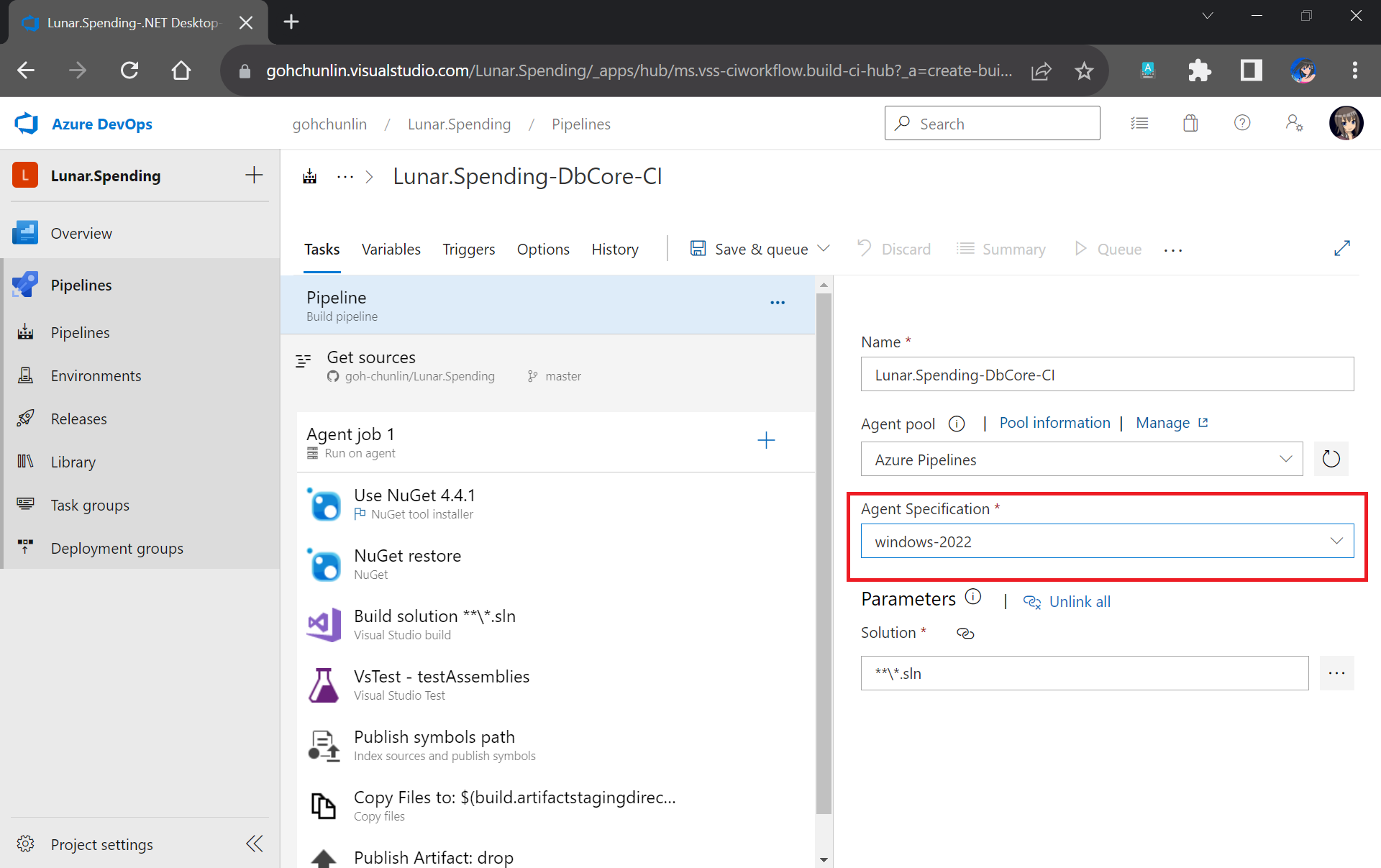
Here we will be using the Microsoft-hosted agent in our build pipeline. With Microsoft-hosted agents, maintenance and upgrades are taken care of for us. Each time we run a pipeline, we will get a fresh virtual machine for each job in the pipeline.

We need to make sure that “windows-2022” (Windows Sever 2022 with VS2022 installed), which is the latest version as of now, is chosen in the Agent Specification field. I have tried with the default “windows-2019” option before and there would be an error message “Error CS0234: The type or namespace name ‘Schema’ does not exist in the namespace ‘Microsoft.Data.Tools’ (are you missing an assembly reference?)”.

Please update to use windows-2022 as our build agent or else there would be issues later.

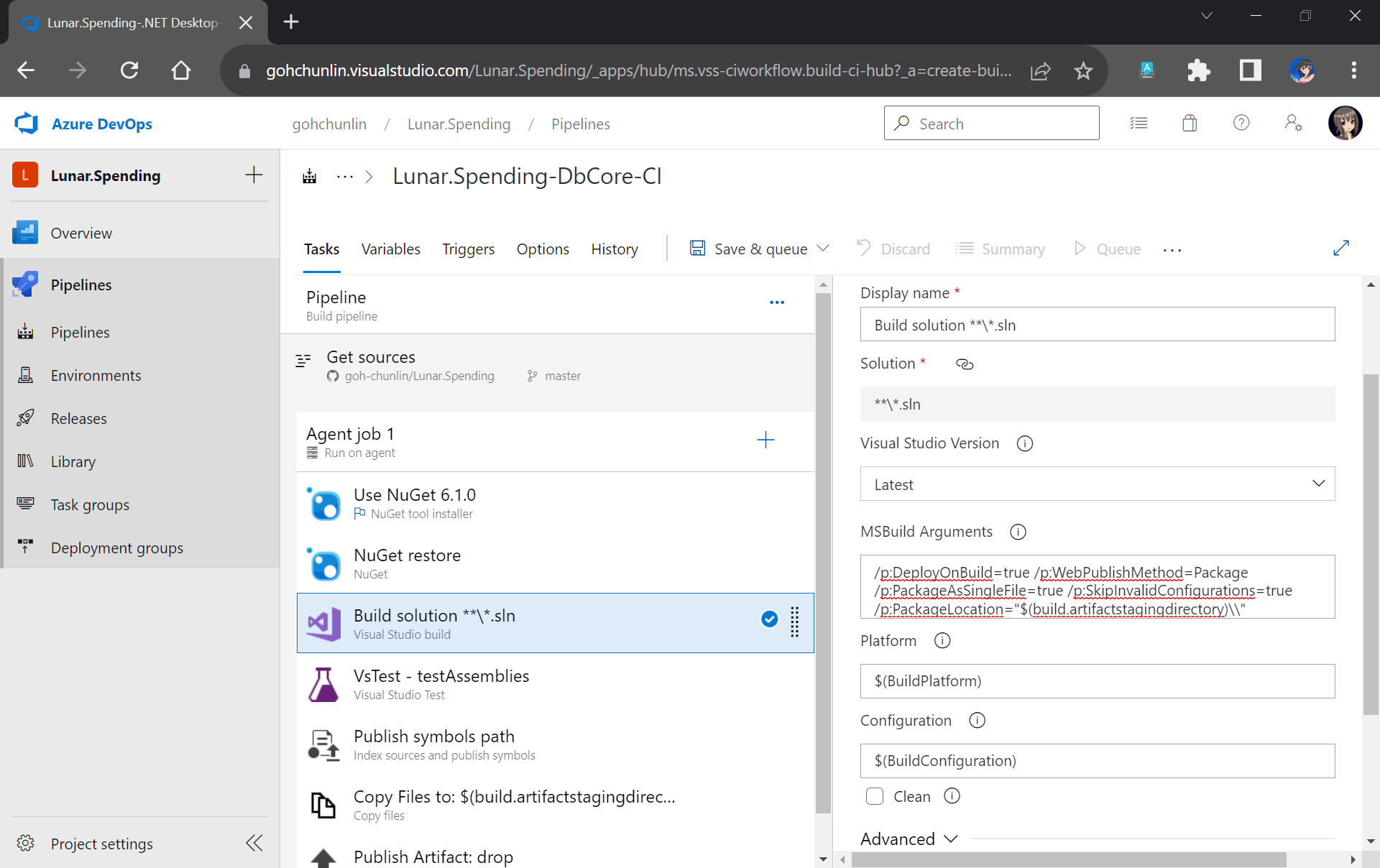
Next, we need to update the version of NuGet to be the latest, which is now 6.1.0.

After that, we move on to the third task in the pipeline which is building our Solution in Release mode with the following MSBuild Arguments on Any CPU.

/p:DeployOnBuild=true /p:WebPublishMethod=Package /p:PackageAsSingleFile=true /p:SkipInvalidConfigurations=true /p:PackageLocation="$(build.artifactstagingdirectory)\\"
Configuring the Build task.

We will remove the VsTest from the Build Pipeline because it will be proper to run the unit tests after changes have been deployed to the database. Otherwise, we will still be testing against the old schema and old stored procedures. Hence, we will add the testing task in the Release pipeline instead.

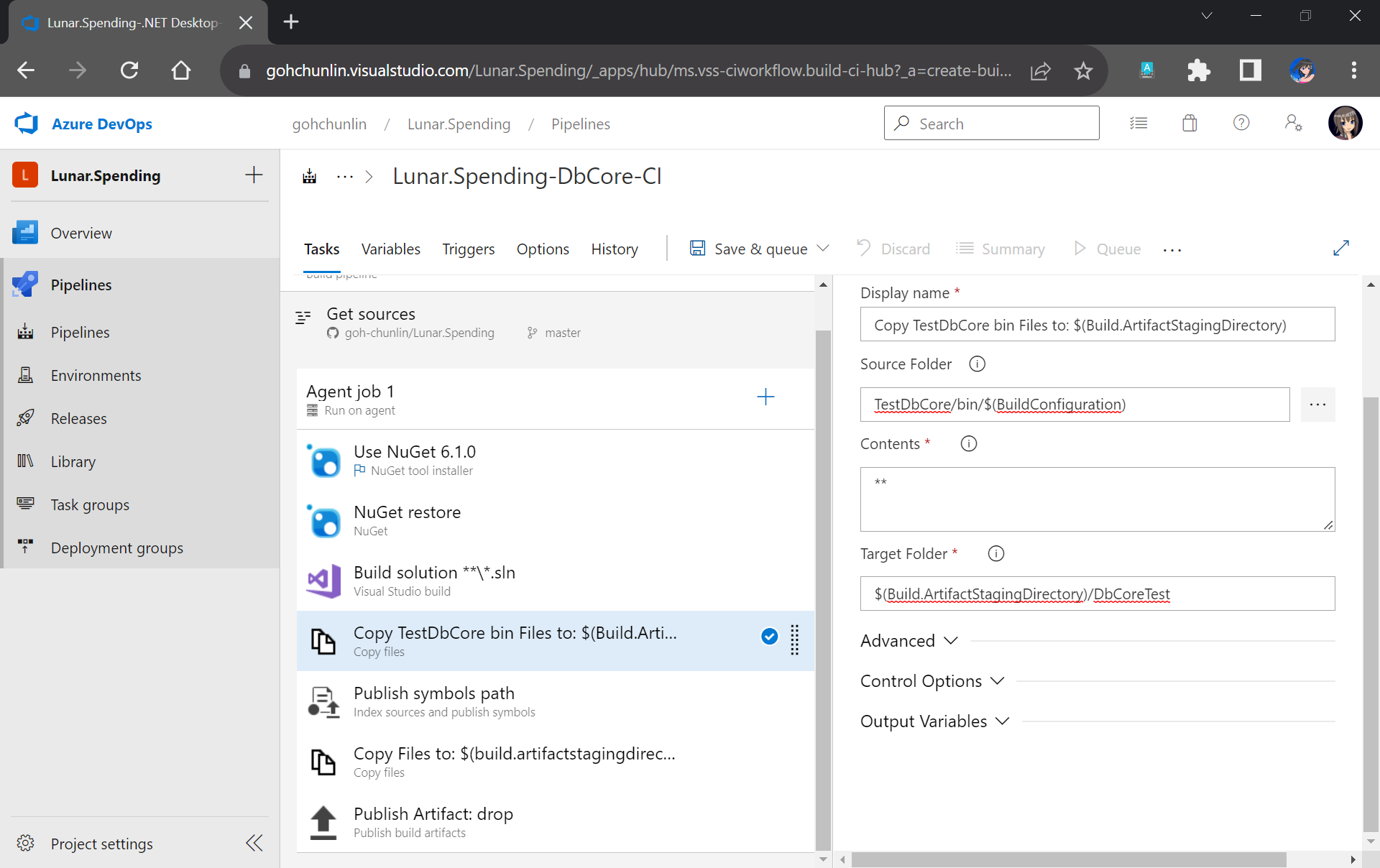
Now, since the testing will be done in the Release Pipeline instead, we shall create a task to copy the assemblies of TestDbCore project to the Build Artifact so that the assemblies can be used in the Release Pipeline later. Thus, we will add a new task “Copy Files” as shown in the screenshot below.

TestDbCore assemblies and other relevant files will be copied to DbCoreTest folder in the Build Artifact.

We will also remove the next task, which is publishing symbols because it is not necessary.

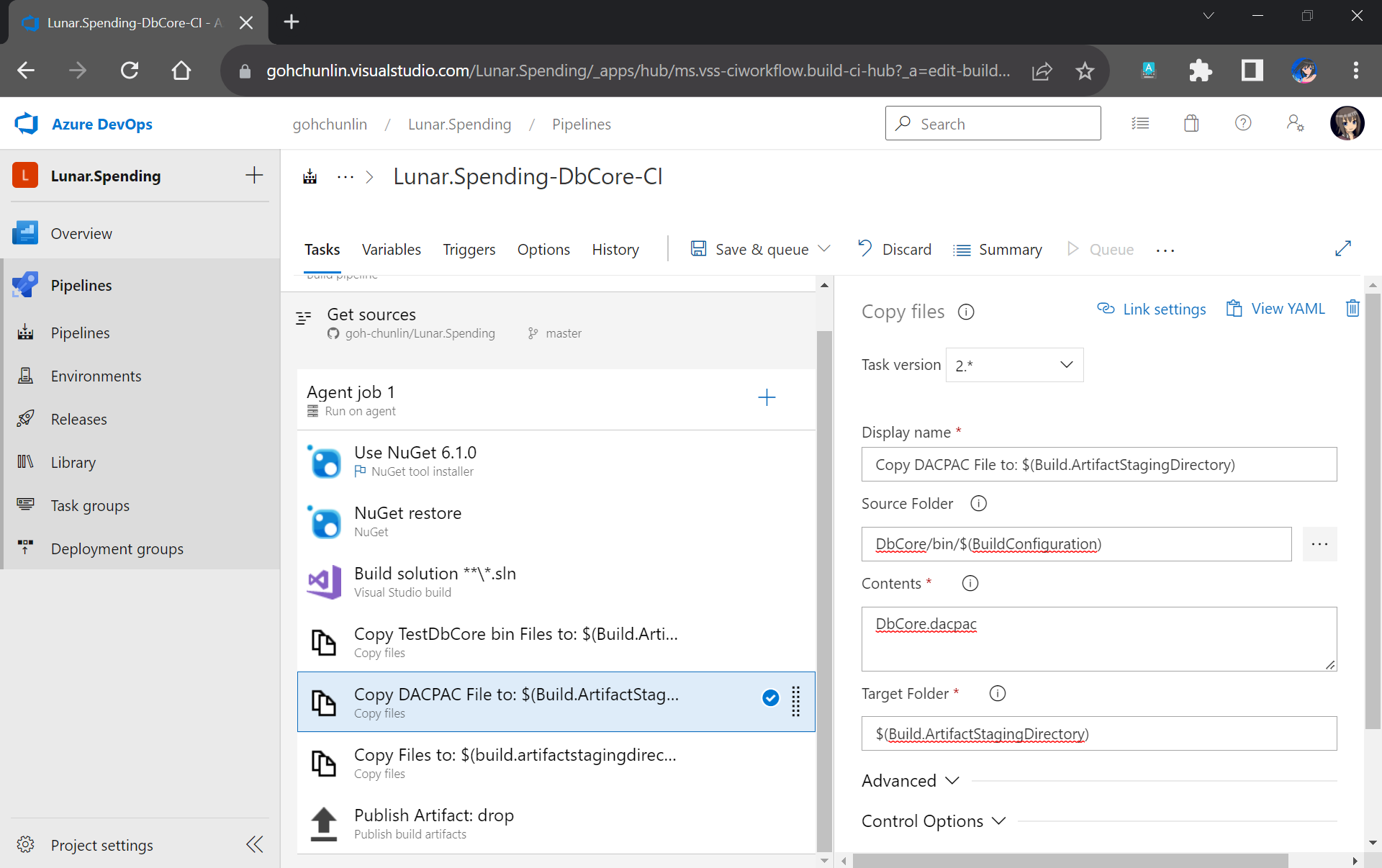
After that, we will add a new task to copy DACPAC file, which is generated during Build, to the Build Artifact, as shown in the following screenshot.

DACPAC file is needed to deploy our database to an existing instance of Azure SQL database.

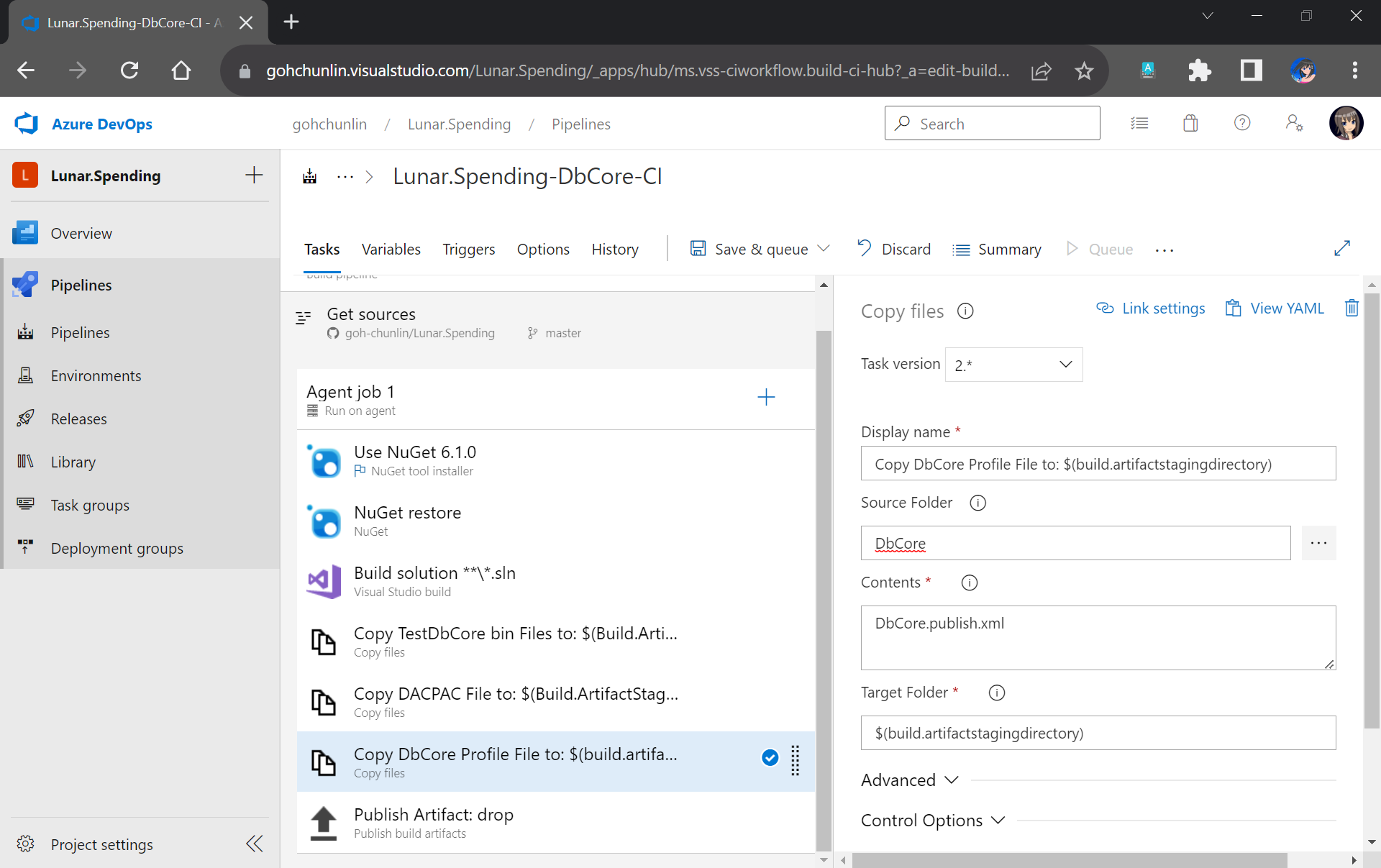
Another file we need to copy is our Database Profile. This is the reason why earlier we have to make sure the profile file needs to be in the source control.

The database publish profile needs to be copied to the Build Artifact directory as well.

There is nothing to change for the Publish Artifact task. So, we can now move on to enable the Continuous Integration for the Build Pipeline, as shown in the screenshot below.

We can enable the continuous CI under the Triggers section of our Build Pipeline.

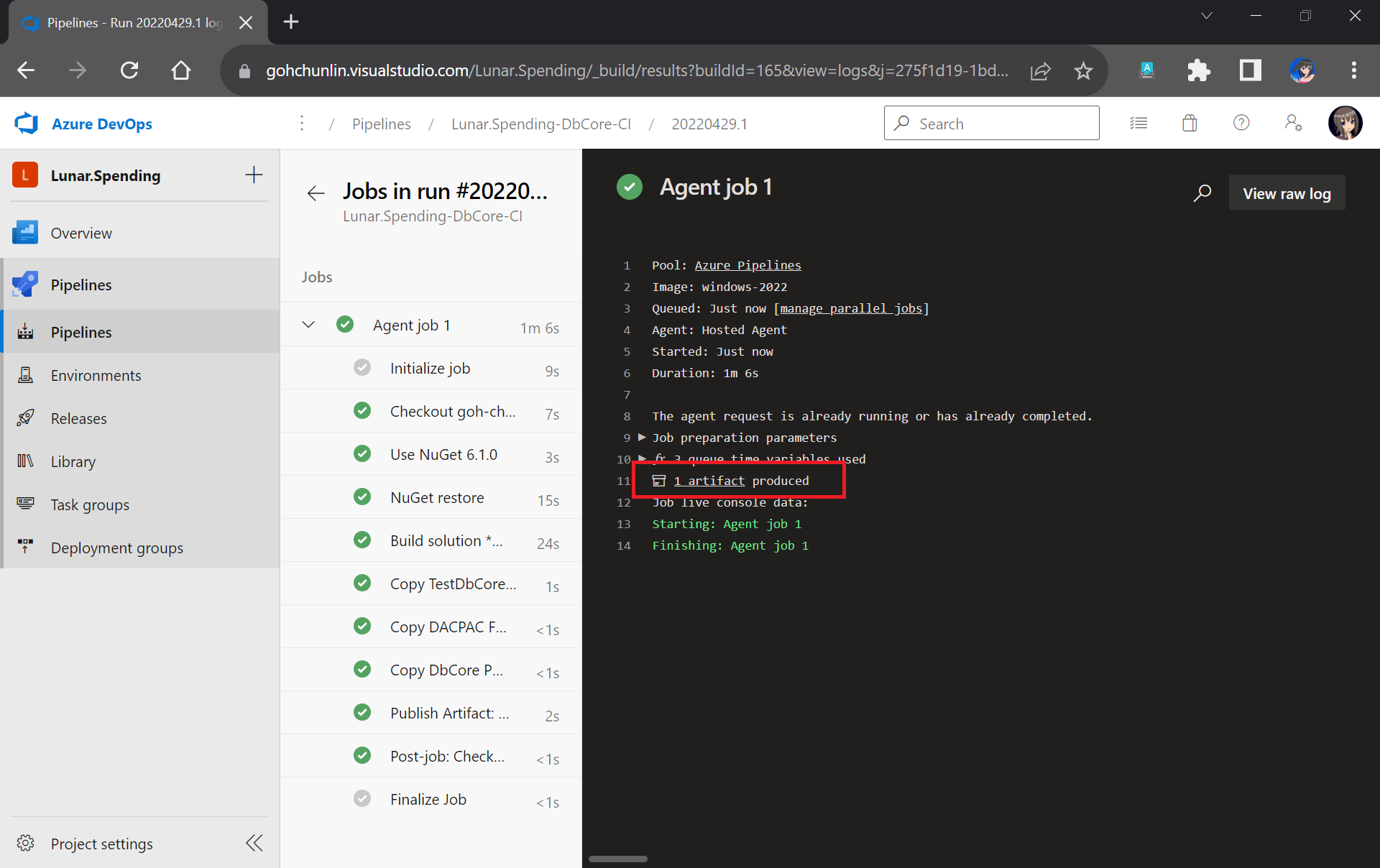
Finally, we can save and queue our Build Pipeline. If the build is successful, we will be able to see a Build Artifact produced, as shown in the screenshot below.

Build is successfully executed!

Setup Release Pipeline

In order to automatically deploy our database changes after the database project and unit test project are built successfully, we need to configure the Release Pipeline.

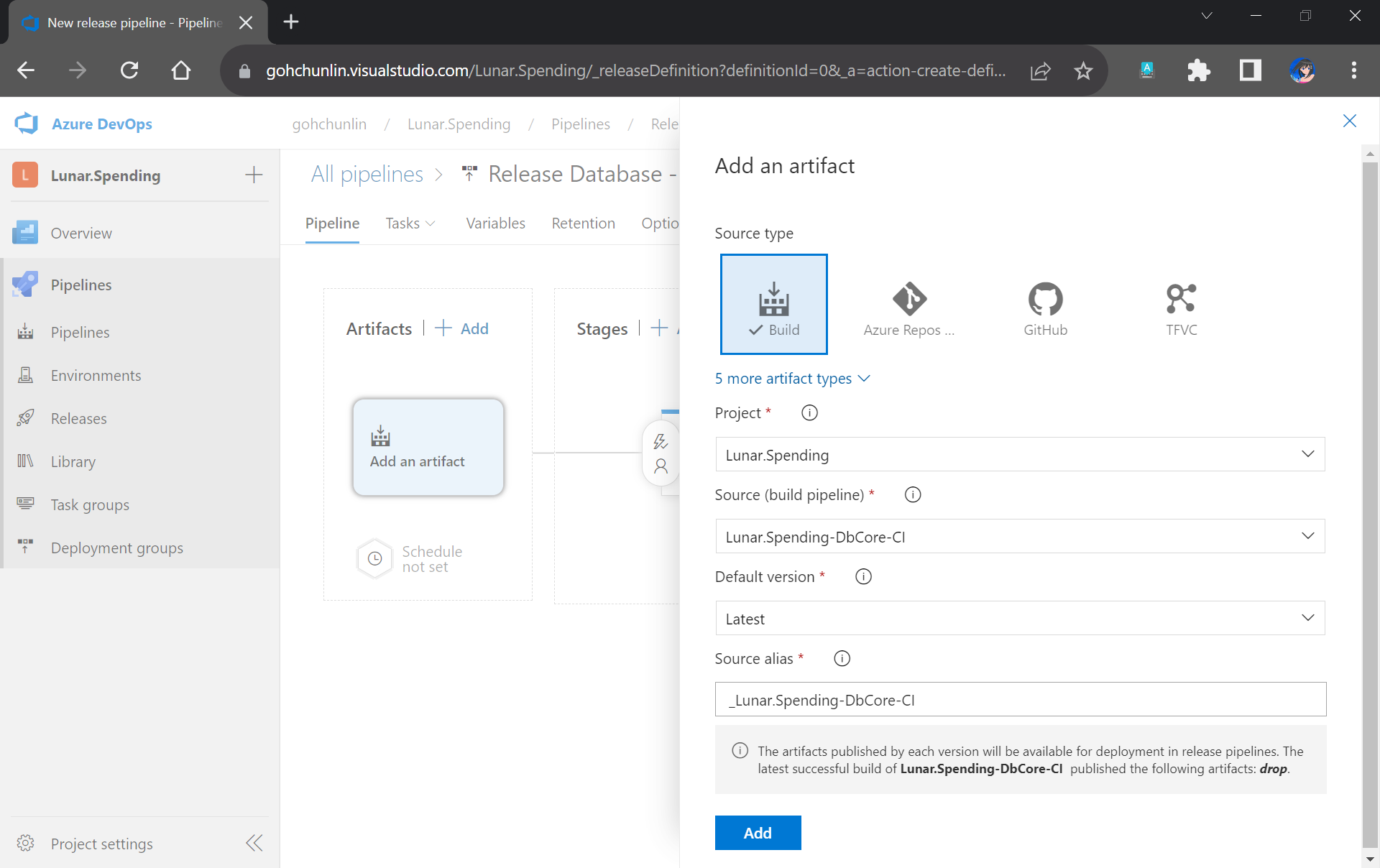
First of all, we need to integrate our Build Pipeline with this new Release Pipeline, as demonstrated in the following screenshot.

Adding the Build Artifact generated earlier in the Build Pipeline.

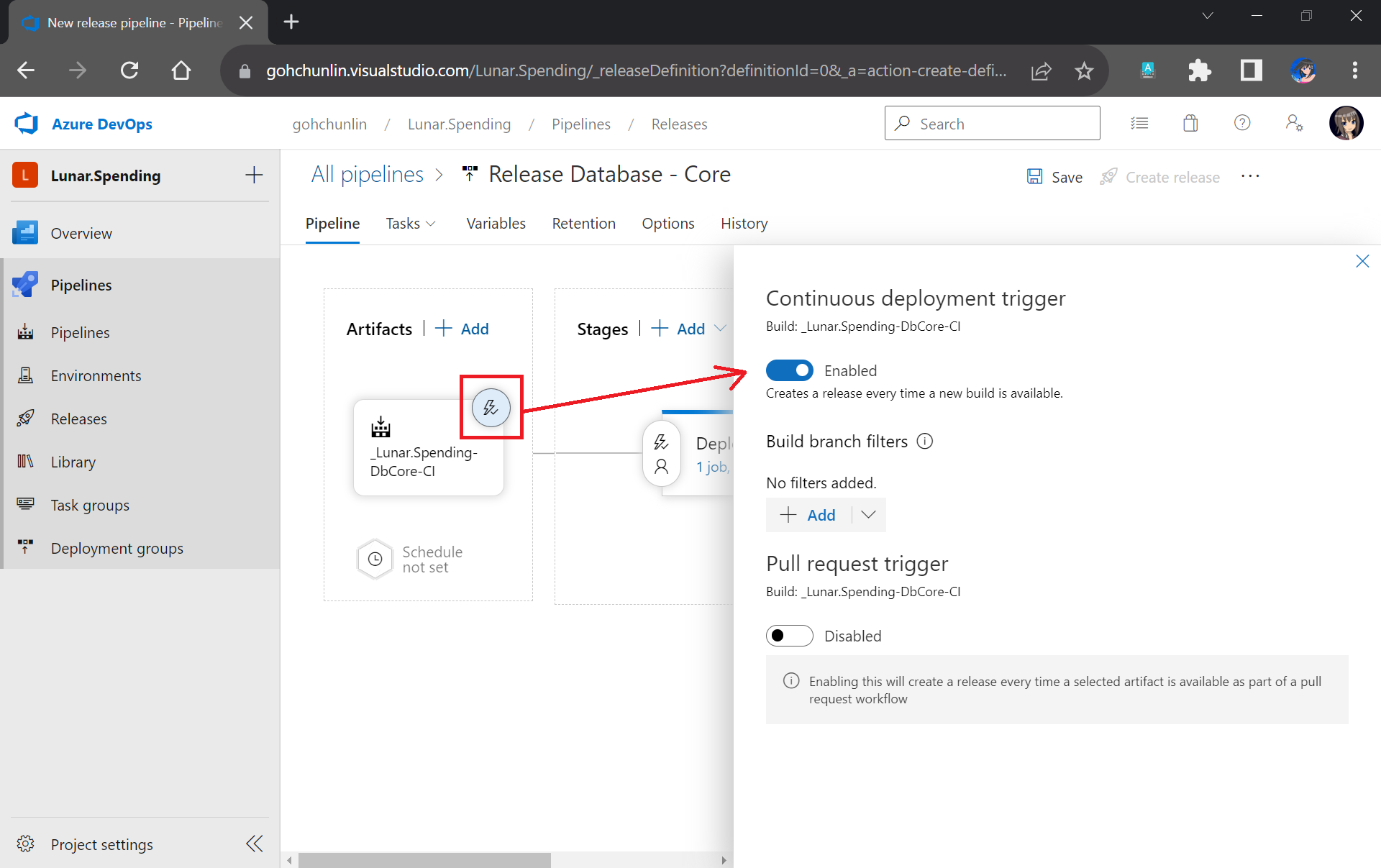
Next, we can enable the Continuous Deployment, as shown in the screenshot below. This is to make sure that we can deploy the database changes and test them automatically right after the build is completed successfully.

Enabling CD in our Release Pipeline.

Now, we can move on to configure the tasks in the stage. Here, I have renamed the stage as “Deploy DbCore”. To be consistent with the Build Pipeline, here we will be using “windows-2022” as the agent in our Release Pipeline too.

Please update to use windows-2022 as our agent or else there would be issues later.

The first task will be deploying database changes to Azure SQL with the task “Azure SQL Database deployment”. In the task, we need to select our Azure subscription and provide our Azure SQL database admin login credential so that the database changes can be deployed to Azure SQL on our behalf.

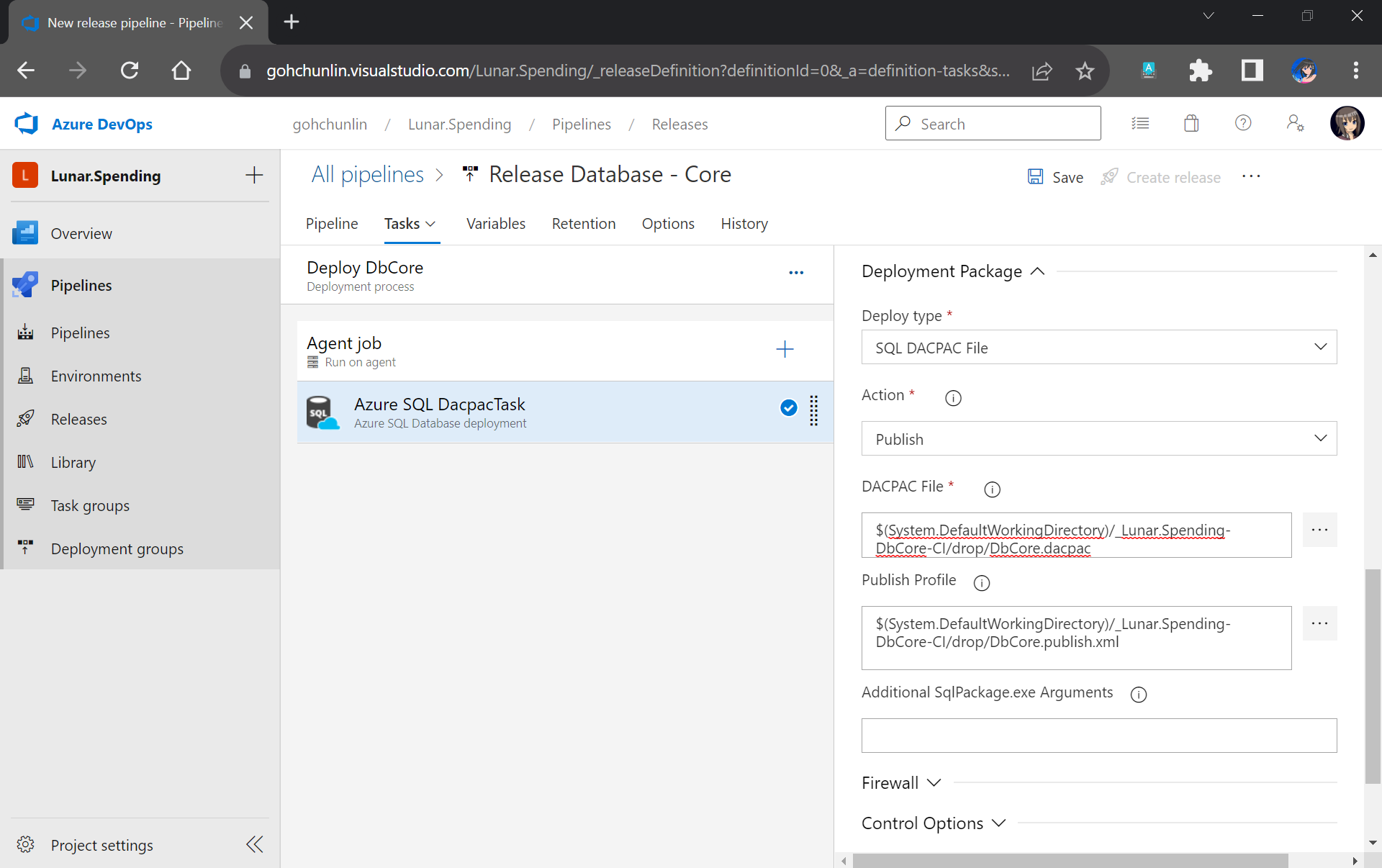
In the same task, under the Deployment Package section, we need to state that we will be deploy with a DACPAC file. This is also where we will use the DACPAC file and publish profile file in the Build Artifact.

Setting up the deployment package.

Next, we will run into a problem. We are supposed to add the testing task next. However, connection strings to the database are needed. So how could we securely store the connection strings in our pipeline?

Shanmugam Chinnappa proposed three ways to solve this problem. I will demostrate how I use his method of using user-defined secret variables. This is the most straightforward way among the three.

Firstly, we need to edit the app.config file in the TestDbCore project. In this file, two connection strings can be found. The connection string in ExecutionContext is used to execute the test script in our unit test. The PrivilegedContext connection is used to test interactions with the database outside the test script in our unit test.

To keep things simple, we will use the same connection string for both contexts. We thus can replace the connection string in those two contexts with a token #{TestDbCoreConnection}#.

<ExecutionContext Provider="System.Data.SqlClient" 
    ConnectionString="#{TestDbCoreConnection}#" CommandTimeout="30" />

<PrivilegedContext Provider="System.Data.SqlClient" 
    ConnectionString="#{TestDbCoreConnection}#" CommandTimeout="30" />

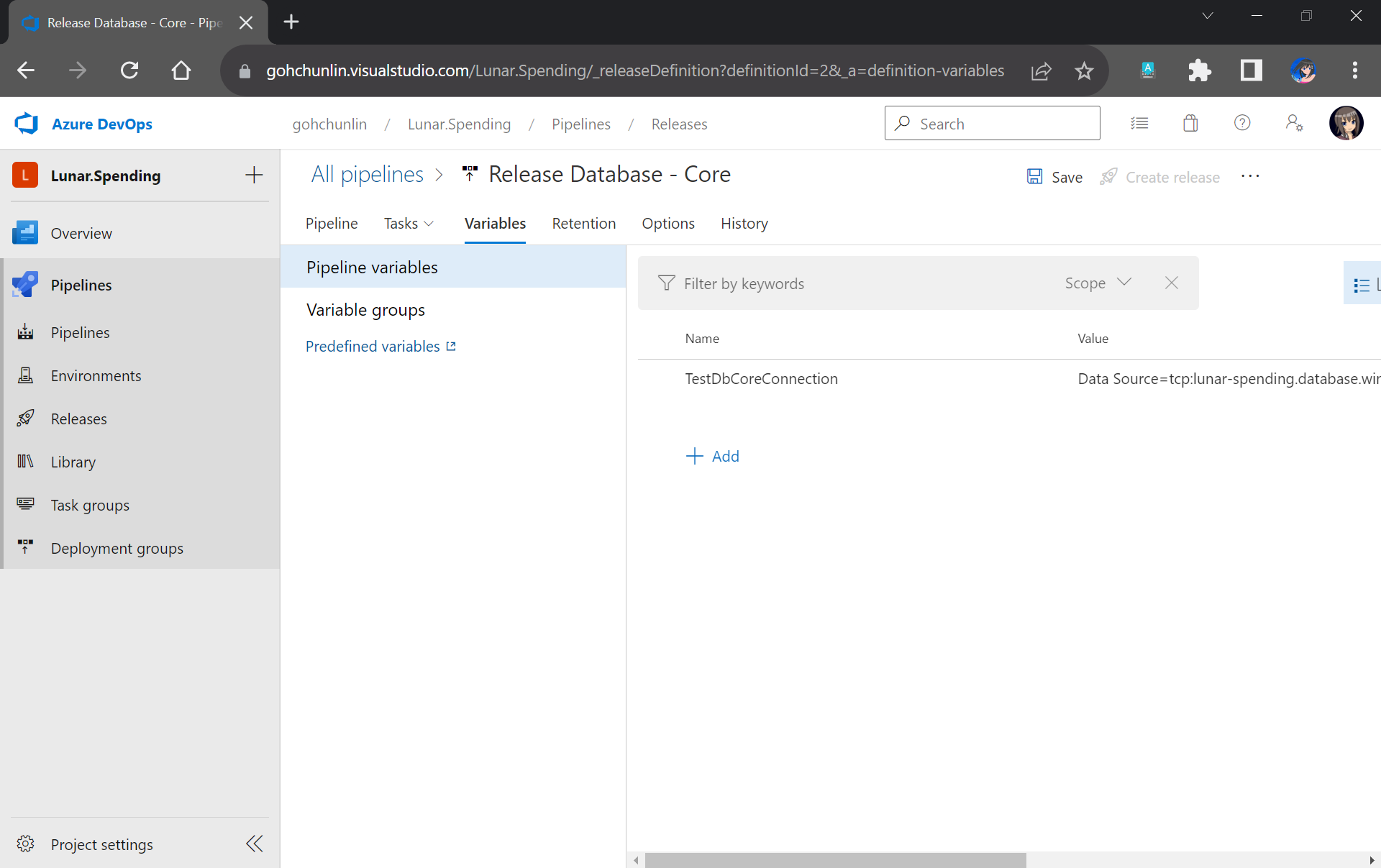
After committing this change to our GitHub repo, we will specify the actual connection string in the Pipeline Variables section under the same name as the token. Since we use TestDbCoreConnection as our token label, the variable is thus called TestDbCoreConnection as well, as shown in the screenshot below.

Storing the actual database connection string in the Pipeline Variables of our Release Pipeline.

Now we will need a task which would replace the tokens in the app.config file with the actual value. The task we will be using here is the “Replace Tokens” done by Guillaume Rouchon.

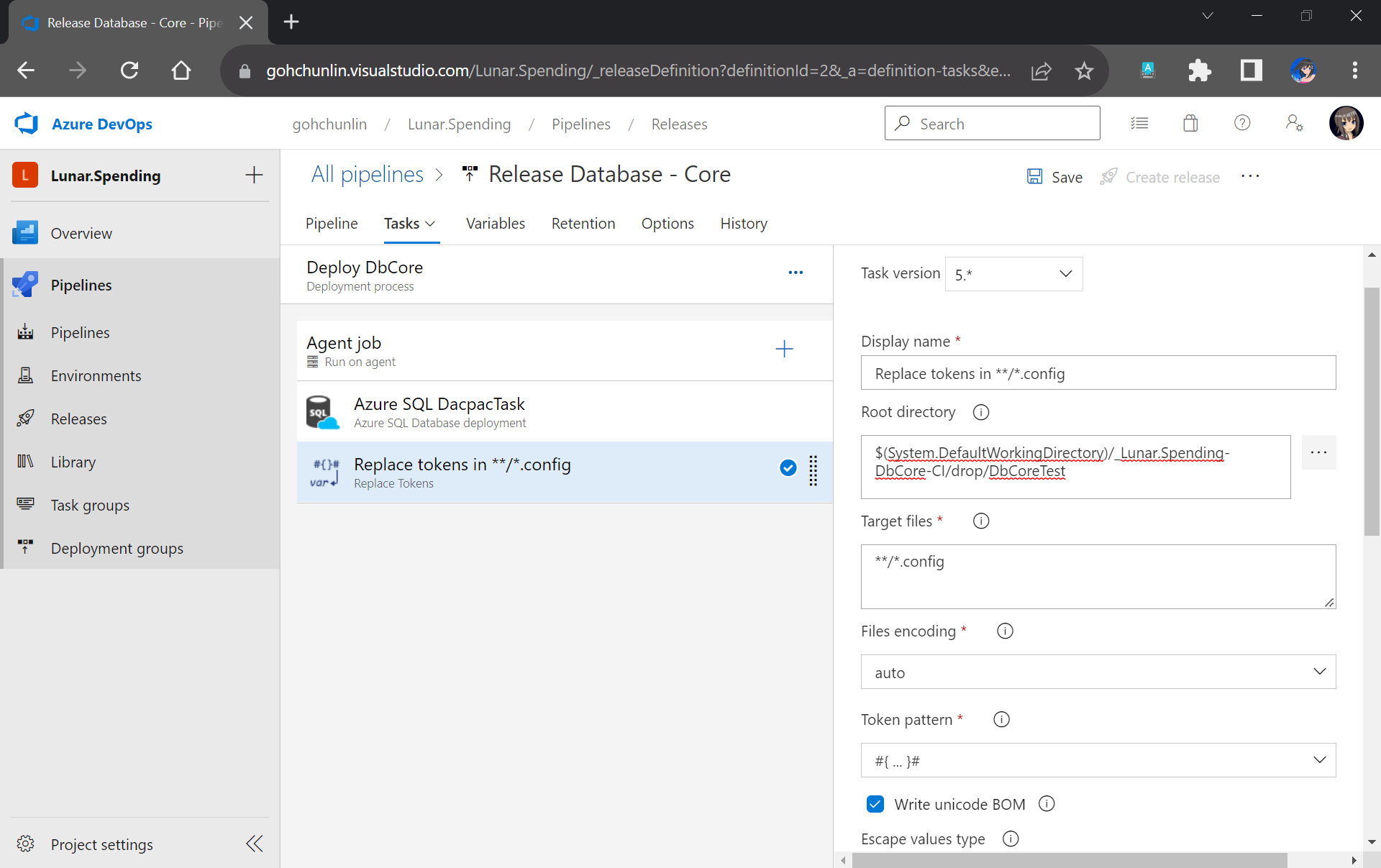
Previously we have moved the TestDbCore bin/Release folder to the Build Artifact. In fact, app.config, which is renamed to TestDbCore.dll.config, is in the folder as well. Hence, we can locate the config file easily by pointing the task to the Build Artifact accordingly, as demonstrated in the screenshot below.

We will only need to specify the Root Directory of where our TestDbCore.dll.config is located.

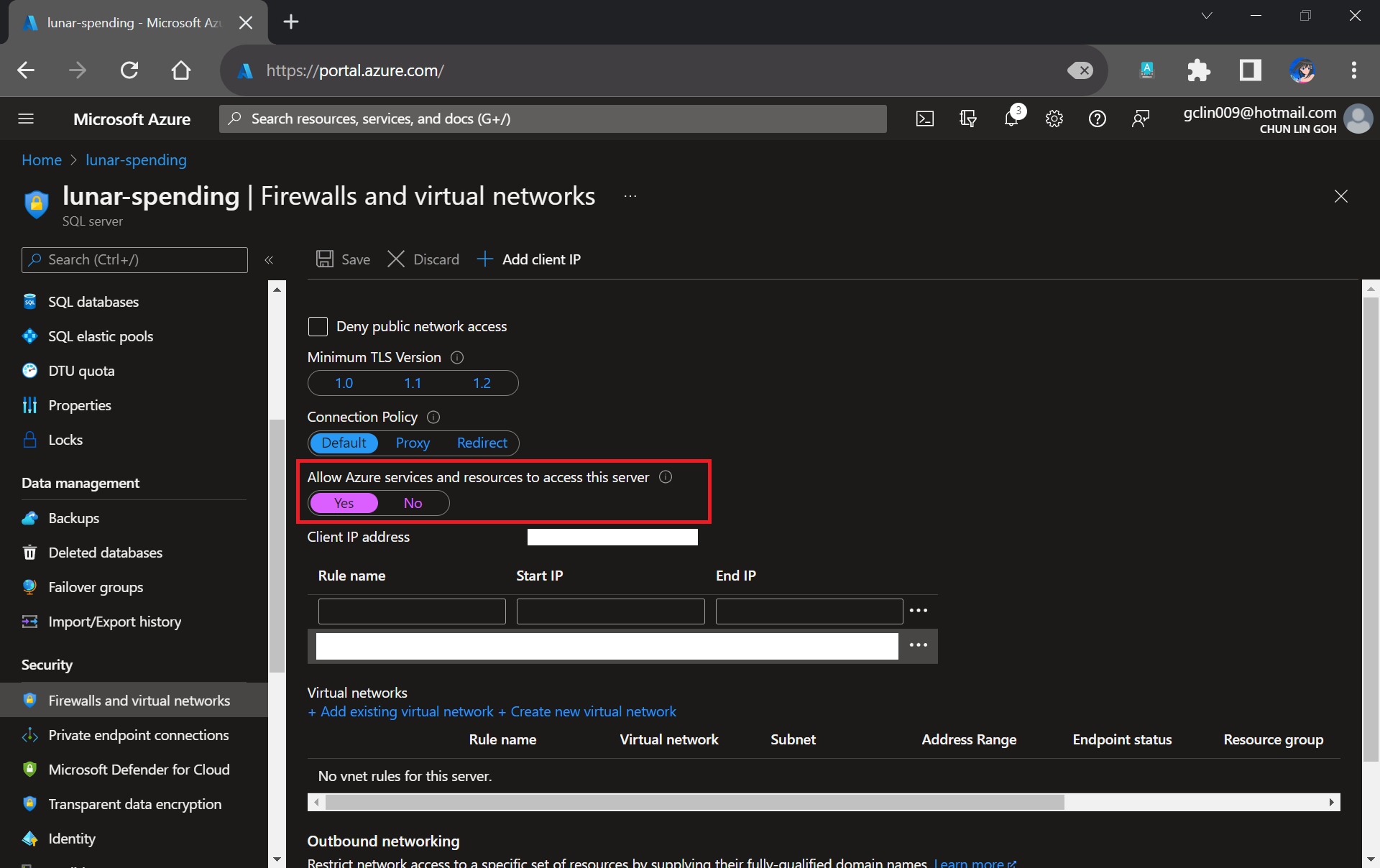
Please take note that since our unit tests need to test the Azure SQL database specified in the connection string, we need to allow Azure services and resources to access our Azure SQL server by configuring its firewall, as shown in the following screenshot. Otherwise, all our unit tests will fail because the Azure SQL server cannot be reached.

Interestingly, the Azure AQL Database deployment task will still be executed successfully even though we do not allow the access mentioned above.

We need to allow Azure services and resources to access the relevant Azure SQL server.

With the actual connection string in place, we can now add our Visual Studio Test (2.*) task back to execute our unit test.

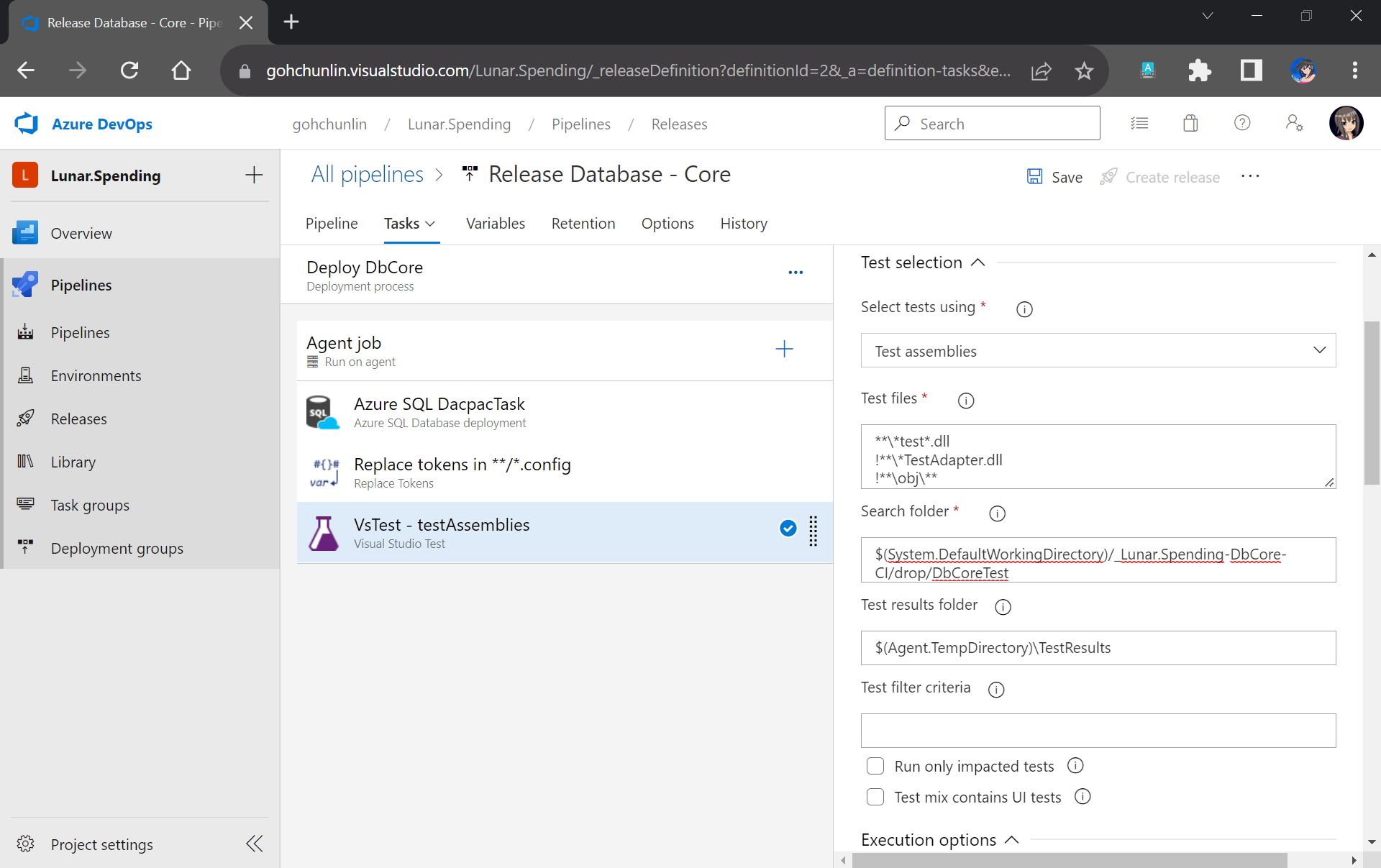
We have our test files in the folder DbCoreTest in the Build Artifact as we designed earlier in the Build Pipeline. Hence, we simply need to point the Search Folder of the Visual Studio Test task to the folder accordingly.

Setting up Visual Studio Test to run our unit test for our stored procedures.

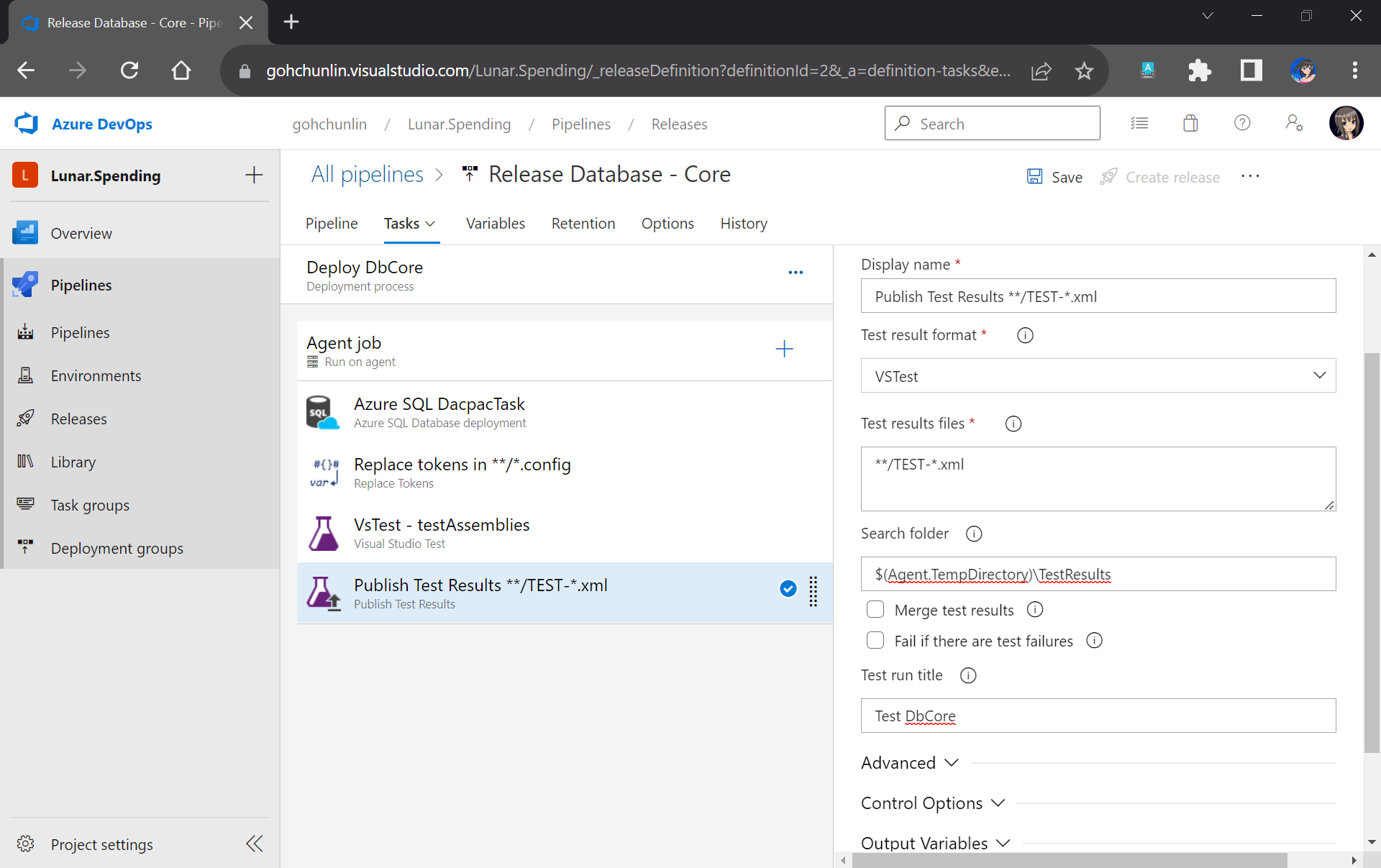
You may have noticed that the test results will be stored in a folder called $(Agent.TempDirectory)\TestResults. So, let’s add our last task of the stage which is to publish the test results.

We will need to specify that our test results are generated by VSTest. Aftervthat, we point the task to look for test results in the $(Agent.TempDirectory)\TestResults folder. Finally, we name our test run.

We can publish our test results to the Release Pipeline.

That’s all! Please remember to save the Release Pipeline changes.

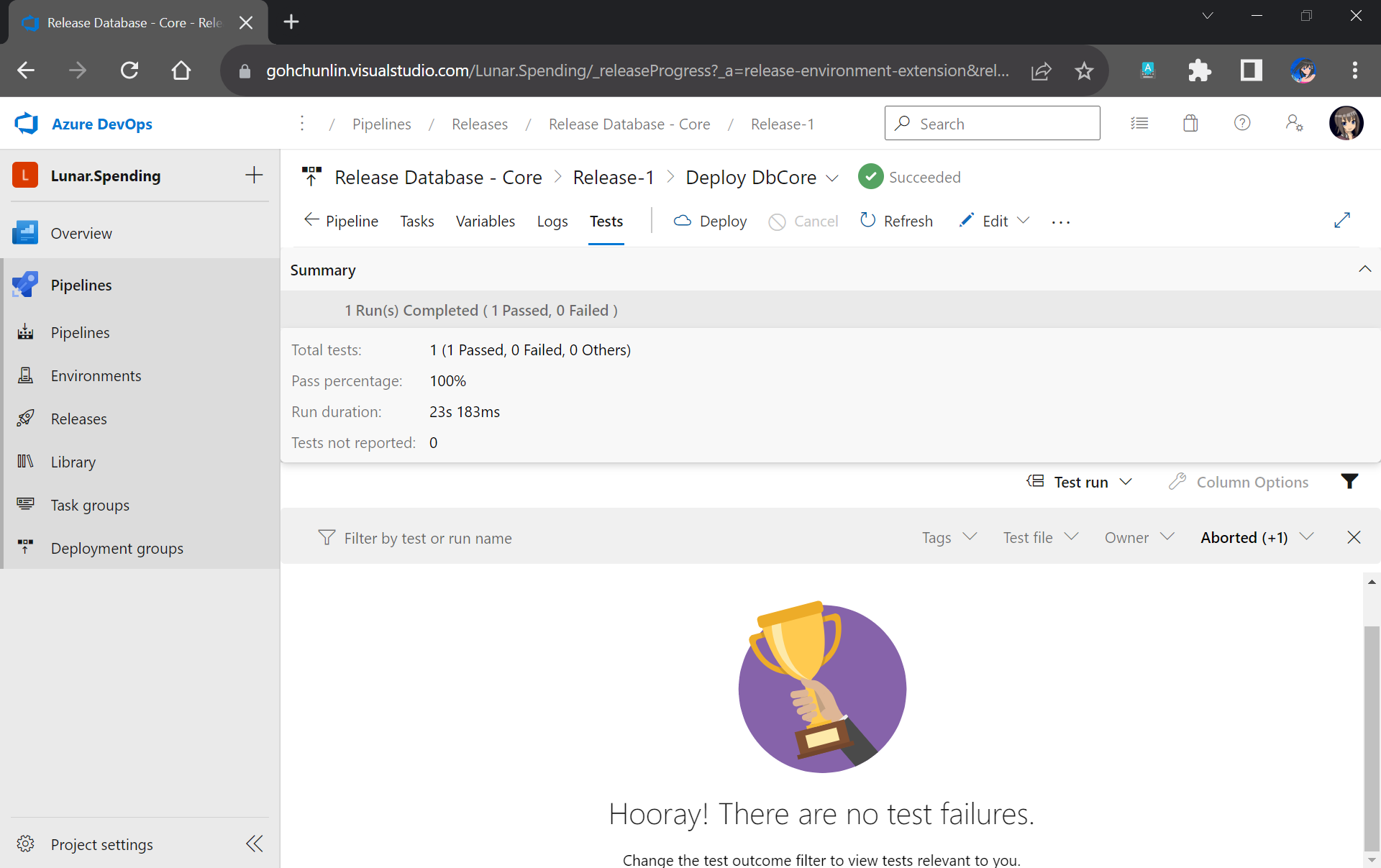
Now when there is a new build completed, the Release Pipeline will be automatically triggered. Once it is completed, not only our database on Azure SQL will be updated accordingly, but also we will have a detailed test result. For example, when all of our unit tests have passed, we will get a test result as shown below.

If all tests have passed, we will receive a trophy. 🙂

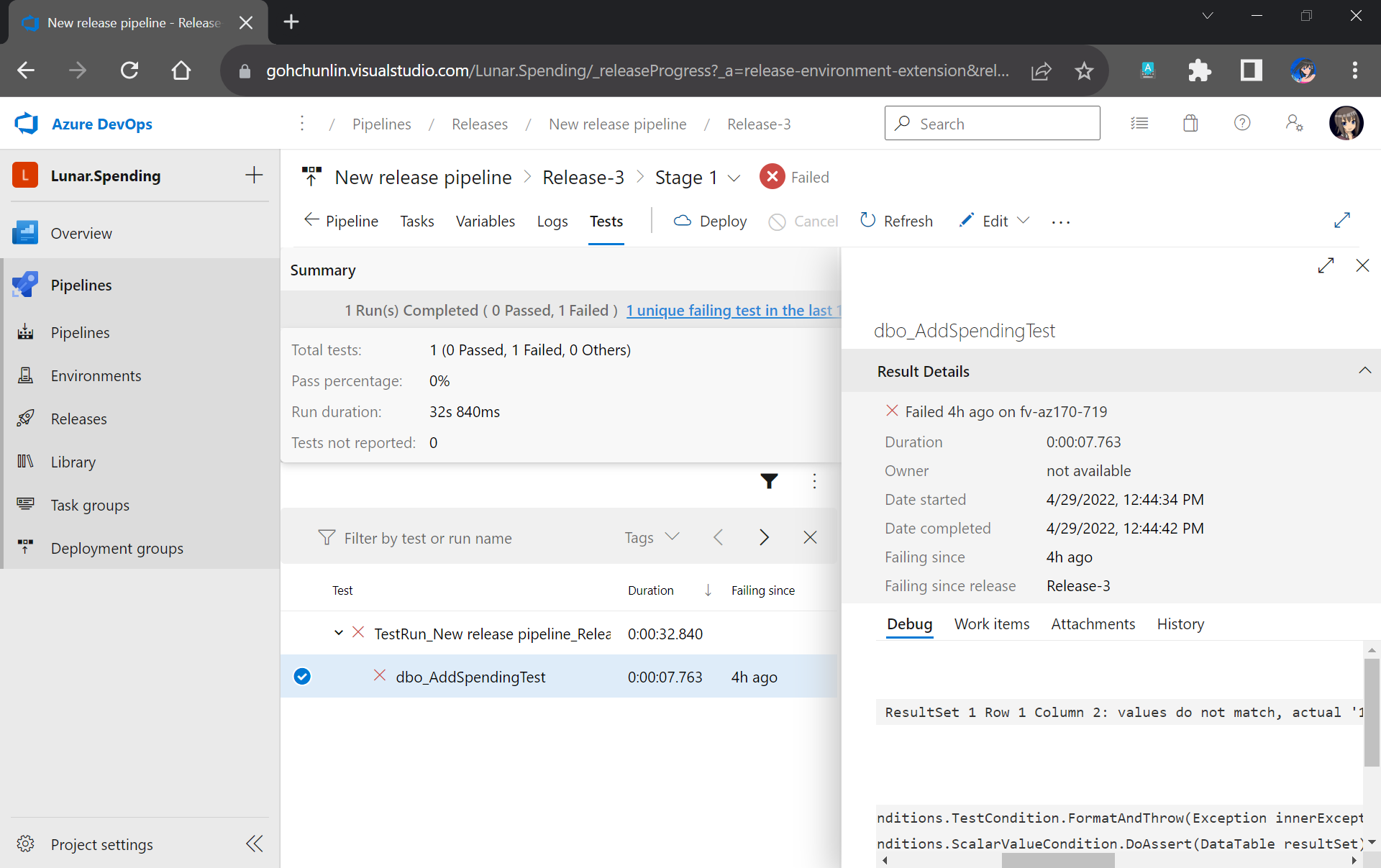
However, if there is one or many tests fail, we can easily locate the failed tests easily in the report.

This shows that our stored procedure dbo_AddSpendingTest has issues which need our attention.

That’s all for a simple walkthrough from writing unit tests for stored procedures to automatically deploying and testing them with Azure DevOps CI/CD pipelines.

I actually started learning all these after watching Hamish Watson’s sharing on DevOps Lab show which was released four years ago in 2018. In the video, he also shared about how DBA could do unit testing of their database changes tSQLt. Please watch the full YouTube video if you would like to find out more about unit testing our stored procedures.

Damian meets with Hamish Watson at the MVP Summit to talk about testing our database changes.

References

Automated GUI Testing of UWP Apps Using Appium and Azure DevOps

There is a popular yet simple checklist on how good a software team is from Joel Spolsky, who has been the CEO of Stack Overflow until last year (2019). The checklist is called the Joel Test. The test has only 12 items but 7 of them are related about DevOps, debugging, and testing.

Software testing makes sure that the software is doing exactly what it is supposed to do and it also points out all the problems and errors found in the software. Hence, involving testing as early as possible and as frequent as possible is a key to build a quality software which will be accepted by the customers or the clients.

There are many topics I’d love to cover about testing. However, in this article, I will only focus on my recent learning about setting up automated GUI testing for my UWP program on Windows 10.

Appium

One of the key challenges in testing UWP app is to do the GUI testing. In the early stage, it’s possible to do that manually by clicking around the app. However, as the app grows larger, testing it manually is very time consuming. After sharing my thoughts with my senior Riza Marhaban, he introduced me a test automation framework called Appium.

What is Appium? Appium is basically an open source test automation framework for iOS, Android, and Windows apps. Here it says Windows apps because besides UWP, using it to test WPF app is possible as well.

Together with Windows App Driver which enables Appium by using new APIs added in Windows 10 Anniversary Edition, we can use them to do GUI test automation on Windows apps. The following video demonstrates the results of GUI testing with Appium in my demo project Lunar.Paint.Uwp.

Here, I will list down those great tutorials about automated GUI testing of UWP apps using Appium which are ranked top in Google Search:

Some of them were written about four years ago when Barack Obama was still the President of the USA. In addition, none of them continues the story with DevOps. Hence, my article here will talk about GUI testing with Appium from the beginning of a new UWP project until it gets built on Azure DevOps.

🎨  Barack Obama served as the 44th president of the United States from 2009 to 2017. (Image Credit: CBS News) 🎨 

Getting Started with Windows Template Studio for UWP

Here, I will start a new UWP project using Windows Template Studio.

🎨  Configuring the Testing of the UWP app with Win App Driver. 🎨 

There is one section in the project configuration called Testing, as shown in the screenshot above. In order to use Appium, we need to add the testing with Win App Driver feature. After that, we shall see a Test Project suffixed with “Tests.WinAppDriver” being added.

By default, the test project has already come with necessary NuGet packages, such as Appium.WebDriver and MSTest.

🎨  NuGet packages in the test project. 🎨 

Writing GUI Test Cases: Setup

The test project comes with a file called BasicTest.cs. In the file, there are two important variables, i.e. WindowsApplicationDriverUrl and AppToLaunch.

The WindowsApplicationDriverUrl is pointing to the server of WinAppDriver which we will install later. Normally we don’t need to change it as the default value will be “http://127.0.0.1:4723&#8221;.

The AppToLaunch variable is the one we need to change. Here, we need to replace the part before “!App” with the Package Family Name, which can be found in the Packaging tab of the UWP app manifest, as shown in the screenshot below.

🎨  Package Family Name 🎨 

Take note that there is a line of comment right above the AppToLaunch variable. It says, “The app must also be installed (or launched for debugging) for WinAppDriver to be able to launch it.” This is a very important line. It means when we are testing locally, we need to make sure the latest of our UWP app is deployed locally. Also, it means that the UWP app needs to be available on the Build Agent which we will talk about in later part of this article.

I will not go through on how to write the test cases as they are available on my GitHub project: https://github.com/goh-chunlin/Lunar.Paint.Uwp/tree/master/Lunar.Paint.Uwp.Tests.WinAppDrive. Instead, I will highlight a few important points here.

Writing GUI Test Cases: AccessibilityId

In the test cases, to identify the GUI element in the program, we need to use

AppSession.FindElementByAccessibilityId(<The AccessibilityId of the GUI Element>);

By default, the AccessibilityId is mapped to the x:Name of the XAML control in our UWP app. For example, we have a “Enter” button as follow.

<Button x:Name="WelcomeScreenEnterButton"
        Content="Enter"... />

To access this button, in the test code, we can do like the following.

var welcomeScreenEnterButton = AppSession.FindElementByAccessibilityId("WelcomeScreenEnterButton");

Of course, if we want to have an AccessibilityId which is different from the Name of the XAML control (or the XAML control doesn’t have a Name), then we can specify the AccessibilityId in the XAML directly as follows.

<Button x:Name="WelcomeScreenEnterButton"
        AutomationProperties.AutomationId="EnterButton"
        Content="Enter"... />

Then to access this button, in the test code, we need to use EnterButton instead.

var welcomeScreenEnterButton = AppSession.FindElementByAccessibilityId("EnterButton");

Writing GUI Test Cases: AccessibilityName

The method above works well with XAML controls which are having simple text as the content. If the content property is not string, for example if the XAML control is a Grid that consists of many other XAML controls or the XAML control is a custom user control, then Appium will fail to detect the control with the AccessibilityId with the following exception message “OpenQA.Selenium.WebDriverException: An element could not be located on the page using the given search parameters”.

Thanks to GeorgiG from UltraPay, there is a solution to this problem. As GeorgiG pointed out in his post on Stack Overflow, the workaround is to overwrite the AutomationProperties.Name with a non-empty string value, such as “=”.

🎨  My comment on GeorgiG’s solution. 🎨 

Hence, in my demo project, I have the following code for a Grid.

<Grid x:Name="WelcomeScreen" AutomationProperties.Name="-">
    ...
</Grid>

Then in the test cases, I can easily access the Grid with the following code.

var welcomeScreen = AppSession.FindElementByAccessibilityId("WelcomeScreen");

Writing GUI Test Cases: Inspect Tool

The methods listed out above work fine for the XAML controls in our program. How about for the prompt? For example, when user clicks on the “Open” button and an “Open” window is prompted. How do we instruct Appium to react to that?
Here, we will need a tool called Inspect.

We first need to access the Developer Command Prompt for Visual Studio. Then we type “Inspect” to launch the Inspect tool.

🎨  Launched the “Inspect” tool from the Developer Command Prompt for VS 2019. 🎨 

Next, we can mouse over the Open prompt to find out the AccessibilityId of the GUI element that we need to access. For example, the AccessibilityId of the area where we key in the file name is 1148, as shown in the screenshot below.

🎨  Highlighted in red is the AccessibilityId of the File Name text input area. 🎨 

This explains why in the test cases, we have the following code to access it.

var openFileText = AppSession.FindElementByAccessibilityId("1148");

There is also a very good tutorial on how to deal with the Save prompt in the WinAppDriver sample on GitHub. In the sample, it shows how to interact with the Save prompt in the Notepad via Appium.
Alright, that’s all for how to write GUI test cases for our UWP app with Appium. I have the some simple test cases written in my demo project which has its source code available on my GitHub repo, please feel free to review it: https://github.com/goh-chunlin/Lunar.Paint.Uwp/tree/master/Lunar.Paint.Uwp.Tests.WinAppDriver.

🎨  All GUI test cases passed! 🎨 

Azure DevOps Build Pipeline Setup

Now, we have done our software test locally. How do we make the testing to be part of our build pipeline on Azure DevOps?

This turns out to be quite a complicated setup. Here, I setup the build pipeline based on the .NET Desktop pipeline in the template.

🎨  .NET Desktop build pipeline. 🎨 

Next, we need to make sure the pipeline is building our solution with VS2019 on Windows 10 at least. Otherwise, we will receive the error “Error CS0234: The type or namespace name ‘ApplicationModel’ does not exist in the namespace ‘Windows’ (are you missing an assembly reference?)” in the build pipeline.

🎨  The “Agent Specification” of the pipeline needs to be at least “windows-2019”. 🎨 

Now, if we queue our pipeline again, we will encounter a new error which states that “Error APPX0104: Certificate file ‘xxxxxx.pfx’ not found.” This is because for UWP app, we need to package our app with a cert. However, by default, the cert will not be committed to the Git repository. Hence, there is no such cert in the build pipeline.

To solve this problem, we need to first head to the Library of the Pipelines and add the following Variable Group.

🎨  This is basically the file name of the cert and its password. 🎨 

Take note that, the required cert is now still not yet available on the pipeline. Hence, we need to upload the cert as one of the Secured Files in the Library as well.

🎨  Uploaded pfx to the Azure DevOps Pipeline Library. 🎨 

So, how to we move this cert from the Library to the build pipeline? We need the following task.

🎨  Download secure file from the Library. 🎨 

This is not enough because the task will only copy the cert to a temporary storage on the build agent. However, when the agent tries to build, it will still be searching for the cert in the project folder of our UWP app, i.e. Lunar.Paint.Uwp.

Hence, as shown in the screenshot above, we have two more powershell script tasks to do a little more work.

The first script is to add the cert to the certificate store in the build agent. The script can be found on Damien Aicheh’s excellent tutorial about installing cert on Azure DevOps pipeline.

🎨  Installing the cert to the store. 🎨 

The second script after it is to copy the cert from the temporary storage in the build agent to the project folder.

🎨  Copy the cert to our UWP app project folder. 🎨 

Oh ya, as you can see in the screenshot above, I am using NuGet 5.5.1. By default, the NuGet is 4.4.1 in the template. I am worried that it may cause some problems as it did when it was building UWP NuGet library, so I change it to 5.5.1, which is the latest stable version.

With these three new tasks, the build task should be executed correctly.

🎨  Build solution task. 🎨 

Here, my BuildPlatform is x64 and the BuildConfiguration is set to release. Also in the MSBuild Arguments, I specify the PackageCertificatePassword because otherwise it will throw an error in the build process saying “[error]C:\Program Files (x86)\Microsoft Visual Studio\2019\Enterprise\MSBuild\Microsoft\VisualStudio\v16.0\AppxPackage\Microsoft.AppXPackage.Targets(828,5): Error : Certificate could not be opened: Lunar.Paint.Uwp_TemporaryKey.pfx.”

Introduction of WinAppDriver to the Build Pipeline

Okay, so how do we run the test cases above on Azure DevOps?

Actually, it only requires the following five steps as highlighted in the following screenshot.

🎨  The five steps for GUI testing. 🎨 

Firstly, we need to start the WinAppDriver.

Secondly, we need to introduce two tasks after it to execute some PowerShell scripts. Before showing what they are doing, we need to recall one thing.

Remember the one line of comment above the AppToLaunch variable in our test project? It says, “The app must also be installed (or launched for debugging) for WinAppDriver to be able to launch it.” Hence, we must install the UWP app using the files in AppxPackages generated by the Build task. This is what the two Powershell tasks are doing.

The first Powershell task is to import the cert to the store.

Import-Certificate -FilePath $(Build.ArtifactStagingDirectory)\AppxPackages\Lunar.Paint.Uwp_1.0.0.0_Test\Lunar.Paint.Uwp_1.0.0.0_x64.cer -CertStoreLocation 'Cert:\LocalMachine\Root' -Verbose

The second task, as shown in the following screenshot, is to install the UWP app using Add-AppDevPackage.ps1. Take note that here we need to do SilentContinue else it will wait for user interaction and cause the pipeline to be stuck.

🎨  Run the PowerShell file generated by Build Solution task directly to install our UWP app. 🎨 

At the point of writing this article, the Windows Template Studio automatically sets the Targeting of the UWP app to be “Windows 10, version 2004 (10.0; Build 19041)”. However, the Azure DevOps pipeline is still not yet updated to Windows 10 v2004, so we should lower the Target Version to be v1903 and minimum version to be v1809 in order to have the project built successfully on the Azure DevOps pipeline.

Thirdly, we will need the test with VsTest. This task exists in the default template and nothing needs to be changed here.

Fourthly, we need to stop the WinAppDriver.

That’s all. Now when the Build Pipeline is triggered, we can see the GUI test cases are being run as well.

🎨  Yay, our GUI test cases are being tested successfully. 🎨 

In addition, Azure DevOps will also give us a nice test report for each of our builds, as shown in the following the screenshot.

🎨  Test report in Azure DevOps. 🎨 

Conclusion: To Be Continued

Well, this is actually just the beginning of testing journey. I will continue to learn more about software testing especially in the DevOps part and share with you all in the future.

Feel free to leave a comment here to share with other readers and me about your thoughts. Thank you!

🎨 To be continued… (Image Credit: JoJo’s Bizarre Adventure) 🎨

Project Links

Deploy Golang App to Azure Web Apps with CI/CD on DevOps

Continue from the previous topic

After we have our code on Github repository, now it’s time to automate our builds and deployments so that our Golang application will always be updated whenever there is a new change to our code on Github.

Sample Golang Web App DevOps Pipelines

To do that, we will use Azure DevOps and its Pipelines module. We can easily create a DevOps project in Azure Portal for our Golang application because there is a template available.

Golang is one of the supported languages in Azure DevOps.

As a start, we will focus on “Windows Web App” instead of containers. After that, we just need to configure basic information of the web app, such as its name, location, resource group, pricing tier, and application insights.

We can configure Application Insights while creating the DevOps project.

After that, we shall be able to see a new DevOps project created with the following two folders, Application and ArmTemplates, in Repos. Application folder contains a sample Golang application.

However, why is there an ArmTemplates folder? This is because by default when we create a new Azure DevOps project for Golang application using the steps above, it will also automatically create a web app for us. Hence, this is the ARM (Azure Resource Manager) template Azure uses to do that.

Content of ArtTemplate which is used to create/update the Azure web app.

With this pipeline setup, we can simply update the default Golang code in the Repos to launch our Golang application on Azure. However, what if we want to link Azure DevOps with the codes we already have on our Github repo?

Connecting DevOps with Github

To do that, let’s start again by creating a new project on Azure DevOps, instead of Azure portal. Here, I will make the DevOps project to be Public so that you can access it while reading this article.

Creating a new public DevOps project.

Once the project is created, we can proceed to the Project Settings page of the project to disable some modules that we don’t need, i.e. Boards and Repos.

We need to hide both Boards and Repos because Github provides us similar features.

Setting up Build Pipeline

After this, we then can proceed to create our Build pipeline by first a connecting to our Github repo.

If our code is neither on DevOps or Github, we can click “Use the visual designer” to proceed.

Before continuing to choose the corresponding Github repo, we need to have a azure-pipelines.yml. To understand the guidelines to write proper Azure DevOps Pipelines YAML, we can refer to the official guide. For Golang, there is another specific documentation on how to build and test Golang projects with Azure DevOps Pipelines.

For our case, we will have the following pipeline YAML file.

# Go 
# Build your Go project.

resources:
- repo: self

pool:
vmImage: 'vs2017-win2016'

steps:
- task: GoTool@0
inputs:
version: 1.11.5
displayName: 'Use Go 1.11.5'
- task: Go@0
displayName: 'go get'
inputs:
arguments: '-d'
workingDirectory: '$(System.DefaultWorkingDirectory)'
- task: Go@0
displayName: 'go build'
inputs:
command: build
arguments: '-o "$(System.TeamProject).exe"'
workingDirectory: '$(System.DefaultWorkingDirectory)'
- task: ArchiveFiles@2
displayName: 'Archive Files'
inputs:
rootFolderOrFile: '$(Build.Repository.LocalPath)'
includeRootFolder: False
- task: PublishBuildArtifacts@1
displayName: 'Publish Artifact'
inputs:
artifactName: drop

There are a few virtual machine images from Microsoft-hosted agent pool. We choose the “Visual Studio 2017 on Windows Server 2016 (vs2017-win2016)” image because I normally use Visual Studio 2017 for development.

The first task is the Go Tool Installer task. It will find and download a specific version of the Go tool into the tool cache and add it to the PATH. Here we will use the latest version of Golang which is 1.11.5 at the point of writing this article.

The subsequent step will be running go get. This command will download the packages along with their dependencies. Since the -d argument is present, it will only download them but not install them.

After that, it will run go build. This step compiles the packages along with their dependencies, but it does not install the results. By default, the build command will write the resulting executable to an output file named after the first source file (or the source code directory). However, with the -o flag here, it forces build to write the resulting executable to the output file named $(System.TeamProject).exe, i.e. GoLab.exe.

Next we use the Archive Files task to create an archive file from a source folder. Finally, we use the Publish Build Artifacts task to publish build artifact to DevOps pipelines. With Archive Files task, it will generate a zip file called as such D:\a\1\a\54.zip where 54 is the build id. Publish Build Artifacts task will then upload the zip file to file container called drop.

Details of the Archive Files task.

To find out what is inside the file container drop, we can download it from the Summary page of the build. It is actually a folder containing all the files of our Golang application.

We can download the drop from the Summary page of the build.

Setting up Release Pipeline

Now we can proceed to create our Release pipeline. Luckily, there is already a template available to help us kick starting the Release pipeline.

The “Deploy a Go app to Azure App Service” pipeline is what we need here.

After selecting the template, we will need to specify the artifact, as shown below. There is version that we can choose, for example, the latest version from a specific branch with tags. Here we choose Latest so that our latest code change will always get deployed to Azure Web Apps.

Adding artifact.

Next, we need to enable the CD trigger as shown in the following screenshot so that a new release will be created every time a new build is available.

Enabling CD trigger.

Now we are at Pipeline tab. What we need to next is to move on to the Tasks tab, which is now having a red exclamation mark. We just need to authorize the Release pipeline to our Azure subscription and then connect it to the Azure Web App in the subscription.

Completing tasks.

Now, as you can see, the agent basically does three steps:

  • Stop the Azure Web App;
  • Deploy our code to Web App;
  • Start the Web App.

What interests us here is the second step. The reason why we need to generate a zip file in Build pipeline is also because in the second step, we need to specify the file path to the zip files to deploy.

Default configuration of second step.

Finally, we can just Save the pipeline and rename the “New release pipeline” to another friendlier name.

Now we can manually create a Release to test it out.

Create a new release manually.

Since we trigger this release manually, we also need to click in to deploy it manually.

Deploying to Azure App Service in progress.

After the deployment is done, we can view its summary as shown below.

The deployment process of the agent.

Conclusion

That’s all for setting up simple build and release pipelines on Azure DevOps to deploy our Golang web app to Azure Web Apps.