Upgrading Fedora from 17 to 18 and then to 19, yum, yum, meow!

I installed Fedora 17 in the beginning of this year. Since the 17th version of Fedora already expired in July, so now I decided to upgrade it. I would also like to see if it is as easy as updating Windows 8 to Windows 8.1.

Upgrading from Fedora 17 to 18

There is a tutorial available at the wiki page of FedoraProject to guide users to update Fedora 17 to Fedora 18. I decided to use yum command to update the system because FedUp didn’t seem to work in my Fedora 17. For some reasons I didn’t know, the following error messages were printed out at the end of sudo fedup-cli –network 18 execution.

YumDownloadError: [u’perl-HTTP-Message-6.06-7.fc20.noarch: failure: Packages/p/perl-HTTP-Message-6.06-7.fc20.noarch.rpm from default-installrepo: [Errno 14] curl#22 – “The requested URL returned error: 404 Not Found”‘, u’adwaita-gtk3-theme-3.10.0-1.fc20.i686: failure: Packages/a/adwaita-gtk3-theme-3.10.0-1.fc20.i686.rpm from default-installrepo: [Errno 14] curl#22 – “The requested URL returned error: 404 Not Found”‘, u’sox-14.4.1-4.fc20.i686: failure: Packages/s/sox-14.4.1-4.fc20.i686.rpm from default-installrepo: [Errno 14] curl#22 – “The requested URL returned error: 404 Not Found”‘, u’gnome-icon-theme-symbolic-3.10.1-1.fc20.noarch: failure: Packages/g/gnome-icon-theme-symbolic-3.10.1-1.fc20.noarch.rpm from default-installrepo: [Errno 14] curl#22 – “The requested URL returned error: 404 Not Found”‘, u’celt-0.11.1-6.fc20.i686: failure: Packages/c/celt-0.11.1-6.fc20.i686.rpm from default-installrepo: [Errno 14] curl#22 – “The requested URL returned error: 404 Not Found”‘, u’perl-File-Path-2.09-292.fc20.noarch: failure: Packages/p/perl-File-Path-2.09-292.fc20.noarch.rpm from default-installrepo: [Errno 14] curl#22 – “The requested URL returned error: 404 Not Found”‘, u’usermode-gtk-1.111-4.fc20.i686: failure: Packages/u/usermode-gtk-1.111-4.fc20.i686.rpm from default-installrepo: [Errno 14] curl#22 – “The requested URL returned error: 404 Not Found”‘]

Thus, although FedUp is a recommended way to upgrade Fedora 17, I have no choice but to upgrade it using yum instead.

After following the four steps listed on the tutorial, I rebooted PC. I pressed the Esc key at the loading screen. Then I realized that the system stuck at the following step at the loading screen.

[  OK  ] Started GNOME Display Manager

After doing some online searches, I found that I need to reinstall the polkit service. More details can be found online, for example the blog post that I found which shows the steps required to upgrade system to Fedora 18 successfully. Hence, what I did is while I was at the GRUB screen, I highlighted Fedora 18 and then I pressed ‘e‘ to edit the command before booting. After that I was brought to another screen where I could change the number of runlevel to 3, so that system could enter the text mode directly for me to enter the following command.

yum reinstall polkit

Then I chose to shutdown once the process was completed.

su – c “/sbin/shutdown -h now”

After that, I can successfully login to the graphical mode.

Successfully Upgraded to Fedora 18
Successfully upgraded to Fedora 18.

Upgrading from Fedora 18 to 19

When I tried to upgrade Fedora 18 to 19 with FedUp, the system displayed similar error messages as the time I upgraded Fedora 17 to 18. Thus, I have no choice but to use yum to upgrade Fedora 18 to 19 again.

To upgrade Fedora 18 to 19, it’s very straightforward. Just follow the steps listed at the tutorial then Fedora 19 will be available after rebooting.

/etc/os-release file shows that my Acer laptop is now running Fedora 19 !
/etc/os-release file shows that my Acer laptop is now running Fedora 19!

Within an hour, Fedora 19 can be used on my laptop. The upgrade is fast!

Meanwhile, threre is an article that I found online about Fedora 19, Fedora 19 Schrodinger’s Cat (Meow!) Reviews.
Long Weekend Activity #1: Writing My First Bash Script

Since Hari Raya fell on Thursday and Singapore National Day fell on Friday, we got a long weekend. From what I read on Facebook, many of my friends had interesting plan for the long weekend, such as travelling to overseas. I also travelled back to my home in Johor, Malaysia.

Malaysia checkpoint is always crowded on weekends, I decided to wake up early on the first day of the long weekend to catch the early bus to Malaysia so that I could avoid the crowd. Even though I had alarm clock and phone, as a snooze button king, I sometimes still overslept. Thus, I decided to turn my laptop into a alarm as well.

My laptop is running on Fedora. So, I decided to write a cron job that would play a music or song in the early morning to wake me up.

Firstly, I created a bash script to play an FLV, MP3 or MP4 file stored on the disk. I had VLC Media Player installed on the laptop. So, what I needed was just a command to open the audio/video file using the media player. The following is the simple script.

#!/bin/bash
export DISPLAY=:0
xdg-open "/home/chunlin/Music/Little Explorer.flv"

That was my first time writing a cron job in Fedora, so I only successfully wrote it after reading quite a number of online forums and tutorials to understand how to do that.

#! (Shebang or Hashbang) is used as the first two bytes of an executable file, it will be interpreted by the program loader and then the program loader will parse the rest of the script’s initial line as interpreter directive. There is a comment on Stack Overflow saying that not including Shebang on the script may cause the script to be not executed in cron job.

For the line export DISPLAY=:0, I did not include it in the script before and no music video was played. It worked only after I found an online discussion about the command and added it back to the script. As mentioned in the online discussion, DISPLAY=:0 means the GPUs in the system.  So, without that command, the VLC Media Player was not launched previously.

I used xdg-open(1) because it is able to open a file or URL in the user’s preferred application (as stated in xdg-open Manual). Due to the fact that VLC Media Player is set as the default application of media files on my laptop, that command will automatically launch the program with the specified music video.

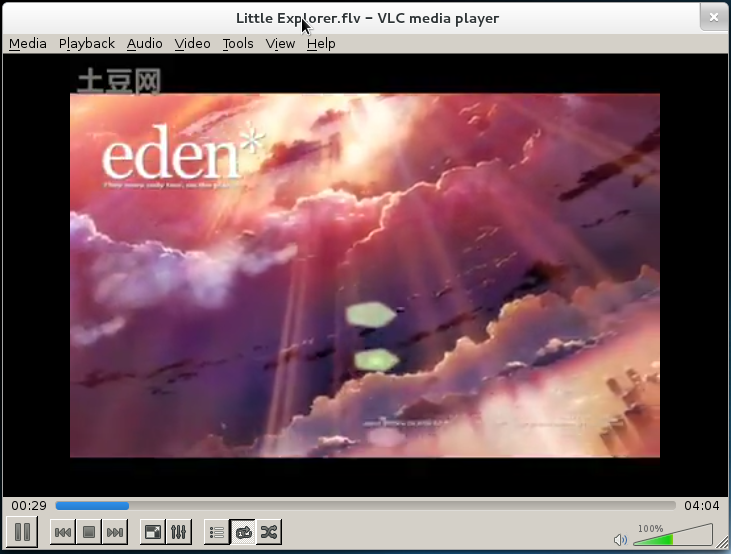
Little Explorer music video

I then saved the script as /home/chunlin/Music/alarm.sh. Next, I made the file executable.

[chunlin@chunlin Music]$ chmod +x alarm.sh

Finally, I just needed to schedule it in crontab. Crontab is the program used to install, remove or list the tables used to serve the cron(8) daemon (Reference: man crontab).

[chunlin@chunlin Music]$ export EDITOR=gedit
[chunlin@chunlin Music]$ crontab -e

After that, the gedit window would popup (Oh yeah, I like gedit). In the editor, I just needed to key in the following line in the file.

0 7  * * * /home/chunlin/Music/alarm.sh

The first five fields are time and date fields. The first one is minute (0 – 59), followed by hour (0 – 23), followed by day of month (1 – 31), followed by month (1 – 12) and day of week (sun, mon, …, sat). Any of the five fields can contain an asterisk which means “first-last”. So, “0 7 * * *” means the task will be scheduled at 7am everyday.

After saving the file and closing the gedit window, a line saying “crontab: installing new crontab” would be printed on the Terminal window. That meant the cron job had been added successfully and the alarm clock was created.

During the time I was doing this alarm, I also found some interesting and useful online discussion about the crontab and shell script as stated below.

  1. How to Schedule Tasks on Linux: An Introduction to Crontab Fileshttp://www.howtogeek.com/101288/how-to-schedule-tasks-on-linux-an-introduction-to-crontab-files/
  2. Shell Script Not Running via Crontab, Runs Fine Manuallyhttp://stackoverflow.com/questions/2224969/shell-script-not-running-via-crontab-runs-fine-manually
  3. Reasons Why Crontab Does Not Workhttp://askubuntu.com/questions/23009/reasons-why-crontab-does-not-work

p/s: Actually, by the time I finished this alarm, it was already 2am. So eventually I still overslept. >__<