[KOSD] Multiple Parallel Operations in Entity Framework Core (.NET 8)

In a .NET Web API project, when we have to perform data processing tasks in the background, such as processing queued jobs, updating records, or sending notifications, it’s likely designed to concurrently perform database operations using Entity Framework (EF) in a BackgroundService when the project starts in order to significantly reduce the overall time required for processing.

However, by design, EF Core does not support multiple parallel operations being run on the same DbContext instance. So, we need to approach such background data processing tasks in a different manners as discussed below.

Code Setup

Let’s begin with a simple demo project setup.

In many ASP.NET Core applications, DbContext is registered with the Dependency Injection (DI) container, typically with a scoped lifetime. For example, in Program.cs, we can configure MyDbContext to connect to a MySQL database with .

builder.Services.AddDbContext<MyDbContext>(options =>
options.UseMySql(connectionString));

Next, we have a scoped service defined as follows. It will retrieve a set of relevant records from the database MyTable.

public class MyService : IMyService
{
private readonly MyDbContext _myDbContext;

public MyService(MyDbContext myDbContext)
{
_myDbContext = myDbContext;
}

public async Task RunAsync(CancellationToken cToken)
{
var result = await _myDbContext.MyTable
.Where(...)
.ToListAsync();

...
}
}

Here we will be consuming this MyService in a background task. In Program.cs, using the code below, we setup a background service called MyProcessor with the DI container as a hosted service.

builder.Services.AddHostedService<Processor>();

Hosted services are background services that run alongside the main web application and are managed by the ASP.NET Core runtime. A hosted service in ASP.NET Core is a class that implements the IHostedService interface, for example BackgroundService, the base class for implementing a long running IHostedService.

As shown in the code below, since MyService is a scoped service, we first need to create a scope because there will be no scope created for a hosted service by default.

public class MyProcessor : BackgroundService
{
private readonly IServiceProvider _services;
private readonly IList<Task> _processorWorkTasks;

public Processor(IServiceProvider services)
{
_services = services;
_processorWorkTasks = new List<Task>();
}

protected override async Task ExecuteAsync(CancellationToken cToken)
{
int numberOfProcessors = 100;

for (var i = 0; i < numberOfProcessors; i++)
{
await using var scope = _services.CreateAsyncScope();
var myService = scope.ServiceProvider.GetRequiredService<IMyService>();

var workTask = myService.RunAsync(cToken);
_processorWorkTasks.Add(workTask);
}

await Task.WhenAll(_processorWorkTasks);
}
}

As shown above, we are calling myService.RunAsync, an async method, without await it. Hence, ExecuteAsync continues running without waiting for myService.RunAsync to complete. In other words, we will be treating the async method myService.RunAsync as a fire-and-forget operation. This can make it seem like the loop is executing tasks in parallel.

After the loop, we will be using Task.WhenAll to await all those tasks, allowing us to take advantage of concurrency while still waiting for all tasks to complete.

Problem

The code above will bring us an error as below.

System.ObjectDisposedException: Cannot access a disposed object.
Object name: ‘MySqlConnection’.

System.ObjectDisposedException: Cannot access a disposed context instance. A common cause of this error is disposing a context instance that was resolved from dependency injection and then later trying to use the same context instance elsewhere in your application. This may occur if you are calling ‘Dispose’ on the context instance, or wrapping it in a using statement. If you are using dependency injection, you should let the dependency injection container take care of disposing context instances.

If you are using AddDbContextPool instead of AddDbContext, the following error will occur also.

System.InvalidOperationException: A second operation was started on this context instance before a previous operation completed. This is usually caused by different threads concurrently using the same instance of DbContext. For more information on how to avoid threading issues with DbContext, see https://go.microsoft.com/fwlink/?linkid=2097913.

The error is caused by the fact that, as we discussed earlier, EF Core does not support multiple parallel operations being run on the same DbContext instance. Hence, we need to solve the problem by having multiple DbContexts.

Solution 1: Scoped Service

This is a solution suggested by my teammate, Yimin. This approach is focusing on changing the background service, MyProcessor.

Since DbContext is registered as a scoped service, within the lifecycle of a web request, the DbContext instance is unique to that request. However, in background tasks, there is no “web request” scope, so we need to create our own scope to obtain a fresh DbContext instance.

Since our BackgroundService implementation above already has access to IServiceProvider, which is used to create scopes and resolve services, we can change it as follows to create multiple DbContexts.

public class MyProcessor : BackgroundService
{
private readonly IServiceProvider _services;
private readonly IList<Task> _processorWorkTasks;

public Processor(
IServiceProvider services)
{
_services = services;
_processorWorkTasks = new List<Task>();
}

protected override async Task ExecuteAsync(CancellationToken cToken)
{
int numberOfProcessors = 100;

for (var i = 0; i < numberOfProcessors; i++)
{
_processorWorkTasks.Add(
PerformDatabaseOperationAsync(cToken));
}

await Task.WhenAll(_processorWorkTasks);
}

private async Task PerformDatabaseOperationAsync(CancellationToken cToken)
{
using var scope = _services.CreateScope();
var myService = scope.ServiceProvider.GetRequiredService<IMyService>();
await myService.RunAsync(cToken);
}
}

Another important change is to await for the myService.RunAsync method. If we do not await it, we risk leaving the task incomplete. This could lead to problem that DbContext does not get disposed properly.

In addition, if we do not await the action, we will also end up with multiple threads trying to use the same DbContext instance concurrently, which could result in exceptions like the one we discussed earlier.

Solution 2: DbContextFactory

I have proposed to my teammate another solution which can easily create multiple DbContexts as well. My approach is to update the MyService instead of the background service.

Instead of injecting DbContext to our services, we can inject DbContextFactory and then use it to create multiple DbContexts that allow us to execute queries in parallel.

Hence, the service MyService can be updated to be as follows.

public class MyService : IMyService
{
private readonly IDbContextFactory<MyDbContext> _contextFactory;

public MyService(IDbContextFactory<MyDbContext> contextFactory)
{
_contextFactory = contextFactory;
}

public async Task RunAsync()
{
using (var context = _contextFactory.CreateDbContext())
{
var result = await context.MyTable
.Where(...)
.ToListAsync();

...
}
}
}

This also means that we need to update AddDbContext to AddDbContextFactory in Program.cs so that we can register this factory as follows.

builder.Services.AddDbContextFactory<MyDbContext>(options =>
options.UseMySql(connectionString));

Using AddDbContextFactory is a recommended approach when working with DbContext in scenarios like background tasks, where we need multiple, short-lived instances of DbContext that can be used concurrently in a safe manner.

Since each DbContext instance created by the factory is independent, we avoid the concurrency issues associated with using a single DbContext instance across multiple threads. The implementation above also reduces the risk of resource leaks and other lifecycle issues.

Wrap-Up

In this article, we have seen two different approaches to handle concurrency effectively in EF Core by ensuring that each database operation uses a separate DbContext instance. This prevents threading issues, such as the InvalidOperationException related to multiple operations being started on the same DbContext.

The first solution where we create a new scope with CreateAsyncScope is a bit more complicated but If we prefer to manage multiple scoped services, the CreateAsyncScope approach is appropriate. However, If we are looking for a simple method for managing isolated DbContext instances, AddDbContextFactory is a better choice.

References

KOSD, or Kopi-O Siew Dai, is a type of Singapore coffee that I enjoy. It is basically a cup of coffee with a little bit of sugar. This series is meant to blog about technical knowledge that I gained while having a small cup of Kopi-O Siew Dai.

Rewrite

This is a post about code refactoring, the long journey of removing technical debts in the system I have built at work.

Since late 2015, I have been working on a system which is supposed to be extensible and scalable to support our branches in different countries. With the frequent change of user requirements and business strategies, mistakes and system-wide code refactoring are things that I can’t avoid.

Today, I’m going to list down some key lessons and techniques I learned in this one year plus of journey of clearing technical debts.

…we are not living in a frozen world of requirements and changes. So you can’t and shouldn’t avoid refactoring at all.

The risk in avoiding would definitely bring up messy codes, and tough maintenance of your software, you can leave it behind but somebody else would suffer.

— Nail Yuce, Author of the redbook “Collaborative Application Lifecycle Management”

Databases Organization

Originally, we have three branches in three countries. The branches are selling the same product, laptop. It’s business decision that these three branches should behave individually with different names so that customers generally can’t tell that these three branches are operated by one company.

Let’s say these three branches have names as such, Alpha, Beta, and Gamma. Instead of setting up different databases for the branches, I put the tables of these three branches in the same database for two reasons:

  1. Save cost;
  2. Easy to maintain because there will be only one database and one connection string.

These two points turn out to be invalid few months after I designed the system in such a way.

I’m using Azure SQL, actually separating databases won’t incur higher cost because of the introduction of Elastic Database Pool in Microsoft Azure. It’s also not easy to maintain because to put three business entities in one database, I have two ways to do it.

  1. Have a column in each table specifying the record is from/for which branch;
  2. Prefix the table names.

I chose the 2nd way. Prefix the table names. Hence, instead of a simple table name such as Suppliers, I now have three tables, APSupplier, BTSupplier, and GMSupplier, where AP, BT, and GM are the abbreviation of the branch names.

This design decision leads to the second problem that I am going to share with you next.

Problem of Prefixing Table Names

My senior once told me that experience was what made a software developer valuable. The “experience” here is not about technical experience because technology simply moves forward at a very fast pace, especially in web development.

The experience that makes a software developer valuable is more about system design and decision making in the software development process. For example, now I know prefixing table names in my case is a wrong move.

TooYoungTooSimple
Experience helps in building a better system which is not “too simple and naive”.

There are actually a few obvious reasons of not prefixing.

For those who are using Entity Framework and love intellisense feature in Visual Studio IDE, they will know my pain. When I’m going to search for Supplier table, I have to type the two-letter branch abbreviation first then search for the Supplier table. Hence in the last one year, our team spent lots of man hours going through all these AP, BT, and GM things. Imaging the company starts to grow to 20 countries, we will then have AP, BT, GM, DT (for Delta), ES (for Epsilon), etc.

To make things worse, remember that three branches are actually just selling the laptops with the similar business models? So what would we get when we use inheritance for our models? Many meaningless empty sub-classes.

public abstract class BaseSupplier
{
    public int Id { get; set; }
    public string Name { get; set; }
    public string PersonInCharge { get; set; }
    public string Email { get; set; }
    public bool Status { get; set; }
}

public class APSupplier : BaseSupplier { }

public class BTSupplier : BaseSupplier { }

public class GMSupplier : BaseSupplier { }

So if we have branches in 20 countries (which is merely 10% of the total number of countries in the world), then our software developers’ life is going to be miserable because they need to maintain all these meaningless empty classes.

Factory Design Pattern and Template Methods

However, the design above actually at the same time also makes our system to be flexible. Now, imagine that one of the branches requests for a system change which requires addition of columns in its own Supplier table, we can simply change the corresponding sub-class without affecting the rest.

It-Is-Not-Bad-If-You-Know-How-To-Use_It
Design Patterns are good if we know how to use them properly. (Image Source: Rewrite)

This leads us to the Factory Design Pattern. Factory Design Pattern allows us to standardize the system design for each of the branch in the same system while at the same time allowing for individual branch to define their own business models.

public abstract class SupplierFactory
{
    public static SupplierFactory GetInstance(string portal)
    {
        return Activator.CreateInstance(Type.GetType($"Lib.Factories.Supplier.{portal}SupplierFactory")) as SupplierFactory;
    }

    protected abstract BaseSupplier CreateInstanceOfSupplier();

    protected abstract void InsertSupplierToDatabase(BaseSupplier newSupplier);

    public abstract IQueryable RetrieveSuppliers();

    public async Task AddNewSupplierAsync(SupplierManageViewModel manageVM)
    {
        ...
        var newSupplier = CreateInstanceOfSupplier();
        newSupplier.Name = manageVM.Name;
        newSupplier.PersonInCharge = manageVM.PersonInCharge;
        newSupplier.Email= manageVM.Email;
        newSupplier.Status = manageVM.Status;
        InsertSupplierToDatabase(newSupplier);
    }

    ...
}

For each of the branch, then I define their own SupplierFactory which inherits from this abstract class SupplierFactory.

public class AlphaSupplierFactory : SupplierFactory
{
    private AlphaDbContext db = new AlphaDbContext();

    public override IQueryable RetrieveSuppliers()
    {
        return db.APSuppliers;
    }

    protected override void InsertSupplierToDatabase(BaseSupplier newSupplier)
    {
        db.APSuppliers.Add((APSupplier)newSupplier);
    }

    ...
 }

As shown in the code above, firstly, I no longer use the abbreviation for the prefix of the class name. Yup, having abbreviation hurts.

Secondly, I have also split the big database to different smaller databases which store each branch’s info separately.

The standardization of the workflow is done using Template Method such as AddNewSupplier method shown above. The creation of new supplier will be using the same workflow for all branches.

Reflection

public static SupplierFactory GetInstance(string portal)
{
    return Activator.CreateInstance(Type.GetType($"Lib.Factories.Supplier.{portal}SupplierFactory")) as SupplierFactory;
}

For those who wonder what I am doing with the Activator.CreateInstance in the GetInstance method, I use it to create an instance of the specified type that type’s default constuctor with portal acts as an indicator on which sub-class the code should pick using reflection with the Type.GetType method. So the values for portal will be Alpha, Beta, Gamma, etc. in my case.

This unfortunately adds one more burden to our development team to pay attention to the naming convention of the classes.

Fluent API: ToTable

All these unnecessary complexity is finally coming to an end after my team found out how to make use of the Fluent API. Fluent API provides several important methods to configure entities which help to override Code First conventions. ToTable method is one of them.

ToTable helps mapping entity to the actual table name. Hence, now we can fix our naming issues in our databases with the codes below in each of the branch’s database context class.

protected override void OnModelCreating(DbModelBuilder modelBuilder)
{
    base.OnModelCreating(modelBuilder);

    modelBuilder.Entity().ToTable("APSuppliers");
    ... // mappings for other tables
 }

With this change, we can furthermore standardize the behavior and workflow of the system for each of our branch. However, since we only start to apply this after we have expanded our business to about 10 countries, there will be tons of changes waiting for us if we are going to apply Fluent API to refactor our codes.

Technical Debts

I made a few mistakes in the beginning of system design because of lacking of experience building extensible and scalable systems and lack of sufficient time and spec given to do proper system design.

This naming issue is just one of the debts we are going to clear in the future. Throughout the one year plus of system development, the team also started to realize many other ways to refactor our codes to make it more robust.

As a young team in a non-software-development environment, we need to be keen on self-learning but at the same time understand that we can’t know everything. We will keep on fighting to solve the crucial problems in the system and at the same time improving the system to better fit the changing business requirements.

I will discuss more about my journey of code refactoring in the future posts. Coming soon!

I-Was-Such-An-Idiot-Back-Then.png
Reading my old codes sometimes makes me slap myself. (Image Source: Rewrite)

Azure Blob Storage and File API

Azure Blob Storage - Azure SDK - ASP .NET MVC - Entity Framework - HTML5

When my applications were hosted on Windows Azure Virtual Machines (VM), we stored the images uploaded via our web applications in the hard disks of the VMs (except the temporary disk). However, when we started load balancing, we soon encountered a problem that the uploaded images were only found in one of the VMs. So we needed to find a centralized storage for those images.

Recently, when we are using Azure PaaS (aka Cloud Service), even without load balancing, we already encounter the same issue. That is simply because the hard drives used in Cloud Service instances are not persistent. Hence, a persistent file storage on the cloud is needed.

IaaS vs. PaaS
IaaS vs. PaaS

Blob Storage

Azure Blob Storage, according to Azure Documentation, is a service for storing large amount of unstructured data that can be accessed everywhere via HTTP or HTTPS. Hence, it is an ideal tool that we can use as the persistent image cloud storage.

There are two types of blob, Page Blob and Block Blob. Page Blob is commonly used for storing VHD files for VMs because it is optimized for random read and write operations.

For most of the files uploaded, it’s recommended to store as Block Blobs because large files will be split into smaller blocks and then uploaded concurrently. Hence, Block Blob is designed to give us faster upload and better throughput, which is great for image upload.

The maximum size for a Block Blob is 64 MB. Hence, if the uploaded file is more than 64 MB, we must upload it as a set of blocks; otherwise, we will receive status code 413 (Request Entity Too Large). For my web applications, there is no need for uploading an image which is more than 5MB most of the time. Hence, I can just limit the size of images before the user uploads them.

HttpPostedFileBase imageUpload;
...
if (imageUpload.ContentLength > 0 && imageUpload.ContentLength <= 5242880)
{
    //warn the user to resize the image
}

Let’s Try Uploading Images

I’m going to share how to upload more than one image to the Azure Blob Storage from an ASP .NET MVC 5 application. If you are going to upload just one image, simply remove the for loop and change List to just DBPhoto in the codes below.

First of all, I create a class to handle upload to Azure Storage operation.

public class AzureStorage
{
    public static async Task UploadAndSaveBlobAsync(
        HttpPostedFileBase imageFile, CloudBlobContainer container)
    {
        string blobName = Guid.NewGuid().ToString() + 
            Path.GetExtension(imageFile.FileName);

        CloudBlockBlob imageBlob = container.GetBlockBlobReference(blobName);
        using (var fileStream = imageFile.InputStream) 
        {
            await imageBlob.UploadFromStreamAsync(fileStream);
        }

        return imageBlob;
    }
}

So, in my controller, I have the following piece of code which will be called when an image is submitted via web page.

[HttpPost]
[ValidateAntiForgeryToken]
public async Task Create(
    [Bind(Include = "ImageUpload")] PhotoViewModel model)
{
    var validImageTypes = new string[] { "image/jpeg", "image/pjpeg", "image/png" };
    
    if (ModelState.IsValid) 
    {
        if (model.ImageUpload != null && model.ImageUpload.Count() > 0)
        {
            var storageAccount = CloudStorageAccount.Parse 
                (WebConfigurationManager.AppSettings["StorageConnectionString"]);

            var blobClient = storageAccount.CreateCloudBlobClient();
            blobClient.DefaultRequestOptions.RetryPolicy = 
                new LinearRetry(TimeSpan.FromSeconds(3), 3);  

            var imagesBlobContainer = blobClient.GetContainerReference("images");
            foreach (var item in model.ImageUpload) 
            { 
                if (item != null) {
                    continue;
                }
                
                if (validImageTypes.Contains(item.ContentType) && 
                    item.ContentLength > 0 && item.ContentLength <= 5242880)
                {
                    var blob = await AzureStorage.UploadAndSaveBlobAsync(item, imagesBlobContainer);
                    DBPhoto newPhoto = new DBPhoto(); 
                    newPhoto.URL = blob.Uri.ToString();
                    db.DBPhoto.Add(newPhoto); 
                } 
                else 
                {
                    // Show user error message 
                    return View(model); 
                }
            }
            db.SaveChanges();
            ... 
        } 
        else
        {
            // No image to upload
        } 
    }
    return View(model);
}

In the code above, there are many new cool things.

Firstly, it is the connection string to Azure Blob Storage, which I store in StorageConnectionString in web.config. The format for secure connection string is as follows.

DefaultEndpointsProtocol=https;AccountName=;AccountKey=;

Retrieve the access keys to the Storage Account.

Secondly, it’s LinearRetry. It is basically a retry policy which states how many times the program will retry and how much time needed between retries. In my case, it will only wait for 3 seconds after each try up to 3 tries.

Thirdly, I get the URL of the image on the Azure Blob Storage via blob.Uri.ToString() and store it into the database table. The URL will be used later for displaying the image as well as deleting the image.

Fourthly, I actually check to see if model.ImageUpload has null entries. This is because if I submit the form without any image to upload, model.ImageUpload has one entry. Not zero, but one. The only one entry is actually null. So if I don’t check to see whether the entry in model.ImageUpload is null, there will be an exception thrown.

The controller has such a long code. Luckily the code needed in the model and view is short and simple.

For the model PhotoViewModel, I have the following.

public class PhotoViewModel
{
    ...
    
    [Display(Name = "Current Images")]
    public List AvailablePhotos { get; set; }
}

For view, it is easy to allow selecting multiple files in the same view page. The “multiple = “true”” is to make sure more than one file can be selected in the File Explorer. You can omit this attribute if you only want at most one file being selected.

@Html.LabelFor(model => model.ImageUpload, new { style = "font-weight: bold;" })
@Html.TextBoxFor(model => model.ImageUpload, new { type = "file", multiple = "true" })
@Html.ValidationMessageFor(model => model.ImageUpload)

Image Size and HttpException

The image upload function looks fine. However, when images having size larger than a certain size is uploaded, HttpException will be thrown.

There is no way that having exception would be fun too! (Image Credit: Tari Tari)

In order to prevent DOS attacks which upload huge files to the server, IIS by default only allows files which have size less than 4MB to be uploaded. Hence, although I earlier put a check to prevent image larger than 5MB to be uploaded, the exception will still be thrown if an image of size between 4 to 5MB is uploaded.

What if we just change the if clause above to allow only at most 4MB of image being uploaded? This won’t work because the exception is already thrown before the if condition is reached.

Then, can we just increase the IIS limit from 4MB to, let’s say, 100MB or something bigger? Sure. This can work. However, it still doesn’t stop someone uploads something bigger than the limit. Also, it makes attackers easier to exhaust your server with big files. Hence, expanding the upload size restriction is not really a full solution.

If you are interested, there are many good articles online discussing about this problem. I highlight some interesting ones below.

  1. Use HttpModule to Handle File Uploads;
  2. Use RIA (Rich Internet Application) Services in Silverlight (Seriously, we are talking about Silverlight in year 2015?);
  3. SubStatusCode = 13 in IIS 7;
  4. Catch the Exception in Global.asax.

I don’t really like the methods listed above, especially the 3rd and 4th options. It’s already too late to inform the user when the exception is thrown. Could we do something at client side before the images are being uploaded?

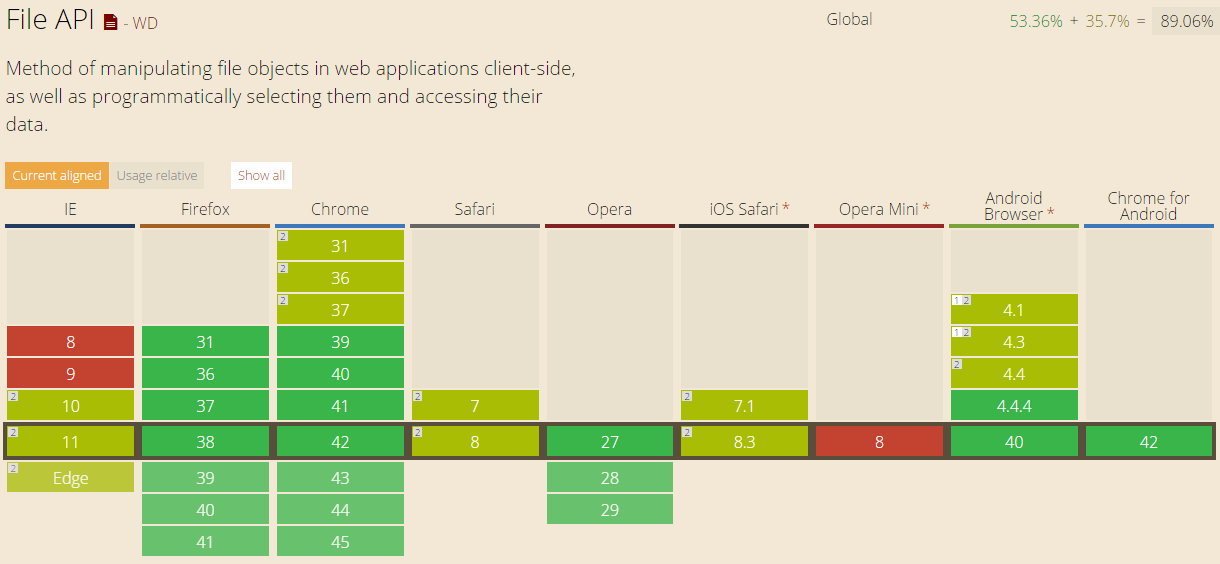
Luckily, we have File API in HTML 5. It allows to loop through the files in JavaScript to check their size. So, after the submit button is clicked, I will call a JavaScript method to check for the size of the images before they are being uploaded.

function IsFileSizeAcceptable() {
    if (typeof FileReader !== "undefined") {
        var filesBeingUploaded = document.getElementById('ImageUpload').files;
        for (var i = 0; i < filesBeingUploaded.length; i++) {
            if (filesBeingUploaded[i].size >= 4194304) { // Less than 4MB only
                alert('The file ' + filesBeingUploaded[i].name + ' is too large. Please remove it from your selection.');
                return false;
            }
        }
    }
    return true;
}

File API is currently supported in major modern browsers. (Image Credit: http://caniuse.com/#feat=fileapi)

Remove from Azure Blob Storage

It’s normal that files uploaded to storage will be removed later. So how are we going to implement this feature in our ASP .NET MVC 5 application?

First of all, I added the following code to my AzureStorage.cs.

public static async Task DeleteBlobAsync(Uri blobUri, CloudBlobContainer container)
{
    string blobName = blobUri.Segments[blobUri.Segments.Length - 1];
    CloudBlockBlob blobToDelete = container.GetBlockBlobReference(blobName);

    await blobToDelete.DeleteAsync(); 
}

Secondly, I just pass in the Azure Storage URL of the image that I would like to remove and then call the DeleteBlobAsync method.

Uri blobUri = new Uri();
await AzureStorage.DeleteBlobAsync(blobUri, imagesBlobContainer);

Then the image will be deleted from the Azure Storage successfully.

Global.asax.cs and Blob Container

In order to have my application to create a blob container automatically if it doesn’t already exist, I add a few lines in Global.asax.cs as follows.

var storageAccount = CloudStorageAccount.Parse(
    WebConfigurationManager.AppSettings["StorageConnectionString"]);
var blobClient = storageAccount.CreateCloudBlobClient();
var imagesBlobContainer = blobClient.GetContainerReference("images");
if (imagesBlobContainer.CreateIfNotExists())
{
    imagesBlobContainer.SetPermissions(new BlobContainerPermissions
        {
            PublicAccess = BlobContainerPublicAccessType.Blob
        });
}

Write a Console Program to Upload File to Azure Storage

So, how is it done if we are developing a console application, instead of web application?

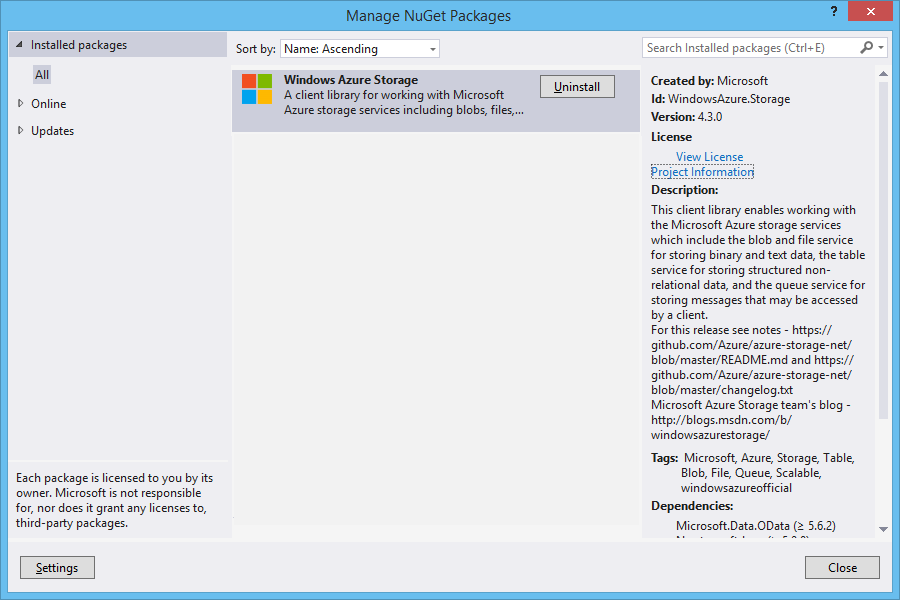
Windows Azure Storage NuGet Package needs to be installed first.

The codes below show how I upload an html file from my local hard disk to Azure Blob Storage. Then I can share the Azure Storage URL of the file to my friends so that they can read the web page.

Similar to what I do in web application, this is how I connect to the Storage account via https.

var azureStorageAccount = new CloudStorageAccount(
    new StorageCredentials("", ""), true);

This is how I access the container.

var blobClient = new CloudBlobClient(azureStorageAccount.BlobStorageUri, azureStorageAccount.Credentials);
var container = blobClient.GetContainerReference("myfiles");

Then the next thing I do is just upload the local file to Azure Storage by specifying the file name, content type, etc.

CloudBlockBlob blob = container.GetBlockBlobReference("mysimplepage.html");
using (Stream file = System.IO.File.OpenRead(@"C:\Users\ChunLin\Documents\mysimplepage.html")) 
{
    blob.Properties.ContentType = "text/html"; 
    blob.UploadFromStream(file); 
}

Yup, that’s all. =)

Pricing

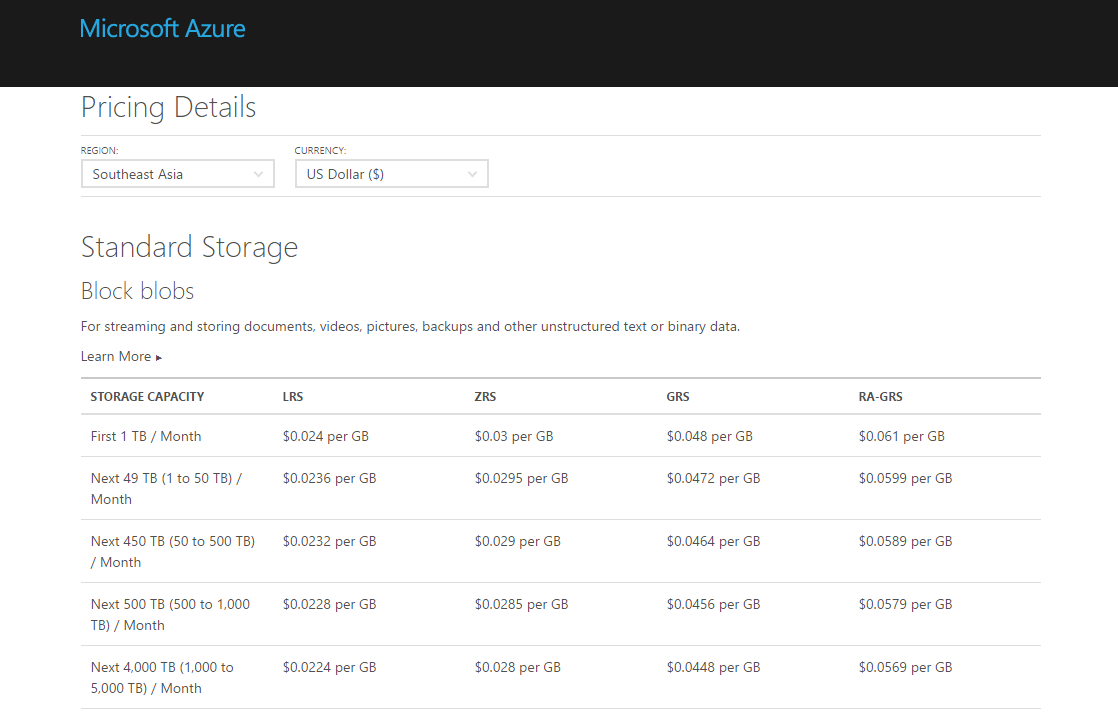
Hosting your files on cloud storage is sure convenience. However, Azure Blob Storage is not free. The following table shows the current pricing of Azure Block Blob Storage in South East Asia region. To get the latest pricing details, please visit Azure Storage Pricing page.

Azure Standard Block Blob Storage in SEA Pricing

Summer 2015 Self-Learning Project

This article is part of my Self-Learning in this summer. To read the other topics in this project, please click here to visit the project overview page.

Summer Self-Learning Banner

Entity Framework and Database

By using Entity Framework, we can save a lot of time on writing SQL ourselves because Entity Framework, a Microsoft-supported ORM for .NET, is able to generate the SQL for us.

I started to use ADO .NET when I was building .NET web applications in my first job. I learnt about how to call stored procedures with ADO .NET. I witnessed how my colleague wrote a 400-line SQL to complete a task which we normally will choose to do it in C#. I also realized the pain of forgetting to update the stored procedure when the C# code is already different.

After that, my friend introduced me Entity Framework when I was working on my first ASP .NET MVC project. Since then, I have been using Entity Framework because it enables me to deliver my web applications faster without writing (and debugging) any SQL myself. I read a very interesting article comparing between Entity Framework and ADO .NET. The author also acknowledged that the performance of Entity Framework was slower than hand-coded ADO .NET. He emphasized that, however, Entity Framework did maximize his productivity.

How I react when I read a 400-line stored procedure submitted by my colleague.

What Is Happening in Database with Entity Framework?

The SQL generated by Entity Framework is believed to be pretty good. However, it’s still nice to be aware of what SQL is being generated. For example, I have the following code to retrieve Singapore weather info.

using (var db = new ApplicationDbContext())
{
    var forecastRecords = db.SingaporeWeathers.ToList();
}

In Visual Studio, I can just mouse-over “SingaporeWeather” to get the following query.

SELECT 
    [Extent1].[RecordID] AS [RecordID], 
    [Extent1].[LocationID] AS [LocationID], 
    [Extent1].[WeatherDescription] AS [WeatherDescription], 
    [Extent1].[Temperature] AS [Temperature], 
    [Extent1].[UpdateDate] AS [UpdateDate]
FROM [dbo].[SingaporeWeathers] AS [Extent1]

If I have the following code which retrieves only records having temperature greater than 37, then I can use ToString().

using (var db = new ApplicationDbContext())
{
    var query = from sw in db.SingaporeWeathers where sw.Temperature > 37 select sw;
    Console.WriteLine(query.ToString());
}
SELECT
     [Extent1].[RecordID] AS [RecordID],
     [Extent1].[LocationID] AS [LocationID],
     [Extent1].[WeatherDescription] AS [WeatherDescription]
     [Extent1].[Temperature] AS [Temperature],
     [Extent1].[UpdateDate] AS [UpdateDate]
FROM [dbo].[SingaporeWeathers] AS [Extent1]
WHERE [Extent1].[Temperature] > cast(37 as decimal(18))

I am using DBContect API, so I can just use ToString(). Alternatively, you can also use ToTraceString(), which is a method of ObjectQuery, to get the generated SQL.

SQL Logging in Entity Framework 6

It is a great news for developer when Entity Framework is announced to have SQL Logging feature added For example, to write database logs to a file, I just need to do as follows.

using (var db = new ApplicationDbContext())
{
    var logFile = new StreamWriter("C:\\temp\\log.txt");
    db.Database.Log = logFile.Write;
    var forecastRecords = db.SingaporeWeathers.Where(x => x.Temperature > 37).ToList();
    logFile.Close();
}

Then in the log file, I can see logs as follows.

...
Closed connection at 6/6/2015 10:59:32 PM +08:00
Opened connection at 6/6/2015 10:59:32 PM +08:00
SELECT TOP (1) 
    [Project1].[C1] AS [C1], 
    [Project1].[MigrationId] AS [MigrationId], 
    [Project1].[Model] AS [Model], 
    [Project1].[ProductVersion] AS [ProductVersion]
FROM ( SELECT 
    [Extent1].[MigrationId] AS [MigrationId], 
    [Extent1].[Model] AS [Model], 
    [Extent1].[ProductVersion] AS [ProductVersion], 
    1 AS [C1]
    FROM [dbo].[__MigrationHistory] AS [Extent1]
    WHERE [Extent1].[ContextKey] = @p__linq__0
) AS [Project1]
ORDER BY [Project1].[MigrationId] DESC
-- p__linq__0: 'MyWeb.Migrations.Configuration' (Type = String, Size = 4000)
-- Executing at 6/6/2015 10:59:32 PM +08:00
-- Completed in 70 ms with result: SqlDataReader

Closed connection at 6/6/2015 10:59:32 PM +08:00
Opened connection at 6/6/2015 10:59:32 PM +08:00
SELECT 
    [Extent1].[RecordID] AS [RecordID], 
    [Extent1].[WeatherDate] AS [WeatherDate], 
    [Extent1].[WeatherDescription] AS [WeatherDescription], 
    [Extent1].[WeatherSecondaryDescription] AS [WeatherSecondaryDescription], 
    [Extent1].[IconFileName] AS [IconFileName], 
    [Extent1].[Temperature] AS [Temperature], 
    [Extent1].[UpdateDate] AS [UpdateDate]
FROM [dbo].[Weathers] AS [Extent1]
WHERE [Extent1].[Temperature] > cast(37 as decimal(18))
-- Executing at 6/6/2015 10:59:33 PM +08:00
-- Completed in 28 ms with result: SqlDataReader
...

So, as you can see, even the Code First migration related activity is logged as well. If you would like to know what are being logged, you can read an article about SQL Logging in EF6 which was written before it’s released.

Migration and the Verbose Flag

Speaking of Code First migration, if you would like to find out the SQL being generated when Update-Database is executed, you can add a Verbose flag to the command.

Update-Database -Verbose

Navigation Property

“I have no idea why tables in our database don’t have any relationship especially when we are using relational database.”

I heard from my friend that my ex-colleague shouted this in the office. He left his job few days after. I think bad codes and bad design do anger some of the developers. So, how do we do “relationship” in Entity Framework Code First? How do we specify the foreign key?

I quit!
I quit!

In Entity Framework, we use the Navigation Property to represent the foreign key relationship inside the database. With Navigation Property, we can define relationship between entities.

If we have a 1-to-1 Relationship between two entities, then we can have the following code.

public class Entity1
{
    [Key]
    public int Entity1ID { get; set; }
    public virtual Entity2 Entity2 { get; set; }
}

public class Entity2
{
    [Key, ForeignKey("Entity1")]
    public int Entity1ID { get; set; }
    public virtual Entity1 Entity1 { get; set; }
}

By default, navigation properties are not loaded. Here, the virtual keyword is used to achieve the lazy loading, so that the entity is automatically loaded from the database the first time a property referring to the entity is accessed.

However, there are people against using virtual keyword because they claim that lazy loading will have subtle performance issue in the application using it. So, what they suggest is to use the include keyword, for example

dbContext.Entity1.Include(x => x.Entity2).ToArray();

By specifying the ForeignKey attribute for Entity1ID in Entity2 class, Code First will then create a 1-to-1 Relationship between Entity1 and Entity2 using the DataAnnotations attributes.

For 1-to-n Relationship, we then need to change the navigation property, for example, in Entity1 class to use collection as demonstrated in the code below.

public class Entity1
{
    [Key]
    public int Entity1ID { get; set; }
    public virtual ICollection<Entity2> Entity2s { get; set; }
}

Finally, how about n-to-m Relationship? We will just need to change the navigation property in both Entity1 and Entity2 classes to use collection.

public class Entity2
{
    [Key]
    public int Entity2ID { get; set; }
    public virtual ICollection<Entity1> Entity1s { get; set; }
}

Together with the following model builder statement.

protected override void OnModelCreating(DbModelBuilder modelBuilder)
{
    modelBuilder.Entity<Entity2>()
        .HasMany(e2 => e2.Entity1s)
        .WithMany(e1 => e1.Entity2s)
        .Map(e12 => 
            {
                e12.MapLeftKey("Entity1ID");
                e12.MapRightKey("Entity2ID");
                e12.ToTable("Entity12");
            });
}

The code above is using Fluent API which won’t be discussed in this post.

Database Context Disposal

When I first used Scaffolding in MVC 5, I noticed the template of controller class it generates look something as follows.

public class MyController : Controller
{
    private MyContext db = new MyContext();
    
    protected override void Dispose(bool disposing)
    {
        if (disposing) 
        {
            db.Dispose(); 
        } 
        base.Dispose(disposing);
    }
}

Before using Scaffolding, I have always been using the Using block, so I only create database context where I have to, as recommended in a discussion on StackOverflow. Also, the Using block will have the Dispose() be called automatically at the end of the block, so I don’t need to worry about forgetting to include the Dispose() method to dispose the database context in my controller.

Azure SQL: Database Backup and Restore

Before ending this post, I would like to share about how DB backup and restore is done in Azure SQL Database.

First of all, Azure SQL Database has built-in backups and even self-service point in time restores. Yay!

For each activate databases, Azure SQL will create a backup and geo-replicate it every hour to achieve 1-hour Recovery Point Objective (RPO).

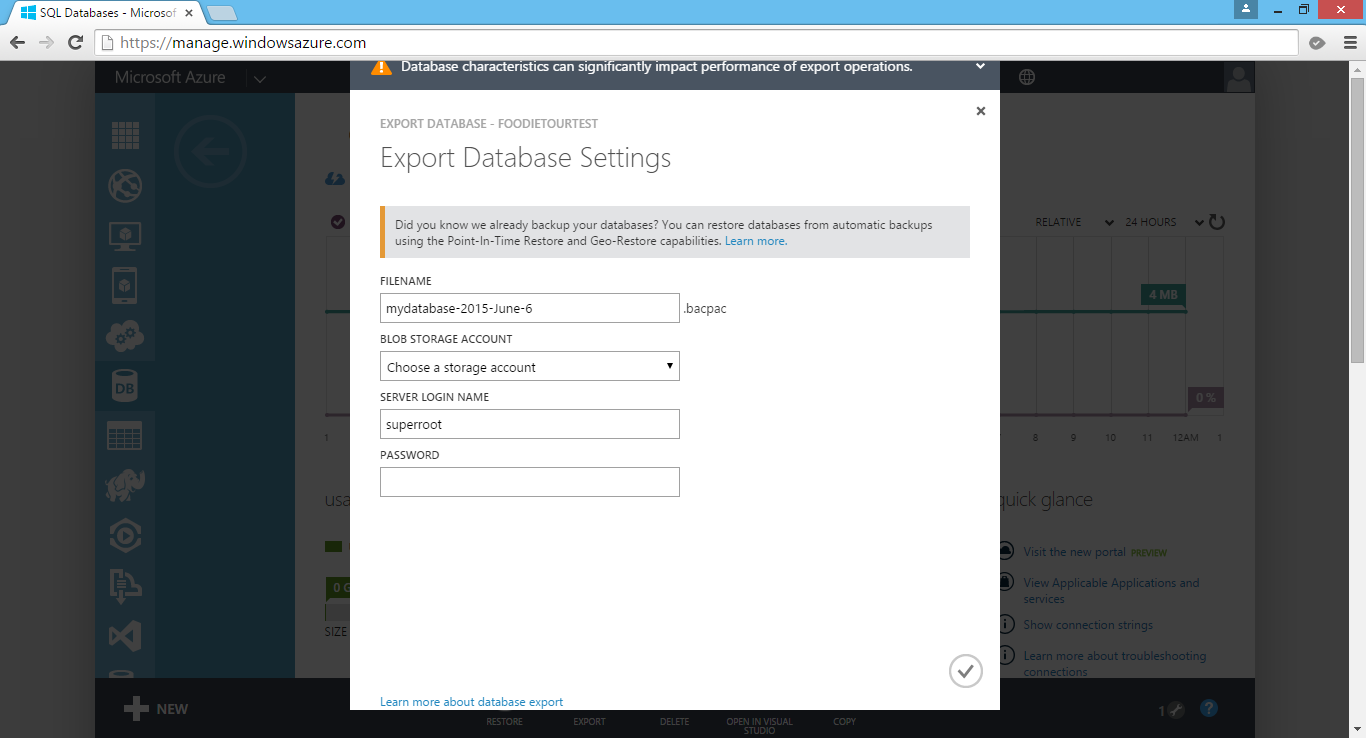
If there is a need to migrate the database or archive it, we can also export the database from Azure SQL Database. Simply click on the Export button in the SQL Databases section of Azure Management Portal and then choose an Azure blob storage account to export the database to.

Finally, just provide the server login name and password to the database and you are good to go.

Export DB from Azure SQL Database.

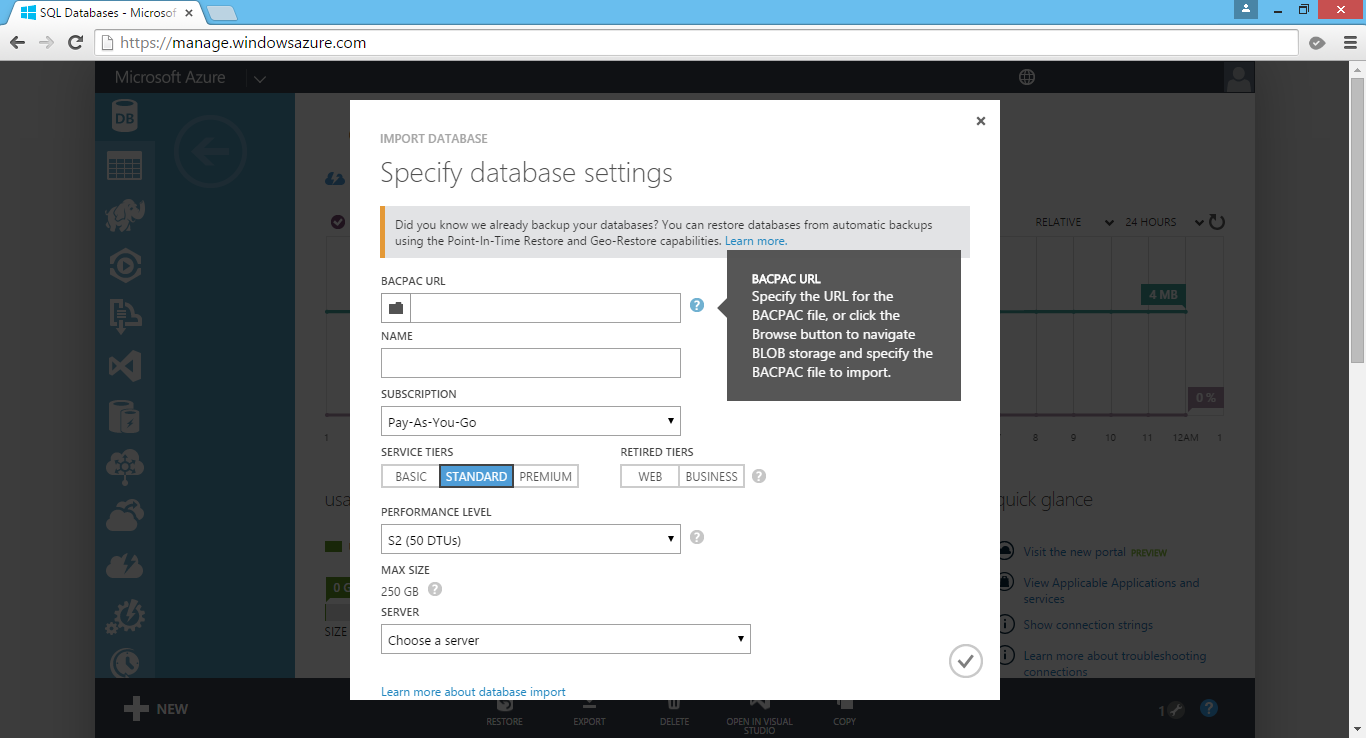
Later, we can also create a new database using the BACPAC file which is being generated by the Export function. In the Azure Management Portal, click New > Data Services > SQL Database > Import. This will open the Import Database dialog, as shown in the screenshot below.

Create a new database in Azure SQL Database by import BACPAC file.

Okai, that’s all for this post on Entity Framework, database, and Azure SQL Database. Thank you for your time and have a nice day!

Summer 2015 Self-Learning Project

This article is part of my Self-Learning in this summer. To read the other topics in this project, please click here to visit the project overview page.

Summer Self-Learning Banner