OneSimpleTablePaging: Doing Client-Side Table Pagination Easily

Motivation

Few days ago I was finding a solution for client-side HTML table pagination then I reached this page where I found a rather simple JS table pagination done by Ryan Zielke: http://neoalchemy.org/tablePagination.html

I like his solution very much because it does not require a lot of random CSS and JS files. In order to have the table pagination working in my web page, I just need to include one JS file and four images for the buttons. That’s all.

Few days after that, I started to think if there are ways to simplify his code and also to avoid using any image file. I would like to see if it’s possible that the table pagination can be done with just very simple and easy to understand JS code.

Mission Start!

After spending one day in Alumni Service Centre, NUS, I finally finished the first version of the project. I name it OneSimpleTablePaging: http://one-simple-table-paging.googlecode.com.

It now becomes my another open-source personal project after Google Docs Notifier and OneSync.

In my version, user can only customize the number of rows per page and the position of the pagination bar. This is to keep the code simple. So, if the user is okay with the default settings, after include the jQuery libraries and the OneSimpleTablePaging JS file to his/her web pages, he/she can actually just apply the method oneSimpleTablePagination() with empty array as parameter to existing tables to get the table pagination, for example

$(‘#main-table’).oneSimpleTablePagination({});

Yup, so now everything is so easy and straightforward. =)

Mission Clear

The following screenshot shows the look-and-feel of the table pagination handled by OneSimpleTablePaging.

OneSimpleTablePaging In Action

By the way, the table showed in the screenshot is a collection of my (favourite) watched anime. =P

Yup, now you can visit the project homepage of OneSimpleTablePaging hosted on Google Project Hosting to download the source code and then play with it. =)

Edit (22 Oct 2014)

OneSimpleTablePaging is now on GitHub!
OneSimpleTablePaging is now on GitHub: https://github.com/goh-chunlin/one-simple-table-paging!

Flipping Table: Showing Very Wide Table on Phone

Most of the mobile phones have vertical screen, so building a mobile website where user needs to scroll horizontally frequently is a No. Thus, it is not a good idea to have HTML tables which are very wide, especially those have text-boxes and many other fields for user to fill in as shown below.

Before Flipping Table
Have to scroll horizontally to fill up information in a wide table

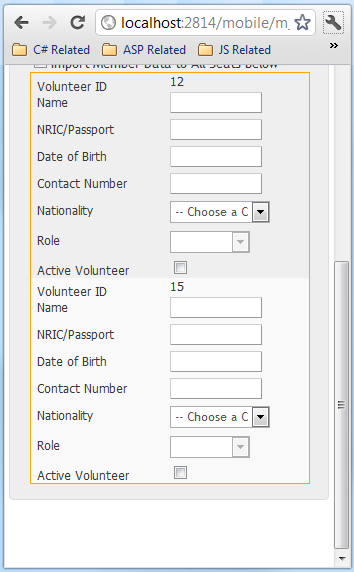
After the first version of the mobile website is done, I now focus on making the columns of the wide tables to be shown vertically, like the one shown below.

Columns now become rows

It is done using CSS. I like the solution very much because unlike some other solutions which require changes done to the ASPX, this solution with CSS will not affect the C# code behind.

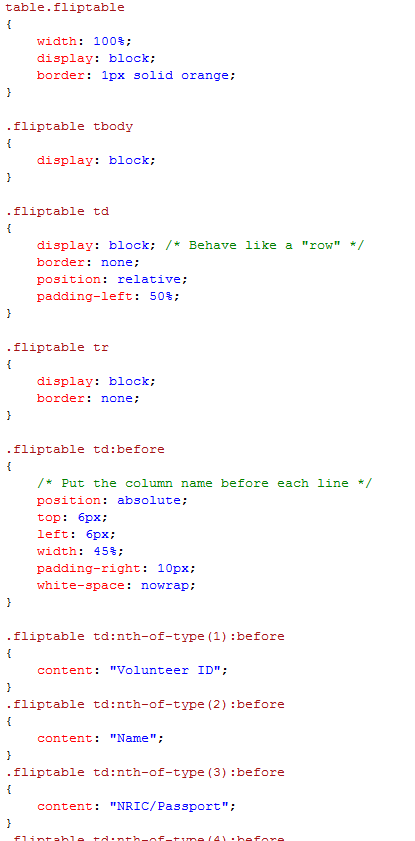
The CSS part is quite straight-forward. The idea is just to make each cell of every row to show line by line in the row. After that, the name of the columns will be placed in front of each line:

Fliptable CSS
The rest of the CSS is just adding header text to each row

There is an advanced solution posted online where the table can actually decide the layout itself based on the screen size: http://css-tricks.com/responsive-data-table-roundup/. That advanced version allows the user to get different look-and-feel on different devices. However, I somehow could not get it to work on my ASP website. Thus, I modified it to a simpler version as shown above.

Oh yeah, the CSS above does not work in Internet Explorer. According to a discussion on Stack Overflow, adding “float: left” to .fliptable td seems to solve the problem (at least in IE9).

Adding CSS3 to Visual Studio 2010 CSS Validation

I always edit CSS in Dreamweaver or Notepad (My friends always scream when they see me using Notepad to write CSS or HTML). Recently, I’m writing a web app to be deployed on Azure. So, I have the chance to edit CSS in Visual Studio 2010.

Visual Studio also provides us CSS validation. However, soon I found that VS kept warning me for having unknown CSS property names. I guessed that was due to the fact that it’s using an older CSS version for validation. Yappari, the “CSS Version for Validation” dropdown list showed that it’s currently using CSS 2.1. Thus, VS didn’t know the new property names introduced in CSS 3.

Warning (CSS 2.1): Unknown CSS Property Names

To solve that, I followed the steps suggested by Garry in StackOverflow. What I need to do is basically just downloading and then installing the “CSS 3 Intellisense Schema” (Free!) from VS extensions gallery: http://visualstudiogallery.msdn.microsoft.com/7211bcac-091b-4a32-be2d-e797be0db210.

Download CSS 3 Intellisense Schema for Free

In the discussion forum, there is a user, Nibblersrevenge, saying that if the CSS 3 validation entry was enabled even after the installation, we should copy the file “css30.xml” from the folder “C:\Program Files\Microsoft Visual Studio 10.0\Common7\Packages\1033\schemas\CSS” to the folder “C:\Program Files\Microsoft Visual Studio 10.0\Common7\Packages\1031\schemas\CSS”. Luckily, I didn’t encounter this problem.

After the installation is done, I can see the newly added CSS 3.0 option being added to the CSS validation dropdown. The warnings previously generated by VS are all gone after I change the CSS validation to CSS 3.0. Yay.

EDIT (27 April 2013): As iamprabhanshu pointed out in the comments section, if the CSS 3.0 option is still not available in the dropdown list after the installation, please  close the Visual Studio and re-open it.

No Warning in Validation with CSS 3.0